

Power Your Software Testing with AI Agents and Cloud
The Native AI-Agentic Cloud Platform to Supercharge Quality Engineering. Test Intelligently and Ship Faster.


- TestMu AI (Formerly LambdaTest)
- /
- Blog
- /
- A Quick Guide To Chrome Compatibility Mode
A Quick Guide To Chrome Compatibility Mode
How to enable Chrome compatibility mode? TestMu AI is here to explain further.
Last Updated on:
We often leverage web browsers to access different web content. It’s inevitable that the browser plays a key role in determining the depth of user experience. Thanks to the advent of browsers, there has been an upward trend in the usage of apps, extensions, and plugins.
Since there has been quite an increase in the devices and brands, we are having a tough time determining the right browser to use. It’s common for users to get muddled when they want to find the right browser compatibility. This is why its popularity is soaring high. Hence everyone should know how to activate compatibility mode in browsers.
In this new blog, let’s learn what Chrome compatibility mode is, why you need to enable it, how to get it done, and how to easily fix Chrome compatibility mode bugs. We will also explore how TestMu AI is gearing high in this domain.
So, let’s get started!
What is Chrome Compatibility Mode?
With the incredible growth of online web browsers, the technological rise is inevitable. Hence, web designers and developers should ensure that the websites they create are compatible with the latest tech stacks.
Google Chrome has a feature where you can enable Chrome compatibility mode to experience the older versions of your current browser with fewer restrictions and more accessibility to more data available on the Internet. Chrome’s IE Compatibility Mode enables users to access websites optimized for Internet Explorer within Chrome, ensuring legacy site support without switching browsers. With Chrome compatibility mode, users can take care of the aesthetic appeal of a website, like leveraging the previous Internet Explorer version, while still benefiting from the security and performance improvements of Chrome latest version.
When a website consists of “active mixed content” successfully loaded into an HTTP page, there will be a blockage from the browser to prevent exploitation. They have designed this feature to safeguard the website from losing sensitive page information. This will also ensure that the online browser testing is a success.
Do you know?
- So far, Chrome consists of 10 billion+ lifetime installs.
- Google Chrome has more than 130,000 extensions. Google also previously offered a separate Chrome apps platform, which it has since discontinued.
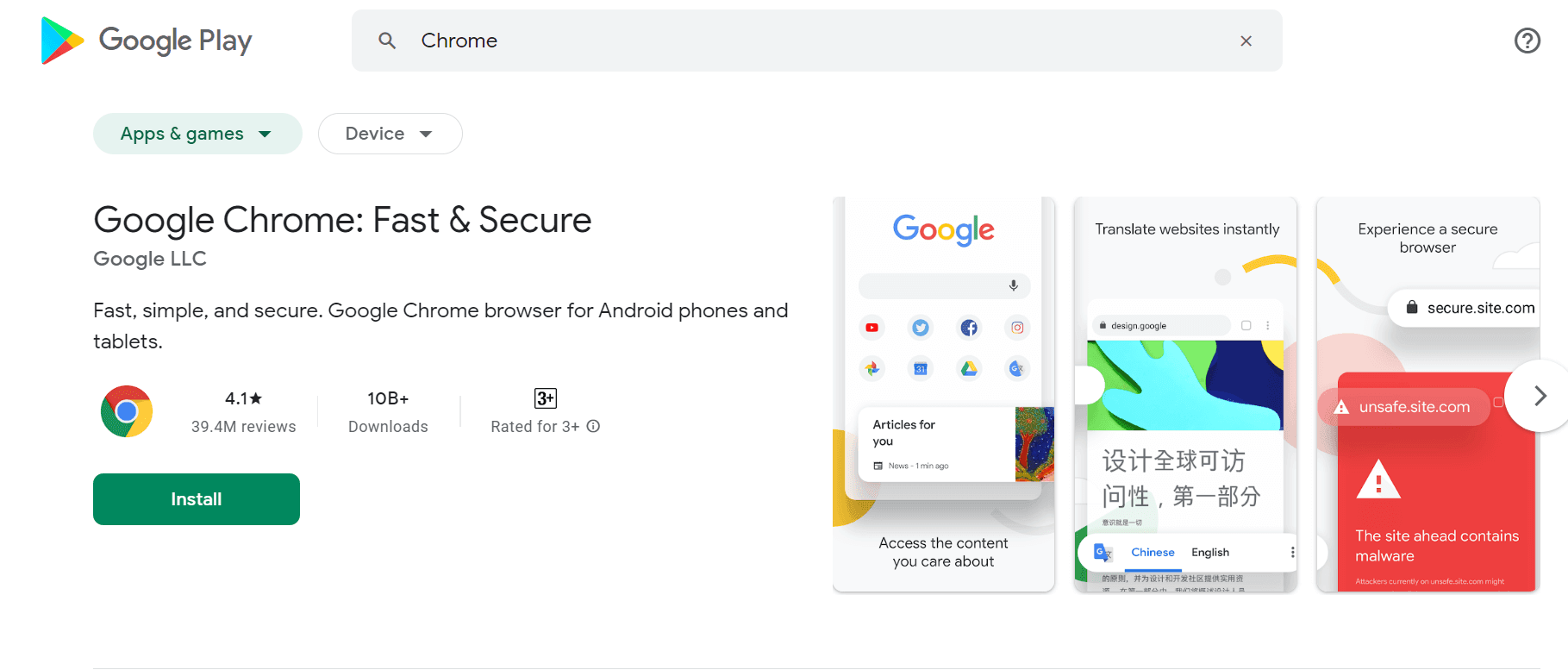
When we watch all these stats, it has become inevitable that we should know more about Chrome compatibility mode and how to enable it. This is to ensure that the web experience meets our expectations.

Enabling Chrome Compatibility Mode
When we speak about Chrome compatibility mode, you must try it while experiencing problems frequently with the current Google Chrome version on the desktop. With a compatibility mode warning, you can know that you have loaded an insecure website into your editor. It would also detect when the mixed content gets blocked. You can also access restriction-less internet surfing this way.
How to enable Chrome Compatibility Mode?
Here is the step-by-step procedure for enabling Chrome compatibility mode on your system.
Step 1: Open Google Chrome destination folder.

Step 2: Right-click on the Chrome icon and select Properties.

Step 3: Open the Compatibility tab located next to the Shortcut tab.
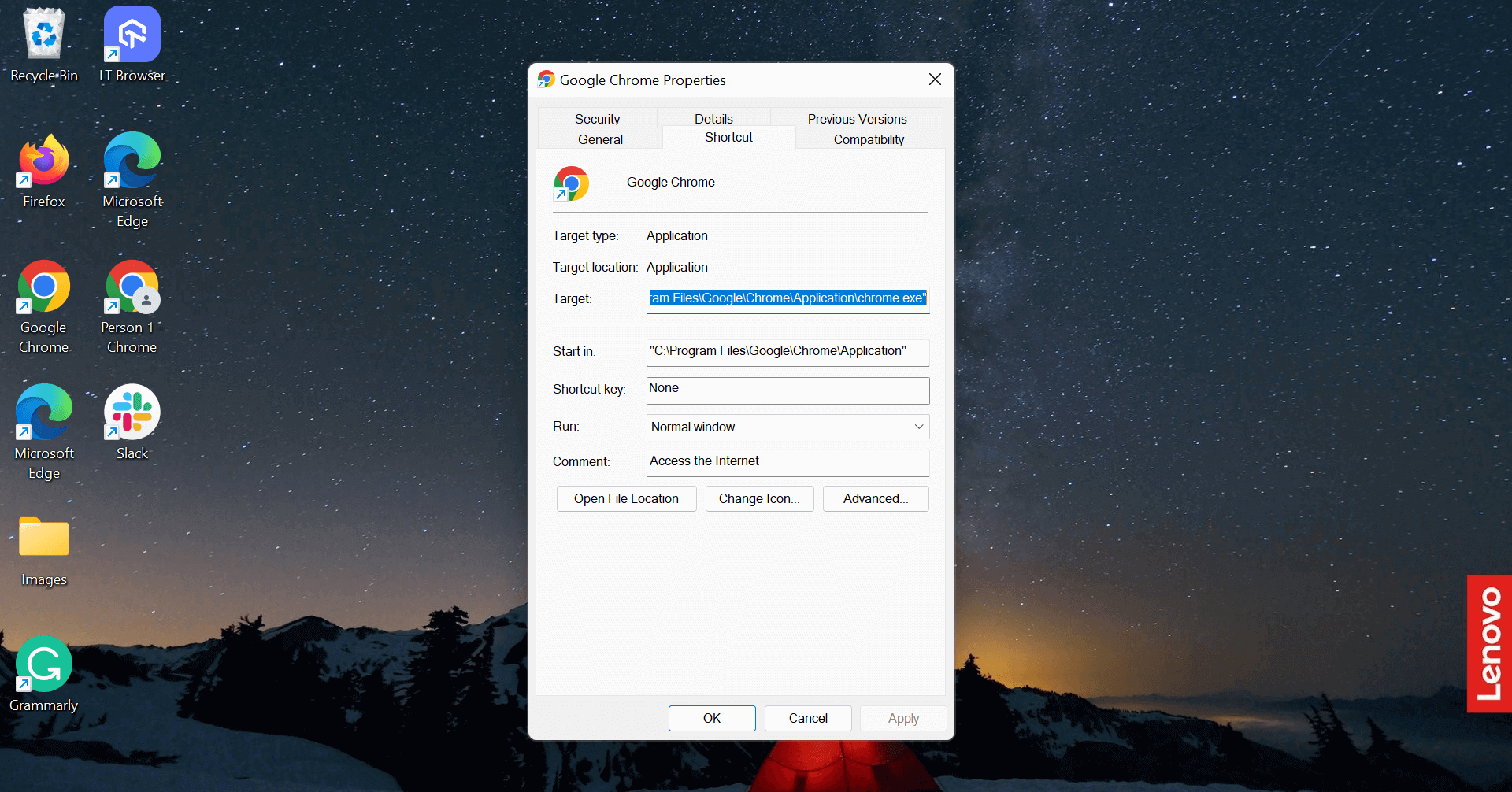
Step 4: Check the box that says ‘Run this program in compatibility mode for:‘ and choose your current operating system from the dropdown menu.
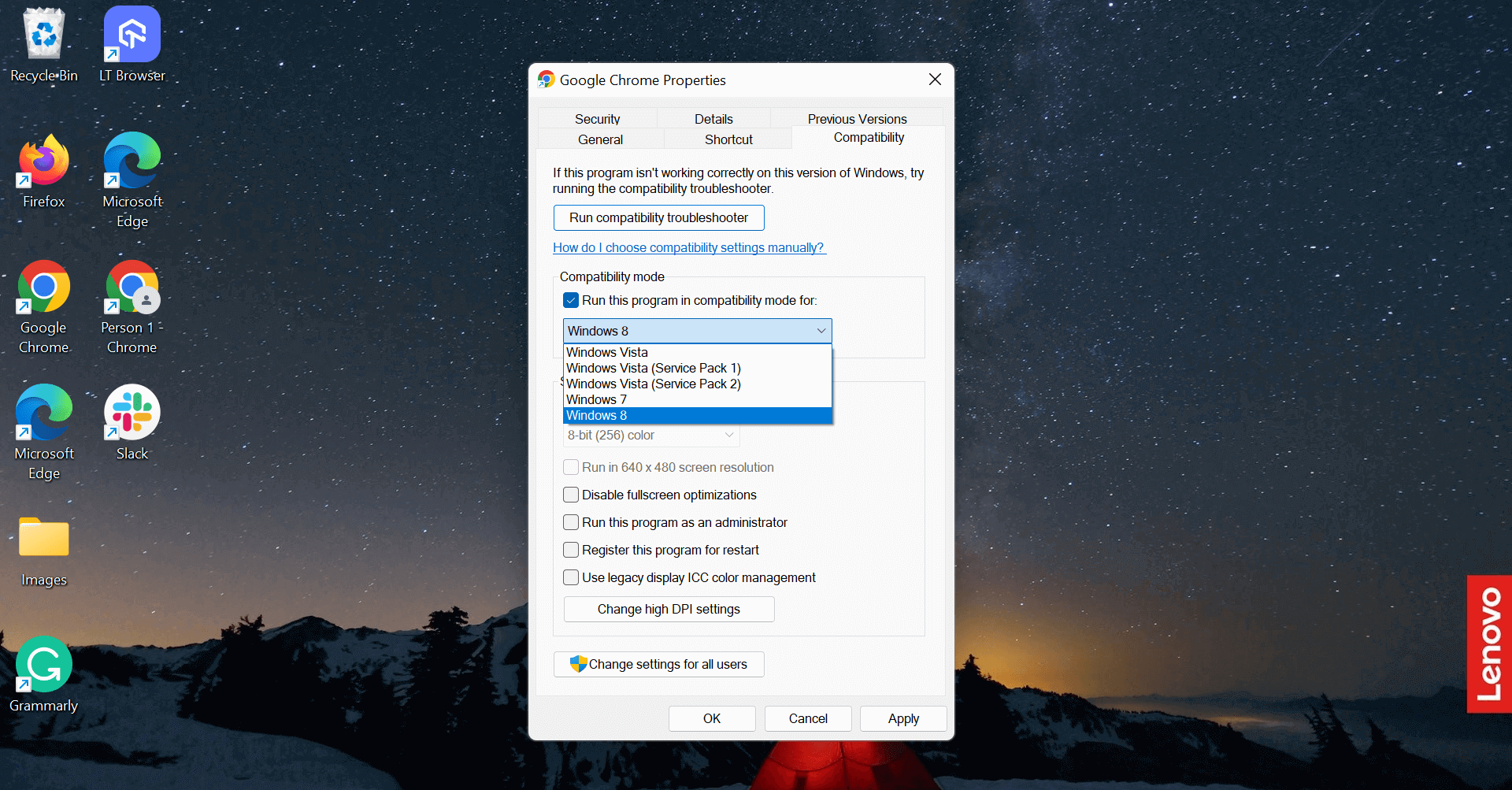
Step 5: Click Apply and OK to activate Chrome compatibility mode on your PC.

Since you enabled Chrome compatibility mode, you can now easily get access to the older version of Chrome for browsing various sites.
Learn how to translate browser compatibility on Google Chrome effortlessly. Now, let’s enable Chrome Compatibility Mode.

Note: Ensure a high-quality web experience. Try TestMu AI Now!
How to troubleshoot in Chrome Compatibility Mode?
Troubleshooting a compatibility issue in Chrome requires the usage of the “Compatibility Mode” option. This feature allows users to access web applications and websites that Chrome does not support, but only if they are in the Compatibility View list.
To begin, follow the steps below:
Step 1: Follow the above-mentioned steps to enable Chrome compatibility mode.
Step 2: Click on Run compatibility troubleshooter.
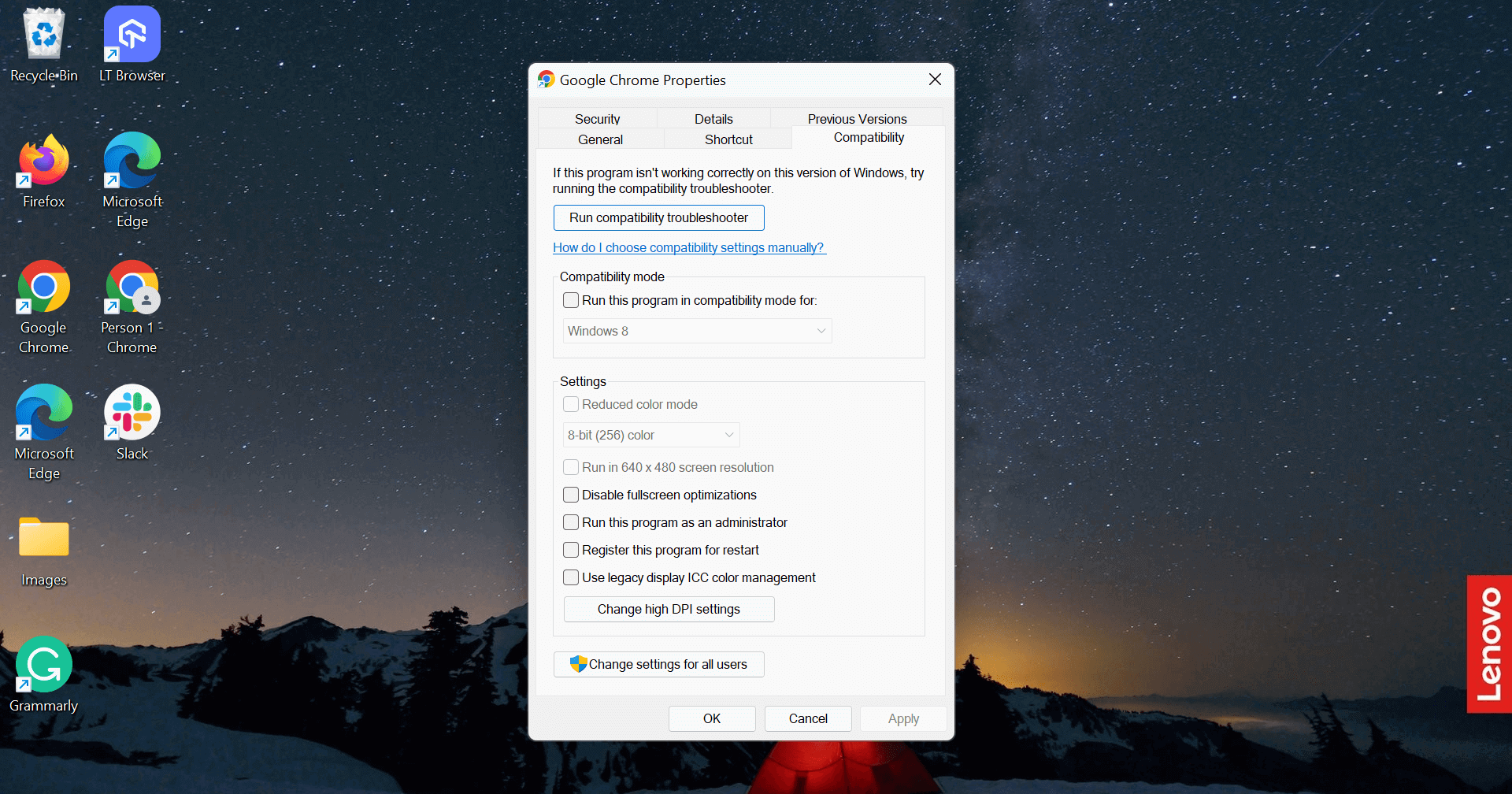
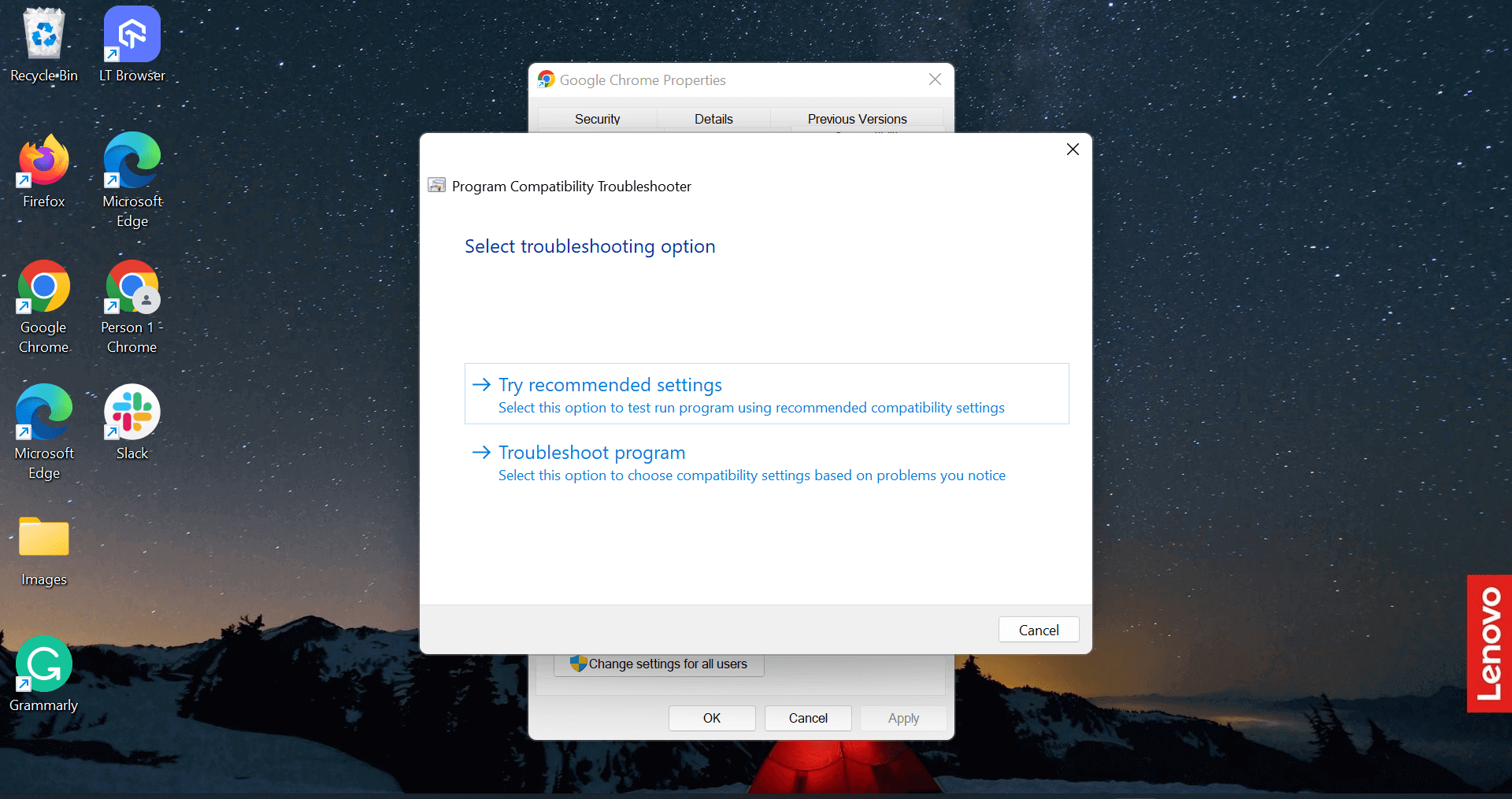
Step 3: Choose Troubleshoot program.
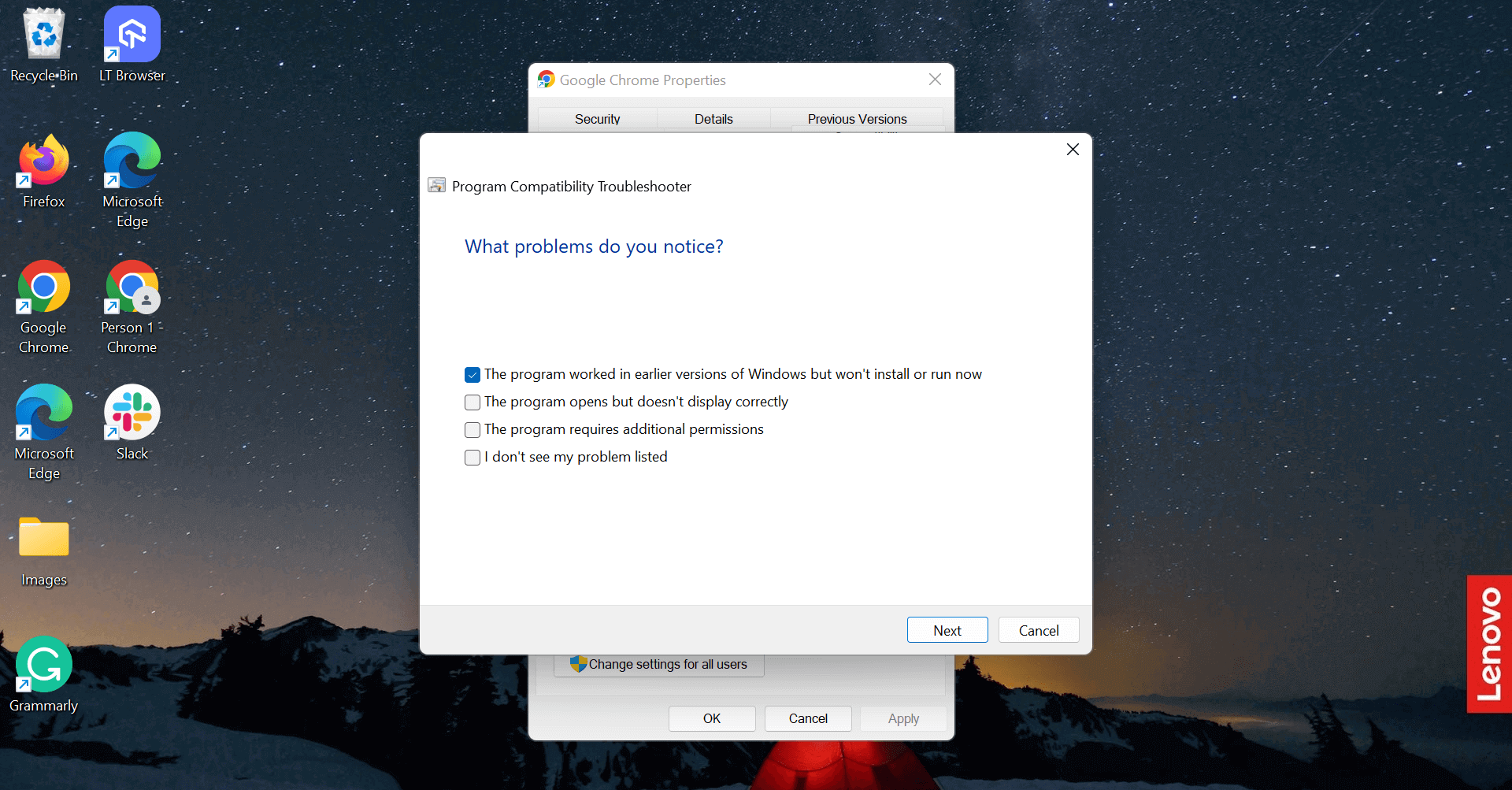
Step 4: Choose the problem you are currently facing from the checkbox.
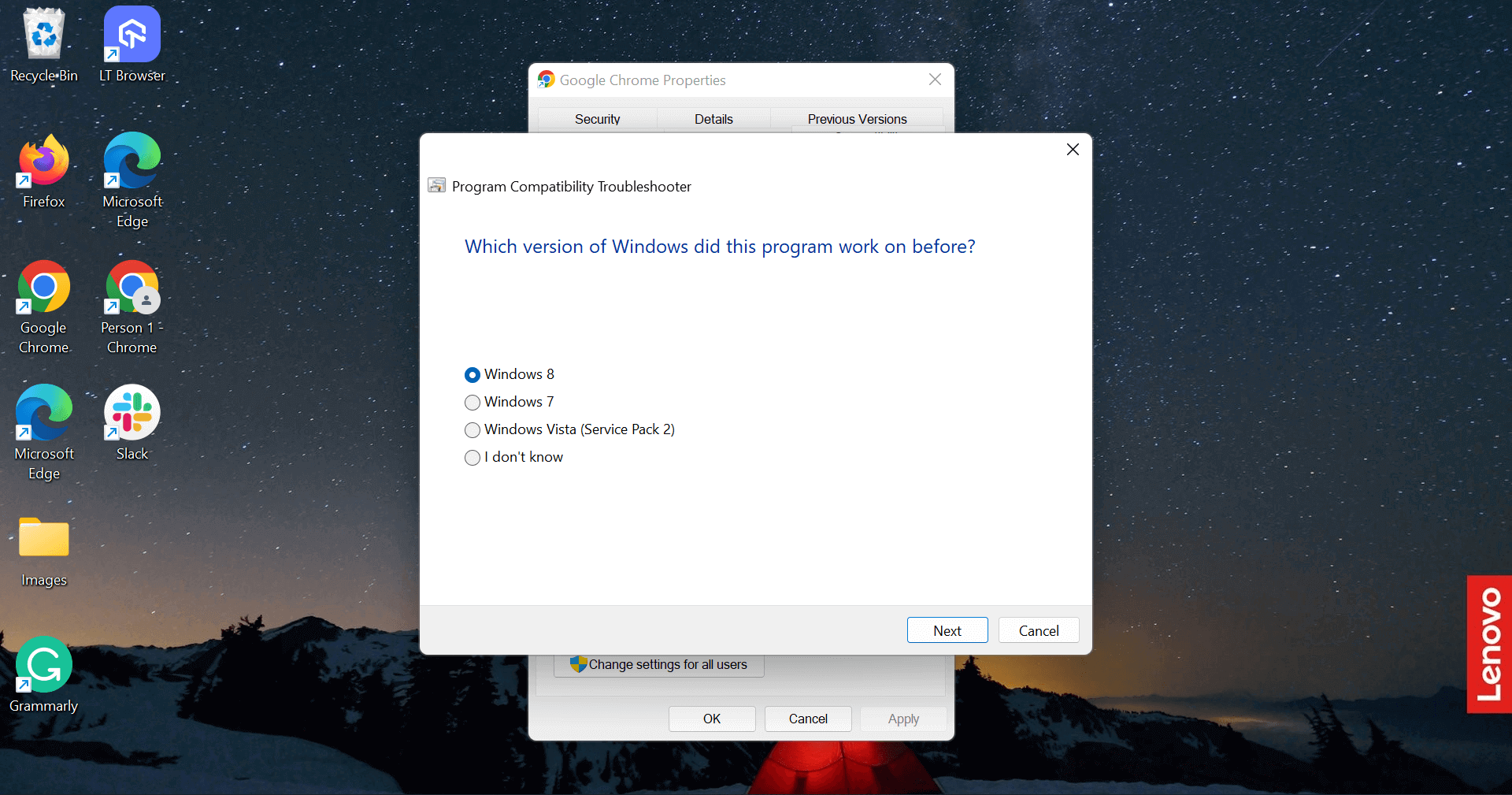
Step 5: Choose the Windows version on which the program was working before.
Step 6: Now, you need to test compatibility settings for the program. Click on Test the program.
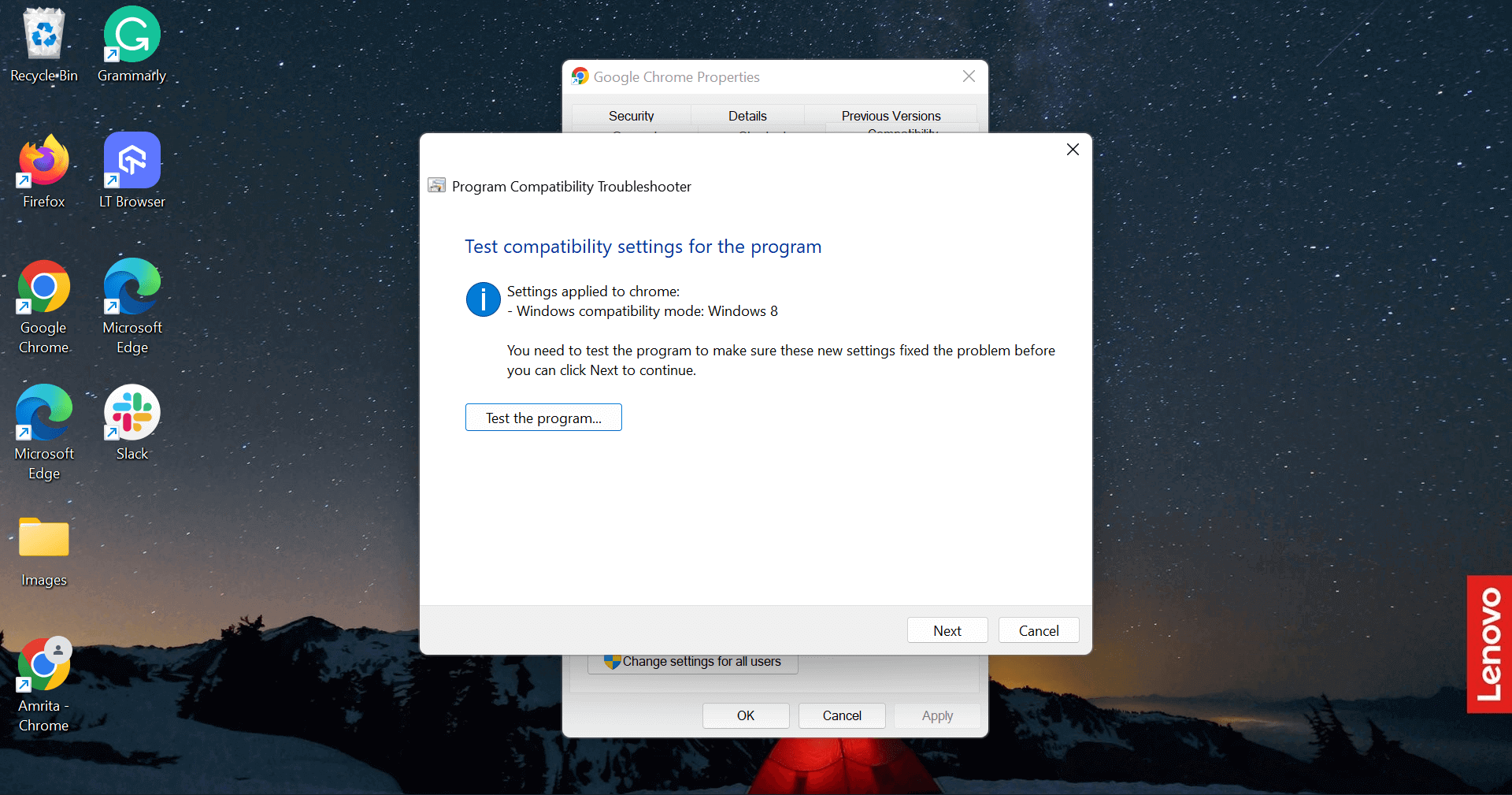
Step 7: Cross-check once before clicking on Next. Go to the desired page.
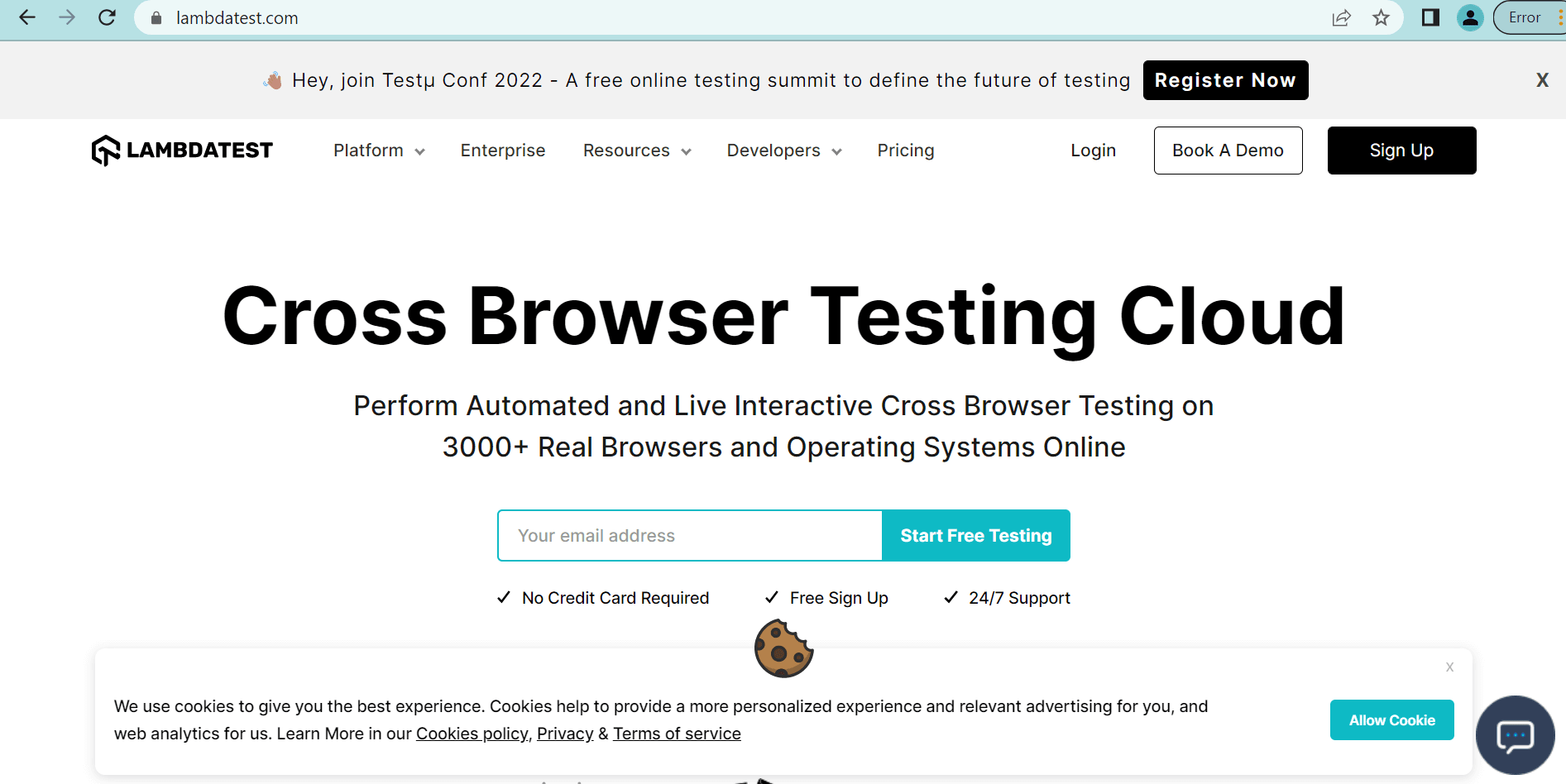
Step 8: Once you complete troubleshooting, you need to confirm that the problem has been fixed. Click on Yes, save these settings for this program.
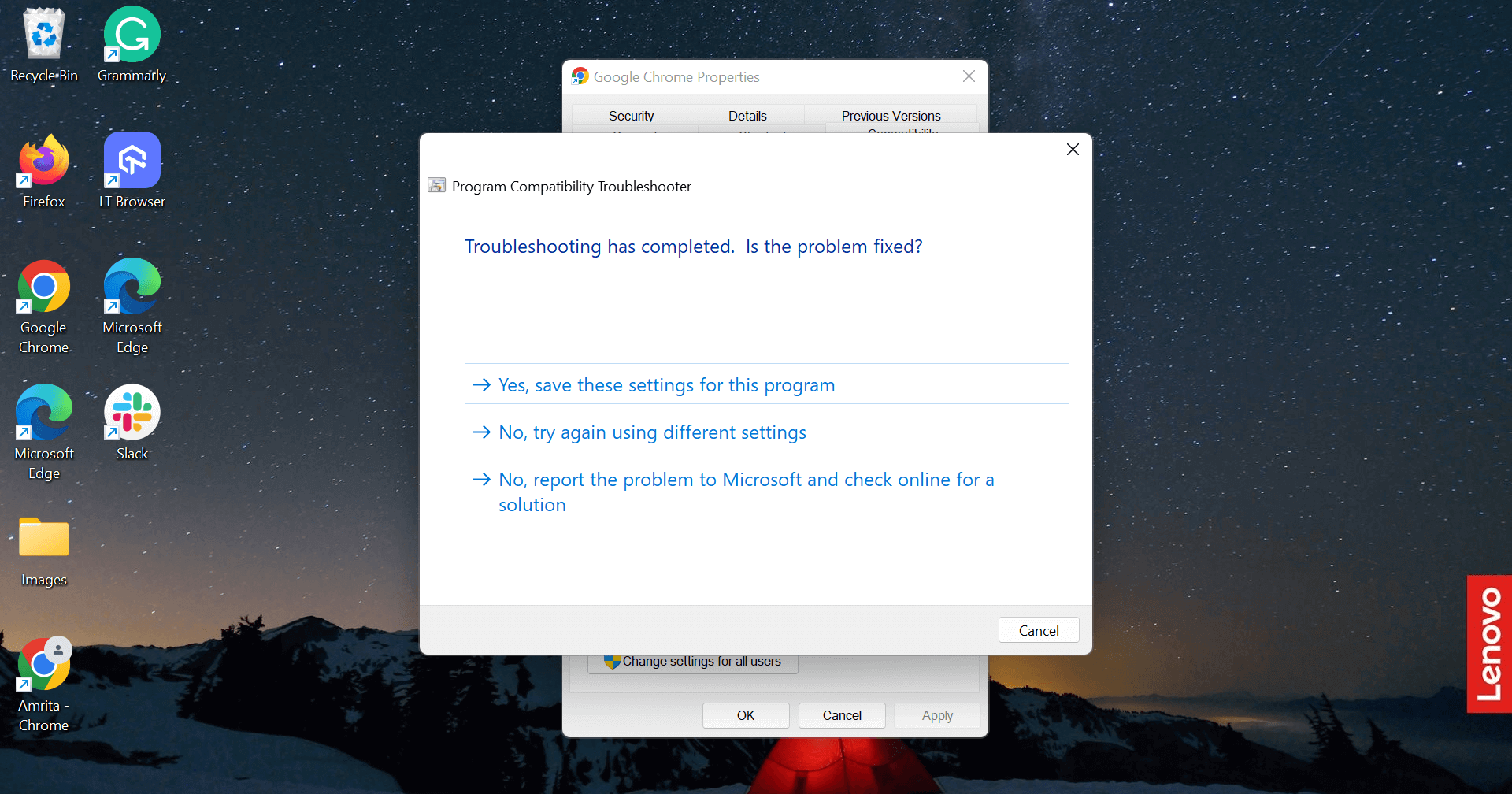
Step 9: You will get confirmation that the issue has been fixed. Click Close.
What are the other ways to troubleshoot the program?
Chrome has offered us abundant ways to troubleshoot the program. Many of them can be fixed within a few steps.
Solve Aw, Snap! Error
When you test on Chrome 84 browser online or any other version, it’s annoying when we want to load a page, and we get to see this Aw, Snap! Error. Try these methods to get rid of it:
- Clear the entire chrome browser cache.
- Update the latest version of Google Chrome.
- Completely reset your Chrome settings.
- Disable your VPN settings.
- Consider re-installing Google Chrome.
- Check quickly to know if it’s an ERR_NETWORK_CHANGED issue or otherwise.
UserAgent Detection
The code snippet may assume every browser as IE. The code fork may fail if the code snippet does so since many other browsers would show similar behavior. The best solution would be to try another browser version when you get a message that the browser is unsupported. Look for the “appleWebKit” string in your navigator to confirm that the browser leverages WebKit. You can learn more about it in our earlier blog on CSS with feature detection.
Use Browser-Specific CSS
When a few browser-specific CSS styling techniques wouldn’t be compatible with Chrome, you need to look for an alternate option. Though they may seem to be working fine, avoiding using them when you handle non-critical tasks is better.
- Instead of using document.all as a part of JavaScript, leverage document.getElementById(). This feature would be an outdated Google Chrome addition with support for every modern browser.
- Skip using CSS expressions compatible with only Opera to avoid rejection.
Get Error-less Plugin Logs
Different browsers would make use of different plugin types. For instance, Google Chrome uses only Netscape Plugin Application Programming Interface API (NPAPI). When you miss the plugins such as Windows Media Player movies or Flash videos on Internet Explorer or Google Chrome, ensure that the parameters in the < embed > and < object > tags are the same to prevent confusion.
When you make use of plug-ins where the support is only offered for Active-X version, it’s not going to work in many browsers such as Google Chrome without using the IE rendering engine. IE would also use the object tag for embedding a flash video. Then, it would load the file flash_ad.swf while ignoring the browser’s embed tags.
Accuracy in Page Encryption
If you don’t properly define the character encoding, it would surely affect the way various browsers interpret your message. Your page would surely appear distorted when you view it on Google Chrome. It would also display garbage characters.
To solve this, you must ensure that you correctly set the page content type. The characters you use to set the page’s content should be directly from the IANA list, with only encodings containing the desired text. Avoid conflicting values since Google Chrome gives preference to them. It’s also advisable to use UTF-8 when you face problems with legacy encoding. Don’t use Visual Hebrew encoding since it lacks logic to render text.
Breaks in Overflowing-in-Section
When a single line present in the layout of the site can get wrapped around different lines, it could cut off or overlap other elements. The issue is mainly faced when you lack pixel-perfect layouts for the browser versions. When there is a change in the website’s element and font sizes of the browser and OS version, it could lead to the text getting wrapped or cut off around different browsers.
To avoid these bottlenecks, you should avoid setting your website’s fixed pixel width the next time. You can instead use dynamically-sized elements. You must test your website in different OS and browsers to check for the maximum size.
If you are interested in learning about cross browser compatibility, look at our cross browser compatibility tutorial and another course on cross browser testing.
Note: Test your website in 3000+ browsers, OS, and devices. Try TestMu AI Now!
How Do AI Tools Help Debug Chrome Compatibility Errors?
Chrome DevTools now uses Gemini to explain a compatibility error in plain language, and a separate MCP server lets a coding agent drive Chrome directly to check whether a fix worked.
- Console Insights: from Chrome 125 onward, an "Understand this error" button appears next to a console error, such as a blocked mixed-content warning. Clicking it sends the error, network data, and the surrounding source code to Gemini, which returns a plain-language explanation and a suggested fix.
- Chrome DevTools MCP: maintained by the Chrome DevTools team, this MCP server lets a coding agent such as Claude Code or Cursor take a screenshot, read console messages with stack traces, and record a performance trace inside a live Chrome instance, instead of a person clicking through Compatibility View by hand.
- What neither reaches: the Windows "Run this program in compatibility mode for" setting on chrome.exe sits at the operating-system level, outside the DevTools Protocol entirely. Console Insights and DevTools MCP can debug a page once Chrome is running, but neither can read or change that setting.
That split matters here. Gemini and an MCP-driven agent speed up finding and fixing rendering bugs inside a running Chrome tab, but the chrome.exe launch problem covered earlier in this guide still needs the manual Properties dialog, not an AI assistant.
How to use TestMu AI to test Chrome Compatibility?
When you use cross browser testing tools such as TestMu AI, you can check for the website compatibility with different browsers such as Chrome, Internet Explorer and Opera. You can also check out our list of desktops and browsers supported by us.
Performing live interactive cross browser testing of both locally hosted and public websites has become simpler on an online browser farm of 3000+ real desktop and mobile browsers, OS, and devices that run on the real operating system. It’s simple and quick! You can get it done in three simple steps.
Step 1: Signup and login to TestMu AI.
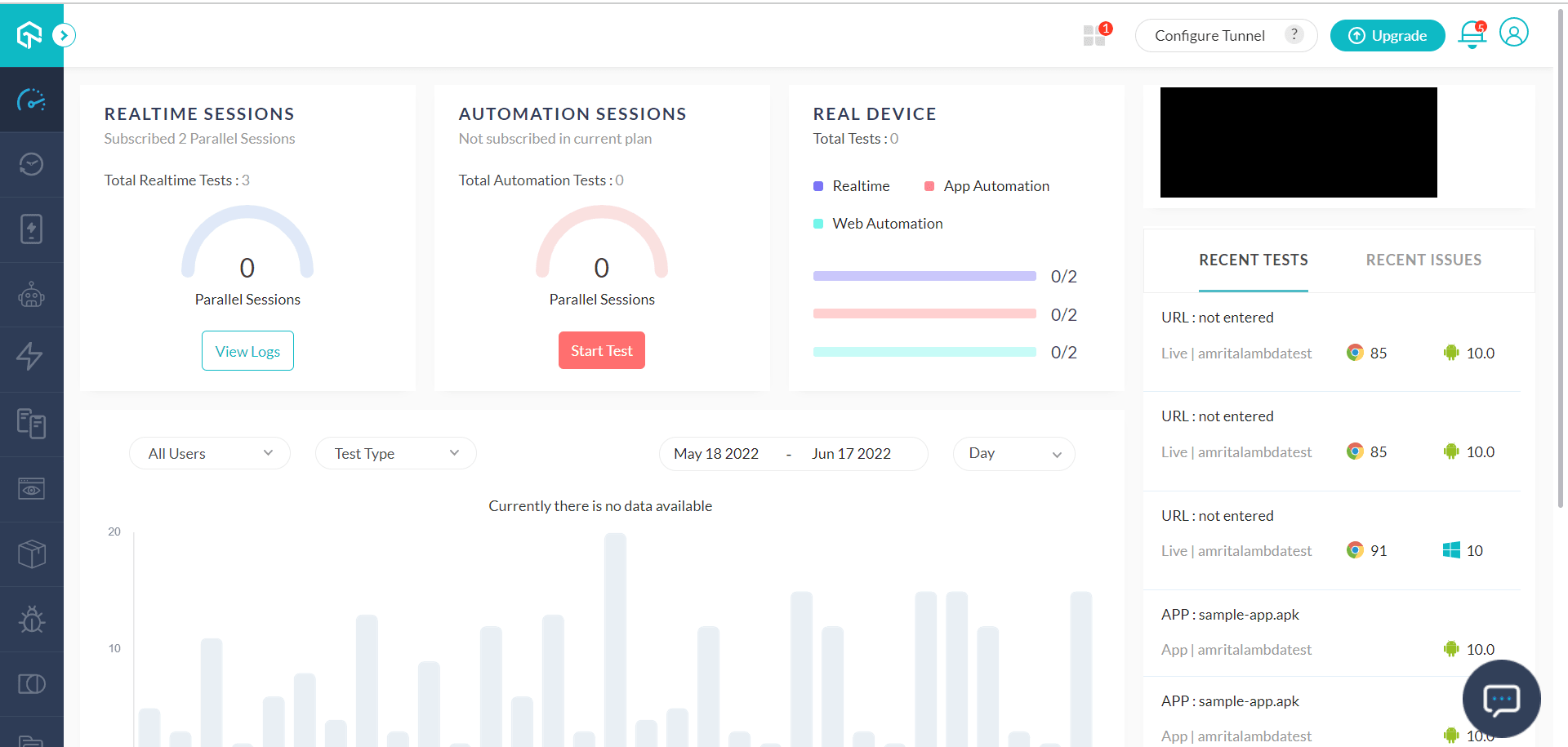
Step 2: Go to Real Time Testing -> Browser Testing. Choose Chrome as the desired browser.
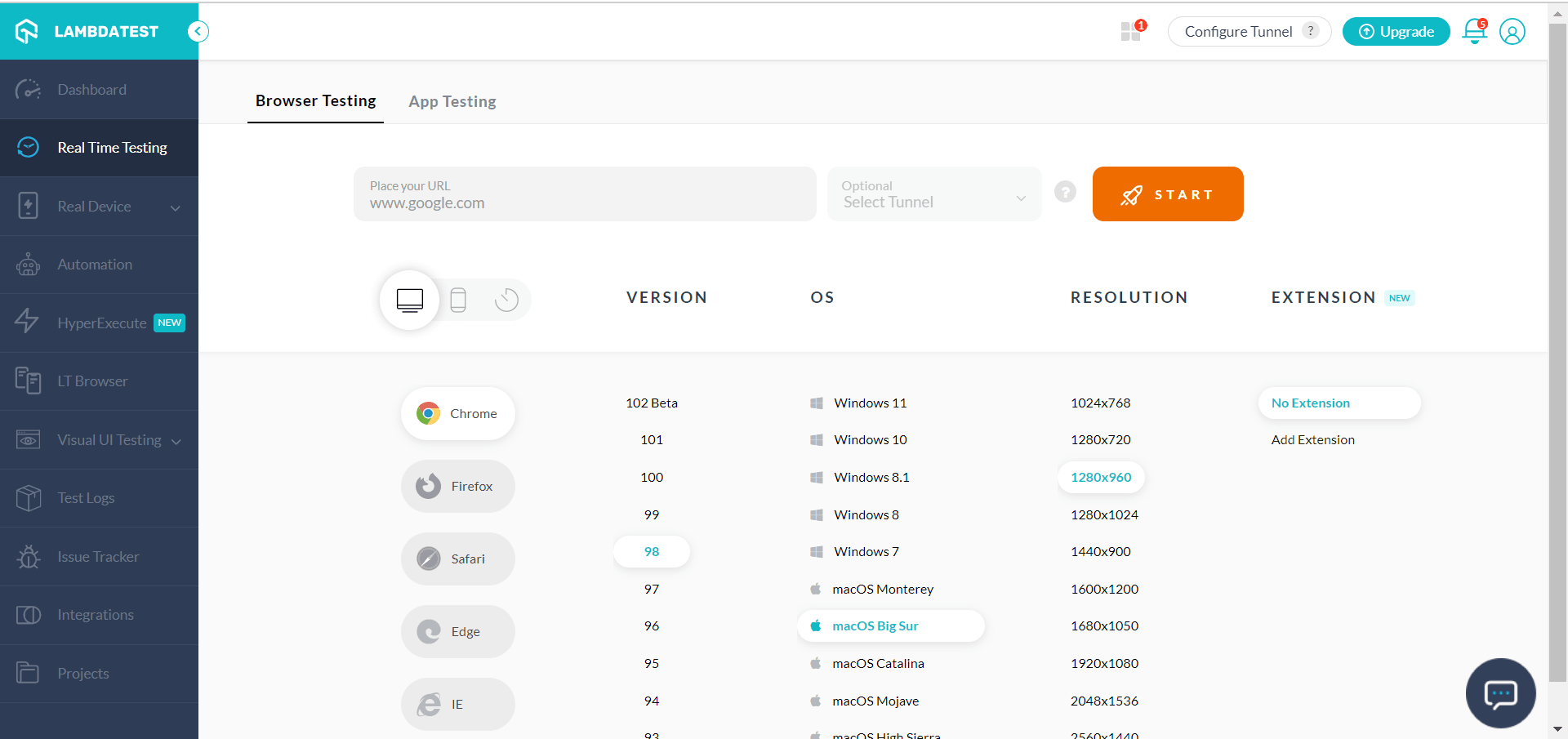
Step 3: Click START. You will get the real-time browser version of the web page you want to test.
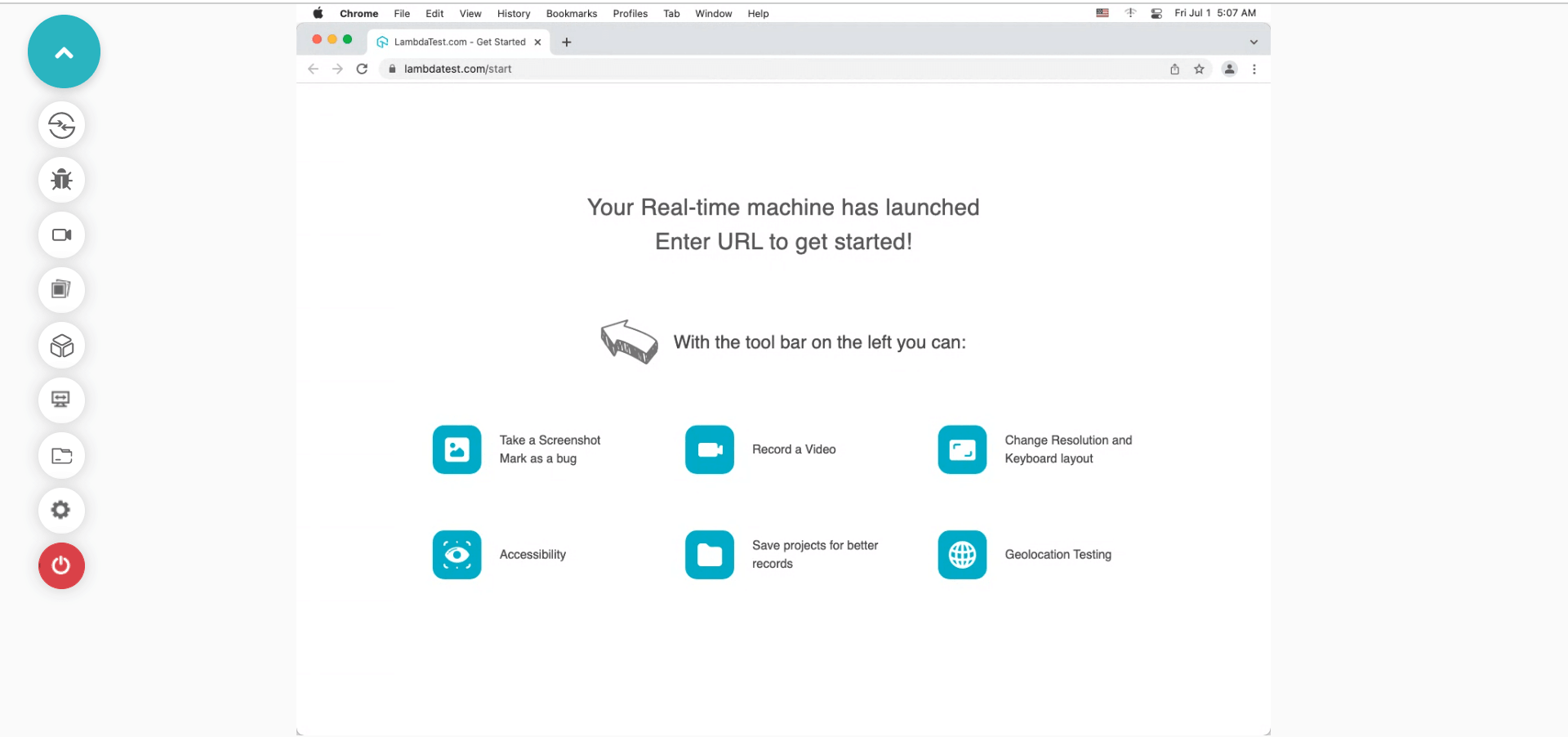
You can also go through the following video to learn how to perform real time Chrome compatibility testing on the TestMu AI platform:

You can also use our Real device cloud feature to test your browser on real devices.
Step 1: Signup and login to TestMu AI.
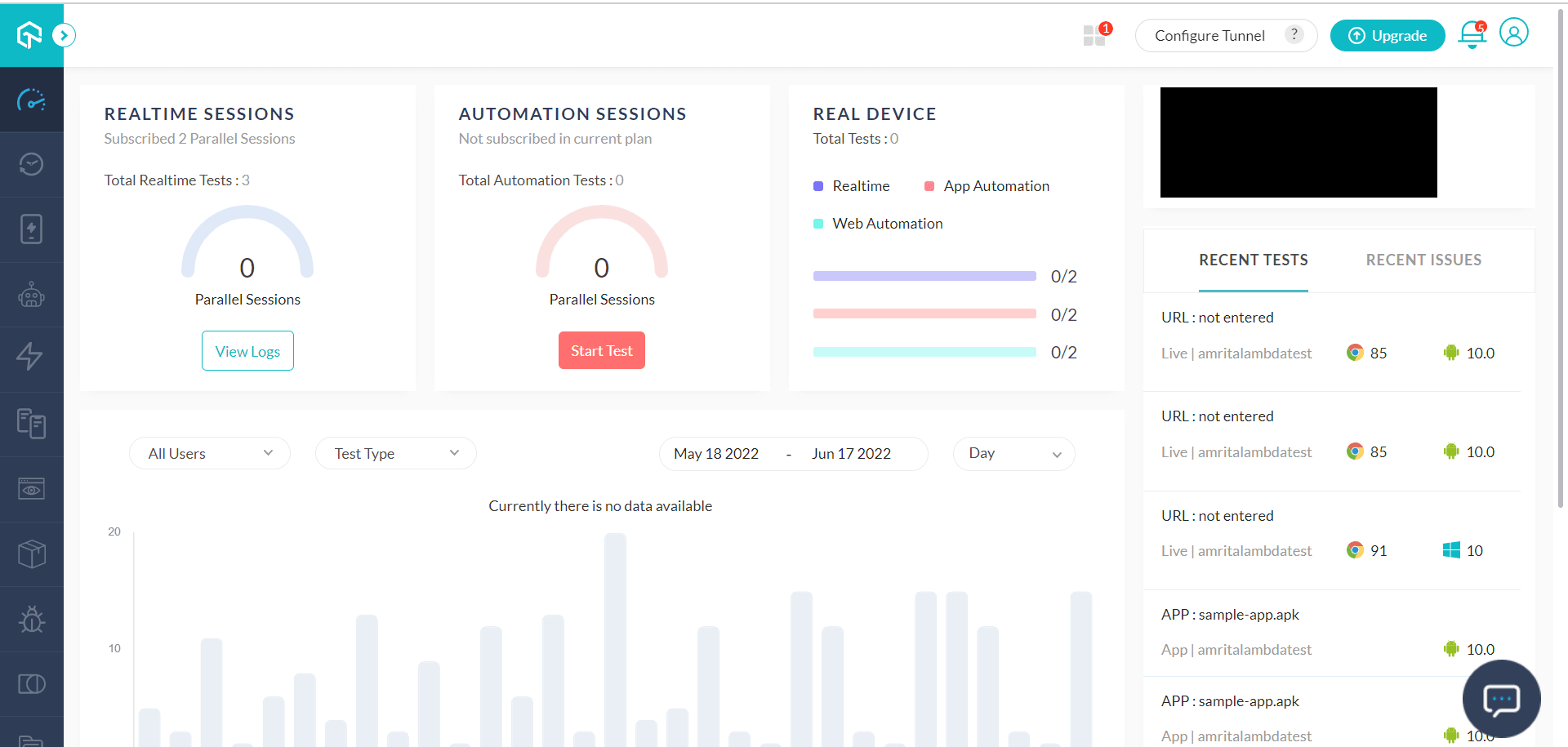
Step 2: Go to Real Device -> Real Time -> Browser Testing. Choose Chrome among the Browser options.
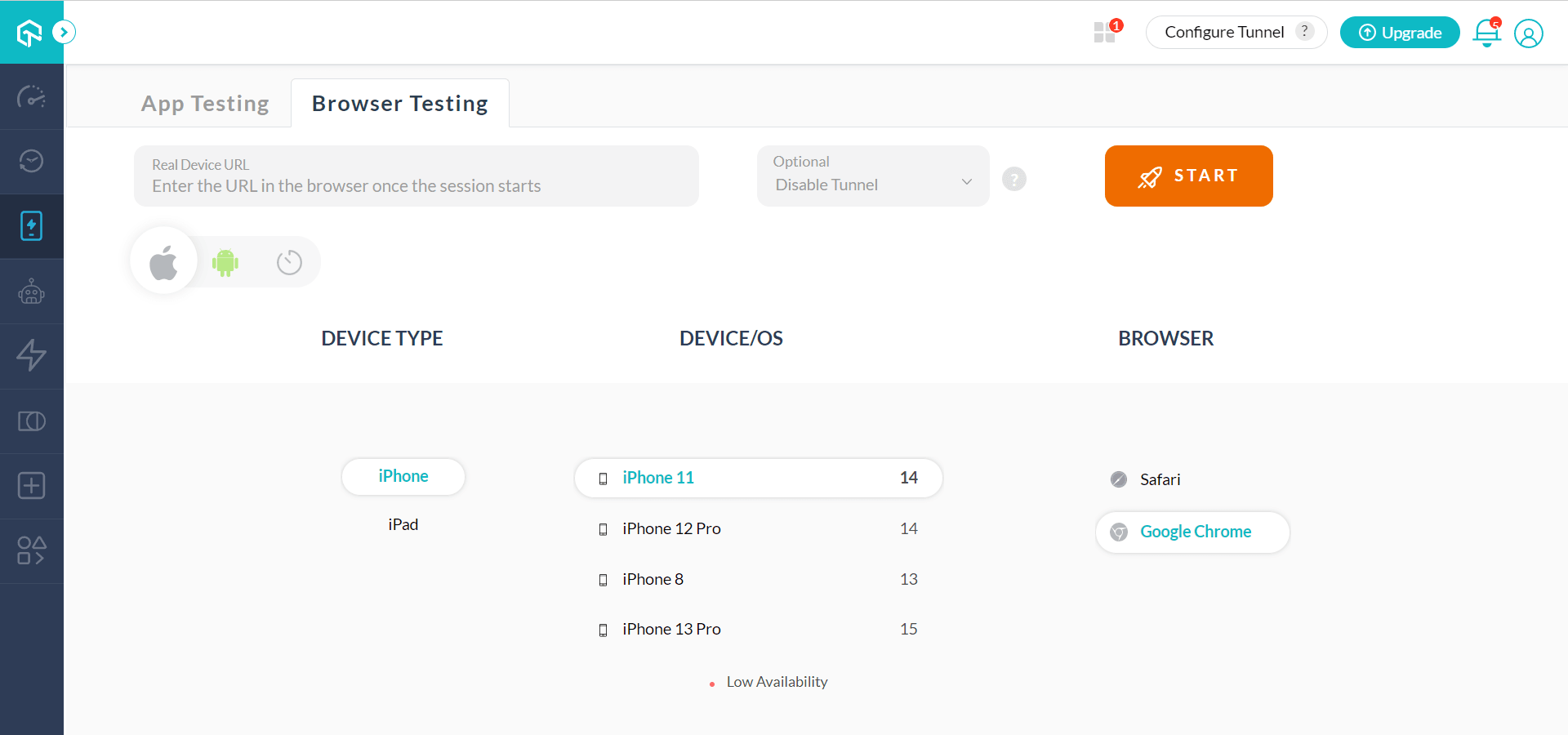
Step 3: You can directly check for browser compatibility on your mobile device.
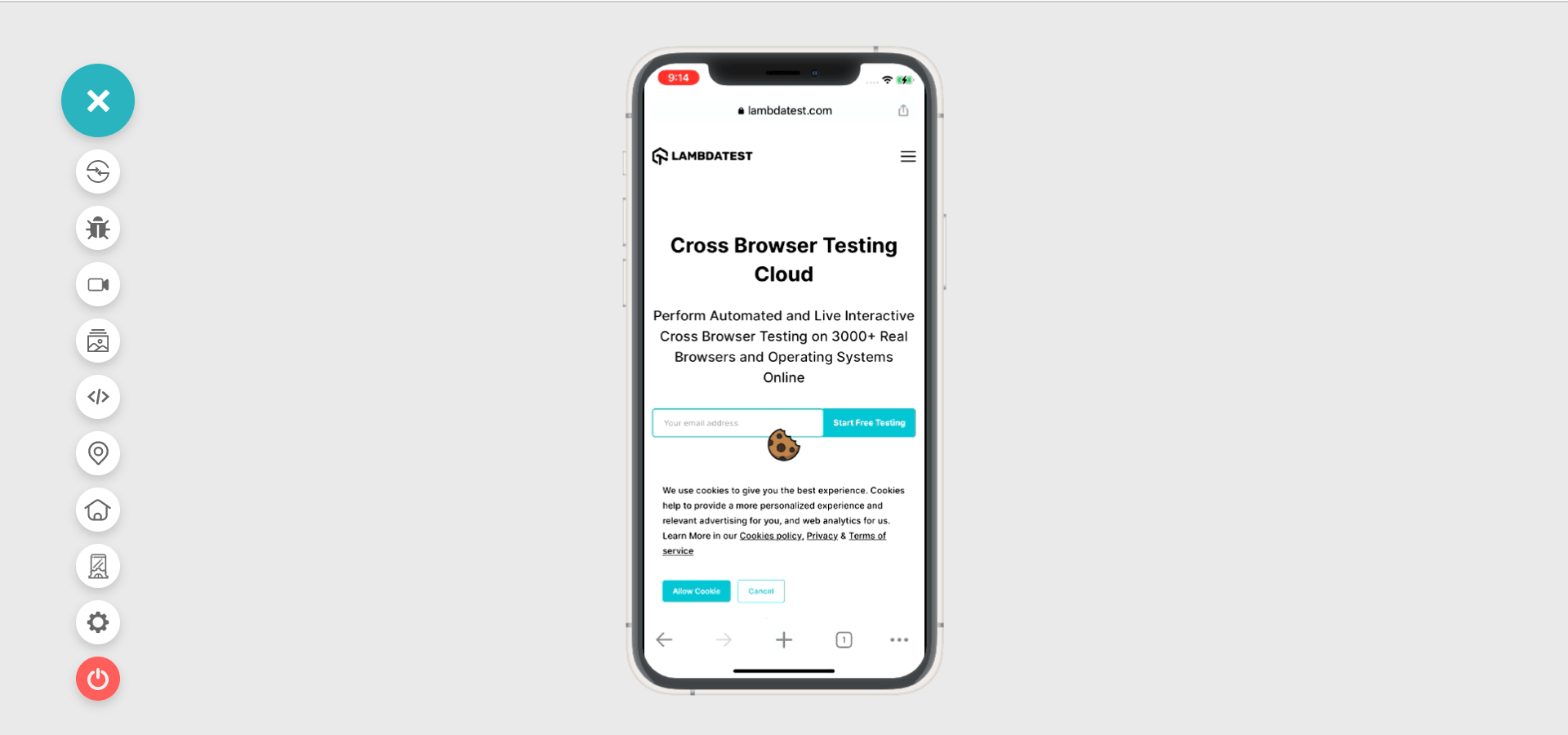
You can also use TestMu AI Chrome extension while testing your website on Chrome. By ensuring that your website is compatible with different browsers, you can stay assured that your website experience will match the standard expectations.
You can also go through the following video to learn how to perform real device Chrome compatibility testing on the TestMu AI platform:
Subscribe to the TestMu AI YouTube channel if you want to dive deeper into responsiveness testing, web UI testing, cross browser compatibility, and get the best insights on how to test Chrome compatibility.

Conclusion
With a cloud-based online device farm such as TestMu AI, you can quickly test your website for Chrome Compatibility without any long and tedious manual processes and grab a cup of coffee (or tea or mojito). It’s always better to depend upon such exclusive testing solutions when you want to quickly wrap up the testing process.
Happy testing!
Author

Amrita Angappa
Blogs: 4


Amrita Angappa is a Community Contributor with 6.5+ years of experience in content creation, specializing in software testing, test automation, AI, Big Data, ML, and analytics. She has authored 100+ technical blogs, with her work featured on platforms like SAP, DZone, Thrive Global, HackerNoon, YourStory, and more. A JOSH Talks speaker and former TestMu AI content lead, Amrita is also the creator of the LinkedIn series #fresherdiaries, which has crossed 10M+ views. On LinkedIn, she is followed by 35,000+ professionals, including QA engineers, software testers, AI innovators, technologists, marketers, and industry leaders.


Frequently asked questions
Did you find this page helpful?
More Related Blogs
TestMu AI forEnterprise
Get access to solutions built on Enterprise
grade security, privacy, & compliance
- Advanced access controls
- Advanced data retention rules
- Advanced Local Testing
- Premium Support options
- Early access to beta features
- Private Slack Channel
- Unlimited Manual Accessibility DevTools Tests