

Next-Gen App & Browser Testing Cloud
Trusted by 2 Mn+ QAs & Devs to accelerate their release cycles


How to find Chrome extensions?
"Find Chrome extensions" can mean two different things: discovering new extensions to install from the Chrome Web Store, or finding extensions that are already installed in your browser. The fastest way to see what is installed is to type chrome://extensions in the address bar; to find new ones, open the Chrome Web Store. This guide covers both, plus where extension files live on disk, how to find an extension's ID, the mobile situation, and how to choose safe extensions.
New to extensions and want to understand what they actually do? See What Are Chrome Extensions? first, then come back here to learn how to locate them.
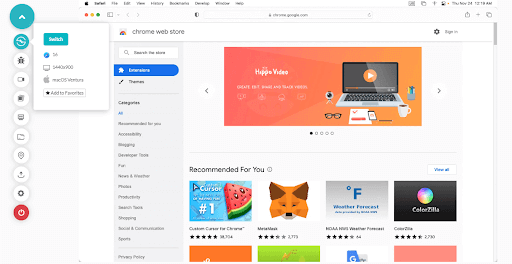
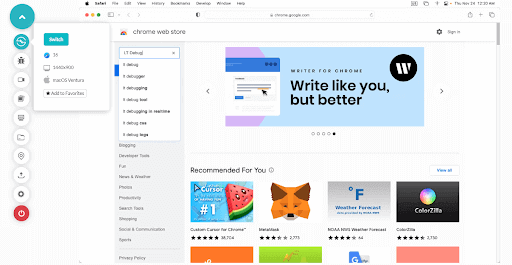
How to find new Chrome extensions on the Chrome Web Store
If you search the official Web Store you will find thousands of extensions. You can streamline that search by browsing categories and filtering by ratings and badges. The current Chrome Web Store lives at chromewebstore.google.com (the old chrome.google.com/webstore address now redirects there). Follow these steps:
- Open your Chrome browser.
- Go to the Chrome Web Store at chromewebstore.google.com.
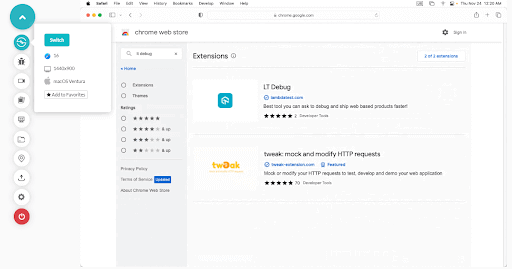
- Enter the extension's name in the Search the store box, or click a relevant category to narrow the results. Make sure you are on the Extensions tab rather than the Themes tab.
- Scroll through the results and check the star rating, number of reviews, and any Featured or verified badge before you commit.
- Open the listing, review the permissions it requests, and click Add to Chrome to install it.
How to find extensions already installed in Chrome
If you simply want to see what is already running in your browser, Chrome gives you two places to look: the full Manage Extensions page and the puzzle-piece toolbar menu.
Method 1 - chrome://extensions (the full list)
- Type chrome://extensions in the address bar and press Enter, or open the three-dot menu and choose Extensions > Manage Extensions.
- You will see every installed extension with an on/off toggle, a Details button, and a Remove button.
- Turn on Developer mode in the top-right corner to reveal extension IDs and any unpacked (locally loaded) extensions.
Method 2 - the puzzle-piece toolbar menu
- Click the puzzle-piece icon at the top-right of the toolbar to see your active extensions.
- Use the pin icon to pin or unpin an extension so it shows directly in the toolbar.
- Click the three-dot menu next to an entry to Manage extension or Remove from Chrome.
The difference is scope: the puzzle-piece menu is a quick view of extensions that can act on the current page, while chrome://extensions is the complete inventory, including disabled extensions, that you use for detailed management.
Where Chrome extension files are stored on disk
Each installed extension lives in a folder named after its extension ID, with a sub-folder for each version. The parent Extensions folder sits inside your Chrome profile directory. The default paths per operating system are:
| OS | Default Extensions path |
|---|---|
| Windows | C:\Users\<You>\AppData\Local\Google\Chrome\User Data\Default\Extensions |
| macOS | ~/Library/Application Support/Google/Chrome/Default/Extensions |
| Linux | ~/.config/google-chrome/Default/Extensions (or chromium for Chromium) |
If you use more than one Chrome profile, replace Default with Profile 1, Profile 2, and so on. To confirm exactly which folder a profile uses and jump straight to it:
- Open chrome://version and read the Profile Path.
- On Windows the AppData folder is hidden, so enable "Show hidden files" in File Explorer.
- On macOS use Finder's Cmd+Shift+G and paste the path to jump straight to it.
How to find a Chrome extension's ID (and a removed one)
- Open chrome://extensions, enable Developer mode, and the 32-character ID appears under each extension. You can also click Details, where the ID is shown in the page and the URL.
- That ID is exactly the folder name used on disk, so you can cross-reference it against the Extensions paths in the table above.
- Chrome does not store an uninstall history, but a removed extension can be traced through the Web Store: its listing URL has the form /detail/<name>/<id>, and you can reinstall it from there.
- To list every extension Chrome is aware of, including component and hidden extensions, open chrome://system and expand the extensions entry.
How to choose safe, trusted Chrome extensions
- Look for trust signals: Prefer extensions with a Featured or verified badge, a high install count, many reviews, and a recent update date.
- Read the permissions before adding: Be cautious with anything that asks to "read and change all your data on all websites" unless that access is clearly required for what the extension does.
- Audit periodically: Remove extensions you no longer use; each one is extra code running in your browser and a potential security risk.
- Don't rely on automated review alone: Google's Web Store review and Enhanced Safe Browsing help, but you should still vet each extension independently. For curated ideas, see Best Chrome Extensions for Developers.
Finding Chrome extensions on mobile
Standard Chrome on Android and iOS does not support extensions. There is no chrome://extensions page and no way to install from the Web Store on the mobile app, so if you go looking for an extensions menu on your phone you will not find one.
If you need extensions on a phone, use a Chromium-based browser that supports them: Microsoft Edge Canary on Android and Yandex Browser can install many Chrome extensions and manage them from their own extensions menu. (Kiwi Browser was a popular option for this but was discontinued in 2025, with its extension support folded into Edge Canary for Android.) Google has also been piloting extension support in Chrome for Android, so the situation may change. Verify the current status in your browser before assuming a feature is available.
Why testers check Chrome extensions across browsers
Extensions can alter the DOM, inject scripts, block network requests, and change how a page renders, so a web app that works perfectly for users with no extensions may break for someone running an ad blocker, a password manager, or an accessibility tool. That is why QA teams verify how extensions affect behaviour and confirm pages render and work consistently across Chrome, Edge, Firefox, and Safari. You can run those checks at scale with Cross Browser Testing, which runs your app on 3,000+ real browser and OS environments and also offers its own Chrome extension for quick live testing.
Frequently Asked Questions
How do I see all extensions installed in Chrome?
Type chrome://extensions in the address bar and press Enter to open the Manage Extensions page, which lists every installed extension with its toggle, Details, and Remove options. For a quick view of just the active extensions, click the puzzle-piece icon at the top-right of the toolbar.
Where are Chrome extensions stored on my computer?
Inside your Chrome profile, in a folder named after each extension's ID. On Windows that path is C:\Users\<You>\AppData\Local\Google\Chrome\User Data\Default\Extensions, on macOS it is ~/Library/Application Support/Google/Chrome/Default/Extensions, and on Linux it is ~/.config/google-chrome/Default/Extensions. See the per-OS table above for details.
How do I find a Chrome extension's ID?
Open chrome://extensions, enable Developer mode in the top-right, and the 32-character ID appears under each extension. That same ID is the folder name Chrome uses to store the extension on disk, which makes it easy to match an extension to its files.
Can I find and use Chrome extensions on Android or iPhone?
Not in standard mobile Chrome, which does not support extensions at all. Use a Chromium-based mobile browser such as Microsoft Edge Canary on Android or Yandex Browser, which can install and manage many Chrome extensions from their own menus. (Kiwi Browser, formerly popular for this, was discontinued in 2025 and its extension support moved into Edge Canary.)
How do I find a Chrome extension I removed?
Chrome does not keep an uninstall history, but you can reinstall from the Chrome Web Store. The listing URL contains the extension's ID in the form /detail/<name>/<id>, so searching the store for the name will take you back to the same extension.
Why can't I see an extension I installed?
It may be disabled, unpinned, or a hidden/component extension. Check the toggle on chrome://extensions, click the puzzle-piece icon to surface unpinned items, and open chrome://system and expand extensions to list component and hidden extensions that don't appear in the normal UI.
Related Questions

KaneAI - Testing Assistant
World’s first AI-Native E2E testing agent.

TestMu AI forEnterprise
Get access to solutions built on Enterprise
grade security, privacy, & compliance
- Advanced access controls
- Advanced data retention rules
- Advanced Local Testing
- Premium Support options
- Early access to beta features
- Private Slack Channel
- Unlimited Manual Accessibility DevTools Tests