

Power Your Software Testing with AI Agents and Cloud
The Native AI-Agentic Cloud Platform to Supercharge Quality Engineering. Test Intelligently and Ship Faster.


- TestMu AI (Formerly LambdaTest)
- /
- Blog
- /
- 13 Best Chrome Extensions for Developers [2026]
13 Best Chrome Extensions for Developers [2026]
Discover the 13 best Chrome extensions for developers, from Session Buddy and Wappalyzer to Check My Links, with what each extension does and when to use it.
Last Updated on:
The best Chrome extensions for developers handle session management, cross browser screenshots, element inspection, tracker detection, and link auditing.
Every extension below installs from the Chrome Web Store, runs under Manifest V3, and replaces a repeat manual step rather than duplicating what Chrome DevTools already does.
This guide covers Session Buddy, screenshot testing, Usersnap, Web Developer, ColorPick Eyedropper, User Agent Switcher, Ghostery, IE Tab, Wappalyzer, Click and Clean, WhatFont, Check My Links, Dimensions, and how AI tools now change extension work.
Key Takeaways
- Session Buddy saves and restores whole tab sessions, so a developer can switch between project contexts without losing open tabs.
- Web Developer adds a toolbar that disables JavaScript, cookies, CSS and images in one click, which is faster than reopening a Chrome DevTools panel for each check.
- ColorPick Eyedropper reads the hex or RGB value of any pixel on a page, which removes the guesswork when rebuilding a design without a style guide.
- Wappalyzer names the frameworks, content management system, ecommerce platform and analytics tools behind a site from a single toolbar click.
- Check My Links scans every hyperlink on a page and marks each one working or broken, which turns a pre-release link audit into one action.
- Chrome ships built-in Summarizer, Translator and Prompt APIs, so an extension can run a model on the device instead of sending page text to a remote server.
1. Session Buddy
There is a great feature in Chrome known as custom user profiles. This allows the user to create separate sets of settings, tabs, bookmarks, histories, etc.
However, the extension called Session Buddy takes this to a whole new level. It enables the user to save tab sessions and switch among them as needed. This becomes quite useful when you are working on more than one project and require different browser settings to properly run them.
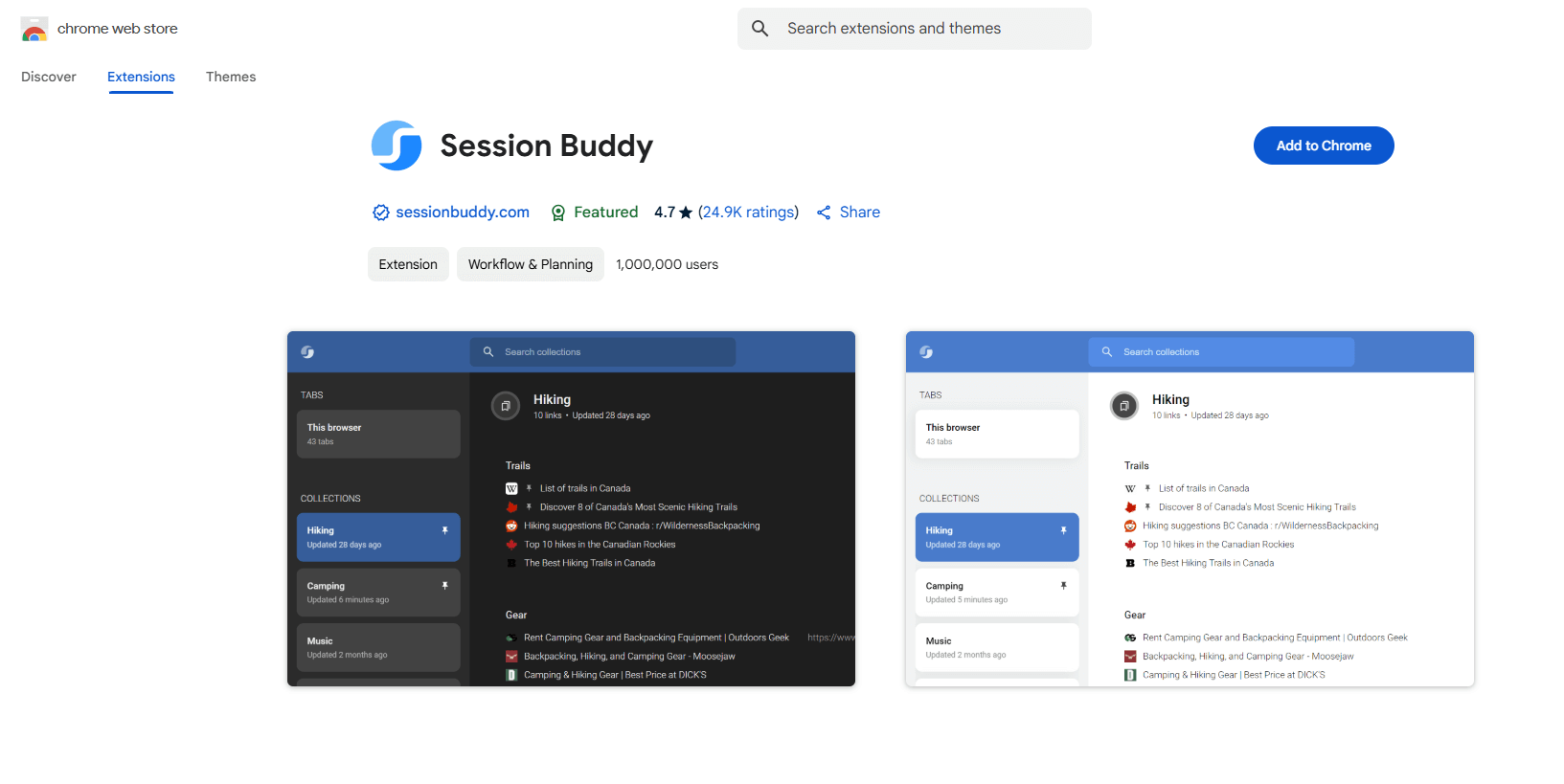
Key Takeaway: Session Buddy saves a named set of open tabs and restores it later, which keeps work on separate projects from collapsing into one browser window.
2. TestMu AI Screenshots
Although Chrome has a huge market share and worldwide preference, we can’t afford to neglect other competitive browsers such as Mozilla Firefox, Opera, Safari, Edge, IE, Yandex and many more with respect to cross browser compatibility testing.TestMu AI is an AI-native test orchestration and execution platform that lets you run manual and automated tests at scale with over 5000+ real devices , browsers and OS combinations. Its Chrome Extension feature helps speed up your daily basis productivity by allowing you to perform cross browser testing.
Cross browser testing is imperative to ensure a robust UI for your end users and you can perform cross browser testing easily with TestMu AI Chrome Extension.
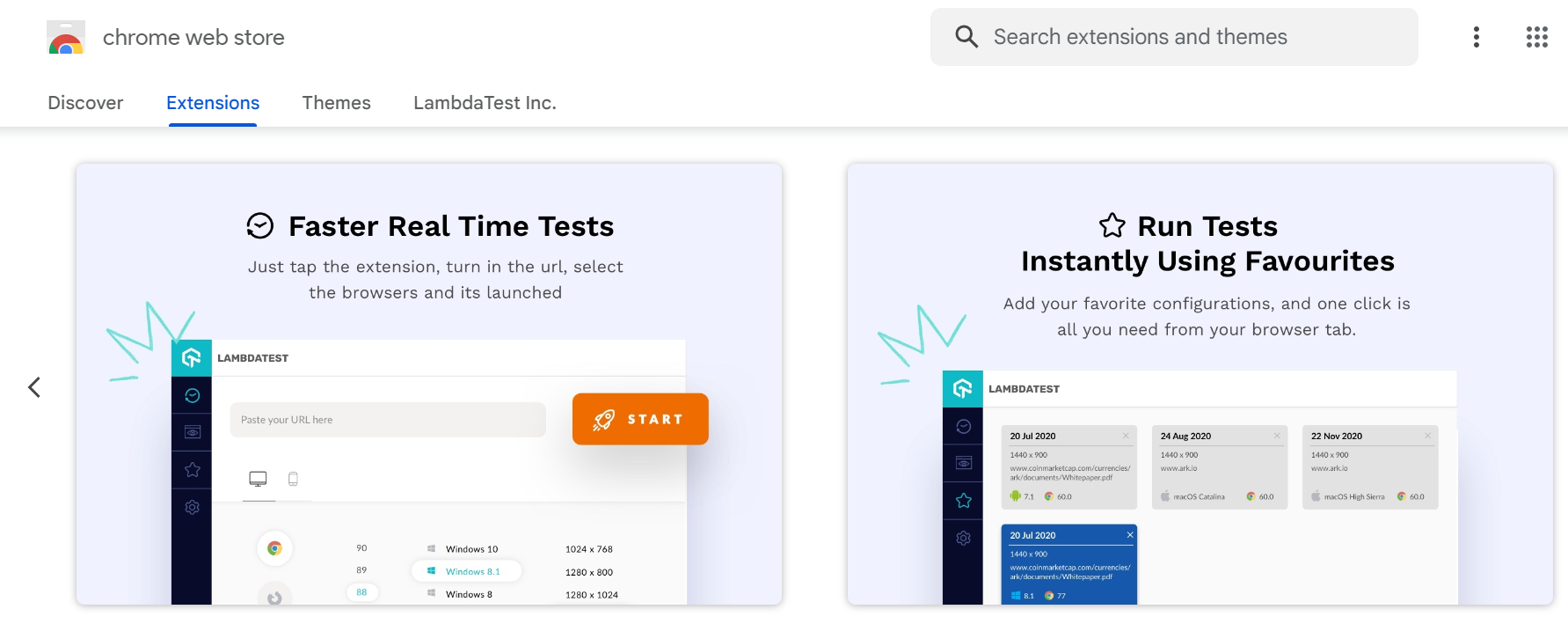
Key Takeaway: A screenshot extension captures one page across many browser and operating system combinations in a single run, which surfaces layout breaks that Chrome alone never shows.
3. Usersnap
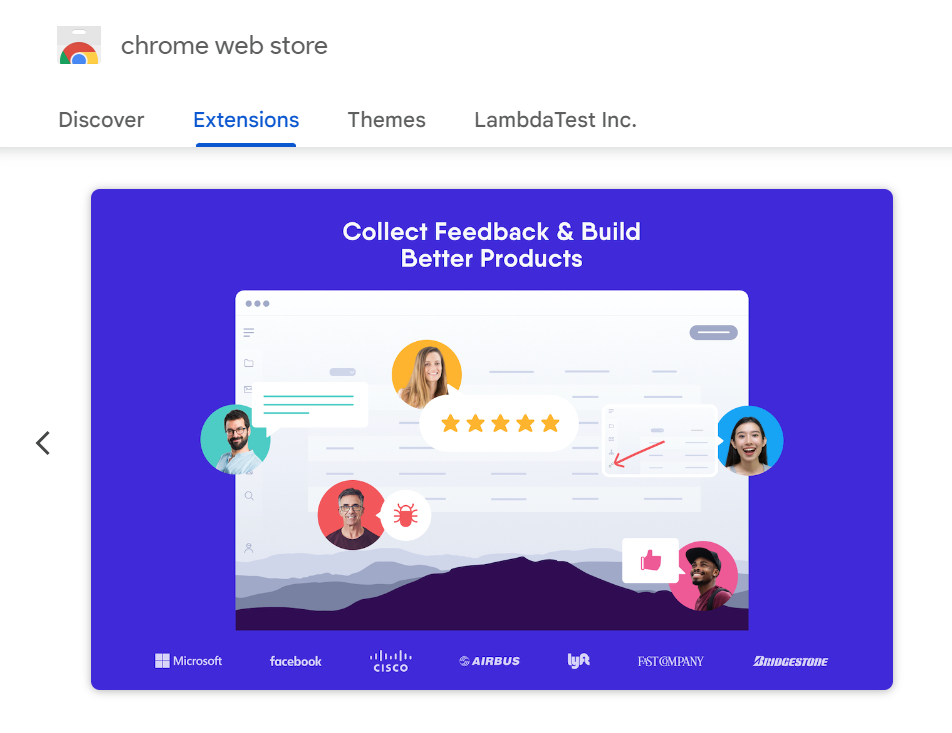
Usersnap allows the user to capture any webpage loaded in your browser and annotate it. It becomes quite easy to report bugs or provide visual feedback with the help of this extension. The best part is that, all screenshots are directly stored in the dashboard of the project.

Note: Perform screenshots testing that will help identify inconsistency on various browser. Try automated screenshot testing today!
Key Takeaway: Usersnap captures and annotates a live page, then files the screenshot into a project dashboard, which removes the copy and paste step from bug reporting.
4. Web Developer
This extension adds a toolbar on your browser window that provides the user with single click disabling and enabling options with Plugins, JavaScript, and also access to elements like cookies, CSS, outlines, and other information related to web development. It’s basically a supercharged version of Chrome Inspector and is a must use for all Web Developers making cross browser compatible websites.
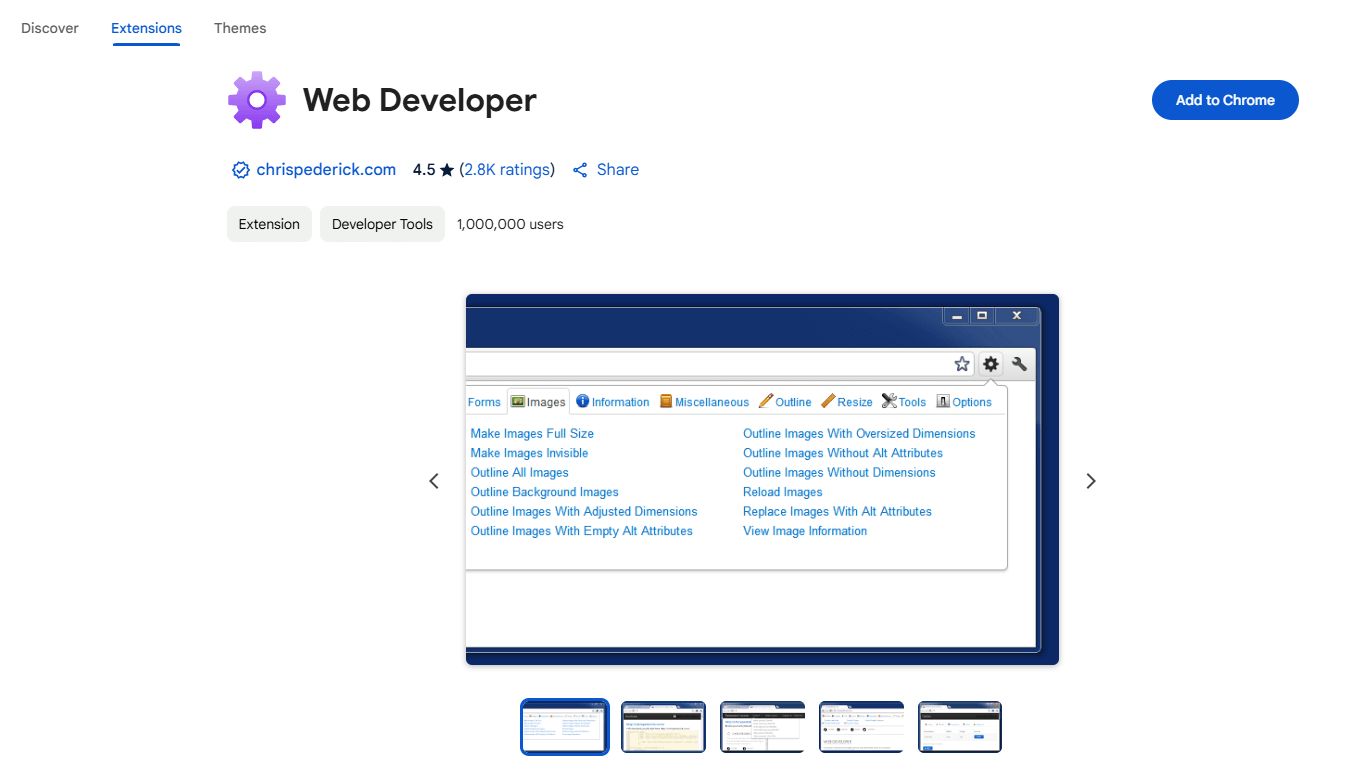
Key Takeaway: The Web Developer toolbar toggles JavaScript, CSS, cookies and form fields from one menu, which is quicker than opening a Chrome DevTools panel for each switch.
5. ColorPick Eyedropper
When a web developer is asked to replicate a webpage without any proper UI/UX guidelines, a lot of confusion occurs while inspecting individual elements for their unique properties like color or dimension. This chrome extension makes the job a bit easier. Just like the pick color tool in Photoshop, it allows you to select the hex color code or RBG value from any element or image in a webpage.
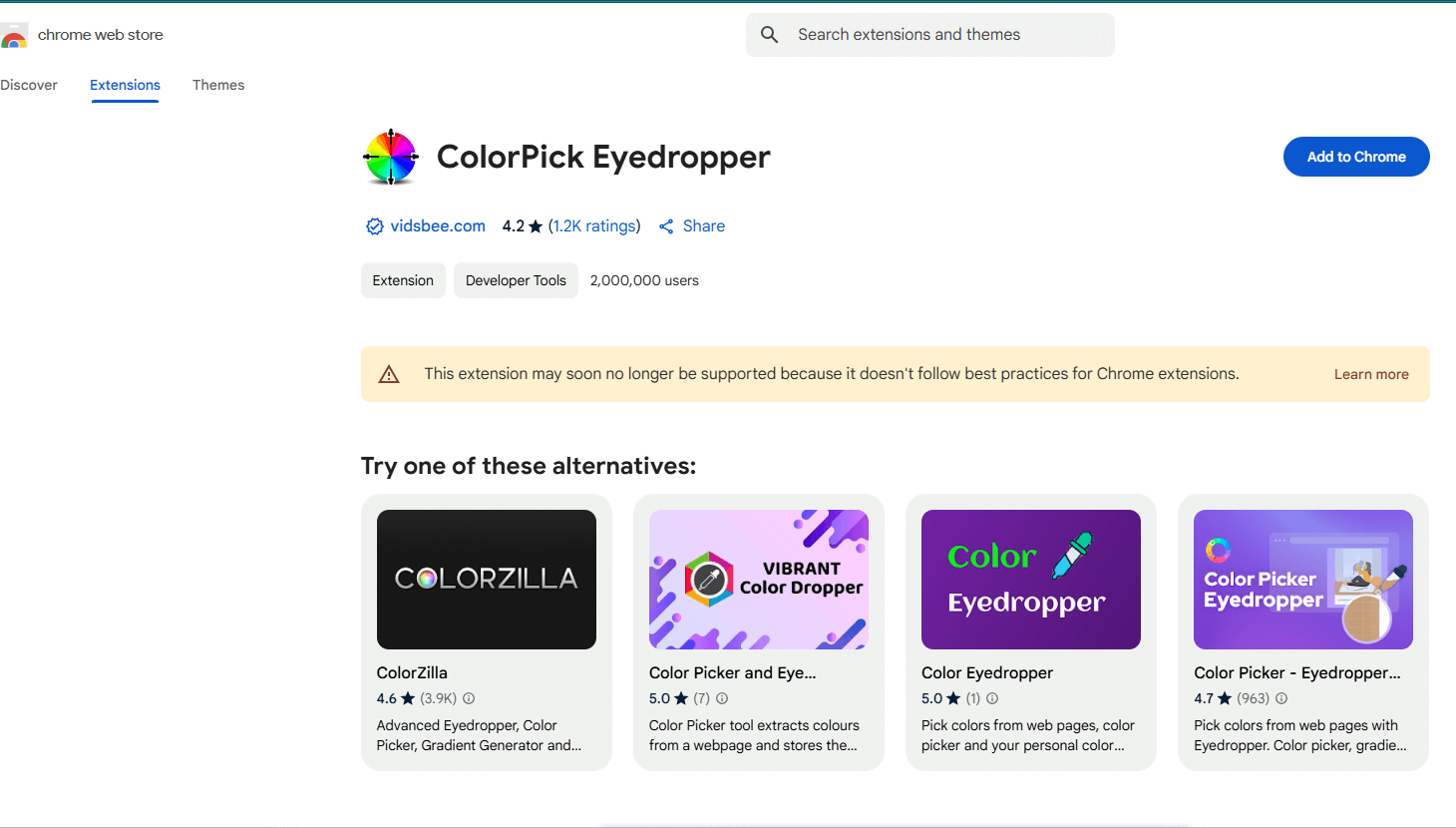
Key Takeaway: ColorPick Eyedropper returns the hex or RGB value of any pixel on a page, so a developer can match a color without the original design file.
6. User Agent Switcher
This extension allows the developer to reset or set custom User-Agent string from a popup provided by the toolbar. It is the practical way to check how a server responds to a mobile or older desktop User-Agent without leaving Chrome.
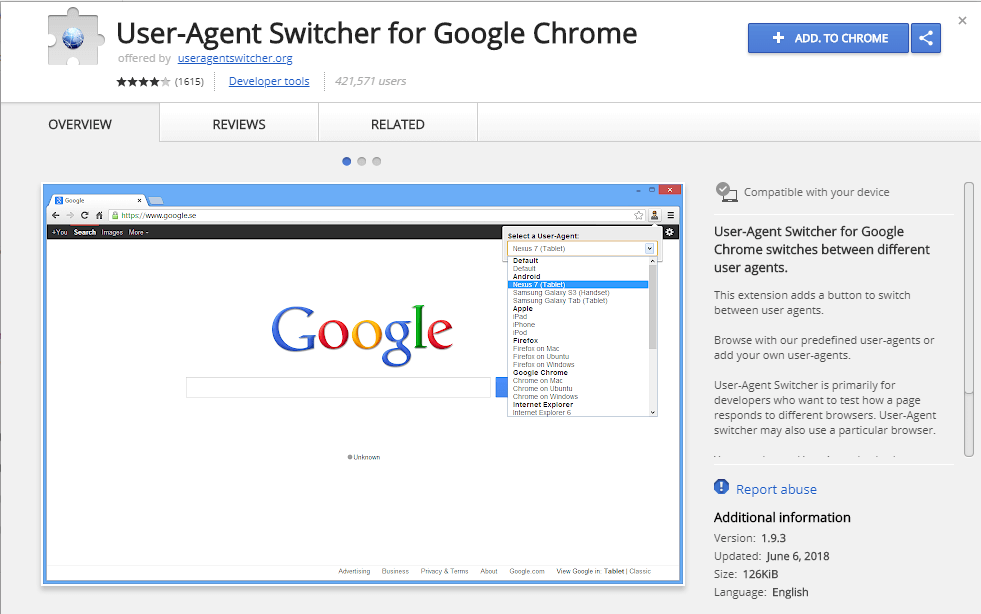
Key Takeaway: User Agent Switcher sets a custom User-Agent string from the Chrome toolbar, which is how a developer checks server-side device detection without a second device.
7. Ghostery
One of the best extensions available in Chrome that detects tracking pixels, JavaScript trackers, and other embedded snippets on a webpage. Once you visit as webpage with this plug-in installed, you can immediately observe the trackers and plugins running in that page. It also protects the privacy of the user since no registration is required to use it.
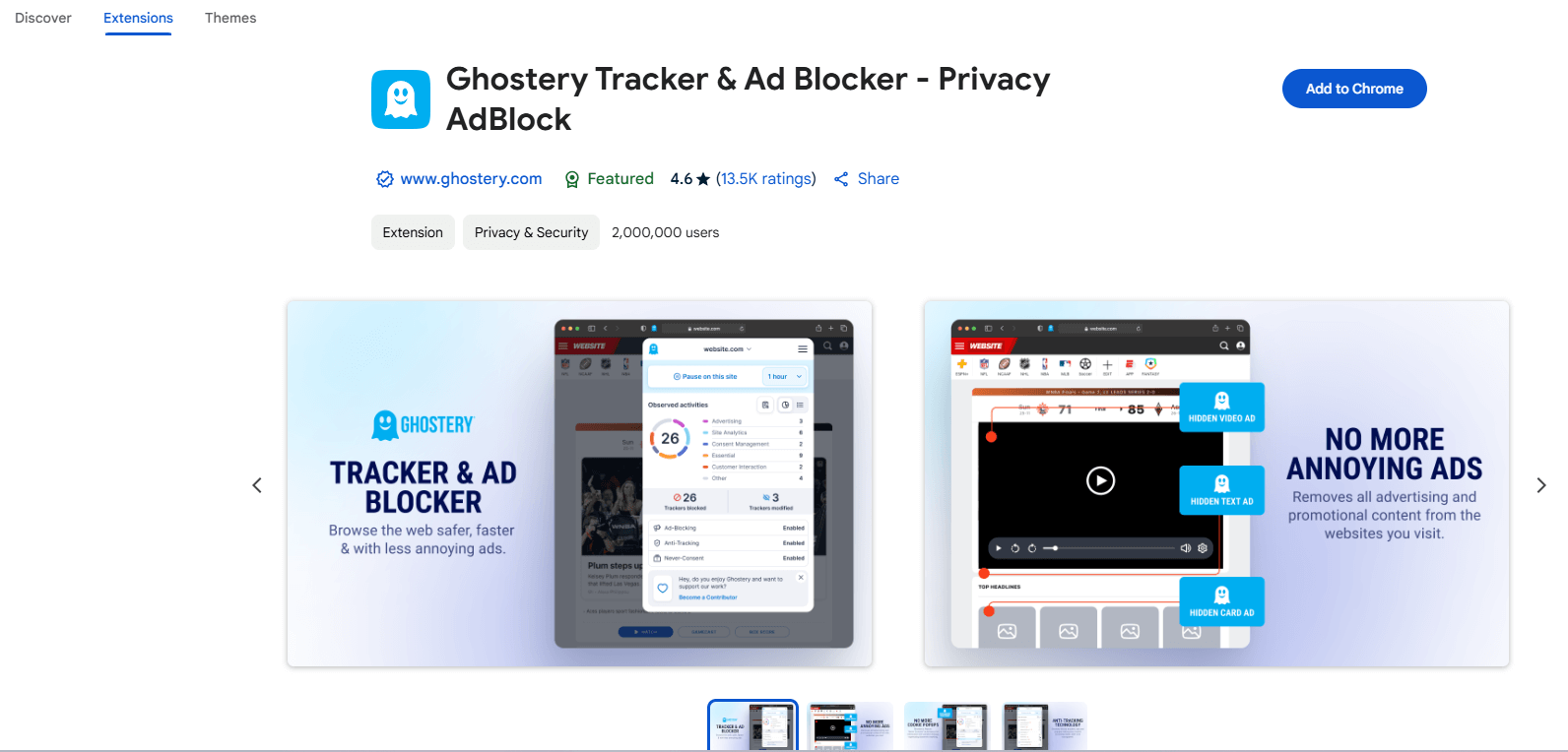
Key Takeaway: Ghostery lists the tracking pixels and third-party scripts loading on a page, which makes an unexpected network request easy to attribute to its source.
8. IE Tab
Microsoft retired Internet Explorer 11 on 15 June 2022, but plenty of internal banking, ERP and government portals still expect the Internet Explorer engine. IE Tab renders a page with that engine inside a Chrome tab, so a developer can open a legacy intranet application without keeping a separate machine for it. The drawback is that the extension runs on Windows only and works on no other operating system.
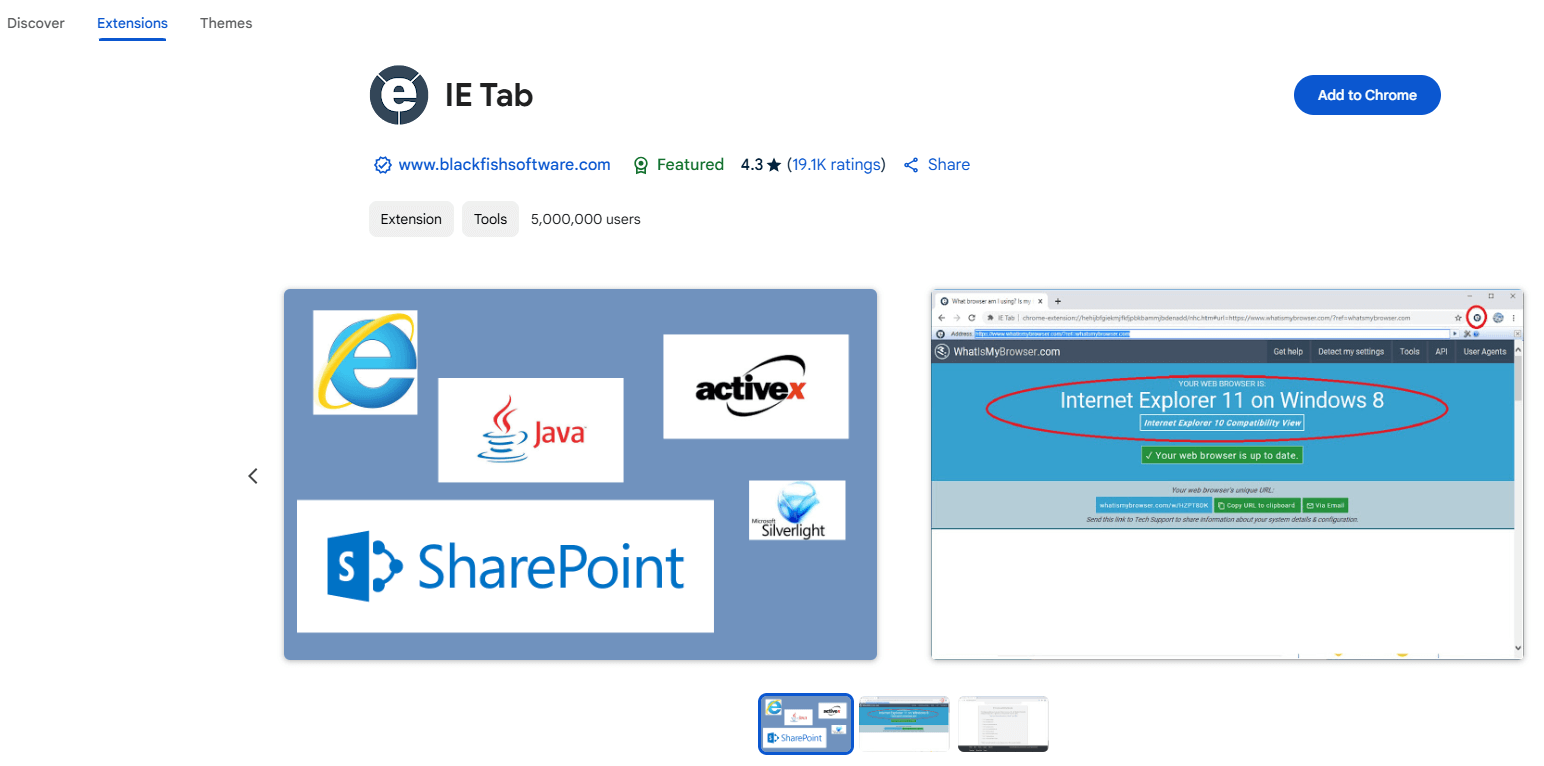
Key Takeaway: IE Tab renders a page with the Internet Explorer engine inside Chrome on Windows, which now matters only for legacy intranet applications that were never ported.
9. Wappalyzer
With a single click this extension informs you about the web technologies that are used to power a certain site. Not only that, the extension is smart enough to detect web frameworks like React, Content Management System like WordPress, e-commerce platforms as well as utilities and tools like Google Analytics.
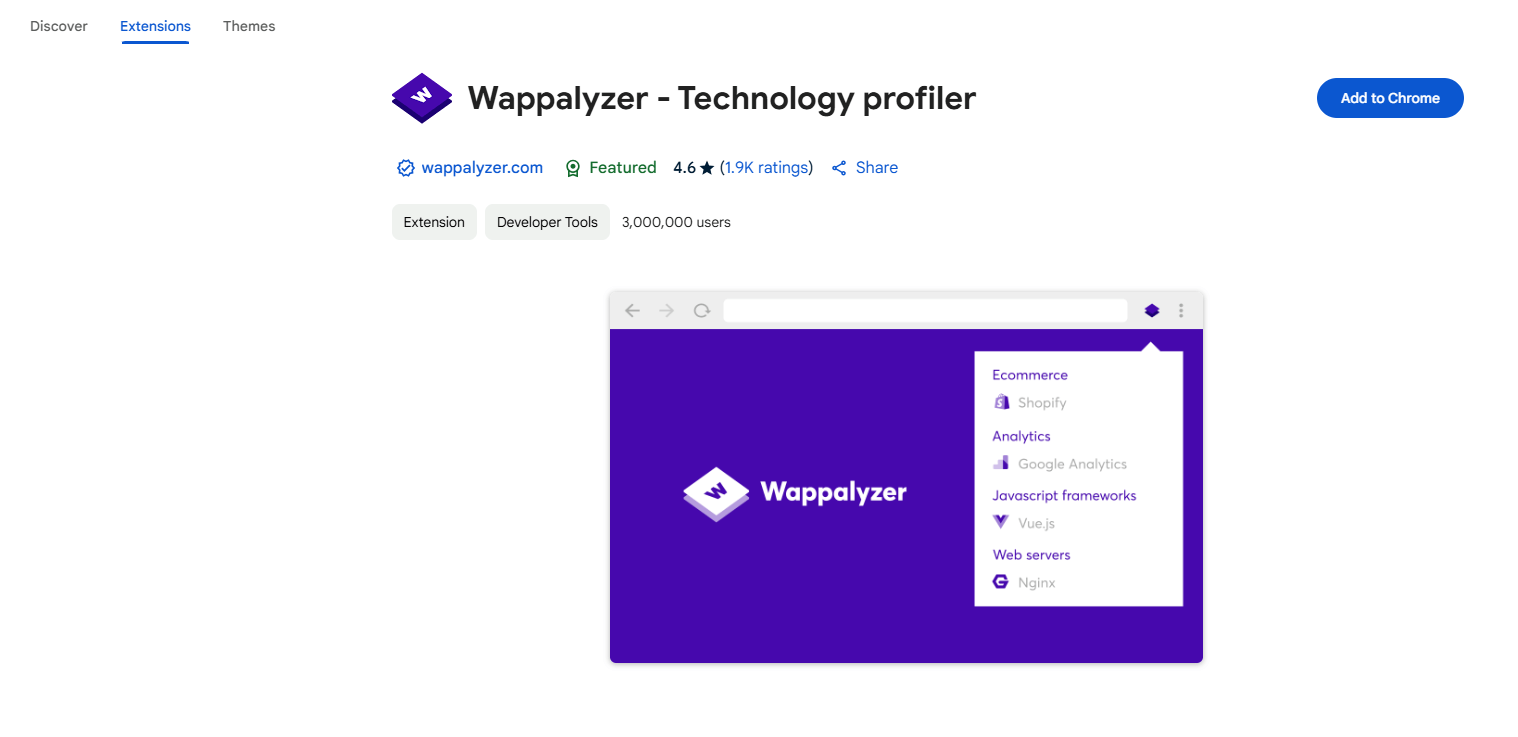
Key Takeaway: Wappalyzer identifies the framework, content management system, ecommerce platform and analytics tools a site runs on, which is the fastest way to profile a stack.
10. Click and Clean
During web development using certain frameworks, changes in CSS often does not get rendered with page refresh. The developer has to clear the browsing history and cache. Using this extension, developer can clean all he desires with just a single click. It also gives the user liberty to choose what to keep and what to clean, like cookies for certain sites, plugin data etc.
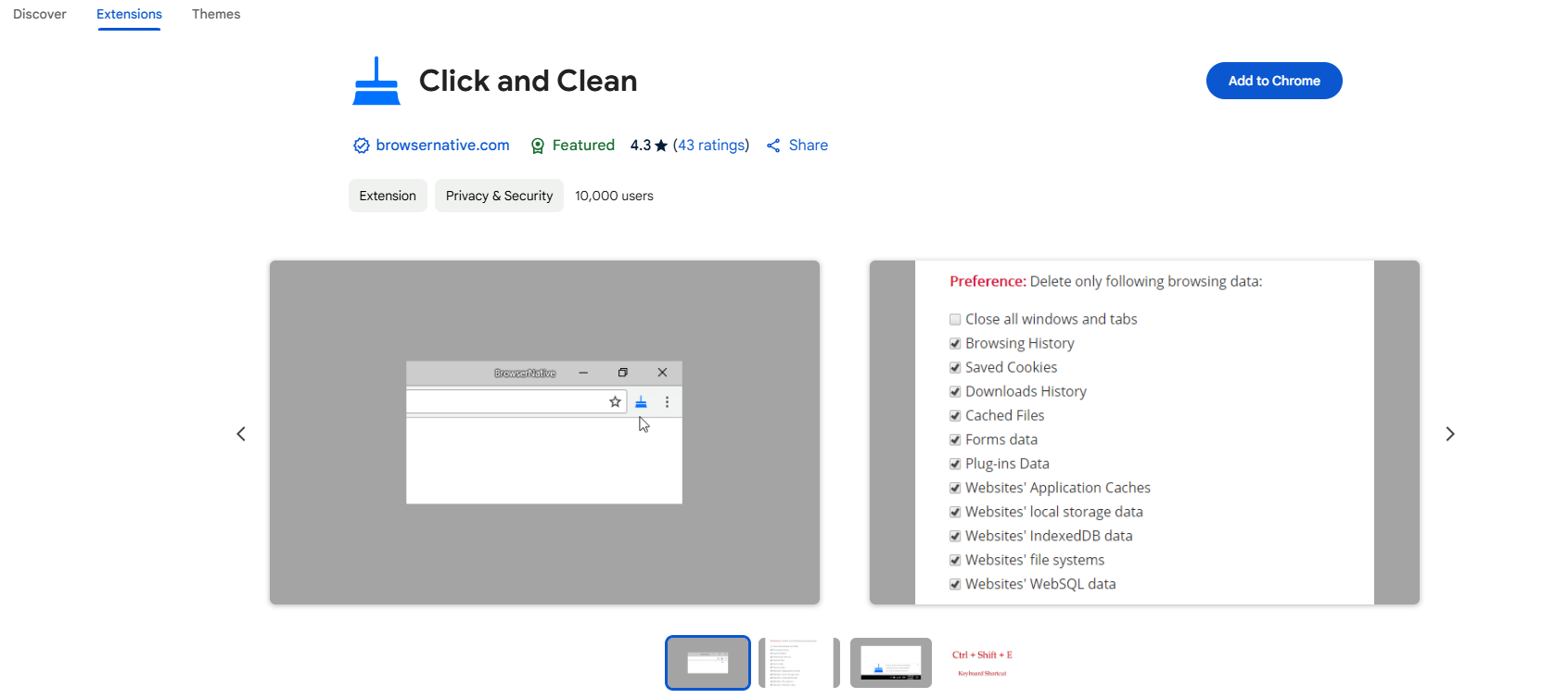
Key Takeaway: Click and Clean clears cache, history and cookies selectively in one click, which resolves the stale CSS problem that a plain page refresh leaves in place.
11.WhatFont
Rather than traditional right clicking on an element and inspecting font-family, WhatFont provides the web developer with a faster approach. With the plug-in installed, just by hovering over a text, you can see the font size, font family along with information like how it is rendered, Typekit or Google Font etc.
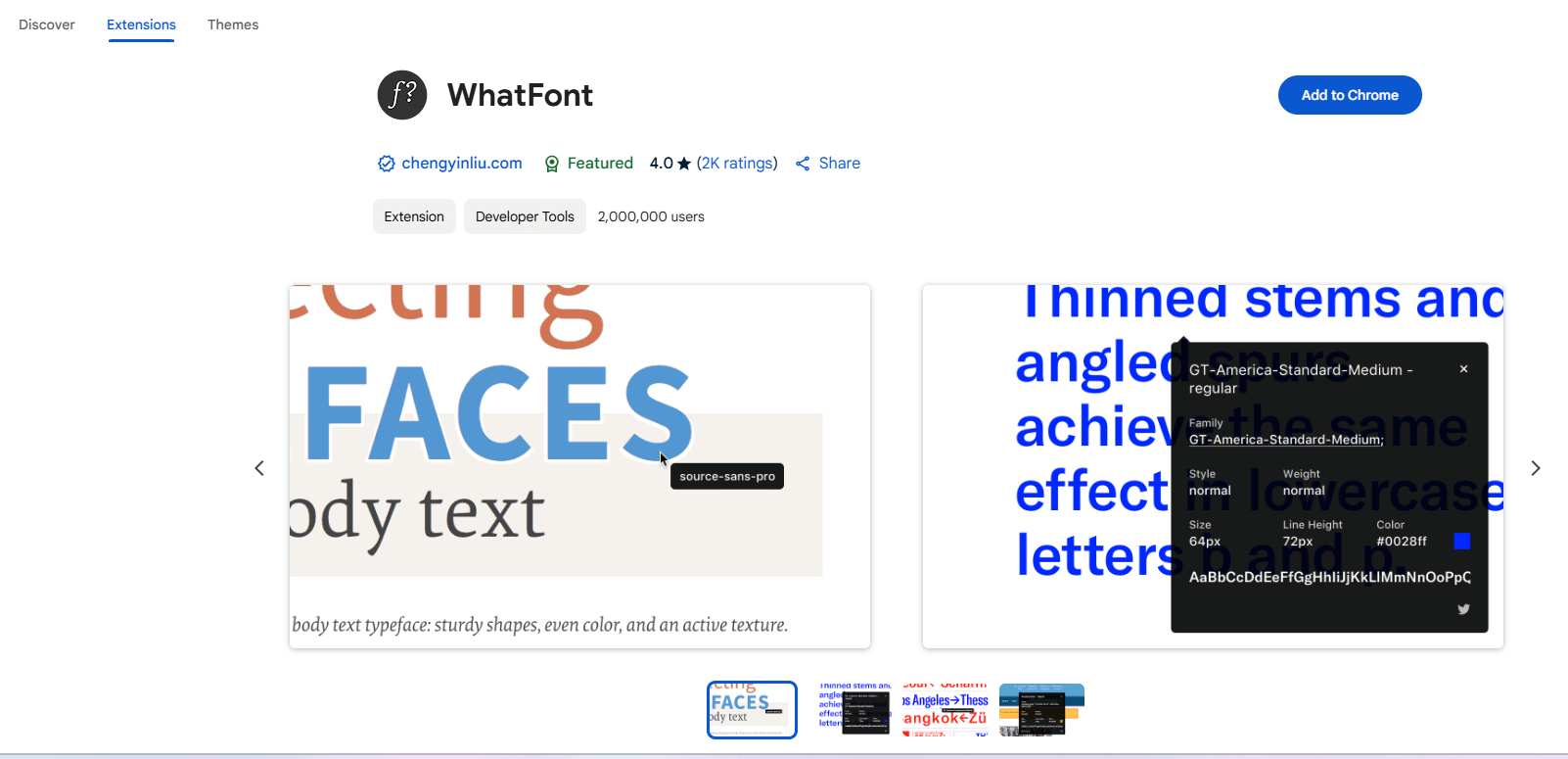
Key Takeaway: WhatFont reports font family, size and delivery service on hover, which is faster than inspecting the font-family property element by element.
12. Check My Links
After the completion of the development phase, you will need to perform a final check whether all hyperlinks are working. This extension provides an easy solution. With one click it runs a scan through the entire page and highlights each link according to whether it is working or broken.
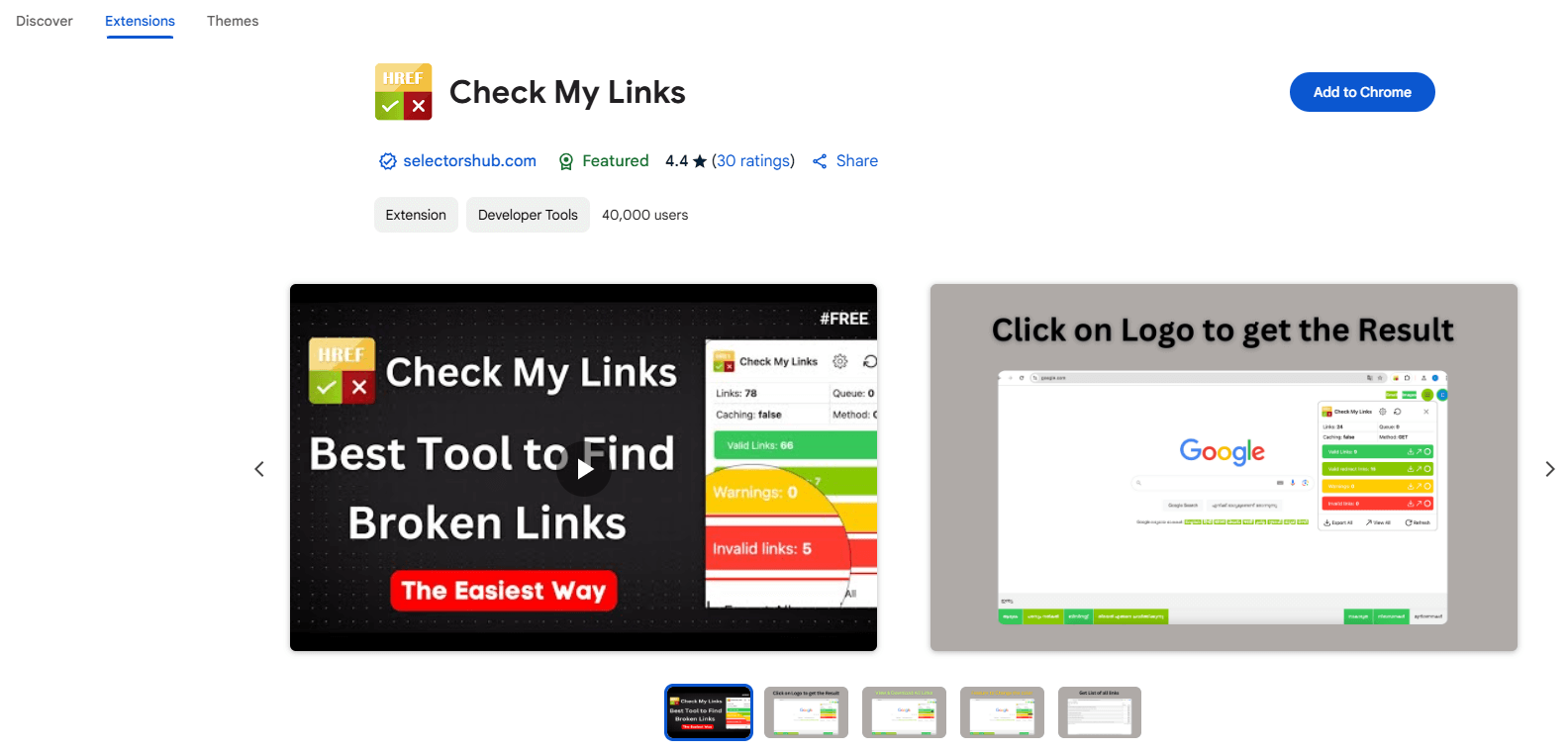
Key Takeaway: Check My Links scans every hyperlink on a page and marks each one working or broken, which turns a pre-release link audit into a single click.
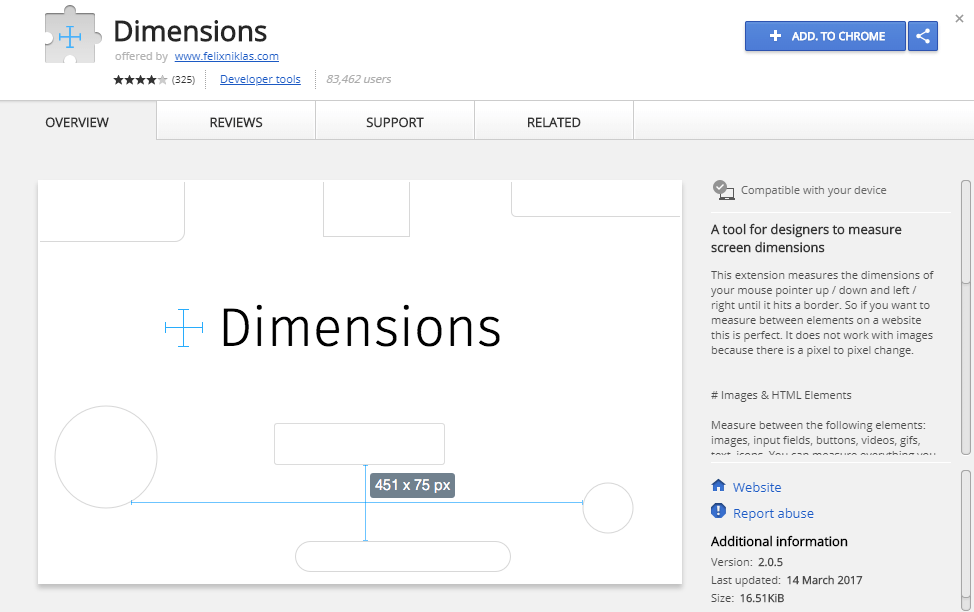
13.Dimensions
This plugin is more inclined towards web design than web development. Using this, you can measure the distance between 2 elements, padding, margin etc. It can also mention the distance between the cursor of the mouse and supported elements.
Chrome is the most preferred browser among web developers because of its simplicity, speed, availability of tools, including extensions, and flexibility. Developers of Chrome have also done their job in designing a compatible browser as well as development tools for people working in PHP, HTML, CSS, etc.
One of the key reasons for Chrome’s popularity among developers is its robust set of debugging tools. Chrome Developer Tools (DevTools) provide a comprehensive suite of features for debugging, profiling, and testing web applications. Developers can inspect and modify the DOM and CSS, debug JavaScript code, analyze network performance, and much more, all within the browser.
Key Takeaway: Dimensions measures the spacing between two elements on a live page, which lets a developer verify padding and margin against a design without editing CSS.

How Do AI Tools Change Chrome Extensions for Developers?
AI changes extension work in two directions. Extensions now call models that ship inside Chrome, and coding agents drive Chrome directly instead of through an extension at all.
- Built-in AI APIs: Chrome exposes Gemini Nano on the device through the Summarizer, Translator, Language Detector and Prompt APIs, so an extension can summarize or rewrite page text without a remote API key.
- Manifest V3 service workers: Chrome replaced persistent background pages with service workers that shut down when idle, so an AI extension must keep each model call short and rebuild its state from storage.
- Chrome DevTools MCP: The chrome-devtools-mcp server from the Chrome team lets a coding agent open a page, read console errors and record a performance trace in real Chrome over the Model Context Protocol.
- Agent-driven sessions: Tools built on the Chrome DevTools Protocol handle browser automation such as filling forms and walking a checkout flow, which overlaps with jobs a developer once did by hand with an extension.
- Permission review: An AI extension that reads page content requests broad host permissions, so read the permission list on its Chrome Web Store page before installing it on a work profile.
None of this retires the list above. Session, color, font and link extensions still do one small job better than a general model does, and an agent still needs a working Chrome profile to act in. The shift is that summarizing, classifying and reading a page are now jobs Chrome itself can do, so the extensions worth installing are the ones that touch the browser in a way a model cannot.
Key Takeaway: The Chrome DevTools MCP server lets a coding agent open a page, read console errors and capture a performance trace in real Chrome, which moves some extension work into the agent.
Author

Arnab Roy Chowdhury
Blogs: 69


Arnab Roy Chowdhury is a community contributor with 10+ years of experience working across software development, web UI engineering, and technical content writing. Currently a Senior Consultant at Capgemini, he has hands-on experience in building and maintaining cross-browser compatible web interfaces using HTML5 and modern frontend practices. Arnab has also contributed as a freelance web developer and writer, combining practical development expertise with clear technical documentation. He holds a Bachelor’s degree in Computer Engineering.


Chrome Extensions for Developers FAQs
Did you find this page helpful?
More Related Blogs
TestMu AI forEnterprise
Get access to solutions built on Enterprise
grade security, privacy, & compliance
- Advanced access controls
- Advanced data retention rules
- Advanced Local Testing
- Premium Support options
- Early access to beta features
- Private Slack Channel
- Unlimited Manual Accessibility DevTools Tests