

Power Your Software Testing with AI Agents and Cloud
The Native AI-Agentic Cloud Platform to Supercharge Quality Engineering. Test Intelligently and Ship Faster.


- TestMu AI (Formerly LambdaTest)
- /
- Blog
- /
- What Is Localhost And Why It Matters?
What Is LocalHost And Why Does It Matter?
Localhost and 127.0.0.1 explained: what the loopback address really does, how to reach a server running on your own machine, and why developers test there.
Last Updated on:
On This Page
- What is a Localhost?
- What is an IP Address?
- Components of IP Address
- What is a Port in Computer Networking?
- Understanding Loopback Address and How It Operates
- Accessing a Locally Hosted Web Application from Another Computer
- Difference Between Localhost Vs. Remote Host Vs. Web Host
- How to Conduct Testing on a Locally Hosted Website?
- Applications of Localhost
Localhost refers to any local machine or device acting as a server that runs services or applications locally. It maps to the loopback IP address 127.0.0.1 (IPv4) or ::1 (IPv6), so data stays on the machine without crossing a network. Developers use it to test and debug web apps before deploying to live servers.
What is a Localhost?
In computer networking, “host” refers to any device. Localhost refers to any local machine or device acting as a server capable of running services or applications locally. It could be any computer serving as a host within a network.

What is an IP Address?
IP address stands for “Internet Protocol Address”. An IP address is a unique address that identifies a device connected to the internet or a local network. It allows devices to connect and share data over the internet for communication and routing inside a network.
There are two main versions of IP addresses:
- IPv4: It stands for Internet Protocol Version 4 and is the most widely used protocol. It is a 32-bit address, divided into four groups of 8-bit octets, with values ranging from 0 to 255, separated by dots. There are approximately 4.3 billion possible IPv4 addresses. An example of an IPv4 address would be 192.168.1.1
- IPv6: It stands for Internet Protocol version 6, and is an advanced IP address standard designed to succeed in IPv4 limited address space. It is a 128-bit address, divided into eight groups of 4 hexadecimal digits, and each hexadecimal digit represents 4 bits, with the value of each hexadecimal digit ranging from 0 to F separated by colon. There are approximately 340 undecillion (trillion trillion trillion) possible IPv6 addresses. An example of an IPv6 address would be 2001:0db8:85a3:0015:0000:8a2e:0370:7334
Components of IP Address
An IPv4 address is divided into two components: Network ID and Host ID.

- Network ID: The first three groups of 8-bit octets of an IPv4 address, starting from the left, identify the network to which the device belongs. For example, in an IPv4 address 192.168.1.34, the network ID is 192.168.1.
- Host ID: The last 8-bit octet of an IPv4 address uniquely identifies a specific device within a given network. For example, in 192.168.1.34, “34” at the end is the host ID.
An IPv6 address is divided into three components:

- Site Prefix: The first three groups of 4 hexadecimal digits (48 bits) of an IPv6 address assigned by an Internet Service Provider (ISP) to a network or organization on a global scale. For Example, in an IPv6 address 2001:0db8:85a3:0015:0000:8a2e:0370:7334, the “2001:0db8:85a3” represents the site prefix.
- Subnet ID: The fourth group of 4 hexadecimal digits (16 bits) starting from the left of an IPv6 address, used for internal network routing. For Example, in an IPv6 address 2001:0db8:85a3:0015:0000:8a2e:0370:7334, the “0015” represents the subnet ID.
- Interface ID: The last four groups of 4 hexadecimal digits (64 bits) of an IPv6 address, identifying a specific device interface on the network. For Example, in an IPv6 address 2001:0db8:85a3:0015:0000:8a2e:0370:7334, the “0000:8a2e:0370:7334” represents the Interface ID.
What is a Port in Computer Networking?
A “port” is a virtual point where a network connection begins and terminates. It is a number assigned to each application or service on a device that enables communication between the application or service on the device. It is an address of a 16-bit unsigned integer number that ranges from 0 to 65535.
A port is categorized into three different ranges:
- Well-Known Ports: The ports in the range of 0 to 1023 are known as Well-Known Ports. These ports are commonly used for widely recognized services and protocols. For Example, the default port for HTTP (Hypertext Transfer Protocol) is 80, and for HTTPS (Hypertext Transfer Protocol Secure), it is 443.
- Registered Ports: The ports from 1024 to 49151 are Registered Ports. Specific applications or services use them but are less universally recognized than well-known ports. For Example, registered port 1433 is commonly used for the Microsoft SQL Server database management system.
- Dynamic Ports: The ports in the range of 49152 to 65535 are known as Dynamic Ports. These ports are not officially designated for any specific service or application.
Understanding Loopback Address and How It Operates
A Loopback address is a reserved IP address range, specifically from 127.0.0.0 to 127.255.255.255, which allows the device to send and receive its data packets.
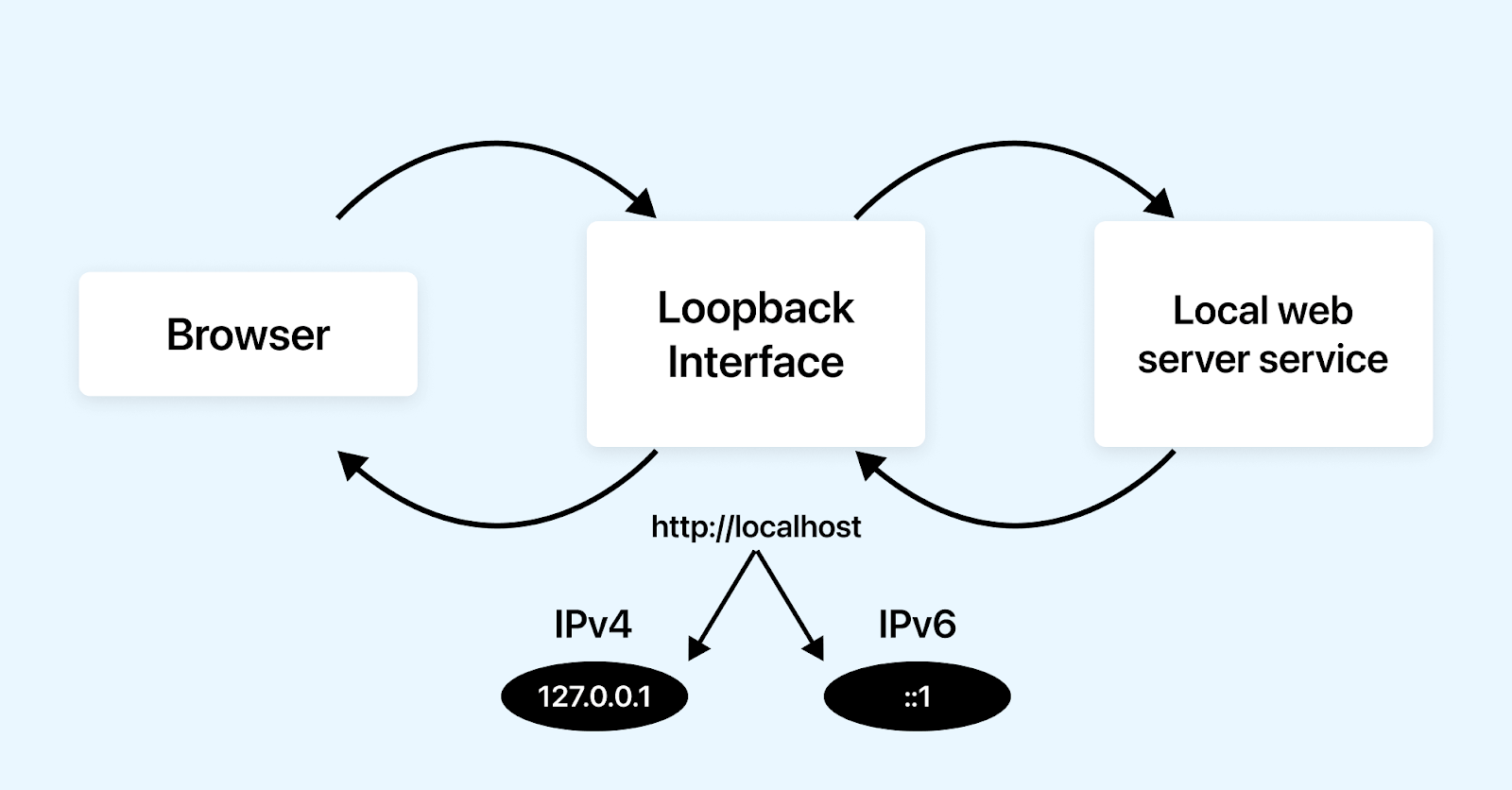
The loopback address is managed by the TCP/IP (Transmission Control Protocol and Internet Protocol) protocol within the operating system, simulating both TCP/IP server and client functionalities on the same system. When we communicate over TCP/IP using the loopback address, data travels from the application to the network stack, through the loopback interface, and back to the application on the same device.
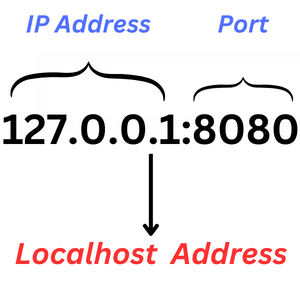
The loopback address 127.0.0.1 is generally known as localhost. It facilitates internal communication among applications and services, simulating network-based interactions within a single device.
How Does Loopback Address Work?
When a user enters an IP address or domain name in a browser, the router directs the request to the internet and connects to the corresponding server. In contrast, when using the loopback address, such as IPv4 address 127.0.0.1 or IPv6 address ::1, TCP/IP recognizes the user’s intent to communicate with their computer. This activates the loopback interface, a virtual interface within the computer’s operating system, facilitating local communication. The computer accesses its local web server through the loopback address, making services accessible through the local host interface.
Accessing a Locally Hosted Web Application from Another Computer
Suppose there are two computers, A and B; currently, the website is locally hosted on computer A, and the user wants to access the website on computer B. Here, we will see the steps to access a localhost website on computer A from B.
- Network Connection: Computers A and B should be connected to the common network via Wi-Fi or a Local Area Network (LAN).
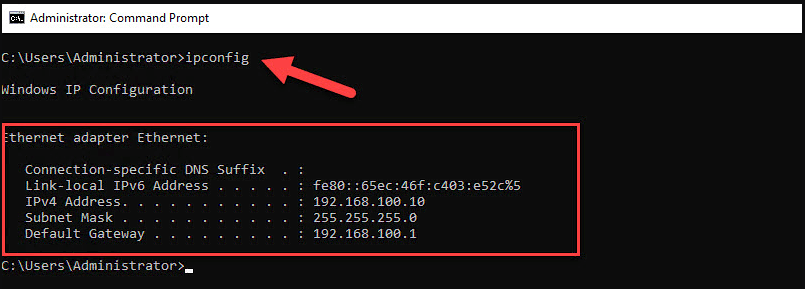
- Determining A’s IP Address: To know A’s computer IP address, open the command prompt (Windows) or terminal (macOS/Linux) on A’s computer and execute the command ipconfig (Windows) or ifconfig (macOS/Linux). This will display the IP address of A’s computer. For Example, ip address
- Run the Web Server: On Computer A, run the local web server hosting the web application.
- Access the localhost website from Another Computer: Enter the local IP address of the hosting computer A along with the port number used by the web server on the web browser of computer B. For example, http://192.168.100.10:8080. This URL should load the local host website.

Note: Test your locally hosted websites across 3000+ browsers, real devices, and OS combinations. Try TestMu AI Today!
Difference Between Localhost Vs. Web Host Vs. Remote Host
Let’s see the difference between Localhost vs. Web host vs. Remote host.
Localhost: Imagine a writer A, writing an article on their personal computer. A can freely edit, revise, and experiment with the content without sharing it with others. This is like running a server on the local machine; no one sees it.
Web Host: If A decides to publish the article and make it available to readers worldwide, they might upload it to an online publishing platform like WordPress (web host). The article becomes accessible to anyone with internet access, resembling the transition from private to public documents.
Remote Host: If A wants writer B to review an article, who works from a different location, accessing the document remotely allows B to suggest changes, and contribute to the editing process. This is like connecting to another computer over the internet, to access its files and service.
How to Conduct Tests on a Locally Hosted Web Applications?
Developers mainly rely on localhost to test their website. The main advantage of localhost is that developers can create, evaluate, and fix applications before deploying into a live server. But when it comes to testing on a wide range of browsers and operating systems, localhost is limited to the machine where the development environment is set up. That’s where TestMu AI provides a valuable solution!
TestMu AI is a cloud based platform that offers a feature known as TestMu AI Tunnel that allows testing locally hosted web applications across different browsers and operating system without exposing them to the internet by establishing a secure connection between the local machine and the TestMu AI servers.
Consider checking out our blog on TestMu AI UnderPass Desktop Applications for an enhanced testing experience with TestMu AI Tunnel.
Test Localhost in Cloud Browsers With a Tunnel
A cloud browser cannot reach your machine's localhost directly. A tunnel opens a secure, encrypted connection from your computer to the TestMu AI cloud, so a live session on another browser, operating system, or device can load your local URL as if it were running on your own machine. Install the tunnel CLI, or UnderPass if you prefer a desktop app, sign in, start the tunnel, and enable the tunnel toggle when you configure the session. The same setup works for staging servers and internal apps behind a corporate firewall.
Test a Folder of Local Files Without a Server
If you only have static HTML, CSS, and assets, point the tunnel at the local directory instead of a running server. The files become reachable in the cloud session at local-folder.lambdatest.com, which is handy for quick layout checks before a development server exists.
Test Local Sites That Use Self-Signed Certificates
Local HTTPS setups often rely on a self-signed certificate that a remote browser would reject. UnderPass includes a MITM option for testing sites with self-signed certificates on a local system or internal network. Turning it on is a security decision, so agree it with your security team first.
Applications of Localhost
Localhost play a vital role in facilitating a secure environment. In this section, we will discuss some of the applications of localhost.
- Web Application Testing: Web Developers use localhost to test and debug applications locally before deploying them to a live server. This allows a controlled environment to identify and fix bugs without affecting the live system.
- Network Speed Testing: IT staff and system administrators use localhost for local network testing, bypassing internet connectivity. By sending requests to localhost, they monitor system software and hardware functionality, assessing the speed of these requests to determine potential optimizations for enhanced system performance.
- Blocking Malicious Website: Network administrators can enhance security by redirecting requests to known malicious websites to localhost. By modifying the host’s file, this protective measure safeguards networks from potential attacks. By assigning harmful website domains to the IP address 127.0.0.1, users are redirected to localhost, mitigating the risk of unintentional access.
Always check the responsiveness of the website to avoid breakage in the layout or scrolling of the website.
Conclusion
Localhost is a cornerstone in web development, offering developers to test their websites and applications before deploying them over the internet. Localhost provides a controlled testing environment that empowers developers to innovate, troubleshoot, and perfect their creations immediately and precisely. Recognizing the pivotal role of localhost ensures a smoother development process, fostering innovation and ultimately contributing to delivering high-quality web experiences for end-users.
Author

Ayush Mishra
Blogs: 6

Ayush Mishra is a Tech Community Contributor and Specialist Programmer at Infosys with over four years of experience. He works on software testing, automation, and quality assurance, along with front-end web development and machine learning. On TestMu AI (formerly LambdaTest), he has authored testing articles on Selenium Grid, Selenium RC, root cause analysis, and end-to-end versus integration testing, and he publishes companion Selenium automation code on GitHub.


Frequently asked questions
Did you find this page helpful?
More Related Blogs
TestMu AI forEnterprise
Get access to solutions built on Enterprise
grade security, privacy, & compliance
- Advanced access controls
- Advanced data retention rules
- Advanced Local Testing
- Premium Support options
- Early access to beta features
- Private Slack Channel
- Unlimited Manual Accessibility DevTools Tests