
Power Your Software Testing with AI Agents and Cloud
The Native AI-Agentic Cloud Platform to Supercharge Quality Engineering. Test Intelligently and Ship Faster.


- TestMu AI (Formerly LambdaTest)
- /
- Blog
- /
- How to Test File Uploads Without Code
How to Test File Uploads Without Code (2026 Guide)
Test your entire file upload flow, drag and drop, size and type limits, progress bars, previews, and error states, in plain English. No Selenium, no code.
Published on:
File uploads can be tested without code by using KaneAI to describe the upload in plain English, since it locates the real file input hidden behind a styled button or drop zone the way a person would. KaneAI also verifies that an oversized file triggers a clear error and that a valid file still uploads afterward.
Why file uploads are hard to test
An upload widget looks like one button, but real coverage has to touch every file, every limit, and every way it can quietly go wrong:
- The real file input is usually hidden behind a styled button or a drop zone, so a test has to reach the element the UI deliberately keeps out of sight
- Every file type behaves differently, so a PDF, a HEIC photo, a CSV, a ZIP, and a 4K video each exercise different parsing, preview, and rendering paths
- Size and type limits have to reject the wrong files with a clear message and accept the right ones, and they can be enforced on the client, the server, or both
- Uploads are asynchronous, so the test must wait on a progress bar, a spinner, or a background job rather than on an instant page change
- Drag-and-drop is a genuinely different interaction from clicking a button, and many widgets support both and can drift out of sync
- Success is more than a message, because the file also has to appear in a list, render a preview or thumbnail, and survive a page refresh
And that is one upload widget. Real coverage means testing tiny files vs. huge files, allowed types vs. blocked ones, and every browser and device your users actually upload from.
The old way: brittle upload scripts
Here is what verifying a single upload-and-check-the-preview scenario looks like in a typical Selenium setup:
wait = WebDriverWait(driver, 20)
driver.get("https://yourapp.com/documents")
upload = wait.until(EC.presence_of_element_located((By.ID, "file-input")))
upload.send_keys("/tmp/invoice.pdf")
driver.find_element(By.CSS_SELECTOR, "button.upload-submit").click()
wait.until(EC.presence_of_element_located((By.CSS_SELECTOR, ".upload-success")))
status = driver.find_element(By.CSS_SELECTOR, ".upload-success").text
assert "uploaded" in status.lower(), f"Expected an upload success message, got: {status}"
preview = driver.find_element(By.CSS_SELECTOR, ".file-preview img")
assert preview.get_attribute("src"), "Expected a preview thumbnail after the upload"
Ten lines, and every one is a hostage to your markup. Rename the file input, restyle the drop zone into a new component, or change the success class, and the script breaks. Maintenance like this is the dominant cost of a large automation suite: engineers spend a large share of every sprint re-pointing selectors and re-timing waits instead of writing new coverage. It also assumes someone on the team writes Python or JavaScript, and uploads make that harder, because you have to juggle real test files, temp paths, and asynchronous waits by hand. It is the core tradeoff behind code-based vs. codeless test automation.
If you are a manual QA engineer, a PM, or a founder without a dedicated automation engineer, the code wall means uploads usually get tested by hand, one file at a time, and almost never with the strange files that actually break them.
The no-code way: write the test the way you would explain it
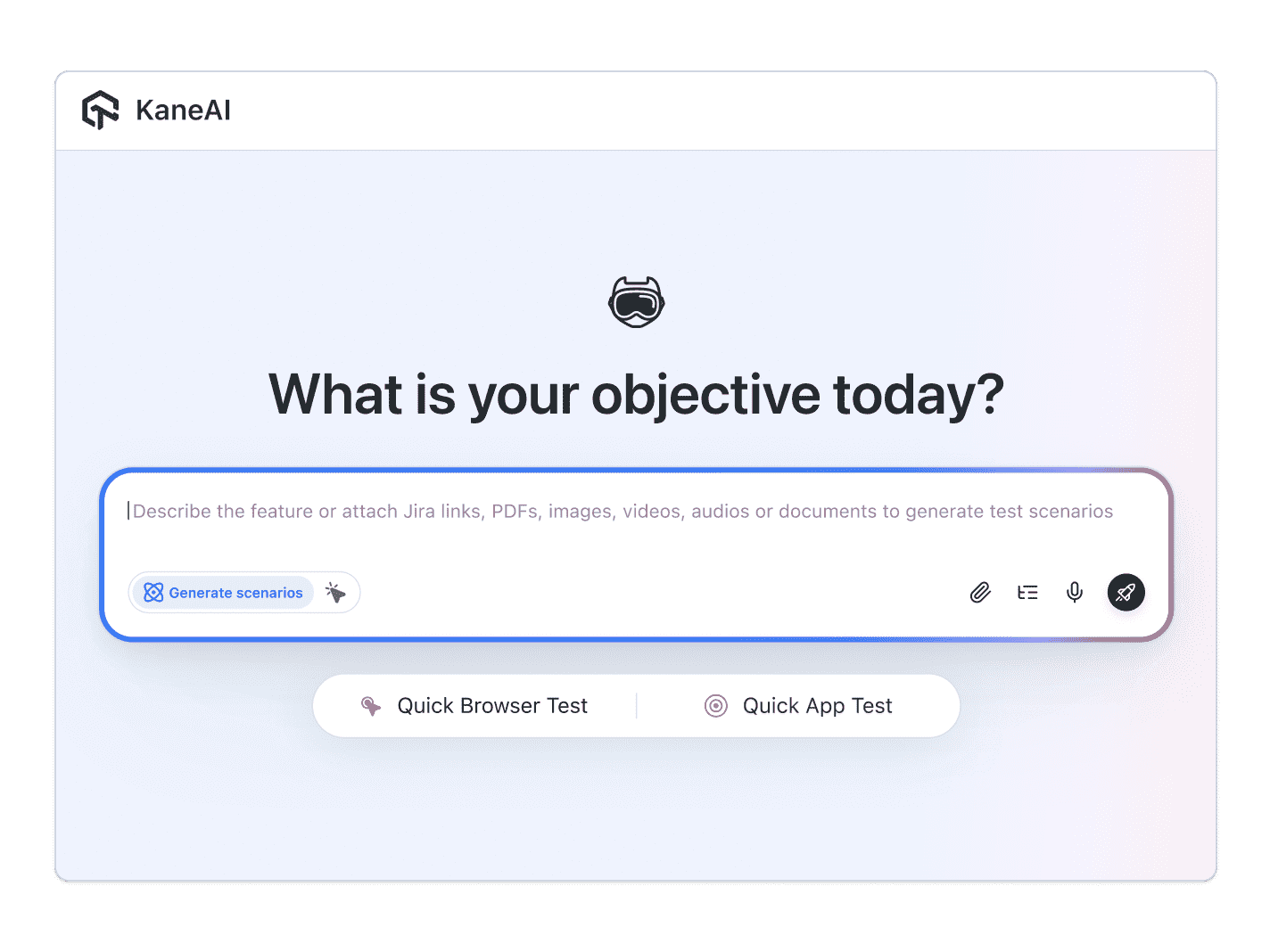
With KaneAI, you write the same test in plain English:
- Go to yourapp.com and open the documents page
- Upload the file invoice.pdf using the upload button
- Click Upload
- Wait for the upload to finish
- Verify a success message appears
- Verify a preview thumbnail of the file is shown
That is the entire test. KaneAI reads each step, finds the real file input behind your styled button or drop zone the way a person would, and pushes the file through. Because it understands the page instead of matching brittle CSS selectors, a redesigned drop zone or a renamed success class does not break the test, and its self-healing re-anchors the step and flags the change for review, which significantly reduces maintenance. It handles the parts that make uploads awkward: file-input handling behind hidden elements, drag-and-drop through advanced click interactions, size and type validation errors, and progress and success assertions that wait for the upload to actually complete.

The file upload scenarios that actually break
Once the happy path works, real coverage is just more English. Here are the upload scenarios worth adding, each takes about two minutes to write:
Oversized file rejected
- Upload a file larger than the allowed limit
- Verify a clear file-too-large error appears
- Verify the file is not added to the list and no partial upload is saved
Wrong file type blocked
- Try to upload a ZIP or an executable where only images are allowed
- Verify a type-not-supported error is shown
- Verify an accepted image type still uploads right afterward
Drag and drop
- Drag a valid image onto the drop zone instead of using the button
- Verify the drop zone highlights and accepts the file
- Verify the same success state and preview as the button path
Upload, refresh, and delete
- Upload a file and wait for the success state
- Refresh the page and verify the file is still listed
- Delete the file and verify it is removed from the list and from storage
Run all of them across Chrome, Safari, Firefox, and real mobile devices from the same plain-English steps, with no per-browser rewrites.
Putting it on autopilot
Upload tests are most valuable when they run without you:
- Schedule the suite nightly, so a change to your storage bucket or a new file-size limit cannot break uploads unnoticed
- Trigger on deploy via CI, where Kane CLI runs the same tests from your pipeline and returns a clean exit code for the build to gate on
- Alert on failure in Slack, with a full replay of exactly what the AI saw when the step failed: screenshots, video, and the reason in plain English
When a test fails, you do not get a stack trace at line 47. You get a plain-English reason for the exact step that failed. Anyone on the team can read it, and anyone can fix the test, because the test is just English.
Try it on your own uploads in 10 minutes
- Sign up for KaneAI free, with no credit card
- Paste your app URL
- Write your first upload test in plain English, or let KaneAI suggest one from your site
- Run it and watch a real file get uploaded, validated, and previewed end to end
Your upload flow is too important to test by hand and too full of edge cases for brittle scripts. Test it in the language you already speak. Once uploads are covered, see how to test single sign-on (SSO) and booking flows the same way.

Note: Test your file upload flow without writing a line of code. Start with KaneAI free.
Author

Shravan Mahajan
Blogs: 11

Shravan Mahajan is a Software Engineer at TestMu AI building Kane CLI, the command-line tool that runs browser automation from the terminal, describing flows in natural language that execute in a real Chrome browser and return pass or fail with shareable proof. He has an experience of 6 years in the Technical industry. His top skills are JavaScript, React.js, and full-stack development. At Fractal he built automated data pipelines with T-SQL, SSIS, Python, and Azure. He is also a Microsoft Certified Azure Data Engineer Associate.
Reviewer

Saniya Gazala
Reviewer
Saniya Gazala is a Product Marketing Manager and Community Evangelist at TestMu AI with 2+ years of experience in software QA, manual testing, and automation adoption. She holds a B.Tech in Computer Science Engineering. At TestMu AI, she leads content strategy, community growth, and test automation initiatives, having managed a 5-member team and contributed to certification programs using Selenium, Cypress, Playwright, Appium, and KaneAI. Saniya has authored 15+ articles on QA and holds certifications in Automation Testing, Six Sigma Yellow Belt, Microsoft Power BI, and multiple automation tools. She also crafted hands-on problem statements for Appium and Espresso. Her work blends detailed execution with a strategic focus on impact, learning, and long-term community value.


File Upload Testing FAQs
Did you find this page helpful?
More Related Blogs

TestMu AI forEnterprise
Get access to solutions built on Enterprise
grade security, privacy, & compliance
- Advanced access controls
- Advanced data retention rules
- Advanced Local Testing
- Premium Support options
- Early access to beta features
- Private Slack Channel
- Unlimited Manual Accessibility DevTools Tests