

Next-Gen App & Browser Testing Cloud
Trusted by 2 Mn+ QAs & Devs to accelerate their release cycles


On This Page
- What is Selenium WebDriver?
- Selenium Suite of Tools
- Difference between Selenium WebDriver and Selenium RC
- Selenium Automation Testing with Python
- Limitation of Selenium WebDriver
- How Selenium Grid Helps Overcome WebDriver’s Limitations
- Shortcomings of a Local Selenium Grid
- Cloud Based Selenium Grid
- Running Selenium Python Automation Tests On Online Cloud Based Selenium Grid

Selenium with Python Tutorial : A Detailed Guide for Automation
Follow our comprehensive Selenium with Python tutorial. Learn how to set it up correctly and start using Selenium with Python for automation.

Himanshu Sheth
February 17, 2026
This article is a part of our Content Hub. For more in-depth resources, check out our content hub on Selenium Python Tutorial and Selenium pytest Tutorial.
Selenium WebDriver is among one of the most popular tools when it comes to Web UI automation. The Selenium framework can be used with a wide range of programming languages such as Python, Java, C#, and more. As per the Stack Overflow Developer Survey, Python is third-most loved programming language with 66.7%. It is also the most wanted programming language. So if you’re planning to perform test automation and Python, you’re at the right place!

In this detailed Selenium Python tutorial, we would cover a range of topics such as the basics of Selenium WebDriver, Selenium with Python, Selenium WebDriver vs. Selenium RC, and more.
Let’s get to it, shall we?
If you’re new to Selenium and wondering what it is then we recommend checking out our guide – What is Selenium?
Starting your journey with Selenium WebDriver? Check out this step-by-step guide to perform automation testing using Selenium WebDriver and learn how does a WebDriver work? to better understand its functioning.
Overview
What Are the Main Components of the Selenium Suite of Tools?
Selenium is a comprehensive automation framework consisting of multiple tools that simplify web testing and improve execution efficiency.
- Selenium IDE: Enables record-and-playback automation, available as Chrome and Firefox extensions, supporting command-line executions through SIDE Runner.
- Selenium RC: Used an HTTP proxy server to bypass same-origin policy, but complex architecture slowed test execution significantly.
- Selenium WebDriver: Interacts directly with browser drivers, allowing automated validation across multiple programming languages without extra servers or proxies.
- Selenium Grid: Allows parallel execution across multiple browsers, operating systems, and devices, improving test coverage and reducing execution time.
How to Set Up Selenium for Automation Testing with Python?
Setting up Selenium with Python ensures a proper environment for automating web browsers efficiently using PyTest and WebDriver.
- Download and Install Python: Install Python on your Windows system to enable web automation and development of Selenium scripts effectively.
- Install PIP for Package Management: PIP allows installation and management of Python packages, essential for adding Selenium and PyTest libraries to your environment.
- Install PyTest Framework: PyTest simplifies writing and executing Python tests, offering better flexibility and reporting compared to default Python testing frameworks.
- Verify PyTest Installation: Run pytest --version in the terminal to confirm successful installation and ensure Python recognizes the PyTest package correctly.
- Install Selenium Python Library: Use pip install -U selenium to add the Selenium library, enabling browser automation using Python scripts and WebDriver.
- Confirm Selenium Version: Check the installed Selenium version by executing python -c "import selenium; print(selenium.__version__)" in the terminal.
- Download Chrome WebDriver: Download a Chrome WebDriver that matches your installed Chrome version to ensure reliable browser automation with Selenium Python.
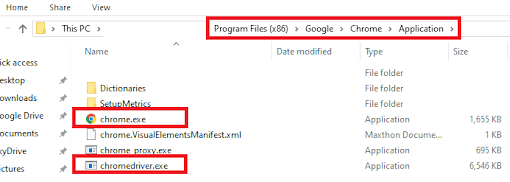
- Place WebDriver in Browser Directory: Save the WebDriver in the Chrome installation folder to avoid specifying its path manually during WebDriver instantiation.
- Prepare Python Script with PyTest: With Selenium and PyTest installed, write Python scripts for automated browser testing efficiently.
- Verify Environment Setup: Confirm all dependencies, drivers, and frameworks are installed correctly before executing Selenium automation scripts on Python.
How to Run Selenium Python Tests on a Cloud-Based Selenium Grid?
Running Selenium Python automation tests on a cloud Selenium Grid like TestMu AI allows scalable, cross-browser execution effortlessly.
- Create and Access Your TestMu AI Account: Sign up for a TestMu AI account or log in to start using the cloud Selenium Grid platform.
- Obtain Username and Access Key: Retrieve your username and access key from your profile, storing them securely in system environment variables.
- Select Desired Test Environment: Use the TestMu AI Capabilities Generator to define the OS, browser, and version for your automation tests.
- Configure Test Capabilities: Set up desired capabilities like platform, browser, version, build name, and test name for Selenium Python execution.
- Write Test Automation Script: Use Selenium Python to automate interactions like clicking items, adding list elements, and asserting expected outcomes.
- Execute Tests on Cloud Grid: Run the Python script, triggering execution on TestMu AI’s cloud infrastructure with remote browser instances.
- Monitor Test Execution: View live execution details, including build name, environment information, command logs, and real-time video recordings.
- Validate Test Results: Assert that the automation script performed expected actions, checking results for correctness after test completion.
- Interact With Test Dashboard: Click on completed tests in the Automation dashboard to analyze reports, view videos, or debug issues efficiently.
- Leverage Cloud Platform Features: Take advantage of TestMu AI’s advanced features like parallel execution, cross-browser coverage, and detailed analytics for testing.
What is Selenium WebDriver?
A web page consists of different web elements, such as text boxes, checkboxes, buttons, etc. Web automation testing involves automating the tasks that have to be performed on those web elements. Selenium WebDriver is a popular web-based automation testing framework that is primarily used for automating tasks related to Web UI testing.
Selenium WebDriver does not interact directly with the web elements on a page. A browser-specific Selenium WebDriver acts as the bridge between the test script and the web browser. Selenium WebDriver is the main component that communicates with the web browser. Selenium locators are used for locating elements on the page so that appropriate methods can be used for interacting with the element.
Selenium WebDriver supports most of the popular programming languages used by developers and testers, namely – Python, Java, C#, Ruby, and more. It supports popular operating systems such as Windows, Mac OS, Linux, and Solaris.
Mozilla Firefox is the default web browser of Selenium WebDriver.
Selenium WebDriver Architecture
Understanding the communication between different blocks of Selenium is essential before looking into Selenium with Python. Selenium WebDriver APIs are used for communicating between programming languages and web browsers.
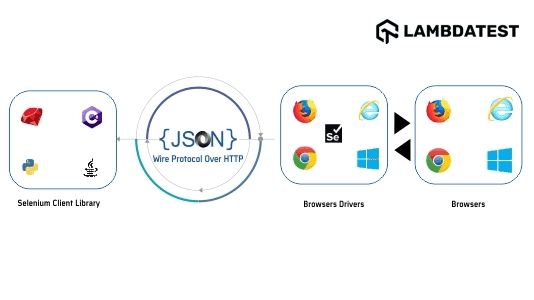
The Selenium WebDriver architecture comprises of the following blocks:
- Selenium Client Libraries
- JSON Wire Protocol
- Browser Drivers
- Browsers
Let’s take a detailed look into each of these components:
Selenium Client Libraries
As mentioned earlier, developers can use Selenium for performing automation testing with popular programming languages. Selenium Client Libraries or Selenium Language Bindings make this multi-language support possible in Selenium.
The focus of this Selenium Python tutorial is using Selenium with Python. Hence, we would require language bindings for Python. Language drivers for programming languages, including Python, can be downloaded from the official Selenium location for Client Libraries.
JSON Wire Protocol
JSON stands for JavaScript Object Notation. JSON Wire Protocol is used for the transfer of data between the server and client on the web. It is a REST (Representational State Transfer) API that facilitates information transfer between the HTTP Server.
Each web browser, namely – Chrome, Firefox, Internet Explorer, etc., has its own browser driver (or HTTP Server).
Browser Drivers
Browser drivers are primarily responsible for communicating with the corresponding web browser. Every browser has its own browser driver, and the same needs to be installed on the machine where automation testing will be performed.
Since communication with the web browser happens via the browser driver, the browser’s internal logic is not revealed. The browser driver adds the much-needed level of abstraction to the interaction with the browser.
When the browser driver receives any command (or request), it is executed on the respective browser, and the response of execution is sent to the web driver as an HTTP response.
Browsers
Selenium can be used with popular browsers such as Chrome, Firefox, Internet Explorer, Microsoft Edge, etc. The framework cannot be used for browsers whose browser driver is not available.

Selenium Suite of Tools
Selenium version v1 consisted of IDE, RC, and Selenium Grid. The latest stable version of Selenium is 3.141.59, and the Alpha version of Selenium 4 is 4.0.0-alpha-6. All the Selenium Client Libraries are compatible with Selenium 4.
Selenium WebDriver was introduced in Selenium v2, and Selenium RC was deprecated in Selenium 3. Selenium RC has a more complex architecture and also lacks in performance.
Selenium Suite consists of the following components:
- Selenium Integrated Development Environment (IDE)
- Selenium Remote Control (RC)
- Selenium WebDriver
- Selenium Grid
Let’s look into each of these components in greater detail in this section of the Selenium Python Tutorial:
Selenium IDE
Selenium IDE is a popular tool for playback and record testing. It was earlier available only as a Firefox plugin, but now Selenium IDE is also available as a Chrome add-on.
The current version of Selenium IDE has the provision of a command-line tool (SIDE Runner) that lets you run your .side project on a Node.js platform. Selenium WebDriver is required if you want to create test scripts using Selenium IDE.
Selenium RC
Selenium RC was considered the main component in Selenium until the introduction of Selenium WebDriver in Selenium v2. Selenium RC was widely appreciated, as it could overcome the same-origin policy, which caused major concerns when performing web automation testing. The same-origin policy was introduced for security purposes, and it made sure that contents on a web page are not accessible to a script from another domain (or site).
Selenium RC Server, which is an HTTP proxy server, was introduced for overcoming the same-origin policy. Hence, Selenium RC comprises the Selenium Client and Selenium RC Server.
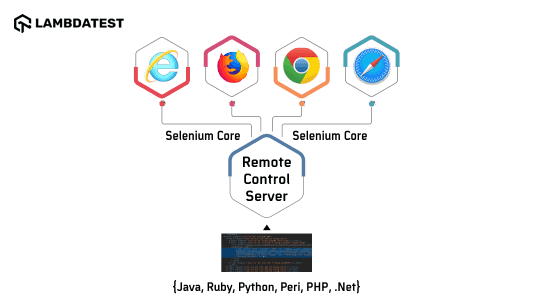
Selenium RC Server was designed for tricking the browser such that it believes that the web application being tested and Selenium Core belong to the same domain.
To overcome JavaScript Security restriction (or same-origin policy), proxy injection mode was used. Here, Selenium RC Server sits between the browser & website(or app) under test and masks the test candidate (website or app) under a fictional URL.
These changes not only complicated the architecture but also resulted in elongating the test execution time. Hence Selenium RC is officially deprecated.
Selenium WebDriver
Selenium WebDriver is an automated testing framework used for the validation of websites (and web applications). It supports popular programming languages such as Python, C#, Java, Ruby, and more.
Selenium WebDriver was introduced in Selenium v2. As Selenium WebDriver communicates with a web browser using its corresponding browser driver, it does not require a component like Selenium RC Server (as in Selenium RC).
Selenium WebDriver for popular browsers can be downloaded from the links mentioned below:
In further sections of this Selenium WebDriver tutorial, we would look at using Selenium with Python framework such as PyTest.
Selenium Grid
Selenium Grid lets you run tests across different combinations of browsers, operating systems, and devices. Parallel test execution can be performed using a Selenium Grid, as tests can be executed in parallel against different browser and OS combinations in parallel.
Selenium Grid uses a Hub and Node architecture, where the Hub is the master and one or more Nodes are its slaves. Selenium Grid 4, which is still under Alpha, supports Standalone Mode, Fully Distributed Mode, and the traditional Hub & Node Mode.
TestMu AI offers an online Selenium Grid, which can be used to perform live interactive cross-browser testing of your public or locally hosted websites and web apps on 3000+ real mobile and desktop browsers running on a real operating system.
2M+ Devs and QAs rely on TestMu AI
Deliver immersive digital experiences with Next-Generation Mobile Apps and Cross Browser Testing Cloud
 Sign up with google
This certification is for professionals looking to develop advanced, hands-on expertise in Python automation testing with Selenium and take their career to the next level.
Here’s a short glimpse of the Selenium Python 101 certification from TestMu AI:
If you are preparing for an interview you can learn more through selenium interview questions.
Difference between Selenium WebDriver and Selenium RC
Though Selenium RC (Remote Control) and Selenium WebDriver are test automation tools that support different programming languages, they differ a lot in many aspects. The major difference lies in the architecture of both these tools.
1. Architecture
Selenium RC works in a similar way irrespective of the browser on which tests are performed. The following operations are performed when a test script is executed on Selenium RC:
- Selenium RC Server injects JavaScript Code, also called Selenium Core, into the web browser.
- On receipt of commands from Selenium RC Server, the Selenium Core executes those instructions as JavaScript commands.
- The browser on which the test is performed executes the commands from the Selenium Core and returns the summary of test execution to the Selenium RC Server.
This complicated the architecture of Selenium RC. On the other hand, Selenium WebDriver does not inject any custom script but works directly with the web browsers by using corresponding browser drivers. Selenium WebDriver is a successor to Selenium RC.
2. Speed of Test Execution
Selenium WebDriver makes direct calls to the web browser using the browser drivers for that particular browser. Hence, Selenium WebDriver is much faster in terms of test execution speed, as it follows a simplified architecture (i.e., Hub and Node model) compared to Selenium RC.
3. Built-in reporting mechanism
Selenium RC provides an automated HTML file that contains the test results, whereas the reporting feature is not available in Selenium WebDriver by default.
However, test reports can be generated easily with Selenium WebDriver when used with test automation frameworks such as TestNG, PyTest, etc.
4. Headless browser automation
Selenium WebDriver supports testing on HTMLUnit browsers (or headless browsers), whereas Selenium RC does not support it.
5. Ease of Use
Selenium WebDriver has a wide-range of commands that are user-friendly & very easy to use. On the other hand, Selenium RC offers a limited set of commands that are not so user-friendly as compared to Selenium WebDriver.
6. Support for new browsers
Selenium WebDriver interacts with a web browser through its corresponding Browser Driver. It uses the browser’s native support for automation. Hence, Selenium WebDriver works on those web browsers whose browser drivers (e.g., ChromeDriver for Chrome, GeckoDriver for Firefox, etc.) are available.
Configuration for a new browser has to be implemented as a part of a Selenium WebDriver release. Selenium RC does not have this limitation, as there is no such component as a browser driver involved in its architecture.

Automation Testing with Selenium Python
Now that you have a detailed understanding of Selenium WebDriver, we move to the part where we would demonstrate how to use Selenium with Python. We start this section of Selenium Python Tutorial by setting up Selenium, Python, etc., on Windows for Python web automation.
Setting up Selenium with Python
Follow the below-mentioned steps for setting up the development environment for Selenium with Python:
- Download Python for Windows and then install the same. Skip this step if you already have Python installed on your machine.
- For installing and managing any package in Python, PIP has to be installed on the machine. PIP is the package management system in Python. To install pip on Windows, download get-pip.py and save it in your machine.Now, navigate to the directory where get-pip.py is downloaded and saved – and execute the following command on the terminal to install it:
python get-pip.py
pip --version
pip install –U pytest
You can verify whether PyTest installation is successful or not by executing the below command:
pytest --version
Shown below is the output of the above command.
pip install -U selenium
python -c "import selenium; print(selenium.__version__)"
The following command helps in retrieving the version of Selenium installed for Python:
Here is the output of the above command that confirms the version of Selenium installed on the machine:
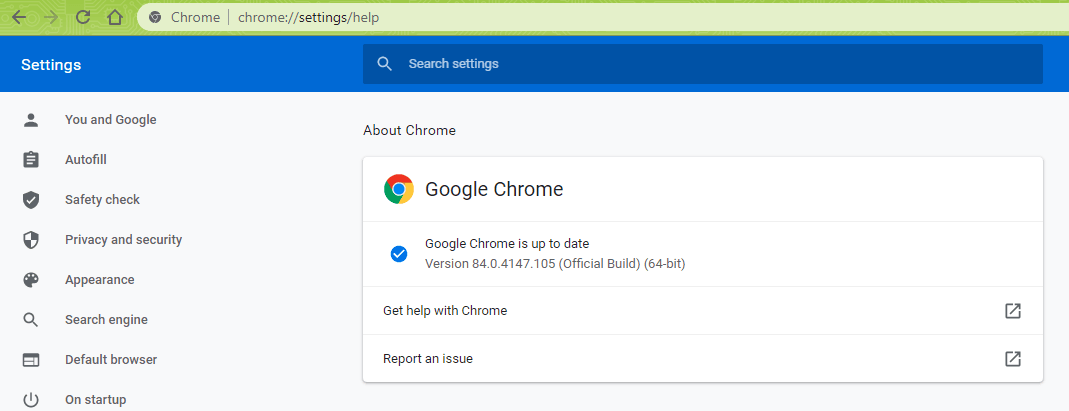
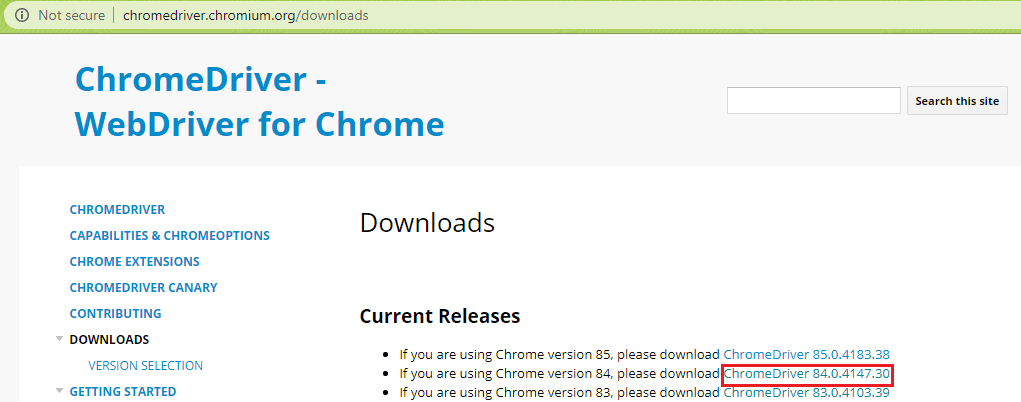
It is always a good practice to download the browser WebDriver (i.e., Chrome WebDriver in our case) in the location where the corresponding browser is installed. By doing so, you would not be required to specify it’s the path when instantiating Chrome WebDriver.
The prerequisites for executing the Selenium test automation script with Python and PyTest are complete.
Demonstration of Selenium Automation Testing with Python
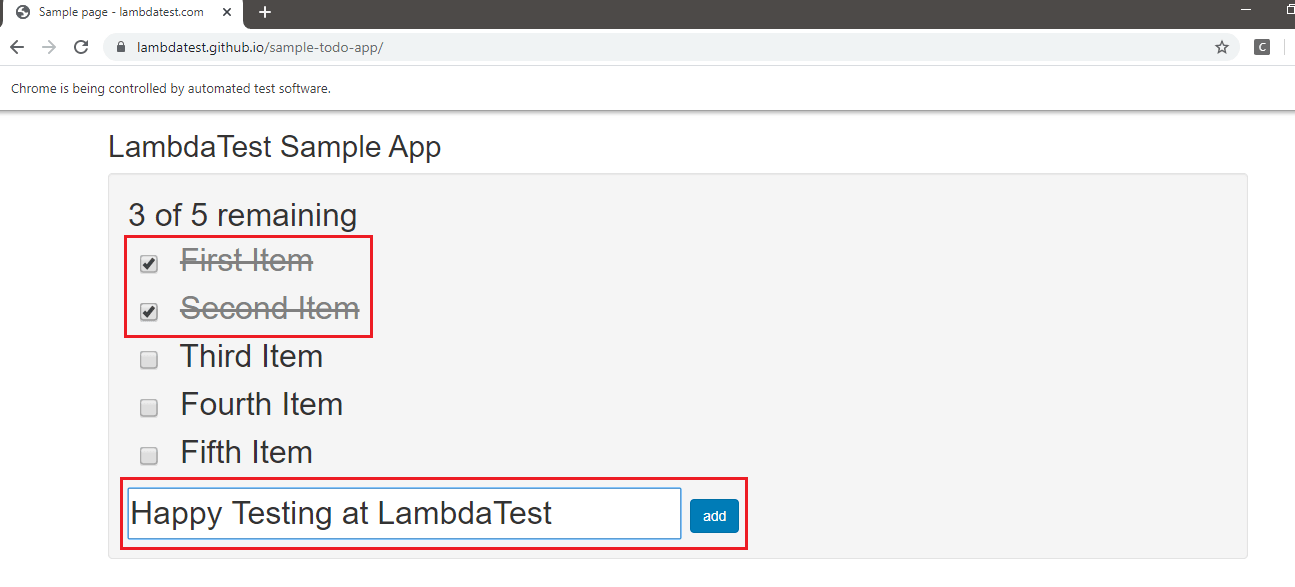
In this Selenium Python Tutorial, we have used the following test scenario for demonstration:
- Navigate to the URL https://lambdatest.github.io/sample-todo-app/
- Select the first two checkboxes
- Send ‘Happy Testing at TestMu AI’ to the textbox with id = sampletodotext
- Click the Add Button and verify whether the text has been added or not
Implementation
#Implementation of Selenium WebDriver with Python using PyTest

import pytest
from selenium import webdriver
import sys
from selenium.webdriver.chrome.options import Options
from selenium.webdriver.common.keys import Keys
from time import sleep

def test_lambdatest_todo_app():
    chrome_driver = webdriver.Chrome()

    chrome_driver.get('https://lambdatest.github.io/sample-todo-app/')
    chrome_driver.maximize_window()

    chrome_driver.find_element_by_name("li1").click()
    chrome_driver.find_element_by_name("li2").click()

    title = "Sample page - lambdatest.com"
    assert title == chrome_driver.title

    sample_text = "Happy Testing at LambdaTest"
    email_text_field = chrome_driver.find_element_by_id("sampletodotext")
    email_text_field.send_keys(sample_text)
    sleep(5)

    chrome_driver.find_element_by_id("addbutton").click()
    sleep(5)

    output_str = chrome_driver.find_element_by_name("li6").text
    sys.stderr.write(output_str)

    sleep(2)
    chrome_driver.close()
Code Walkthrough
Lines (1-6) : Modules such as pytest, sys, selenium, etc. are imported before the implementation of the test method.
#Implementation of Selenium with Python using PyTest

import pytest
from selenium import webdriver
import sys
from selenium.webdriver.chrome.options import Options
from selenium.webdriver.common.keys import Keys
from time import sleep
Lines (9-10) : The test method is test_lambdatest_todo_app(). Selenium WebDriver for Chrome is instantiated with webdriver.Chrome() thereby launching the Chrome browser.
def test_lambdatest_todo_app():
    chrome_driver = webdriver.Chrome()
Lines (12) : driver.get() method in Selenium is used for opening the URL under test, i.e., https://lambdatest.github.io/sample-todo-app/
chrome_driver.get('https://lambdatest.github.io/sample-todo-app/')
Lines (13) : driver.maximize_window() method is used for maximizing the browser window.
chrome_driver.maximize_window()
Lines (15-16) : The ‘Inspect Tool’ in Chrome is used for locating the required element on the web page.
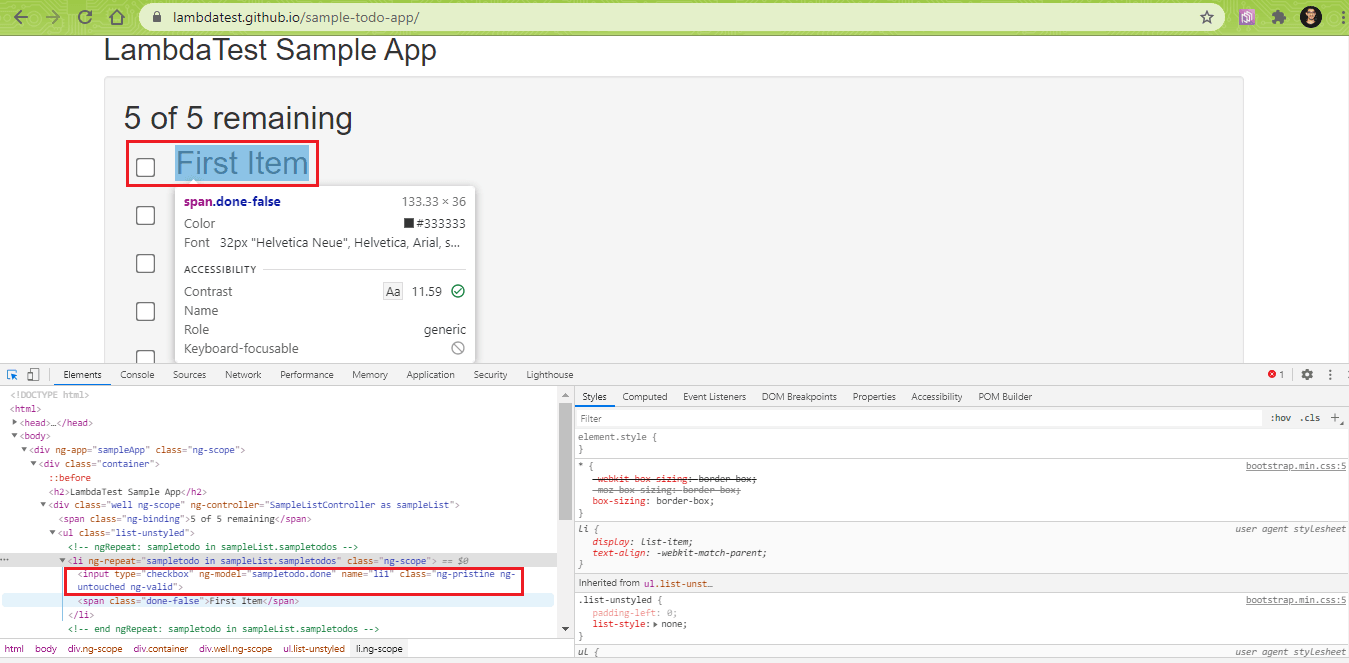
Once the elements are located, the click() method is used for performing the necessary operation.
chrome_driver.find_element_by_name("li1").click()
chrome_driver.find_element_by_name("li2").click()
Lines (18-19): The driver.title() method is used for retrieving the title of the web page under test. Assert is raised if the expected title does not match the title of the web page displayed in the browser window.
title = "Sample page - lambdatest.com"
assert title == chrome_driver.title
Lines (21-23) : The web element (i.e., text box) where the text ‘Happy Testing at TestMu AI’ has to be entered is located using ‘Inspect Tool’ in Chrome.
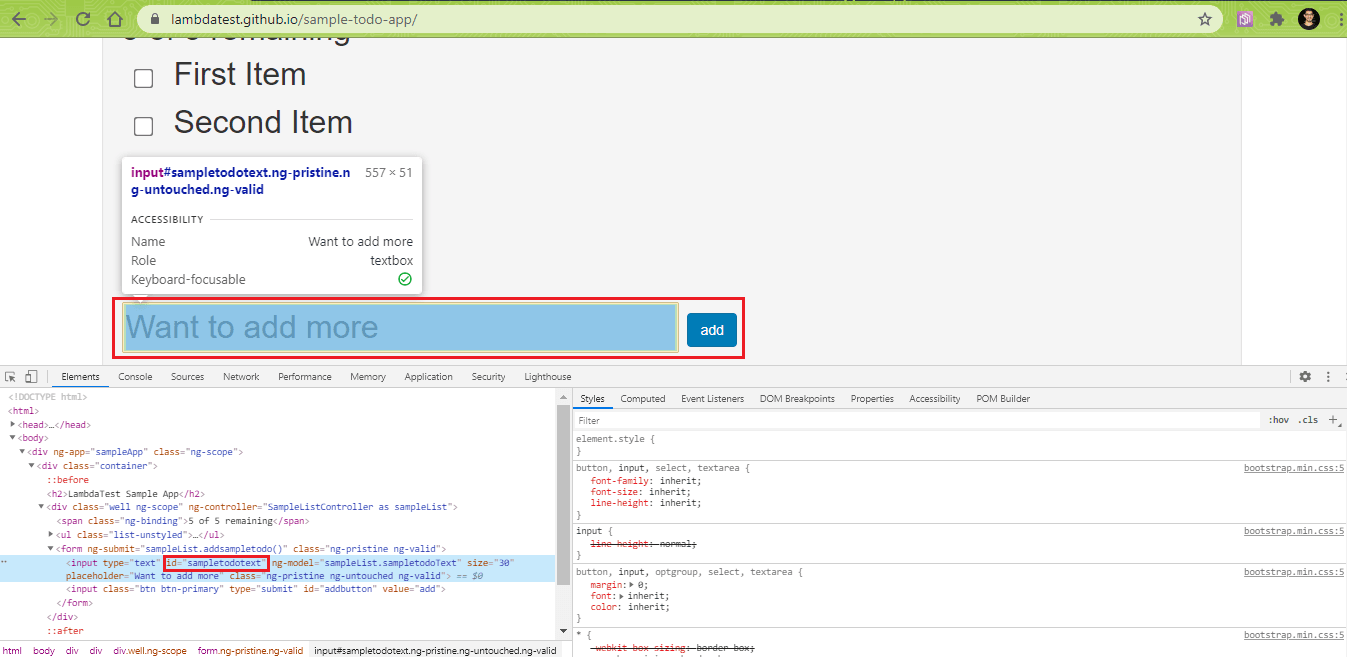
The find_element_by_id() method is used with input as the ID of the element which we located using ‘Inspect Tool.’ The driver.send_keys() method is used for entering the sample text ‘Happy Testing at TestMu AI‘ in the text box with id ‘sampletodotext.’
sample_text = "Happy Testing at LambdaTest"
email_text_field = chrome_driver.find_element_by_id("sampletodotext")
email_text_field.send_keys(sample_text)
Line (26) : The ‘add’ button on the page is located using its ID property. Selenium click() method is performed to add the text ‘Happy Testing at TestMu AI’ to the list.
chrome_driver.find_element_by_id("addbutton").click()
Line (33) : The driver.close() Selenium method is used for closing the browser window under focus. This will release the resources held by the WebDriver instance.
chrome_driver.close()
Execution
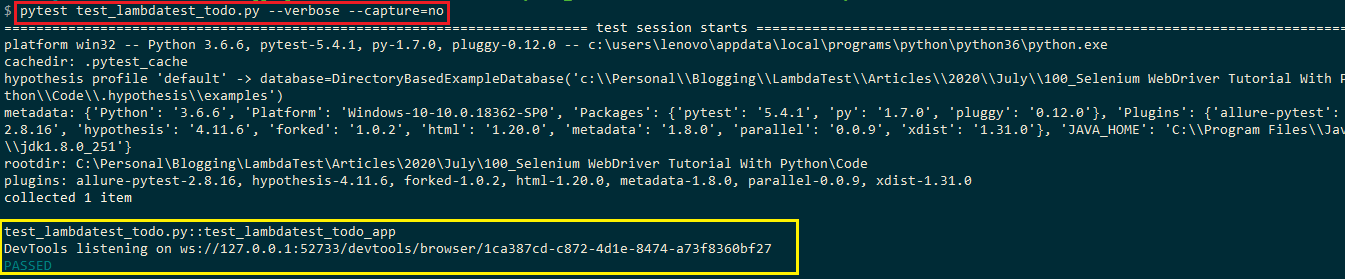
Navigate to the directory where the test code is located and execute the following command on the terminal
pytest test_lambdatest_todo.py --verbose --capture=no
The –verbose option is used for setting the verbosity level to default. The –capture option is used to capture only stderr and not stdout.
Here is the snapshot of the test execution, which indicates that the test has PASSED.
Limitation of Selenium WebDriver
Now that you know what Selenium WebDriver is, how it is better than Selenium RC, let us see the drawbacks associated with Selenium WebDriver.
- Selenium WebDriver does not support Windows based application’s automation.
- Selenium WebDriver cannot be used for automation of image, captcha, or the otp functionalities.
- Selenium WebDriver does not support any in-built reporting mechanism.
- You need to depend upon community forums for your doubts and technical issues mainly, as Selenium WebDriver is open-source.
- In order to use Selenium WebDriver, knowledge of at least one of the supported languages is needed.
- Selenium WebDriver does not provide any test tool integration to facilitate Test Management.
- Parallel Testing is not supported by Selenium WebDriver, making it very challenging to use for larger and complex test suites.
These limitations with Selenium WebDriver pushed users towards the next Selenium component, i.e., Selenium Grid.

How Selenium Grid Helps Overcome WebDriver’s Limitations
To check our website’s responsiveness, we might need to run our automation test scripts across multiple browsers, operating systems, and devices. This is where the Selenium Grid comes into the picture. Selenium Grid allows us to get rid of multiple local setups for the various desired combinations we need to test. Selenium Grid also allows us to perform Parallel Testing by sending commands to remote web browser instances from a hub server.
Shortcomings of a Local Selenium Grid
Though a Selenium Grid is useful for automation testing (particularly cross-browser testing), the local Selenium Grid requires continuous maintenance. The scope of testing might be limited, as maintaining a physical infrastructure that considers all the combinations of browsers, browser versions, and operating systems could require a huge investment.
The local Selenium Grid also needs to be updated regularly with the new browser versions and the latest version of the Server Grid. Hence, there is a huge recursive cost involved in maintaining an in-house Selenium Grid.
Cloud Based Selenium Grid
Migrating to a cloud-based Selenium Grid, like TestMu AI, lets you perform automation testing of websites (or web applications) independent of the physical infrastructure. TestMu AI lets you perform cross-browser testing on 2,000+ combinations of browsers, operating systems, and real devices.
Apart from better test coverage, the test code can also leverage the advantages of parallel testing on TestMu AI. This reduces the overall time spent on automation testing. Testing on a cloud-based Selenium Grid also eliminates the need to procure and maintain in-house infrastructure. As there are different plans, you can choose the best-suited plan depending on the project budget and requirements.
Running Selenium Python Automation Tests On Online Cloud Based Selenium Grid
Now let us see how to run automation tests, written using Selenium with Python, on an online cloud-based Selenium Grid. We will be using TestMu AI’s cloud Selenium Grid as the platform to perform our Selenium Python testing.
Let us see how to run our automation test on TestMu AI step-by-step:
- Create an account on TestMu AI. If you already have an account, login into it.
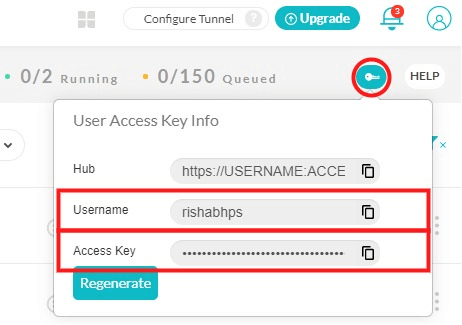
- Get the username and access key from the profile or using the Key icon from your automation dashboard, and store it in your system’s environment variables.
- Fetch the desired environment details of the Selenium Grid Cloud, using the TestMu AI’s Capabilities Generator. For this example, we have used following capability:
- Copy the code from below and paste it. For demo purpose, we will be using the sample ToDo app of TestMu AI and perform the following test actions:
- Click on the first item in the list
- Click on the second item in the list
- Add an item to the list.
- Also, assert if the added item is as expected or not
- Run the above code. You can view the test execution on the TestMu AI platform directly along with its test status, build, execution video, environment details, command logs, and other information.
- Create an account on TestMu AI. If you already have an account, login into it.
- Get the username and access key from the profile or using the Key icon from your automation dashboard, and store it in your system’s environment variables.
- Fetch the desired environment details of the Selenium Grid Cloud, using the TestMu AI’s Capabilities Generator. For this example, we have used following capability:
desired_caps = {
       "build": 'Selenium WebDriver with Python Tutorial',
       "name": 'Running Test on LambdaTest',
       "platform": 'Windows 10',
       "browserName": 'firefox',
       "version": '73'
   }
- Click on the first item in the list
- Click on the second item in the list
- Add an item to the list.
- Also, assert if the added item is as expected or not
- Click on the first item in the list
- Click on the second item in the list
- Add an item to the list.
- Also, assert if the added item is as expected or not
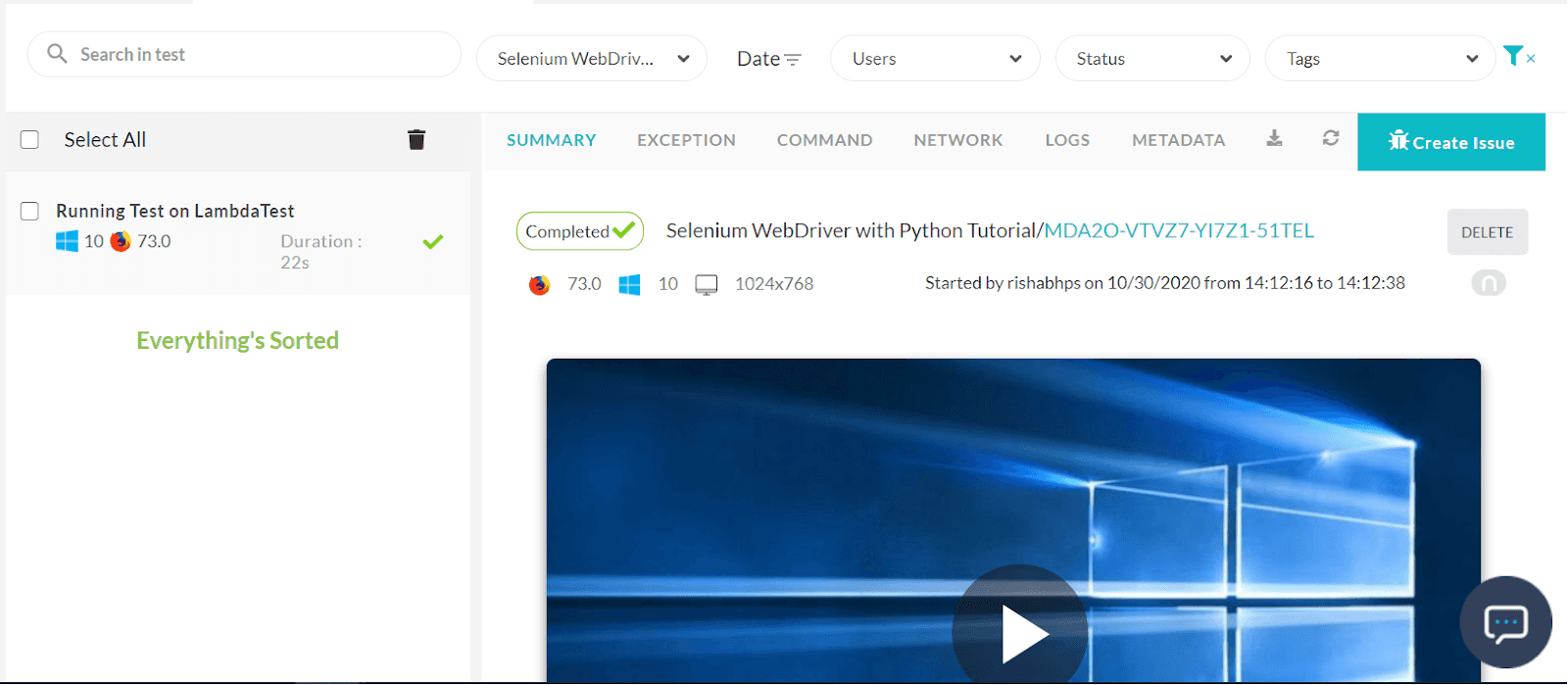
To view the above execution, go to your Automation dashboard. You see the complete details about the test by its build name.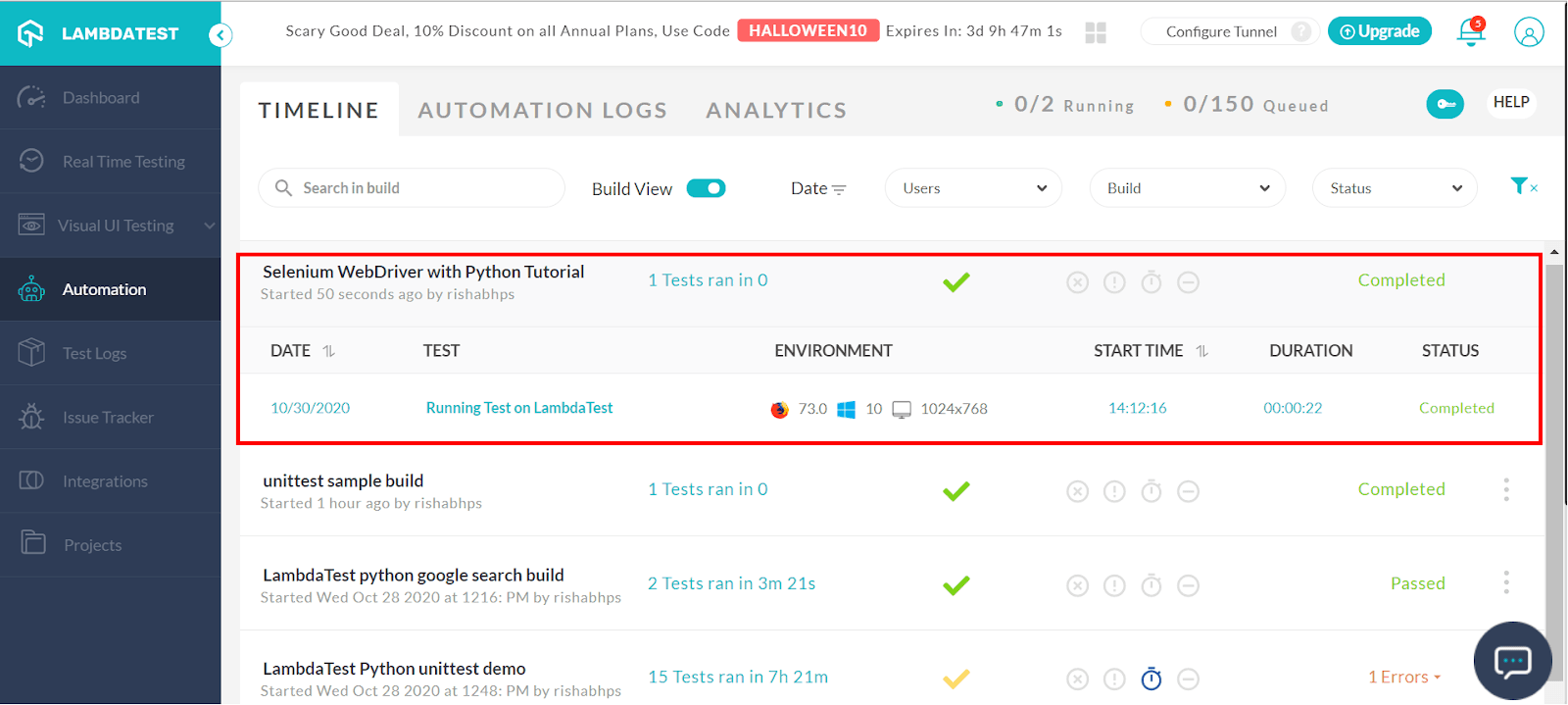
You can click on the test to interact with it, and take advantage of various features provided by the TestMu AI platform.
Conclusion

Selenium WebDriver is widely used for automation testing, as it is open-source and supports popular programming languages such as Python, C#, Java, and more. The appropriate browser drivers are used for interacting with the browser on which automation testing has to be performed. This adds a layer of abstraction to the interaction with the web browser.
Existing implementations of Selenium with Python can be migrated to work with a remote cloud-based Selenium Grid with minimal changes. Testing on a cloud-based Selenium Grid helps in accelerating the pace of test automation. Selenium with Python can also take advantage of parallel execution offered by a cloud based Selenium Grid like TestMu AI.


Frequently asked questions
Did you find this page helpful?
More Related Hubs
TestMu AI forEnterprise
Get access to solutions built on Enterprise
grade security, privacy, & compliance
- Advanced access controls
- Advanced data retention rules
- Advanced Local Testing
- Premium Support options
- Early access to beta features
- Private Slack Channel
- Unlimited Manual Accessibility DevTools Tests