

Next-Gen App & Browser Testing Cloud
Trusted by 2 Mn+ QAs & Devs to accelerate their release cycles


On This Page
- 1. Import the Selenium library
- 2. Driver Initialization with Python
- 3. Setting Options in Selenium WebDriver
- 4. Finding an element
- 5. Misc methods for finding elements
- 6. Opening a URL (or document)
- 7. Refresh a page
- 8. Writing text inside a WebElement
- 9. Clearing text of a WebElement
- 10. Clicking a WebElement
- 11. Dragging and Dropping a WebElement
- 12. Selecting an option
- 13. Navigating between windows
- 14. Switching to iFrames
- 15. Handling pop-ups and alerts
- 16. Getting Page Source
- 17. Navigating browser history
- 18. Handling Cookies in Selenium
- 19. Setting Window Size
- 20. Configuring TimeOuts in Selenium WebDriver
- 21. Capturing Screenshots
- Conclusion

The Ultimate Selenium Python Cheat Sheet for Test Automation
Looking for a quick-start guide to Selenium Python commands for automation testing? Check out our Selenium Python cheat sheet that covers Selenium commands for web automation testing with Python.

Vinayak Sharma
December 25, 2025
This article is a part of our Content Hub. For more in-depth resources, check out our content hub on Automation Testing and Selenium Python Tutorial.
Python is one of the most popular programming languages for Selenium web automation since it provides a simplified syntax and lets you perform more with much less code! Thus, Python and Selenium form an ideal combination to perform web automation testing!
For starters, Selenium is an open-source framework that is primarily used for automating interactions on the WebElements in the AUT (Application Under Test). Along with Python, Selenium also supports Java, C#, JavaScript, Ruby, and PHP. However, as per my experience, it would be fair to mention that Python will be my most preferred language for Selenium web automation.
Like me, more & more developers are picking up Python, which is rated as the third-most popular language as per the Stack Overflow Developer Survey 2021. Therefore, a Selenium Python cheat sheet could serve the purpose of providing insights into the useful Selenium Python APIs for realizing automation of websites (or web apps).
If you’re new to Selenium and wondering what it is then we recommend checking out our guide – What is Selenium? If you are preparing for an interview you can learn more through Selenium interview questions.
In this blog, we explore the Python package that provides Python bindings for the Selenium WebDriver. For installing the Selenium WebDriver package, we use the Python Package Index (PyPI). Run the following command on the terminal to install Selenium for Python:
$ pip install selenium
If you’d like to run your python test scripts over a Selenium Grid online then leverage TestMu AI for your test automation.👇

This Python library wraps the Selenium WebDriver and provides methods for automating a range of tasks like filling up the form, logging into a website, clicking on buttons, and more. In addition, you can have a look at the Selenium Python tutorial that deep-dives into the integral aspects of Selenium Python from a web automation testing point of view.
The commands mentioned in this Selenium Python cheat sheet can be used as a handy resource for anyone toying with Selenium and Python to automate web applications. If you need a quick recap of Python with Selenium, check out the tutorial that deep dives into the Selenium WebDriver architecture and highlights integral aspects related to Selenium WebDriver with Python. Let’s kick start our Selenium cheat sheet with Python!
1. Import the Selenium library
Before you can use any Selenium Python commands, you need to import the Selenium WebDriver package.
from selenium import webdriver
2. Driver Initialization with Python
After downloading the corresponding browser driver, you need to start the Selenium WebDriver and browser driver (e.g., ChromeDriver for Chrome, GeckoDriver for Firefox, etc.).
- For Chrome
# Initialize Chrome WebDriver
driver = webdriver.Chrome()
# Initialize Firefox/Gecko WebDriver
driver = webdriver.Firefox()
# Initialize Safari WebDriver
driver = webdriver.Safari()
# Initialize IE WebDriver
driver = webdriver.Ie()
In case the location of the browser driver is not added to the PATH variable (or if it is not in the System Path), you need to add the following arguments:
- executable_path: Path to your Selenium WebDriver (binary file)
- options: Options regarding the web browsers execution
Example
driver = webdriver.Chrome(executable_path="/usr/bin/chromedriver/", options=chrome_options )
3. Setting Options in Selenium WebDriver
The Options class in Selenium Python is commonly used in conjunction with Desired Capabilities to customize Selenium WebDriver.
It helps to perform various operations like opening the browser(Chrome, Firefox, Safari, IE, Edge, etc.) in maximized mode, enabling and disabling browser extensions, disabling GPU mode, disabling pop-ups, and more. Therefore, it is important to be well-versed with this section of the Selenium Python cheat sheet since it will help solve Python web automation specific problems that involve changing browser properties that we mentioned earlier.
- For Chrome
- Importing Chrome options
from selenium import webdriver
from selenium.webdriver.chrome.options import Options
chrome_options = Options()
chrome_options.add_argument("--disable-extensions")
driver = webdriver.Chrome(chrome_options=chrome_options)
- For Firefox
- Importing Firefox options
from selenium import webdriver
from selenium.webdriver.firefox.options import Options
firefox_options = Options()
firefox_options.set_headless()
driver = webdriver.Firefox(options=firefox_options)
4. Finding an element
Locators in Selenium are majorly used for locating WebElements present in the DOM. Appropriate interactions (or actions) are further performed on the located WebElements. Some popular Selenium web locators are ID, Name, Link Text, Partial Link Text, CSS Selectors, XPath, TagName, etc.
Locate Elements by the ID attribute
In this method, the element in the DOM is searched using the ID attribute. ID is unique for every element on the page. Thus, an ID can uniquely identify an element. For example, shown below is the use of the ID attribute for locating WebElements on the TestMu AI login page:
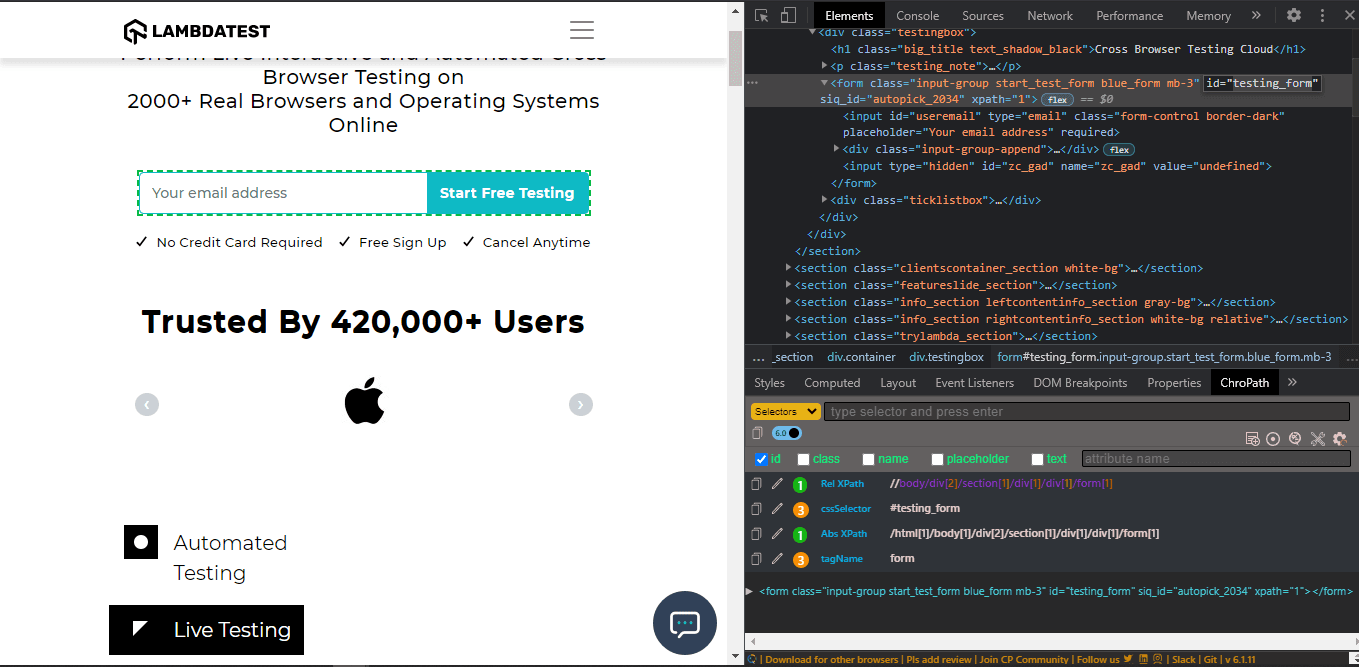
Here is how you can use the ID attribute in Selenium Python:
from selenium import webdriver

driver = webdriver.Chrome()
driver.get("https://www.lambdatest.com")
email_form = driver.find_element_by_id("testing_form")
Locate Elements by CSS Class
Elements in HTML DOM can also be searched by Class Name, which is stored in the Class attribute of an HTML tag. A class can have many instances; it returns the first element with a matching class.
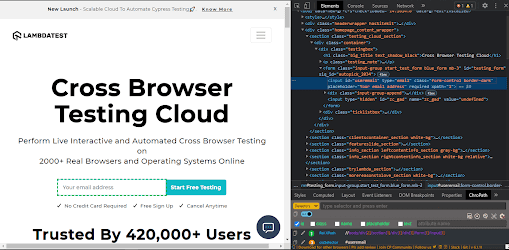
Here is how Class Name is used for locating the Email Address element on the TestMu AI page:
from selenium import webdriver

driver = webdriver.Chrome()
driver.get("https://www.lambdatest.com")
first_form_input = driver.find_element_by_class_name(" form-control ")
Locate Elements by Name
WebElements like input tag have a Name attribute associated with them. Selenium also provides a method to search for WebElements using the NAME attribute. If there are multiple elements of the same name, the first matched element is returned by the method.
Here is the HTML code that contains an input element of Name – name!
<input name="name" type="text" value="user name" />
Shown below is the usage of the Selenium Python method for locating the WebElement using the NAME property:
from selenium import webdriver

driver = webdriver.Chrome()
driver.get("https://www.lambdatest.com")
# for selection input with name attribute "name"
name_input = driver.find_element_by_name("name")
Locate Elements by XPath
XPath uses path expressions to select nodes and locate the required WebElement. The find_element_by_xpath() method is used to locate an appropriate element in the document using XPath. You can read the tutorial on XPath in Selenium to gain deeper insights into using XPath for locating WebElements for Selenium web automation.
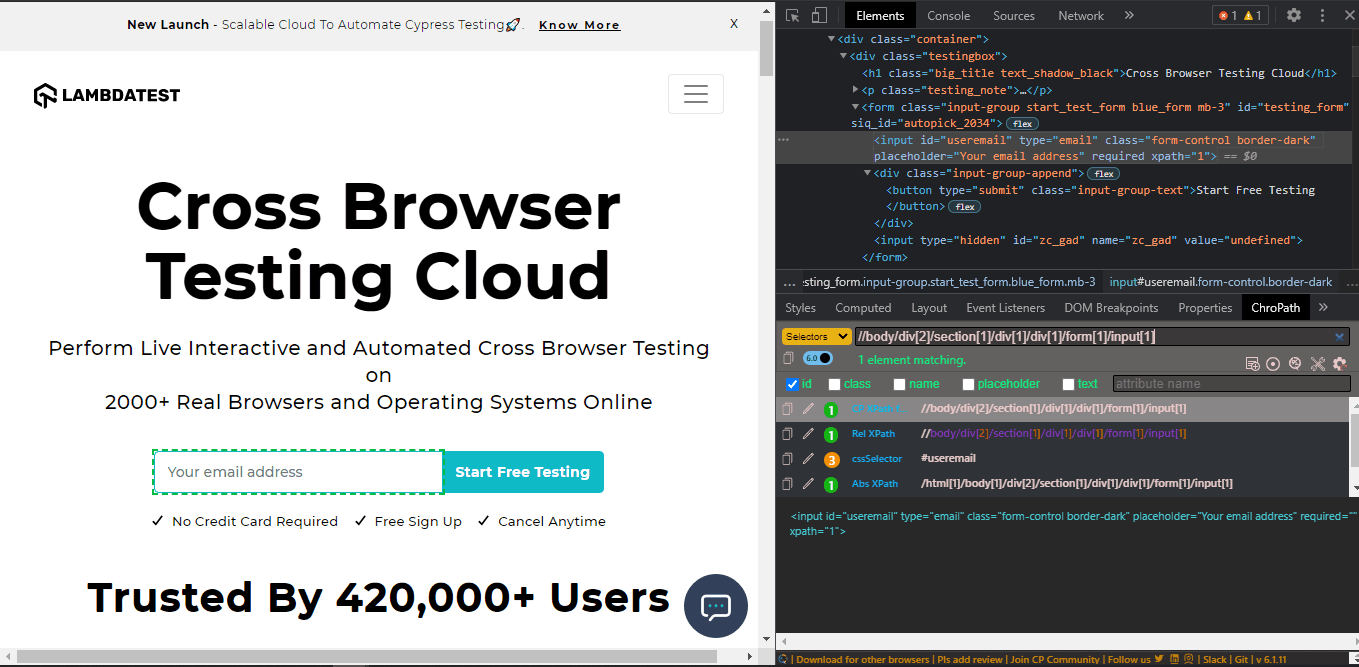
Here is how the email element is located using the XPath attribute
from selenium import webdriver

driver = webdriver.Chrome()
driver.get("https://www.lambdatest.com")
email_input = driver.find_element_by_xpath("//input[@name='email']")
Locate Element by tag name
This method is used to locate and select WebElements using the HTML tag name. The find_element_by_tag_name() method is used to find tags such as H1, DIV, INPUT, etc. If there are multiple occurrences of the same tag, it returns the first matching tag.
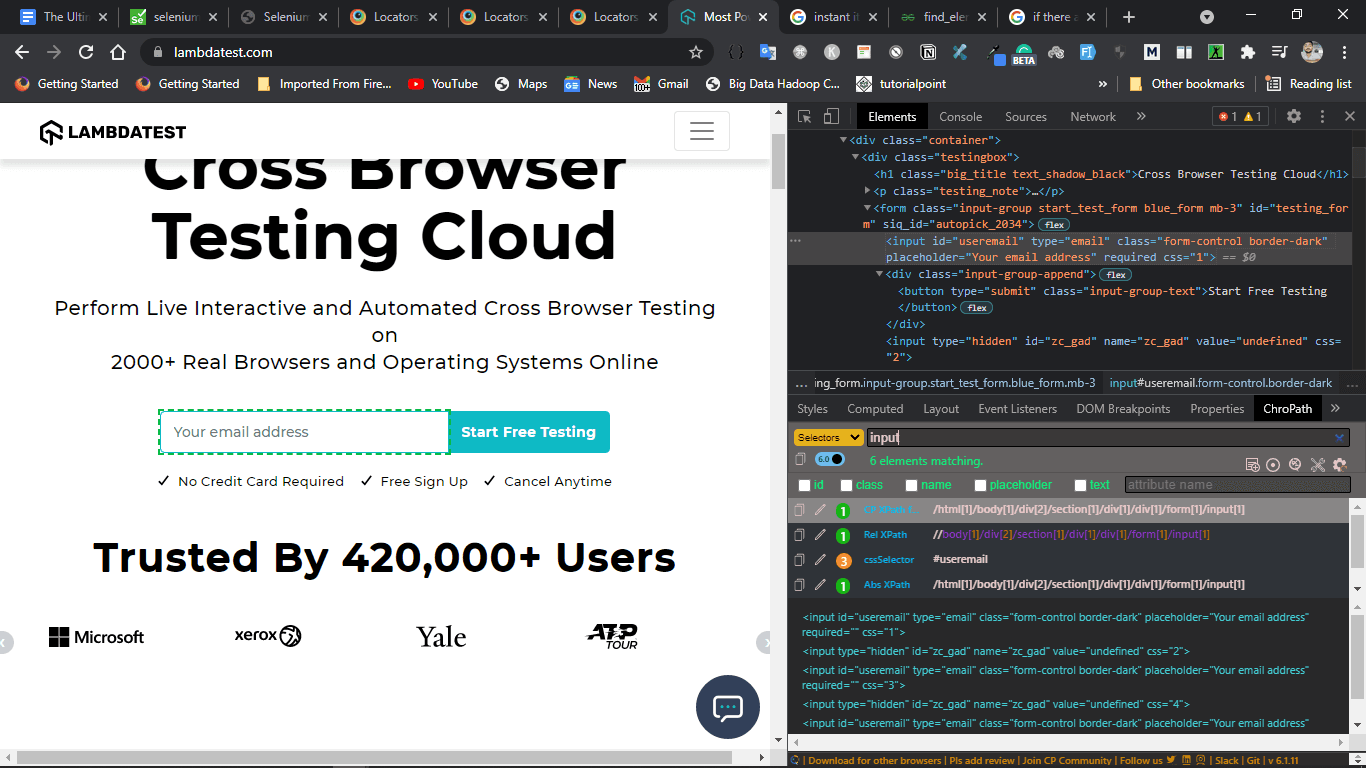
Here is how the email address element is located using the Tag Name:
from selenium import webdriver

driver = webdriver.Chrome()
driver.get("https://www.lambdatest.com")
email_input = driver.find_element_by_tag_name("input")
Locate Element by Link text or Partial Link Text
It selects elements based on the link text (either complete link text or partial link text). Partial link text does not look for an exact match of the string value since it looks for a string subset (in the link text).
Link text locators in Selenium and partial link text locators work only on links of a given web application.
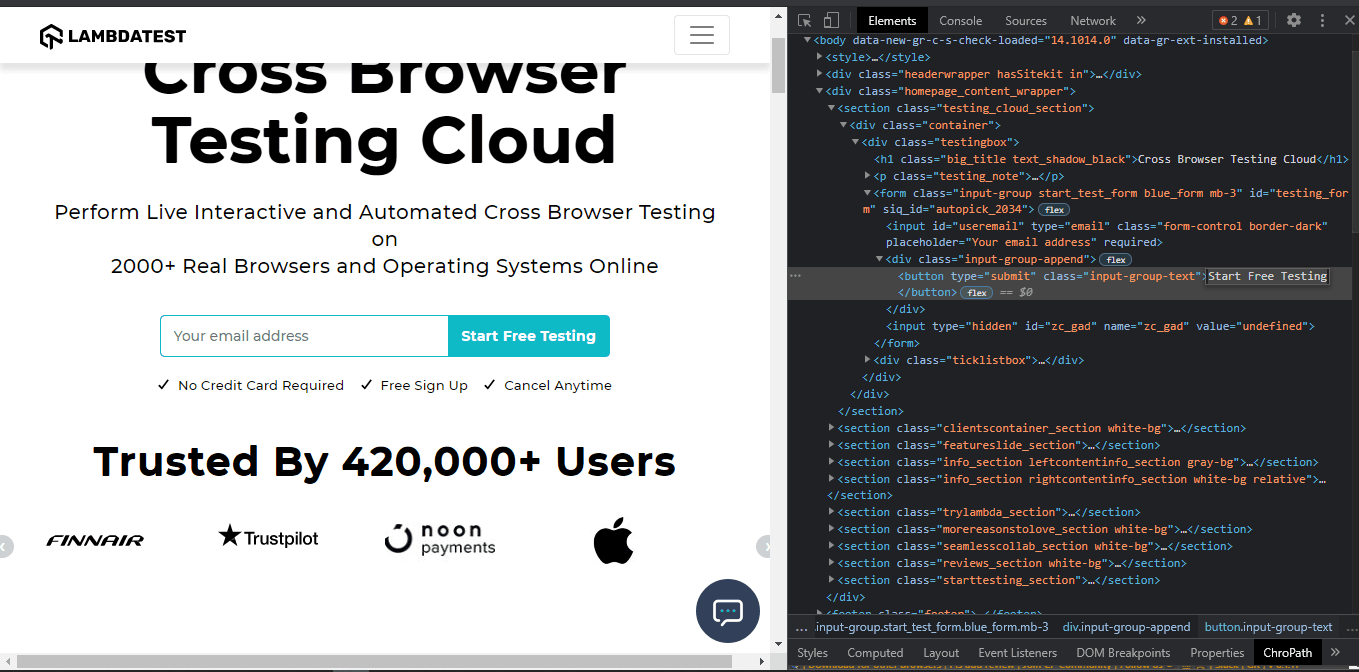
Here is how you can use the link text locator to locate the desired WebElement on the TestMu AI login page:
from selenium import webdriver

driver = webdriver.Chrome()
driver.get("https://www.lambdatest.com")
email_input = driver.find_element_by_link_text('Start Free Testing')
Here is how you can use the partial link text locator to locate the desired WebElement on the TestMu AI login page:
from selenium import webdriver

driver = webdriver.Chrome()
driver.get("https://www.lambdatest.com")
email_input = driver.find_element_by_partial_link_text('Start Free')

5. Misc methods for finding elements
Two private methods might be useful for locating page elements in conjunction with the “By” class for selecting attributes.
It is to be noted that there is no difference between find_element_by_tag method and find_element(By.tag) method. By default, find_element_by_tag calls the find_element(By.tag) method.
- find_element – It returns the first instance from multiple web elements with a particular attribute in the DOM. The method throws NoSuchElementException if no web elements are matching the required web locator. Check out our blog on common Selenium exceptions to gather a deeper understanding of when a particular Selenium exception is raised.
- find_elements – It returns a list of all the instances of WebElements matching a particular attribute. The list is empty in case there are no matching elements in the DOM.
Here are the attributes available for the By class:
- ID = “id”
- XPATH = “xpath”
- NAME = “name”
- TAG_NAME = “tag name”
- CLASS_NAME = “class name”
- LINK_TEXT = “link text”
- PARTIAL_LINK_TEXT = “partial link text”
Shown below is an example of find_element method that uses the XPath locator to locate the desired WebElement:
from selenium.webdriver.common.by import By
driver.find_element(By.XPATH, '//input[name()="password"]')
driver.find_elements(By.XPATH, '//input')
6. Opening a URL (or document)
Before performing any operation on the WebElements present on the page, opening the target URL (or test URL) is important. Here are some of the ways to open a URL in Selenium Python:
driver.get(URL)
The driver.get() method navigates to the page that is passed as a parameter to the method. Selenium WebDriver will wait until the page has fully loaded, post which it fires an “onload” event before returning control to the test script. You can check out our blog on Selenium Waits in Python to further understand handling waits in Selenium Python.
driver.get("https://www.lambdatest.com")
7. Refresh a page
There are scenarios where you would want to refresh the contents on the page. The Refresh method of Selenium WebDriver is used for refreshing a web page.
The driver.refresh() method refreshes the current web page. It does not take any arguments nor returns any value.
driver.refresh()
8. Writing text inside a WebElement
The send_keys() method in Python is used for entering text inside a text element. The text to be entered is passed as an argument to the method. The same method can also be used for simulating key presses on any field (e.g. input fields of a form).
Here is an example usage of the send_keys() method where the email address is passed to the text element on the TestMu AI signup page:
from selenium import webdriver

# create webdriver object
driver = webdriver.Chrome()

# get lambdatest
driver.get("https://www.lambdatest.com/")

# get element
element = driver.find_element_by_id("useremail")

# send keys
element.send_keys("[email protected]")
9. Clearing text of a WebElement
The element.clear() method in Selenium Python is used to clear text from fields like input fields of a form, etc.
Here is how the clear method is used for clearing contents in the email input box on the TestMu AI home page:
from selenium import webdriver

# create webdriver object
driver = webdriver.Chrome()

# get lambdatest
driver.get("https://www.lambdatest.com/")

# get element
element = driver.find_element_by_id("useremail")

# send keys
element.clear()
10. Clicking a WebElement
The element.click() method in Selenium Python is used to click on an element like anchor tag, button tag, etc.
Here is how a button present on the TestMu AI home page is clicked using the click() method:
from selenium import webdriver

# create webdriver object
driver = webdriver.Chrome()

# get lambdatest
driver.get("https://www.lambdatest.com/")

# get element
element = driver.find_element_by_id("useremail")

# send keys
element.send_keys("[email protected]")

# get element
button_element = driver.find_element_by_link_text("Start Free Testing")

# click the element
button_element.click()
11. Dragging and Dropping a WebElement
Dragging & dropping an object is one of the extensively used scenarios in popular apps (or softwares) like Canva, Google Drive, Trello, Asana, etc. The drag_and_drop(element, target) method in Selenium Python helps in automating the functionality of dragging WebElements from the source and dropping them on target area (or element).
Actions class in Selenium has two methods through which you can perform drag & drop operation in browser compatibility testing. Do check out our detailed blog that deep dives into how to perform drag and drop in Selenium Python.
Here is a simple example that shows the sample usage of drag_and_drop() method:
element = driver.find_element_by_name("source")
target = driver.find_element_by_name("target")

from selenium.webdriver import ActionChains
action_chains = ActionChains(driver)
action_chains.drag_and_drop(element, target).perform()
12. Selecting an option
Select(element) provides useful methods for interacting with drop-downs, selecting elements, and more.
Here is an example of how an element is selected using its index:
from selenium.webdriver.support.ui import Select
select = Select(driver.find_element_by_id('city'))
select.select_by_index(index)
select.select_by_visible_text("text")
select.select_by_value(value)
Here are some of the various ways in which desired element is selected using the select_by_*() method:
Method | Description |
|---|---|
select_by_index(index) | This method takes an integer value which is the index of the option that we intend to select. |
select_by_visible_text(“text”) | This method takes a string value and selects the option that is displaying the same text. |
select_by_value(value) | This method takes a string value and selects an option with the same value attribute. |
deselect_all() | This method lets you deselect all the selected options. |

driver.switch_to_window(“window_name”)
The switch_to_window() method of Selenium WebDriver lets you switch to the desired window. The window handle is passed as an argument to the switch_to_window() method.
driver.switch_to_window("window_handle")
All the subsequent calls of the WebDriver are now applicable to the window under focus (or the newly switched window).
driver.window_handles
Window_handles property of the WebDriver returns handles of the windows. You can now use the switch_to_window() method to navigate to each window available in the list of window_handles.
for handle in driver.window_handles:
    driver.switch_to_window(handle)
driver.current_window_handle
The current_window_handle() method returns the handle of the current window (or window currently under focus)
handler = driver.current_window_handle
14. Switching to iFrames
Selenium WebDriver can not access or locate the web elements inside an iFrame in the context of the main web page. Hence, you need to switch to an iFrame before accessing the WebElements inside the iframe.
driver.switch_to_frame(“frame_name”)
The switch_to_frame() method in Selenium Python lets you switch the context of WebDriver from the context of the main page. We can also access subframes by separating the path and index with a dot.
driver.switch_to_frame("frame_name.0.child")
driver.switch_to_default_content()
This method allows you to switch back to the context of the main page.
driver.switch_to_default_content()
15. Handling pop-ups and alerts
There are three main types of popups & alerts that are commonly used in web applications:
- Simple Alert
- Confirmation Alert
- Prompt Alert
You have the option to switch to the alert, dismiss the alert, or accept the alert. You can check out our detailed tutorial on handling alerts and pop-ups in Selenium. Though the language used is C#, the fundamentals of alerts and pop-ups remain the same!
driver.switch_to.alert
The switch_to.alert property of WebDriver returns the currently open alert object. You can use the object to accept, dismiss, read its contents, or type into the prompt.
alert_obj = driver.switch_to.alert
alert_obj.accept()
Once you have the handle of the alert window (e.g. alert_obj), the accept() method is used to accept the Alert popup.
alert_obj = driver.switch_to.alert
alert_obj.accept()
alert_obj.dismiss()
Once you have switched to the alert window (e.g. alert_obj), you can use the dismiss() method to cancel the Alert popup.
alert_obj.text()
This method is used to retrieve the message included in the Alert popup.
alert_obj = driver.switch_to.alert
msg = alert_obj.text()
print(msg)
16. Getting Page Source
The page_source() method in Selenium WebDriver is used to get the target document’s page source (or test page).
page_source = driver.page_source
driver.forward()
This method allows scripts to navigate one step forward in history.
driver.forward()
driver.back()
This method allows scripts to navigate one step backward in history.
driver.back()
19. Setting Window Size
The set_window_size() method is used to set the browser window’s size to desired dimensions (in height and width).
# Setting the window size to 1200 * 800
driver.set_window_size(1200, 800)
20. Configuring TimeOuts in Selenium WebDriver
When the browser loads a page, the WebElements inside the page may load at various time intervals. This might create complications when interacting with the dynamic elements present on the page.
If an element is not present in the DOM of the web page, the locate method will raise an exception. Waits in Selenium lets you add delays (in ms or seconds) between the actions performed between loading the page and locating the required WebElement.
Implicit wait and Explicit wait are the two major ways you can add delays in Selenium Python code for handling dynamic WebElements on the page.
Implicit Wait in Selenium Python
An implicit wait informs the Selenium WebDriver to examine the DOM for a particular amount of time when trying to find the WebElement that is not immediately available for access.
By default, implicit wait is set as zero. However, once we define implicit wait, it is set for the lifetime of the WebDriver object. Check out our detailed tutorial that demonstrates the usage of Implicit wait in Selenium Python in greater detail.
from selenium import webdriver

driver = webdriver.Chrome()
driver.implicitly_wait(10) # in seconds
driver.get("https://www.lambdatest.com/")
element = driver.find_element_by_id("testing_form")
Explicit Wait in Selenium Python
Explicit wait in Selenium Python is used when we want to wait for a particular condition to happen before proceeding further in the code.
There are some convenient methods provided by the Selenium WebDriver that let you wait until a particular condition is satisfied. For example, explicit waits can be achieved using the webdriverWait class combined with Expected Conditions in Selenium.
Here are some of the Expected Conditions that can be used in conjunction with Explicit wait in Selenium Python:
- presence_of_all_elements_located
- text_to_be_present_in_element
- text_to_be_present_in_element_value
- frame_to_be_available_and_switch_to_it
- invisibility_of_element_located
- title_is
- title_contains
- presence_of_element_located
- visibility_of_element_located
- visibility_of
- element_located_selection_state_to_be
- alert_is_present
- element_to_be_clickable
- staleness_of
- element_to_be_selected
- element_located_to_be_selected
- Element_selection_state_to_be
Shown below is an example that demonstrates the usage of explicit wait where a non-blocking wait of 10 seconds is performed until the required WebElement is located (using its ID attribute):
from selenium import webdriver
from selenium.webdriver.common.by import By
from selenium.webdriver.support.ui import WebDriverWait
from selenium.webdriver.support import expected_conditions as EC

driver = webdriver.Chrome()
driver.get("https://www.lambdatest.com/")
try:
    element = WebDriverWait(driver, 10).until(
        EC.presence_of_element_located((By.ID, "testing_form"))
    )
except:
    print(“some error happen !!”)
Watch this video to learn what are waits in Selenium and how to handle them using different methods like hard-coded pauses and by combining explicit waits with different design patterns.
21. Capturing Screenshots
During the process of Selenium web automation, you might want to capture the screenshot of the entire page or screenshot of a particular WebElement.
This is specifically used in scenarios where you want to check what went wrong in the test execution. Capture screenshots of WebElement using Selenium Python when you want to check which particular WebElement has created issues in the test execution process.
The save_screenshot() method of Selenium WebDriver is used for capturing screenshots of a web page in Python.
capture_path = 'C:/capture/your_desired_filename.png'
driver.save_screenshot(capture_path)

Austin Siewert
CEO, Vercel
Discovered @TestMu AI yesterday. Best browser testing tool I've found for my use case. Great pricing model for the limited testing I do 👏
2M+ Devs and QAs rely on TestMu AI
Deliver immersive digital experiences with Next-Generation Mobile Apps and Cross Browser Testing Cloud

This certification is for professionals looking to develop advanced, hands-on expertise in Selenium automation testing with Python and take their career to the next level.
Here’s a short glimpse of the Selenium Python 101 certification from TestMu AI:
Conclusion
Get started with Selenium Python testing & that too free!!! Python is one of the most popular languages, and there is no denial that you can run complex Selenium operations with a few lines of code. In this Selenium Python cheat sheet, we covered some of the widely used Selenium Python commands primarily used for cross browser compatibility testing.
This Selenium cheat sheet can be used as a guide (or reference) for quickly referring to the commands that might be of interest for your test code. I hope that you find this Selenium Python cheat sheet useful, do let me know if you come across any Selenium Python command that should be a part of the sheet.
Happy Automation Testing With Python!



Did you find this page helpful?
More Related Hubs
TestMu AI forEnterprise
Get access to solutions built on Enterprise
grade security, privacy, & compliance
- Advanced access controls
- Advanced data retention rules
- Advanced Local Testing
- Premium Support options
- Early access to beta features
- Private Slack Channel
- Unlimited Manual Accessibility DevTools Tests