
Power Your Software Testing with AI Agents and Cloud
The Native AI-Agentic Cloud Platform to Supercharge Quality Engineering. Test Intelligently and Ship Faster.


- TestMu AI (Formerly LambdaTest)
- /
- Blog
- /
- Salesforce Flow Testing With AI Agents
Salesforce Flow Testing With AI Agents
Salesforce flow testing with AI agents: what Flow Test Mode and Agentforce for Flow check, what they skip, and how Kane CLI tests flows in the Lightning UI.
Published on:
A support agent saves a phone case as High priority. In that same save, an after-save flow should tick Escalated, hand the case to the Tier 2 Support queue and email the queue. Two hours later, if the case is still New, a scheduled path creates a follow-up task.
Salesforce flow testing now covers much of that logic inside Flow Builder, and Agentforce can draft the test scenarios for you. Neither one opens the Lightning record page the support agent works from.
This guide takes each testing layer in turn: what Flow Test Mode and Agentforce for Flow check, what they skip, and how an AI testing agent such as TestMu AI's Kane CLI checks the rest in a real browser.
TL;DR
Salesforce flow testing with AI agents is checking a flow's logic and its on-screen result with two kinds of agent: Agentforce for Flow drafts and runs Test Mode scenarios inside the org, and an AI testing agent drives the Lightning UI the way a user does. It is needed because Test Mode skips screen flows and asynchronous paths.
- Flow Test Mode (beta): Supports screen flows: No. Supports record-triggered and autolaunched flows: Yes. Flow Test Mode saves reusable scenarios with assertions, isolated Apex test data and mock outputs, up to 200 tests per flow.
- Agentforce for Flow Headless: Needs a connection to the org: Yes. Agentforce for Flow Headless drafts success, fault and edge-case scenarios from a "create flow tests" prompt in a Salesforce-connected terminal, then builds, validates and runs them once you approve the list.
- Flow Builder debugger: Saves automated scenarios: No. The Flow Builder debugger is still the testing tool for screen flows and the other flow types outside Test Mode, and it makes real changes unless you run it in rollback mode.
- Scheduled paths: Covered by automated Test Mode scenarios: No. Scheduled paths run asynchronously, so confirm a path was queued on the Time-Based Automations Setup page and test the path's own logic in the debugger.
- Kane CLI: Needs selectors: No. TestMu AI's Kane CLI runs plain-English test objectives in real Chrome against a sandbox and waits on the rendered Lightning page, so it checks the owner, list views and tasks a support agent actually sees.
What Is a Flow Test in Salesforce?
A flow test in Salesforce is a saved scenario that runs a flow against a chosen triggering record or set of input values and checks assertions about the result. Flow tests now live in Flow Test Mode, a beta view that Salesforce says replaces the Debug button for record-triggered and autolaunched flows.
Salesforce puts Flow at over 690 billion monthly executions and says the capabilities for testing flows "still have some gaps" in its Flow Test Mode announcement.
Which gap matters to you depends on the flow type:
| Flow type | Native testing today | Not covered natively |
|---|---|---|
| Record-triggered | Test Mode scenarios with assertions, isolated test data and mock outputs | Asynchronous and scheduled paths, automatic evaluation for delete-triggered flows, and the result a user sees after the save |
| Autolaunched | Test Mode scenarios and mock outputs for actions and subflows | Wait elements, and how the screen or process that calls the flow behaves |
| Screen | Flow Builder debugger; Test Mode support is planned | Saved automated scenarios, and the screens, components and conditional visibility users click through |
| Schedule-triggered | Flow Builder debugger; Test Mode support is planned | Saved automated scenarios for the batch of records the flow acts on |
| Data Cloud-triggered | Automated flow tests on a temporary copy of the triggering record | What the flow changes downstream in the CRM records users open |
Salesforce's own Summer '22 admin post introduced flow tests as record-triggered only and positive-testing only. Salesforce Help now documents automated scenarios for autolaunched and Data Cloud-triggered flows, plus negative assertions for testing error handling.
For where flows sit among Apex, Lightning Web Component and integration tests, see this Salesforce testing guide.
How Do You Test Salesforce Flows Before Deploying Them?
Test every path of the flow in Test Mode in a sandbox, with assertions on the expected result, before the flow reaches production. Salesforce's own Automated Flow Testing guidance recommends one test scenario for every path a flow can take.
- Turn on Test Mode - In Setup, open Process Automation Settings and select Enable Flow Test Mode (Beta). Any org you deploy those tests to needs the beta setting turned on as well.
- Save a scenario per path - Pick the path, set the triggering record or input values, and save the scenario so the next change to the flow reruns it in one click.
- Turn on Scenario Testing Automation - This lets you add assertions, and the run results gain an Expected Results tab with each assertion's status. A scenario passes only when every one of its assertions passes.
- Use isolated test data - Point the scenario at an Apex class with a @testSetup method. The records roll back after the run, like an Apex unit test, so live org data stays as it was.
- Mock actions and subflows - Give an HTTP callout, Apex action or subflow a fixed output. Set Path After Mock Output to the fault path to test the flow's error handling without breaking anything real.
- Use fixed values for test data - Formulas aren't accepted, so a date you set to today keeps that same date on every later run.
Salesforce caps a flow at 200 tests. Its flow testing limits page also lists what automated scenarios can't cover yet: Wait elements in autolaunched flows, paths that run asynchronously, and automatic evaluation for flows triggered by a record deletion.
When the logic depends on bulk inserts or related records built in code, an Apex test class gives you more control than a flow scenario. The Salesforce Apex trigger guide walks through writing one.
What Can Agentforce for Flow Test on Its Own?
Agentforce for Flow Headless drafts and runs Test Mode scenarios for you. In a terminal AI tool connected to your org, you ask the tool to find the flow, say you want to update it, and enter the prompt create flow tests.
It reads the flow's structure, decision outcomes and required fields, then proposes success, fault and edge-case scenarios for a record-triggered, autolaunched or Data Cloud-triggered flow, according to Salesforce's guide to generating test scenarios. Once you approve the list, it builds the scenarios, attaches them to the flow, validates them and runs them.
Check you have these in place first:
- License - the Agentforce Platform Developer and Admin permission set license, plus the Agentforce Developer and Admin Tools permission set, to use it in Agentforce Vibes.
- Flow permission - Manage Flow, which Salesforce lists for working with flows and Agentforce for Flow features in Flow Builder.
- Connection - a terminal AI tool already connected to the Salesforce org you want to test.
The output is ordinary Test Mode scenarios, so it carries Test Mode's scope. Screen flows and asynchronous paths stay outside it, and each check runs in a transaction that rolls back.
Review every drafted assertion against the requirement before you approve it. A scenario that asserts the wrong expected value still passes.
Which Flow Failures Do Native Tests Miss?
Native flow tests check one flow's logic inside a transaction that rolls back. They don't show what a user sees after the whole save commits, and the whole save runs a lot more than your flow.
Salesforce's order of execution runs before-save flows, before triggers, validation rules, after triggers, assignment rules, auto-response rules, workflow rules and escalation rules before it reaches after-save record-triggered flows. Emails and asynchronous flow paths run only after the commit.
- Screen flows - Test Mode doesn't support them yet. The screens, conditional visibility and reactive components a user clicks through get checked by hand or in a browser.
- Other automation on the same record - On a case, assignment and escalation rules run in the same save as the flow. The owner a support agent sees is the combined result, and a flow-only test sees just its own update.
- Committed side effects - The escalation email goes out after the commit. A scenario that rolls back never sends it.
- Permissions and page setup - A field the flow sets doesn't help if the agent's page layout hides it, or if their profile can't open the queue's list view.
The Flow Builder debugger can run a flow as another user, but only in a sandbox. Unless you select Run flow in rollback mode, it also performs real DML and Apex, and closing the run doesn't undo them.
Every gap above shows up in the browser, which is also where Salesforce UI tests have been expensive to keep alive. The Salesforce test maintenance cost breakdown shows where that cost comes from.

Note: TestMu AI's Kane CLI checks the record page, list views and tasks after a flow runs, from a plain-English objective, and returns an exit code your CI job can gate on. Try TestMu AI free
How Do AI Testing Agents Test a Flow Through the Lightning UI?
An AI testing agent reads a plain-English objective, opens your sandbox in a real browser, makes the same save a user makes and asserts on what the page shows afterwards. It tests the flow through its result, so the check also covers the automation, layouts and permissions around the flow.
Lightning pages are hard on selector-based scripts. Salesforce's LWC shadow DOM guide explains that Lightning Web Components encapsulate their markup in a shadow tree, with a synthetic shadow polyfill in Lightning Experience and Experience Cloud. Locators have to reach inside each component, and they break when a component changes.
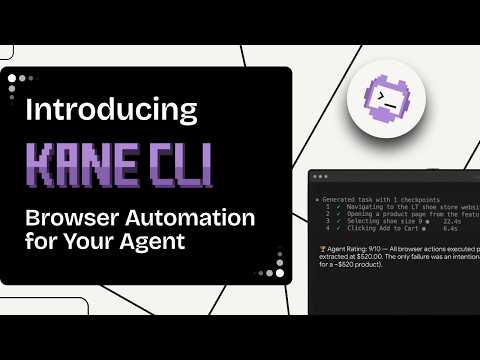
Kane CLI works from the rendered viewport instead. It waits until the Lightning page is visually ready rather than relying on DOM or network signals, and its autoheal re-resolves a moved button by what the button does. Low-confidence matches are rejected instead of healed into a pass.
For sign-in, complete an SSO or MFA login once in a Chrome profile and point Kane CLI at that profile for later runs.
Generate the Scenarios From the Flow's Logic
Start from the flow's logic, written the way you would explain it to a tester. kane-cli generate turns that description into test scenarios and cases without opening a browser or touching the org.
kane-cli generate "Test a Salesforce record-triggered Flow on Case, as a support agent sees it in the Lightning UI. The flow runs after save on create or update when Priority changes to High. If Origin is Phone and Status is New, it sets the Escalated checkbox, assigns the Case to the Tier 2 Support queue, and emails the queue. If that update fails, a fault path creates a Task named 'Case escalation failed' on the Case. Cases that are not Phone or not New are left unchanged. Two hours after creation, if the Case is still New, the flow creates a Task 'Follow up: High priority case still New after 2 hours' for the owner. Cover the Case record page fields, the owner, Activity timeline tasks, and the Tier 2 Support queue list view." --name salesforce-flow-case-escalationFor this case escalation flow, the generator returns three scenarios with eight test cases between them:
| Scenario | Generated test case | Type |
|---|---|---|
| Successful Escalation of New High-Priority Phone Case on Create | Create a new high-priority phone case and verify successful escalation | Positive |
| Verify a non-phone high-priority case is not escalated | Negative | |
| Verify follow-up task is created for an escalated case still in New status after two hours | Edge | |
| No Escalation When Criteria Are Not Met on Update | Verify case is not escalated when updating Priority to High with 'Email' Origin | Negative |
| Verify case is not escalated when updating Priority to High with 'Working' Status | Negative | |
| Verify no escalation when updating a non-priority field on a High Priority case | Edge | |
| Scheduled Follow-Up and Fault Path Task Creation | Verify scheduled follow-up task is created for a case in 'New' status for over two hours | Positive |
| Verify fault task is created when case escalation fails due to a system issue | Negative |
Describe the flow in prose rather than attaching only its .flow-meta.xml export. The generator works from the description, and the XML file on its own can come back as an empty suite.
Save the functional cases as runnable test files with kane-cli generate --save --req <request-id>, using the request ID the first command prints.
Tighten the Generated Tests Before Running Them
Generated cases are a first draft. The saved file for the first case reads:
---
mode: testing
max_steps: 30
timeout: 300
variables: {}
---

# Create a new high-priority phone case and verify successful escalation

## Step 1
Create a new high-priority phone case and verify successful escalation.

Verifies that a new Case with Origin 'Phone', Status 'New', and Priority 'High' is automatically escalated and reassigned to the Tier 2 Support queue upon creation.

Navigate to the 'Cases' tab from the navigation bar. Create a new case with:
Case Origin: Phone
Status: New
Priority: High
Subject: Customer reports critical system outage
Save the new case.

On the Case record page, locate the 'Details' tab and find the 'Escalated' checkbox. Verify the 'Case Owner' field.

Navigate to the 'Cases' tab and select the 'Tier 2 Support' queue list view. Verify that the case with the subject 'Customer reports critical system outage' appears in the list view.
Before you run it against a sandbox, fix what the draft leaves open:
- Exact expected values - "Verify the 'Case Owner' field" names no expected owner, so the step can't fail. Assert that Case Owner shows Tier 2 Support.
- Start URL and sign-in - The file has no start URL. Pass the sandbox URL with --url and keep the login in a Chrome profile that has already passed MFA.
- No two-hour waits - Two cases wait for the scheduled path to fire, and they check the same follow-up task, so keep one. Change it to confirm the path was queued on the Time-Based Automations page.
- A fault you can trigger - "Fails due to a system issue" can't be reproduced on demand. In a sandbox, add a validation rule that blocks the escalation update for a marked test case, then assert that the "Case escalation failed" task appears.
- Cases the draft skipped - Nothing covers a Tier 2 Support queue lookup that finds no queue, or a support agent whose profile can't open the queue's list view. Add both.
The tightened version splits the check into steps, each ending in an assertion:
---
mode: testing
max_steps: 40
tags: [salesforce, case-escalation-flow]
variables:
  case_subject:
    value: "Flow check: phone case escalation"
---

# High priority phone case escalates to Tier 2 Support

## Create the case
Open the Cases tab and click New. Create a case with Case Origin "Phone", Status "New", Priority "High" and Subject "{{case_subject}}", then save it.
Verify the case record page shows the subject "{{case_subject}}".

## Check the record page
On the case record page, verify the Escalated checkbox is checked and Case Owner shows "Tier 2 Support".

## Check the queue list view
Open the Cases tab, switch the list view to "Tier 2 Support", and verify a case with subject "{{case_subject}}" is listed.

## Check the scheduled path is queued
Open Setup, enter "Time-Based Automations" in Quick Find and open that page.
Verify a pending entry for the Case High Priority Escalation flow is listed.
Set the signed-in Chrome profile once, then run the file against the sandbox:
# One time: use a Chrome profile that has already signed in to the sandbox
kane-cli config chrome-profile ./profiles/sf-sandbox

# Each run
kane-cli testmd run ./tests/escalate-phone-case_test.md --url "$SF_SANDBOX_URL" --agent --headless
The exit code is the verdict: 0 for a pass, 1 for a failure, 2 for a setup or sign-in problem and 3 for a timeout. A CI job can gate a deployment on it.
For scheduled regression runs across browsers, the same plain-English tests run on the KaneAI platform, which shares Kane CLI's engine.
How Do I Check Test Coverage of a Flow in Salesforce?
Salesforce measures flow test coverage when you deploy flows as active in production. Turn on Deploy processes and flows as active in Process Automation Settings and enter the coverage percentage your org requires. The requirement covers processes and autolaunched flows, and it doesn't apply to flows that have screens.
Coverage is read from the Tooling API FlowTestCoverage object. This query from Salesforce Help lists the active autolaunched flows and processes that have no coverage:
SELECT Definition.DeveloperName FROM Flow
WHERE Status = 'Active'
AND (ProcessType = 'AutolaunchedFlow' OR ProcessType = 'Workflow' OR ProcessType = 'CustomEvent' OR ProcessType = 'InvocableProcess')
AND Id NOT IN (SELECT FlowVersionId FROM FlowTestCoverage)- The calculation - covered latest flow versions, divided by all active versions plus the latest inactive versions that have coverage. Salesforce's worked example of 10 flows comes out at 90%.
- Which tests count - Salesforce's own pages disagree. The deploy page says at least one Apex test must cover the percentage, while the flow testing limits page says automated Test Mode scenarios count, manual scenarios don't, and Apex tests aren't included. Run the query in your org after a full test run before relying on either.
- Path coverage on the canvas - From Winter '27, Test Mode highlights the paths that automated tests cover, according to Salesforce's Test Mode announcement.
Browser runs from an AI testing agent don't add to either number. They answer a different question: whether the behavior a user depends on still works once the flow, layouts and permissions ship together.
How Do I Test a Scheduled Flow in Salesforce?
Test the logic and the scheduling separately. Automated Test Mode scenarios don't support asynchronous paths, so you test a scheduled path's elements in the debugger and check its scheduling in Setup.
Salesforce's scheduled paths documentation says pending paths appear on the Time-Based Automations Setup page, and the debug log records a FLOW_SCHEDULED_PATH_QUEUED event when a path is queued. It also defines the behavior worth testing:
- Scheduled on entry - A record that newly meets the conditions queues the path.
- Not queued twice - Updating an unrelated field on a record that already met the conditions doesn't queue the path again, and the existing schedule stays.
- Canceled on exit - An update that makes the record stop meeting the conditions cancels the pending path.
- Rescheduled on a new date - Changing the time-source field to a future date schedules the path for the new time.
- Retries - A failed scheduled path interview sends an error email and retries up to five times, after 15, 30, 60, 120 and 240 minutes.
- Volume - An org gets 250,000 scheduled path interviews per 24 hours, or 200 per user license if that's higher. Interviews over the limit wait for the reset.
Schedule-triggered flows, which run on a set date and frequency instead of a record change, still use the debugger until Test Mode adds them.
An AI testing agent covers the scheduling half in the browser. Create the case, open Time-Based Automations and verify the pending entry, then change the case Status to Working and verify the entry is gone. That replaces the two-hour wait in the generated cases.
How Should You Split Flow Testing Between Salesforce and an AI Agent?
Give each layer the question it answers best, and run the browser layer after every deployment to a sandbox.
| Layer | Tool | Question it answers | When to run it |
|---|---|---|---|
| Path logic | Test Mode scenarios, drafted by Agentforce for Flow | Does each branch, fault path and mocked action produce the asserted values? | Every change to the flow |
| Bulk and related data | Apex test classes | Does the flow hold up with bulk inserts and related records built in code? | Before each deployment |
| Scheduling | Debugger plus the Time-Based Automations page | Is the path queued, kept or canceled when it should be? | Flows with scheduled paths |
| User-visible result | An AI testing agent such as Kane CLI | Do the record page, list view and activity timeline show the right result for the right user? | After each sandbox deployment |
| Release regression | The same browser tests in CI or on KaneAI | Do flows still behave after a Salesforce release or a page layout change? | Each seasonal release |
Salesforce ships three seasonal releases a year, usually Spring in February, Summer in June and Winter in October, according to its Spring '26 release page. Each one is a reason to rerun the browser layer against a preview sandbox.
Turn the user-visible checks into named Salesforce test cases and add them to your regression testing suite, so no release goes out without them.
Next Steps for Salesforce Flow Testing
Pick the flow with the most branches, turn on Test Mode in a sandbox, and have Agentforce for Flow draft its scenarios. Then describe the same flow to Kane CLI, tighten the generated tests and run them against the sandbox record page before the next release.
The Kane CLI introduction covers installation and sign-in.
Author

Harshit Paul
Blogs: 97


Harshit Paul is Director of Product Marketing at TestMu AI, with over 8 years of experience in product and growth marketing for developer and QA tools, leading the Agentic AI in Quality Engineering space. He has authored 80+ technical articles for TestMu AI on software testing and automation, and hosted webinars on Selenium, automation testing, browser compatibility, DevOps, and continuous testing. He has led go-to-market and technical marketing initiatives across software testing products, contributing to SEO, content strategy, and developer marketing. He began his career as a certified Salesforce developer at Wipro Technologies, where he worked for 2 years before moving into marketing. Harshit holds a degree in computer programming from Vivekananda Institute of Professional Studies.
Reviewer

Himanshu Sheth
Reviewer
Himanshu Sheth is the Director of Marketing (Technical Content) at TestMu AI, with over 8 years of hands-on experience in Selenium, Cypress, and other test automation frameworks. He has authored more than 130 technical blogs for TestMu AI, covering software testing, automation strategy, and CI/CD. At TestMu AI, he leads the technical content efforts across blogs, YouTube, and social media, while closely collaborating with contributors to enhance content quality and product feedback loops. He has done his graduation with a B.E. in Computer Engineering from Mumbai University. Before TestMu AI, Himanshu led engineering teams in embedded software domains at companies like Samsung Research, Motorola, and NXP Semiconductors. He is a core member of DZone and has been a speaker at several unconferences focused on technical writing and software quality.


Salesforce Flow Testing FAQs
Did you find this page helpful?
More Related Blogs

TestMu AI forEnterprise
Get access to solutions built on Enterprise
grade security, privacy, & compliance
- Advanced access controls
- Advanced data retention rules
- Advanced Local Testing
- Premium Support options
- Early access to beta features
- Private Slack Channel
- Unlimited Manual Accessibility DevTools Tests