

Next-Gen App & Browser Testing Cloud
Trusted by 2 Mn+ QAs & Devs to accelerate their release cycles


How to Handle Radio Buttons in Selenium WebDriver
With this tutorial, learn different ways to locate and handle radio buttons in Selenium using Python.

Paulo Oliveira
December 19, 2025
Radio buttons are a significant component within web forms, allowing users to make singular selections from a predefined array of options. Unlike checkboxes, radio buttons confine users to selecting only one choice from within a designated group of alternatives. This inherent quality renders them particularly advantageous for situations necessitating distinct choices, such as gender specifications, binary determinations, or category preferences.
In Selenium WebDriver, effectively handling radio buttons ensures accurate user interactions during automated testing. Mastering the techniques for handling radio buttons in Selenium enhances the reliability of test scripts and ensures comprehensive test coverage across various web applications and scenarios.
In this Selenium Python tutorial on handling radio buttons in Selenium, we will learn different ways to locate radio buttons and how to handle them.
Significance of Radio Buttons in Web Forms
Web forms serve as the digital gateway for users to engage with online services, from creating accounts to purchasing. Within these forms, radio buttons find their niche as they streamline the process of capturing user preferences. However, misusing these elements can result in data inaccuracies, functional glitches, or misleading test outcomes, particularly in automated testing.
Therefore, QA professionals must acquire the skills and knowledge to work with radio buttons.
Getting Started with Handling Radio Buttons in Selenium
We will automate the use of radio buttons on two web pages: Radio button Demo page on the TestMu AI Selenium Playground and a page built explicitly for this blog, which is available on my GitHub.
Preparing the Environment
To start exploring radio buttons, preparing the required environment for our demonstrations is essential. In this blog, we will use Python, one of the most popular programming languages, Selenium WebDriver, a versatile tool for automating web browser interactions, pytest plugin, a framework for writing tests in Python, and a suitable IDE to develop Python scripts. We will run our test on the TestMu AI platform.
TestMu AI is an AI-powered test orchestration and execution platform for running manual and automated tests at scale. The platform allows you to perform real-time and automation testing across 3000+ environments and real mobile devices.
Subscribe to the TestMu AI YouTube Channel and stay updated with the latest tutorials around Selenium, Playwright, Cypress, and more.
To be able to run the code of this blog, ensure that you have the following elements in place:
Python
Verify that Python is installed on your system. If Python isn’t already set up on your machine, navigate to Python’s official website. Search for the version tailored to your OS and proceed with the guided setup. During this phase, ensure you opt to “Include Python in PATH” for effortless accessibility via the terminal or command interface.
Selenium WebDriver and pytest Libraries
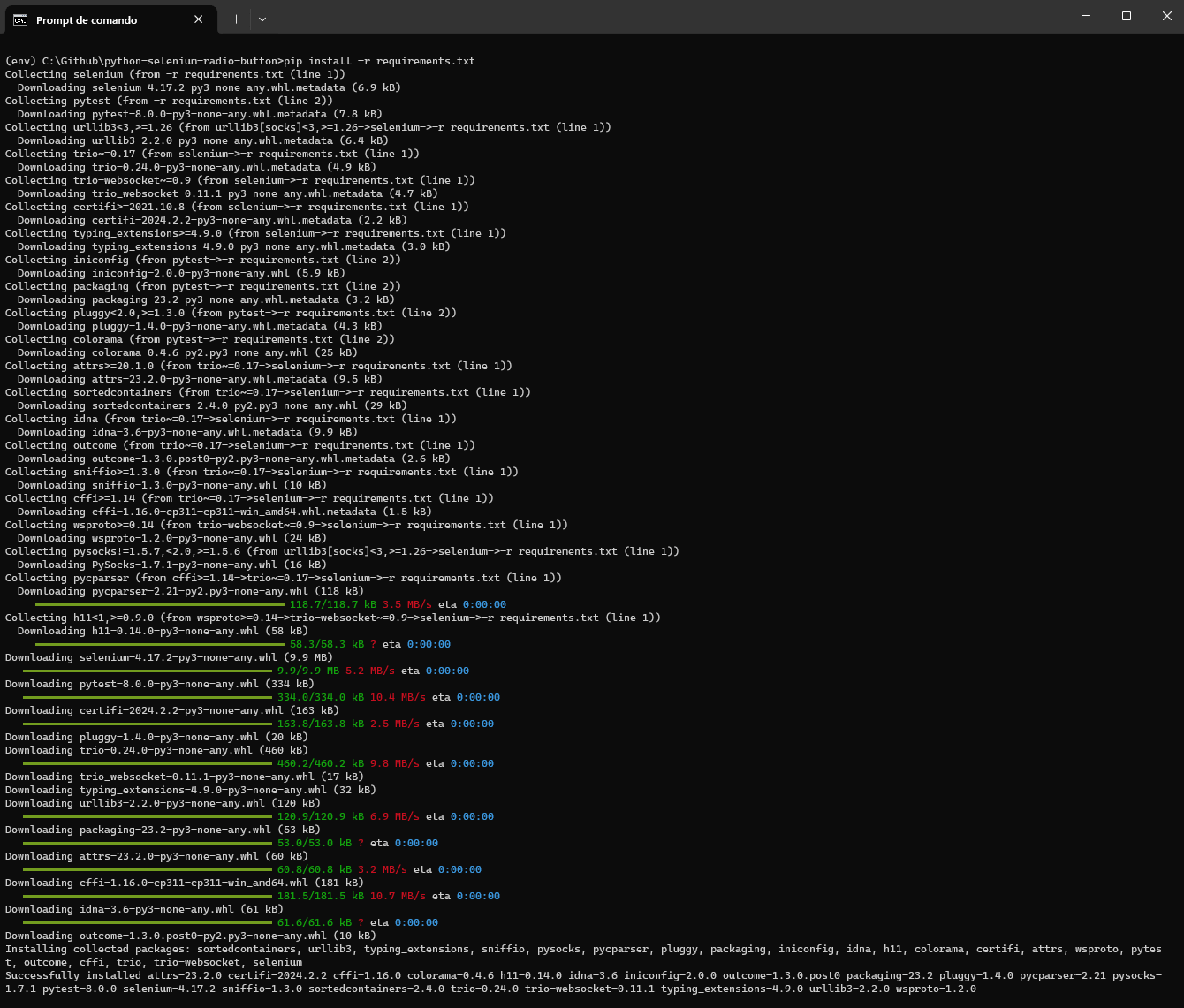
Once Python is installed, use the Python package manager, pip, to install Selenium and pytest by just running the following command:
pip install -r requirements.txt
Requirements.txt contains the dependencies that we want to install.

After running, you can see the below output:
IDE
Select a suitable code editor or Integrated Development Environment (IDE) like Visual Studio Code or PyCharm to develop your Python scripts. In this blog, we recommend Visual Studio Code for its user-friendly interface and robust features.
TestMu AI Capabilities
To perform Selenium Python testing on the TestMu AI cloud grid, you should use the capabilities to configure the environment where the test will run. In this blog, we will perform Python automation testing on Windows 11 and Chrome.
Ensure you have the TestMu AI capabilities code ready to be integrated into your test script.
You can generate the capabilities code from the TestMu AI Capabilities Generator.
Then, you should get the “Username” and “Access Key” from your TestMu AI Profile Section > Password & Security and set them as environment variables.

Configuration Files
To run the code shown in this blog, you need two files in the project’s root folder: config.ini and conftest.py. Python configuration files are essential for configuring the Selenium WebDriver for our automation tests and ensuring seamless integration with the TestMu AI cloud grid.
config.ini
The config.ini file serves as a configuration file that houses crucial parameters and settings required for our Selenium automation script.
[WEBSITE]
url = https://www.lambdatest.com/selenium-playground/radiobutton-demo


[CLOUDGRID]
grid_url = hub.lambdatest.com/wd/hub
build_name = Python Selenium Radio Buttons Build
test_name = Test Case RB
w3c = True
browser_version = latest
selenium_version = 4.13.0
visual = True


[ENV]
platform = Windows 11
browser_name = Chrome
It is divided into three sections, each serving a specific purpose:
[WEBSITE]: The [WEBSITE] section specifies the web page URL we intend to test.
[CLOUDGRID]: The [CLOUDGRID] section configures our interaction with the TestMu AI cloud grid. It includes details such as the grid URL (grid_url), build name (build_name), test name (test_name), and other capabilities such as browser version, Selenium version, and visual testing settings.
[ENV]: The [ENV] section defines the platform (platform) and browser (browser_name) configurations for our tests.
These configurations in config.ini centralize necessary settings, making it easier to modify test parameters when needed without changing the core code. It promotes code maintainability and reusability across different test cases.
conftest.py
The conftest.py file sets up fixtures and configurations shared across multiple test cases. It plays a crucial role in initializing the WebDriver for our Selenium tests.
import pytest
from selenium import webdriver
import os
import configparser


# Load the configuration file
config = configparser.ConfigParser()
config.read('config.ini')


@pytest.fixture()
def driver():
    # Initialize the WebDriver
    username = os.getenv("LT_USERNAME")
    accessKey = os.getenv("LT_ACCESS_KEY")


    gridUrl = config.get('CLOUDGRID', 'grid_url')


    web_driver = webdriver.ChromeOptions()
    platform = config.get('ENV', 'platform')
    browser_name = config.get('ENV', 'browser_name')


    lt_options = {
        "user": username,
        "accessKey": accessKey,
        "build": config.get('CLOUDGRID', 'build_name'),
        "name": config.get('CLOUDGRID', 'test_name'),
        "platformName": platform,
        "w3c": config.getboolean('CLOUDGRID', 'w3c'),
        "browserName": browser_name,
        "browserVersion": config.get('CLOUDGRID', 'browser_version'),
        "selenium_version": config.get('CLOUDGRID', 'selenium_version'),
        "visual": config.get('CLOUDGRID', 'visual')
    }


    options = web_driver
    options.set_capability('LT:Options', lt_options)


    url = f"https://{username}:{accessKey}@{gridUrl}"


    driver = webdriver.Remote(
        command_executor=url,
        options=options
    )
    yield driver
Here’s a breakdown of its key components:
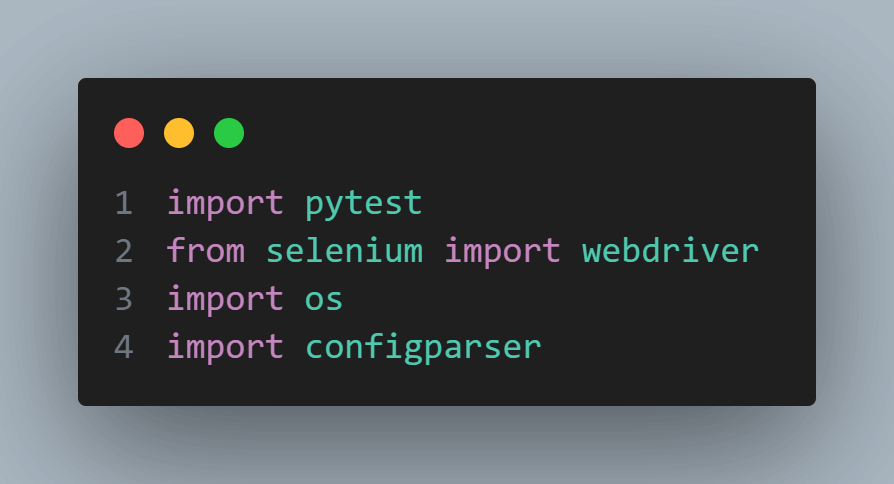
It imports essential modules like pytest, webdriver from Selenium, os, and configparser for handling configurations.
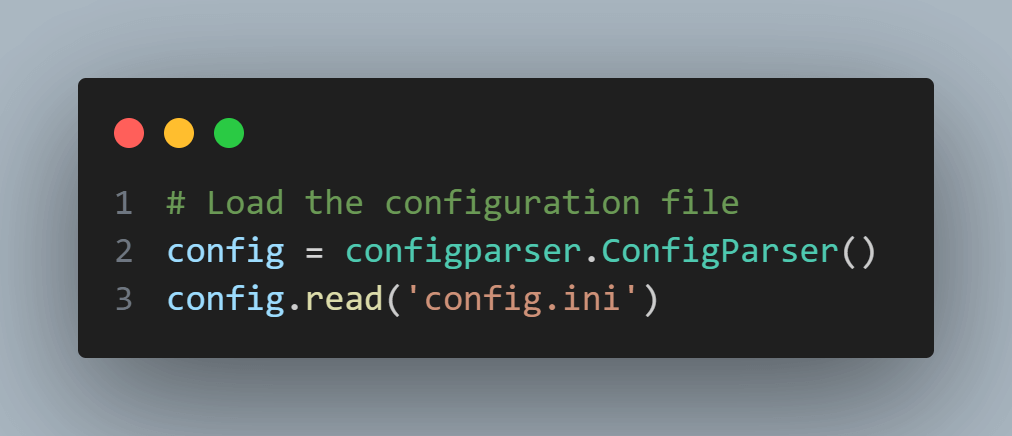
The config.ini file is read using the configparser module to retrieve values such as TestMu AI username, access key, grid URL, platform, browser name, and other capabilities required for the test configuration.
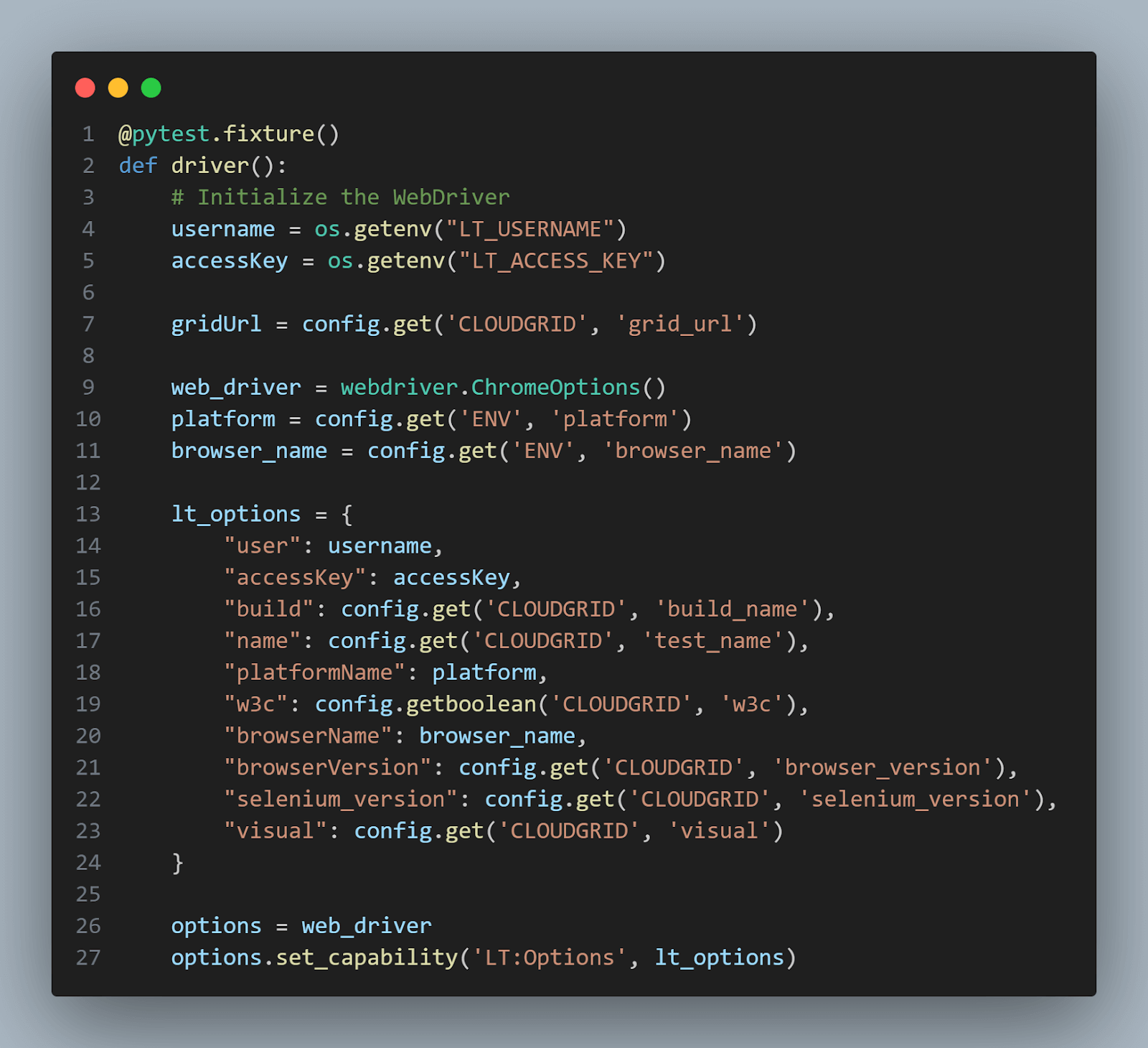
It sets up WebDriver options, including TestMu AI-specific capabilities, by creating a dictionary named lt_options. These options ensure that our tests run on TestMu AI’s cloud infrastructure with the specified configurations.
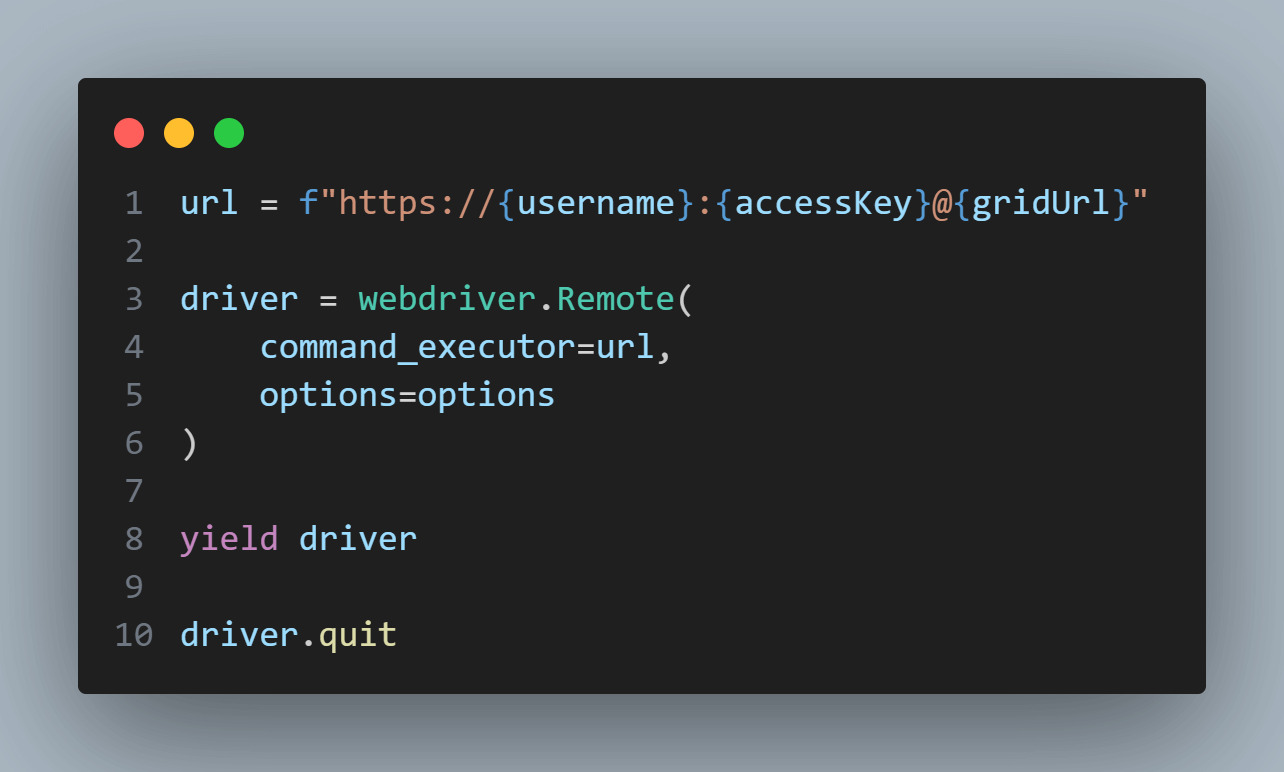
It then builds the URL to connect to the TestMu AI hub with the appropriate username, access key, and grid URL. The WebDriver instance is created using webdriver.Remote() by passing the command_executor (the TestMu AI hub URL) and the options with desired capabilities.
The yield driver statement allows the test functions using this fixture to access the WebDriver instance and use it for testing. After completing the test function(s), the fixture will execute the driver.quit statement to close the WebDriver and release any associated resources.
Once you have met these basic prerequisites, you will be well-prepared to explore radio buttons in Selenium WebDriver using Python and TestMu AI.

Locating Radio Buttons in Selenium WebDriver
In this section, we will start looking into how to locate radio buttons in Selenium within the intricate web of HTML structures. Understanding these techniques is akin to unlocking the secrets of web automation, where precision is essential.
Let’s explore the methods of revealing and interacting with the radio buttons in Selenium.
Using ID
The unique fingerprint, known as the ‘id’ attribute of an HTML element, grants it an unmistakable identity among the web page’s elements tree. The ‘id’ attribute has formidable precision and is a pathway to radio button location without compromise. Through the unique ‘id’ attribute, the path to accessing a radio button unfolds with surgical precision.
Taking a look at the element structure of the page, we can see:
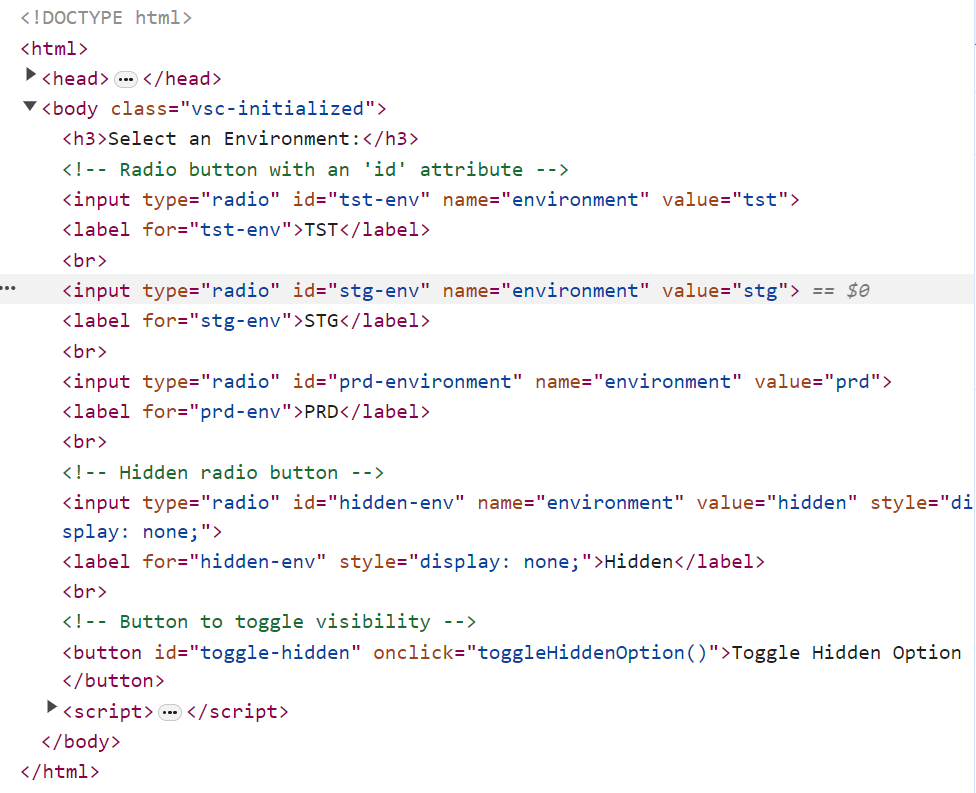
Considering that we want to locate the stg environment radio button using ID, we can do it as shown below:
stgenv_radio_button = driver.find_element(By.ID, "stg-env")
Using Name Attribute
In the web’s elements set, the ‘name’ attribute allows elements to be organized into thematic groups. This allows the radio buttons to share a common name, enabling their pinpoint location.
Taking a look at the element structure of the page, we can see:
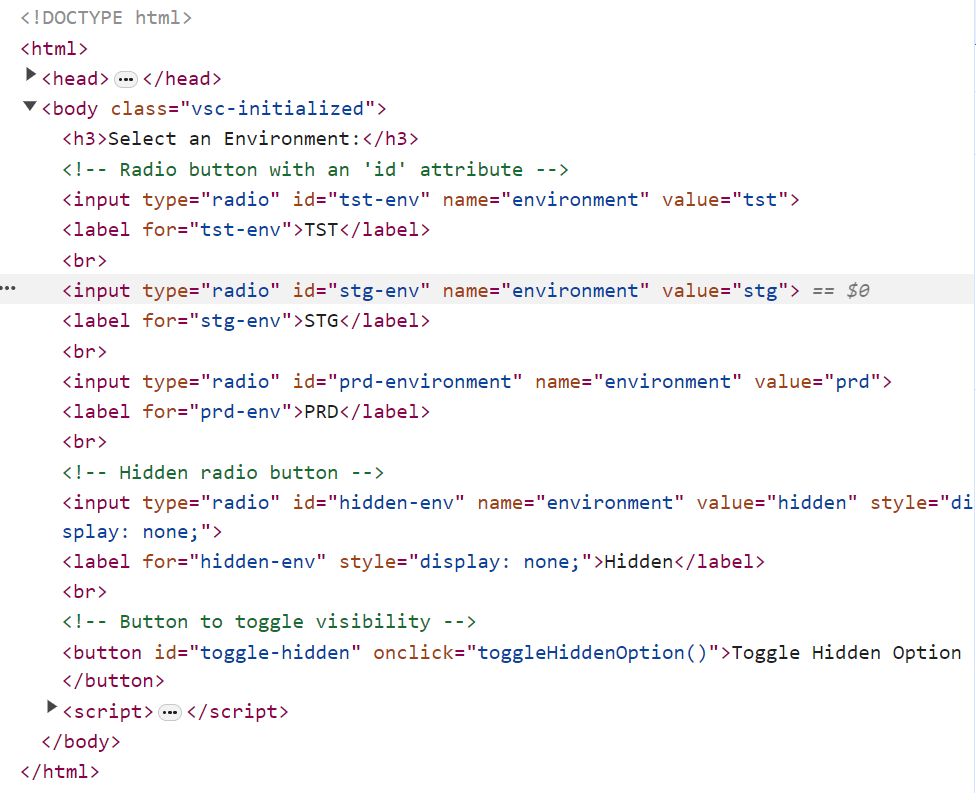
Considering that we want to locate the Female radio button using the NAME attribute, we can do it as shown below:
female_radio_button = driver.find_elements(By.NAME, "optradio")[1]
Using XPath
In web automation, XPath emerges as a tool that walks inside the architecture of HTML, arriving at the radio buttons with precision. When the attributes of other elements falter, XPath’s navigation steps in.
Taking a look at the element structure of the page, we can see:
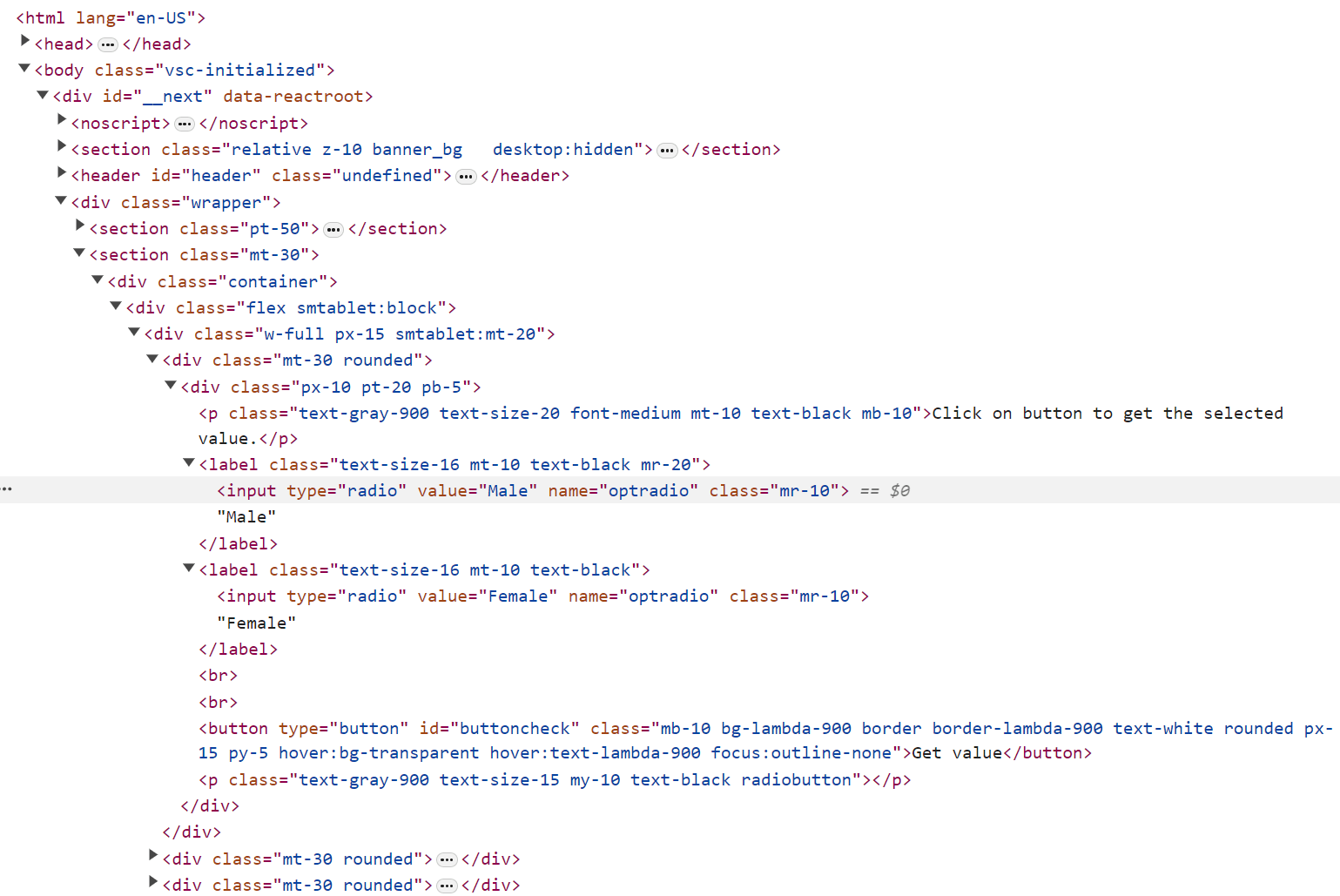
Considering that we want to locate the Male radio button using XPATH, we can do it as shown below:
male_radio_button = driver.find_element(By.XPATH, "//input[@value='Male']")
Using CSS Selectors
Cascading Style Sheets (CSS) Selectors, with their conciseness, waltz into the limelight. They provide a deft and elegant means of singling out elements based on a tapestry of attributes, classes, or structures. CSS Selectors master the art of discerning radio buttons by their intrinsic attributes, painting a portrait of precision.
Taking a look at the element structure of the page, we can see:
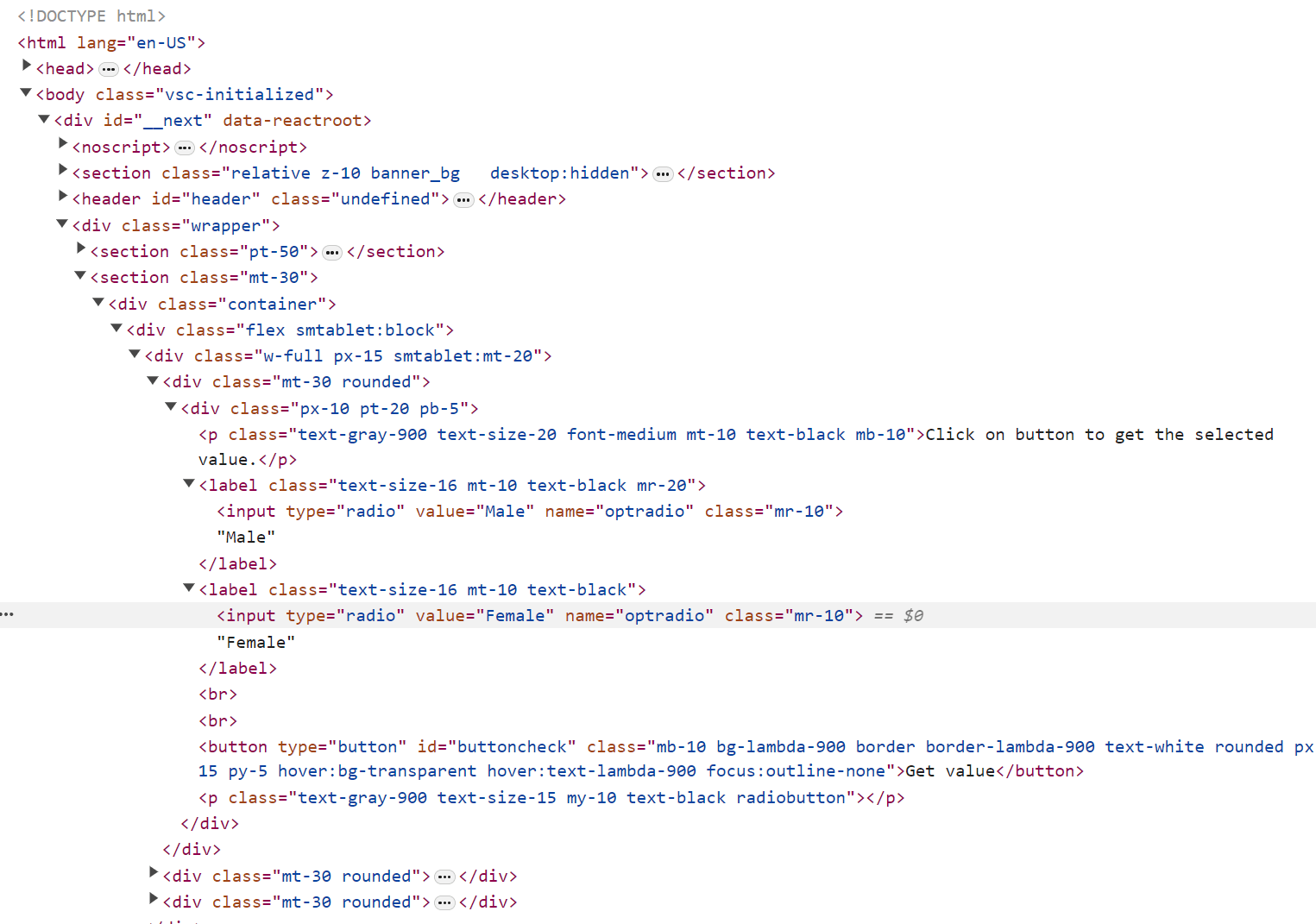
Considering that we want to locate the Female radio button using CSS_SELECTOR, we can do it as shown below:
female_radio_button = driver.find_element(By.CSS_SELECTOR, "input[value='Female']")

Note: Automate Selenium Python tests on the cloud. Try TestMu AI Today!
Interacting with Radio Buttons in Selenium
Now that we have honed our skills in locating radio buttons in Selenium let’s delve into their practical use. This section will explore the hands-on aspect of working with radio buttons, focusing on the core action of clicking.
Clicking on radio buttons
Clicking a radio button is the primary way users make selections, and when it comes to automating interactions, it’s very important and essential. To emulate a user’s click on a radio button in Selenium and Python, simply call the click() method on the element object you’ve obtained during the locating step.
Below are four illustrative examples employing Python and Selenium, one for each different locator strategy explored in the previous section:
Test Case 1: Locate the Radio Button by ID and Click
from selenium.webdriver.common.by import By
def test_locate_radio_button_by_id_and_click(driver):
    # Navigate to the sample page   driver.get("https://paulocoliveira.github.io/mypages/radiobuttons.html")
    # Locate the radio button by ID and click it
    stgenv_radio_button = driver.find_element(By.ID, "stg-env")
    stgenv_radio_button.click()
This first script aims to automate web page interactions with radio buttons. It begins by navigating to the specific web page hosted at https://paulocoliveira.github.io/mypages/radiobuttons.html. Once on the page, the script uses the ID to precisely locate a radio button element with an ID equal to “stg-env” and then clicks on it using the click() method.
Test Case 2: Locate the Radio Button by Name and Click
from selenium.webdriver.common.by import By
def test_locate_radio_button_by_name_and_click(driver):
    # Navigate to the sample page    driver.get("https://www.lambdatest.com/selenium-playground/radiobutton-demo")
    # Locate the radio button by name and click it
    female_radio_button = driver.find_elements(By.NAME, "optradio")[1]
    female_radio_button.click()
This second script aims to automate interactions with radio buttons on another webpage. It begins by navigating the “radio button demo” page hosted at https://www.lambdatest.com/selenium-playground/radiobutton-demo. Once on the page, the script uses the NAME attribute to precisely locate the radio button elements with the value attribute equal to “optradio” but with the index=1. Then, it clicks on the radio button using the click() method.
Test Case 3: Locate the Radio Button by XPath and Click
from selenium.webdriver.common.by import By
def test_locate_radio_button_by_xpath_and_click(driver):
    # Navigate to the radio button demo page (same as the first test case)
driver.get("https://www.lambdatest.com/selenium-playground/radiobutton-demo")
    # Locate the radio button by XPath and click it
    male_radio_button = driver.find_element(By.XPATH, "//input[@value='Male']")
    male_radio_button.click()
The aim of this third script is to automate interactions with radio buttons on the same web page. It navigates to the webpage, uses the XPATH to locate the radio button input with the value attribute equal to “Male”, and then clicks on it using the click() method.
Test Case 4: Locate the Radio Button by CSS Selector and Click
from selenium.webdriver.common.by import By
def test_locate_radio_button_by_css_and_click(driver):
    # Navigate to the sample page    driver.get("https://www.lambdatest.com/selenium-playground/radiobutton-demo")
    # Locate the radio button by CSS selector and click it
    female_radio_button = driver.find_element(By.CSS_SELECTOR, "input[value='Female']")
    female_radio_button.click()
Finally, the last script goal aims to automate radio button interactions on the same web page. It navigates to the web page, uses the CSS_SELECTOR to locate a radio button input with the value attribute equal to “Female”, and then clicks on it using the click() method.
You can run the four tests by running the below command:
pytest
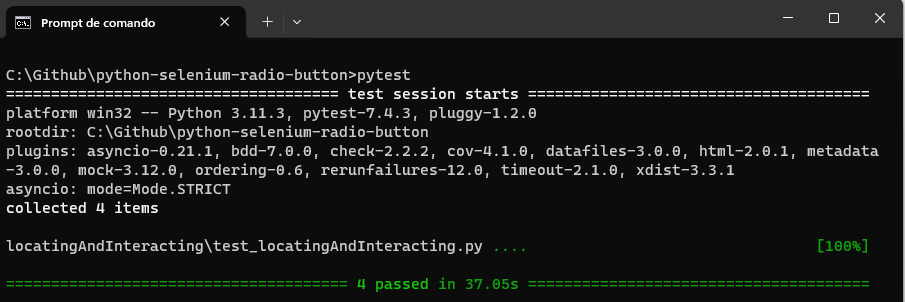
These test cases serve as instructive demonstrations of the methodologies for locating radio buttons using ID, Name, XPath, and CSS. Still, they underscore the seamless interaction achievable by executing click actions on these radio buttons.
Checking the Radio Buttons State in Selenium
When it comes to automated testing involving radio buttons, one must assess their various states to guarantee test accuracy and adaptability. In this section, we’ll examine radio button states using Python and Selenium.
Verifying if a radio button is being selected
Lastly, as radio buttons are designed for exclusive choices, we employ the is_selected() method to ascertain whether a radio button is chosen. For instance, after clicking the “Male” radio button, we can confirm its selection status:
from selenium.webdriver.common.by import By
def test_check_is_selected(driver):
    # Navigate to the sample page   driver.get("https://www.lambdatest.com/selenium-playground/radiobutton-demo")
    # Locate the "Male" radio button
    male_radio_button = driver.find_element(By.XPATH, "//input[@value='Male']")
    male_radio_button.click()
    # Check if the "Male" radio button is selected
    if male_radio_button.is_selected():
        print("The 'Male' radio button is selected.")
    else:
        print("The 'Male' radio button is not selected.")
In this script, we first locate and click the “Male” radio button, then verify its selection status. This step is vital for ensuring that user selections align with expected outcomes.
In the above case, whether the button is selected or not, the code just prints the status; however, again, actions can be executed depending on the status.
You can run these three tests by running the below command:
pytest -s
You will get this result:
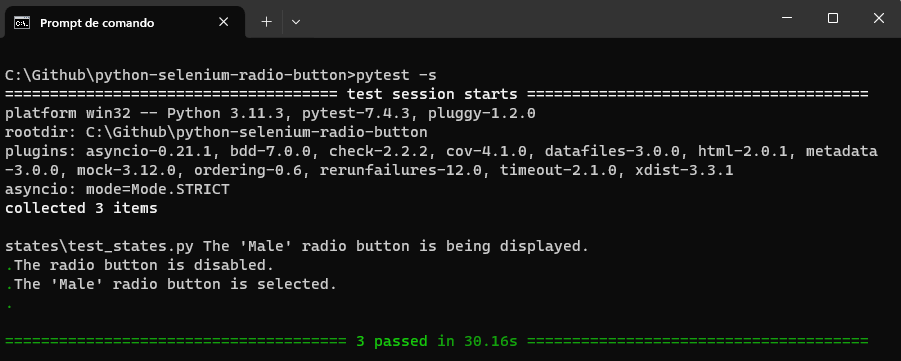
By adeptly assessing these radio button states, you can ensure the accuracy and dependability of your automated tests, confirming that your web applications work as intended in diverse scenarios.
Advanced Use Cases for Handling Radio Buttons in Selenium
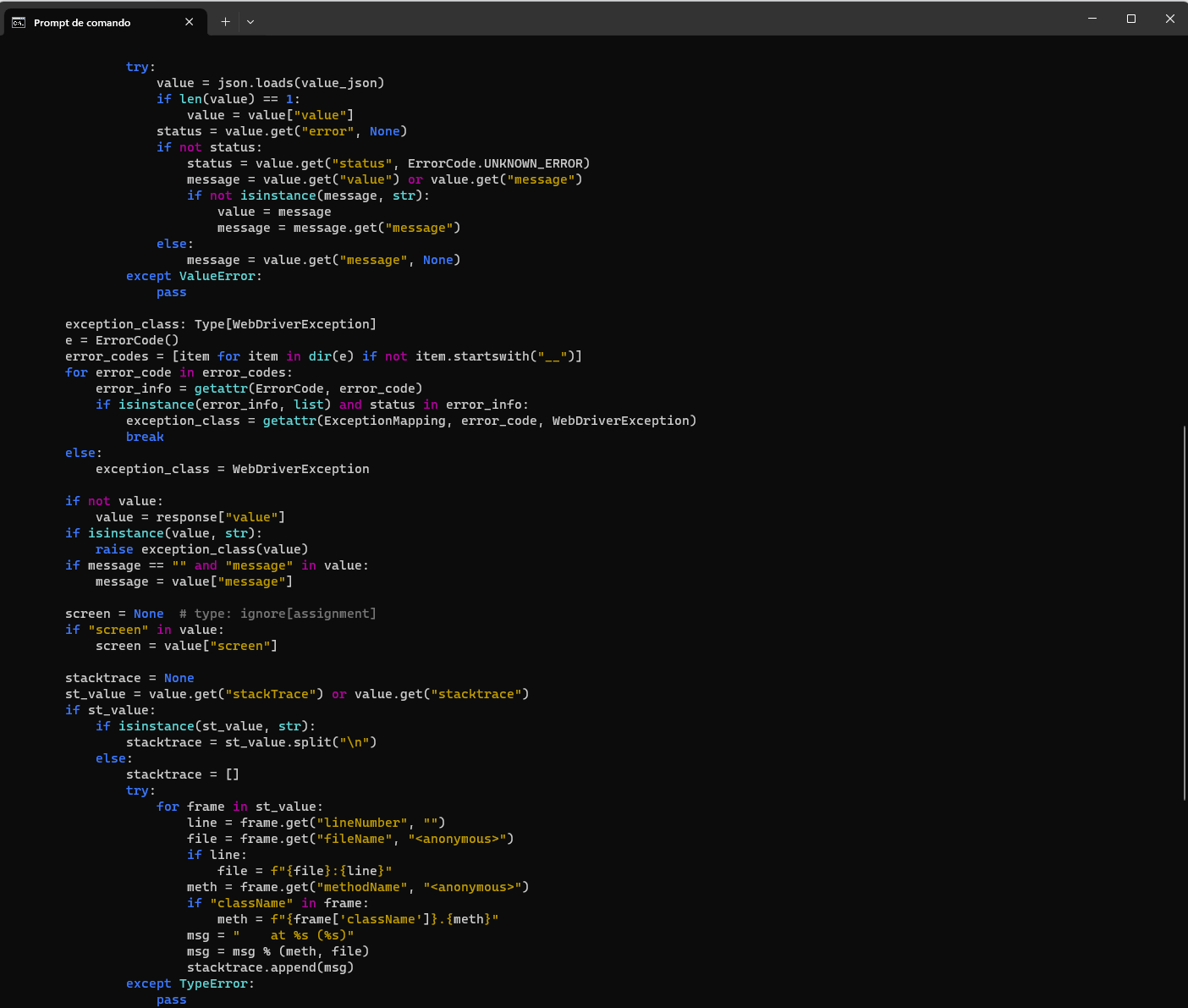
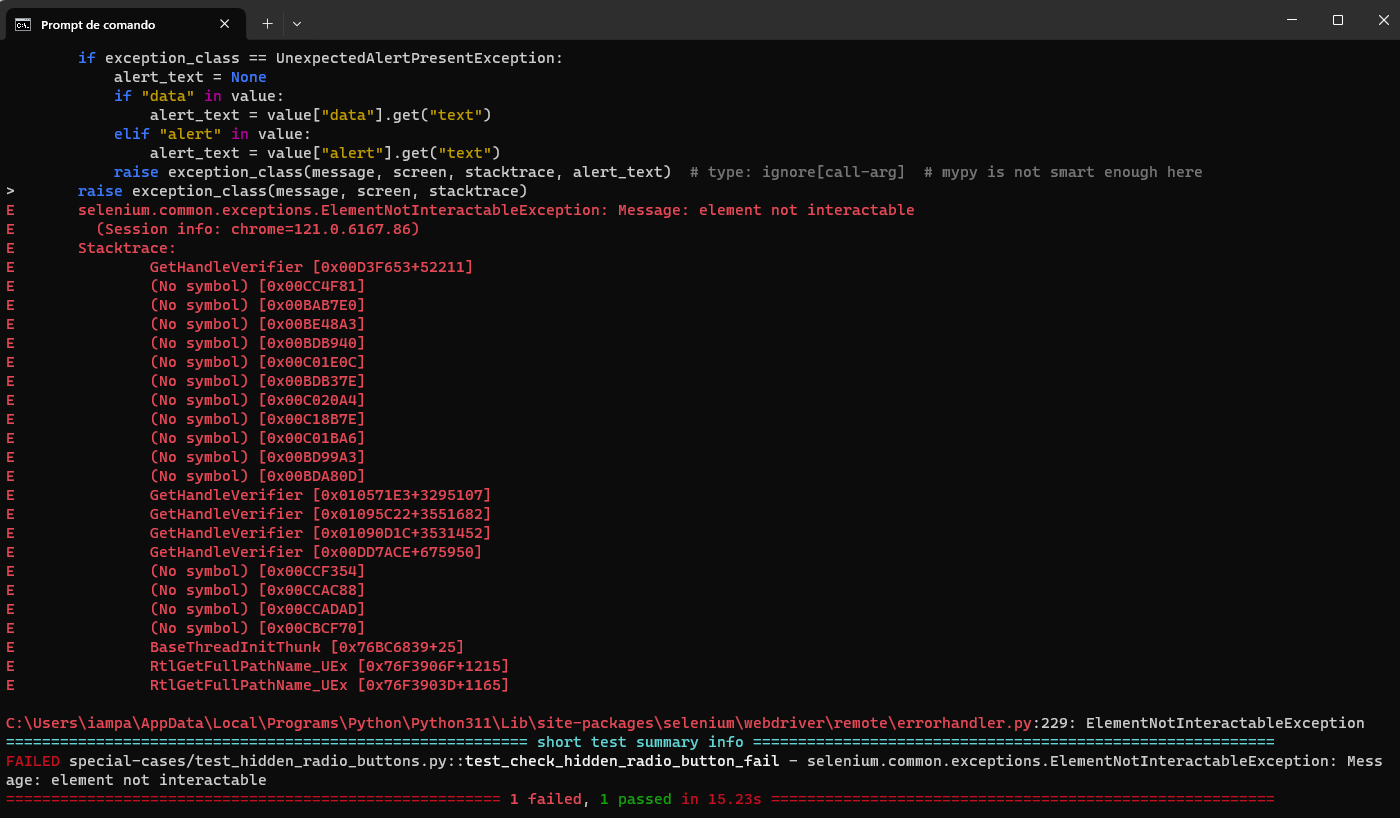
Navigating hidden radio buttons is vital in web automation, particularly when dealing with hidden elements when a page loads. In this section, we’ll delve into techniques for working with these radio buttons in Selenium using Python.
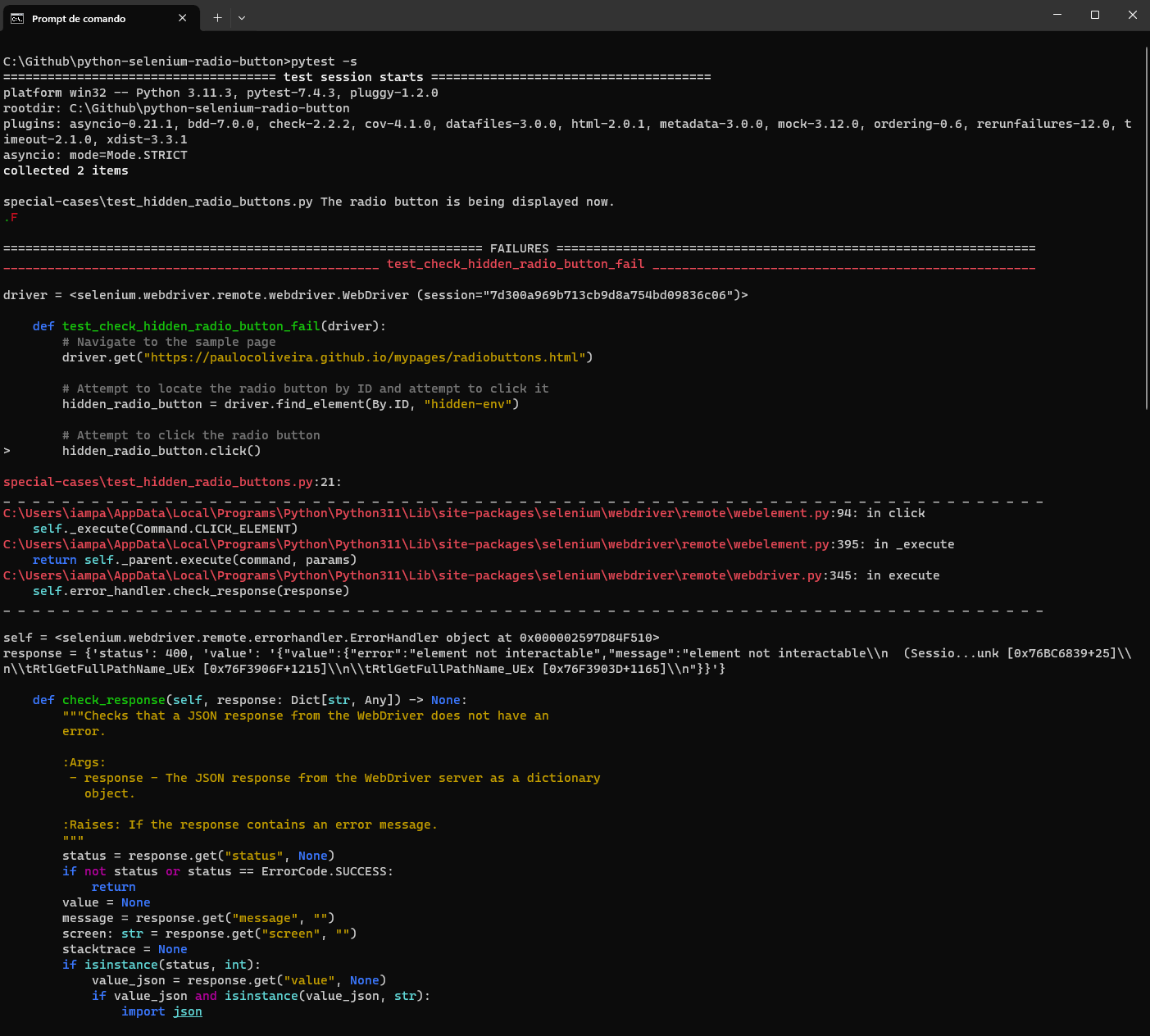
Retrieving radio buttons value in Selenium
When it comes to automating interactions involving radio buttons, there are occasions where you need to extract the value of the option that’s currently selected. In this section, we’ll achieve this goal using Python and Selenium.
from selenium.webdriver.common.by import By


def test_get_selected_value(driver):
    # Navigate to the sample page   driver.get("https://www.lambdatest.com/selenium-playground/radiobutton-demo")
    # Locate all radio buttons with the same name attribute
    radio_buttons = driver.find_elements(By.NAME, "optradio")
    # Click on the Female option
    radio_buttons[1].click()
    # Initialize a variable to store the selected option
    selected_option = None
    # Iterate through the radio buttons to find the selected one
    for radio_button in radio_buttons:
        if radio_button.is_selected():
            selected_option = radio_button.get_attribute("value")
            break
    # Check if a selected option was found
    if selected_option:
        print(f"The selected option is: {selected_option}")
    else:
        print("No option is selected.")
We start by navigating to a sample web page containing radio buttons in the provided code. These radio buttons share a common ‘name’ attribute, “optradio.” To demonstrate the process of extracting the selected value, we choose the “Female” option through a simulated click action (corresponding to index 1 in the radio_buttons list).
Subsequently, we establish a variable known as selected_option to hold the value of the selected option. We then iterate through the radio buttons using a loop. We check each radio button’s selected status using the is_selected() method. If a radio button is found to be selected, we extract its value attribute using get_attribute(“value”) and store it in selected_option. The loop finishes as soon as a selected radio button is encountered.
You can run the above test by running the below command:
You will get this result:
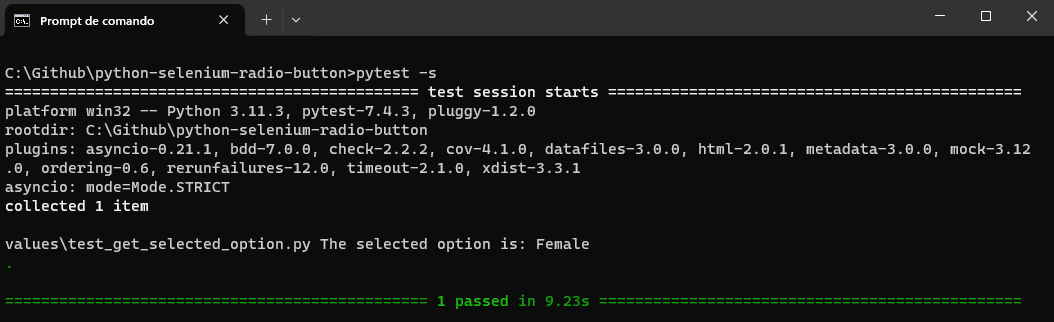
Finally, we ensure whether a selected option was successfully identified. If so, we print the selected option; otherwise, we indicate that no option is currently selected. This method empowers you to extract and work with the value of the currently selected radio button in your Selenium automation scripts.
Conclusion
In this blog, we’ve explored handling radio buttons in Selenium using Python. We’ve covered key aspects, from locating radio buttons using various strategies, such as IDs, Names, XPath, and CSS Selectors, to interacting with them through simulated clicks.
Additionally, we’ve discussed verifying radio button states, including checking if they’re displayed, enabled, or selected, and addressing handling special cases like hidden radio buttons, offering effective solutions for such scenarios. Finally, we’ve demonstrated extracting the selected value from a group of radio buttons, a common requirement in test automation for ensuring the accuracy and reliability of your automation scripts in web application testing.
Mastering radio button automation is crucial for testers to enhance the quality and functionality of web applications, equipping them with the skills to create robust and effective automation scripts.


Frequently asked questions
Did you find this page helpful?
More Related Hubs
TestMu AI forEnterprise
Get access to solutions built on Enterprise
grade security, privacy, & compliance
- Advanced access controls
- Advanced data retention rules
- Advanced Local Testing
- Premium Support options
- Early access to beta features
- Private Slack Channel
- Unlimited Manual Accessibility DevTools Tests