

Next-Gen App & Browser Testing Cloud
Trusted by 2 Mn+ QAs & Devs to accelerate their release cycles


How To Emulate Mobile Browsers For Website Testing?
Testing website on different mobile browsers is crucial for delivering the best mobile experience. Learn how to emulate mobile browsers using different method.

Salman Khan
December 26, 2025
The rendering of every website varies depending on the browser. Likewise, the website’s user interface depends entirely on the front-end development and on the type of browser being used to access it.To avoid cross-browser compatibility issues, organizations must ensure their websites and web applications are compatible across various latest and legacy browsers and operating systems. Earlier testing was primarily done on desktop computers. However, with the proliferation of mobile devices, testing has spread to different platforms.
According to Statista – Approximately half of all web traffic worldwide comes from mobile devices. Therefore, it’s crucial to test websites on mobile browsers to ensure they are well-optimized for the target audience.
As per another survey, desktop traffic is lower than mobile traffic, which itself shows leaving your mobile performance unoptimized is not an option.

Testing your website on different mobile browsers has become crucial to delivering the best mobile experience to your visitors. The ideal and most cost-effective solution for web testing is to emulate mobile browsers on popular browsers like Chrome, Firefox, Safari, and Edge.
In this article, we look at how to emulate mobile browsers using different techniques to test websites and web applications.
Let’s begin!
Why emulate Mobile browsers?

As per a survey – a poorly functioning website annoys 48% of mobile users. Therefore, it’s vital to have an intuitive mobile UX to drive customer engagement and reduce churn rate.
Modern web development utilizes mobile websites and responsive web design to customize how users interact with websites or applications on different devices. Consequently, you need to test your website’s code on various mobile browsers and operating systems during development.
But how can you do it while avoiding the hassle of managing and switching between multiple devices?
Simulating and emulating mobile devices can help you achieve this. With emulation and simulation, you can test websites and web apps on online mobile browser emulators, device emulators, cloud-based Android emulators for browser testing, and iOS simulators for browser testing. This will help you get feedback faster. Additionally, they are faster to run and configure, cost-effective, and pre-installed in the developer’s environment.

Benefits of Mobile Emulations and Simulations
Virtual device testing involves mobile emulation and simulations. Mobile emulation and simulation for are considered cost-effective and smooth methods for web testing.
Below are the following benefits of emulation and simulations for mobile testing.
- Mobile emulation and simulation mimic a real device environment for performing mobile device testing.
- They are cost-effective, and one can install them for free.
- It provides easy debugging for capturing bugs and issues.
- Functional testing can be easily conducted using emulations and simulations.
- Mobile emulators and simulators are easy to fetch without any availability constraints.
- Users can grab a screenshot of issues or bugs while building an app while testing on emulators and simulators.
- Mobile emulations and simulations do not have internal storage constraints or issues.
- Performing emulations and simulations on mobile devices, users can easily run cross-device and cross-platform compatibility tests.
Note: Now you can perform online cross browser testing on Brave Browsers to make sure your websites and web apps are compatible with all versions.
Different methods to emulate Mobile browser
In order to test websites and web applications on mobile devices, various methods are there to emulate mobile browsers for website testing.
- Test on Mobile browser emulators
- Android Emulators and iOS Simulators testing
- Test on cloud-based Emulators and Simulators
Testing on Mobile browser emulator
Using the online mobile browser emulator or in-built developer tools available for popular desktop browsers like Chrome, Firefox, Safari, Edge, etc., you can test the mobile view of websites. As part of this section, we’ll use a browser emulator to test a mobile website in Chrome, Firefox, Safari, and Edge.
Google Chrome
- Launch Chrome and enter the website you want to test.
- From the custom and Google control button on the top-left corner, go to More tools > Developer tools.
- Click the Device toggle bar icon as shown in the below screenshot.
- From the dropdown, choose an Android or iOS device.
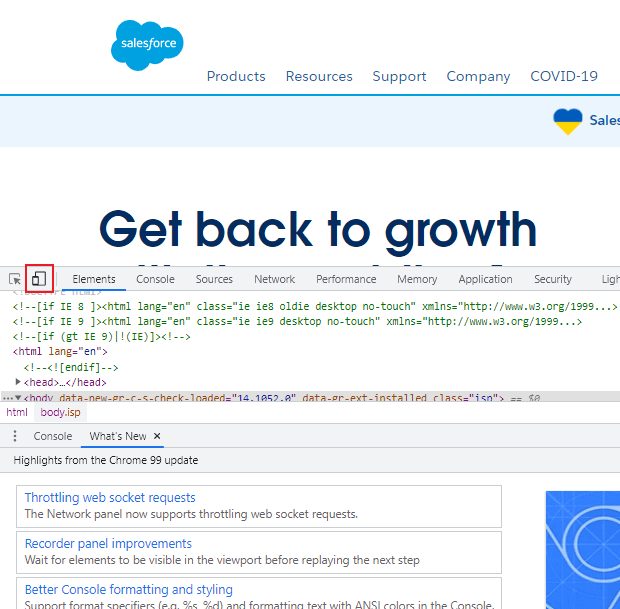
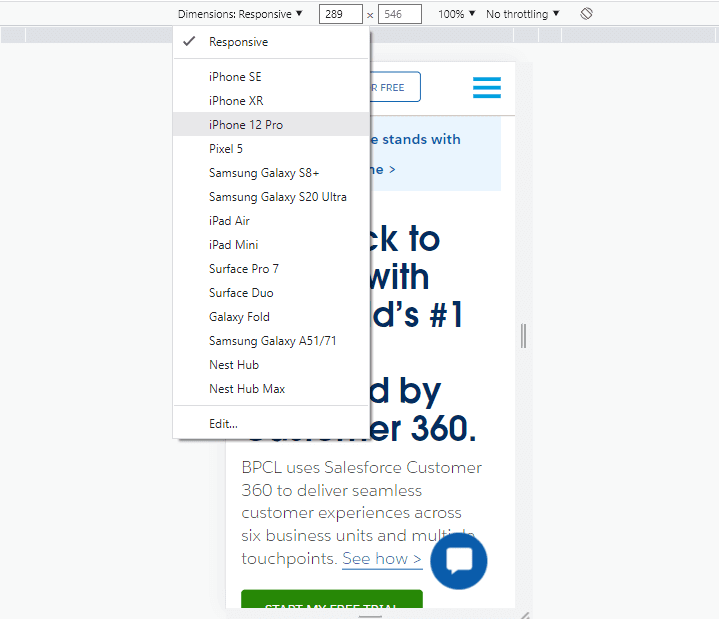
You can also refer to the below tutorial on how to perform responsive testing using chrome dev tools protocol In Selenium 4.
Mozilla Firefox
- Launch Firefox and enter the website you want to test.
- From the Application menu on the top-left corner, go to More tools > Web Developer Tools.
- Click the Responsive Design Mode icon as shown in the below screenshot.
- From the dropdown, choose an Android or iOS device.
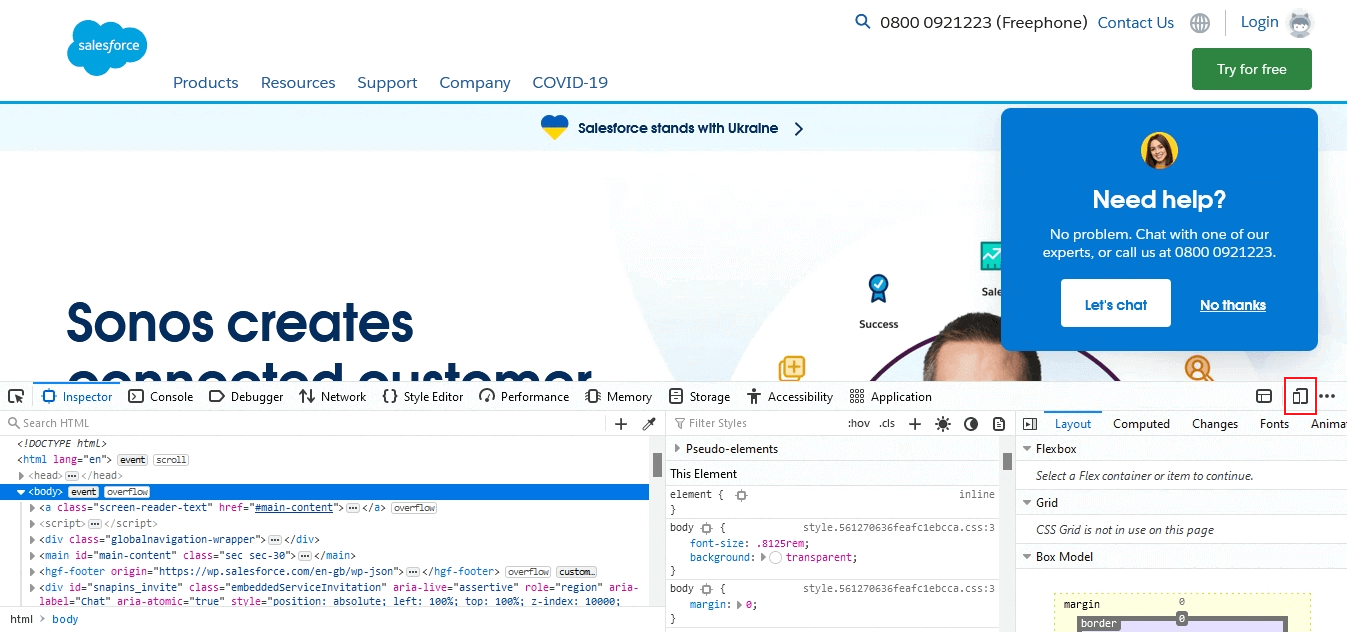
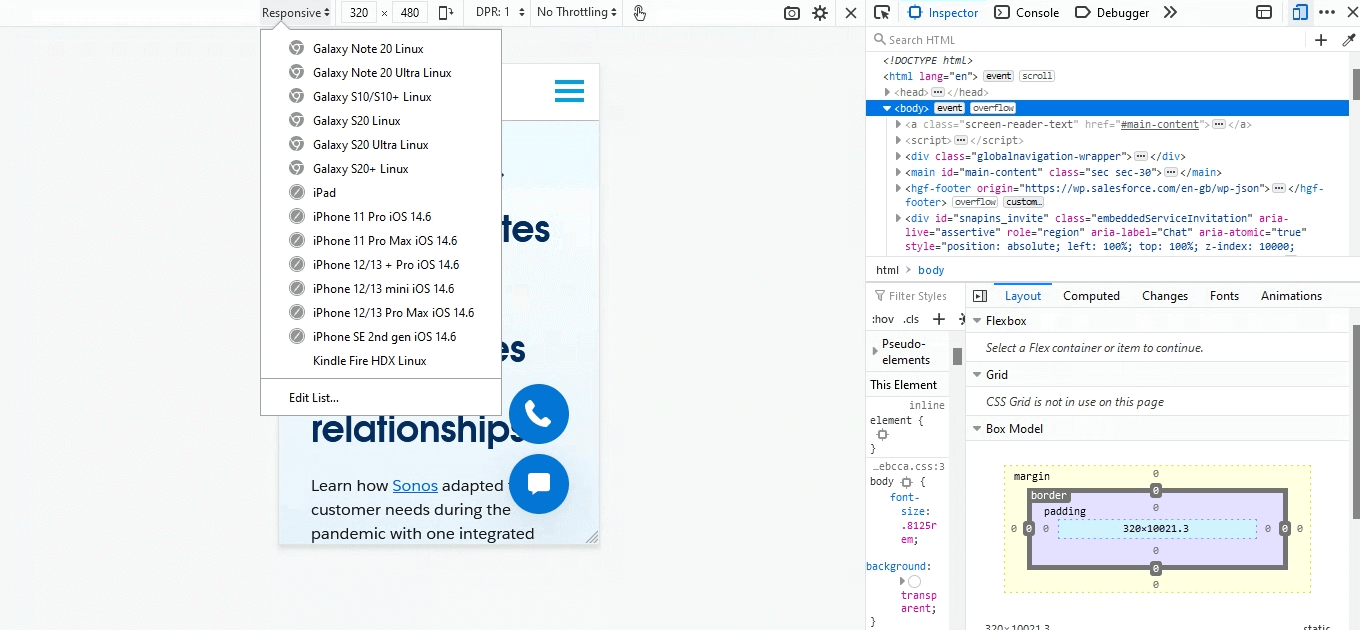
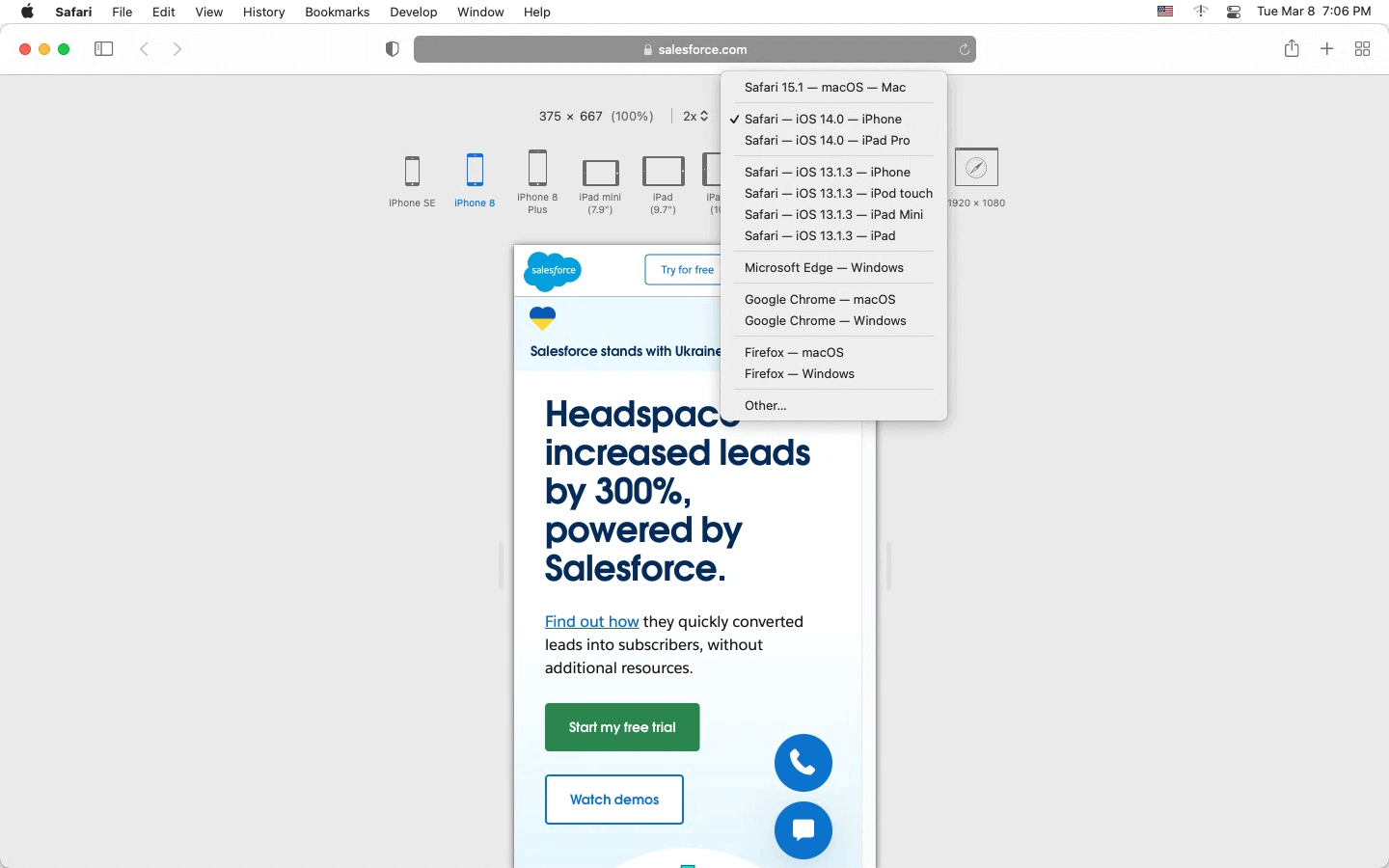
Safari
- Launch Safari and enter the website you want to test.
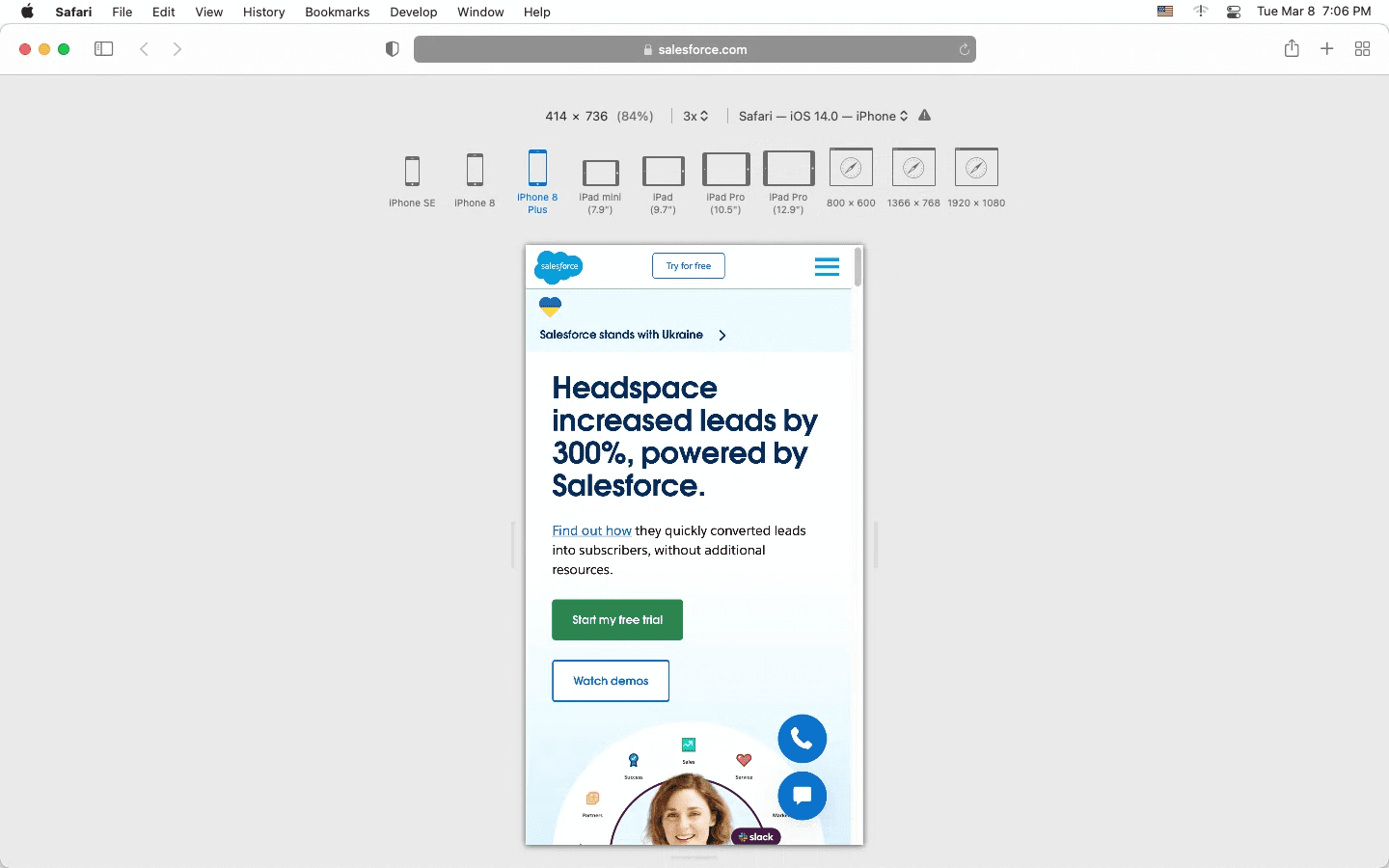
- From the Safari menu bar, go to Develop > Enter Responsive Design Mode.
- Now choose the device from the dropdown or the device menu.
- Once you select the device, the entered website will open on the selected device.
Microsoft Edge
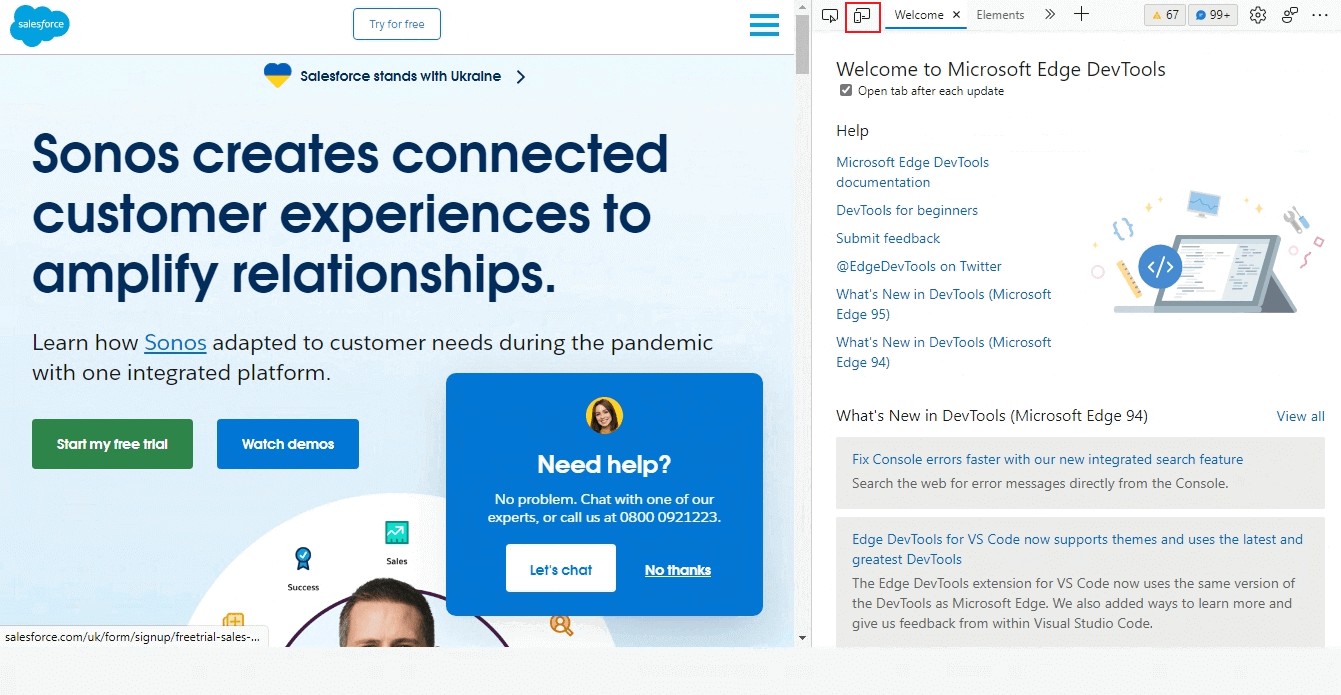
- Launch Edge and visit the website you want to test.
- From the settings menu on the top-left, go to More tools > Developer tools.
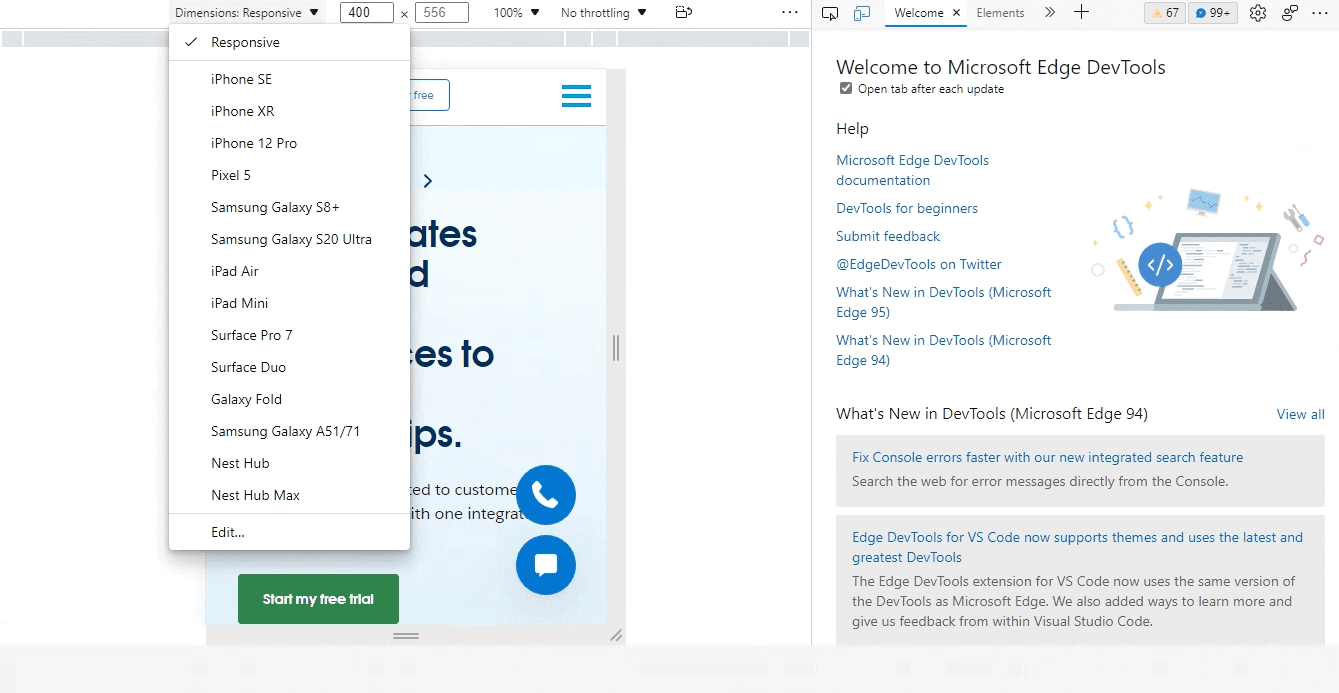
- Click the Toggle device emulation icon as shown in the below screenshot.
- From the dropdown, choose an Android or iOS device.
Test on device Emulators and Simulators
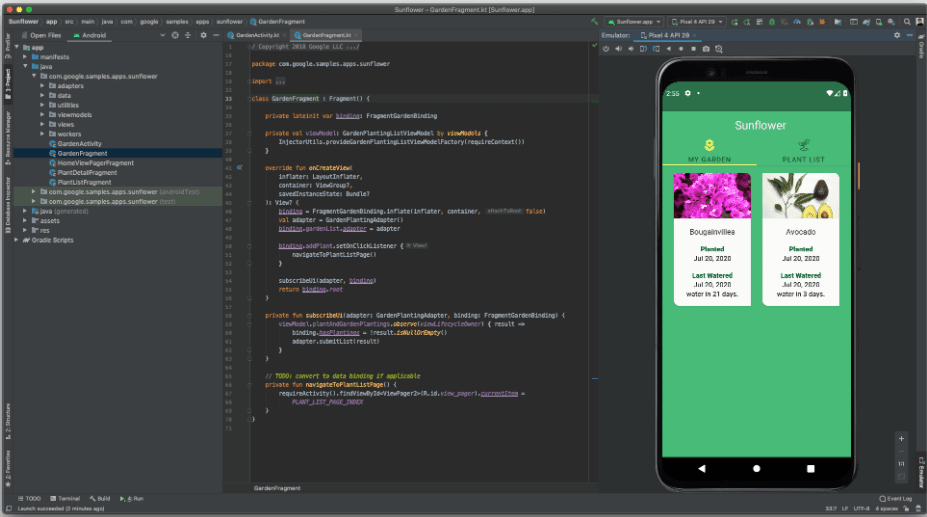
The next method to emulate mobile browsers is using device emulators and simulators for UI testing purposes. You can test mobile browsers on your desktop with Android Emulators and iOS Simulators. It gives you the same experience as working on your handheld device. Using the app or browsing the web is just like using your mobile phone. Online emulators and simulators are also available, but they do not have as many features as the desktop emulator software.
Shown below is an example of Android Emulator online running on Android Studio.
Read More – Emulator vs Simulator For Mobile Testing: Differences & Setup
Using cloud-based Emulators and Simulators
Maintaining in-house Android emulators and iOS simulators can be cumbersome. To ease your mobile web browser testing, using cloud-based emulators and simulators are the viable option to emulate mobile browsers. Cloud-based testing platforms like TestMu AI offer testing emulators and simulators on an online browser farm of 3000+ browsers and operating systems and thereby eliminating the pain point of setting up local emulators and simulators.
Besides cloud-based emulators and simulators, TestMu AI is equipped with tons of features like mobile app testing on emulators and simulators and real devices, geolocation testing, TestMu AI integrations with 120+ third-party tools, local page testing, LT Browser – a mobile-friendly tester for conducting responsiveness tests and much more.
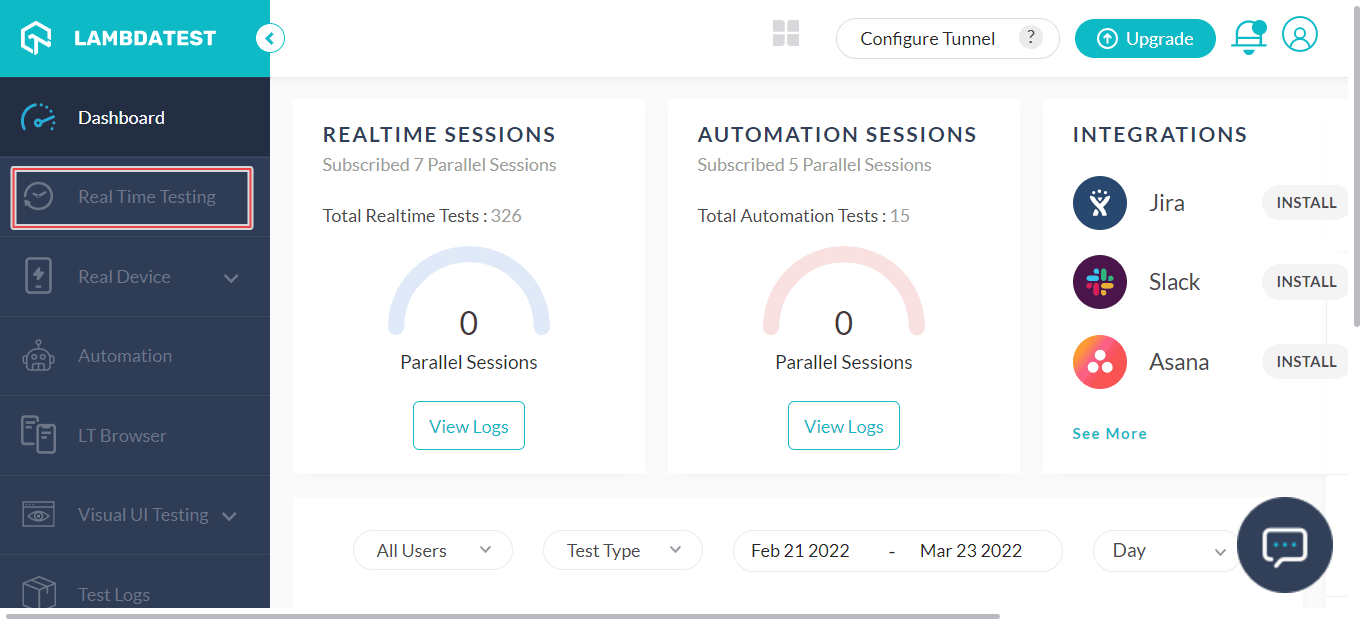
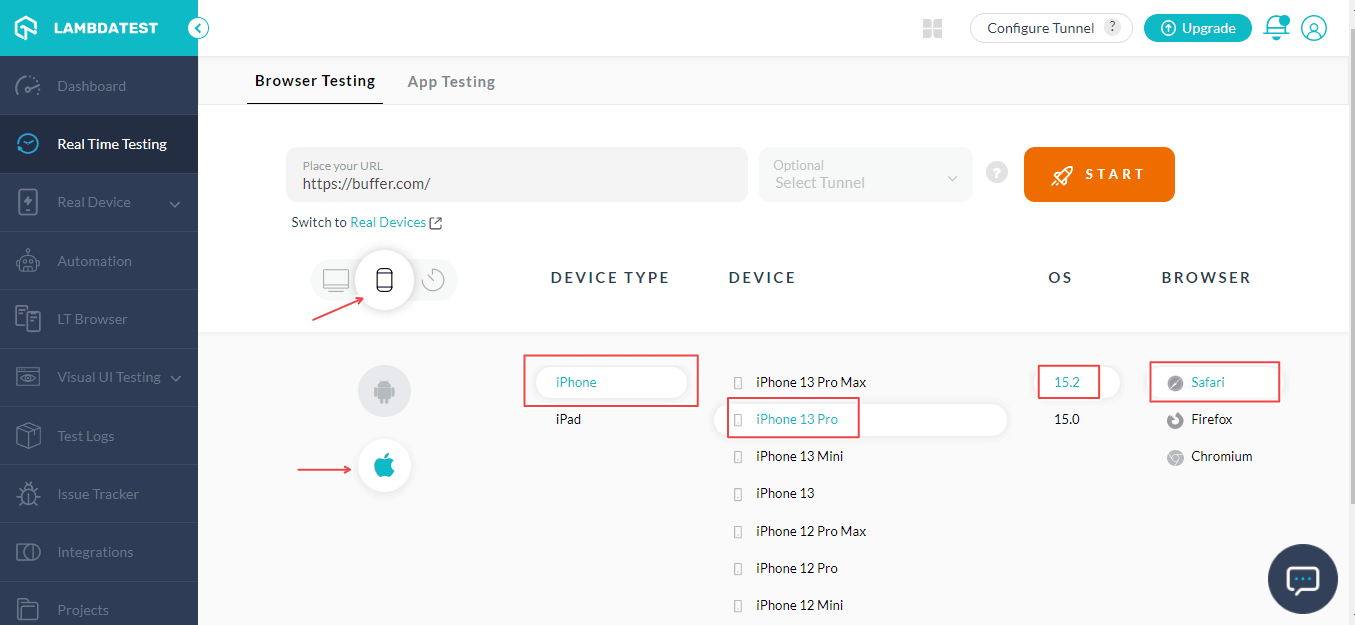
Below are the steps on how to emulate mobile browsers for web testing on the TestMu AI platform.
- Enter a test URL, select the Mobile OS, choose DEVICE TYPE, DEVICE, OS, and BROWSER. Now click START.
- It will route you to the selected cloud-based emulator or simulator.
Login to your TestMu AI account. If you don’t have an account, sign up on TestMu AI.
To test on emulators and simulators, select Real Time Testing from the left sidebar.
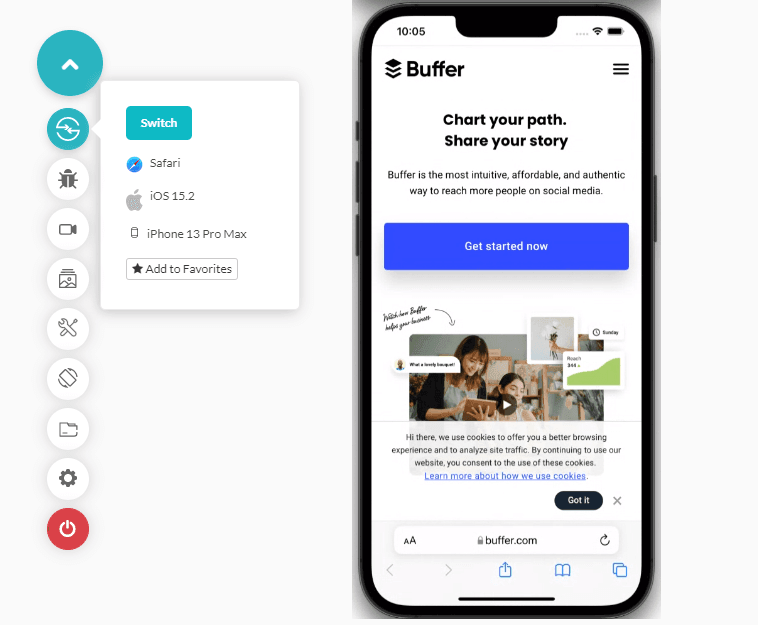 You can now test your web applications or websites based on the selected browser and OS combinations. In the above test, we have emulated the Safari browser on iPhone 13 Pro Max simulator. If you don’t own a real device, TestMu AI has got you covered with a scalable real device cloud of 3000+ real devices and OS combinations for live testing of websites and web apps.

Learn how to perform browser and app testing on real devices in the below video tutorial. Use our TestMu AI to test your website and apps on a range of Vivo devices – Perform Website and App Testing. Get better results and get it done faster!
You can also Subscribe to the TestMu AI YouTube Channel and stay updated with the latest tutorials around automated browser testing, Selenium testing, CI/CD, and more.
Summing Up!
With cloud-based testing platforms like TestMu AI, developers and testers can eliminate pain points while debugging any mobile website issues. Additionally, it optimizes websites for multiple devices and operating systems.
The methods mentioned above can be used for emulating mobile browsers for website testing. However, UI bugs can lead to an unpleasant user experience. As a result, it is imperative to emulate browsers in order to launch websites and web applications that function properly under any conditions. By now, you should have gained a good understanding of how to emulate mobile browsers on your favorite mobile devices. Let us know what you think about the discussed methods in the comments section below.
Happy testing!


Frequently asked questions
Did you find this page helpful?
More Related Hubs
TestMu AI forEnterprise
Get access to solutions built on Enterprise
grade security, privacy, & compliance
- Advanced access controls
- Advanced data retention rules
- Advanced Local Testing
- Premium Support options
- Early access to beta features
- Private Slack Channel
- Unlimited Manual Accessibility DevTools Tests