

Power Your Software Testing with AI Agents and Cloud
The Native AI-Agentic Cloud Platform to Supercharge Quality Engineering. Test Intelligently and Ship Faster.


- TestMu AI (Formerly LambdaTest)
- /
- Blog
- /
- How to Clear Cache in Brave
How to Clear Cache in Brave
Learn how to clear cache in Brave browser on desktop and mobile devices with simple steps. Improve browsing speed and performance by clearing cached data.
Last Updated on:
Over time, using the Brave browser can lead to slower browsing speeds due to the buildup of cached data. Cache stores elements of websites like images and scripts to speed up page loading. However, as this data accumulates, it can negatively impact performance.
To restore your browser’s speed and ensure smooth browsing, it’s important to periodically clear cache in Brave. Using simple steps, you can improve browser performance and keep your browsing experience fast and efficient.
Overview
Cache plays a critical role in enhancing the performance of browsers by storing elements like images and scripts for faster page loading. However, an overloaded cache can negatively impact browsing speed, which is why regularly testing the cache is essential to ensure optimal browser performance.
Key Benefits of Testing Cache Performance
- Cache Functionality: Cache stores elements like images and scripts to improve page loading times by reducing the need to re-fetch content.
- Overloaded Cache: As cache accumulates, it can slow down browsing speed, negatively impacting user experience.
- Regular Cache Testing: Regularly testing the cache ensures optimal browser performance and prevents slowdowns caused by excessive cached data.
AI-Powered Tools for Cache Testing
- TestMu AI for Automation: TestMu AI automates and streamlines the process of testing cache operations to ensure efficient performance.
- Cross-Device Testing: Ensures that cache clearing operations work effectively across both desktop and mobile devices, maintaining consistency.
- Real-World Simulations: Simulates real user scenarios across 3000+ desktop and mobile environments, providing accurate testing results.
- Performance Insights: Uses AI-driven insights to identify bottlenecks and inconsistencies, helping developers optimize cache performance.
Key Benefits of Using TestMu AI for Cache Testing
- Cross-Browser Compatibility: Ensures smooth cache clearing across all major browsers like Chrome, Firefox, Safari, and Edge, enhancing consistency.
- Responsiveness Testing: Verifies that cache operations are responsive across different screen sizes and devices, improving user experience.
- Mobile Testing: Tests mobile cache functionality, ensuring smooth navigation and touch support for mobile users.
- AI-Driven Insights: Leverages AI to automatically detect issues and suggest optimizations, reducing manual testing and boosting performance.
By utilizing TestMu AI, developers can efficiently optimize browser cache performance across multiple platforms, ensuring a faster, smoother browsing experience for users.
Steps to Clear Cache in Brave
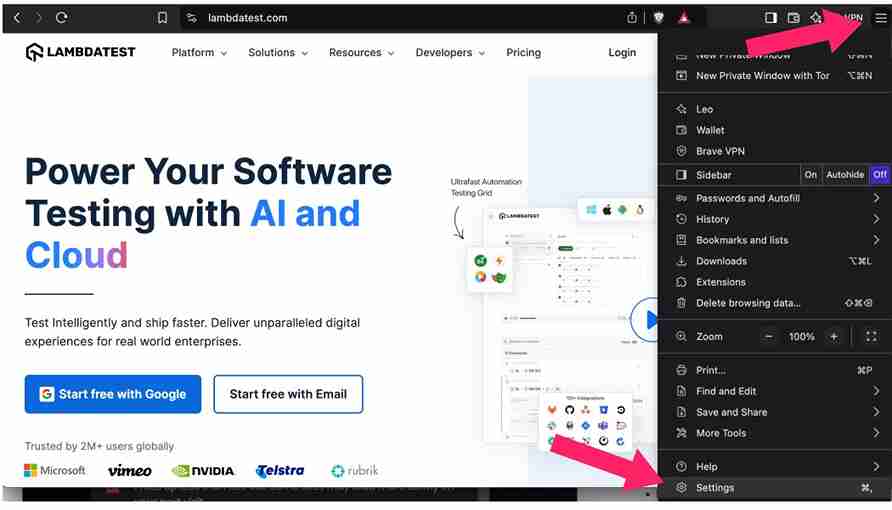
To clear the cache in Brave, follow the steps below:
- Open Brave, click on the hamburger menu in the top right corner of your browser window and select the Settings option.
- Alternatively, use the keyboard shortcut:
- Windows: Ctrl + Shift + Delete
- Mac: Command + Shift + Delete
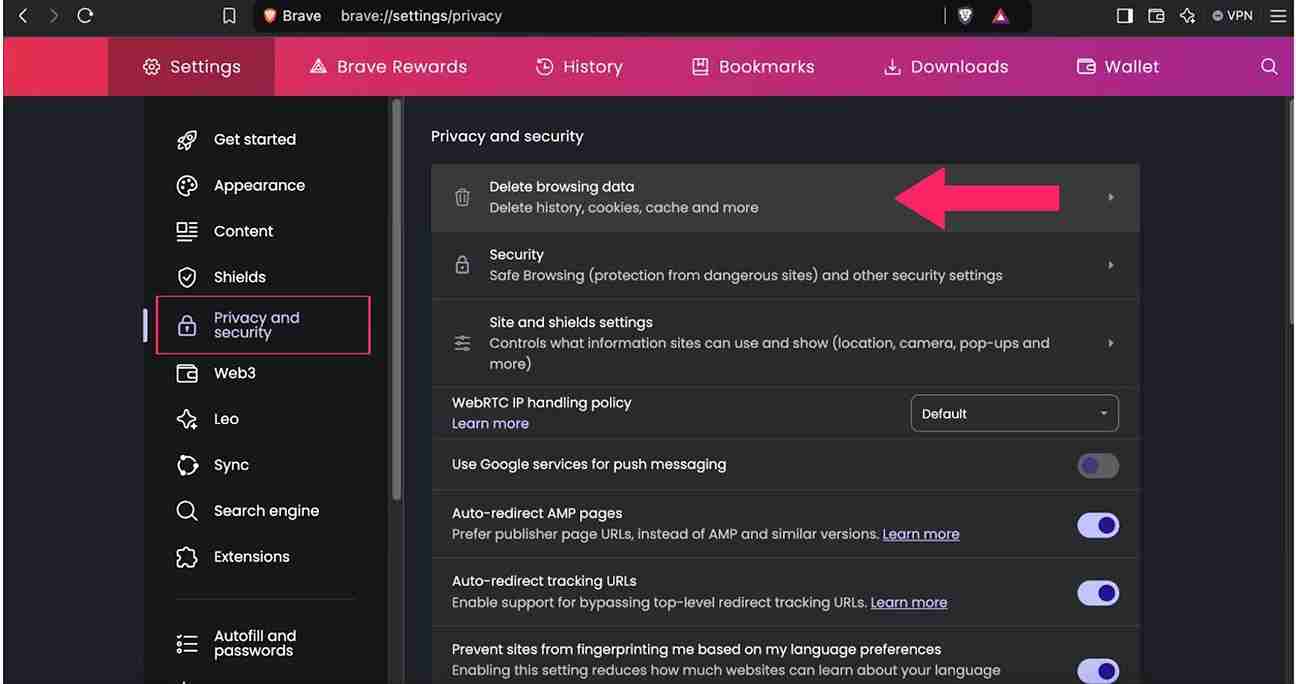
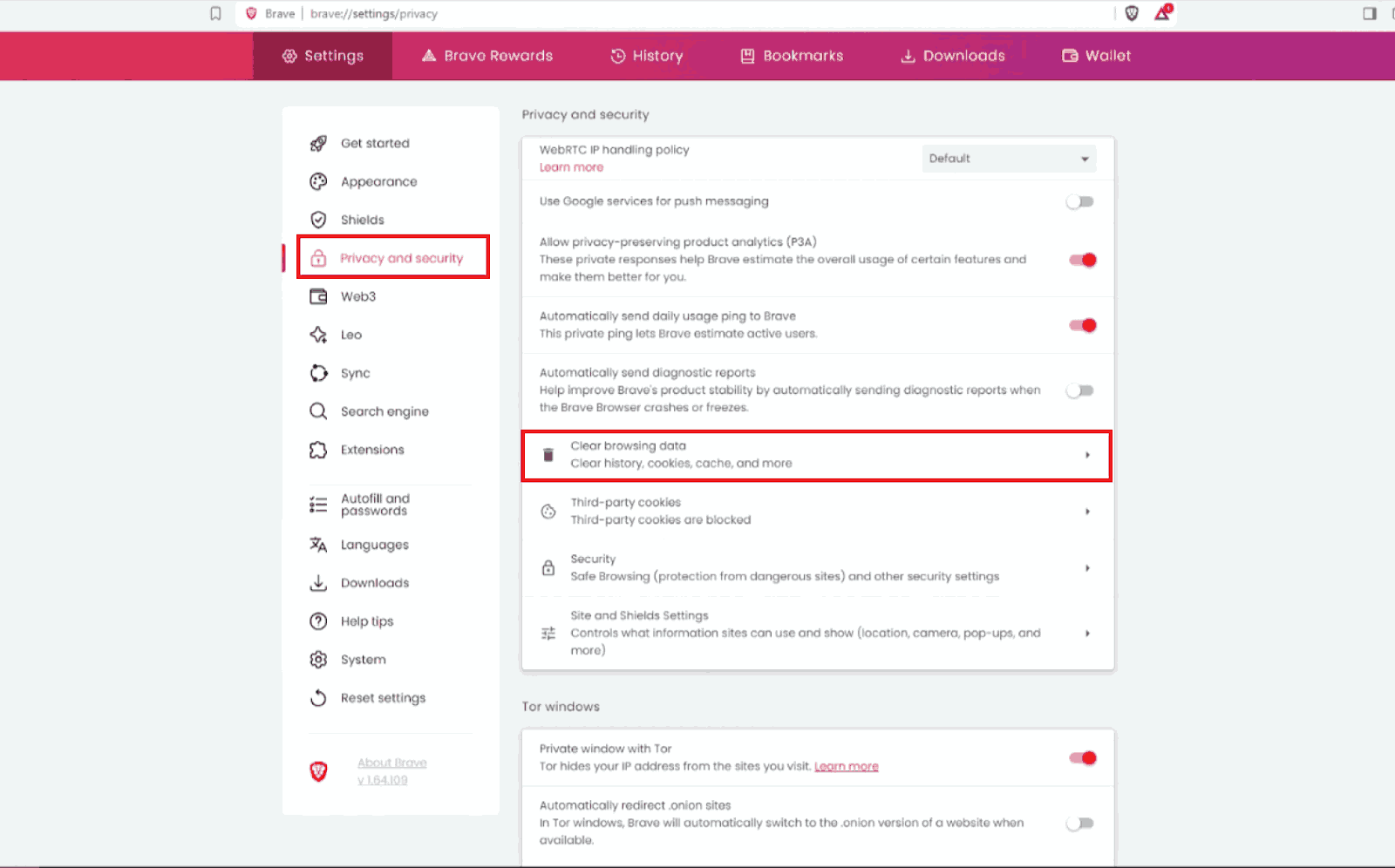
- Scroll down to Privacy and security and click on Delete browsing data.
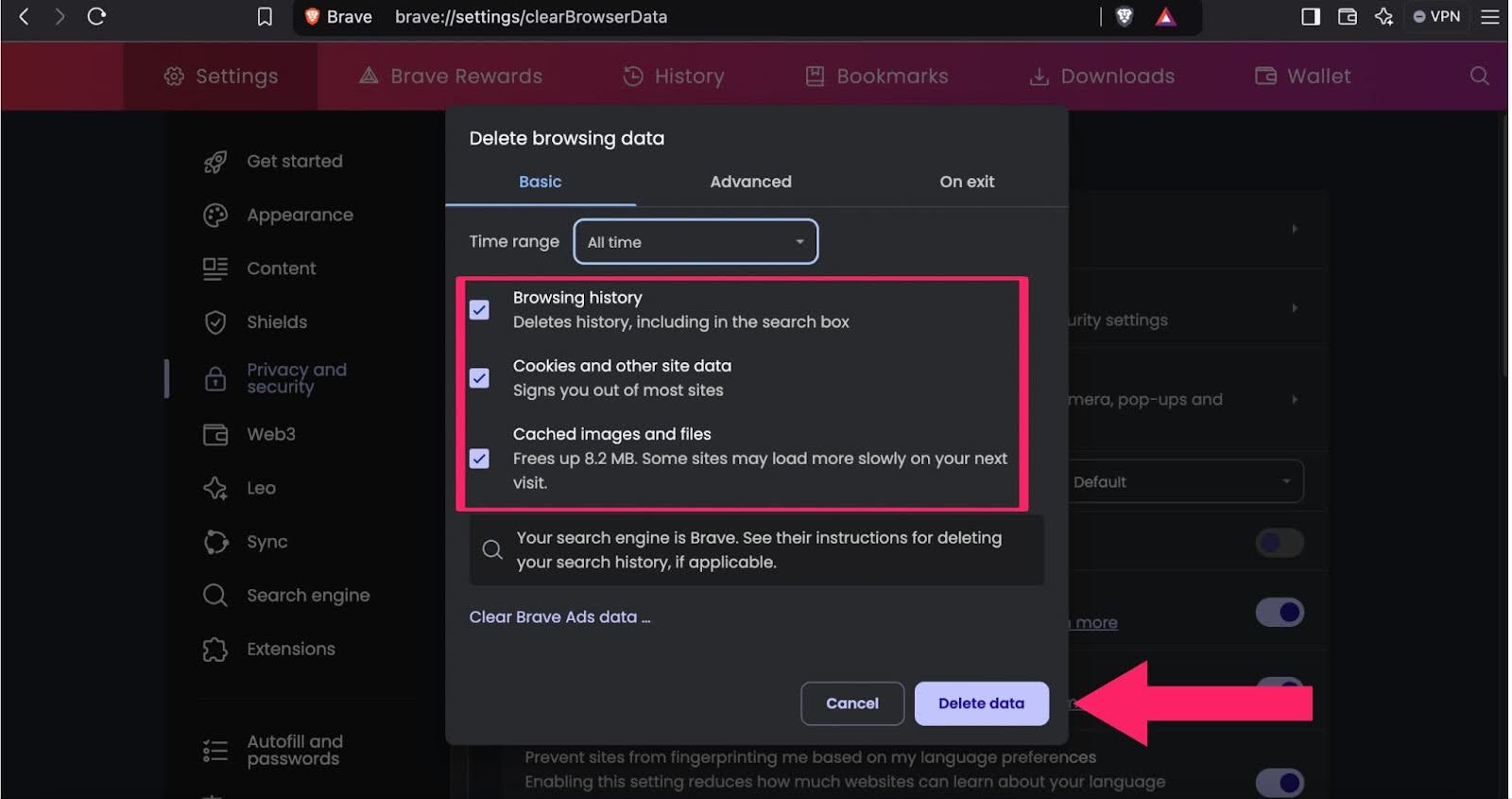
- Select Cached images and files and any other items you wish to remove, such as Browsing history, Cookies and other site data, and Cached images and files.
- Use the Time range to choose the desired timeframe.
- Click the Delete data button to clear your cache.
Steps to Automatically Clear Cache in Brave
Brave allows for automatic cache removal to keep your cache clean consistently.
Follow these steps:
- Launch Brave browser.
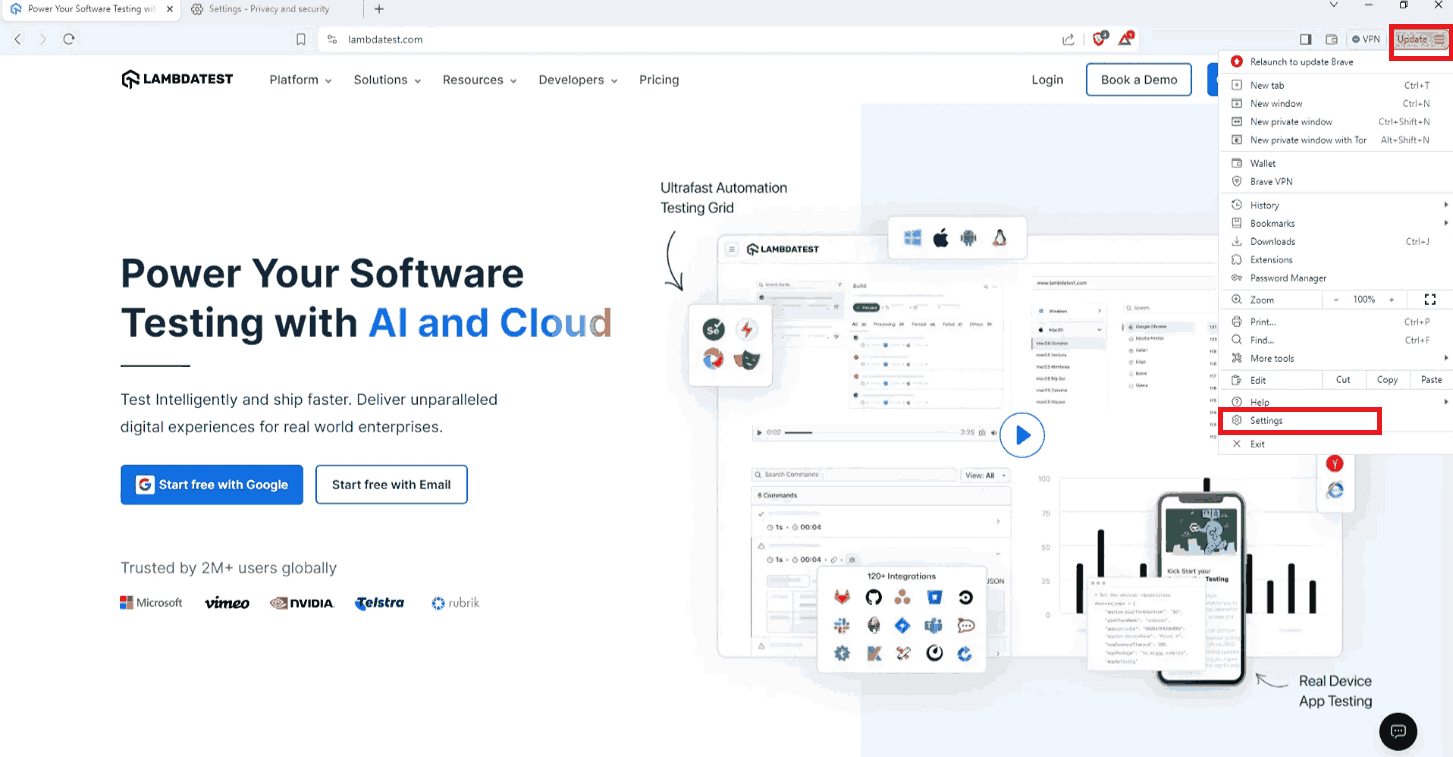
- Click on the hamburger menu in the top right corner of your browser window and select the Settings option.
- Click on the Privacy and security option from the left menu and then click on Clear browsing data.
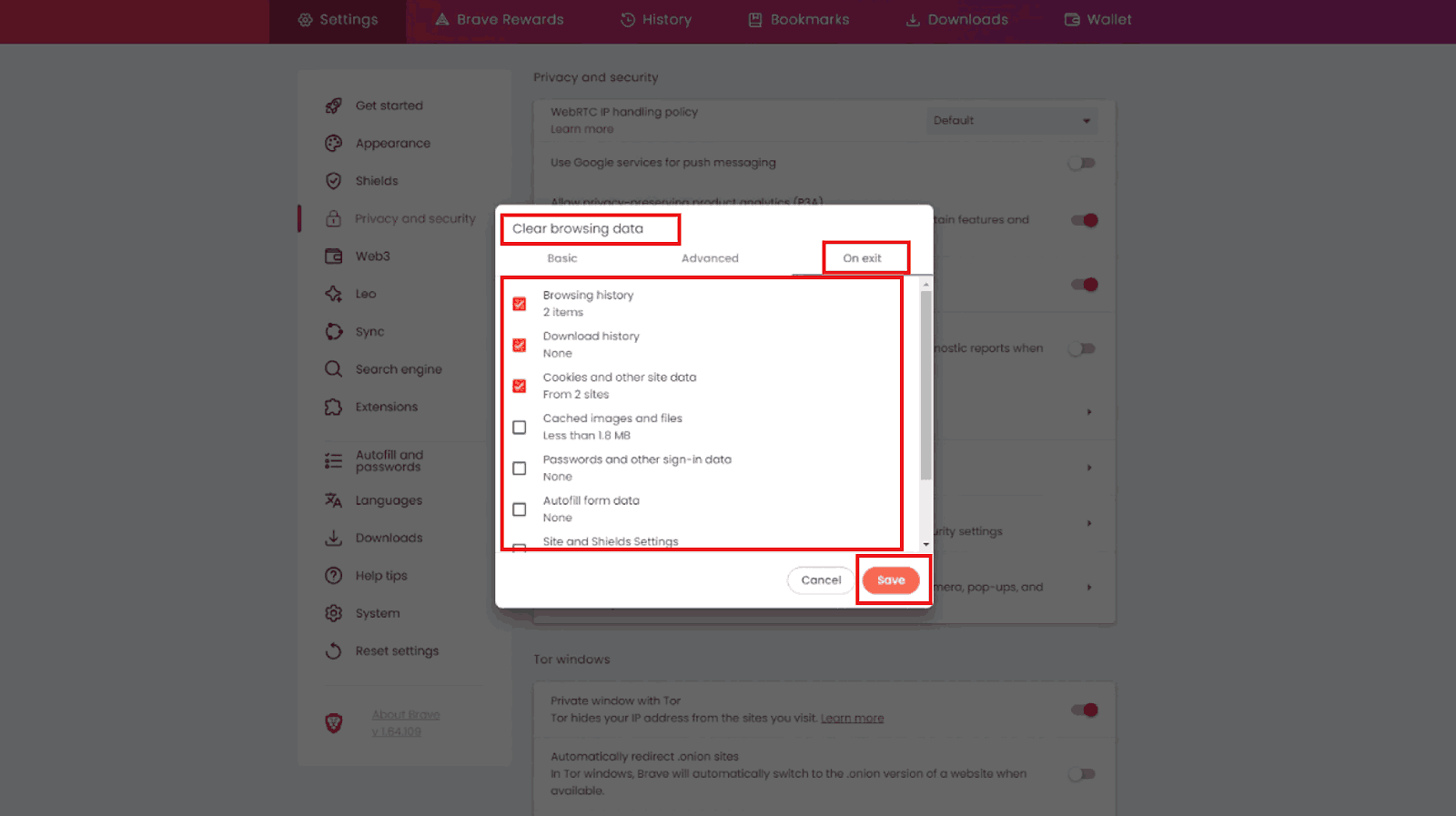
- From the popup of Clear browsing data, click on the On exit tap.
- Choose what you want to automatically clear and then click on the Save button.
Steps to Clear Cache in Brave on Mobile Devices
Here’s how to clear your cache in Brave on mobile:
Android Device:
Below are the steps to clear cache in Brave on Android devices:
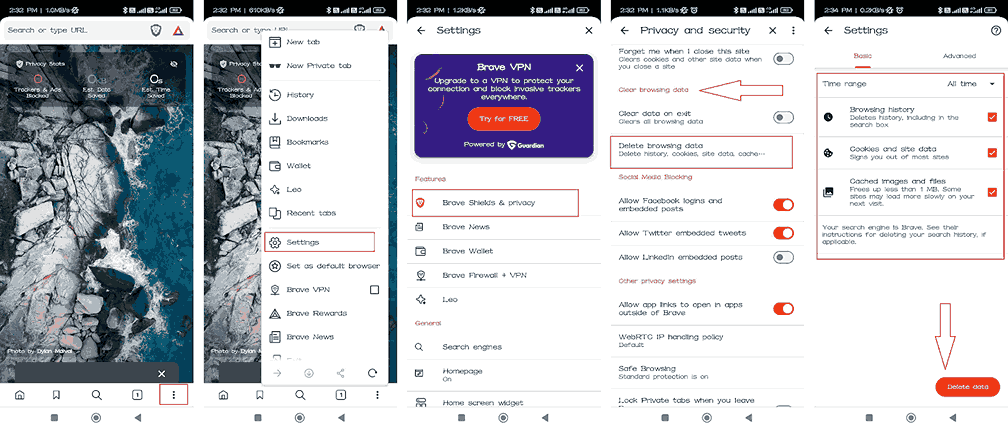
- Open the Brave browser on your Android device.
- Tap the three dots menu in the bottom-right corner of the screen.
- Select the Settings options.
- Tap on Brave Shields & privacy.
- Scroll to the Clear browsing data section and tap on Delete browsing data.
- Choose Cookies and site data, Cached images and files (you can select other data as needed).
- Select the time range (e.g., Last hour, Last 24 hours, All time).
- Tap Delete data to clear the cache.
iPhone Device:
Below are the steps to clear cache in Brave on iPhone devices:
- Open the Brave browser on your iPhone.
- Tap the three dots menu at the bottom-right corner of the screen.
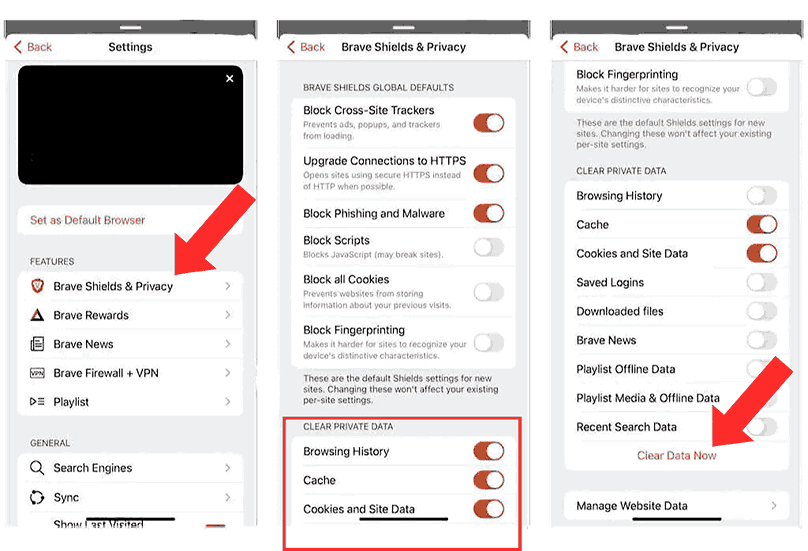
- Select Settings options
- Tap on Brave Shields & Privacy.
- Scroll to the section CLEAR PRIVATE DATA.
- Enable the Cached Images and Files to be selected (you can select other data as needed).
- Choose the time range (e.g., Last hour, Last 24 hours, All time).
- Tap Clear Browsing Data to delete the cache.
Steps to Clear Cache in Brave With Keyboard Shortcuts
You can quickly clear your browser history using a keyboard shortcut in Brave:
- Open Brave.
- Press Ctrl + Shift + Delete (Windows) or Command + Shift + Delete (macOS) to open the Delete browsing data dialog.
- Use the Tab key to navigate through the options, and use the Space key to select the data types you want to delete (such as browsing history, cached images, cookies, etc.).
- Press Tab again to highlight the Delete button.
- Finally, press Enter to clear the selected data.

Conclusion
The browser cache is a useful feature that helps speed up your browsing by storing parts of websites for quicker access. When functioning properly, it enhances performance. However, if it becomes overloaded or outdated, it can slow down your browsing experience. To maintain optimal browser performance, it’s essential to regularly clear cache in Brave. Doing so will ensure your browser runs smoothly and efficiently.
Author

Tahneet Kanwal
Blogs: 29


Tahneet Kanwal is a freelance technical content writer with over 2 years of hands-on experience in frontend development and technical writing. She holds a B.Tech in Information Technology from University College of Engineering and Technology (UCET). Tahneet creates clear, SEO-optimized content on web technologies, software testing, and automation tools, leveraging her skills in HTML, CSS, JavaScript, React, Tailwind CSS, and various tools like VS Code, GitHub, Figma, and Canva. She is the author of 30+ technical blogs and an open-source contributor through Hacktoberfest. She has also participated in the Google Cloud Arcade Facilitator Program and holds certifications as a Meta Android Developer (Coursera) and in Web Development (Internshala). Over time, she has evolved her writing to prioritize structure, readability, and SEO while maintaining technical depth.
Reviewer

Shubham Suri
Reviewer
Shubham Suri is a Lead Member of Technical Staff at TestMu AI (formerly LambdaTest), building the frontend and web interfaces of the quality engineering platform. He works across React.js, HTML5, CSS3, Bootstrap, jQuery, JavaScript, and Angular to create and maintain webpages and web applications. He brings around a decade of experience in web and frontend development, with earlier roles as a Software Engineer at Hard Shell Technologies and an IT Analyst at Cyrus Group. Shubham holds a B.Tech in Computer Science from Uttar Pradesh Technical University.


Clear Cache in Brave FAQs
Did you find this page helpful?
More Related Blogs
TestMu AI forEnterprise
Get access to solutions built on Enterprise
grade security, privacy, & compliance
- Advanced access controls
- Advanced data retention rules
- Advanced Local Testing
- Premium Support options
- Early access to beta features
- Private Slack Channel
- Unlimited Manual Accessibility DevTools Tests