

Next-Gen App & Browser Testing Cloud
Trusted by 2 Mn+ QAs & Devs to accelerate their release cycles


How to enable JavaScript in Internet Explorer?
To enable JavaScript in Internet Explorer, open Tools (the gear icon) > Internet options > Security tab > Custom level, scroll to the Scripting section, set Active scripting to Enable, confirm the prompt, and refresh the page. Internet Explorer refers to JavaScript as "Active Scripting," which is why the toggle does not literally say JavaScript.
Before you follow those steps, an important caveat: the Internet Explorer 11 desktop app was retired and went out of support on June 15, 2022. Microsoft then permanently disabled it on most consumer versions of Windows 10 through a Microsoft Edge update, so on the majority of machines the IE icon now simply opens Microsoft Edge. The classic Internet Options path below still applies on Windows 10/11 LTSC and IoT LTSC, Windows Server, and inside Microsoft Edge's IE mode, all of which inherit the same Active scripting setting.
In every modern browser, including Microsoft Edge, Chrome, Firefox, and Safari, JavaScript is enabled by default. If you are on a current system, you almost never need the IE procedure, so skip ahead to the Microsoft Edge section below. The legacy steps remain useful mainly for old intranet or line-of-business apps that still require IE mode.
Is Internet Explorer still available in 2026?
For most people, no. The IE11 desktop app reached end of support on June 15, 2022, and a Microsoft Edge update that began rolling out on February 14, 2023 permanently disabled it on supported consumer editions of Windows 10. On those systems the Internet Explorer shortcut redirects to Microsoft Edge, which offers built-in IE mode for the rare sites that still need the legacy engine.
There are a few places where the classic Internet Options applet genuinely still lives, which is why the screenshots below remain accurate:
- Windows 10/11 LTSC and IoT LTSC: these long-term servicing editions are exempt from the disable and still ship a working Internet Explorer.
- Windows Server: LTSC and annual-channel Server releases keep Internet Explorer for compatibility with management consoles and older web apps.
- Microsoft Edge IE mode: Edge's legacy engine reuses the very same Windows applet (Control Panel > Internet Options, or inetcpl.cpl), so the Active scripting setting still controls scripting for IE-mode pages.
In practice the people who land on this question are usually maintaining a legacy intranet portal, working around a corporate Group Policy, or testing how an old app behaves. For all three, the Internet Options procedure is still the correct tool.
How to enable JavaScript in Internet Explorer (Internet Options)
Follow these steps on a system where Internet Explorer is still available (LTSC, IoT, or Windows Server) or when you need to control scripting for Microsoft Edge's IE mode. Each screenshot sits directly after the step it illustrates:
- Launch Internet Explorer on your computer:
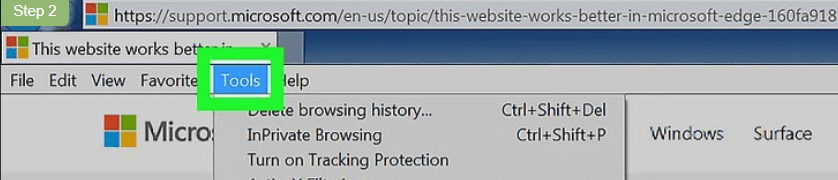
- In the upper-right corner of the window, click the Tools icon (the gear symbol):
- Select Internet options from the drop-down menu:
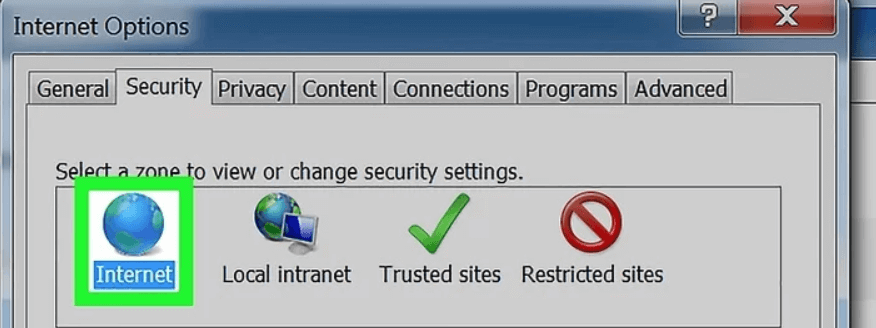
- In the Internet Options window, choose the Security tab:
- Scroll through the security options until you reach the Scripting section:
- Click the Custom level button to open the security settings list.
- Under Active scripting, select Enable.
- Click the OK button to save your changes:
- A warning message appears asking you to confirm the change. Click Yes to confirm.
- Click OK again to close the Internet Options window, then refresh the page. JavaScript is now enabled in Internet Explorer.




The same applet controls Active scripting for Microsoft Edge's IE mode, so use these exact steps whenever an IE-mode site needs scripting. You can also reach the dialog without launching the browser by opening Control Panel > Internet Options or by running inetcpl.cpl. Settings apply per security zone (Internet, Local intranet, Trusted sites), so make sure you adjust the zone that matches the site you are working with.
How to enable JavaScript in Microsoft Edge
Microsoft Edge is the modern replacement for Internet Explorer, and JavaScript is Allowed by default. The steps below let you verify it is on or re-enable it if a previous setting turned it off.
Method A - through the Settings menu:
- Click the three-dot (⋯) menu in the top-right corner of Edge and choose Settings.
- Open Cookies and site permissions.
- Scroll to and select JavaScript.
- Set the toggle to Allowed (recommended). You can also add specific sites to the Allow or Block lists here.
Method B - through the address bar: paste edge://settings/content/javascript directly into the Edge address bar and press Enter to jump straight to the same JavaScript control. The same pattern works in Chrome with chrome://settings/content/javascript.
Enable JavaScript for Edge IE mode
IE mode is the legacy engine built into Microsoft Edge that renders old, IE-only sites and line-of-business apps. The key thing to understand is that scripting on IE-mode pages is not governed by the edge://settings JavaScript toggle. Instead it is controlled by the Active scripting setting inside the Windows Internet Options applet, which is exactly the procedure shown in the Internet Options section above.
To turn on IE mode and apply the scripting setting:
- In Edge, open Settings > Default browser and set Allow sites to be reloaded in Internet Explorer mode to Allow, then restart Edge.
- Navigate to the legacy site, open the ⋯ menu, and choose Reload in Internet Explorer mode.
- If scripting is still blocked, enable Active scripting for the matching zone through Internet Options (inetcpl.cpl) as described above.
In managed environments, administrators usually configure IE mode and its site list centrally through Group Policy rather than per device, so check with your IT team if the option is missing.
How to verify JavaScript is working
Once you have flipped the setting, confirm it actually took effect:
- Reload the page: refresh the site that prompted the change and check that dynamic features such as menus, forms, or live content now respond.
- Use the developer console: press F12 to open developer tools, switch to the Console tab, type a simple expression such as 2 + 2, and press Enter. A returned value confirms the engine is running.
- Try a detection page: open any "is JavaScript enabled" test page, which will report whether scripting is active in the current browser and zone.
- If it still fails: the page may belong to a different security zone, be overridden by a Trusted Sites rule, or be locked down by Group Policy.
Troubleshooting
- The Active scripting option is grayed out: the setting is almost certainly locked by a corporate Group Policy. You will not be able to change it locally, so contact your IT administrator to adjust the policy.
- The change does not stick: confirm you edited the correct security zone. A setting saved under Internet does not apply to a site classified as Local intranet or Trusted sites, and vice versa.
- The Internet Explorer icon opens Edge instead: this is expected after IE11's retirement. Use the Microsoft Edge steps, or reload the page in IE mode for legacy sites.
- The page still breaks across browsers: when behavior differs between IE mode and a modern Chromium browser, run the page through to isolate whether the bug is browser-specific or in the site itself, without keeping old IE machines around.
Frequently Asked Questions
Is Internet Explorer still supported in 2026?
No. The Internet Explorer 11 desktop app was retired and went out of support on June 15, 2022, and a later Microsoft Edge update permanently disabled it on most consumer versions of Windows 10. Clicking the IE icon now opens Microsoft Edge. The classic Internet Options path survives only on Windows 10/11 LTSC and IoT LTSC, Windows Server, and inside Edge's IE mode.
What is Active Scripting in Internet Explorer?
Active Scripting is the name Internet Explorer uses for JavaScript and related scripting languages such as VBScript inside the Internet Options security settings. Setting Active scripting to Enable under Security > Custom level is what turns JavaScript on for a given security zone.
Is JavaScript enabled by default in modern browsers?
Yes. JavaScript is enabled by default in Microsoft Edge, Google Chrome, Mozilla Firefox, and Safari. When a page is not working, JavaScript has usually been turned off manually, blocked for a specific site, or restricted by a corporate Group Policy rather than disabled out of the box.
Why does clicking Internet Explorer open Microsoft Edge?
This is expected behavior after IE11's retirement. On most supported Windows 10 systems Microsoft permanently disabled the IE11 desktop app and redirects it to Microsoft Edge, which provides IE mode for legacy sites. To run an old IE-only page, reload it in Edge's IE mode instead of launching standalone Internet Explorer.
How do I enable JavaScript for a site that needs IE mode?
Edge IE mode reuses the same Windows Internet Options applet (inetcpl.cpl). Open Internet Options > Security tab > Custom level, scroll to Scripting, set Active scripting to Enable, confirm the change, and reload the page in IE mode. The edge://settings JavaScript toggle does not control IE-mode pages.
How can I test how my site behaves in old Internet Explorer or IE mode?
Because keeping legacy IE machines around is impractical, the simplest approach is cross-browser testing on a cloud browser grid such as TestMu AI. You can validate rendering and scripting behavior for legacy IE and Edge IE-mode pages on real browsers in the cloud without maintaining old hardware.
Related Questions

KaneAI - Testing Assistant
World’s first AI-Native E2E testing agent.

TestMu AI forEnterprise
Get access to solutions built on Enterprise
grade security, privacy, & compliance
- Advanced access controls
- Advanced data retention rules
- Advanced Local Testing
- Premium Support options
- Early access to beta features
- Private Slack Channel
- Unlimited Manual Accessibility DevTools Tests