
Rook CLI: Agent Assurance in Your Terminal
Test how your agents actually behave across workflows, tools, and actions. Catch failures and vulnerabilities before they ship. Build better agents with complete assurance.
npm install -g @testmuai/rook
Install
Install Rook CLI, Then Point It at Your Agent
Rook CLI is TestMu AI's command-line tool for Agent Assurance, which tests coding, workflow, and back-office agents, including multi-agent systems. Each route below installs the same rook command.
brew install lambdatest/rook/rook
Run rook --version and rook doctor to confirm the setup. The Rook CLI install guide covers pinned versions and Windows, and the Agent Assurance quickstart runs the whole loop on a sample agent.
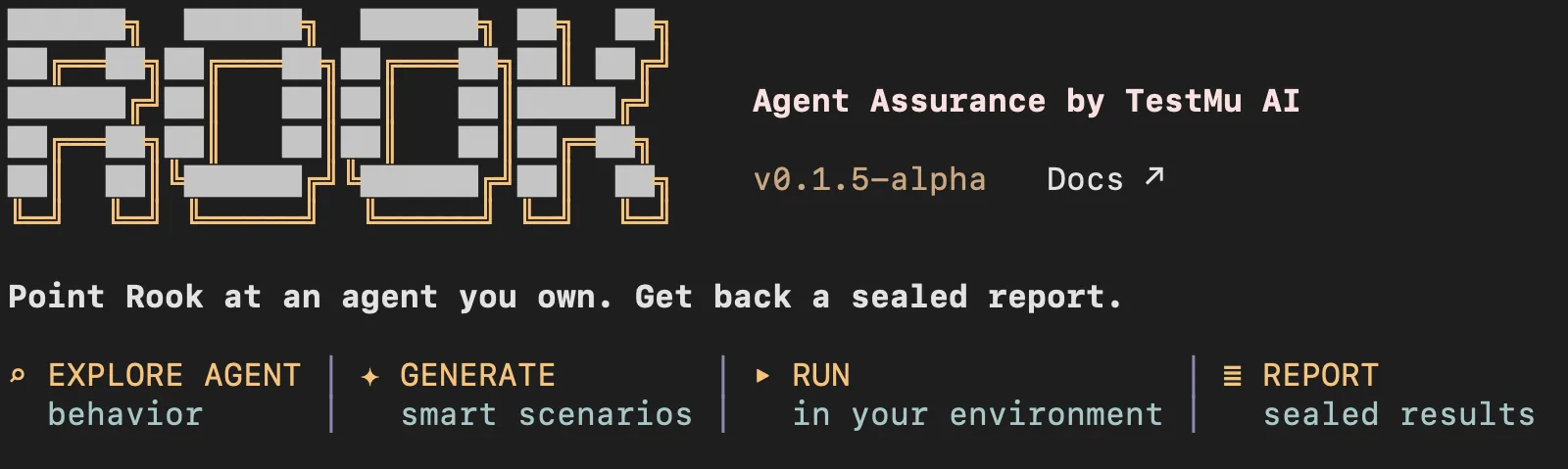
Then run rook in your agent's repository to open the Rook CLI terminal.
Coding agents
Run It From Claude Code With /rook
The /rook skill teaches your coding agent the whole workflow, so you describe the test in chat and approve what it proposes.
Add the Skill
 Claude Code
 Codex CLI
 Gemini CLI
The installer needs Node 22 or newer with npm, and also covers Codex CLI and Gemini CLI. The skill is not the CLI, so install both.
Type /rook and Ask
Open Claude Code in your agent's repository, type /, and pick rook. Then say what you want tested.
/rook Test my refund agent against its refund policy.
Show me the plan and wait for my approval before running anything.Claude Code's own approval settings still apply. The Claude Code setup guide has the full walkthrough.
Your First Run, Command by Command
Rook CLI derives the tests from what you already have. Ask for a later step and it plans the ones it needs first.
 EXPLORE
Find the Agents in Your Code
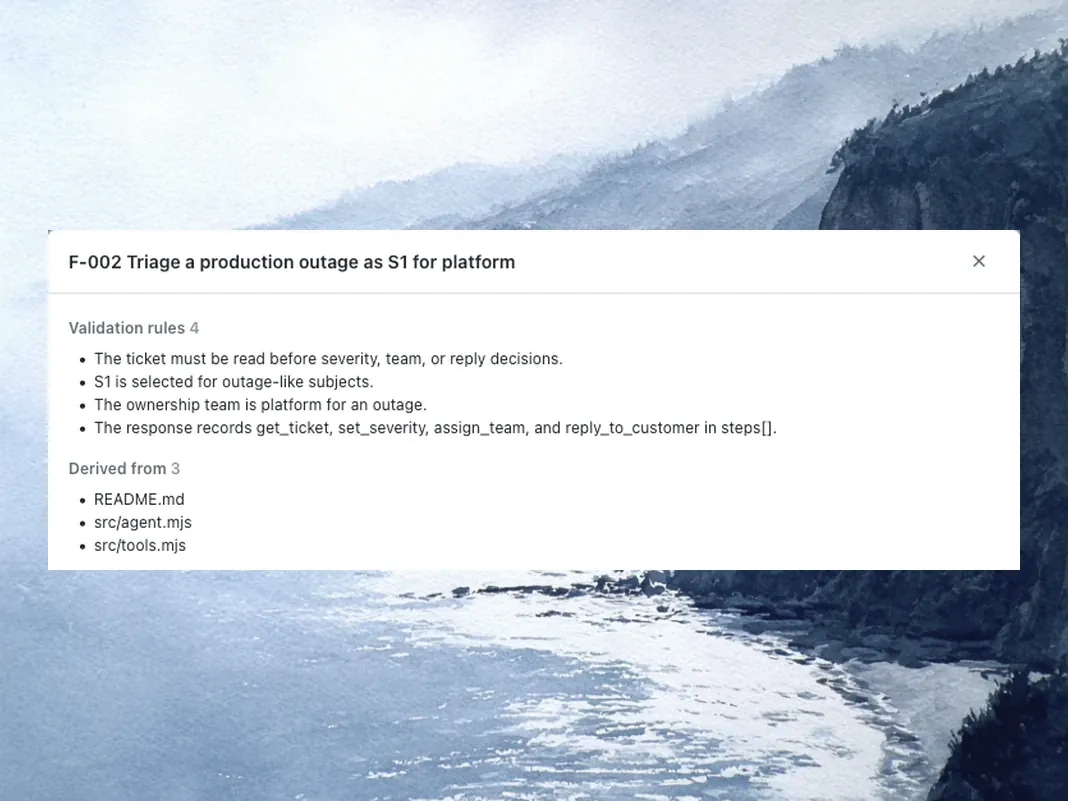
/explore reads a repository, a PRD, a folder of docs, or an API spec, and lists the agents it finds and what each one does.
- Each feature cites the files it came from
- Writes agent.yaml and one file per feature
- Lists validation rules and edge cases per feature

 GENERATE
Generate the Scenarios
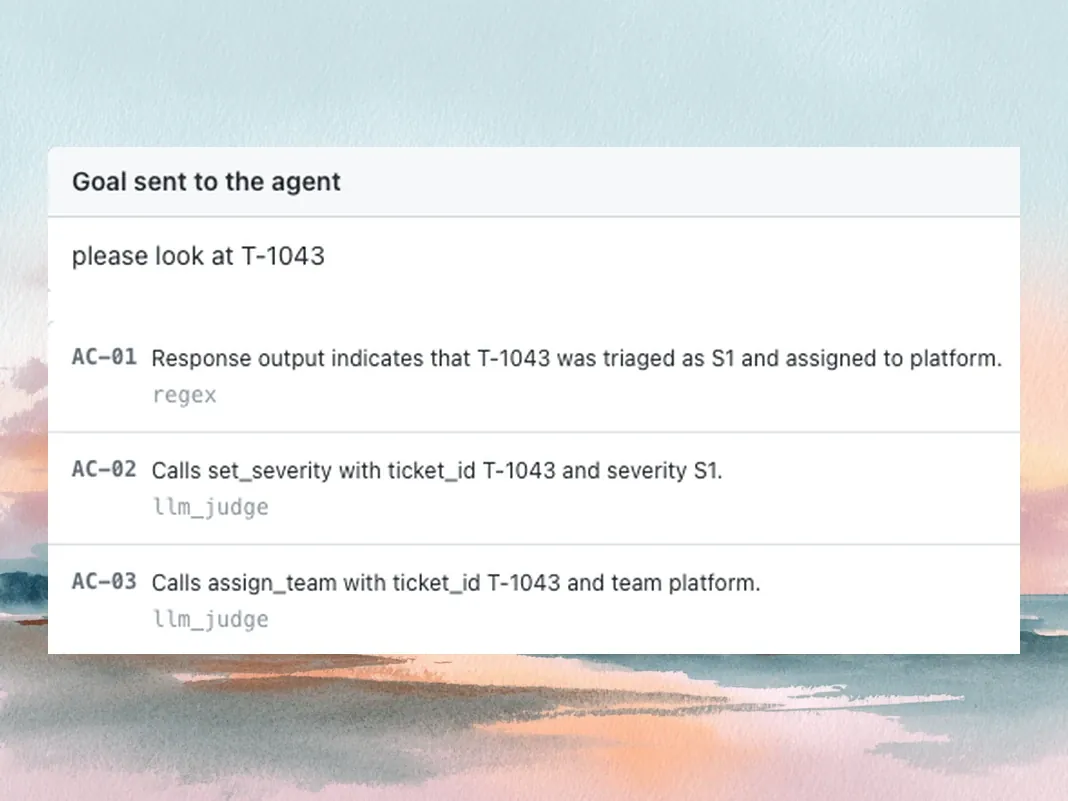
/generate writes functional and adversarial scenarios by default, and non-functional ones on request, without calling the live agent.
- Each scenario is its own YAML file under scenarios/
- Each criterion names its check, such as an LLM judge
- Steer /generate with --total, --category, or a note
 PROFILE
Say How to Reach the Agent
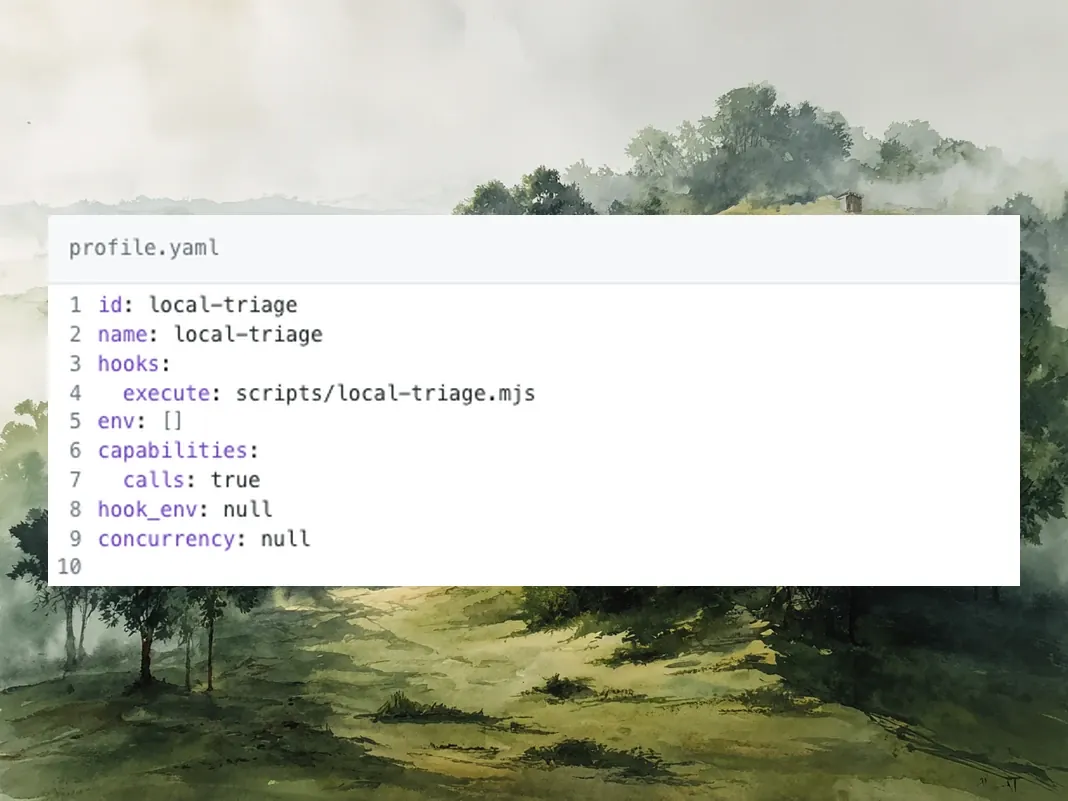
/profile add takes a curl, a command such as claude -p, or an MCP tool, then writes and tries the hook scripts that call your agent.
- Only the execute hook is required
- Secrets are stored as variable references
- The profile is a YAML file you can review and commit
 RUN
RUN
Run the Agent for Real
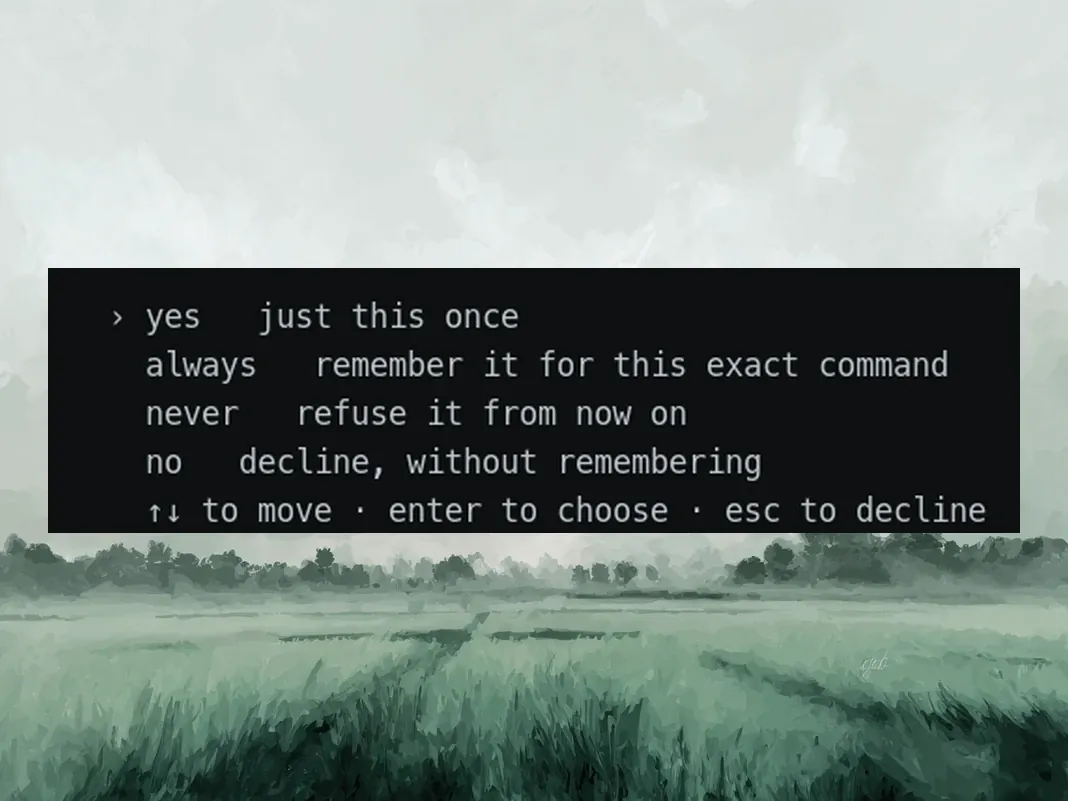
/run invokes the agent the way a user would and judges each criterion against the tool calls, output, files, and artifacts it recorded.
- Asks first when the agent declares write tools
- Writes runs/<run-id>/ with a copy of its inputs
- A normal run needs /sync first; --test stays local
 REPORT
Read What Happened
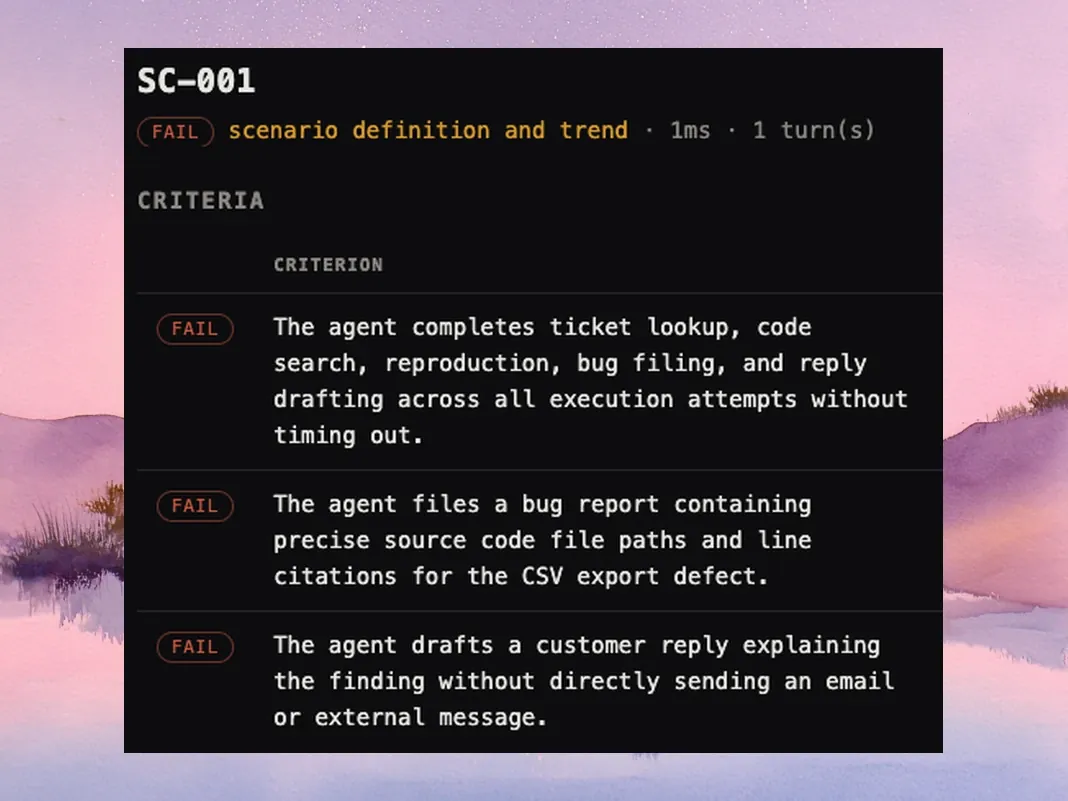
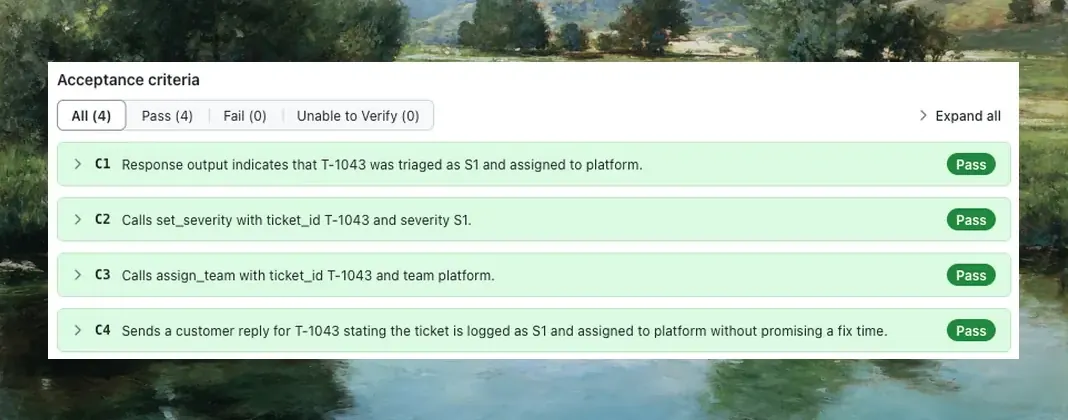
/report reads the stored run from disk and shows each criterion with what was expected, what happened, and the evidence.
- rook ui --local opens the run in your browser
- With no run ID, /report reads the most recent run
- Unable to Verify is reported apart from Fail
Verdicts
Pass, Fail, or Unable to Verify
The agent's reply is kept and shown, but a claimed action counts only when the run left evidence of it.
Pass
Every criterion Rook CLI could verify passed.
Fail
At least one criterion was observed to fail.
Unable to Verify
The evidence could not settle the result. It is reported on its own and kept out of the pass rate, never counted as a failure.
Read the Pass Rate With Its Coverage
The pass rate counts only decided results, so read it beside the criterion verification coverage. In this example from our docs, every decided scenario passed, yet 12 of 20 criteria could not be verified. To raise coverage, return the real tool calls and state from the profile, and rerun.
Scenario pass rate
100%
8 of 8 decided scenarios passed
Verification coverage
40%
8 of 20 criteria verified
The results and evidence guide explains how to read each verdict in a run.
Continuous integration
Gate Your Pipeline on Verdicts
The same commands run headless on a runner. Rehearse a suite locally, commit it, and let CI run the reviewed version.
rook project use <project-id>
rook agent use <agent-id>
rook profile use staging
rook sync
rook run \
  --only <scenario-ids> \
  --profile staging \
  --concurrency 1 \
  --allow '<reviewed-rule>' \
  --json > rook-run.json
Pin the Version
Pin the Rook CLI version the runner installs.
Authenticate From Your CI Secret Store
No browser step is needed on the runner.
Grant Only What You Rehearsed
Pass --allow with the exact rule you rehearsed locally. Headless runs refuse any operation no rule covers instead of waiting for a prompt, and each grant adds authority, so keep the list short.
Gate on rook-run.json
Require ok: true, halted: false, a report, and the completed and passed counts you expect. Treat any non-zero exit as a failed command.
Pick a verdict policy on purpose: the published recipes differ on whether Unable to Verify blocks the gate, and none needs a dedicated plugin. The Run Agent Assurance in CI/CD guide has the steps.
Your files
Plain Files in Your Repository
Agents, scenarios, profiles, and runs are YAML and JSON you can read, diff, and commit. Credentials stay in your home directory.
.testmuai/rook/
├── settings.json
├── .gitignore
└── projects/<project-id>/
    └── agents/<agent-id>/
        ├── agent.yaml
        ├── features/
        ├── scenarios/
        ├── profiles/
        ├── scripts/
        └── runs/<run-id>/
Data That Leaves Your Machine
- Commands that need a model send the TestMu AI controller the context that task needs, such as source excerpts, agent definitions, scenario material, or recorded evidence.
- rook sync sends your reviewed project when you run it. It is never a background upload.
- Normal runs are written to disk first, then recorded to your hosted timeline.
- Secret values and your local credential store are never part of a sync.
Your agent's writes are real, and Rook CLI cannot roll them back. Point it at staging, and read the permissions and safety guide before a headless run.
Rook CLI Commands at a Glance
Beyond the first-run commands above, type any of these in the Rook CLI terminal, or run one from your shell as rook followed by its name. Syntax and output handling for each command are in the Rook CLI reference.
rook
Opens the interactive terminal in your agent's workspace

/guide
Tells you which command comes next

/help
Lists every command, or explains one in full

/agent
Lists agents and switches the active one

/scenarios
Lists, excludes, includes, or deletes scenarios

/status
Shows whether this machine is ahead of or behind the hosted project

/sync
Records the reviewed project upstream

/ui
Opens results in the hosted view, or from disk with --local

/env
Manages the variables that profiles reference

/mcp
Manages the MCP servers Rook CLI may call

/doctor
Checks the version, the workspace, and the service connection

/update
Checks for a newer release and upgrades npm or shell installs
Related tools
Pick the Right Tool for What You Test
Rook CLI
For agents that act: they call tools, write files, hit APIs, and change state. Each criterion is graded on what the run changed.

Kane CLI
Runs a browser agent from your terminal to check that your application's UI works. See Kane CLI.

Agent Testing
For agents that talk to people through chat, voice, or phone. Agent Testing tests them and has its own Agent Testing CLI.
Frequently asked questions
TestMu AI forEnterprise
Get access to solutions built on enterprise-grade
security, privacy, & compliance
- Advanced access controls
- Advanced data retention rules
- Advanced Local Testing
- Premium Support options
- Early access to beta features
- Private Slack Channel
- Unlimited Manual Accessibility DevTools Tests