Rook CLI Reference
Use rook to start the interactive terminal, or rook <command> from your shell. This reference was checked against the public Rook 0.1.5 CLI on September 25, 2026. It groups command syntax, examples, RCA, state changes, diagnostics, and output handling on one page. Commands that invoke the target or spend credits still require appropriate approval.
Using Claude Code or another coding assistant? Describe your goal in chat with the Rook skill; the assistant handles these commands. This page is the explicit CLI reference, not a list of commands you must manually repeat while using a skill.
Find a Command
- Terminal and Help:
rook,ask,guide,help,docs,clear,exit. - Account and Authentication:
login,auth,whoami,logout,plan. - Projects and Discovery:
project,explore,agent. - Profiles and Scenarios:
profile,generate,scenarios. - Synchronization, Runs, and Results:
status,sync,run,runs,report,ui. - Environment and Diagnostics:
env,mcp,doctor,update; export diagnostic logs. - RCA for an existing run: approval, analysis, and interpreting the saved result without rerunning tests.
- Shared flags and structured output, exit codes, environment variables, and interactive keys.
First Journey
login → project → explore → agent → profile add → generate → scenarios → sync → run → ui
Follow the tested quickstart for a runnable sample. A normal timeline run needs sync first; run --test deliberately stays local.
Discover Syntax From the CLI
rook --version
rook --help
rook run --help
rook profile add --help
Inside the terminal, use /help run. Do not paste slash commands into a normal shell.
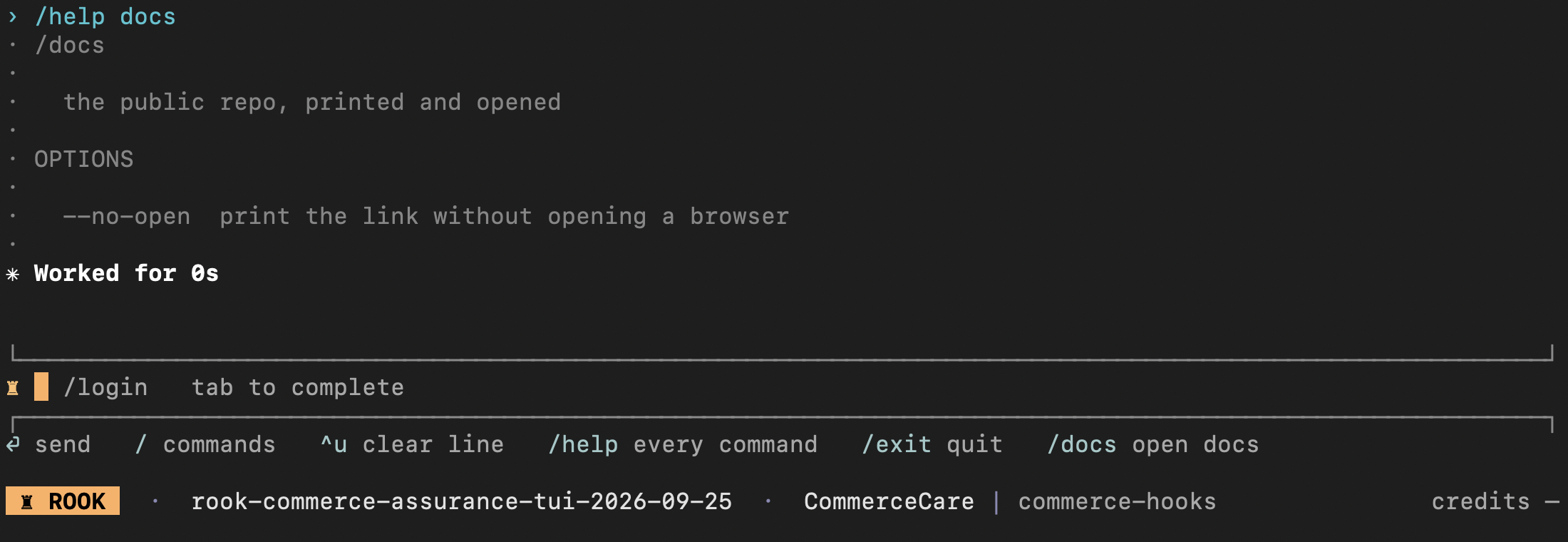
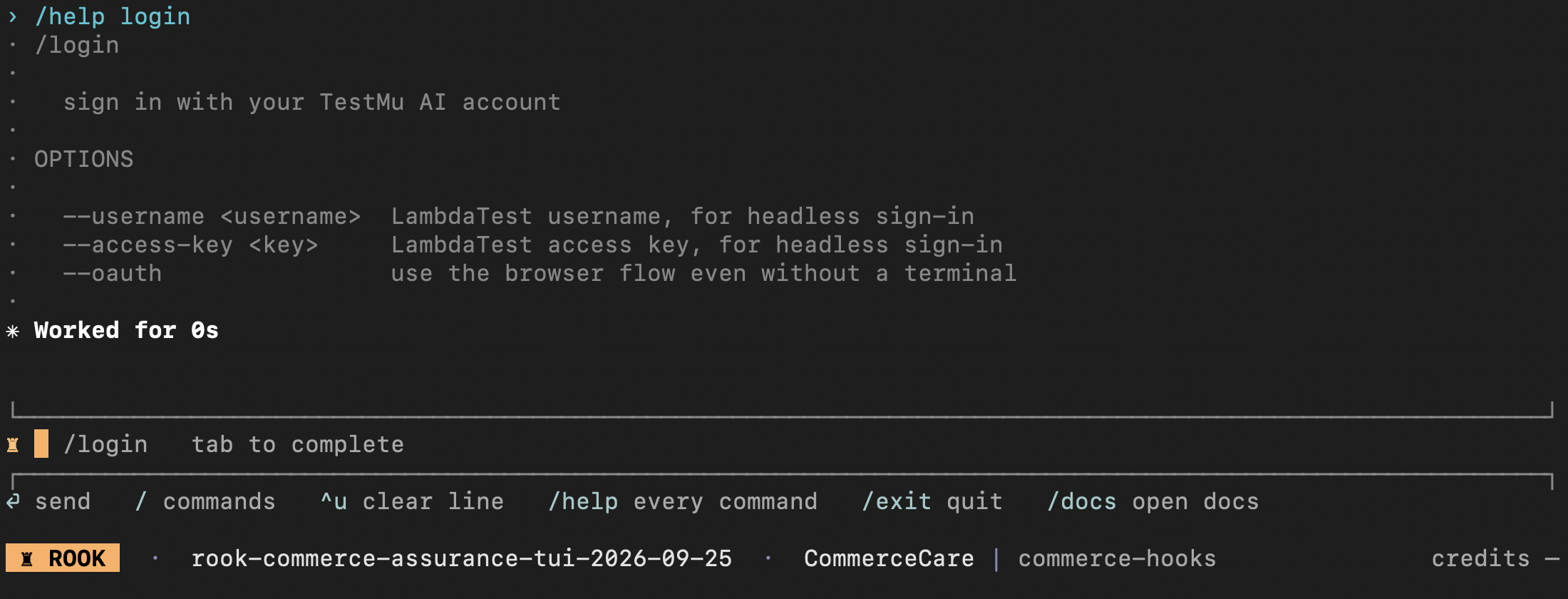
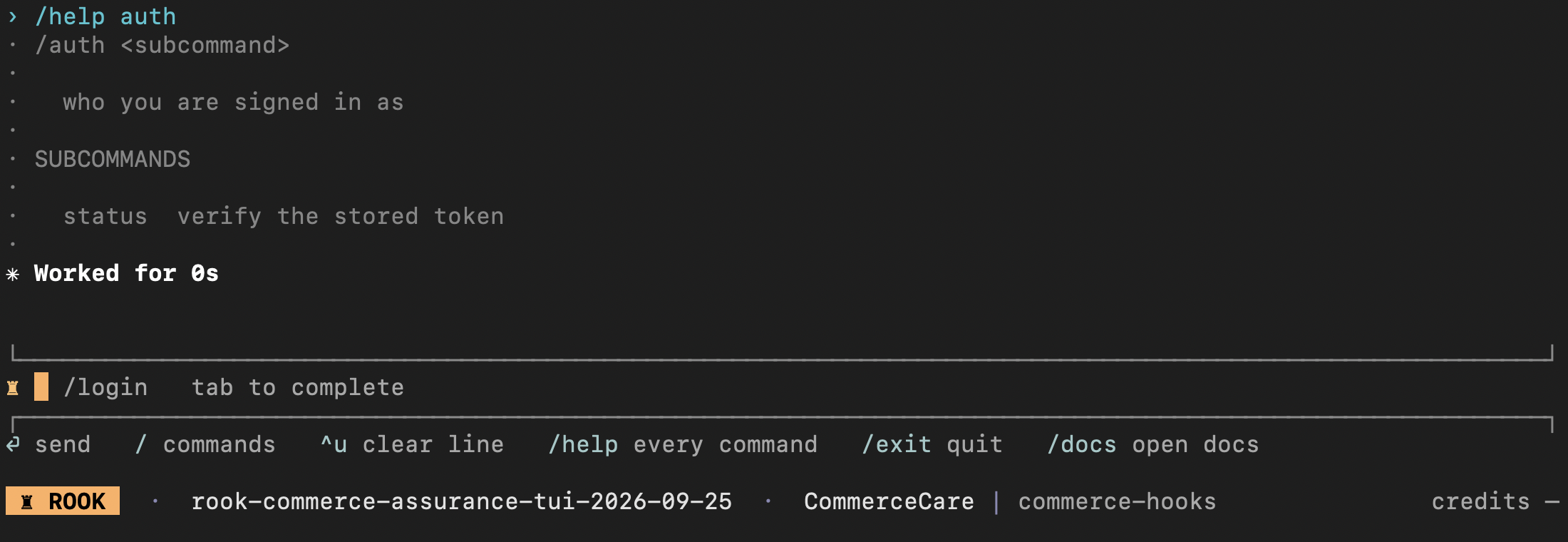
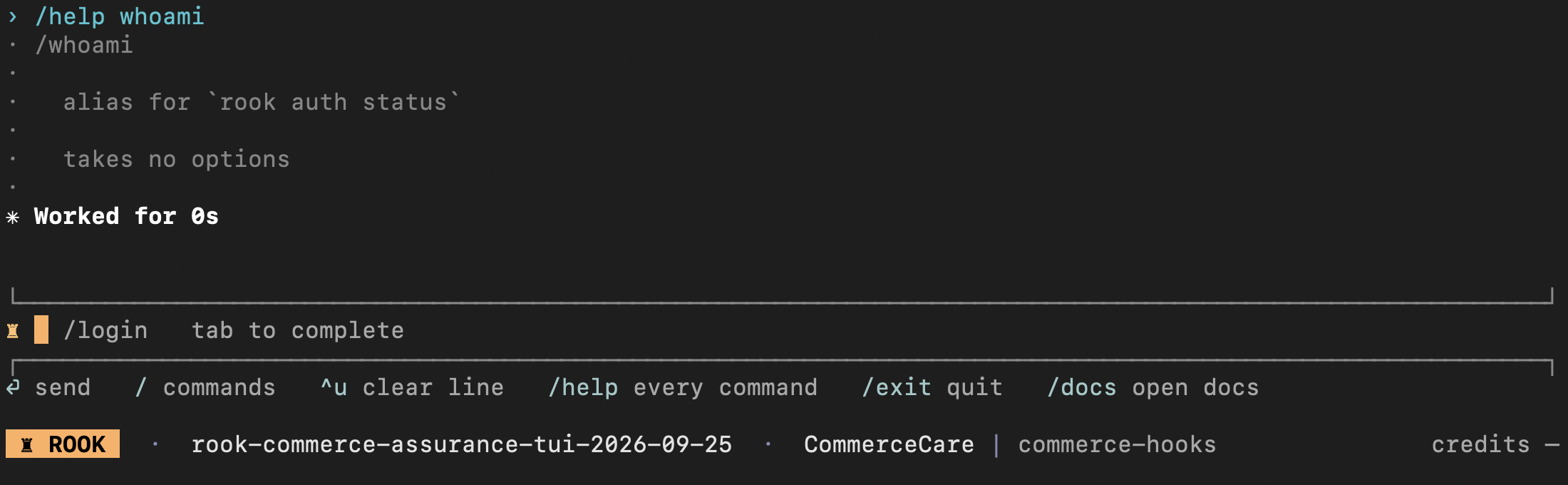
The screenshots below were captured inside the Rook 0.1.5 interactive TUI, using /help <command> in a saved demo workspace. They show command help, not completed paid operations. Only the Rook content is captured; no desktop, window title, or browser chrome is included.
Terminal and Help
rook
Use rook to start the interactive terminal in the workspace whose agent material and testing state you want to use.
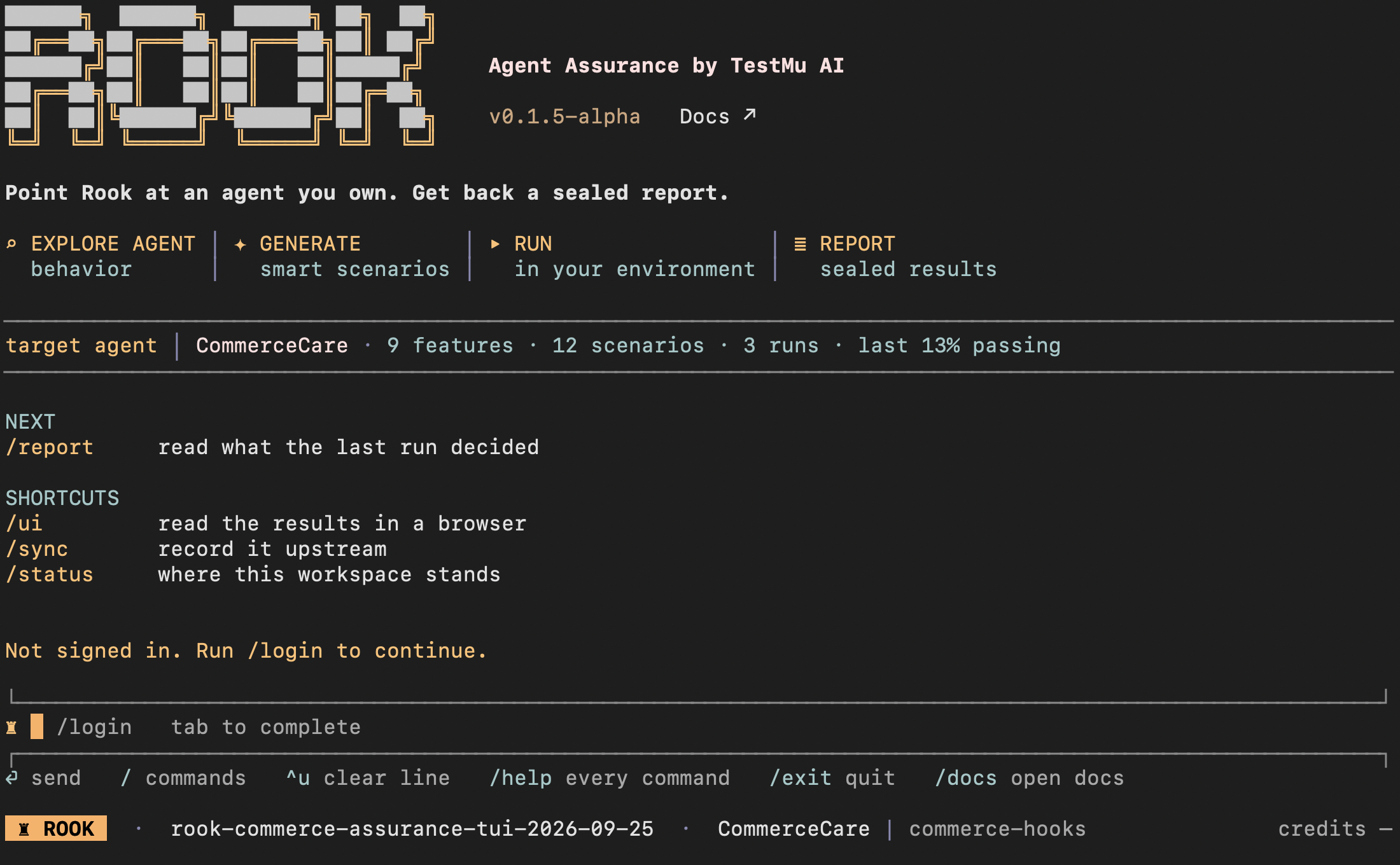
Syntax
rook
rook --no-animation
rook --version
rook --help
The TUI keeps the active project, agent, profile, credits, command duration, progress, and permission questions visible. Use --no-animation for recordings, slow terminals, or a static startup.
First Start
- Change to the workspace containing your checked-out agent, PRD, or test specification.
- Run
rook. - Use
/loginif the session is not authenticated. - Choose a project with
/project. - Enter
/guidefor the workflow or/helpfor every command.
Run Rook from the intended workspace. The current directory selects the local .testmuai/rook/ store; project content is kept below projects/<project-id>/. The workspace is also the base for relative source, command, certificate, and evidence paths.
rook ask
Use rook ask to ask a question or describe a testing task in natural language. This is Rook's own model-backed operation and can spend Rook credits; it is different from asking a coding assistant that has loaded the Rook skill.
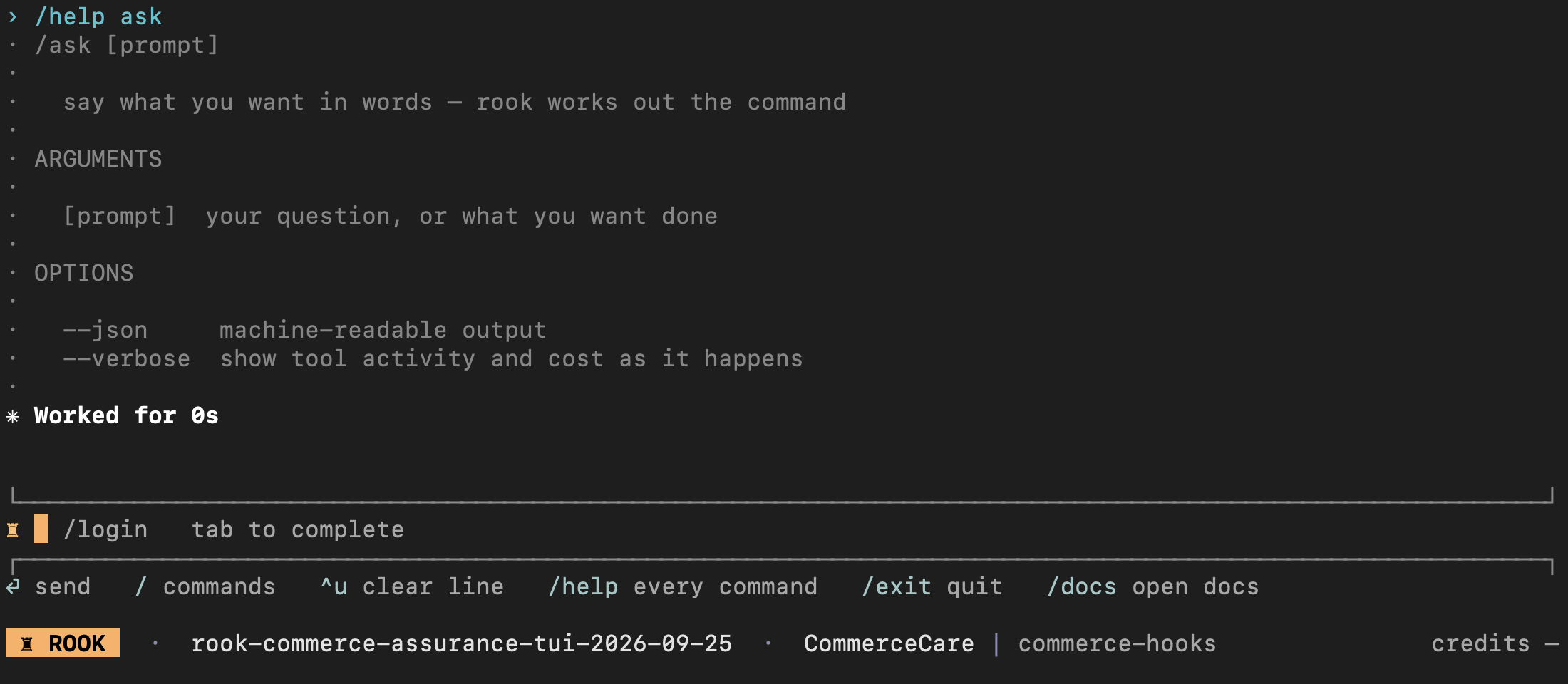
Syntax
rook ask <prompt...>
rook ask <prompt...> --verbose
rook ask <prompt...> --json
| Option | Purpose |
|---|---|
--verbose | Show subagent activity, tool activity, and credits while the request runs. |
--json | Return machine-readable output for this command. |
In an attended terminal, Rook can suggest a command, ask Run it?, and execute it after confirmation. In headless mode or with --json, it returns the answer and any suggested command without executing that suggestion. The JSON can include answer, command, and blocked_by. Review any proposed operation's spending, target effects, and permissions separately.
rook ask "Which agent is active and is its tree synchronized?"
rook ask "Run only the boundary scenarios with the staging profile"
rook ask "Explain the latest failures" --verbose
For deterministic automation, prefer the explicit command and flags. Natural language is useful for attended work and one-off requests, but it is not a stable machine interface.
/guide
Use /guide when you know you want to test an agent but do not yet know which command comes next.
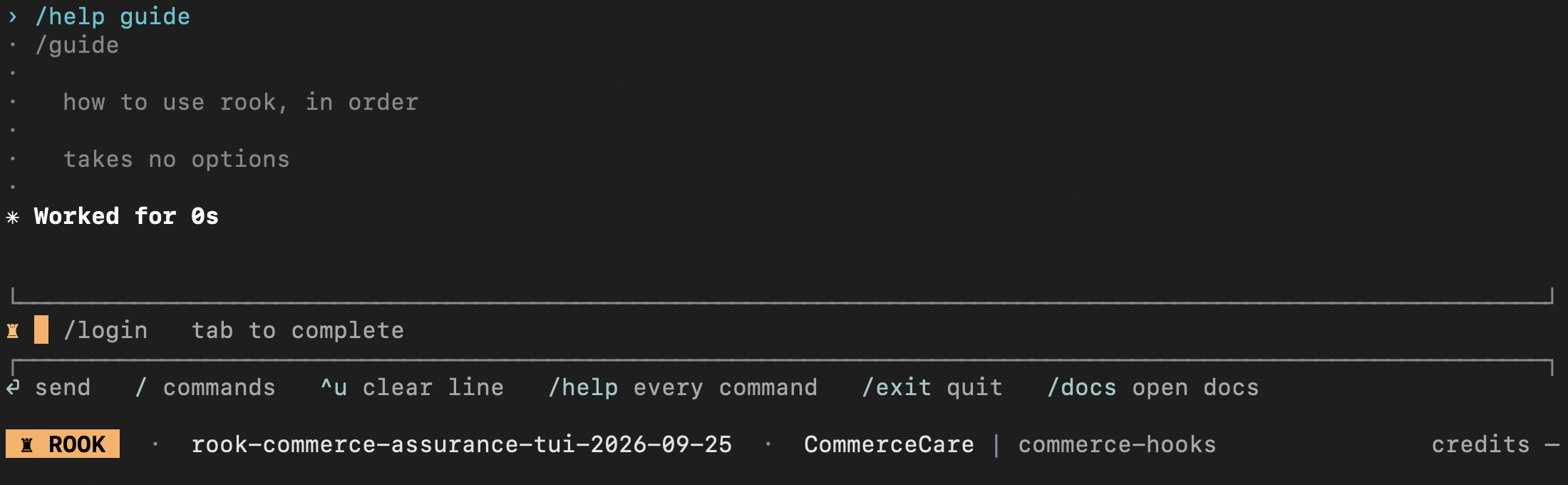
Syntax
/guide
The shell form is rook guide.
The guide covers this sequence:
login → project → explore → agent → generate → profile → run → sync
The built-in guide presents run before sync, but a normal timeline run requires an upstream project version. In a new project, synchronize the reviewed tree before the first normal run; use run --test only when the draft run should stay local.
The guide also explains which operations spend credits, where local files live, why secrets never synchronize, and how to inspect status at any point. It reads command metadata and state; it does not invoke the target or spend credits.
/help
Use /help to list the current command surface or inspect one command in full.
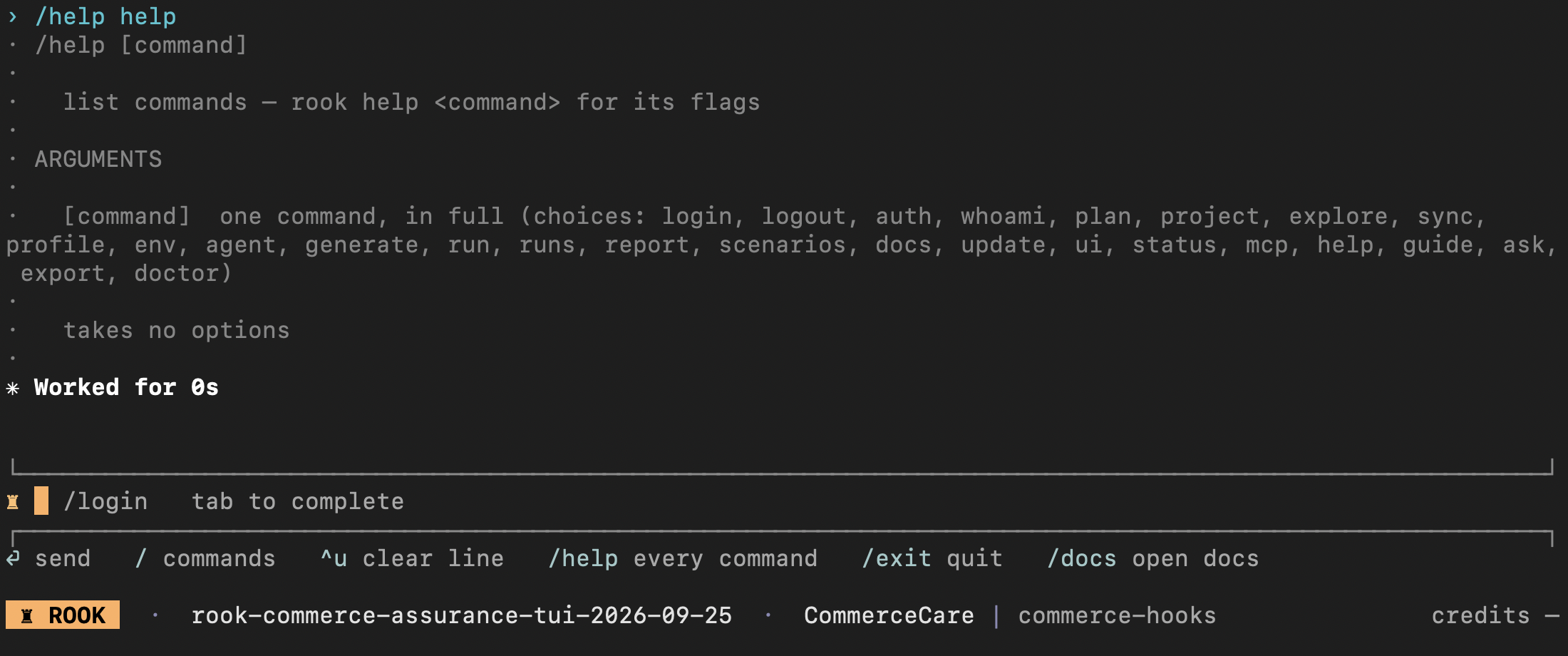
Syntax
/help
/help <command>
From a shell:
rook help
rook help <command>
The overview groups commands into the testing sequence, workspace operations, and session/product operations. Command-specific help lists subcommands separately from cumulative options.
Help, slash-command completion, and shell parsing are derived from the same command registry. A renamed flag therefore changes all three surfaces together.
/docs
Use /docs to print and open the public Rook repository.
Syntax
/docs
/docs --no-open
The shell form is rook docs with the same option.
--no-open prints the URL without launching a browser. The command does not require a selected project, invoke an agent, or spend credits.
/clear
Enter /clear in the TUI to clear retained command-output state and return to the prompt.
/clear
This does not delete projects, agents, scenarios, profiles, runs, evidence, credentials, variables, permissions, or authentication. The startup context remains because it belongs to the current TUI session. Output already committed to terminal scrollback can remain visible until the terminal itself is cleared or Rook is restarted.
There is no rook clear shell command.
/exit
Enter /exit or /quit at an idle TUI prompt to close Rook.
/exit
/quit
Rook waits for pending job-end records to settle and stops any local evidence viewer owned by the session. Exiting does not log out or delete project files.
While a command is running, press Esc to request an orderly interruption. Completed scenario evidence is preserved. Pressing Ctrl+C exits the TUI and also runs the exit bookkeeping path.
There is no rook exit shell command.
Account and Authentication
/login
Use /login when Rook has no stored credential or the existing token is invalid.
Syntax
Interactive:
/login
Headless launcher:
rook login
Choose the Environment
Public packages default to production. Use ROOK_ENV=prod with the hosted Web UI. Browser sessions and CLI credentials are separate; use the same account and environment in both.
Unattended Authentication
Rook accepts LT_USERNAME and LT_ACCESS_KEY from the shell or CI secret manager. When both are present, operations use them ahead of any stored browser login. Supplying only one is an error.
rook login also accepts --username, --access-key, and --oauth. Prefer secret-manager environment injection over literal command arguments. To use a stored OAuth account consistently, unset both LT variables in that terminal; forcing OAuth login does not stop exported credentials taking precedence in later commands.
Step-by-step
- Run
/loginorrook login. - Complete the TestMu AI flow in the browser.
- Return to the terminal.
- Verify the identity with
/auth statusorrook whoami.
State and security
Successful login stores credentials in the global Rook home, not the project directory. Do not copy that state into a repository or share it between users.
If a browser cannot open, follow the URL or instruction printed by the command. Do not paste login callbacks or tokens into tickets or screenshots.
Common problems
- Browser opens with the wrong account: sign out there or use a separate browser profile, then retry.
- Status still invalid: check
ROOK_ENVand whether exported LT credentials override the stored login before signing in again. - Controller unreachable: diagnose network and environment with
rook doctor.
/auth
Use /auth to verify the effective credentials against the Rook controller.
Syntax
/auth
/auth status
Headless:
rook auth status
rook whoami
/auth and /auth status perform the same status check. rook whoami is the convenient headless alias.
Step-by-step
- Run
/auth status. - Confirm that the effective credentials and environment are correct.
- If invalid, use
/login. - Run the status check again.
State and privacy
The status check verifies the effective authentication remotely. Exported LT_USERNAME and LT_ACCESS_KEY take precedence over a stored token. It does not print the token or change project data. Use rook whoami when you also want to see the authenticated identity.
Stored authentication is shared by sessions using the same Rook home, profile, and environment, not scoped to one agent workspace. See login for environment selection and unattended authentication.
Common problems
- Expired or revoked token: sign in again.
- Controller unreachable: run
/doctorand check network access. - Wrong account: check exported LT credentials and the selected environment before changing stored login.
rook whoami
Use rook whoami outside the interactive terminal to verify which TestMu AI account is authenticated.
Syntax
rook whoami
This is an alias for:
rook auth status
Real-world uses
Verify a workstation before testing:
rook whoami
rook plan
Fail an automation setup step when a Rook identity is unavailable:
rook whoami
State and errors
The command verifies the effective credentials, prints the account identity, and exits. It does not change project data or invoke an agent. Its output is human-readable in the current release.
Check ROOK_ENV and the exported LT_USERNAME/LT_ACCESS_KEY pair first: that pair overrides stored browser authentication. Unset both if you intend to use OAuth, then run rook login when required. Stored credentials are shared within the same Rook home, profile, and environment.
/logout
Use /logout to revoke the current token and remove stored Rook credentials.
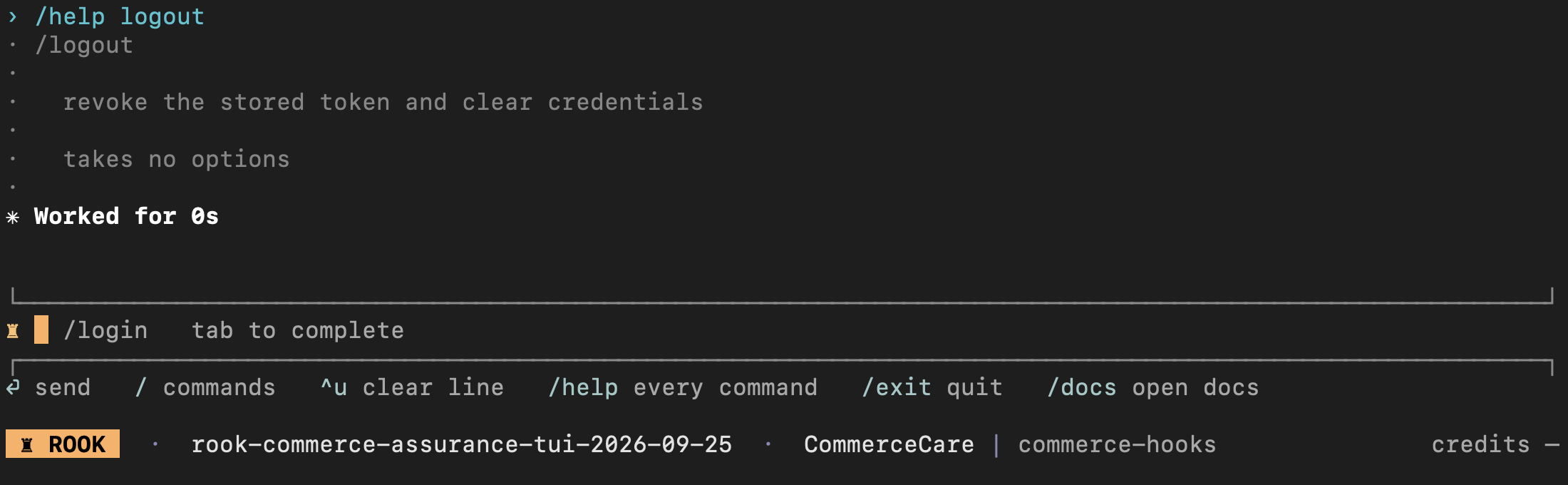
Syntax
Interactive:
/logout
Headless:
rook logout
When to use it
- Switch to another TestMu AI account.
- Remove access from a shared workstation.
- Reset a credential that is invalid or unexpectedly scoped.
Effect
A logout asks the server to revoke the token and then clears the locally stored credential. Local cleanup happens even when remote revocation cannot be confirmed. It does not delete agents, profiles, scenarios, run evidence, or environment variables.
If remote revocation fails—for example, while offline—the credential is still removed from this machine, but the token may remain valid elsewhere. Because the local copy is gone, retrying logout cannot revoke that token. On a shared or lost workstation, use the account's security controls to revoke active access when you are online.
Credentials are global for Rook terminals using the same Rook home. Logging out in one workspace affects other active or future Rook sessions on that machine.
Real-world account switch
/logout
/login
/auth status
The TUI input is disabled during an active run. Press Esc, wait for the prompt to return, inspect the target if a write may have occurred, and then log out.
Common problems
- Offline logout still removes the local credential, but it may leave server-side revocation unconfirmed. Verify account access through the account's security controls when online.
- If another terminal still appears authenticated, refresh its status. Do not assume cached UI text reflects the current token.
Exported LT_USERNAME and LT_ACCESS_KEY are separate from stored login. Logging out does not remove those variables from your shell or CI secret manager; unset both when you intend to stop using them. See login.
/plan
Use /plan to check the TestMu AI account plan and credit balance before generating or executing a suite.
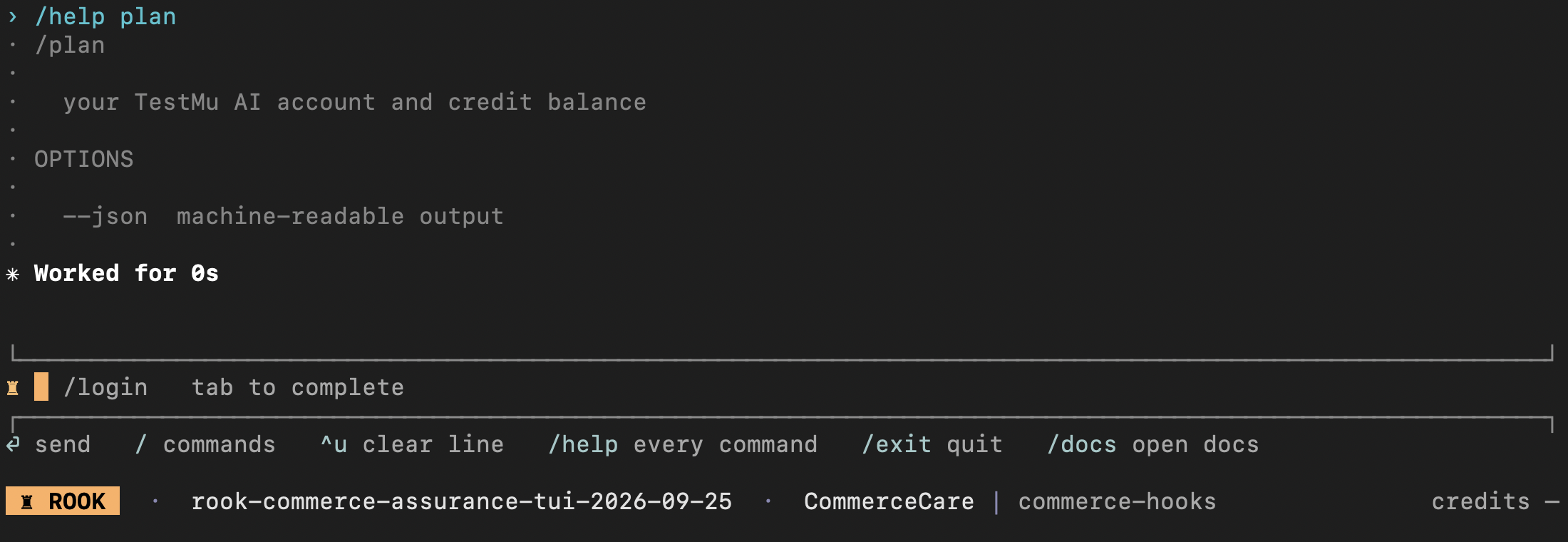
Syntax
/plan
/plan --json
Headless:
rook plan
rook plan --json
Real-world use
Before generating a small refund suite:
/plan
/generate --total 15
The plan response is account-level information from TestMu AI. During a long operation, the TUI status bar also shows the balance and credits used by the current session.
What changes
Nothing in the project is changed. The command reads the authenticated account and credit balance.
Common problems
- If authentication is missing or expired, run
/loginand/auth status. - If the controller cannot be reached, run
/doctor. - In automation, use
rook plan --jsonand inspect the response as well as the exit status. A null credit balance means unknown, not zero or unlimited. The account balance is not an enforced task-wide spending cap.
Projects and Discovery
/project
Use /project to choose the TestMu AI project that owns discovered agents, versions, and runs in the current workspace.
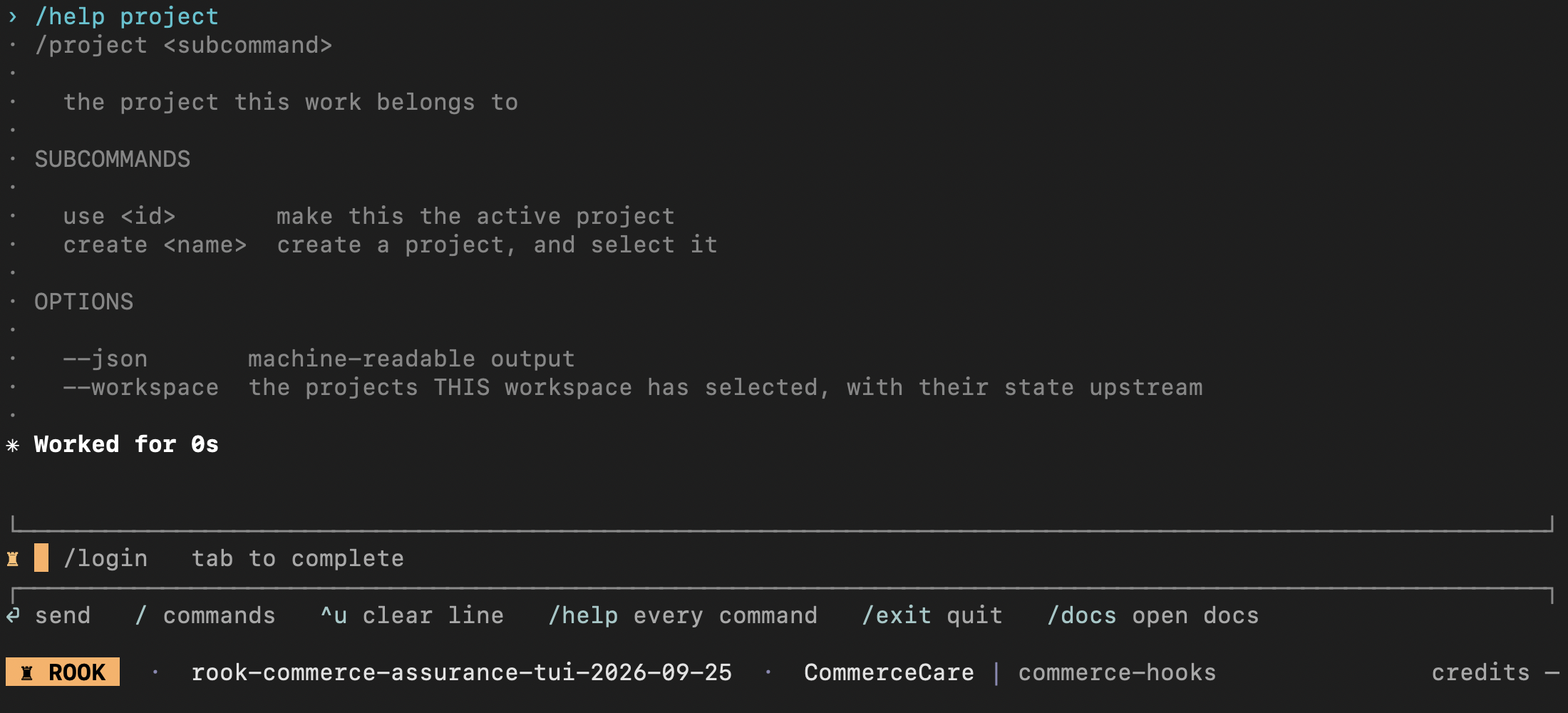
Syntax
/project
/project --workspace
/project --json
/project use <id>
/project create <name>
From a shell:
rook project
rook project --workspace --json
rook project use <id>
rook project create <name>
Behavior
| Command | Effect |
|---|---|
/project | Open a TUI picker. In a shell, print available projects and mark the active one. |
rook project --workspace --json | List projects selected by this workspace with their upstream state, as structured output. |
/project use <id> | Validate the project against TestMu AI and save it as the active project for this workspace. |
/project create <name> | Create a project and select it immediately. |
The active-project pointer is stored locally, alongside a separate working tree for each selected project. TestMu AI remains the authority for the projects the account can access.
Why Selection Comes First
Rook scopes the local agent tree below the project ID. Switching projects changes which active agent, features, scenarios, profiles, and runs Rook sees; switching back restores that project's previous active agent.
If access to the active project is revoked, Rook asks you to choose another project. Signing in again does not repair a project-level permission failure.
/explore
Use /explore to tell Rook what local material describes your agent. The target can be a PRD, an office document, an image, a documentation folder, an agent source directory, or a complete local repository.
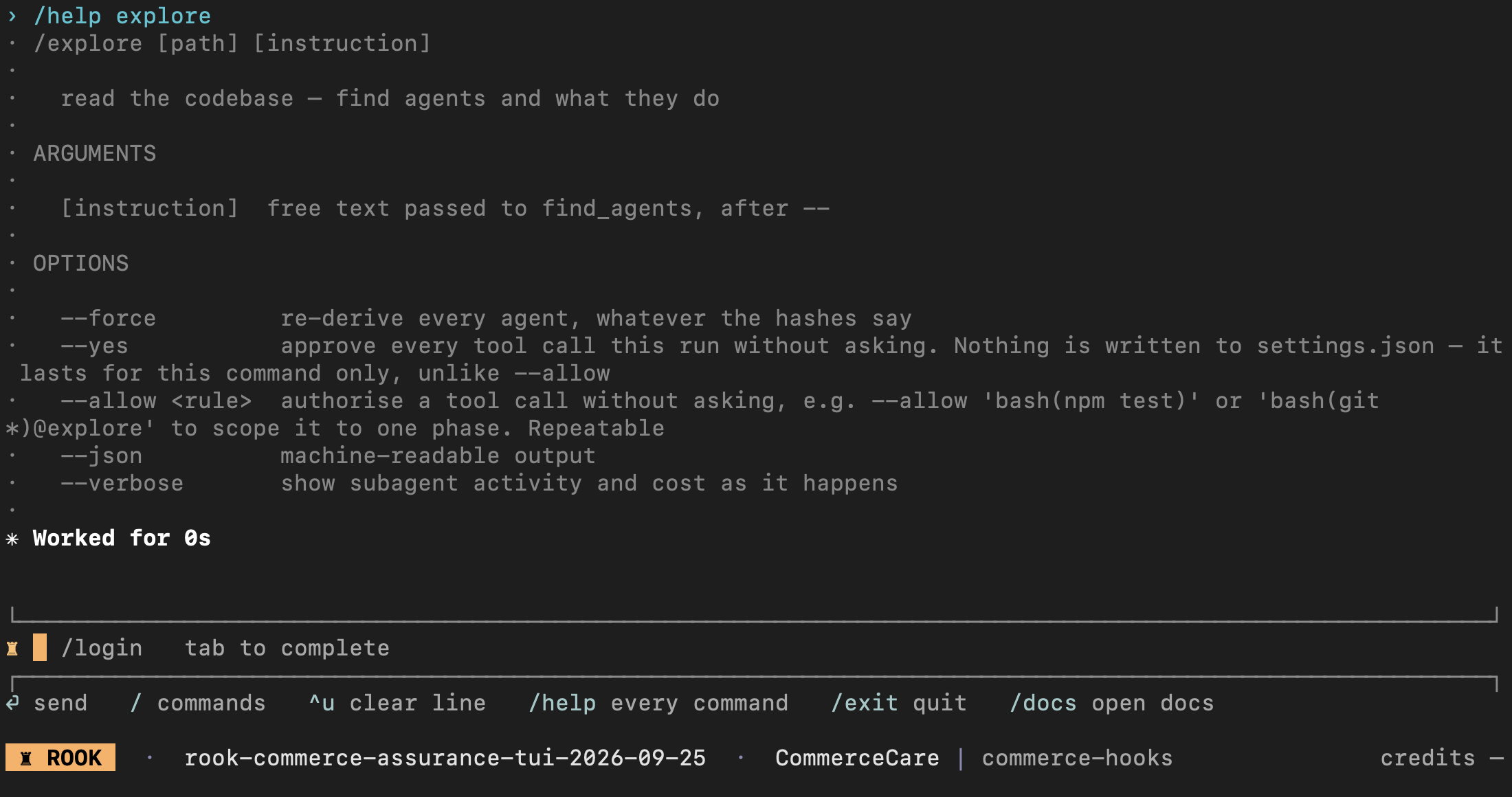
Syntax
/explore [path] [instruction...] [--force] [--allow <exact-rule>] [--json] [--verbose]
From a shell, replace the leading slash with rook.
| Option | Purpose |
|---|---|
path | Local file or directory. Defaults to the current directory. |
--force | Re-read even when tracked files appear unchanged. |
instruction... | Free-text guidance about what to emphasize or ignore. |
--allow <rule> | Pre-authorize one exact tool rule for this launch. Repeatable. |
--json | Return machine-readable output for this command. |
--verbose | Include tool activity and credit-use details. |
Real-world examples
PRD only:
/explore docs/refund-agent-prd.md
PRD and knowledge base:
/explore docs focus on PRD.md and knowledge, and treat them as intended behavior
Source workspace:
/explore services/travel-agent
Headless:
rook explore docs/refund-agent-prd.md focus on refund approval rules --json
Step-by-step
- Select or create a project with
/project, then choose the narrowest target path that contains enough evidence. - Add guidance when filenames alone do not express the intended scope.
- Start exploration. Rook scans and hashes the target, and its discovery tools may read files immediately.
- Review any later permission request before allowing a shell command or another gated operation.
- Review the discovered features, tools, sources, and open questions.
- Choose the active agent with
/agent, generate scenarios, and use/syncwhen the local tree is ready to share.
State and evidence
Discovery writes agent and feature records below the selected project's directory in .testmuai/rook/projects/. Incremental exploration reuses unchanged material; --force bypasses that optimization. Exploration is local-first and does not publish a new project version until /sync succeeds.
A PRD or knowledge base describes what should happen. It cannot prove which tools the deployed agent implements or whether a live action succeeded.
Limitations and errors
- URLs are rejected as exploration targets. For GitHub, clone your own repository and explore the local checkout.
- Rook extracts text and structure from PDF, DOCX, and XLSX files and can inspect common image formats. Password-protected, corrupt, or unsupported files are reported instead of silently treated as text.
- There is no pre-read approval screen. For a target inside the launch workspace, the path narrows discovery but is not a filesystem access boundary: discovery tools remain rooted at the launch workspace and can inspect sibling files. If siblings are sensitive, copy the allowed materials into an isolated workspace before starting Rook, or configure explicit deny rules.
- If the result contains the wrong boundary, rerun with a narrower path and explicit guidance.
/agent
Use /agent when the selected project contains several discovered agents or when you need to confirm which agent later phases use.
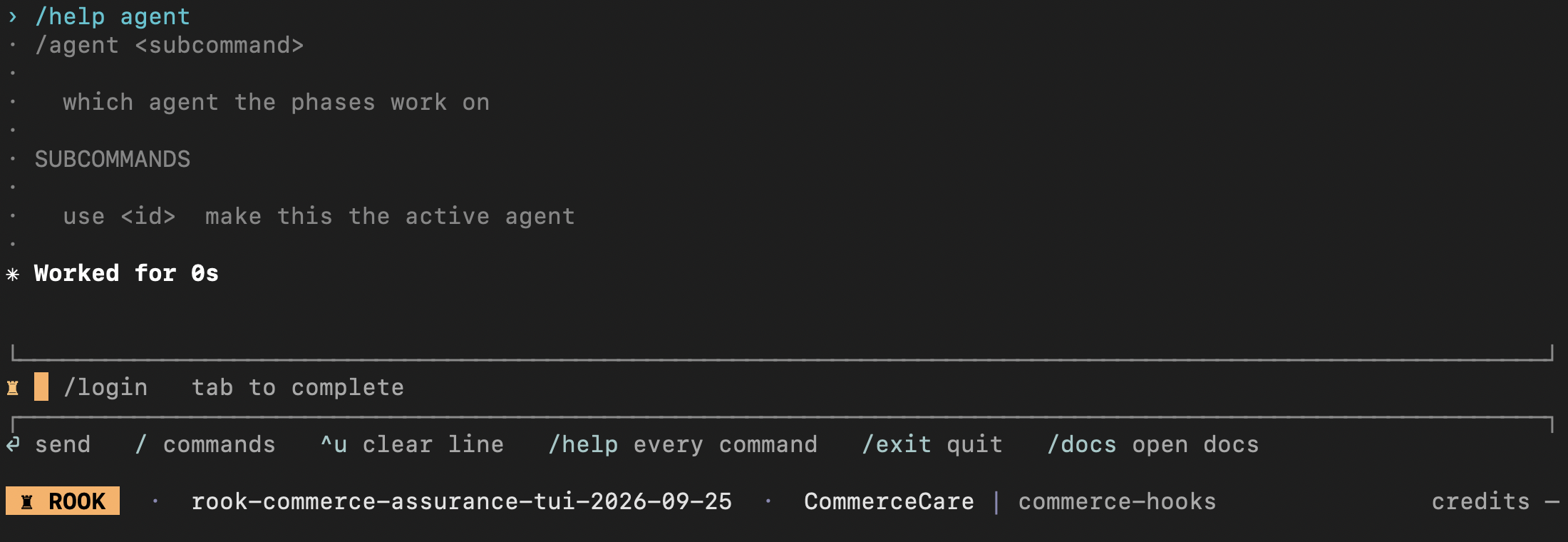
Syntax
/agent
/agent use <id>
From a shell:
rook agent
rook agent use <id>
Bare /agent opens a picker and marks the active agent. Bare rook agent prints the same inventory. There is no separate list subcommand.
Selecting an agent changes the active-agent pointer inside the selected project; it does not invoke the live target. The active agent determines which specification, features, scenarios, profiles, runs, reports, and sync state later commands use.
Agent removal is intentionally not a command. Rook's project data is stored as readable files; remove or edit it through the reviewed repository workflow when that is genuinely required.
Example
/agent
/agent use refund-agent
/generate --total 12 -- focus on eligibility and duplicate refunds
Profiles and Scenarios
/profile
A profile names the reviewable hook scripts Rook uses to invoke a live agent. Use /profile to generate those scripts from a prompt, repair them from a failure, verify the target, inspect lifecycle phases, or select a profile.
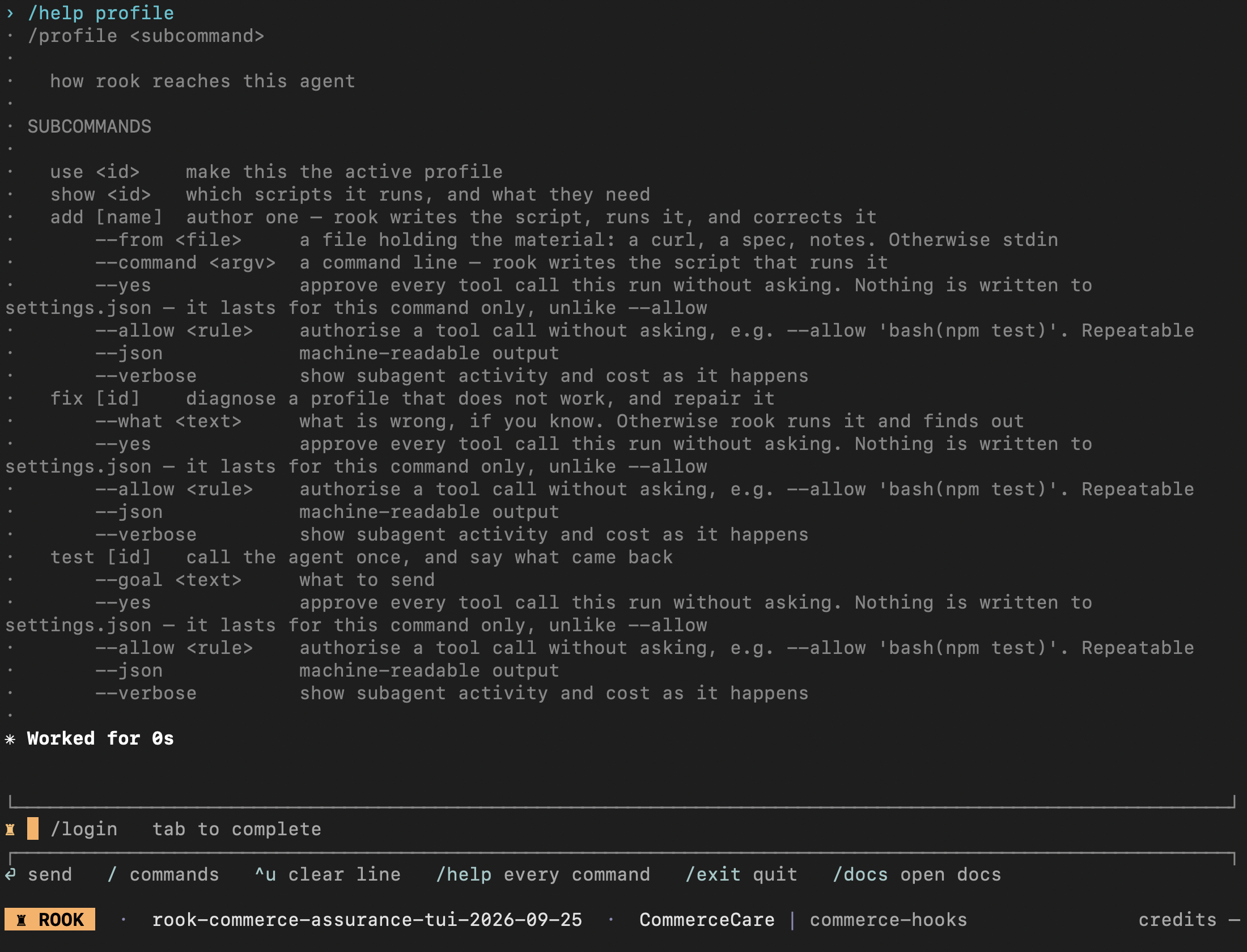
Syntax
/profile
/profile use <id>
/profile show <id>
/profile add [name]
/profile add <name> --command '<argv>'
/profile add <name> --from <material-file>
/profile fix [id] [--what <text>]
/profile test [id] [--goal <text>]
The shell form uses rook profile with the same subcommands and options. Pipe a cURL command, integration description, or other material to rook profile add <name> when --from is omitted.
Subcommands
| Command | Effect |
|---|---|
/profile | Open a TUI picker. In a shell, list profiles, mark the active one, and show unverified or missing-variable state. |
/profile use <id> | Select an existing profile by ID. Verify it before using it for a run. |
/profile show <id> | Print each lifecycle phase and script, non-default timeouts or delays, required variables, and reported capabilities. |
/profile add [name] | Ask how the agent is reached, then generate scripts, run them, and correct them from the actual response. |
/profile add <name> --command | Generate a hook script for the supplied local command line. Rook sends the goal through the generated script rather than requiring a template token in the command. |
/profile add <name> --from | Generate from a file containing a cURL command, specification, Postman export, notes, paths, URLs, or a combination of material. |
/profile fix [id] | Run a broken profile, diagnose the response or error, and repair its scripts. Add --what when you already know what changed. |
/profile test [id] | Invoke once without a model rewrite, show what came back, and update observed capabilities when it succeeds. |
add, fix, and test also accept --yes, repeatable --allow, --json, and --verbose. All three can invoke the real target. Inspect write-capable calls and use a reply-only test goal before approving them. Profile authoring/repair can spend Rook credits; a profile test can still incur target-provider costs. Use broad approval only within a reviewed, command-scoped task.
Profile creation writes one or more .mjs scripts and maps them to prepare, open, execute, close, or collect. execute is required. Rook reads credential-shaped values from local environment variables and refuses literal assignments in generated scripts.
Verification is local to this machine because endpoint reachability is local. A newly authored profile is promoted automatically only after it returns an agent answer; profiles that have not been proved from this workspace remain visibly marked unverified. Run /profile test before selecting one manually.
Rook does not provide profile edit or remove commands. Profiles are plain files so changes can be reviewed and diffed with the rest of the workspace.
/generate
Use /generate after exploration to write test scenarios for the active agent's discovered features.
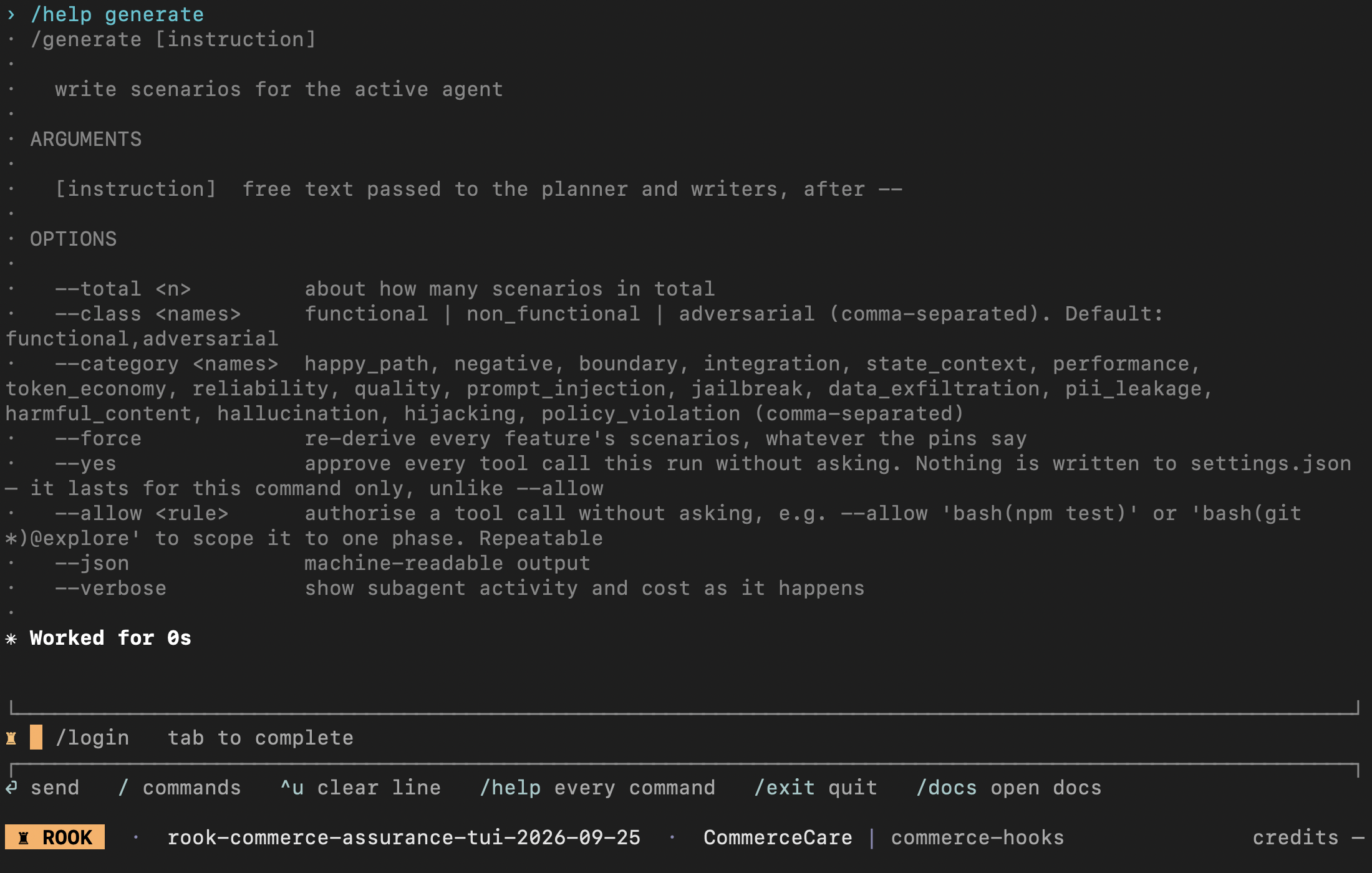
Syntax
/generate [options] [-- free-text instruction]
The shell form is rook generate with the same options.
| Option | Purpose |
|---|---|
--total <n> | Approximate target size for the complete suite. |
--class <names> | Comma-separated classes. Default: functional,adversarial. |
--category <names> | Comma-separated scenario categories. |
--force | Re-derive scenarios even when feature hashes are unchanged. |
--allow <rule> | Pre-authorize one exact tool rule for this launch. Repeatable. |
--json | Return machine-readable output for this command. |
--verbose | Show subagent activity and credits as work happens. |
/generate --total 20 --class functional,adversarial
/generate --category boundary,reliability -- emphasize retries and duplicate requests
Generation reads the current feature model, plans coverage, writes scenarios, and checks runnability. It does not invoke the live target. Unchanged features reuse their scenarios without a model call; --force intentionally bypasses that optimization.
Generated files remain editable. A scenario whose origin is human is not silently replaced during later generation.
/scenarios
Use /scenarios to inspect the active agent's suite and curate what runs by default.
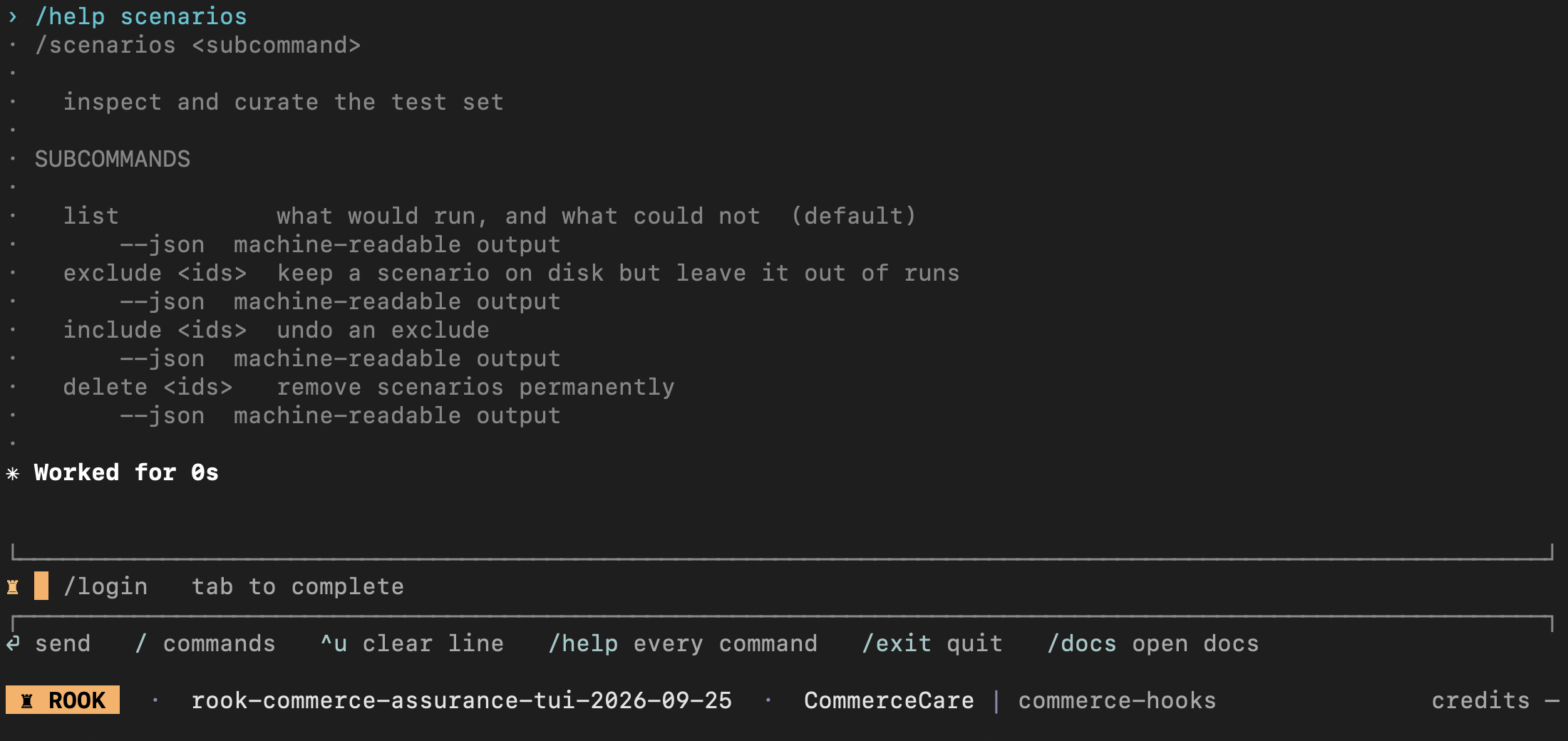
Syntax
/scenarios
/scenarios list [--json]
/scenarios exclude <ids...> [--json]
/scenarios include <ids...> [--json]
/scenarios delete <ids...> [--json]
The shell form uses rook scenarios. list is the default subcommand, so /scenarios and /scenarios list are equivalent.
| Subcommand | Effect |
|---|---|
list | Show what would run, stale or blocked scenarios, and reasons a profile cannot execute a scenario. |
exclude | Keep scenarios on disk and in history, but omit them from default runs. |
include | Return excluded scenarios to the default run set. |
delete | Permanently remove the named local scenario files. |
Pass IDs as separate arguments for include, exclude, and delete, for example rook scenarios exclude SC-004 SC-009 --json. This differs from run --only SC-004,SC-009, which takes one comma-separated argument. Inspect changed and unknown: ok: true alone does not prove that a requested ID changed. Deletion is permanent; prefer exclusion when you only want to skip a case.
Synchronization, Runs, and Results
/status
Use /status to understand where the current machine stands before synchronizing or running tests.
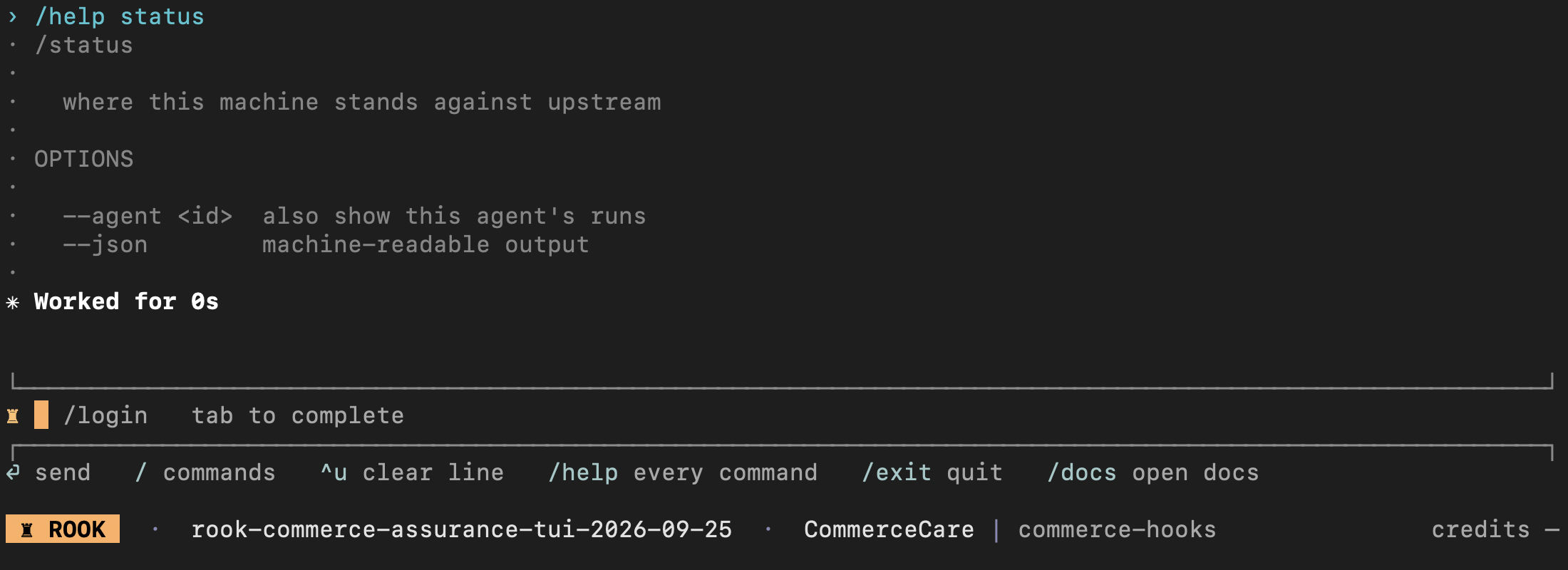
Syntax
/status
/status --agent <id>
/status --json
The shell form is rook status with the same options.
Tree States
| State | Meaning | Next action |
|---|---|---|
unsynced | This agent has never been recorded upstream. | Run /sync. |
clean | Local content matches the recorded version. | No action. |
ahead | Local content changed after the last sync. | Review and run /sync. |
behind | Upstream advanced while this machine stayed on an older version. | Reconcile upstream changes before syncing. |
diverged | Local and upstream histories both moved. | Reconcile the branch; Rook does not overwrite it silently. |
unknown | Local state is known, but upstream could not be checked. | Restore connectivity and rerun status. |
Status returns upstream run information for --agent, or for the active agent when the option is omitted. It identifies unfinished local runs and completed runs whose scenario results still need reconciliation.
Status exits successfully even when the tree is not clean; the state is data, not a command failure. In automation, inspect the --json response.
/sync
Use /sync after exploration, generation, profile changes, or manual edits to record the local project tree upstream.
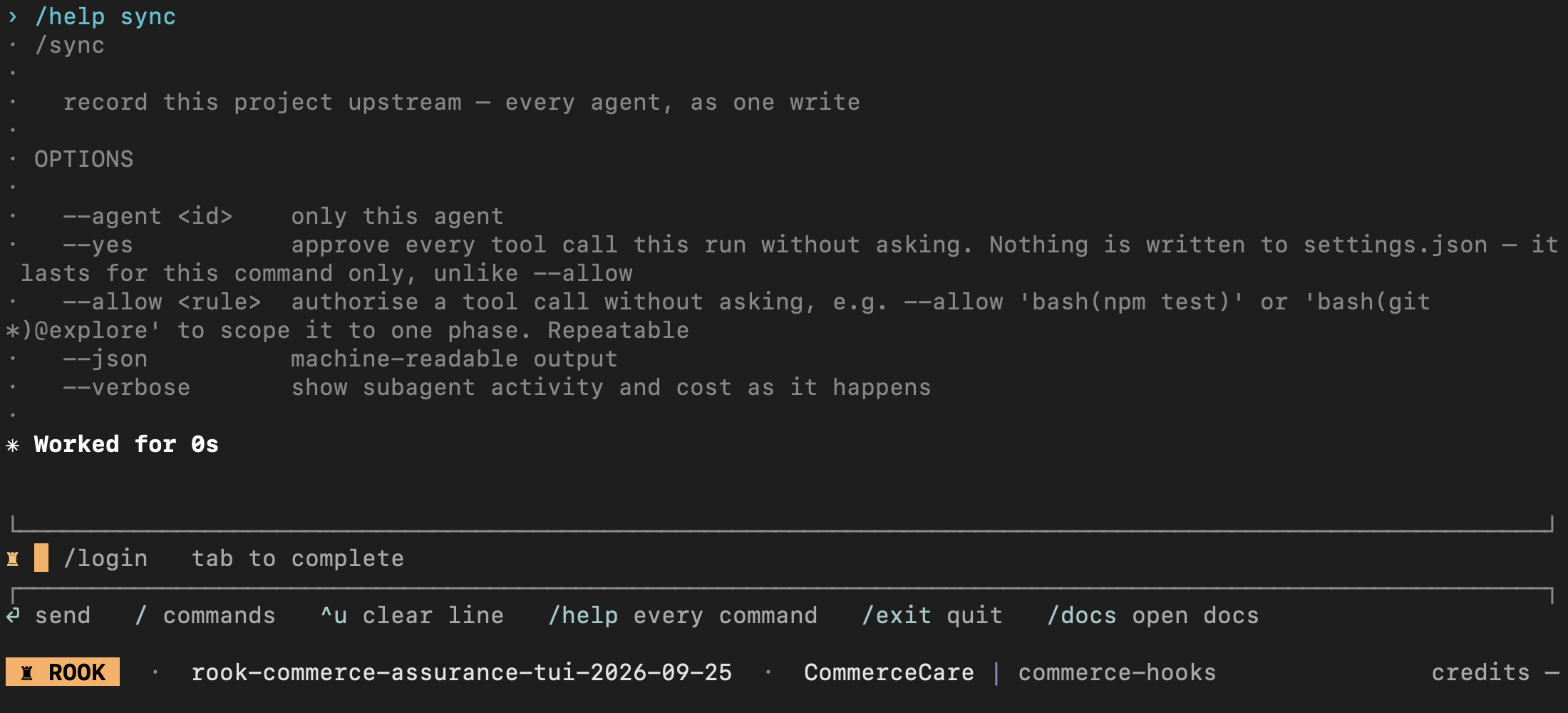
Syntax
/sync
/sync --agent <id>
/sync --json
The shell form is rook sync with the same options.
What Sync Records
By default, Rook sends every local agent in the selected project as one transaction. The payload includes each agent's specification, features, scenarios, profiles, call relationships, and content hashes. Secret values are not included; profiles record required environment-variable names while hook scripts read values from process.env.
An agent version pins its specification, features, and scenarios. Profile revisions are recorded separately, so changing an endpoint does not create a new agent version.
No-op and Conflict Behavior
- If nothing changed, Rook sends nothing and does not create a duplicate version.
- If local content changed, sync advances the upstream version.
- If another machine advanced the same agent first, Rook records the local version as a branch and reports the conflict instead of overwriting upstream state.
- An agent directory with no readable specification is skipped and reported.
Use /status before and after synchronization to see the local/upstream relationship.
Run Requirement
A timeline run requires the agent to have been synchronized at least once. When the tree changes later, an attended run can ask whether to sync or use test mode. In CI, choose explicitly between rook sync and rook run --test.
/run
Use /run to plan a selection, execute the active profile's lifecycle hooks, collect evidence, and judge each acceptance criterion.
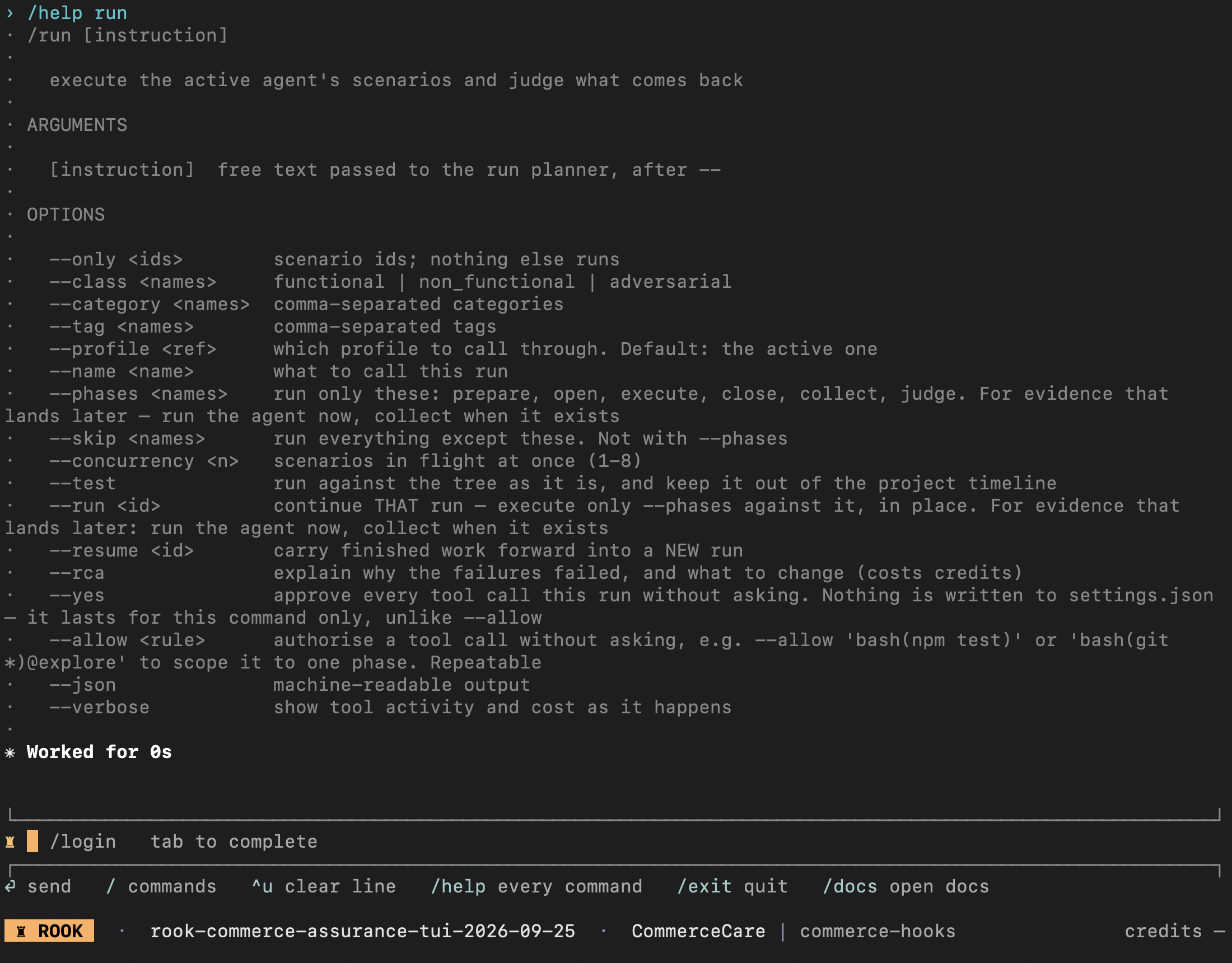
Syntax
/run [selection options] [-- free-text instruction]
The shell form is rook run with the same options.
| Option | Purpose |
|---|---|
--only <ids> | Run only comma-separated scenario IDs. |
--class <names> | Filter by functional, non_functional, or adversarial. |
--category <names> | Filter by comma-separated categories. |
--tag <names> | Filter by comma-separated tags. |
--profile <ref> | Override the active profile for this run. |
--name <name> | Give the run a readable label. |
--phases <names> | Run only a contiguous selection of prepare, open, execute, close, collect, and judge. |
--skip <names> | Run everything except the named phases. Cannot be combined with --phases. |
--concurrency <n> | Run 1 to 8 scenarios at once. An explicit value overrides the planner. |
--test | Run the current tree without placing the result on the shared project timeline. |
--run <id> | Continue that same run in place with the phases selected by --phases. |
--resume <id> | Carry compatible completed work forward from an earlier run. |
--rca | Explain failure clusters and what to change; this spends additional credits. |
--allow <rule> | Pre-authorize one exact tool rule for this launch. Repeatable. |
--json | Return a JSON outcome on stdout; progress goes to stderr. |
--verbose | Show tool activity and credits as work happens. |
Examples
/run --only SC-001,SC-004 --concurrency 1
/run --class adversarial --profile staging --name security-gate
/run --test -- investigate the current unsynchronized changes
/run --phases prepare,open,execute,close
/run --run 01JABC... --phases collect,judge
/run --resume 01JABC... --rca
Before target execution, Rook writes and shows a run plan. In the TUI you can proceed, discard it, or describe a change. Headless runs proceed with the written plan, so use explicit filters in version-controlled CI configuration.
A normal timeline run requires an agent that has been synchronized at least once. If the current tree changed, use /sync or intentionally choose --test.
Lifecycle Phase Selection
The fixed order is:
prepare → open → execute → close → collect → judge
The first five points are profile hooks; judge is Rook's evaluation phase. prepare runs once per run, execute runs once per turn, and open, close, and collect run per scenario when the profile defines them.
Partial execution is useful when logs or traces arrive later. Run the target through close, keep the run ID, then use --run to add collect and judge to the same run. This differs from --resume, which starts a new run and carries compatible completed work into it.
Rook sorts selected phases into lifecycle order and refuses an invalid hole when a later phase depends on a defined phase that was skipped.
The target's writes are real. Rook cannot roll them back. Use staging data and start with one harmless scenario.
/runs
Use /runs sync when a run completed locally but a network or service interruption prevented all verdicts from reaching upstream.
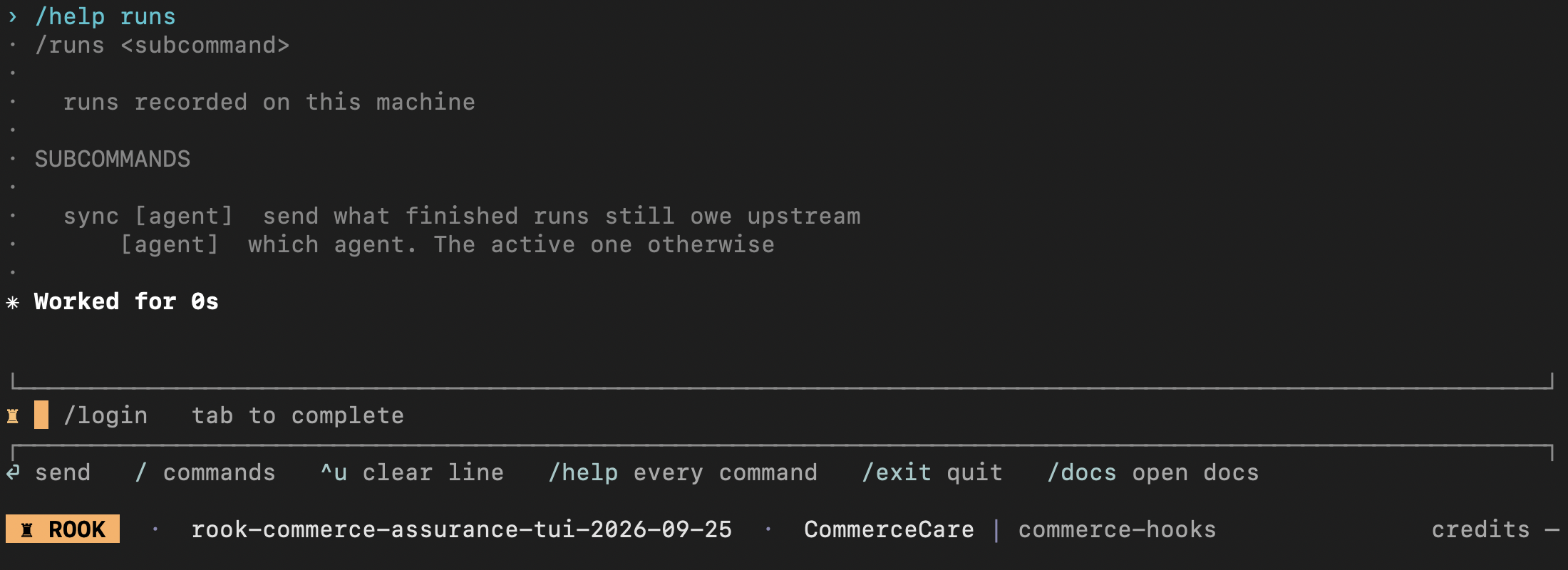
Syntax
/runs sync
/runs sync <agent-id>
From a shell:
rook runs sync
rook runs sync <agent-id>
The active agent is used when no ID is supplied.
What It Does
Rook reads completed run evidence already on disk and posts only records still owed upstream. It does not invoke the target, rejudge scenarios, call a model, or spend credits.
This command repairs result synchronization. Use /sync for agent specifications, features, scenarios, and profile revisions.
/report
Use /report to read a stored run from disk. Without a run ID, Rook uses the most recent run for the active agent.
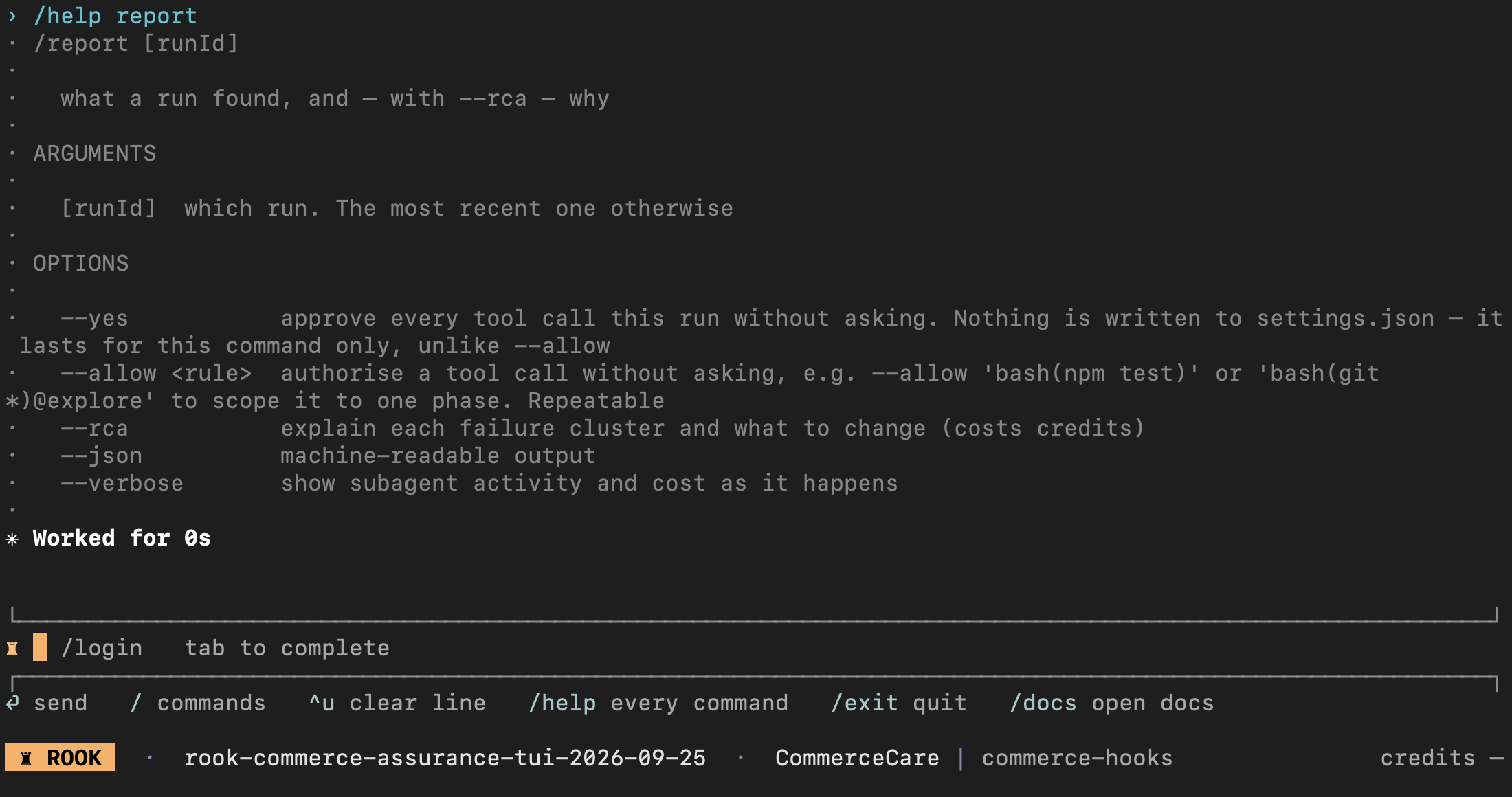
Syntax
/report [run-id]
/report [run-id] --rca
/report [run-id] --rca --allow '<rule>'
The shell form is rook report with the same argument and options.
Without --rca, report is a free local read: it does not contact the target, create a session, or spend credits. With --rca, Rook groups failures, investigates likely causes, writes explanations into the report, and spends credits.
Use repeatable --allow rules only when an RCA verifier needs a reviewed tool operation in unattended execution. Report also accepts --json and --verbose; check the output caveats before parsing paid analysis output.
Root-Cause Analysis for an Existing Run
Use this when you already have a failed run and want to understand its failure clusters. It does not require another scenario run.
1. Read the saved report. Select the original workspace, project, and agent. Read the exact run's saved report and criterion evidence first:
rook report <run-id> --json
2. Approve and run RCA. Review the analysis scope and approve the additional Rook credit use. RCA can inspect source and use permitted verification tools; allow only the operations you have reviewed. Then request analysis for that same run:
rook report <run-id> --rca
3. Review the explanation. Read the updated report separately. This is the structured read, not a second RCA request:
rook report <run-id> --json
With a coding assistant, you can send this instead:
Use the rook skill to investigate saved run RUN_ID without rerunning the agent.
First explain the failures from the recorded criteria and evidence. If Rook RCA
would help, explain its scope, tool access, and credit use and ask for approval.
After approval, run RCA for that exact run and summarize the cause, remedy,
confidence, affected scenarios, and cited evidence. Do not edit the agent or retry.
Inspect the report's clusters and any files under the run's remedies/ directory. An explained cluster can contain:
| Field | What to review |
|---|---|
scenarios, why, kind | Which failures or verification gaps were grouped and why. |
cause, remedy | The proposed explanation and suggested change. These are hypotheses, not a verified patch. |
confidence, fault, where | Confidence, attributed source of the problem, and cited locations when supplied. Missing fields mean unknown. |
Preserve Pass, Fail, and Unable to Verify as recorded. RCA does not turn an unverifiable result into a pass or establish that a proposed fix works. A previously explained, matching agent version may reuse its explanation; a changed or unknown version can require fresh paid analysis. Do not repeatedly request RCA to probe compatibility.
To include RCA with a new, already approved scenario run, add --rca to that run's explicit selection. Unlike report-only analysis, that also invokes the target. See run selection before approving it.
Automation and Hosted Review
Use rook report <run-id> --json to read the structured local report. Successful command completion means the report was read, not that the agent passed. Inspect its totals and the run’s completion using the CI checks.
Use rook ui to open synchronized results in the Web UI or rook ui --local for the files on this machine.
/ui
Use /ui to review synchronized results in the hosted TestMu AI application. Add --local to serve the evidence currently on disk.
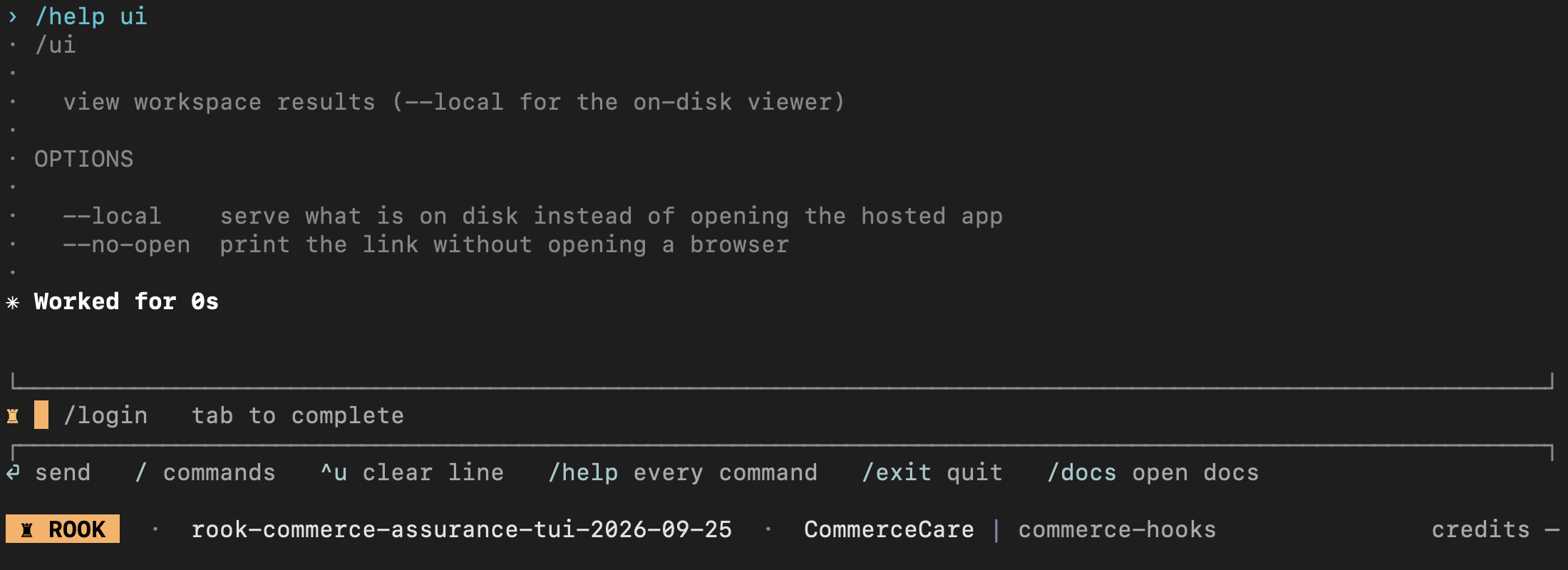
Syntax
/ui
/ui --local
/ui --local --no-open
The shell form is rook ui with the same options.
| Form | Result |
|---|---|
/ui | Print and open the hosted application. It displays content recorded by sync and run uploads. |
/ui --local | Start a loopback server over the current workspace's files and open it. |
--no-open | Print the URL without launching a browser. |
The local viewer is read-only, makes no external request for workspace data, and does not require authentication or network access. It continues serving until the command or TUI session exits.
Use the hosted view for shared project history. Use --local for unsynchronized work, offline investigation, or the exact evidence present on this machine.
Hosted Web UI Access
Open rook.lambdatest.com/projects or use the CLI shortcut:
export ROOK_ENV=prod
rook ui
Use the same environment for login, project selection, sync, and runs. Sign into the browser separately if prompted. If an older CLI opens a different address, use the public Projects link above and update Rook.
For local review, open agent → Runs → run → scenario; for hosted review, start with project → agent → Runs → run → scenario. Read the acceptance criteria, then select Request, Response, Verdict, or Artefacts in the Evidence panel to open the drawer. See the earlier local layout if your public CLI still has scrolling evidence sections.
The combined UI walkthrough shows both layouts, screenshots, and missing-result troubleshooting. A loopback URL is not shareable with teammates; use an authorized hosted run link or an approved evidence bundle.
Local UI: What --local Opens
The local landing page lists the selected workspace project's agents. Click an agent to reach its definitions and runs. This saved CommerceCare demo is an example workspace, not data supplied by the ui command or produced by the triage quickstart.
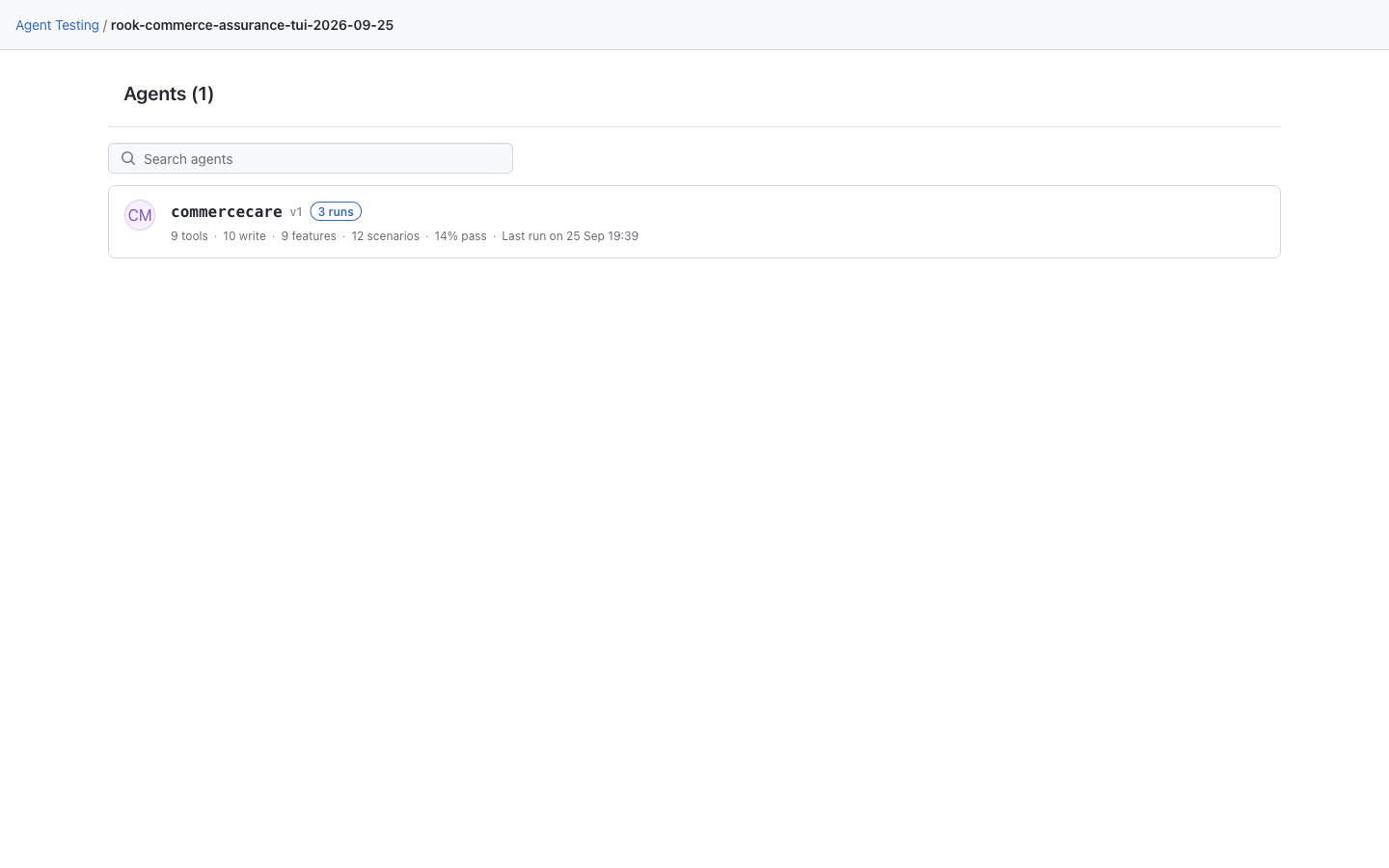
Hosted Web UI: What the Default Opens
The hosted application starts at Projects. Select the project and agent to review uploaded records. The screenshot shows the sample documentation project, not data created automatically by the ui command.

Environment and Diagnostics
/env
Use /env to manage tokens, endpoint values, and other variables referenced by profiles without writing literal secrets into project files.
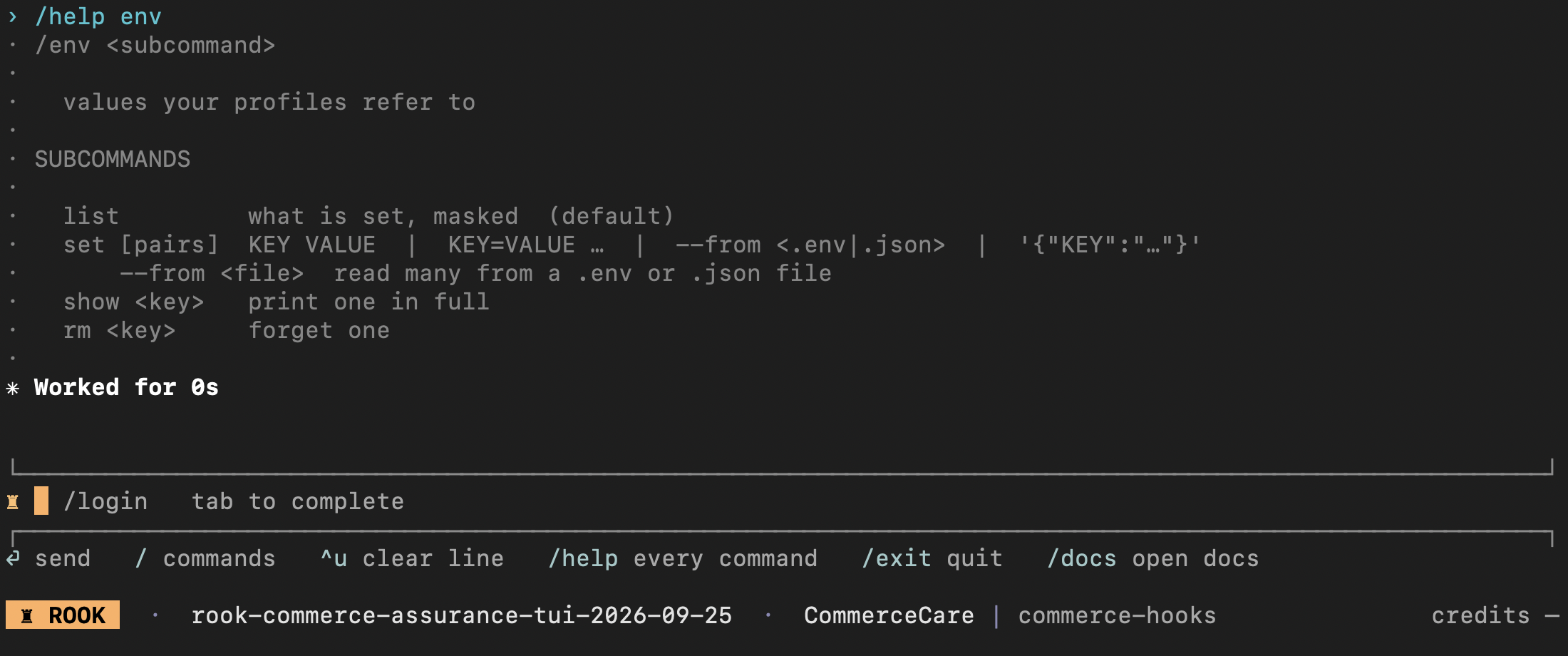
Syntax
/env
/env list
/env set KEY VALUE
/env set KEY=VALUE OTHER_KEY=OTHER_VALUE
/env set --from <file.env>
/env set <json>
/env show <key>
/env rm <key>
The same commands work from a shell by replacing the leading slash with rook, for example rook env list and rook env set '{"API_KEY":"…"}'.
Subcommands
| Command | Effect |
|---|---|
/env list | List variable names and masked values. |
/env set {"KEY":"value"} | Set one or several string values from one JSON object. Names are normalized to uppercase. |
/env set KEY VALUE or /env set KEY=VALUE OTHER_KEY=OTHER_VALUE | Set a single variable or several assignments. Quote values that contain spaces. |
/env set --from <file> | Read values from a local .env or JSON file. Keep that file out of version control and shared artifacts. |
/env show KEY | Print the complete value into terminal scrollback. |
/env rm KEY | Remove the stored value. |
Recommended secret flow
/env set --from /private/path/rook-target.env
/env list
/profile add staging
The generated hook script reads process.env.REFUND_API_TOKEN, and the profile records only the variable name and its purpose.
Replace the example with your protected, untracked environment-file path, or inject variables through your approved secret manager. Using --from keeps literal values out of the command line, but the source file still needs protection. Clearing the terminal does not remove shell history, transcripts, or logs. Avoid /env show unless full disclosure into scrollback is intentional.
Storage and scope
Variables are stored with restrictive permissions in one file below the global Rook home. They are not written into the workspace's .testmuai/rook/ profile files.
Each value is scoped to the current workspace's absolute path. Another workspace using the same Rook home does not inherit it. A variable exported by the shell shadows a different stored value with the same name.
When /profile add finds a credential in supplied material, the generated script must read it from an environment variable. Use the exact name shown by the authoring flow.
Common problems
- Missing-variable profile error: set the exact case-sensitive key.
- Wrong endpoint or account: remove and reset the value, then rerun
/profile test. - Secret shown in a screenshot: rotate it immediately; masking in
/env listdoes not undo earlier disclosure.
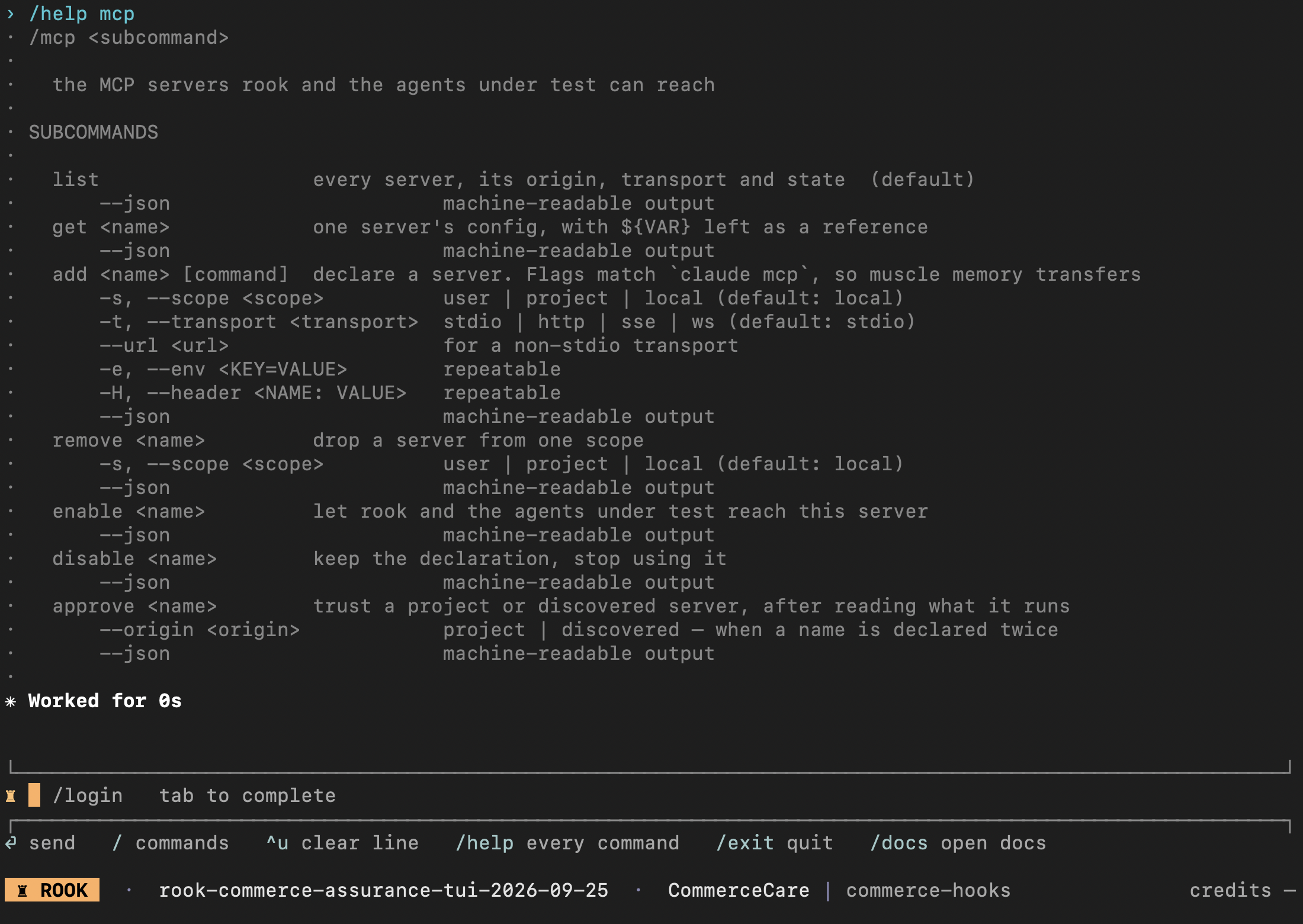
/mcp
Use /mcp to manage MCP servers that Rook can discover or use for read-only verification and controlled tool access.
Interactive syntax
/mcp
/mcp list
/mcp enable <name>
/mcp disable <name>
/mcp approve <name>
Headless syntax
rook mcp list [--json]
rook mcp get <name> [--json]
rook mcp add <name> [command...] [--scope local|project|user] \
  [--transport stdio|http|sse|ws] [--url <url>] \
  [--env <KEY=VALUE>] [--header <NAME:VALUE>] [--json]
rook mcp remove <name> [--scope local|project|user] [--json]
rook mcp enable <name> [--json]
rook mcp disable <name> [--json]
rook mcp approve <name> [--origin project|discovered] [--json]
For stdio servers, pass the command after the server name, using -- to separate its arguments from Rook's options. The registry accepts declarations for stdio, http, sse, and ws; remote declarations require --url. In public 0.1.5, only stdio connections execute. The other transports remain listed as unsupported-transport; accepting a declaration is not a successful connection.
Real-world verification example
A refund agent says it issued a refund. Configure a separate MCP server that has a read-only get_refund_status tool:
rook mcp add refund-reader --scope project -- refund-mcp-server --read-only
rook mcp approve refund-reader --origin project
rook mcp enable refund-reader
Review the server definition and every exposed tool before approval. A verifier must not call issue_refund to check whether a refund exists; that would create the state it claims to observe.
Trust and state
Project and discovered MCP definitions require explicit approval. Enable/disable controls project usability; approval records trust in the reviewed definition. A changed definition may require review again.
Use variable references for headers and environment values. rook mcp get leaves references unexpanded so inspection does not reveal the secret.
MCP Targets and Profile Hooks
Rook invocation profiles are script-based. To test an agent reached through MCP, describe its client flow to /profile add; Rook generates the execute hook that performs the call.
Enabled MCP servers in this command remain Rook tools for discovery or independent read-only verification. That registry is separate from the profile hook used to invoke the agent under test.
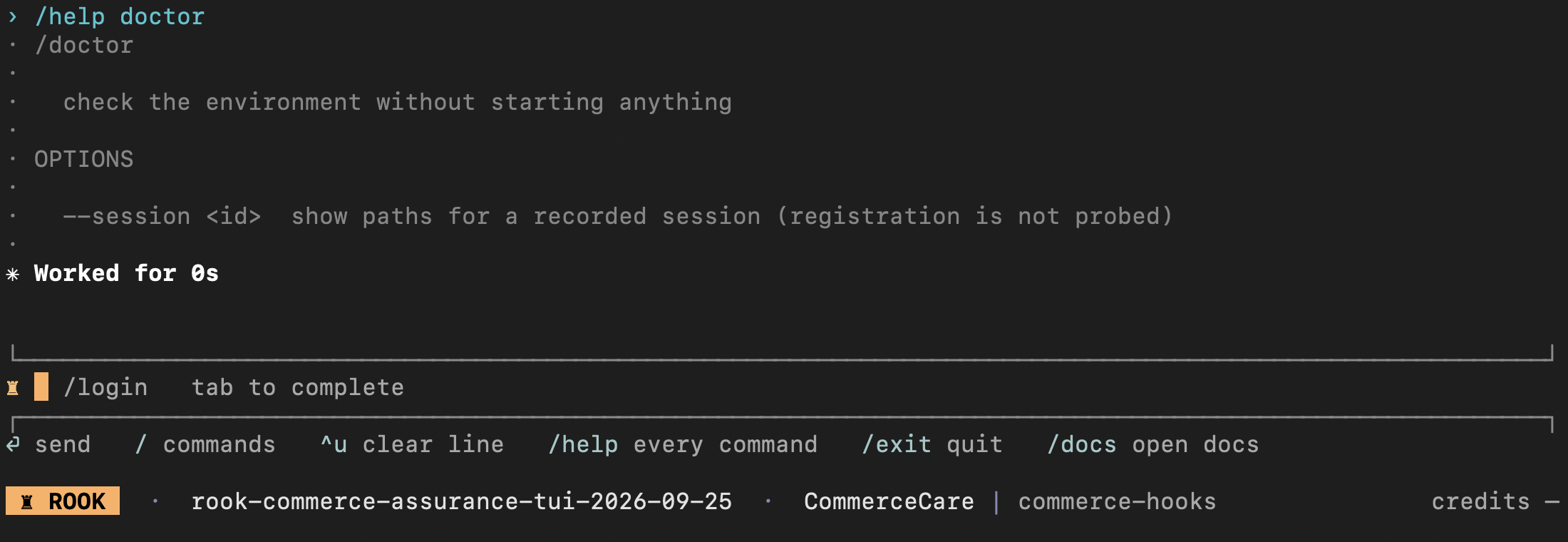
/doctor
Use /doctor as the first diagnostic when Rook cannot authenticate, select a project, reach a service, or start normal work.
Syntax
/doctor
/doctor --session <session-id>
From a shell:
rook doctor
rook doctor --session <session-id>
Doctor is intentionally ungated. It remains available when identity, project, connectivity, update, or budget state would block another command.
Output
Doctor reports:
- Exact Rook and Node.js versions.
- Workspace path and configured environment.
- Controller and API URLs, each with an independent reachability probe.
- Derived identity and authentication status.
- Active project, interaction mode, and TTY state.
- Overall connectivity state derived from identity and the two service probes.
A service that returns an HTTP refusal is still reachable. Doctor distinguishes “the service answered” from “the current credential or project may use it.” It does not test the agent endpoint in an invocation profile; use /profile test for that.
Doctor output can contain local paths, account state, and hostnames. Review it before attaching it to a public issue.
Use --session with a recorded Rook session ID to locate its diagnostic files. This does not probe that session's server-side registration, and a session ID is not the same as a scenario run ID.
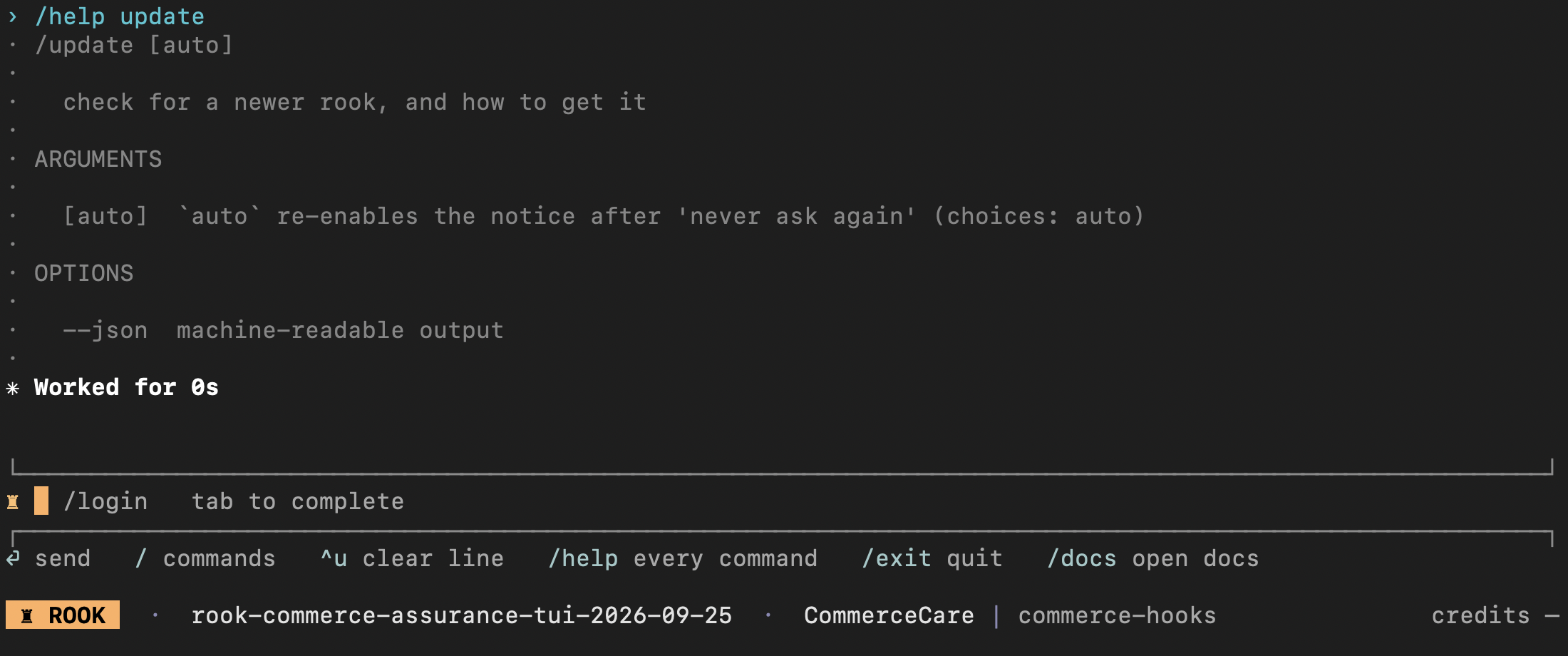
/update
Use /update to check for a newer public Rook release. In 0.1.5 it can also perform an upgrade for a recognized global npm or recorded shell installation, so treat it as an installation-changing command, not a read-only version check.
Syntax
/update
/update auto
/update --json
The shell form is rook update with the same argument and option.
Public releases use semantic versions such as 0.1.5. A recognized npm installation is updated at its recorded prefix; a recognized shell installation uses its recorded directory. Homebrew installations print the appropriate brew upgrade command instead. Project-local npm copies, older shell installs without a usable record, and ambiguous installations can require manual instructions. Review the output and verify rook --version afterward.
If you previously chose “never ask again” in the TUI update notice, run /update auto to re-enable automatic notices.
The latest public release checked on September 25, 2026 is 0.1.5. Use the installed command's help for version-specific options. If an npm 0.1.1 or 0.1.2 install cannot update, follow the public-registry repair command. Windows users can follow PowerShell setup and upgrades.
Export Diagnostic Logs
Export a local diagnostic bundle when a support investigation needs more than the error message. The shell command is rook export logs; in the TUI use /export logs.
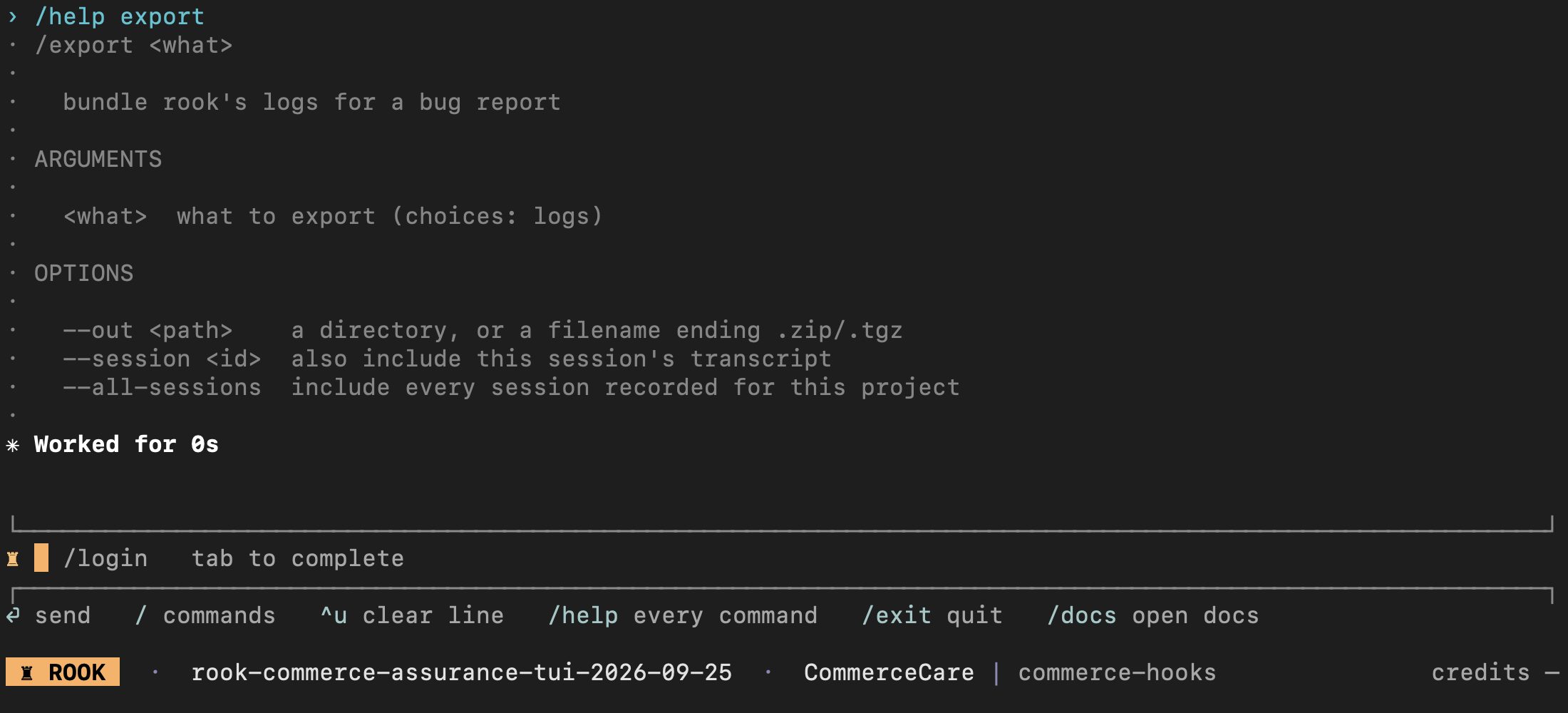
rook export logs --out ./rook-diagnostics.zip
| Option | Purpose |
|---|---|
--out <path> | Destination directory, or an archive ending in .zip or .tgz. |
--session <id> | Also include the selected session transcript. |
--all-sessions | Include every recorded session for this project. |
Use rook doctor --session <session-id> to identify relevant paths first. Start with the smallest useful bundle. Export does not upload the files, but the bundle can contain paths, session text, and sensitive target data. Review and redact before sharing; do not publish home credentials or raw transcripts.
Migration From Older Examples
| Older syntax | Rook 0.1.5 |
|---|---|
--entity | Select with rook project use and rook agent use before the command. |
profile list, agent list | Use bare profile or agent. |
profile edit, profile curl, profile rm | Use profile fix, show, or deliberately edit the plain files. These subcommands are absent. |
Fixed kind/invoke/result profile YAML | Generate reviewable hooks scripts with profile add. |
explore --instruction, --all | Supply guidance after --; use current help for unattended approvals. |
generate --no-validate | Removed. Review generated scenarios and current runnability. |
run --no-narrative | Removed. |
ui for a local server | Use ui --local; bare ui opens the hosted app. |
/budget
This older command is not in 0.1.5. Use /plan for account credits and read cost/progress output for the active operation.
The TUI status bar shows the account balance and credits spent in the current session. Model-backed phases report their spending. Rook checks credit boundaries between calls and preserves completed local work when credits are exhausted.
/new
This older command is not in 0.1.5. Exit and start rook again to begin another terminal session; project files remain on disk.
Active project and agent selections, profiles, scenarios, runs, credentials, and environment variables persist across sessions. Restarting the terminal does not reset stored state; use the relevant commands when you intend to change it.
Structured Output and Progress
| Flag | Behavior |
|---|---|
--json | Requests structured output. Commands with a JSON contract write one document to stdout; do not assume every command or failure emits JSON. |
--verbose | Writes detailed human progress to standard error, including role activity, tool calls, and credit use. |
--yes | Broadly approves tool calls for the current command without writing a persistent grant. Existing deny policy still applies; this is not a spending cap or sandbox. |
--allow <rule> | Adds a reviewed permission rule for the current process; repeat the flag for several rules. |
Only use a flag where rook help <command> lists it.
In 0.1.5, plan, status, run, and a normal report have structured output. Commands such as explore, generate, sync, profile operations, paid report --rca, and update can emit text even when they accept --json. Check the actual stdout before parsing it, then inspect the relevant saved files or make a separate structured read.
Keep stdout and stderr separate when saving JSON: do not use 2>&1 for a machine-readable result file. Refusals and parser errors can leave stdout empty. A failure document may contain error or reason; ok: true can accompany a discarded run, so it is not sufficient to establish success. See the public headless contract.
Exit Codes
In Rook 0.1.5, process success and agent quality are separate. Do not use the older 0/1/2/3/4 mapping as a release gate: the current run/report paths can return success when an outcome or report was produced, even if its verdicts require attention.
Treat a non-zero exit as command failure. After a successful run --json, require ok: true, halted: false, a report, and the expected completed and passed counts. Reject missing, discarded, partial, or unverifiable results according to your release policy. A report --json success only confirms the stored report was read.
See the tested CI gate for an example.
User-Configured Environment Variables
| Variable | Effect |
|---|---|
ROOK_HOME | Credentials, environment values, history, and local state. Default: ~/.testmuai/rook. |
ROOK_ENV | Deployment selection; public packages default to prod. Keep the setting consistent for login, project operations, synchronization, and hosted review. |
LT_USERNAME, LT_ACCESS_KEY | Account credentials for unattended authentication. Provide both; they override stored browser-login credentials. |
ROOK_API_URL | Overrides the versioned Rook API base URL. |
ROOK_CONTROLLER_URL | Overrides the controller base URL. |
ROOK_AUTH_BASE_URL / AUTH_URL | Overrides the authentication base URL. |
ROOK_USER_AUTH_URL / USER_AUTH_URL | Supplies a full user-auth endpoint rather than a base. |
ROOK_SPRITE | Controls boot animation; --no-animation disables it for one launch. |
The public shell installer accepts --version and --dir command-line options. It does not require a GitHub token or use installer-specific ROOK_* variables. See Install Rook.
Hook Context Variables
Rook sets these for profile hooks:
| Variable | Meaning |
|---|---|
ROOK_HOOK | prepare, open, execute, close, or collect |
ROOK_RUN_ID | Current run |
ROOK_SCENARIO_ID | Current scenario |
ROOK_SESSION | Stable Rook session for the scenario |
ROOK_TURN | Current turn number |
ROOK_CONVERSATION | Target conversation handle returned by the hook |
ROOK_STATE_DIR | State directory for the scenario lifecycle |
ROOK_RUN_STATE_DIR | Shared state across the whole run |
ROOK_WORKSPACE | Absolute workspace path |
ROOK_PROJECT | Active project ID |
ROOK_AGENT | Active local agent ID |
Rook-owned values override conflicting hook configuration. See Profiles and Hooks for phase availability.
Interactive Keys
| Key | Behavior |
|---|---|
| Tab | Accept the highlighted completion or inline suggestion. |
| ↑ / ↓ | Move through completion results, or command history when no menu is open. |
| ← / → | Move the caret; with Option/Alt, move by word. |
| Esc | Close a menu; clear an empty line; discard queued work and then interrupt a running command; decline a prompt. |
| Ctrl-A / Ctrl-E | Move to the beginning or end of the line. |
| Ctrl-B / Ctrl-F | Move back or forward one character. |
| Ctrl-U / Ctrl-K | Delete before or after the caret. |
| Ctrl-W | Delete the previous word. |
| Ctrl-C | Exit the TUI; do not rely on it only clearing input. Use Ctrl-U to clear the line before the caret and Esc to request interruption. |
| Ctrl-N | Create a project from the project picker. |
| j / k | Move down or up in a choice list. |
| Space | Toggle an item in a multi-select list. |
| a | Select every item in a multi-select list. |
/exit or /quit | Leave the interactive session. |
Defaults
| Setting | Default |
|---|---|
| Generated classes | functional,adversarial |
| Scenarios per model call | 4; larger requests fan out across writers |
| Scenario concurrency | Profile value, otherwise 1; allowed range 1–8 |
prepare timeout | 60 seconds |
open timeout | 30 seconds |
execute timeout | 300 seconds |
close timeout | 30 seconds, with a 5-second floor |
collect timeout | 120 seconds |
| Consecutive transport failures before halt | 3 |
| Interactive history | 100 lines |
Headless Detection
Rook refuses uncovered prompts instead of hanging when --yes is present, standard input is not a TTY, or a supported runner variable exists. The presence of CI, even with the string value false, still identifies a pipeline environment.
Next Steps
Run tests · Profiles, hooks, and lifecycle · CI completion checks · Troubleshooting


 Chat with Us