
Cross browser testing tool for
desktop and mobile
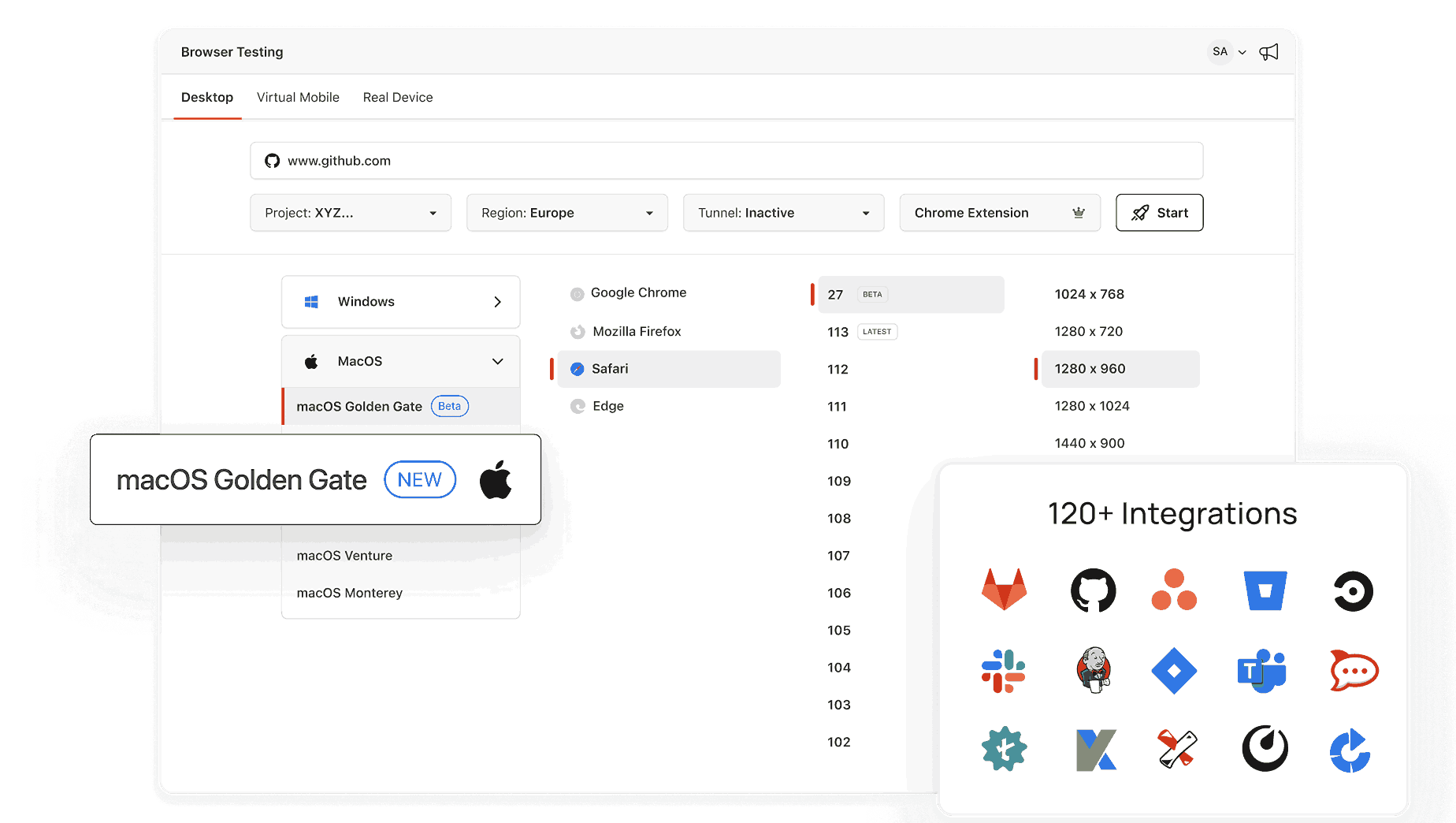
Open a live Chrome, Safari, Firefox, or Edge session in seconds with TestMu AI.


What's My Browser Size? Responsive Test Check
Resize the window and watch the inner viewport and outer window size update in pixels. Match the width to a breakpoint from your CSS or design spec, then set the same viewport in Playwright or Cypress.
Categories



Key Features:
- Instant Results: No need for any downloads or complicated steps—just visit the page and instantly view your browser’s resolution.
- Outer Window Size: The outer size refers to the total size of your browser window, including any visible borders and toolbars.
- Inner Window Size: The inner size is the available space for displaying content, excluding any toolbars, borders, and scrollbars. This is particularly useful when designing responsive layouts.
- Real-Time Updates: You can resize your browser window and see the measurements update in real time, making it easy to understand how changes affect the layout.
- Free and No Sign-Up Required: You can access the tool for free, with no need to create an account or enter personal information.
- Simple and Easy to Use: The intuitive interface ensures that even first-time users can quickly understand and use the tool.
Use Cases:
- Web Design & Development: Developers and designers can check the inner and outer window sizes to test how their website appears across different window sizes.
- Troubleshooting Layouts: Understanding the available space for content (inner size) vs. the total space (outer size) helps in fixing layout or design issues.
- Responsive Design Testing: Quickly check how content behaves in various browser window sizes, and ensuring it adapts correctly to different screen dimensions.
- Personal Use: If you're a casual user, this tool is great for quickly assessing your browser size, which can be useful for tasks like adjusting browser zoom, managing window settings, or understanding screen space.
Why Use this tool
- Accurate Data: Get precise dimensions of your browser window to make informed decisions about your design or layout.
- No Installation: It’s a simple, online-only tool that doesn’t require any software installation or complicated setups.
- Time-Saving: Quickly get the window size and adjust your browser for optimal browsing, working, or design without searching through settings.
Frequently Asked Questions (FAQs)
What does "inner size" mean?
It’s the area inside your browser window available for content, excluding toolbars, borders, and scrollbars.
What is the "outer size"?
It’s the total size of the browser window, including borders, toolbars, and scrollbars.
Is this tool free to use?
Yes, it’s completely free with no sign-up required.
Can I use this tool on mobile devices?
Yes, it works on both desktop and mobile browsers.
Can this tool help with web design testing?
Yes, it’s great for testing how a website adapts to different screen sizes.

Did you find this page helpful?
More Tools
TestMu AI forEnterprise
Get access to solutions built on Enterprise
grade security, privacy, & compliance
- Advanced access controls
- Advanced data retention rules
- Advanced Local Testing
- Premium Support options
- Early access to beta features
- Private Slack Channel
- Unlimited Manual Accessibility DevTools Tests