
Next-Gen App & Browser Testing Cloud
Trusted by 2 Mn+ QAs & Devs to accelerate their release cycles


Darken Image Online
Darken any image online for free. Upload a photo, drag the darken amount slider, and download the darker image instantly, with all processing done right in your browser.
Categories
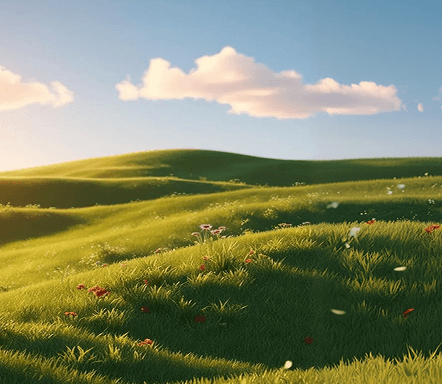



Drop, Upload or Paste image
 Convert
What is the darken image tool?
The darken image tool is a free online image darkener that reduces the brightness of a photo while keeping its size, colors, and composition intact. You upload an image, choose how much to dim it, and download a darker version. It is built for quick edits without opening heavy photo software.
Behind the slider, the tool multiplies each pixel by a factor based on your chosen darken amount, so a higher percentage removes more brightness. A small adjustment dims a slightly overexposed shot, while a stronger one creates a deep, moody look. The result is returned as a lossless PNG, ready to copy or download.
How to darken an image online?
Darkening a photo takes only a few seconds, and you do not need to install anything or create an account. Follow these steps:
- Upload your image: Drag and drop, paste, or click to upload the photo you want to darken. Common formats like PNG, JPG, and WebP are supported.
- Set the darken amount: Move the Darken Amount slider from 0 to 100 percent. A low value dims the image gently while a higher value makes it noticeably darker.
- Convert the image: Click Convert to apply the darkening. The tool processes the image in your browser and shows a preview of the darker result.
- Copy or download the result: Copy the darkened image to your clipboard or download it as a PNG file to use anywhere you need.
Features of the darken image tool
As a tool, the darken image tool offers a few capabilities that make dimming photos effortless. Here are the features of our image darkener:
- Adjustable Darken Slider: A 0 to 100 percent slider gives you fine control, from a subtle dim to a deep, dramatic darkening, in a single drag.
- Browser-Based Processing: All darkening runs locally in your browser, so your image is never uploaded and private photos stay on your device.
- Instant Live Preview: The darkened result appears right away, so you can compare it against the original and adjust the amount before downloading.
- Quality Preserved: Dimensions and resolution stay the same, and the output is a lossless PNG, so darkening does not blur or shrink your photo.
- Copy or Download: Save the result as a PNG download or copy it straight to your clipboard to paste into a document, design, or chat.
- Free With No Signup: The tool is free with no login, no watermark, and no usage limit, so you can darken as many images as you need.
Use cases of the darken image tool
Darkening an image is useful anywhere a photo is too bright or needs a richer mood. The tool speeds up each of these workflows by darkening the image for you:
- Fix Overexposed Photos: Tone down washed-out shots from bright sunlight or flash so detail in highlights becomes visible again.
- Create Moody Visuals: Add depth and a cinematic feel to portraits, landscapes, and backgrounds for a more dramatic result.
- Text and Overlay Backgrounds: Darken an image so white text, logos, or buttons placed on top stand out clearly in banners and thumbnails.
- Match a Design Theme: Dim images to fit a dark UI or a consistent brand palette. Pair this with the Image Contrast Adjuster when you also need to fine-tune tonal range.
- Stylize and Crop Assets: Combine darkening with other quick edits, such as the Posterize tool for a stylized poster effect or the Crop Image tool to frame the final shot.
This image darkener is maintained by TestMu AI (formerly LambdaTest), the team behind a unified testing platform used to validate how visuals render across browsers and devices, so it is built with the same focus on consistent, reliable output that QA and design teams depend on.
Frequently Asked Questions (FAQs)
How do I darken an image online?
Upload your photo, drag the Darken Amount slider toward a higher percentage, and click Convert. The tool reduces the brightness of every pixel and shows a darker preview that you can copy or download as a PNG, all in your browser.
Is the darken image tool free to use?
Yes, the darken image tool is completely free with no signup, login, or watermark. You can darken as many images as you need at no cost. The tool is maintained by TestMu AI (formerly LambdaTest).
Can I fix an overexposed or too bright photo with this tool?
Yes. Overexposed photos look washed out because pixel values are too high. Darkening lowers those values, so detail in bright areas becomes easier to see. Start with a small darken amount and increase it until the photo looks balanced.
What does the Darken Amount slider do?
The Darken Amount slider sets how much brightness to remove, from 0 to 100 percent. At 0 the image is unchanged, and higher values multiply each pixel by a smaller factor, making the whole image progressively darker while keeping its colors and composition.
Which image formats can I darken?
You can upload common image formats including PNG, JPG, JPEG, WebP, GIF, and BMP. The darkened result is returned as a PNG file, which preserves quality and works across browsers, editors, and websites without any extra conversion.
Are my images uploaded to a server?
No. All darkening happens locally in your browser and nothing is uploaded. Your image never leaves your device, which makes the tool safe to use with private photos, screenshots, and any visuals you do not want stored online.
Does darkening reduce my image quality?
Darkening adjusts brightness without resizing or recompressing your photo, so resolution and dimensions stay the same. The output is a lossless PNG. Extreme darkening can hide detail in already dark areas, so use a moderate amount for the best balance.
What is the difference between darkening and lowering contrast?
Darkening lowers the brightness of every pixel uniformly, so the whole image gets dimmer. Lowering contrast instead pulls light and dark tones closer together. To darken, use this tool; to change the spread between tones, use a contrast adjuster.
Can I create a moody or cinematic look with darkening?
Yes. A moderate darken amount adds depth and a dramatic, cinematic mood to portraits, landscapes, and backgrounds. Darker images also make overlaid white text and graphics stand out, which is useful for banners, thumbnails, and social media posts.
Did you find this page helpful?