

Next-Gen App & Browser Testing Cloud
Trusted by 2 Mn+ QAs & Devs to accelerate their release cycles


Adjust Image Contrast Online
Adjust image contrast online in seconds, with brightness and saturation controls alongside it. Upload a picture, move the sliders, and download the result in PNG, JPEG, or WebP, all in your browser.
Categories
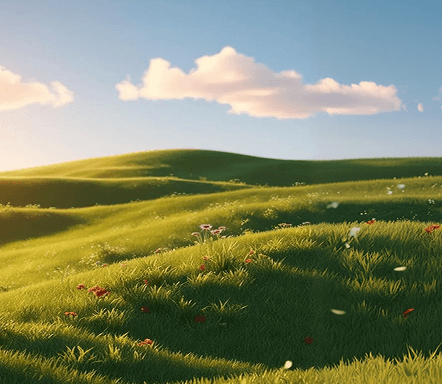



Drop, Upload or Paste image
What is the Image Contrast Adjuster?
The Image Contrast Adjuster is a free online tool that changes how much the light and dark parts of an image differ. Raising contrast makes highlights brighter and shadows darker, which adds depth and makes a photo look crisp.
Lowering it softens the image for a gentler, flatter look. The tool also includes brightness and saturation sliders so you can correct exposure and color in the same place.
Because it runs entirely in the browser using your device, your image is never sent to a server. You see every change in a live preview as you move the sliders, so you can dial in the exact look you want before downloading.
How to adjust image contrast?
You can fix a photo's contrast in well under a minute. Follow these steps:
- Upload your image: Drag and drop, paste, or browse to upload the picture you want to adjust. The image loads directly in your browser.
- Move the contrast slider: Slide contrast up to make lights and darks more distinct, or down to soften them, watching the live preview.
- Fine-tune brightness and saturation: Adjust brightness and saturation alongside contrast to balance the overall look of the photo.
- Download the result: Download the edited image in PNG, JPEG, or WebP format once you are happy with the preview.
Features of the Image Contrast Adjuster
As a tool, the Image Contrast Adjuster keeps quick photo fixes simple. Here are the features that make it useful:
- Live Contrast Control: A responsive slider updates the preview instantly, so you can see the effect as you adjust it.
- Brightness and Saturation: Correct exposure and color richness in the same view, without switching tools.
- Multiple Output Formats: Download your result as PNG, JPEG, or WebP to suit transparency, photos, or smaller web files.
- Flexible Input: Upload by drag and drop, paste from your clipboard, or load from a URL.
- Browser-Based Privacy: All processing happens in your browser, so your image never leaves your device.
- Free and Watermark-Free: Edit and download as many images as you want with no signup and no watermark.
Tips for adjusting image contrast
A little guidance helps you improve a photo without overdoing it. Keep these tips in mind:
- Make Small Moves: Adjust contrast in small steps, since large jumps can clip detail in the brightest and darkest areas.
- Watch the Highlights and Shadows: Stop increasing contrast once highlights turn pure white or shadows turn solid black, as that detail cannot be recovered.
- Pair Contrast with Brightness: If an image looks dull, a small brightness lift alongside contrast often looks more natural than contrast alone.
- Mind the Saturation: Higher contrast can make colors feel stronger, so reduce saturation slightly if the result looks oversaturated.
- Compare Before and After: Reset and re-apply to compare, so you keep the edit tasteful rather than heavy-handed.
Use cases of the Image Contrast Adjuster
Contrast adjustment is one of the most common quick edits, useful across many tasks. These are the scenarios it fits:
- Fixing Flat Photos: Restore depth to washed-out or hazy images so they look sharp and clear.
- Preparing Web and Social Images: Make visuals pop in feeds and on landing pages before you publish them.
- Improving Readability: Increase contrast behind text overlays so captions and titles stay legible.
- Quick Edits Before More Work: Adjust contrast, then continue with related tools such as Darken Image to reduce brightness, Posterize for a stylized look, or Crop Image to reframe the shot.
This tool is maintained by TestMu AI, the team behind a unified testing platform, so it is built to render consistently across browsers and devices.
Frequently Asked Questions (FAQs)
How do I increase the contrast of an image online?
Upload your image, then move the contrast slider up. Lights become lighter and darks become darker, which adds depth and definition. Watch the live preview and download the result in PNG, JPEG, or WebP when it looks right.
Is the image contrast tool free?
Yes, the tool is completely free with no signup and no watermark. You can adjust as many images as you like. It runs in your browser and is maintained by TestMu AI.
Can I adjust contrast without losing image quality?
Yes, within reason. Moderate contrast changes preserve quality well. Pushing contrast to extremes can clip highlights and shadows and add visible noise, so make smaller adjustments and check the preview to keep detail intact.
What is the difference between contrast and brightness?
Brightness raises or lowers the overall lightness of every pixel evenly. Contrast changes the gap between light and dark areas, making bright parts brighter and dark parts darker. This tool lets you control both at once.
Why does my photo look washed out and how do I fix it?
Washed-out photos usually have low contrast, so lights and darks sit too close together. Increase contrast to restore depth, and nudge saturation up slightly if colors also look flat, until the image regains its punch.
Can I adjust the contrast of only part of an image?
This tool applies contrast to the whole image for a fast, simple edit. To adjust a region, crop the area first, apply contrast, and recombine, or use a layer-based editor when you need selective, masked adjustments.
What image formats are supported?
You can upload common formats like JPG, PNG, and WebP, and download your edited image as PNG, JPEG, or WebP. PNG keeps transparency, JPEG suits photos, and WebP offers smaller files for the web.
Is my image uploaded to a server?
No. The image is processed entirely in your browser and never leaves your device. That keeps your photos private and makes the editing fast, with no upload or waiting.
Did you find this page helpful?
More Tools
TestMu AI forEnterprise
Get access to solutions built on Enterprise
grade security, privacy, & compliance
- Advanced access controls
- Advanced data retention rules
- Advanced Local Testing
- Premium Support options
- Early access to beta features
- Private Slack Channel
- Unlimited Manual Accessibility DevTools Tests