

Next-Gen App & Browser Testing Cloud
Trusted by 2 Mn+ QAs & Devs to accelerate their release cycles


- TestMu AI (Formerly LambdaTest)
- /
- Blog
- /
- Screen Scraping: How It Works, Techniques, and Use Cases
Screen Scraping: How It Works, Techniques, and Use Cases
Screen scraping extracts data from rendered screens, not APIs. Learn how it works, its techniques, use cases, challenges, and how it differs from web scraping.

Nishant Choudhary
Author

Srinivasan Sekar
Reviewer
Last Updated on: July 7, 2026
A budgeting app needs your current account balance, but your bank publishes no developer API. So the app logs in through the same page you would, waits for the balance to render, and reads the number straight off the screen. That is screen scraping: getting data out of a system by reading what it displays, not by asking a backend for it.
It is the oldest trick in data extraction and, in an automation-heavy web, one of the busiest. According to the 2025 Imperva Bad Bot Report, automated traffic overtook human activity for the first time in a decade and reached 51% of all web traffic in 2024, with 37% coming from bad bots. A large share of that automation exists to read screens at scale. This guide explains what screen scraping is, how it works, the techniques behind it, where teams use it, and how it differs from web scraping and APIs.
Overview
What is screen scraping?
Screen scraping extracts data from what an application displays, the rendered output a user sees, rather than from a backend API or a raw data feed. It reads the finished page or interface, then pulls out the values it needs.
How is it different from web scraping and APIs?
- Screen scraping: reads the rendered screen, whether a web page, a desktop GUI, or a terminal, the most universal but most brittle option.
- Web scraping: a subset that parses a website's HTML and DOM.
- API: requests structured data from an official endpoint, the most reliable path when one exists.
What do you need to run it at scale?
A real browser that executes JavaScript, resilient selectors, and rate limiting. To run these flows across real browsers without managing servers, TestMu AI's test automation cloud supplies the grid.
What Is Screen Scraping?
Screen scraping is the automated process of extracting data from the rendered output of an application, the pixels and elements a user actually sees, rather than from a structured source like a database or API. The target can be a web page, a desktop program's window, or a legacy terminal screen.
The defining trait is the data source. An API hands you clean JSON from the backend. Screen scraping works one layer up, at the presentation layer, capturing information after it has been formatted for a human. That makes it universal, if a system can show data to a person, it can be scraped, and it makes it fragile, because the moment the display changes, the scraper can break.
Demand for this capability keeps climbing. The web scraping market was valued at USD 1.03 billion in 2025 and is projected to reach USD 2.23 billion by 2031, a compound annual growth rate of 13.78%. AI agents, price intelligence, and legacy-system integration are pulling more teams into reading screens programmatically.
How Does Screen Scraping Work?
Whatever the target, a screen scraper moves through four steps: render the interface, locate the data on screen, extract the values, and structure them for use. The hard part is almost always the first step, because modern interfaces build themselves in the browser after the initial load.
- Render: Load the page or app in a real environment so JavaScript runs and the content the user sees fully appears.
- Locate: Point at the data using DOM selectors, accessibility roles, coordinates, or, when there is no structure, optical character recognition over a screenshot.
- Extract: Read the text, numbers, or attributes out of the located elements.
- Structure: Normalize the raw values into rows, JSON, or a database record a downstream system can consume.
Here is the render-and-extract step against a real, JavaScript-driven page. This runs on TestMu AI Browser Cloud, which provisions a real Chrome session in the cloud, so the page hydrates exactly as it would for a user before any data is read. Credentials come from environment variables, never hardcoded in the script.
import { Browser } from '@testmuai/browser-cloud';

const client = new Browser();

// Screen scrape the FULLY RENDERED page, not the raw HTML shell
const data = await client.scrape({
  url: 'https://ecommerce-playground.lambdatest.io/',
  format: 'text',
  lambdatestOptions: {
    'LT:Options': {
      username: process.env.LT_USERNAME,
      accessKey: process.env.LT_ACCESS_KEY,
    },
  },
});

console.log(data);
Run against the TestMu AI ecommerce playground, the session returns the text a shopper sees, including product names and live prices rendered by JavaScript that a plain HTTP request would never receive:
TOP TRENDING CATEGORIES
Monitors
Mice and Trackballs
Printers
...
TOP PRODUCTS
iMac
$170.00
iMac
$170.00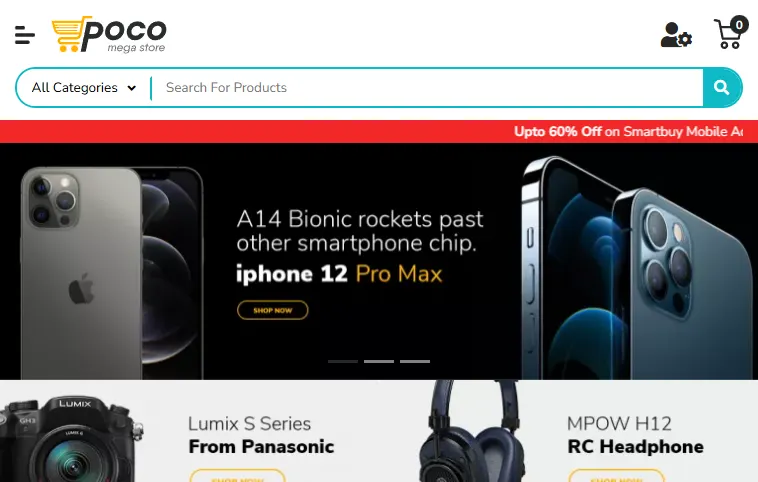
The screenshot above is the rendered screen the scraper read. The values in the output, the prices and product titles, only exist after the browser executed the page's JavaScript, which is exactly why rendering comes first. Modern approaches increasingly layer AI on top of this step to interpret messy layouts, a pattern covered in our guide to AI web scraping.
Screen Scraping vs Web Scraping vs API
These three terms get used interchangeably, but they sit at different layers. Screen scraping is the broad category of reading a rendered display. Web scraping is the subset that targets websites specifically. An API skips the display entirely and serves structured data from the backend. The table below maps them across the attributes that decide which one you should reach for.
| Attribute | Screen Scraping | Web Scraping | API |
|---|---|---|---|
| Data source | The rendered display of any app, web, desktop, or terminal. | A website's HTML and DOM after loading. | A structured backend endpoint built for data access. |
| Output format | Unstructured text or pixels you must parse yourself. | Semi-structured markup you parse with selectors. | Clean JSON or XML, ready to use. |
| Reliability | Lowest; breaks when the display layout changes. | Moderate; breaks when markup or selectors change. | Highest; stable contract that is versioned by the provider. |
| Maintenance | High; needs ongoing upkeep as interfaces evolve. | Medium; selector updates when pages change. | Low; changes are announced through deprecation cycles. |
| Availability | Always possible if the data is on a screen. | Possible for any public web page. | Only when the provider offers one. |
| Best for | Legacy systems and desktop apps with no other access. | Collecting public web data at scale. | Reliable, permissioned, ongoing data sync. |
The rule of thumb: use an API when the provider gives you one, because it is the only option with a stable contract. Fall back to web scraping for public sites without an API, and reserve broader screen scraping for interfaces that expose data no other way, such as desktop and legacy software. For the website case specifically, our web scraping with Selenium and Python walkthrough shows the selector-based approach end to end.

What Are the Types and Techniques of Screen Scraping?
Screen scraping splits into three techniques by what kind of screen you are reading. Most real projects combine them: a hybrid pipeline decides per source whether to parse a DOM, read pixels with OCR, or capture terminal output.
Web and DOM Scraping
This is the most common form, extracting data from a web page after the browser has built its DOM. A browser automation tool such as Playwright, Puppeteer, or Selenium renders the page, then selectors or accessibility roles locate the values. Because single-page apps assemble content client-side, the scraper must wait for hydration before reading, the same challenge covered in scraping dynamic web pages.
GUI Scraping With OCR
When the data lives in a desktop application, a canvas element, or an image with no readable DOM, the scraper captures a screenshot and runs optical character recognition to convert pixels into text. This is the technique robotic process automation leans on for desktop apps, and it overlaps heavily with the desktop automation approaches in our roundup of desktop automation tools. OCR trades exactness for reach: it can read anything visible, but noisy or stylized text lowers accuracy.
Terminal Scraping
The original form of screen scraping reads character-based output from mainframe green screens and command-line interfaces, often over protocols like 3270 or 5250. Banks, insurers, and government systems still run this software, and terminal scraping is how modern automation reads and writes to it without a formal integration. The output is plain text at fixed positions, so parsing is positional rather than DOM-based.
Where Is Screen Scraping Used?
Screen scraping shows up wherever data is visible but not otherwise accessible. The most common uses cluster into five areas.
- QA and UI verification: Teams read on-screen values back into automated tests to confirm the interface shows the right numbers, including text baked into images or a canvas, a QA technique detailed in OCR in test automation.
- Price and inventory monitoring: Retailers and marketplaces track competitor prices, stock levels, and product variants that render client-side, feeding pricing intelligence and availability alerts.
- Financial account aggregation: Budgeting and personal-finance apps historically read balances and transactions from bank portals when no open banking API existed, the classic fintech screen-scraping use case.
- Legacy and RPA modernization: Enterprises bridge decades-old desktop and mainframe systems into new workflows by reading their screens, avoiding an expensive rebuild.
- AI agents and training data: Autonomous agents read live pages to act on current information, and teams capture rendered web data at scale to train and evaluate models.
In every case, the scraped output rarely ships raw. It flows into a validation and transformation layer before anyone trusts it, which is why screen scraping sits upstream of pipelines like those described in ETL testing.

Note: TestMu AI Browser Cloud gives AI agents and scraping workloads real Chrome sessions on demand, with session persistence so a login carries across runs and parallelism to read many screens at once. Start scraping on real browsers free.
What Are the Challenges of Screen Scraping?
Screen scraping is powerful because it reads what any user sees, and fragile for the same reason. Five problems recur across projects.
- Dynamic content: Single-page apps render after load, so a scraper that reads too early gets an empty shell. It must wait for the right elements before extracting.
- Anti-bot defenses: With automated traffic now the majority of web requests, sites deploy CAPTCHAs, fingerprinting, and rate limits that block naive scrapers.
- Brittleness and maintenance: A layout change, a renamed class, or a moved column can silently break extraction. Scrapers need monitoring and regular upkeep.
- Scale and infrastructure: Reading thousands of screens means running many real browsers in parallel, which is expensive to provision and operate yourself.
- Data quality: Values pulled from a display arrive unstructured and inconsistent, so they need cleaning, validation, and normalization before use.
The infrastructure and dynamic-content problems are where most teams stall. Running real browsers at scale, and being able to see what each session actually did when one fails, is the difference between a scraper that ships and one that silently rots.

Is Screen Scraping Legal?
Screen scraping is not illegal in itself, but legality depends on what you collect, from where, and how. This is general guidance, not legal advice, and the specifics vary by jurisdiction and by the target's own rules. A few principles keep most projects on safe ground.
- Public versus gated data: Reading publicly visible information is generally lower risk than accessing data behind a login or paywall, which can breach a terms-of-service agreement.
- Terms of service and robots.txt: Check the target's terms and its robots exclusion rules. The Robots Exclusion Protocol is a published standard, RFC 9309, and respecting it signals good faith.
- Personal data: Collecting personal information triggers privacy laws such as GDPR and CCPA, which require a lawful basis and careful handling.
- Load and rate limits: Scraping aggressively enough to degrade a service can create liability. Throttle requests and scrape during off-peak windows.
When an official API exists, prefer it, because it comes with explicit permission and clear limits. Use screen scraping when there is no sanctioned path to the data, and document why.
Best Practices for Reliable Screen Scraping
A scraper is only as good as its resilience. These practices keep extraction accurate as targets change and volumes grow.
- Render in a real browser: Execute JavaScript and wait for the target elements before reading, so single-page content is actually present.
- Prefer stable locators: Anchor on accessibility roles, test ids, or stable attributes rather than brittle CSS paths that shift with every redesign.
- Rate-limit and back off: Space out requests, randomize timing, and retry with exponential backoff to stay within a site's tolerance.
- Validate every field: Type-check and range-check extracted values so a layout change surfaces as a caught error, not silent bad data.
- Keep sessions observable: Capture video, console, and network logs of each run so a failed scrape is something you can inspect, not a black box.
That last point is the one teams underrate. When a scrape run misbehaves, TestMu AI Browser Cloud records the session automatically, video, console output, and network logs, so you can replay exactly what the browser saw instead of guessing. Full setup lives in the Browser Cloud documentation.
Getting Started With Screen Scraping
Start by checking for an API, because a sanctioned data feed beats scraping on every axis of reliability. If none exists, pick the technique that matches your screen: DOM scraping for web pages, OCR-based GUI scraping for desktop and image content, and terminal scraping for legacy character screens.
Then get the rendering and scale right, because that is where most scrapers fail. Run your extraction on a real browser that executes JavaScript, keep every session observable so failures are debuggable, and throttle requests to respect the target. TestMu AI Browser Cloud provisions those real Chrome sessions on demand with built-in session transparency, so you focus on the data instead of the infrastructure. Install the SDK with npm install @testmuai/browser-cloud, point it at a page, and read the rendered screen, the same flow shown earlier in this guide.
Author
Nishant Choudhary
Blogs: 8


Nishant Choudhary is a community contributor with 7+ years of experience in automation engineering and large-scale web data extraction systems. He specializes in building reliable, compliant, and automated data pipelines using Python, Scrapy, Selenium, Playwright, Cypress, and distributed crawling architectures. As the founder of DataFlirt, Nishant designs end-to-end scraping and automation solutions, handling browser automation, anti-bot strategies, data validation, and ETL workflows. His work emphasizes automation reliability, scalability, and system-level testing for data-intensive platforms. He holds a B.Tech in Computer Science.
Reviewer
Srinivasan Sekar
Reviewer
Srinivasan Sekar is Director of Engineering at TestMu AI (formerly LambdaTest), where he leads engineering and open-source initiatives behind the Selenium and Appium automation grid and owns TestMu AI's MCP Server. A committer to Appium and a contributor to Selenium, WebdriverIO, Taiko, and AppiumTestDistribution, he brings over 15 years of experience in quality engineering and open-source technologies. He is the author of the Apress book 'The MCP Standard: A Developer's Guide to Building Universal AI Tools with the Model Context Protocol,' a Certified Kubernetes and Cloud Native Associate, and an international conference speaker. Before TestMu AI he spent over eight years at Thoughtworks as a Principal Consultant and Quality Architect. Srinivasan holds a B.Tech in Information Technology from Anna University.




Screen Scraping FAQs
Did you find this page helpful?
More Related Blogs
TestMu AI forEnterprise
Get access to solutions built on Enterprise
grade security, privacy, & compliance
- Advanced access controls
- Advanced data retention rules
- Advanced Local Testing
- Premium Support options
- Early access to beta features
- Private Slack Channel
- Unlimited Manual Accessibility DevTools Tests