

Power Your Software Testing with AI Agents and Cloud
The Native AI-Agentic Cloud Platform to Supercharge Quality Engineering. Test Intelligently and Ship Faster.


- TestMu AI (Formerly LambdaTest)
- /
- Blog
- /
- How to Refresh Firefox Browser
How to Refresh Firefox Browser
Learn to refresh Firefox browser using keyboard shortcuts, clear cache, troubleshoot mode, and reset to defaults for a faster, smoother browsing experience.
Last Updated on:
Refreshing your Firefox browser resolves problems like slow performance, page load errors, and unwanted changes from add-ons, while keeping important data like bookmarks, passwords, and history intact.
This guide walks you through six methods, ordered from quickest to most comprehensive. Start from the top and stop as soon as your problem is solved. Most issues clear up in the first two steps.
Overview
To refresh Firefox, use keyboard shortcuts like Ctrl + R (Cmd + R on Mac) for a quick page reload, or perform a deep browser reset via the "Refresh Firefox" button in Help settings to resolve persistent performance issues while keeping your bookmarks and passwords safe.
- Keyboard Shortcuts: Press Ctrl + R (Cmd + R on Mac) for a normal reload, or Ctrl + F5 (Shift + click Reload on Mac) to perform a hard refresh that bypasses cached data to fix outdated page displays.
- Troubleshoot Mode: Access this feature via the Help menu to restart Firefox with extensions and themes temporarily disabled, which helps isolate whether a specific add-on is causing browser issues.
- Clearing Cache: Navigate to Settings, select Privacy & Security, and click Clear Data to discard stored temporary files, forcing Firefox to download clean, updated copies of web pages and resolve corrupted displays.
- Restarting the Browser: Close and relaunch Firefox to free up system memory and resolve sluggishness after extended use, without altering any saved settings, custom preferences, or passwords.
- Resetting to Default Settings: Click Refresh Firefox under More Troubleshooting Information to perform a deep reset that removes add-ons and custom settings while keeping bookmarks, passwords, and browsing history intact.
- Enabling Auto Refresh: Install the Easy Auto Refresh extension from the Firefox Add-ons Store to automatically reload a specific browser tab at a preferred time interval for live updates.
Steps to Refresh Firefox Browser Using Keyboard Shortcuts
Keyboard shortcuts are the fastest way to reload a Firefox page. Use a normal refresh to load the latest server response, or a hard refresh to bypass the cache entirely when a page is showing outdated content.
1. Refresh (Normal Reload)
- Windows/Linux: Press Ctrl + R or F5 to reload the current page.
- Mac: Press Cmd + R to reload the current page.
2. Hard Refresh (Bypass Cache)
- Windows/Linux: Hold down Ctrl and press F5, or press Ctrl + Shift + R.
- Mac: Hold down Shift and click the Reload button, or press Command + Shift + R.
Use the hard refresh when web elements are not displaying properly due to cached data. If you use Edge, the same cache-bypass logic applies; see our guide to hard refresh in Edge for a comparison.

Steps to Refresh Firefox Browser With Troubleshoot Mode
If a normal refresh or hard refresh does not resolve the issue, try Firefox's Troubleshoot Mode. It temporarily disables extensions, themes, and custom settings to isolate whether an add-on is causing the problem.
- Open Firefox and go to the menu by clicking the three horizontal lines at the top-right corner, then click Help.
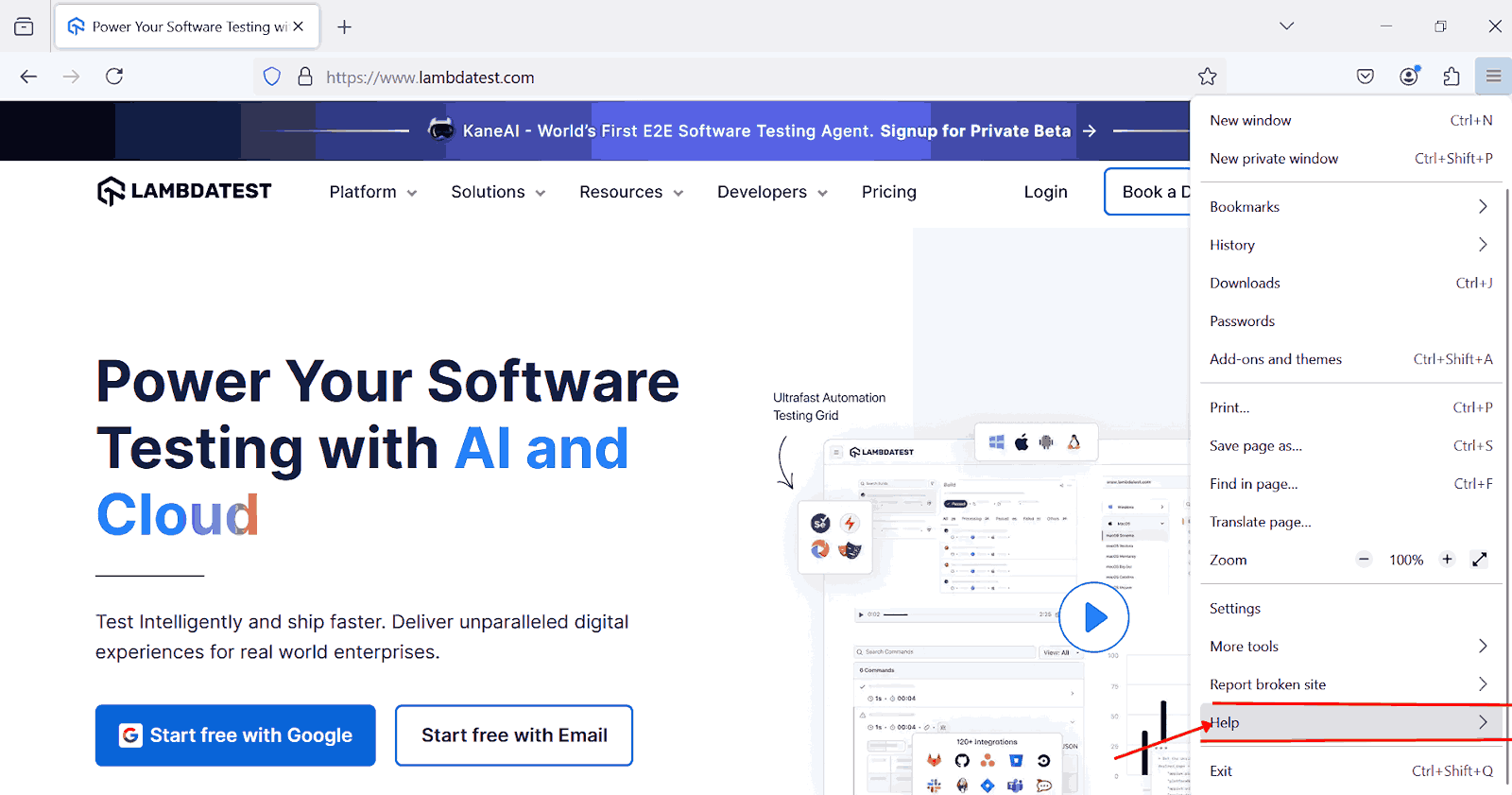
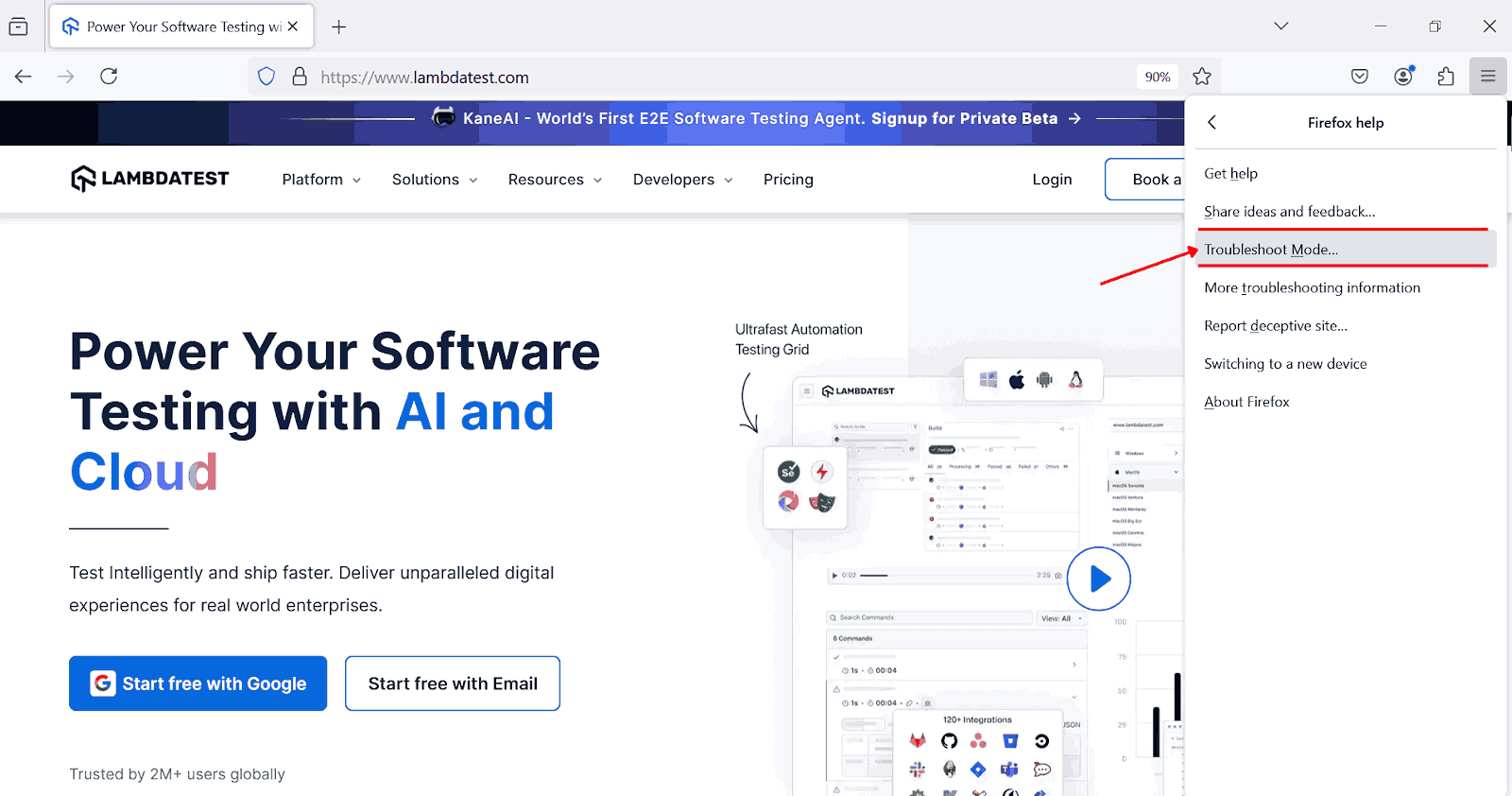
- Select Troubleshoot Mode (previously called Safe Mode).
- A confirmation dialog will appear. Click Restart. Firefox will restart in Troubleshoot Mode, temporarily disabling your extensions, themes, and custom settings.
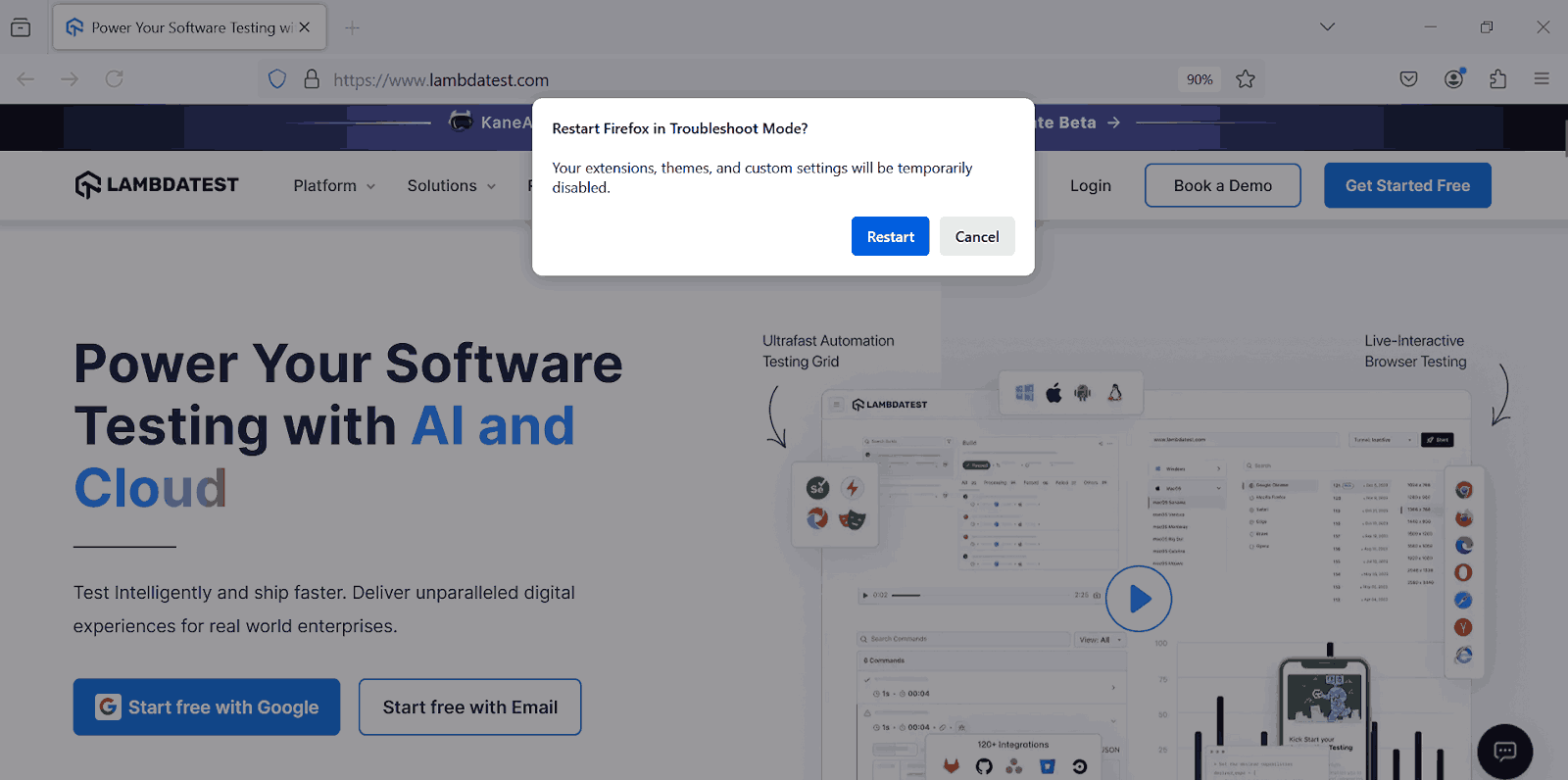
If the problem disappears in Troubleshoot Mode, an extension or theme is the cause. Disable add-ons one by one to identify the culprit. If the issue persists, move on to clearing the cache.
Steps to Refresh Firefox Browser by Clearing Cache
Clearing the browser cache forces Firefox to load fresh content from the server, resolving issues caused by outdated or corrupted files. For a full walkthrough, see our dedicated guide on clearing Firefox cache.
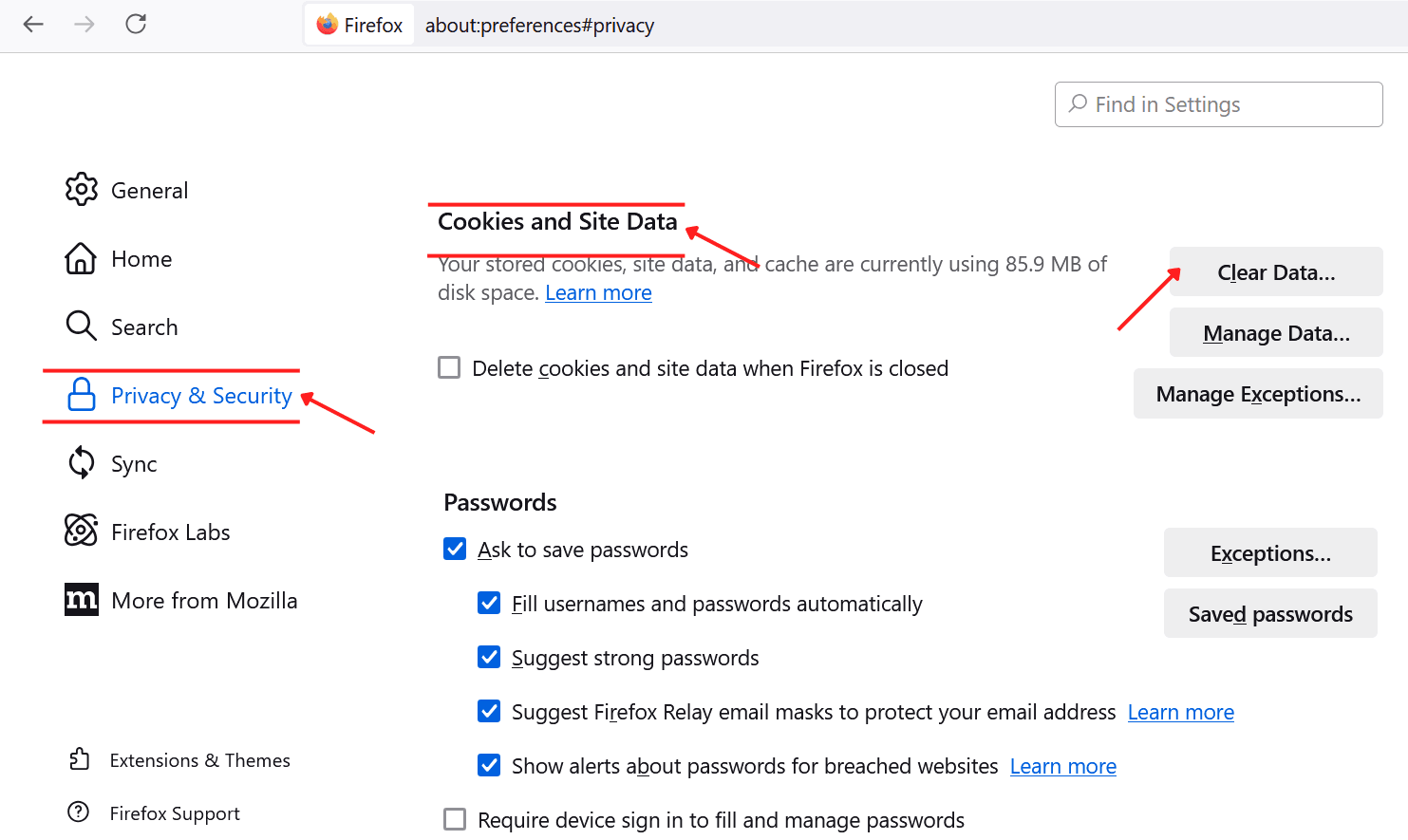
- Click the menu button and select Settings.
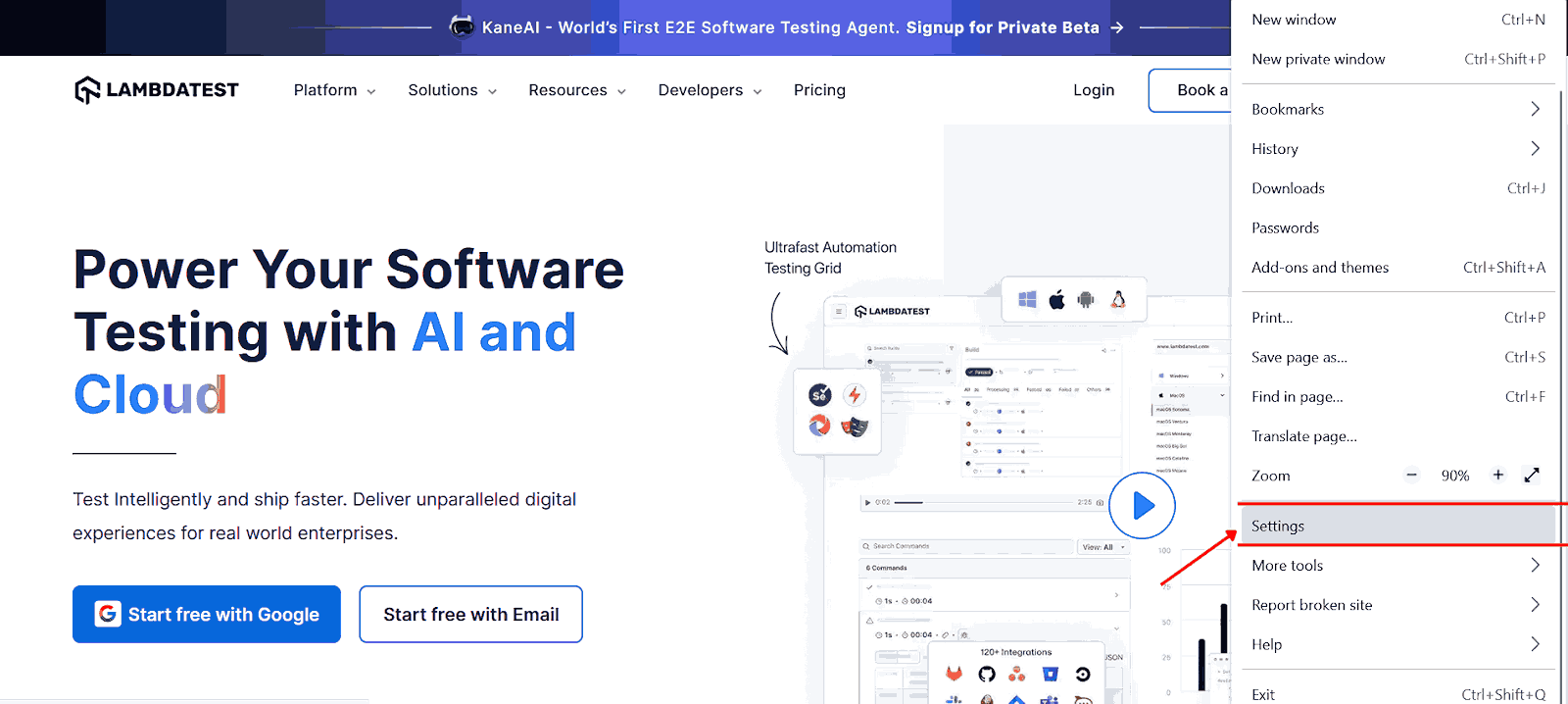
- In the left menu, click Privacy & Security, then under Cookies and Site Data, click Clear Data.
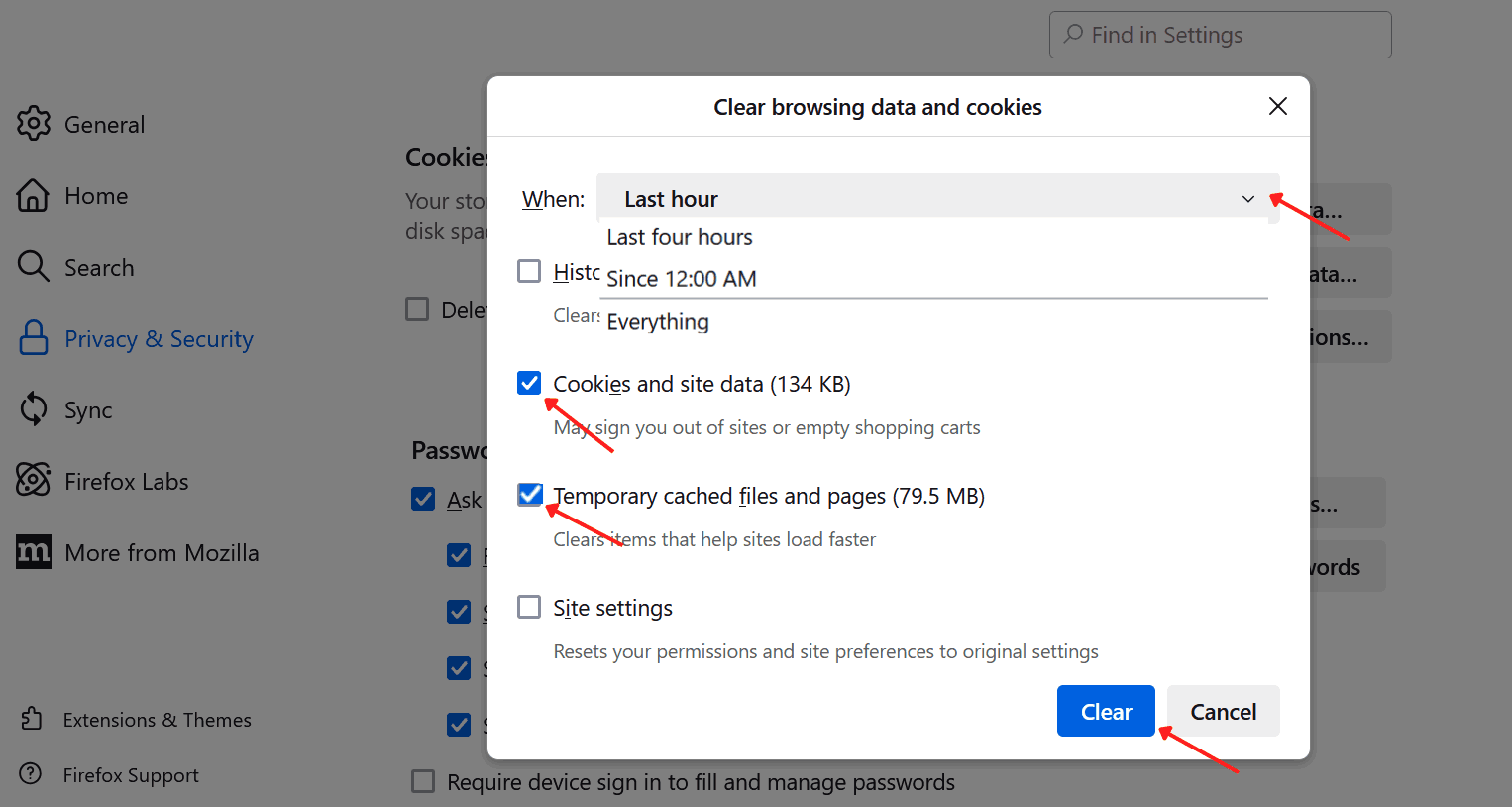
- Select Cookies and Site Data (this may sign you out of websites or remove items from shopping carts) and Temporary cached files and pages (helps resolve website loading issues). At the top, choose a time range (e.g., "Last hour," "Last four hours," or "Everything") to specify the amount of data to clear. Click Clear to complete.
- Shortcut: Press Ctrl + Shift + Delete (Windows/Linux) or Command + Shift + Delete (Mac) to open the Clear Browsing Data window directly.

Note: Test your web page on the latest to legacy Firefox browser versions with TestMu AI. Try TestMu AI free!
Steps to Refresh Firefox Browser by Restarting the Browser
A browser restart clears temporary session data without touching saved settings. It is the right choice when Firefox feels sluggish after extended use. Steps to restart the latest Firefox version:
- After a pending update: If Firefox has downloaded an update, type about:restartrequired in the address bar and press Enter. Firefox will show a page with a Restart to Update Firefox button.
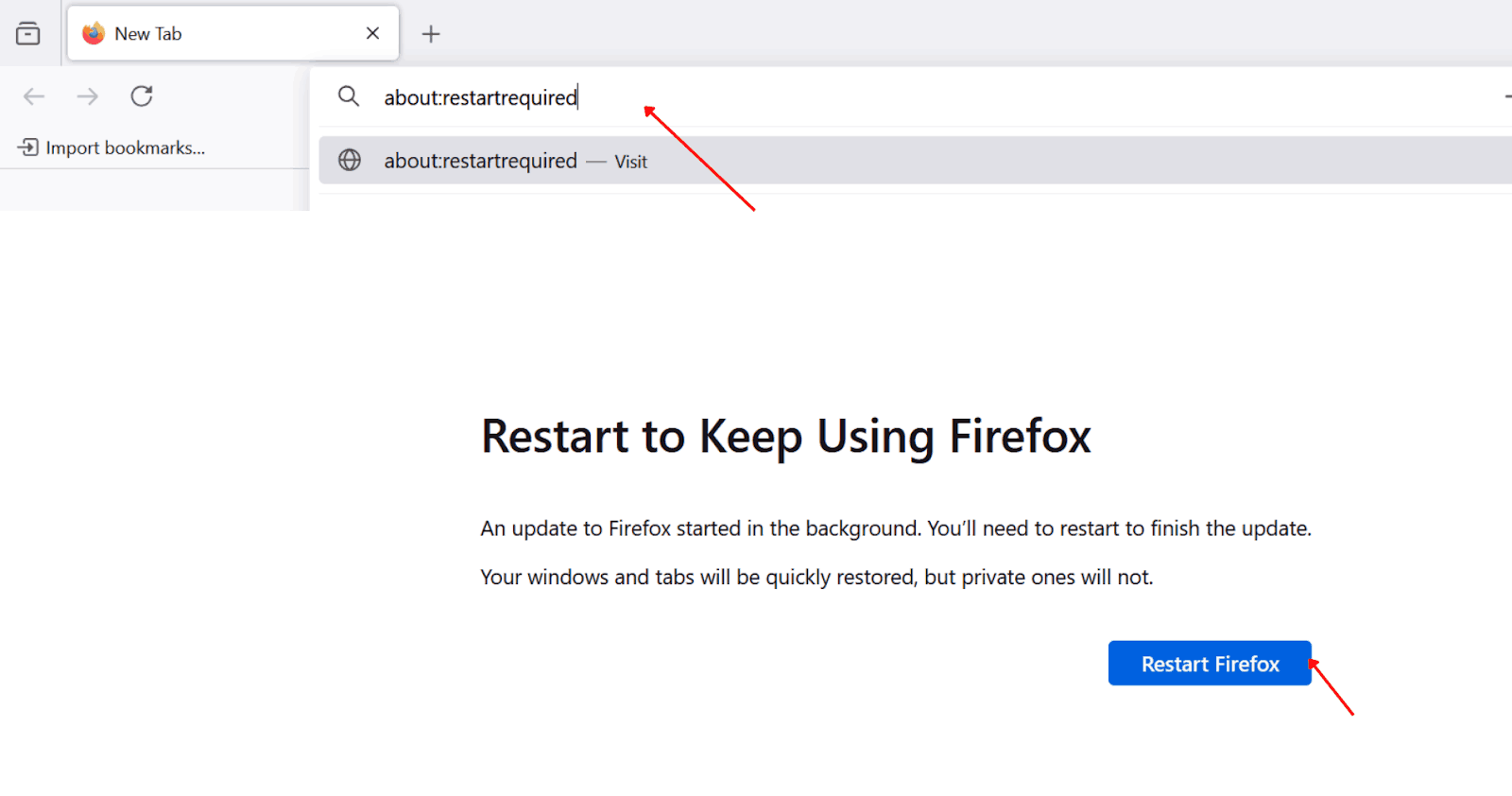
- General restart: Close the browser by clicking the "X" and relaunch Firefox from your desktop or taskbar.

Steps to Refresh Firefox Browser by Resetting to Default Settings
Resetting Firefox removes problematic add-ons, custom preferences, and corrupted settings while preserving bookmarks, passwords, and browsing history.
Use this when persistent issues survive a restart and cache clear. If you plan to update Firefox at the same time, complete the update first, then reset.
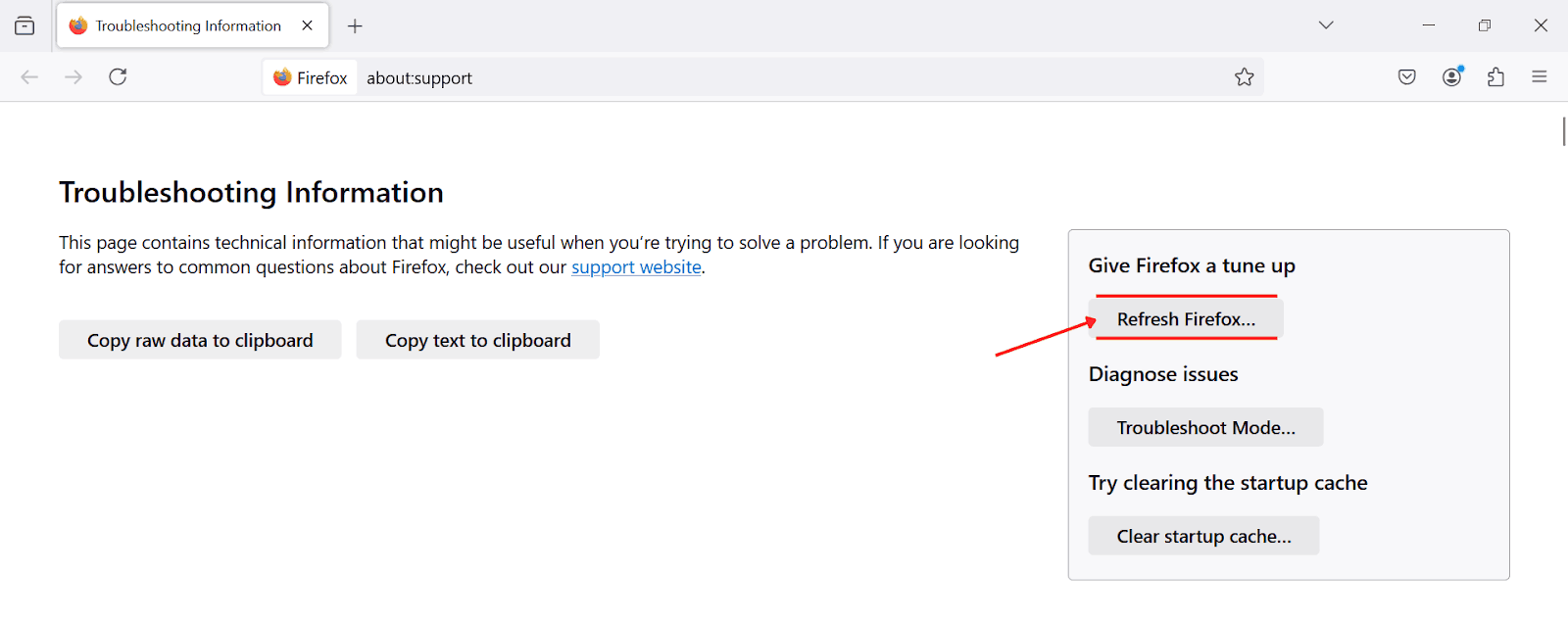
- Click Help and select More troubleshooting information.
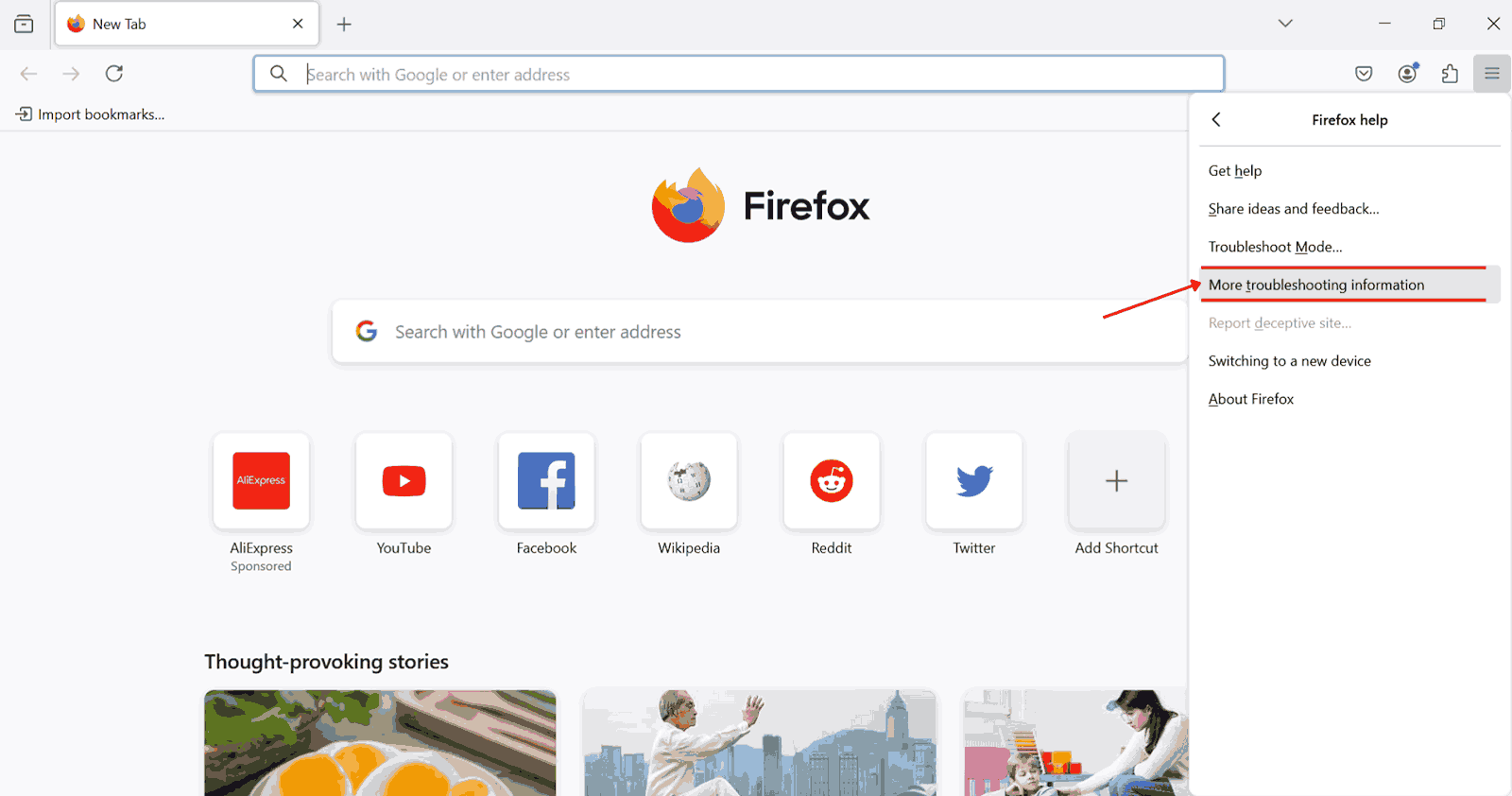
- Select Refresh Firefox in the right panel and confirm.
- In the pop-up, click the Refresh Firefox button to proceed with resetting Firefox to its default settings.
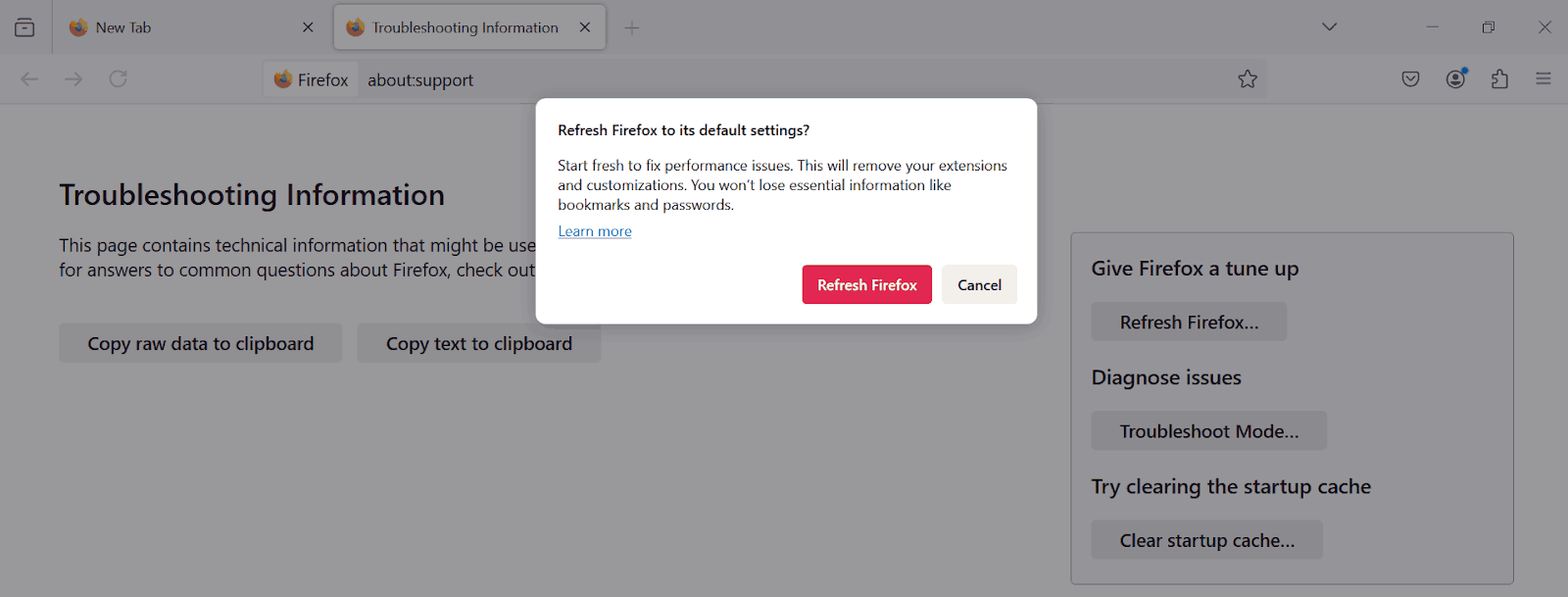
Tip: Firefox creates an "Old Firefox Data" folder on your desktop after the reset, preserving the removed profile data so you can recover anything you need.
Steps to Refresh Firefox Browser by Enabling Auto Refresh
Auto-refresh is useful when you need a web page to reload periodically for live updates, such as monitoring dashboards or live scores. Firefox does not have a built-in auto-refresh feature, but extensions fill this gap reliably.
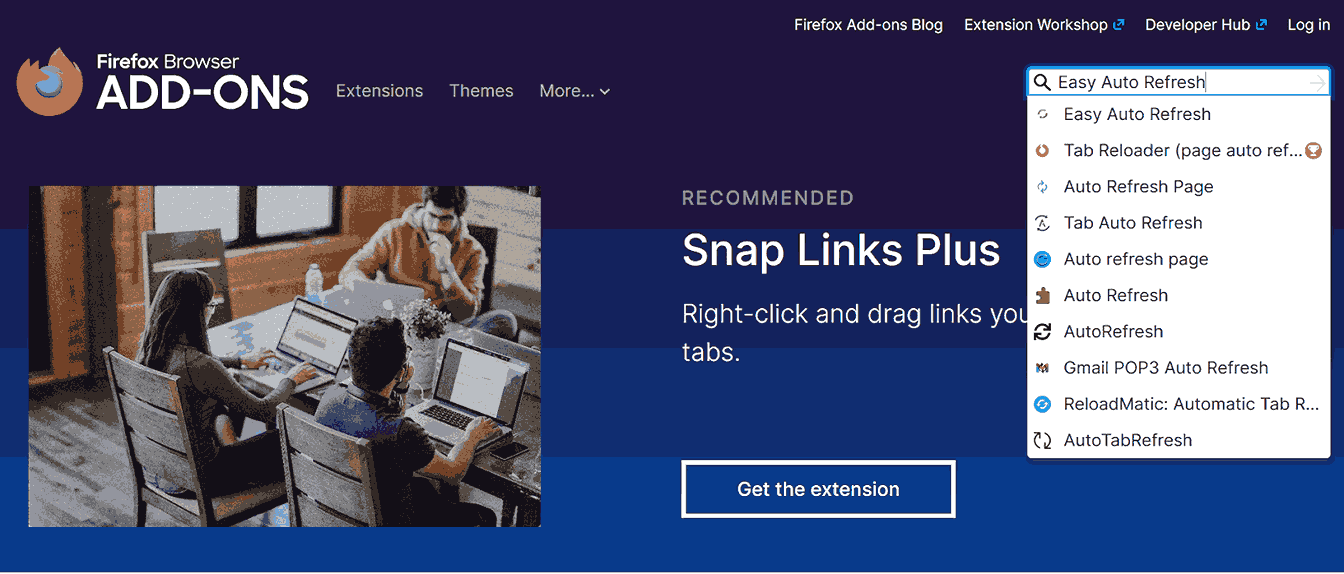
- Search for "Easy Auto Refresh" or similar extensions in the Firefox Add-ons Store.
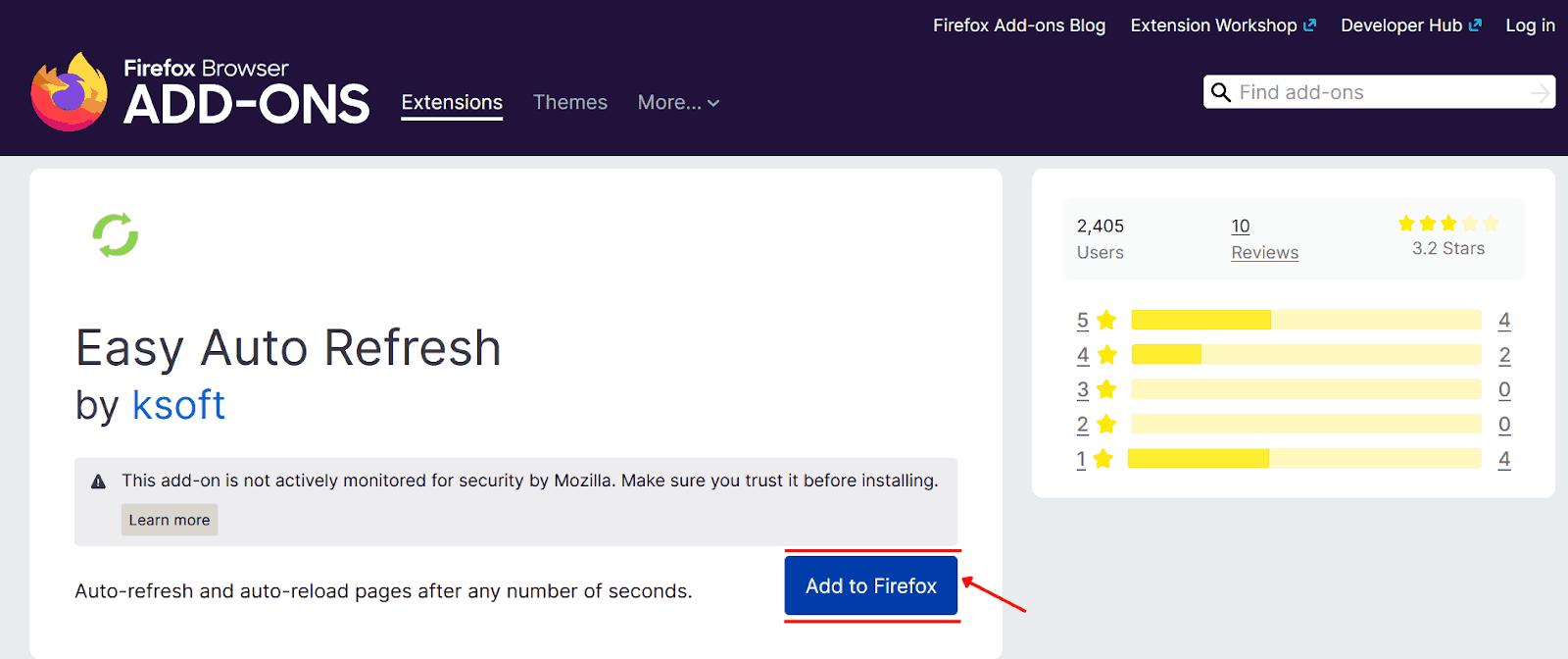
- On the extension's page, click Add to Firefox to complete the installation.
- Once installed, click the extension icon in the Firefox toolbar, enter your desired refresh interval (e.g., 30 seconds or 5 minutes), and click Start. The extension will automatically reload the active tab at that interval until you click Stop.
Which Method Should You Use?
After working through all six methods, the choice usually comes down to what triggered the problem in the first place. Here is a quick decision guide:
- Page showing outdated content or a broken layout: Start with a hard refresh (Ctrl + F5 on Windows, Command + Shift + R on Mac). This fixes the majority of everyday display issues and takes two seconds.
- Page behaves unexpectedly and you have extensions installed: Go straight to Troubleshoot Mode. If the problem disappears there, an add-on is the culprit.
- Display issues persist even after a hard refresh: Clear the cache. Cached files can become corrupted in ways a hard refresh alone will not fix.
- Firefox feels sluggish after hours of use: Restart the browser. A fresh launch frees up session memory without touching any of your settings.
- Problems survive a restart and cache clear: Reset to default settings. This is the most thorough fix available short of reinstalling Firefox, and it keeps your bookmarks and passwords intact.
- Need a page to update on its own at a set interval: Install Easy Auto Refresh. Firefox has no built-in auto-reload, so an extension is the only reliable option.
In practice, a hard refresh handles most situations. The reset is a last resort, but when it is needed, nothing else comes close.
Conclusion
Start with the simplest fix: press Ctrl + R for a standard reload or Ctrl + F5 for a hard refresh that bypasses the cache. If the problem persists, try Troubleshoot Mode to rule out add-on conflicts, then clear your cache.
For deep-seated issues, a full reset to default settings resolves almost everything while preserving your bookmarks and passwords.
If you are a developer or QA engineer checking how your web application behaves across different Firefox versions, managing local browser installations becomes time-consuming fast.
TestMu AI's real device cloud lets you run tests on real Firefox browsers across versions without any local setup. Pair that with our Selenium WebDriver testing docs to automate your checks and cover your full cross-browser testing matrix.

Note: This article was researched and drafted with AI assistance, then reviewed, fact-checked, and published by Bhavya Hada, Community Contributor at TestMu AI, whose listed expertise includes Software Testing and Web Development. Every statistic, link, and product claim was verified against primary sources. Read our editorial process and AI use policy for details.
Author

Bhavya Hada
Blogs: 28


Bhavya Hada is a Community Contributor at TestMu AI with over three years of experience in software testing and quality assurance. She has authored 20+ articles on software testing, test automation, QA, and other tech topics. She holds certifications in Automation Testing, KaneAI, Selenium, Appium, Playwright, and Cypress. At TestMu AI, Bhavya leads marketing initiatives around AI-driven test automation and develops technical content across blogs, social media, newsletters, and community forums. On LinkedIn, she is followed by 4,000+ QA engineers, testers, and tech professionals.
Reviewer

Isha Vyas
Reviewer
Isha Vyas is a Lead Member of Technical Staff at TestMu AI (formerly LambdaTest), building the frontend of the quality engineering platform. She works across React.js, responsive web design, and jQuery to ship and maintain the platform's user-facing web interfaces. She brings nearly seven years of frontend engineering experience at the company, with earlier work as a Software Developer at Mantra Labs. Isha holds a B.Tech in Computer Science from Swami Keshwanand Institute of Technology, Management and Gramothan, Jaipur.


Refresh Firefox Browser FAQs
Did you find this page helpful?
More Related Blogs
TestMu AI forEnterprise
Get access to solutions built on Enterprise
grade security, privacy, & compliance
- Advanced access controls
- Advanced data retention rules
- Advanced Local Testing
- Premium Support options
- Early access to beta features
- Private Slack Channel
- Unlimited Manual Accessibility DevTools Tests