

Next-Gen App & Browser Testing Cloud
Trusted by 2 Mn+ QAs & Devs to accelerate their release cycles


How to Fix NoSuchElementException in Selenium
NoSuchElementException is one of the most common exceptions in Selenium, which occurs when an element is not found on the page. This blog post discusses NoSuchElementException, why it occurs, and how to fix NoSuchElementException in Selenium with Java.

Vipul Gupta
February 16, 2026
Dynamic websites have become prevalent in today’s digital world. They introduce many challenges related to digital experiences, such as the dynamic loading of pages and WebElements. The dynamic loading of web pages and elements has become a significant concern.
These elements load asynchronously and at differing rates, often posing formidable challenges for automation engineers. The complexity of managing these slow-loading elements can turn into a recurring issue. The intermittently slow loading times can lead to test case failures, rendering automation scripts unreliable and flaky.
One of the top contributors to these failures is the NoSuchElementException. This exception is raised when an element cannot be found in the DOM while working with Selenium for writing automation for lazy loading websites on which all the elements are not loaded instantly. Dealing with NoSuchElementException is challenging as it’s an Unchecked Exception, necessitating graceful in-code handling due to its inability to be declared in a method’s throws clause.
In this blog, we will dive deep into the NoSuchElementException in Selenium and understand the reasons for its occurrence. By the end of this blog, you will have a better understanding of how to handle NoSuchElementException in Selenium Java and improve the reliability of automated test cases on dynamic websites. If you are preparing for an interview you can learn more through Selenium interview questions.
Overview
Why Does Selenium Throw a NoSuchElementException?
A NoSuchElementException occurs when Selenium fails to locate an element on a webpage. This usually happens if the element is missing, not yet rendered, or the locator used is incorrect. Handling this requires verifying locators and optionally using waits to ensure elements are accessible before interacting with them.
What Are the Common Causes of NoSuchElementException in Selenium?
Common causes of NoSuchElementException include incorrect locators, slow-loading elements, elements inside iFrames, or changes in webpage structure.
- Invalid WebElement Locators: Incorrect or ambiguous locators prevent Selenium from accurately identifying the required element on the page.
- Slow Loading WebElements: Elements may load after the script runs, requiring explicit or implicit waits for reliable access.
- iFrame Issues: Elements inside iFrames need switching the driver’s context; otherwise, they remain inaccessible to Selenium.
- Changes on the Web Page: Website updates can alter element paths, causing previously valid locators to fail and trigger exceptions.
What Are the Reasons for NoSuchElementException in Selenium?
Managing NoSuchElementException ensures that your automation scripts run consistently and avoid unexpected failures during test execution.
- Check if the Element Exists and is Displayed: Always verify that a web element is present and visible before interacting with it to avoid test failures.
- Use Waits: Implement waits to let Selenium pause until the element loads completely, preventing errors from slow-loading web components.
- Use More Robust Locators: Prefer relative XPaths, unique IDs, or name attributes, as these remain consistent despite minor page structure changes.
- Use Try..Catch Blocks: Wrap element interactions in try-catch blocks to gracefully handle exceptions and maintain smooth script execution flow.
- Switch to Frames and iFrames: Check if elements reside inside frames or iFrames, and switch driver focus before interacting, returning afterward to default content.
How to Fix NoSuchElementException in Selenium
To handle NoSuchElementException, we create a Java project using Maven and TestNG, adding Selenium dependencies for automation testing. You can use a cloud Selenium Grid like TestMu AI to run tests reliably across multiple browsers and devices.
- Setup Project: Create a Maven project, add Selenium and TestNG dependencies in pom.xml, and configure the IDE of your choice.
- Initialize WebDriver: Create a RemoteWebDriver instance and set browser options using ChromeOptions or SafariOptions as required.
- Configure Test Environment: Use TestMu AI credentials or environment variables to connect the WebDriver to the cloud Selenium Grid.
- Add Test Cases: Create a Java class TestSeleniumNoSuchElementException.java and write tests to simulate scenarios causing NoSuchElementException.
- Handle Exception with Try-Catch: Wrap WebElement interactions in a try-catch block to gracefully handle NoSuchElementException and continue execution.
- Handle Slow Loading Elements: Use WebDriverWait to wait until the element is present before interacting, preventing timing-related exceptions.
- Handle iFrames: Switch to the required iFrame using driver.switchTo().frame() before interacting with elements inside frames, then return to default content.
- Tear Down: After tests, close the session using driver.quit() to release resources on the cloud Selenium Grid.
What is a NoSuchElementException?
NoSuchElementException is one of the most common exceptions in Selenium, which occurs when an element is not found on the page. It indicates that the code could not locate and interact with a particular element on the page.
In Selenium automation tests, NoSuchElementException is thrown by WebDriver.findElement() and WebDriver.findElements() methods. It is derived from NotFoundException. You can learn more about it through this blog on findElement() and findElements() methods in Selenium.
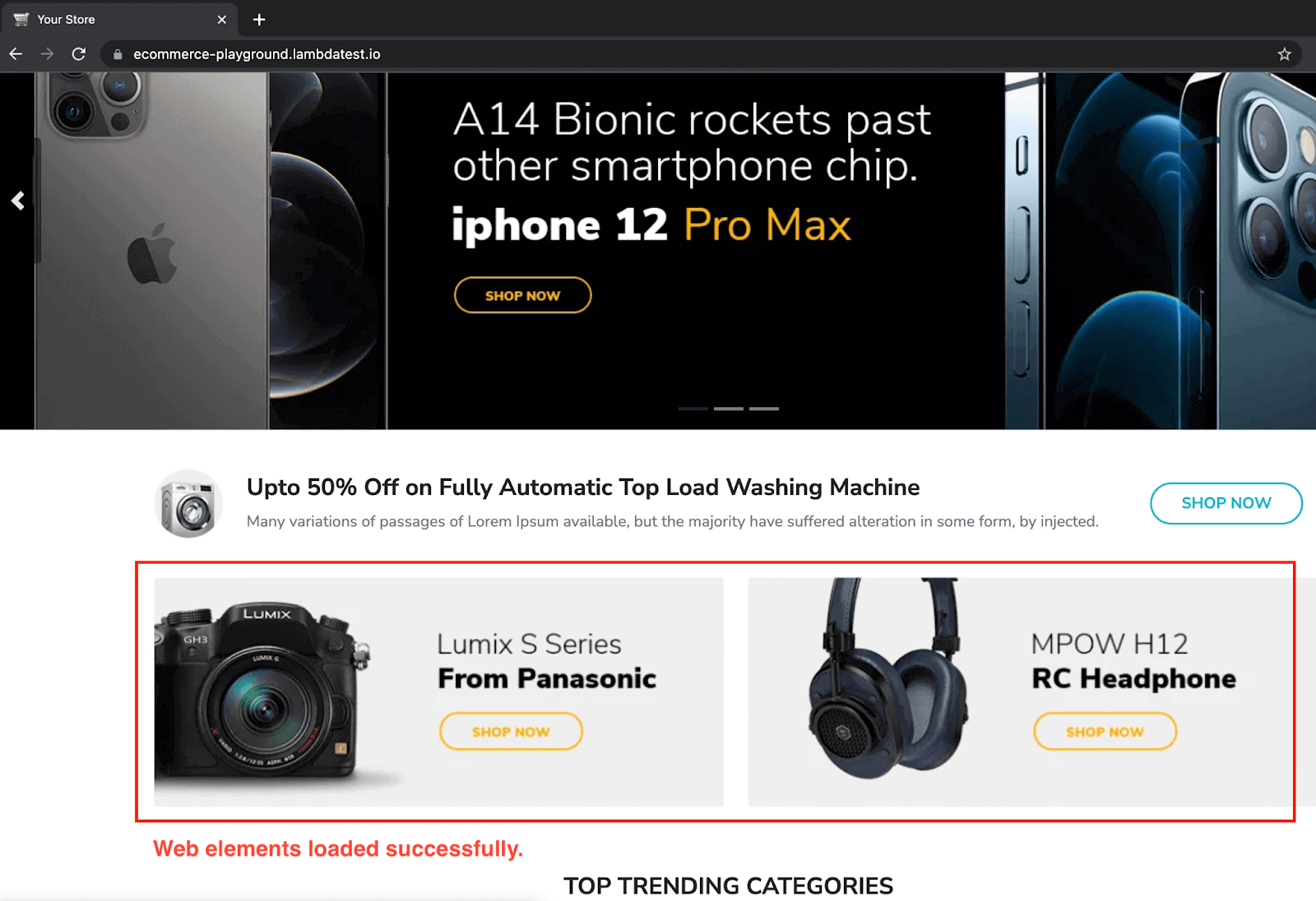
For example, if you navigate to the TestMu AI eCommerce Playground, you can notice that a few elements are loaded dynamically, and the page looks like this.
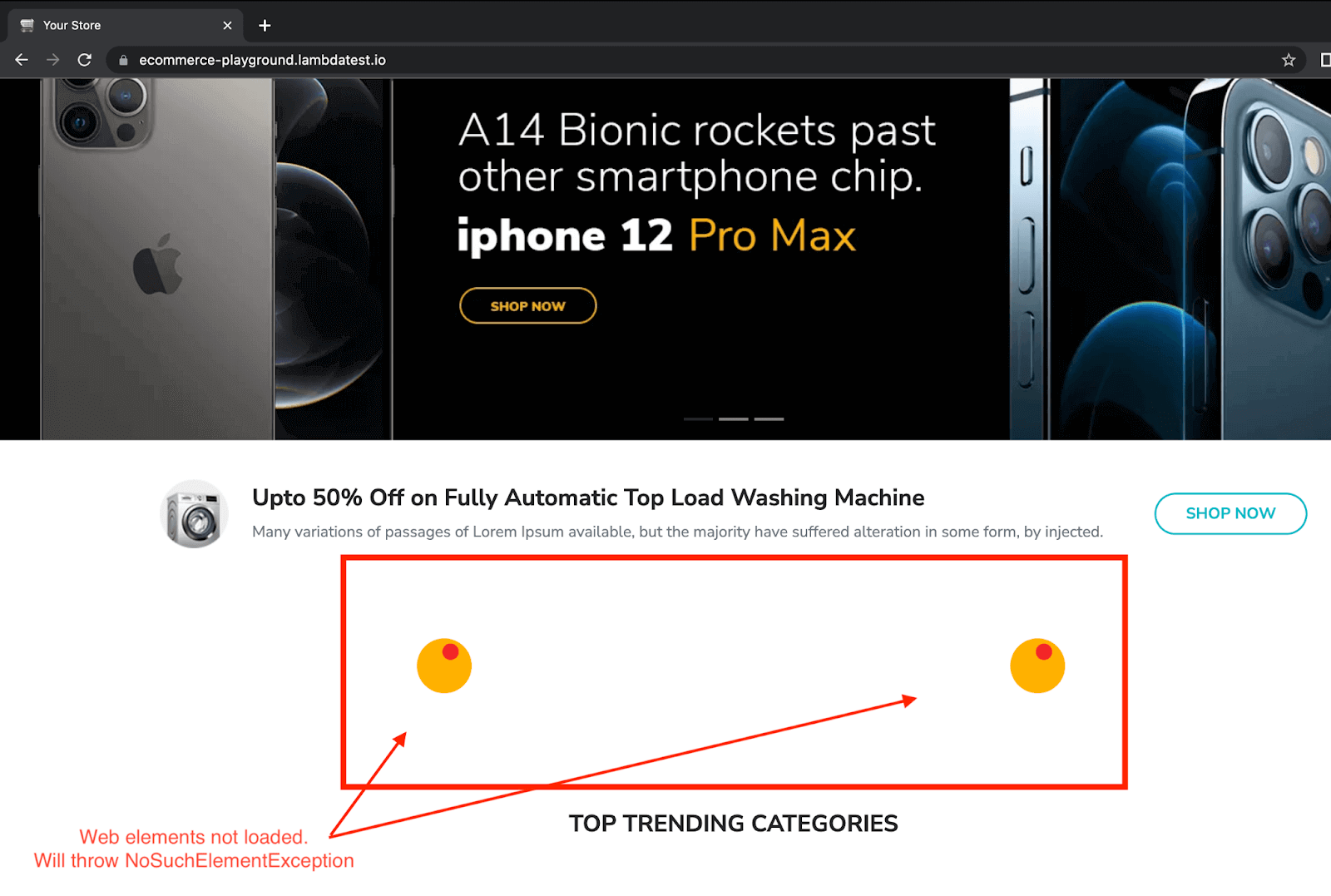
At this point, if WebDriver in the Selenium automation code tries to interact with one of the dynamic elements, it throws a NoSuchElementException. So, we should wait for these slow-loading elements to be available first and then proceed further.

Note: Run your Selenium Java tests on the cloud. Try TestMu AI Today!
Reasons for NoSuchElementException in Selenium
A NoSuchElementException can occur due to failure in locating or interacting with a WebElement on a web page while working with Selenium automation scripts due to the reasons listed below:
Invalid WebElement Locators
Incorrect or wrongly written WebElement locators make for the most number of NoSuchElementException(s). The WebElement locator given could be wrong or, at times, too broad that it references multiple elements.

In the screenshot above, the locator is correct, but it references 57 WebElements on the page, which could lead to NoSuchElementException when executing the tests.
Slow Loading WebElements
Selenium tests are considerably faster when executed in good network conditions. This causes elements to be absent when the automation script tries to act on them.
This can be resolved using waits such as Implicit waits and Explicit waits. We will be covering the same in the subsequent sections of the blog.
iFrame Issues
Many times, the WebElement is present inside another Frame (or iFrame). Selenium script needs to switch to the frame to interact with the WebElement; otherwise, it will result in NoSuchElementException.
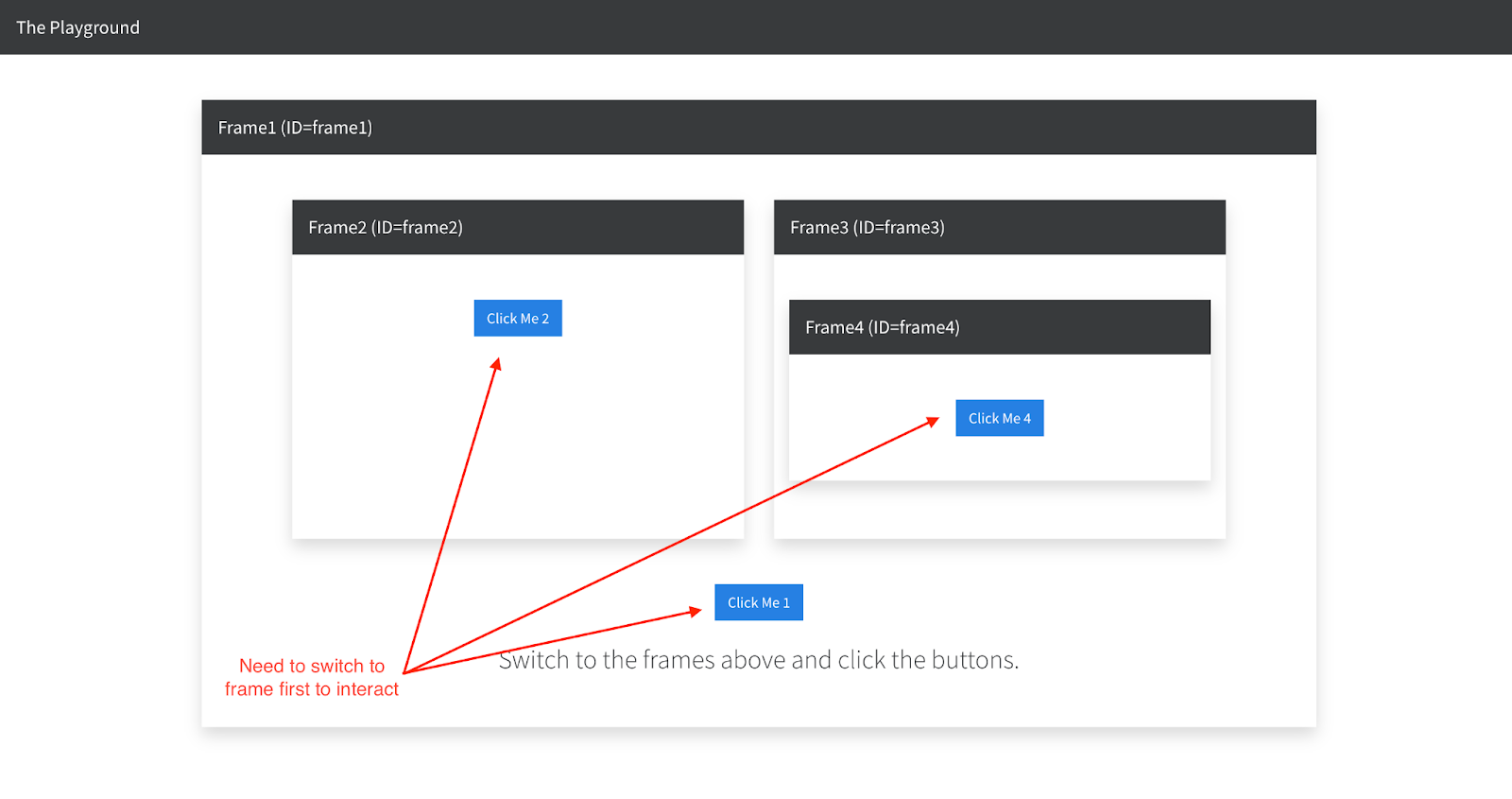
Design changes on the web page
Website designs tend to be revamped regularly after the releases. This is mostly done to add new features and improve user experience and accessibility. Due to this HTML, the structure is impacted the most, and many WebElements could get a new reference path on the webpage or become obsolete in some cases. This leads to NoSuchElementException when the automation script still references the WebElement with old locators.
Best Practices to fix NoSuchElementException in Selenium
Handling NoSuchElementException is important because it helps to make the test scripts more reliable and robust and also prevents them from failing intermittently due to the unavailability of the WebElement.
Check if the element exists and is displayed
Before directly interacting with the element, always make sure it is present on the page and is displayed. For this use, findElementBy() and isDisplayed() functions are provided by Selenium WebDriver.
- findElementBy() returns the object of the first matching WebElement of the given element locator on the webpage.
- isDisplayed() method of Selenium returns true if a certain WebElement is present and displayed on the webpage. If not, it returns false.
Use waits
Using waits is one of the most commonly used ways to prevent NoSuchElementException from occurring in case of slow-loading WebElements and pages. Waits help to make WebDriver wait for the presence of the element or for the page to be loaded before interacting with the element.
Selenium WebDriver provides support for Implicit and Explicit waits. Implicit waits means to set a wait time for an element to be loaded and is implemented to all the elements in the automation script. Explicit waits, the recommended approach, allow waiting for a specific element to prevent unnecessary execution time and NoSuchElementException. WebDriverWait has been used in the demonstration section to showcase this better.
Use more robust locators
Always use relative XPath locators compared to absolute ones. This is because relative XPaths are less susceptible to changes when page structure gets modified and thus reduces the chances of exception.
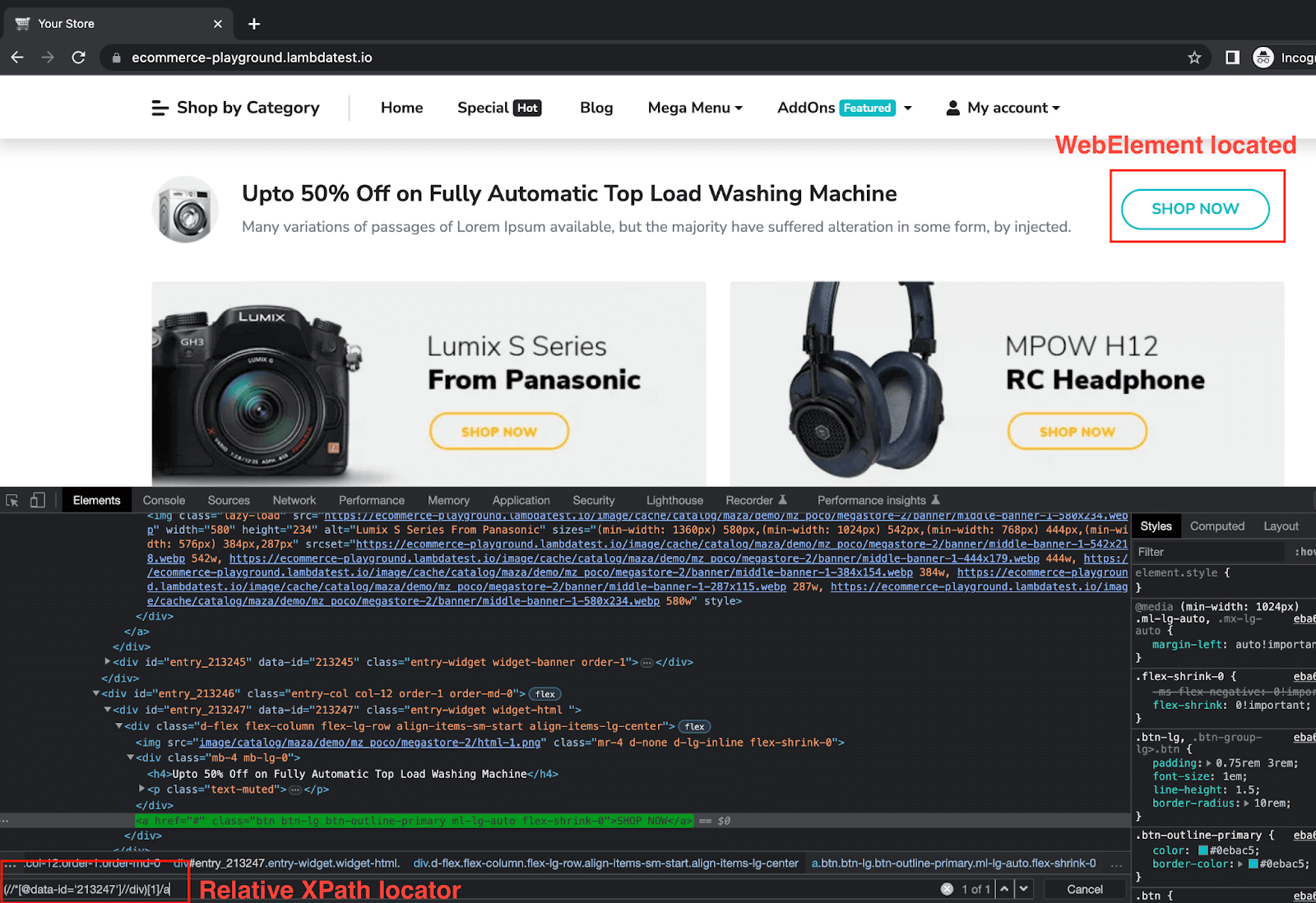
In addition, you must try and use unique locators like ID or Name or a combination of both. These tend to remain the same for the WebElements. This prevents rework in case of cosmetic changes to handle the NoSuchElementException.
If these approaches are not suitable and your page content is highly dynamic, try to use a dynamic locator like xpath[contains(text(),’text’)] to locate the element using text reference, which won’t change.
Use try..catch blocks
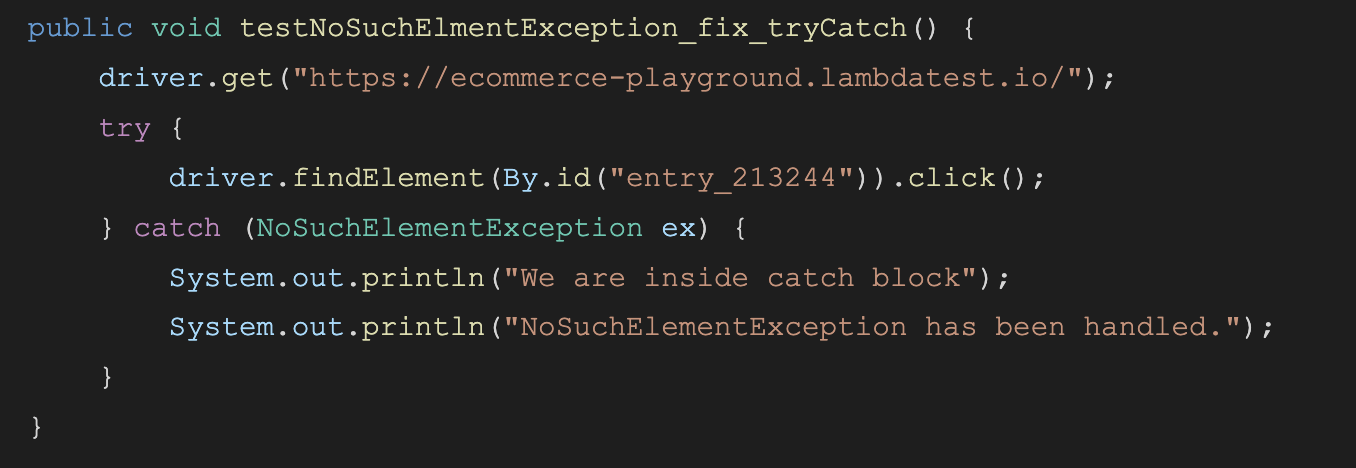
Wrap your code inside a try-catch block. This helps to catch the NoSuchElementException if it occurs and lets the code continue without making it stop abruptly. For this, add the automation code to fetch the WebElement and perform an action on it inside the try block. Then, add a catch block to catch the exception if it occurs and perform any required actions. This helps the code to gracefully handle an exception and prevent it from behaving abruptly.
Switch to Frames and iFrames
Always check if the element is present inside a frame. If yes, use the driver method switchTo() to change driver control to the required frame first and then interact with the WebElement. Once the action is completed, remember to switch the driver back to the main window or the parent frame using driver.switchTo().defaultContent(). You can learn more about it through this blog on iFrames in Selenium.

Demonstration: How to fix NoSuchElementException in Selenium?
To demonstrate the possible ways to fix and handle NoSuchElementException in Selenium, we will create a Java project with Maven and TestNG.
In this blog, Eclipse IDE has been used for demonstration purposes. You can choose any IDE of your choice. The implementation remains the same on all of them till a Maven project is created.
As we are working with the Selenium web automation script, we need to add Selenium dependency along with TestNG, which will be used for test execution to the pom.xml of the project.
Once the project is created and dependencies are added, the final pom.xml will be like the one below.
<project xmlns="http://maven.apache.org/POM/4.0.0"
   xmlns:xsi="http://www.w3.org/2001/XMLSchema-instance"
   xsi:schemaLocation="http://maven.apache.org/POM/4.0.0 https://maven.apache.org/xsd/maven-4.0.0.xsd">
   <modelVersion>4.0.0</modelVersion>
   <groupId>NoSuchElementException</groupId>
   <artifactId>NoSuchElementException</artifactId>
   <version>0.0.1-SNAPSHOT</version>
   <build>
       <sourceDirectory>src</sourceDirectory>
       <plugins>
           <plugin>
               <artifactId>maven-compiler-plugin</artifactId>
               <version>3.8.1</version>
               <configuration>
                   <release>19</release>
               </configuration>
           </plugin>
       </plugins>
   </build>
   <dependencies>
       <dependency>
           <groupId>org.seleniumhq.selenium</groupId>
           <artifactId>selenium-java</artifactId>
           <version>4.8.0</version>
       </dependency>
       <dependency>
           <groupId>org.testng</groupId>
           <artifactId>testng</artifactId>
           <version>7.7.1</version>
           <scope>test</scope>
       </dependency>
   </dependencies>
</project>
Next add a new Java test file TestSeleniumNoSuchElementException.java. We will add our test cases to this to see how to fix NoSuchElementException in Selenium.
To handle NoSuchElementException in Selenium, we will use a cloud Selenium Grid like TestMu AI for Selenium Java testing.
TestMu AI is an AI-powered test orchestration and execution platform to run manual and automated tests at scale. The platform allows you to perform real-time and automation testing across 3000+ environments and real mobile devices. With parallel testing in Java automation testing on TestMu AI, you can significantly reduce the time it takes to run your tests, especially if you have a large number of tests or need to test your application across a wide range of environments.
Catch up on the latest tutorial around automated testing, Selenium testing & more. Subscribe to the TestMu AI YouTube Channel for quick updates.
After adding all the WebDriver configurations and test case examples to demonstrate the fix for NoSuchElementException, the completed file should look like this:
package test;


import java.net.*;
import java.time.Duration;
import java.util.HashMap;


import org.openqa.selenium.remote.RemoteWebDriver;
import org.testng.annotations.*;
import org.openqa.selenium.By;
import org.openqa.selenium.NoSuchElementException;
import org.openqa.selenium.chrome.ChromeOptions;
import org.openqa.selenium.support.ui.*;


public class TestSeleniumNoSuchElementException {


   public RemoteWebDriver driver = null;


   String username = System.getenv("LT_USERNAME") == null ? "<lambdatest_username>" : System.getenv("LT_USERNAME");
   String accessKey = System.getenv("LT_ACCESS_KEY") == null ? "<lambdatest_accesskey>"
           : System.getenv("LT_ACCESS_KEY");


   @BeforeTest
   public void setup() {
       try {
           ChromeOptions chromeOptions = new ChromeOptions();
           chromeOptions.setPlatformName("Windows 10");
           chromeOptions.setBrowserVersion("110.0");


           HashMap<String, Object> ltOptions = new HashMap<String, Object>();
           ltOptions.put("build", "NoSuchElementException in Selenium");
           chromeOptions.setCapability("LT:Options", ltOptions);


           driver = new RemoteWebDriver(
                   new URL("https://" + username + ":" + accessKey + "@hub.lambdatest.com/wd/hub"), chromeOptions);
       } catch (MalformedURLException e) {
           e.printStackTrace();
       }


   }


   @AfterTest
   public void tearDown() {
       driver.quit();
   }


   @Test
   public void testNoSuchElmentException() {
       driver.get("https://ecommerce-playground.lambdatest.io/");
       driver.findElement(By.id("entry_213244")).click();
   }


   @Test
   public void testNoSuchElmentException_fix_tryCatch() {
       driver.get("https://ecommerce-playground.lambdatest.io/");
       try {
           driver.findElement(By.id("entry_213244")).click();
       } catch (NoSuchElementException ex) {
           System.out.println("We are inside catch block");
           System.out.println("NoSuchElementException has been handled.");
       }
   }


   @Test
   public void testNoSuchElmentException_fix_wait() {
       driver.get("https://ecommerce-playground.lambdatest.io/");


       WebDriverWait wait = new WebDriverWait(driver, Duration.ofSeconds(5));
       wait.until(ExpectedConditions.presenceOfElementLocated(By.id("entry_213244")));


       driver.findElement(By.id("entry_213244")).click();
       System.out.println("Web element located and clicked successfully.");
   }


   @Test
   public void testNoSuchElmentException_iframe() {
       driver.get("https://play1.automationcamp.ir/frames.html");
       driver.findElement(By.id("click_me_1")).click();
   }


   @Test
   public void testNoSuchElmentException_iframe_fix() {
       driver.get("https://play1.automationcamp.ir/frames.html");


       driver.switchTo().frame("frame1");
       System.out.println("Switched to frame 1");


       driver.findElement(By.id("click_me_1")).click();
       System.out.println("Web element located and clicked successfully.");


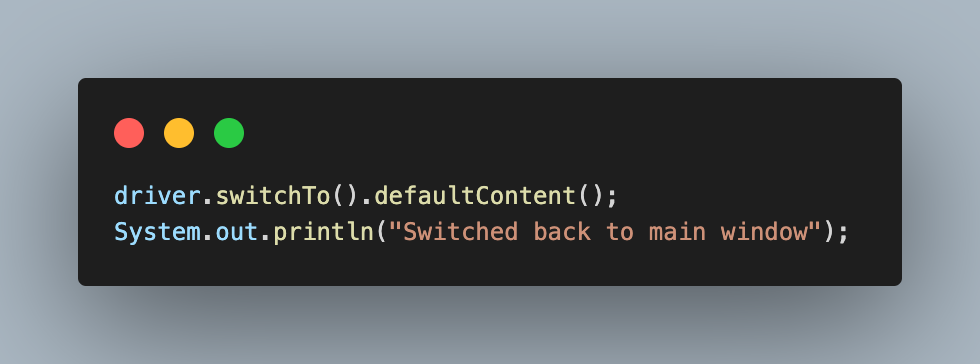
       driver.switchTo().defaultContent();
       System.out.println("Switched back to main window");
   }
}

Code Walkthrough
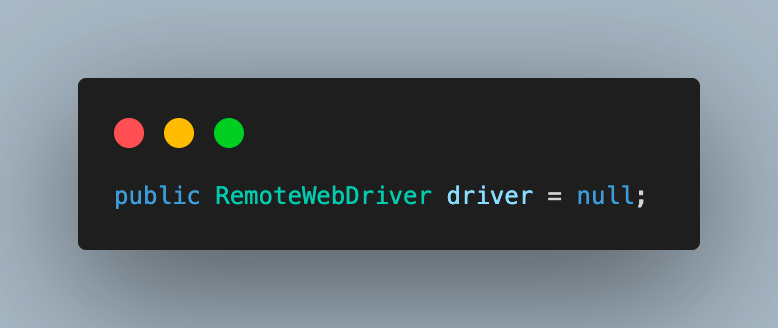
Step 1. We create an instance of RemoteWebDriver as we execute the code on the Selenium cloud Grid.
Step 2. Navigate to the TestMu AI Profile section once you create your account to fetch the username and access key. These will be used to make a connection to their cloud grid.
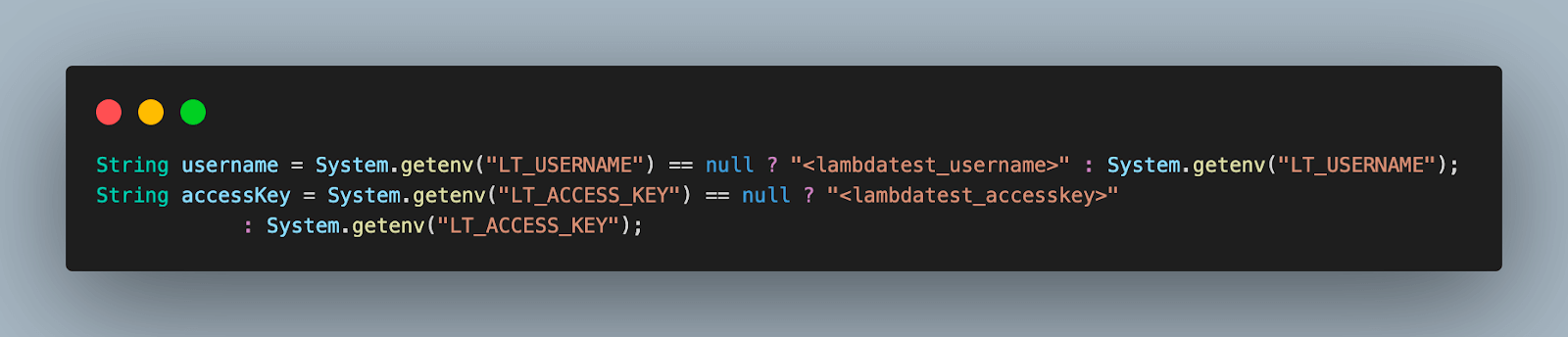
You can also configure the username and access key as environment variables using the following commands and directly fetch them in code.
For MacOS and Linux:
export LT_USERNAME=LT_USERNAME
export LT_ACCESS_KEY=LT_ACCESS_KEY
For Windows:
set LT_USERNAME=LT_USERNAME
set LT_ACCESS_KEY=LT_ACCESS_KEY
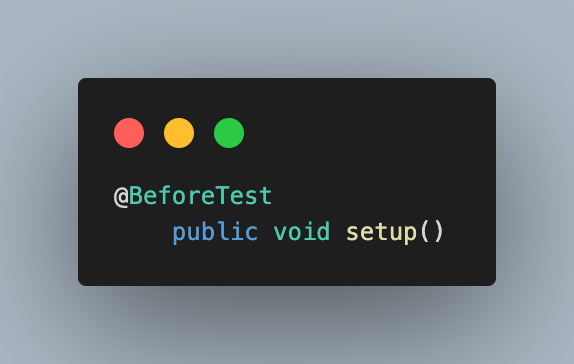
Step 3. Create a base method, name it setup(), and annotate with @BeforeTest annotation in TestNG. This method will be used for driver setup and opening the webpage before each test.
In this blog on Selenium Java, we have used Selenium 4, which supports the ChromeOptions class. In this function, an object of the same is created to define browser properties like browser version, OS version, etc. It also accepts the variables required for TestMu AI execution as a capability. These variables are used to set values like build, name, or any other browser property, which will help to identify the run on the TestMu AI Dashboard or modify behavior.
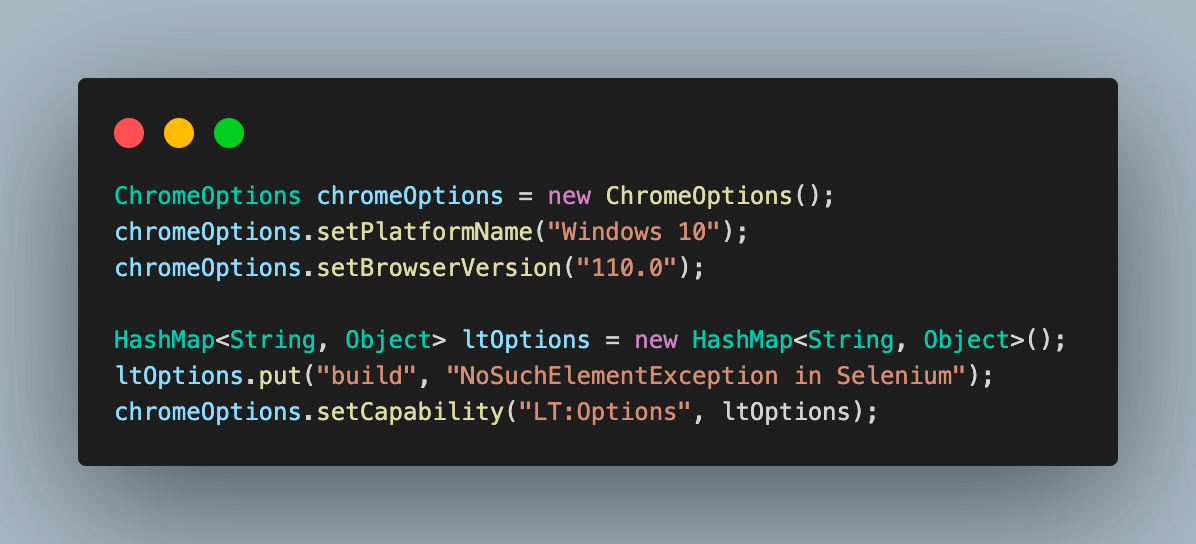
Step 4. Finally, an instance of RemoteWebDriver is created to connect to the TestMu AI cloud grid using the chromeOptions and your TestMu AI username and the access key.

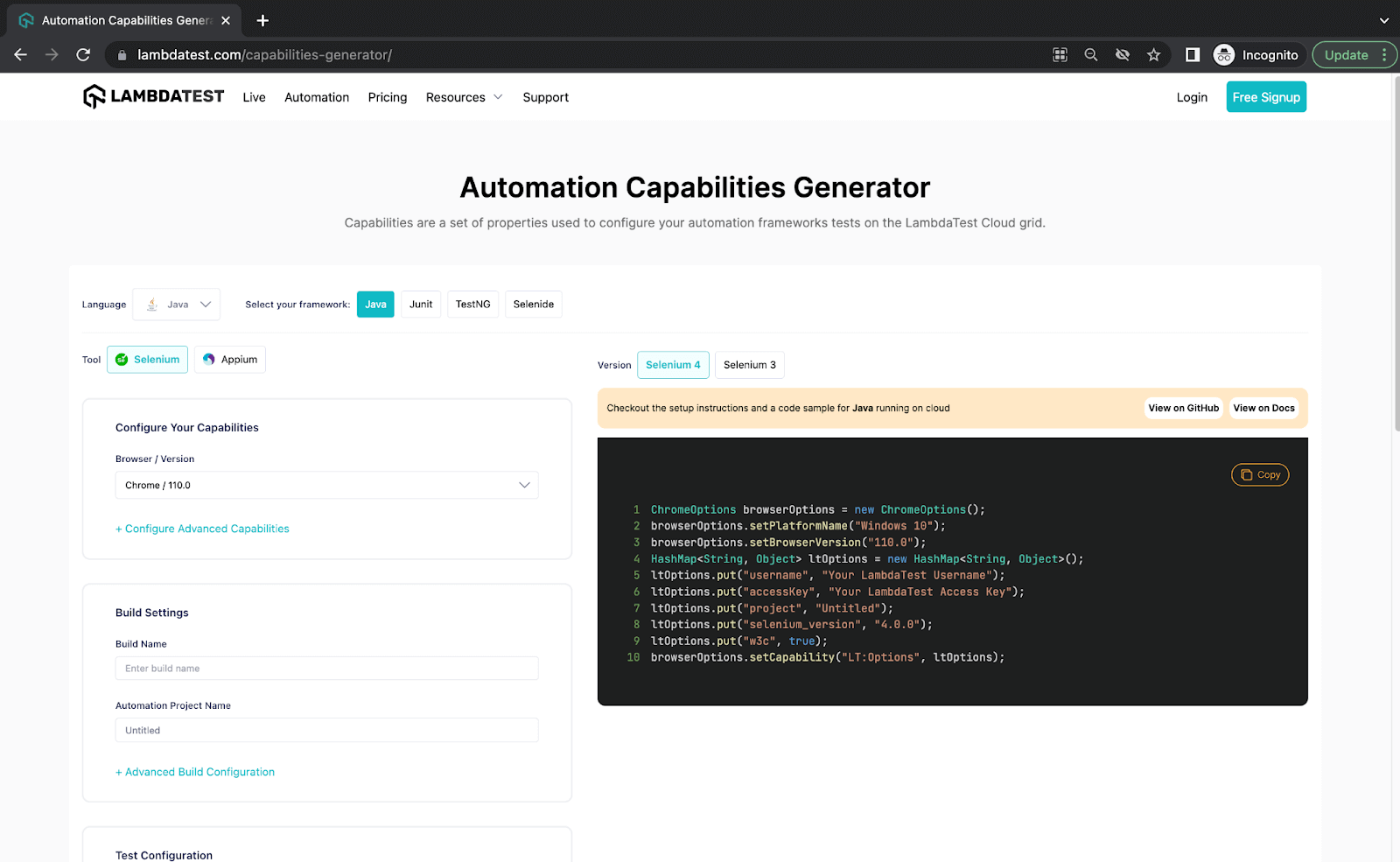
Step 5. The TestMu AI platform also contributes by offering ready-to-use code for various OS and browser combinations and numerous browser configurations. To get an instantly valid code for your automation script, go to their Automation Capabilities Generator and make the necessary setup selections.
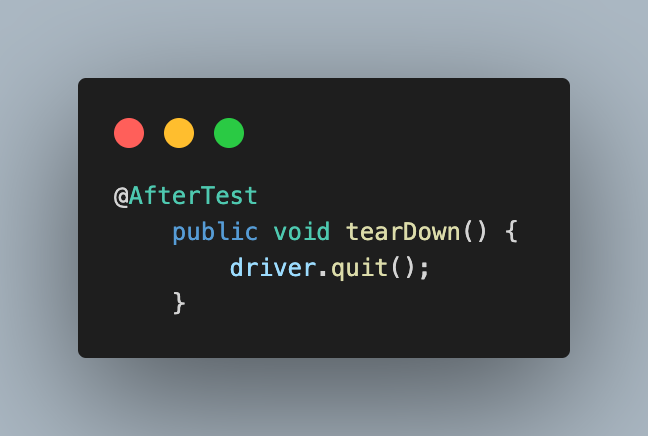
Step 6. Add a method as tearDown() and annotate it with @AfterTest annotation. This will be used to close the session after each test case.
Example: NoSuchElementException in Selenium
Add the first test case and name it testNoSuchElmentException().
In this test, we navigate to a website with a few slow loading elements. Then, we try to click on one such element and observe the results.
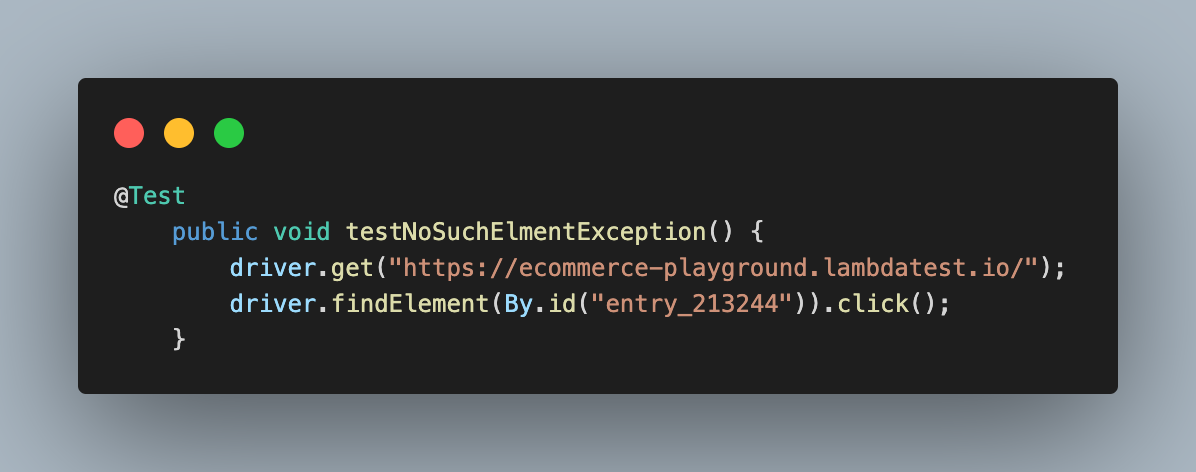
On executing this, you can observe that the test case fails with NoSuchElementException as the element is not yet available to be clicked as it is not loaded yet, and hence the element is unavailable.

Another reason could be that the passed WebElement locator is incorrect, and no element is present with that reference.
In the next examples, we see how to fix this NoSuchElementException in Selenium.
Fixing NoSuchElementException in Selenium using try-catch
As mentioned in earlier sections, one of the most popular ways to handle NoSuchElementException in Selenium is using the try-catch block.
You can enclose the WebElement interaction code within a try block and subsequently include a catch block to address any potential NoSuchElementException occurrences. Within the catch block, you can execute additional functions in alignment with your automation script’s needs.
For this, add a new test case named testNoSuchElmentException_fix_tryCatch().
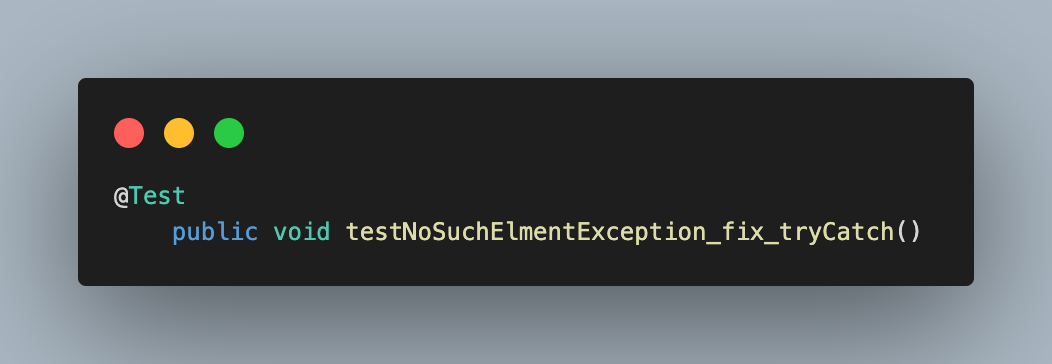
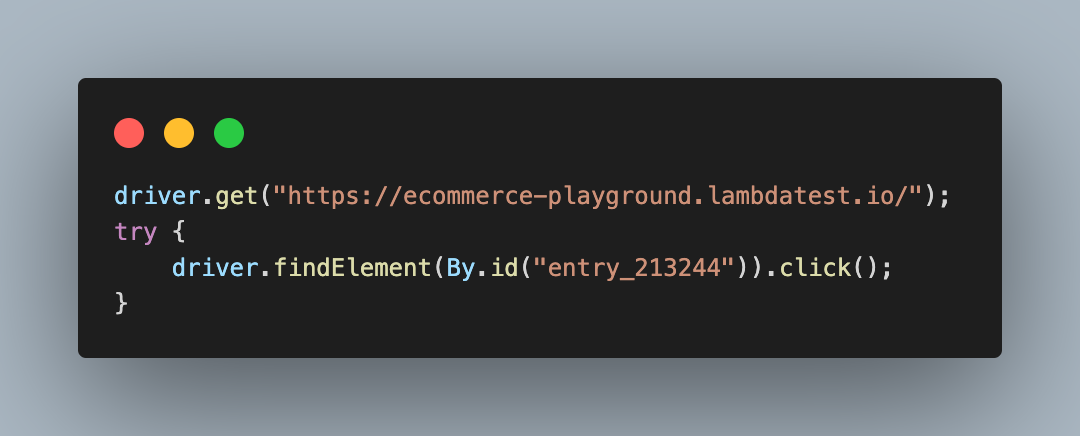
In this, we use the same code as the previous example, which raised an exception, but place that inside the try block.
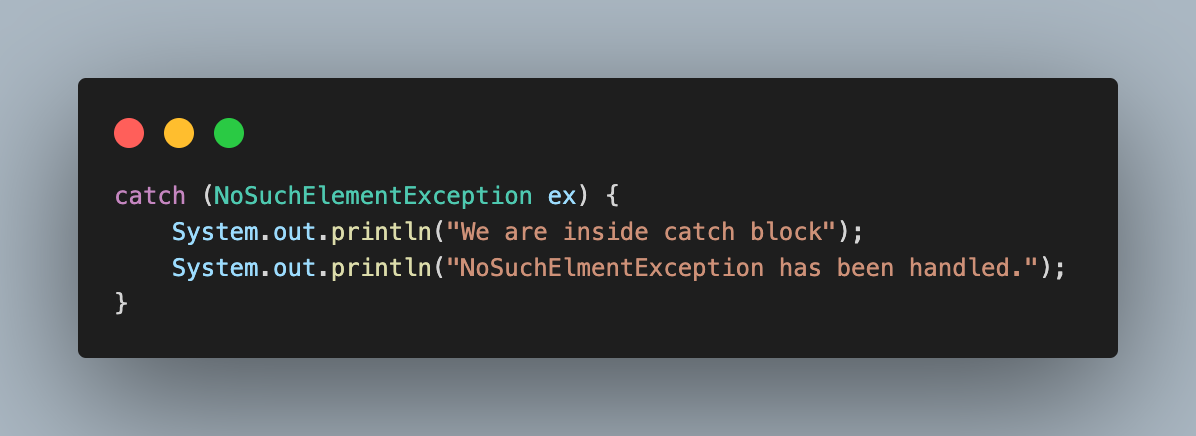
Add a catch block following this try block to catch the NoSuchElementException if it occurs and to continue the execution.
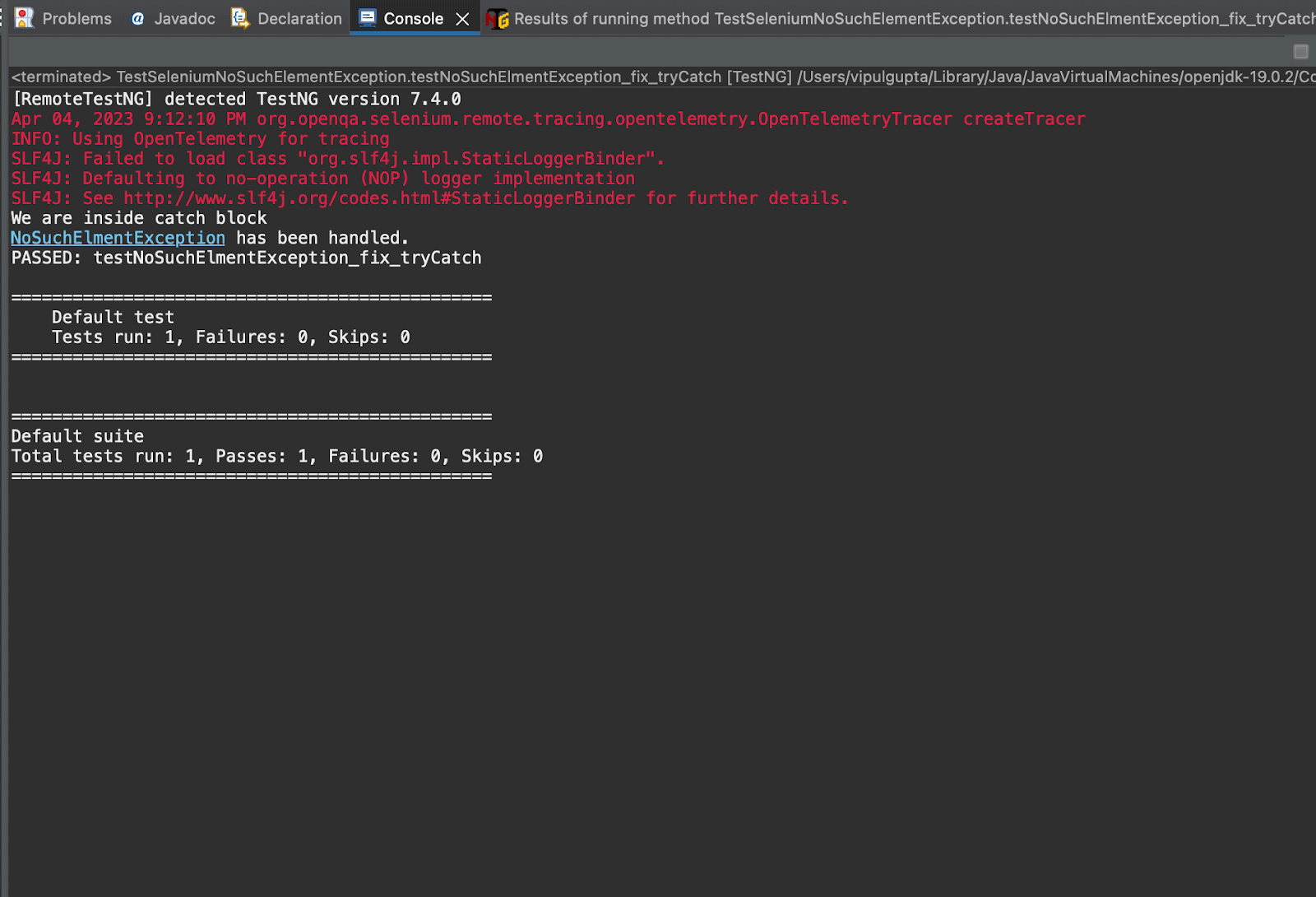
Let’s try to execute the code and see the output.
Fixing NoSuchElementException in Selenium using WebDriverWait
Another popular way to fix NoSuchElementException in your code is to use WebDriverWait. This should be used in case of slow loading elements on a webpage. These can also be helpful when we run automation code by throttling the network speeds to simulate different conditions and check the behavior. It allows the automation script to wait for a given amount of time for a WebElement to be visible and then proceed with the interaction instead of directly throwing the NoSuchElementException.
Using waits is very helpful when the automation script is running on slow internet networks. In such situations, we can analyze how long a certain WebElement takes to be present on the web page. This data can then be used to define wait duration in automation scripts for different WebElements.
WebDriverWait is a class provided as a part of Selenium dependency using an object to which we can add an ExpectedCondition on the WebElement before proceeding.
For this, add another test case and navigate to the target website URL.
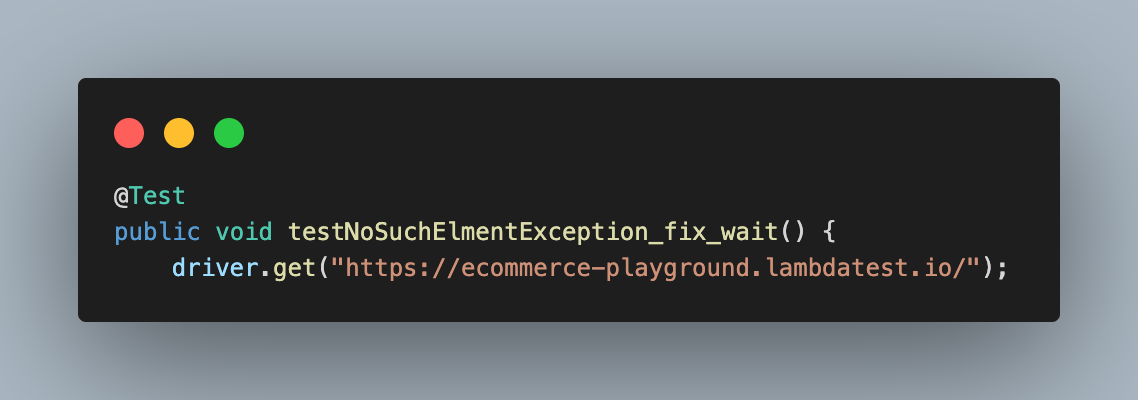
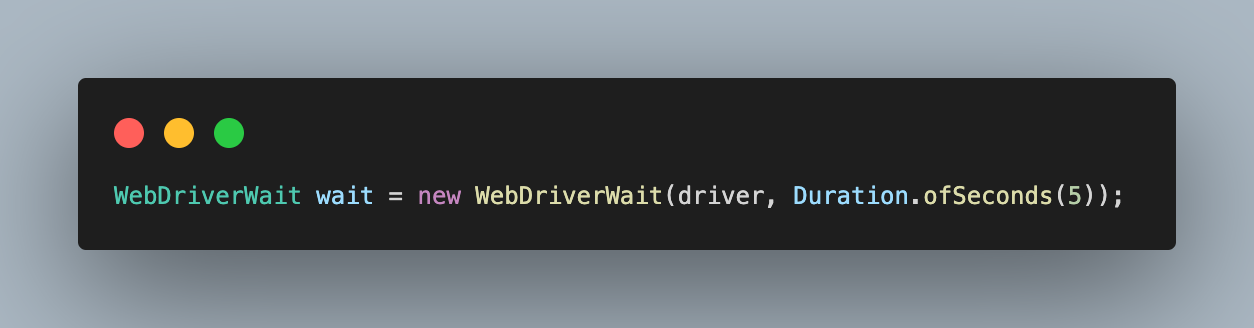
Create an object of the WebDriverWait class and pass the driver object and the duration we want to wait for the element.
Using this object with the until() function, we add an ExpectedConditions suggesting to wait for the presence of a given element by specifying the locator.
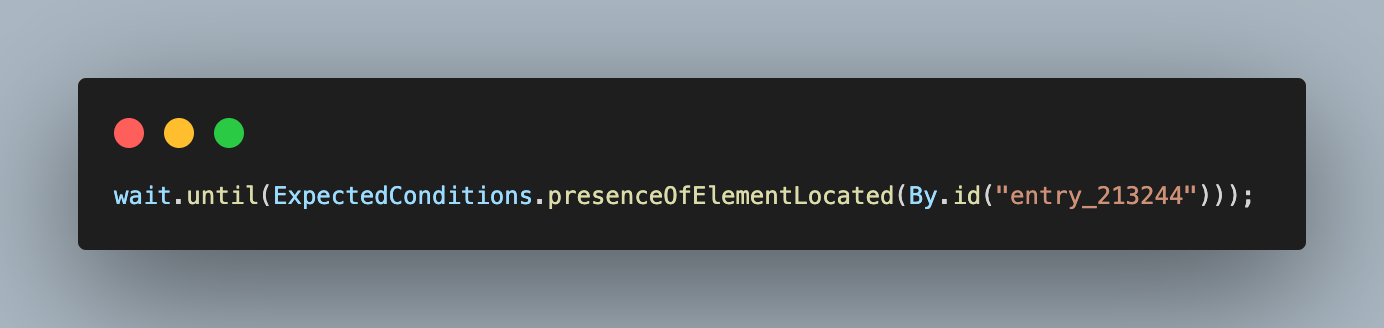
Since we have configured WebDriverWait time to be 5 seconds, this will make the WebDriver wait for a maximum of 5 seconds before throwing an exception if WebElement is not found.
If the element is found before the given time, WebDriver continues the execution by passing the control to next code statements. This allows the interaction by clicking on the element.
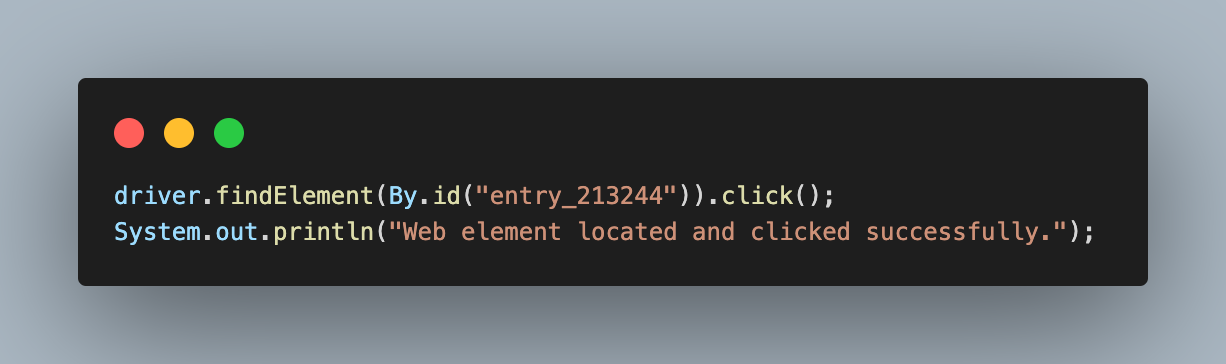
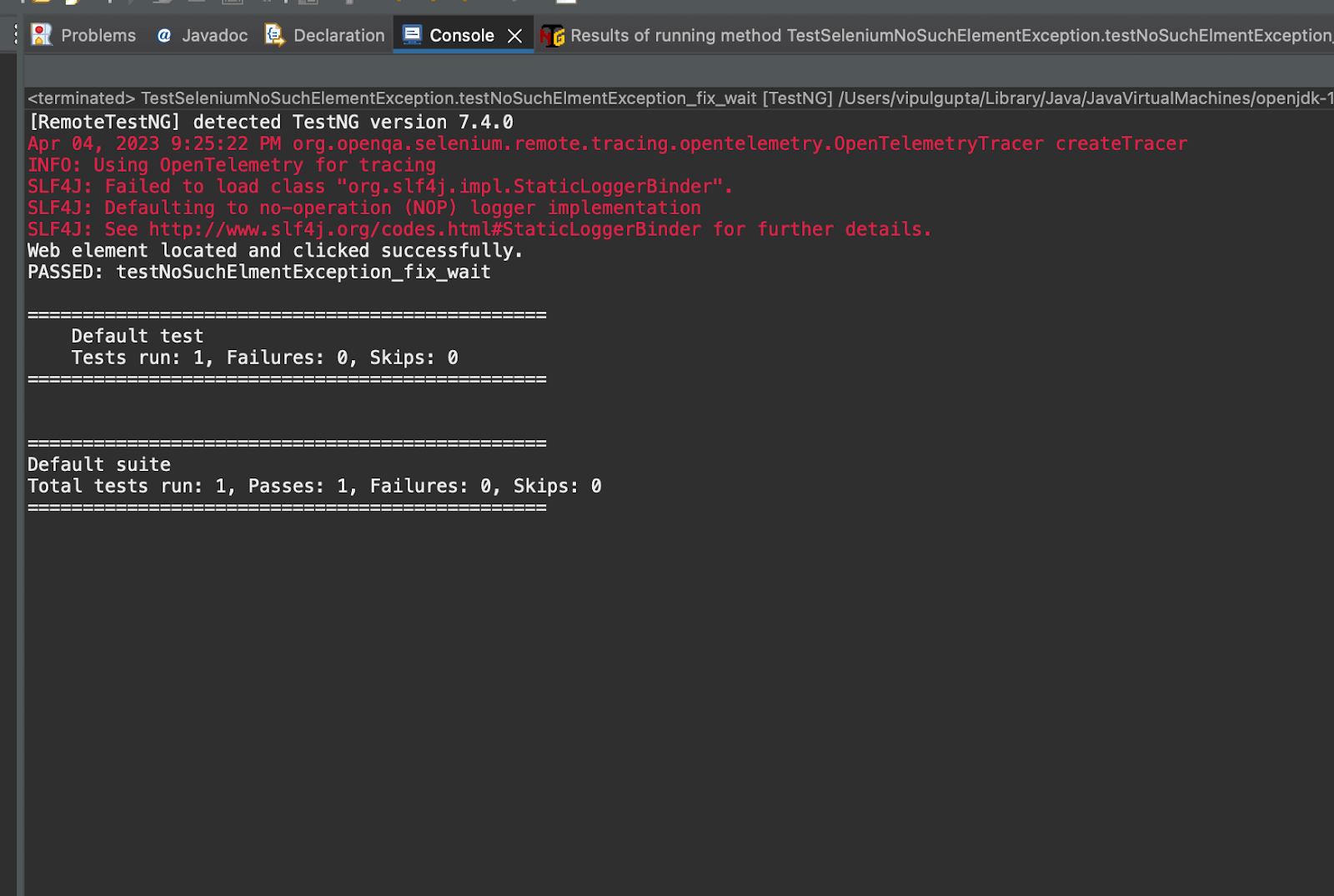
Executing this would provide a successful output as the WebElement is present before we click on it.
These ExpectedConditions are used to implement Explicit waits. These are dedicated to a single WebElement and, unlike Implicit waits, are not applied to all the WebElements on the webpage. Thus, these prevent NoSuchElementException from happening without adding unnecessary execution times.
Example: NoSuchElementException in Selenium due to iFrames
Another reason for NoSuchElementException is that the WebElement is inside an iFrame.
To understand the same, consider the below example.

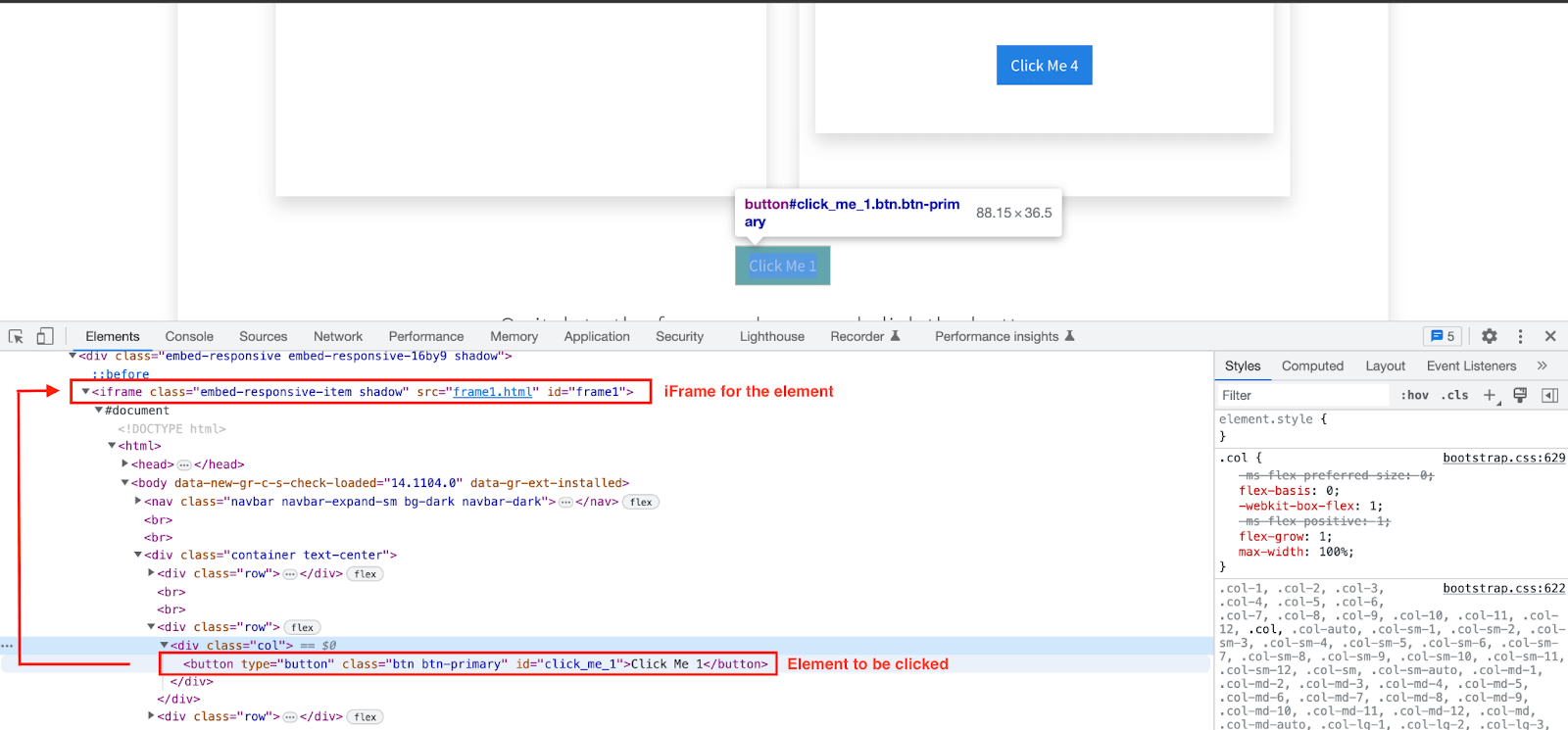
Looking at this code, it seems quite similar to previous examples. But the difference here is that the WebElement is inside a child frame and not on the main window.
You can check if a WebElement is inside an iFrame or not by going to the Inspect Tools.
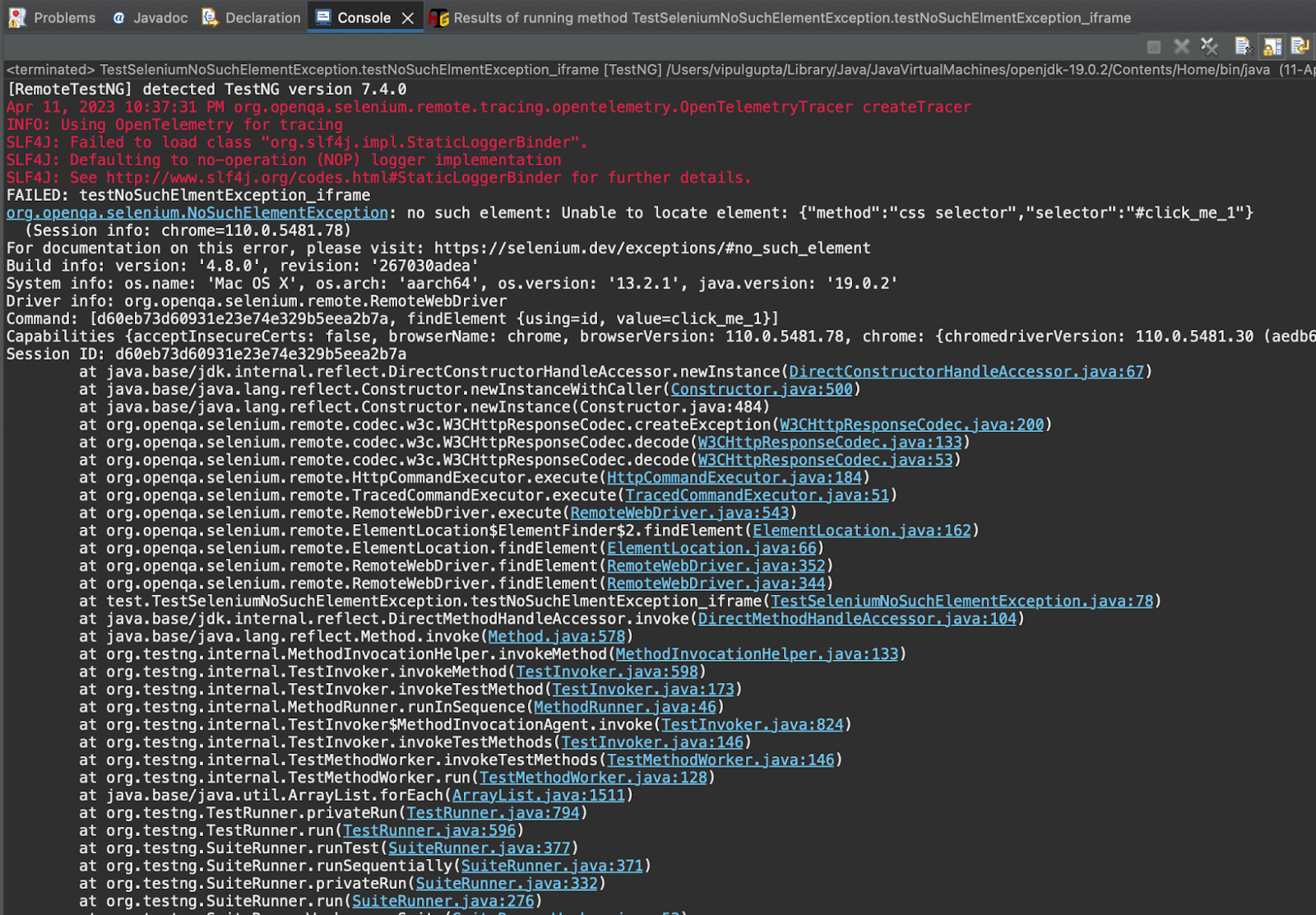
Hence, executing this would result in a NoSuchElementException like the one below, as it will not be found by the driver in its focus window, which is the main window.
Fixing NoSuchElementException in Selenium due to iFrames
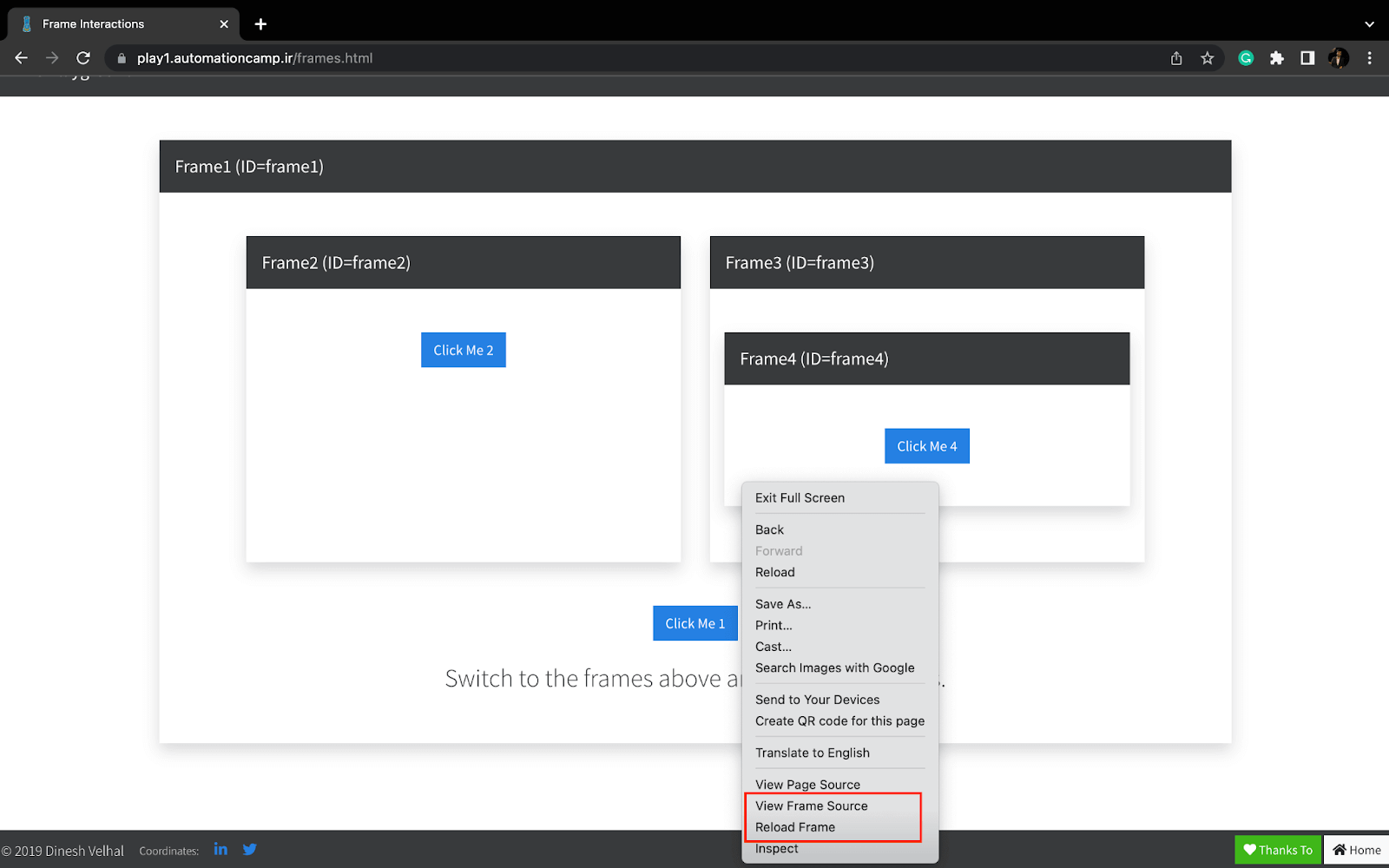
You can identify if you are dealing with an iFrame by right-clicking next to the WebElement. If it has options like View Frame Source or Reload Frame, it is an iFrame or Frame.
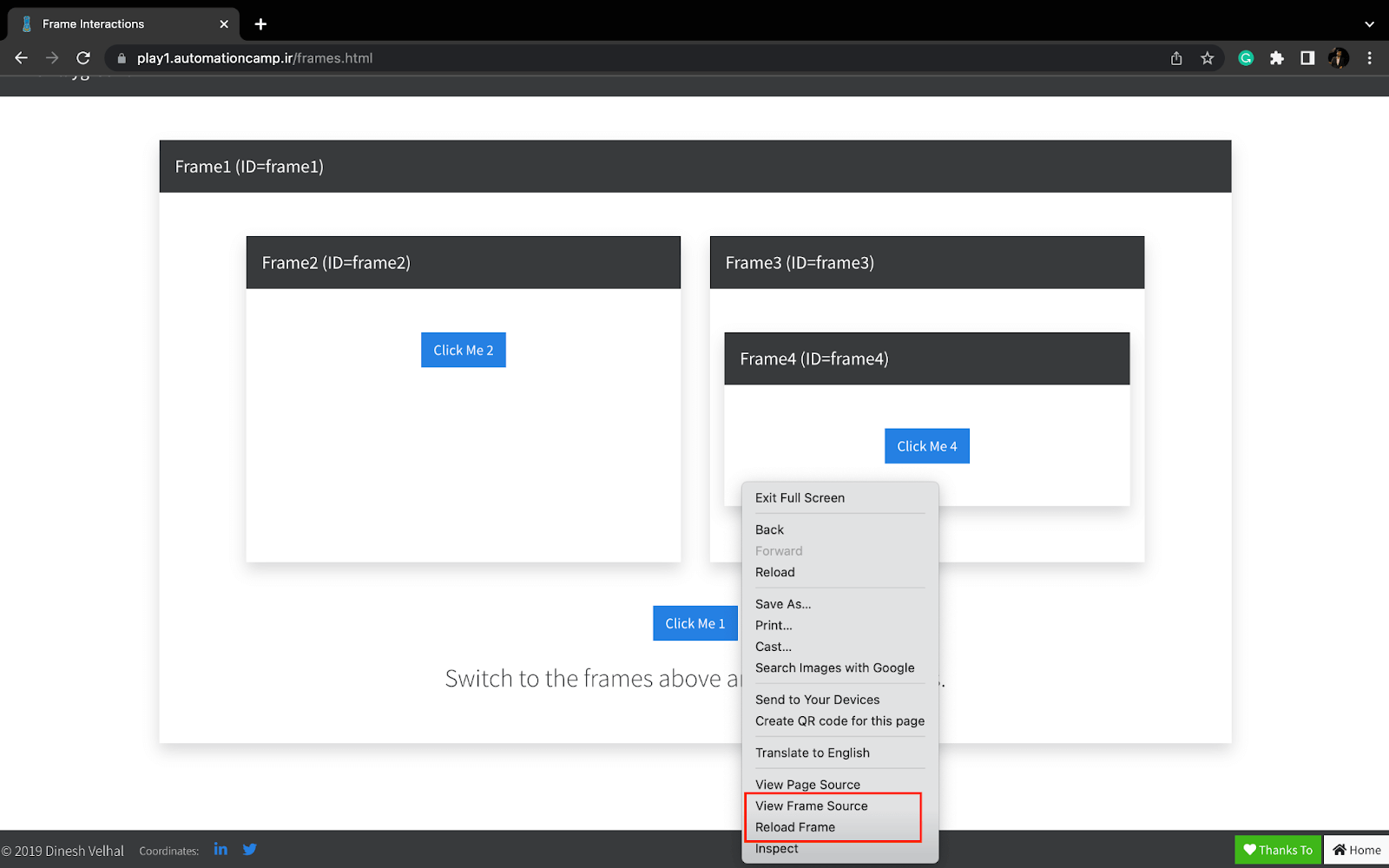
Next, to get the frame ID, click on Inspect from the same menu and try to locate the parent < iframe > tag for your WebElement.
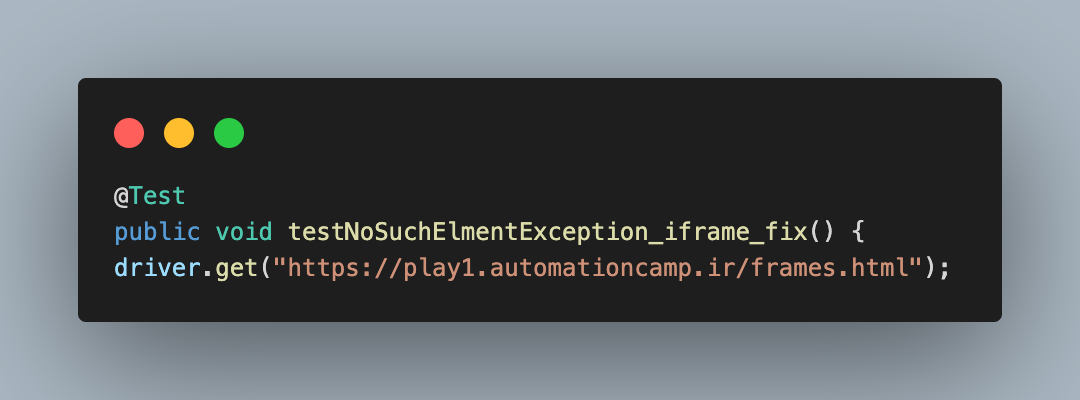
Consider a new test case, testNoSuchElmentException_iframe_fix(), and navigate to the website.
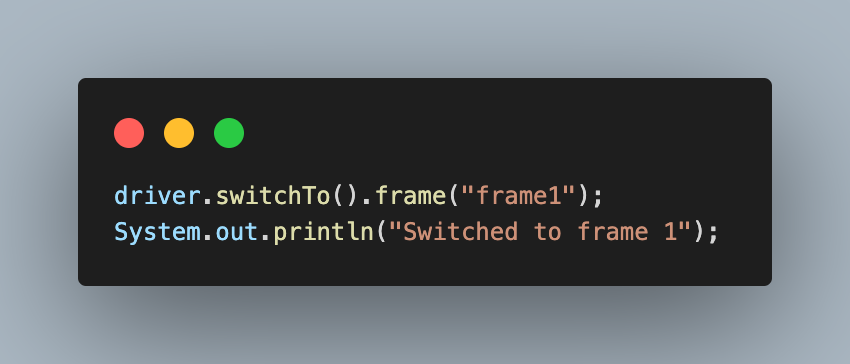
Next, switch to the iFrame by passing its ID to the driver.
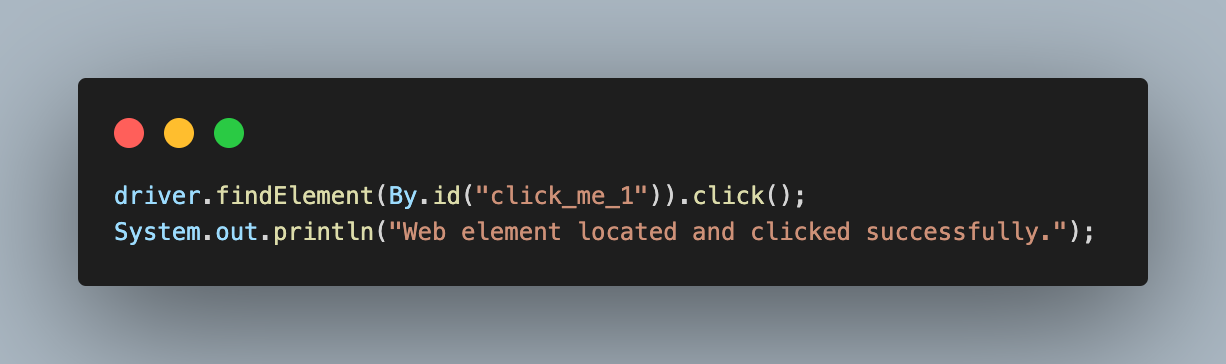
After this, click on the element. This time, there will be no NoSuchElementException as the driver is focused on the current frame window, and the element is inside the same iFrame to which we switched earlier using the switchTo() method.
Lastly, switch back the driver to focus on the main window as this is from where all interactions are started.
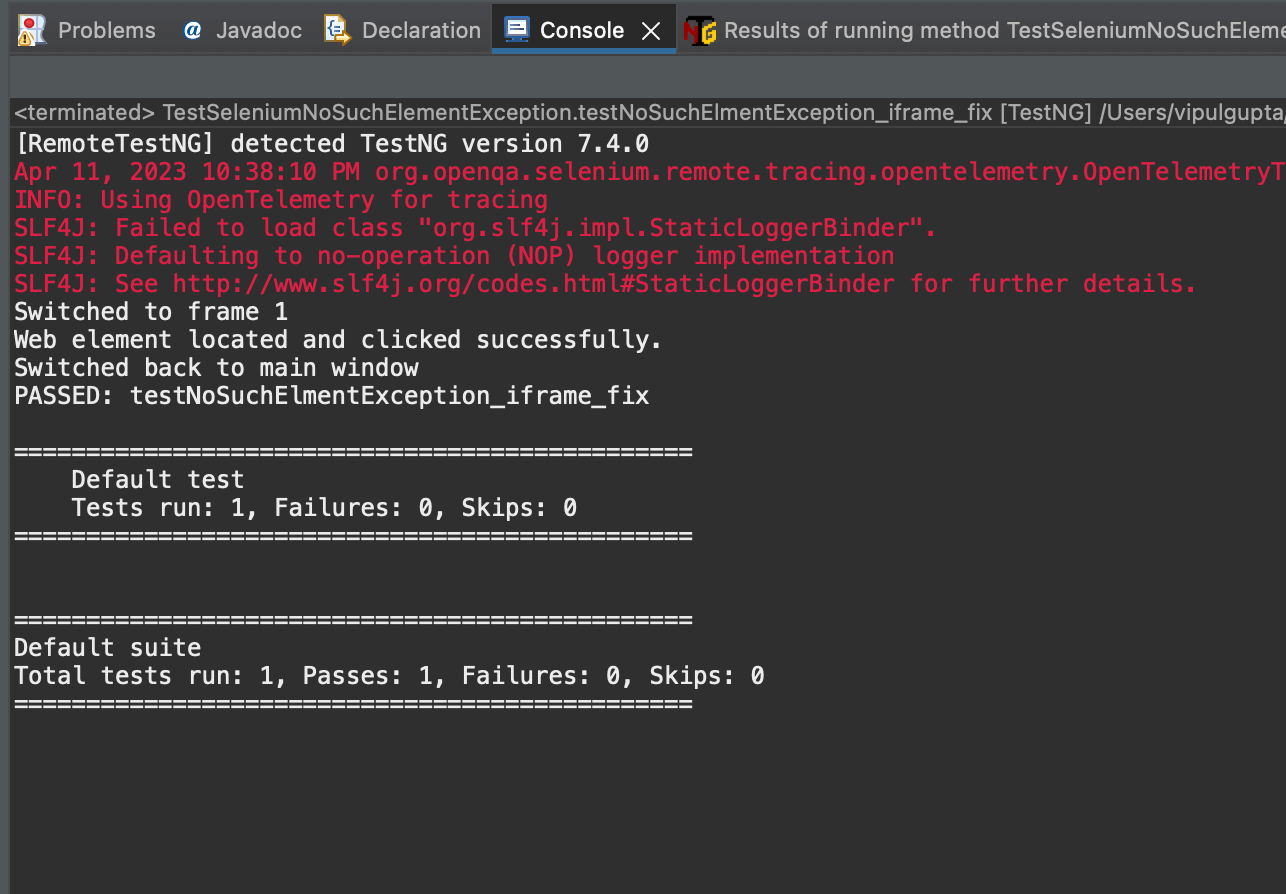
Executing the above test case would give a successful response like the one below.
Bonus: NoSuchElementException in Java
In Java, this exception can be thrown by various methods that can be used for data retrieval to indicate that the element requested does not exist.
For example, if you try to retrieve data from an empty data structure or (n+1)th element from a data structure of n length, then NoSuchElementException is thrown.
To fix the NoSuchElementException, it should be ensured that the underlying data structure contains more elements before trying to retrieve the next element or by implementing proper exception handling using try-catch mechanisms.
Fixing NoSuchElementException in Java
Let’s look at the example to fix NoSuchElementException in Java. For this, we keep using the same project setup and add another test class to understand this.
Test Scenario:
- Create a HashMap.
- Add 2 elements to this HashMap.
- Create an object of Iterator to fetch keys from HashMap.
- Execute the next() function of the iterator 3 times to fetch data.
Now, since we have added only 2 elements, this example should throw a NoSuchElementException.
@Test
   public void testNoSuchElementException()
   {
       HashMap<Integer, Integer> map = new HashMap<>();
       map.put(1, 1);
       map.put(2, 2);

       Iterator itr = map.keySet().iterator();
       System.out.println("first element : " + itr.next());
       System.out.println("second element : " + itr.next());
       System.out.println("third element : " + itr.next());
   }
Executing above code you should get an output like below:

From the above screenshot, you can see this test throws NoSuchElementException as there is no third element.
To fix this NoSuchElementException, we use the hasNext() function of the Iterator. This function is used to fix this exception, as before trying to fetch and print the element, it helps to check whether an element is present. If it finds more elements, it continues to print. Otherwise, it helps to stop the flow without any exceptions.
@Test
   public void testNoSuchElementExceptionFixed()
   {
       HashMap<Integer, Integer> map = new HashMap<>();

       map.put(1, 1);
       map.put(2, 2);

       Iterator itr = map.keySet().iterator();

       while(itr.hasNext()) {
           System.out.println("Element : "  + itr.next());
       }
   }
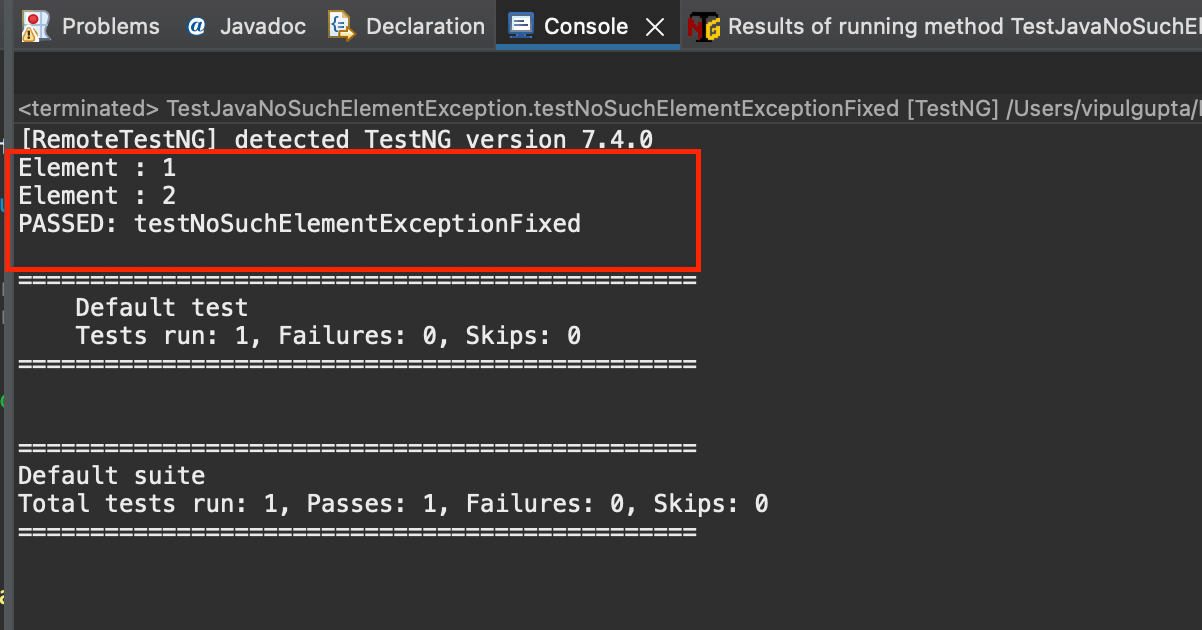
On executing the same test with this fix, you can see that the test passed without NoSuchElementException.
Conclusion
With this, we have come to the end of this blog. In this blog on how to fix NoSuchElementException in Selenium, we have learned what a NoSuchElementException is and why it could occur while working with Selenium. We also take some example automation scripts and try to understand how it can be fixed and handled more gracefully to prevent abrupt results. So, it’s time to fix all such cases in your automation scripts and get started.


Frequently asked questions
Did you find this page helpful?
More Related Hubs
TestMu AI forEnterprise
Get access to solutions built on Enterprise
grade security, privacy, & compliance
- Advanced access controls
- Advanced data retention rules
- Advanced Local Testing
- Premium Support options
- Early access to beta features
- Private Slack Channel
- Unlimited Manual Accessibility DevTools Tests