
Power Your Software Testing with AI Agents and Cloud
The Native AI-Agentic Cloud Platform to Supercharge Quality Engineering. Test Intelligently and Ship Faster.


- TestMu AI (Formerly LambdaTest)
- /
- Blog
- /
- JMeter Load Testing Tutorial: Install and Run Your First Test
JMeter Load Testing Tutorial: Install and Run Your First Test
JMeter load testing tutorial: install JMeter 5.6.3, build a test plan with assertions, run it in CLI mode, read the HTML report and gate CI.
Published on:
Apache JMeter 5.6.3 was published on January 9, 2024, according to the project's GitHub release record.
It is still the current release on the Apache download page, and this JMeter tutorial uses it from install to a load test that can fail a CI build. I ran every step on October 26, 2026, on Java 21, against TestMu AI's Selenium Playground, a set of demo pages built for test practice. The console output and dashboards below come from those runs, including the one that shapes the CI section: JMeter exited with code 0 while some of its samples had failed.
What Is JMeter?
JMeter is an open-source Java application for load and performance testing. It simulates many users by sending requests to a server over HTTP, HTTPS, JDBC, JMS, FTP and other protocols, then records the response time, size and pass or fail status of every request, so you can see how the server behaves under load.
The Apache JMeter homepage lists web (HTTP and HTTPS), SOAP and REST services, FTP, JDBC databases, LDAP, JMS, mail, TCP, native commands and Java objects as targets. It also sets the boundary: "JMeter is not a browser, it works at protocol level," and it "does not execute the Javascript found in HTML pages."
That makes JMeter performance testing a server-side job: JMeter is a load testing tool for the backend, one part of a wider performance testing plan that also covers front-end timings.
| Question | JMeter? | What gives the answer |
|---|---|---|
| How fast does the server respond at 50 users? | Yes | Response time per request, with 90th, 95th and 99th percentiles in the HTML report |
| How many requests per second can the API sustain? | Yes | Throughput, shown as Transactions/s in the report |
| Does the server return correct data under load? | Yes | Assertions mark wrong or slow responses as failed samples |
| How long does the page take to render in Chrome? | No | A browser tool such as Selenium or Playwright, because JMeter never runs the page's JavaScript |
| Which query or service makes a request slow? | Partly | JMeter shows which request is slow; server-side monitoring shows why |
How to Install JMeter
The Apache JMeter download page lists JMeter 5.6.3 with the label "Requires Java 8+".
The JMeter 5.6 changes page recommends Java 17 or later and says the next major release would require Java 17, so install a recent JDK before you download JMeter:
- Install a JDK, version 17 or newer, and confirm it with
java -version. I used Microsoft Build of OpenJDK 21.0.13. - Download the 5.6.3 binary (the .zip on Windows, the .tgz on macOS and Linux) and its .sha512 file from the Binaries section of the download page.
- Check the hash, extract the archive, and run
bin/jmeter --versionto print the version banner.
These are the commands I ran in Git Bash on Windows, and they work the same in a Linux shell. On macOS, replace sha512sum -c with shasum -a 512 -c.
# Download JMeter 5.6.3 and its SHA-512 checksum
BASE=https://downloads.apache.org/jmeter/binaries
curl -LO $BASE/apache-jmeter-5.6.3.tgz
curl -LO $BASE/apache-jmeter-5.6.3.tgz.sha512
# Prints "apache-jmeter-5.6.3.tgz: OK" when the file is intact
sha512sum -c apache-jmeter-5.6.3.tgz.sha512
tar -xzf apache-jmeter-5.6.3.tgz
./apache-jmeter-5.6.3/bin/jmeter --version- Open the GUI - run
bin/jmeteron macOS and Linux, orbin\jmeter.baton Windows, to build and debug test plans. - Add plugins - the JMeter Plugins project's install page says to download plugins-manager.jar, put it in
lib/extand restart JMeter.
JMeter Test Plan Elements
The JMeter component reference is organized into sections for samplers, logic controllers, listeners, configuration elements, assertions, timers, pre-processors and post-processors.
A test plan is a tree of those elements, and each type has one job. These are the types this tutorial uses:
| Element type | What it does | Used in this tutorial |
|---|---|---|
| Thread Group | Starts virtual users (threads) and sets the ramp-up period and loop count | Playground users: 5 threads, 10-second ramp-up, 3 loops |
| Sampler | Sends one request and records the response as a sample | Two HTTP Requests |
| Config Element | Shares settings, cookies or test data across samplers | HTTP Request Defaults, HTTP Cookie Manager |
| Assertion | Marks a sample as failed when the response breaks a rule | Two Response Assertions, one Duration Assertion |
| Post-Processor | Extracts data from a response into a variable for later requests | Regular Expression Extractor |
| Timer | Pauses before each sampler in its scope, like a user reading a page | Constant Timer, 1,000 ms |
| Listener | Displays or saves results | None during the load run; results go to a .jtl file and the HTML report |
The user manual's Execution order section fixes the sequence around every sampler: configuration elements, pre-processors, timers, the sampler, post-processors, assertions, then listeners. That order is why an extractor attached to request 01 has its variable ready before request 02 runs, and why a timer placed at the Thread Group level delays both requests.
How to Build Your First JMeter Test Plan
Use the GUI to build and debug the plan below; the load run itself happens in CLI mode. The load stays small on purpose, at 5 users and 30 requests per run, because the target is a shared demo site.
- Right-click Test Plan, choose Add, Threads (Users), Thread Group. Set Number of Threads (users) to
${__P(threads,5)}, Ramp-up period (seconds) to${__P(rampup,10)}and Loop Count to${__P(loops,3)}. - Right-click the Thread Group, choose Add, Config Element, HTTP Request Defaults. Set Protocol to https, Server Name or IP to www.testmuai.com, and the Connect and Response timeouts to 5000 and 30000 milliseconds.
- Add a Config Element, HTTP Cookie Manager, and tick Clear cookies each iteration so every loop starts as a new visitor.
- Add a Sampler, HTTP Request, named 01 Open playground index, with Method GET and Path /selenium-playground/.
- Under that request, add Assertions, Response Assertion. Set Field to Test to Text Response, Pattern Matching Rules to Substring, and the pattern to Simple Form Demo.
- On the Thread Group, add Timer, Constant Timer, with a Thread Delay of 1000 milliseconds.
- Save the plan as playground-load-test.jmx.
The ${__P(name,default)} function reads a JMeter property and falls back to the default when it is not set. That one choice lets you change the load from the command line later, without opening the GUI or editing the file.
How to Correlate Dynamic Values in JMeter
Correlation means extracting a value the server generates, such as a session ID, a CSRF token or a product ID, and sending it in a later request. A script that hardcodes those values sends stale ones on every replay. The playground index links to its demo pages, so the plan extracts one link and requests it, the same mechanism you would use for a token.
- Under 01 Open playground index, add Post Processors, Regular Expression Extractor, with the settings in the table below.
- Add a second HTTP Request named 02 Open extracted demo page, with Path
${demo_path}. - Under it, add a Response Assertion with Field to Test set to Response Code, rule Equals and pattern 200, then a Duration Assertion with Duration in milliseconds set to
${__P(sla_ms,3000)}.
| Extractor field | Value | Why |
|---|---|---|
| Name of created variable | demo_path | Request 02 reads it as ${demo_path} |
| Regular Expression | href="https://www\.testmuai\.com(/selenium-playground/[a-z-]+-demo/)" | The capture group keeps only the path of each demo link |
| Template | $1$ | Uses capture group 1 |
| Match No. (0 for Random) | 0 | The component reference says zero makes JMeter choose a match at random |
| Default Value | DEMO_PATH_NOT_FOUND | That path returns a 404, so a broken extractor fails loudly instead of passing |
This is the tree of the plan that produced every run in this article:
Test Plan: Selenium Playground load test
`-- Thread Group: Playground users
    threads ${__P(threads,5)}, loops ${__P(loops,3)}
    ramp-up ${__P(rampup,10)} seconds
    |-- HTTP Request Defaults: https, www.testmuai.com
    |   connect timeout 5000 ms, response timeout 30000 ms
    |-- HTTP Cookie Manager: clear cookies each iteration
    |-- HTTP Request: 01 Open playground index
    |   GET /selenium-playground/
    |   |-- Response Assertion: Text Response, Substring "Simple Form Demo"
    |   `-- Regular Expression Extractor: demo_path, Match No. 0
    |-- HTTP Request: 02 Open extracted demo page
    |   GET ${demo_path}
    |   |-- Response Assertion: Response Code, Equals 200
    |   `-- Duration Assertion: ${__P(sla_ms,3000)} ms
    `-- Constant Timer: 1000 ms
The extraction worked as intended in the baseline run:
- Random match - across 15 iterations, request 02 opened 12 different demo pages.
- No fallbacks - none of the 15 requests used the DEMO_PATH_NOT_FOUND default.
- JSON responses - for an API, a JSON Extractor with a JSONPath expression is easier to maintain than a regex; try the expression in the JSONPath tester before you paste it into the plan.
- HTML responses - the CSS Selector Extractor takes a CSS or jQuery selector and supports the same Match No. 0 random option.

Austin Siewert
Co-Founder, Steadfast Systems
Discovered @TestMu AI yesterday. Best browser testing tool I've found for my use case. Great pricing model for the limited testing I do 👏
3M+ Devs and QAs rely on TestMu AI
Deliver immersive digital experiences with Next-Generation Mobile Apps and Cross Browser Testing Cloud

How to Run JMeter in CLI Mode
The JMeter best practices guide says to use CLI mode and not to use the View Results Tree or View Results in Table listeners during a load test.
JMeter repeats that advice itself. Version 5.6.3 printed this to the console when I launched it in GUI mode:
================================================================================
Don't use GUI mode for load testing !, only for Test creation and Test debugging.
For load testing, use CLI Mode (was NON GUI):
   jmeter -n -t [jmx file] -l [results file] -e -o [Path to web report folder]
& increase Java Heap to meet your test requirements:
   Modify current env variable HEAP="-Xms1g -Xmx1g -XX:MaxMetaspaceSize=256m" in the jmeter batch file
Check : https://jmeter.apache.org/usermanual/best-practices.html
================================================================================
The same message shows the launcher's default heap, -Xms1g -Xmx1g. Set the HEAP environment variable before you start JMeter when a larger test needs more memory. The run command for this plan is:
jmeter -n -t playground-load-test.jmx -l results.jtl -e -o report| Flag | What it does, per JMeter's Getting Started guide |
|---|---|
| -n | Runs JMeter in CLI mode |
| -t | Names the .jmx file that contains the test plan |
| -l | Names the JTL file that sample results are logged to |
| -e | Generates the report dashboard after the load test |
| -o | Sets the dashboard output folder, which must not exist or must be empty |
| -f | Force-deletes existing results files and the report folder before the test starts |
| -J | Defines a local JMeter property, such as -Jthreads=10 |
This is the console output of the baseline run, starting after five Java and log4j startup warning lines that do not affect the test:
Creating summariser <summary>
Created the tree successfully using playground-load-test.jmx
Starting standalone test @ 2026 Oct 26 15:02:27 IST (1793007147443)
Waiting for possible Shutdown/StopTestNow/HeapDump/ThreadDump message on port 4445
summary +      2 in 00:00:03 =    0.7/s Avg:   317 Min:    32 Max:   602 Err:     0 (0.00%) Active: 2 Started: 2 Finished: 0
summary +     28 in 00:00:12 =    2.3/s Avg:   370 Min:    24 Max:  1528 Err:     0 (0.00%) Active: 0 Started: 5 Finished: 5
summary =     30 in 00:00:15 =    2.0/s Avg:   367 Min:    24 Max:  1528 Err:     0 (0.00%)
Tidying up ...    @ 2026 Oct 26 15:02:42 IST (1793007162804)
... end of run- summary + lines - results for the latest interval only, with the active, started and finished thread counts.
- summary = line - the running total since the test started: 30 samples in 15 seconds, 0 errors.
- Uneven first interval - the component reference says the summary prints every 30 seconds by default, on clock boundaries, which is why the first line covered only 3 seconds.
- Property overrides - adding
-Jthreads=10 -Jloops=2to the same command ran 40 samples across 10 threads with no change to the .jmx file.
How to Read the JMeter HTML Report
When a JMeter performance testing run includes -e -o report, JMeter writes a dashboard to report/index.html and its raw numbers to report/statistics.json. This is the top of the dashboard from the baseline run:
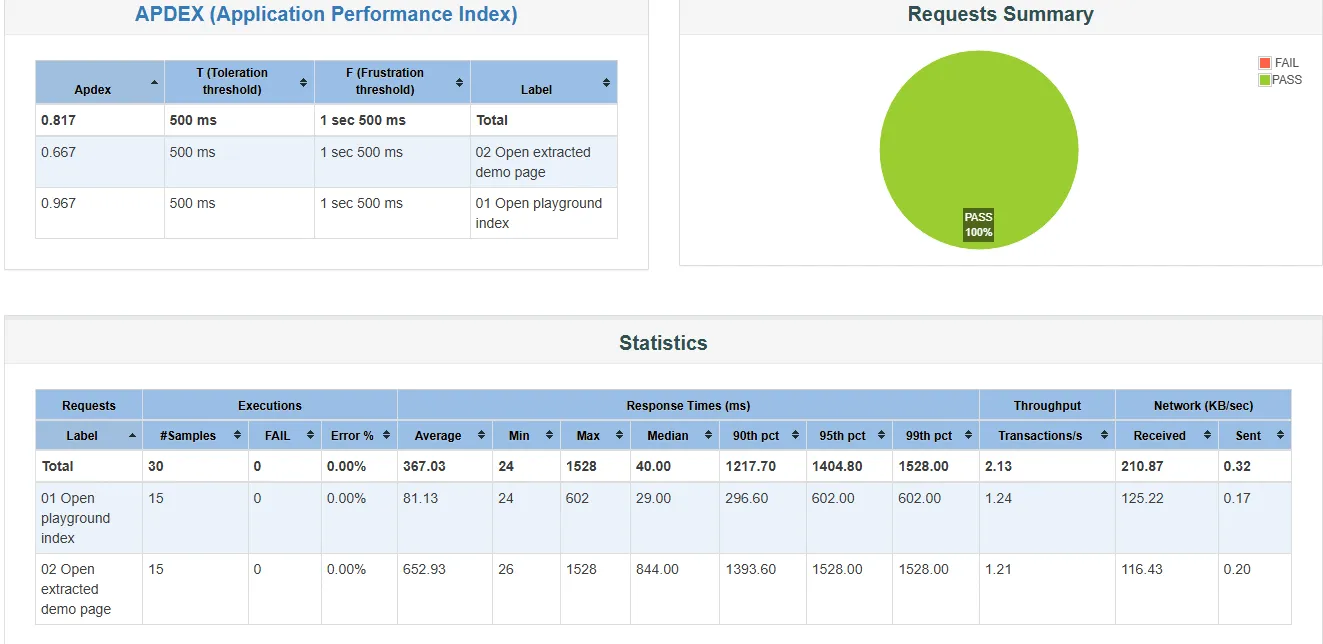
| Report column | What it means | Baseline run, Total row |
|---|---|---|
| #Samples, FAIL, Error % | Requests sent, and how many failed an assertion or returned an error | 30, 0, 0.00% |
| Average | Mean response time in milliseconds | 367.03 ms |
| Median | Half of the responses were faster than this | 40.00 ms |
| 90th, 95th, 99th pct | That share of responses finished at or below this time | 1217.70, 1404.80, 1528.00 ms |
| Transactions/s | Throughput across all requests | 2.13 |
| APDEX | A 0 to 1 satisfaction score from a toleration threshold (T) and a frustration threshold (F) | 0.817, with T at 500 ms and F at 1 sec 500 ms |
- The average hid two populations - the index averaged 81.13 ms with a 29.00 ms median, while the extracted demo pages averaged 652.93 ms with an 844.00 ms median, so the Total average of 367.03 ms described neither.
- Percentile fields - in statistics.json, pct1ResTime, pct2ResTime and pct3ResTime follow the aggregate_rpt_pct1 to pct3 properties, which jmeter.properties sets to 90, 95 and 99 by default.
- APDEX thresholds - the 500 ms and 1500 ms values come from jmeter.reportgenerator.apdex_satisfied_threshold and apdex_tolerated_threshold in reportgenerator.properties; set them to your own targets.
A standard Thread Group is a closed workload model: each thread waits for its response before it sends the next request, so a slowing server receives fewer requests and its percentiles can look healthier than real traffic would see. The open vs closed workload model benchmark measured this effect with k6, Artillery and JMeter.
How to Fail a CI Build on JMeter Results
The JMeter exit code tells CI whether the test ran, not whether it passed. To show it, I reran the same plan with -Jsla_ms=500, which tightens the Duration Assertion on request 02 to 500 milliseconds:
jmeter -n -t playground-load-test.jmx -Jsla_ms=500 -l results.jtl -e -o reportThe startup lines matched the baseline run, so this excerpt starts at the first summary line:
summary +     24 in 00:00:11 =    2.1/s Avg:   262 Min:    23 Max:  2647 Err:     2 (8.33%) Active: 3 Started: 5 Finished: 2
summary +      6 in 00:00:04 =    1.3/s Avg:   420 Min:    25 Max:  1369 Err:     2 (33.33%) Active: 0 Started: 5 Finished: 5
summary =     30 in 00:00:16 =    1.9/s Avg:   294 Min:    23 Max:  2647 Err:     4 (13.33%)
Tidying up ...    @ 2026 Oct 26 15:03:04 IST (1793007184477)
... end of run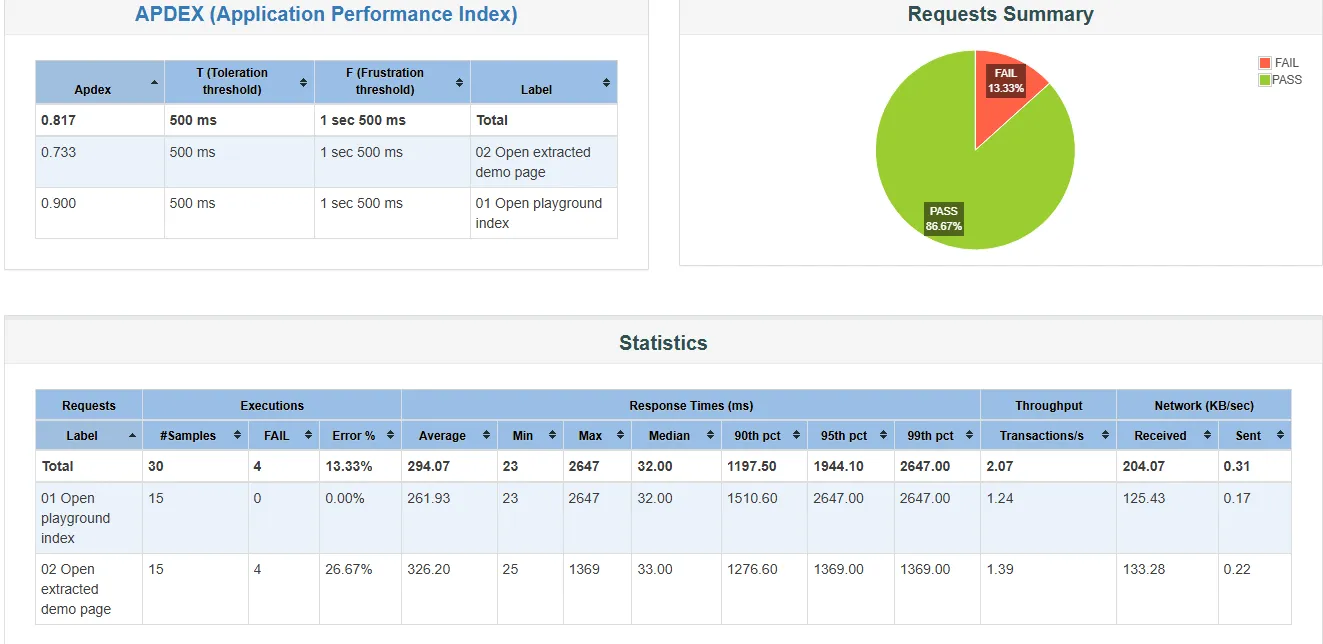
- The failures were real - 4 of 30 samples (13.33%) failed, all on request 02, each with the Duration Assertion message "The operation lasted too long".
- The exit code was 0 - captured with
echo "EXIT=$?"right after the run, the same as the passing baseline.
So the build needs a check that reads the results. This script reads the Total row of statistics.json and exits with code 1 when the error rate or the 95th percentile breaks a limit you pass in:
// check-jmeter.mjs: fail the build when a JMeter report breaks a limit
import { readFileSync } from "node:fs";

const [file, maxErrPct = "1", maxP95 = "1500"] = process.argv.slice(2);
const total = JSON.parse(readFileSync(file, "utf8")).Total;
const err = total.errorPct;
const p95 = total.pct2ResTime; // pct2 = 95th percentile by default

console.log(`samples=${total.sampleCount} errors=${err.toFixed(2)}%` +
  ` p95=${Math.round(p95)} ms`);
const broken = [];
if (err > Number(maxErrPct)) broken.push(`error rate over ${maxErrPct}%`);
if (p95 > Number(maxP95)) broken.push(`p95 over ${maxP95} ms`);
if (broken.length) {
  console.error(`FAIL: ${broken.join(", ")}`);
  process.exit(1);
}
console.log("PASS");
Pointed at both reports with the same limits, the script passed the baseline and failed the strict run:
$ node check-jmeter.mjs run-base/report/statistics.json 1 1500
samples=30 errors=0.00% p95=1405 ms
PASS
$ node check-jmeter.mjs run-strict/report/statistics.json 1 1500
samples=30 errors=13.33% p95=1944 ms
FAIL: error rate over 1%, p95 over 1500 ms- Limits - the last two arguments set a 1% error limit and a 1500 ms p95 limit; both default to those values when omitted.
- Exit codes - on Node 24 the script exited with code 0 for the baseline and code 1 for the strict run, which is what a CI step needs to go red.
In a pipeline, chain the two commands so any CI system that runs shell steps fails on the gate's exit code. The -f flag clears the previous report folder, which -o otherwise refuses to overwrite:
jmeter -n -t playground-load-test.jmx -f -l results.jtl -e -o report \
&& node check-jmeter.mjs report/statistics.json 1 1500- Set limits from a measured baseline - this plan's baseline p95 was 1404.80 ms, so a 1500 ms limit passes today and fails on a regression of about 7%.
- Gate per request when the mix matters - read the 02 Open extracted demo page entry instead of Total when one slow endpoint can hide inside a fast average.
How to Scale JMeter Load Testing Beyond One Machine
When one machine cannot generate the load you need, JMeter's distributed mode adds load generators: -R takes a list of remote servers, and the client sends each of them the plan. The remote testing chapter of the user manual sets the rules for this kind of distributed testing:
- Threads multiply - each server runs the full test plan, so the thread count is multiplied by the number of servers rather than split between them; the workload model benchmark above works through that math.
- Data files do not travel - the plan is sent to every server, but CSV and other data files have to exist in the right directory on each one.
- Remote mode costs extra - the manual notes that it uses more resources than running the same number of CLI mode tests independently.
TestMu AI's Performance Testing by HyperExecute runs the same .jmx without a server fleet to maintain. You upload the plan with its CSV files, choose machines and regions in a run form, and HyperExecute provisions the load generators for the run and tears them down afterward.
The JMeter load testing page lists the run options and reports:
- Upload - whole folders upload with the .jmx, so CSV data files travel with the plan. The standard Thread Group works by default, and custom thread groups also work.
- Run form - Total Users, Duration, Ramp-up Time, Total Load Distribution by region, Split CSV, Job Labels, Machine count and Java Version, with Java 11 as the default and Java 25 as the other option.
- Regions - six load-generation regions, with East US as the default; multi-region load generation is listed for the Enterprise plan.
- Thread counts - by default the thread count in the .jmx is copied to every machine in every region; set Total Users and the Total Load Distribution split in the run form to have HyperExecute divide the load instead.
- Reports - Summary, Timeline, Request Stats, Errors and Logs for every run.

Note: TestMu AI HyperExecute runs the .jmx files you already maintain across machines and regions, with no JMeter servers to install or keep alive between tests. Try TestMu AI free
Conclusion
Run the CLI command from this tutorial against your own staging host with -Jsla_ms set to your real response-time target, and add check-jmeter.mjs to the pipeline so a regression fails the build instead of passing with exit code 0.
When one machine is no longer enough, upload the same plan to HyperExecute by following the HyperExecute JMeter documentation, which shows a jmeter variables block overriding a ${__P()} property at run time. To test what you learned, work through these JMeter interview questions.
Author

Garvit Sukhija
Blogs: 5

Garvit Sukhija is a Technical Product Manager at TestMu AI, where he leads the HyperExecute GUI, having spearheaded its development and pilot rollout to early adopters by integrating user insights and metric analysis into the go-to-market strategy. Before TestMu AI he owned the zero-to-one build of an enterprise SaaS platform for Earth Observation at Pixxel, where he designed billing, subscription, and IAM systems and led AI/ML model onboarding for over 10 solutions. Garvit holds a degree in manufacturing engineering and chemistry from BITS Pilani.
Reviewer

Japneet Singh Chawla
Reviewer
Japneet Singh Chawla is an Engineering Manager at TestMu AI, where he leads a team driving HyperExecute, the AI-native Test Orchestration Cloud Platform, and integrations with Cypress, Provar, Tosca, and Selenium, improving test execution efficiency and driving adoption across 500+ enterprise clients. He also spearheaded zero-downtime deployments that cut release-related downtime by 90%, and mentors new engineers into productive contributors. He brings 9+ years of experience building and scaling distributed systems, SaaS platforms, and developer tools, with deep hands-on backend engineering across Golang, Python, Node.js, Kafka, and Redis. Earlier at Sumo Logic he built award-winning developer tools, including a VS Code Parser Linter, and at Indus Valley Partners he was a founding member of the Sentiment Analyzer team, building ML-powered solutions for financial clients. Japneet holds an MCA in Computer Science from GGSIPU.


JMeter Tutorial FAQs
Did you find this page helpful?
More Related Blogs

TestMu AI forEnterprise
Get access to solutions built on Enterprise
grade security, privacy, & compliance
- Advanced access controls
- Advanced data retention rules
- Advanced Local Testing
- Premium Support options
- Early access to beta features
- Private Slack Channel
- Unlimited Manual Accessibility DevTools Tests