

Power Your Software Testing with AI Agents and Cloud
The Native AI-Agentic Cloud Platform to Supercharge Quality Engineering. Test Intelligently and Ship Faster.


- TestMu AI (Formerly LambdaTest)
- /
- Blog
- /
- How Do You Clear The Cache On Internet Explorer
How Do You Clear The Cache On Internet Explorer
Learn how do you clear the cache on internet explorer to improve its performance. Follow these simple steps to clear cache and cookies for a smoother browsing experience.
Last Updated on:
Internet Explorer running slow or displaying outdated pages even after a site update usually means cached files and cookies have piled up and need clearing. Skipping the gear-icon menu entirely, Ctrl+Shift+Delete jumps straight to the Delete Browsing History window, where checking Cache and Cookies clears both in one pass.
Steps to Clear Cache on Internet Explorer
To clear the cache on Internet Explorer, follow the steps given below:
- Launch Internet Explorer on your computer.
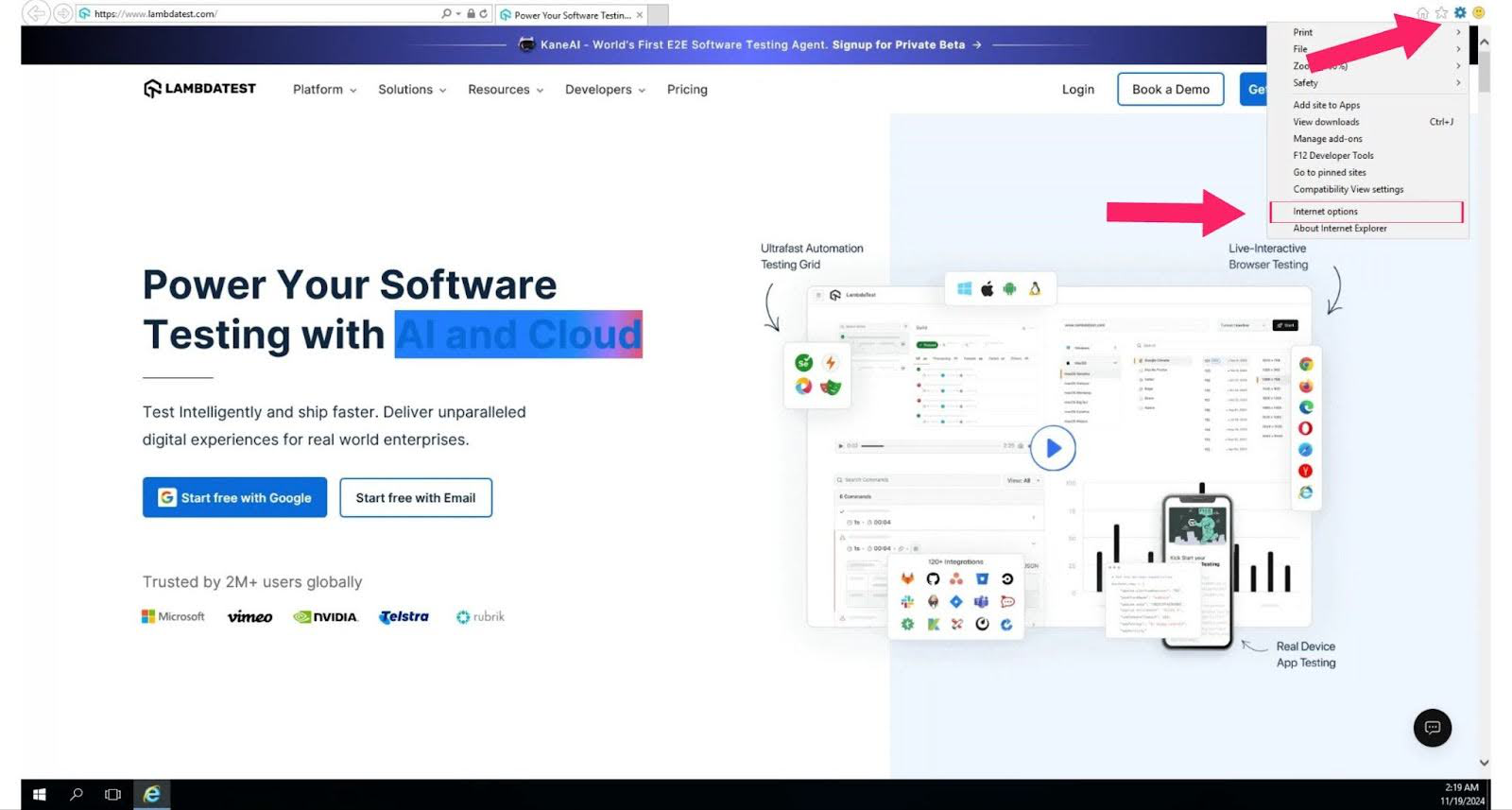
- Click on the gear icon in the upper-right corner (or press Alt + X) and select Internet options from the menu.
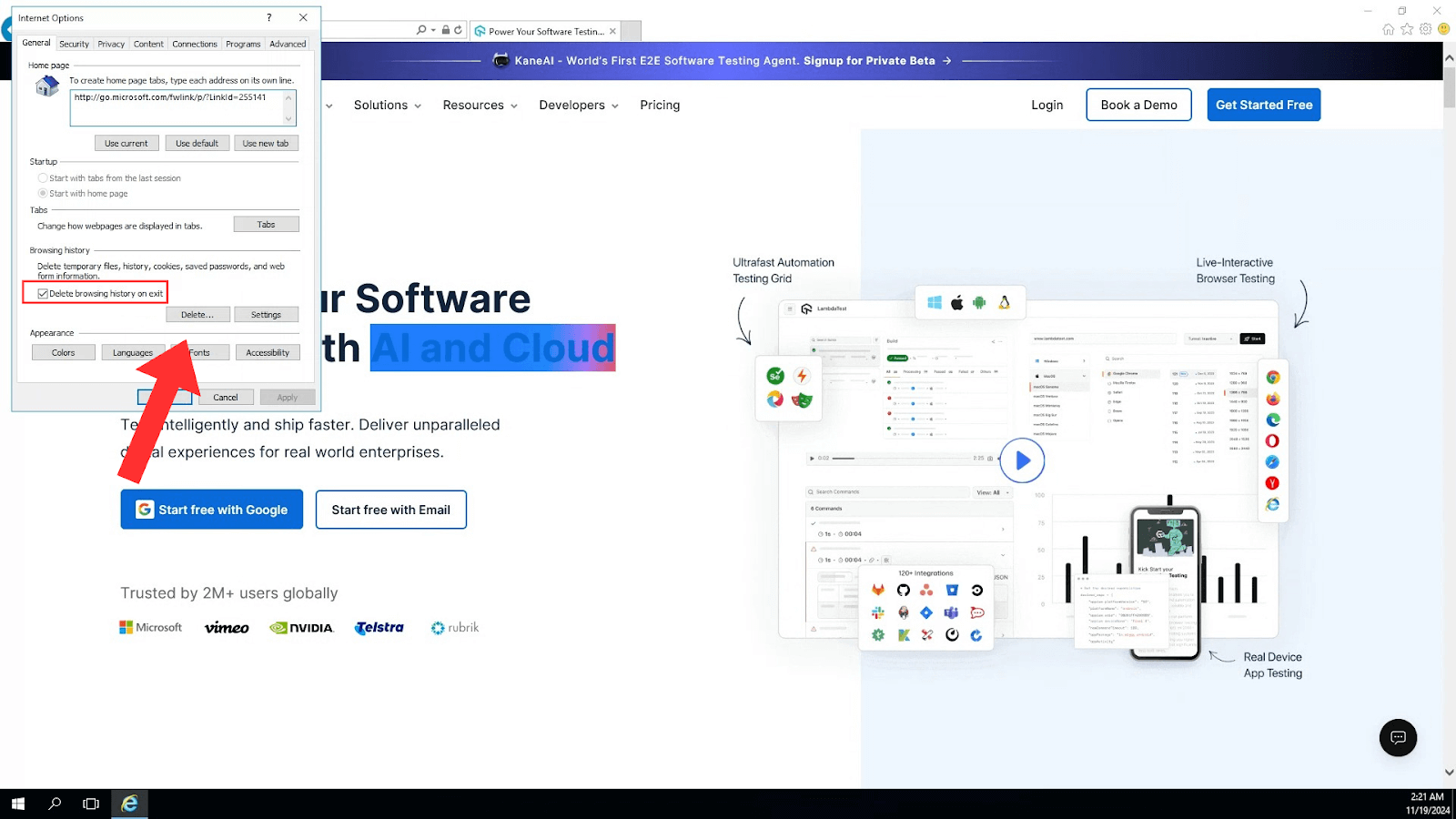
- In the General tab of the Internet options window, locate the Browsing history section.
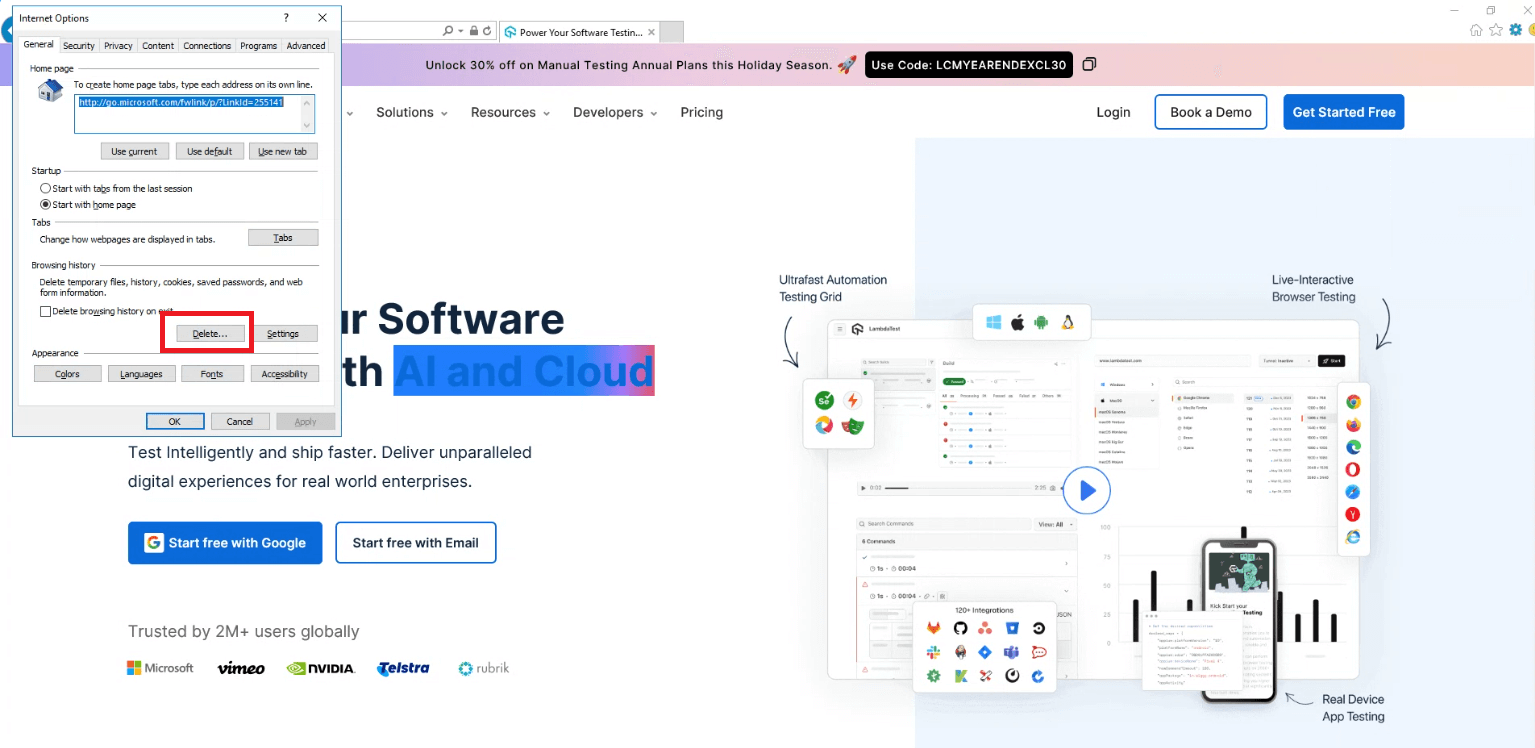
- Click the Delete… button under Browsing history.
5. Select What to Delete:
- Check the box for Temporary Internet files and website files to clear the cache.
- Check the box for Cookies and website data to remove cookies.
- You can also select other options if needed, but ensure these two are selected.
- Click the Delete button at the bottom of the dialog box.
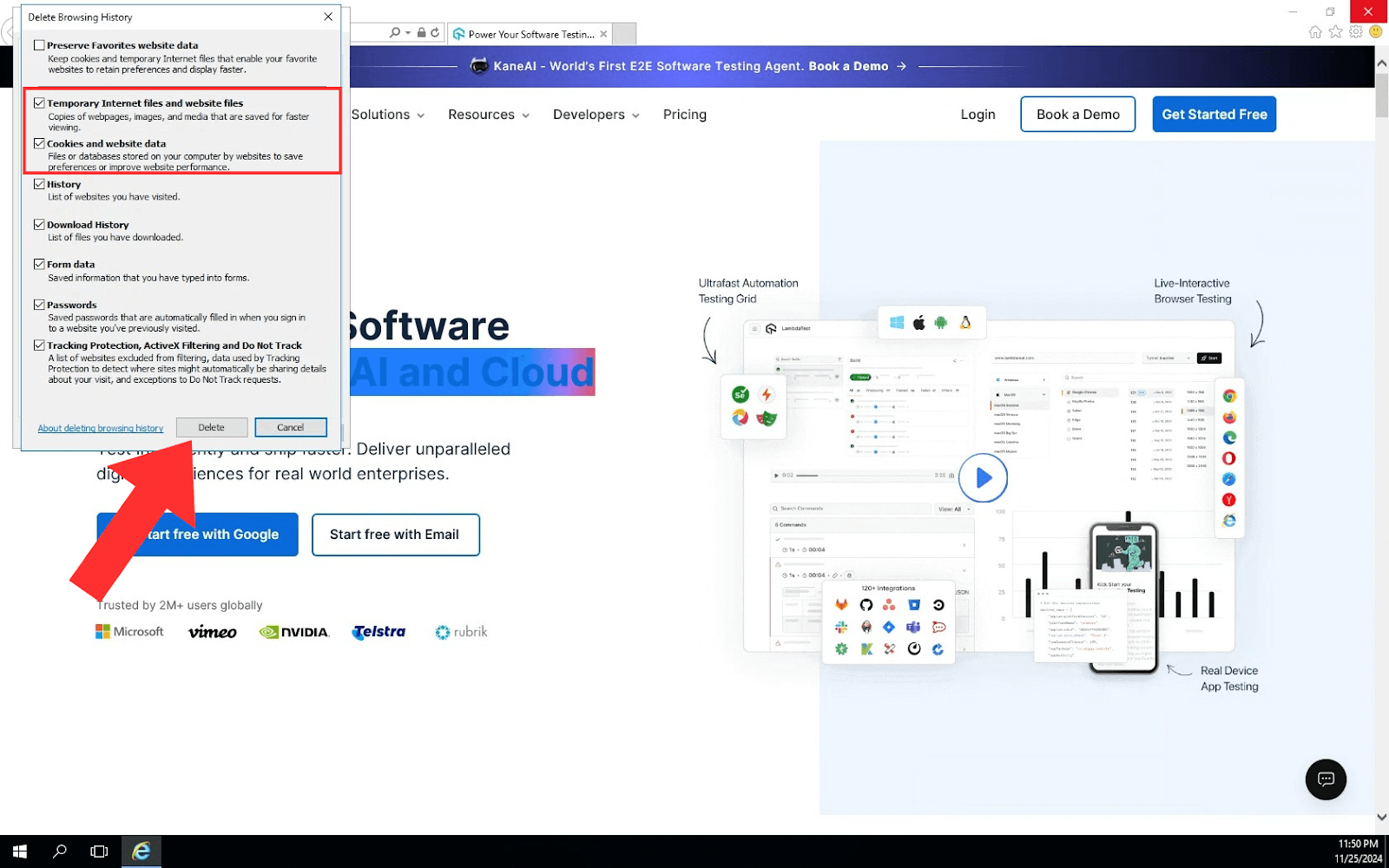
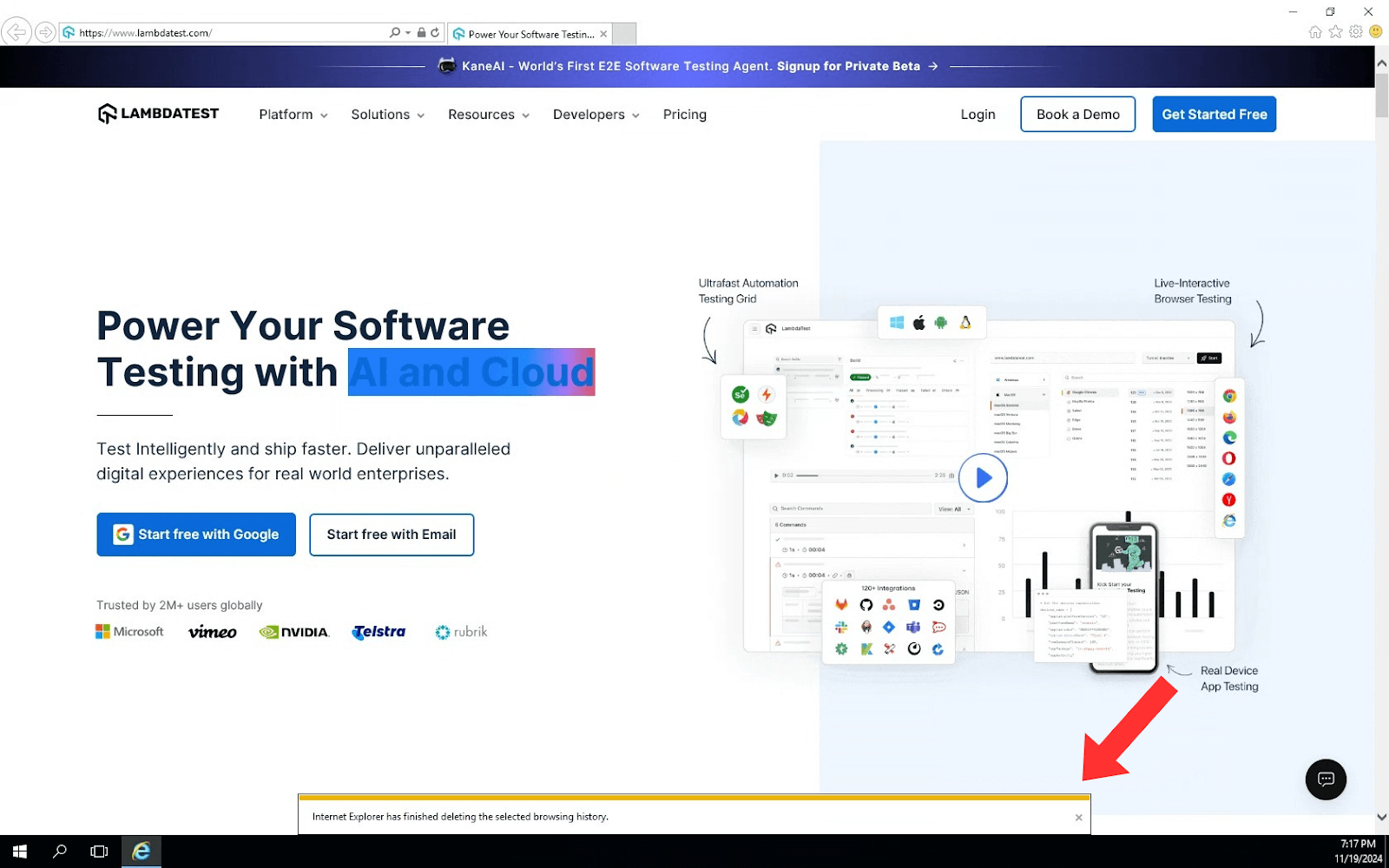
6. Internet Explorer will clear the selected data. Once finished, you can close the dialog box.
Steps to Clear Cache on Internet Explorer Using Keyboard Shortcuts
If you are wondering how do you clear the cache on Internet Explorer, follow these quick steps using keyboard shortcuts:
- Press Ctrl + Shift + Delete on your keyboard. This shortcut opens the Delete Browsing History window directly.
- Select Cache and Cookies in the dialog box:
- Check Temporary Internet files and website files to clear the cache.
- Check Cookies and website data to clear cookies.
- Click the Delete button or press Enter to confirm your selection.
- Once the process is finished, your cache and cookies will be cleared, allowing you to browse seamlessly.
This method provides a quick answer to how do you clear the cache on Internet Explorer efficiently.

Steps to Troubleshoot Cache Issues on Internet Explorer
If you are wondering how do you clear the cache on Internet Explorer but encounter issues when you are following the traditional and shortcut methods, try these troubleshooting steps:
- Ensure no other programs or browsers are using Internet Explorer while attempting to clear the cache and cookies.
- Restart your computer in Safe Mode and try clearing the cache and cookies again. This can prevent interference from other running programs.
- If the cache or cookies are corrupted, it might be difficult to delete them. Resetting Internet Explorer to its default settings can help:
- Go to Internet options.
- Under the Advanced tab, click Reset to restore default settings.
These steps can help resolve problems and provide a clear answer to how you can clear the cache on Internet Explorer when standard methods don’t work.
Conclusion
Clearing your cache in Microsoft Internet Explorer is straightforward and can significantly improve your browser’s performance. Cache stores temporary files to speed up site loading, but outdated or corrupted data can sometimes lead to issues. Removing cookies not only frees up storage but also enhances privacy by clearing saved login data and browsing history.
If you are unsure how to clear the cache on Internet Explorer, following the steps in this blog can ensure a smoother and more secure browsing experience. Clearing cache and cookies regularly is a good practice to keep your browser running efficiently.
Author

Tahneet Kanwal
Blogs: 29


Tahneet Kanwal is a freelance technical content writer with over 2 years of hands-on experience in frontend development and technical writing. She holds a B.Tech in Information Technology from University College of Engineering and Technology (UCET). Tahneet creates clear, SEO-optimized content on web technologies, software testing, and automation tools, leveraging her skills in HTML, CSS, JavaScript, React, Tailwind CSS, and various tools like VS Code, GitHub, Figma, and Canva. She is the author of 30+ technical blogs and an open-source contributor through Hacktoberfest. She has also participated in the Google Cloud Arcade Facilitator Program and holds certifications as a Meta Android Developer (Coursera) and in Web Development (Internshala). Over time, she has evolved her writing to prioritize structure, readability, and SEO while maintaining technical depth.


Frequently asked questions
Did you find this page helpful?
More Related Blogs
TestMu AI forEnterprise
Get access to solutions built on Enterprise
grade security, privacy, & compliance
- Advanced access controls
- Advanced data retention rules
- Advanced Local Testing
- Premium Support options
- Early access to beta features
- Private Slack Channel
- Unlimited Manual Accessibility DevTools Tests