

Next-Gen App & Browser Testing Cloud
Trusted by 2 Mn+ QAs & Devs to accelerate their release cycles


How To Handle Errors And Exceptions In Selenium Python
Efficiently manage errors in Selenium Python with expert tips. Learn to Handle Errors And Exceptions for seamless automation testing.

Eugene Kwaka
December 30, 2025
In the world of automation testing, Selenium is a free and open-source framework used to perform web application testing in web browsers like Chrome, Safari, Firefox, Opera, and Edge. You can write Selenium IDE tests using various programming languages such as Python, Java, JavaScript(Node.js), Kotlin, Ruby, PHP, and C#.
While the advantages of automated testing using Selenium are endless, there are incidences of errors and exceptions that happen regularly in the testing tool (or framework). When a program’s execution is disrupted during run-time, an exception is raised, preventing further instructions from being executed. Runtime errors are raised when you perform an unanticipated operation during runtime.
Exception and error handling is a programming mechanism by which the occurrence of errors and exceptions that halt the execution of a program are responded to by the program to ensure the normal execution of code.
In this blog on handling exceptions in Selenium Python, we will look at the variety of exceptions and errors that can happen when a Selenium test is running. By the end of this blog, you will be able to implement error and exception handling for Selenium automation tests. If you’re looking to improve your Selenium interview skills, check out our curated list of Selenium interview questions and answers.
So, let’s get started!
Introduction to Errors and Exceptions in Selenium Python
A developer must create code that thoroughly tests every component of an application or program’s operation before it can run. The code’s instructions, meanwhile, occasionally fail to work as planned.
The same principle applies to QA engineers when they write code to test the features and functioning of developed applications in order to make sure they are prepared for production and to be released to users.
Here is an analogy to help you better understand errors and exceptions in Selenium Python.
Imagine you have a work meeting on Zoom or any online video conference application while at home. During the meeting, the electricity was cut off, which is reported to have affected the whole city. You have no choice but to call off the meeting and wait for the electricity to be reinstated. Akin to this, errors are raised during runtime, and rectifying them is nearly impossible.
In contrast, exceptions are events that raise interruptions while an application runs and can be rectified using exception handling.
Exceptions in Selenium Python are generally classified into two types.
- Checked Exceptions
- Unchecked Exceptions
Checked Exception handling in Selenium is conducted while writing the code. On the other hand, Unchecked Exceptions are raised during runtime and can generate fatal errors compared to the former type of exception.
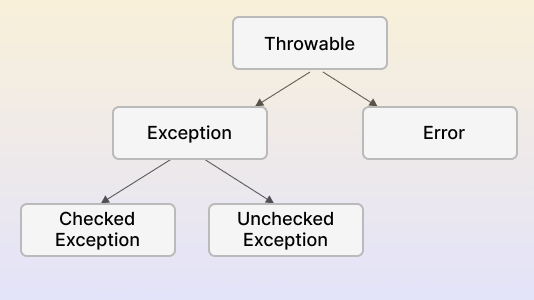
You can quickly sharpen your knowledge of exceptions in Selenium Python by reading through this detailed blog on different exceptions in Selenium.
Performing Selenium automated browser testing differs across the ecosystem in which the tests are being carried out. The test scripts may differ depending on the operating systems, browsers, or programming languages they are written in. Therefore, the raised errors andexceptions in Selenium Python may be different. For example, if the browsers don’t have the specified element, Selenium testing of an element property in web browsers may raise exceptions like NoSuchElementException.
To ensure that the applications function correctly and obstruct users’ interactions with the finished product, it is advised that Selenium error and exception handling be used as a standard practice.

Common Exceptions in Selenium Python
According to a recent Stack Overflow developer survey, Python is the fourth most popular programming language among developers.
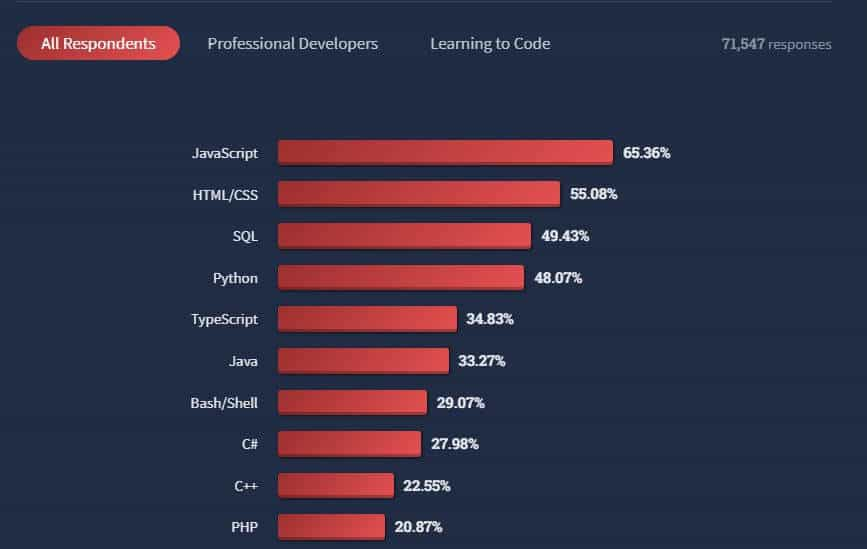
It offers a robust support system for test automation frameworks and is the most user-friendly and straightforward programming language available.
Errors and exceptions in Selenium Python are common and can occur when writing tests. The exception instances must be derived from a class that inherits from BaseException. If two exception instances do not have a subclass relationship, they are not considered equal despite having the same properties, such as names.
While writing code for the test scripts, the code can run into built-in exceptions, or you can raise exceptions in the code. The interpreter or built-in functions generate the built-in exceptions.
The selenium.common.exceptions package contains the exception classes, which can be imported in the following way.
Syntax: from selenium.common.exceptions import [Exception Name]
An example of an exception being imported is below:
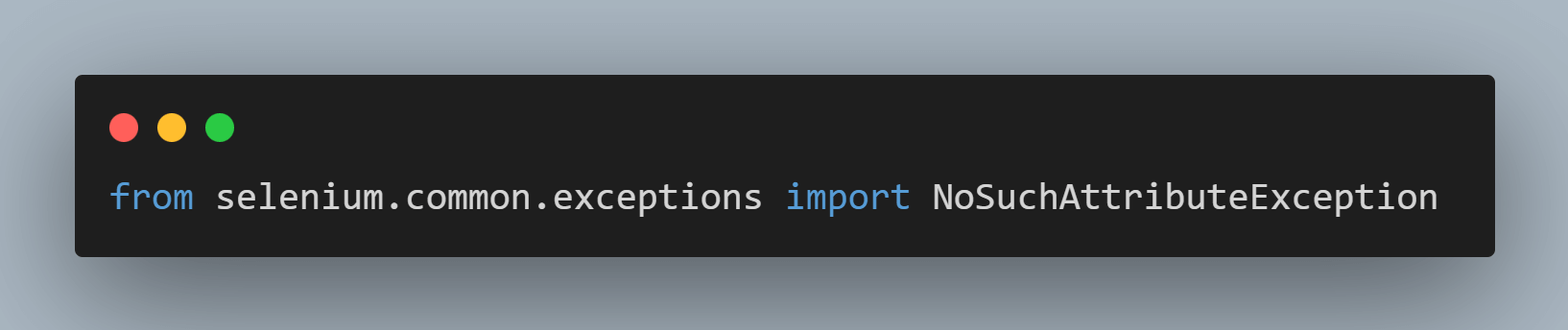
This exception indicates that the website does not contain the attribute of the element being looked for.
Other exceptions in Selenium Python include: TimeOutException. NoSuchElementException. ElementNotInteractableException. ElementNotVisibleException. StaleElementReferenceException. ElementClickInterceptedException. NoSuchCookieException. InvalidArgumentException. InvalidElementStateException. NoSuchWindowException.
- TimeOutException
- NoSuchElementException
- The element is not yet in the DOM when the find operation is performed because the page loading is in progress.
- Incorrect element locator is used in the source code.
- ElementNotInteractableException
- ElementNotVisibleException
- StaleElementReferenceException
- After the element was located, the page either changed or was refreshed.
- A refreshed context may have contained the element.
- Complete deletion of the referenced web element.
- ElementClickInterceptedException
- NoSuchCookieException
- InvalidArgumentException
- InvalidElementStateException
- NoSuchWindowException
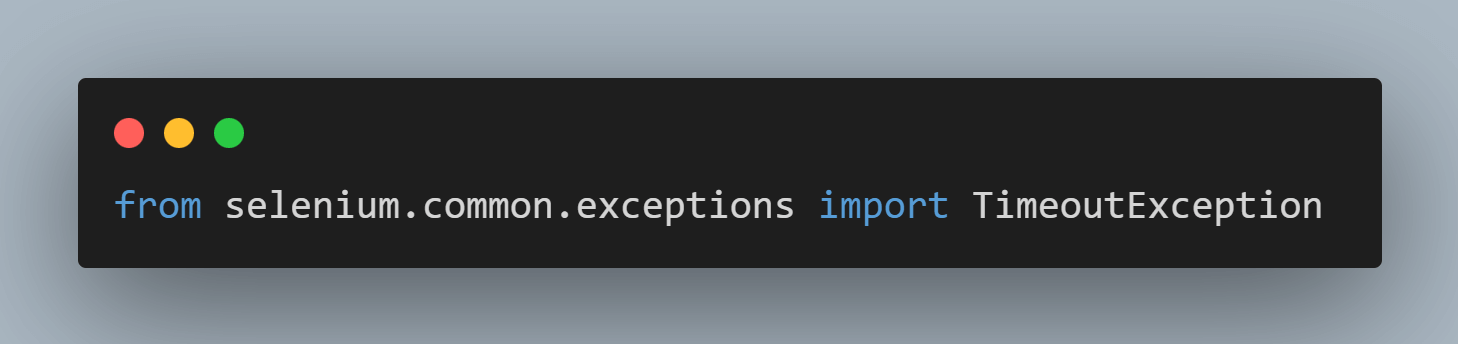
When a command does not complete in the time duration set (seconds), this exception is raised or thrown. The wait time can either be implicitly or explicitly defined.
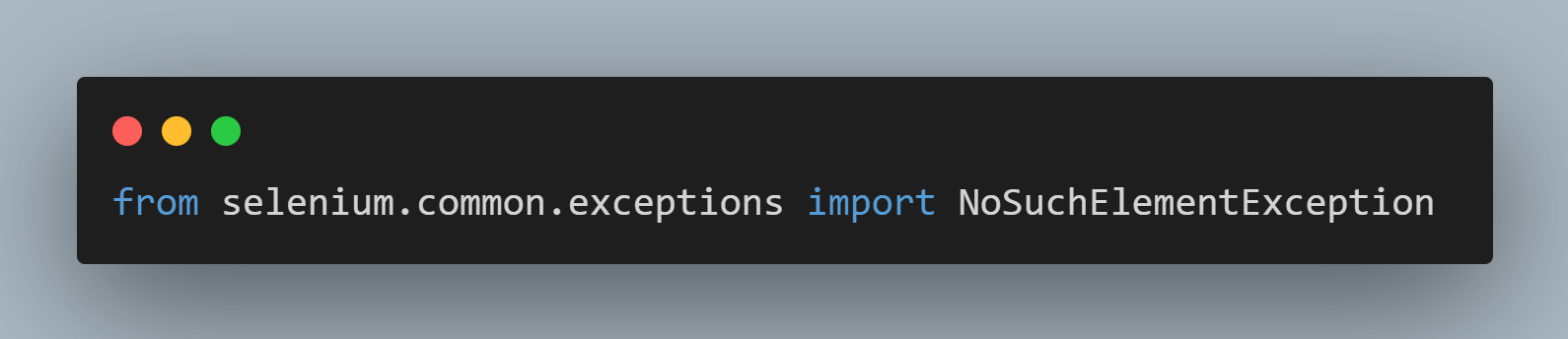
When an element cannot be found, this exception is raised or thrown. Nonetheless, different factors can lead to this exception being generated:

Such exceptions in Selenium Python is raised whenever an element in the DOM is present but cannot be interacted with.
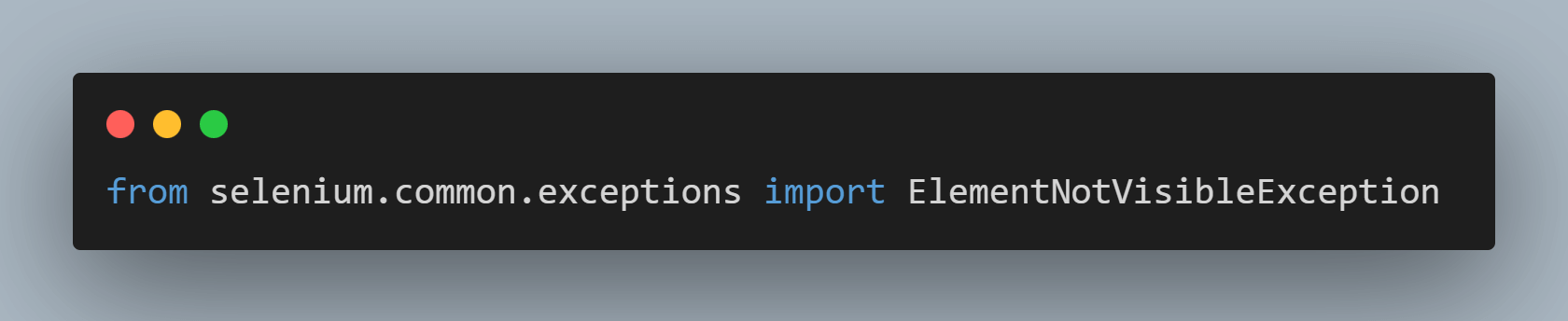
This exception typically arises when the interaction involves clicking or reading text from an element that is not visible in the DOM.

An outdated or unavailable element in the DOM is referred to as a stale element. A reference to an element that is currently “stale” will raise or throw this exception.
For example, the following reasons could lead to the StaleElementReferenceException exception:

This exception arises when the element receiving the interaction impedes the element intended to be clicked, thereby preventing the Element Click operation from being performed.
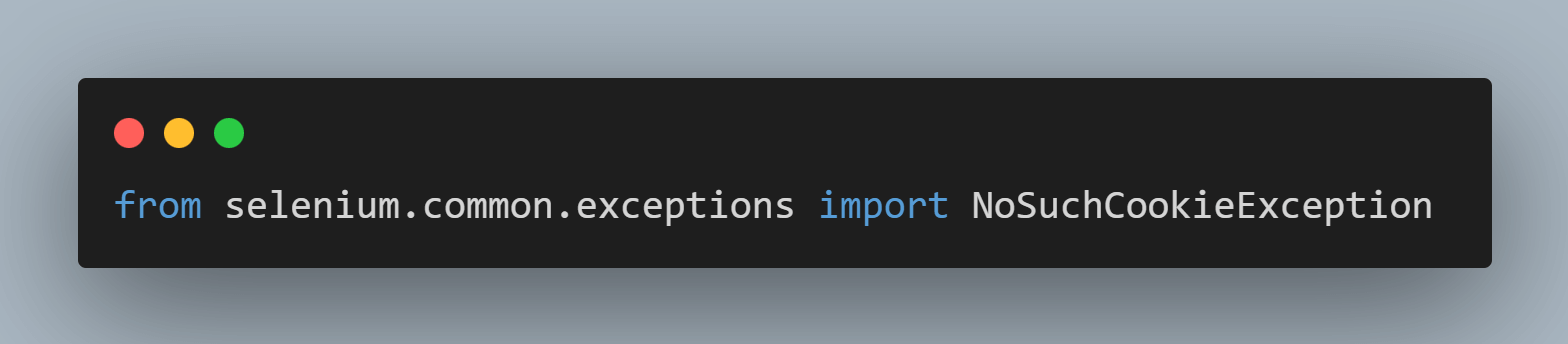
This exception will be raised if a cookie with the specified path name is not contained amongst the corresponding cookies of an active document in the current browsing session. To learn more about cookies in Selenium, check out this detailed tutorial on handling cookies in the Selenium WebDriver.
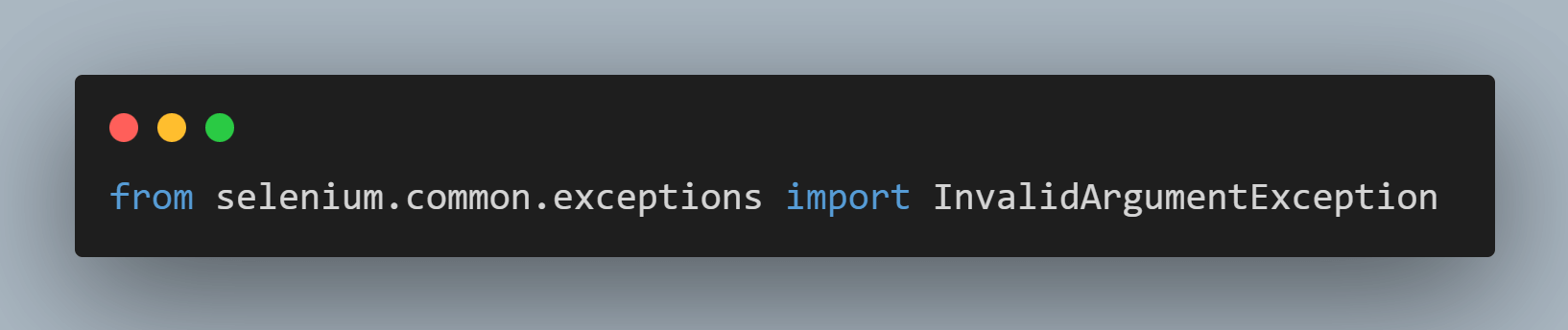
A command with improper or incorrect argument inputs will raise an InvalidArgumentException.

This exception is raised when we try to perform an operation that does not apply to an element. For example, if we perform a click operation on a radio button that is disabled, the exception will be raised, and hence the command given cannot be executed.
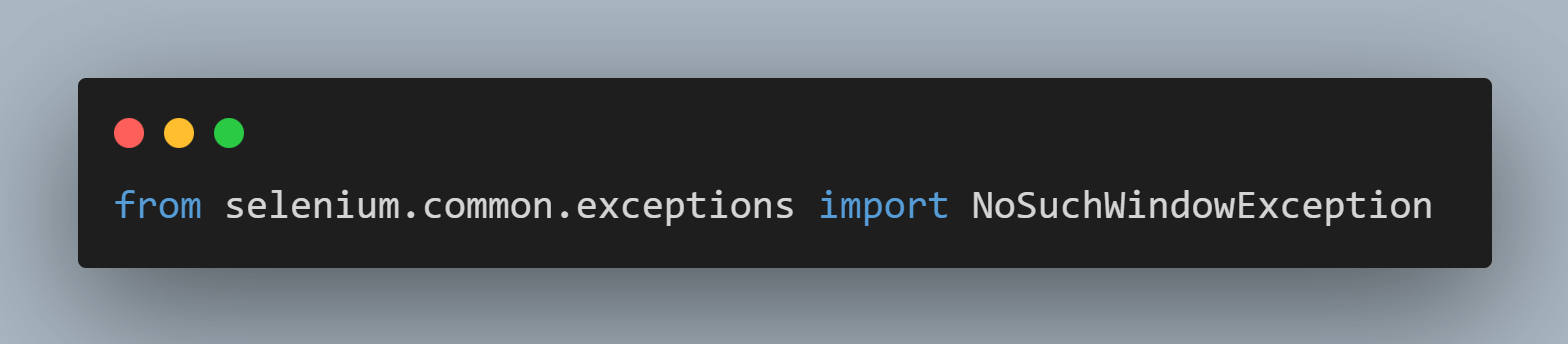
This exception is thrown when the intended window target cannot be found.
If you are a Python programmer looking to make a mark, you can take your career to the next level with the Selenium Python 101 certification from TestMu AI.
 Here’s a short glimpse of the Selenium Python 101 certification from TestMu AI:
Handling Errors and Exceptions in Selenium Python
Handling errors and exceptions in Selenium Python are vital when writing production-ready code, since exceptions and errors can arise for different reasons, as discussed earlier.
A prerequisite to writing tests using Selenium Python is to install Python and Selenium on your machine. When using Python for Selenium testing, the default framework used is PyUnit, also known as unittest, which is influenced by JUnit. It functions similarly to other unit testing frameworks.
However, in this blog on handling errors and exceptions in Selenium Python, we will use Pytest, another Python testing framework that supports functions, APIs, and unit testing. It is compatible with the current versions of Python and is easy to configure using the Python Package Manager (pip) command in the terminal.
If you are new to testing using Selenium Python, here is a detailed step-by-step tutorial on how to get started with Selenium Python. You will learn how to configure Python, Selenium, and Pytest on your machine to start automation testing with Selenium. You can learn more about Pytest through this Selenium Pytest tutorial.
For a different approach to handling exceptions, you might also explore exception handling in cypress, which can be useful in specific scenarios.
Project Setup
For the test project setup, we are using the Visual Studio (VS) Code IDE to write the test scripts. Alternatively, there are other IDEs available, such as Pycharm, Atom, and Sublime Text, that you can use as well.
For the package manager, we will use Poetry, a Python tool that manages and packages the necessary dependencies in a specific virtual environment for your project. You can declare the libraries your project depends on, and it will take care of managing (installing and updating) them.
- To install Poetry on your local machine’s terminal, please use the following command:
- Move to the directory where your project will be contained.
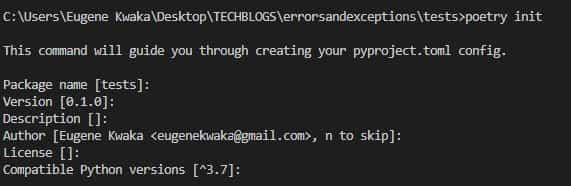
- To initialize Poetry in the terminal, we use the command poetry init. This command will generate a pyproject.toml configuration file containing the build system requirements for Python projects.
- We need the following libraries in our project to run Selenium Python tests: The pytest-xdist plugin adds new test execution modes to Pytest, allowing us to run parallel Selenium Python tests. Autopep8 formats the Python code to adhere to the PEP 8 style manual. Flake8 is a great tool that tests your code for errors against the PEP 8 style guide.
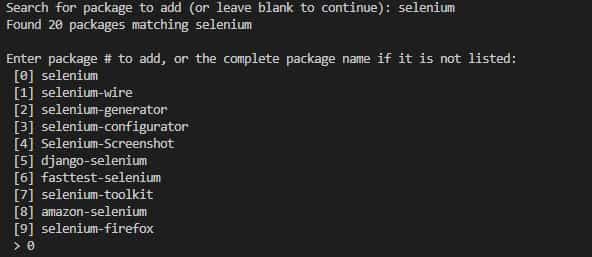
- Adding Selenium:
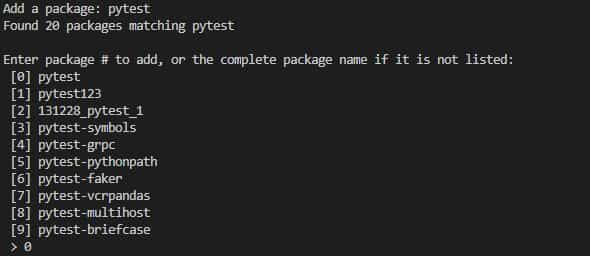
- Adding pytest:
- Adding pytest-xdist.
- Adding autopep8.
- Adding flake8.
- After installing the required dependencies, continue to press Enter, then confirm the generation of the file.
- The pyproject.toml file contains all the packages that must be installed in the virtual environment.

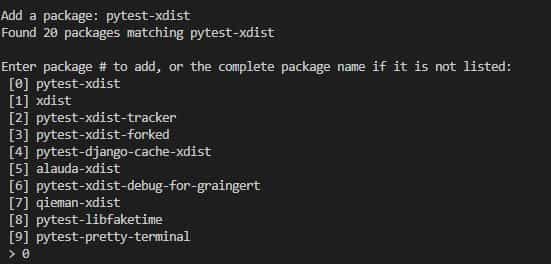
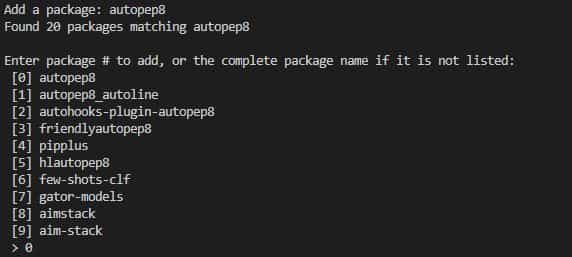
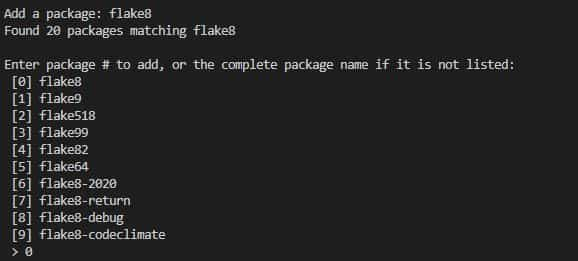
- For Windows pip install poetry
- For Mac pip3 install poetry (depends on the Python version you are using).
- selenium (v 4.3.0)
- flake8 (v 4.0.1)
- pytest (v 7.1.2)
- pytest-xdist (v 2.5.0)
- autopep8 (v 1.6.0)
[tool.poetry]
name = "tests"
version = "0.1.0"
description = ""
authors = ["Eugene Kwaka <[email protected]>"]

[tool.poetry.dependencies]
python = "^3.7"
selenium = "^4.3.0"
pytest = "^7.1.2"
pytest-xdist = "^2.5.0"
autopep8 = "^1.6.0"
flake8 = "^4.0.1"

[tool.poetry.dev-dependencies]

[build-system]
requires = ["poetry-core>=1.0.0"]
build-backend = "poetry.core.masonry.api"
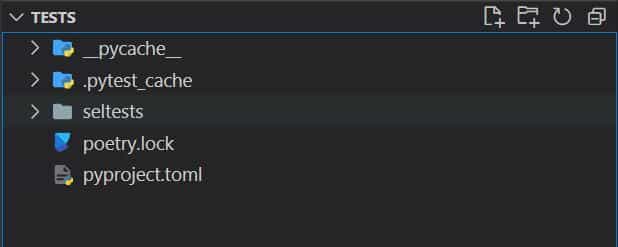
To install the dependencies mentioned, run the following command to create the pyproject.toml and poetry.lock files in the directory.

A virtual environment (venv) containing the dependencies installed will be automatically created by Poetry. This is important since we do not want to mix Python’s global dependencies with the specific dependencies we require to run the tests in the project.
In our project, we create a folder that will hold the test functions. Let’s call it “seltests”.

Note: Automate your Python tests in seconds. Try TestMu AI Now!
Handling Errors and Exceptions on the Cloud Selenium Grid
Now that we have covered the essentials to get started with Python web automation in Selenium, we will look at handling errors and exceptions in Selenium Python on a cloud grid. In this instance, we are using TestMu AI.
TestMu AI is a cloud-based platform that allows you to perform Python automation testing at scale over a cloud Selenium Grid. The unique and fully featured platform offers an online browser farm of 3000+ real browsers across multiple operating systems; thus helping businesses deliver more quality software at a more rapid speed.
You can also Subscribe to the TestMu AI YouTube Channel and stay updated with the latest tutorials around automated browser testing, Selenium testing, Cypress E2E testing, CI/CD, and more.
To get started with TestMu AI, please follow the below-mentioned steps:
- Register and log in to your TestMu AI account.
- Move to the TestMu AI Profile Section and copy your username and access key, which will be used to access the Remote Selenium Grid of TestMu AI.
- You will also need the desired capabilities generated using the TestMu AI Capabilities Generator. You can generate the capabilities needed for the specific test you are carrying out on that page.
We have listed the different types of exceptions in Selenium Python in the blog. Now, we will dig deeper into two common exceptions in Selenium Python when performing automated tests.
NoSuchElementException
A NoSuchElementException is thrown if we attempt to locate any element unavailable on the page (or the DOM).
Scenario 1 (Chrome Browser)
- Go to the URL link https://www.lambdatest.com/selenium-playground/.
- Locate an element called “p-10” by its name.
- Click on the element.
Scenario 2 (Firefox Browser)
- Go to the URL link https://www.lambdatest.com/selenium-playground/.
- Locate an element called “level-up” by its name.
- Click on the element.
Implementation (Scenario 1 on the Chrome Browser):
import pytest
from selenium import webdriver
import sys
from selenium.webdriver.common.by import By
from selenium.common.exceptions import NoSuchElementException


# Desired Capabilities according to SELENIUM 4
ch_capabilities = {
		'LT:Options' : {
			"user" : "<username>",
			"accessKey" : "<accesskey>",
			"build" : "NoSuchElementException Test on Chrome",
			"name" : "NoSuchElementException Test on Chrome",
			"platformName" : "Windows 10"
		},
		"browserName" : "Chrome",
		"browserVersion" : "102.0",
	}


def test_lambdatest_nosuchelement():
    # LambdaTest Profile username
    user_name = "<username>"
    # LambdaTest Profile access_key
    app_key = "<accesskey>"
    # Remote Url to connect to our instance of LambdaTest
    remote_url = "https://" + user_name + ":" + app_key + "@hub.lambdatest.com/wd/hub"
    ch_driver = webdriver.Remote(
        command_executor=remote_url, desired_capabilities = ch_capabilities)
    ch_driver.get('https://www.lambdatest.com/selenium-playground/')
    ch_driver.maximize_window()
    # will find an element by its NAME property on the page and click it
    ch_driver.find_element(By.CLASS_NAME, "p-10").click()
    ch_driver.quit()
Implementation (Scenario 2 on the Firefox Browser):
import pytest
from selenium import webdriver
import sys
from selenium.webdriver.common.by import By
from selenium.common.exceptions import NoSuchElementException

# Desired Capabilities according to SELENIUM 4
ff_capabilities = {
        'LT:Options' : {
            "user" : "<username>",
            "accessKey" : "<access_key>",
            "build" : "NoSuchElementException Test for LambdaTest (Firefox)",
            "name" : "NoSuchElementException Test for LambdaTest (Firefox)",
            "platformName" : "Windows 10"
        },
        "browserName" : "Firefox",
        "browserVersion" : "101.0",
    }

def test_lambdatest_firefox():
    # LambdaTest Profile username
    user_name = "<username>"
    # LambdaTest Profile access_key
    app_key = "<access_key>"
    # Remote Url to connect to our instance of LambdaTest
    remote_url = "https://" + user_name + ":" + app_key +   "@hub.lambdatest.com/wd/hub"
    # creating an instance of Firefox based on the remote url and the desired capabilities
    ff_driver = webdriver.Remote(
        command_executor=remote_url, desired_capabilities = ff_capabilities)
    ff_driver.get('https://www.lambdatest.com/selenium-playground/')
    # This will maximize the window interface of the driver class in this case it's FIREFOX
    ff_driver.maximize_window()
    # Will find an element by its NAME property in the page and click it
    ff_driver.find_element(By.CLASS_NAME, "level-up").click()
    ff_driver.quit()
Code Execution:
We run the two test scripts using parallel testing, which allows the execution of the same tests simultaneously. To run the test, type the following command in the terminal.
poetry run pytest seltests/test_nosuchelement_google.py seltests/test_nosuchelement_firefox.py -n 2
The terminal shows that the test execution failed.

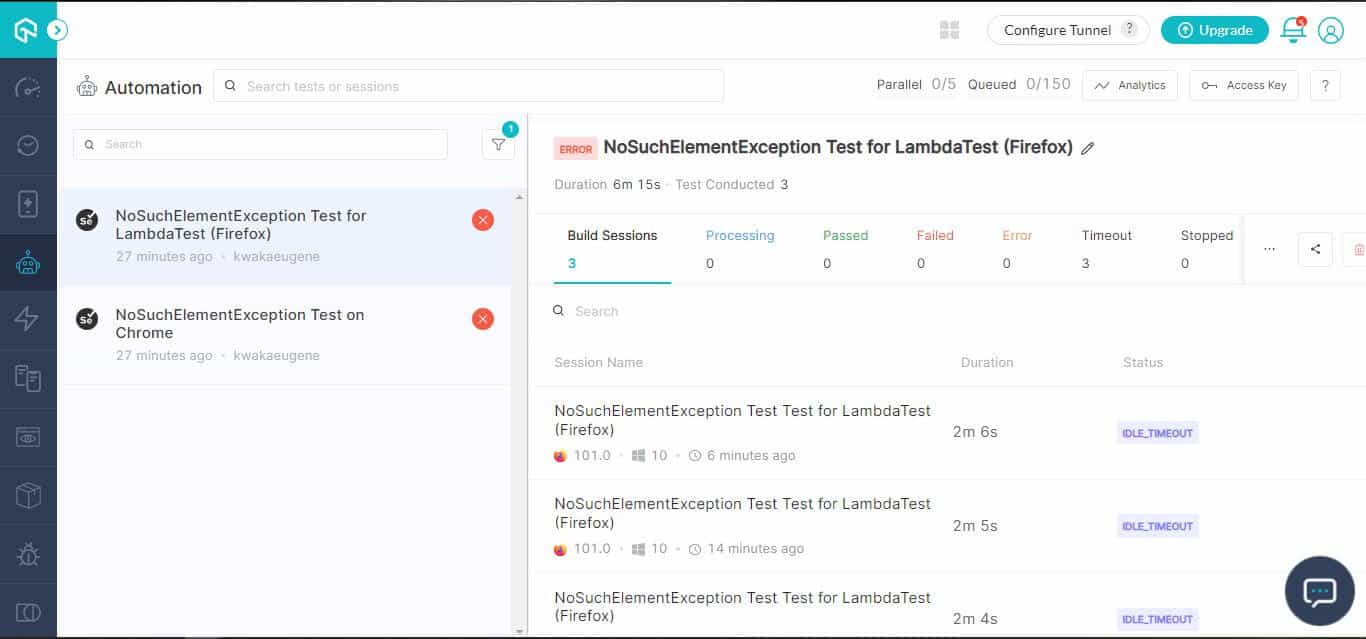
In the TestMu AI Builds dashboard, the failed test executions are displayed.
Code Walkthrough:
We are conducting a joint code walkthrough because the imported Selenium Python libraries used in both test scenarios are identical.
Step 1: Import the necessary Selenium Python classes – pytest, webdriver, sys, By, NoSuchElementException.
import pytest
from selenium import webdriver
import sys
from selenium.webdriver.common.by import By
from selenium.common.exceptions import NoSuchElementException
We imported pytest, primarily used for unit testing in Selenium Python. Selenium WebDriver is a web framework that enables us to perform cross-browser testing, and in this case, we are using Python to write the test scripts. The By query is based on the find_element() method in Selenium that targets a specific locator.
Step 2: We specify the browser capabilities based on the browser we use to conduct the automated tests in TestMu AI. They are generated using the TestMu AI Capabilities Generator.
ch_capabilities = {
        'LT:Options' : {
            "user" : "<username>",
            "accessKey" : "<accesskey>",
            "build" : "NoSuchElementException Test on Chrome",
            "name" : "NoSuchElementException Test on Chrome",
            "platformName" : "Windows 10"
        },
        "browserName" : "Chrome",
        "browserVersion" : "102.0",
    }
ff_capabilities = {
        'LT:Options' : {
            "user" : "<username>",
            "accessKey" : "<accesskey>",
            "build" : "NoSuchElementException Test for LambdaTest (Firefox)",
            "name" : "NoSuchElementException Test for LambdaTest (Firefox)",
            "platformName" : "Windows 10"
        },
        "browserName" : "Firefox",
        "browserVersion" : "101.0",
    }
Step 3: We define a function that starts with “test” in which we assign the test methods. You can learn more about it through this blog on Pytest testing using Selenium WebDriver.
def test_lambdatest_nosuchelement():
Step 4: We then set our TestMu AI username and accesskey to variables we appended to remote_url. This remote URL connects us to the Remote Selenium Grid (@hub.lambdatest.com/wd/hub).
# LambdaTest Profile username
    user_name = "<username>"
    # LambdaTest Profile access_key
    app_key = "<accesskey>"
    # Remote Url to connect to our instance of LambdaTest
    remote_url = "https://" + user_name + ":" + app_key + "@hub.lambdatest.com/wd/hub"
Step 5: We then use the remote_url and browser capabilities to instantiate the corresponding browser (i.e. Chrome or Firefox)
ch_driver = webdriver.Remote(
        command_executor=remote_url, desired_capabilities = ch_capabilities)
ff_driver = webdriver.Remote(
        command_executor=remote_url, desired_capabilities = ff_capabilities)
Step 6: We then get the URL of the website on which we want to locate a specific element. In our test, we try to locate an element by its name and click on it. Once the element had been located and clicked, we quit the test.
ch_driver.get('https://www.lambdatest.com/selenium-playground/')
    ch_driver.maximize_window()
    # Will find an element by its NAME property in the page and click it
    ch_driver.find_element(By.CLASS_NAME, "p-10").click()
    ch_driver.quit()
ff_driver.get('https://www.lambdatest.com/selenium-playground/')
    # This will maximize the window interface of the driver class in this case it's FIREFOX
    ff_driver.maximize_window()
    # Will find an element by its NAME property in the page and click it
    ff_driver.find_element(By.CLASS_NAME, "p-10").click()
    ff_driver.quit()
Watch this video to learn exception handling in Selenium, which covers different types of exceptions and how to handle them using various methods.
NoSuchElementException Handling in Action
According to the exception mentioned above, we must catch “NoSuchElementException” and print the proper log messages to guarantee that our test fails with the proper error message.
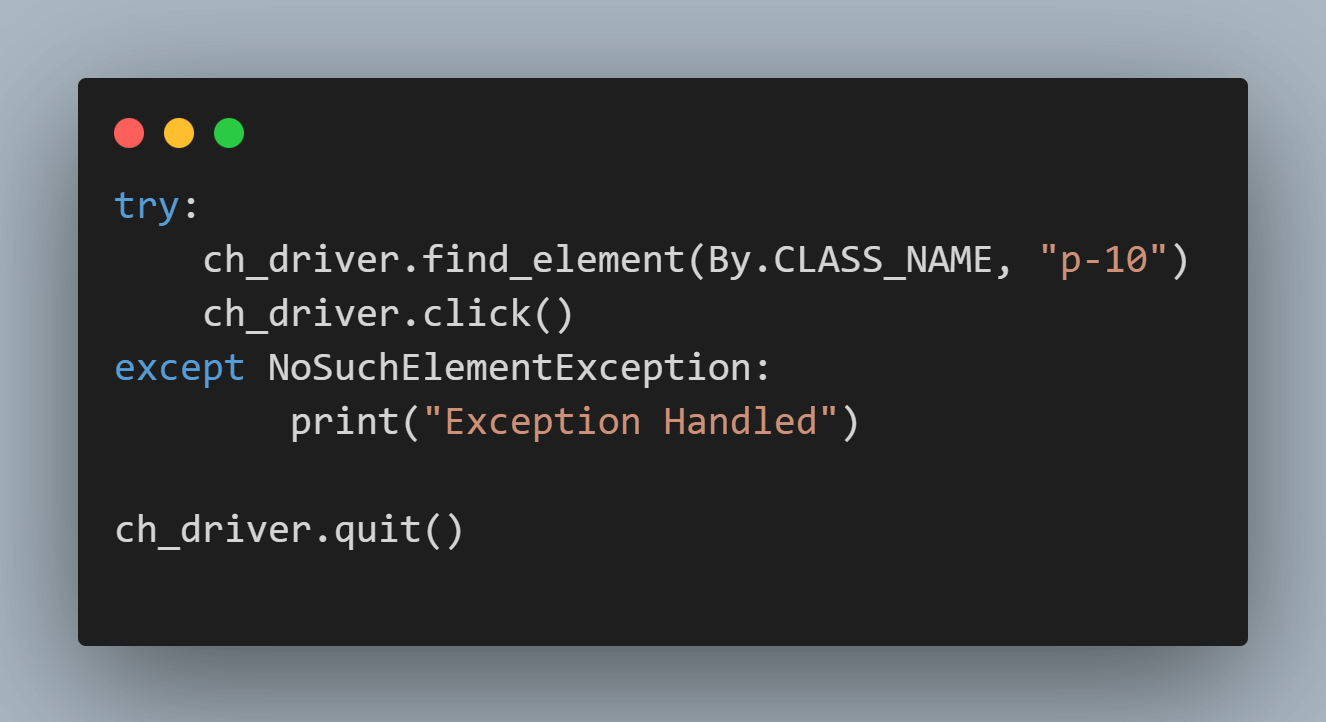
We use the try and except method to catch the exception when it is raised in the test script. The “try” block lets you check the code for errors, while the “except” block lets you handle the errors or exceptions raised.
import pytest
from selenium import webdriver
import sys
from selenium.webdriver.common.by import By
from selenium.common.exceptions import NoSuchElementException

ch_capabilities = {
        'LT:Options' : {
            "user" : "<username>",
            "accessKey" : "<accesskey>",
            "build" : "NoSuchElementException Test on Chrome",
            "name" : "NoSuchElementException Test on Chrome",
            "platformName" : "Windows 10"
        },
        "browserName" : "Chrome",
        "browserVersion" : "102.0",
    }

def test_lambdatest_nosuchelement():
    # LambdaTest Profile username
    user_name = "<username>"
    # LambdaTest Profile access_key
    app_key = "<accesskey>"
    # Remote Url to connect to our instance of LambdaTest
    remote_url = "https://" + user_name + ":" + app_key + "@hub.lambdatest.com/wd/hub"
    ch_driver = webdriver.Remote(
        command_executor=remote_url, desired_capabilities = ch_capabilities)
    ch_driver.get('https://www.lambdatest.com/selenium-playground/')
    ch_driver.maximize_window()
    try:
    # 'By' is used to locate the element by its property
        ch_driver.find_element(By.CLASS_NAME, "p-10")
        ch_driver.click()
    except NoSuchElementException:
        print("Exception Handled")

    ch_driver.quit()
import pytest
from selenium import webdriver
import sys
from selenium.webdriver.common.by import By
from selenium.common.exceptions import NoSuchElementException

# Desired Capabilities according to SELENIUM 4
ff_capabilities = {
        'LT:Options' : {
            "user" : "<username>",
            "accessKey" : "<accesskey>",
            "build" : "NoSuchElementException Test for LambdaTest (Firefox)",
            "name" : "NoSuchElementException Test for LambdaTest (Firefox)",
            "platformName" : "Windows 10"
        },
        "browserName" : "Firefox",
        "browserVersion" : "101.0",
    }

def test_lambdatest_nosuchelement():
    # LambdaTest Profile username
    user_name = "<username>"
    # LambdaTest Profile access_key
    app_key = "<accesskey>"
    # Remote Url to connect to our instance of LambdaTest
    remote_url = "https://" + user_name + ":" + app_key + "@hub.lambdatest.com/wd/hub"
    # creating an instance of Firefox based on the remote url and the desired capabilities
    ff_driver = webdriver.Remote(
        command_executor=remote_url, desired_capabilities = ff_capabilities)
    ff_driver.get('https://www.lambdatest.com/selenium-playground/')
    # This will maximize the window interface of the driver class in this case it's FIREFOX
    ff_driver.maximize_window()
    try:
        # Will find an element by its NAME property in the page and click it
        ff_driver.find_element(By.CLASS_NAME, "p-10").click()
    except NoSuchElementException:
        print("Exception Handled")
    ff_driver.quit()
Execution:
Use the terminal to enter the following command to perform Selenium Python testing in parallel on the TestMu AI Grid.
poetry run pytest seltests/test_handle_nosuchelement_google.py
seltests/test_handle_nosuchelement_firefox.py -n 2
The tests will be executed successfully.
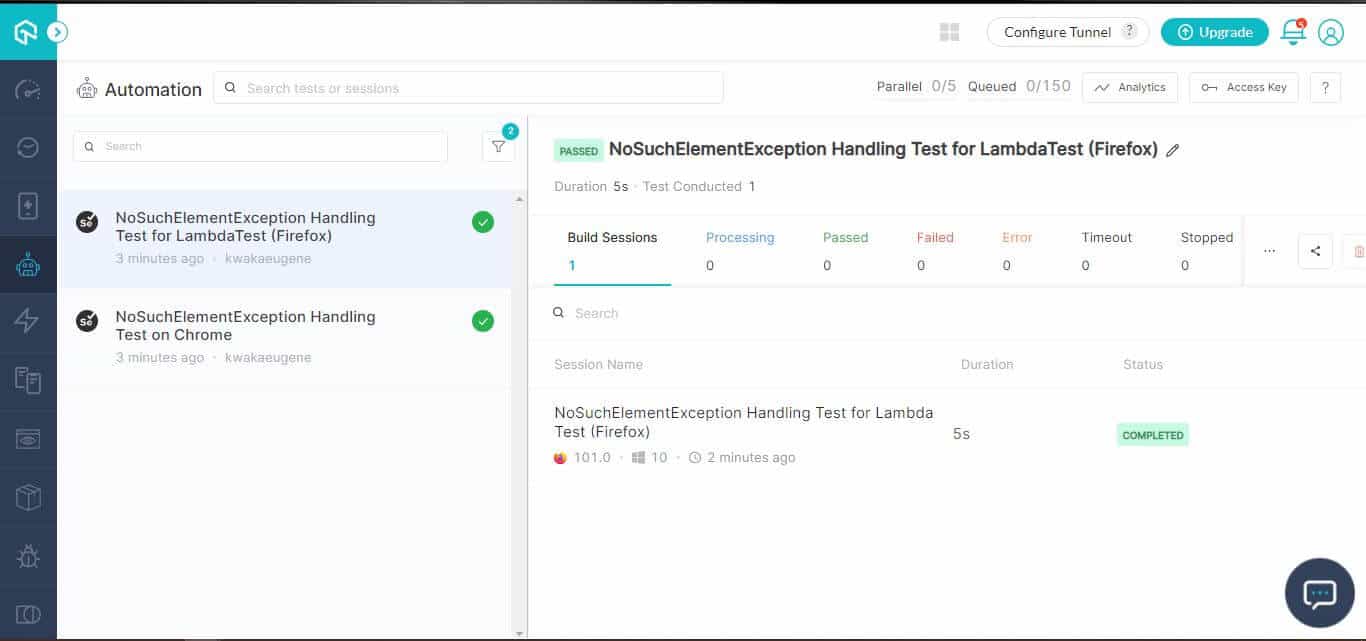
The passed tests will be shown as follows in the TestMu AI Dashboard.

The passed tests will be shown as follows in the TestMu AI Dashboard.
Code Walkthrough:
The “try” block will run the find_element() argument and take in the By query to locate an element using its name in the URL provided.
Step 1: In the browser’s inspect tool, click on Console and type the following command to find the element with the name “p-10”.
$x ("//*[text()='p-10']")
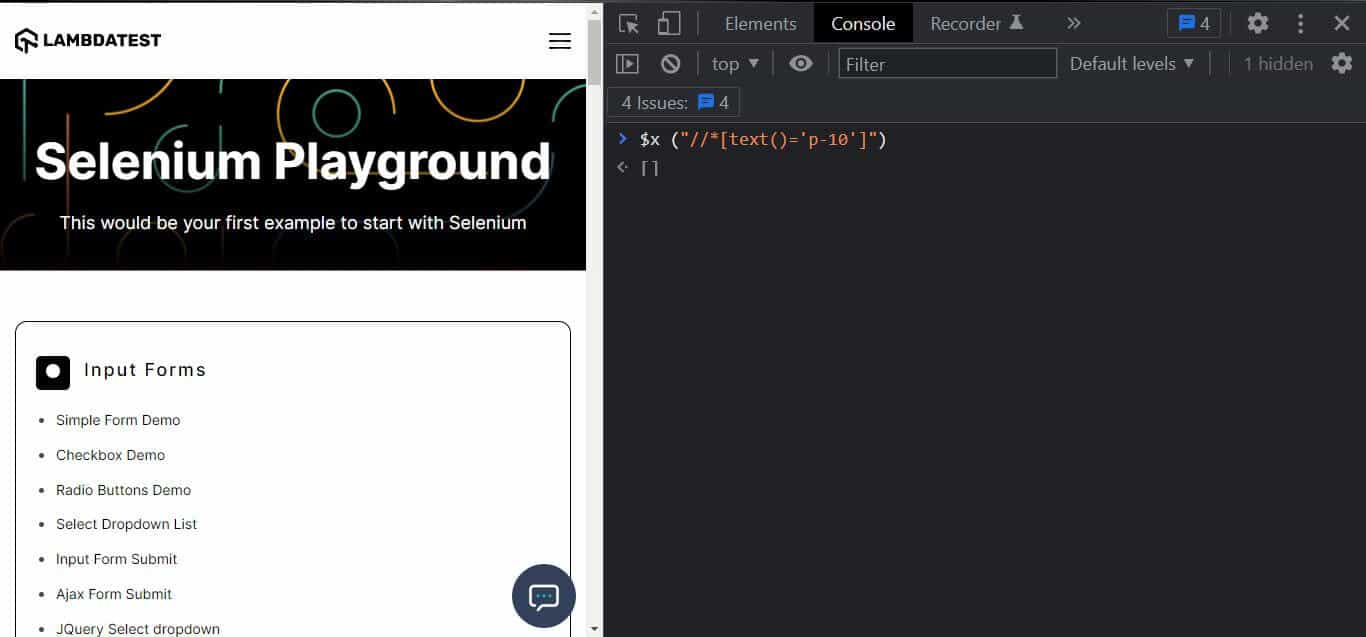
The test does not fail since the element with the name “p-10” does not exist. The “except” block will run, catching the exception.
Step 2: The try and except code block is the same in Chrome and Firefox text scripts.
StaleElementReferenceException
This exception is raised whenever an element is not present in the DOM or is deleted.
Scenario 1 (Chrome Browser)
- Go to the URL link https://ecommerce-playground.lambdatest.io/index.php?route=account/login.
- Find the reference to the email and password text fields.
- Click on a link that reloads the entire web page.
- Enter the password into the password field with the reference we located before the web page reloaded.
Scenario 2 (Firefox Browser)
- Go to the URL link https://ecommerce-playground.lambdatest.io/index.php?route=account/login.
- Find the reference to the email and password text fields.
- Click on a link that reloads the entire web page.
- Enter the password into the password field with the reference we located before the web page reloaded.
Implementation (Scenario 1 on the Chrome Browser):
import pytest
from selenium import webdriver
import sys
from selenium.webdriver.common.by import By
from selenium.common.exceptions import StaleElementReferenceException


ch_capabilities = {
        'LT:Options' : {
            "user" : "<username>",
            "accessKey" : "<accesskey>",
            "build" : "StaleElementReferenceException Test on Chrome",
            "name" : "StaleElementReferenceException Test on Chrome",
            "platformName" : "Windows 10"
        },
        "browserName" : "Chrome",
        "browserVersion" : "102.0",
    }

def test_ecommerceplayground_staleelement():
     # LambdaTest Profile username
    user_name = "<username>"
    # LambdaTest Profile access_key
    app_key = "<accesskey>"
    # Remote Url to connect to our instance of LambdaTest
    remote_url = "https://" + user_name + ":" + app_key + "@hub.lambdatest.com/wd/hub"
    # creating an instance of Firefox based on the remote url and the desired capabilities
    ch_driver = webdriver.Remote(
        command_executor=remote_url, desired_capabilities = ch_capabilities)
    ch_driver.get('https://ecommerce-playground.lambdatest.io/index.php?route=account/login')

    emailElement = ch_driver.find_element(By.ID, "input-email")
    passwordElement = ch_driver.find_element(By.ID, "input-password")

    emailElement.send_keys("[email protected]")

    ch_driver.find_element(By.XPATH, "//input[@type='submit']").click()

    passwordElement.send_keys("password")

    ch_driver.quit()
Implementation (Scenario 2 on the Firefox Browser):
import pytest
from selenium import webdriver
import sys
from selenium.webdriver.common.by import By
from selenium.common.exceptions import StaleElementReferenceException

# Desired Capabilities according to SELENIUM 4
ff_capabilities = {
        'LT:Options' : {
            "user" : "<username>",
            "accessKey" : "<accesskey>",
            "build" : "StaleElementReferenceException Test for LambdaTest (Firefox)",
            "name" : "StaleElementReferenceException Test for LambdaTest (Firefox)",
            "platformName" : "Windows 10"
        },
        "browserName" : "Firefox",
        "browserVersion" : "101.0",
    }


def test_ecommerceplayground_staleelement():
     # LambdaTest Profile username
    user_name = "<username>"
    # LambdaTest Profile access_key
    app_key = "<accesskey>"
    # Remote Url to connect to our instance of LambdaTest
    remote_url = "https://" + user_name + ":" + app_key + "@hub.lambdatest.com/wd/hub"
    # creating an instance of Firefox based on the remote url and the desired capabilities
    ff_driver = webdriver.Remote(
        command_executor=remote_url, desired_capabilities = ff_capabilities)
    ff_driver.get('https://ecommerce-playground.lambdatest.io/index.php?route=account/login')

    emailElement = ff_driver.find_element(By.ID, "input-email")
    passwordElement = ff_driver.find_element(By.ID, "input-password")

    emailElement.send_keys("[email protected]")

    ff_driver.find_element(By.XPATH, "//input[@type='submit']").click()

    passwordElement.send_keys("password")

    ff_driver.quit()
Execution:
Run the following command in the terminal to execute the test scripts in parallel testing.
poetry run pytest seltests/test_staleelement_google.py seltests/test_staleelement_firefox.py
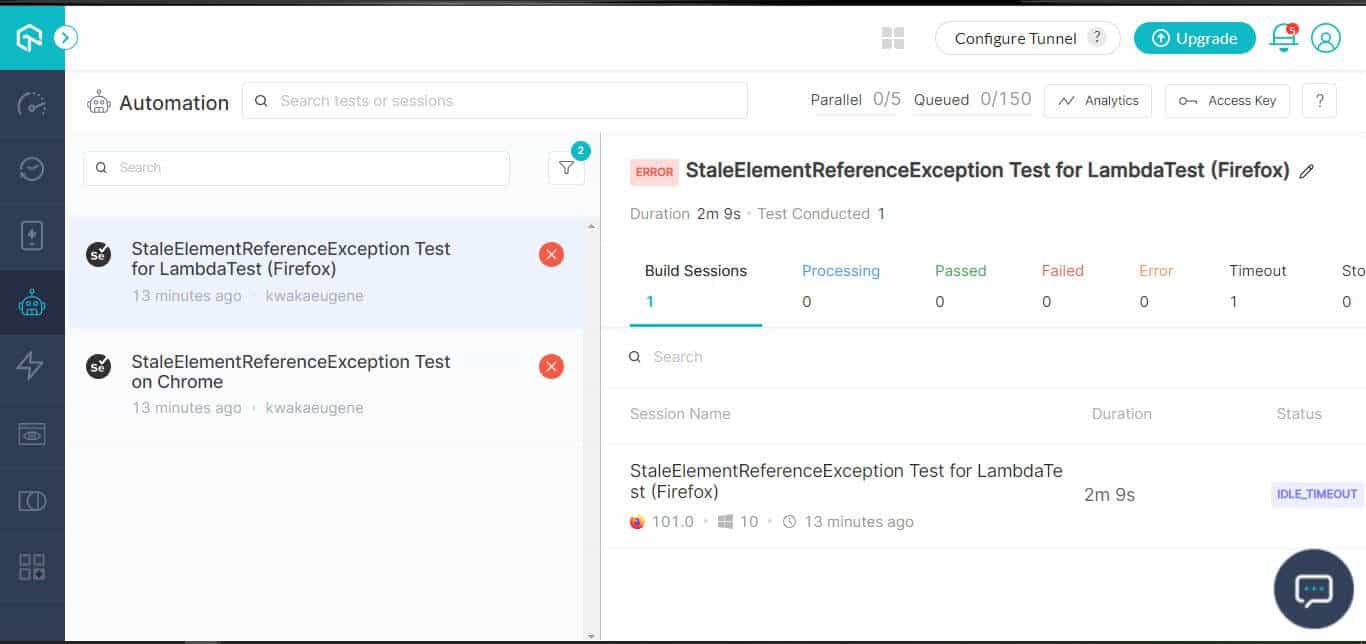
We receive a StaleElementExceptionError message in the terminal.

We can view the raised exceptions in the TestMu AI Dashboard.
Note: Run Python test scripts across 3000+ devices & browsers. Try TestMu AI Now!
Run Python test scripts across 3000+ devices & browsers. Try TestMu AI Now!
Code Walkthrough:
Step 1: Import the necessary Selenium Python classes – pytest, webdriver, sys, By, and StaleElementReferenceException.
import pytest
from selenium import webdriver
import sys
from selenium.webdriver.common.by import By
from selenium.common.exceptions import StaleElementReferenceException
Step 2: We generate capabilities in the TestMu AI Capabilities based on the browser and OS.
 ch_capabilities = {
    'LT:Options': {
        "user": "<username>",
        "accessKey": "<accesskey>",
        "build": "StaleElementReferenceException Test on Chrome",
        "name": "StaleElementReferenceException Test on Chrome",
        "platformName": "Windows 10"
    },
    "browserName": "Chrome",
    "browserVersion": "102.0",
}

<pre>

<center><strong>Firefox</strong></center>

<pre>ff_capabilities = {
        'LT:Options' : {
            "user" : "<username>",
            "accessKey" : "<accesskey>",
            "build" : "StaleElementReferenceException Test for LambdaTest (Firefox)",
            "name" : "StaleElementReferenceException Test for LambdaTest (Firefox)",
            "platformName" : "Windows 10"
        },
        "browserName" : "Firefox",
        "browserVersion" : "101.0",
    }
Step 3: We create a function that will contain our test methods. In the function, we define the username and password for a remote_url that will connect to the Remote Selenium Grid.
def test_ecommerceplayground_staleelement():
    # LambdaTest Profile username
    user_name = "<username>"
    # LambdaTest Profile access_key
    app_key = "<accesskey>"
    # Remote Url to connect to our instance of LambdaTest
    remote_url = "https://" + user_name + ":" +         app_key + "@hub.lambdatest.com/wd/hub"
    # creating an instance of Chrome based on the remote url and the desired capabilities
    ch_driver = webdriver.Remote(
        command_executor=remote_url, desired_capabilities=ch_capabilities)
    ch_driver.get(
     'https://ecommerce-playground.lambdatest.io/index.php?route=account/login')

    emailElement = ch_driver.find_element(By.ID, "input-email")
    passwordElement = ch_driver.find_element(By.ID, "input-password")

    emailElement.send_keys("[email protected]")

    ch_driver.find_element(By.XPATH, "//input[@type='submit']").click()

    passwordElement.send_keys("password")

    ch_driver.quit()
The code for the browser tests is the same. We set the Chrome webdriver to ch_driver while the Firefox webdriver is ff_driver. Based on their ids, the emailElement variable will locate the email input element, while the passwordElement variable will locate the input element.
We then enter an email into the email input using the emailElement.send_keys() function and locate and click the login button, which is the type “submit”. Then enter the password and finally quit the test with the .quit() function.
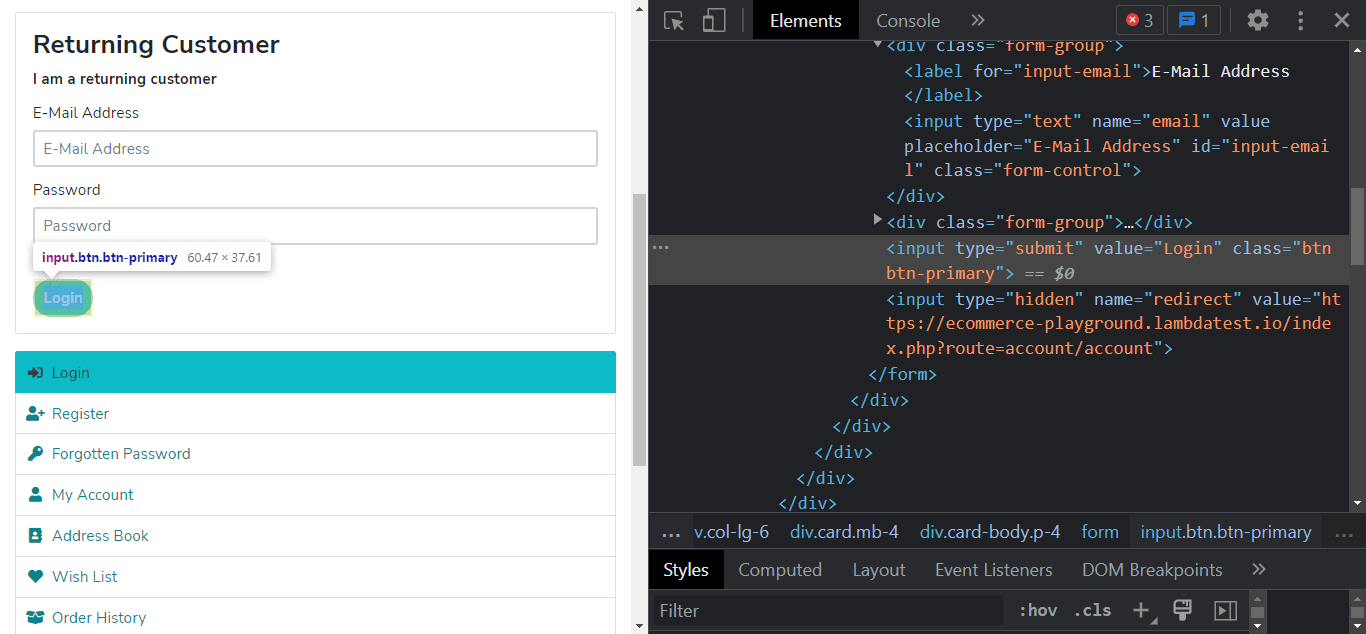
When the code is run, a StaleElementReferenceException will be raised for the following reasons:
- In Chrome, the element is not attached to the page document.
- In Firefox, the element reference password is no longer attached to the DOM.
Code Walkthrough:
We apply the try and except code blocks to handle the “StaleElementReferenceException” when it is thrown during our test’s execution.
import pytest
from selenium import webdriver
import sys
from selenium.webdriver.common.by import By
from selenium.common.exceptions import StaleElementReferenceException

ch_capabilities = {
        'LT:Options' : {
            "user" : "<username>",
            "accessKey" : "<accesskey>",
            "build" : "Errors and Exceptions Test on Chrome",
            "name" : "Errors and Exceptions Test on Chrome",
            "platformName" : "Windows 10"
        },
        "browserName" : "Chrome",
        "browserVersion" : "102.0",
    }


def test_ecommerceplayground_staleelement():
     # LambdaTest Profile username
    user_name = "<username>"
    # LambdaTest Profile access_key
    app_key = "<accesskey>"
    # Remote Url to connect to our instance of LambdaTest
    remote_url = "https://" + user_name + ":" + app_key + "@hub.lambdatest.com/wd/hub"
    # creating an instance of Firefox based on the remote url and the desired capabilities
    ch_driver = webdriver.Remote(
        command_executor=remote_url, desired_capabilities = ch_capabilities)
    ch_driver.get('https://ecommerce-playground.lambdatest.io/index.php?route=account/login')

    emailElement = ch_driver.find_element(By.ID, "input-email")
    passwordElement = ch_driver.find_element(By.ID, "input-password")

    emailElement.send_keys("[email protected]")

    ch_driver.find_element(By.XPATH, "//input[@type='submit']").click()

    try:
        passwordElement.send_keys("password")

    except StaleElementReferenceException:
        print('StaleElementReferenceException handled')
        passwordElement = ch_driver.find_element(By.ID, "input-password")
        passwordElement.send_keys("password")

    ch_driver.quit()
The try block will run the code to add the password in which the exception will be raised. The except block will handle the exception by locating the password input element and sending the password value.
When the code is run, it will execute successfully in the terminal.
poetry run pytest seltests/test_handle_staleelement_google.py seltests/test_handle_staleelement_firefox.py

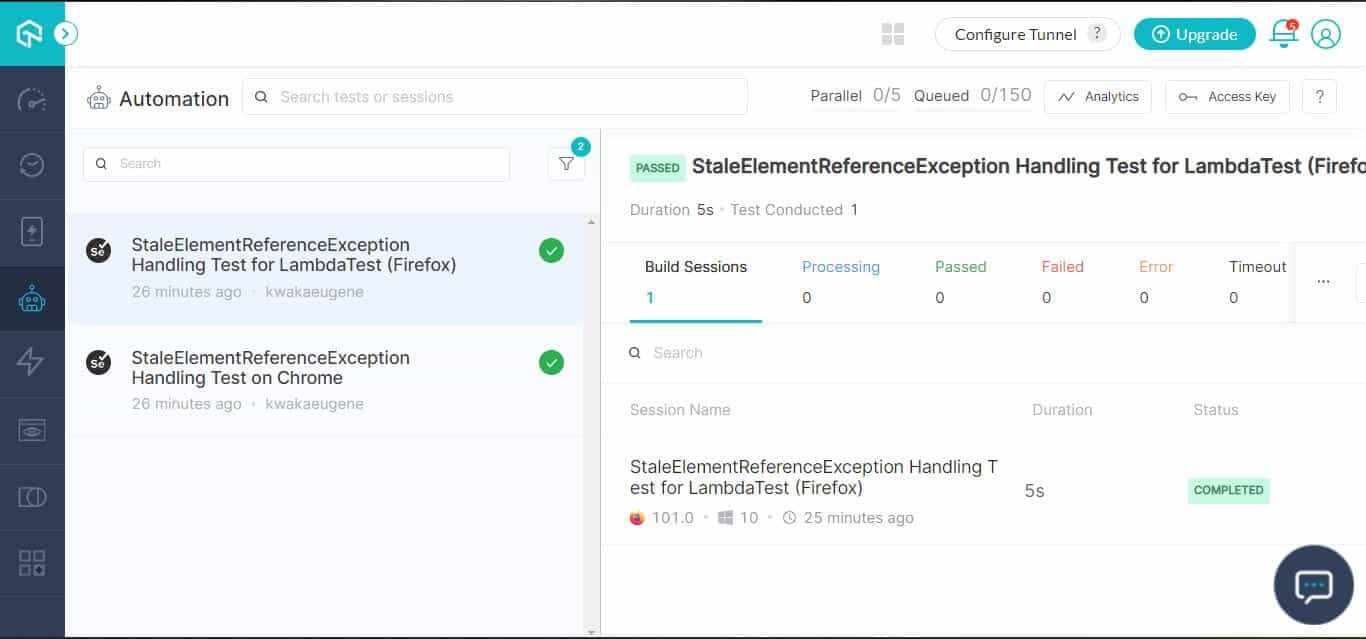
We can see successful test executions in the TestMu AI Build dashboard.
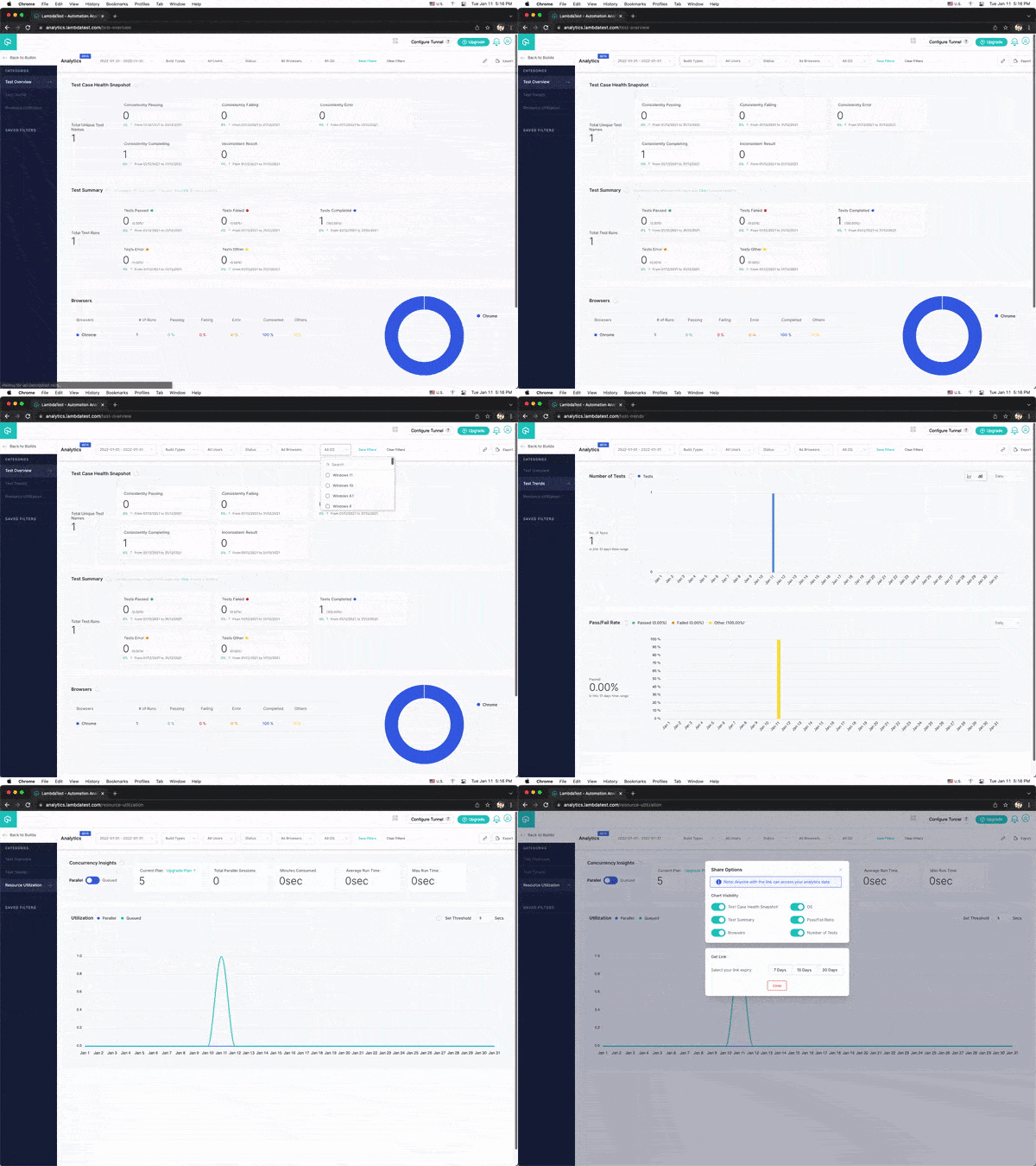
For a complete view of all test results and trends, check out your TestMu AI Analytics Dashboard. It lets you see how the tests are moving along, so you can make sure that everything is executed accordingly.

Conclusion
In this blog, we have looked at some common exceptions in Selenium Python. We have also deep-dived into various exceptions and looked at why NoSuchElementException and StaleElementReference are generated and how to handle them. Selenium Python provides methods using which you can handle various exceptions, and in this case, we have focused on the try and except method.


Frequently asked questions
Did you find this page helpful?
More Related Hubs
TestMu AI forEnterprise
Get access to solutions built on Enterprise
grade security, privacy, & compliance
- Advanced access controls
- Advanced data retention rules
- Advanced Local Testing
- Premium Support options
- Early access to beta features
- Private Slack Channel
- Unlimited Manual Accessibility DevTools Tests