

Next-Gen App & Browser Testing Cloud
Trusted by 2 Mn+ QAs & Devs to accelerate their release cycles


How To Generate Extent Reports In Selenium
Learn how to generate Extent Reports in Selenium for comprehensive and customized test reporting using automation testing frameworks like TestNG.

Vipul Gupta
March 2, 2026
Selenium provides built-in reporting capabilities through frameworks like TestNG, JUnit, and more. While these built-in reports offer basic information, custom reporting is often necessary to provide detailed insights into test execution. To help generate custom reports and make them more presentable, you can use Extent Reports.
Extent Reports in Selenium is a popular choice for creating custom reports, offering a user-friendly interface and comprehensive reporting features. For someone new to the concept of Extent Reports, generating them may seem challenging at first.
What Are Extent Reports?
Extent Report is an open-source library for generating test reports in automation testing. It is one of the best reporting tools for Selenium and is widely used in various organizations. It has been more widely used for report generation than inbuilt reports in various automation testing frameworks because of its enhanced features and customization. It is a simple yet powerful reporting library that can be integrated with automation testing frameworks like TestNG, JUnit, and more.
A few of the advantages of using Extent Reports in Selenium for automation testing are:
- It is an open-source library.
- It provides a pictorial representation of the test results.
- It can be customized as required.
- It allows users to attach screenshots and logs to the test report for a detailed summary of the tests.
- It can be easily integrated with frameworks like JUnit, TestNG, NUnit, etc.
- It can be easily configured with Jenkins, Bamboo, etc.
Watch the video tutorial to learn more about generating Extent Reports in Selenium and different ways to configure Extent Reports to capture your test results effectively.
To learn more about what is Selenium, Selenium testing, and more, subscribe to the TestMu AI YouTube Channel.
With a basic understanding of Extent Reports in Selenium, let’s move forward to learning its application, prerequisites, and more.
Applications of Extent Reports
The Extent Reports library is widely used in Selenium to generate detailed and interactive HTML reports for automated test executions. These reports enhance test result analysis and decision-making.
By effectively leveraging Extent Reports, teams can significantly improve delivery and ensure high-quality software.
- Detailed And Structured Test Reports: It provides structural and visually appealing reports that detail execution results, execution time, statuses, test steps, screenshots, logs, and other relevant information captured during the test run. These reports enable testers to identify reasons for failure and analyze trends quickly using interactive features. Users can expand and collapse sections and view detailed step-by-step logs.
- Report Customizations: It allows users to customize the report to their requirements by customizing themes, fonts, logos, layout, etc. This allows test results to be more presentable and branded per an organization’s requirement for better stakeholder presentation.
- Cross-Browser and Cross-Platform Compatibility: It provides consistent and similar layout reports. They can be easily integrated with all Selenium-supported browsers and platforms. This compatibility ensures that reporting remains unaffected regardless of the test environment configurations.
- Historical Data and Trend Analysis: One of the key benefits of using Extent Reports is its ability to store historical test data and results. This historical and trend data allows testers to track progress in test execution, identify issues, and observe patterns over time. This capability enables stakeholders to make more data-driven decisions, leading to better outcomes.
- Continuous Integration (CI/CD) Support: It supports easy integration with numerous CI/CD tools like Jenkins and TeamCity to enable automated report generation and sharing across teams for improved visibility. This support helps to streamline the reporting processes as part of the Software Development Life Cycle (SDLC).
While generating extent reports, you can also enhance your Selenium testing process with AI test agents like KaneAI.
KaneAI by TestMu AI is a innovative GenAI native test assistant featuring industry-first capabilities for test authoring, management, and debugging, designed specifically for high-speed quality engineering teams. It empowers users to create and refine complex test cases using natural language, significantly lowering the time and expertise needed to begin with test automation.

Prerequisites To Generate Extent Reports
Let’s learn how to implement a reporting system in your testing environment and workflow. We’ll gather all the necessary libraries and dependencies to generate Extent Reports in Selenium.
For demonstration purposes, we will use Eclipse IDE to create the project, with Java as the programming language and TestNG as the automation testing framework. When working with Selenium Java, we will create the project using Maven, which utilizes a POM file to manage the dependencies.
As the project uses TestNG in Selenium, add the latest stable versions of Selenium 4 and TestNG dependencies inside the pom.xml. You can find the latest dependencies from the Maven repository.
- To frame the automation test cases, we must install Selenium by adding its Maven dependency to the pom.xml file. The updated pom.xml should look as shown below.
- You need the Extent Reports dependency, either as a Maven dependency or as a JAR file. For a Maven project, add the Maven dependency to the pom.xml file. Alternatively, you can download the JAR file and add it to the build path.
- To create and execute the tests, use TestNG by adding the dependency.
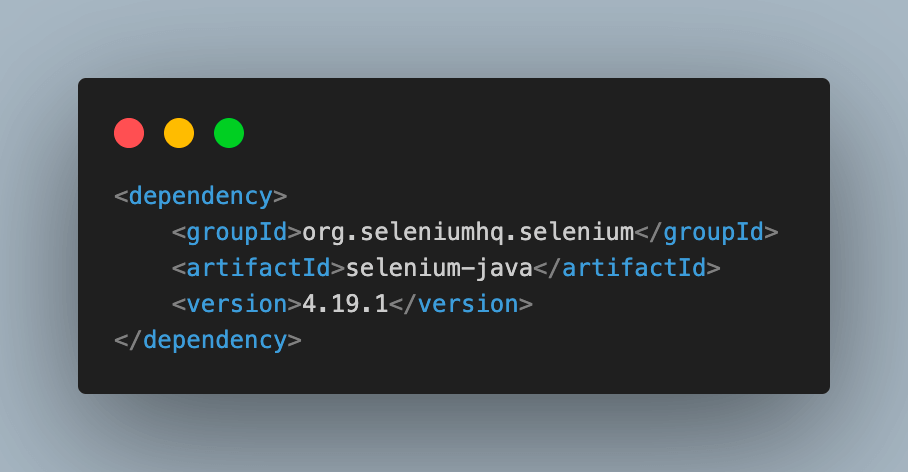
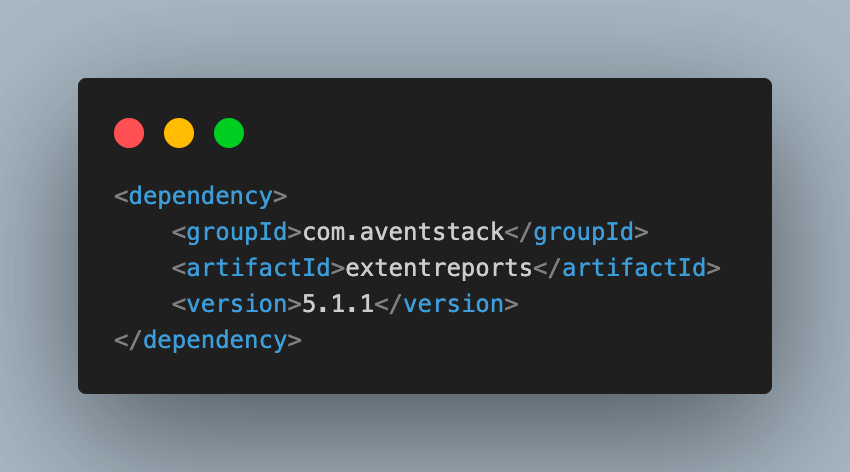
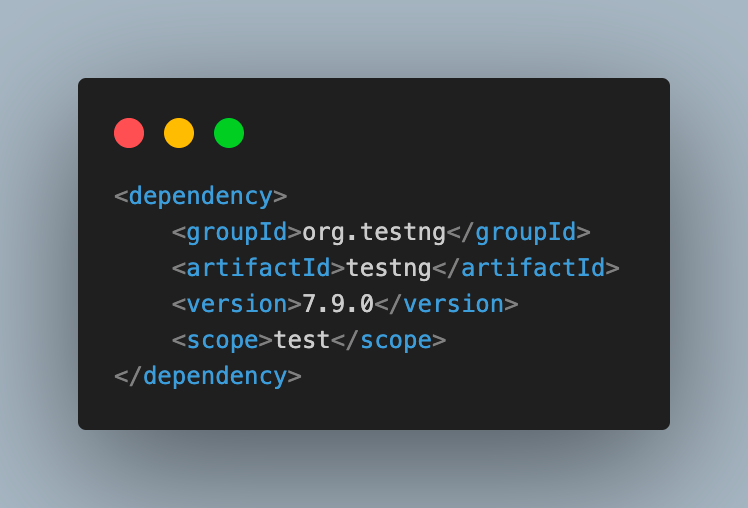
Now that we have understood the required configurations and dependencies to execute the test cases for Extent Report generation, the updated pom.xml should look like the one below.
<project xmlns="http://maven.apache.org/POM/4.0.0"
   xmlns:xsi="http://www.w3.org/2001/XMLSchema-instance"
   xsi:schemaLocation="http://maven.apache.org/POM/4.0.0 https://maven.apache.org/xsd/maven-4.0.0.xsd">
   <modelVersion>4.0.0</modelVersion>
   <groupId>ExtentReportSelenium</groupId>
   <artifactId>ExtentReportSelenium</artifactId>
   <version>0.0.1-SNAPSHOT</version>
   <name>ExtentReportSelenium</name>
   <dependencies>
       <dependency>
           <groupId>com.aventstack</groupId>
           <artifactId>extentreports</artifactId>
           <version>5.1.1</version>
       </dependency>
       <dependency>
           <groupId>org.seleniumhq.selenium</groupId>
           <artifactId>selenium-java</artifactId>
           <version>4.19.1</version>
       </dependency>
       <dependency>
           <groupId>org.testng</groupId>
           <artifactId>testng</artifactId>
           <version>7.9.0</version>
           <scope>test</scope>
       </dependency>
   </dependencies>
</project>

Note: Run your tests across 3000+ browsers and OS combinations. Try TestMu AI Today!
As we learn to generate Extent Reports in Selenium and have gathered the necessary prerequisites, let’s implement it using the TestNG testing framework.
How To Generate Extent Reports in Selenium Using TestNG?
In this section, we will learn how to generate Extent Reports in TestNG. We will start with simple TestNG tests without Selenium and then move on to Selenium test cases.
Three classes are used to generate and customize the Extent Reports in Selenium. They are:
- ExtentHtmlReporter if using the version below 4.1.x else ExtentSparkReporter on latest version 5. For demonstration purposes, we will be using the ExtentSparkReporter class.
- ExtentReports.
- ExtentTest.
The ExtentSparkReporter is used to create an HTML file and accepts a file path to the directory where the output should be saved.

In the above line of the code, we utilized the ExtentSparkReporter and specified the file path where the Extent Reports in Selenium should be generated.
In Java, the getProperty(String key) method returns the system property specified by the key passed as the argument. Here, we specified user.dir as the key, and System.getProperty(“user.dir”) returns the current working directory.
Therefore, instead of specifying the full path, you can use this to fetch the value of the directory and add the path where you want the Extent Reports in Selenium to be saved.
The ExtentSparkReporter is also used to customize the report generated. It allows many configurations to be made through the config() method.
Some of the configurations that can be made are described below.
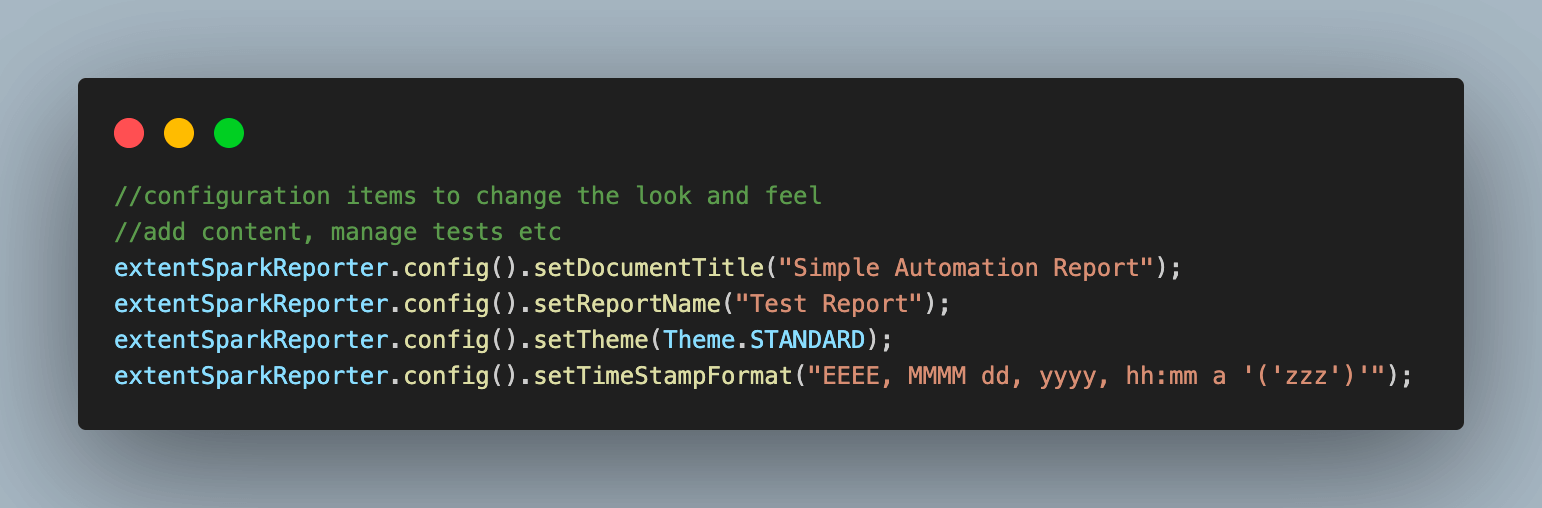
- To set the title of the extent report, you can use setDocumentTitle(“YOUR_TITLE”).
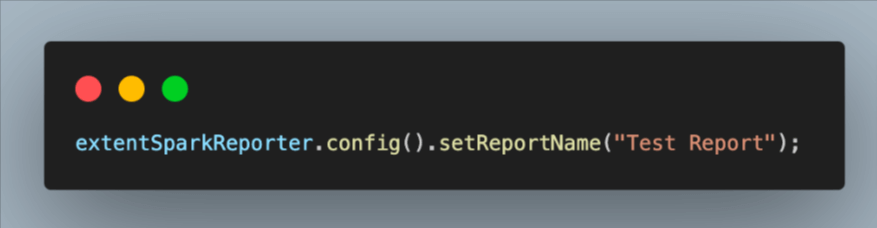
- To set the report name, you can use setReportName(“YOUR_REPORT_NAME”).
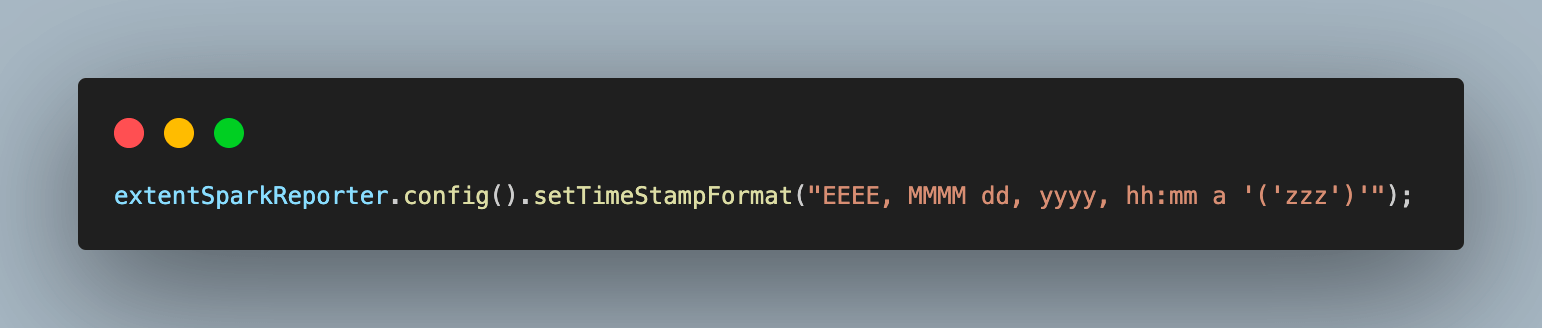
- You can also specify the time format in the extent report using the setTimeStampFormat() method.
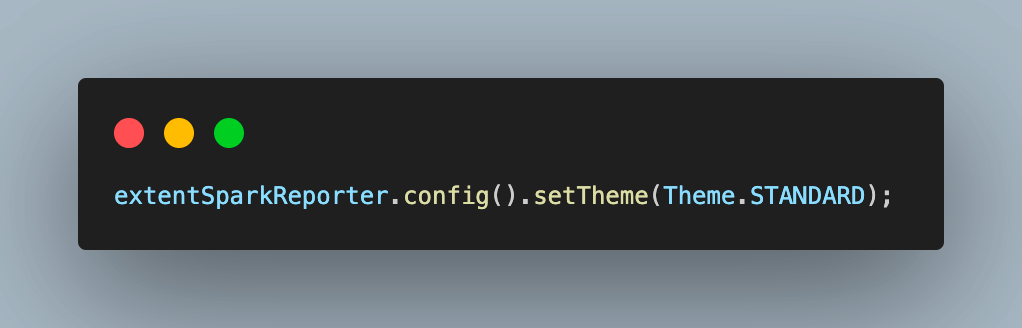
- For the Light Theme, you can set the theme as STANDARD.
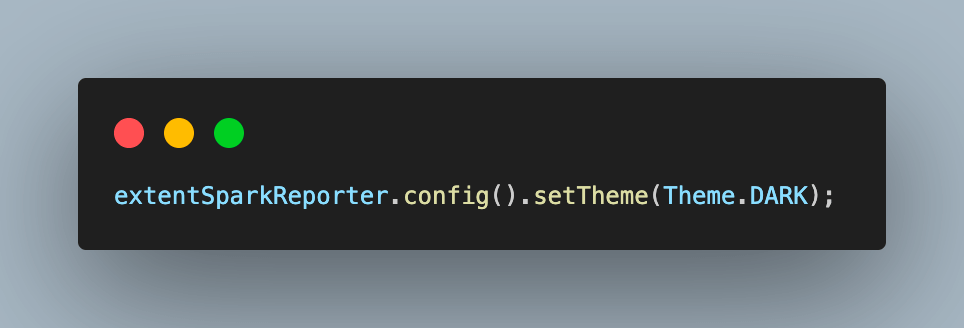
- For the Dark theme, you can set the theme as DARK.
- The ExtentReports class generates HTML reports based on the path provided in the ExtentSparkReporter class. ExtentReports uses this path by mapping itself to the ExtentSparkReporter object using the attachReporter() method.
- Use the createTest() method to create a new test case.
- Use flush() to remove all the old data on a report and create a new report.
- Use console.log() to log the status of each test step in the HTML report to be generated.
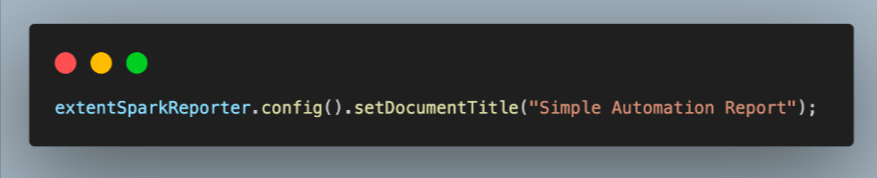
Extent Reports in Selenium can also customize your report with themes using the setTheme() method. You have two themes – STANDARD and DARK – for customizing the look and feel of the generated test report.
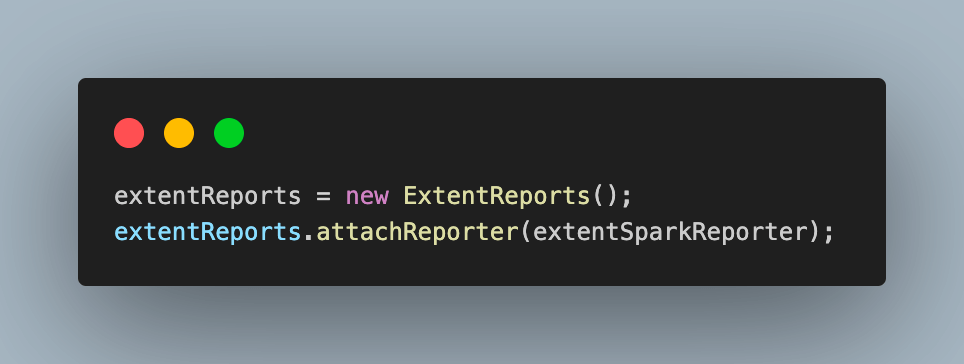
The ExtentTest class logs the test steps in the HTML file to generate a detailed report. The ExtentReports and ExtentTest classes are used with built-in methods.
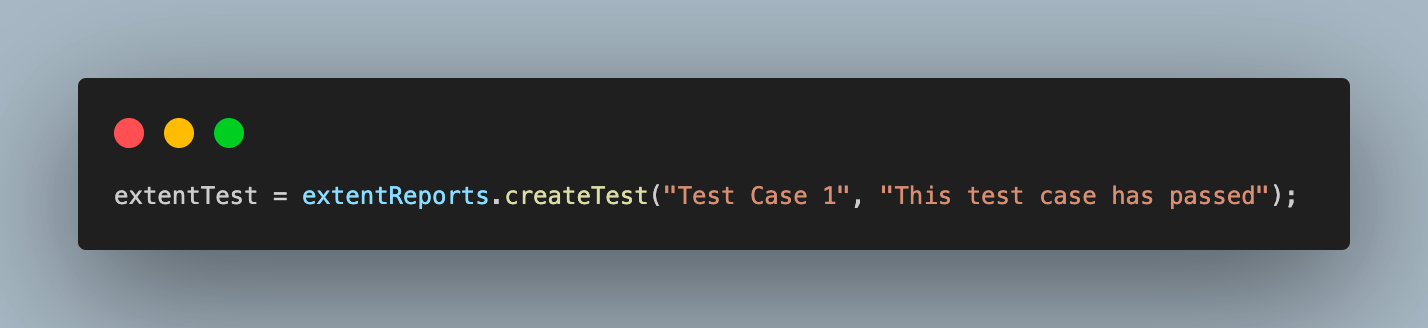
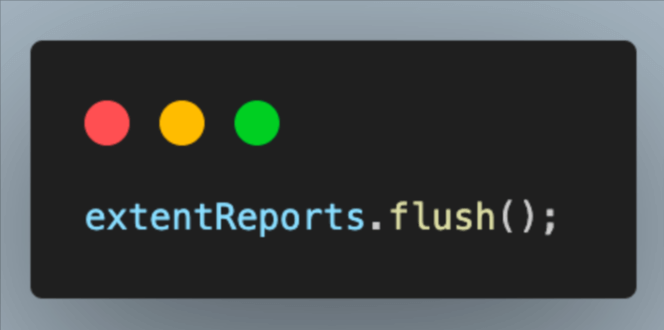
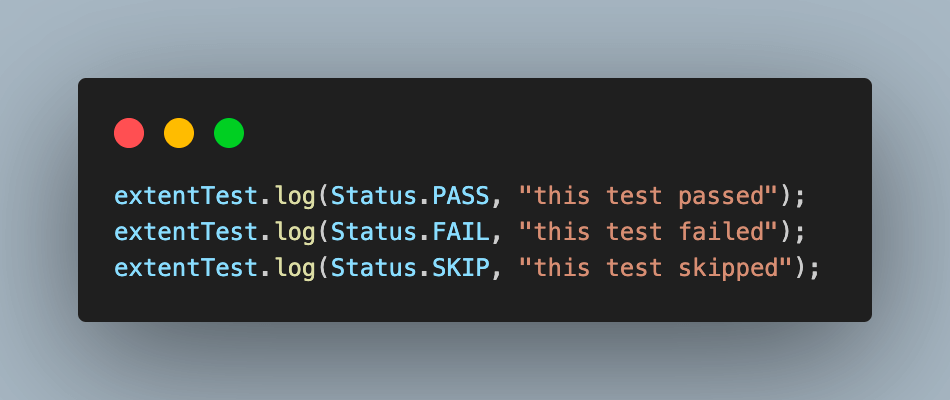
Now that you have set up the basic configurations required to generate Extent Reports, you should add all this to a class file called BaseTest.java. This class can then be inherited in test class files for further implementation.
Updated BaseTest.java would look like the one shown below.
package LocalGrid;


import org.testng.ITestResult;
import org.testng.annotations.*;


import com.aventstack.extentreports.*;
import com.aventstack.extentreports.reporter.ExtentSparkReporter;
import com.aventstack.extentreports.reporter.configuration.Theme;


public class BaseTest {

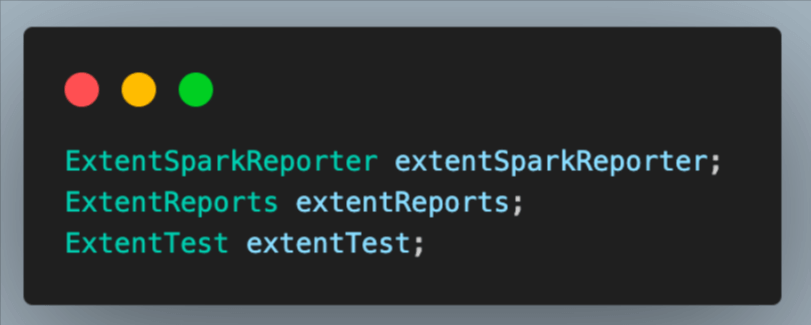
   ExtentSparkReporter extentSparkReporter;
   ExtentReports extentReports;
   ExtentTest extentTest;

   @BeforeTest
   public void startReporter()
   {
       extentSparkReporter  = new ExtentSparkReporter(System.getProperty("user.dir") + "/test-output/extentReport.html");
       extentReports = new ExtentReports();
       extentReports.attachReporter(extentSparkReporter);


       //configuration items to change the look and feel
       //add content, manage tests etc
       extentSparkReporter.config().setDocumentTitle("Simple Automation Report");
       extentSparkReporter.config().setReportName("Test Report");
       extentSparkReporter.config().setTheme(Theme.STANDARD);
       extentSparkReporter.config().setTimeStampFormat("EEEE, MMMM dd, yyyy, hh:mm a '('zzz')'");
   }

   @AfterMethod
   public void getResult(ITestResult result) {
       if(result.getStatus() == ITestResult.FAILURE) {
           extentTest.log(Status.FAIL,result.getThrowable());
       }
       else if(result.getStatus() == ITestResult.SUCCESS) {
           extentTest.log(Status.PASS, result.getTestName());
       }
       else {
           extentTest.log(Status.SKIP, result.getTestName());
       }
   }
   @AfterTest
   public void tearDown() {
       //to write or update test information to the reporter
       extentReports.flush();
   }
}
Below is a detailed walkthrough of the code to better understand the code used to generate Extent Reports with TestNG.
Code Walkthrough:
- Create the objects for classes ExtentSparkReporter, ExtentReports, and ExtentTest classes.
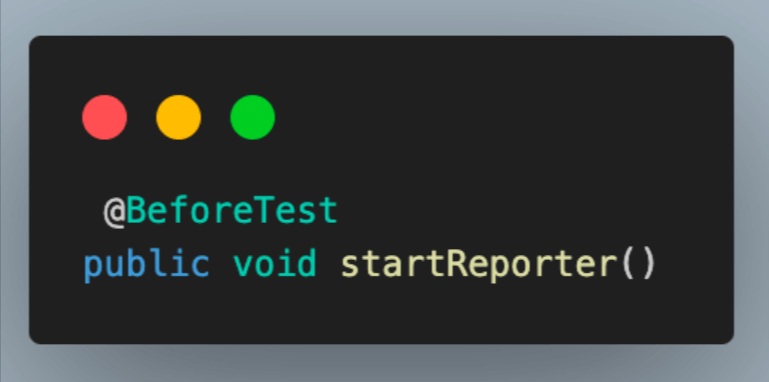
- Add the first method in this class as startReporter() and annotate it with the @BeforeTest annotation of TestNG to execute it before each test class.
- Initialize the extentSparkReporter object by passing the location for the generated HTML report.
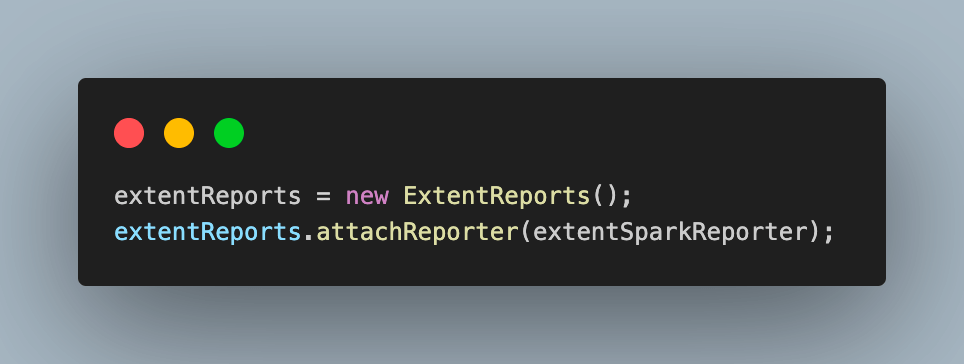
- Initialize the extentReports object and attach the extentSparkReporter with it.
- Update the configuration values for title, report name, time, etc., as per your requirement.
- Add getResult(), which listens to the test case result and annotates it with @AfterMethod to ensure it is executed after each test case.
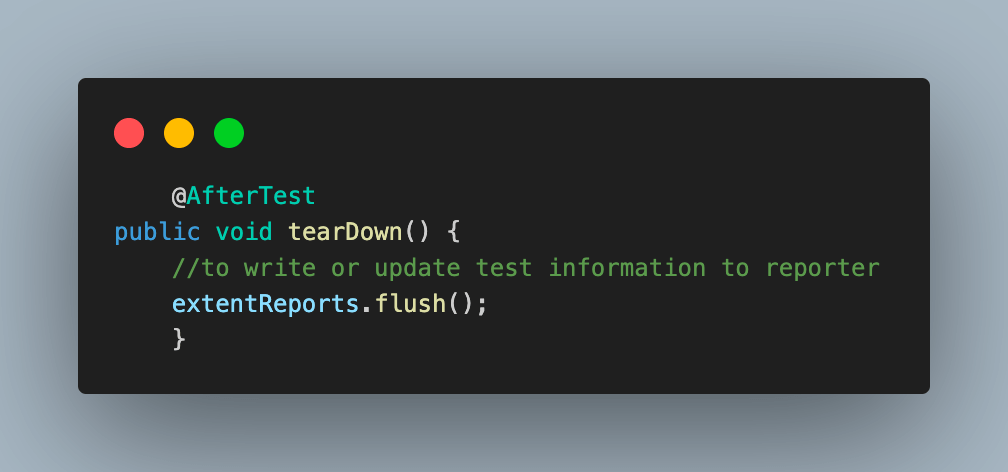
- In the end, you can use the flush() method, which removes any previous data and creates new Extent Reports in Selenium. For this, create a method as tearDown() and annotate it with @AfterTest.
To learn additional annotations to help prioritize test cases effectively, follow this comprehensive guide on TestNG annotations for Selenium WebDriver.

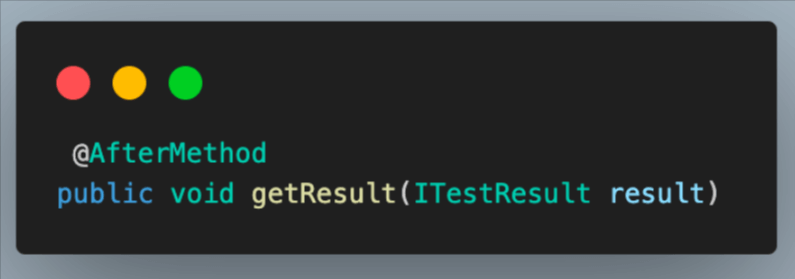
Next, you can check the test case result and use the log() method from the ExtentTest class based on that. This helps to retrieve the status of the tests and publish it in the report.
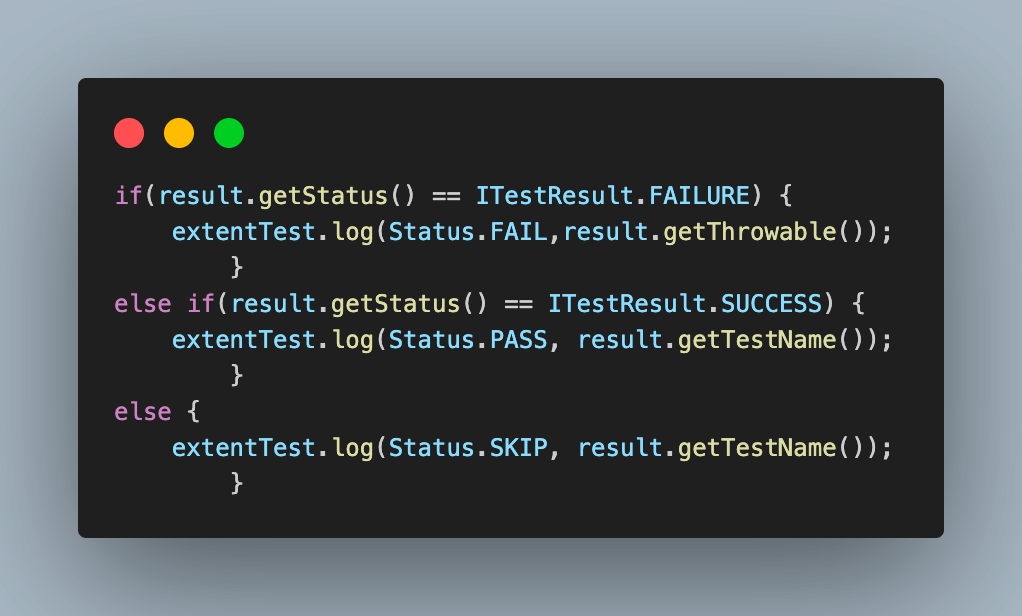
Now, let’s learn how to write simple test cases and generate the first Extent Reports in Selenium. We will create three test cases that end in three different statuses, Pass, Fail, and Skip, to see how the report looks.
To do this, you will need to add a new test class called TestExtentReportBasic and add test cases to it.
package LocalGrid;


import org.testng.Assert;
import org.testng.SkipException;
import org.testng.annotations.Test;


public class TestExtentReportBasic extends BaseTest{

    @Test
       public void testPassed() {
        extentTest = extentReports.createTest("Test Case 1", "This test case has passed");
           Assert.assertTrue(true);
       }

       @Test
       public void testFailed() {
           extentTest = extentReports.createTest("Test Case 2", "This test case has failed");
           Assert.assertTrue(false);
       }

       @Test
       public void testSkipped() {
           extentTest = extentReports.createTest("Test Case 3", "This test case has been skipped");
           throw new SkipException("The test has been skipped");
       }
}
Test Execution:
Executing the above code will give an output like the one below.
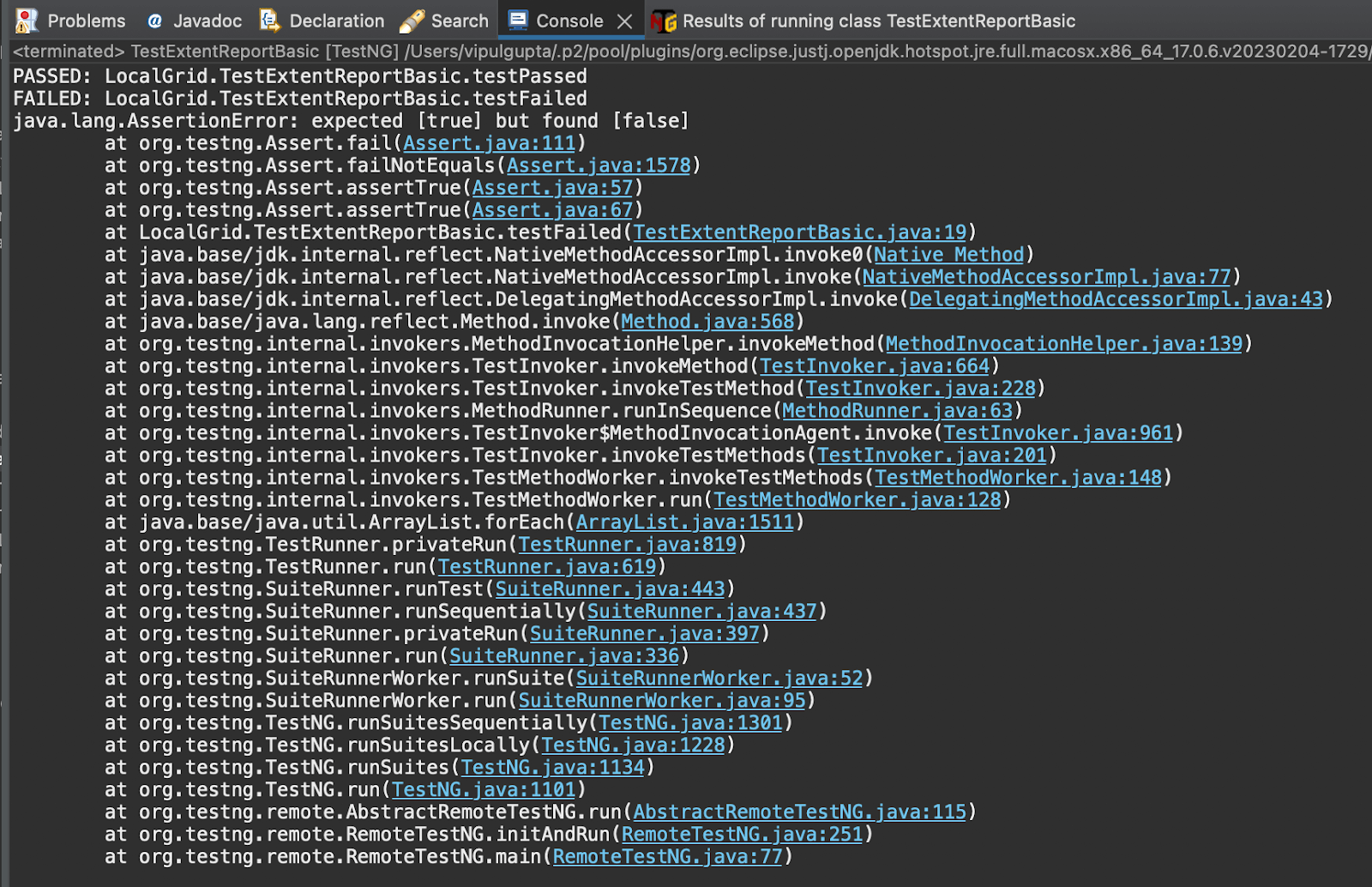
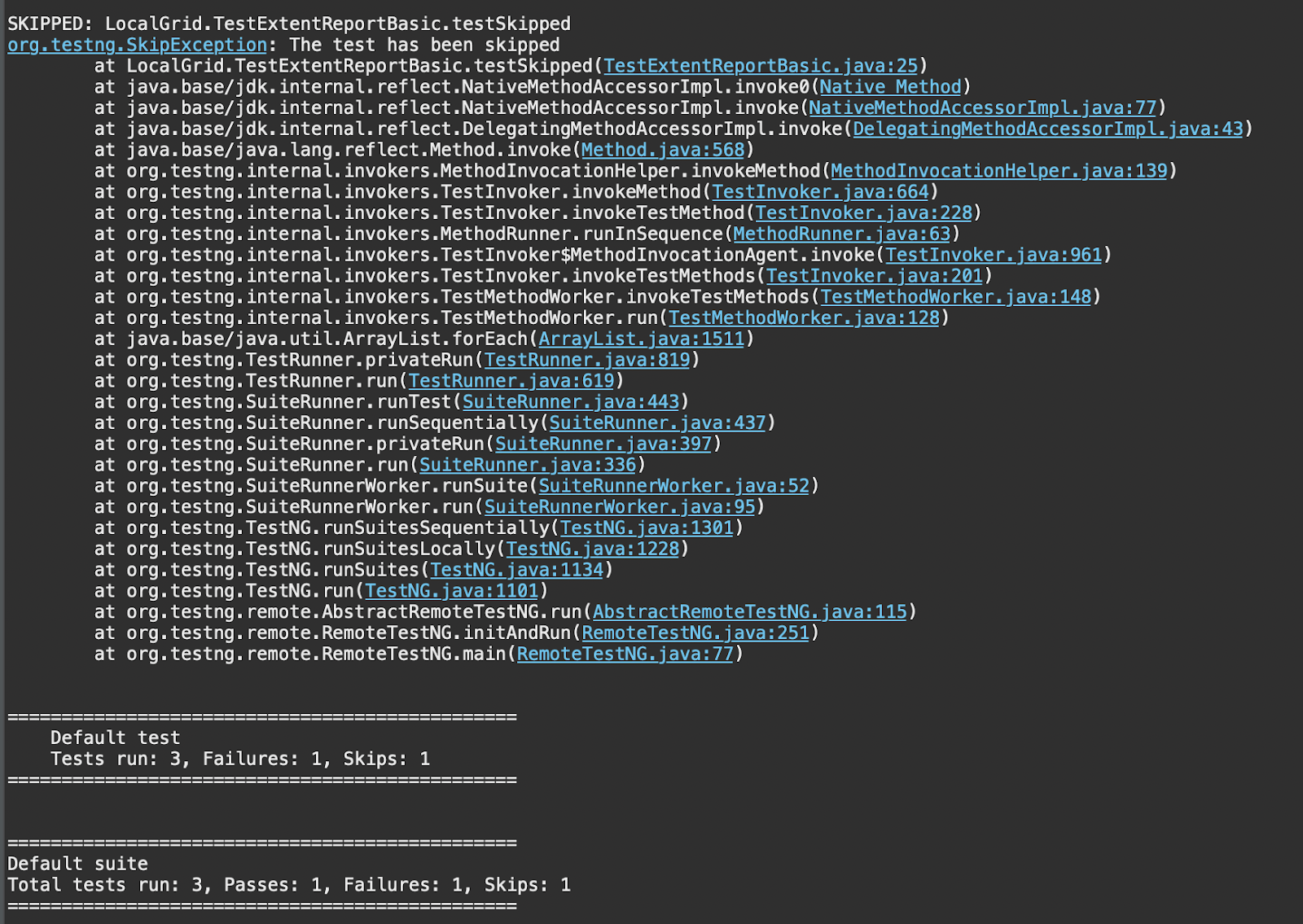
The Extent Reports in Selenium will be generated and saved in the path provided initially.
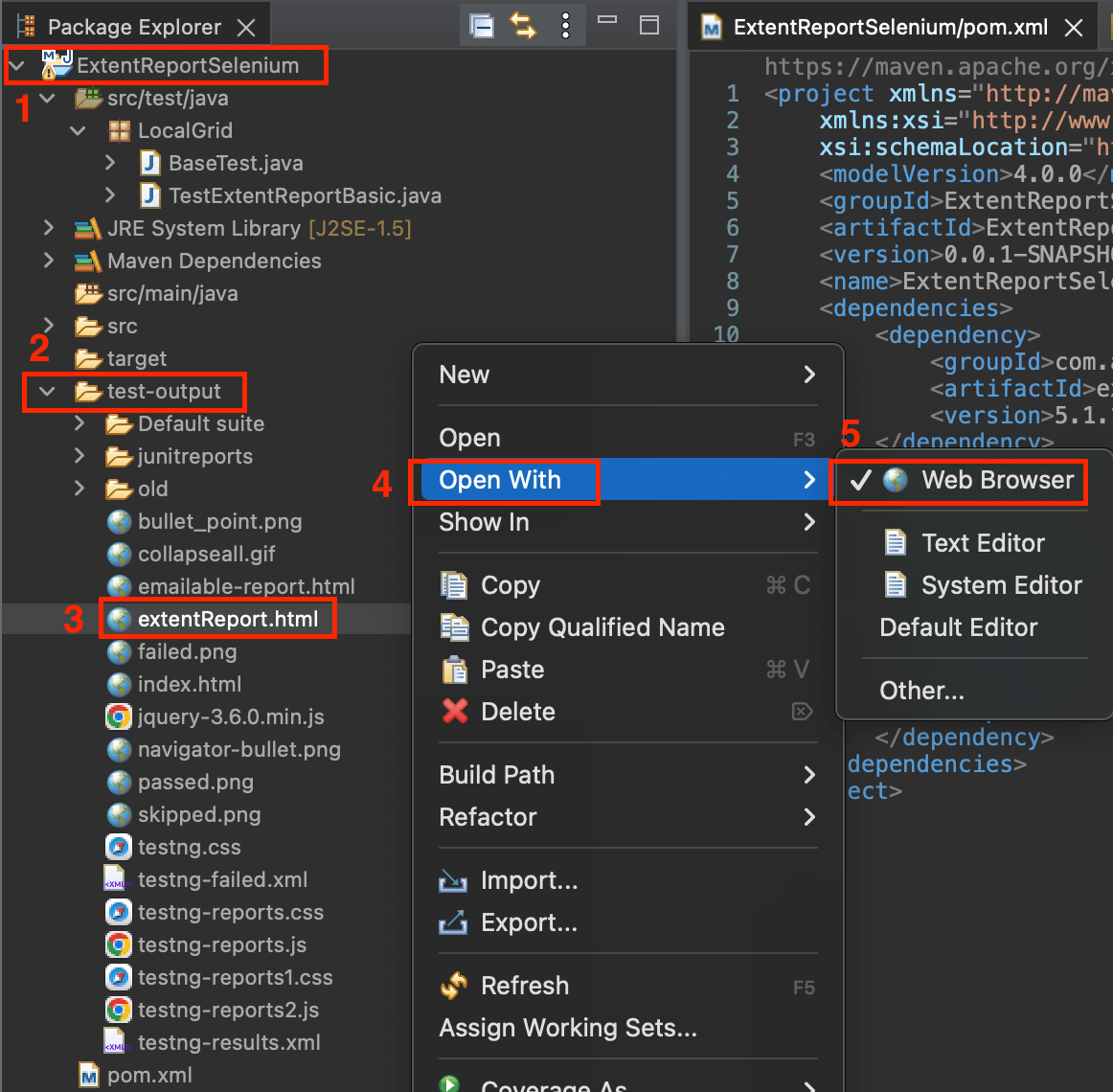
Navigate to the path, Right-click on the extentReport.html > Open With > Web Browser.
Here, you can see the tests marked with different statuses, and all the configurations can be visualized in the generated report.
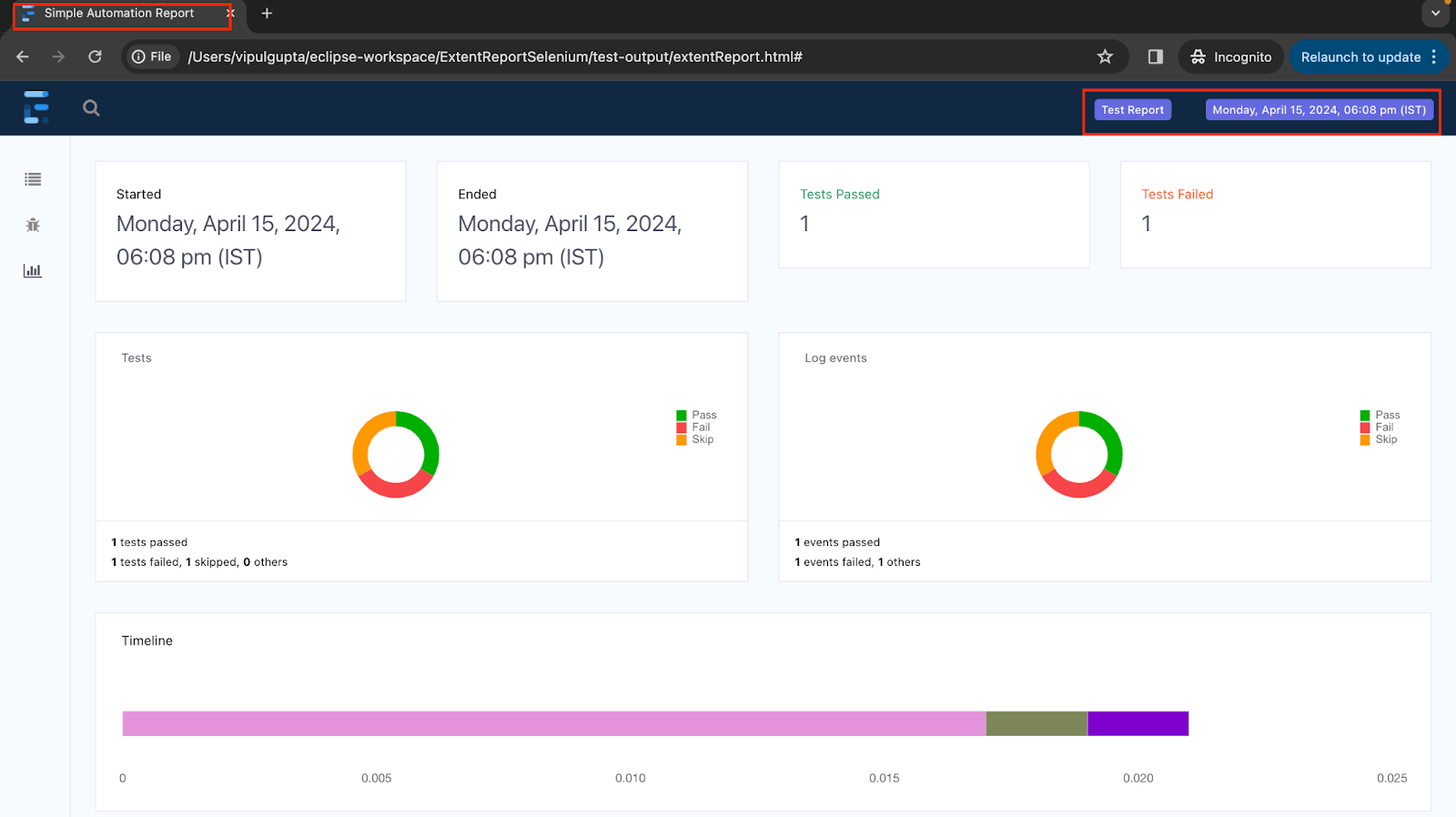
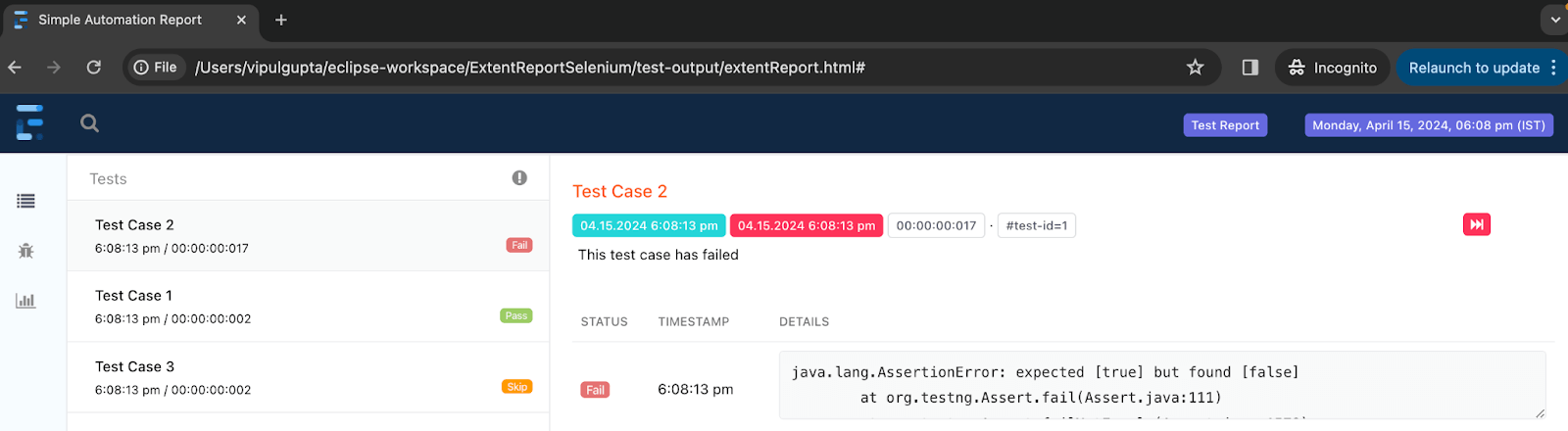
You have successfully generated the first Extent Reports in Selenium using TestNG..!!
So far, we have seen how Extent Reports help generate comprehensive test reports regardless of the framework or tools. Now, let’s try generating Extent Reports in Selenium using a parallel approach.
How To Generate Extent Reports for Parallel Test Execution?
Parallel execution in TestNG is widely preferred in automation because it reduces the time taken for test execution. As the name suggests, parallel testing runs the test methods or classes in parallel rather than in sequential order.
You can apply parallel execution at the method, class, test, and instance levels.
- Methods: This will run the parallel tests on all @Test methods in TestNG.
- Tests: All the test cases inside the tag will run with this value.
- Classes: All the test cases inside the classes in the XML will run in parallel.
- Instances: This value will run all the test cases parallel inside the same instance.
When executing test cases in parallel, multiple threads run the tests simultaneously. This can lead to the first test object being replaced or overridden by the second test object, potentially resulting in unreliable reports. This is because Extent Reports only reports the active threads while generating the report.
To prevent this issue and generate correct Extent Reports for parallel execution using Selenium, we make the ExtentTest class object thread-safe using ThreadLocal() in Selenium. This ensures that each thread has its instance of the ExtentTest object, allowing the tests to run in isolation and preventing any issues in report generation.
Let’s make the necessary changes to implement thread safety for report generation and execute the tests in parallel to generate Extent Reports in Selenium.
Below are the steps for generating Extent Reports in Selenium parallelly.
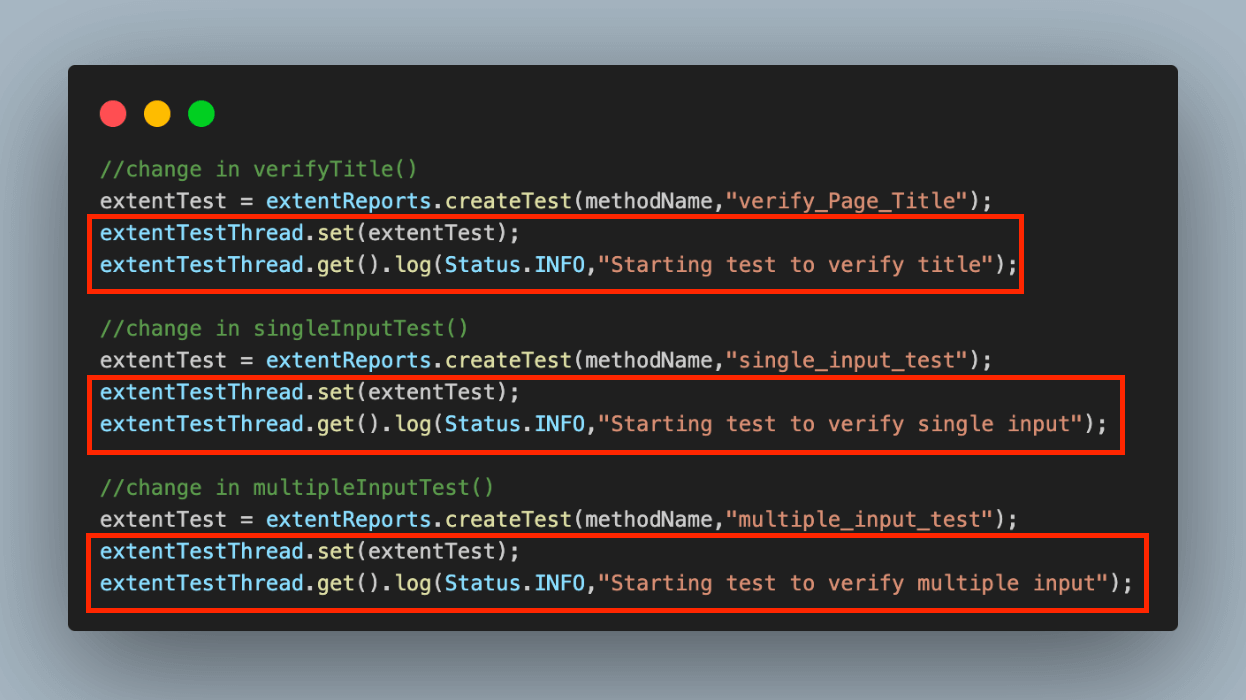
- Add a thread-safe object for the ExtentTest class in BaseTest.java. Modify the updateResultAndcloseDriver() and captureScreenshot() methods to retrieve the extentTest object using the get() method of ThreadLocal().
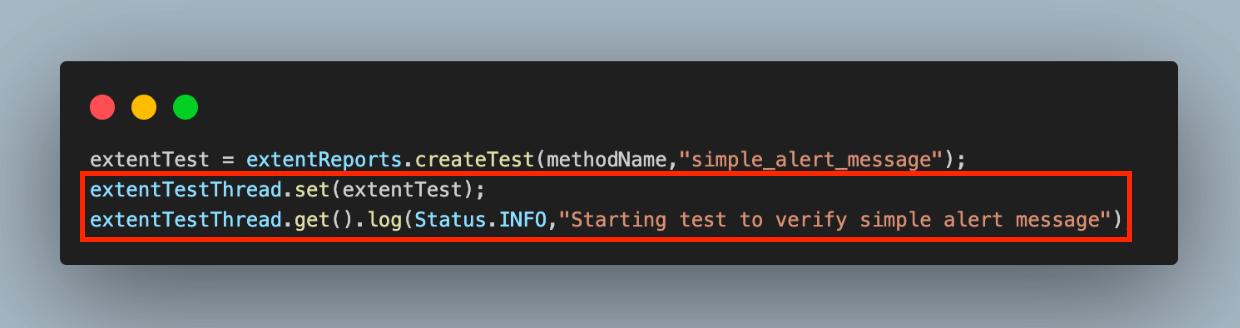
- To store the extentTest object to the ThreadLocal() reference variable, extentTestThread, pass the extentTest object in the set() method. This change is to be made to all the test class methods. Also, update the log() to retrieve the extentTest object using the get() method.
Filename: ParallelExecution.BaseTest.java

Filename: ParallelExecution.InputFormTests.java
Filename: ParallelExecution.AlertTests.java
After these changes are made to the code, you can add a new testng.xml to run the test cases in parallel and see the results on the generated report.
Parallel Execution for Classes
To run classes in parallel, you must specify the parallel attribute with the value classes and set the thread-count attribute to the desired number of threads.
For example, setting the thread-count to 3 means the classes mentioned in the testngClasses.xml file will be executed parallel across three threads.
<?xml version="1.0" encoding="UTF-8"?>
<!DOCTYPE suite SYSTEM "http://testng.org/testng-1.0.dtd">
<suite name="Extent Report in Parallel by Classes">
   <test name = "Parallel Tests by Classes" parallel = "classes" thread-count="3">
       <classes>
           <class name="ParallelExecution.InputFormTests"/>
           <class name="ParallelExecution.AlertTests" />
       </classes>
   </test> <!-- Test -->
</suite> <!-- Suite -->
Test Execution:
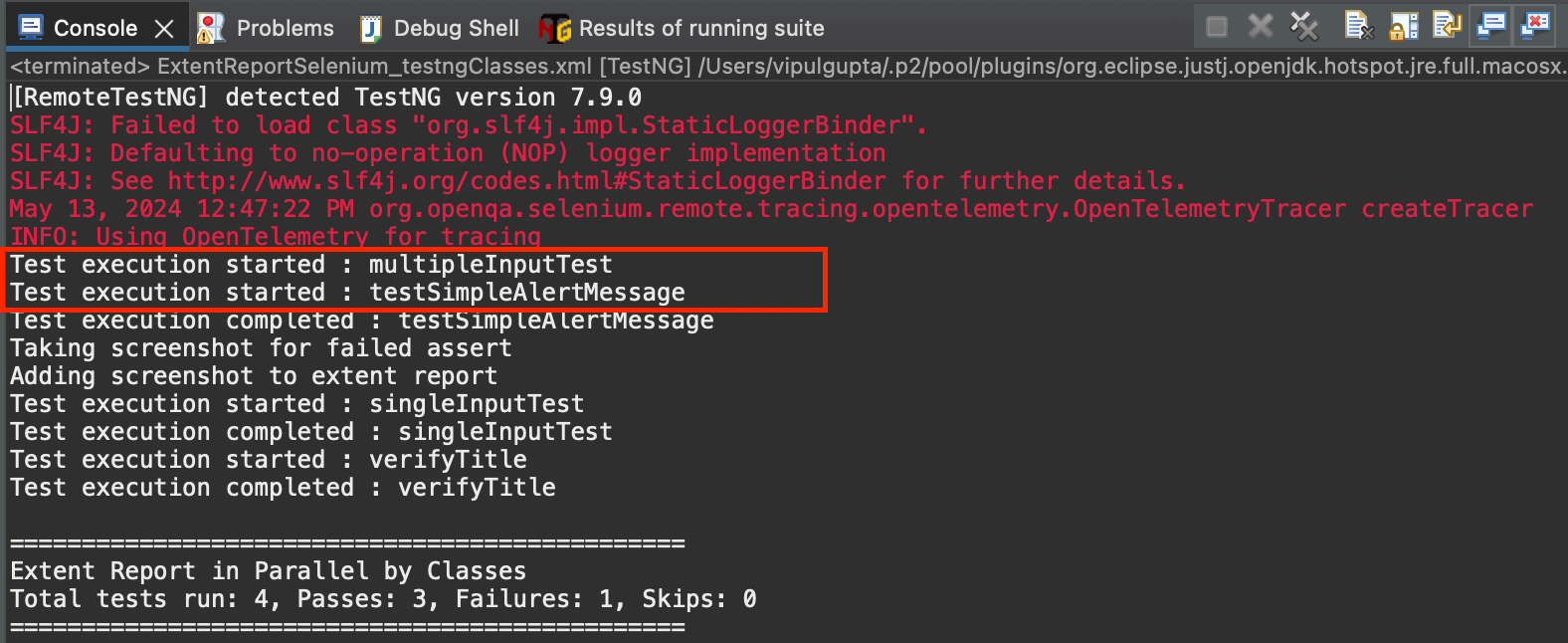
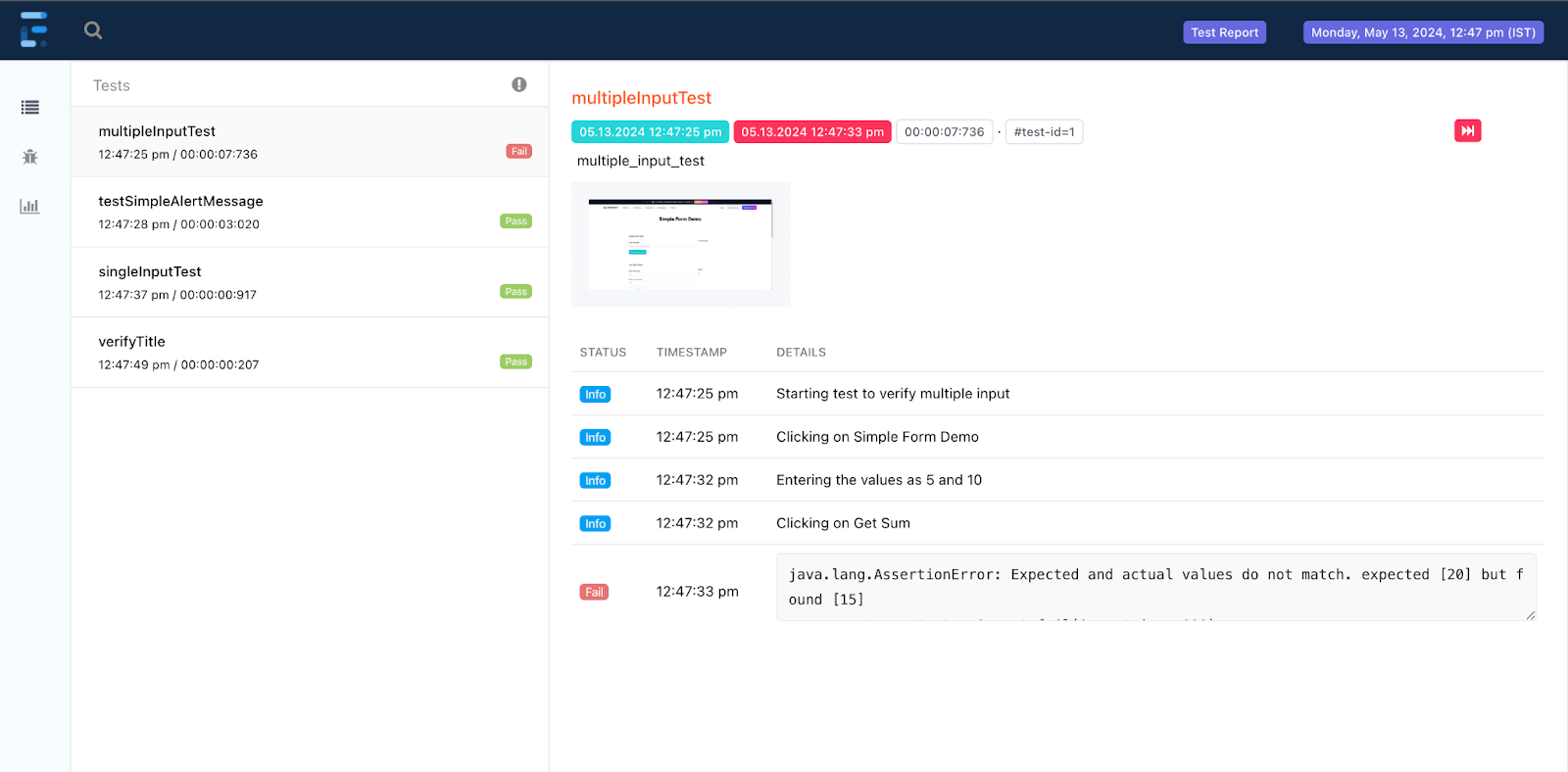
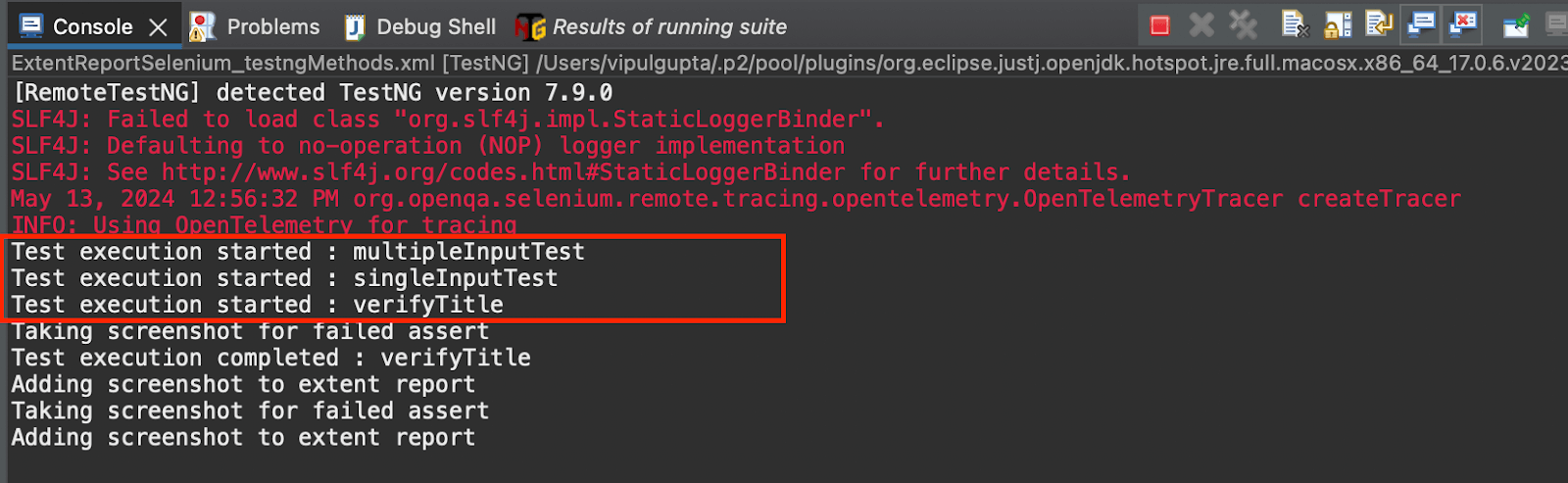
Executing the above XML code starts test execution for both classes in parallel. You can see the same from the logs generated on the console below.
Parallel Execution for Methods
To execute the methods in parallel, you can use a parallel attribute with methods value, and you must define the thread-count as three. This will execute the methods in the class in parallel in three different threads.
<?xml version="1.0" encoding="UTF-8"?>
<!DOCTYPE suite SYSTEM "http://testng.org/testng-1.0.dtd">
<suite name="Extent Report in Parallel by Methods">
   <test name="Parallel Tests by Methods" parallel="methods" thread-count="3">
       <classes>
           <class name="ParallelExecution.InputFormTests" />
       </classes>
   </test> <!-- Test -->
</suite> <!-- Suite -->
Test Execution:
Executing the above XML code starts test execution for all the tests in the InputFormTests class in parallel. You can see the same from the logs generated on the console.
Running a few tests in parallel locally is manageable, but problems arise when you try to run more tests simultaneously. The main issue is resource contention. Multiple tests competing for limited system resources like CPU, memory, and disk I/O can cause performance bottlenecks. This can result in tests running slower or failing intermittently due to timeouts or lack of resources. Additionally, local environments may be unable to simulate diverse configurations and conditions, limiting test coverage.
Using a cloud testing platform like TestMu AI provides scalable resources, allowing you to run many tests in parallel without worrying about local resource limitations.
TestMu AI is an AI-powered test and execution platform that lets you perform automation testing at scale with over 3000+ real devices, browsers, and OS combinations. By leveraging this platform, you can ensure faster, more reliable test execution and gain access to a diverse testing environment, avoiding resource limitations and reducing flaky test issues.

So far, we have learned how to write and execute simple test cases to generate Extent Reports in Selenium, including parallel execution.
Now, let’s learn how to automate some test cases and generate automation test reports over a cloud platform. We will use the TestMu AI cloud Selenium Grid to execute the tests for this.
How To Generate Extent Reports in Selenium On the Cloud?
Using a cloud grid provides additional speed and resources to make the executions faster and more reliable and facilitates parallel execution.
Let’s create classes for the test cases and execute them on the TestMu AI Selenium cloud grid platform. We will also learn how to generate Extent Reports for Selenium automation test cases.
For demonstration purposes, we will use the TestMu AI Selenium Playground to run the tests. This allows us to explore various pages and learn automation.
Below are the two test scenarios we will execute to generate Extent Reports.
Test Scenario 1: Verify the title of the webpage
- Launch TestMu AI Selenium Playground.
- Get the title of the web page and verify it.
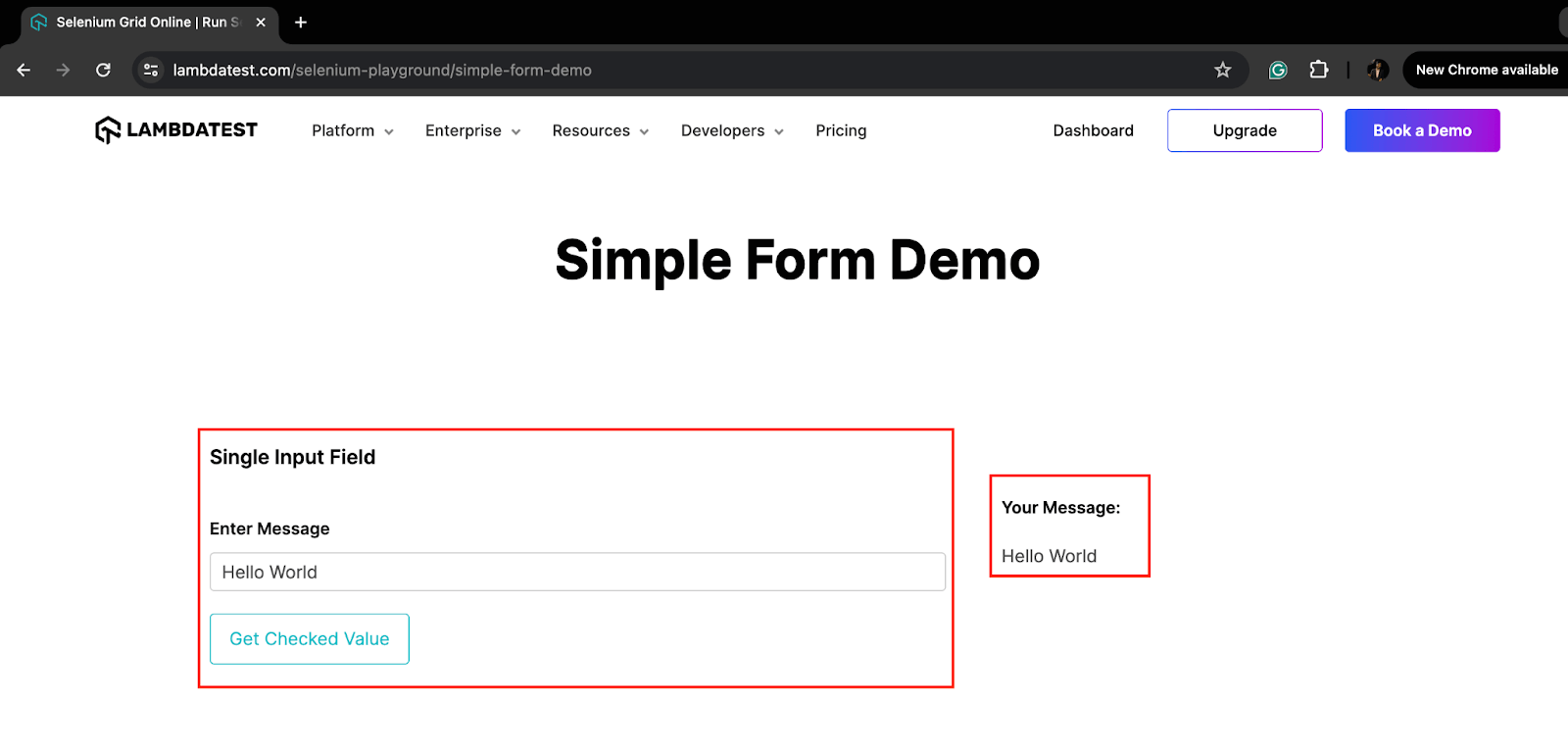
Test Scenario 2: Enter single input and verify the message displayed
- Launch TestMu AI Selenium Playground.
- Click Simple Form Demo.
- Enter the message in the textbox under the Single Input Field.
- Click the Get Checked Value button.
- Verify the message displayed in the Your Message section.
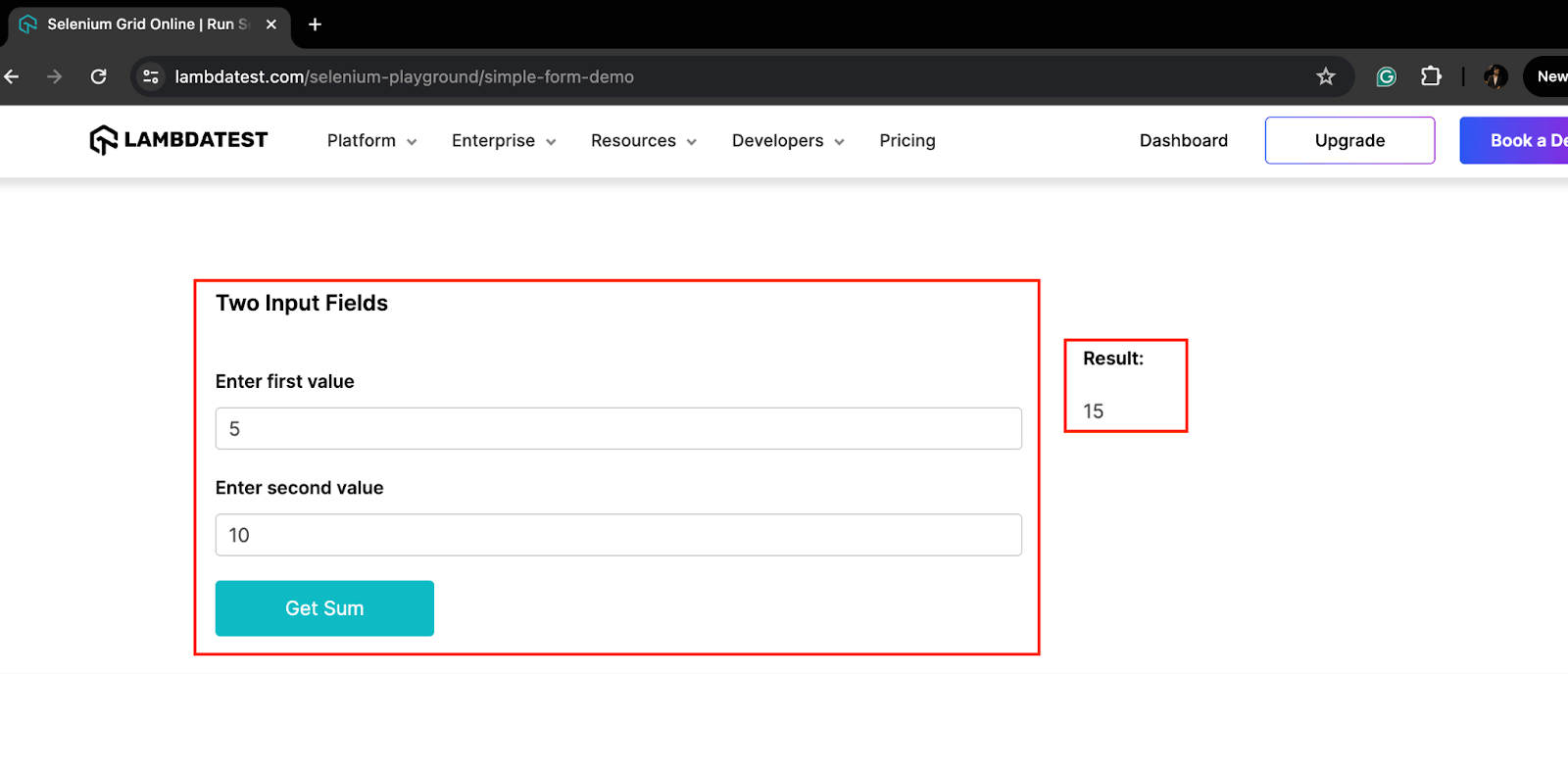
Test Scenario 3: Enter multiple inputs and verify the value displayed
- Launch TestMu AI Selenium Playground.
- Click Simple Form Demo.
- Enter the first and second values in textboxes under the Two Input Fields section.
- Click on the Get Sum button.
- Verify the value displayed in the Result section.
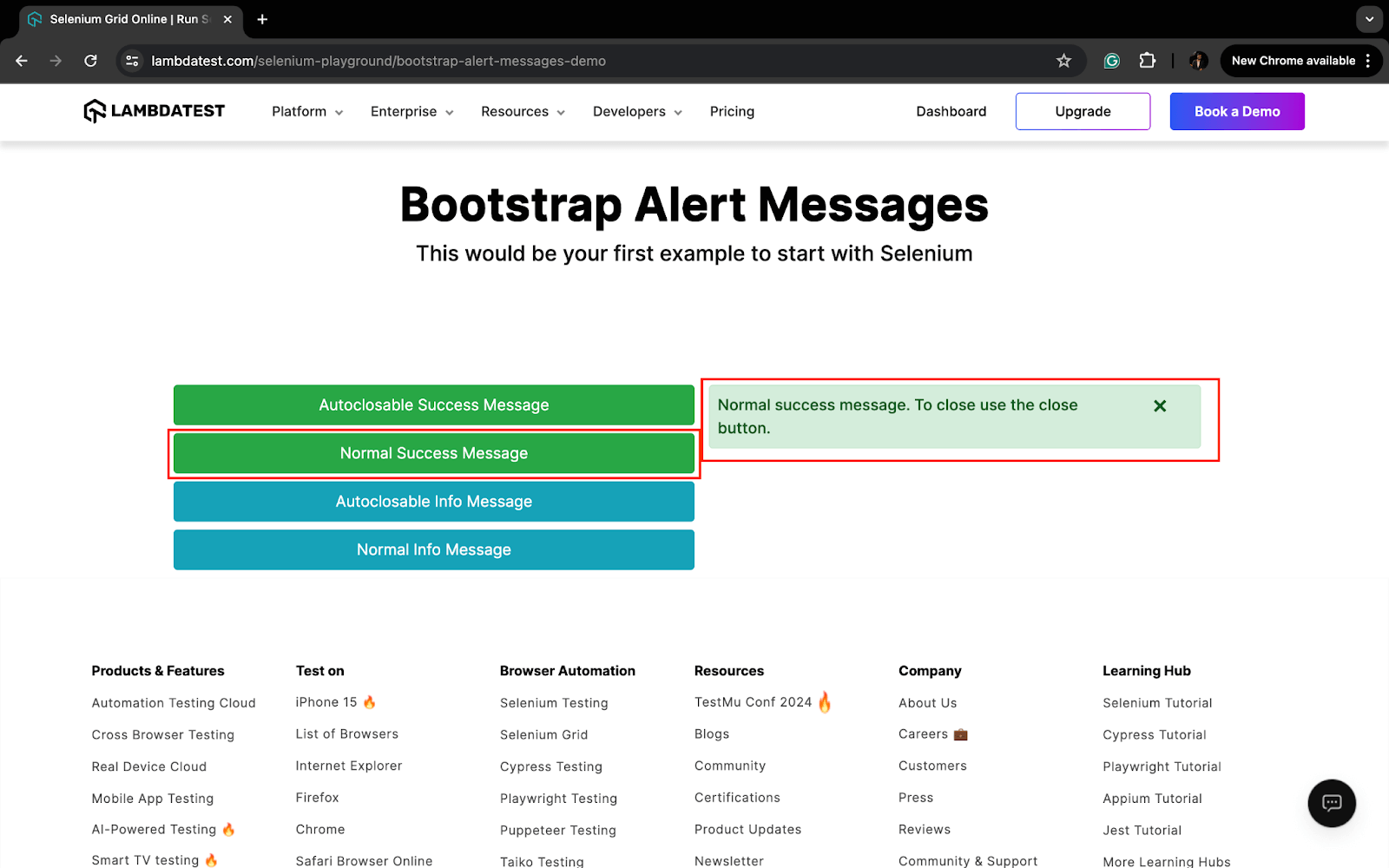
Test Scenario 4: Verify alert message
- Launch TestMu AI Selenium Playground.
- Click on Bootstrap Alerts.
- Click Normal Success Message and verify the message displayed.
Now that we know the test scenarios to automate, let us split them into two classes: InputFormTest, which has the first three scenarios, and AlertTests, which has the last test case.
Before implementing the test cases, let us create a BaseTest class with common methods for initializing WebDrivers, connecting to the TestMu AI cloud grid, and generating Extent Reports in Selenium.
package CloudGrid;


import java.net.*;
import java.util.HashMap;


import org.openqa.selenium.remote.RemoteWebDriver;
import org.openqa.selenium.chrome.ChromeOptions;
import org.testng.ITestResult;
import org.testng.annotations.*;


import com.aventstack.extentreports.*;
import com.aventstack.extentreports.reporter.ExtentSparkReporter;
import com.aventstack.extentreports.reporter.configuration.Theme;


public class BaseTest {


   public static ExtentSparkReporter extentSparkReporter;
   public static ExtentReports extentReports;
   public static ExtentTest extentTest;


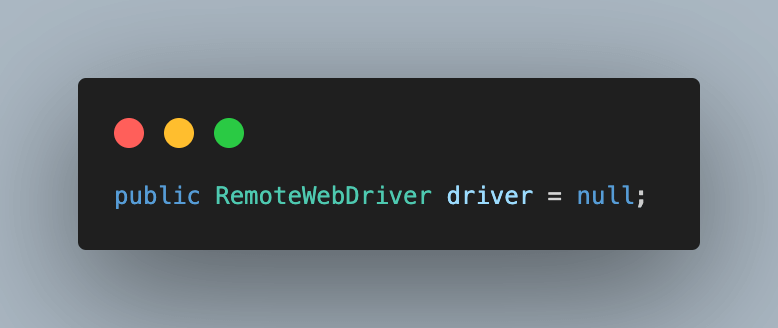
   public RemoteWebDriver driver = null;
   String username = System.getenv("LT_USERNAME") == null ? "<lambdatest_username>" : System.getenv("LT_USERNAME");
   String accessKey = System.getenv("LT_ACCESS_KEY") == null ? "<lambdatest_accesskey>" : System.getenv("LT_ACCESS_KEY");
   String status = "failed";


   @BeforeTest
   public void startReporter()
   {
       extentSparkReporter = new ExtentSparkReporter(
               System.getProperty("user.dir") + "/test-output/extentReport.html");
       extentReports = new ExtentReports();
       extentReports.attachReporter(extentSparkReporter);


       // configuration items to change the look and feel
       // add content, manage tests etc
       extentSparkReporter.config().setDocumentTitle("Simple Automation Report");
       extentSparkReporter.config().setReportName("Test Report");
       extentSparkReporter.config().setTheme(Theme.STANDARD);
       extentSparkReporter.config().setTimeStampFormat("EEEE, MMMM dd, yyyy, hh:mm a '('zzz')'");
   }


   @BeforeMethod
   public void setUp()
   {
       try {
           ChromeOptions chromeOptions = new ChromeOptions();
           chromeOptions.setPlatformName("Windows 10");
           chromeOptions.setBrowserVersion("124.0");


           HashMap<String, Object> ltOptions = new HashMap<String, Object>();
           ltOptions.put("build", "Extent Reports using Selenium Java");
           ltOptions.put("name", "Extent Reports using Selenium Java");
           ltOptions.put("w3c", true);
           chromeOptions.setCapability("LT:Options", ltOptions);


           driver = new RemoteWebDriver(
                   new URL("https://" + username + ":" + accessKey + "@hub.lambdatest.com/wd/hub"), chromeOptions);


           driver.get("https://www.lambdatest.com/selenium-playground/");


       } catch (MalformedURLException e) {
           e.printStackTrace();
       }
   }


   @AfterMethod
   public void updateResultAndcloseDriver(ITestResult result)
   {
       if(result.getStatus() == ITestResult.FAILURE) {
           extentTest.log(Status.FAIL,result.getThrowable());
       }
       else if(result.getStatus() == ITestResult.SUCCESS) {
           extentTest.log(Status.PASS, result.getTestName());
       }
       else {
           extentTest.log(Status.SKIP, result.getTestName());
       }

       driver.executeScript("lambda-status=" + status);
       driver.quit();
   }


   @AfterTest
   public void endReport()
   {
       extentReports.flush();
   }
}

Below is the code walkthrough to understand the working of the BaseTest file in detail.
Code Walkthrough:
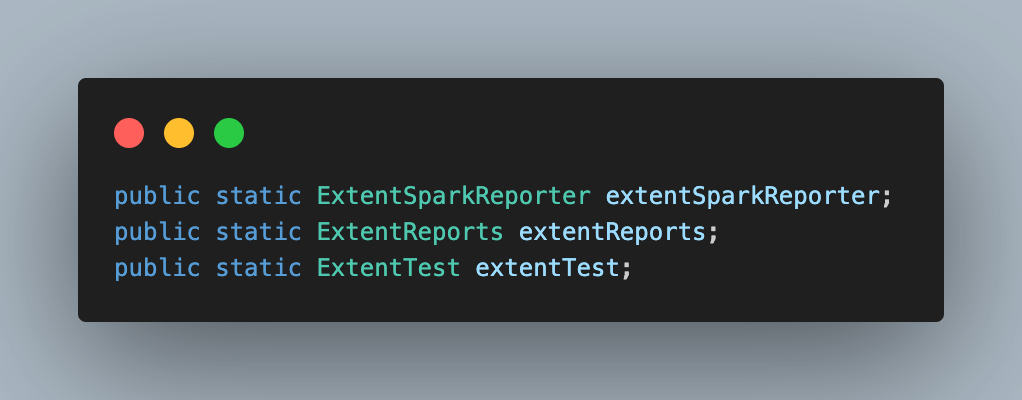
- Create objects of Extent reports classes and public variables to be accessed in the test cases.
- Create an instance of Selenium RemoteWebDriver and initialize it to null.
- Add the TestMu AI Username and Access Key for your account to be used to run the script. You can find these details in your TestMu AI Profile section by navigating to Account Settings > Password & Security.
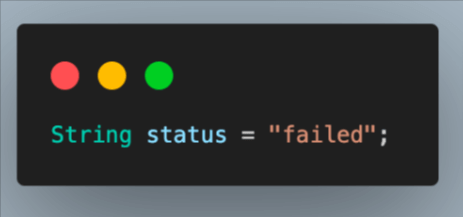
- Add a String variable status and initialize with the value as failed. This will be used to update the test status on the TestMu AI dashboard to pass/fail.
- Add the first method in this class as startReporter() and annotate it with @BeforeTest annotations to execute before the test starts and make the setup and configuration for the Extent Reports.
- Next, add a setUp() method for WebDriver setup and connect to the TestMu AI remote cloud grid for executing the test cases. Annotate this with @BeforeMethod annotation to execute before each test case.
- Create an object of the ChromeOptions class, which defines browser properties like browser version, OS version, etc.
- Next, you define the additional variables to set values like build, name, or any other browser property/behavior. These are used for test execution on TestMu AI. This is done with the help of a HashMap variable, which is then passed to chromeOptions.
- Create an instance of RemoteWebDriver to connect to the TestMu AI cloud grid using all these properties.
- Now that we have connected to the remote grid and have all the properties in place navigate to the test website, i.e., TestMu AI Selenium Playground, as per the test scenario.
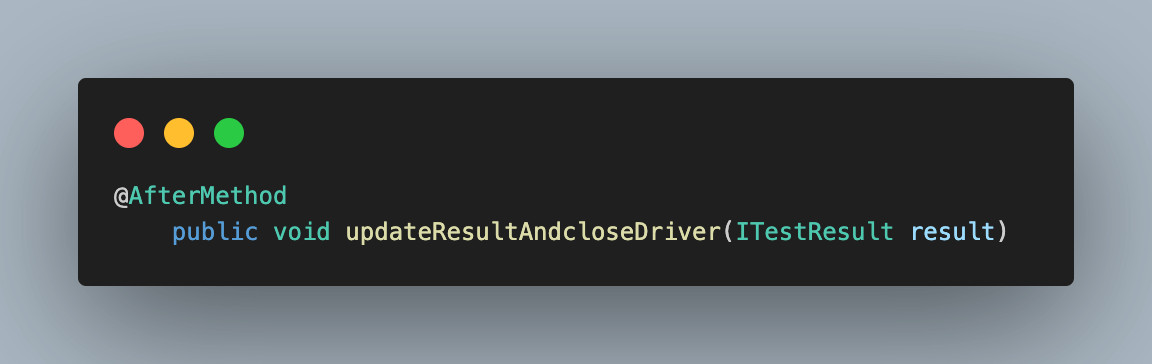
- Add a new method updateResultAndcloseDriver(), to close the driver instance after each test case and update the results on the TestMu AI dashboard and on the Extent Report by using Listeners. This method is annotated with @AfterMethod to execute after each test case.
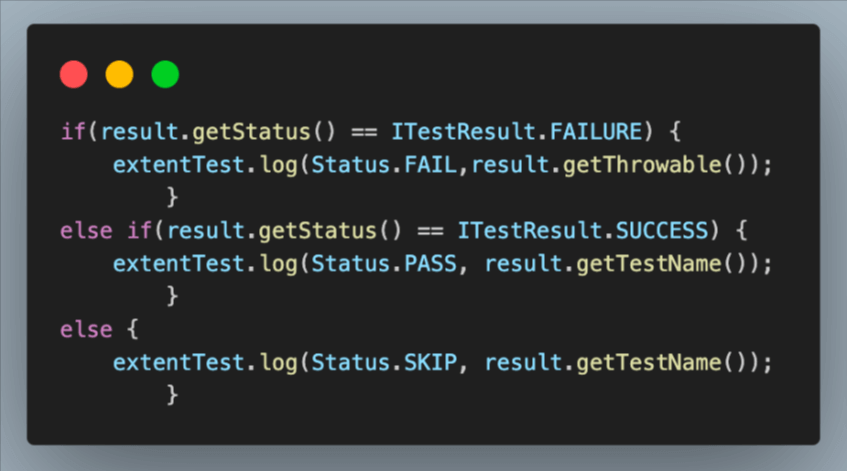
- Using the ITestResult interface object, you can get the test result, compare it using the if-else loop, and log the result on the Extent Reports as well.
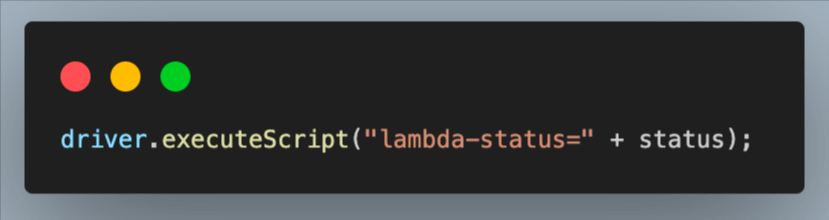
- Next, execute the script to update test results on the TestMu AI dashboard using the status variable.
- Finally, close the remote WebDriver instance after the test execution is completed.
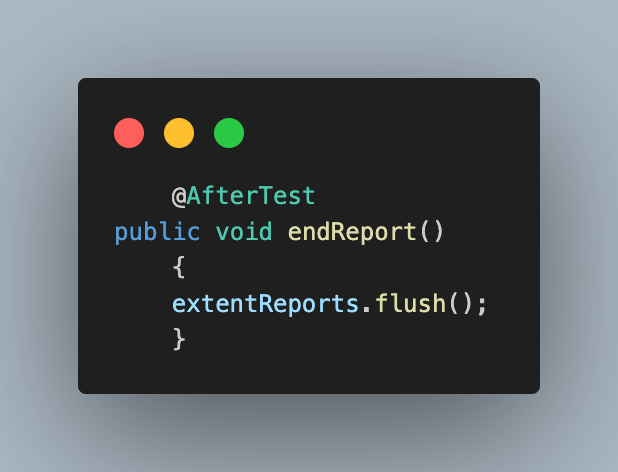
- Add the last method in this class as endReport() to close the Extent Reports class and annotate this with @AfterTest annotation to remove all data before the next execution starts.

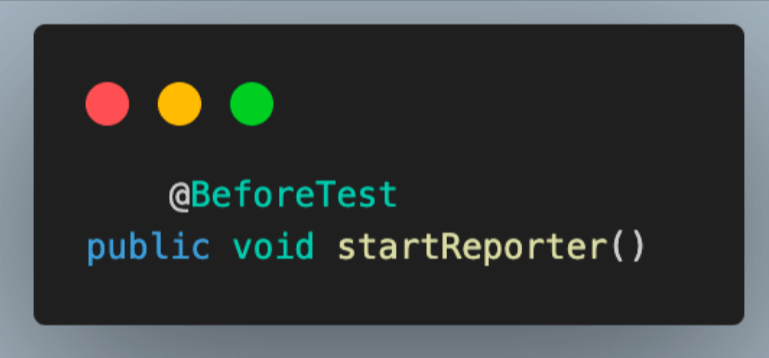
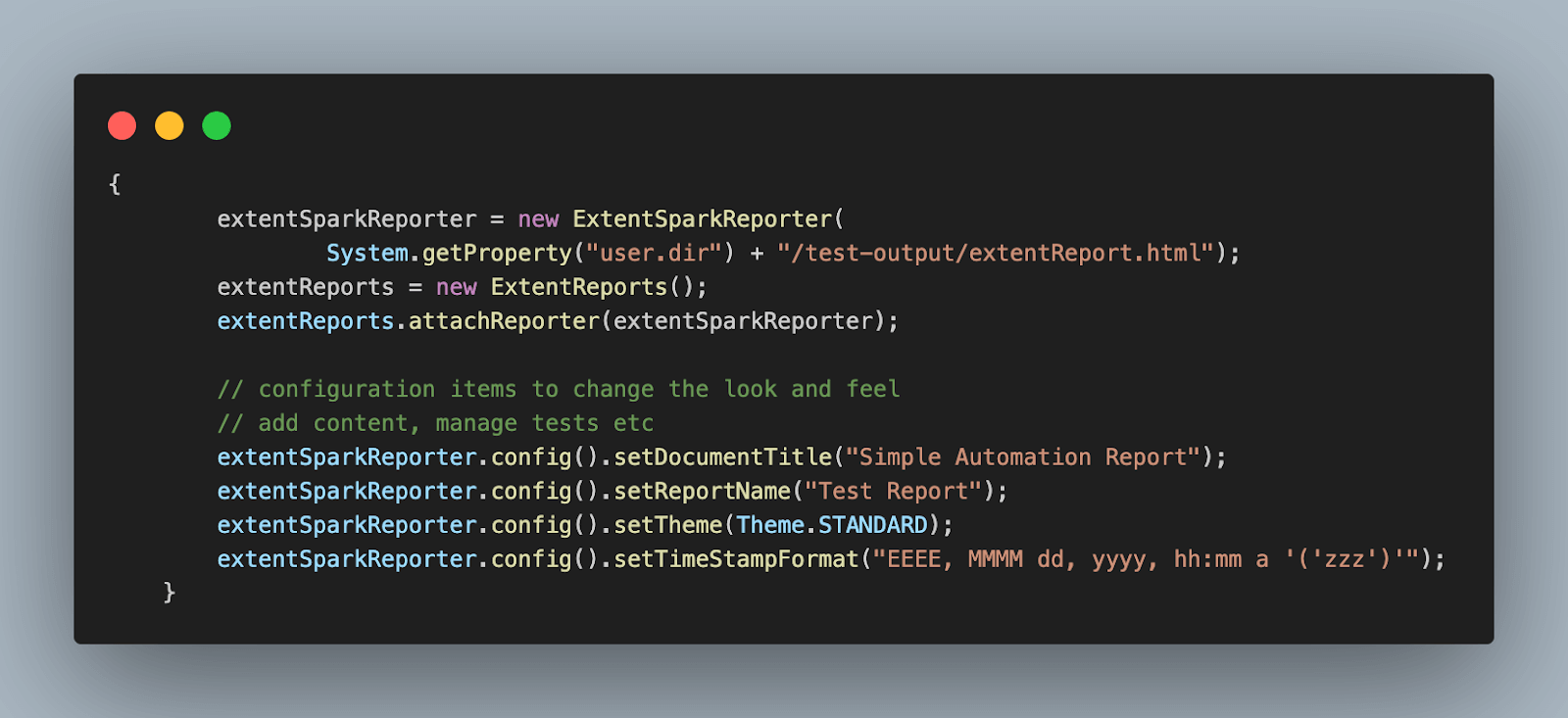
The steps in this method are exactly similar to what you understood in the above section. Please refer to the same if required.
The startReporter() method is similar to the approach described in the section above. This method is annotated with @BeforeTest to ensure its execution before any test method in the class. Within startReporter(), an ExtentHtmlReporter object is created, specifying the file location for the report.
Subsequently, an ExtentReports object is instantiated, and the ExtentHtmlReporter is attached to it using the attachReporter() method. This setup guarantees that Extent Reports are configured before the test execution, enabling the generation of detailed HTML reports to monitor test results.
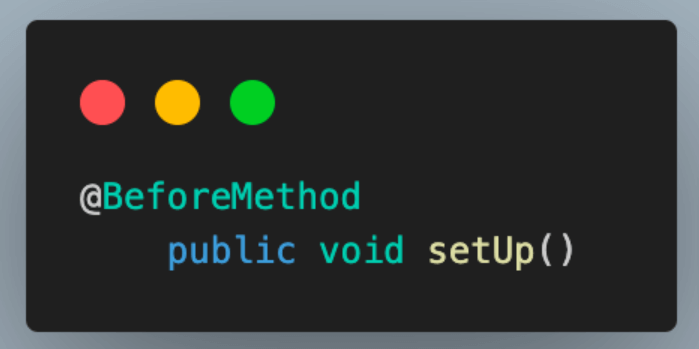
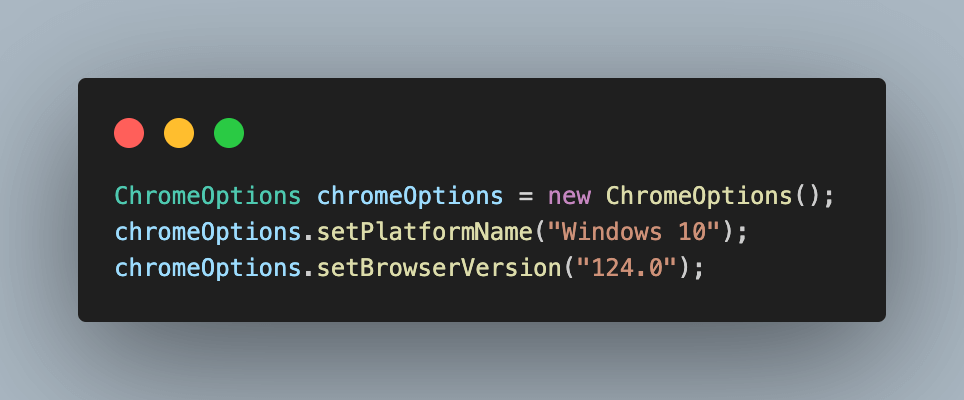
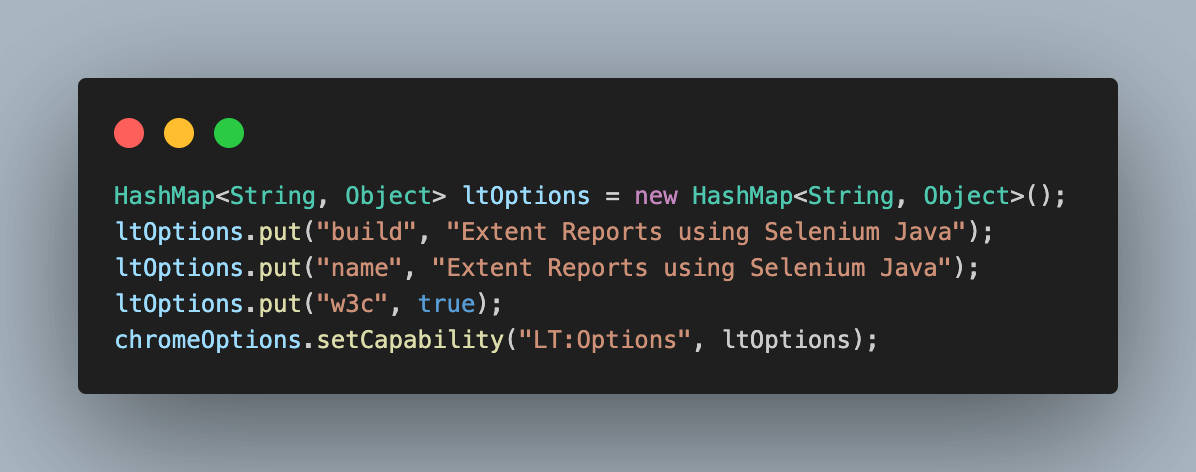
TestMu AI provides a way to easily retrieve these properties and values using the TestMu AI Capabilities Generator. You only must select the required operating system, browser combination, and versions. The rest is done for you, and you have the code ready.
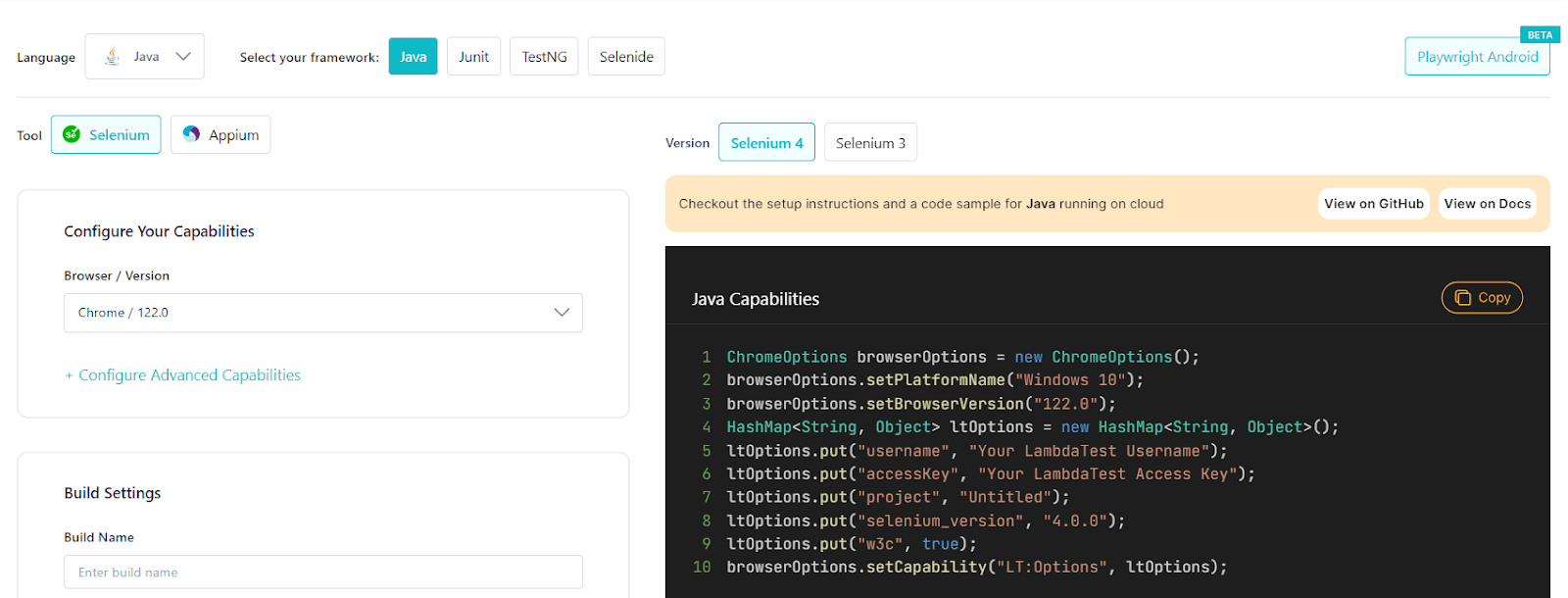

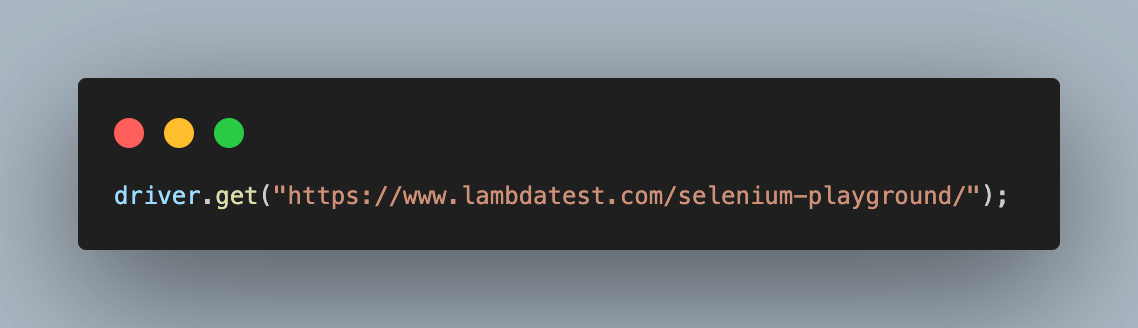
After understanding the BaseTest.java file for configurations, the next step is to add both the test class files individually.
package CloudGrid;


import org.openqa.selenium.By;
import org.testng.Assert;
import org.testng.annotations.Test;


import com.aventstack.extentreports.Status;


public class InputFormTests extends BaseTest{

   @Test
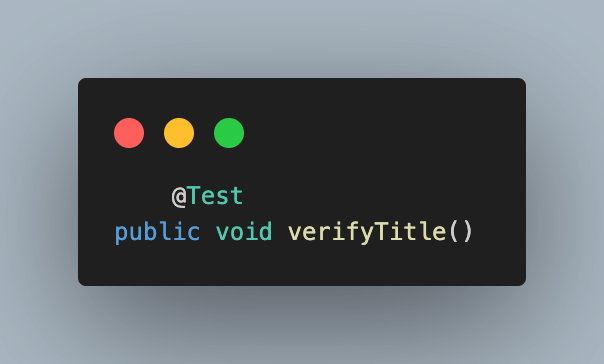
   public void verifyTitle()
   {
       String methodName = new Exception().getStackTrace()[0].getMethodName();

       System.out.println("Test execution started : " + methodName);

       extentTest = extentReports.createTest(methodName,"verify_Page_Title");
       extentTest.log(Status.INFO,"Starting test to verify title");
       String title ="Selenium Grid Online | Run Selenium Test On Cloud";
       Assert.assertEquals(title,driver.getTitle());
       extentTest.log(Status.INFO,"Verified the expected page title as : " + title);

       status = "passed";

       System.out.println("Test execution completed : " + methodName);
   }


   @Test
   public void singleInputTest()
   {
       String methodName = new Exception().getStackTrace()[0].getMethodName();

       System.out.println("Test execution started : " + methodName);

       extentTest = extentReports.createTest(methodName,"single_input_test");
       extentTest.log(Status.INFO,"Starting test to verify single input");

       //Clicks on the simple form demo option in the selenium playground
       extentTest.log(Status.INFO,"Clicking on Simple Form Demo");
       driver.findElement(By.xpath("//*[text()='Simple Form Demo']")).click();

       //Enter the message in the enter message input box
       String expectedMessage = "Hello World";
       extentTest.log(Status.INFO,"Entering the message as : " + expectedMessage);
       driver.findElement(By.id("user-message")).sendKeys(expectedMessage);

       //Click on Get checked value button
       extentTest.log(Status.INFO,"Clicking on Get checked value");
       driver.findElement(By.id("showInput")).click();

       //Retrieve the entered user message
       String actualMessage = driver.findElement(By.id("message")).getText();
       Assert.assertEquals(actualMessage, expectedMessage, "Expected and actual texts do not match.");
       extentTest.log(Status.INFO,"Verified the expected message as : " + expectedMessage);

       status = "passed";

       System.out.println("Test execution completed : " + methodName);
   }

   @Test
   public void multipleInputTest()
   {
       String methodName = new Exception().getStackTrace()[0].getMethodName();

       System.out.println("Test execution started : " + methodName);

       extentTest = extentReports.createTest(methodName,"multiple_input_test");
       extentTest.log(Status.INFO,"Starting test to verify multiple input");

       //Click on the simple form demo option in the selenium playground
       extentTest.log(Status.INFO,"Clicking on Simple Form Demo");
       driver.findElement(By.xpath("//*[text()='Simple Form Demo']")).click();

       //Enter the first and second value
       extentTest.log(Status.INFO,"Entering the values as 5 and 10");
       driver.findElement(By.id("sum1")).sendKeys("5");
       driver.findElement(By.id("sum2")).sendKeys("10");

       //Click on the Get Sum button
       extentTest.log(Status.INFO,"Clicking on Get Sum");
       driver.findElement(By.xpath("//button[text()='Get Sum']")).click();
       //Fetch the result value and assert same
       String actualSum = driver.findElement(By.id("addmessage")).getText();
       Assert.assertEquals(actualSum,"15", "Expected and actual values do not match.");
       extentTest.log(Status.INFO,"Verified the expected sum as : 15");

       status = "passed";

       System.out.println("Test execution completed : " + methodName);
   }
}
We will then understand the code before executing and generating the Extent Reports in Selenium and TestNG for cloud grid execution.
Code Walkthrough:
- Add the first test class and name it InputFormTests, and extend BaseTest in this to inherit all the common variables and functions to access the Extent Report and WebDriver.
- Add the first test case as verifyTitle() and annotate it with @Test annotation.
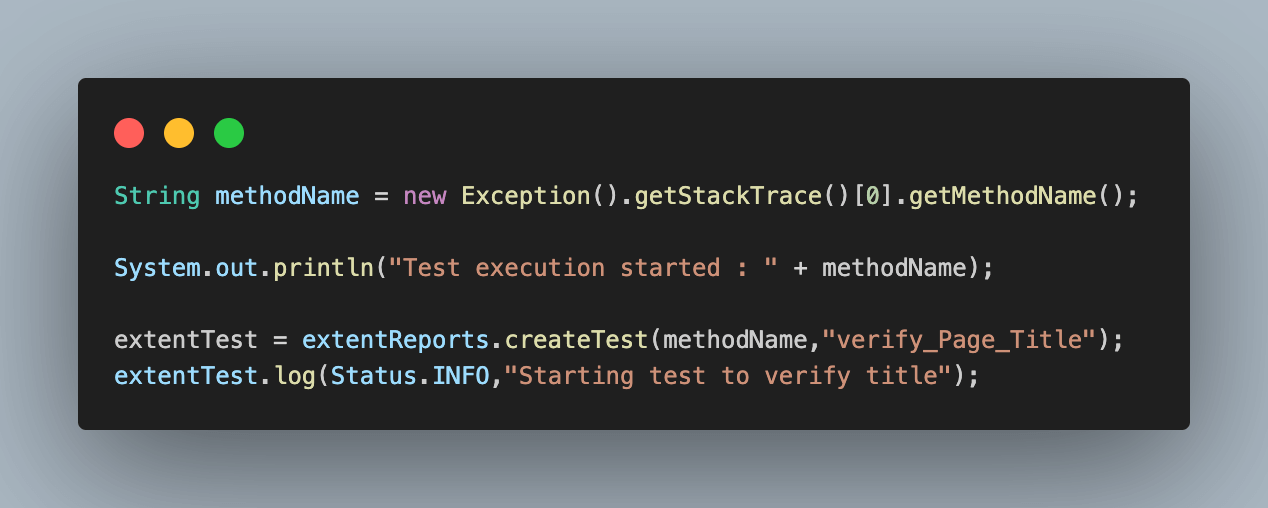
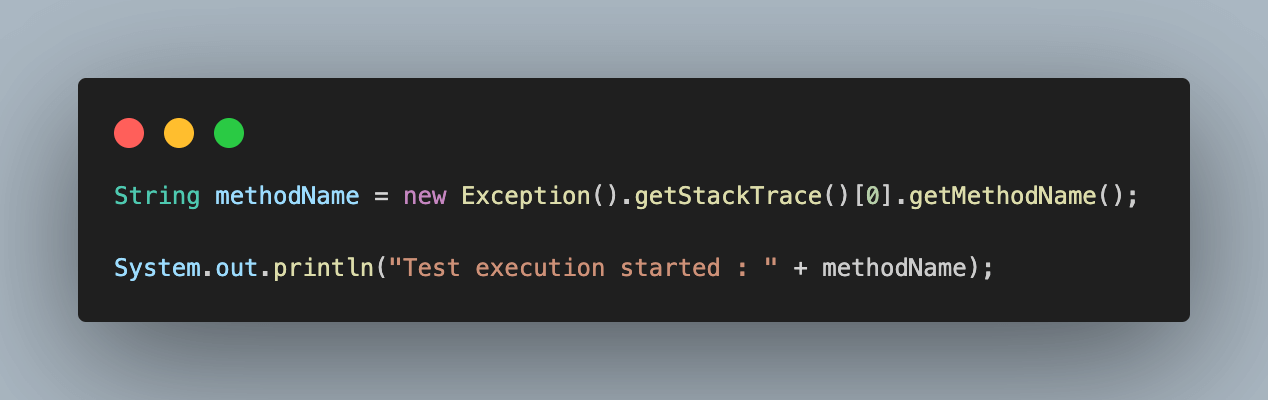
- Fetch and store the test case name in a variable. Using this variable, log test execution started info on both the console and Extent Reports by creating a new test.
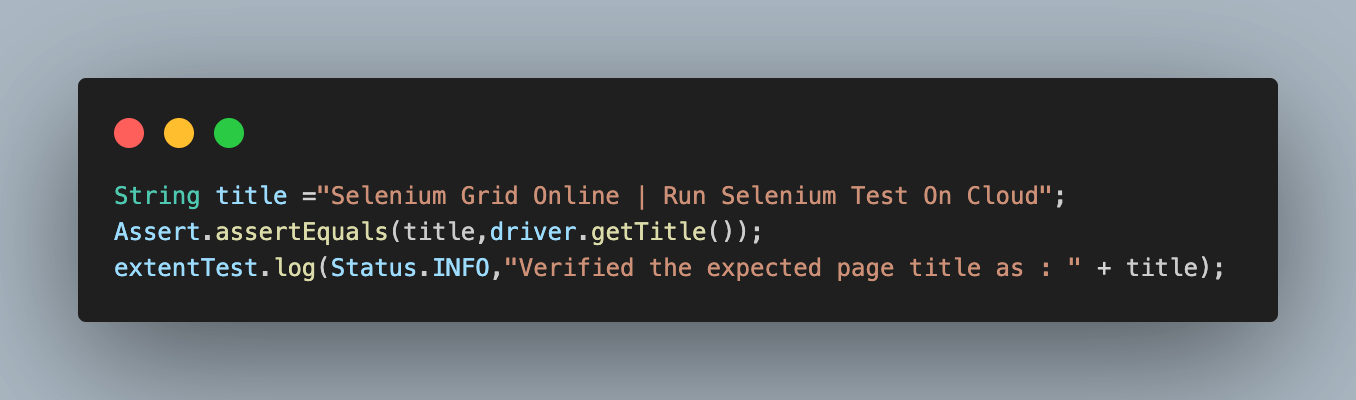
- Fetch the web page title using the getTitle() function and assert the same with the expected title.
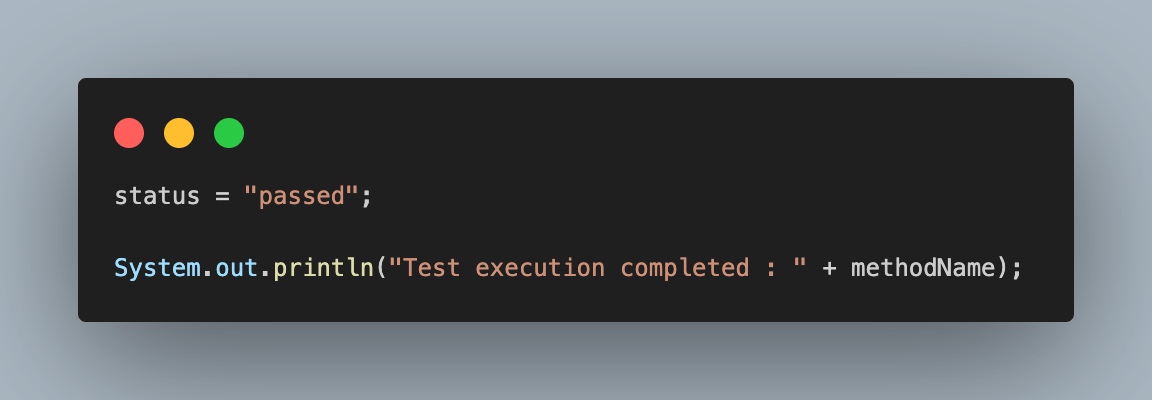
- Update the status variable to be passed for logging success results on the TestMu AI dashboard.
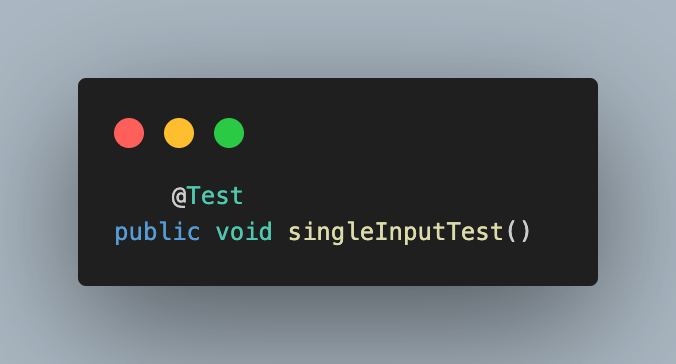
- Add the next test case and name it singleInputTest(), annotate it with @Test annotation.
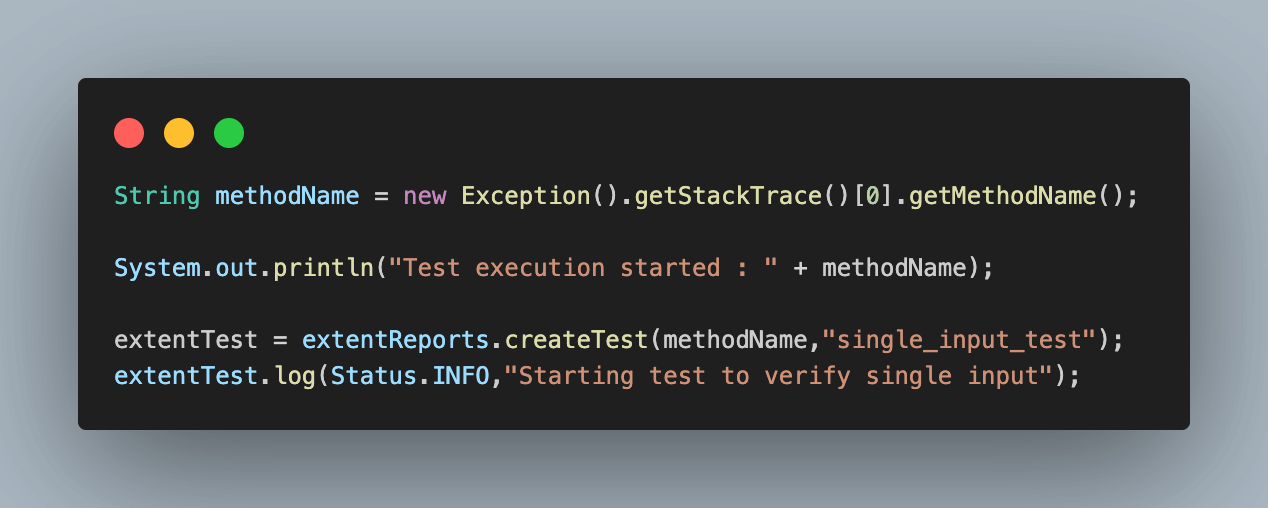
- Start by fetching the test method name, logging the same, and creating a new extent test.
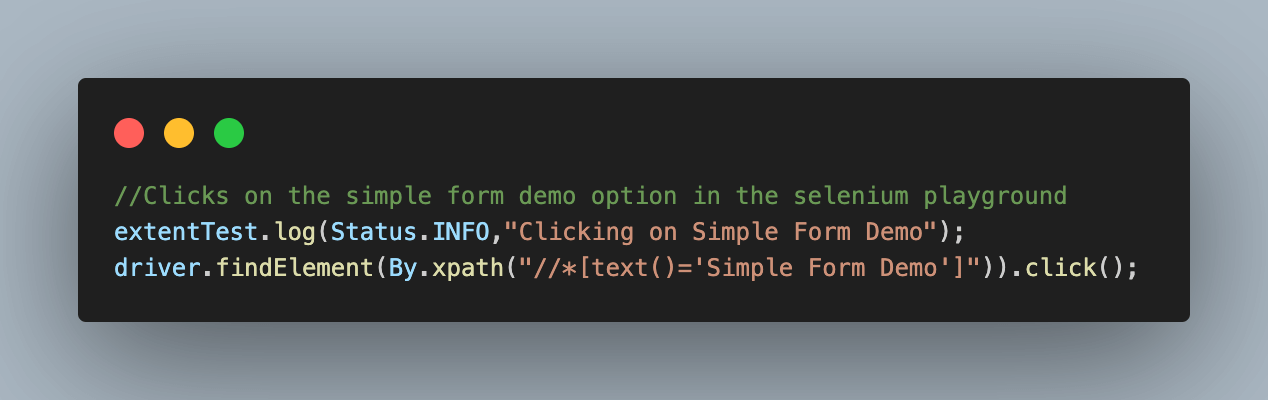
- Click on the Simple Demo Form link.
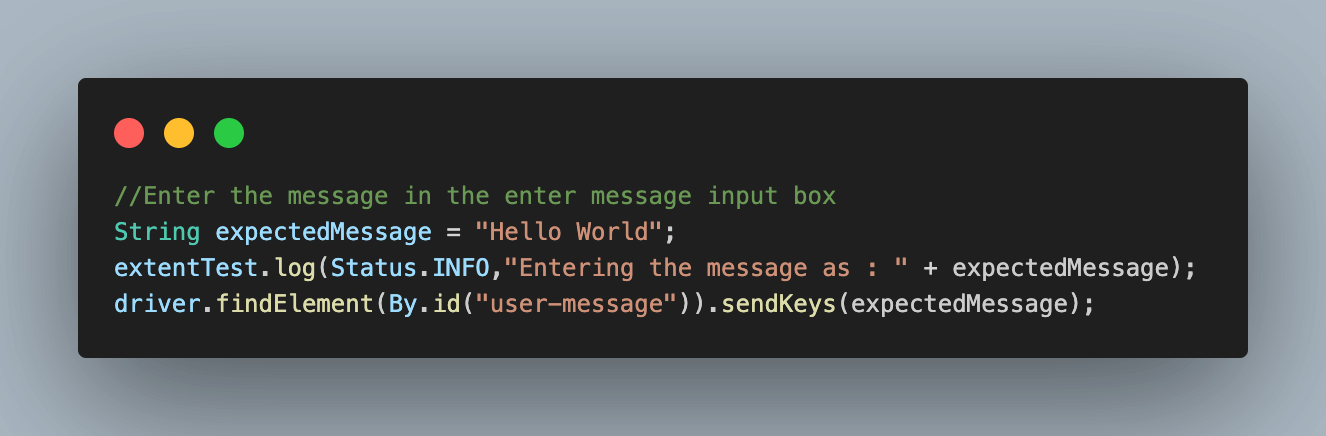
- Under the single input section, enter the message in the textbox.
- Click on the Get Checked Value button to get the response.
- Fetch the response message and compare it with the expected message entered initially.
- Update the status to be passed to reflect on the TestMu AI dashboard.
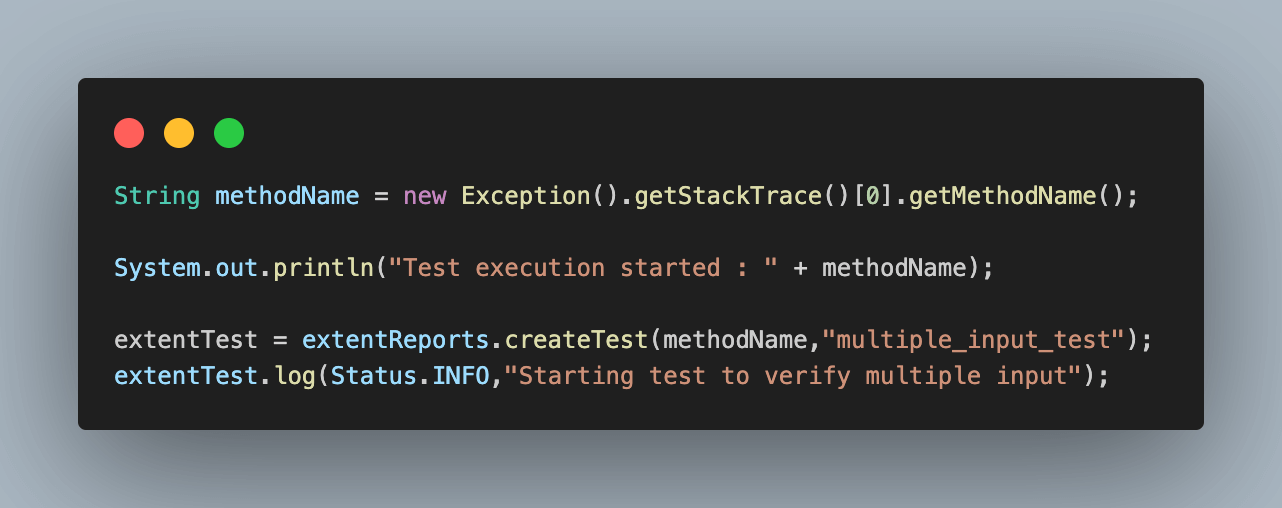
- Finally, add the last test case as multipleInputTest() and annotate it with @Test annotation for execution.
- Fetch the test method name, log the same, and create a new test.
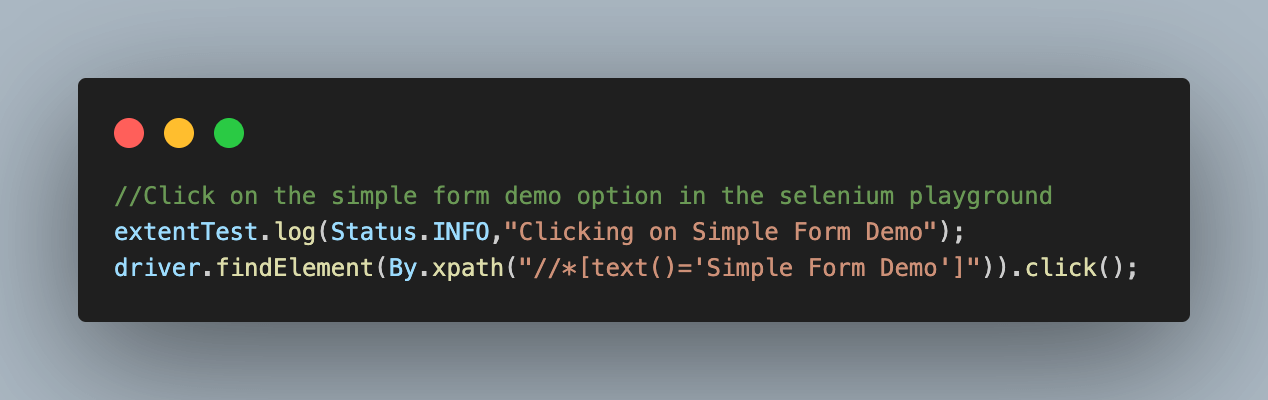
- Click on the Simple Demo Form link.
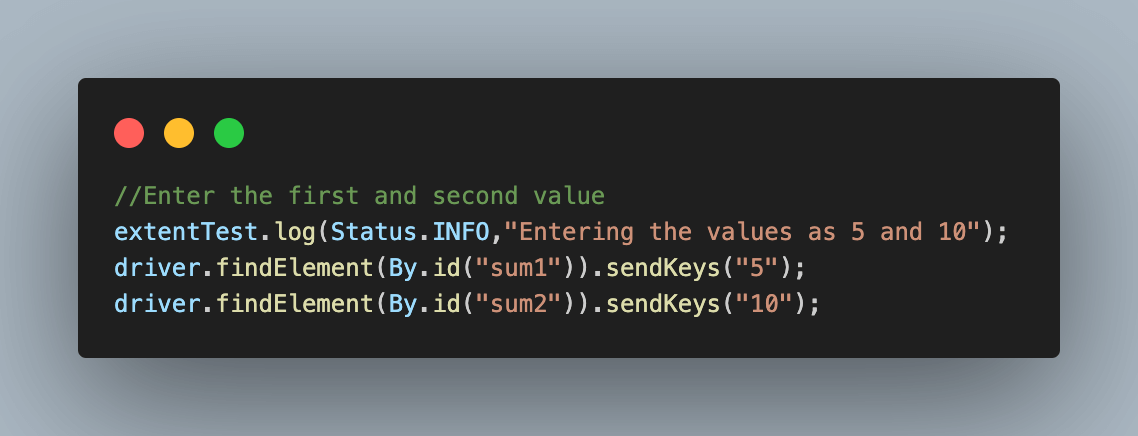
- Enter the first and second values under the Two Input Fields section.
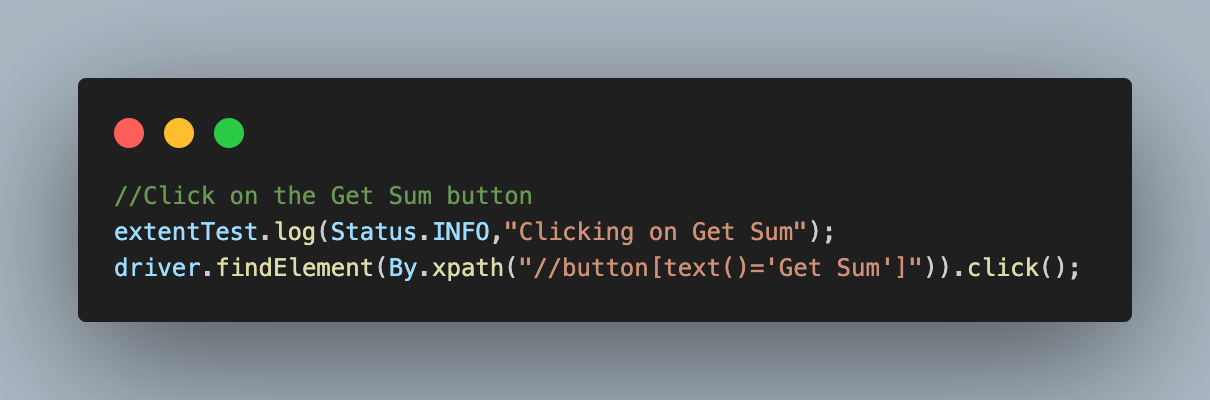
- Click on the Get Sum button to get the sum of the entered values.
- Fetch and assert the sum value with the expected value and log the same as the info in the Extent Reports.
- Lastly, update the status value to be passed when logging on to the TestMu AI dashboard.
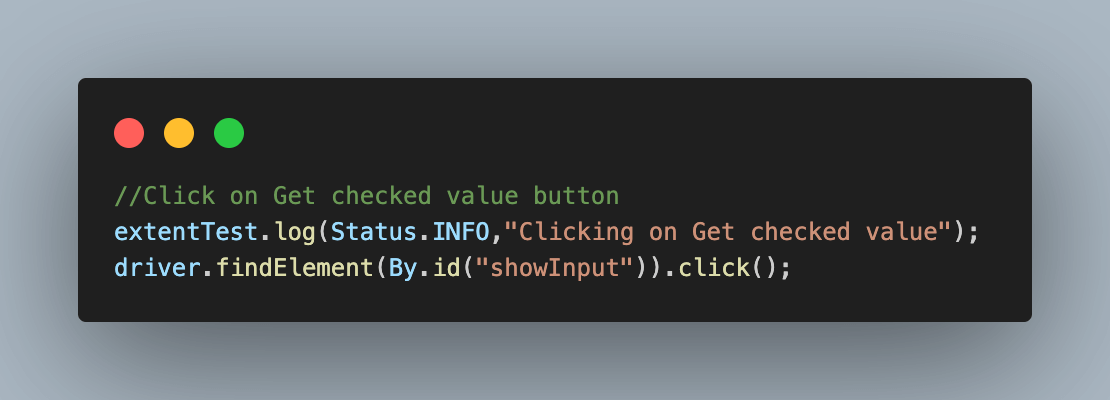
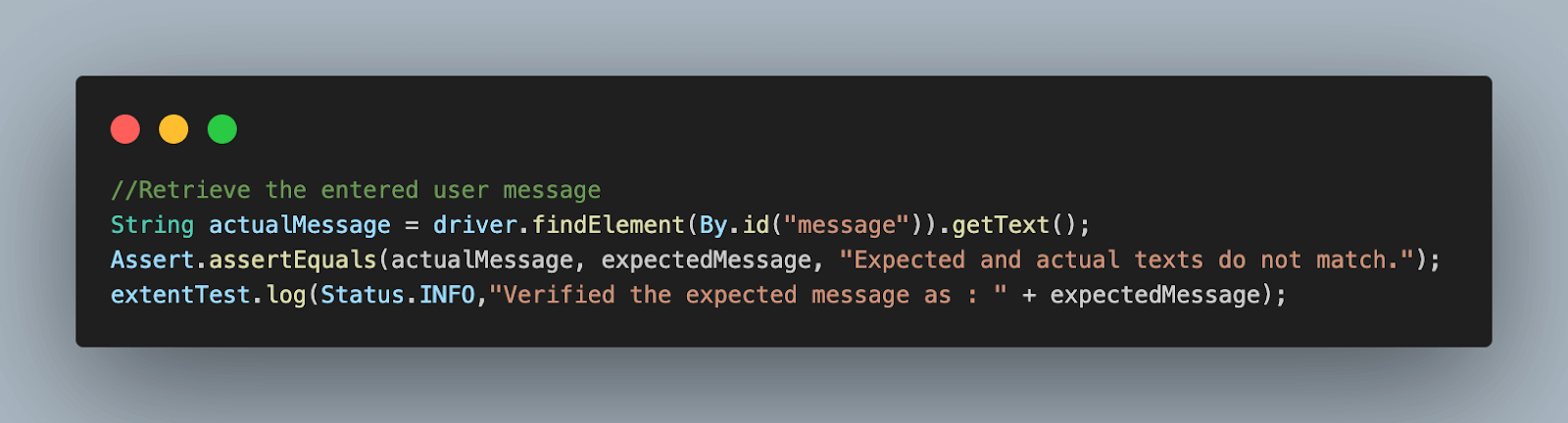
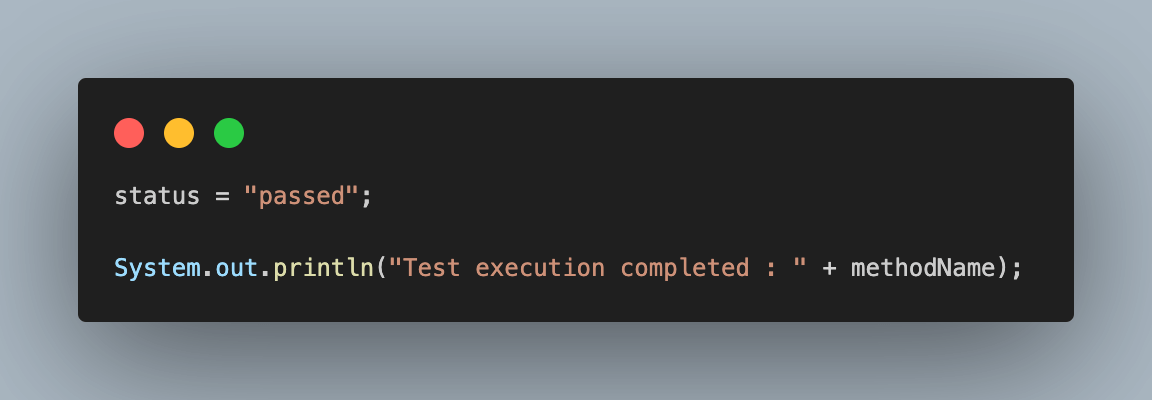
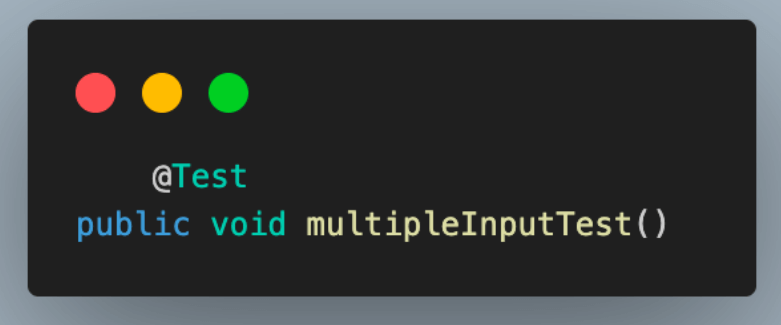
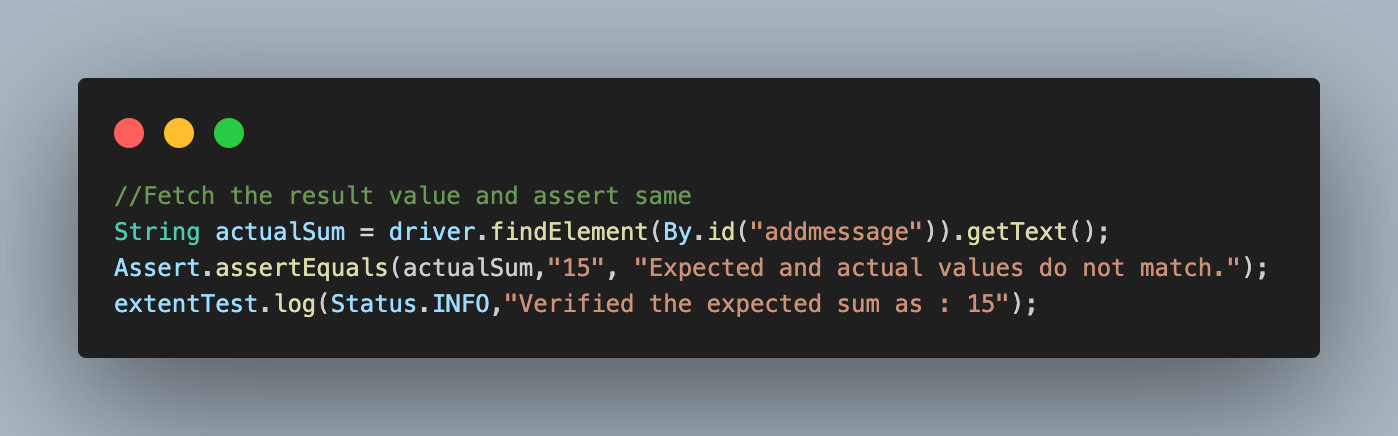
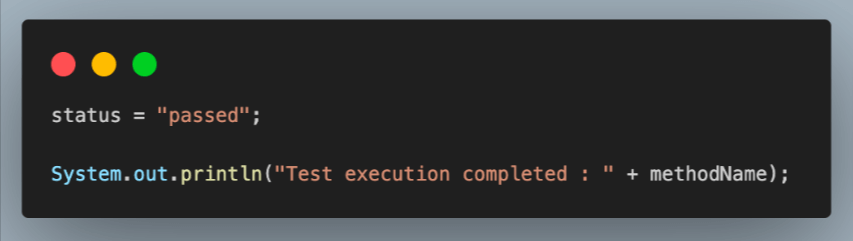
As we have covered all three test scenarios in the InputFormTests.java test file, we will create a new file called AlertTests.java for test scenario four.
package CloudGrid;


import org.openqa.selenium.By;
import org.testng.Assert;
import org.testng.annotations.Test;


import com.aventstack.extentreports.Status;


public class AlertTests extends BaseTest
{
   @Test
   public void testSimpleAlertMessage()
   {
       String methodName = new Exception().getStackTrace()[0].getMethodName();

       System.out.println("Test execution started : " + methodName);

       extentTest = extentReports.createTest(methodName,"simple_alert_message");
       extentTest.log(Status.INFO,"Starting test to verify simple alert message");

       //click on Bootstrap alerts
       extentTest.log(Status.INFO,"Clicking on Bootstrap Alerts");
       driver.findElement(By.linkText("Bootstrap Alerts")).click();

       //click on Normal success message
       extentTest.log(Status.INFO,"Clicking on Normal Success Message");
       driver.findElement(By.xpath("//*[text()='Normal Success Message']")).click();

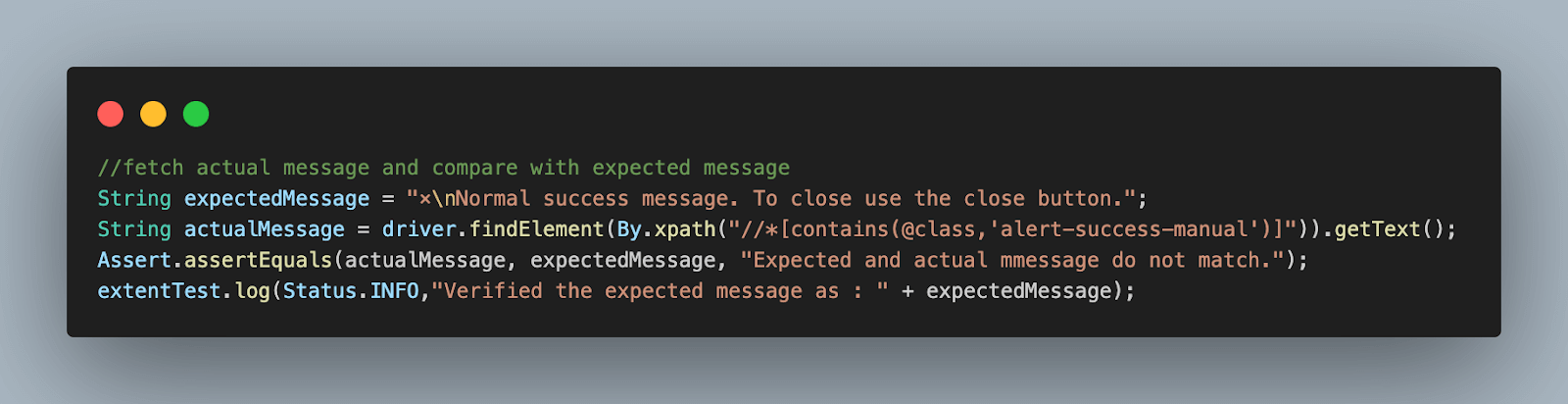
       //fetch actual message and compare it with the expected message
       String expectedMessage = "×
Normal success message. To close use the close button.";
       String actualMessage = driver.findElement(By.xpath("//*[contains(@class,'alert-success-manual')]")).getText();
       Assert.assertEquals(actualMessage, expectedMessage, "Expected and actual message do not match.");
       extentTest.log(Status.INFO,"Verified the expected message as : " + expectedMessage);

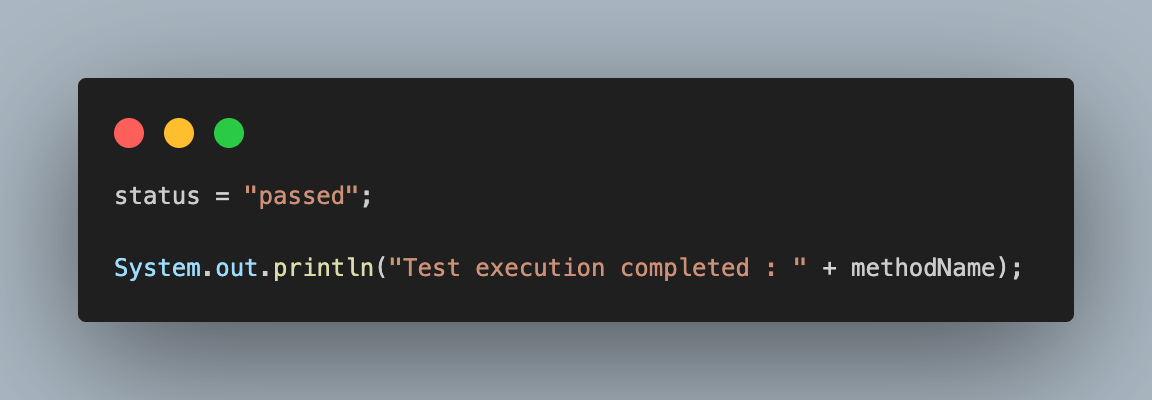
       status = "passed";

       System.out.println("Test execution completed : " + methodName);
   }
}
Before we jump to the test results, let’s understand the code in the AlertTest.java file to understand how it works in detail.
Code Walkthrough:
- Add a new test class file as AlertTests and extend BaseTest in it.
- Add the test method and name it testSimpleAlertMessage(), and annotate this with @Test annotation as we are using TestNG for test execution.
- Fetch and store the test class name in a variable and log it on the console.
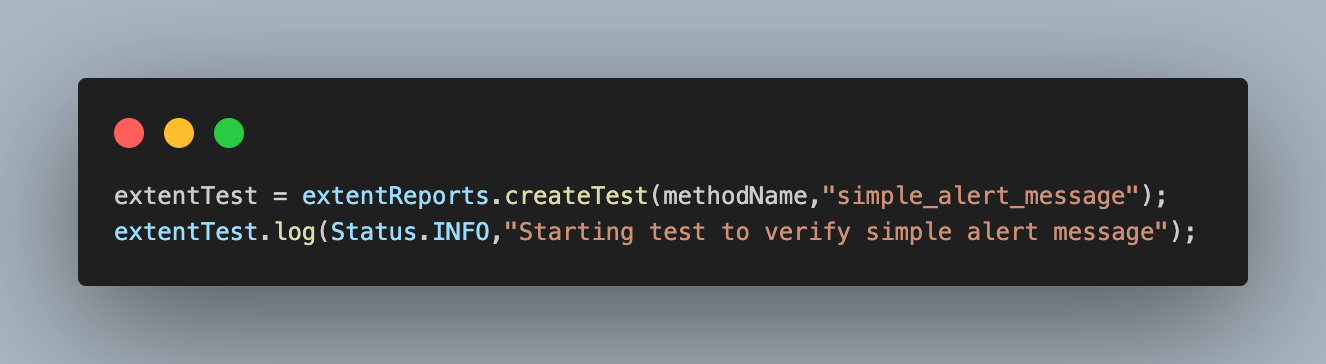
- Next, use the method name to create a new test in the extent report and log information stating that the test execution started.
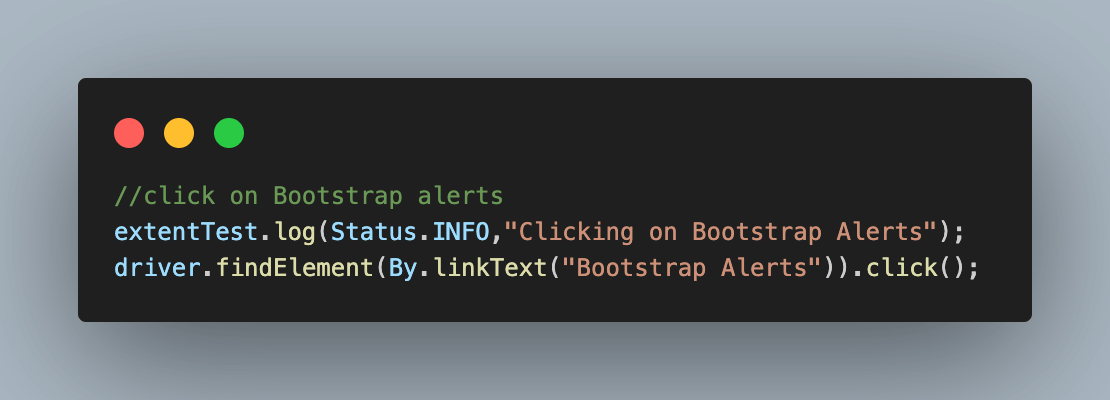
- Click on the Bootstrap Alerts link text.
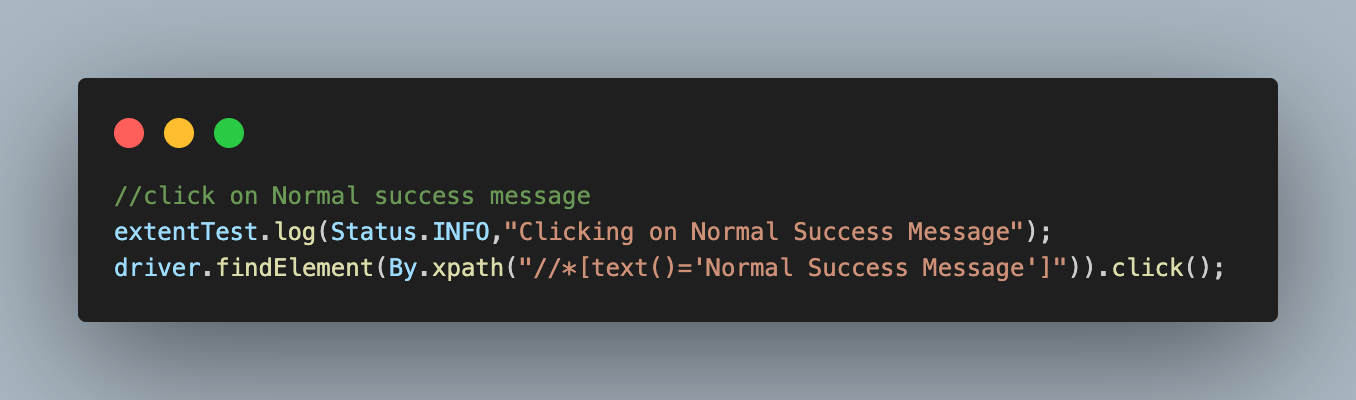
- Click on the Normal Success Message alert button.
- Fetch the actual displayed message and store it in a String-type variable. Using the Assert class method, we compare this fetched message with the expected message and log the same.
- Finally, update the status variable to be passed to log the test execution status on the TestMu AI dashboard.
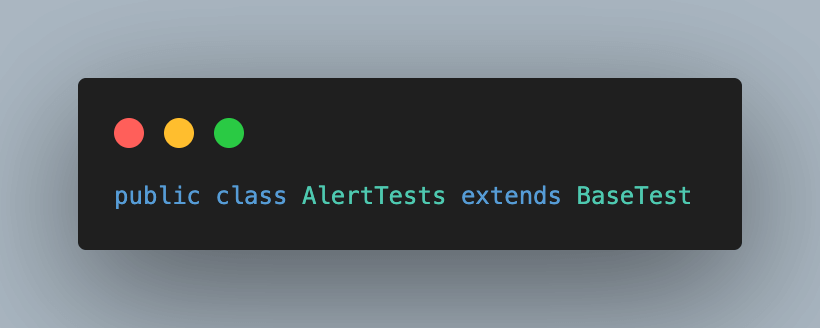
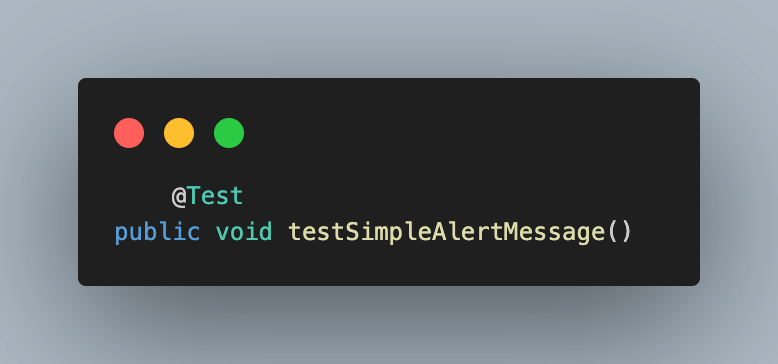
With this, the test cases are ready to be executed. To execute them together and get the Extent Reports for both test scenarios, you can use the below testng.xml to execute the scenarios.
<<?xml version="1.0" encoding="UTF-8"?>
<!DOCTYPE suite SYSTEM "http://testng.org/testng-1.0.dtd">
<suite name="Extent Report Tests">
   <test name="Tests">
       <classes>
           <class name="CloudGrid.InputFormTests" />
           <class name="CloudGrid.AlertTests"></class>
       </classes>
   </test> <!-- Test -->
</suite> <!-- Suite -->
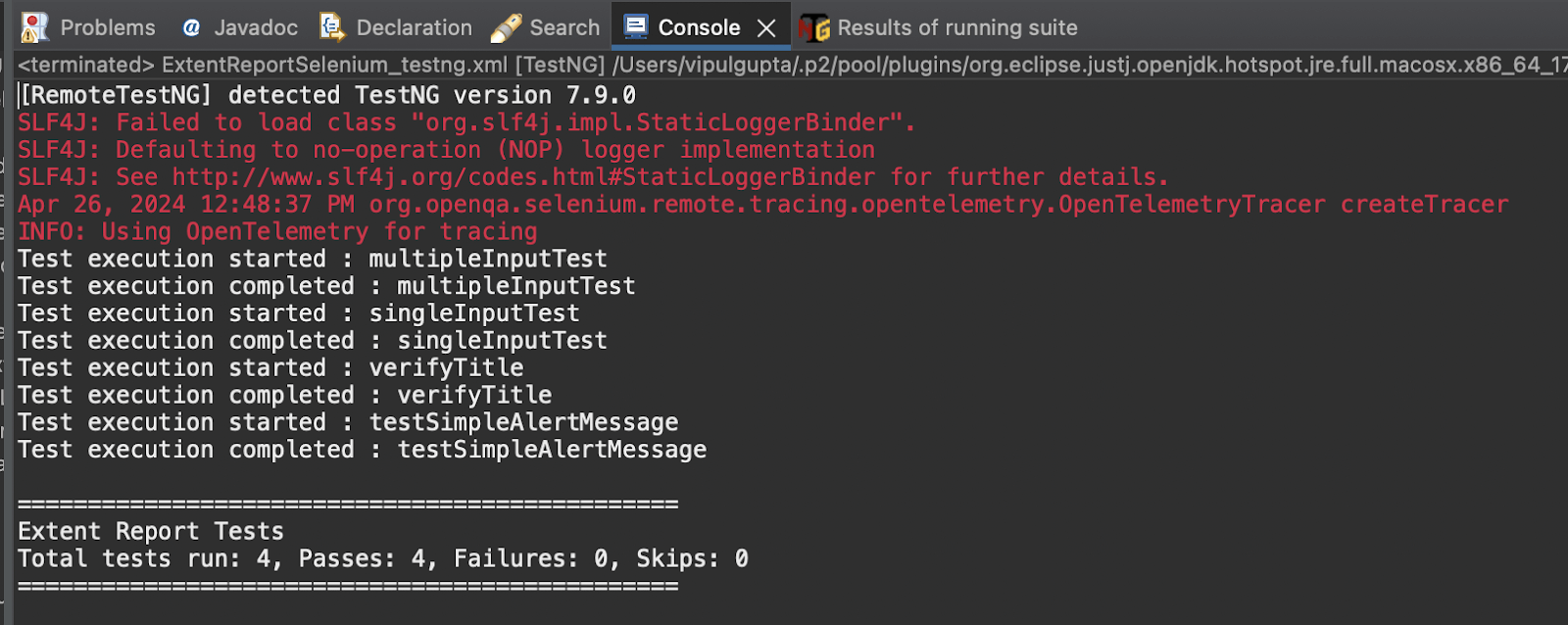
Test Execution:
Executing the above XML would give results like the one below on the console.
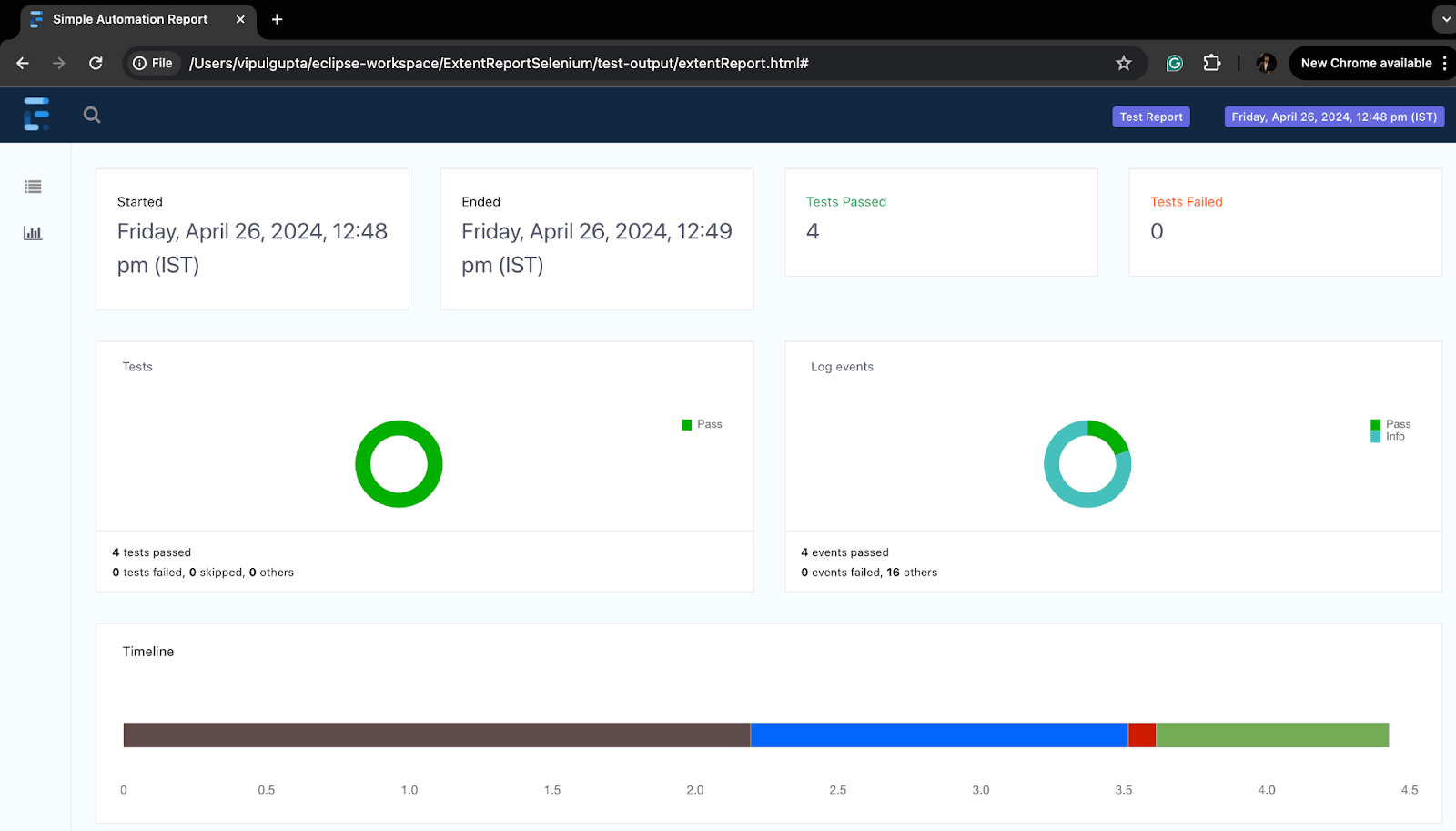
Refresh the project and navigate to the test-output folder to see the generated Extent Reports.
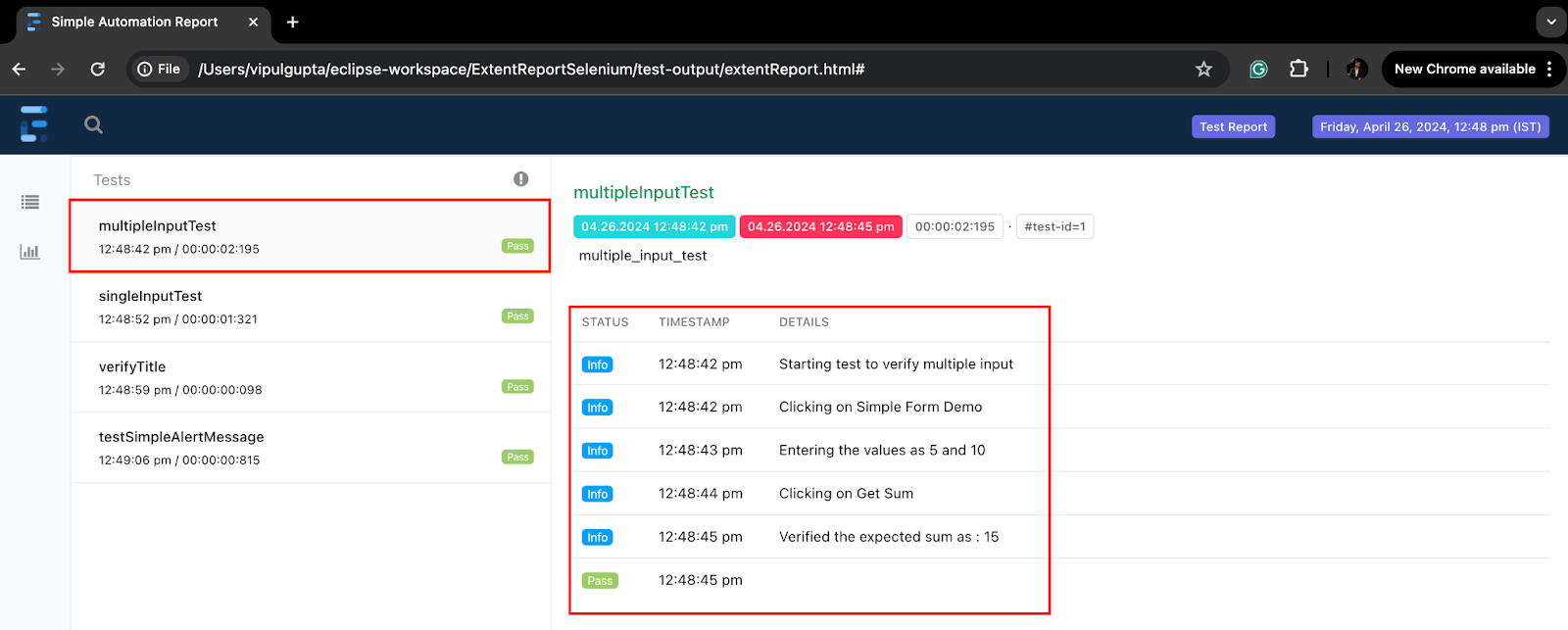
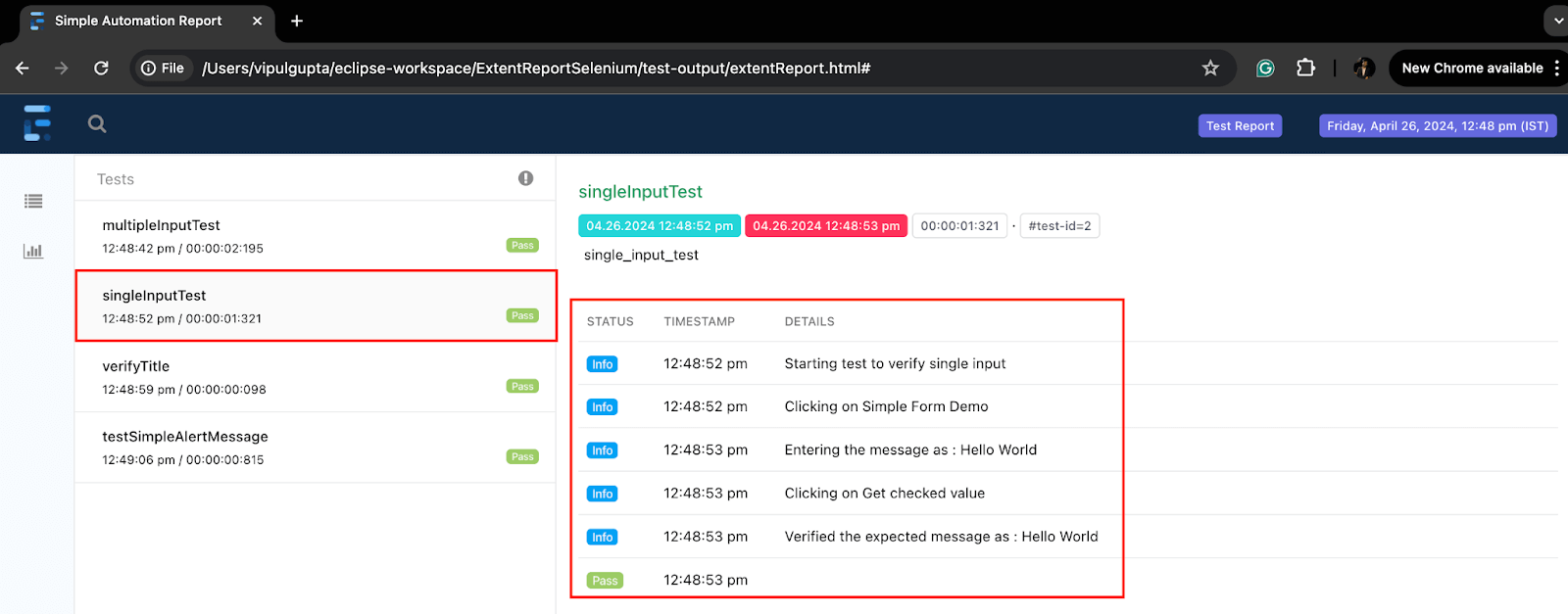
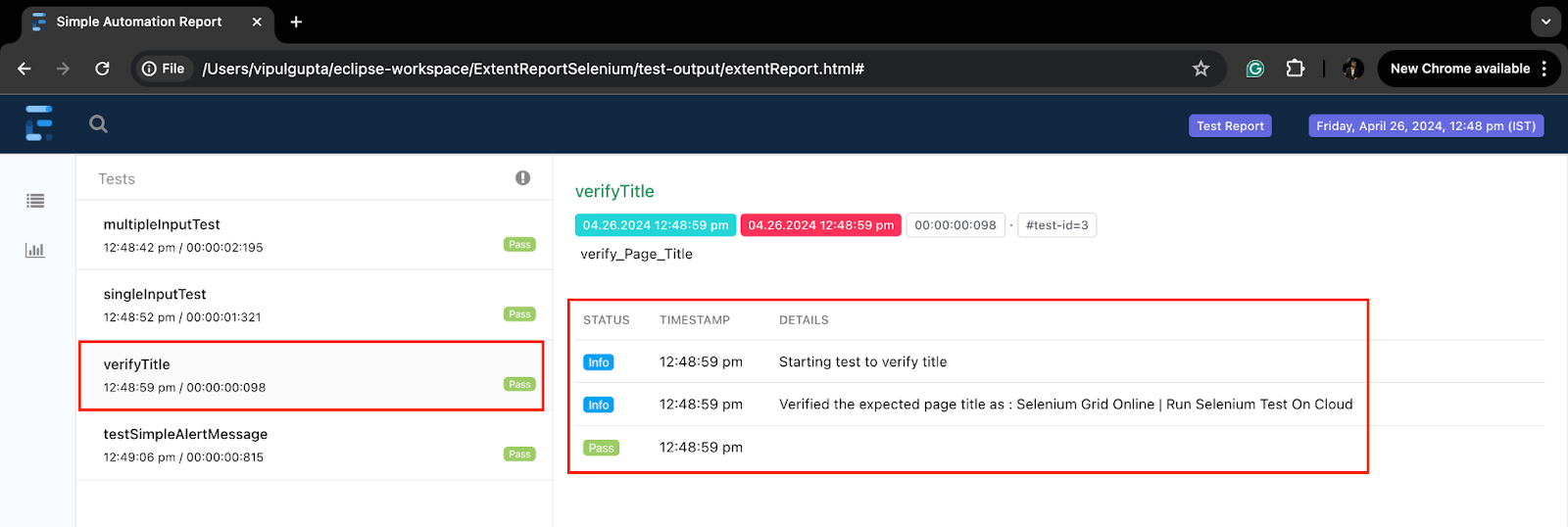
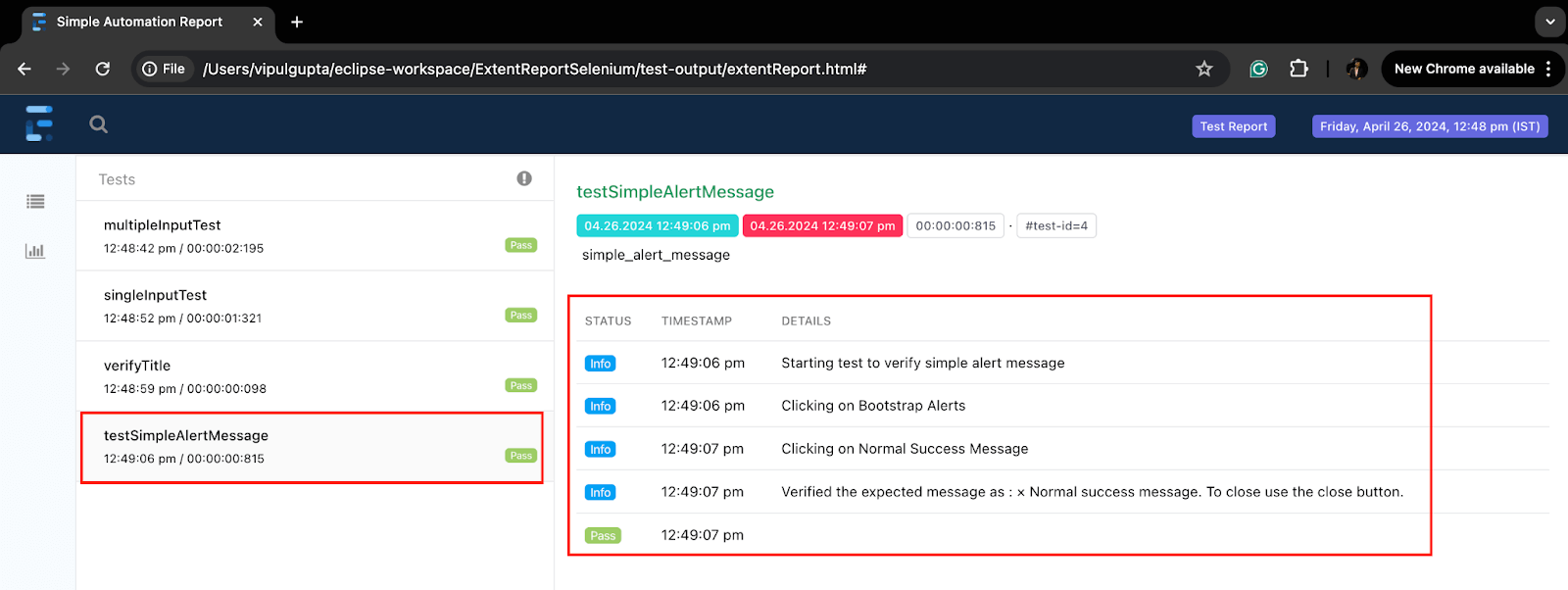
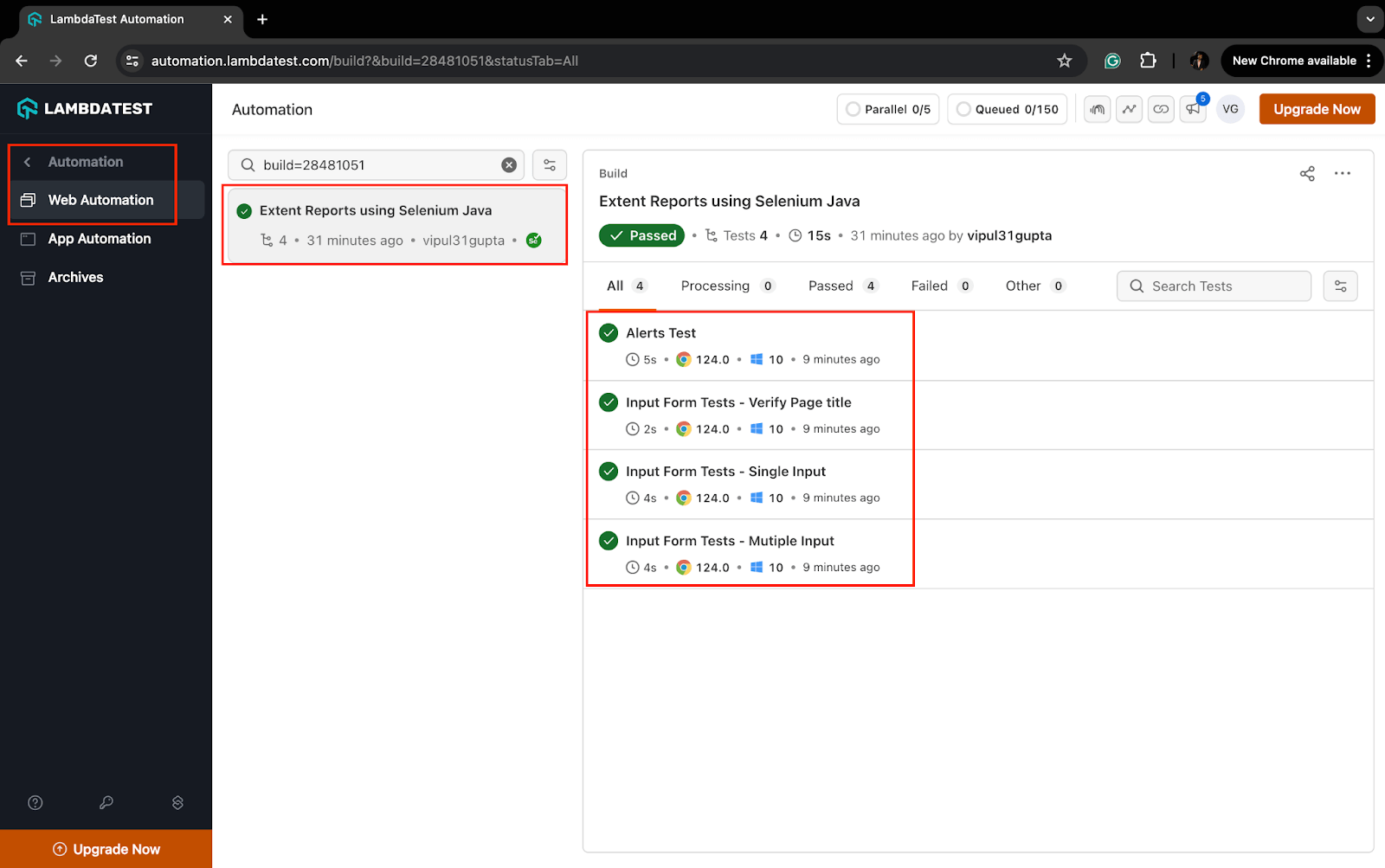
Since the test scenarios were executed on the TestMu AI cloud grid platform, you can view the results on the TestMu AI dashboard.
To access the test results, navigate to the Automation > Web Automation section on the dashboard.
Capturing Screenshots in Extent Reports
While working with web automation, screenshots for failed cases are very helpful in debugging and understanding issues. Screenshots allow testers to see and compare the UI at the point of failure to the expected results, deduce proper outcomes, and proceed with fixes.
Using Extent Reports provides the advantage of capturing screenshots and attaching them to the failed test case logs in the report for better visibility.
Let us see how to modify the code to capture screenshots for a failed case. However, if required, you can capture screenshots per the use case at any step.
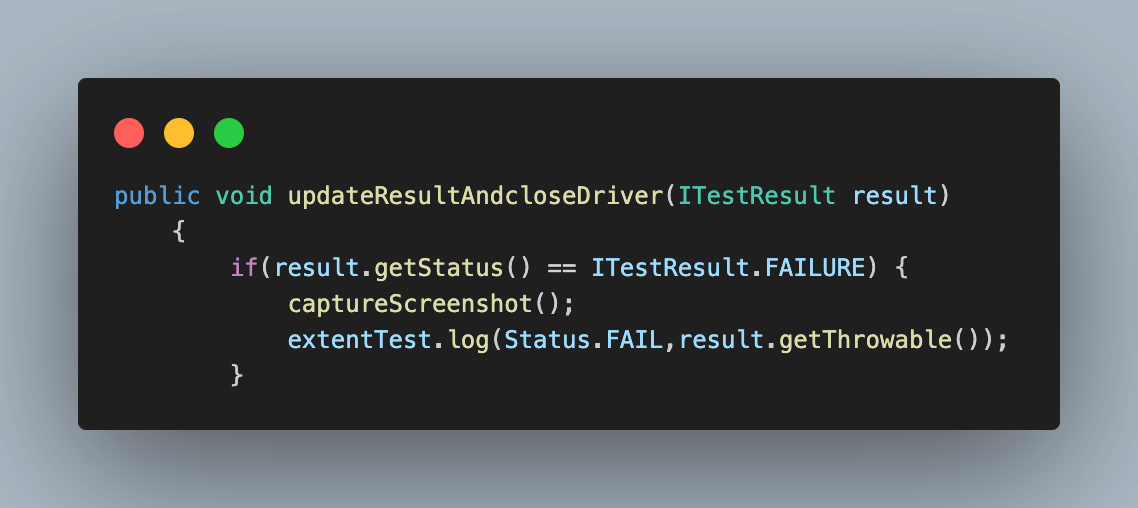
To achieve the same add the below method to captureScreenshot() in the BaseTest.java and call this in an if-else loop for the Failed test case condition inside updateResultAndcloseDriver().
Updated updateResultAndcloseDriver() would look like shown below.
Code for the method captureScreenshot() would be
public void captureScreenshot()
   {
       try
       {
           System.out.println("Taking screenshot for failed assert");
           String screenshotPath = System.getProperty("user.dir") + "/test-output/screenshots";
           File screenshot = ((TakesScreenshot) driver).getScreenshotAs(OutputType.FILE);

           System.out.println("Adding screenshot to extent report");
           String screenshotName = "screenshot_" + new Random().nextInt(999) + ".png";
           screenshotPath = screenshotPath + File.separator + screenshotName;
           Files.copy(screenshot, new File(screenshotPath));
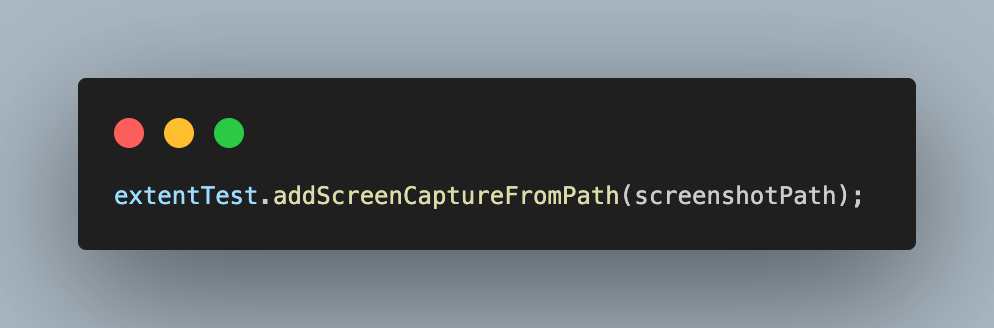
           extentTest.addScreenCaptureFromPath(screenshotPath);
       } catch (IOException e)
       {
           e.printStackTrace();
       }
   }
Code Walkthrough:
- Add a new directory inside the test-output directory to save screenshots.
- Take a screenshot using the getScreenshotAs() method of the WebDriver and save it in a File class object.
- Create a new random screenshot name for the captured image. To make it unique, we use the Random() function to generate a random 3-digit number.
- Copy the captured screenshot from Step 2 inside the screenshots directory with the name created in Step 3.
- Lastly, use the addScreenCaptureFromPath() of the ExtentTest class to attach the captured screenshot to the respective test case for displaying in the extent report.
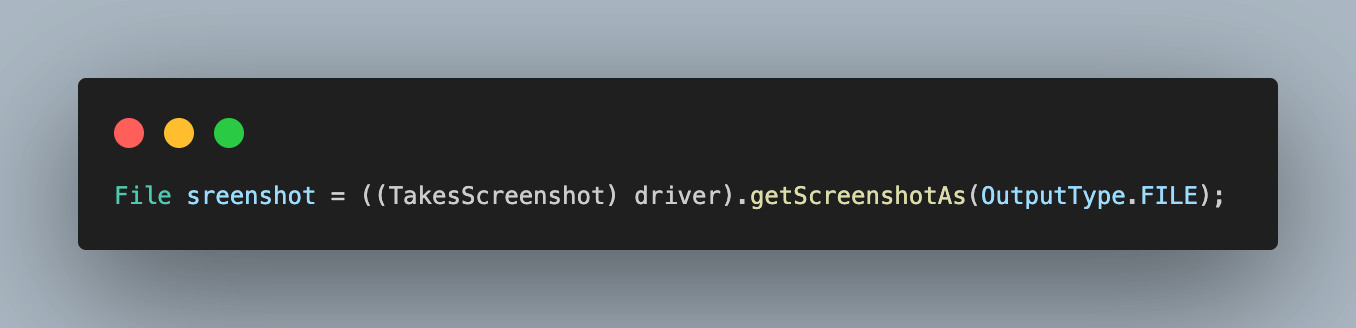
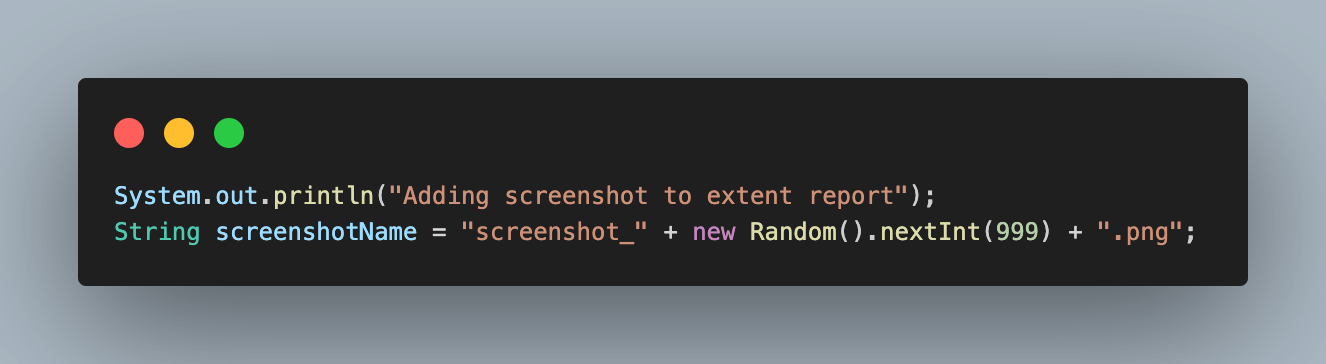
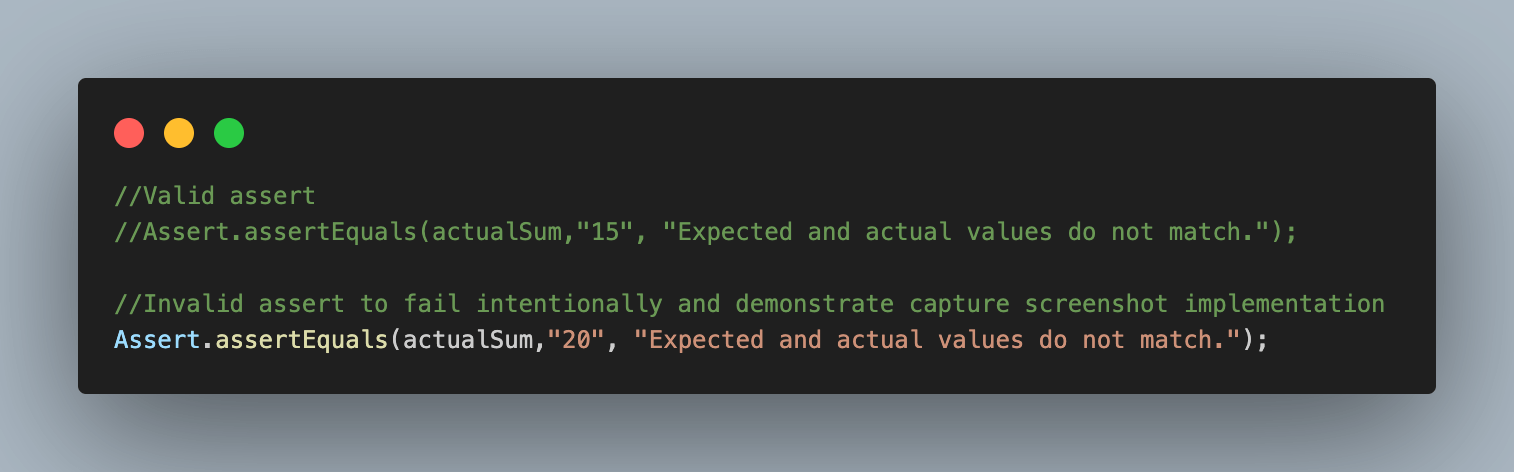
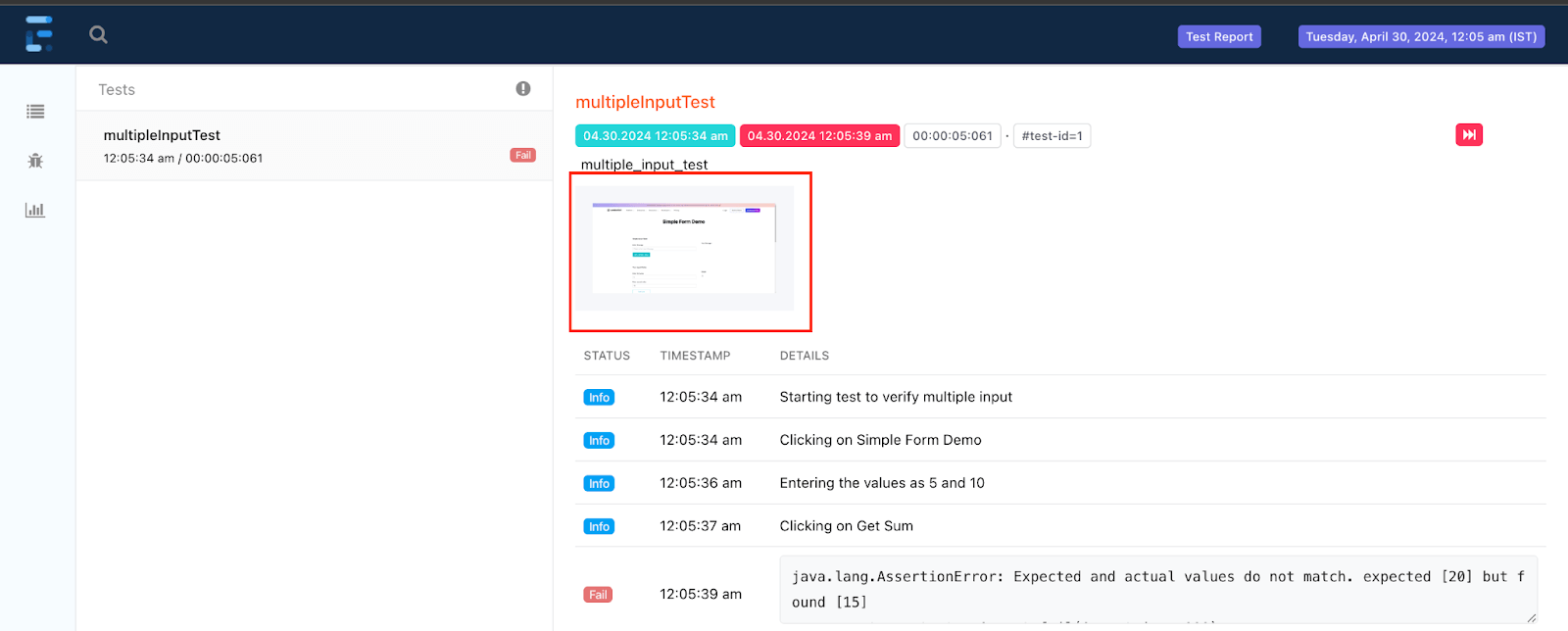
To demonstrate the working of this capture screenshot method, we modify the assert on the multipleInputTest() test case inside the InputFormTests test class to fail intentionally.
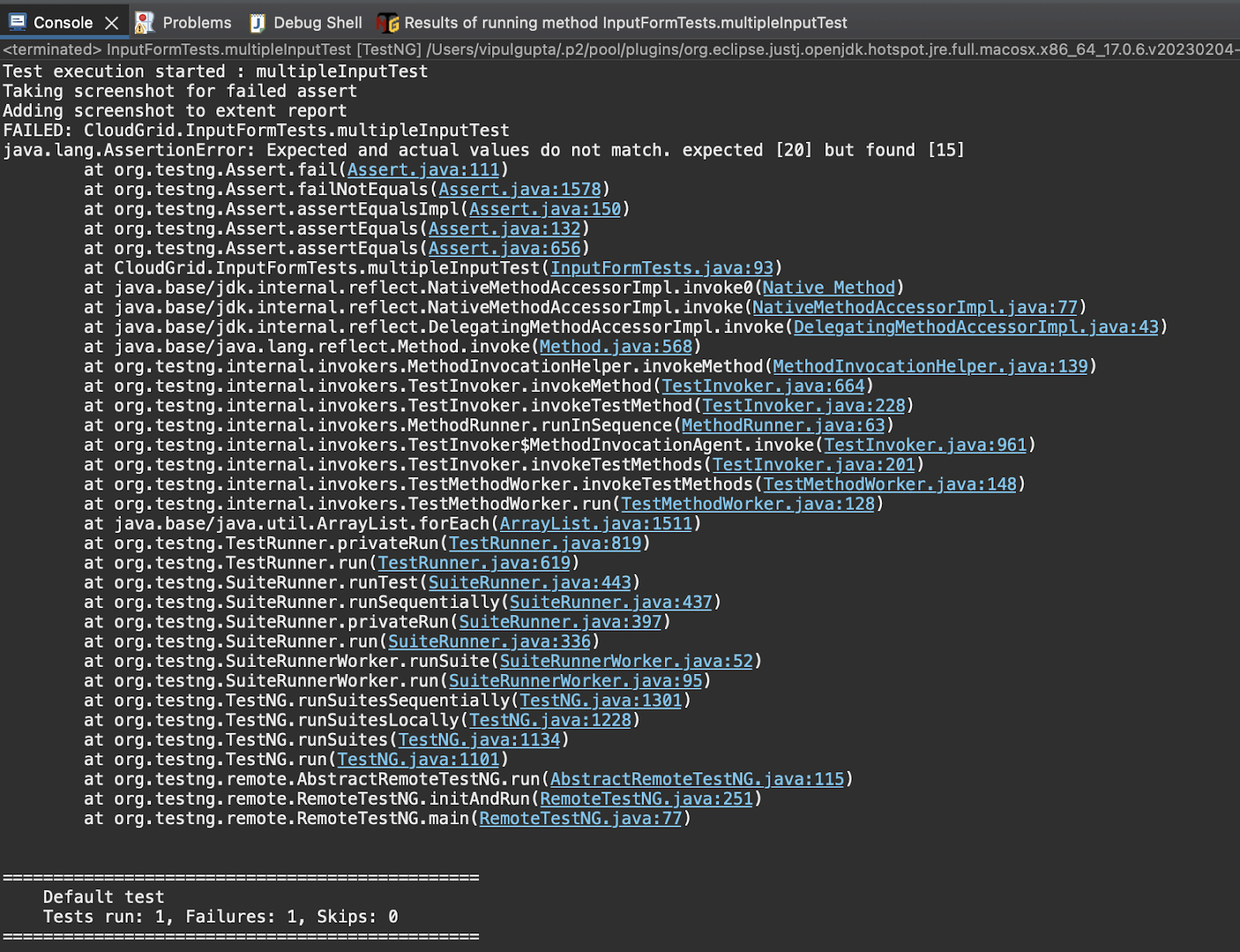
Test Execution:
Executing the above test case will give an output like the one below on the console.
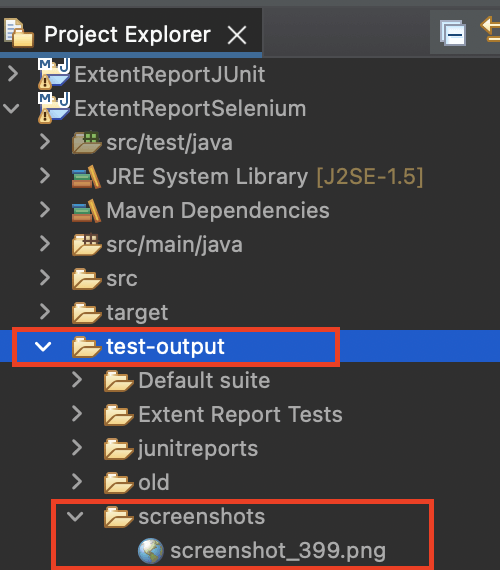
Navigating to the /test-output/screenshots directory, we can see that the screenshot was captured and added here.
On the Extent Report, you can see that the screenshot is attached and is visible. We can also click on this screenshot to get the enlarged view and check the UI at the time of failure.
Also, since we are using the TestMu AI Selenium cloud grid, you can navigate to the dashboard and see that the test execution is marked as failed.
To learn how to run your test scripts on the TestMu AI platform, watch this video tutorial and get detailed insights.
Wrap Up
In this blog on generating Extent Reports in Selenium, we learned about the applications of Extent Reports for interactive reporting. We understood the basic setup and prerequisites and learned how it works with different testing frameworks.
Executing on a cloud grid and implementing screenshot capturing will help you generate more detailed and reliable reports. I hope this article has been informative and will help you integrate the Extent Reports into your automation framework without any hurdles. Try your hands on these Extent Reports in Selenium, and let me know your feedback on this article.
Happy Reporting…!!!


Frequently asked questions
Did you find this page helpful?
More Related Hubs
TestMu AI forEnterprise
Get access to solutions built on Enterprise
grade security, privacy, & compliance
- Advanced access controls
- Advanced data retention rules
- Advanced Local Testing
- Premium Support options
- Early access to beta features
- Private Slack Channel
- Unlimited Manual Accessibility DevTools Tests