

Power Your Software Testing with AI Agents and Cloud
The Native AI-Agentic Cloud Platform to Supercharge Quality Engineering. Test Intelligently and Ship Faster.


- TestMu AI (Formerly LambdaTest)
- /
- Blog
- /
- How to Clear Cache in Safari
How to Clear Cache in Safari
Learn how to clear cache in Safari quickly to boost performance and fix loading issues for macOS and iOS users.
Last Updated on:
Safari on macOS stores photos, temporary files, and visited pages in its cache to speed up loading, and the keyboard shortcut Command+Option+E empties just that cache instantly without touching cookies or browsing history. A slower route through Manage Website Data removes everything stored per site, while iPhone and iPad only offer the all-in-one Clear History and Website Data option.
Steps to Clear Cache in Safari on macOS
There are two primary methods to clear cache in Safari on a macOS. The first method removes all stored data related to websites you have visited. The second method is more targeted and focuses only on the cache files.
Clearing All Website Data
This method removes all stored website data, including cached files, cookies, and other related information:
- Open the Safari browser on your macOS.
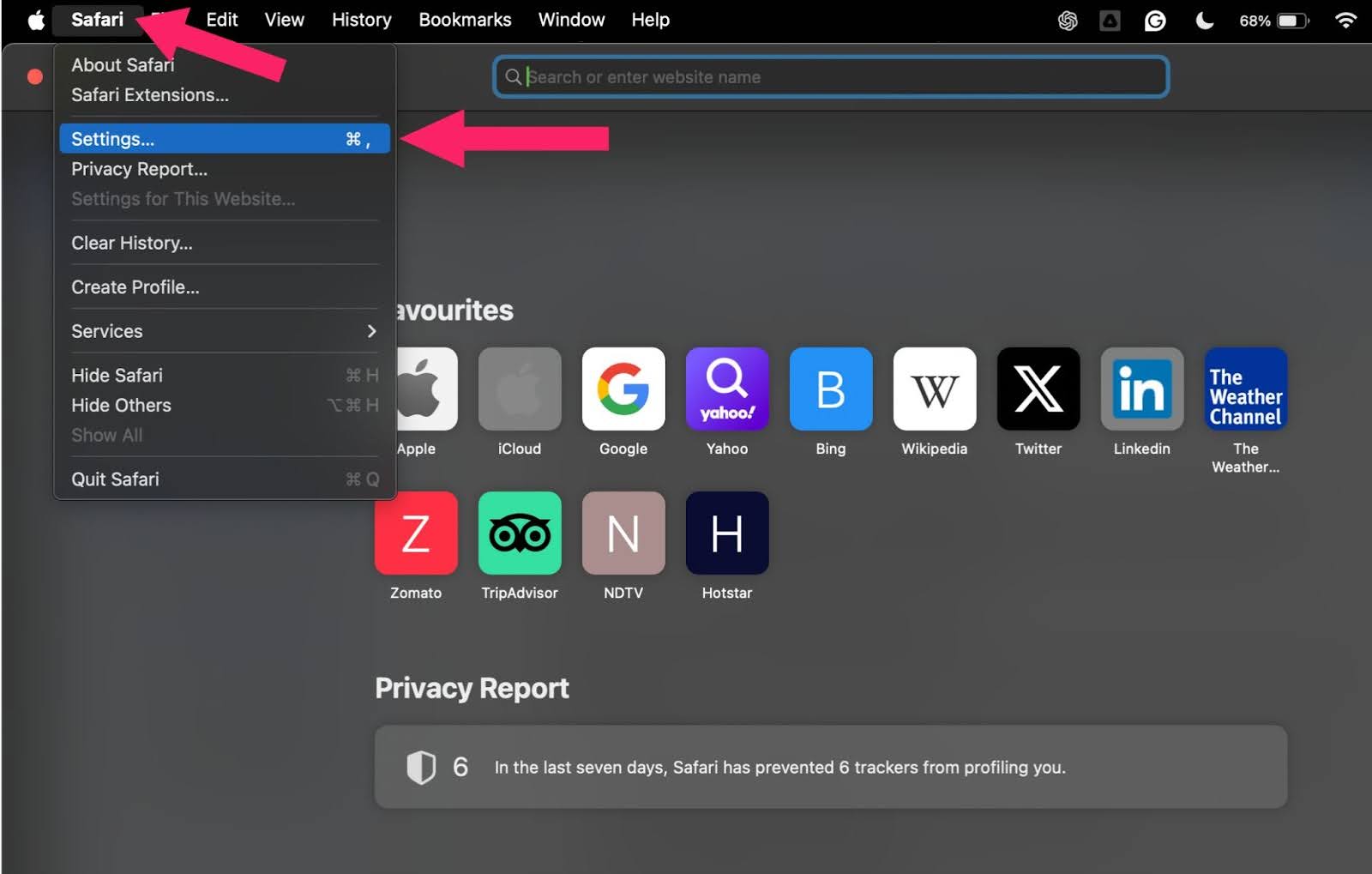
- From the top menu, click on Safari, then Settings.
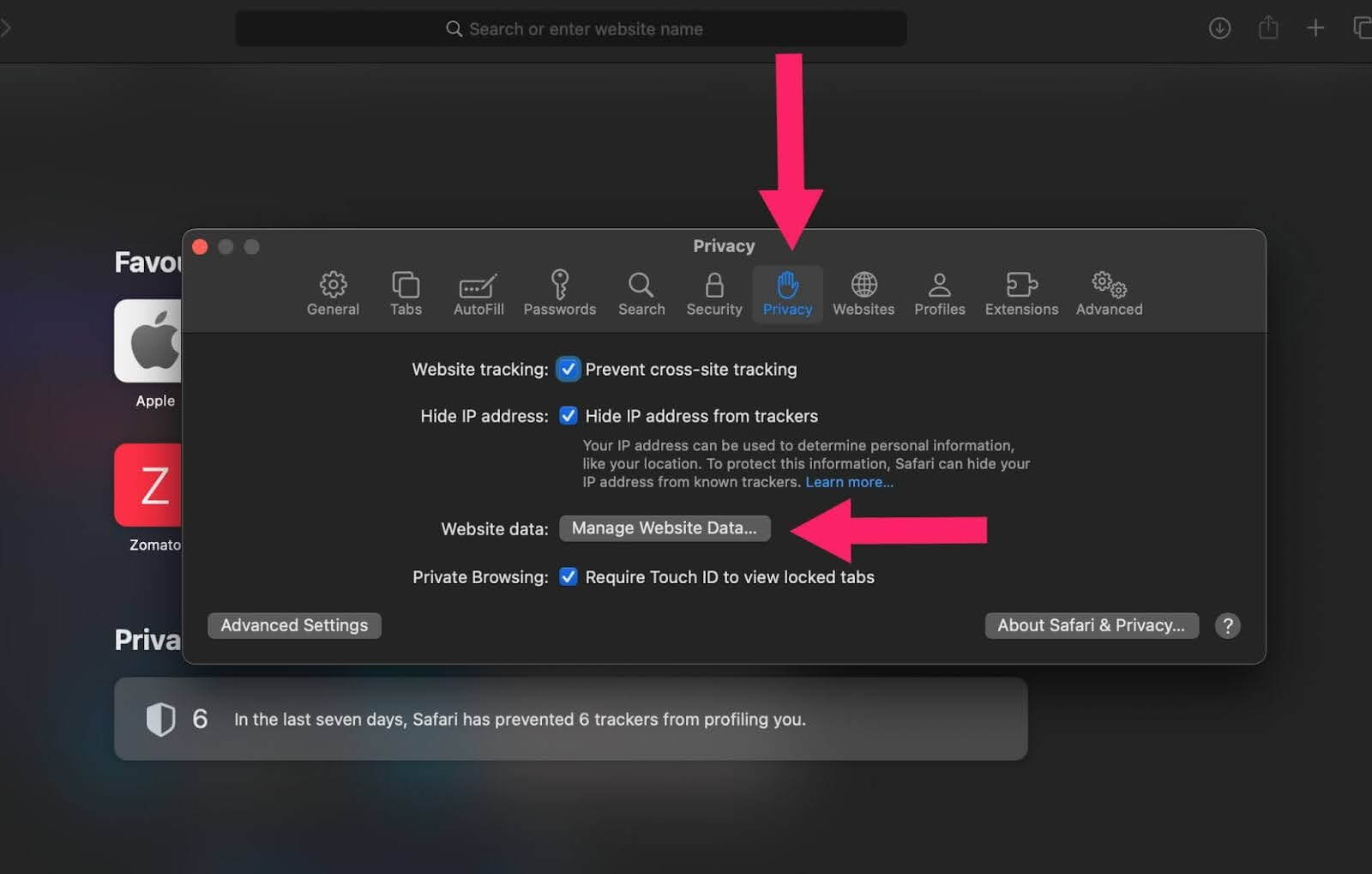
- Go to the Privacy tab and click on Manage Website Data.
- In the new window, you can either:
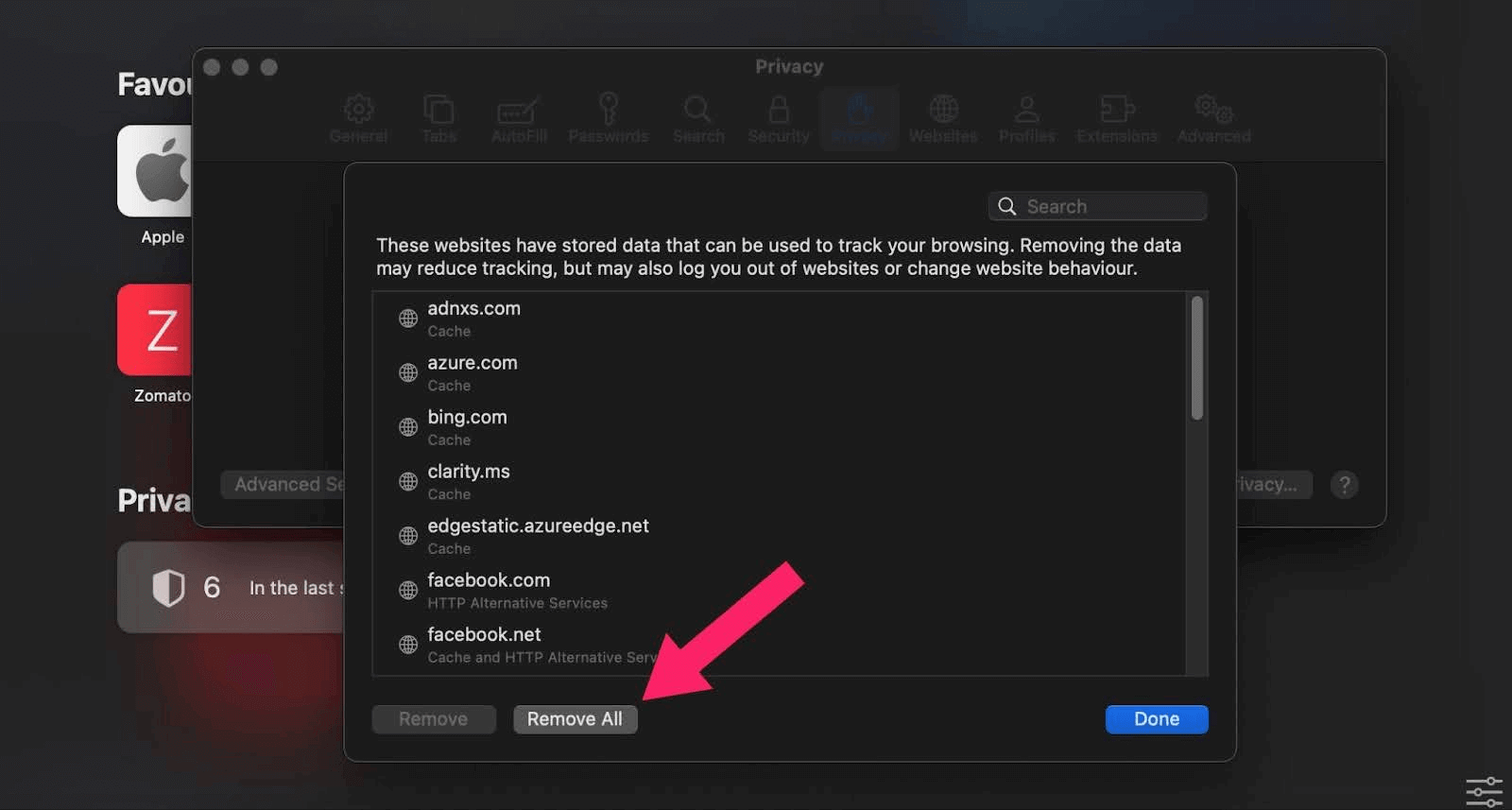
- Select a specific website and click on Remove to clear data for that site only.
- Click on Remove All to clear data for all listed websites.

Note: Test your websites on real Safari browsers. Try TestMu AI Today!
Clearing Only the Cache
This method focuses on clearing the cache and preserving other data. It requires you to activate a hidden menu:
- Open the Safari browser on your macOS.
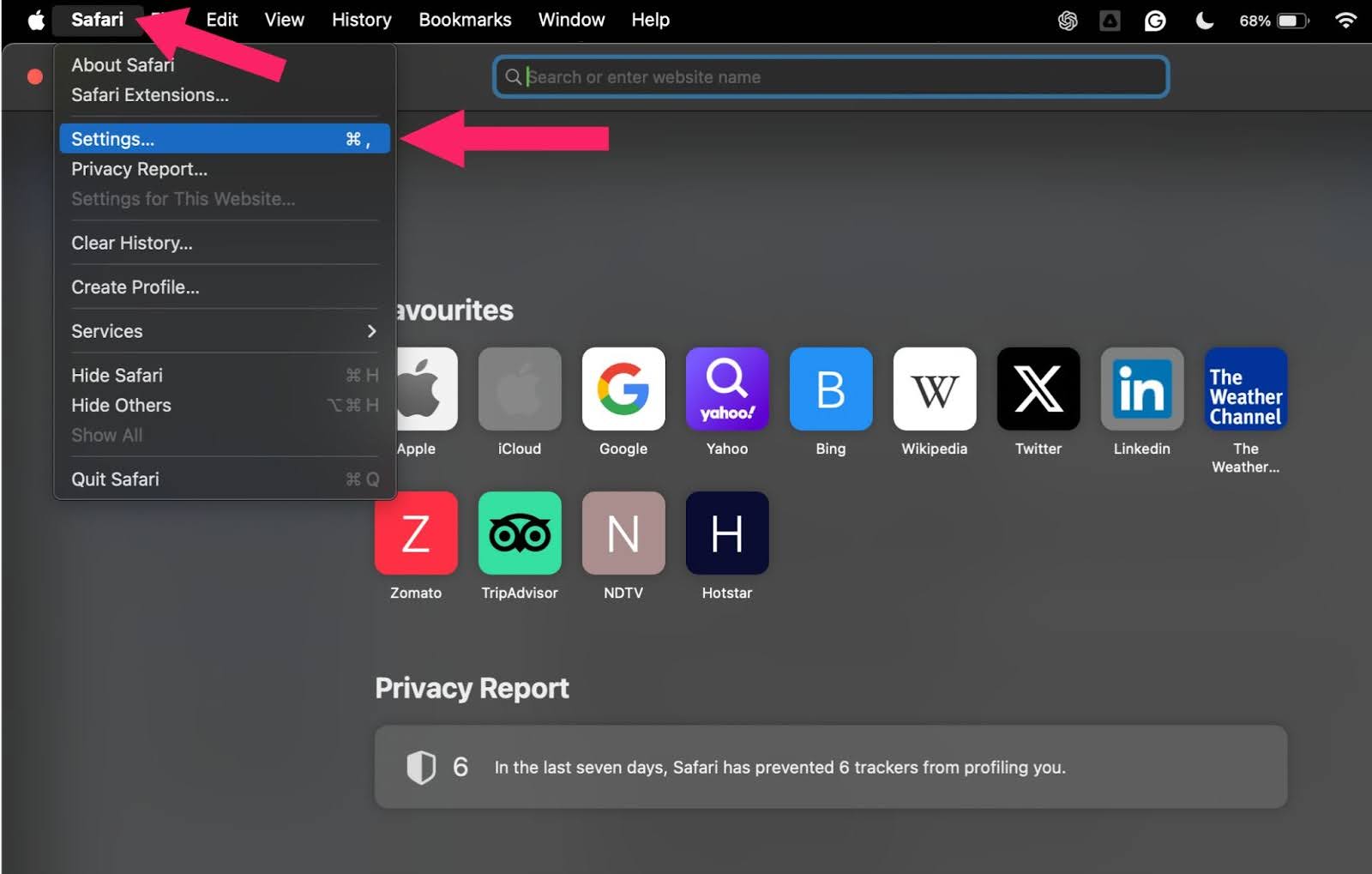
- Click on Safari and then Settings.
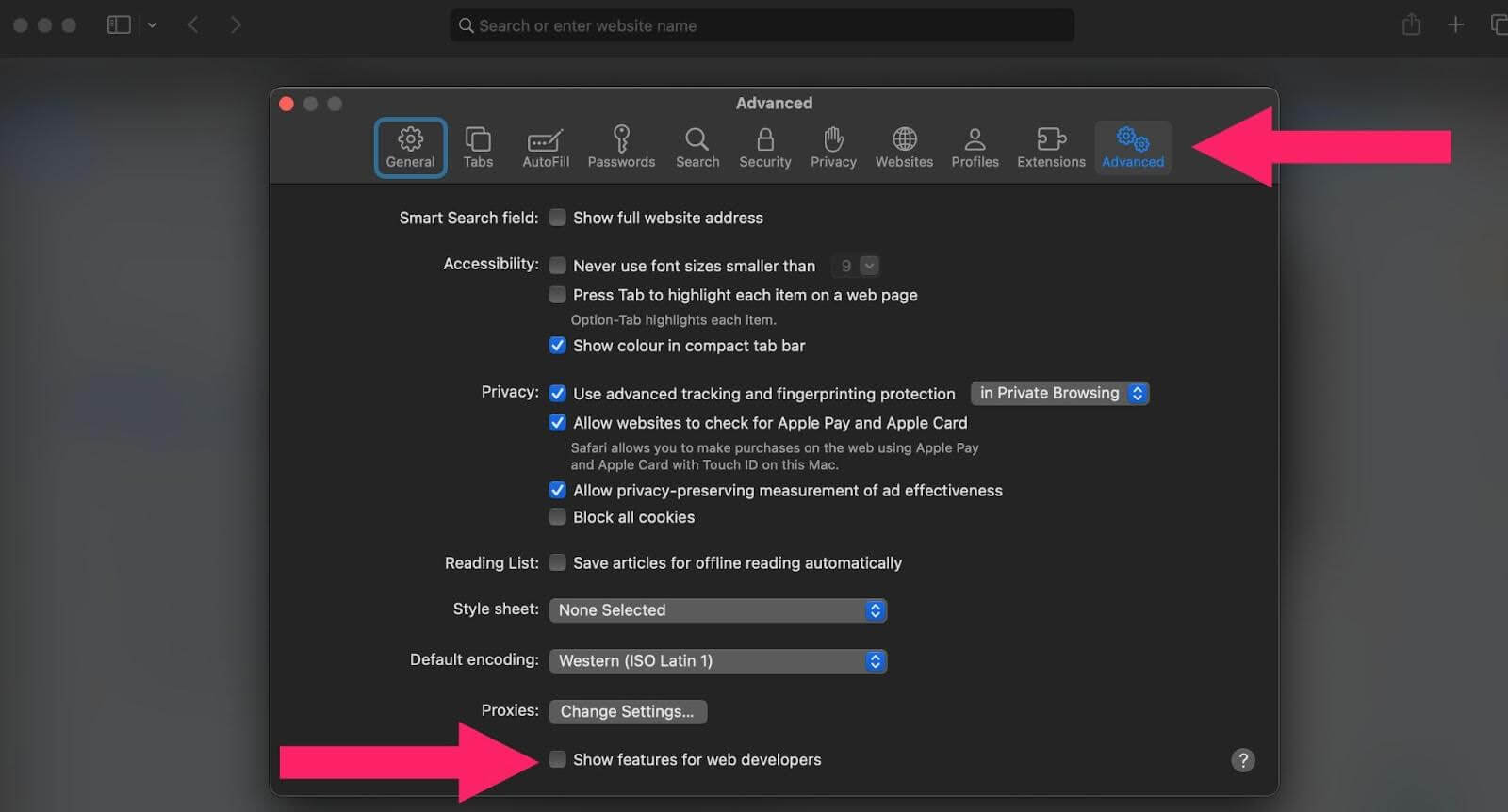
- Go to the Advanced tab and tick the Show features for web developers checkbox.
- Close the Settings window.
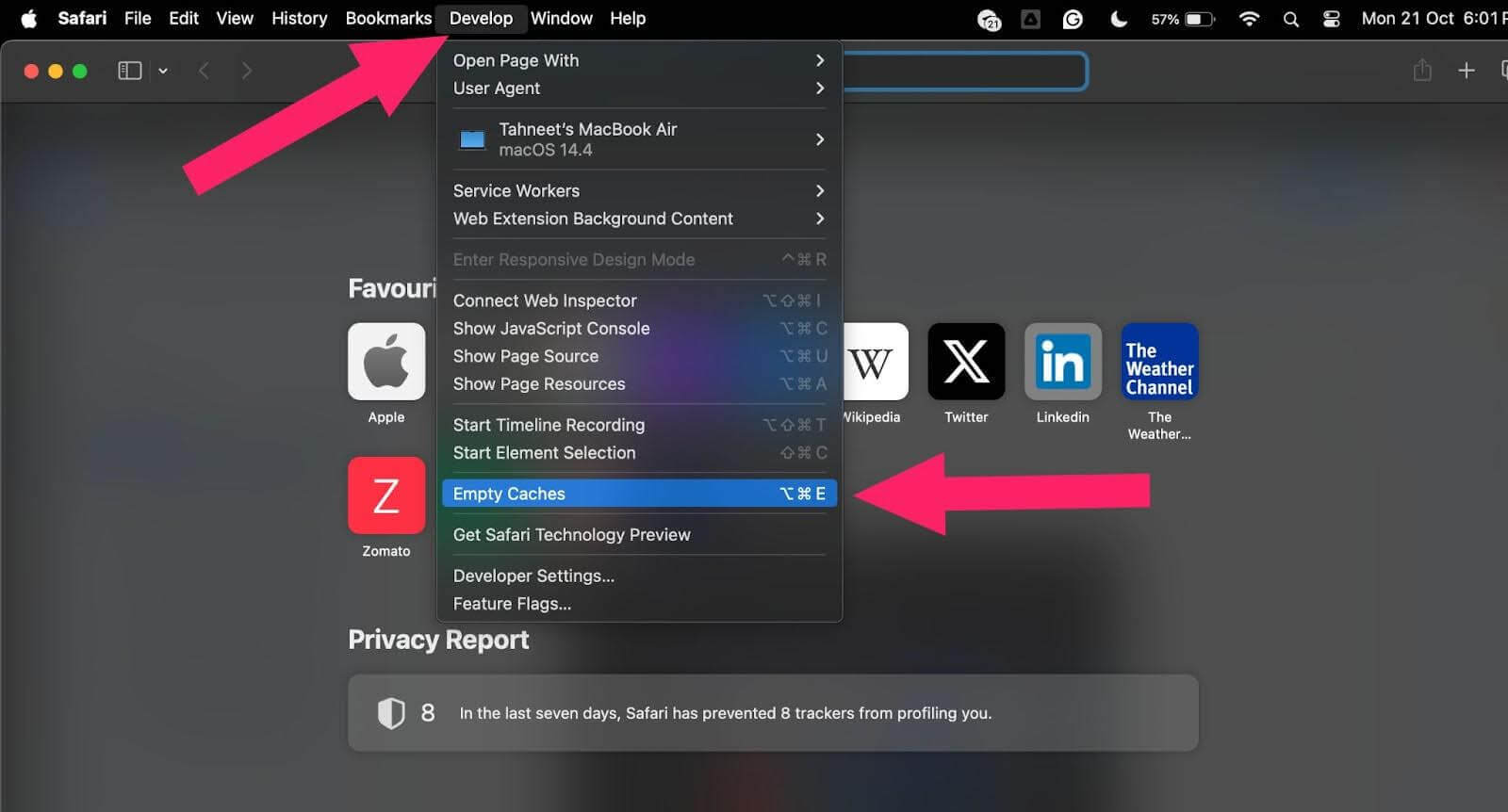
- In the Develop menu, click Empty Caches. This will clear the cache in your Safari browser.
Steps to Clear Cache in Safari on iPhone or iPad
The process for iOS devices is more simple but less selective. These steps will remove all browsing history, cache, and cookies from your iPhone or iPad:
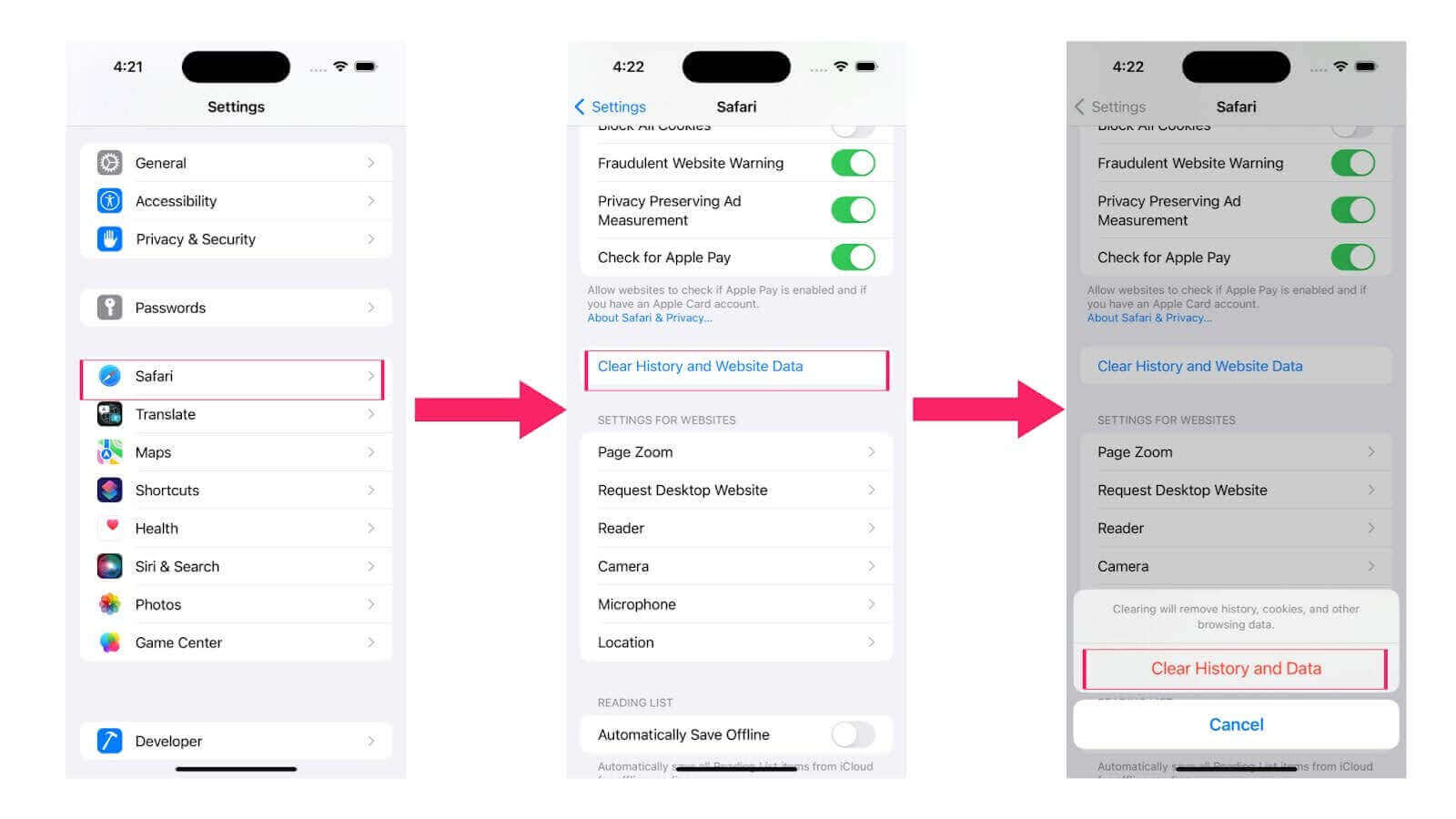
- Go to Settings on your iPhone or iPad device.
- Scroll down and select Safari.
- Tap Clear History and Website Data.
- A prompt will appear asking you to confirm. Tap Clear History and Data to proceed.
Alternative Method for iOS
To delete specific website data and clear history based on a timeframe, follow these steps:
- Open the Safari browser on your iPhone or iPad device.
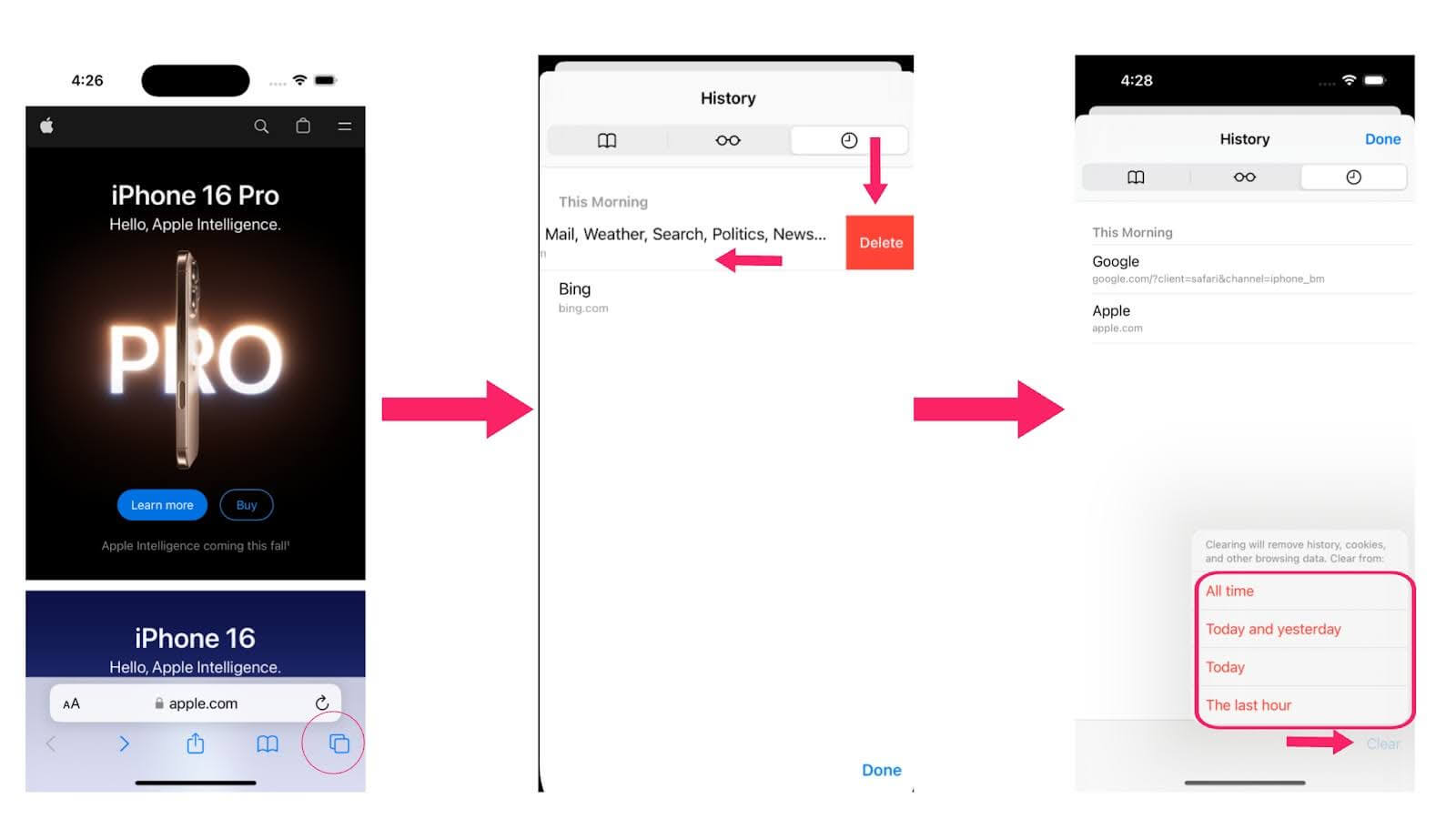
- Select the bookmarks icon in the bottom panel.
- Go to the History section by tapping the clock icon.
- You’ll find a list of all the websites you’ve visited before. To delete a certain webpage’s data, swipe left on the desired website and tap Delete.
- To clear history from a specific time period, tap Clear in the bottom panel.
- In the pop-up menu, choose the timeframe for clearing: All time, Today and yesterday, Today, or The last hour.
Clearing Cache in Safari With Keyboard Shortcuts
To clear the cache in Safari using keyboard shortcuts, follow these steps:
- Open Safari.
- Enable the Develop Menu by going to Safari > Settings (or Preferences) > Advanced.
- Check the box that says Show Develop menu in menu bar.
- Press Command + Option + E. This shortcut clears Safari’s cache instantly.
- To clear all browsing data, press Command + Shift + Delete and follow the prompts.
Using the keyboard shortcut Command + Option + E is a quick way to refresh the cache without affecting cookies and browsing history.

Can AI Browser Agents Clear Safari's Cache Automatically?
AI browser agents that automate Chromium, such as the open-source Browser Use framework, can call the Chrome DevTools Protocol's Network.clearBrowserCache command through Playwright to empty the cache in one step. Safari does not implement the Chrome DevTools Protocol, so that same command has no target on Safari.
Automating the real Safari browser, not the WebKit build bundled inside a testing tool, goes through Apple's own safaridriver, which speaks the W3C WebDriver protocol. That protocol defines a Delete All Cookies command but no command for the disk cache, so Selenium or Playwright scripts driving actual Safari through safaridriver inherit the same gap.
An agent that needs a clean cache before every run works around this by relaunching Safari in a fresh temporary profile or a private window instead of calling an API. Until Apple adds a cache-clearing endpoint to safaridriver, an AI agent resetting Safari still ends up automating the same Settings, Privacy, and Manage Website Data steps covered above rather than calling one command. That keeps the manual walkthrough in this guide relevant even when a script or agent drives the browser instead of a person.
Conclusion
Storing temporary files in your Safari cache helps websites load faster on repeat visits. But sometimes clearing this cache is necessary. It can fix loading errors that happen when cached data doesn’t match the latest website updates.
Clearing cookies and history also helps free up storage space and keeps your browsing faster. Plus, it protects your privacy by removing login details and browsing history that others might see. While every browser handles cache clearing a bit differently, Safari makes it simple whether you’re on macOS or iOS.
Author

Tahneet Kanwal
Blogs: 29


Tahneet Kanwal is a freelance technical content writer with over 2 years of hands-on experience in frontend development and technical writing. She holds a B.Tech in Information Technology from University College of Engineering and Technology (UCET). Tahneet creates clear, SEO-optimized content on web technologies, software testing, and automation tools, leveraging her skills in HTML, CSS, JavaScript, React, Tailwind CSS, and various tools like VS Code, GitHub, Figma, and Canva. She is the author of 30+ technical blogs and an open-source contributor through Hacktoberfest. She has also participated in the Google Cloud Arcade Facilitator Program and holds certifications as a Meta Android Developer (Coursera) and in Web Development (Internshala). Over time, she has evolved her writing to prioritize structure, readability, and SEO while maintaining technical depth.
Reviewer

Isha Vyas
Reviewer
Isha Vyas is a Lead Member of Technical Staff at TestMu AI (formerly LambdaTest), building the frontend of the quality engineering platform. She works across React.js, responsive web design, and jQuery to ship and maintain the platform's user-facing web interfaces. She brings nearly seven years of frontend engineering experience at the company, with earlier work as a Software Developer at Mantra Labs. Isha holds a B.Tech in Computer Science from Swami Keshwanand Institute of Technology, Management and Gramothan, Jaipur.


Clear Cache in Safari FAQs
Did you find this page helpful?
More Related Blogs
TestMu AI forEnterprise
Get access to solutions built on Enterprise
grade security, privacy, & compliance
- Advanced access controls
- Advanced data retention rules
- Advanced Local Testing
- Premium Support options
- Early access to beta features
- Private Slack Channel
- Unlimited Manual Accessibility DevTools Tests