Visual Testing Tool With Figma Integration
Upload your Figma frames to SmartUI as baselines, then compare your web pages and native app screens with them to catch design-to-code drift before release.


Trusted by 3M+ users globally at



"We have tripled our tests and are now executing tests in less than 2 hours with 78% Faster Test Execution"


"We figured out a more efficient way to monitor system health and resolve failures earlier in lower environments."





"TestMu AI has significantly boosted our testing speed, is easy to implement, and provides exceptional support."

"With 70% faster test execution, TestMu AI helped us achieve faster time-to-market and enhanced CX."



Who Uses Figma Design Comparison
SmartUI uploads frames from your Figma file as baseline images and compares screenshots of your built UI with them. Each mismatch shows where the implementation drifts from the approved design, such as spacing, color, typography or a missing element, so designers, developers and QA can review it in one SmartUI dashboard before release. Use the Figma-Web CLI for web pages and the Figma-App CLI for native apps on real devices.

Designers
Check that the shipped UI matches the approved Figma frames.

Developers
Get side-by-side evidence of what differs from the design.

QA Teams
Add design-to-code checks to existing test suites and CI pipelines.
How to Compare Web Pages With Figma Designs
Install the SmartUI CLI
- Install it globally or in your project. SmartUI CLI v4.x.x and later needs Node.js v20.3 or above.
Create the Figma-Web config
- List the browsers to compare in, and for each Figma file its file token and the frame IDs (the node-id value in the frame's Figma URL), with an optional screenshot name per frame.
Set your tokens
- PROJECT_TOKEN is the SmartUI project token, FIGMA_TOKEN is your Figma personal access token and LT_USERNAME is your TestMu AI username.
Upload the Figma frames
- SmartUI fetches the frames through the Figma API, so there is nothing to export by hand.
Capture the live pages
- Run your functional test through the SmartUI CLI. Name each screenshot after its Figma frame, including .png, and use the same project and build name as the upload.
Review the mismatches
- Open the build in the SmartUI dashboard to see where the live page differs from the Figma baseline, then approve or reject each change.

How to Compare Native App Screens With Figma Designs
Create a Real Devices project
- In SmartUI, create a project with the Real Devices platform and copy its project token.
Create the Figma-App config
- List each device by its exact name, with optional platform version and orientation, and the Figma file token and frame IDs to compare.
Set your tokens
- Set PROJECT_TOKEN, FIGMA_TOKEN, LT_USERNAME and LT_ACCESS_KEY. Do not set any of them to an empty string, because an empty value causes an error.
Upload the frames as the baseline
- The uploaded Figma frames become the baseline that app screenshots are compared with.
Run your Appium test on real devices
- Upload your app to the real device cloud, pass its app_url as the app capability, and take a SmartUI screenshot on each screen. Screenshot names, including .png, and devices must match the Figma frames.
Review the mismatches
- Open the SmartUI dashboard to see where each app screen differs from its Figma frame.
SmartUI Figma CLI Commands
The commands behind the steps above, for web pages and for native apps on real devices.
Config fields and screenshot naming are covered in the Figma-Web CLI guide. Check out our documentation
Run SmartUI in Selenium, Cypress, and Playwright
Plug SmartUI into your Selenium, Cypress, Playwright or Puppeteer suite for web, or Appium for native apps, with a few lines of SDK code.


Cypress
Fast, easy and reliable JavaScript-based testing framework for browser testing.


SmartUI Features Beyond Figma Comparison
Branch baselines, drawn ignore regions, the SmartUI CLI and the MCP Server cover the rest of your visual testing.
MCP Server connects AI and your code editor to analyze visual changes, perform RCA, and suggest fixes.

Success Stories of TestMu AI
See how engineering teams across industries test smarter, ship faster, and release with confidence on TestMu AI.

70%
Faster Test Execution


Lereta Made Testing Faster and Nearly Flake-Free by Cutting Network Traffic
Todd Lemmonds
VP of Quality Assurance




More Reasons to Love TestMu AI
TestMu AI is a leading agentic AI quality engineering platform, trusted globally, that assures your AI deployments work as intended, safely and securely, across enterprise and real-world conditions.
Users
3M+
Tests
1.5B+
Enterprises
18K+
Countries
132
TestMu AI positioned as a Leader in the 2026 Gartner® Magic Quadrant™
Read ReportTestMu AI recognized in The Forrester Wave™: Autonomous Testing Platforms, Q4 2025
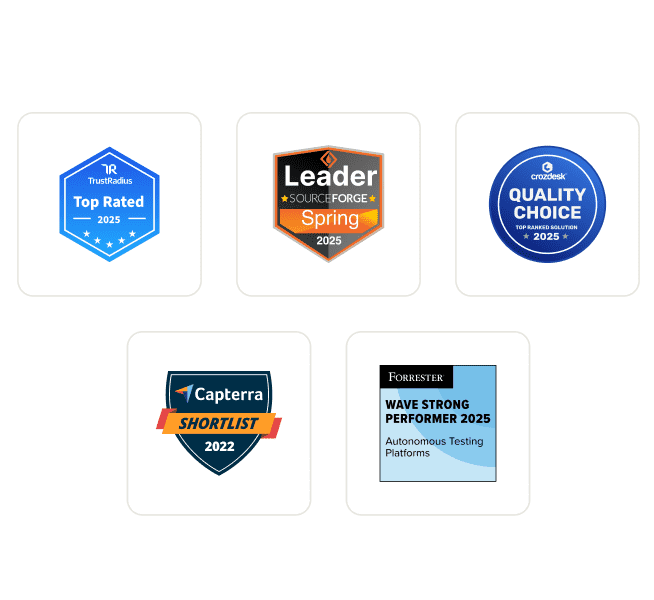
Read ReportWall of Fame
TestMu AI is the #1 choice for SMBs and enterprises across the globe.
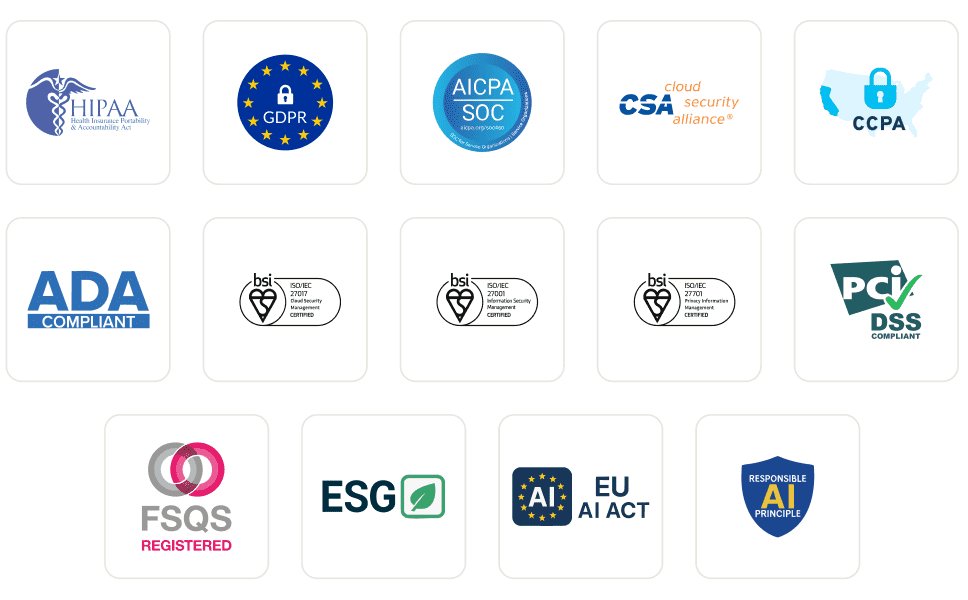
Enterprise-Grade Security
We safeguard your data and AI systems with global security, privacy, responsible AI, and ESG standards.
Integrations
Works where you work, 120+ integrations with the tools your team relies on.



As Seen On
Frequently asked questions
TestMu AI for Enterprise
Get access to solutions built on enterprise-grade
security, privacy, & compliance
- Advanced access controls
- Advanced data retention rules
- Advanced Local Testing
- Premium Support options
- Early access to beta features
- Private Slack Channel
- Unlimited Manual Accessibility DevTools Tests