Getting started with TestMu AI's SmartUI Figma-Web CLI
Welcome to the TestMu AI SmartUI Figma Web CLI documentation!
With SmartUI Figma-Web CLI, you can seamlessly perform visual regression testing of your Figma designs on SmartUI using your command line, identifying discrepancies between your designs and live websites. This guide will walk you through the process of running successful Figma-Web Visual tests using SmartUI CLI.
Prerequisites for running SmartUI Figma CLI
- Basic understanding of Command Line Interface is required.
- Basic understanding of Figma file structuring is required.
- Login to TestMu AI SmartUI with your credentials.
- Ensure you are using
@lambdatest/smartui-cliversion 4.1.43 or higher
If you face any problems executing tests with SmartUI-CLI versions >= v4.x.x, upgrade your Node.js version to v20.3 or above.
The following steps will guide you in running your visual tests for Figma files on TestMu AI platform using SmartUI CLI.
Understanding Figma Tokens
| Token | Where It’s Used | Description |
|---|---|---|
FIGMA_TOKEN | Env Variable | Your Figma Personal Access Token to authenticate with the Figma API |
figma_file_token | designs.json | Figma file ID, extracted from the Figma file URL |
figma_ids | designs.json | List of frame or node IDs you want to compare visually |
Example Figma URL:
https://www.figma.com/file/abc12345/file-name?node-id=2417-58969
figma_file_token:abc12345figma_ids:2417-58969
Create a SmartUI CLI Project
The first step is to create a project with the application in which we will combine all your builds run on the project. To create a SmartUI Project, follow these steps:
- Go to Projects page
- Click on the
new projectbutton - Select the platform as CLI for executing your
CLItests. - Add name of the project, approvers for the changes found, tags for any filter or easy navigation.
- Click on the Submit.
Steps to run your first test
Step 1: Install the Dependencies
Install required NPM modules for TestMu AI SmartUI CLI globally or in your project:
Global Installation (Recommended):
Verifiednpm install -g @lambdatest/smartui-cli
Local Installation:
Verifiednpm install @lambdatest/smartui-cli
Step 2: Create the design configuration file
Verifiedsmartui config:create-figma-web designs.json
Once, the designs file will be created, you will be seeing the sample pre-filled configuration in the designs.json file:
{
  "web": {
    "browsers": [
      "chrome",
      "firefox",
      "safari",
      "edge"
    ]
  },
  "figma": {
    "depth": 2, //Figma Tree depth - (Optional), change the value according to the your file structure
    "configs": [
      {
        "figma_file_token": "<token>",
        "figma_ids": [
          "id-1",
          "id-2"
        ],
        "screenshot_names": [
          "homepage",
          "about"
        ]
      },
      {
        "figma_file_token": "<token>",
        "figma_ids": [
          "id-3",
          "id-4"
        ],
        "screenshot_names": [
          "xyz",
          "abc"
        ]
      }
    ]
  }
}
Note: Unlike vanilla Figma CLI, designs.json includes browser parameters and auto-fetches viewports of Figma frames for efficient comparison.
Step 3: Configure your Project Token and Figma Token
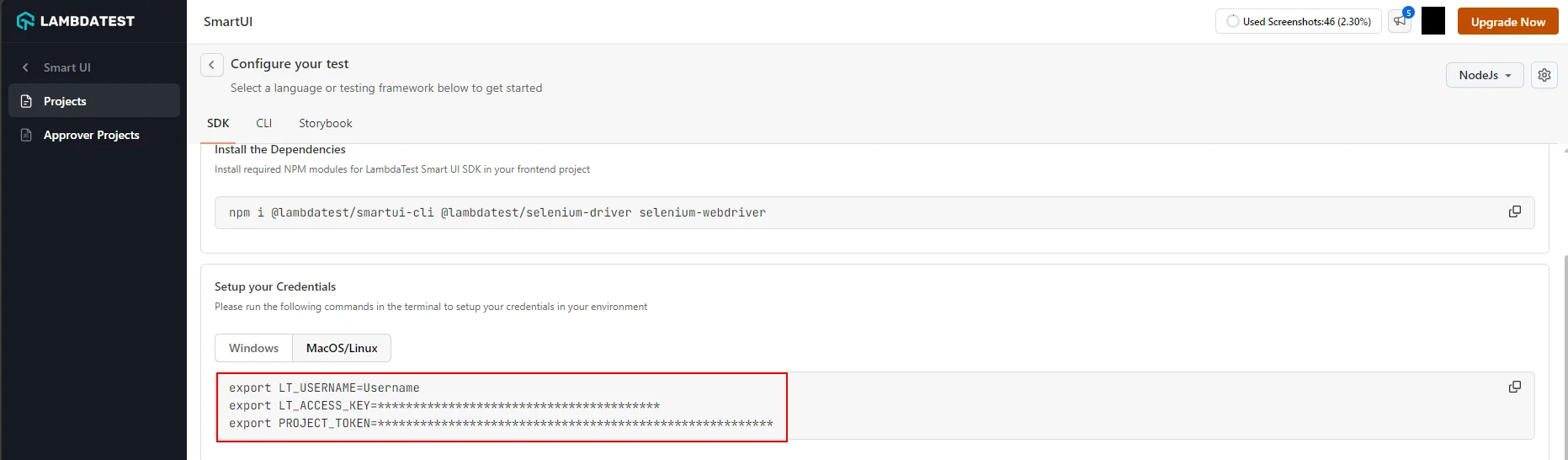
- Setup your project token shown in the SmartUI app after creating your project.
- MacOS/Linux
- Windows - CMD
- PowerShell
export PROJECT_TOKEN="123456#1234abcd-****-****-****-************"
set PROJECT_TOKEN="123456#1234abcd-****-****-****-************"
$env:PROJECT_TOKEN="123456#1234abcd-****-****-****-************"
- Setup your personal access token for Figma to authenticate Figma with SmartUI.
- MacOS/Linux
- Windows - CMD
- PowerShell
export FIGMA_TOKEN="123456#1234abcd-****-****-****-************"
set FIGMA_TOKEN="123456#1234abcd-****-****-****-************"
$env:FIGMA_TOKEN="123456#1234abcd-****-****-****-************"
Step 4: Configure your TestMu AI Credentials
Verified- MacOS/Linux
- Windows - CMD
- PowerShell
export LT_USERNAME="YOUR_USERNAME"
set LT_USERNAME="YOUR_USERNAME"
$env:LT_USERNAME="YOUR_USERNAME"
SmartUI CLI Design Config Options
Please read the following table for more information about the configuration file:
| Config Key | Description | Usage |
|---|---|---|
| figma_file_token | File token for your required Figma file. You can use multiple figma files in the same configuration. | Mandatory |
| figma_ids | Comma separated list of nodes that you care about in the document. If specified, only a subset of the document will be returned corresponding to the nodes listed, their children, and everything between the root node and the listed nodes. | Optional |
| depth (int) | Positive integer (>1) representing how deep into the document tree to traverse. For example, setting it to 2 returns Pages and all top level objects on each page. Not setting this parameter returns all nodes | Optional |
Step 5: Uploading the Figma files on SmartUI Cloud using CLI
You can now execute tests for Visual Testing for Figma objects using the following options:.
npx smartui upload-figma-web designs.json
Working example with actual web comparisons
- Please clone the following sample GitHub repo (
https://github.com/LambdaTest/smartui-figma-web-cli-sample).
git clone https://github.com/LambdaTest/smartui-figma-web-cli-sample
- Install the node modules using the command:
npm i
- Configure your project token and Figma token
- Setup your project token shown in the SmartUI app after creating your project.
- MacOS/Linux
- Windows - CMD
- PowerShell
export PROJECT_TOKEN="123456#1234abcd-****-****-****-************"
set PROJECT_TOKEN="123456#1234abcd-****-****-****-************"
$env:PROJECT_TOKEN="123456#1234abcd-****-****-****-************"
- Setup your personal access token for Figma to authenticate Figma with SmartUI.
- MacOS/Linux
- Windows - CMD
- PowerShell
export FIGMA_TOKEN="123456#1234abcd-****-****-****-************"
set FIGMA_TOKEN="123456#1234abcd-****-****-****-************"
$env:FIGMA_TOKEN="123456#1234abcd-****-****-****-************"
- Create your figma baseline
npx smartui upload-figma-web designs.json --buildName=FigmaBaseline2
- Execute your functional test script (Selenium Nodejs in this sample)
npx smartui --config web-config.json exec --buildName=web-build -- node figma-web-local.js
Points to Consider
- The browsers listed in the Figma configuration are used solely to enable comparisons between your designs and their corresponding live webpages.
- Websites may exhibit browser-specific behaviors. To account for these variations, it is recommended to create distinct designs tailored for each browser, if necessary.
Best Practices
- Build Names
- Screenshot Names
- Branch Names
Build Names
Verified npx smartui upload-figma-web designs.json --buildName "v1.0.0"
Screenshot Names
- Good:
homepage-hero,login-form,dashboard-sidebar- Avoid:
test1,screenshot,design-1 - Ensure
screenshot_namesin your config match the order offigma_ids
- Avoid:
Branch Names
Screenshot Naming for SDK Comparisons
Critical: When comparing Figma designs with live implementations captured via SDKs, add .png extension to your SDK screenshot names.
Figma-uploaded screenshots automatically have .png appended (e.g., homepage.png), so your SDK screenshots must match:
In your SDK code:
Verified// ❌ Wrong - will not match Figma screenshot
smartuiSnapshot(driver, "homepage");
// ✅ Correct - matches Figma screenshot name
smartuiSnapshot(driver, "homepage.png");
Example for different frameworks:
Verified- Selenium
- Playwright
- Cypress
// Java
SmartUISnapshot.smartuiSnapshot(driver, "homepage.png");
// JavaScript
await smartuiSnapshot(page, "homepage.png");
// JavaScript
cy.smartuiSnapshot("homepage.png");
Configuration Example:
Verified{
"figma": {
"configs": [
{
"figma_file_token": "abc12345",
"figma_ids": ["id-1", "id-2"],
"screenshot_names": ["homepage.png", "about.png"] // Include .png extension
}
]
}
}
This ensures that Figma screenshots (e.g., homepage.png) match SDK screenshots (e.g., homepage.png) in the dashboard.
Branch Names
Screenshot Naming for SDK Comparisons
Critical: When comparing Figma designs with live implementations captured via SDKs, add .png extension to your SDK screenshot names.
Figma-uploaded screenshots automatically have .png appended (e.g., homepage.png), so your SDK screenshots must match:
In your SDK code:
Verified// ❌ Wrong - will not match Figma screenshot
smartuiSnapshot(driver, "homepage");
// ✅ Correct - matches Figma screenshot name
smartuiSnapshot(driver, "homepage.png");
Example for different frameworks:
Verified- Selenium
- Playwright
- Cypress
// Java
SmartUISnapshot.smartuiSnapshot(driver, "homepage.png");
// JavaScript
await smartuiSnapshot(page, "homepage.png");
// JavaScript
cy.smartuiSnapshot("homepage.png");
Configuration Example:
Verified{
"figma": {
"configs": [
{
"figma_file_token": "abc12345",
"figma_ids": ["id-1", "id-2"],
"screenshot_names": ["homepage.png", "about.png"] // Include .png extension
}
]
}
}
This ensures that Figma screenshots (e.g., homepage.png) match SDK screenshots (e.g., homepage.png) in the same build.
Troubleshooting
Verified- Verify Figma Token
- Check File Token
- Validate Node IDs
- Check Screenshot Names
- Verify Frame Sizes
- Check Build Names
- Browser-Specific Issues
- Verify Project Token
- Check Project Type
Verify Figma Token
echo $FIGMA_TOKEN
Ensure the token is valid and has not expired. Generate a new token from Figma Settings.
Check File Token
- Verify the
figma_file_tokenin yourdesigns.jsonmatches the file ID from the Figma URL- Ensure you have access to the Figma file
Validate Node IDs
- Confirm
figma_idsin your configuration are valid- Check that the nodes exist in the Figma file Symptoms:
- Figma screenshots don't match web screenshots
- Comparison shows mismatches even when designs are identical Solutions:
Check Screenshot Names
- Ensure SDK screenshots include
.pngextension (e.g.,homepage.png)- Verify screenshot names match exactly between Figma config and SDK code
- Ensure
screenshot_namesarray matches the order offigma_ids
Verify Frame Sizes
- Ensure frame dimensions are consistent across uploads
- Check that viewport sizes match between Figma frames and browser captures
- Use the same browser viewport sizes in both Figma config and SDK config
Check Build Names
- Ensure both Figma and SDK uploads use the same
--buildName- Verify builds are in the same project
Browser-Specific Issues
- Different browsers may render differently
- Consider creating browser-specific Figma designs if needed
- Ensure browser list in Figma config matches browsers used in SDK tests Symptoms:
- "Invalid project token" error
- Uploads fail with authentication errors Solutions:
Verify Project Token
echo $PROJECT_TOKEN
Ensure the token is set correctly and matches your SmartUI project.
Check Project Type
- Ensure project is created as CLI type
- Verify project exists in SmartUI dashboard If you encounter issues not covered here:
- Review the Comprehensive Troubleshooting Guide for detailed solutions
- Check Figma CLI Documentation for basic Figma workflows
- Visit TestMu AI Support for additional resources
- Contact support at support@testmuai.com or use 24/7 Chat Support
Additional Resources
- Comprehensive Troubleshooting Guide
- Figma CLI Documentation
- Figma-App CLI Documentation
- Baseline Management
- Running Your First Project
- SmartUI API Documentation
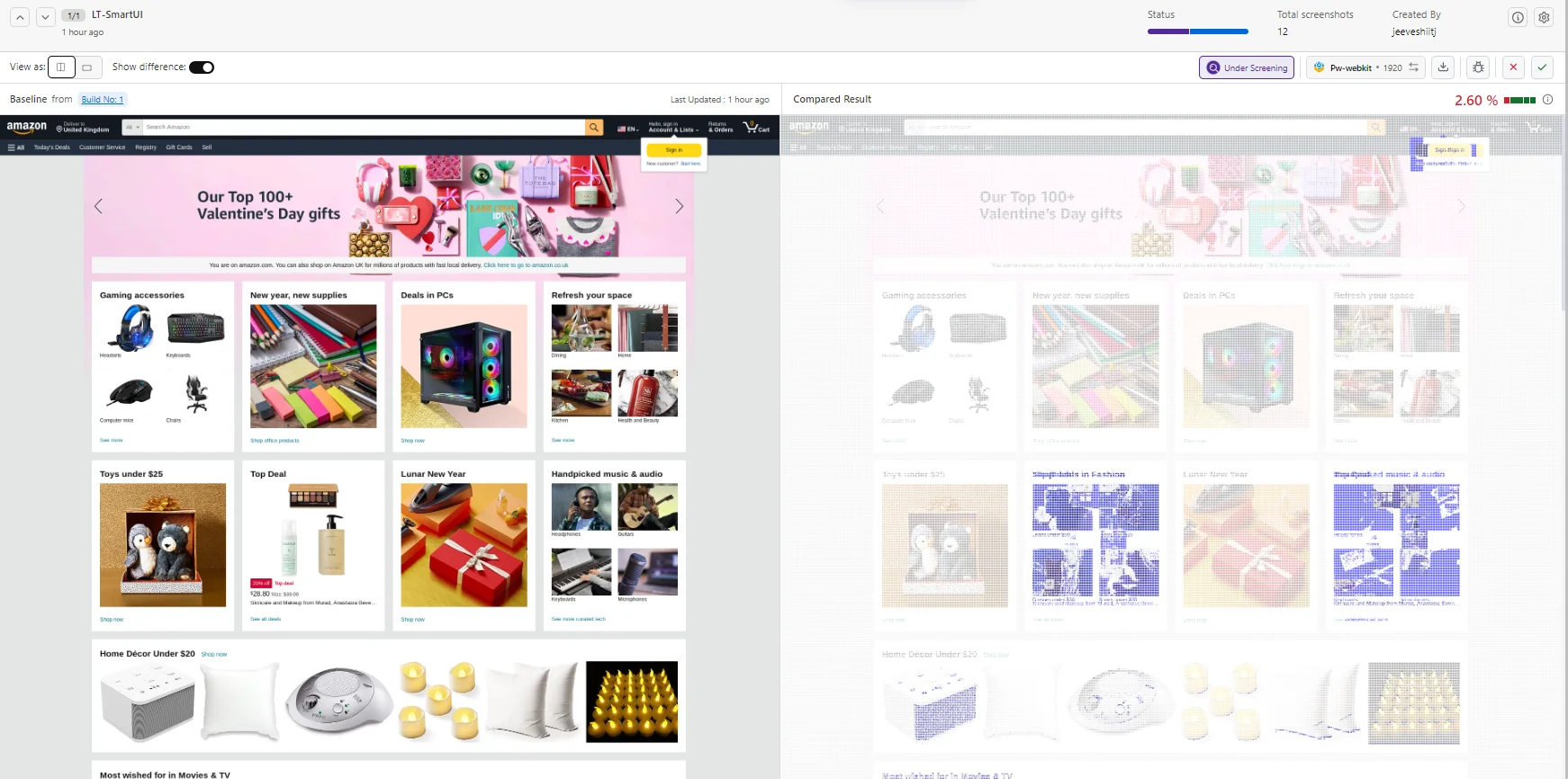
View SmartUI Results
You can see the SmartUI dashboard to view the results. This will help you identify the Mismatches from the existing Baseline build and do the required visual testing.


 Chat with Us