Getting Started With Playwright Testing on iOS Real Devices
Playwright test automation on real iOS devices is now supported on TestMu AI across Node.js, Java, C#, and Python. Test on latest iPhone and iPad Safari combinations to catch device-specific issues that mobile emulation may miss. Integrate with your existing CI pipeline, and access logs and debugging artifacts for each test run.
This guide will cover the basics of getting started with Playwright testing on iOS devices on the TestMu AI platform.
Playwright testing on real iOS devices is currently in Beta. To enable this feature for your organization, please contact your account team to have the feature flag turned on.
- Playwright versions v1.53.0 to v1.60.0 are supported for iOS Real Device testing (excluding v1.54.0).
- All languages use the stock Playwright packages, with no custom forks or client-side changes required.
- Playwright v1.53.0 is currently supported for Playwright C# (for Android & iOS).
Prerequisites
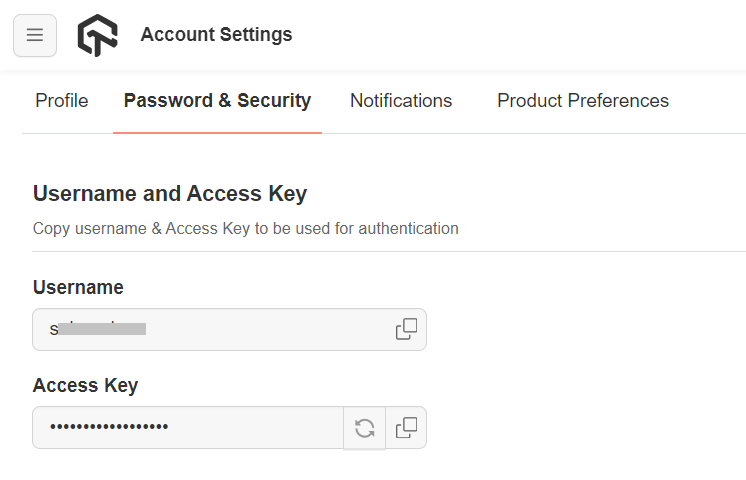
Set your TestMu AI username and access key in the environment variables. You can get your TestMu AI username and access key from your TestMu AI Profile > Account Settings > Password & Security.
Windows
Verifiedset LT_USERNAME="YOUR_LAMBDATEST_USERNAME"
set LT_ACCESS_KEY="YOUR_LAMBDATEST_ACCESS_KEY"
macOS/Linux
Verifiedexport LT_USERNAME="YOUR_LAMBDATEST_USERNAME"
export LT_ACCESS_KEY="YOUR_LAMBDATEST_ACCESS_KEY"
- Node.js
- Python
- Java
- C#
Install the Playwright package:
npm install playwright
Install the Playwright package:
pip install playwright
Add the Playwright dependency to your pom.xml:
<dependency>
    <groupId>com.microsoft.playwright</groupId>
    <artifactId>playwright</artifactId>
    <version>1.60.0</version>
</dependency>
Add the Playwright NuGet package:
dotnet add package Microsoft.Playwright
Run Your First Test
Verified
- Node.js
- Python
- Java
- C#
const { webkit } = require("playwright");

(async () => {
  const capabilities = {
    "LT:Options": {
      "platformName": "ios",
      "deviceName": "iPhone 16",
      "platformVersion": "18",
      "isRealMobile": true,
      "build": "Playwright iOS Build",
      "name": "Playwright iOS Test",
      "user": process.env.LT_USERNAME,
      "accessKey": process.env.LT_ACCESS_KEY,
      "network": true,
      "video": true,
      "console": true,
    },
  };

  const browser = await webkit.connect(
    `wss://cdp.lambdatest.com/playwright?capabilities=${encodeURIComponent(
      JSON.stringify(capabilities)
    )}`
  );

  const context = await browser.newContext();
  const page = await context.newPage();

  await page.goto("https://duckduckgo.com", { timeout: 30000 });
  await page.locator('[name="q"]').fill("LambdaTest");
  await page.locator('[name="q"]').press("Enter");
  await page.waitForTimeout(3000);

  const title = await page.title();
  console.log("Page title:", title);

  try {
    if (title.includes("LambdaTest")) {
      await page.evaluate(
        (_) => {},
        `lambdatest_action: ${JSON.stringify({
          action: "setTestStatus",
          arguments: { status: "passed", remark: "Title verified" },
        })}`
      );
    }
  } catch (e) {
    await page.evaluate(
      (_) => {},
      `lambdatest_action: ${JSON.stringify({
        action: "setTestStatus",
        arguments: { status: "failed", remark: e.message },
      })}`
    );
  }

  await page.close();
  await context.close();
  await browser.close();
})();
Run the test:
node playwright-ios-test.js
import os, json, urllib.parse
from playwright.sync_api import sync_playwright

def main():
    capabilities = {
        "LT:Options": {
            "platformName": "ios",
            "deviceName": "iPhone 16",
            "platformVersion": "18",
            "isRealMobile": True,
            "build": "Playwright iOS Build",
            "name": "Playwright iOS Test",
            "user": os.environ["LT_USERNAME"],
            "accessKey": os.environ["LT_ACCESS_KEY"],
            "network": True,
            "video": True,
            "console": True,
        }
    }

    ws_endpoint = (
        f"wss://cdp.lambdatest.com/playwright?capabilities="
        f"{urllib.parse.quote(json.dumps(capabilities))}"
    )

    with sync_playwright() as p:
        browser = p.webkit.connect(ws_endpoint)
        context = browser.new_context()
        page = context.new_page()

        page.goto("https://duckduckgo.com", timeout=30000)
        page.locator('[name="q"]').fill("LambdaTest")
        page.locator('[name="q"]').press("Enter")
        page.wait_for_timeout(3000)

        title = page.title()
        print(f"Page title: {title}")

        try:
            if "LambdaTest" in title:
                page.evaluate(
                    "_ => {}",
                    'lambdatest_action: {"action": "setTestStatus", "arguments": {"status": "passed", "remark": "Title verified"}}',
                )
        except Exception as e:
            page.evaluate(
                "_ => {}",
                f'lambdatest_action: {json.dumps({"action": "setTestStatus", "arguments": {"status": "failed", "remark": str(e)}})}',
            )

        page.close()
        context.close()
        browser.close()

if __name__ == "__main__":
    main()
Run the test:
python playwright_ios_test.py
package com.lambdatest;

import com.microsoft.playwright.*;
import com.google.gson.Gson;
import java.net.URLEncoder;
import java.nio.charset.StandardCharsets;
import java.util.Map;

public class PlaywrightIosTest {
    public static void main(String[] args) {
        Map<String, Object> ltOptions = Map.of(
            "platformName", "ios",
            "deviceName", "iPhone 16",
            "platformVersion", "18",
            "isRealMobile", true,
            "build", "Playwright iOS Build",
            "name", "Playwright iOS Test",
            "user", System.getenv("LT_USERNAME"),
            "accessKey", System.getenv("LT_ACCESS_KEY"),
            "network", true,
            "video", true,
            "console", true
        );

        Map<String, Object> capabilities = Map.of("LT:Options", ltOptions);
        String capsJson = new Gson().toJson(capabilities);
        String wsEndpoint = "wss://cdp.lambdatest.com/playwright?capabilities="
            + URLEncoder.encode(capsJson, StandardCharsets.UTF_8);

        try (Playwright playwright = Playwright.create()) {
            Browser browser = playwright.webkit().connect(wsEndpoint);
            BrowserContext context = browser.newContext();
            Page page = context.newPage();

            page.navigate("https://duckduckgo.com",
                new Page.NavigateOptions().setTimeout(30000));
            page.locator("[name=\"q\"]").fill("LambdaTest");
            page.locator("[name=\"q\"]").press("Enter");
            page.waitForTimeout(3000);

            String title = page.title();
            System.out.println("Page title: " + title);

            try {
                if (title.contains("LambdaTest")) {
                    page.evaluate("_ => {}",
                        "lambdatest_action: {\"action\": \"setTestStatus\", \"arguments\": {\"status\": \"passed\", \"remark\": \"Title verified\"}}");
                }
            } catch (Exception e) {
                page.evaluate("_ => {}",
                    "lambdatest_action: {\"action\": \"setTestStatus\", \"arguments\": {\"status\": \"failed\", \"remark\": \"" + e.getMessage() + "\"}}");
            }

            page.close();
            context.close();
            browser.close();
        }
    }
}
Run the test:
mvn compile exec:java -Dexec.mainClass="com.lambdatest.PlaywrightIosTest"
using Microsoft.Playwright;
using System.Text.Json;
using System.Web;

var capabilities = new Dictionary<string, object>
{
    ["LT:Options"] = new Dictionary<string, object>
    {
        ["platformName"] = "ios",
        ["deviceName"] = "iPhone 16",
        ["platformVersion"] = "18",
        ["isRealMobile"] = true,
        ["build"] = "Playwright iOS Build",
        ["name"] = "Playwright iOS Test",
        ["user"] = Environment.GetEnvironmentVariable("LT_USERNAME")!,
        ["accessKey"] = Environment.GetEnvironmentVariable("LT_ACCESS_KEY")!,
        ["network"] = true,
        ["video"] = true,
        ["console"] = true,
        ["playwrightClientVersion"] = "1.60.0",
    }
};

var capsJson = JsonSerializer.Serialize(capabilities);
var wsEndpoint = $"wss://cdp.lambdatest.com/playwright?capabilities={HttpUtility.UrlEncode(capsJson)}";

using var playwright = await Playwright.CreateAsync();
var browser = await playwright.Webkit.ConnectAsync(wsEndpoint);
var context = await browser.NewContextAsync();
var page = await context.NewPageAsync();

await page.GotoAsync("https://duckduckgo.com", new PageGotoOptions { Timeout = 30000 });
await page.Locator("[name=\"q\"]").FillAsync("LambdaTest");
await page.Locator("[name=\"q\"]").PressAsync("Enter");
await page.WaitForTimeoutAsync(3000);

var title = await page.TitleAsync();
Console.WriteLine($"Page title: {title}");

try
{
    if (title.Contains("LambdaTest"))
    {
        await page.EvaluateAsync("_ => {}",
            "lambdatest_action: {\"action\": \"setTestStatus\", \"arguments\": {\"status\": \"passed\", \"remark\": \"Title verified\"}}");
    }
}
catch (Exception e)
{
    await page.EvaluateAsync("_ => {}",
        $"lambdatest_action: {{\"action\": \"setTestStatus\", \"arguments\": {{\"status\": \"failed\", \"remark\": \"{e.Message}\"}}}}");
}

await page.CloseAsync();
await context.CloseAsync();
await browser.CloseAsync();
Run the test:
dotnet run
Apple Pay Automation
Automate the Apple Pay checkout flow on a real iOS device using Playwright over the TestMu AI CDP endpoint (wss://cdp.lambdatest.com/playwright). When enabled, the platform provisions Wallet, a sandbox card, and the device passcode on the real iPhone — so you never interact with Face ID / Touch ID or set up Wallet manually.
- Apple Pay runs on WebKit/Safari and is supported across all languages available for Playwright iOS testing. The hook calls use the same
lambdatest_actionserver-side channel shown under Run Your First Test, so the same syntax applies in every language. - To enable Apple Pay for your organization, please contact us via 24×7 chat support or drop a mail to support@testmuai.com.
Capabilities
| Capability | Type | Default | Required / Optional | Description |
|---|---|---|---|---|
| applePay | Boolean | false | Mandatory | Enables Apple Pay on the session — provisions Wallet, a sandbox card, and the device passcode on supported real iOS devices. |
| applePayCardType | Array | None | Optional | Preferred payment network(s) in priority order. Supported values: ["master", "visa", "amex", "discover"]. The first network is preferred; the rest act as fallbacks. If omitted, a default sandbox card is provisioned. |
Add the Apple Pay keys to the same LT:Options object you already use to start your Playwright session (see Run Your First Test):
const capabilities = {
  "LT:Options": {
    // ...your existing iOS capabilities (platformName, deviceName, platformVersion, user, accessKey, etc.)
    "applePay": true,
    "applePayCardType": ["master", "visa"], // priority order — master preferred, visa as fallback
  },
};
Passcode Capabilities
Adding a card to Wallet requires a device passcode:
- Public cloud — no extra capability is needed. The confirm hook handles the passcode automatically.
- Private cloud — use the
passcodecapability to set a custom passcode value directly on the device. Add it insideLT:OptionsalongsideapplePay:
// Private cloud only — set a custom passcode
"LT:Options": { /* ...other caps */, "applePay": true, "passcode": "654321" }
On iOS 26, the lambda-applepay confirm hook enters the device passcode automatically — the custom passcode on private cloud, or the default passcode on public cloud. No separate passcode step is required.
Validation
Before either Apple Pay hook executes, the gateway validates:
- iOS version ≥ 14 — Apple Pay hooks are rejected on older platform versions.
- Apple Pay capability present —
applePay: truemust be set inLT:Options.
If either check fails, the hook is not executed and an error is returned to the session.
Hooks
Apple Pay hooks are invoked through the TestMu AI server-side action channel — the native Apple Pay sheet is not reachable by Playwright directly. A small reusable wrapper keeps the calls readable:
Verifiedasync function ltAction(page, action, args = {}) {
return page.evaluate(
(_) => {},
`lambdatest_action: ${JSON.stringify({ action, arguments: args })}`
);
}
Hook 1 — lambda-applepay-details (pre-fill the sheet)
Sets shipping, billing, and contact details on the Apple Pay sheet. Call it before launching the sheet. Optional — use it when your merchant requires shipping/contact info.
Verifiedawait ltAction(page, "lambda-applepay-details", {
shippingDetails: {
firstName: "John", lastName: "Doe",
street: "1 Infinite Loop", city: "Cupertino",
state: "California", postalCode: "95014", country: "United States",
},
billingDetails: {
firstName: "John", lastName: "Doe",
street: "1 Infinite Loop", city: "Cupertino",
state: "California", postalCode: "95014", country: "United States",
email: "john.doe@example.com", phone: "+14085551234",
},
contact: {
firstName: "John", lastName: "Doe",
email: "john.doe@example.com", phone: "+14085551234",
},
});
Hook 2 — lambda-applepay (confirm / authorize payment)
Confirms the native Apple Pay sheet to authorize the transaction.
Verifiedawait ltAction(page, "lambda-applepay", { confirm: true });
On iOS 26, the confirm hook automatically enters the device passcode — one call confirms the sheet and authorizes the payment end to end. On earlier iOS versions, the passcode is entered as a separate step after confirm.
End-to-End Example
Verifiedconst { webkit } = require("playwright");
// Reusable wrapper for any TestMu AI server-side action.
async function ltAction(page, action, args = {}) {
  return page.evaluate(
    (_) => {},
    `lambdatest_action: ${JSON.stringify({ action, arguments: args })}`
  );
}
(async () => {
const capabilities = {
"LT:Options": {
platformName: "ios",
deviceName: "iPhone 16",
platformVersion: "26",
isRealMobile: true,
user: process.env.LT_USERNAME,
accessKey: process.env.LT_ACCESS_KEY,
build: "Apple Pay 26.0",
name: "Apple Pay via Playwright",
applePay: true,
applePayCardType: ["master", "visa"],
},
};
const browser = await webkit.connect(
`wss://cdp.lambdatest.com/playwright?capabilities=${encodeURIComponent(
JSON.stringify(capabilities)
)}`
);
const context = await browser.newContext();
const page = await context.newPage();
// Navigate to your checkout page and trigger the Apple Pay sheet here...
// Optional: pre-fill shipping / billing / contact on the sheet.
await ltAction(page, "lambda-applepay-details", {
billingDetails: {
firstName: "John", lastName: "Doe",
street: "1 Infinite Loop", city: "Cupertino",
state: "California", postalCode: "95014", country: "United States",
email: "john.doe@example.com", phone: "+14085551234",
},
});
// Confirm the sheet. On iOS 26 the passcode is entered automatically.
await ltAction(page, "lambda-applepay", { confirm: true });
// Assert your post-payment state (swap for a real locator on your app).
// await page.getByText(/order confirmed/i).waitFor();
await page.close();
await context.close();
await browser.close();
})();
The ltAction helper is generic — reuse it for setTestStatus, smartui.takeScreenshot, or any other TestMu AI action.
View your Playwright test results
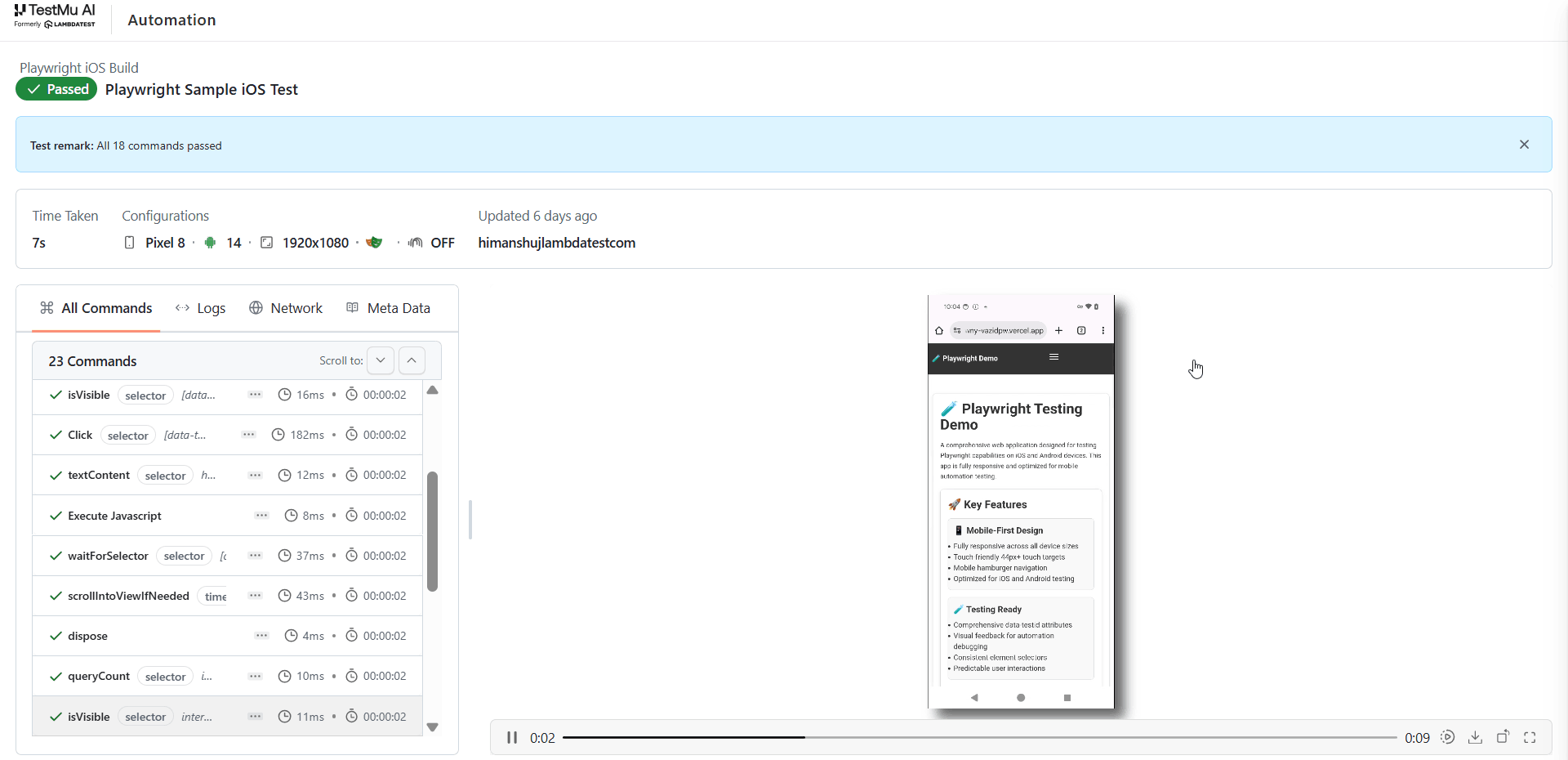
The TestMu AI Automation Dashboard is where you can see the results of your Playwright iOS tests after running them on the TestMu AI platform.
The below screenshot of TestMu AI Automation Dashboard shows the Playwright build on the left and the build sessions associated with the selected build on the right.
-
Safari is the supported browser for iOS real device testing. All four languages (Node.js, Java, C#, and Python) are supported using stock Playwright packages.
-
Playwright testing on real iOS devices is currently supported on latest iOS versions (iOS 17, iOS 18, and iOS 26) across both iPhones and iPads.


 Chat with Us