

Power Your Software Testing with AI Agents and Cloud
The Native AI-Agentic Cloud Platform to Supercharge Quality Engineering. Test Intelligently and Ship Faster.


- TestMu AI (Formerly LambdaTest)
- /
- Blog
- /
- Mouse Hover in Selenium: Code, Pitfalls & Best Practices
How to Perform Mouse Hover in Selenium
Perform mouse hover in Selenium with ActionChains in Python. Code examples, common pitfalls, best practices, and cross-browser cloud setup.
Last Updated on:
Mouse hover actions are critical in web automation testing, particularly for interactive user interfaces. In quick-commerce or e-commerce platforms, hovering over a product can reveal stock levels or delivery options. In fintech applications, hovering over charts surfaces detailed analytics or historical data. Using Selenium WebDriver's Actions class, you can automate these interactions and validate hover-based functionality at scale.
This guide covers the ActionChains API in Python with runnable examples. It also walks through cross-browser cloud setup, common CI pitfalls, and best practices for stable hover automation.
Key Takeaways
To perform a mouse hover in Selenium, use the ActionChains class in Python to trigger real pointerover events on web elements. Alternatively, use the GenAI-native test assistant KaneAI by TestMu AI to automatically generate resilient locators and author hover tests using natural language.
- ActionChains class: Use the move_to_element() method in Python or moveToElement() in Java to fire real pointerover events. This simulates actual user interactions and avoids bypassing the browser's hover state machine like JavaScript shims do.
- WebDriverWait: Anchor every hover action by waiting for the post-hover element's visibility, rather than its mere presence in the DOM, before clicking sub-items. This prevents the parent menu from collapsing prematurely.
- Cross-browser validation: Run hover suites on real desktop Chrome, Firefox, and Safari browsers using the TestMu AI cloud platform. Hover behavior is desktop-only and varies across browsers, making local Chrome-only testing insufficient.
- Headless Chrome: Use the --headless=new flag on Chrome 109+ to avoid headless-mode quirks in CI execution. Older headless implementations often fail to fire hover events correctly during automated test runs.
- KaneAI: Use this GenAI-native test assistant by TestMu AI to author hover tests in natural language. It automatically generates resilient locators and adapts to DOM changes without manual XPath wrangling.
What Is Mouse Hover in Selenium?
Mouse hover in Selenium is an automated action that simulates a user moving the pointer over a web element without clicking. The action fires any hover-state CSS, JavaScript event listeners, or interactive UI bound to mouseover, mouseenter, or pointerover, such as dropdown menus, tooltips, mega-menus, and lazily rendered content.
In Selenium with the Python binding, hover actions are implemented through the ActionChains class. The move_to_element() method moves the cursor to the center of a specified element, activating any hover effects. This is essential when content or functionality is gated behind a hover (mega-menu navigation, hidden action buttons on a row, or analytics events that only fire on mouseenter).
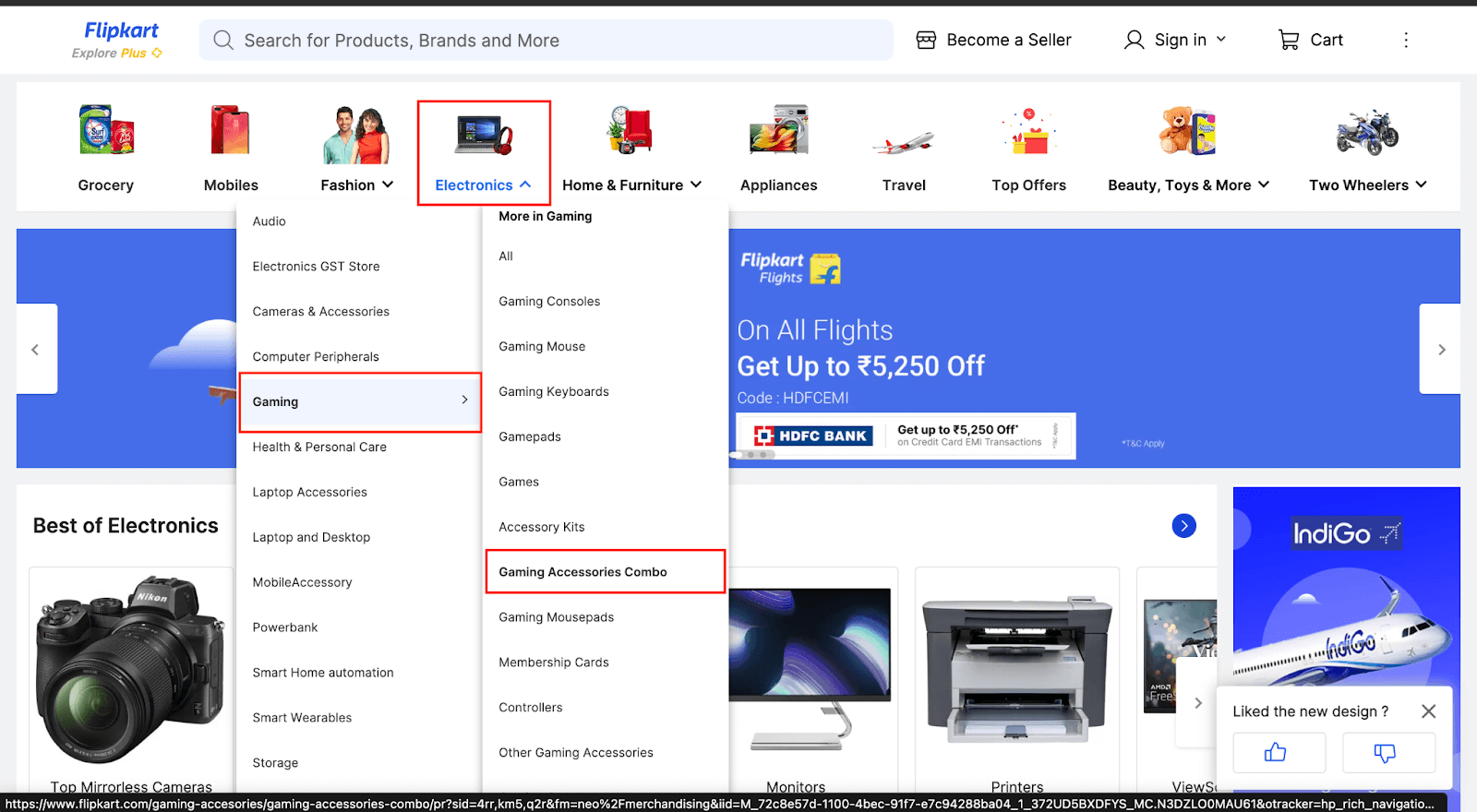
A typical example is a navigation bar on an e-commerce site where a top-level category like Electronics reveals a sub-category dropdown only after the cursor enters its bounding box. Hovering then renders new nodes into the DOM, which Selenium can locate and interact with. Without an explicit hover, those nodes do not exist for WebDriver to query.
Why Hover Actions Matter in Test Automation
Hover-driven UI is everywhere, and skipping it leaves blind spots in your automation testing coverage. Concretely, hover support in Selenium gives you:
- Mega-menu coverage: verify multi-level navigation dropdowns where second-level items only render after a parent hover.
- Tooltip and helper-text validation: assert that contextual help, validation messages, and definition tooltips appear on the right element with the right copy.
- Hidden action surfaces: tables and cards often expose Edit/Delete buttons only on row hover. Without an explicit hover step, those buttons are not interactable.
- Hover-triggered analytics: some
mouseenterhandlers fire tracking pixels or pre-fetch data. Hover tests catch regressions that pure click-path tests miss. - Cross-device parity: hover is desktop-only behavior, so verifying it on real desktop browsers (Chrome, Firefox, Edge, Safari) rather than mobile emulators is non-negotiable.
How to Perform Mouse Hover in Selenium?
To perform mouse hover in Selenium for the Python binding; we use the ActionChains Class from the Selenium WebDriver API. The class can be imported from the selenium.webdriver.common.action_chains module.
ActionChains Class offers a range of methods that enable the simulation of complex user interactions, including Mouse Hover Action, Clicking, Double-clicking, Dragging, Releasing, Holding an element, and many more. It is bundled in the Selenium WebDriver API and comes pre-installed with Selenium binding for Python.
Follow the below steps to use the ActionChains class
- Import the webdriver module from the Selenium package.
- Import the ActionChains Class from the selenium.webdriver.common.action_chains module.
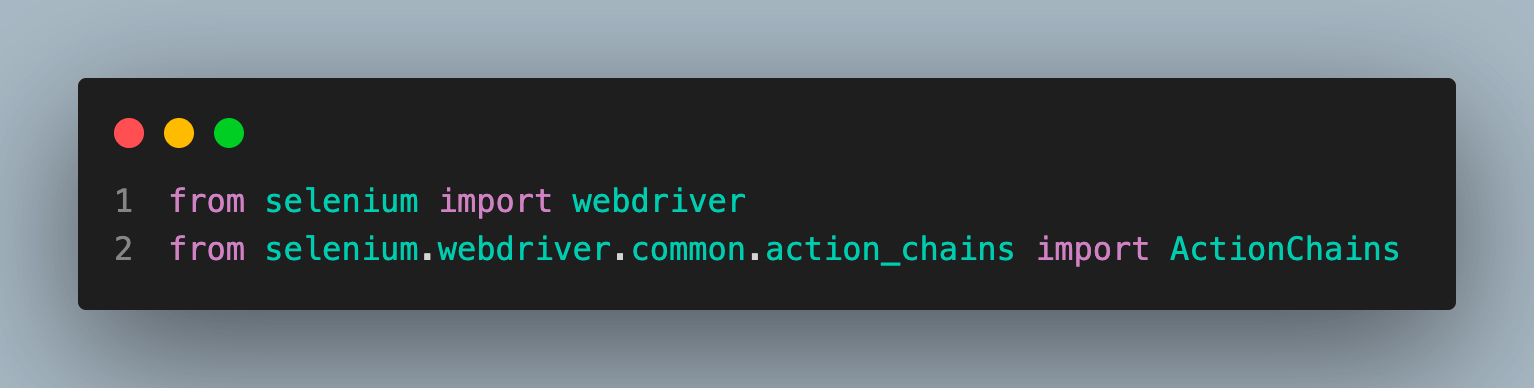
After importing, the code snippet looks like this.
from selenium import webdriver
from selenium.webdriver.common.action_chains import ActionChains
Let’s take an example to understand mouse hover in Selenium using the ActionChains class in Python.
We will use the automation demos page, a demo website maintained by TestMu AI for illustrations.
Scenario-1:
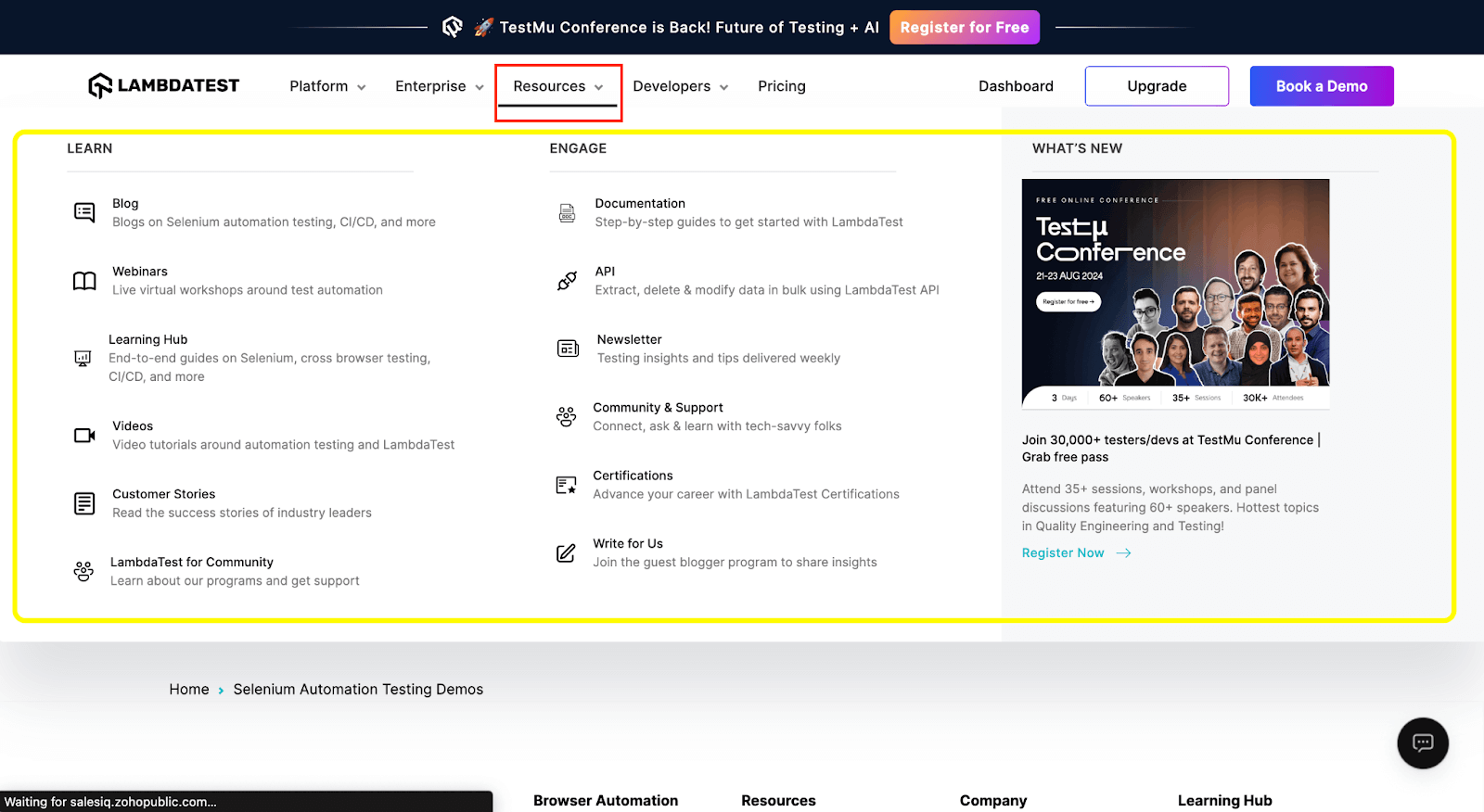
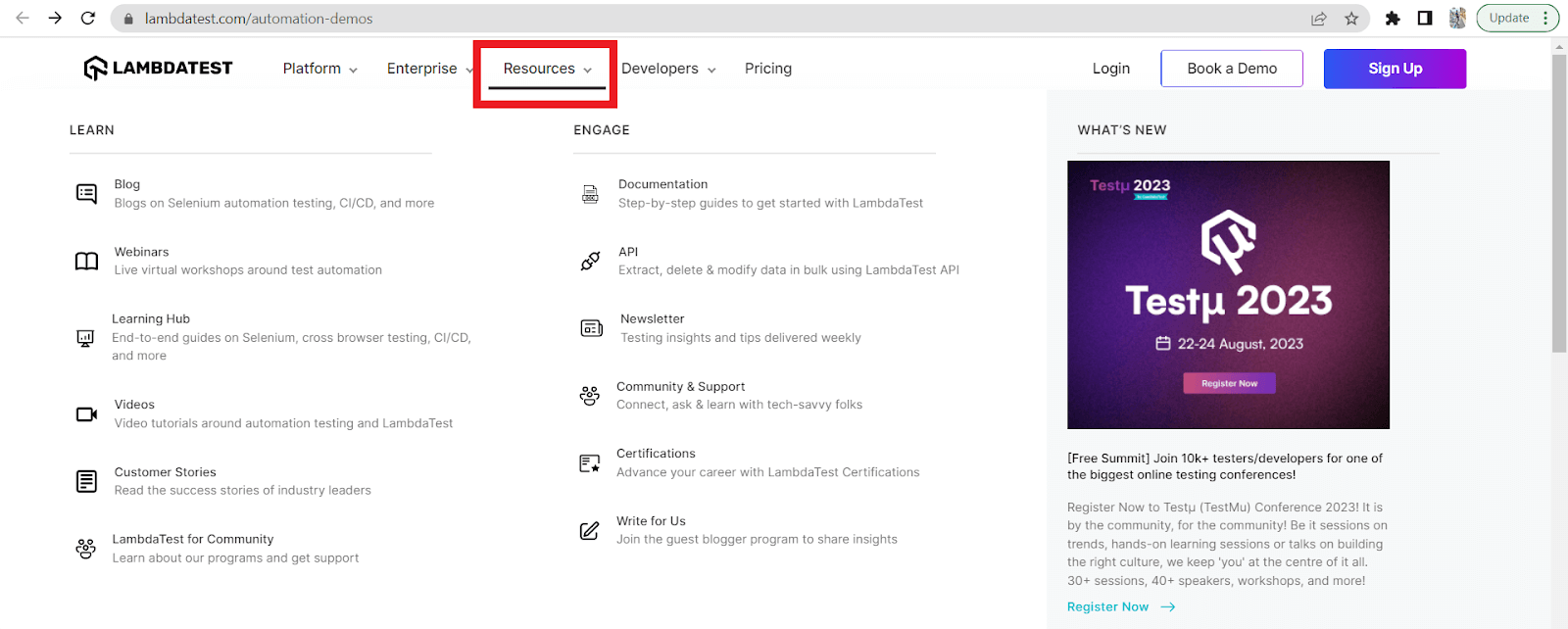
We perform a mouse hover over the Resources element which renders related links (highlighted in yellow contour in the screenshot below), wait up to 5 seconds, and quit the browser session.
Automation Code for scenario-1:
from selenium import webdriver
from selenium.webdriver.common.by import By
from selenium.webdriver.common.action_chains import ActionChains
import time

# Launch the Chrome browser
driver = webdriver.Chrome()

# Navigate to the website
driver.get("https://www.testmuai.com/automation-demos/")
driver.maximize_window()

# Locate the element to perform the hover action on
element_to_hover = driver.find_element(By.XPATH, '//*[@id="header"]/nav/div/div/div[2]/div/div/div[1]/div[3]/button')

# Create an instance of the ActionChains class
actions = ActionChains(driver)

# Perform the hover action
actions.move_to_element(element_to_hover).perform()
time.sleep(5)

# Close the browser
driver.quit()
Scenario-2:
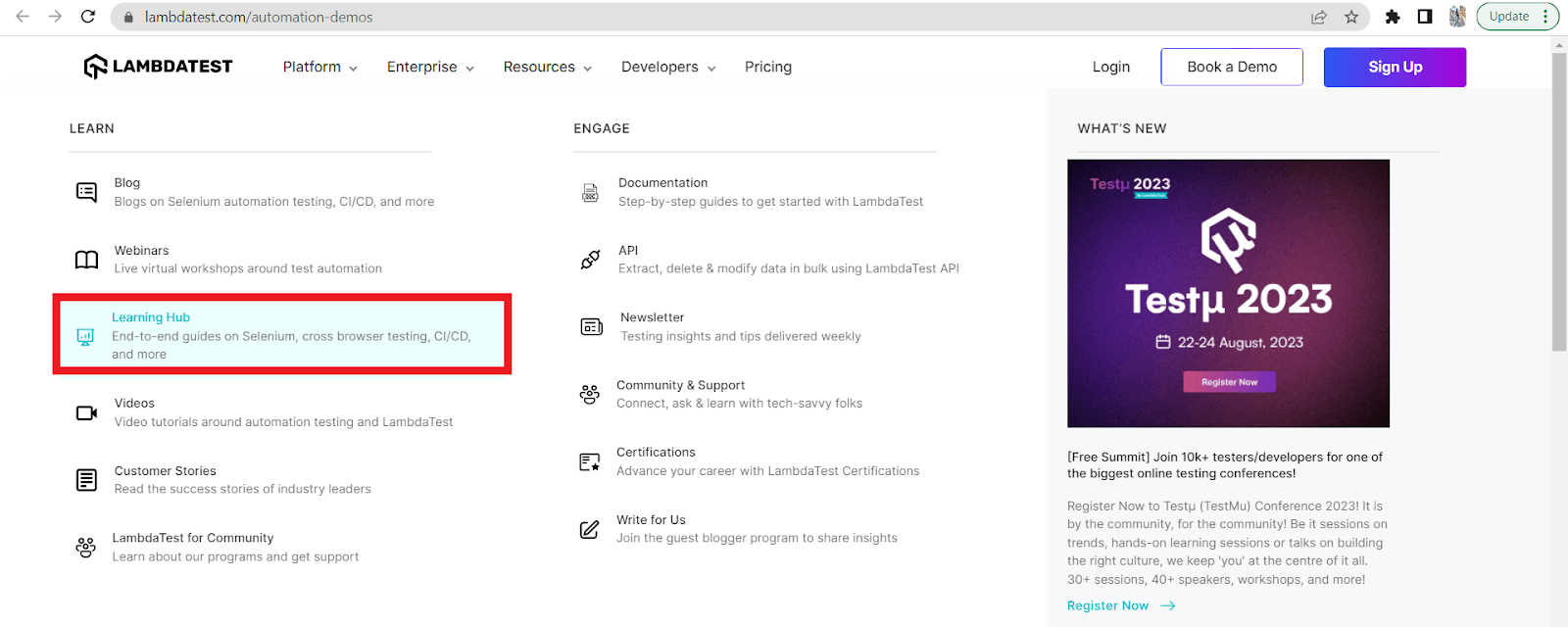
Extending Scenario-1, we now hover over Resources, then move to the Learning Hub sub-item and click it before quitting the browser. This is the canonical "open mega-menu, then click sub-item" pattern.
Automation Code for scenario-2:
from selenium import webdriver
from selenium.webdriver.common.by import By
from selenium.webdriver.common.action_chains import ActionChains
import time

# Launch the Chrome browser
driver = webdriver.Chrome()

# Navigate to the website
driver.get("https://www.testmuai.com/automation-demos/")
driver.maximize_window()

# Locate the element to perform the hover action on
element_to_hover = driver.find_element(By.XPATH, '//*[@id="header"]/nav/div/div/div[2]/div/div/div[1]/div[3]/button')

element_to_hover1=driver.find_element(By.XPATH, '//*[@id="header"]/nav/div/div/div[2]/div/div/div[1]/div[3]/div/div/div/div[1]/div/div[1]/ul/li[3]/a/div[2]/h3')
# Create an instance of the ActionChains class
actions = ActionChains(driver)

# Perform the hover action
actions.move_to_element(element_to_hover).perform()
time.sleep(5)
actions.move_to_element(element_to_hover1).perform()
time.sleep(5)

# Perform the click action
actions.click(element_to_hover1).perform()
time.sleep(5)

# Close the browser
driver.quit()
In Scenario-2, the script hovers over Resources, waits 5 seconds, hovers over the Learning Hub sub-item, waits 5 seconds, then clicks. The two consecutive move_to_element() calls are critical: a single hover-and-click on a sub-item often misses because the parent menu collapses before the click fires.
If you prefer Java, the equivalent is the Actions class with moveToElement().perform(). The video below walks through the Java implementation:

For teams that want to skip the XPath wrangling, AI-driven test assistants like KaneAI let you author hover tests in natural language ("hover Resources, then click Learning Hub") and execute them on cloud browsers without writing locator selectors.
KaneAI by TestMu AI is a GenAI-native test assistant offering AI-led test authoring, management, and debugging. It generates resilient locators, handles hover-to-click sequences automatically, and adapts when the underlying DOM changes, which is precisely the failure mode that breaks XPath-based hover tests.

Methods and Properties of ActionChains Class
Let’s now dive deeper into our comprehension by exploring the various methods and properties offered by the ActionChains class in detail.
The ActionChains class in Selenium for Python binding has various methods and properties, which we will look at in this section with code examples.
move_to_element(WebElement element)
Moves the mouse cursor to the center of the specified web element.
Syntax:
actions.move_to_element(element)
Let’s understand this through an example.
from selenium import webdriver
from selenium.webdriver.common.by import By
from selenium.webdriver.common.action_chains import ActionChains
import time

# Launch the Chrome browser
driver = webdriver.Chrome()

# Navigate to the website
driver.get("https://www.testmuai.com/automation-demos/")
driver.maximize_window()
time.sleep(3)

# Locate the element to perform the hover action on
main_element = driver.find_element(By.XPATH, '//*[@id="header"]/nav/div/div/div[2]/div/div/div[1]/div[1]/div[1]/a')
sub_element = driver.find_element(By.XPATH, '//*[@id="header"]/nav/div/div/div[2]/div/div/div[1]/div[1]/div[2]/div[1]/div/div[1]/div/div[1]/ul/li[2]/a/div[2]/p')
# Create an instance of the ActionChains class
actions = ActionChains(driver)

# Build the mouse hover action with multiple actions using build()
actions = actions.move_to_element(main_element)
actions = actions.move_to_element(sub_element)

# Perform the built actions using perform()
actions.perform()

# Wait for a few seconds to observe any effects
time.sleep(5)

# Close the browser
driver.quit()
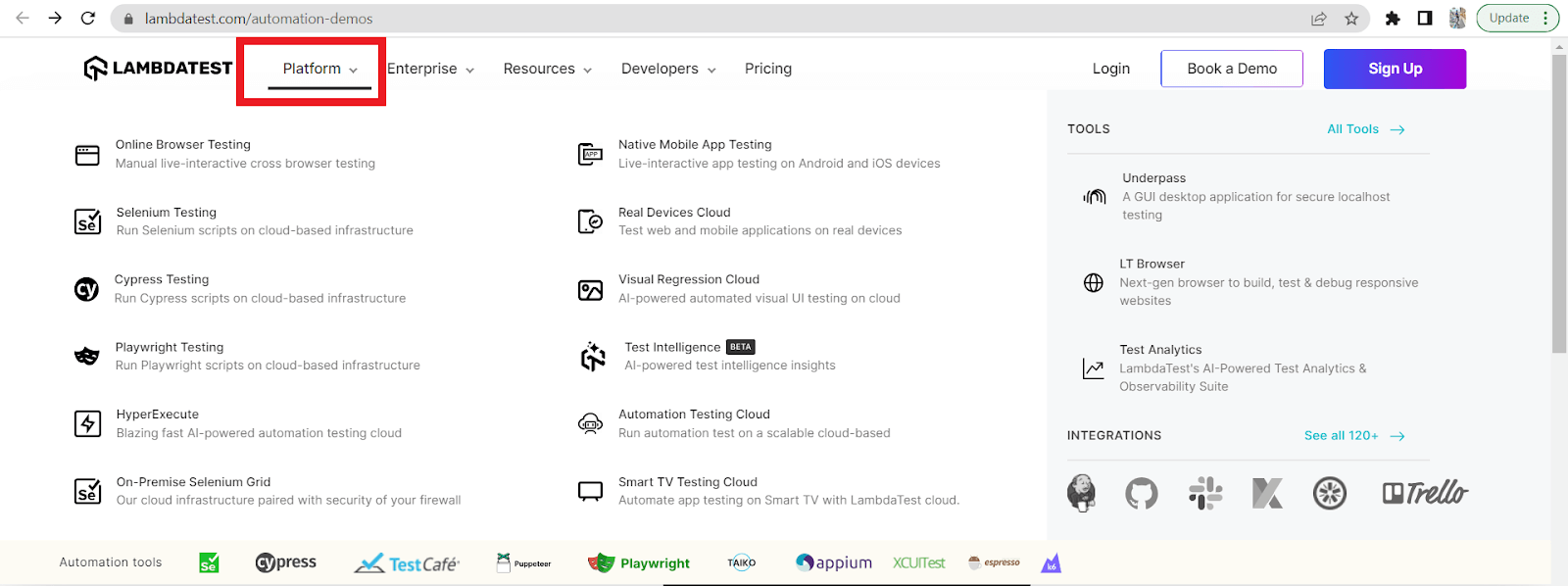
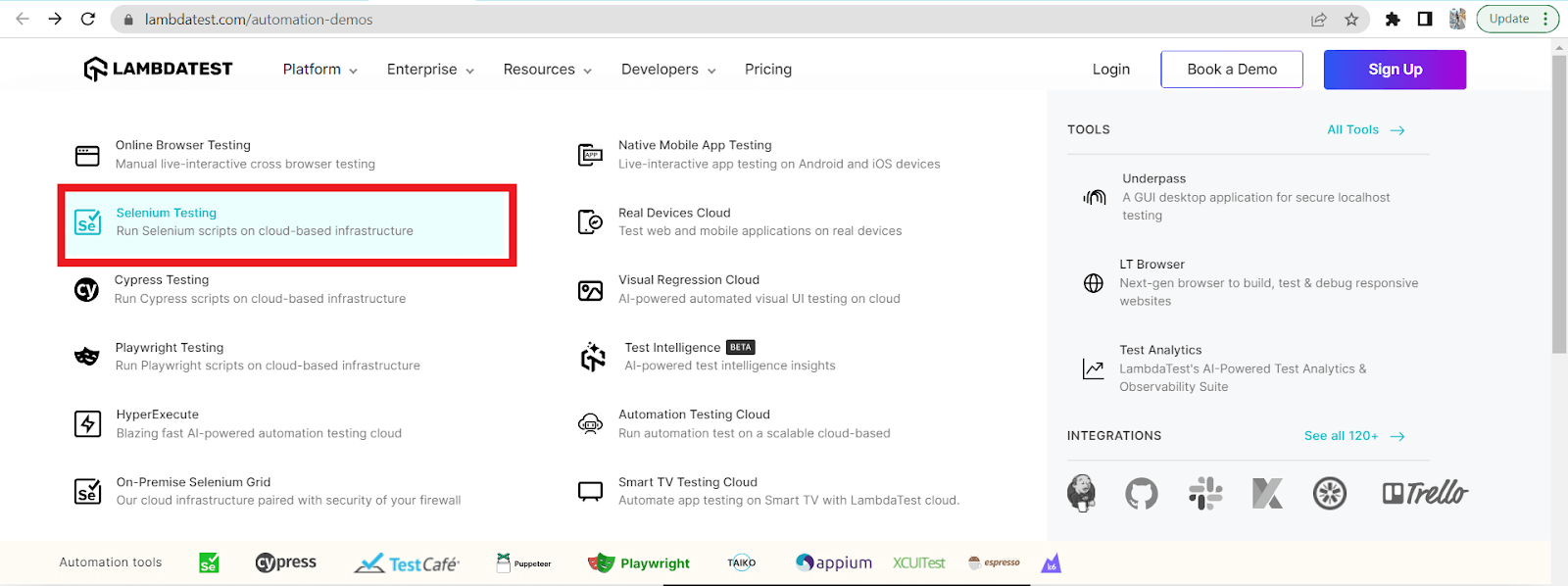
In the above example, we have used the move_to_element() method. Firstly, we hover over the Platform and then move to Selenium Testing, as shown below.
click(WebElement element):
Clicks the specified web element.
Syntax:
actions.click(element)
Let’s understand this through an example.
from selenium import webdriver
from selenium.webdriver.common.by import By
from selenium.webdriver.common.action_chains import ActionChains
import time

# Launch the Chrome browser
driver = webdriver.Chrome()

# Navigate to the website
driver.get("https://www.testmuai.com/automation-demos/")
driver.maximize_window()
time.sleep(3)

# Locate the element to perform the hover action on
main_element = driver.find_element(By.XPATH, '//*[@id="header"]/nav/div/div/div[2]/div/div/div[2]/a[2]')

# Create an instance of the ActionChains class
actions = ActionChains(driver)

# Build the mouse hover action with multiple actions using build()
actions = actions.click(main_element)

# Perform the built actions using perform()
actions.perform()

# Wait for a few seconds to observe any effects
time.sleep(5)

# Close the browser
driver.quit()
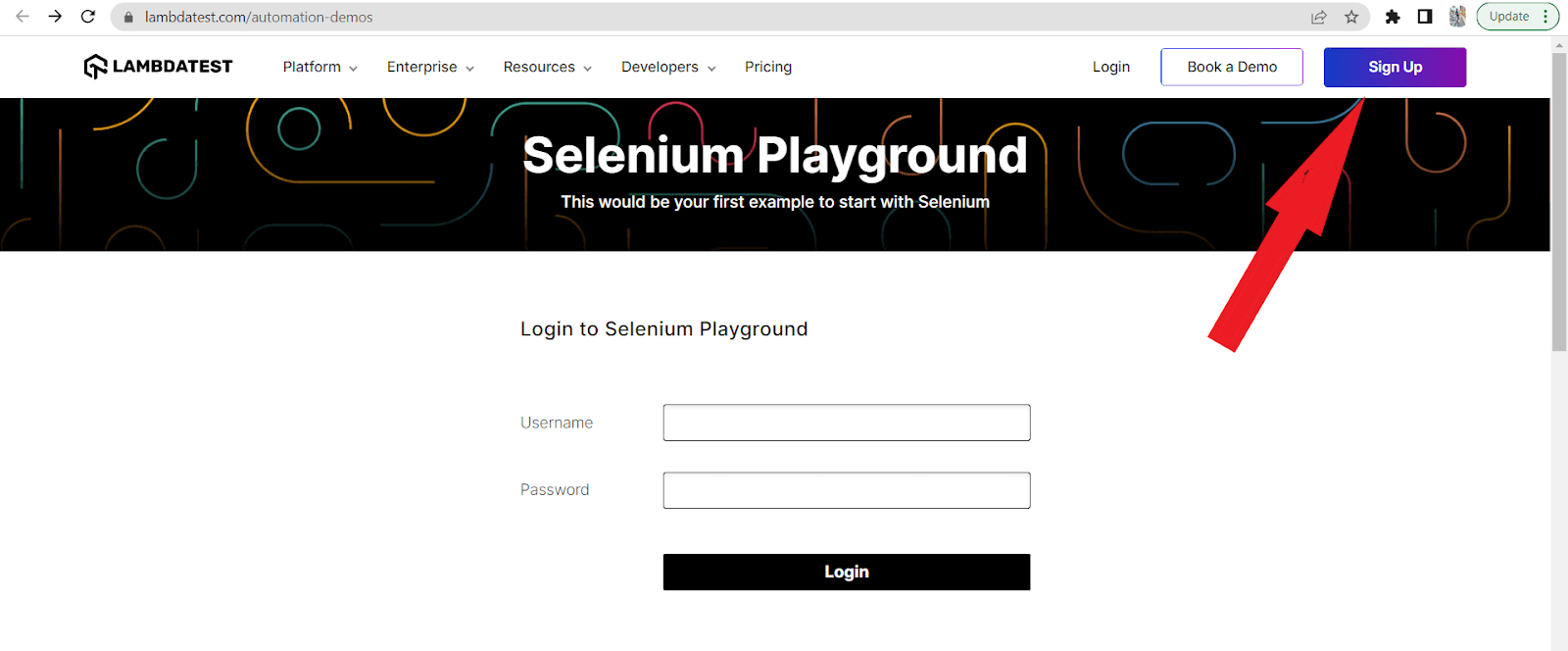
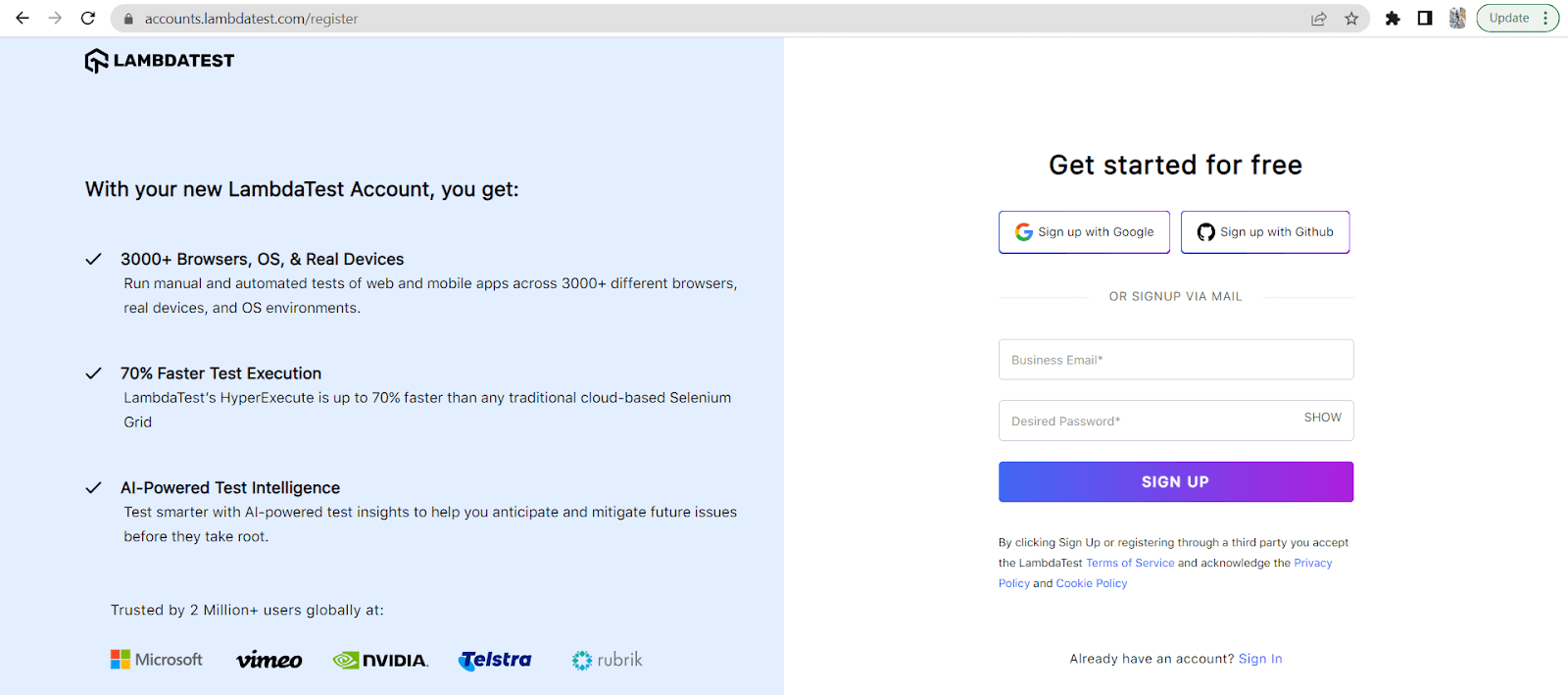
In the above example, we used the click() method where we first hover over the element Sign Up and then perform a click() action on it.
click_and_hold(WebElement element)
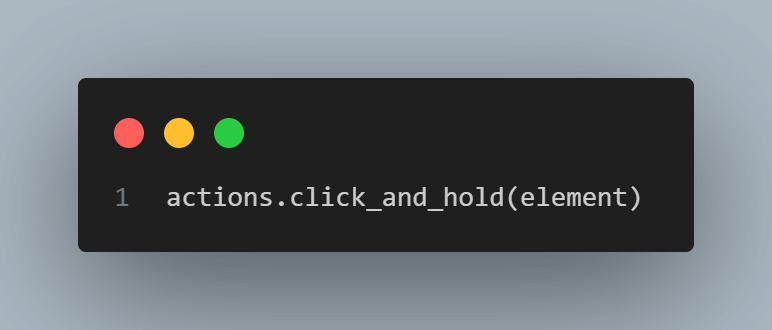
Clicks and holds the specified web element. This function also needs the release() method to get the desired functionality.
Syntax:
actions.click_and_hold(element)
release(WebElement element)
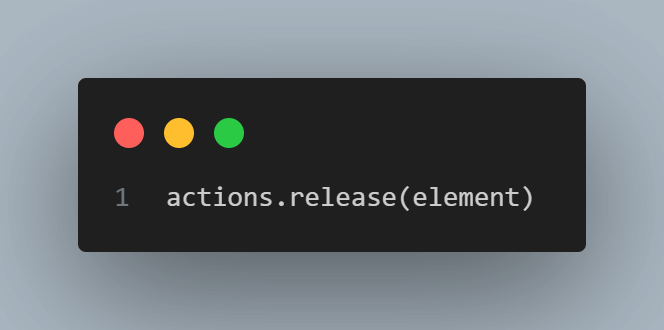
Releases the mouse button previously held on the specified web element.
Syntax:
actions.release(element)
Let’s take an example where we want to hover over an element(Book a Demo) and want to use click_and_hold() and release() methods.
from selenium import webdriver
from selenium.webdriver.common.by import By
from selenium.webdriver.common.action_chains import ActionChains
import time

# Launch the Chrome browser
driver = webdriver.Chrome()

# Navigate to the website
driver.get("https://www.testmuai.com/automation-demos/")
driver.maximize_window()

# Locate the "Resources" menu option to perform the hover action
Book_a_Demo = driver.find_element(By.XPATH, '//*[@id="header"]/nav/div/div/div[2]/div/div/div[2]/div[1]/button')

# Create an instance of the ActionChains class
actions = ActionChains(driver)
time.sleep(3)

# Perform the mouse hover action on the "Resources" menu option
actions.move_to_element(Book_a_Demo).perform()

# Click and hold the "Resources" menu option for 3 seconds
actions.click_and_hold().perform()
time.sleep(3)

# Release the click
actions.release().perform()

# Wait for a few seconds to observe any effects
time.sleep(5)

# Close the browser
driver.quit()
In the above example, we have performed a mouse hover over the “Book a Demo” element after 3 seconds of opening the page and used the click_and_hold() on the element for 3 seconds. Subsequently, we release the element using the release() method, maintaining the release for 5 seconds. This sequence of actions simulates user interaction and allows us to observe the effects on the “Book a Demo” element during the specified timeframes.
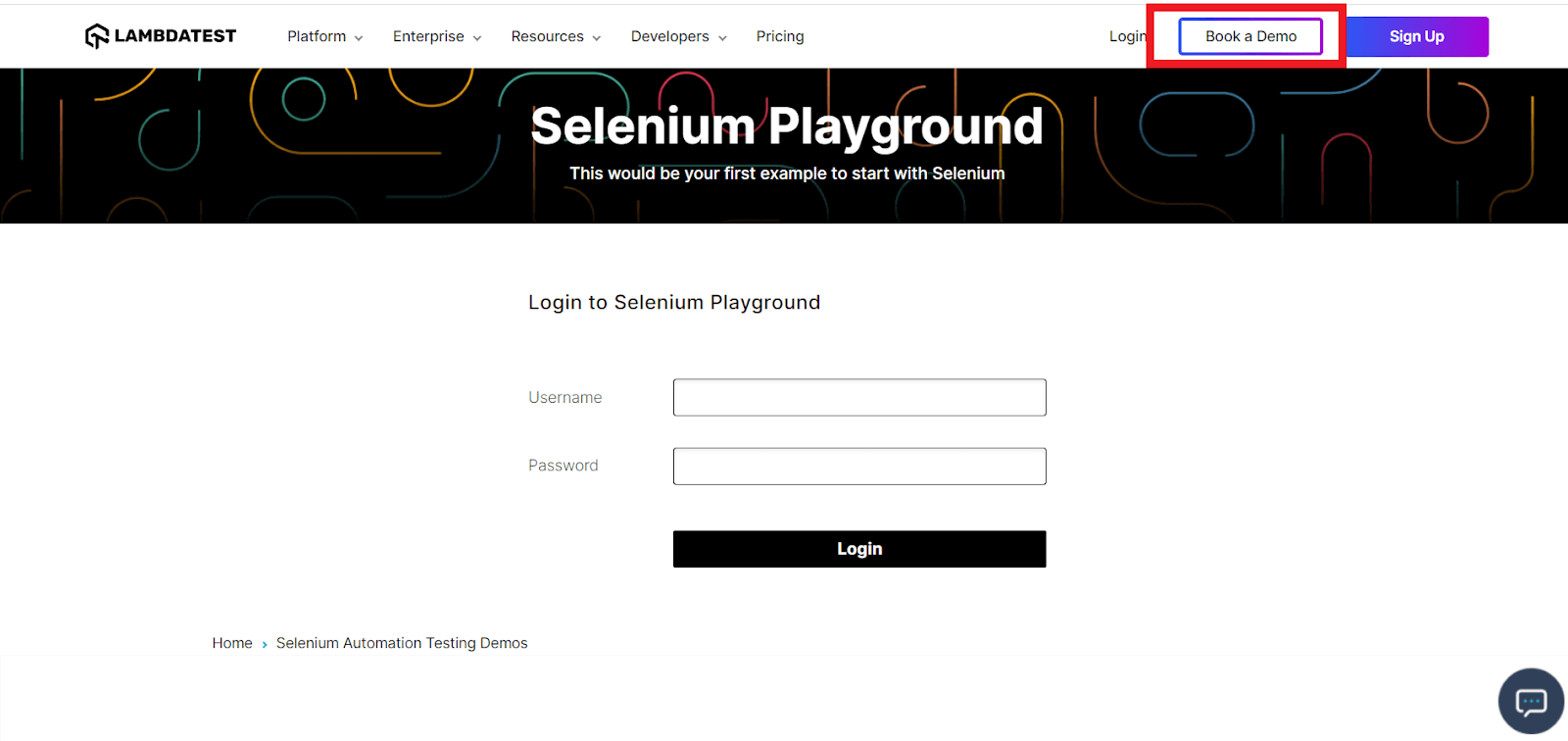
(You can see as we hover over the element “Book A Demo”, the border gets thicker.)
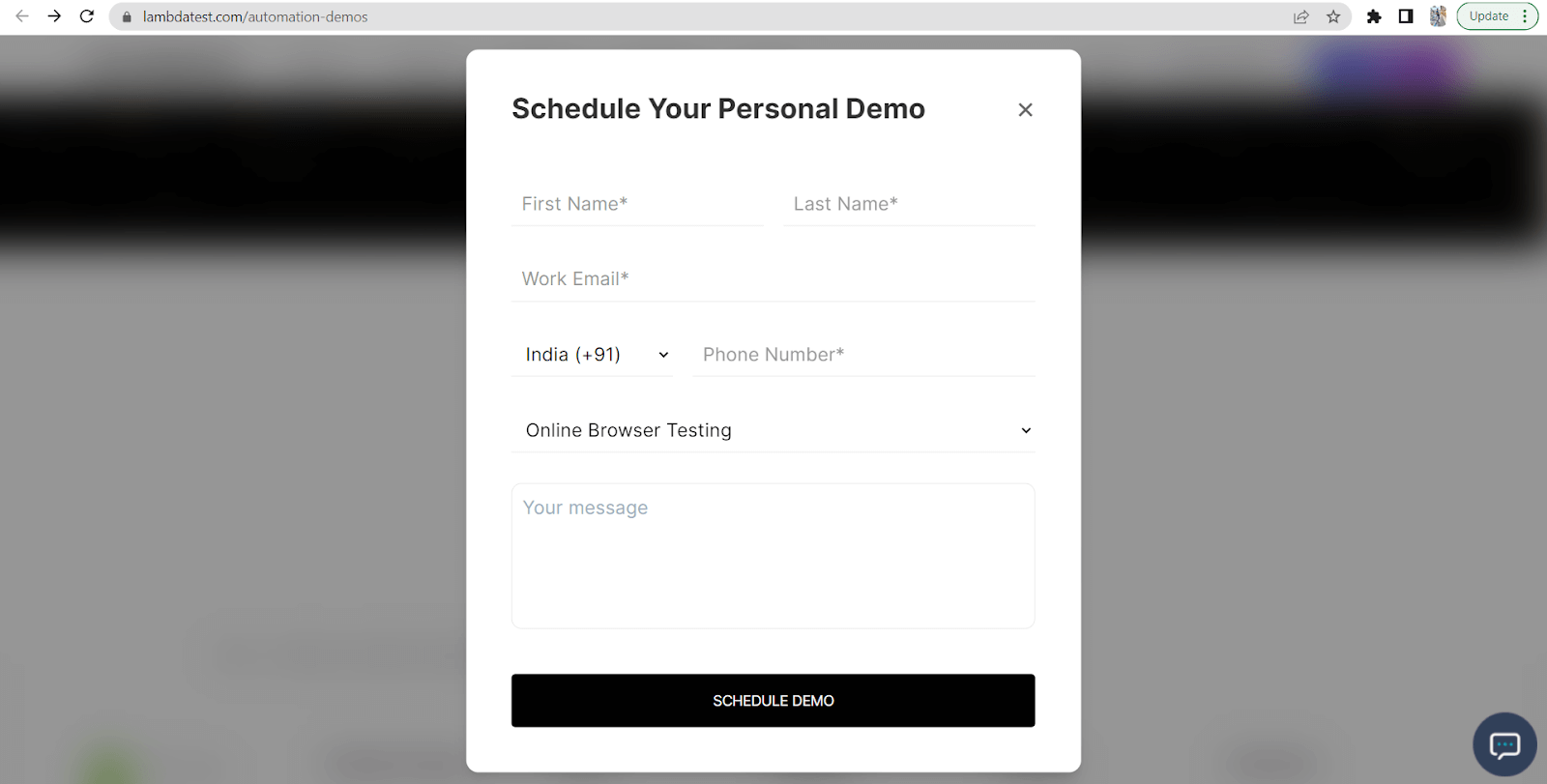
double_click(WebElement element)
Performs a double-click action on the specified web element.
Syntax:
actions.double_click(element)
Let’s understand this through an example.
from selenium import webdriver
from selenium.webdriver.common.by import By
from selenium.webdriver.common.action_chains import ActionChains
import time

# Launch the Chrome browser
driver = webdriver.Chrome()

# Navigate to the website
driver.get("https://www.testmuai.com/selenium-playground/")
driver.maximize_window()
time.sleep(3)

# Locate the element to perform the hover action on
main_element = driver.find_element(By.XPATH, '//*[@id="__next"]/div/section[1]/div/h1')

# Create an instance of the ActionChains class
actions = ActionChains(driver)

# Build the mouse hover action with multiple actions using build()
actions = actions.double_click(main_element)

# Perform the built actions using perform()
actions.perform()

# Wait for a few seconds to observe any effects
time.sleep(5)

# Close the browser
driver.quit()
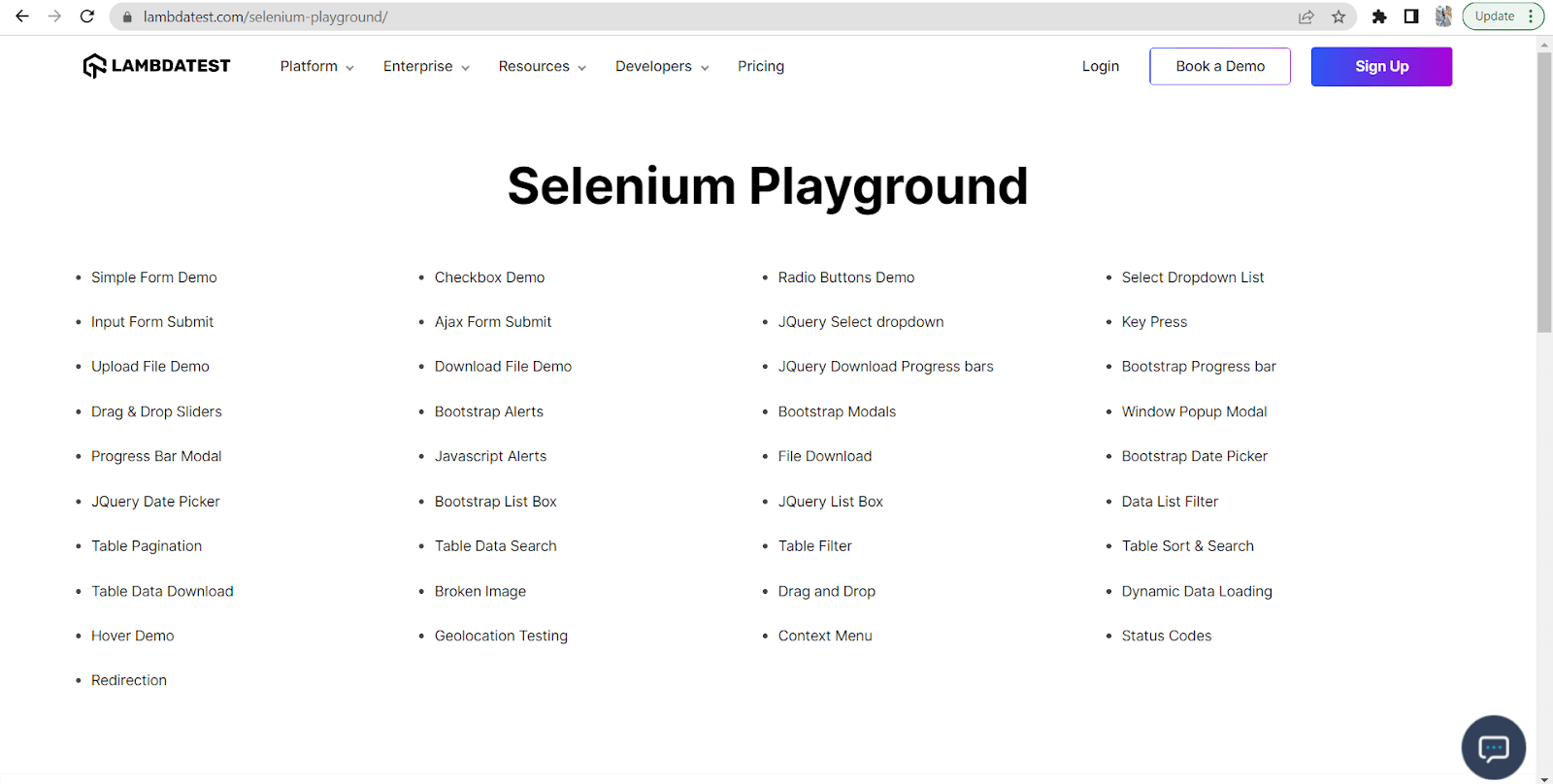
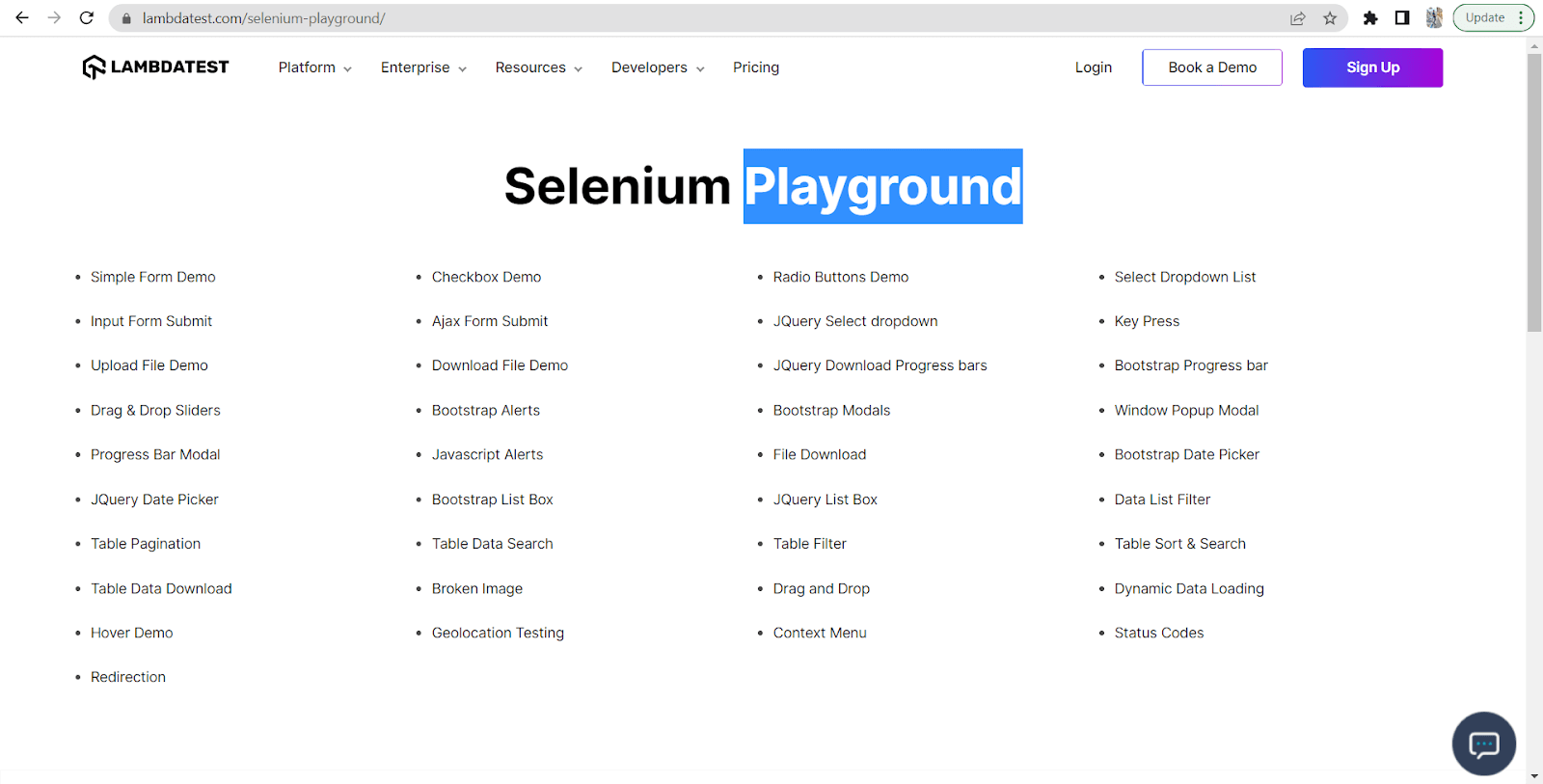
In the above example, we used the double_click() method where we perform a double-click on the text ‘Playground‘, as you can see below.
context_click(WebElement element)
Performs a right-click (context-click) action on the specified web element.
Syntax:
actions.context_click(element)
Let’s take an example to understand the context_click() method.
from selenium import webdriver
from selenium.webdriver.common.by import By
from selenium.webdriver.common.action_chains import ActionChains
import time

# Launch the Chrome browser
driver = webdriver.Chrome()

# Navigate to the website
driver.get("https://www.testmuai.com/automation-demos/")
driver.maximize_window()

# Locate the "Resources" menu option to perform the hover action
context = driver.find_element(By.XPATH, '//*[@id="formcontent"]')

# Create an instance of the ActionChains class
actions = ActionChains(driver)
time.sleep(3)

# Perform the double click on the "Resources" menu option
actions.context_click(context).perform()

# Wait for a few seconds to observe any effects
time.sleep(5)

# Close the browser
driver.quit()
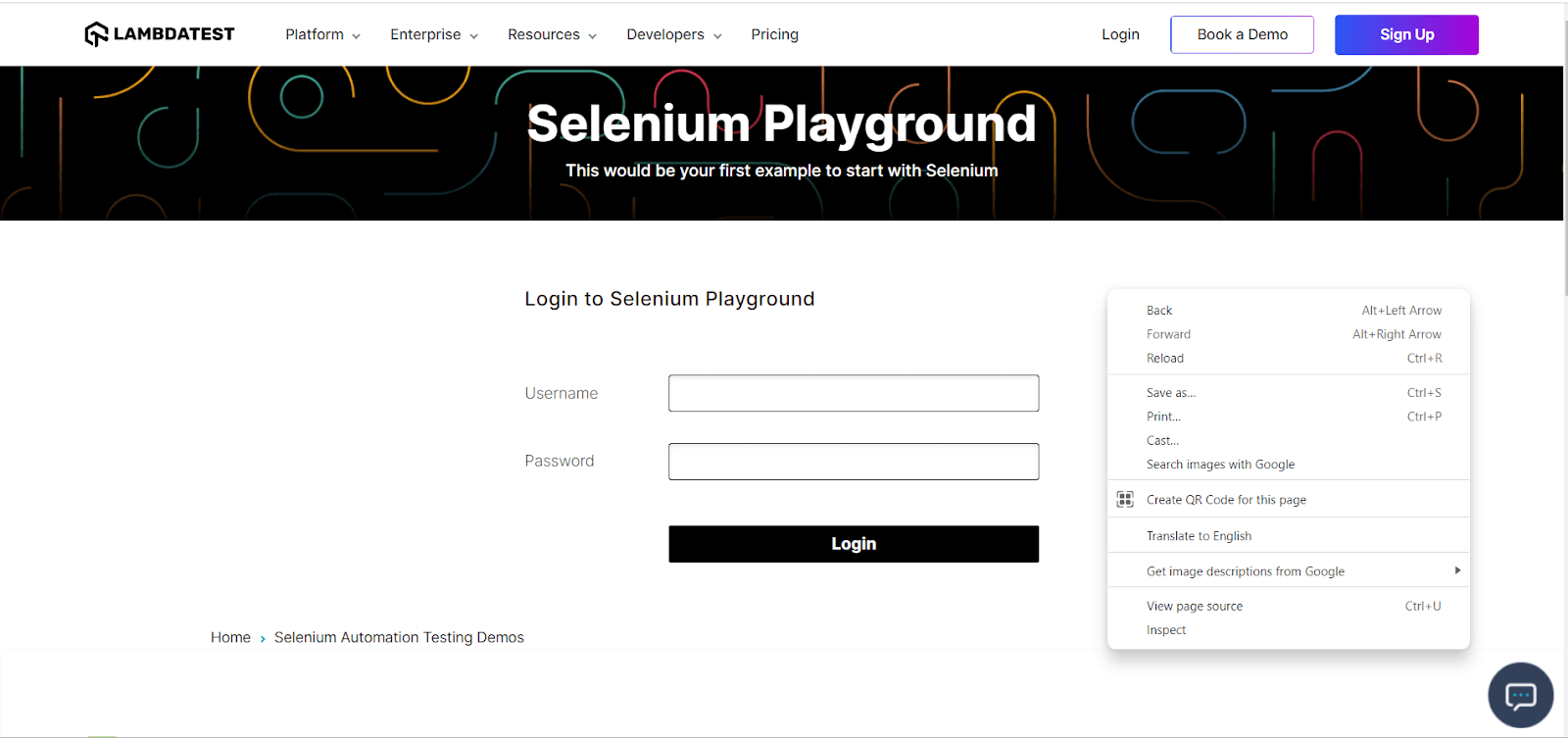
In the above program, we have performed the context_click() method. This method is nothing, but just like a right-click as shown below.
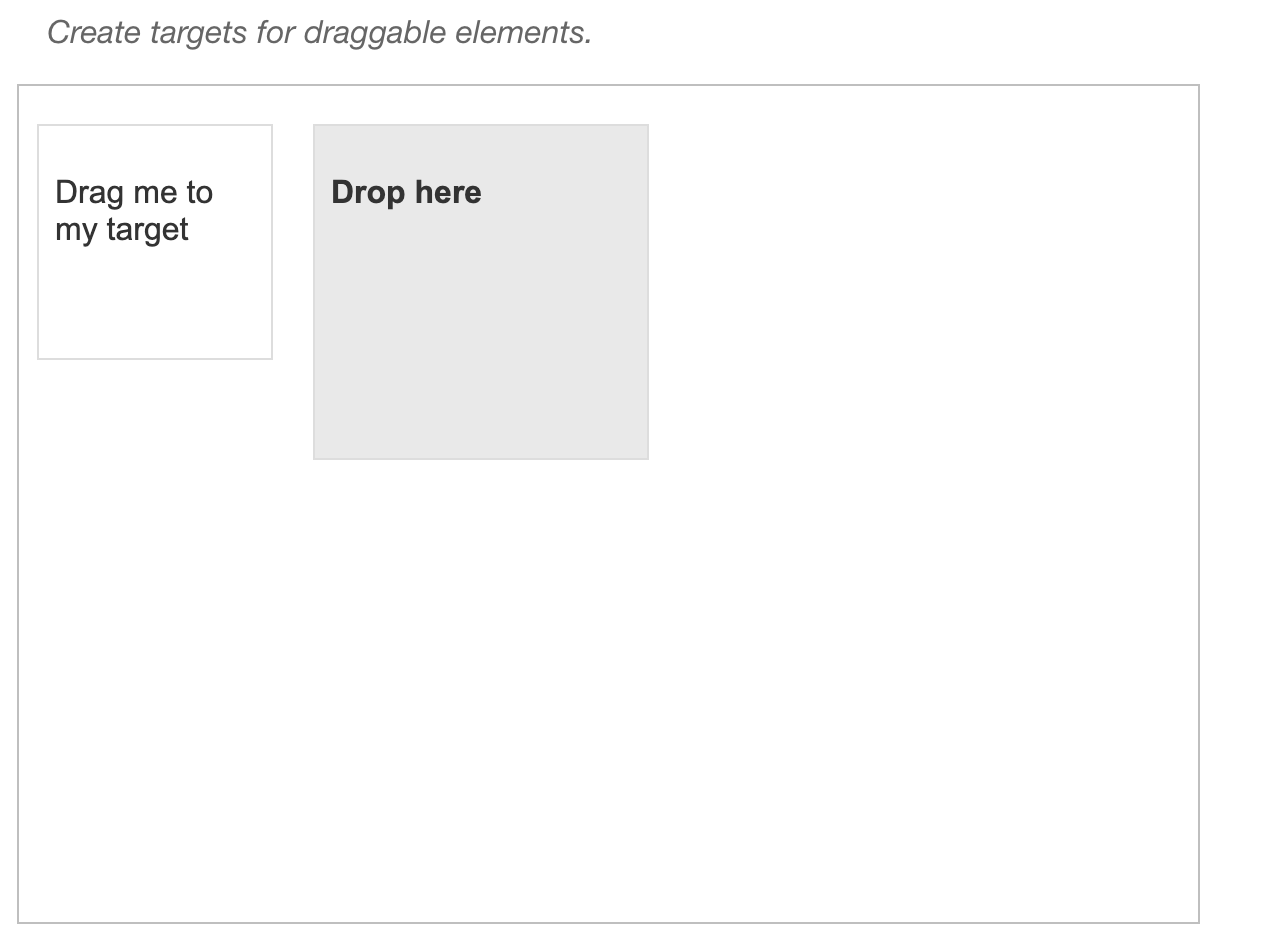
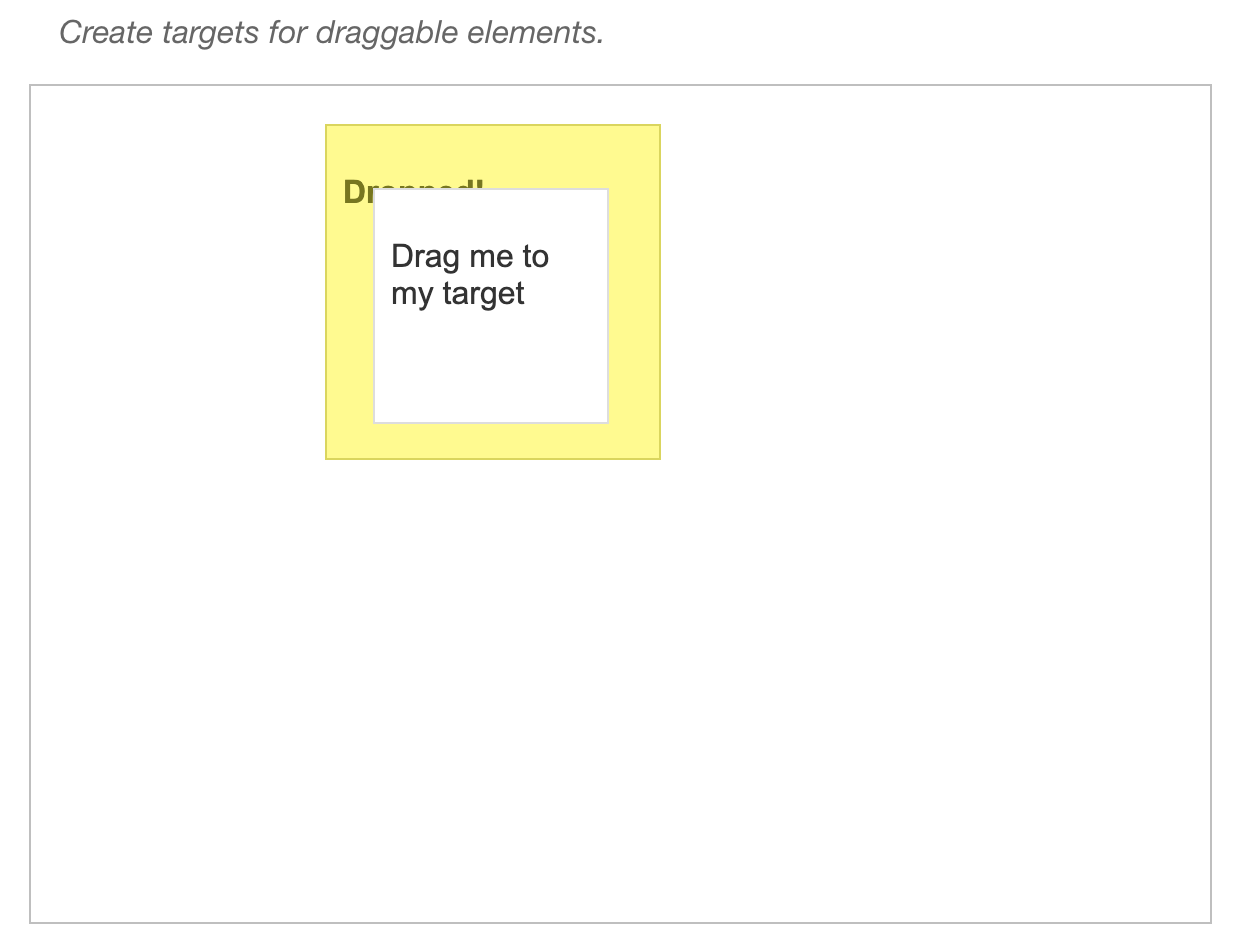
drag_and_drop(WebElement source, WebElement target)
Drags the source element and drops it onto the target element.
Syntax:
actions.drag_and_drop(source, target)
Let’s take an example to understand the drag_and_drop() method.
from selenium import webdriver
from selenium.webdriver.common.by import By
from selenium.webdriver.common.action_chains import ActionChains
import time

driver = webdriver.Chrome()
driver.get("https://jqueryui.com/droppable/")
driver.maximize_window()

driver.switch_to.frame(driver.find_element("class name", "demo-frame"))

# get the source and destination
source = driver.find_element(By.ID, "draggable")
destination = driver.find_element(By.ID, "droppable")

actions = ActionChains(driver)
time.sleep(2)

# drag_and_drop() method
actions.drag_and_drop(source, destination).perform()

# Wait for a few seconds to observe any effects
time.sleep(5)
driver.quit()
]In the above program, we have performed the drag_and_drop() method. This method drags an element and drops it to the desired location.
pause(long duration)
Pauses the execution for the specified duration in milliseconds.
Syntax:
actions.pause(duration)
Let’s take an example to understand the pause() method.
from selenium import webdriver
from selenium.webdriver.common.by import By
from selenium.webdriver.common.action_chains import ActionChains
import time

# Launch the Chrome browser
driver = webdriver.Chrome()

# Navigate to the website
driver.get("https://www.testmuai.com/automation-demos/")
driver.maximize_window()

# Locate the element to perform the hover action on
element = driver.find_element(By.XPATH, '//*[@id="footer"]/div[1]/div/div/div[2]/div/div[2]/ul/li[1]/a')

actions = ActionChains(driver)

# Perform the hover action
actions.move_to_element(element)

# Introduce a pause of 3 seconds
actions.pause(3)

# Click on the element after the pause
actions.click(element)

# Perform the built actions using perform()
actions.perform()

# Wait for a few seconds to observe any effects
time.sleep(5)

# Close the browser
driver.quit()
In this example, we first hover over the Blogs and pause for 3 seconds, then perform the click() action on it.
build()
Create complex actions or perform multiple actions sequentially.
Syntax:
actions.build()
Let’s take an example to understand the build() method.
from selenium import webdriver
from selenium.webdriver.common.by import By
from selenium.webdriver.common.action_chains import ActionChains
import time

# Launch the Chrome browser
driver = webdriver.Chrome()

# Navigate to the website
driver.get("https://www.testmuai.com/automation-demos/")
driver.maximize_window()
time.sleep(3)

# Locate the element to perform the hover action on
main_element = driver.find_element(By.XPATH, '//*[@id="header"]/nav/div/div/div[2]/div/div/div[1]/div[3]/button')
sub_element = driver.find_element(By.XPATH, '//*[@id="header"]/nav/div/div/div[2]/div/div/div[1]/div[3]/div/div/div/div[1]/div/div[1]/ul/li[1]/a/div[2]/p')

# Create an instance of the ActionChains class
actions = ActionChains(driver)

# Build the mouse hover action with multiple actions using build()
hover_action = actions.move_to_element(main_element).move_to_element(sub_element).click(sub_element)

# Perform the built actions using perform()
hover_action.perform()

# Wait for a few seconds to observe any effects
time.sleep(5)

# Close the browser
driver.quit()
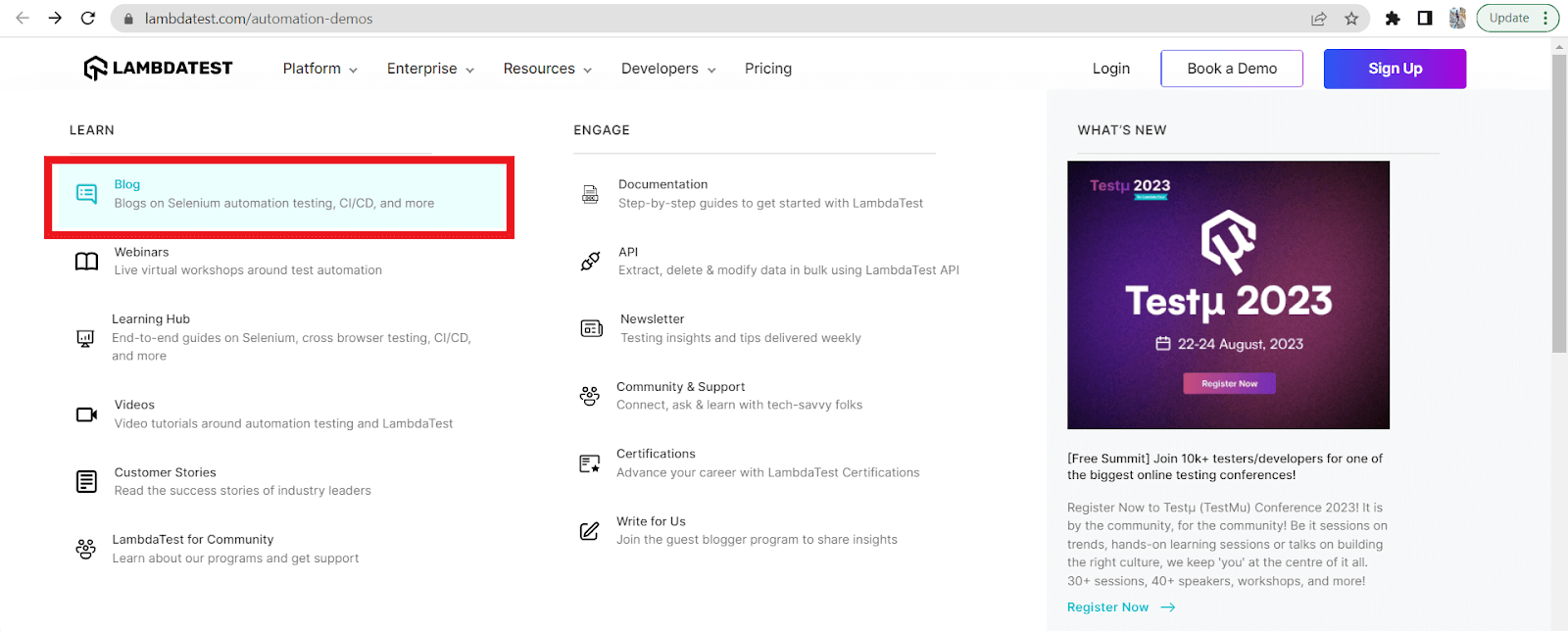
In the above example, we have used the build() method, which allows us to create a sequence of multiple actions more organized and concisely. This technique helps to perform complex interactions by chaining actions together. As shown in this example, we sequentially execute actions like move_to_element() and click() using the build() method.
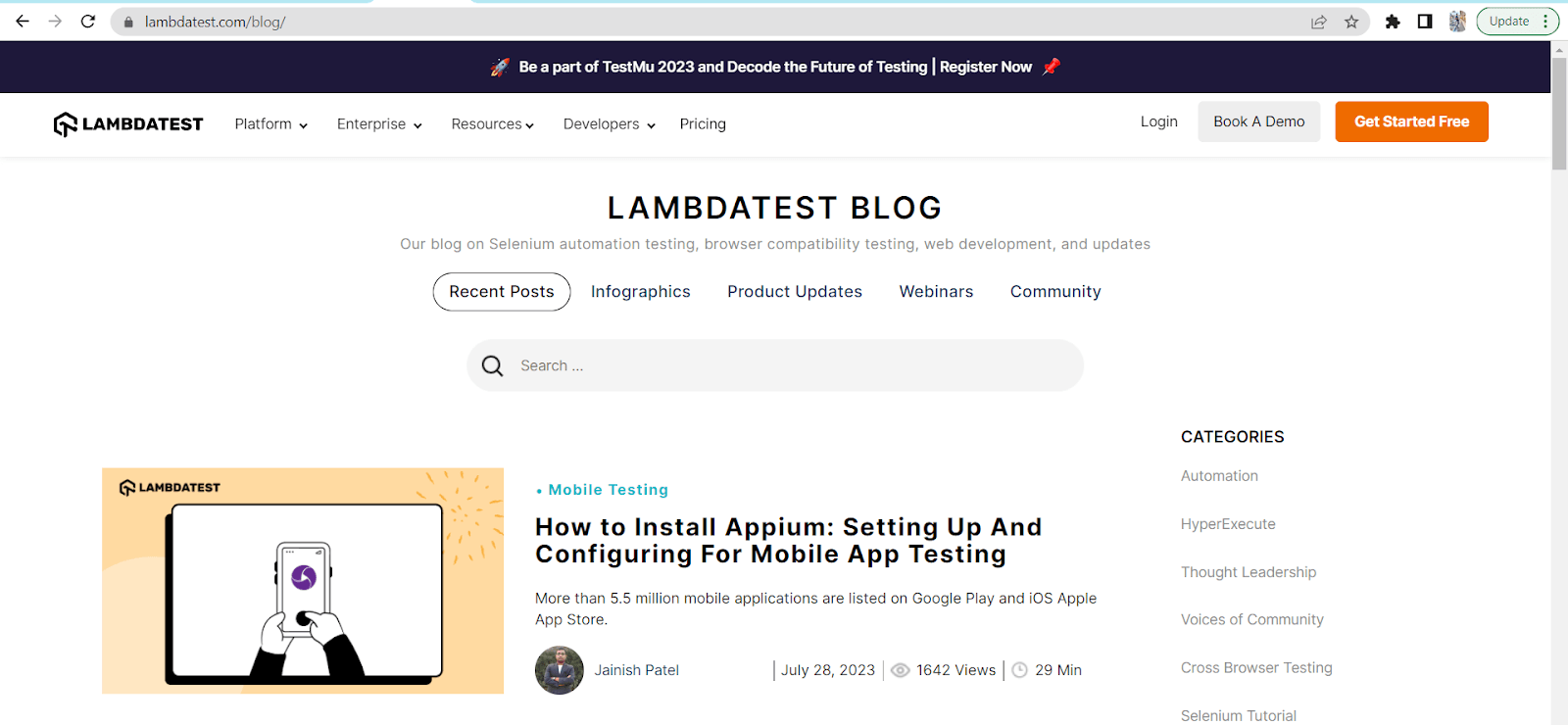
First, we hover over the Resources. Then we hover over Blog using the move_to_element() method. At last, we performed the click() action. All the actions are performed sequentially.
perform():
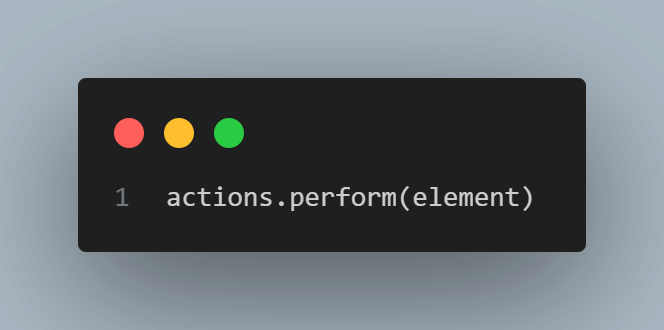
Executes the sequence of actions defined on the ActionChains class object.
Syntax:
actions.perform()
Cross-Browser Hover Testing on TestMu AI Cloud
Hover behavior is desktop-only and varies across browsers. Safari fires mouseover before mouseenter in some menu patterns, while Firefox queues hover-triggered animations differently than Chromium. Running Selenium hover tests only on local Chrome leaves these regressions for users to find.
The TestMu AI real device cloud exposes 10,000+ real browsers and devices over the standard Selenium remote protocol. Point your existing ActionChains scripts at the cloud hub and pass LT:Options to pick the browser, version, and OS. See the Selenium getting-started docs for the full capability matrix.
from selenium import webdriver
from selenium.webdriver.common.by import By
from selenium.webdriver.common.action_chains import ActionChains

USERNAME = "YOUR_LT_USERNAME"
ACCESS_KEY = "YOUR_LT_ACCESS_KEY"

capabilities = {
    "browserName": "Chrome",
    "browserVersion": "latest",
    "LT:Options": {
        "platformName": "Windows 11",
        "build": "Mouse Hover Demo",
        "name": "Hover Resources Mega-Menu",
        "username": USERNAME,
        "accessKey": ACCESS_KEY
    }
}

driver = webdriver.Remote(
    command_executor=f"https://{USERNAME}:{ACCESS_KEY}@hub.lambdatest.com/wd/hub",
    desired_capabilities=capabilities
)

driver.get("https://www.testmuai.com/automation-demos/")
resources = driver.find_element(By.XPATH, '//*[@id="header"]/nav/div/div/div[2]/div/div/div[1]/div[3]/button')
ActionChains(driver).move_to_element(resources).perform()

driver.quit()
The script targets the Selenium Playground, a hosted set of demo widgets including a dedicated Hover Demo. After the run, the build appears on the TestMu AI dashboard with a video, network log, and step-by-step Selenium command timeline, which is invaluable for debugging hover races that only repro on specific browsers.

Note: Run hover tests across 10,000+ real browsers and devices on TestMu AI. Start free and stop guessing whether your mega-menus work on Safari.
Common Pitfalls That Make Hover Tests Flaky
Most flaky hover tests fail for one of four reasons. Knowing each up front saves hours of debugging in CI:
- Stale element after re-render: some sites swap the DOM node when the hover state activates. The original
WebElementreference becomes stale. Re-locate the element after the hover, or use explicit waits on the new visible state. - Race between hover and click: if the sub-item click fires before the parent menu has rendered its children, the click misses. Always insert a
WebDriverWaiton the sub-item's visibility (not just presence) before clicking. - Headless mode quirks: headless Chrome before version 109 had broken hover events. If you run on headless Chrome in CI, pin the new headless implementation with the
--headless=newflag. - Cursor parking off-screen: some grids reset the cursor to (0, 0) between actions. After your hover, the menu may close before the assert. Chain the assertion inside the same
ActionChainssequence rather than as a separate command. - Touch-emulation sessions: if your
LT:Optionsinclude a mobile device or touch profile, hover events do not exist. VerifybrowserNametargets a desktop browser.
Best Practices for Stable Hover Tests
Hover automation rewards discipline. Apply these practices to keep your suite green in CI:
- Use the ActionChains class, not JavaScript shims: the W3C-spec ActionChains driver fires real
pointeroverevents, whileexecute_script("element.dispatchEvent...")bypasses the browser's hover state machine and produces false positives. - Prefer stable locators over deep XPath: ID,
data-testid, and short CSS paths survive UI refactors. Auto-generated XPaths like/div[2]/div/div/buttonbreak the moment a designer adds a wrapper. - Use Explicit Waits on the post-hover state: after the hover, call WebDriverWait on the sub-menu's visibility, not on its presence in the DOM. See the Selenium WebDriverWait guide for the patterns.
- Pin a clean cursor start position: begin every hover test by moving the cursor to a neutral element (the body or a corner). Tests that inherit the previous test's cursor often fail in random orders.
- Run on real browsers, not just Chrome: hover races behave differently on Safari and Firefox. The real device cloud exposes both, plus their mobile counterparts where hover should be skipped.
- Validate the hover effect, do not assume it: assert that the expected sub-menu or tooltip is visible after every hover. The example below demonstrates the assertion pattern.
Code Example:
import unittest
from selenium import webdriver
from selenium.webdriver.common.by import By
from selenium.webdriver.common.action_chains import ActionChains
import time

class TestHoverEffect(unittest.TestCase):
    def setUp(self):
        self.driver = webdriver.Chrome()
        self.driver.get("https://www.testmuai.com/automation-demos/")
        self.driver.maximize_window()

    def test_hover_effect(self):
        # Locate the element to perform the hover action on
        element_to_hover = self.driver.find_element(By.XPATH, '//*[@id="header"]/nav/div/div/div[2]/div/div/div[1]/div[3]/button')
        time.sleep(3)

        # Create an instance of the ActionChains class
        actions = ActionChains(self.driver)

        # Perform the hover action
        actions.move_to_element(element_to_hover).perform()

        # Wait for a few seconds to observe any effects
        time.sleep(3)

        # Validate the hover effect - Check if sub-menus becomes visible
        sub_menu = self.driver.find_element(By.XPATH, '//*[@id="header"]/nav/div/div/div[2]/div/div/div[1]/div[3]/div/div/div/div[1]/div/div[1]/ul')
        is_sub_menu_visible = sub_menu.is_displayed()

        # Print the result
        if is_sub_menu_visible:
            print("Sub-menu is visible after hover.")
        else:
            print("Sub-menu is not visible after hover.")


    def tearDown(self):
        self.driver.quit()

if __name__ == "__main__":
    unittest.main()
Output:
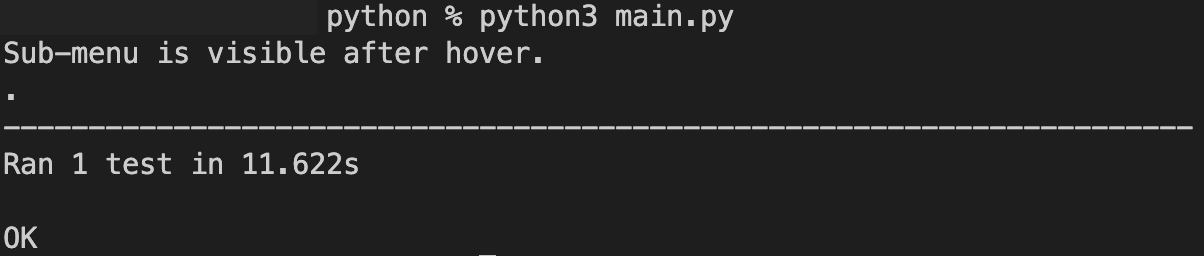
We started by importing all the necessary modules from Selenium, including unittest, webdriver, By, ActionChains, and time.
In the setUp method, we first created a WebDriver instance (ChromeDriver in our case) is created. The script then navigates to the automation-demos website and maximizes the browser window.
In the test_hover_effect method, the element to perform the hover action on is located using its XPath, and a 3-second pause is introduced to ensure that the page is fully loaded before performing the action. Afterwards we created an instance of the ActionChains class as actions.
The move_to_element(element_to_hover) method is called on actions to perform the mouse hover action on the specified element.
Another 3-second pause is introduced to observe any effects of the hover action.
The sub-menu element is located using its XPath, and its visibility is checked using the is_displayed() method. Based on the visibility of the sub-menu, the script prints whether the sub-menu is visible or not after the hover action.
The tearDown method closes the browser and ends the test.
The program uses the ActionChains class to perform the hover action, then checks if the sub-menu is displayed using the is_displayed() method.

Conclusion
Mouse hover in Selenium boils down to one rule: use ActionChains, anchor every hover with an explicit wait on the resulting state, and run the suite on the same browsers your users actually have. The Selenium Python binding gives you the API; move_to_element(), click_and_hold(), context_click(), and build() cover every interaction pattern in this article.
Your next step: take any one of the examples above, replace the credentials with your own from the TestMu AI dashboard, and run it on a Chrome + Safari + Firefox matrix. The Selenium getting-started docs walk through the exact configuration. If your tests still flake after that, the Test Intelligence dashboard root-causes the failure with full Selenium command logs and video.
For deeper coverage of related interaction primitives, see:
If you want a deeper guided path, the Selenium 101 certification walks through ActionChains, waits, and grid setup end-to-end with hands-on labs.
Note: This article was researched and drafted with AI assistance, then reviewed, fact-checked, and published by Upendra Prasad Mahto, Community Contributor at TestMu AI, whose listed expertise includes Selenium and Automation Testing. Every code example, link, and product claim was verified against primary sources. Read our editorial process and AI use policy for details.
Author

Upendra Prasad Mahto
Blogs: 10


Upendra Prasad Mahto is a community contributor with 2+ years of experience across software engineering, test automation content, and technical writing. He specializes in creating content around test automation tools such as Selenium and Appium, along with topics in software quality and emerging AI technologies. Formerly a Technical Content Writer at TestMu AI, Upendra focuses on translating practical testing workflows and automation concepts for developers and QA professionals. He holds a B.Tech in Electronics and Communication Engineering and certifications in Generative AI and Product Analytics.
Reviewer

Navin Chandra
Reviewer
Navin Chandra is a Member of Technical Staff at TestMu AI (formerly LambdaTest), building the open-source automation that powers its Selenium and Appium cloud grid. A committer to both Selenium and Appium, he implemented WebDriver BiDi support in Selenium for real-time browser events and bidirectional control and is developing Apple's iOS RemoteXPC protocol in Appium to enable low-level wireless communication with iOS system services. He contributes to Selenium across multiple language bindings as a member of the Selenium GitHub organization. He has served as a Google Summer of Code mentee and mentor at openSUSE and an LFX mentee at CNCF's KubeArmor, and is a SUSE Certified Deployment Specialist. Navin holds a B.Tech in Computer Science.


Mouse Hover in Selenium FAQs
Did you find this page helpful?
More Related Blogs
TestMu AI forEnterprise
Get access to solutions built on Enterprise
grade security, privacy, & compliance
- Advanced access controls
- Advanced data retention rules
- Advanced Local Testing
- Premium Support options
- Early access to beta features
- Private Slack Channel
- Unlimited Manual Accessibility DevTools Tests