

Next-Gen App & Browser Testing Cloud
Trusted by 2 Mn+ QAs & Devs to accelerate their release cycles


How To Perform Mouse Hover Action In Selenium?
Learn how to perform mouse hover actions in Selenium with detailed steps, best practices, and ActionChains methods to stay ahead in your test automation skills.

Upendra Prasad Mahto
March 2, 2026
Mouse hover actions are crucial in web automation testing, partiularly for interactive user interfaces. In quick-commerce or e-commerce platforms, for example, hovering over a product can reveal real-time stock levels or delivery options. In fintech applications, hovering over charts or financial instruments can display detailed analytics or historical data. Using Selenium WebDriver’s Actions Class, you can automate these interactions to validate hover-based functionalities, ensuring the web application behaves correctly when users interact with it.
This article explores the concept and importance of mouse hover in Selenium, demonstrates Python implementation, and shares best practices for effective automation testing.
Overview
What is Mouse Hover in Selenium?
Mouse hover simulates moving the mouse over an element without clicking. It triggers dropdowns, tooltips, or other dynamic content on websites. Selenium’s ActionChains class is used for automation.
Why Perform Mouse Hover?
- Verify dropdown menus, tooltips, and hidden elements work correctly.
- Test interactive and dynamic UI elements.
- Ensure realistic user experience in automation tests.
How to Perform Mouse Hover?
- Import webdriver and ActionChains.
- Launch browser and navigate to the site.
- Locate the element (ID, XPath, CSS).
- Use
ActionChains(driver).move_to_element(element).perform().
What is Mouse Hover in Selenium?
Mouse hover in Selenium is an automated action that simulates a user moving the mouse pointer over a specific web element without clicking. This action triggers any hover effects or interactive elements designed to appear or change when a user hovers over them, such as dropdown menus, tooltips, additional information, or other dynamic content.
In Selenium for Python binding, mouse hover actions are implemented using the ActionChains class. This class provides a method called move_to_element(), which moves the mouse to the center of the specified element, activating any hover effects. This is particularly useful for testing websites where hovering over elements reveals critical functionality or content that needs to be validated during automated testing.
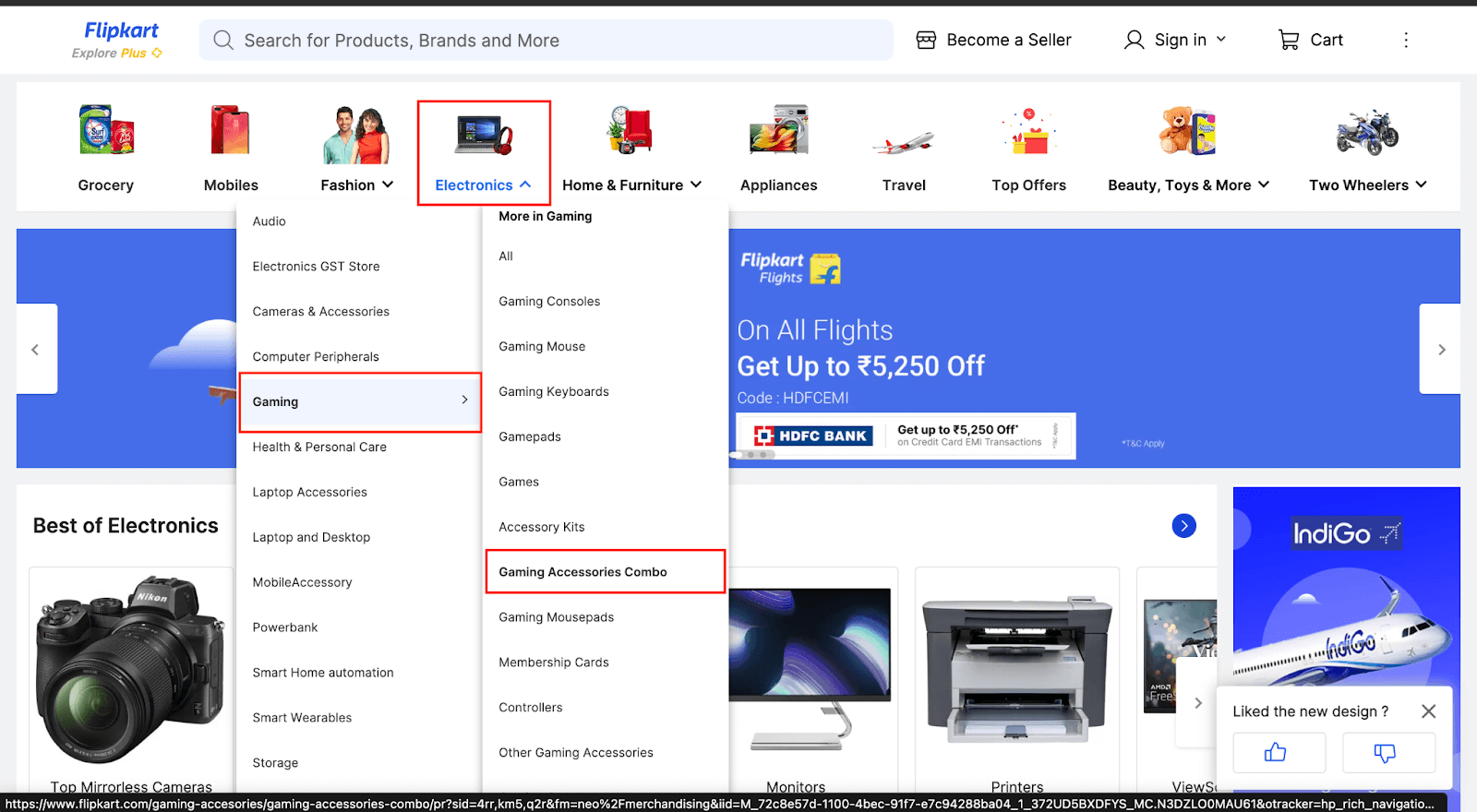
As you may see from the image attached below, the home page of Flipkart (as it looks while writing this blog), Electronics is one of the broad categories listed on this e-commerce website. When you hover over this category or element, it will display or render the sub-category list on the DOM. Further, when you hover over the Gaming sub-category, it displays or renders the following list of items on the DOM. This kind of use case is part of a UI that interacts well with the user.
Importance of Mouse Hover in Selenium
Mouse hover in Selenium is highly valuable for various scenarios in automation testing, as listed below:
- It allows testers to ensure that dropdown menus work properly when the mouse hovers over them and that all menu options are functional.
- Testers can also verify tooltips and information that appear when hovering over certain elements.
- Mouse hover in Selenium enables the validation of hidden or dynamic elements, making sure they become visible and interactive when the mouse hovers over specific areas.

Note: Automate your tests on a Selenium Grid of 3000+ real browsers. Try TestMu AI Today!
How to Perform Mouse Hover in Selenium?
To perform mouse hover in Selenium for the Python binding; we use the ActionChains Class from the Selenium WebDriver API. The class can be imported from the selenium.webdriver.common.action_chains module.
ActionChains Class offers a range of methods that enable the simulation of complex user interactions, including Mouse Hover Action, Clicking, Double-clicking, Dragging, Releasing, Holding an element, and many more. It is bundled in the Selenium WebDriver API and comes pre-installed with Selenium binding for Python.
Follow the below steps to use the ActionChains class
- Import the webdriver module from the Selenium package.
- Import the ActionChains Class from the selenium.webdriver.common.action_chains module.
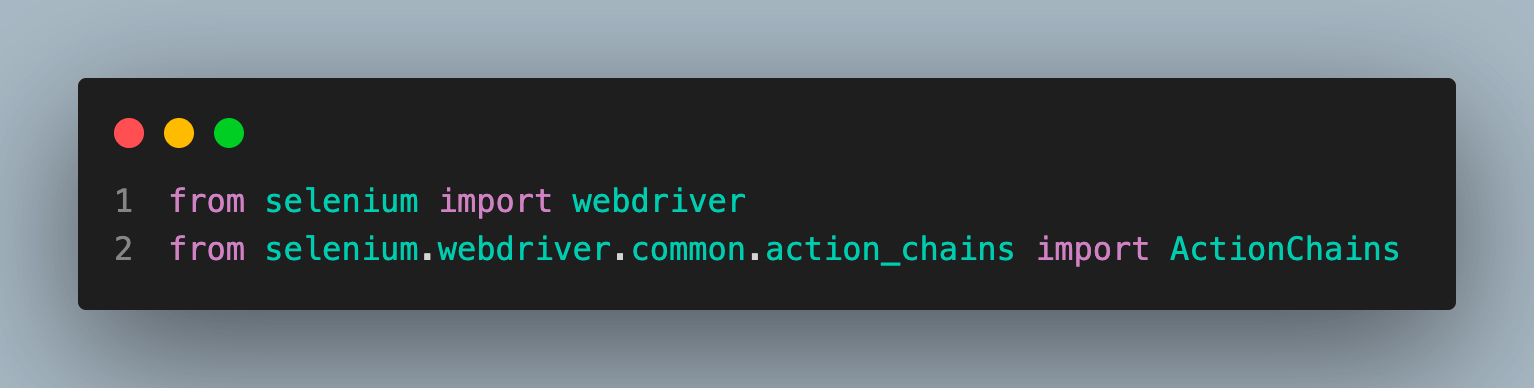
After importing, the code snippet looks like this.
from selenium import webdriver
from selenium.webdriver.common.action_chains import ActionChains
Let’s take an example to understand mouse hover in Selenium using the ActionChains class in Python.
We will use automation demos, a demo website maintained by TestMu AI for illustrations.
Scenario-1:
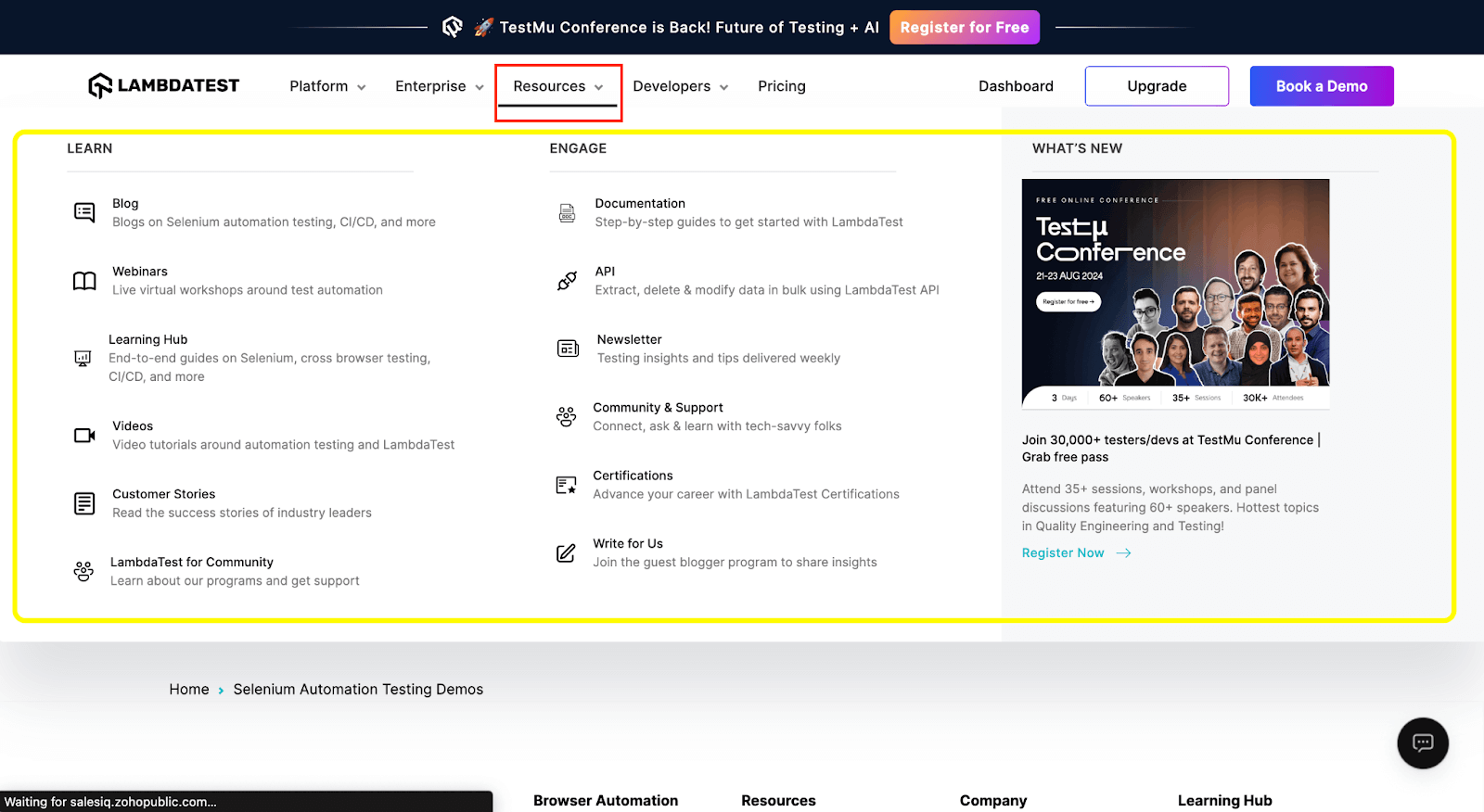
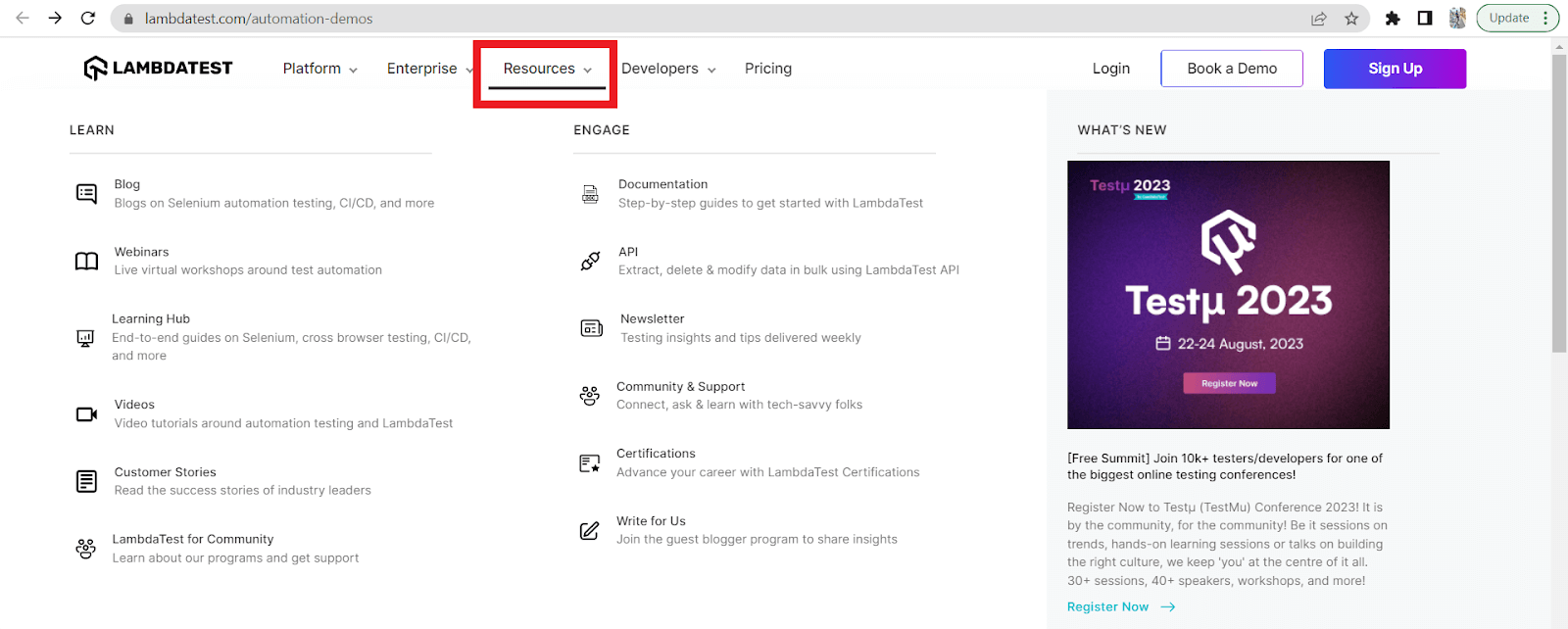
Here, we demonstrate how to use Selenium to perform a mouse hover action over the “Resources” element which fetches the related links, highlighted in yellow contour(check the screenshot below) and wait for up to 5 seconds and quit the browser session.
Automation Code for scenario-1:
from selenium import webdriver
from selenium.webdriver.common.by import By
from selenium.webdriver.common.action_chains import ActionChains
import time

# Launch the Chrome browser
driver = webdriver.Chrome()

# Navigate to the website
driver.get("https://www.lambdatest.com/automation-demos")
driver.maximize_window()

# Locate the element to perform the hover action on
element_to_hover = driver.find_element(By.XPATH, '//*[@id="header"]/nav/div/div/div[2]/div/div/div[1]/div[3]/button')

# Create an instance of the ActionChains class
actions = ActionChains(driver)

# Perform the hover action
actions.move_to_element(element_to_hover).perform()
time.sleep(5)

# Close the browser
driver.quit()
Scenario-2:
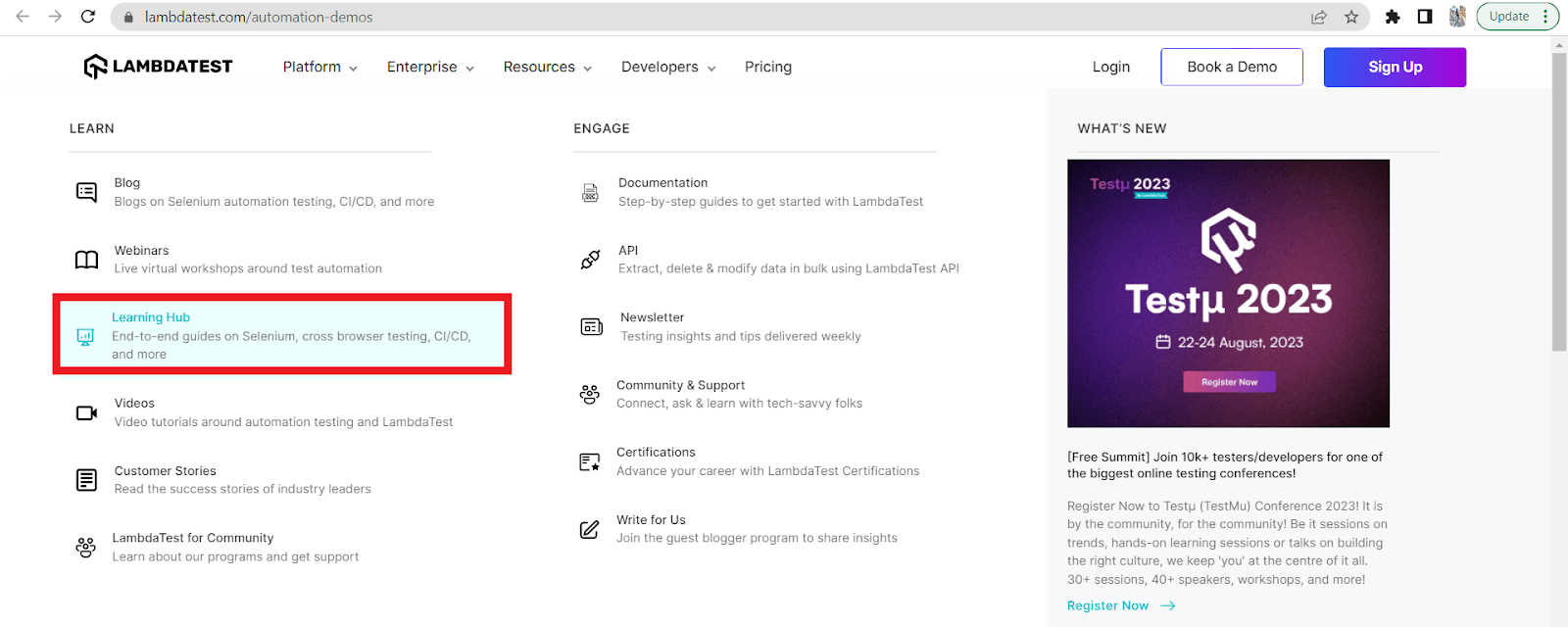
We will extend the first scenario further, and this time, we pick the “Learning Hub” element before quitting the browser and performing the click() action.
Automation Code for scenario-2:
from selenium import webdriver
from selenium.webdriver.common.by import By
from selenium.webdriver.common.action_chains import ActionChains
import time

# Launch the Chrome browser
driver = webdriver.Chrome()

# Navigate to the website
driver.get("https://www.lambdatest.com/automation-demos")
driver.maximize_window()

# Locate the element to perform the hover action on
element_to_hover = driver.find_element(By.XPATH, '//*[@id="header"]/nav/div/div/div[2]/div/div/div[1]/div[3]/button')

element_to_hover1=driver.find_element(By.XPATH, '//*[@id="header"]/nav/div/div/div[2]/div/div/div[1]/div[3]/div/div/div/div[1]/div/div[1]/ul/li[3]/a/div[2]/h3')
# Create an instance of the ActionChains class
actions = ActionChains(driver)

# Perform the hover action
actions.move_to_element(element_to_hover).perform()
time.sleep(5)
actions.move_to_element(element_to_hover1).perform()
time.sleep(5)

# Perform the click action
actions.click(element_to_hover1).perform()
time.sleep(5)

# Close the browser
driver.quit()
As shown in the above example, we first hover over the Resources using their XPath and wait for 5 seconds, then hover over Learning Hub and wait again for 5 seconds. After that, we perform the click() action on Learning Hub and wait for 5 seconds, which fires up the Learning Hub page before quitting the browser.
If you want to use Java as your primary language to perform the mouse hover action in Selenium, you can use the Actions class in Java. You may watch the tutorial video to learn in depth.
You can also expedite testing mouse hovers in Selenium by using AI-driven test assistants like KaneAI.
KaneAI by TestMu AI is a GenAI native test assistant that is first of its kind, offering industry-first AI features like test authoring, management, and debugging capabilities, all built from the ground up for high-speed quality engineering teams. KaneAI allows users to create and evolve complex test cases using natural language, greatly reducing the time and expertise required to get started with test automation.

Methods and Properties of ActionChains Class
Let’s now dive deeper into our comprehension by exploring the various methods and properties offered by the ActionChains class in detail.
The ActionChains class in Selenium for Python binding has various methods and properties, which we will look at in this section with code examples.
move_to_element(WebElement element)
Moves the mouse cursor to the center of the specified web element.
Syntax:
actions.move_to_element(element)
Let’s understand this through an example.
from selenium import webdriver
from selenium.webdriver.common.by import By
from selenium.webdriver.common.action_chains import ActionChains
import time

# Launch the Chrome browser
driver = webdriver.Chrome()

# Navigate to the website
driver.get("https://www.lambdatest.com/automation-demos")
driver.maximize_window()
time.sleep(3)

# Locate the element to perform the hover action on
main_element = driver.find_element(By.XPATH, '//*[@id="header"]/nav/div/div/div[2]/div/div/div[1]/div[1]/div[1]/a')
sub_element = driver.find_element(By.XPATH, '//*[@id="header"]/nav/div/div/div[2]/div/div/div[1]/div[1]/div[2]/div[1]/div/div[1]/div/div[1]/ul/li[2]/a/div[2]/p')
# Create an instance of the ActionChains class
actions = ActionChains(driver)

# Build the mouse hover action with multiple actions using build()
actions = actions.move_to_element(main_element)
actions = actions.move_to_element(sub_element)

# Perform the built actions using perform()
actions.perform()

# Wait for a few seconds to observe any effects
time.sleep(5)

# Close the browser
driver.quit()
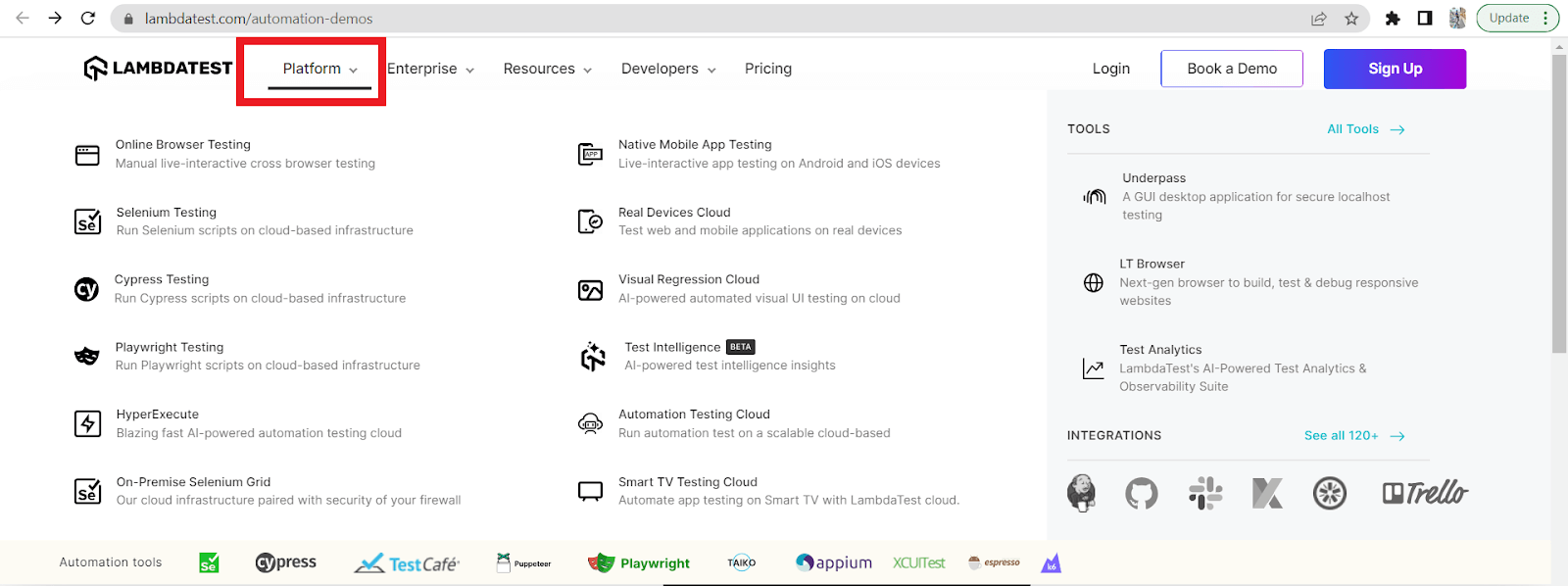
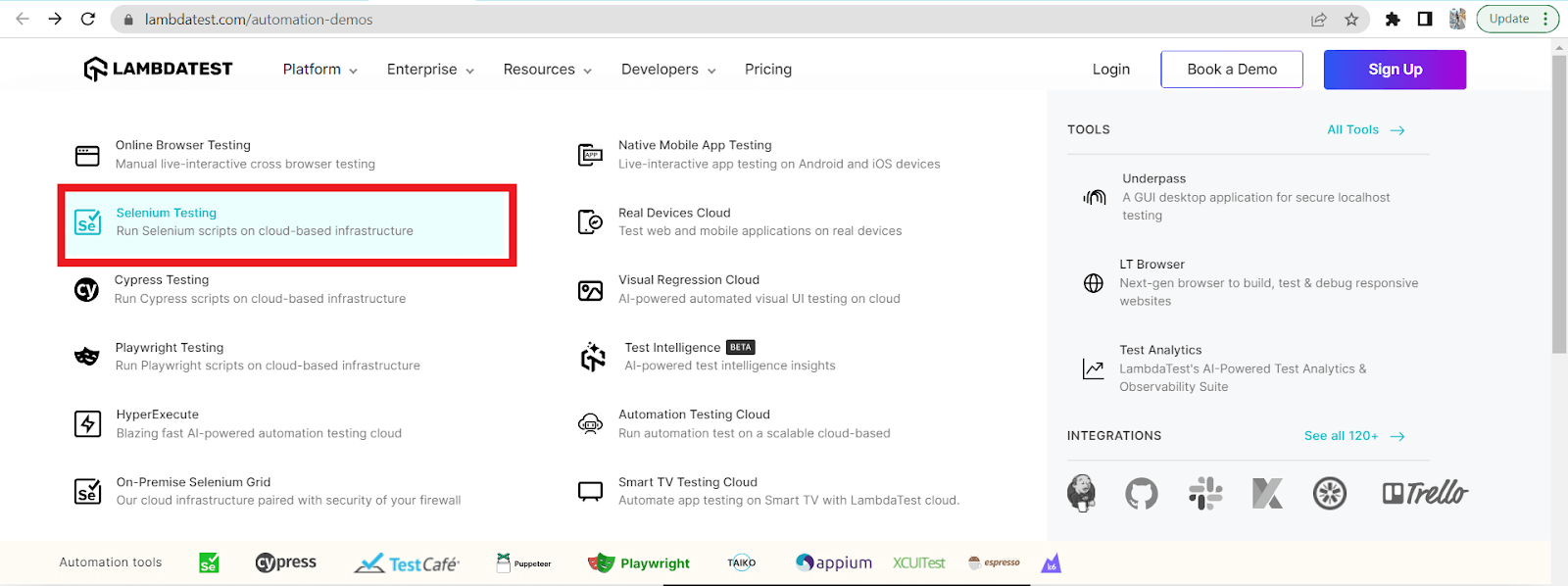
In the above example, we have used the move_to_element() method. Firstly, we hover over the Platform and then move to Selenium Testing, as shown below.
click(WebElement element):
Clicks the specified web element.
Syntax:
actions.click(element)
Let’s understand this through an example.
from selenium import webdriver
from selenium.webdriver.common.by import By
from selenium.webdriver.common.action_chains import ActionChains
import time

# Launch the Chrome browser
driver = webdriver.Chrome()

# Navigate to the website
driver.get("https://www.lambdatest.com/automation-demos")
driver.maximize_window()
time.sleep(3)

# Locate the element to perform the hover action on
main_element = driver.find_element(By.XPATH, '//*[@id="header"]/nav/div/div/div[2]/div/div/div[2]/a[2]')

# Create an instance of the ActionChains class
actions = ActionChains(driver)

# Build the mouse hover action with multiple actions using build()
actions = actions.click(main_element)

# Perform the built actions using perform()
actions.perform()

# Wait for a few seconds to observe any effects
time.sleep(5)

# Close the browser
driver.quit()
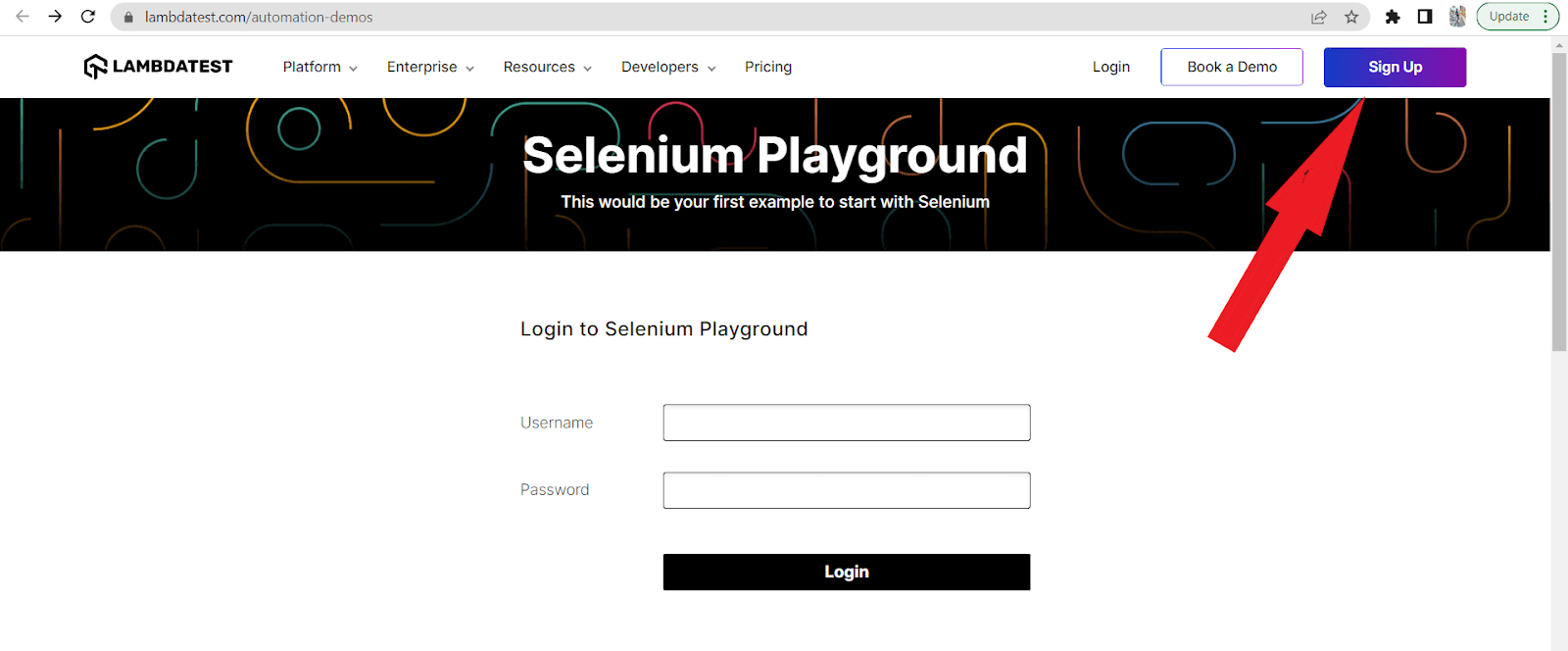
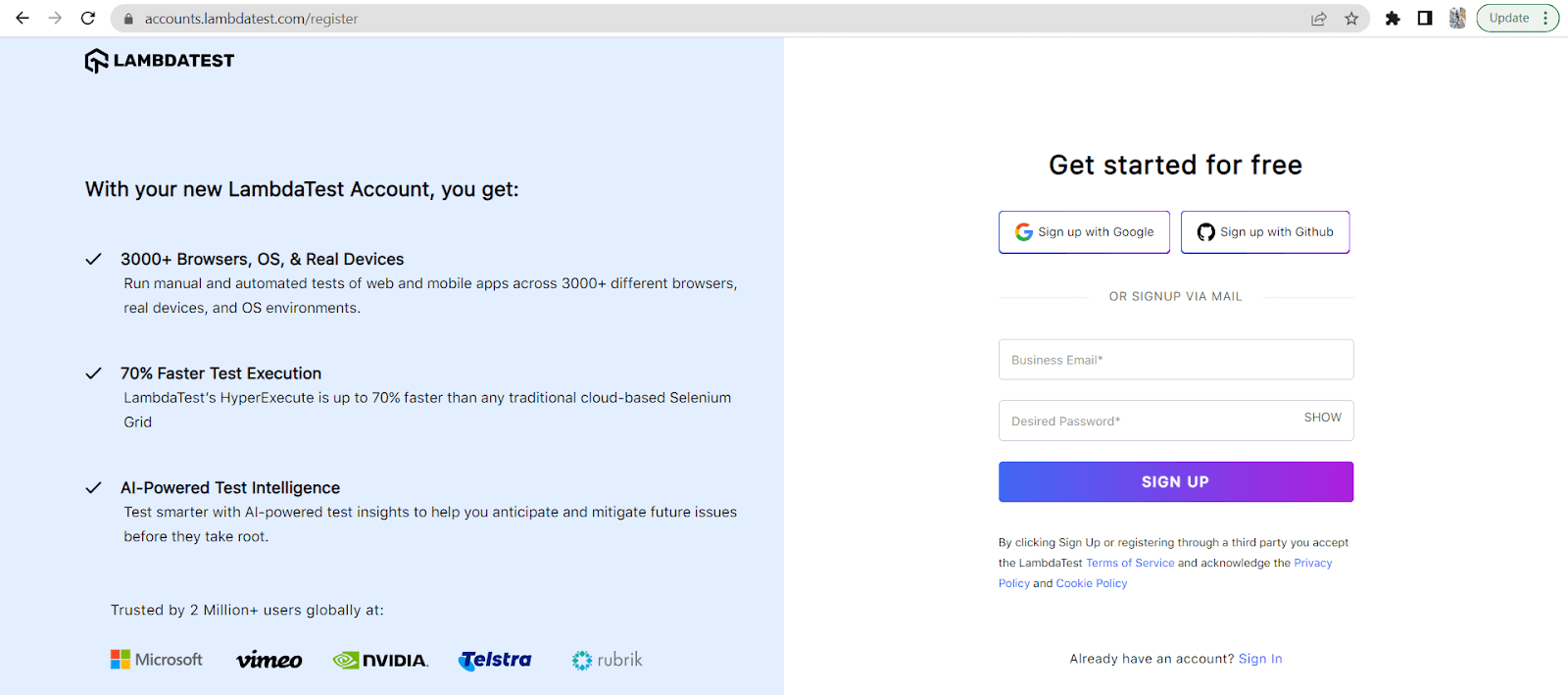
In the above example, we used the click() method where we first hover over the element Sign Up and then perform a click() action on it.
click_and_hold(WebElement element)
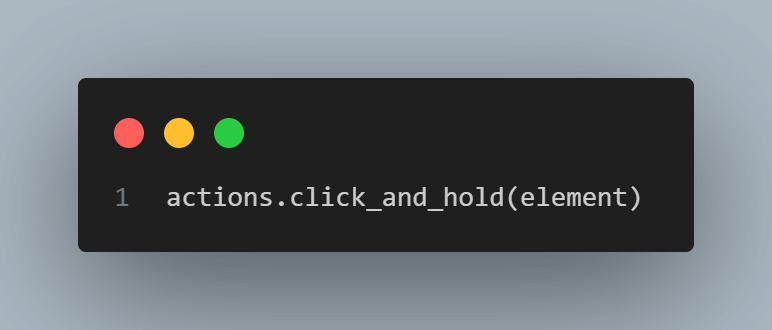
Clicks and holds the specified web element. This function also needs the release() method to get the desired functionality.
Syntax:
actions.click_and_hold(element)
release(WebElement element)
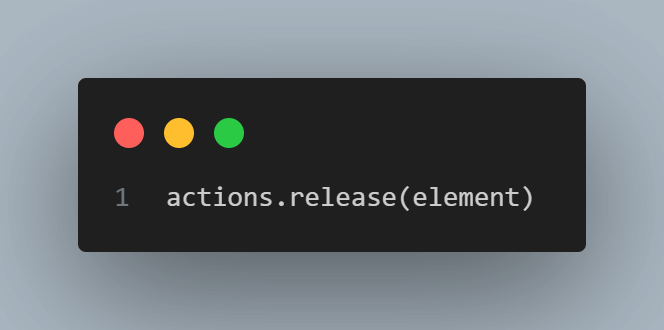
Releases the mouse button previously held on the specified web element.
Syntax:
actions.release(element)
Let’s take an example where we want to hover over an element(Book a Demo) and want to use click_and_hold() and release() methods.
from selenium import webdriver
from selenium.webdriver.common.by import By
from selenium.webdriver.common.action_chains import ActionChains
import time

# Launch the Chrome browser
driver = webdriver.Chrome()

# Navigate to the website
driver.get("https://www.lambdatest.com/automation-demos")
driver.maximize_window()

# Locate the "Resources" menu option to perform the hover action
Book_a_Demo = driver.find_element(By.XPATH, '//*[@id="header"]/nav/div/div/div[2]/div/div/div[2]/div[1]/button')

# Create an instance of the ActionChains class
actions = ActionChains(driver)
time.sleep(3)

# Perform the mouse hover action on the "Resources" menu option
actions.move_to_element(Book_a_Demo).perform()

# Click and hold the "Resources" menu option for 3 seconds
actions.click_and_hold().perform()
time.sleep(3)

# Release the click
actions.release().perform()

# Wait for a few seconds to observe any effects
time.sleep(5)

# Close the browser
driver.quit()
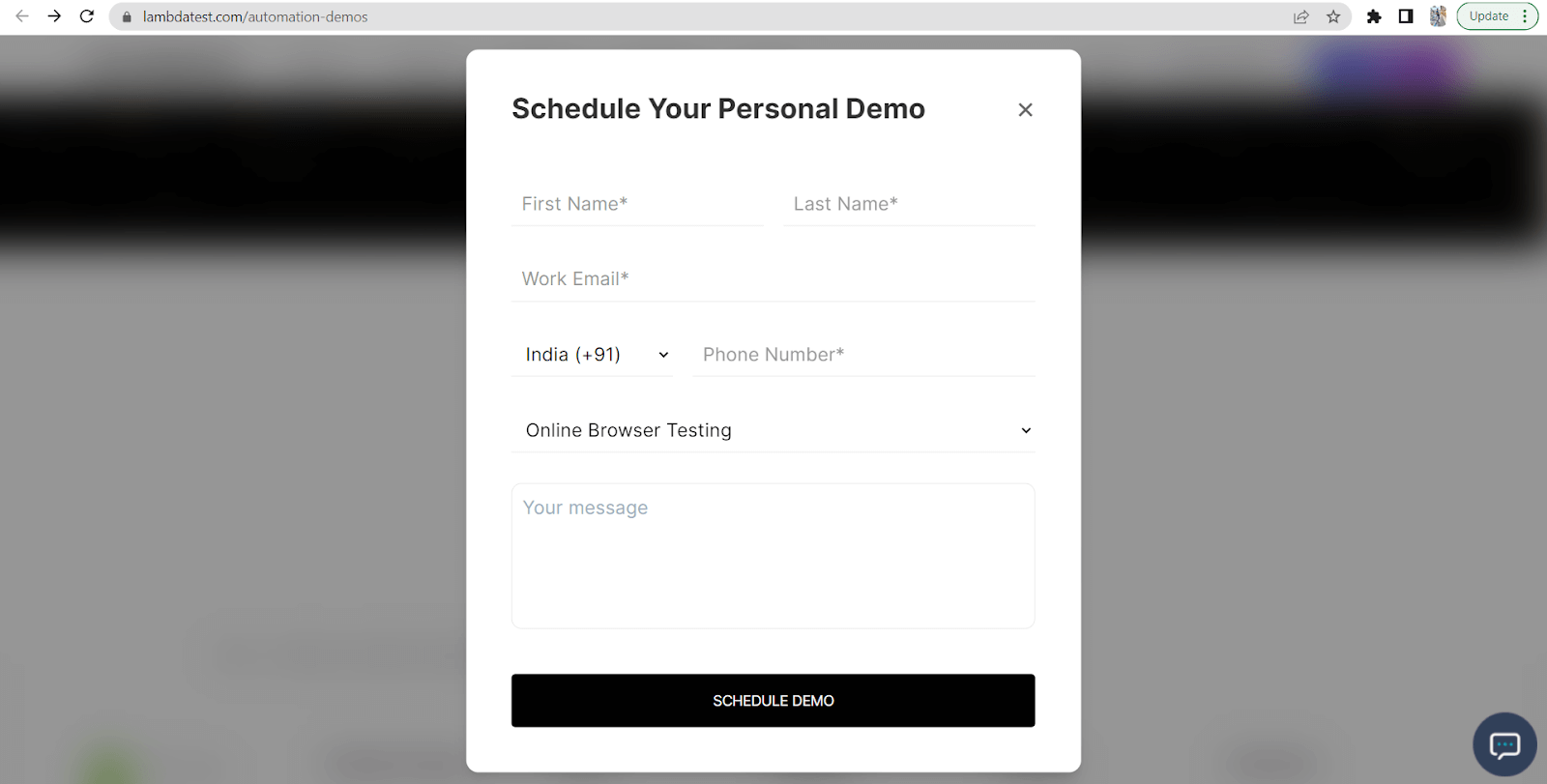
In the above example, we have performed a mouse hover over the “Book a Demo” element after 3 seconds of opening the page and used the click_and_hold() on the element for 3 seconds. Subsequently, we release the element using the release() method, maintaining the release for 5 seconds. This sequence of actions simulates user interaction and allows us to observe the effects on the “Book a Demo” element during the specified timeframes.
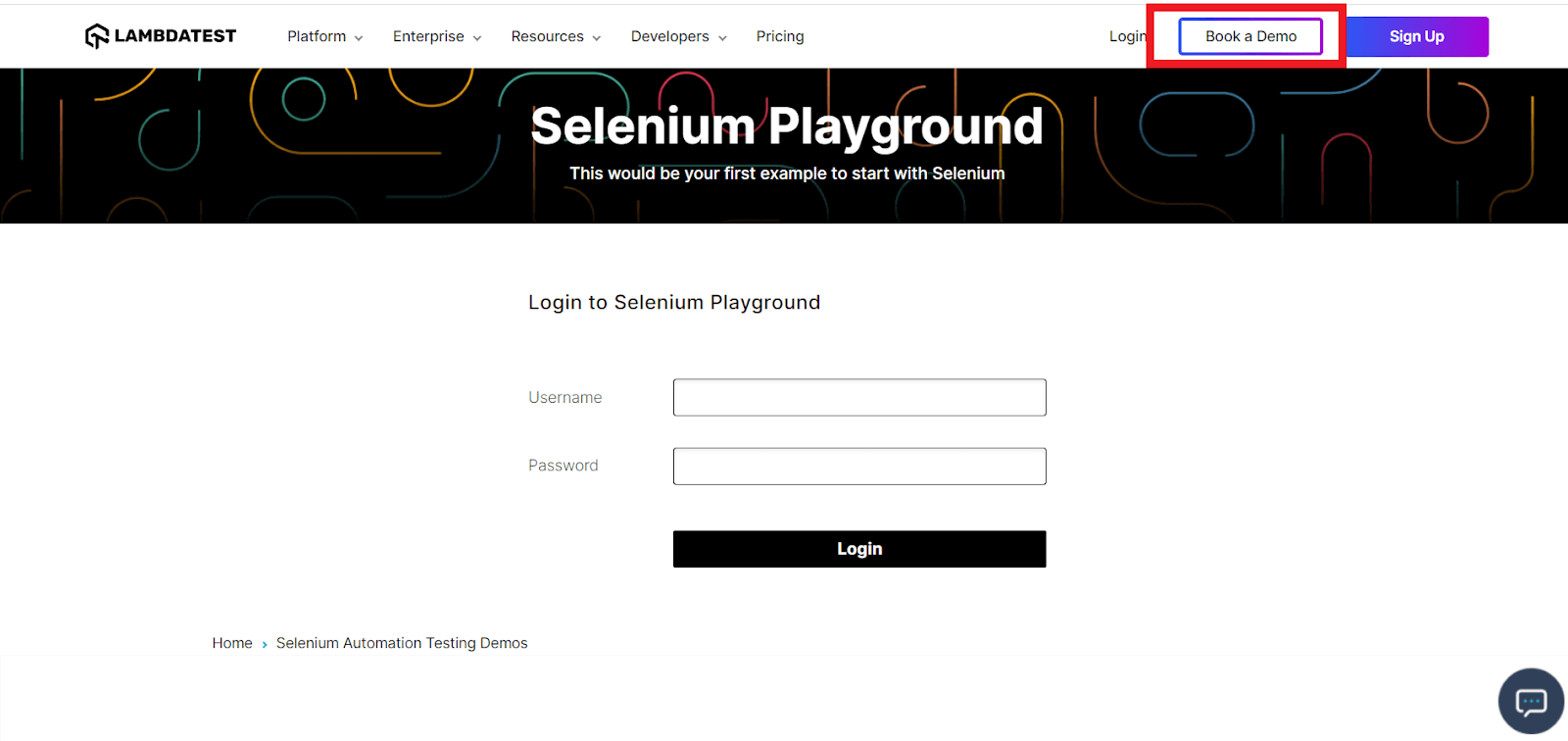
(You can see as we hover over the element “Book A Demo”, the border gets thicker.)
double_click(WebElement element)
Performs a double-click action on the specified web element.
Syntax:
actions.double_click(element)
Let’s understand this through an example.
from selenium import webdriver
from selenium.webdriver.common.by import By
from selenium.webdriver.common.action_chains import ActionChains
import time

# Launch the Chrome browser
driver = webdriver.Chrome()

# Navigate to the website
driver.get("https://www.lambdatest.com/selenium-playground/")
driver.maximize_window()
time.sleep(3)

# Locate the element to perform the hover action on
main_element = driver.find_element(By.XPATH, '//*[@id="__next"]/div/section[1]/div/h1')

# Create an instance of the ActionChains class
actions = ActionChains(driver)

# Build the mouse hover action with multiple actions using build()
actions = actions.double_click(main_element)

# Perform the built actions using perform()
actions.perform()

# Wait for a few seconds to observe any effects
time.sleep(5)

# Close the browser
driver.quit()
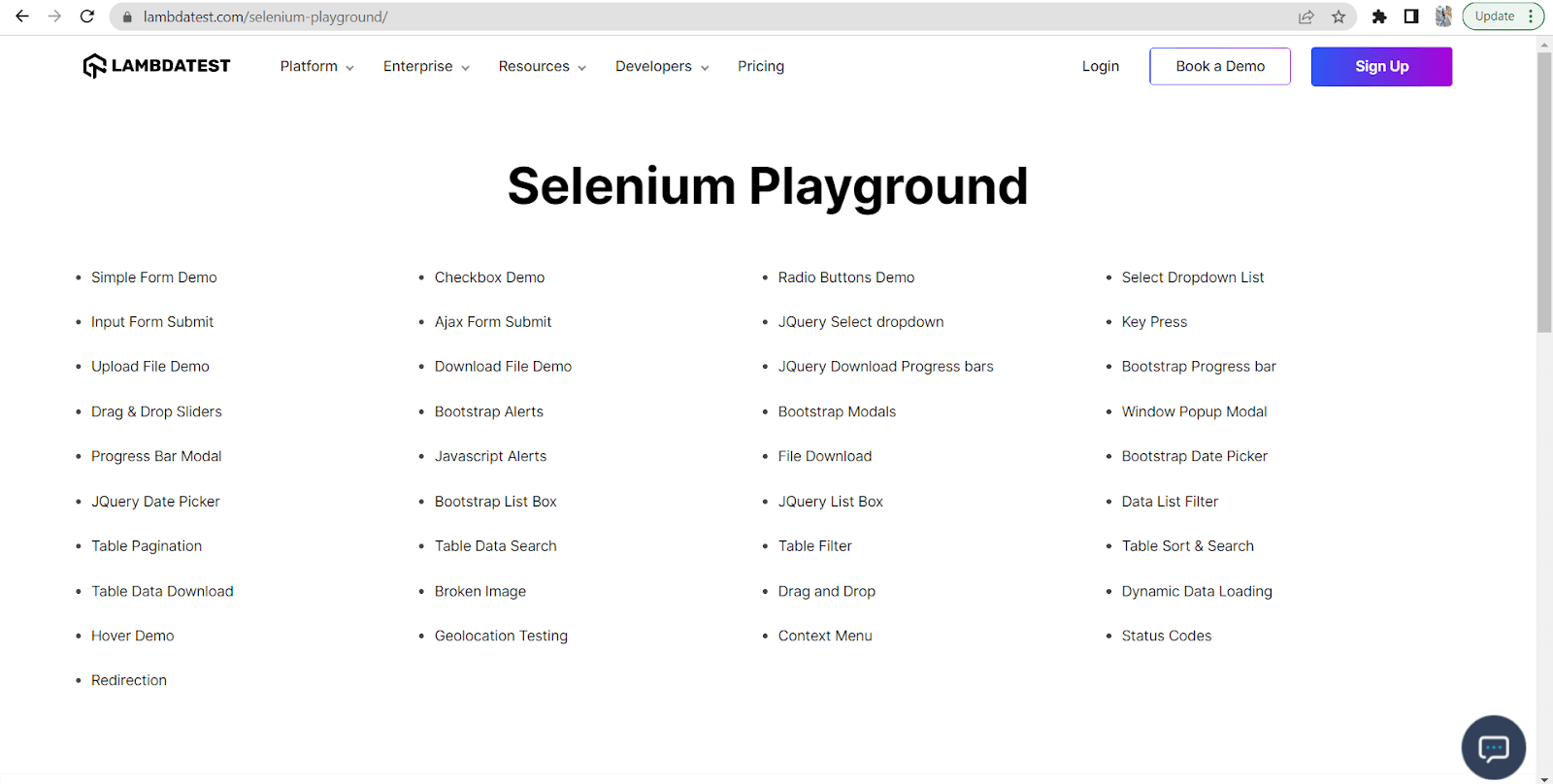
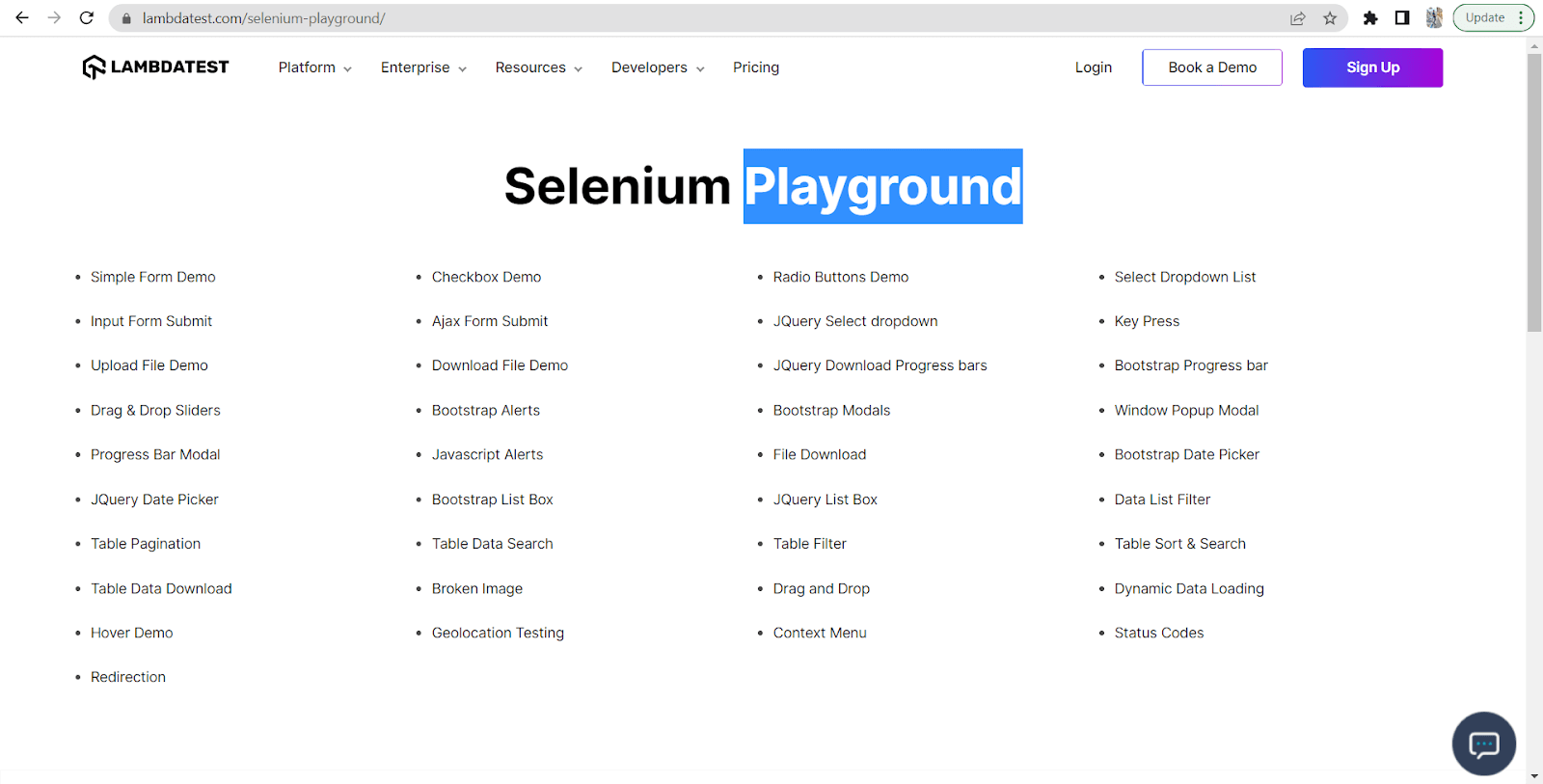
In the above example, we used the double_click() method where we perform a double-click on the text ‘Playground‘, as you can see below.
context_click(WebElement element)
Performs a right-click (context-click) action on the specified web element.
Syntax:
actions.context_click(element)
Let’s take an example to understand the context_click() method.
from selenium import webdriver
from selenium.webdriver.common.by import By
from selenium.webdriver.common.action_chains import ActionChains
import time

# Launch the Chrome browser
driver = webdriver.Chrome()

# Navigate to the website
driver.get("https://www.lambdatest.com/automation-demos")
driver.maximize_window()

# Locate the "Resources" menu option to perform the hover action
context = driver.find_element(By.XPATH, '//*[@id="formcontent"]')

# Create an instance of the ActionChains class
actions = ActionChains(driver)
time.sleep(3)

# Perform the double click on the "Resources" menu option
actions.context_click(context).perform()

# Wait for a few seconds to observe any effects
time.sleep(5)

# Close the browser
driver.quit()
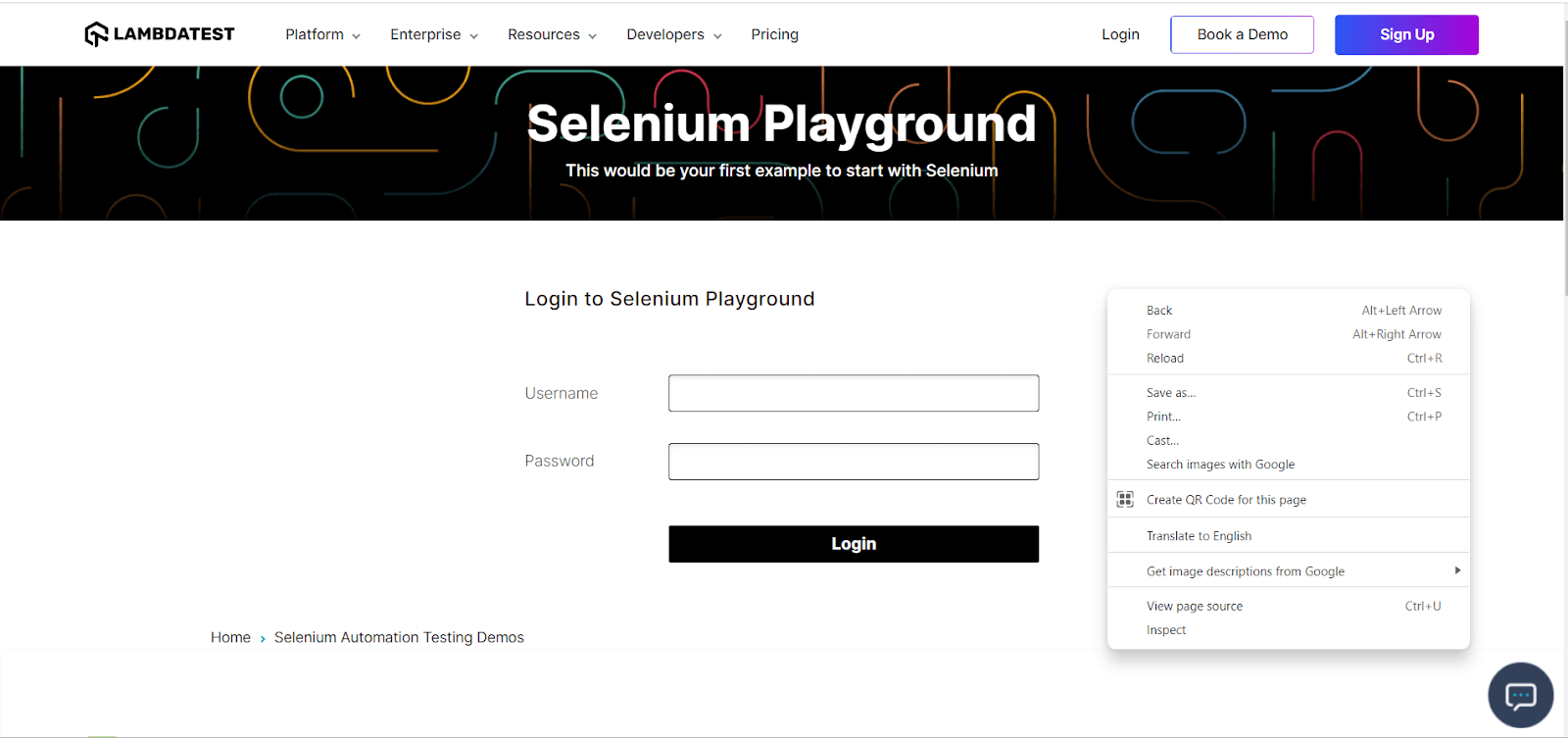
In the above program, we have performed the context_click() method. This method is nothing, but just like a right-click as shown below.
drag_and_drop(WebElement source, WebElement target)
Drags the source element and drops it onto the target element.
Syntax:
actions.drag_and_drop(source, target)
Let’s take an example to understand the drag_and_drop() method.
from selenium import webdriver
from selenium.webdriver.common.by import By
from selenium.webdriver.common.action_chains import ActionChains
import time

driver = webdriver.Chrome()
driver.get("https://jqueryui.com/droppable/")
driver.maximize_window()

driver.switch_to.frame(driver.find_element("class name", "demo-frame"))

# get the source and destination
source = driver.find_element(By.ID, "draggable")
destination = driver.find_element(By.ID, "droppable")

actions = ActionChains(driver)
time.sleep(2)

# drag_and_drop() method
actions.drag_and_drop(source, destination).perform()

# Wait for a few seconds to observe any effects
time.sleep(5)
driver.quit()
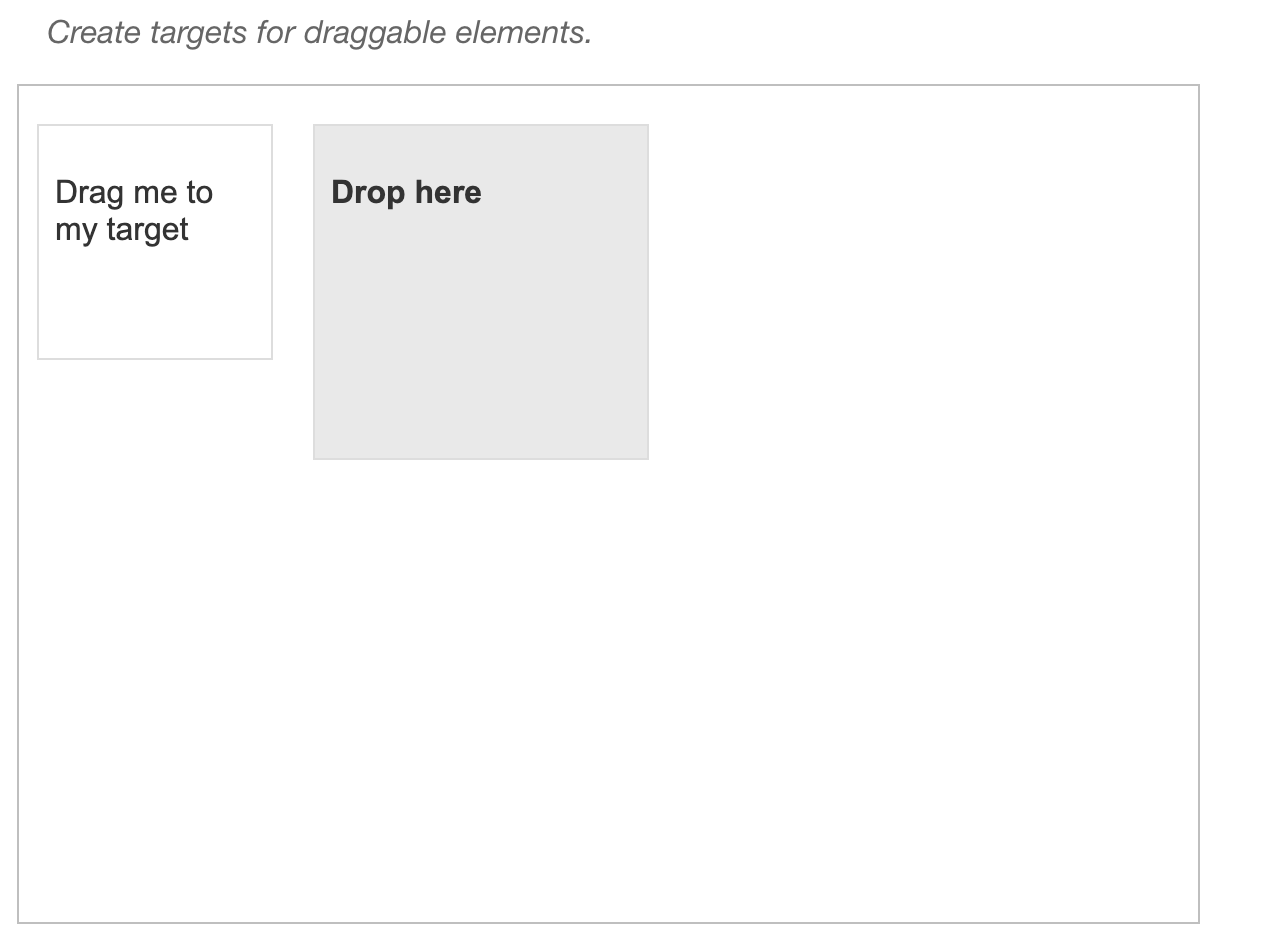
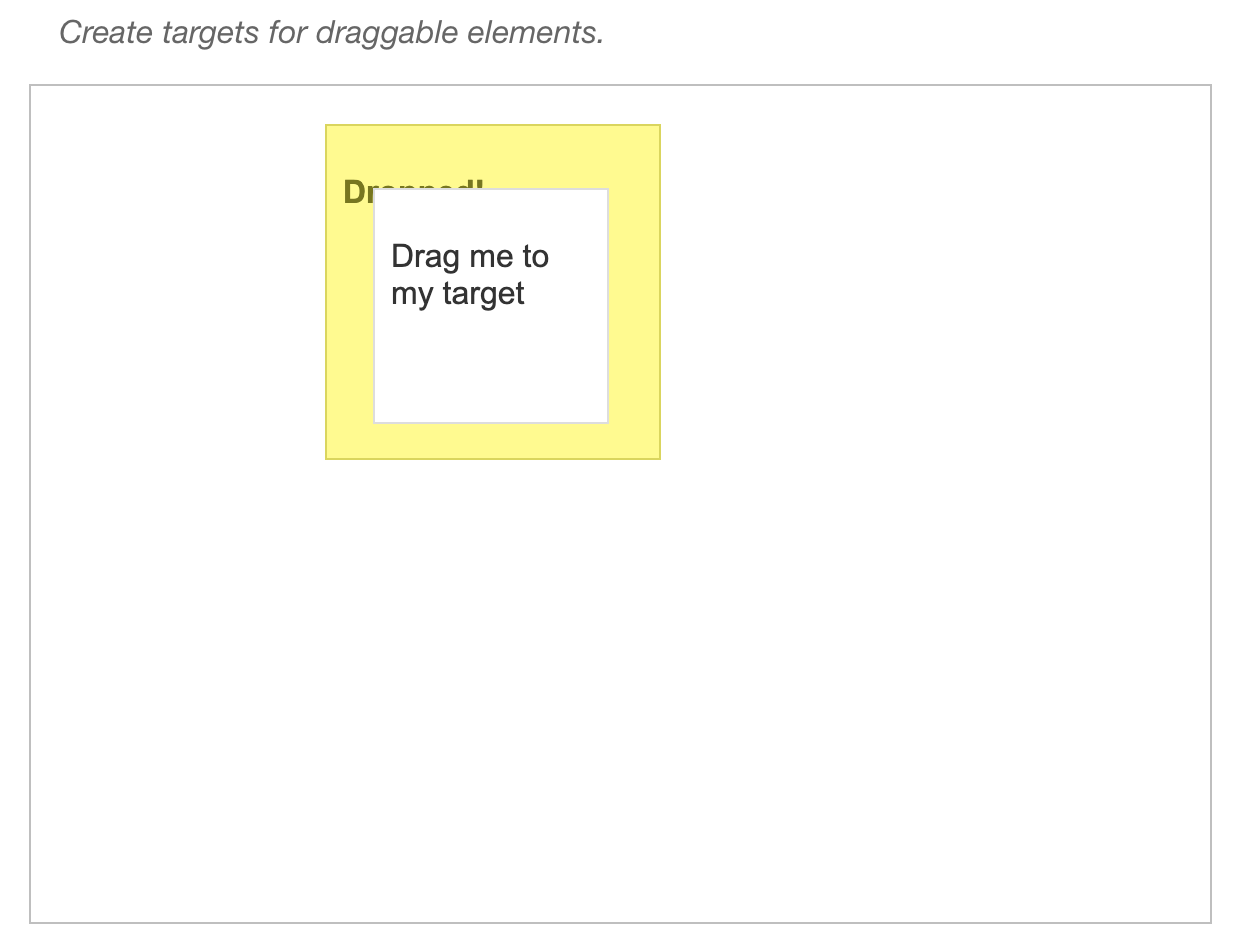
]In the above program, we have performed the drag_and_drop() method. This method drags an element and drops it to the desired location.
pause(long duration)
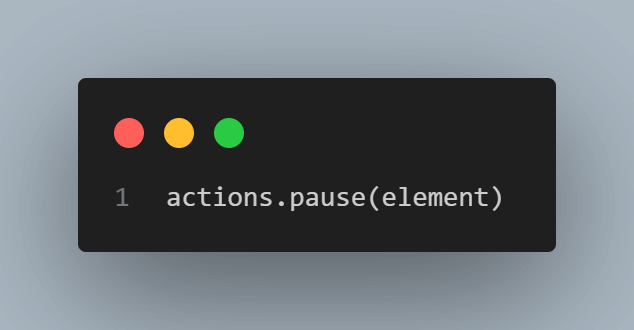
Pauses the execution for the specified duration in milliseconds.
Syntax:
actions.pause(duration)
Let’s take an example to understand the pause() method.
from selenium import webdriver
from selenium.webdriver.common.by import By
from selenium.webdriver.common.action_chains import ActionChains
import time

# Launch the Chrome browser
driver = webdriver.Chrome()

# Navigate to the website
driver.get("https://www.lambdatest.com/automation-demos")
driver.maximize_window()

# Locate the element to perform the hover action on
element = driver.find_element(By.XPATH, '//*[@id="footer"]/div[1]/div/div/div[2]/div/div[2]/ul/li[1]/a')

actions = ActionChains(driver)

# Perform the hover action
actions.move_to_element(element)

# Introduce a pause of 3 seconds
actions.pause(3)

# Click on the element after the pause
actions.click(element)

# Perform the built actions using perform()
actions.perform()

# Wait for a few seconds to observe any effects
time.sleep(5)

# Close the browser
driver.quit()
In this example, we first hover over the Blogs and pause for 3 seconds, then perform the click() action on it.
build()
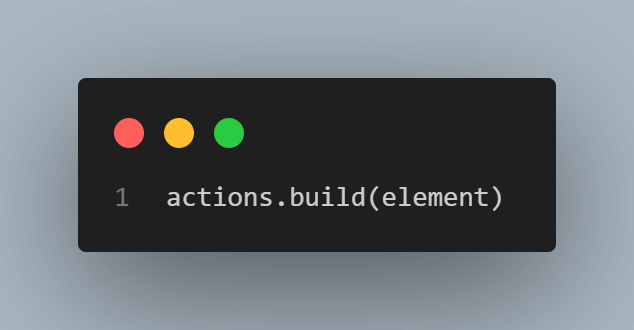
Create complex actions or perform multiple actions sequentially.
Syntax:
actions.build()
Let’s take an example to understand the build() method.
from selenium import webdriver
from selenium.webdriver.common.by import By
from selenium.webdriver.common.action_chains import ActionChains
import time

# Launch the Chrome browser
driver = webdriver.Chrome()

# Navigate to the website
driver.get("https://www.lambdatest.com/automation-demos")
driver.maximize_window()
time.sleep(3)

# Locate the element to perform the hover action on
main_element = driver.find_element(By.XPATH, '//*[@id="header"]/nav/div/div/div[2]/div/div/div[1]/div[3]/button')
sub_element = driver.find_element(By.XPATH, '//*[@id="header"]/nav/div/div/div[2]/div/div/div[1]/div[3]/div/div/div/div[1]/div/div[1]/ul/li[1]/a/div[2]/p')

# Create an instance of the ActionChains class
actions = ActionChains(driver)

# Build the mouse hover action with multiple actions using build()
hover_action = actions.move_to_element(main_element).move_to_element(sub_element).click(sub_element)

# Perform the built actions using perform()
hover_action.perform()

# Wait for a few seconds to observe any effects
time.sleep(5)

# Close the browser
driver.quit()
In the above example, we have used the build() method, which allows us to create a sequence of multiple actions more organized and concisely. This technique helps to perform complex interactions by chaining actions together. As shown in this example, we sequentially execute actions like move_to_element() and click() using the build() method.
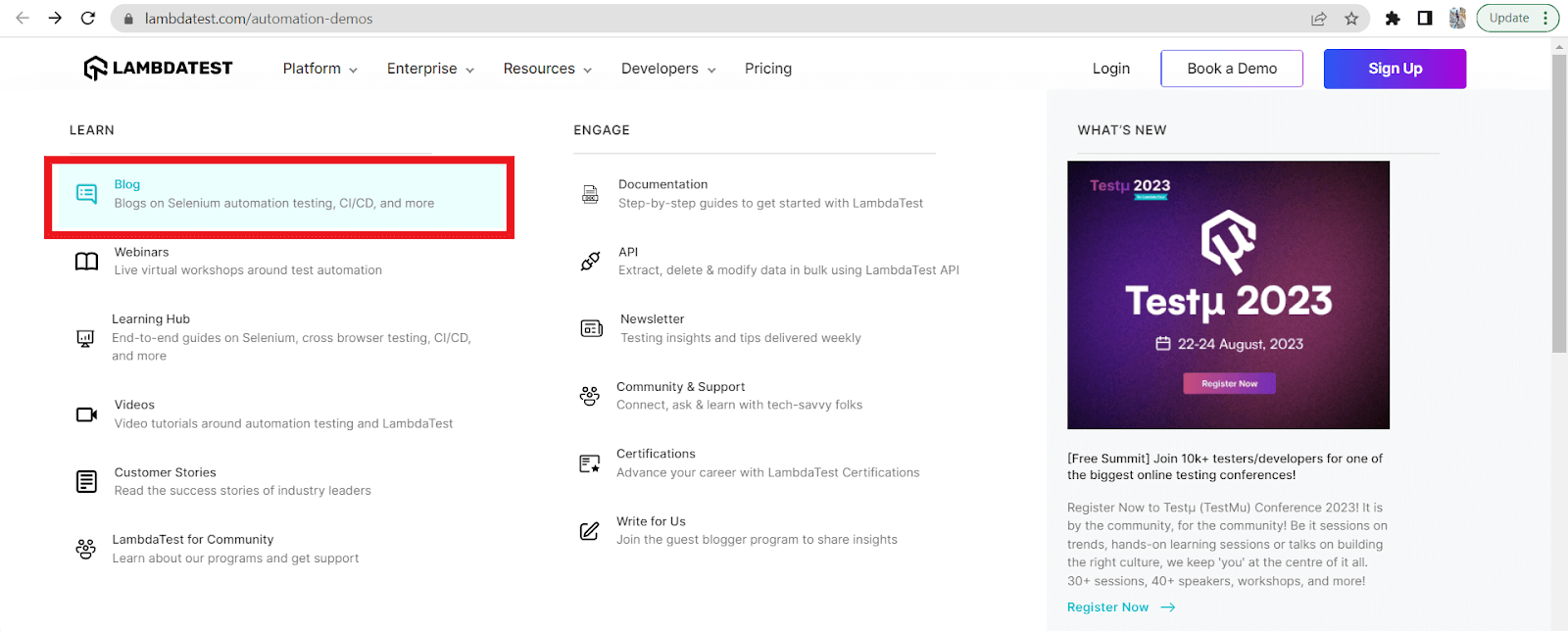
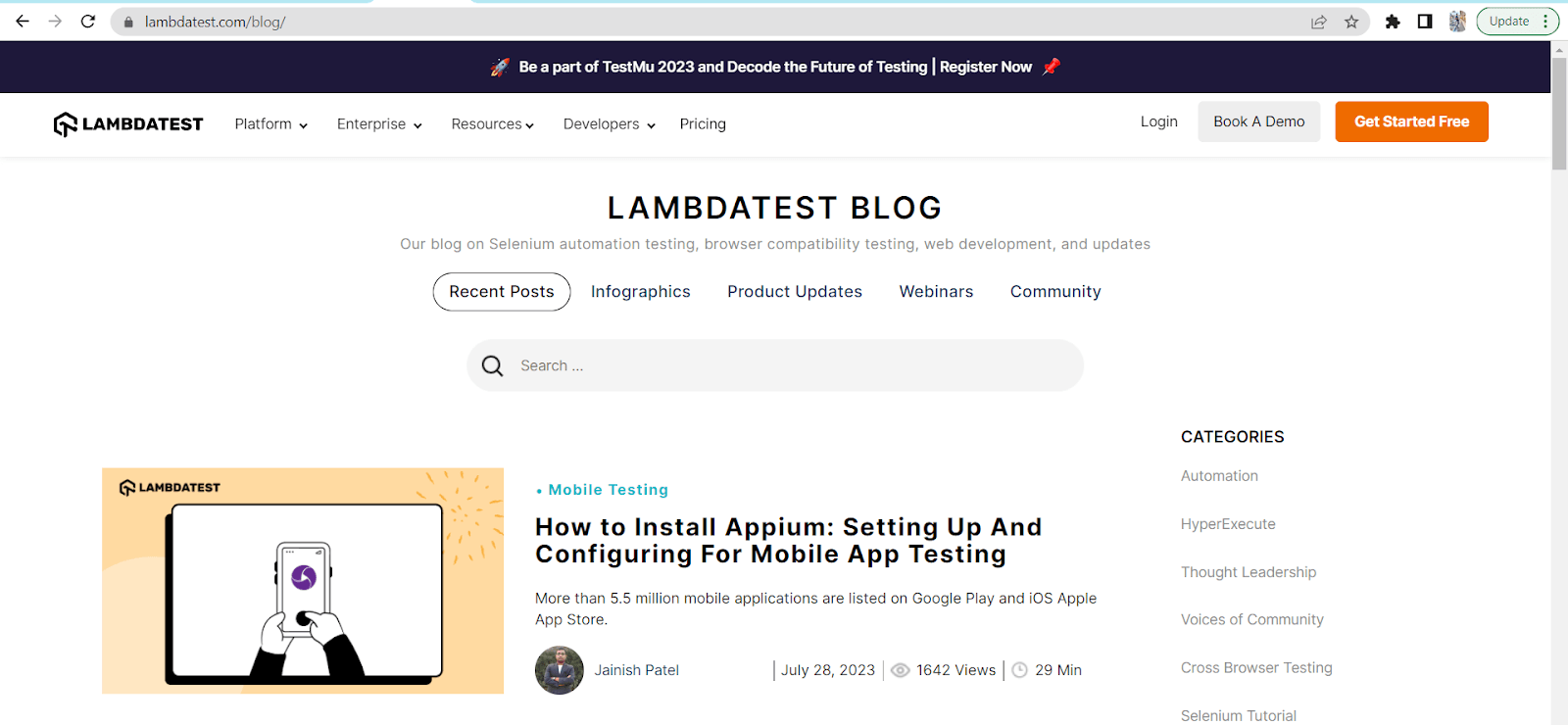
First, we hover over the Resources. Then we hover over Blog using the move_to_element() method. At last, we performed the click() action. All the actions are performed sequentially.
perform():
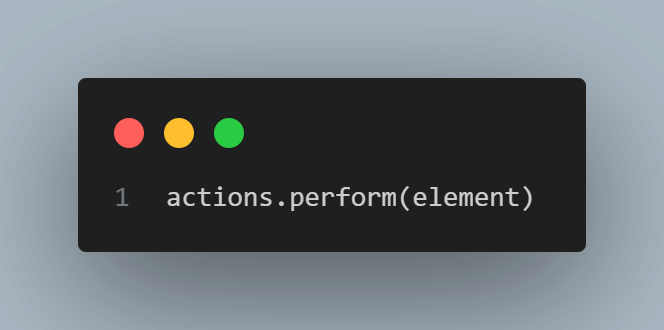
Executes the sequence of actions defined on the ActionChains class object.
Syntax:
actions.perform()
Note: Automate your tests on a Selenium Grid of 3000+ real browsers. Try TestMu AI Today!
Best Practices for Mouse Hover Actions in Selenium
Following some best practices while performing mouse hover actions in Selenium is essential to ensure reliable and effective test automation. The following are some best practices for mouse hover actions in Selenium.
- Use the ActionChains Class: The ActionChains class provides a high-level interface for performing mouse and keyboard actions. It offers methods like move_to_element(), click_and_hold(), etc., specifically designed for mouse actions. You may use this class to perform mouse hover actions effectively.
- Locate Elements Accurately: To accurately locate the elements, you must use reliable and unique locators such as ID, Class, XPath, or CSS Selectors to identify the elements.
- Use Explicit Waits: In some cases, elements may become visible only after a certain action or delay. You can handle such dynamic elements by using explicit waits and waiting for the element to be visible or clickable before performing the hover action. After opening the website, we locate the element using its XPath to perform any defined action.
- Validate the Hover Effect: Verify that the expected changes or effects are reflected on the webpage after performing the mouse hover action. You can use assertions or other validation techniques to ensure the desired behavior.
Code Example:
import unittest
from selenium import webdriver
from selenium.webdriver.common.by import By
from selenium.webdriver.common.action_chains import ActionChains
import time

class TestHoverEffect(unittest.TestCase):
    def setUp(self):
        self.driver = webdriver.Chrome()
        self.driver.get("https://www.lambdatest.com/automation-demos")
        self.driver.maximize_window()

    def test_hover_effect(self):
        # Locate the element to perform the hover action on
        element_to_hover = self.driver.find_element(By.XPATH, '//*[@id="header"]/nav/div/div/div[2]/div/div/div[1]/div[3]/button')
        time.sleep(3)

        # Create an instance of the ActionChains class
        actions = ActionChains(self.driver)

        # Perform the hover action
        actions.move_to_element(element_to_hover).perform()

        # Wait for a few seconds to observe any effects
        time.sleep(3)

        # Validate the hover effect - Check if sub-menus becomes visible
        sub_menu = self.driver.find_element(By.XPATH, '//*[@id="header"]/nav/div/div/div[2]/div/div/div[1]/div[3]/div/div/div/div[1]/div/div[1]/ul')
        is_sub_menu_visible = sub_menu.is_displayed()

        # Print the result
        if is_sub_menu_visible:
            print("Sub-menu is visible after hover.")
        else:
            print("Sub-menu is not visible after hover.")


    def tearDown(self):
        self.driver.quit()

if __name__ == "__main__":
    unittest.main()
Output:
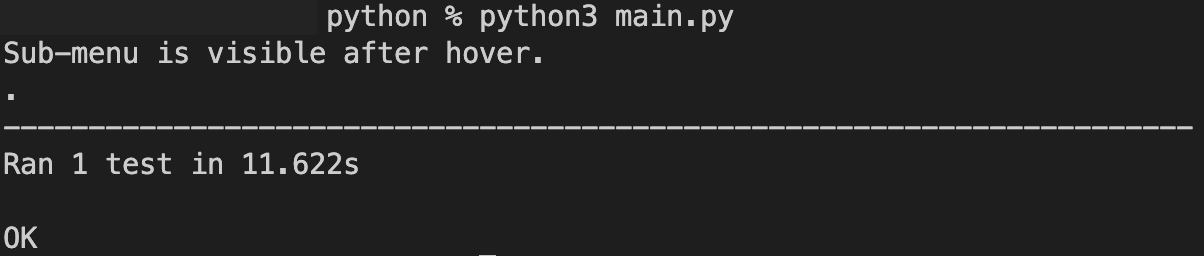
We started by importing all the necessary modules from Selenium, including unittest, webdriver, By, ActionChains, and time.
In the setUp method, we first created a WebDriver instance (ChromeDriver in our case) is created. The script then navigates to the automation-demos website and maximizes the browser window.
In the test_hover_effect method, the element to perform the hover action on is located using its XPath, and a 3-second pause is introduced to ensure that the page is fully loaded before performing the action. Afterwards we created an instance of the ActionChains class as actions.
The move_to_element(element_to_hover) method is called on actions to perform the mouse hover action on the specified element.
Another 3-second pause is introduced to observe any effects of the hover action.
The sub-menu element is located using its XPath, and its visibility is checked using the is_displayed() method. Based on the visibility of the sub-menu, the script prints whether the sub-menu is visible or not after the hover action.
The tearDown method closes the browser and ends the test.
The program uses the ActionChains class to perform the hover action, then checks if the sub-menu is displayed using the is_displayed() method.
Conclusion
This blog equipped you with the necessary knowledge to perform hover over an element or mouse hover using Selenium Python binding. We started by understanding the concept of mouse hover in Selenium and its significance in automation testing. Next, we delved into the ActionChains class which plays a key role in achieving mouse hover actions, followed by practical examples.
After that, we explored the various methods and properties of the ActionChains through a detailed example. At last, we discussed essential best practices for executing mouse hover actions in Selenium.
If you would be interested in learning more about how to perform automated mouse and keyboard actions, consider checking out blogs on


Frequently asked questions
Did you find this page helpful?
More Related Hubs
TestMu AI forEnterprise
Get access to solutions built on Enterprise
grade security, privacy, & compliance
- Advanced access controls
- Advanced data retention rules
- Advanced Local Testing
- Premium Support options
- Early access to beta features
- Private Slack Channel
- Unlimited Manual Accessibility DevTools Tests