

Power Your Software Testing with AI Agents and Cloud
The Native AI-Agentic Cloud Platform to Supercharge Quality Engineering. Test Intelligently and Ship Faster.


- TestMu AI (Formerly LambdaTest)
- /
- Blog
- /
- How To Use iPhone Simulators For Windows
How to Use iPhone Simulator for Windows in 2026 (7 Best iPhone Simulators)
Run an iPhone simulator for Windows using TestMu AI, Appetize.io, Smartface, & more. Compare the top 7, free and paid, with step-by-step setup guides.
Last Updated on:
iPhone simulators for Windows let developers and testers run iOS apps on virtual devices, eliminating the need for physical iPhones or a Mac. These simulators replicate real device behavior, allowing testing across various iOS versions, screen sizes, and configurations in a faster, controlled environment.
In this blog, we’ll explore what simulators are and how to use an iPhone simulator on Windows.
Key Takeaways
- Windows cannot run Apple's official iOS Simulator, which requires Xcode on macOS.
- A cloud iPhone simulator lets Windows users test iOS apps in a browser without a Mac or Xcode.
- iPhone simulators replicate iOS software, not hardware, so Face ID, camera, NFC, and push notifications need real iPhones.
- Running macOS in a virtual machine on Windows gives Xcode access but is not supported under Apple's license terms.
- iPadian only mimics the iOS interface on Windows and cannot run real App Store apps, so iPadian is unsuitable for testing.
What is an iPhone Simulator?
An iPhone simulator is a software tool that replicates the iOS software stack, the interface, app behavior, and screen sizes of an iPhone, without recreating Apple's ARM chipset. On Windows, this means you can preview how an iOS app looks and navigates without owning a Mac or a physical iPhone.
iPhone simulators are accurate for UI testing, layout checks, and early-stage functional testing on Windows, but cannot replicate hardware-dependent features like Face ID, the camera, Bluetooth, GPS, or motion sensors. Those still require a physical iPhone or a cloud-hosted real device.
Simulator vs Emulator: the Key Difference
| Simulator | Emulator | |
|---|---|---|
| What it replicates | iOS software behavior and UI | Both hardware and software |
| Hardware accuracy | Low | High |
| Performance | Fast, lightweight | Slower, resource-intensive |
| Hardware features (camera, GPS, Face ID) | Not supported | Partially supported |
| Best for | UI testing, layout checks, early-stage dev | Deeper functional testing |
How to Use iPhone Simulator For Windows
There are three practical ways to run an iPhone simulator on Windows:
- Run macOS on Windows through a Virtual Machine
- Third-Party Simulators and Emulators
- Cloud-based simulator platform
Run macOS on Windows through a Virtual Machine
Running macOS in a VM lets developers install Xcode and use Apple's native iOS Simulator on Windows, without owning a Mac. Note that this approach is not officially supported by Apple and technically falls outside their licensing terms.
Here is how you can do that:
- Use any virtual machine software like VMware or VirtualBox.
- Get a macOS ISO/VMDK file (from Mac App Store or trusted source).
- If using VMware, install a macOS unlocker to enable macOS as a guest OS.
- Create a new virtual machine and install macOS.
- Set up macOS, install Xcode from the App Store, and launch the iPhone simulator via Xcode.
Third-Party Simulators and Emulators
You can run an iPhone simulator for Windows by installing native apps like iPadian directly on your PC. iPadian's site reports 1 million daily active users and 10 million lifetime downloads of the Windows app.
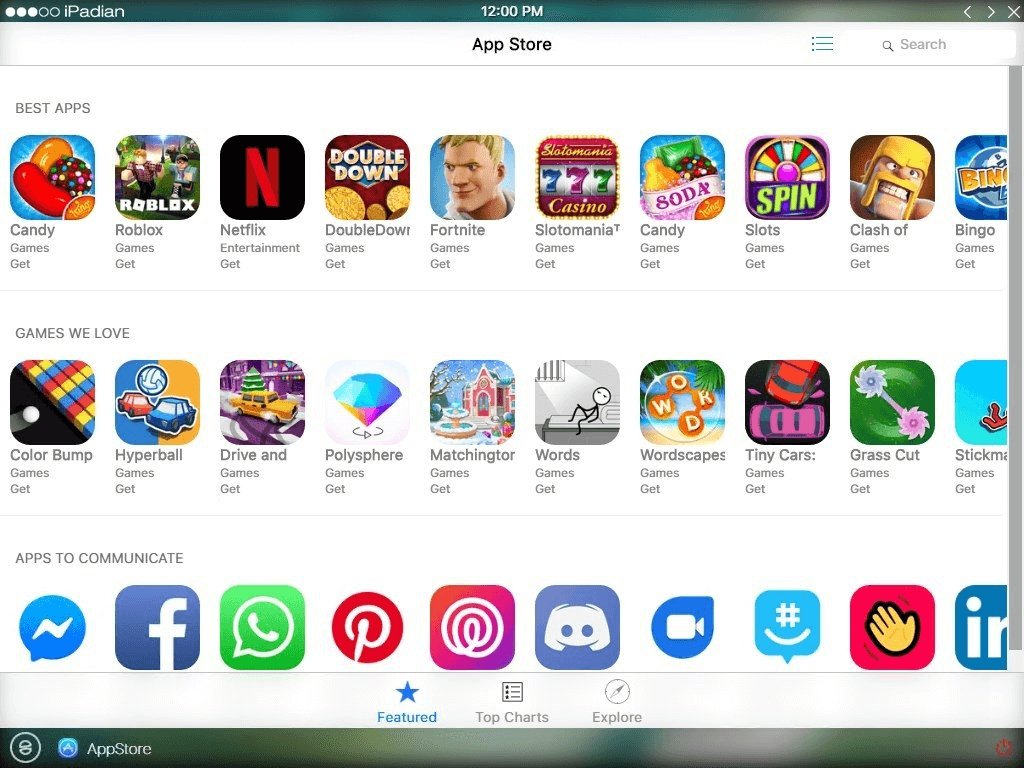
Native app simulators allow users to download and install them on Windows PCs, expanding the target audience. However, they lack an authentic iPhone experience and can consume significant system memory with multiple apps.
In the real world, their inaccurate iOS representation means testers cannot reliably validate UI layouts, visual design, or app behavior, making them unsuitable for testing and development.
Target audience: All users and testers, except developers (if they want to code and use).
To get started, learn how to perform mobile app testing with emulators and simulators.

Cloud-Based Simulator Platform
The best option for most teams is a cloud-based simulator platform, no installation needed, just a browser and an internet connection. The provider manages all device setup, storage, and maintenance, with new devices added continuously as they release.
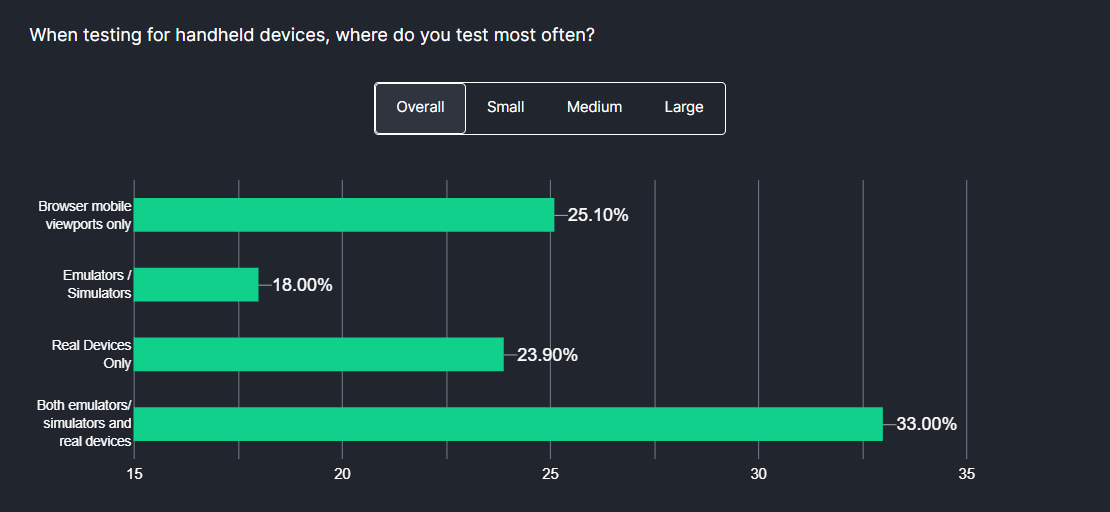
According to the Future of Quality Assurance survey, 33% of organizations use a mix of emulators/simulators and real devices for Mobile device testing, a hybrid approach that ensures broader coverage across device configurations and test scenarios.
The platform provides access to real iOS devices, emulators, and simulators through an online device farm, purpose-built for iOS app development and testing.
TestMu AI suits general users installing apps, developers testing code changes, and QA teams validating iOS apps manually or through automation, all from one platform.
Go to TestMu AI (Formerly LambdaTest) for AI-powered cross-browser and mobile app testing at scale.
Here is how to run an iPhone simulator on Windows using TestMu AI in six steps.
- Create an account on TestMu AI.
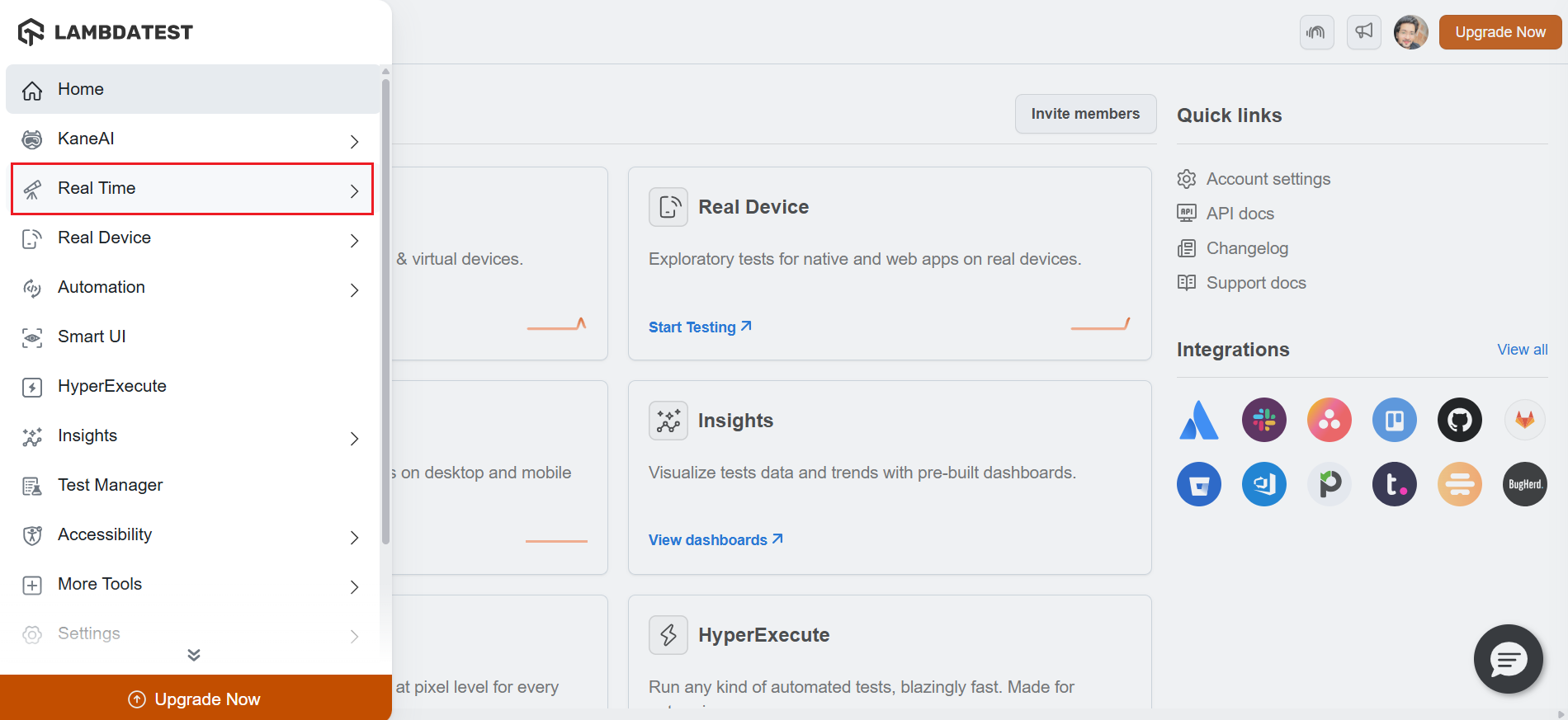
- Navigate to the Real Time option from the left menu.
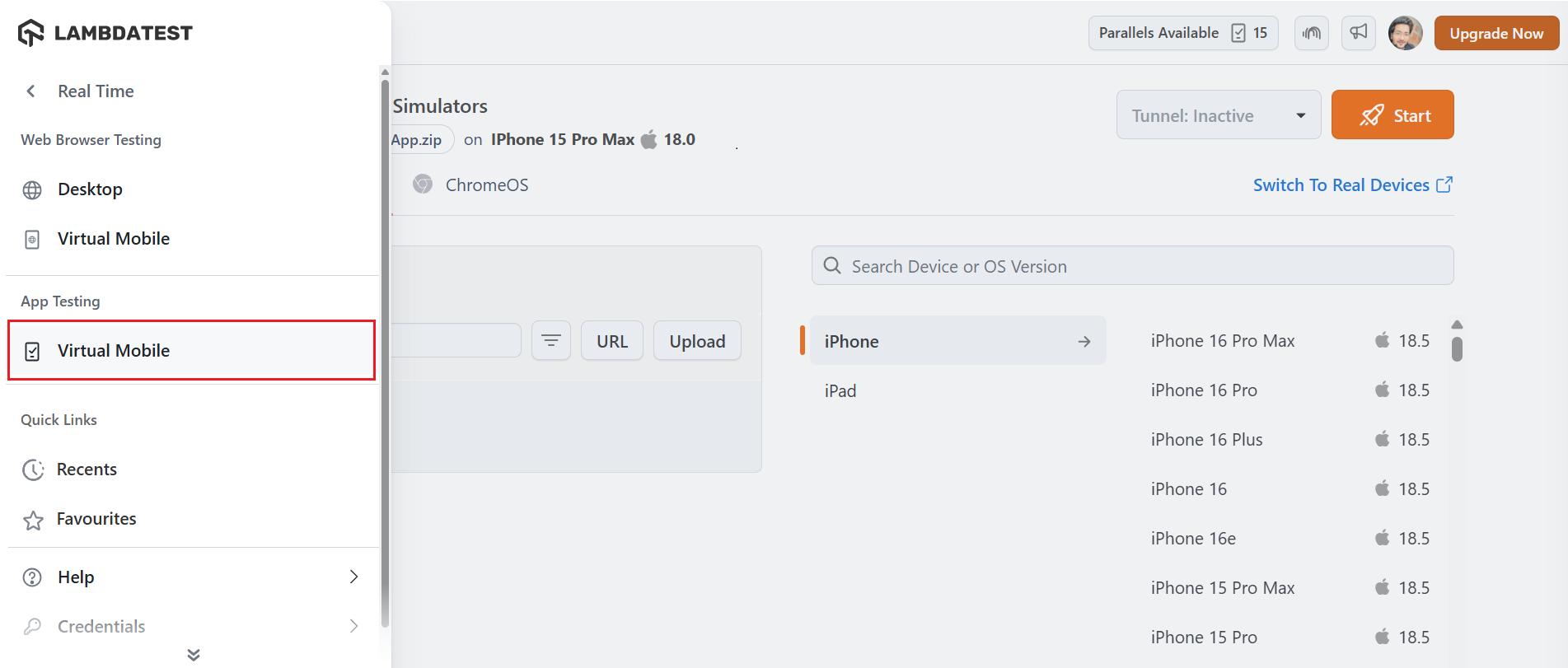
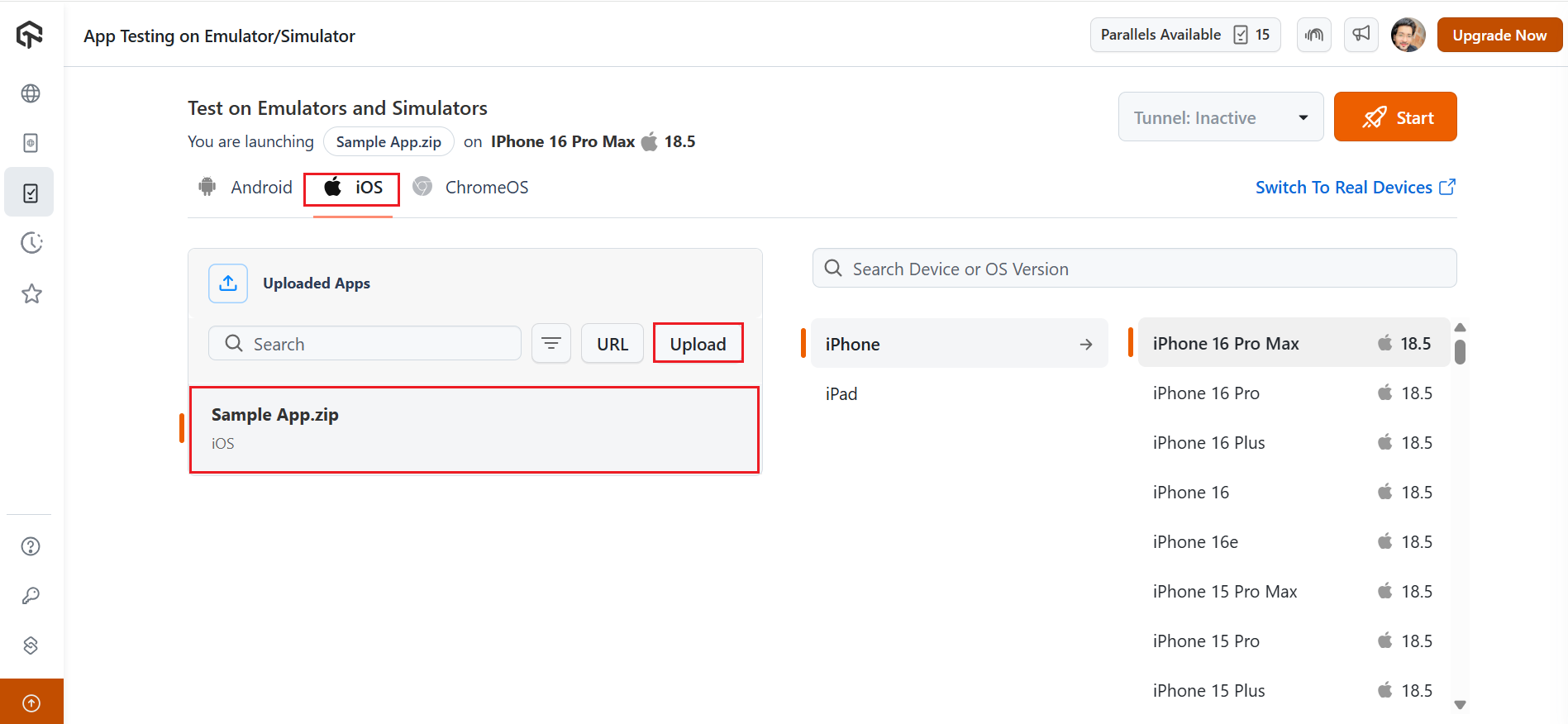
- Select the Virtual Mobile option under the App Testing section.
- Select the iOS operating system and upload your mobile app.
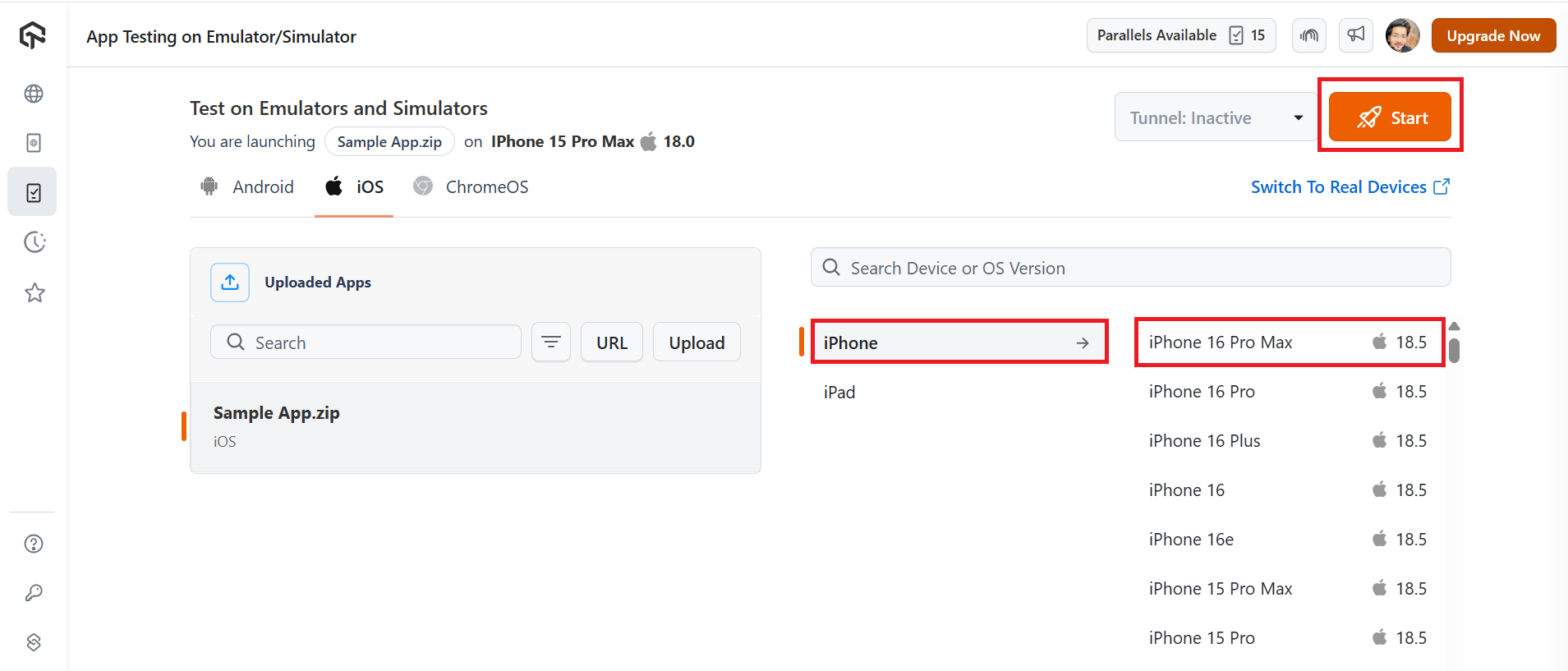
- Select from the iPhone, iPad, and iOS device models on which you wish to run the tests. For demonstration purposes, we will select the iPhone and the iPhone 17 Pro Max as the device model. Now click the Start button.
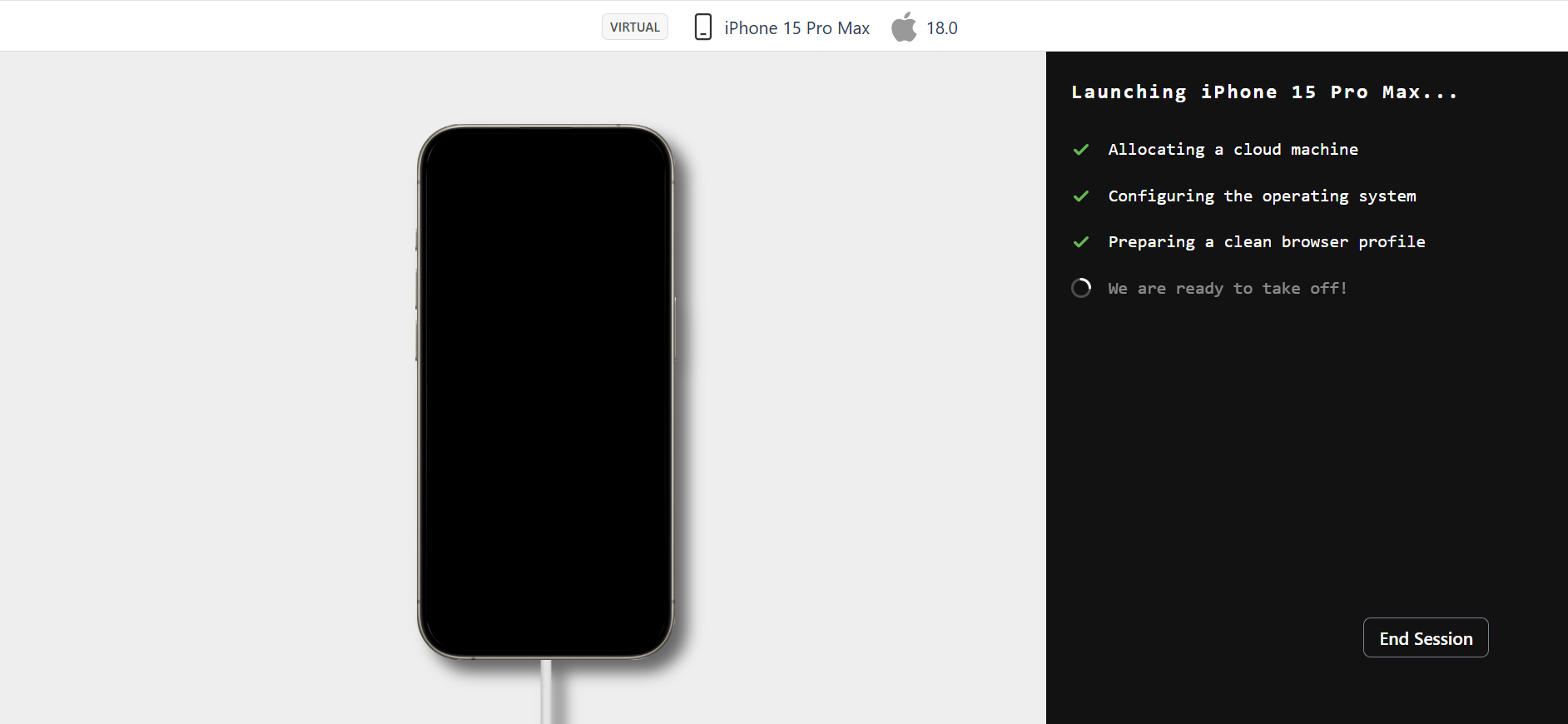
- Your iOS simulator will be launched in a cloud environment based on the selected configuration.
- You can perform various actions on the iOS simulator using the options in the left menu. Some of these options are particularly useful for real-time testing:
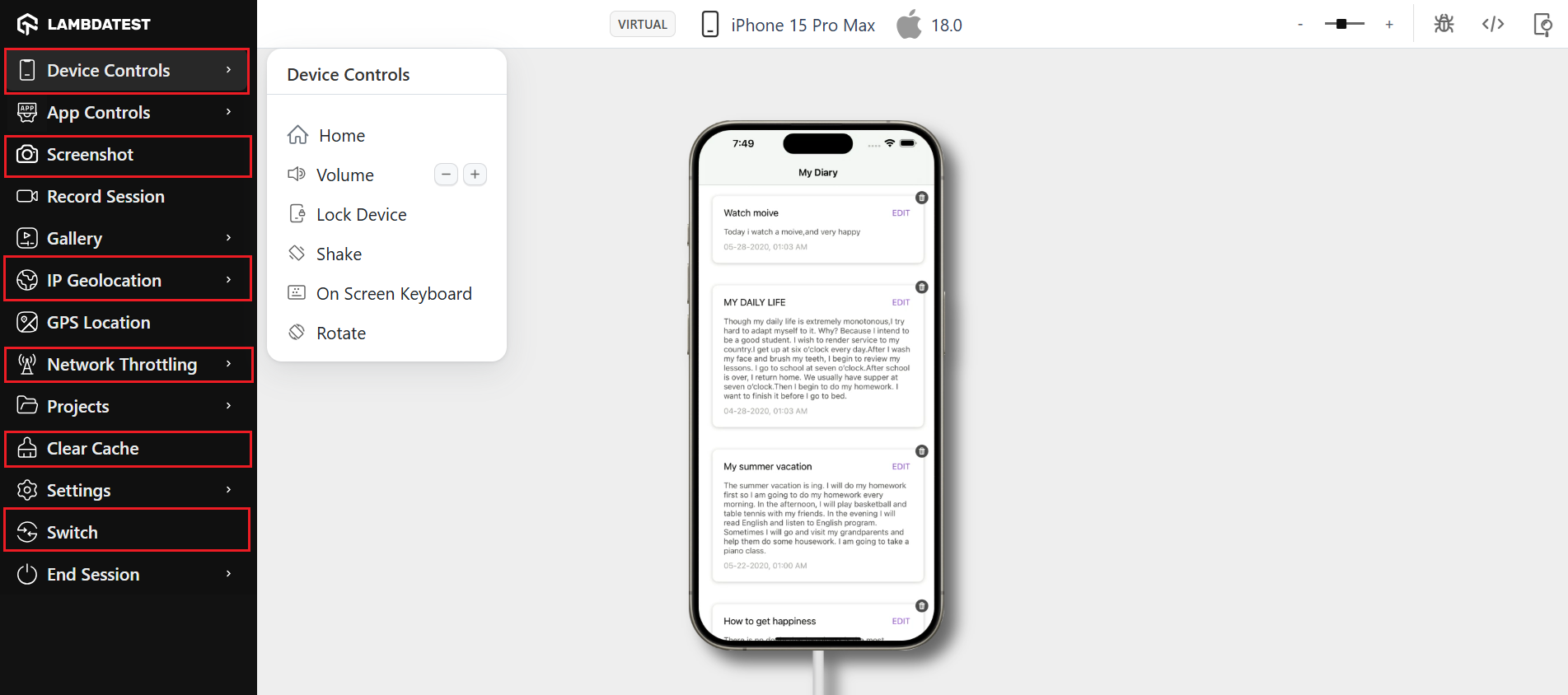
- Device Control: This option allows you to control the basic activities of an iOS device, such as locking the device, adjusting the volume, and rotating the screen.
- Screenshot: You can use this option to capture the activity on the screen while performing real-time testing on the iPhone simulator.
- Mark as Bug: If you encounter any bugs during testing, you can use this option to capture them and report them to your team members.
- Geolocation Testing: It allows you to change the geolocation to test how your application behaves and appears across different geographical locations.
- Switch Device: To check your application’s appearance on an iPad, simply go to the Switch option and change the device.
To learn more, check out the below tutorial on real-time testing using emulators and simulators.
Subscribe to the TestMu AI YouTube Channel for more video tutorials on automation testing for mobile and web applications. Explore tutorials on mobile app testing, Appium testing, and more.
7 Best iPhone Simulators for Windows in 2026
Here is a quick comparison before the full reviews:
| Tool | Type | Best For | Pricing | Free Tier |
|---|---|---|---|---|
| Appetize.io | Cloud | Demo, quick UI checks | Paid plans | 30 min/month |
| TestMu AI | Cloud | QA testing, developers | Paid (free tier available) | Free monthly minutes |
| iPadian | Native app | Casual users, UI preview | One-time purchase | No |
| Smartface | Native + Cloud | iOS app development on Windows | Enterprise licensing | No |
| Remote iOS Simulator (.NET MAUI) | Paired Mac required | .NET MAUI developers | Free with Visual Studio | Yes |
| Corellium | Arm-native virtualization | Security research, advanced iOS testing | Tiered (Solo / Viper / Falcon) | Free trial |
| macOS via Virtual Machine | VM | Xcode access, full iOS Simulator | Cost of macOS + VM software | No |
1. Appetize.io
Appetize.io is a browser-based iOS simulator, upload your .ipa file, get a shareable URL, and test on a virtual iPhone from any Windows machine. No installation required. It covers iPhone 6S to iPhone 15 Pro Max and iOS 10 to iOS 17, with session recording, CI/CD API, and shareable review links.
Best for: App demos, QA teams sharing bug-reproduction sessions, and light testing needs.
Pricing: Free tier with limited monthly minutes, then paid plans.
2. TestMu AI
TestMu AI runs a cloud-based iOS simulator for Windows directly in your browser, no installation, no Mac, no Xcode. It supports iPhone 6 through iPhone 17 Pro Max across iOS 9 to iOS 26, with instant access from day one.
Sessions include geolocation testing across 170+ countries, network throttling (3G to 5G), screenshots, bug logging, and mid-session device switching between iPhone and iPad models. Once a flow works manually, KaneAI can turn those steps, written in plain English, into a repeatable test.
Best for: QA engineers and developers who need reliable iOS testing on Windows without Apple hardware.
Limitation: Hardware features like Face ID and Bluetooth require a real device cloud.
Pricing: Free monthly minutes on signup. No credit card required.
3. iPadian
iPadian replicates the iOS home screen, icons, and navigation on Windows but cannot run real App Store apps, all apps are iPadian-specific. Requires Adobe AIR to install.
Best for: Non-developers exploring the iOS interface. Not suitable for testing or development.
Pricing: One-time purchase.
4. Smartface
Smartface is a cross-platform development environment for building and testing iOS apps on Windows without a Mac. It supports JavaScript and TypeScript with a WYSIWYG editor, integrated debugger, and React Native, Ionic, Cordova, Swift, and Objective-C.
Connect a real iPhone over USB for on-device testing or use the cloud simulator for remote runs.
Best for: Developers building iOS apps on Windows who cannot justify Mac hardware.
Pricing: Enterprise licensing plans.
5. Remote iOS Simulator for Windows
Part of Microsoft's .NET MAUI workload in Visual Studio 2022 or later. It pairs your Windows PC with a networked Mac build host and mirrors the official Xcode iOS Simulator into Visual Studio on Windows. Since it uses Apple's own simulator, the rendering and behavior match Xcode exactly.
Best for: .NET MAUI developers with a Mac build host on the local network who prefer writing and debugging in Visual Studio on Windows.
Limitation: Requires a physical Mac on your local network. Xamarin support was retired by Microsoft on May 1, 2024, so new projects should target .NET MAUI.
6. Corellium
Corellium runs Arm-native virtual iOS devices in the cloud, with instant root-level access and support for the latest iOS versions. Unlike UI-only simulators, it boots a real iOS kernel on virtualized Arm hardware, which makes it the closest thing to a physical iPhone for low-level testing.
Best for: Security researchers, mobile pen-testers, and advanced QA teams that need kernel-level visibility, fuzzing, or jailbreak-equivalent inspection.
Pricing: Tiered product lines: Solo (community), Viper (business), Falcon (government). Free trial available; contact sales for business pricing.
7. macOS via Virtual Machine
Running macOS in VMware Workstation or VirtualBox gives you full Xcode access and Apple's official iOS Simulator on Windows hardware, the only method here that delivers the complete Xcode toolchain.
Best for: Developers who need full Xcode access on Windows and have the hardware to support it.
System requirements: 16GB RAM, 100GB+ storage, VT-x or AMD-V enabled in BIOS.
Why You Need an iPhone Simulator on Windows?
Windows developers and QA teams cannot access Xcode or a physical Apple device lab on demand. An iPhone simulator for Windows fills that gap. The three main use cases are:
- App testing on Windows: Acquiring enough real iPhone hardware to cover every iOS version and device model is expensive and slow to set up. Simulators let QA teams test immediately across configurations without procurement delays.
- iOS app development on Windows: Frequent code changes make testing on physical devices impractical. Simulators let developers iterate quickly, writing code in Android Studio for Flutter, for example, and verifying changes on a virtual iPhone in the same session.
- Running iOS-exclusive apps: Some apps are only available on the App Store. A simulator lets Windows users access and interact with them without owning an iPhone.

Note: Test your iOS apps on online simulators across iPhone 6 to iPhone 17 Pro Max with TestMu AI. Try TestMu AI free
What You Cannot Test on a Simulator
An iPhone simulator on Windows runs the iOS software stack but not the silicon, sensors, or radios. The features below need a physical iPhone, either at your desk or in a cloud-hosted real device cloud.
- Biometrics: Face ID and Touch ID cannot run on a simulator because there is no TrueDepth camera or fingerprint sensor to read from.
- Camera and microphone capture: Simulators inject placeholder frames or pre-recorded audio. They cannot test real camera permissions, autofocus, low-light behavior, or noise cancellation.
- Bluetooth, NFC, and Apple Pay: Pairing with a real peripheral, contactless tap, or wallet payment cannot be exercised on a simulator.
- True GPS and motion sensors: Simulators mock location and accelerometer data. Walking-direction drift, indoor positioning, and barometer readings need real hardware.
- Push notifications from APNs: Remote push reaches simulators only with Xcode 14 or later on supported Macs, so test push end-to-end on a real device.
- Real CPU, GPU, thermal, and battery behavior: A high-spec Windows host masks performance issues that surface on an older iPhone. Frame drops, jank, and battery drain need a physical handset.
Decision rule: use a simulator for UI layout, navigation, and pre-release smoke tests on Windows. Move to TestMu AI's real device cloud for the six categories above before each release.
Benefits of Running iOS on Real Devices Compared to Simulators
Simulators work well for early-stage testing but fall short on real device behavior. TestMu AI provides instant access to real iPhones and iPads for accurate validation, without maintaining physical hardware.
| Aspect | Real iOS Devices | Simulators |
|---|---|---|
| Performance Accuracy | Real hardware metrics for CPU, memory, and battery | Approximate performance; doesn’t reflect real-world usage |
| UI/UX Testing | Precise gestures, touch, and animations | Limited support for touch and visual responsiveness |
| Hardware Feature Support | Full access (camera, GPS, Face ID, sensors, etc.) | Most hardware features are not supported |
| Debugging & Crash Analysis | Detects real-world issues, especially device/OS-specific bugs | May miss bugs that only appear on actual devices |
| Network Condition Testing | Supports real network behavior (4G/5G, signal drops, latency) | Simulated network conditions are not fully realistic |
| App Store Readiness | Ensures app behaves correctly on real devices before release | Doesn’t fully reflect production behavior |
Test scripts stay the same when a run moves from a simulator to a physical iPhone, and the Real Device App Testing docs cover the setup end to end.

Conclusion
Pick the tool by what the test needs to prove. A cloud iPhone simulator settles layout, navigation, and basic flows from a Windows browser, with no Mac and no Xcode.
Once a test touches biometrics, camera, NFC, push, motion sensors, or thermal behavior, only a physical iPhone gives a trustworthy answer, so move that test to a real device.
If you also need to install an IPA before testing, see how to install an IPA on an iPhone.
Note: This article was researched and drafted with AI assistance, then reviewed, fact-checked, and published by Harish Rajora, Software Developer 2 at Oracle, whose listed expertise includes App Testing and Automation Testing. Every statistic, link, and product claim was verified against primary sources. Read our editorial process and AI use policy for details.
Author

Harish Rajora
Blogs: 102


Harish Rajora is a Software Developer 2 at Oracle India with over 6 years of hands-on experience in Python and cross-platform application development across Windows, macOS, and Linux. He has authored 800 + technical articles published across reputed platforms. He has also worked on several large-scale projects, including GenAI applications, and contributed to core engineering teams responsible for designing and implementing features used by millions. Harish has worked extensively with Django, shell scripting, and has led DevOps initiatives, building CI/CD pipelines using Jenkins, AWS, GitLab, and GitHub. He has completed his post-graduation with an M.Tech in Software Engineering from the Indian Institute of Information Technology (IIIT) Allahabad. Over the years, he has emphasized the importance of planning, documentation, ER diagrams, and system design to write clean, scalable, and maintainable code beyond just implementation.
Reviewer

Shivam Singh
Reviewer
Shivam Singh is a Lead Member of Technical Staff at TestMu AI (formerly LambdaTest), architecting the Real Device Cloud that runs automated app and web tests on real Android and iOS devices. He designed the architecture for real-device app and web automation and wrote the microservices from scratch in Golang, including the XCUITest and Espresso execution layers for iOS and Android. His platform reached peak parallel concurrency of 150+ for app automation while handling roughly 500,000 tests a month, and he leads the team that keeps the automation grid running. He brings over eight years of engineering experience and holds a B.Tech in Computer Science.


iPhone Simulators for Windows FAQs
Did you find this page helpful?
More Related Blogs
TestMu AI forEnterprise
Get access to solutions built on Enterprise
grade security, privacy, & compliance
- Advanced access controls
- Advanced data retention rules
- Advanced Local Testing
- Premium Support options
- Early access to beta features
- Private Slack Channel
- Unlimited Manual Accessibility DevTools Tests