

Next-Gen App & Browser Testing Cloud
Trusted by 2 Mn+ QAs & Devs to accelerate their release cycles


How to Use CSS Modules With React Applications
Learn how to use CSS Modules, a modern approach to writing CSS that helps prevent style conflicts and maintain code scalability.

Anurag Gharat
January 10, 2026
Many developers initially use regular CSS to style websites or applications. However, as projects become complex and new design requirements emerge, managing a CSS stylesheet containing thousands of lines of code can become challenging. The purpose of each CSS class can become difficult to track, especially as the codebase evolves with new features.
To tackle these challenges, developers can refactor the entire codebase from regular CSS to CSS Modules, which offer a modern, cleaner, and more efficient approach to styling in web development. CSS Modules allow developers to maintain and organize their codebase with ease.
In this blog, you will learn about CSS Modules, a modern, cleaner, and efficient approach to styling in web development. By the end of the blog, you will understand how to effectively use CSS Modules to easily maintain and organize your codebase.
What Are CSS Modules?
As per the official definition, “A CSS Module is a CSS File that defines class and animation names that are scoped locally by default.”
Let’s break down the terms from the definition one by one. A module is a file that contains code that serves a common purpose. Scope in CSS means an imaginary boundary created within a UI beyond which specific CSS styles can no longer affect it.
CSS Modules are a way to define CSS code locally by scoping it to prevent styles defined for one component from affecting styles in another. It automatically generates unique class names for CSS Selectors. This is helpful in larger applications to manage naming collisions and CSS Specificity.
When using CSS Modules, each CSS file is treated as a separate module. The class names in the CSS files are only available to that particular component and cannot be accessed or modified by other components.
This helps keep styles encapsulated and maintainable, reducing the risk of unintended style changes and conflicts. A CSS Module is not a CSS framework or a preprocessor but a process that generates a style sheet with hashed classes from modules or chunks during the build step. A CSS Module allows us to write styles inside a CSS file and consume it like a JavaScript object.
If you want to use the same CSS style for another component, you must typically import the CSS file into your component’s JavaScript file and then reference the generated class names in your JSX code. The build process renames the class names to ensure uniqueness.
Below is an example of defining and importing the CSS style into the JavaScript file.
.card{
   /* Styles related to the card */
}
//Import the styles in a JavaScript file
import styles from './Card.module.css'


//use it as an object
<div class={styles.card}>
 {/* Code related to card */}
</div>
In the section below, we will learn why CSS Modules are important and some reasons for utilizing this approach.
Why Do We Need CSS Modules?
CSS Modules are important for localizing CSS styles to specific components to prevent unintended style overrides and conflicts. These CSS Modules automatically generate unique class names, helping maintain the naming collisions in larger applications. It also allows you to rescue the CSS code encapsulated within components.
Here are some reasons why CSS Modules are needed.
- Local Scope: It allows you to define styles for one component without affecting the styles of other elements, reducing unintended style changes and conflicts.
- Avoiding Naming Collisions: It automatically generates unique class names for CSS selectors, avoiding naming collisions in larger applications where multiple developers may be working on the same codebase.
- Maintainability: It makes it easier to maintain and refactor styles by encapsulating styles within components. Changes to one style in one component do not impact other components, making the codebase more maintainable.
- Reusability: It allows you to reuse styles across components by importing CSS files into components while maintaining encapsulation.
- Improved CSS Specificity: It improves CSS specificity by limiting the scope of styles to individual components, making it easier to understand and manage CSS specificity in complex applications.

Note: Run your tests across 3000+ browsers and OS combinations. Try TestMu AI Today!
How Do CSS Modules Work?
A CSS Module file is similar to a CSS file, which only includes styles for a specific component. A component is a part of a UI made up of HTML elements. So, unlike the regular CSS approach, we create a single CSS file containing styles for the entire UI. On the other hand, in CSS Modules, you break down the UI into multiple components and create one CSS module file to handle styling for one such component. So you end up having various CSS Module files, each of which only controls the styling of the component inside which it is imported.
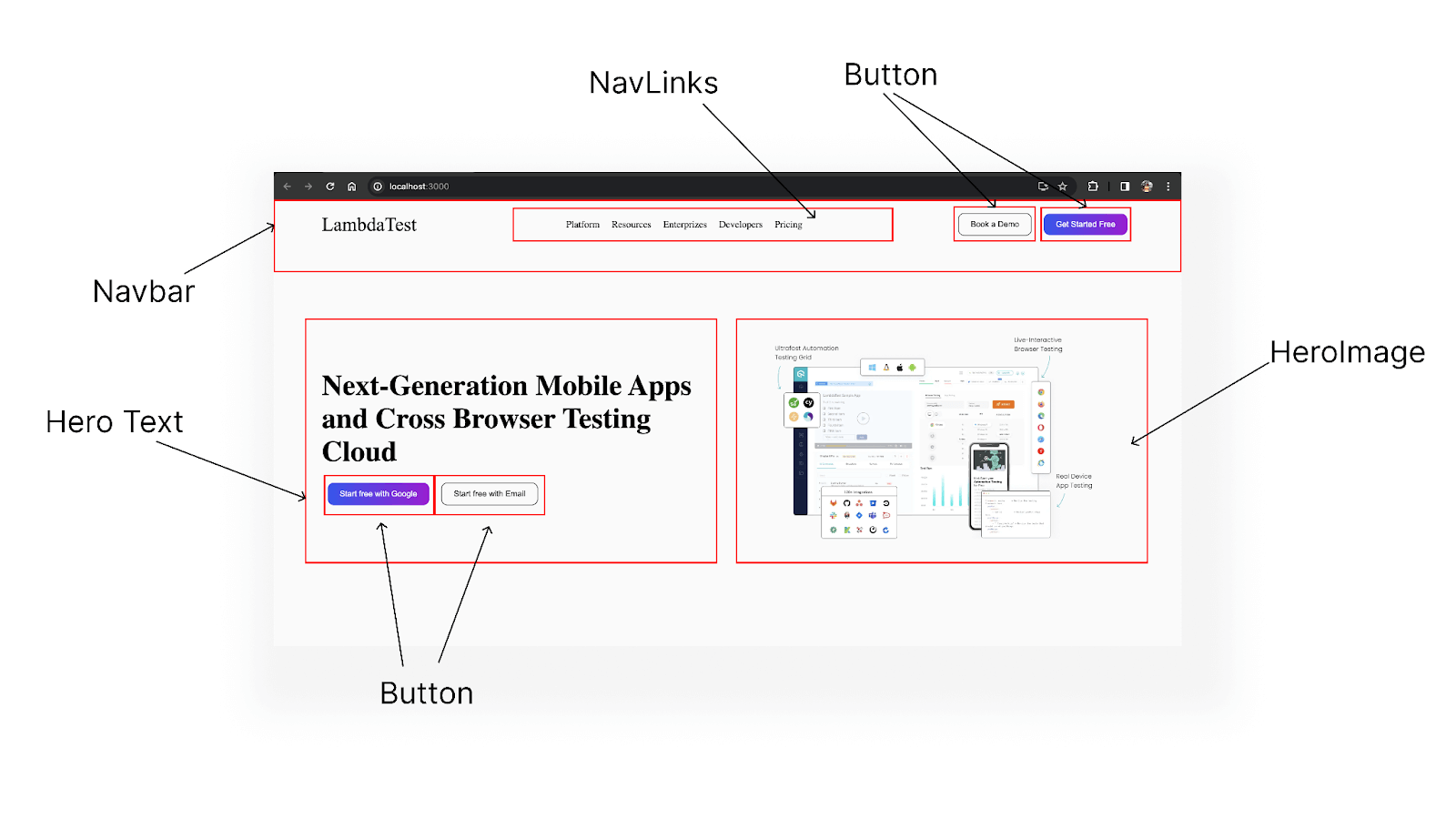
Components inside a UI
As mentioned earlier, CSS Modules are a part of the build process that converts your locally scoped styles into a single CSS file for the browser to understand. Hence, for CSS Modules to work, you would need a bundler like Webpack or Browsify to bundle the application together.
The bundler not only bundles the application together but also converts the CSS Modules into browser-understandable plain CSS.
A CSS Module file is a regular CSS containing your regular CSS code but with a module.css extension instead of .css. So, if the application has a Navbar component, it must include a Navbar.module.css file that will only carry the styles for that Navbar component.
To use CSS Modules inside a project, follow the two approaches below.
- Create a CSS Module file with CSS classes inside it.
- Import the CSS Module file and apply the classes to HTML elements.
Creating a CSS Module File
There is no given rule on arranging or organizing the CSS Module files, but developers try to keep the module file as close to the component file as possible, i.e., inside the same component folder.
The image below shows how you can usually organize the CSS Module files when working with React. As you can see, every folder has one .js file containing the JavaScript code, .module.css file containing the CSS code for that component, and .test.js file containing test cases.

Organization of CSS Module files
In CSS Modules, styles are imported as a JavaScript object, where each property represents a CSS class with corresponding styles. These classes are typically applied to HTML elements using the className attribute.
While it’s technically possible to use ID selectors inside CSS Modules, it’s discouraged due to their global nature, which contradicts the goal of locally scoped styles that CSS Modules aim to achieve. It’s considered a best practice to use class selectors exclusively for defining styles within CSS Modules.
Importing the CSS Module File and Applying the Styles
The contents inside a CSS Module file are the same as regular CSS. All CSS properties, values, functions, and syntaxes can be used in a module file. The difference lies in how the module file is imported and applied to elements. Classes from a CSS Module file must be imported inside the component file using the ES6 import syntax.
Once imported, the file’s contents are attached to a named object as properties. Therefore, you can use the object property notation of JavaScript to apply classes. For importing, you can use either the default import syntax or a named import syntax, which is the JavaScript way of importing JavaScript Modules.
Default Import Syntax:
import styles from './Button.module.css'


export default function Button() {
 return (
   <button className={styles.button}>Button</button>
 )
}
The default import syntax imports all the styles from the .module.css file as an object. Since you are importing the styles by default, you can name the object whatever you want. In this case, we have named the objects as styles. After importing, the classes from the .module.css file are attached as properties on the styles object. You can use the object.classname syntax to use these CSS classes.
Named Import Syntax:
import { button } from './Button.module.css'


export default function Button() {
 return (
   <button className={button}>Button</button>
 )
}
Once imported, the contents of the CSS Module file are attached to a named object as properties. This allows you to use the object property notation of JavaScript to access and apply classes. You can import CSS Modules using either the default import syntax or a named import syntax, which is the standard way of importing JavaScript Modules.
In the section below, we will learn the advantages of using CSS Modules.
Advantages of CSS Modules
With CSS Modules, you can avoid naming collisions, and it also helps generate unique names for your class to avoid style conflicts and improve code. Using the CSS Modules approach has several advantages over traditional CSS.
Some of the advantages are mentioned below.
Improved Reusability and Maintainability
Composition is the most loved and useful feature of using CSS Modules. Using the composition model, we can separate the styles related to a specific element to its module file. If there are some common styles, instead of rewriting them again, you can use the composes keyword to copy styles from one class into another.
.button{
   padding: 10px 20px;
   border: none;
   border-radius: 10px;
}
.buttonSuccess{
   composes: button;
   background-color: green;
   color: white;
}
.buttonError{
   composes: button;
   background-color: red;
   color: white;
}
.buttonInfo{
   composes: button;
   background-color: blue;
   color: white;
}
From the above code example, we have created a base .button class, which contains the basic styling for a button element. Later on, we created three buttons with three different objectives. Since these buttons are based on the base button class, you can use the composes keyword to import the styling instead of repeating the styles for all three button classes. Using the composes keyword, you can achieve hierarchy and inheritance in CSS.
Avoids Class Name Clashes
Name clashing in a CSS file happens when two classes with different styling are present with the same name. This is a very common problem in large projects.
Uniquely Generated Class Names
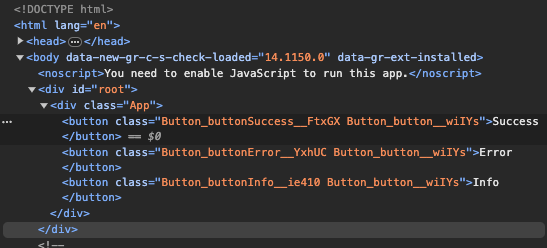
CSS Modules prevent class name clashing by generating unique class names for each component. During the compile time, a few sets of characters are added to the declared class names to make them unique globally. Hence, even if you use the same class names in the two separate module files, the final class names will always be unique.
Let’s inspect the output class names for the button component you created in the previous section. As you can see below, there are three classes .buttonSuccess, .buttonInfo, and .buttonError, but the final class names are completely different and unique.
Improved Organization and Debugging
With regular CSS, it was not an easy task to debug a UI issue. Regular CSS is globally scoped, meaning any class can cause the bug. But since CSS Modules are locally scoped, you only need to look at the module file of a component that has a UI issue.
CSS Modules promise that each component will have its own CSS Module file where all the styles related to the component will be placed, and this code will not affect any components outside its scope.
Support for Global Styles
Although the primary objective of CSS Modules is to provide locally scoped styles, it also provides support for global styles. To describe any CSS class as a global class, you can use the global() function syntax. Any class added inside this function will be removed from the local scope and added to the global scope.
:global(.button) {
   padding: 10px 20px;
   border: none;
}
Solves Class Dependency Issues
Deleting or updating an existing class inside a CSS file is not a straightforward process while writing vanilla CSS. Many times, classes are dependent on each other. So, a slight change in one class might affect the entire UI. However, with CSS Modules, your styles hardly affect anything outside its scope. Hence, whenever an update is required, you can immediately update the changes without worrying about the side effects.
Challenges With the Traditional CSS Approach
CSS, although a compelling styling language, has its challenges. Since its introduction in 1996, there haven’t been many additions to CSS to solve these challenges. Hence, many developers moved to the best CSS frameworks, like Tailwind CSS, Bootstrap, and more, over regular CSS.
Here are some challenges associated with the traditional CSS approach.
- Name Collision: It occurs when two classes with the same names but different CSS properties are present in the code. To solve this problem, developers must create unique names that convey the class’s purpose. However, this process can be time-consuming and cause unintentional UI changes that are difficult to debug.
- Global Scope: By default, the CSS classes are globally scoped. This means every CSS class declared inside the CSS file can be attached to any element on the web page. Hence, modifying or adding new CSS code will indirectly affect any HTML element on the web page. Sometimes, due to global scope, old CSS properties can be overshadowed by newly added properties due to CSS Specificity rules.
- Clearing Dead Code: Parsing a CSS file is a heavy task that affects the overall performance of a website. Hence, removing redundant or unused CSS code whenever possible is important. However, in a project with thousands of lines of CSS code, it is difficult to determine if any class or property is safe to remove because we never know which HTML element still uses it. Some classes might seem unused or dead but might be used by an element or another class. Removing such code can cause unexpected issues.
- Classes Dependency: Some CSS properties are dependent on each other. For example, a child component having position: absolute; property will depend on its parent having position: relative; property. In such a case, removing the parent’s property will directly affect the child’s. At an initial glance, it is tough to predict the dependencies as they are not explicitly defined.
- Maintenance and Organization of CSS: Maintaining and organizing CSS files is challenging due to a lack of structure. Developers often write CSS code on the go, leading to all CSS code residing in a single file. New code changes are typically added at the bottom, resulting in related CSS styles being scattered throughout the file. This lack of organization and maintenance poses a significant problem in industry legacy projects.
In the below section, we will learn how to use CSS Modules with any React application.
Using CSS Modules in a React Application
According to the Stack Overflow Trends report, React is the most popular front-end JavaScript library for building websites. Every React application is bundled using Webpack and has out-of-the-box support for CSS Modules.
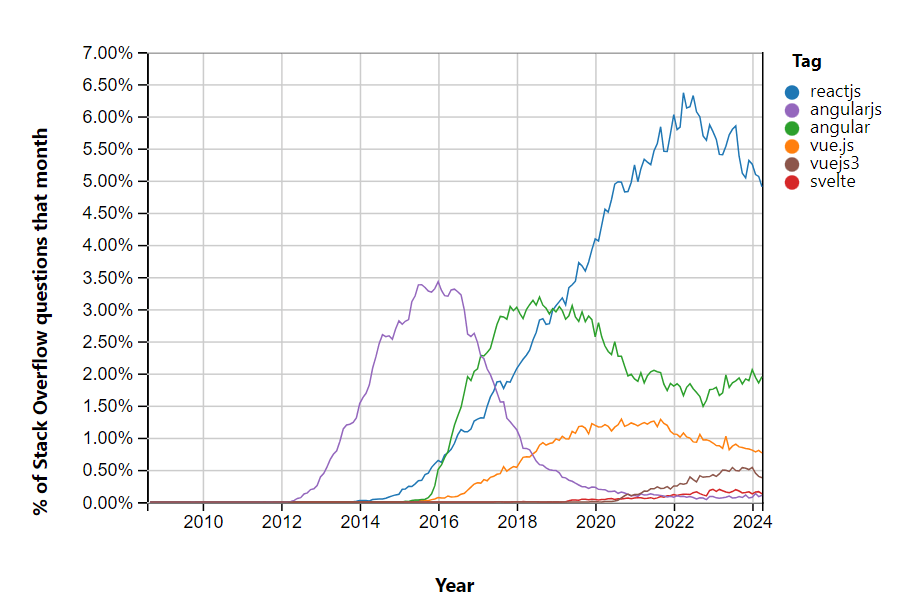
Hence, considering the popularity and support of CSS Modules for React applications, we will use React for demonstration.
In this section, we will create a simple hero section of TestMu AI’s official website. With this demonstration, you will understand how to use CSS Modules in real-life projects.
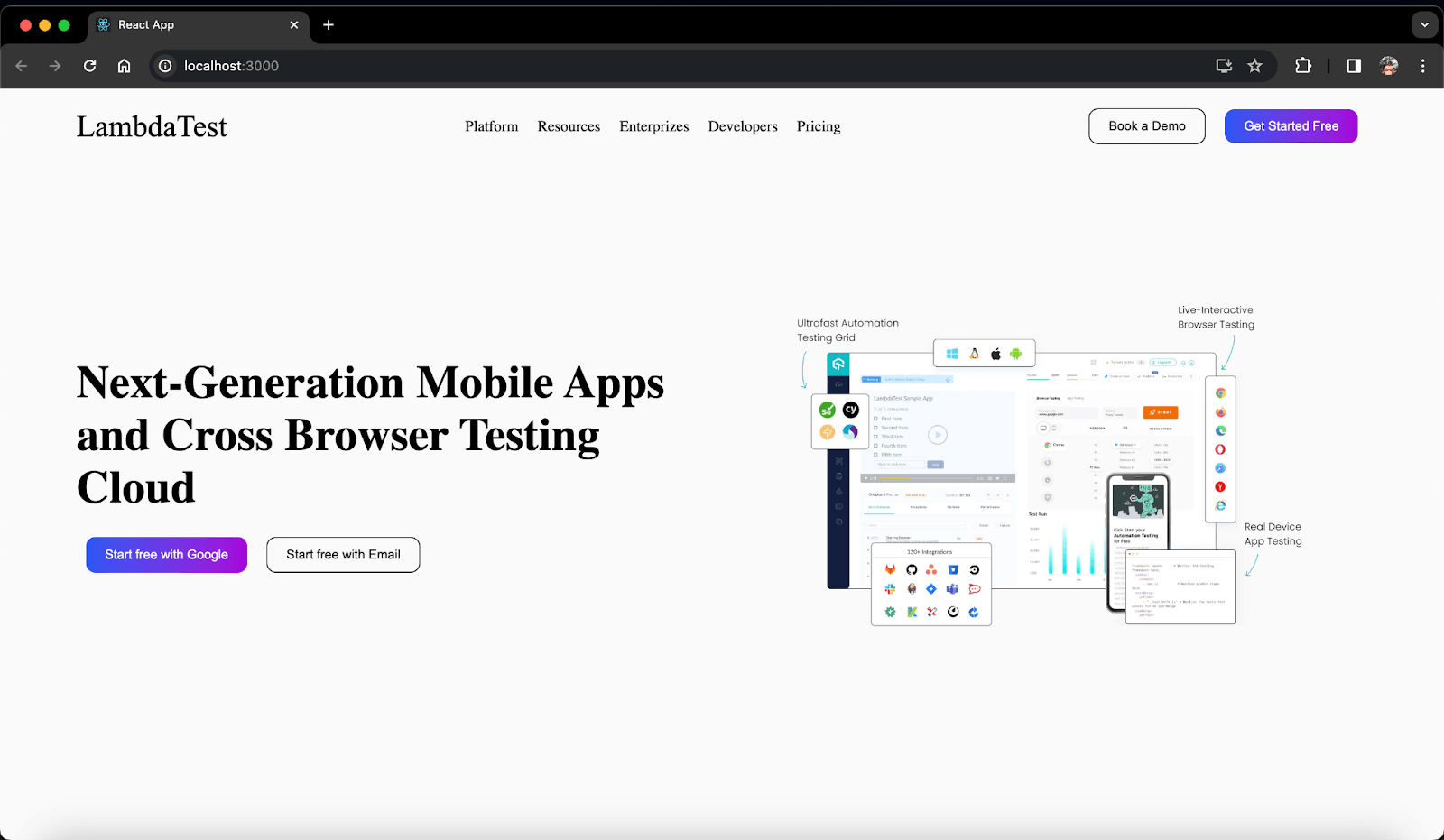
TestMu AI Home page demo
To initialize a React application, you can use the common create-react-app npm command. This command installs the create-react-app package, which creates a new React application with all the necessary dependencies.
To create a React app named css_modules_lt, open your terminal and run the following command.
npx create-react-app css_modules_lt
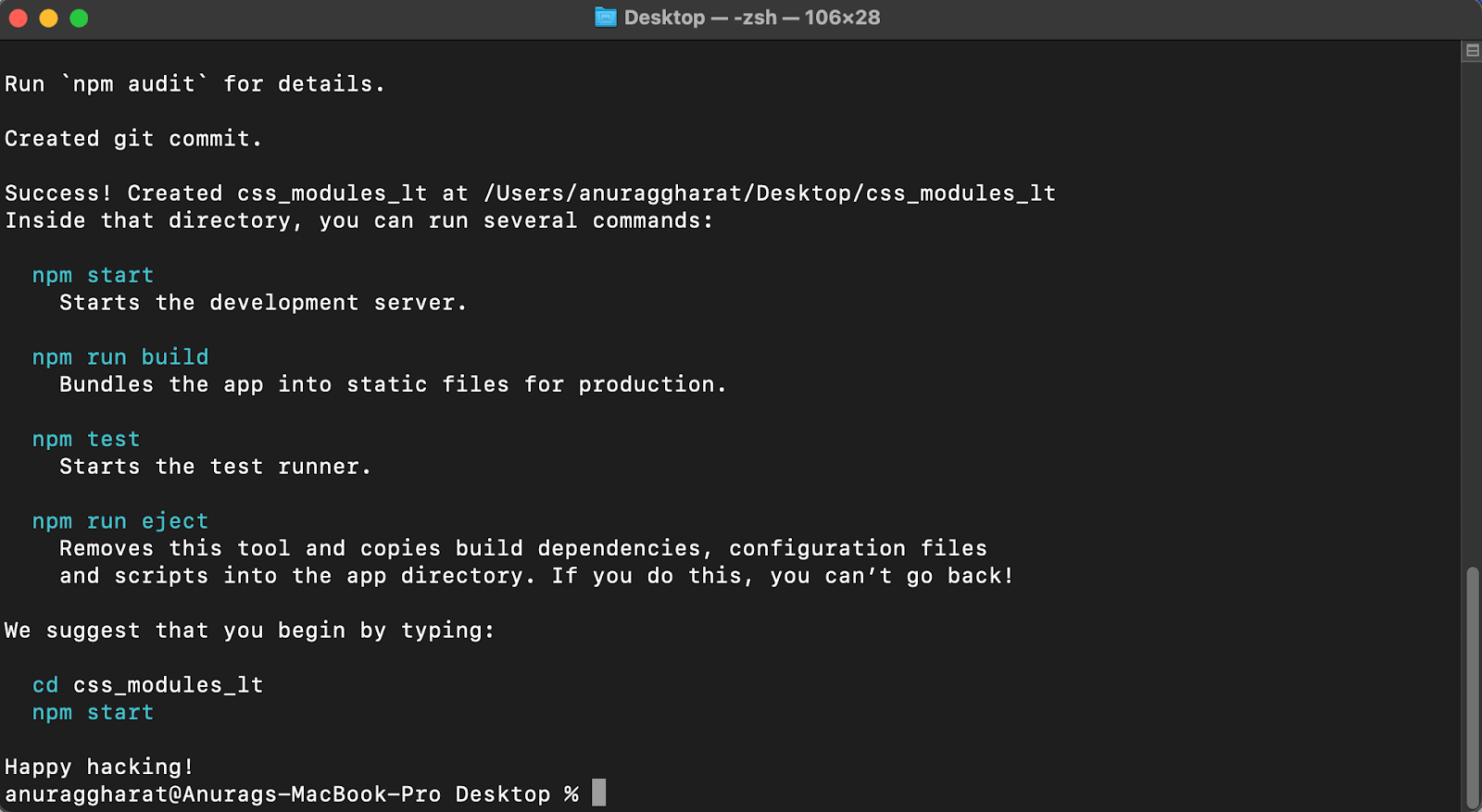
Installing the React Application
Once the React app is created, you can open it in VSCode or any other code editor. React does come with out-of-the-box support for CSS Modules; however, you can use CSS Modules in React without installing anything extra.
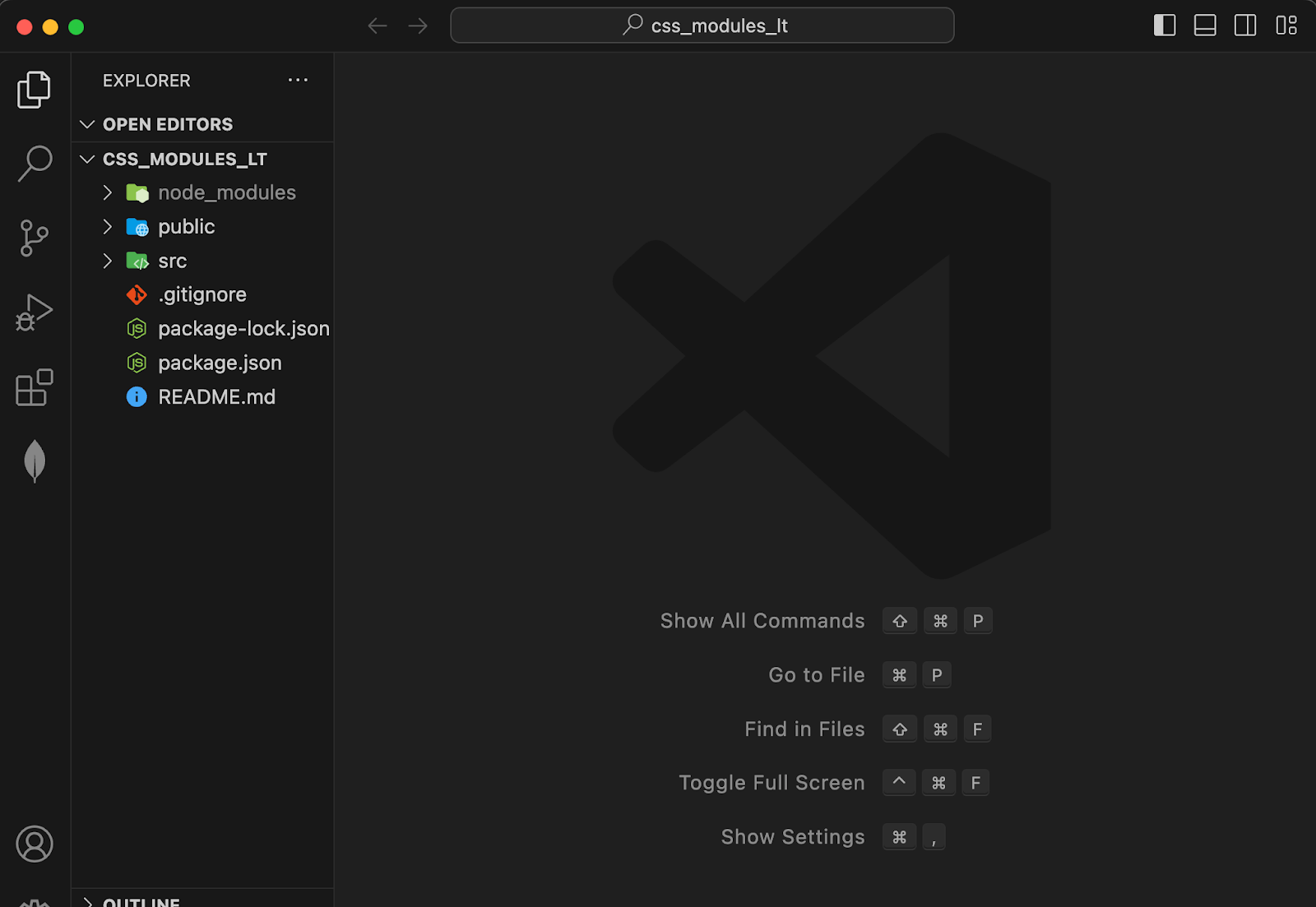
React Application on VSCode
Now that the application is ready let’s create components for the UI. React is a component-based UI library where each UI part is broken down into smaller components.
As shown in the image below, we have broken down the UI into multiple self-explanatory components.
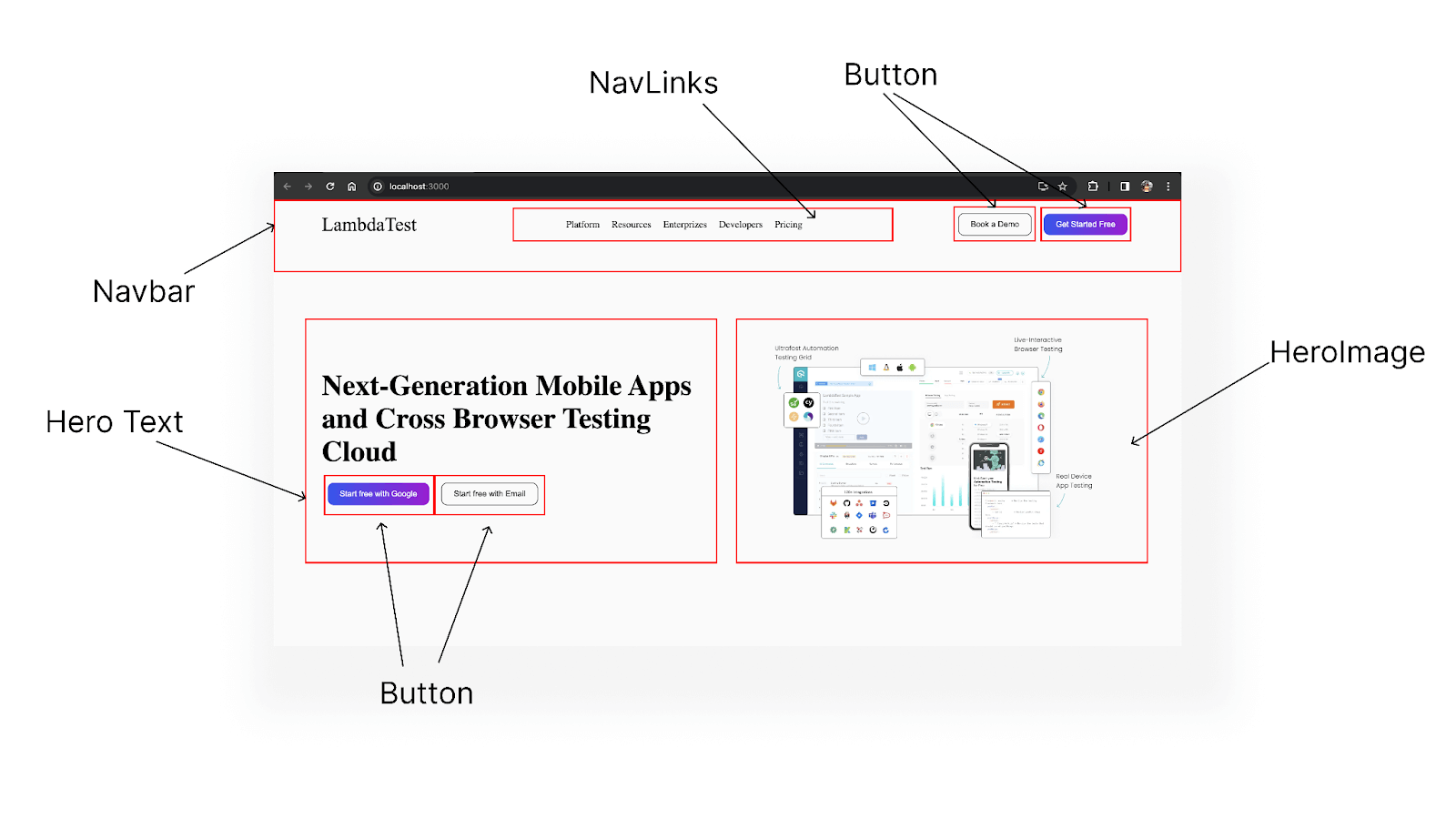
Components in the UI
To organize the components, you can create a components folder inside the src directory. Within the components folder, you must create individual folders for each component. This structure helps keep our codebase clean and maintainable.
Take a look below at how we will create folders for components.
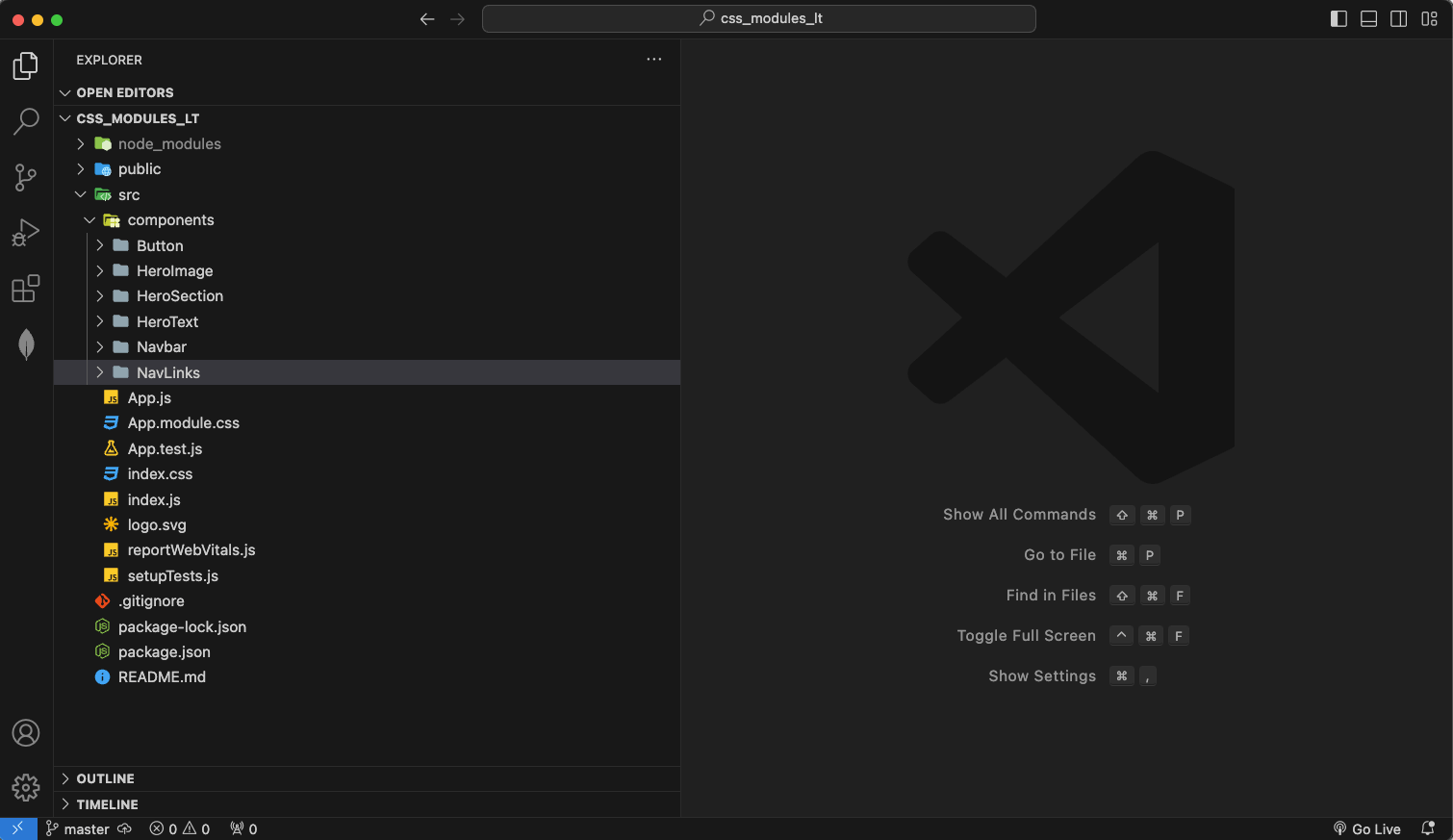
Creating Components for folders in React Applications
Once the components folder is created, you must create a JavaScript file for each component containing the React code and a CSS Module file containing the CSS code specific to that component. This separation of concerns helps maintain a clean and organized codebase.

Adding the Component and Module file
Now that we have finished creating all the folders let’s start with the base or root component, which is the App.js file. Inside the App.js file, you must create the structure of the UI. The App.js file will contain the Navbar component and hero section component.
import styles from './App.module.css'
import HeroSection from './components/HeroSection/HeroSection';
import Navbar from './components/Navbar/Navbar';


function App() {
 return (
   <div className={styles.app}>
     <Navbar />
     <HeroSection />
   </div>
 );
}


export default App;
To style the App.js file, add the following code to the App.module.css file. The following CSS code will create the overall structure of the UI.
.app{
   min-height: 100vh;
   background-color: #fafafa;
   width: 100%;
   position: relative;
}
With the overall structure in place, let’s start building the topmost component, which is Navbar. The Navbar component contains the logo, navigation links (Navlinks), and button components.
Here’s what the code looks like.
import NavLinks from '../NavLinks/NavLinks'
import Button from '../Button/Button'
import styles from './Navbar.module.css'


export default function Navbar() {
 return (
   <div className={styles.navbar}>
       <div>
           <p className={styles.logo}>LambdaTest</p>
       </div>
       <NavLinks />
       <div className={styles.buttons}>
       <Button text='Book a Demo' type='secondary' />
       <Button text='Get Started Free' type='primary' />
       </div>
   </div>
 )}
You can style the Navbar using the Navbar.module.css file. To maintain consistency, we have used CSS Flexbox to align the content vertically and adjust the spacing accordingly.
While CSS Grid is also an option for layout, Flexbox is recommended for the Navbar due to its simpler one-dimensional approach for UI alignment.
To learn more about CSS Grid and Flexbox, follow this blog on CSS Grid vs Flexbox to understand better when to use each approach.
.navbar{
   display: flex;
   flex-direction: row;
   height: 10vh;
   padding:0 5rem;
   justify-content: space-between;
   align-items: center;
   position: absolute;
   top: 0;
   left: 0;
   width: 100%;
}
.logo{
   font-size: 2rem;
   font-family: 'Times New Roman', Times, serif;
}
.buttons{
   display: flex;
   flex-direction: row;
   justify-content: space-between;
   align-items: center;
}
The Navlinks component contains the navigation link items. You can create an array of links and then render them using the map method on the links array. This is a common approach to creating multiple components in React, helping to avoid repetition.
import React from 'react'
import styles from './NavLinks.module.css'


const links = ['Platform','Resources','Enterprizes','Developers','Pricing']


export default function NavLinks() {
 return (
       <ul className={styles.links}>
           {links.map((link)=>(
             <li key={link} className={styles.link}>
             <a className={styles.anchor} href={link} >{link}</a>
           </li>
           ))}
       </ul>
 )
}
Inside the Navlinks.module.css file, Flexbox will be used for alignment, and the default list style will be removed.
.links{
   display: flex;
   flex-direction: row;
   list-style-type: none;
}
.link{
   margin: 0 10px;
}
.anchor{
   text-decoration: none;
   color: black;
}
For the button component, two properties will be used. The first property will provide the text for the button, while the second property will determine the style type, such as whether it should be a primary or secondary button. This approach will help make the button reusable across the project.
import React from 'react'
import styles from './Button.module.css'


export default function Button({text,type}) {
 return (
   <button className={styles.button + " " + styles[type]}>{text}</button>
 )
}
To style the button, you can create a basic .button class. Then, for the button types, you can create two extra classes called .primary and .secondary. The common style required for the button can be placed inside the .button class, and the styles specific to the primary and secondary types of buttons can be placed inside their respective classes.
.button{
   padding: 10px 20px;
   border: none;
   border-radius: 10px;
   margin: 0 10px;
}
.primary{
   composes:button;
   background: linear-gradient(91.88deg,#2c57f3 .88%,#a506d8 98.71%);
   color: white;
}
.secondary{
   composes:button;
   border: 1px solid black;
   color: black;
   background-color: transparent;
}
Now that the button logic and styling are reusable, you can easily create many more types of buttons in the future without writing any new logic. You can simply compose the old classes together. This demonstrates the power of CSS Module composition in action!
As we are done creating the logic for navigation links and buttons, let’s create the HeroSection and other necessary components.
import React from 'react'
import HeroImage from '../HeroImage/HeroImage'
import HeroText from '../HeroText/HeroText'
import styles from './HeroSection.module.css'


export default function HeroSection() {
 return (
   <section className={styles.section}>
           <HeroText />
           <HeroImage />
   </section>
 )
}
To create the HeroSection, you can divide the component into the < HeroText/ > component on the left and the < HeroImage/ > component on the right.
.section{
   display: flex;
   flex-direction: row;
   min-height: 100vh;
   width: 100%;
   padding: 5rem;
}
To style the HeroSection, you can create the HeroSection.module.css file. This file will contain properties that will help you create a responsive HeroSection.
import React from 'react'
import styles from './HeroText.module.css'
import Button from '../Button/Button'


export default function HeroText() {
 return (
   <div className={styles.half}>
       <h1 className={styles.leading}>Next-Generation Mobile Apps and Cross Browser Testing Cloud</h1>
       <div className={styles.buttoncontainer}>
         <Button text={'Start free with Google'} type={'primary'} />
         <Button text={'Start free with Email'} type={'secondary'} />


       </div>
   </div>
 )
}
The < HeroText /> component contains the heading text and two buttons, one primary and the other secondary, similar to what we had in the Navbar component.
.half{
   width: 50%;
   display: flex;
   flex-direction: column;
   justify-content: center;
   align-items: start;
   gap: 1.5rem;
}
.leading{
   font-size: 3rem;
}
.buttoncontainer{
   display: flex;
   flex-direction: row;
   justify-content: start;
}
To style the < HeroText /> component, you can use the HeroText.module.css file. This file contains the necessary CSS properties for styling the text displayed on the HeroSection.
import styles from './HeroImage.module.css'


export default function HeroImage() {
 return (
   <div className={styles.half}>
       <img className={styles.image} src='https://www.lambdatest.com/resources/images/main/home_banner.webp' />
   </div>
 )
}
The src attribute for the < HeroImage /> component has been taken from TestMu AI’s official website. To avoid overflow of the image, you can set the width to 80% and place it at the center.

To style the < HeroImage /> component, you can add CSS properties to the HeroImage.module.css file. This file will include the image width to be displayed on the HeroSection, which is set to 80%.
That’s it with the code. Let’s check the final result.
To see the result for your React application, open the terminal and run the following command:
npm run start
This will open a tab on our browser with localhost:3000 and our React application running.
Result:
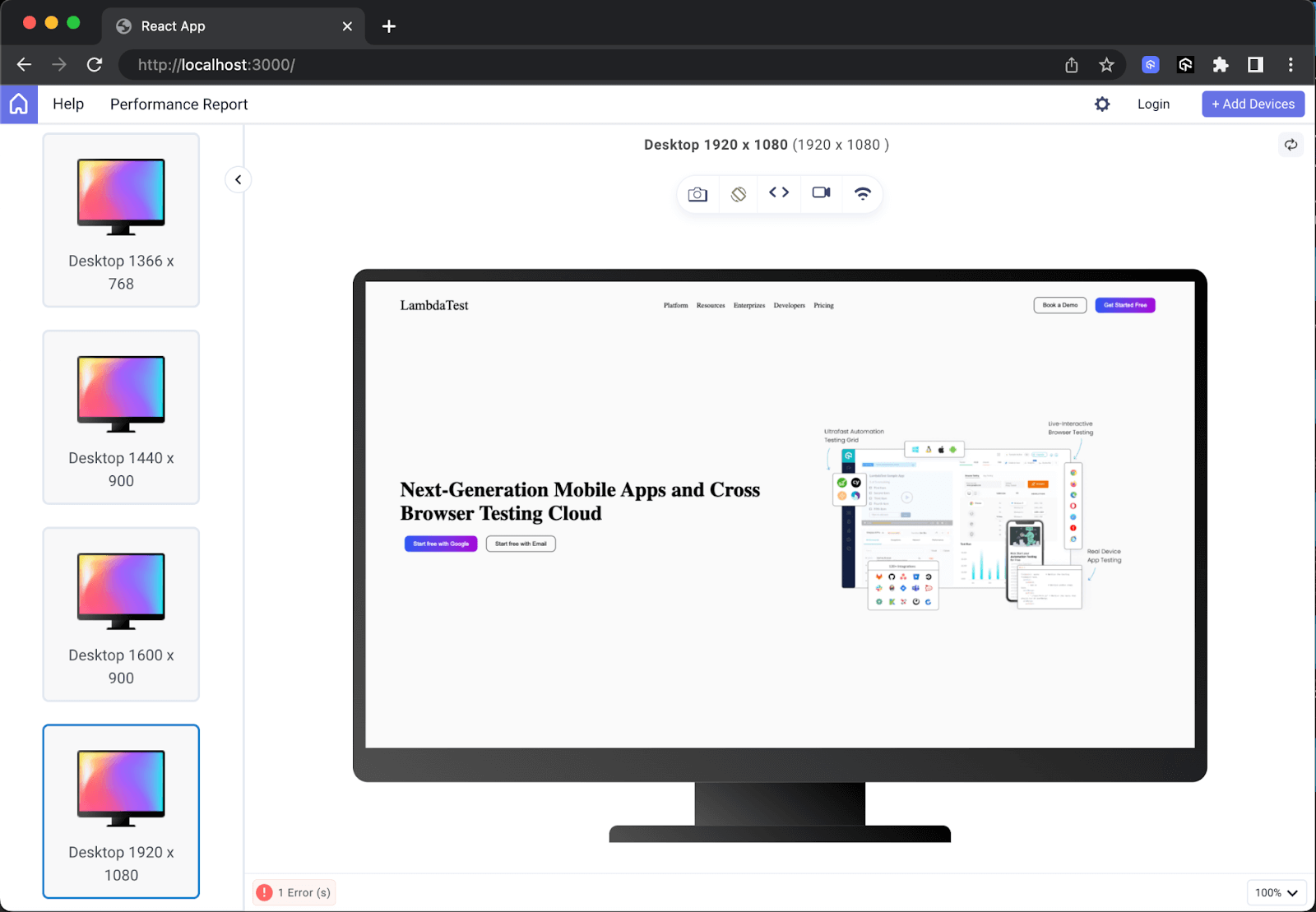
Final Output
As you can see from the result, we have used the LT Browser, a mobile site tester offered by TestMu AI. It is an AI-powered test orchestration and execution platform that lets you run manual and automated tests at scale with over 3000+ real devices, browsers, and OS combinations.
Since you have used dynamic CSS properties such as width:80%, display:flex, flex-direction: column, and others, these properties contribute to the application’s responsiveness, which means you can view your application across various devices, and LT Browser helps you achieve this.
This tool allows you to test the mobile view of your website across 53+ device viewports. It also allows you to perform responsive testing to check the responsiveness on pre-installed Android and iOS viewports and custom desktop resolutions.
If you wish to use LT Browser to test site on mobile, click the download button below and get started to test your website on different screen sizes.
To learn how to use it, watch the video tutorial below and get insights on various LT Browser functionalities.
Subscribe to the TestMu AI YouTube Channel for the latest video tutorials on automation testing, web device testing, cross-device testing, mobile website testing, and more.

Wrapping up
CSS Modules are a great alternative to using regular CSS. For beginners, CSS Modules can feel challenging due to their dependency on build tools and JavaScript module syntax. However, by using a front-end library like React, we can overcome these challenges by letting React handle the configuration for us.
And that’s all for this blog. I hope this blog helped you learn about CSS Modules and how to use them in your project. CSS Modules are a significant improvement over Vanilla CSS. They empower CSS with extra powers like local scoping, reusability, and modularity.
Further from here, you can also try other ways to add CSS to your React applications. Do try the CSS-In-JS approach and Styled components approach since they are very closely related to CSS Modules. So go ahead and try them out in your next project. Happy Coding!


Frequently asked questions
Did you find this page helpful?
More Related Hubs
TestMu AI forEnterprise
Get access to solutions built on Enterprise
grade security, privacy, & compliance
- Advanced access controls
- Advanced data retention rules
- Advanced Local Testing
- Premium Support options
- Early access to beta features
- Private Slack Channel
- Unlimited Manual Accessibility DevTools Tests