

Next-Gen App & Browser Testing Cloud
Trusted by 2 Mn+ QAs & Devs to accelerate their release cycles


On This Page
- Introduction to Appium testing
- Platforms supported by Appium
- How to install Appium?
- How to start the Appium Server?
- Android Emulators for Appium testing
- Installing App on Emulators
- How to identify elements for Appium testing?
- Locators used for Mobile Automation
- How to run Appium tests on iOS and Android?
- Appium testing with Demo Code
- Debugging Steps for Common Errors in Appium
- Appium testing on Real Device Cloud

Appium Testing Tutorial For Mobile Applications
In this Appium testing tutorial, we deep dive into the essentials of the Appium framework for performing mobile automation testing.

Sidharth Shukla
February 17, 2026
Appium is one of the most popular open-source test automation frameworks for mobile app testing. It is cross-platform and compatible with a number of popular programming languages (e.g., Java, Python, JavaScript, etc.) for app test automation. The best part is that you don’t have to recompile your app or modify it due to the usage of standard automation APIs on the supported platforms.
In this Appium testing tutorial, we will deep dive into the essentials of the Appium framework for performing mobile automation tests. If you are preparing for an interview you can learn more through Appium Interview Questions.
Overview
Appium is an open-source test automation framework for validating native, hybrid, and mobile web applications. It supports Android and iOS platforms using standard WebDriver protocols for consistent, cross-platform automation.
How to Install Appium?
Appium can be installed through Node Package Manager (NPM) or Appium Desktop, which provides a simple graphical interface for managing the Appium server locally.
- Installation via NPM: Install Node.js and NPM, then run npm install -g appium globally to set up Appium for mobile automation testing workflows.
- Verify Installation: After setup, check installation using appium -v. This command returns the installed version number, confirming successful configuration of Appium automation.
- Node Version: Appium works best with Node.js 12 or later. Using an updated version ensures stability, improved performance, and reduced compatibility issues during automation.
- Appium Desktop: Download Appium Desktop from the official site. It offers a graphical way to launch, monitor, and debug server sessions effectively without command-line usage.
- Permissions: Avoid installing with sudo or root privileges. Running Appium as a standard user prevents permission conflicts during test execution and log creation.
How to Start the Appium Server?
The Appium server, built with Node.js, acts as a communication bridge between test scripts and mobile devices using the HTTP JSON Wire Protocol.
- Start via Command Line: Run appium in your terminal. By default, it launches the Appium server on port 4723, ready to process automation requests.
- Appium Desktop: Launch Appium Desktop, then click “Start Server” to initiate it easily through a visual interface rather than using the command line directly.
- Port Configuration: Change the default port using -p. For instance, use appium -p 4726 when another process is already using the default server port.
- Server Confirmation: After startup, look for the message “Welcome to Appium.” It confirms that the server is running correctly and ready for requests.
- Check Availability: Use netstat or similar tools to confirm your chosen port is available and that Appium is actively listening for connections.
How to Test on Android Emulators With Appium?
Android emulators simulate mobile devices for automated testing. They help execute regression suites and compatibility tests without using physical hardware devices.
- Install Android Studio: Download and install Android Studio, which includes tools and components for managing virtual devices required for Appium-based mobile automation testing.
- Open AVD Manager: Inside Android Studio, navigate to “Configure” and open “AVD Manager.” This utility helps create, manage, and run multiple Android virtual test devices.
- Create Virtual Device: Choose your desired hardware profile, such as Pixel XL, then click “Next” to proceed with creating a compatible testing environment.
- Select System Image: Choose the preferred Android version, like Android 11 or 12, ensuring consistent and controlled testing environments for Appium automation runs.
- Verify Configuration: Name the device, adjust memory settings, and click “Finish.” The emulator will appear in your dashboard, ready for Appium-based testing immediately.
Introduction to Appium testing
Appium is an open-source framework for automating native, mobile web, and hybrid applications on Android mobile, iOS mobile, and Windows desktop platforms. For starters, Appium was developed by Dan Cuellar and Jason Huggins and today has about 15.2K stars and 5.7K Fork on GitHub. It has the highest market share compared to all the other mobile automation frameworks.
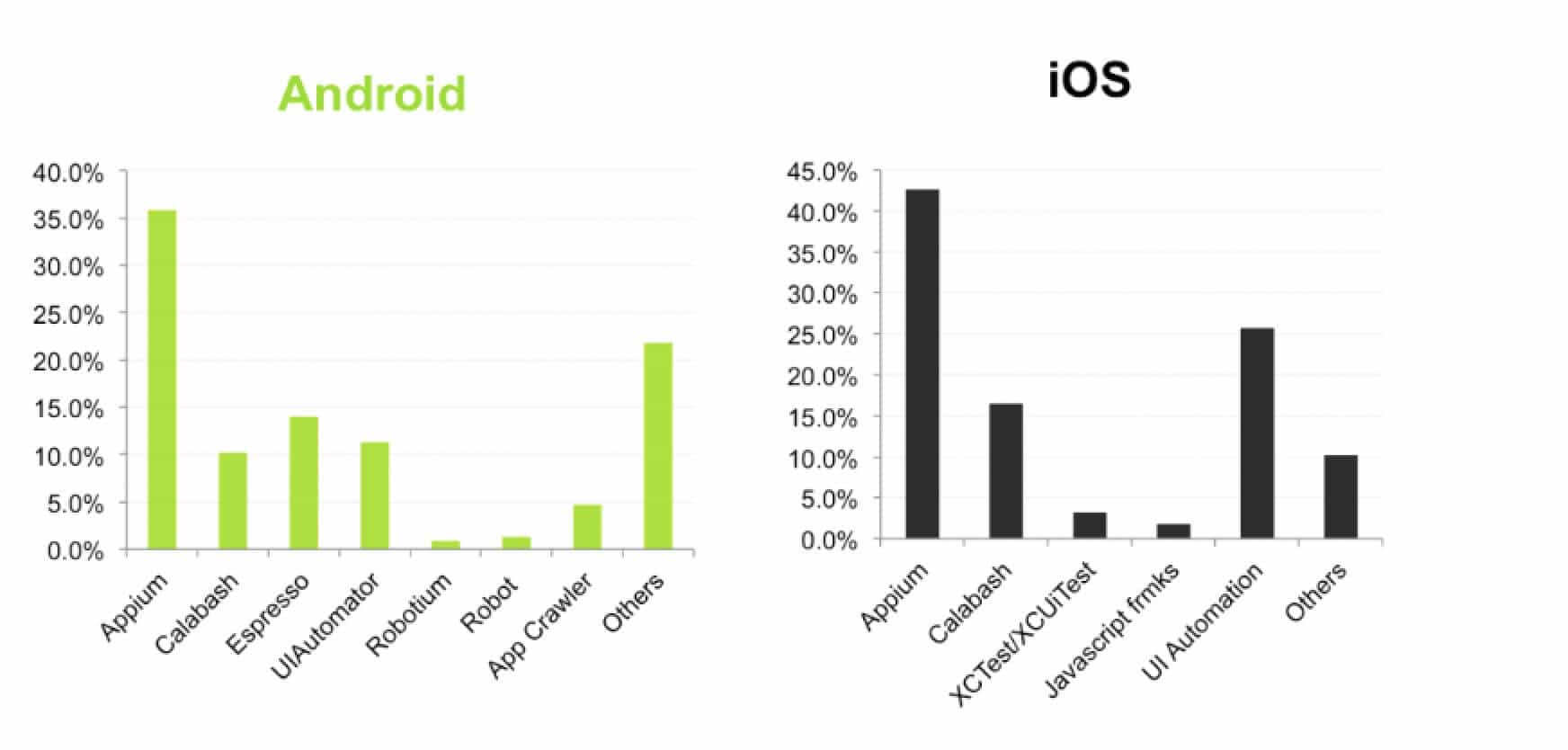
Here are the major categories of mobile applications that can be tested using the Appium framework:
- Native apps – These are written using the iOS, Android, or Windows SDKs. Instagram, Spotify, and Facebook are some of the most popular native mobile apps.
- Mobile web apps – These are applications accessed using a mobile browser. Appium supports Safari on iOS and Chrome or the built-in ‘Browser’ app on Android. Uber and Pinterest are some of the most popular mobile web applications.
- Hybrid apps – These applications have a wrapper around a “webview” – a native control that enables interaction with the web content. Projects like Apache Cordova make it easy to build new apps using web technologies bundled into a native wrapper, creating a hybrid app. LinkedIn and Facebook are the most popular hybrid mobile applications.
- Progressive Web Apps (PWAs) – Progressive Web Apps are almost the same as regular web pages. In fact, they also function when the device is in offline mode (i.e., when the device is not connected to the Internet). The best thing about these “PWAs” is that they can be accessed via the app icon on the device. By clicking on it, the icon launches the app website.
Intrigued to know more about Web, Hybrid, and Native apps? You can deep-dive into it by going through the Web vs Hybrid vs Native Apps comparison.
Appium is “cross-platform”; hence, tests written for one platform (i.e., Android, iOS, etc.) work seamlessly across other platforms supported by the Appium framework. This increases the code reusability factor and minimizes the code maintainability factor of the test code.
Watch this video to learn about Appium, one of the most popular open-source test automation frameworks for mobile app testing.
Platforms supported by Appium
Before we start discussing Appium Mobile Testing in greater detail, we should know about the platforms supported by Appium. In my personal experience, if we aren’t aware of the support provided by Appium, you may waste your time trying out some implementation that might not be supported by Appium.
Appium supports multiple platforms and testing modalities mentioned below:
- Native Apps
- Hybrid Apps
- Web Apps
- Testing on Real devices
- Testing on Simulators and Emulators
Appium supports iOS, Android, macOS, and Windows. Here is the list of drivers required for each platform:
- iOS Support for XCUITest Driver and SafariDriver for Apple’s Safaridriver.
- Android supports UiAutomator2 Driver, Espresso Driver, and Geckodriver for Firefox and GeckoView. However, UIAutomation Driver support has been deprecated for both iOS and Android.
- macOS support for Mac2 Driver is for macOS 10.15 (or later). Windows Desktop supports WinAppDriver Geckodriver for Firefox and GeckoView.
With Appium 3, platform support remains robust, covering iOS, Android, macOS, and Windows, while driver management is now more streamlined, making it easier to keep XCUITest, UiAutomator2, Espresso, and Mac2/WinAppDriver drivers up to date and fully compatible.
Apart from these, some vendors/community-based drivers can be found on the Appium official website.

How to install Appium?
Appium can be installed in two ways:
- Via NPM (Node Package Manager).
- By downloading Appium Desktop – a graphical, desktop-based way to launch the Appium server.
In case you want to know different ways to install appium you can refer to below video.
Installation of Appium via NPM
If you want to run Appium via an npm install, you will need Node.js and NPM (use nvm, n, or brew install node to install Node.js).
Ensure that Node or Appium are not installed with sudo (or root); otherwise, you’ll run into problems. We recommend the latest stable version, though Appium supports Node.js 12+.
Run the following command on the terminal to install Appium via npm:
npm install -g appium
Once installation is done, we can type “npm – -version,” which will return the installed version as shown below:

Installation of Appium via Desktop App
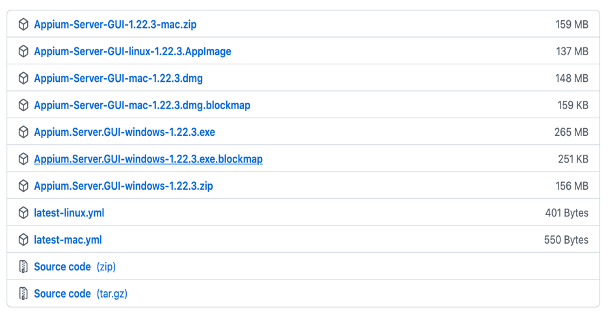
Simply download the latest version of Appium Desktop from the releases page of Appium official website.
How to start the Appium Server?
Appium server is basically written in Node.js and follows the HTTP JSON Wire Protocol. It acts as a virtual server that sends the commands to the framework to handle testing actions and scripts autonomously.
The Appium server processes the request and then responds with the test results. Now we can kick up an Appium server, either by running it from the command line or by using Appium Desktop (assuming the npm install was successful).
- We can use the below command to start the appium server:
⇒ appium
- You will get to see Welcome to Appium like the below screenshot:
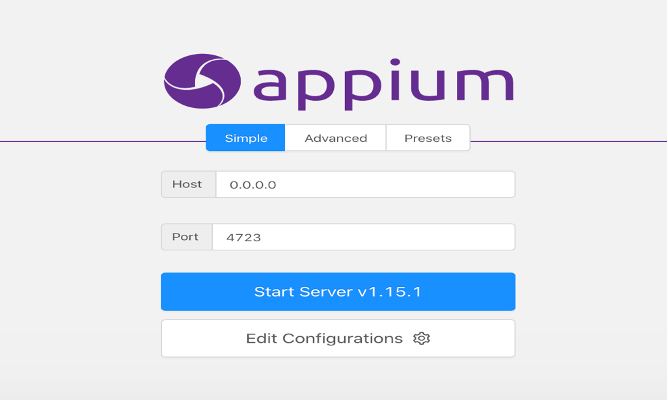
- If you have installed Appium Desktop, then we can start by clicking on the ‘Start Server’ button inside of Appium Desktop as shown below.
- Appium will now show you a little welcome message showing the version of Appium you’re running and what port it’s listening on (the default is
4723: You can use “netstat” to check whether a port is available or not). - You can use port number 4726 instead of 4723. However, the server needs to be configured to run on the said port. This port information is vital since you will have to direct your test client to make sure to connect to Appium on this port. If you want to change the port, you can do so by using the
-pflag when starting Appium (be sure to check out the full list of server parameters).

Bonus Tip
There is an easy way to start Appium server programmatically:
AppiumDriverLocalService service = AppiumDriverLocalService.buildDefaultService();
service.start(); // start the Appium Server
service.stop(); // stop the Appium Server
Android Emulators for Appium testing
In my ten years of experience, I have observed that when we want to test mobile applications, we always prefer to do the dry run on emulators. In fact, most organizations prefer emulators for running a regression suite for Appium testing. So it is quite vital to know about emulators and how to create one for Appium testing.
Android emulator is a tool that creates virtual Android devices (with both software and hardware) that can be used for running Android device tests that are implemented using the Appium framework. You can go through the blog on emulator vs simulator differences to learn about emulators and simulators.
Android emulators are very important for performing Android app testing. Below are the steps to create an Android Mobile Emulator, which we can use for Mobile testing on any Android version.
Watch this video to learn what is an Android Emulator, its benefits, and how to set it up.
- Download and install Android Studio in case it is not present on your machine.
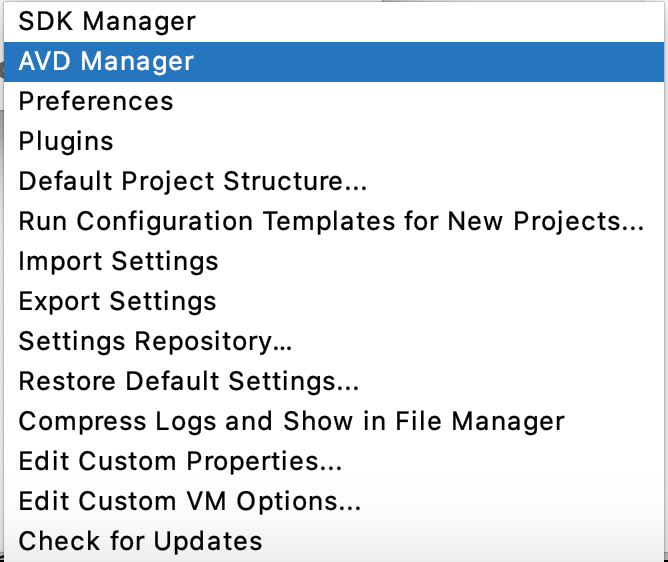
- Open Android Studio and click on “Configure” “AVD Manager” from the list as shown in the below screenshot.
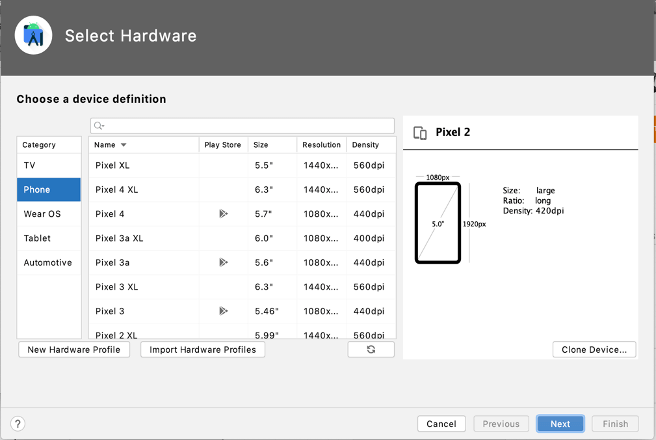
- Now click on the “Create Virtual Device” button, and you will be redirected to the “Select Hardware” page, where we need to select the mobile type, for example, “Pixel XL,” as shown below and then click on “Next”.
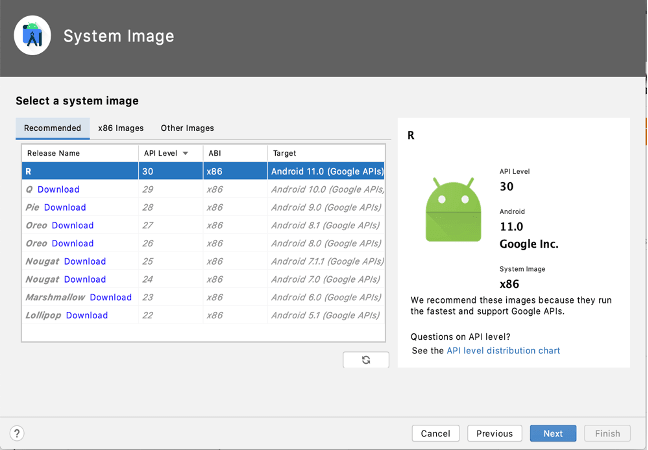
- After the “Select Hardware” page you will be able to see the “System Image” page. Here we need to select which Android version we want in our mobile device for testing, for example, Pie, Oreo, R, etc. In the below image, you can see that I have selected Android 11, then click “Next.”
- Now you will arrive at the “Verify Configuration” page. Here, you can check the selection we have made in steps 3 and 4. Provide the name for your device as I have given the name “AndroidMobile” in the below screenshot:
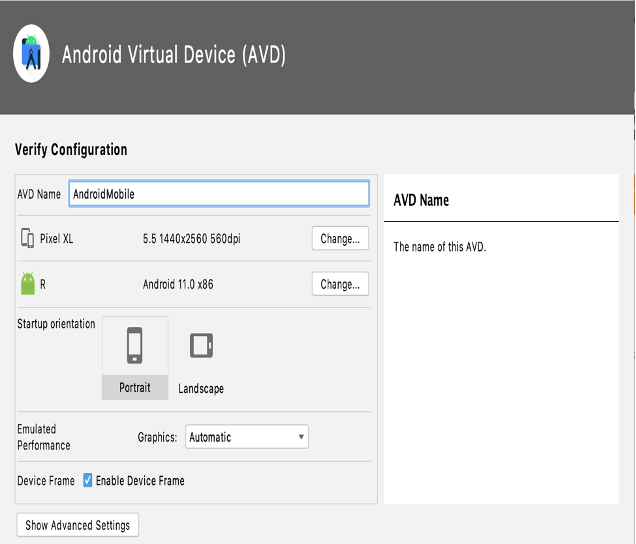
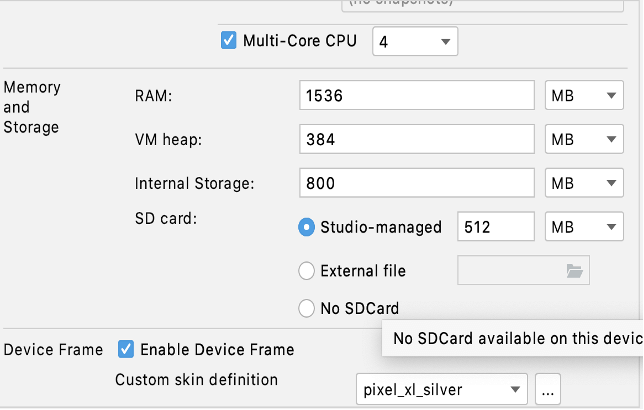
Here, we can change the Memory and Storage by clicking on “Show Advanced Settings.”
- Now the device is created, and in the dashboard, we can see it. Search with the device name that we have provided in Step 5, as shown below. Now click on the ‘Play’ button, and the device is ready for testing.

In the above screenshot, we have an edit option, which can be used to edit some fields for the emulator, and the dropdown button can be used for cold boot.
But sometimes, it’s really difficult to go through all the six steps mentioned above to create an emulator. So, instead of that, you can also use online Android emulators provided by TestMu AI.
Cloud-based platforms like TestMu AI provides an online device farm of over 3000+ Android emulators to test on Android devices.
We need to run just three steps to start an emulator on TestMu AI:
- Login to TestMu AI and go to the TestMu AI Dashboard.
- Navigate to Real Time Testing > App Testing as shown below:
- Now select your BRAND and DEVICE/OS and then click on the START button. Here, the sample apk is mentioned, but you can use your apk for Appium testing.
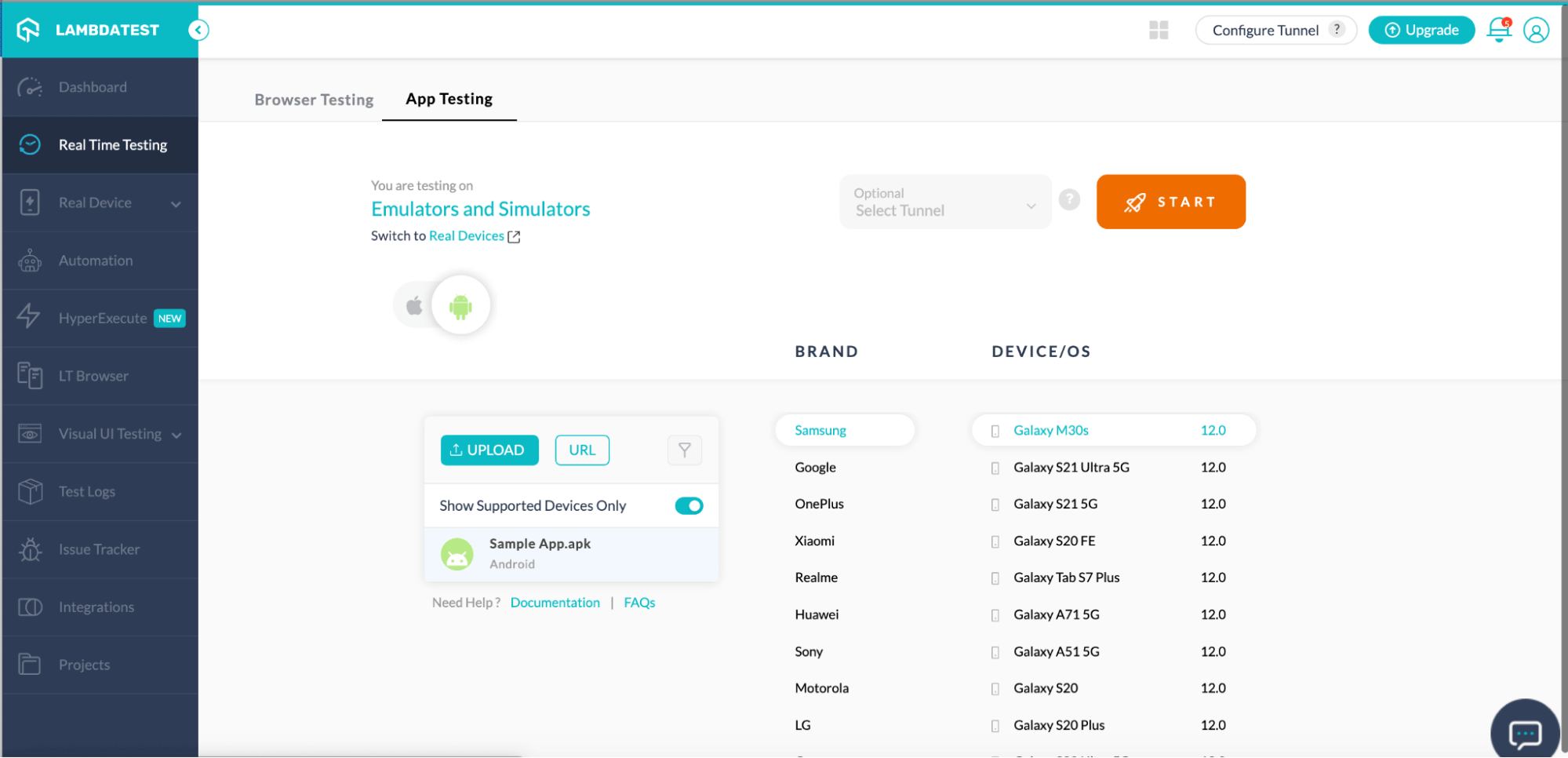
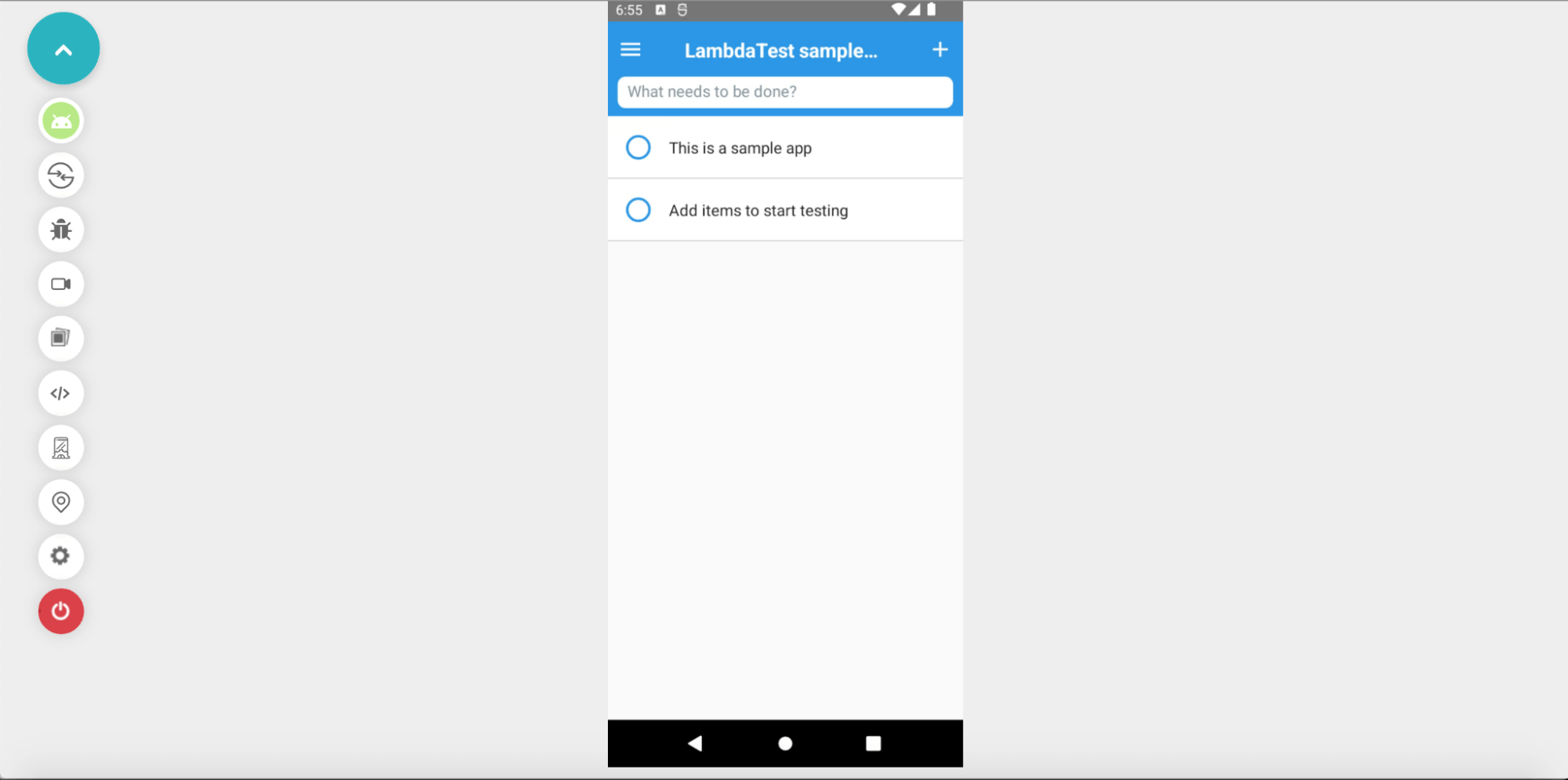
Isn’t it easy :), Don’t forget to stop the emulator after use by clicking on the last button on the left panel.

Installing App on Emulators
Once the emulator is ready for use and the Android path is set up correctly, the next step would be to install an app on the emulator on which we would be performing the app testing.
- The first step is to run the emulator on which you need to install the app.
emulator -avd
- The emulator will be launched, and the command will run in the terminal.
- There are two ways to install the app:
- Install via ADB command:
- Drag and Drop
Now perform testing by dragging your .apk to the newly created virtual device. There are many websites that provide the sample apk, which can be used for testing. If you do not have any .apk or .ipa files, you can run your sample tests on TestMu AI using our sample 🔗 Android app or sample 🔗 iOS app.
How to identify elements for Appium testing?
Before we can start writing test scripts, we need to understand identifying elements using attributes such as ID, Name, Class, etc., to perform actions. You can go through this Selenium Locators tutorial to learn more about the locators.
To identify (or locate) elements, we can use UIAutomatorViewer or Appium inspector to capture a snapshot of the current device screen, which shows the hierarchy of the UI components properly arranged on the screen.
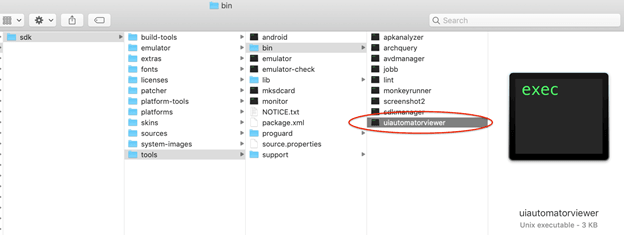
UI Automator Viewer is a GUI tool that comes with Android SDK and is primarily used to inspect UI components of the Android Application. It also lets you view the properties associated with it. We can find it in the Android SDK “tools” folder with the file name ‘uiautomatorviewer.bat’ on Windows OS.
our “Appium Commands Cheat Sheet” sheet provides a quick reference to essential Appium commands, making your mobile testing workflow more efficient and effective. Check it out to streamline your Appium testing process.
How to access elements using UIAutomatorViewer?
When designing automation scripts, Appium uses “UIAutomatorViewer” to identify different properties of the object and use the properties to identify the required object.
There are several ways by which the UIAutomatorViewer can be launched:
- For Windows: Go to the path where UIAutomatorViewer exists (Android SDK folder) and run the batch file (for Windows) – uiautomatorviewer.bat.
- For Mac: Go to the location via terminal and run the uiautomatorviewer sh file. Execution permission must be given to the file, or errors will be thrown.
- It can be added as an alias to run directly via the terminal. In the Mac machine, add it to the bash_profile file.
Example: alias inspector='$ANDROID_HOME/tools/bin/uiautomatorviewer'
For Mac:
Follow the below mentioned steps for using UIAutomatorViewer:
- Connect the device to the PC via USB cable.
- Enable USB Debugging mode for the device connected.
- Run the ADB devices command in the command prompt/terminal to check if the device is detected and online/available.
- Open an application and click the device screenshot icon from the right up corner.
- After clicking on ‘Device Screenshot‘, an image of the current screen will be loaded in the UIAutomatorViewer, and we can use the mouse to click on any element and see the details of that element. You can also use the hierarchical tree in the top right to browse a particular element.
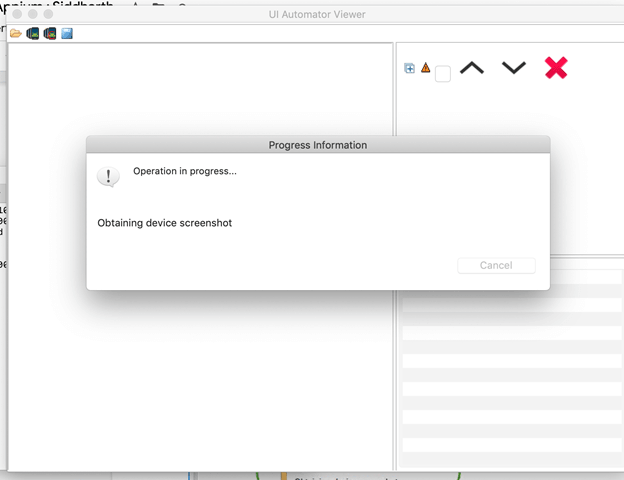
Note: The UIAutomatorViewer works only with Android native app elements.

Note: Want to make your life of testing easy and fuss-free while debugging? Try LT Debug Chrome extension!
How to work with Appium Inspector?
A default inspector available in standalone Appium (not in the npm version) is called Appium Inspector, which can be used to inspect Android and iOS elements. It simply mirrors the screen of the device, and we can interact with it and get the details of the elements. Let’s see how we can launch and work with it.
Locators used for Mobile Automation
Shown below are some of the major locators used for mobile app automation:
| Strategy | Description |
|---|---|
| Accessibility ID | Reads a unique identifier for a UI element. For XCUITest, it is the element’s accessibility-id attribute. For Android, it is the element’s content-desc attribute. |
| Class name | For iOS, it is the full name of the XCUI element and begins with XCUIElementType. For Android it is the full name of the UIAutomator2 class (e.g., android.widget.TextView) |
| ID | Native element identifier. resource-id for android; name for iOS. |
| Name | Name of element |
| XPath | Searches the app XML source using xpath (not recommended, has performance issues) |
| Image | Locates an element by matching it with a base 64 encoded image file |
| Android UiAutomator (UiAutomator2 only) | Uses the UIAutomator API, in particular, the UiSelector class to locate elements. In Appium, you send the Java code, as a string, to the server, which executes it in the application’s environment, returning the element or elements. |
| Android View Tag (Espresso only) | Locates an element by its view tag. |
| Android Data Matcher (Espresso only) | Locates an element using Espresso DataMatcher. |
| iOS UIAutomation | When automating an iOS application, Apple’s Instruments framework can be used to find elements. |
How to run Appium tests on iOS and Android?
In this section of this Appium testing tutorial, I will walk you through the steps for running Appium tests with iOS and Android. First, make sure the Appium server is up and running. You can refer to the section “How to start the Appium Server” in this blog to kick start your first step for Appium testing.
Then, we have to check that the Android emulator we have created in the section “Android Emulators for Appium testing” is up and running. For that, we need to run adb devices. For example, we should see one device connected, as shown in the below screenshot. This is the device Appium will use for testing purposes. (Remember that if the Android SDK tools are on your path, simply run: emulator -avd )

Now we need to wait for the Android emulator to finish launching. Sometimes, for various reasons, adb gets stuck. If it’s not showing any connected devices or otherwise failing, we can restart it by running: adb kill-server && adb devices.
Once we are done with starting the Appium server and checking the emulator, then we should be aware of the desired capabilities as per the OS(Android/iOS) we are using for Appium testing.
Android:
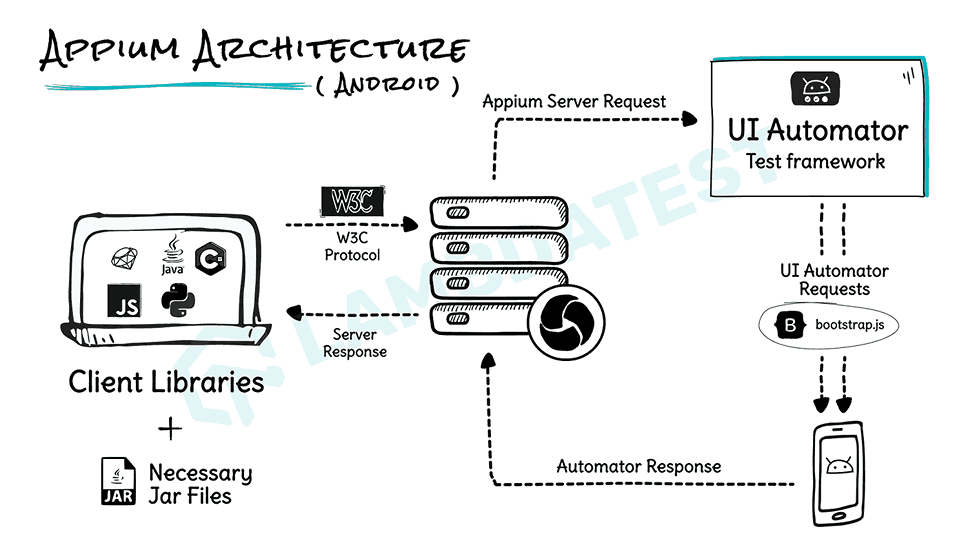
By Sathwik Prabhu
Set the following desired capabilities in your WebDriver script:
DesiredCapabilities capabilities = new DesiredCapabilities();
capabilities.setCapability(MobileCapabilityType.PLATFORM_NAME, "iOS");
capabilities.setCapability(MobileCapabilityType.PLATFORM_VERSION, "7.1");
capabilities.setCapability(MobileCapabilityType.DEVICE_NAME, "iPhone Simulator");
capabilities.setCapability(MobileCapabilityType.APP, myApp);
Using your WebDriver library of choice, set the remote session to use these capabilities and connect to the server running at port 4723 of localhost (or whatever host and port you specified when you started Appium). You are all set now!
There are many ways to start an Appium application (it will work exactly the same way as when the application is started via ADB command):
- apk or zip only, default activity will be launched (‘app’ capability)
- apk + activity (‘app’ + ‘appActivity’ capabilities)
- apk + activity + intent (‘app’ + ‘appActivity’ + ‘appIntent’ capabilities)
If you are not sure what activity is configured in your apk, you can proceed in one of the following ways:
- Mac/Linux: ‘adb shell dumpsys window windows | grep mFocusedApp’
- In the Ruby console: ‘adb shell dumpsys window windows`.each_line.grep(/mFocusedApp/).first.strip’
- In Windows terminal, run ‘adb shell dumpsys window windows’ and manually look for the mFocusedApp line.
iOS:
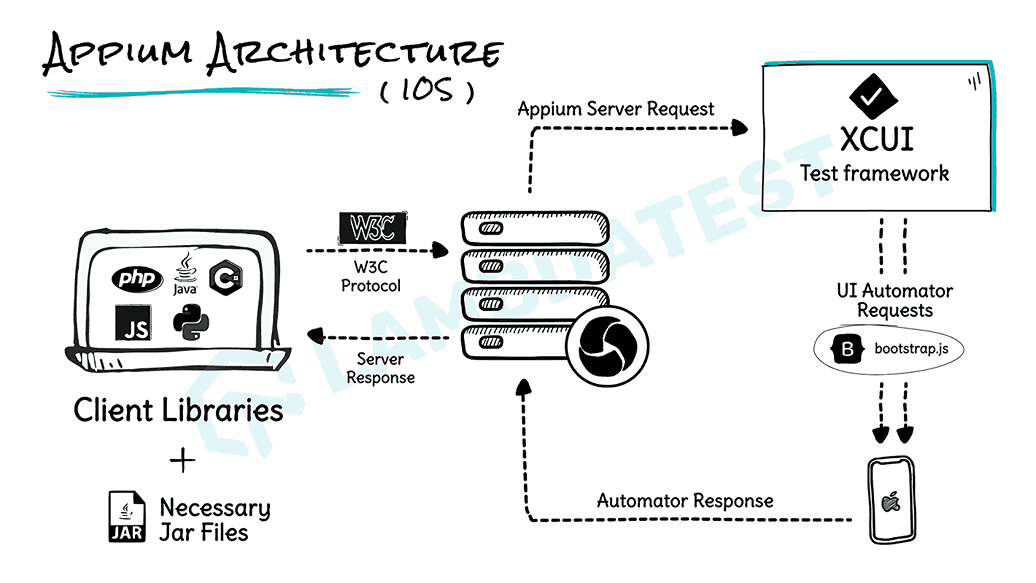
By Sathwik Prabhu
Set the following desired capabilities in your WebDriver script::
DesiredCapabilities capabilities = new DesiredCapabilities();
capabilities.setCapability(MobileCapabilityType.PLATFORM_NAME, "Android");
capabilities.setCapability(MobileCapabilityType.PLATFORM_VERSION, "4.4");
capabilities.setCapability(MobileCapabilityType.DEVICE_NAME, "Android Emulator");
capabilities.setCapability(MobileCapabilityType.APP, myApp);
In the set of capabilities for Android and iOS, myApp must be any one of the below:
- A local absolute path to your .apk or a .zip
- An URL of a zip file containing your .apk
- path to one of the sample app relative to the appium install root
Using the WebDriver library of choice, we can set the remote session to use these capabilities and connect to the server running at port 4723 of localhost . You should be all set now!
Appium testing with Demo Code
Here, we are using simple code, which can be used by anyone for their first test on Appium. We are using an emulator that we created in this post to run our apk, which can be downloaded from the ”Installing App on Emulators” section of this post.
We will try to verify two important scenarios in the test below, the first one is “open the geolocation page” and the second one is “speed test page”. Apart from the code, I will share the screenshot on the emulator while running the test script for both the scenarios mentioned above.
Sometimes it’s difficult to start from scratch, so to make life easier, you can clone the TestMu AI’s 🔗LT-appium-java repository and then replace the vanilla_android.java class with the code mentioned below.
Now we are halfway done. We just need to hit the below two commands to run our sample test for Appium testing on Android APK emulator online. The first command is to install dependencies and second one to run our suite.
To install the required dependencies:
mvn clean install
To run your test just type below command in your command prompt:
mvn compile exec:java -Dexec.mainClass=vanilla_android -Dexec.classpathScope="test"
Sample Code:
import io.appium.java_client.AppiumDriver;
import io.appium.java_client.MobileBy;
import io.appium.java_client.MobileElement;
import org.openqa.selenium.JavascriptExecutor;
import org.openqa.selenium.remote.DesiredCapabilities;
import org.openqa.selenium.remote.RemoteWebDriver;
import java.net.MalformedURLException;
import java.net.URL;

public class vanilla_android {
   private static AppiumDriver driver;

   public static void main(String args[]) throws MalformedURLException, InterruptedException {

       try {
           DesiredCapabilities capabilities = new DesiredCapabilities();
           capabilities.setCapability("deviceName", "AndroidMobile");
           capabilities.setCapability("platformVersion", "11");
               capabilities.setCapability("platformName", "Android");
           capabilities.setCapability("isRealMobile", false);
           capabilities.setCapability("app", "/Users/{user}/Downloads/proverbial_android.apk"); //Enter your app url
           capabilities.setCapability("name", "Sample Test Java");
           capabilities.setCapability("console", true);
           capabilities.setCapability("network", false);
           capabilities.setCapability("visual", true);
           capabilities.setCapability("devicelog", true);


           driver = new AppiumDriver(new URL("http://localhost:4723/wd/hub"), capabilities);

           //Open the geolocation page
           MobileElement geo = (MobileElement) driver.findElement(MobileBy.id("com.lambdatest.proverbial:id/geoLocation"));
           geo.click();
           Thread.sleep(5000);

           //takes back to home page
           MobileElement el3 = (MobileElement) driver.findElementByAccessibilityId("Home");

           driver.navigate().back();
           Thread.sleep(2000);

           //Takes to speed test page
           MobileElement speedtest = (MobileElement) driver.findElement(MobileBy.id("com.lambdatest.proverbial:id/speedTest"));
           speedtest.click();
           Thread.sleep(15000);

           driver.navigate().back();

       } catch (AssertionError a) {
           ((JavascriptExecutor) driver).executeScript("lambda-status=failed");
           a.printStackTrace();
       }
// The driver.quit statement is required, otherwise the test continues to execute, leading to a timeout.
       driver.quit();
   }

}
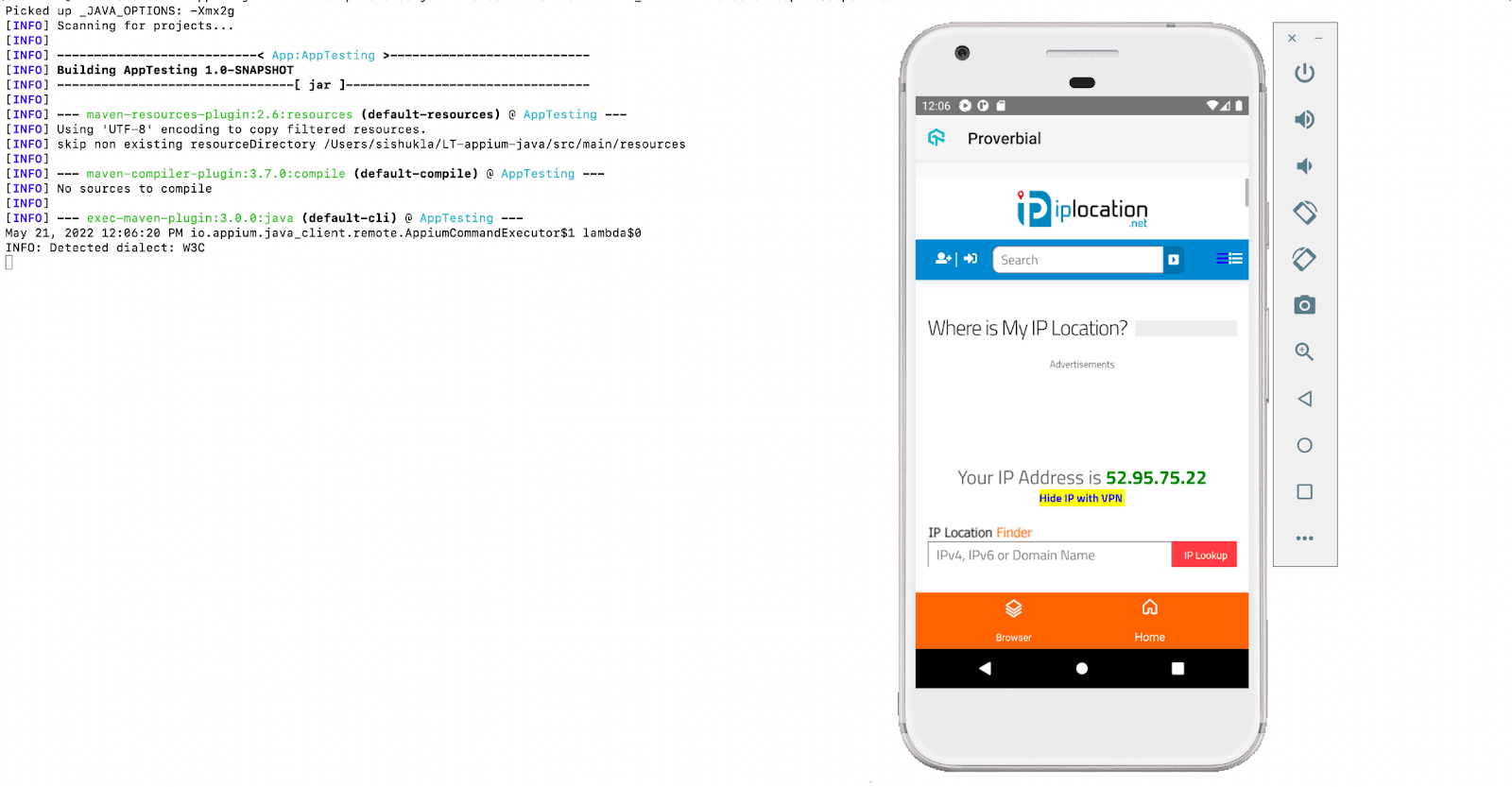
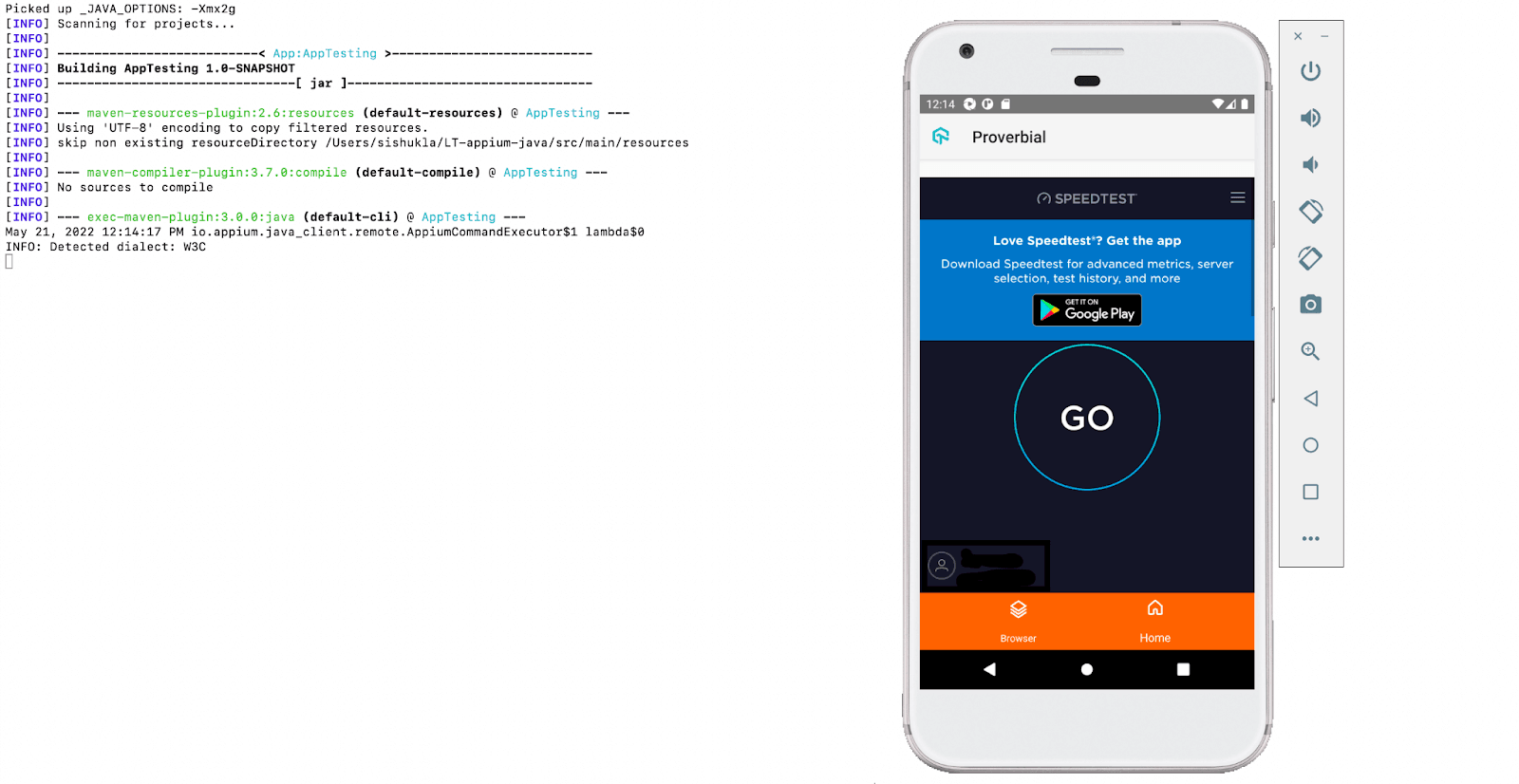
I am going to share two screenshots from live running to give you guys a look and feel of scenarios running on an emulator. The left section of the screenshot shows the execution of commands on the command prompt and the right panel is the emulator on which the script is executing.
Scenario 1: Open the geolocation page (check the geolocation page on the emulator screen)
Scenario 2: Takes the speed of the test page. (check the speed of the test page on the emulator).
Debugging Steps for Common Errors in Appium
General symptoms to look for are codesign failures.
- Appium may sometimes have difficulties finding the
nodeexecutable if you’ve installed Node and npm via MacPorts. We need to make sure that the MacPorts bin folder (default path is :/opt/local/bin) is added toPATHsomewhere in ~/.profile, ~/.bash_profile or ~/.bashrc. - If you get an error “
[INST STDERR] posix spawn failure; aborting launch” while running iOS tests, your app is not compiled correctly for the simulator or device.
Appium testing on Real Device Cloud
When we talk about Appium testing or try to figure out the real use of Appium then, in my past experiences, two things come to my mind: The first one is that it supports both Android automation testing and iOS automation testing, and the second one is that Appium is free and open source.
Remember that the learning curve for Appium testing is also quite easy, and you must have realized it by now if you are at the end of this post.
One important point to remember is that until now, we have run our test scripts using an emulator, but you must be wondering if I want to run on a real device cloud.
Do I need to buy an iPhone or Android phone? So the answer is NO. Now you must think, if we won’t buy a device, how can we test it? The answer is the buzzword “Cloud Devices.”
The best part is running our existing scripts on a real device is a cakewalk. Below, I will explain what changes to make if we opt for running our test on TestMu AI real device cloud. Here’s the walkthrough of the automated app testing on real devices using TestMu AI.
You can also subscribe to the TestMu AI YouTube Channel and stay updated with the latest tutorials around Selenium testing, Cypress E2E testing, CI/CD, and more.
You can use the same code that I have shared before but with the below changes:
DesiredCapabilities capabilities = new DesiredCapabilities();
            capabilities.setCapability("deviceName", "Galaxy S20");
            capabilities.setCapability("platformVersion", "11");
            capabilities.setCapability("platformName", "Android");
            capabilities.setCapability("isRealMobile", true);
            capabilities.setCapability("app", "lt://APP10016551653068008326557"); //Enter app URL
public static String userName = System.getenv("LT_USERNAME") == null ? "LT_USERNAME"  //Add username here
            : System.getenv("LT_USERNAME");
    public static String accessKey = System.getenv("LT_ACCESS_KEY") == null ? "LT_ACCESS_KEY" //Add accessKey here
            : System.getenv("LT_ACCESS_KEY");

driver = new AppiumDriver(new URL("https://" + userName + ":" + accessKey + "@beta-hub.lambdatest.com/wd/hub"), capabilities);
import io.appium.java_client.AppiumDriver;
import io.appium.java_client.MobileBy;
import io.appium.java_client.MobileElement;
import io.appium.java_client.ios.IOSDriver;

import org.openqa.selenium.JavascriptExecutor;
import org.openqa.selenium.remote.DesiredCapabilities;
import org.openqa.selenium.remote.RemoteWebDriver;
import java.net.MalformedURLException;
import java.net.URL;

public class vanilla_android {
    public static String userName = System.getenv("LT_USERNAME") == null ? "LT_USERNAME"  //Add username here
            : System.getenv("LT_USERNAME");
    public static String accessKey = System.getenv("LT_ACCESS_KEY") == null ? "LT_ACCESS_KEY" //Add accessKey here
            : System.getenv("LT_ACCESS_KEY");
    private static AppiumDriver driver;

    public static void main(String args[]) throws MalformedURLException, InterruptedException {

        try {

            DesiredCapabilities capabilities = new      DesiredCapabilities();
            capabilities.setCapability("deviceName", "Galaxy S20");
            capabilities.setCapability("platformVersion", "11");
            capabilities.setCapability("platformName", "Android");
            capabilities.setCapability("isRealMobile", true);
            capabilities.setCapability("app", "lt://APP10016551653068008326557"); //Enter your app url
            capabilities.setCapability("deviceOrientation", "PORTRAIT");
            capabilities.setCapability("build", "Java Vanilla - Android");
            capabilities.setCapability("name", "Sample Test Java");
            capabilities.setCapability("console", true);
            capabilities.setCapability("network", false);
            capabilities.setCapability("visual", true);
            capabilities.setCapability("devicelog", true);
            driver = new AppiumDriver(new URL("https://" + userName + ":" + accessKey + "@beta-hub.lambdatest.com/wd/hub"), capabilities);
          //  driver = new AppiumDriver(new URL("http://localhost:4723/wd/hub"), capabilities);

            //Open the geolocation page
            MobileElement geo = (MobileElement) driver.findElement(MobileBy.id("com.lambdatest.proverbial:id/geoLocation"));
            geo.click();
            Thread.sleep(5000);

            //takes back to home page
            MobileElement el3 = (MobileElement) driver.findElementByAccessibilityId("Home");

              driver.navigate().back();
            Thread.sleep(2000);

            //Takes to speed test page
            MobileElement speedtest = (MobileElement) driver.findElement(MobileBy.id("com.lambdatest.proverbial:id/speedTest"));
            speedtest.click();
            Thread.sleep(15000);

            driver.navigate().back();

        } catch (AssertionError a) {
            ((JavascriptExecutor) driver).executeScript("lambda-status=failed");
            a.printStackTrace();
        }
// The driver.quit statement is required, otherwise the test continues to execute, leading to a timeout.
        driver.quit();
    }

}
Conclusion


Frequently asked questions
Did you find this page helpful?
More Related Hubs
TestMu AI forEnterprise
Get access to solutions built on Enterprise
grade security, privacy, & compliance
- Advanced access controls
- Advanced data retention rules
- Advanced Local Testing
- Premium Support options
- Early access to beta features
- Private Slack Channel
- Unlimited Manual Accessibility DevTools Tests