
Power Your Software Testing with AI Agents and Cloud
The Native AI-Agentic Cloud Platform to Supercharge Quality Engineering. Test Intelligently and Ship Faster.


- TestMu AI (Formerly LambdaTest)
- /
- Learning Hub
- /
- How to Handle JavaScript Alerts in Selenium Effectively
How to Handle JavaScript Alerts in Selenium Effectively
Learn how to handle JavaScript alerts in Selenium effectively, including simple, confirmation, and prompt alerts for robust test automation.
Last Updated on:
Web applications frequently trigger JavaScript alerts to display messages, request confirmations, or capture input from users.
Handling these alerts in Selenium is essential for ensuring test automation can continue without interruptions, validating user interactions, and verifying application behavior under different scenarios.
Overview
To handle JavaScript alerts effectively in Selenium, switch the driver context using driver.switchTo().alert() and then use accept(), dismiss(), getText(), or sendKeys(). For automated testing at scale across multiple browser configurations, execute these Selenium scripts on the TestMu AI cloud platform.
Types of Alerts in Selenium
- Simple Alerts: Use the
accept()method in Selenium to click the "OK" button, which notifies users of important information before they proceed with the workflow. - Confirmation Alerts: Use the
accept()method to confirm or thedismiss()method to cancel actions, ensuring intentional user decision-making during tests. - Prompt Alerts: Use the
sendKeys()method to input text, followed byaccept()to submit ordismiss()to cancel data entry.
Troubleshooting Alerts in Selenium
- UnhandledAlertException: Prevent this exception by switching to the active alert using
driver.switchTo().alert()before attempting to interact with the main web page. - NoAlertPresentException: Resolve this error by implementing explicit waits like
WebDriverWaitto ensure the alert is fully triggered before Selenium attempts to switch to it. - Alert Text Mismatches: Fix dynamic or unexpected alert messages by validating the retrieved text using partial matches or regular expressions during assertions.
- Prompt Input Failures: Avoid input failures by verifying that the target alert is indeed a prompt type and ensuring proper waits before calling
sendKeys(). - Timing Issues and Flaky Tests: Eliminate intermittent test failures by using
WebDriverWaitwithExpectedConditions.alertIsPresent()to synchronize alert appearances across different browsers. - Scale Testing: Execute automated Selenium alert tests in parallel across over 3,000 real browser and operating system combinations using the TestMu AI cloud grid.
What Are Alerts in Selenium?
Alerts in web apps are browser-generated dialogs triggered by JavaScript functions like alert(), confirm(), or prompt(). They block interaction until the user responds, pausing workflow.
They are commonly used to display messages, request confirmations, or capture simple input, making it essential to handle them properly in Selenium automation.
What Are the Different Types of Alerts and How to Handle Them?
Selenium WebDriver uses the Alert interface to manage alerts. You must switch focus to the alert before accepting, dismissing, or entering text to handle it effectively.
To understand how Selenium WebDriver helps with handling alerts, it’s important to first learn what is Selenium WebDriver.
- Switching to an Alert: The driver.switchTo().alert() method focuses on the alert, allowing Selenium to interact with it directly. Once the alert is in focus, you can perform actions such as getting its text, clicking OK or Cancel, or even sending input in the case of a prompt.
Alert alert = driver.switchTo().alert();Selenium will throw an UnhandledAlertException if you attempt to accept or dismiss an alert without switching to it first.
For example, some websites display a confirmation alert such as “Are you sure you want to leave this page?”. If the test doesn’t handle this alert, it may fail intermittently with an UnhandledAlertException, making the test flaky. Handling such alerts ensures smooth and consistent execution.
Handling Simple Alert in Selenium: The accept() method in the Alert interface is used for accepting a simple alert. It performs the same action as clicking the OK button.
driver.switchTo().alert().accept();Handling Confirmation Alert in Selenium: Use the accept() method to confirm the action or the dismiss() method to cancel it.
driver.switchTo().alert().accept();   // Clicks OK
driver.switchTo().alert().dismiss();  // Clicks Cancel
Handling Prompt Alert in Selenium: Use sendKeys() to enter text into the prompt alert, then accept() to submit or dismiss() to cancel.
driver.switchTo().alert().sendKeys("New Text");
driver.switchTo().alert().accept();
Handling getText() in Selenium: The getText() method in Selenium retrieves the visible text of a web element for verification or validation.
driver.switchTo().alert().getText();
Note: Run Selenium tests at scale across 3000+ browsers and OS combinations. Try TestMu AI Now!
How to Handle an Alert in Selenium?
In Selenium, switch focus to the alert to validate interactions. Then perform actions like accept, dismiss, or enter input to ensure smooth test flow.
Let’s use the following test scenario to demonstrate handling alerts in Selenium WebDriver.
Test Scenario:
- Navigate to the JavaScript Alert Box Demo on the TestMu AI Selenium Playground website.
- Click on the “Click Me” button next to the “Prompt Box” text.
- Enter a name in the textbox of the alert message.
- Accept the alert.
- Assert that the name entered in the JS Prompt is displayed on the screen correctly.
Prerequisites:
- Java Development Kit (JDK): Install and configure JDK on your system.
- Maven Setup: Ensure Maven is installed and configured if using a Maven project.
- Selenium Dependency: Add Selenium WebDriver dependency in your pom.xml.
<dependency>
    <groupId>org.seleniumhq.selenium</groupId>
    <artifactId>selenium-java</artifactId>
    <version>4.35.0</version>
</dependency>
Code Implementation:
Let’s create a new Java class and name it “AlertTest”. This test class will be used to implement the test scenario we discussed.
public class AlertTest {
   private WebDriver driver;

   @BeforeClass
   public void setup () {
       this.driver = new ChromeDriver ();
   }

   @Test
   public void testAlert () {
       this.driver.navigate ()
           .to ("https://www.testmuai.com/selenium-playground/javascript-alert-box-demo");
       final WebElement clickMeButton = this.driver.findElement (
           By.cssSelector ("div > div:nth-child(3) > p > button"));
       clickMeButton.click ();

       final Alert alert = this.driver.switchTo ()
           .alert ();
       final String name = "Faisal K";
       alert.sendKeys (name);
       alert.accept ();

       final String promptText = this.driver.findElement (By.id ("prompt-demo"))
           .getText ();
       assertEquals (promptText, "You have entered " + "'"+ name +"' !");
   }

   @AfterClass
   public void tearDown () {
       this.driver.quit ();
   }
}
Code Walkthrough:
- setup() Method: Instantiates the WebDriver and launches a new Chrome browser session on the local machine.
- Generate Capabilities: Use the TestMu AI Capabilities Generator to create the capabilities object required to connect to the TestMu AI cloud grid.
- testAlert() Method:
- Trigger and Handle Prompt Alert: Locate the “Click Me” button, click it, switch to the alert, enter a name, and accept it.
- Verify Prompt Input: Use TestNG’s assertEquals() to ensure the displayed text matches the entered name, confirming successful interaction.
- tearDown() Method: This method quits the WebDriver session after the test is run
TestNG assertions provide a mechanism to compare actual and expected results, determining whether a test case passes or fails. They are widely used to validate results and ensure reliable automated testing in Selenium scripts.
Test Execution:
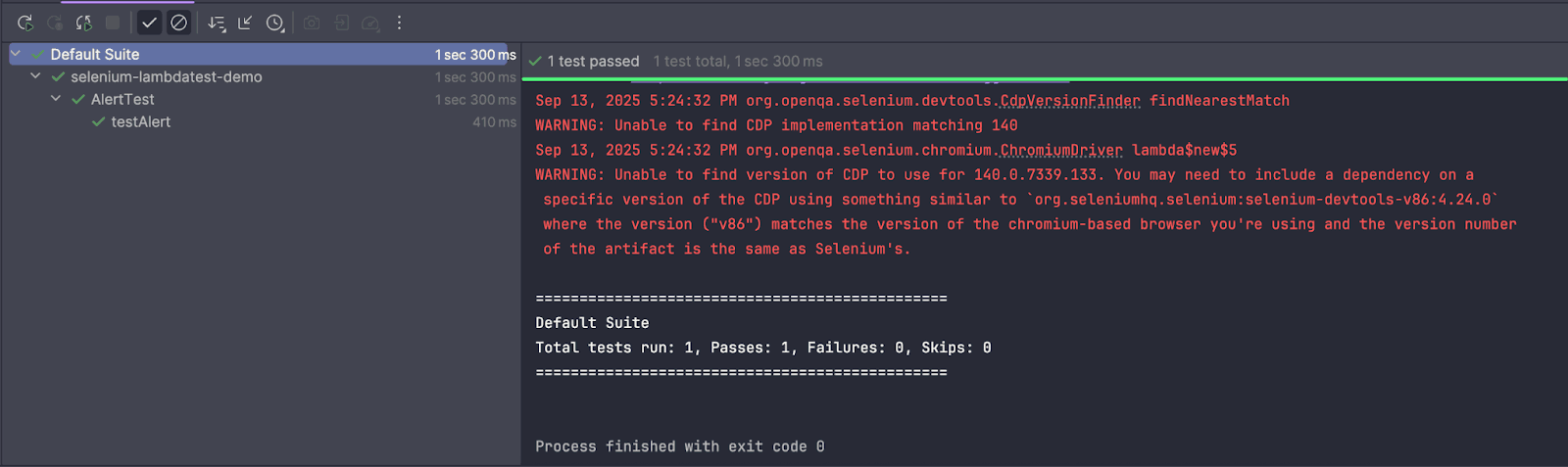
The following screenshot from the IntelliJ IDE shows that the test was executed successfully:
How to Handle Alerts in Selenium at Scale?
When testing at scale, managing multiple browsers, operating systems, and environments locally can be time-consuming, resource-intensive, and prone to inconsistencies. Running tests on a single machine limits coverage and slows down the feedback loop, especially for large test suites with complex workflows.
Using cloud testing platforms allows teams to execute Selenium tests in parallel across hundreds or thousands of browser/OS combinations, significantly reducing test execution time, improving reliability, and ensuring consistent results across environments.
This approach is particularly useful for handling JavaScript alerts and other dynamic elements that need validation across multiple configurations.
One such platform is TestMu AI, a GenAI-native test execution platform that allows you to perform manual and automated Selenium testing at scale across 3,000+ browsers and OS combinations.
To get started with TestMu AI, follow these steps:
- Get Credentials: Set your TestMu AI Username and Access Key as environment variables from Account Settings > Password Security tab.
- Get Capabilities: Use the TestMu AI Automation Capabilities Generator to quickly generate desired test capabilities for seamless cloud execution.
private ChromeOptions getChromeOptions () {
   final var browserOptions = new ChromeOptions ();
   browserOptions.setPlatformName ("Windows 11");
   browserOptions.setBrowserVersion ("latest");
   final HashMap<String, Object> ltOptions = new HashMap<String, Object> ();
   ltOptions.put ("project", "LambdaTest Selenium Playground");
   ltOptions.put ("build", "JavaScript Alert Demo");
   ltOptions.put ("name", "Handling JS Alert in Selenium");
   ltOptions.put ("w3c", true);
   ltOptions.put ("plugin", "java-testNG");
   browserOptions.setCapability ("LT:Options", ltOptions);
return browserOptions;
}
"@hub.lambdatest.com/wd/hub";Code Implementation:
public class AlertTest {
   private static final String GRID_URL      = "@hub.lambdatest.com/wd/hub";
   private static final String LT_ACCESS_KEY = System.getenv ("LT_ACCESS_KEY");
   private static final String LT_USERNAME   = System.getenv ("LT_USERNAME");

   private RemoteWebDriver driver;
   private String          status = "failed";

   @BeforeClass
   public void setup () {
       try {
           this.driver = new RemoteWebDriver (new URL ("https://" + LT_USERNAME + ":" + LT_ACCESS_KEY + GRID_URL),
               getChromeOptions ());
       } catch (final MalformedURLException e) {
           System.out.println ("Could not start the remote session on LambdaTest cloud grid");
       }
       this.driver.manage ()
           .timeouts ()
           .pageLoadTimeout (Duration.ofSeconds (10));
   }
//..

}
Code Walkthrough:
- Class Constants: GRID_URL is the TestMu AI cloud hub endpoint. LT_ACCESS_KEY and LT_USERNAME come from environment variables for secure authentication.
- Driver and Status Variables: driver is a RemoteWebDriver instance for TestMu AI cloud tests .status tracks test outcome, initialized as "failed".
- setup() Method: Initializes RemoteWebDriver with hub URL, credentials, and ChromeOptions. Handles MalformedURLException and sets a 10-second page load timeout.
- getChromeOptions() Method: Configures Chrome capabilities: platform, browser version, build/test names, and enables Java-TestNG plugin for TestMu AI execution.
Test Execution:
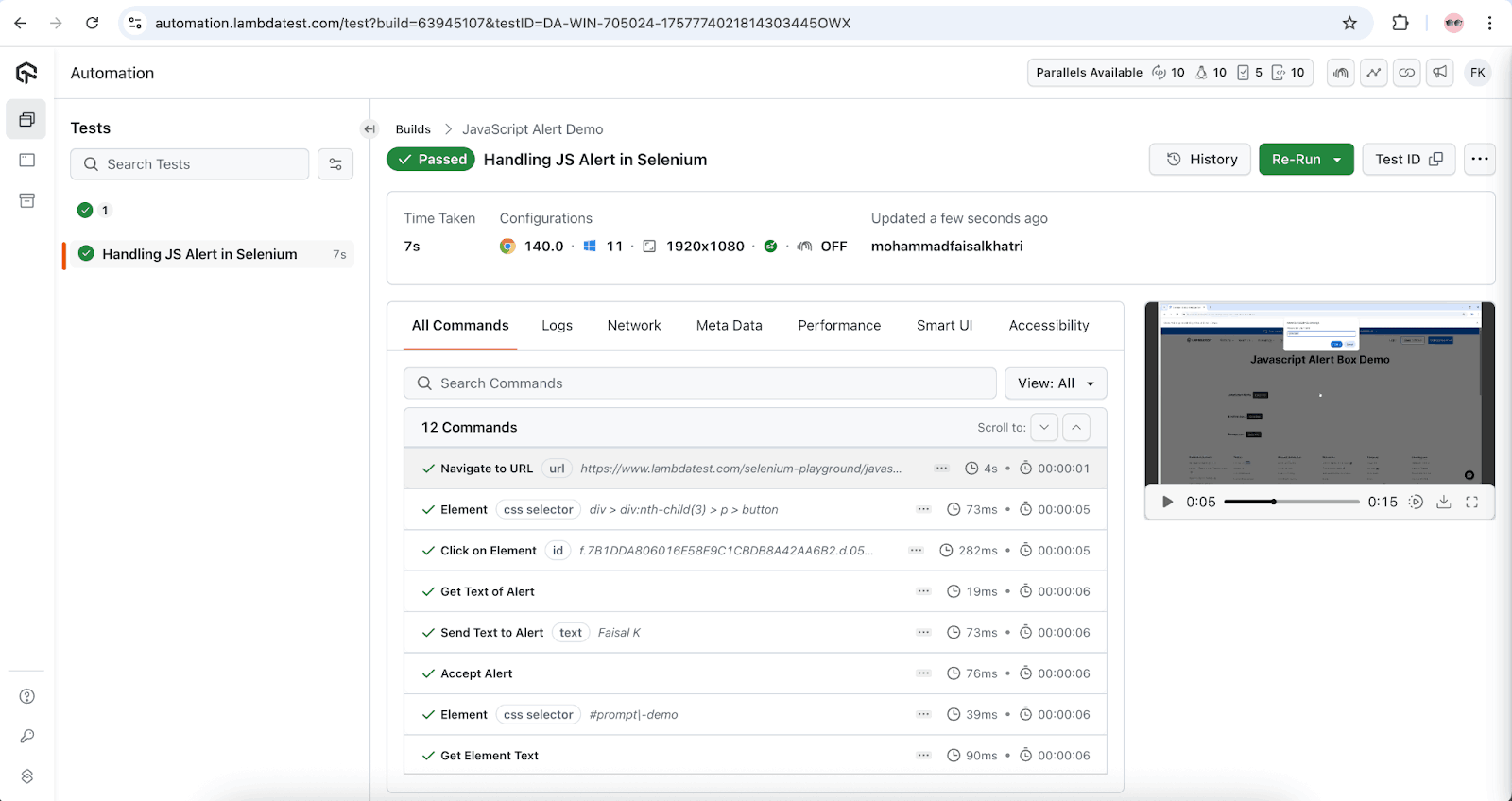
The following is the screenshot test execution for handling alerts in Selenium on the TestMu AI cloud grid:
To get started, refer to the documentation onSelenium With TestNG Tutorial.
Troubleshooting Alerts in Selenium
Handling alerts in Selenium can sometimes be tricky, as unexpected pop-ups or timing issues may cause tests to fail. Proper troubleshooting ensures your tests interact with alerts reliably, reducing flakiness and improving test stability across different browsers and environments.
- UnhandledAlertException: Occurs when an alert appears, but Selenium tries to interact with the main page without switching to the alert.
- Fix: Always use driver.switchTo().alert() before accepting, dismissing, or sending text to the alert.
- Benefit: Prevents test failures caused by unexpected alerts, ensuring smooth execution.
- NoAlertPresentException: Happens when Selenium expects an alert but none is present.
- Fix: Ensure the alert is triggered before interacting, or use explicit waits like WebDriverWait to wait for the alert.
- Benefit: Reduces false failures by ensuring alerts are present before interaction.
- Alert Text Not Matching Expected Value: The getText() method returns unexpected text.
- Fix: Verify that the alert appears on the correct page and account for dynamic content in assertions.
- Benefit: Ensures your validations accurately reflect the UI behavior.
- Prompt Alerts Not Accepting Input: Using sendKeys() may fail if the alert is not a prompt type.
- Fix: Confirm the alert type is a prompt alert before sending text.
- Benefit: Guarantees that input is correctly entered, preventing input-related test failures.
- Timing Issues / Flaky Tests: Alerts may appear after some delay, causing intermittent test failures.
- Fix: Implement WebDriverWait with ExpectedConditions.alertIsPresent() to wait for alerts reliably.
WebDriverWait wait = new WebDriverWait(driver, Duration.ofSeconds(30));
wait.until(ExpectedConditions.alertIsPresent());
How Do AI Browser Agents Handle JavaScript Alerts?
AI browser agents built on Microsoft's Playwright MCP server call a dedicated browser_handle_dialog tool to accept or dismiss a native alert, confirm, or prompt dialog before the agent can take any other action on the page.
Native JavaScript dialogs are not part of the page DOM, so an agent that reads the page through an accessibility snapshot or a screenshot cannot click a button inside the dialog the way it clicks a normal page element. Playwright MCP exposes browser_handle_dialog as a separate tool call for this reason: the agent must explicitly accept or dismiss the dialog, and supply text when the dialog is a prompt, before it can navigate, click, or take a new snapshot of the page.
This mirrors the problem a Selenium script solves with driver.switchTo().alert(): a dialog left unhandled blocks every step that follows. The outcome is different. A Selenium script that skips the switch throws an UnhandledAlertException that a developer can catch and log. An AI agent that does not call browser_handle_dialog in time can stall the whole browser session with no exception to point at the cause, until the run times out.
Conclusion
Handling alerts in Selenium is a crucial aspect of test automation, ensuring that unexpected pop-ups do not disrupt your test execution. Using methods like accept(), dismiss(), getText(), and sendKeys(), you can interact seamlessly with simple, confirmation, and prompt alerts.
Applying these practices leads to more robust and reliable tests, whether running locally or on cloud platforms such as TestMu AI. Mastering alert handling ensures smoother automation and enhances overall test accuracy.
Citations
- JavaScript alerts, prompts and confirmations https://www.selenium.dev/documentation/webdriver/interactions/alerts/
Author

Faisal Khatri
Blogs: 39


Mohammad Faisal Khatri is a Software Testing Professional with 17+ years of experience in manual exploratory and automation testing. He currently works as a Senior Testing Specialist at Kafaat Business Solutions and has previously worked with Thoughtworks, HCL Technologies, and CrossAsyst Infotech. He is skilled in tools like Selenium WebDriver, Rest Assured, SuperTest, Playwright, WebDriverIO, Appium, Postman, Docker, Jenkins, GitHub Actions, TestNG, and MySQL. Faisal has led QA teams of 5+ members, managing delivery across onshore and offshore models. He holds a B.Com degree and is ISTQB Foundation Level certified. A passionate content creator, he has authored 100+ blogs on Medium, 40+ on TestMu AI, and built a community of 25K+ followers on LinkedIn. His GitHub repository “Awesome Learning” has earned 1K+ stars.
Frequently asked questions
Did you find this page helpful?
More Related Learning Hubs

TestMu AI forEnterprise
Get access to solutions built on Enterprise
grade security, privacy, & compliance
- Advanced access controls
- Advanced data retention rules
- Advanced Local Testing
- Premium Support options
- Early access to beta features
- Private Slack Channel
- Unlimited Manual Accessibility DevTools Tests