

Next-Gen App & Browser Testing Cloud
Trusted by 2 Mn+ QAs & Devs to accelerate their release cycles


How To Perform Web Scraping with Selenium Java
Web Scraping or Web Data Extraction automatically extracts data from any target website using software tools and scripts. This blog delves into the intricacies of performing web scraping with Selenium Java for different websites.

Vipul Gupta
February 16, 2026
In today’s data-driven world, data aggregated from various sources is very important. It directly or indirectly impacts all our activities and abilities to make decisions for market research analysis or informed decisions in any industry for their growth and development.
The amount of data available is enormous. More than half of it is scattered and unstructured and found in various sources, such as websites, blogs, news articles, journals, and competitor websites. This data must be parsed to extract relevant information.
Manually collecting this data is often challenging because it is scattered and time-consuming to collect and extract meaningful information. Additionally, there are ethical and legal concerns associated with data scraping.
Many websites do not allow scraping as part of their User Agreement or Terms of Use. In this case, scraping data could result in legal trouble. However, scraping data is allowed for business use cases on most websites and some websites with restrictions.
Web scraping is now widely used by businesses and individuals to meet their business requirements to meet this need for data collection within legal limits. It involves extracting data from a target webpage/website using automated tools. This data can be then aggregated at a place and used for analysis and further processing.
In this comprehensive blog on web scraping, we will explore how to perform web scraping with Selenium Java for different websites. We will start with web scraping: what it is, how it works, its types, and use cases. Then, we’ll dive into practical implementation with examples.
If you’re looking to improve your Selenium interview skills, check out our curated list of Selenium interview questions and answers.
Let’s get started.
Overview
What Is the Role of Web Scraping?
Web scraping refers to the automated method of gathering information from websites using scripts, bots, or automation tools. The collected content is then organized into structured formats for analysis, reporting, or storage.
What Is the Step-by-Step Process Behind Web Scraping?
Web scraping follows a sequence where a script requests a webpage, reads its HTML structure, extracts relevant data, and saves it in a structured format. These steps are repeated across pages to gather large datasets efficiently.
- Send an HTTP Request: Initiate the scraping workflow by sending a request to the target website, similar to how browsers request pages.
- Receive HTML Response: The server returns webpage HTML content, which contains the visible structure and data elements required for extraction.
- Extract Required Data: Identify specific elements such as headings, tables, or links, and programmatically capture the needed information from the page.
- Store Data in Structured Format: Save the extracted information into formats like CSV, spreadsheets, or databases for further processing and analysis later.
What Are the Main Types of Web Scraping?
Web scraping techniques vary depending on how web pages load their content. Some pages deliver ready-to-read HTML instantly, while others rely on scripts that load data dynamically. Understanding these differences helps choose the right scraping approach and tools.
- Static Web Scraping: Extracts data from webpages where HTML is delivered directly by the server without requiring JavaScript execution or runtime rendering.
- Dynamic Web Scraping: Collects data from websites where content loads after JavaScript execution, requiring browser automation tools to render pages first.
How Do You Set Up the Project for Web Scraping with Selenium Java?
To set up a web scraping project with Selenium Java, create a Maven project in your IDE and add base and test packages. Include Selenium, TestNG, and JSON dependencies in pom.xml, then configure WebDriver and cloud grid settings for test execution. This structure allows easy management of multiple scraping scenarios.
- Launch the Project: Launch Eclipse IDE and create a new Maven project named WebScrapingSeleniumJava to initiate the automation workflow.
- Create Required Packages: Inside the src/main/java folder, create two packages base for common framework code and test for scraping test cases.
- Create BaseTest Class: Create BaseTest.java in the base package to handle WebDriver setup, waits, cloud configuration, and cleanup.
- Configure Browser Capabilities: Inside the setup() method, configure browser options and add TestMu AI Selenium Grid capabilities along with username and access key.
- Initialize Remote Execution: Initialize RemoteWebDriver, WebDriverWait, and JSONArray to enable remote browser execution and store scraped data.
- Add Maven Dependencies: Add Selenium WebDriver, TestNG, and JSON dependencies in the pom.xml for project execution.
- Create Ecommerce Test Scenario: Create TestWebScraping_Ecommerce.java inside the test package to scrape product details from an ecommerce website.
- Create YouTube Test Scenario: Create TestWebScraping_Youtube.java inside the test package to scrape video details from YouTube.
- Run Test Scenarios: Execute TestNG tests to launch the remote browser and perform web scraping automation.
- Verify Scraped Data: Print scraped data in the console or export it to a JSON file for validation.
- Tear Down: Close the browser using driver.quit() and release cloud resources after test execution.
What is Web Scraping?
The technique of automatically extracting data from any target website using software tools and scripts is called Web Scraping or Web Data Extraction.
Web scraping (scrap and scrape are used interchangeably) in terms of actions means retrieving and saving the data from a web page, followed by analyzing the same to get a more structured and presentable data format.
While working with web scraping it becomes inherent to be aware of the legal and ethical rules related to data scraping from your target website. While some websites may prohibit it, others may have certain rules that govern its frequency and access, and the rest may allow it without restrictions.
One such example of restricted web scraping is LinkedIn. You can find about the same under the Don’ts section in the User Agreement.
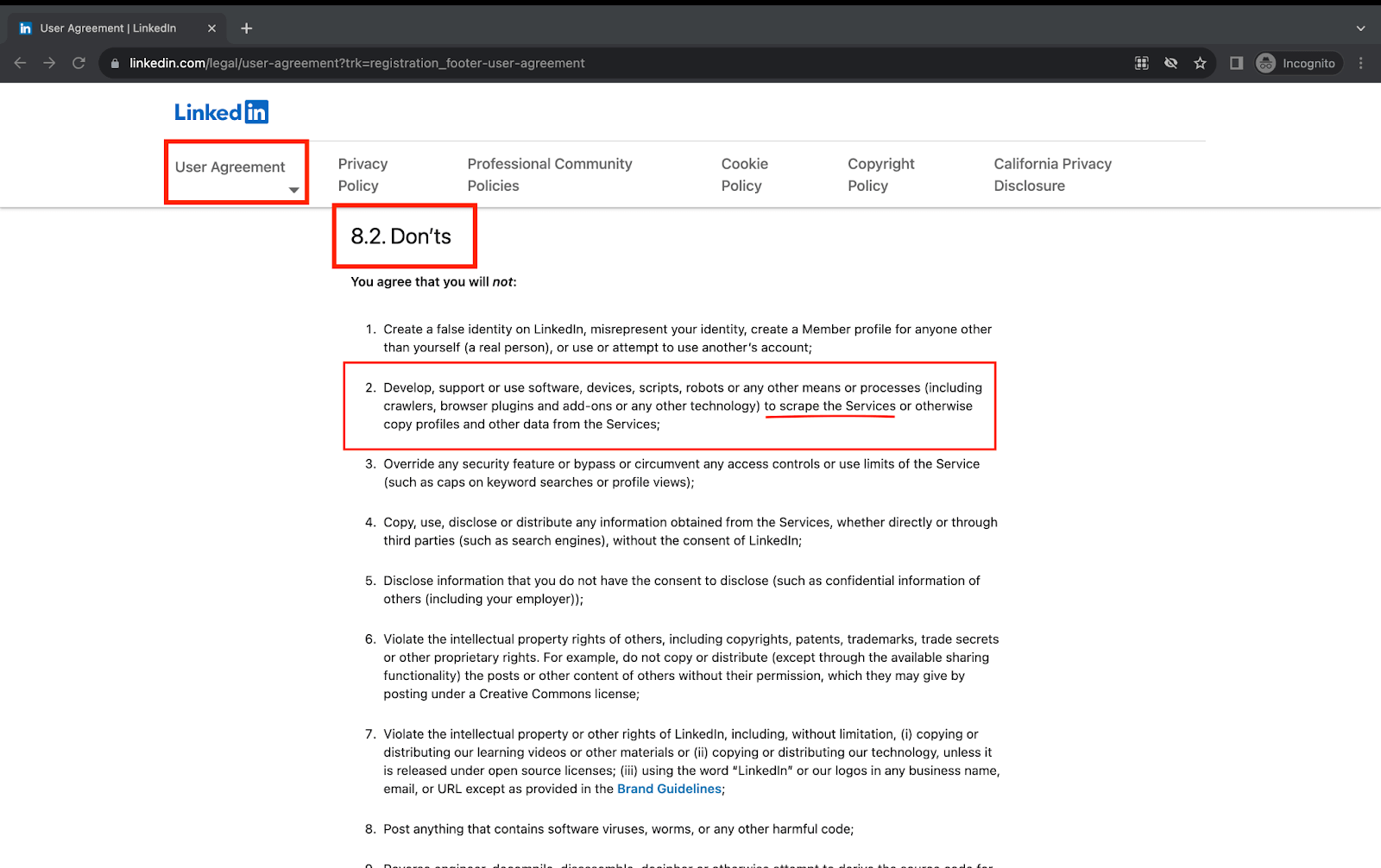
So, ensure proper information and permissions before implementing this in your automation scripts to avoid any consequences. All the demonstration examples presented in the following sections of this blog on web scraping with Selenium Java are created with this consideration in mind.
How does Web Scraping work?
The process of scraping any website to get relevant data could be divided into a few steps, like the one below, to understand it better.
Step 1. Web scraping for any target website starts with sending an HTTP request. This request is the same as the one web browser sends to any website to load it.
Step 2. The website servers respond to this initial HTTP request by sending the HTML content of the target web page. This is the page we will scrape to extract the required data.
Step 3. The HTML content of the loaded webpage is then scraped to extract the required data by identifying relevant elements on the page. These elements can be headings, sub-headings, paras, tables, hyperlinks, etc., based on your requirements.
Step 4. Now that the data is extracted, we store it in a structured format that can be processed to make more informed decisions. Depending on the use case, data can be stored locally in a spreadsheet or CSV or on a server using databases.
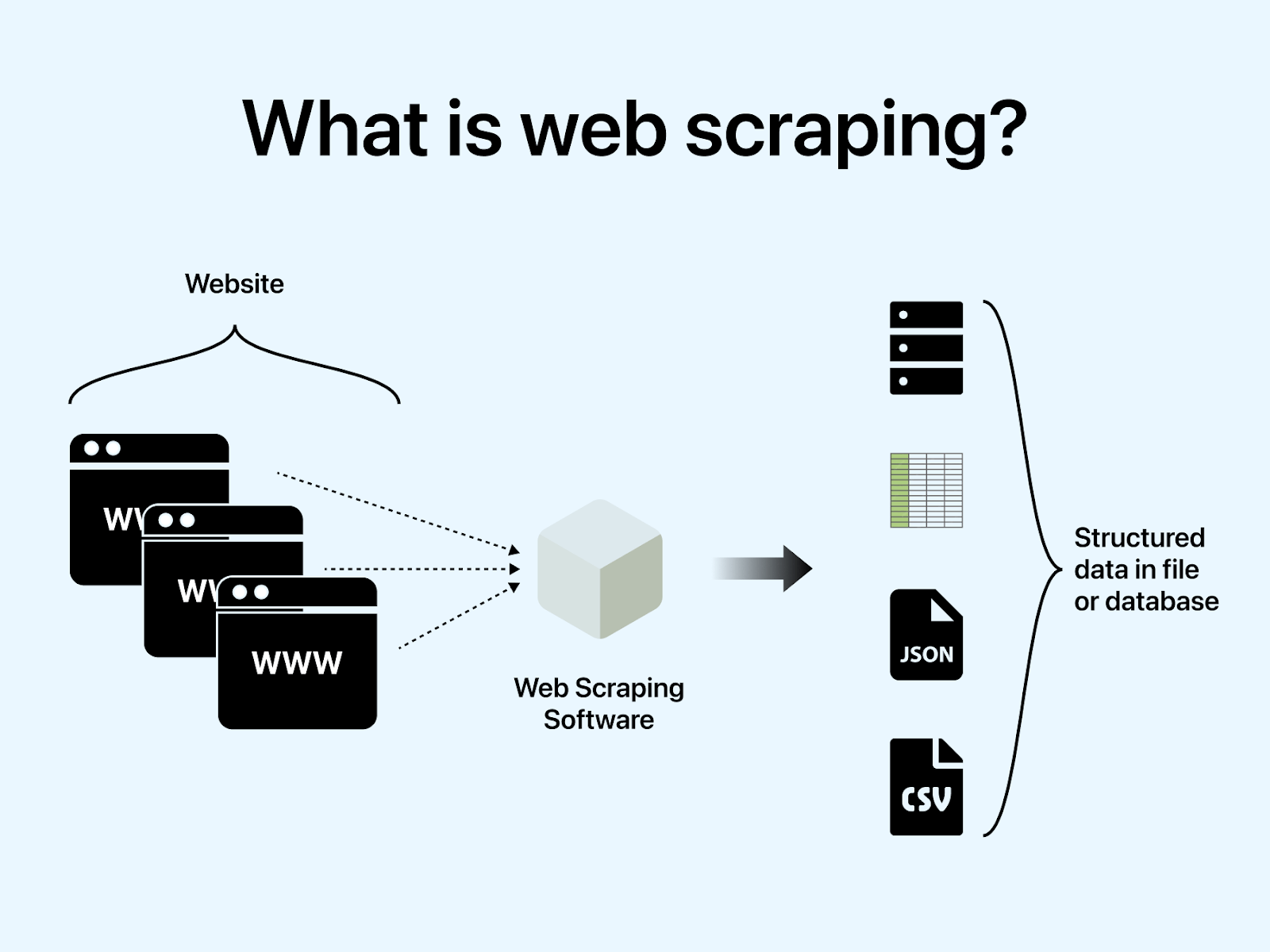
The above steps ideally make the entire process of web scraping and storing the data. The same steps could be repeated if you need to scrape more than one page of the same website or different web pages.
In the demonstration section, you will also notice that the code follows similar steps to give the results using web scraping with Selenium Java.

Note: Automate your Java automated tests with Selenium. Try TestMu AI Today!
Advantages & Disadvantages of Web Scraping
By now, we have discussed and understood web scraping and its working. One important thing that we should discuss before learning the practical implementation of web scraping with Selenium Java would be its advantages and disadvantages.
Knowledge of these would help you make more informed decisions on when and to what extent to apply web scraping and when to look for alternatives to gather data.
Advantages
Web scraping is highly used in various fields due to its wide applications. It is very helpful to gather data and process information better and quickly. Here are some advantages of using web scraping in your daily tasks:
- Automating Redundant flows Web scraping helps to navigate to the target webpage and fetch the relevant data using locators with the help of automation. This helps to run repetitive tasks regularly without manual intervention. For this, automation scripts can be written using Selenium and Java.
- Efficient Data Aggregation Web scraping allows you to gather data at scale in a very time-efficient manner, saving huge costs and effort manually. It helps aggregate similar data from different resources using the same scripts. This data can then be accumulated in a single place and used for deeper research in fields like news, content creation, etc.
- Up-to-date Information Many industries, like research, finance, eCommerce, etc., need real-time, up-to-date data regularly to stay competitive. This helps these industries make more informed data-driven decisions and deliver the best in the market per consumer sentiments. As per this Source, Google is highly scraped for SEO information, and the likes of Walmart and Amazon for customer sentiment analysis, price tracking for competition, etc.
Disadvantages
“With great power comes great responsibilities.” The quote aptly applies to web scraping as well. Given the numerous advantages, web scraping seems like an ideal approach for data gathering. However, if done irresponsibly, it might also lead to several disadvantages and challenges.
- Legal and Ethical Concerns Some websites prohibit scraping their content and mention the same in the terms of service. So, one must be cautious of this to avoid legal issues. One of the examples of this would be scraping falling under the Don’ts section of the User Agreement for LinkedIn, as we discussed earlier.
- Regular maintenance of Automation scripts Websites keep getting cosmetic updates to change the layout or data representation occasionally. These changes can be very small to a total revamp at times. So, you must regularly monitor the web scraping automation scripts to ensure those run reliably without any breaks. This sometimes becomes time-consuming or leads to bigger issues if not handled properly.
- Handling Website Captchas Though some websites prevent web scraping in legal ways, others may implement CAPTCHAs, making it challenging for automated scripts to access and scrap the data. This mostly needs manual intervention or additional handling for Captchas in automation, which might also need regular code updates.
- Dynamic Loading using JS & AJAX Almost all modern websites rely on dynamic content loading using AJAX and JS to make them more interactive. This makes the scraping process a bit complex because the required data might not be directly available and needs additional interactions to be available for scraping. For example, a website might load product information into a table after the user clicks on a product image. In this case, the scraper must click on the image to load the data. Additionally, some websites use JavaScript to prevent scraping. This can be done by making the data inaccessible to the scraper or by blocking the scraper from accessing the website altogether.
- Data Cleaning Scraped data from a website may not always be accurate or refined. It may contain duplicate and irrelevant data that needs to be cleaned or processed. This can be time-consuming and lead to delays in obtaining the final data. In addition, scraped data may not be up-to-date, as websites are constantly updated. This can lead to inaccurate results if the data is not properly checked before use.
Types of Web Scraping
Depending on how the content is available on a webpage, two types of web scraping can extract the data from the target website.
Static Web Scraping
This type of web scraping is used when the content for a web page is static and directly delivered from the website server to the browser. The HTML content in such cases remains unchanged unless the code is revamped.
In static web scraping, an HTTP request is made to the web server to retrieve the HTML content and then scrape it directly to gather data without using specific tools. This makes static web scraping comparatively faster than dynamic web scraping as data loading is quicker on the webpage.
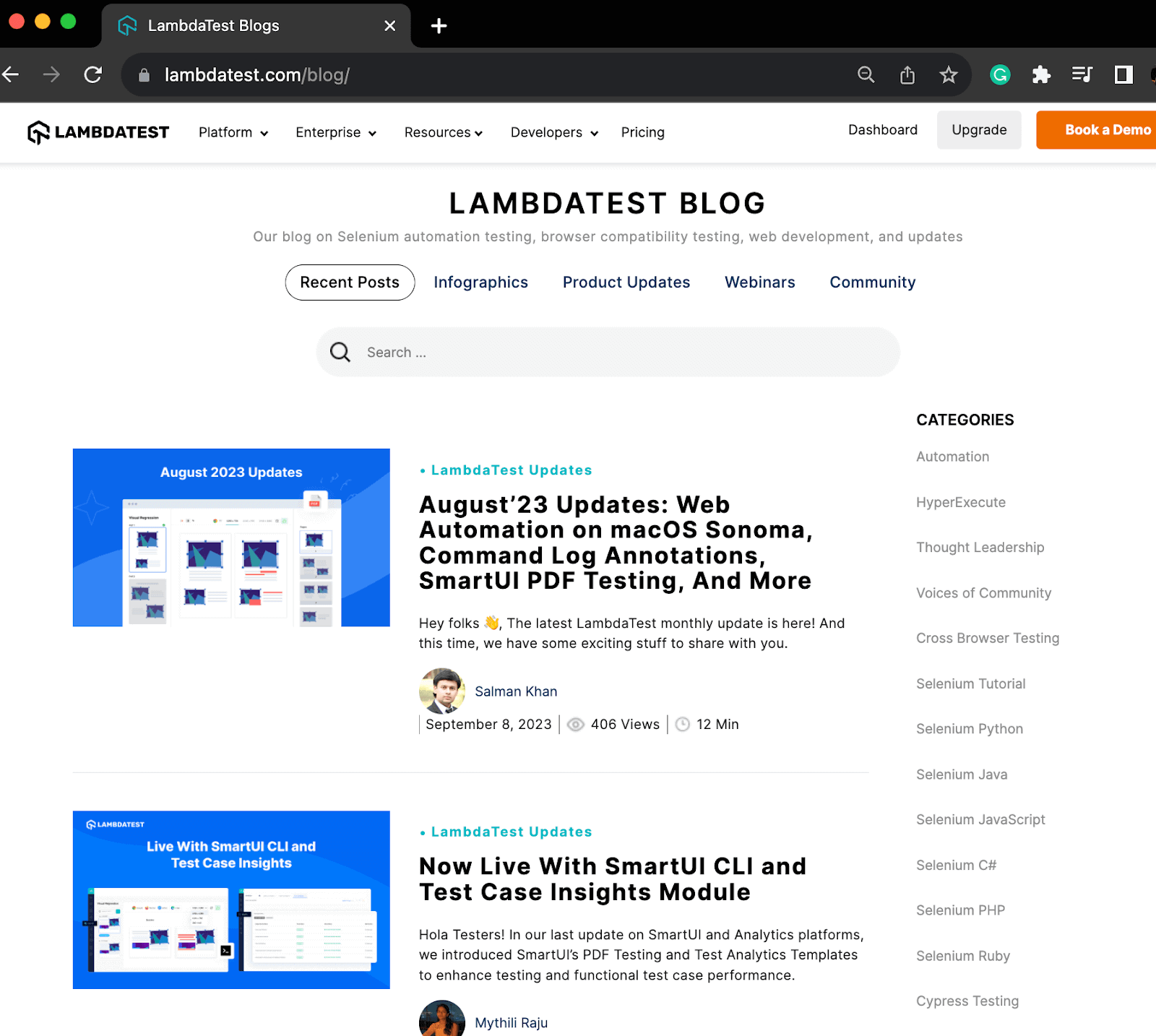
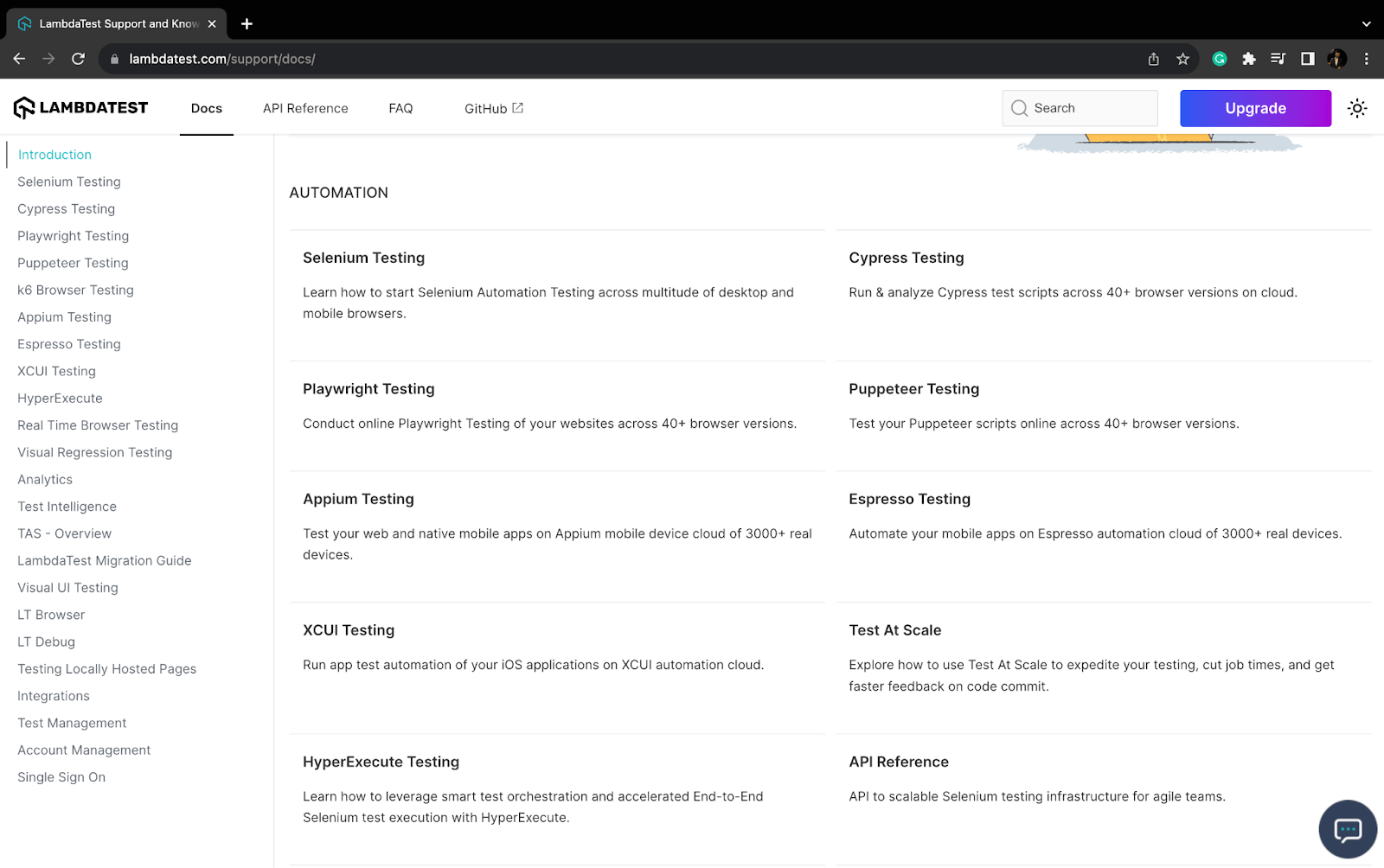
This approach works well for traditional websites, blog posts, or static pages like documentation without AJAX or JavaScript for dynamic content loading.
Dynamic Web Scraping
As the name suggests, this approach extracts data from webpages that rely on AJAX and JavaScript for dynamic content loading. The content on such web pages is loaded at runtime, making it challenging to scrape directly, like static web scraping.
For scraping such dynamic web pages, tools like Selenium can be used. If you are new to Selenium, please refer to this detailed guide on What is Selenium?
You can also use Selenium for static web scraping, as it can make the process more reliable. These tools are helpful as their supported methods and techniques allow the dynamic content to render and load and only then start scraping the web page.
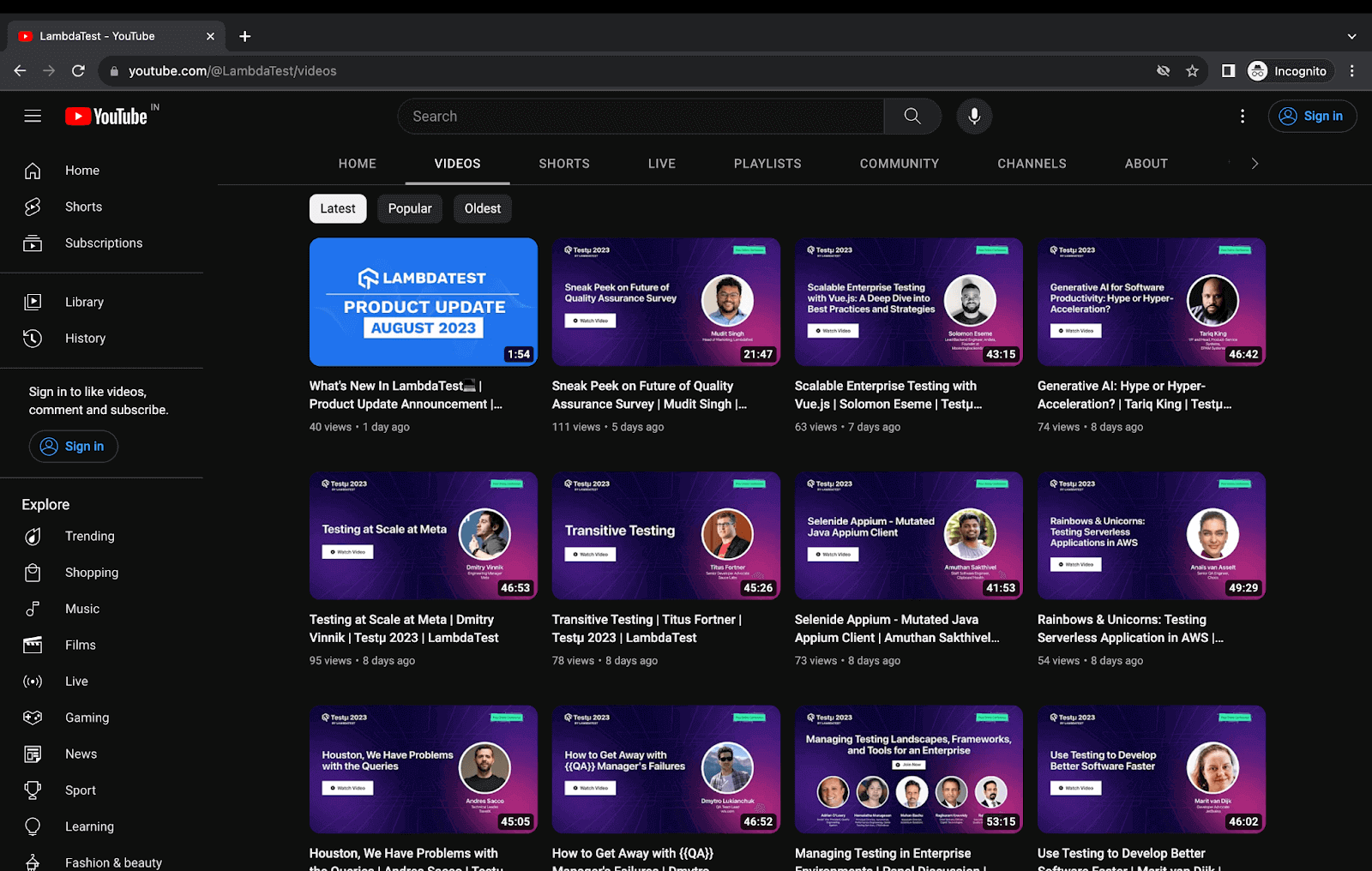
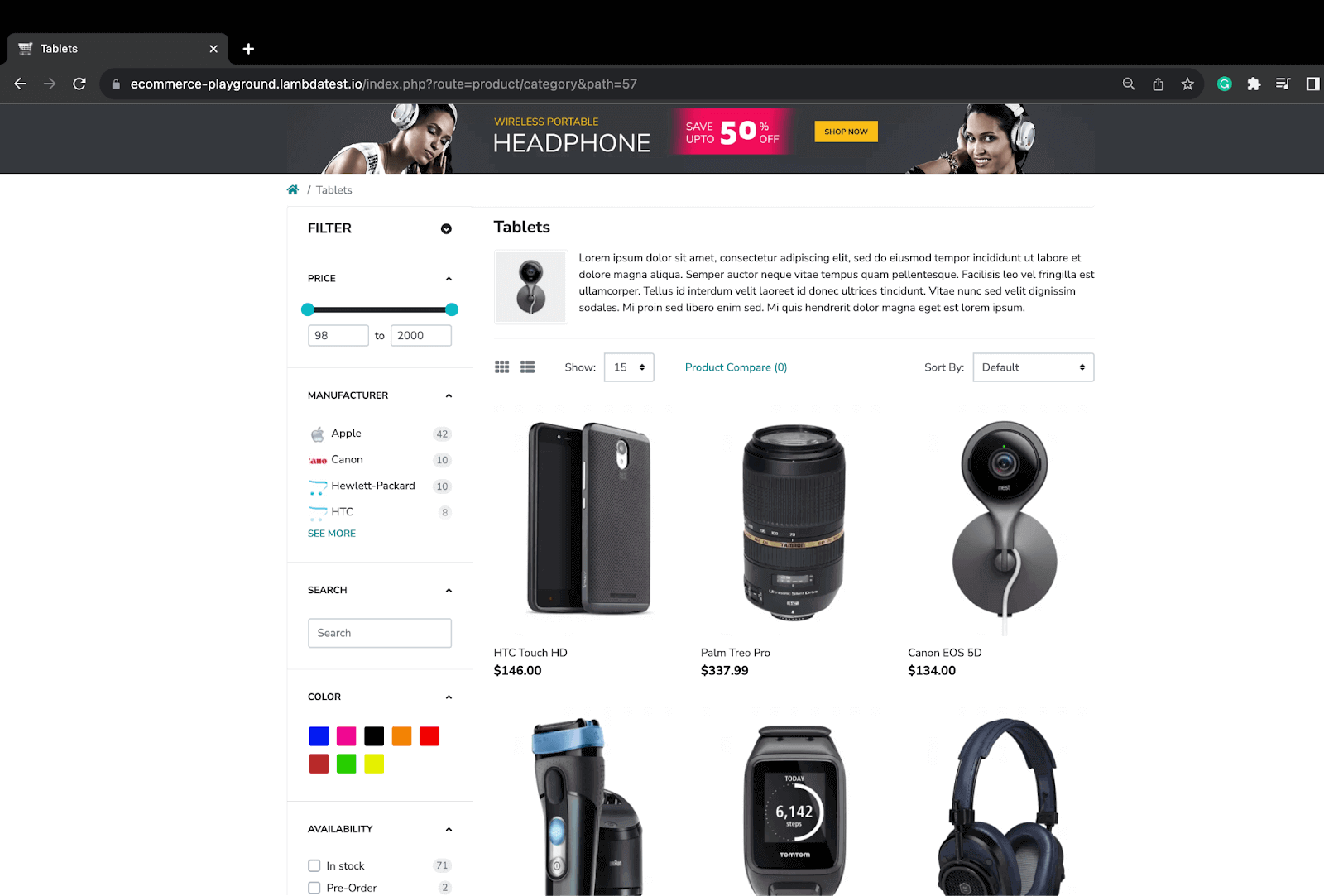
Dynamic scraping is used mostly when the requirement is to gather data from interactive platforms, online marketplaces, or social media sites. For example, scraping product details from an eCommerce website or video details from a YouTube channel. Later in the demonstration section, we will scrap data from both of these.
Use Cases of Web Scraping
One of the biggest reasons for the growing usage and popularity of web scraping is its wide range of use cases and applications across various industries. Some top use cases of web scraping are:
- Data and Content Accumulation Content aggregators and news websites regularly use web scraping to gather data for news articles, blog posts, and other user content. This allows them to be quick and up-to-date with enormous data to provide the best information on any topic. Similarly, using web scraping for data collection can help a job seeker to get details of possible opportunities and recruiters, a tenant/buyer to get leads in real estate for available properties for rent/buying, or an academician to gather academic data from journals or other sources to facilitate more data-driven research, etc.
- Targeted Marketing and Lead Generation Web scraping is used by many marketing firms to collect data on potential customers from a variety of online directories, social media platforms, and other websites. This allows them to filter out and target only potential customers for their product and reach out to them to increase their customer base.
- Competitive Pricing and Competitor Analysis. Online eCommerce platforms use web scraping nowadays to perform better and provide the best services compared to competitors. For this, web scraping is used for price monitoring and comparison to decide and update pricing in real-time for better offers, to analyze customer sentiments by collecting feedback and reviews, and to make financial decisions by collecting and analyzing their and competitors’ financial data.

Demonstration: Web Scraping with Selenium Java
To demonstrate the implementation of web scraping with Selenium Java, we will create a Java project with Maven and TestNG using Selenium 4.
New to Selenium 4? Watch our tutorial below to learn more!
Subscribe to the TestMu AI YouTube Channel and stay updated with the latest tutorials around Selenium testing, browser testing, and more.
The following test scenarios will be automated in this blog to help you understand how you can implement dynamic web scraping with Selenium Java for two different scenarios.
Test Scenario – 1 (Web Scraping TestMu AI eCommerce website for products on the first page)
- Navigate to the TestMu AI eCommerce website.
- Click on Shop by Category.
- Select the Phones, Tablets & Ipod category.
- Wait for the products to load on the webpage.
- Fetch the WebElement locator for the parent element of all products and store it in a list.
- Start a loop to traverse this list for each product.
- Scrape the product image link, name, and price of days for each product.
- Store this information for each product in a JSONObject and this object into a JSONArray.
- Print the JSONArray to see scrapped information for all products.
Test Scenario – 2 (Web Scraping TestMu AI YouTube Channel with Infinite Scrolling)
- Navigate to the TestMu AI YouTube channel.
- Wait for the page to load.
- Scroll till the end of the YouTube page to load all the videos.
- Fetch the WebElement locator for the parent element of all videos and store it in a list.
- Start a loop to traverse this list for each video.
- Scrape the video title, views, and number of days for each video.
- Store this information for each video in a JSONObject and this object into a JSONArray.
- Print the JSONArray to see scrapped information for all videos.
Project Setup
In this blog on web scraping with Selenium Java, we have used Eclipse IDE for creating the project. However, the same setup and steps are applicable if you wish to use any other IDE of your choice.
The same project setup is used for both test scenarios mentioned in this blog on web scraping with Selenium Java. We will only add a new Java class file to add a test case for each scenario. Therefore, carefully follow the setup on your machine to prevent any errors during execution.
All the test scenarios in this blog are Selenium web automation scripts. We will be executing them on a cloud-based Selenium Grid. Using a Selenium cloud Grid provides improved speed and scalability, making automation testing faster and more reliable. It also allows executing multiple cases across various browsers and operating systems.
In this blog on web scraping with Selenium Java, the TestMu AI cloud Selenium Grid is used to achieve this. TestMu AI is an AI-powered test orchestration and execution platform that enables users to perform automation testing for Web and Mobile applications on a wide range of over 3000+ real browsers, devices, and operating system combinations.
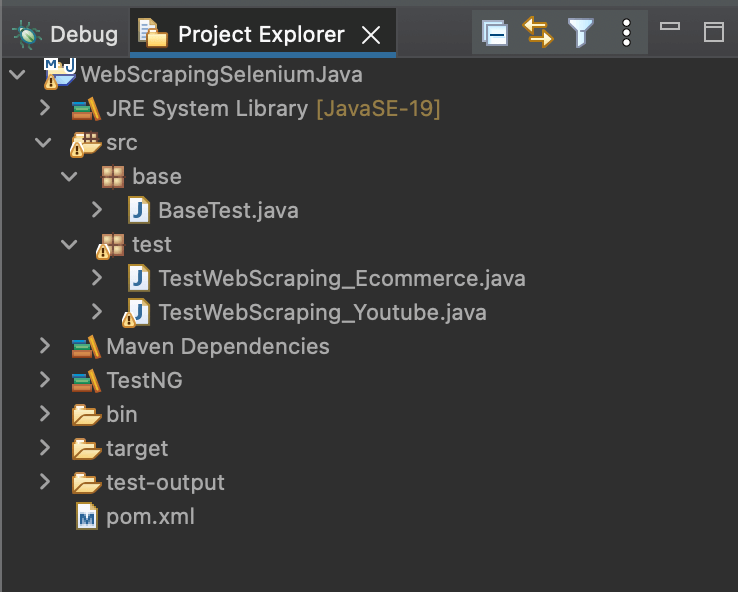
Step 1. Launch Eclipse IDE.
Step 2. Create a new Maven project and name it as WebScrapingSeleniumJava.
Step 3. Add two new packages inside the src package and name them as base and test.
Step 4. Inside the src.base package, add a Java class file, BaseTest.java. This Java file contains all the common code for test execution, like setup and initializing the WebDriver, declaring and initializing public variables for the project, handling driver termination after test completion, etc.
Step 5. Add 2 Java class files under the src.test package, one for each test scenario. Name these as TestWebScraping_Ecommerce.java and TestWebScraping_Youtube.java.
Once you perform all these steps, the project structure should look something like below:
As our project uses Selenium and TestNG, add the latest stable versions of Selenium 4 and TestNG dependencies inside the pom.xml for best execution results.
The updated pom.xml should look like this.
<project xmlns="http://maven.apache.org/POM/4.0.0"
xmlns:xsi="http://www.w3.org/2001/XMLSchema-instance"
xsi:schemaLocation="http://maven.apache.org/POM/4.0.0 https://maven.apache.org/xsd/maven-4.0.0.xsd">
          <modelVersion>4.0.0</modelVersion>
          <groupId>WebScrapingSeleniumJava</groupId>
          <artifactId>WebScrapingSeleniumJava</artifactId>
          <version>0.0.1-SNAPSHOT</version>
          <build>
                    <sourceDirectory>src</sourceDirectory>
                    <plugins>
                              <plugin>
                                        <artifactId>maven-compiler-plugin</artifactId>
                                        <version>3.8.1</version>
                                        <configuration>
                                                  <release>19</release>
                                        </configuration>
                              </plugin>
                    </plugins>
          </build>
          <dependencies>
                    <dependency>
                              <groupId>org.seleniumhq.selenium</groupId>
                              <artifactId>selenium-java</artifactId>
                              <version>4.11.0</version>
                    </dependency>
                    <dependency>
                              <groupId>org.testng</groupId>
                              <artifactId>testng</artifactId>
                              <version>7.8.0</version>
                              <scope>test</scope>
                    </dependency>
                    <dependency>
                              <groupId>org.json</groupId>
                              <artifactId>json</artifactId>
                              <version>20230618</version>
                    </dependency>
          </dependencies>
</project>
Code Walkthrough: BaseTest.java
Next, add the BaseTest.java. In this, we have the driver setup and termination functions for both test cases.
package base;


import java.net.MalformedURLException;
import java.net.URL;
import java.time.Duration;
import java.util.HashMap;


import org.openqa.selenium.remote.RemoteWebDriver;
import org.openqa.selenium.safari.SafariOptions;
import org.openqa.selenium.support.ui.WebDriverWait;
import org.testng.annotations.AfterTest;
import org.testng.annotations.BeforeTest;
import org.json.JSONArray;


public class BaseTest {
          public RemoteWebDriver driver = null;
          public WebDriverWait wait;
          public JSONArray scrapedData = new JSONArray();


          String username = System.getenv("LT_USERNAME") == null ? "<lambdatest_username>" :           System.getenv("LT_USERNAME");
          String accessKey = System.getenv("LT_ACCESS_KEY") == null ? "<lambdatest_accesskey>" : System.getenv("LT_ACCESS");


          @BeforeTest
          public void setup() {
                    try {
                              SafariOptions safariOptions = new SafariOptions();
                              safariOptions.setPlatformName("MacOS Ventura");
                              safariOptions.setBrowserVersion("16.0");


                              HashMap<String, Object> ltOptions = new HashMap<String, Object>();
                              ltOptions.put("build", "Web Scraping Using Selenium Java");
                              ltOptions.put("name", "Web Scraping");
                              ltOptions.put("w3c", true);
                              safariOptions.setCapability("LT:Options", ltOptions);


                              driver = new RemoteWebDriver(
             new URL("https://" + username + ":" + accessKey + "@hub.lambdatest.com/wd/hub"), safariOptions);
                              wait = new WebDriverWait(driver, Duration.ofSeconds(10));
                    }
                     catch (MalformedURLException e) {
                              e.printStackTrace();
                    }
          }


          @AfterTest
          public void tearDown() {
                    driver.quit();
          }
}
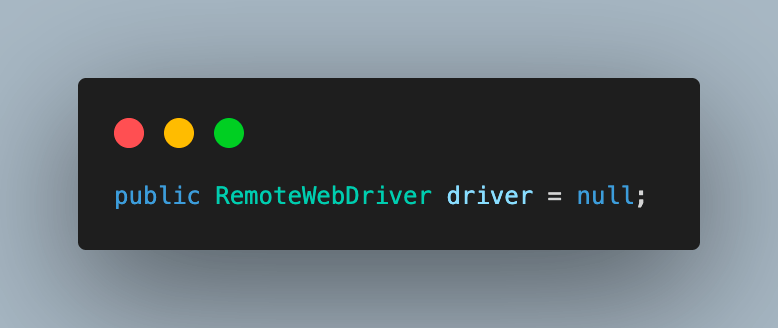
Step 1. Create an object of RemoteWebDriver and initialize it as null.
1.1) Next, create an object of WebDriverWait. This will be used later in the test cases to implement explicit waits at certain points as required to wait for page load or any other action to complete.
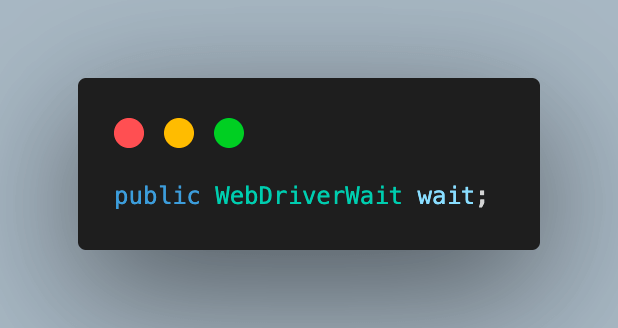
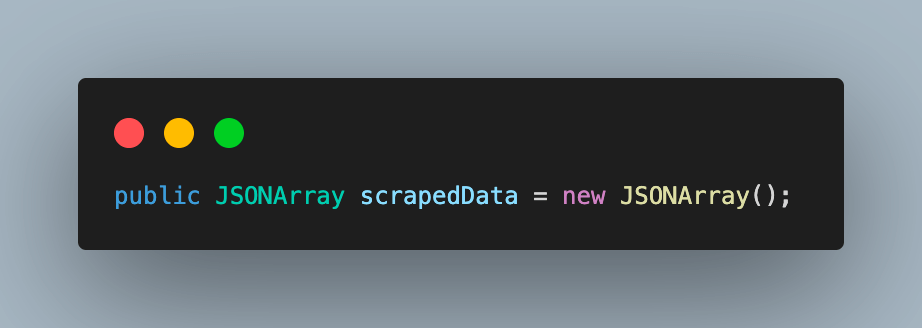
1.2) Create an object of JSONArray, scrapedData. This will store the total scraped data at the end of each test scenario and will be used to print the same on the console. We are printing on the console for this demonstration purposes only. If needed, the scraped data can be exported to XLS, XML, or added to a database.
Step 2. Fetch your username and access key for the TestMu AI Account from the Password & Security section to connect to the cloud grid for test execution.

Alternatively, you can configure these as environment variables and directly fetch them in code.
For macOS and Linux:
export LT_USERNAME=LT_USERNAME
export LT_ACCESS_KEY=LT_ACCESS_KEY
For Windows:
set LT_USERNAME=LT_USERNAME
set LT_ACCESS_KEY=LT_ACCESS_KEY
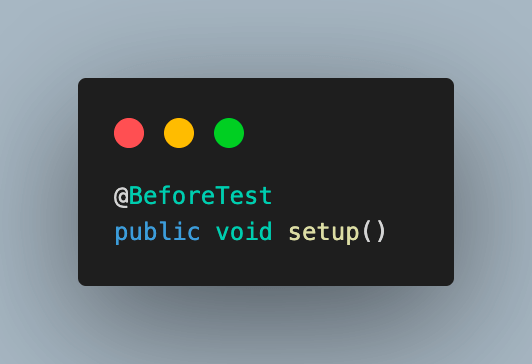
Step 3. Add the first method to this class and name it setup(). It will contain the code to initialize WebDriver using browser properties and TestMu AI cloud Selenium Grid properties. It should be annotated with the @BeforeTest annotation in TestNG so that it is executed before each test.
Step 4. To set the required browser properties for running tests, create an object of the SafariOptions class. This can be used to set the OS and browser versions.

Step 5. To specify the additional browser capabilities required by the TestMu AI platform to support test execution on their Selenium cloud Grid, use a HashMap type variable. This will help identify the dashboard test results using the build name and other details.
We can fetch the required browser capabilities for the TestMu AI platform by navigating to the Automation Capabilities Generator. This helps by offering ready-to-use code for setting up browser capabilities that can be used in execution.
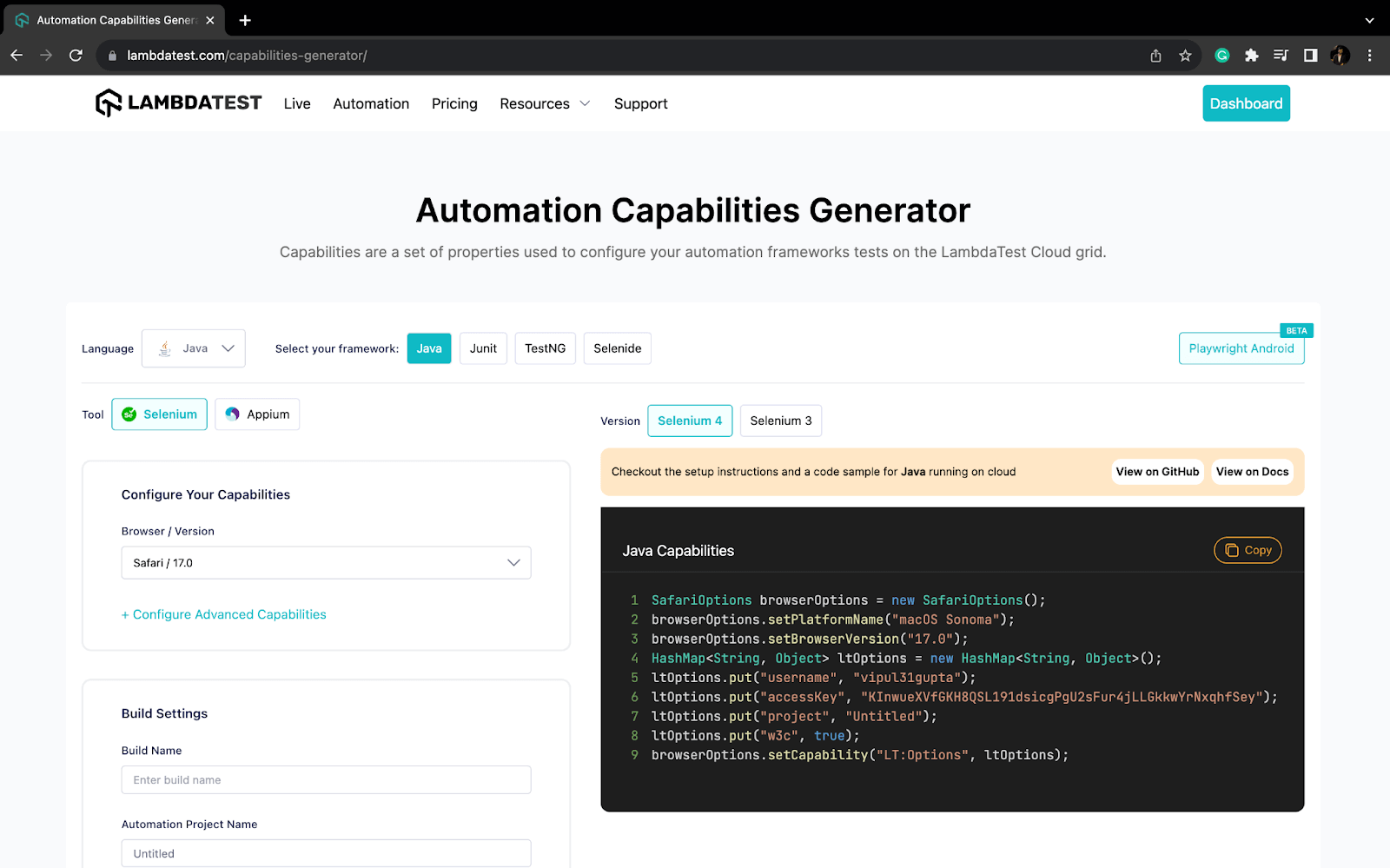
A HashMap is a data structure that maps keys to values. In this case, the keys would be the browser capability or execution property name, and the values would be the corresponding detail used for execution or to identify the run.
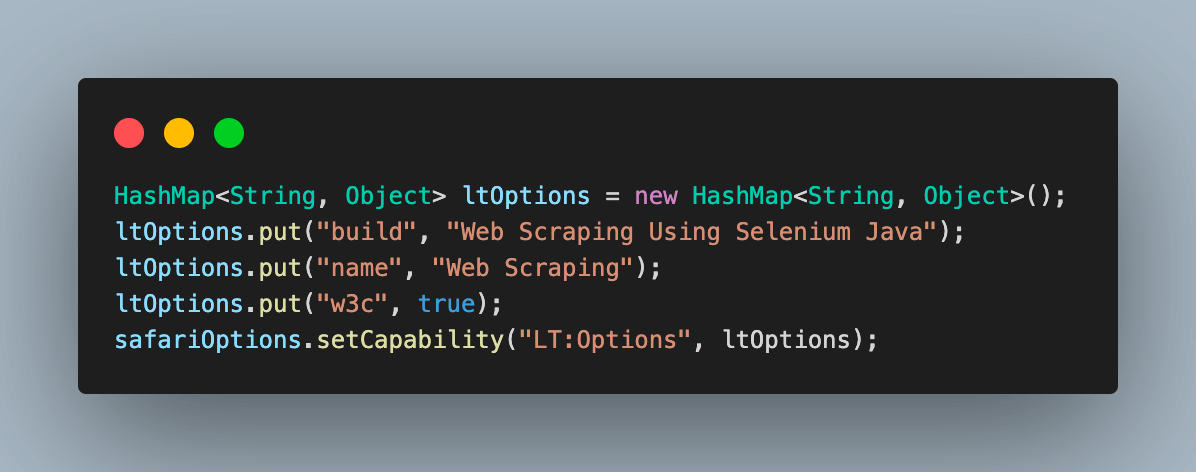
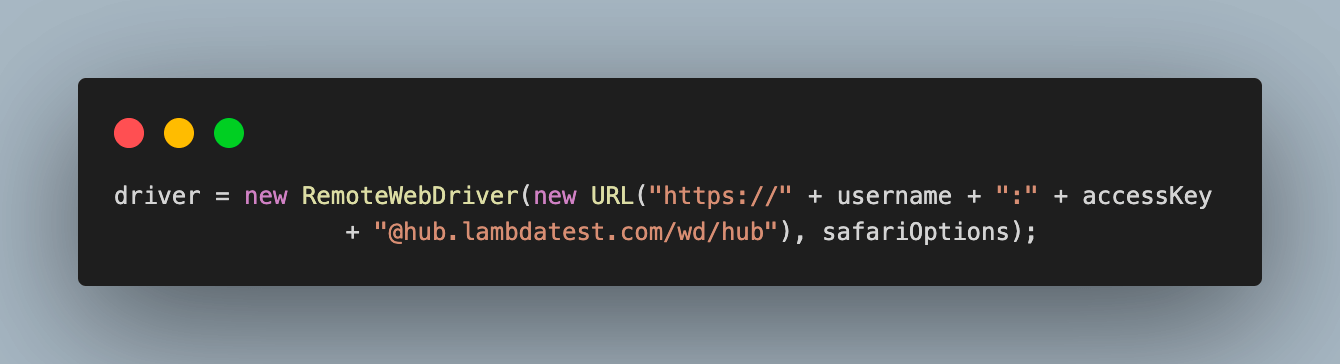
Step 6. Finally, use the Selenium RemoteWebDriver to connect to the TestMu AI remote grid using your credentials and safariOptions object containing all specified browser capabilities.
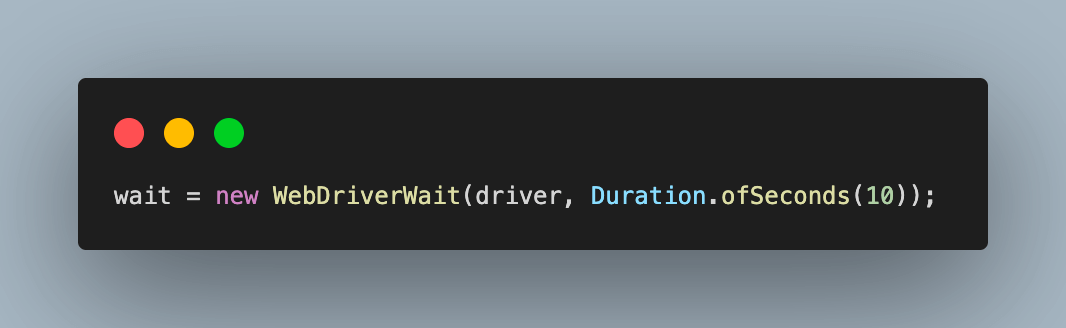
Step 7. Instantiate the WebDriverWait class object we initially created, with the maximum time to wait for any condition as 10 seconds. This will block the WebDriver for the given time, preventing it from performing further action and unblocking it as soon as the condition is fulfilled.
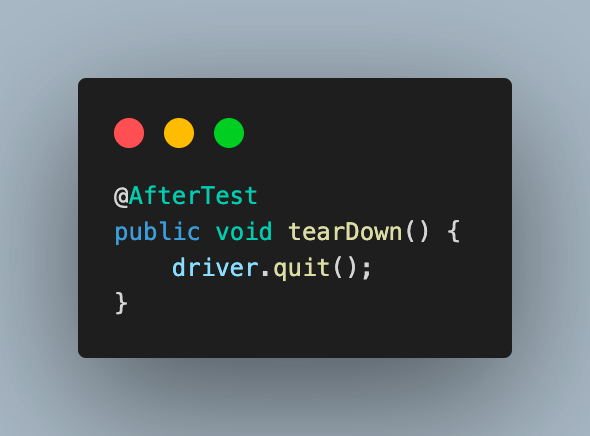
Step 8. Add a new method to close the browser and terminate the web driver session after each test execution. Name it as tearDown(), and annotate it with @AfterTest.
Demo: Dynamic Web Scraping TestMu AI eCommerce Playground for Products
In this test scenario, we try to scrap the data for all the products on the first page. This is an example where all the products are loaded in a go as the limit per page is defined.
package test;


import java.util.List;


import org.openqa.selenium.By;
import org.openqa.selenium.WebElement;
import org.openqa.selenium.support.ui.ExpectedConditions;
import org.testng.annotations.Test;
import org.json.JSONObject;


import base.BaseTest;


public class TestWebScraping_Ecommerce extends BaseTest{
          @Test
          public void testScrapingEcommerce() {
                    //Navigate to Lambdatest e-commerce website
                    driver.get("https://ecommerce-playground.lambdatest.io/");

                    //maximize the browser window
                    driver.manage().window().maximize();


                    //wait for element to be visible and then click on it
                    wait.until(ExpectedConditions.presenceOfElementLocated(By.xpath("//a[contains(.,'Shop by Category')]")));
                    driver.findElement(By.xpath("//a[contains(.,'Shop by Category')]")).click();

                    //wait for phones, tablets category element to be visible and then click on it
                    wait.until(ExpectedConditions.presenceOfElementLocated(By.xpath("//span[contains(.,'Phone, Tablets & Ipod')]")));
                    driver.findElement(By.xpath("//span[contains(.,'Phone, Tablets & Ipod')]")).click();


                    //wait for all products to load on the screen
          wait.until(ExpectedConditions.presenceOfElementLocated(By.xpath("//*[@id='entry_212408']//div[@class='row']")));


                    //fetch and store the reference to all products parent web element
                    //nested locators 1
                    WebElement all products = driver.findElement(By.xpath("//*[@id='entry_212408']//div[@class='row']"));


                    //use the parent web element to fetch list of web elements for each individual product
                    //nested locators 2
                    List<WebElement> productList = allProducts.findElements(By.xpath(".//div[contains(@class,'product-layout product-grid no-desc')]"));


                    //traverse the list of product web elements to scrap the required data
                    for(WebElement product : productList)
                    {
                              WebElement detail = product.findElement(By.xpath(".//a[@class='text-ellipsis-2']"));
                              WebElement price = product.findElement(By.xpath(".//span[@class='price-new']"));


                              //store product image link, name and price in a json object
                              JSONObject productMetaData = new JSONObject();
                              productMetaData.put("product_image", detail.getAttribute("href"));
                              productMetaData.put("product_name", detail.getText());
                              productMetaData.put("product_price", price.getText());

                              //add each product detail to json array to aggregate the data at one location
                              scrapedData.put(productMetaData);
                    }

                    //print all the scraped products data on console
                    System.out.println(scrapedData.toString(1));
          }
}

Code Walkthrough
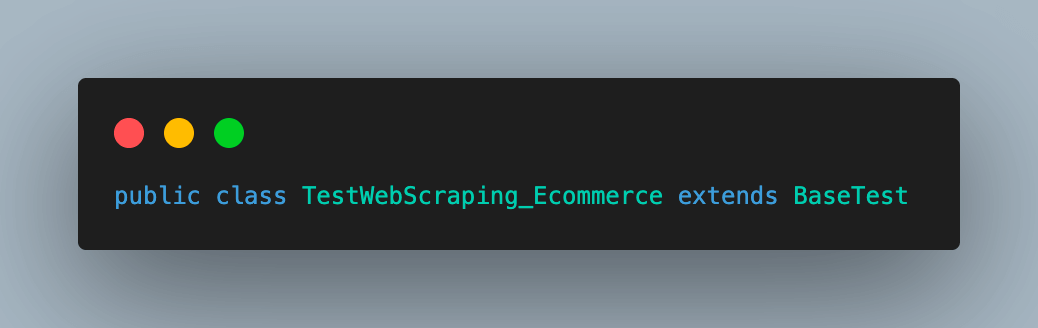
Step 1. Add a new Java file under the test package, TestWebScraping_Ecommerce. This class will extend BaseTest.java to inherit the common methods and variables from it.
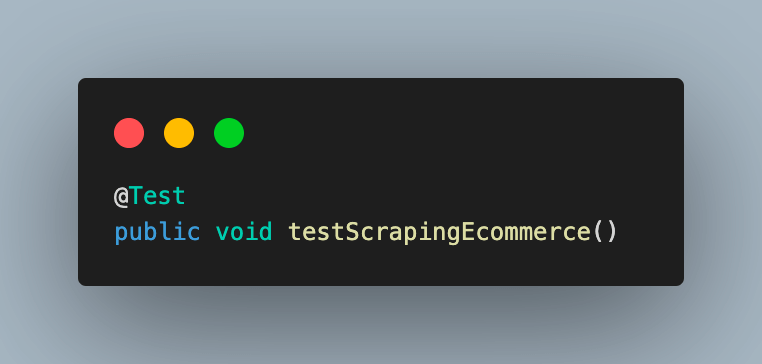
Step 2. Add the test case as testScrapingEcommerce() and annotate it with @Test annotation.
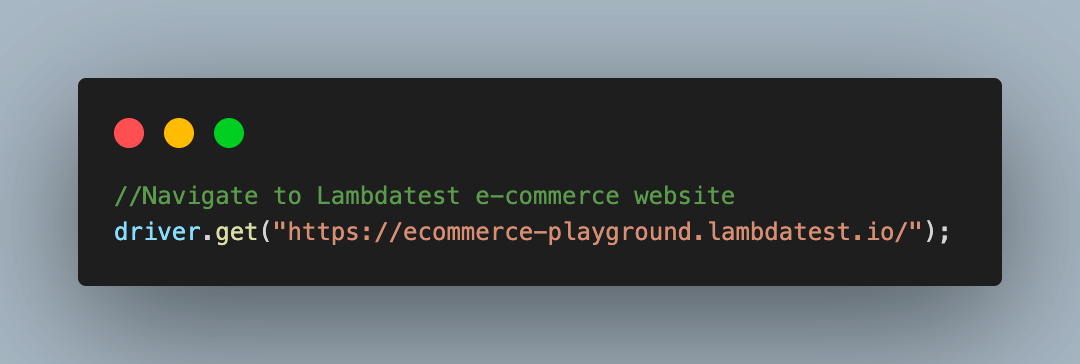
Step 3. Navigate to the TestMu AI eCommerce playground from which we will scrap the required product data.
3.1) Maximize the browser window for best results.
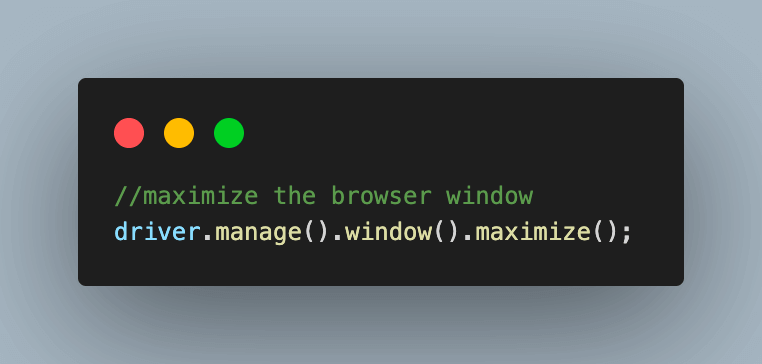
Step 4. Use the wait object we created in BaseTest to implement an ExpectedCondition, to tell the WebDriver to wait for an element to be visible. In this case, we are waiting for the Shop by Category to be visible.
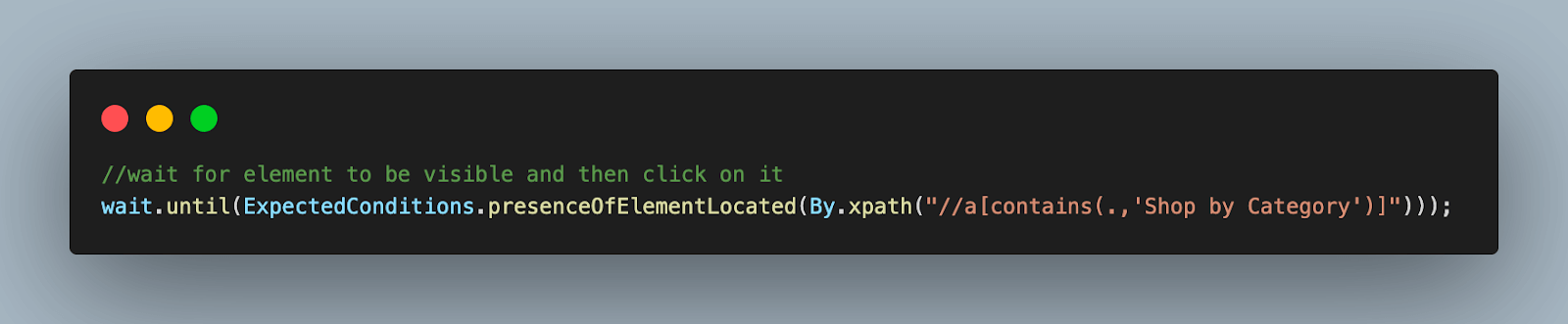
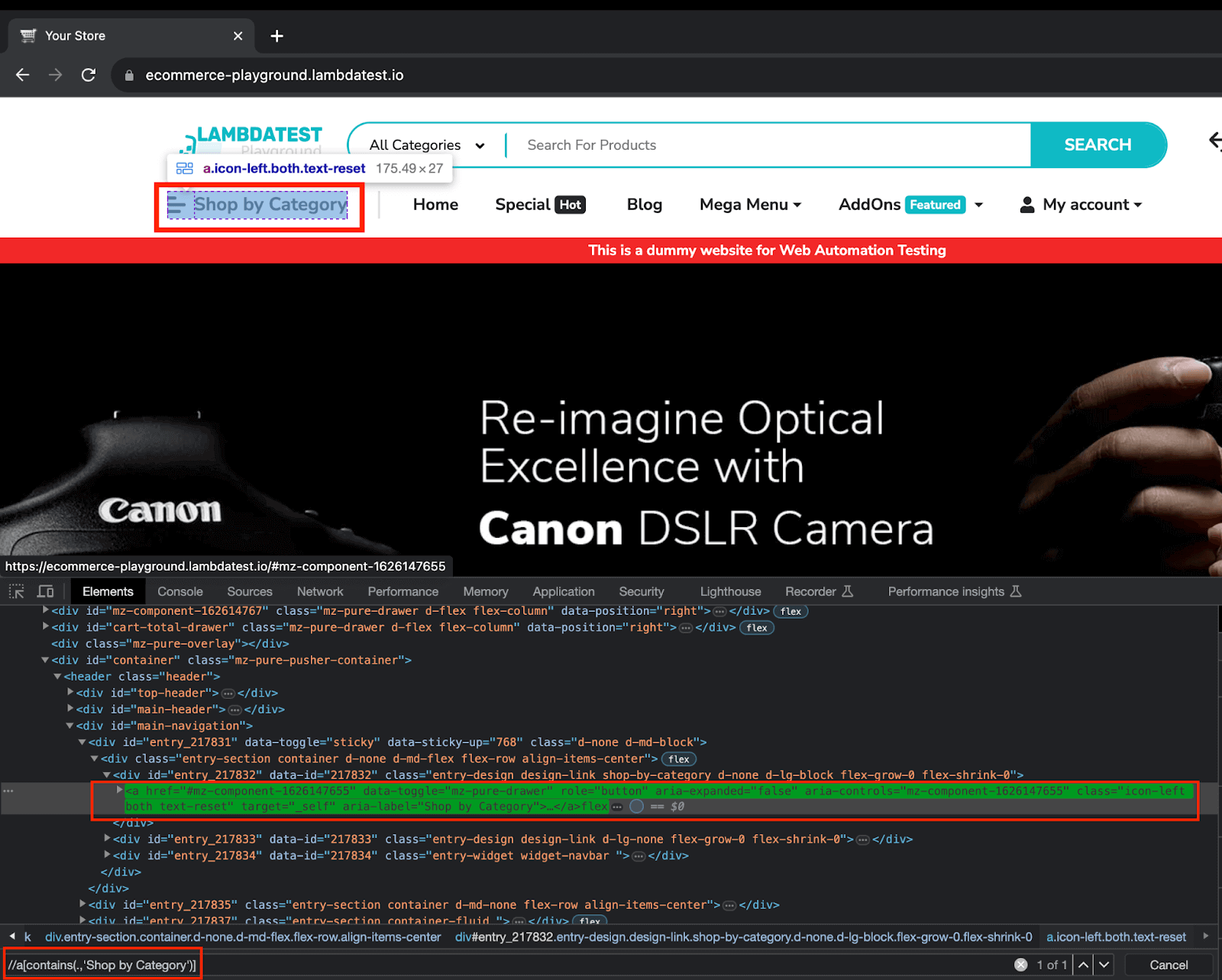
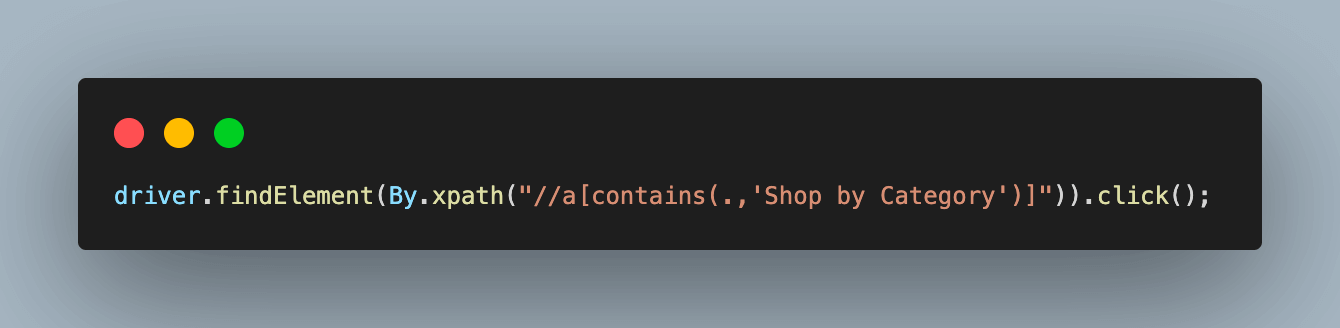
4.1) Once it is visible, click on the same to proceed.
Step 5. Similarly, use ExpectedCondition again to wait for the Phone, Tablets & Ipod web element to be visible and click on it.
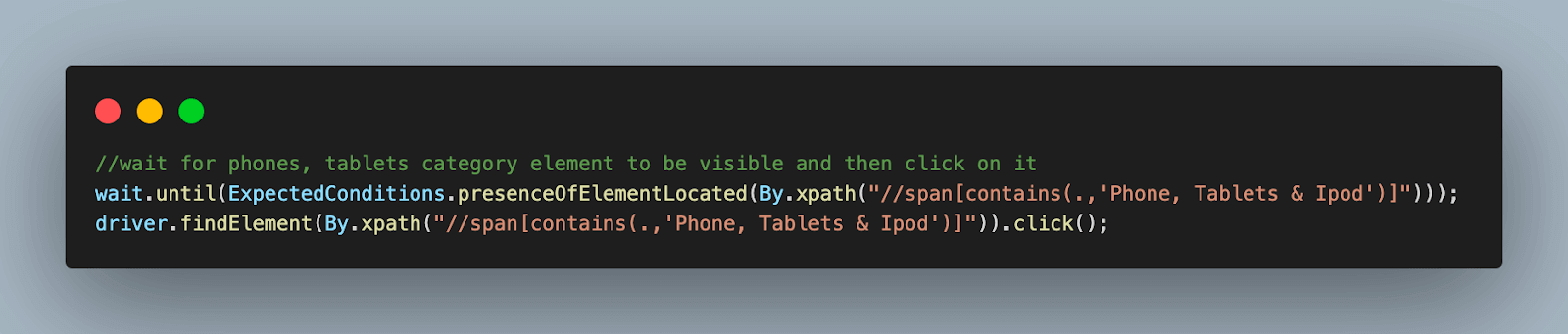
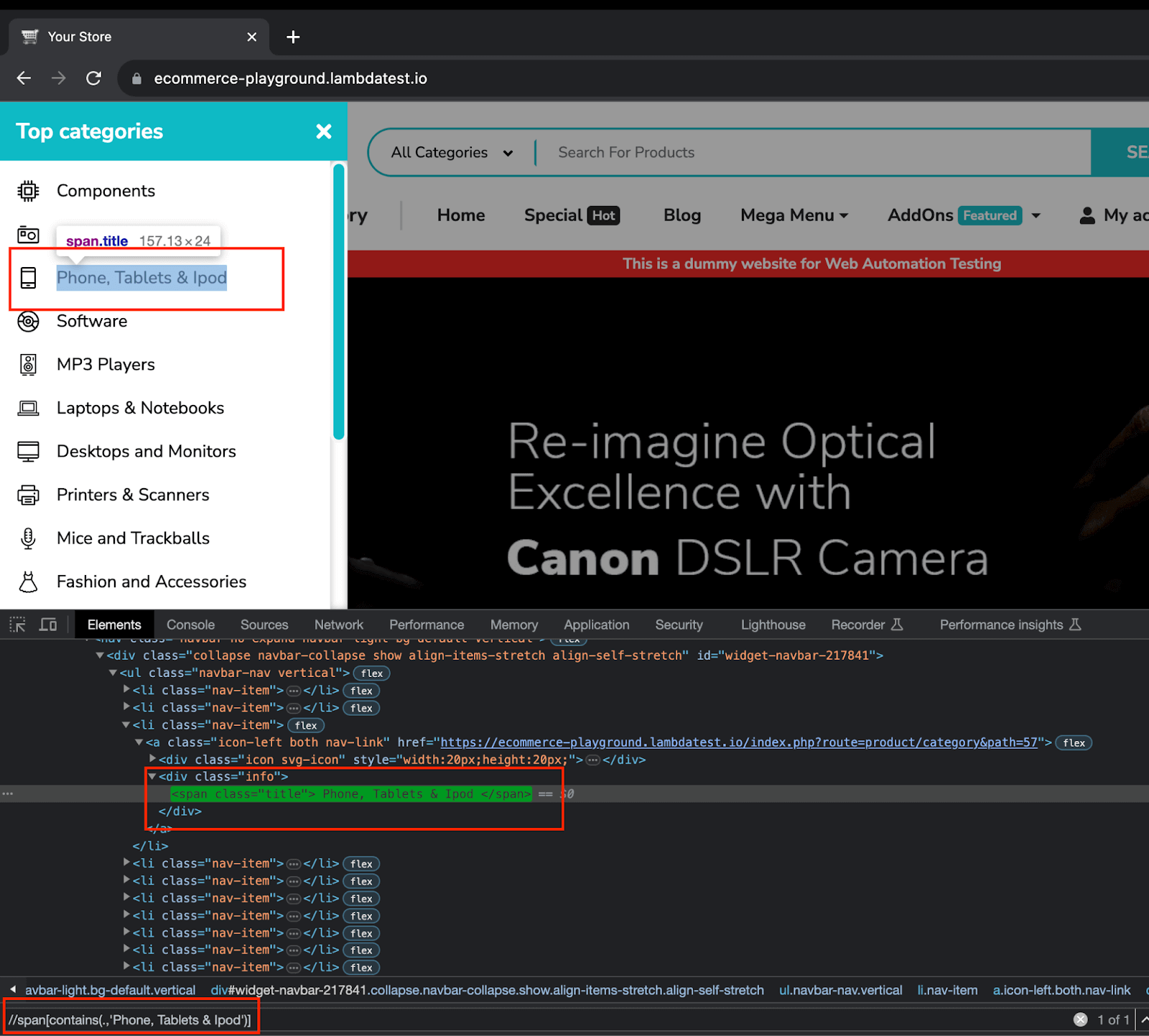
Step 6. After selecting the category, we wait for all the products to load on the screen before scraping the details.
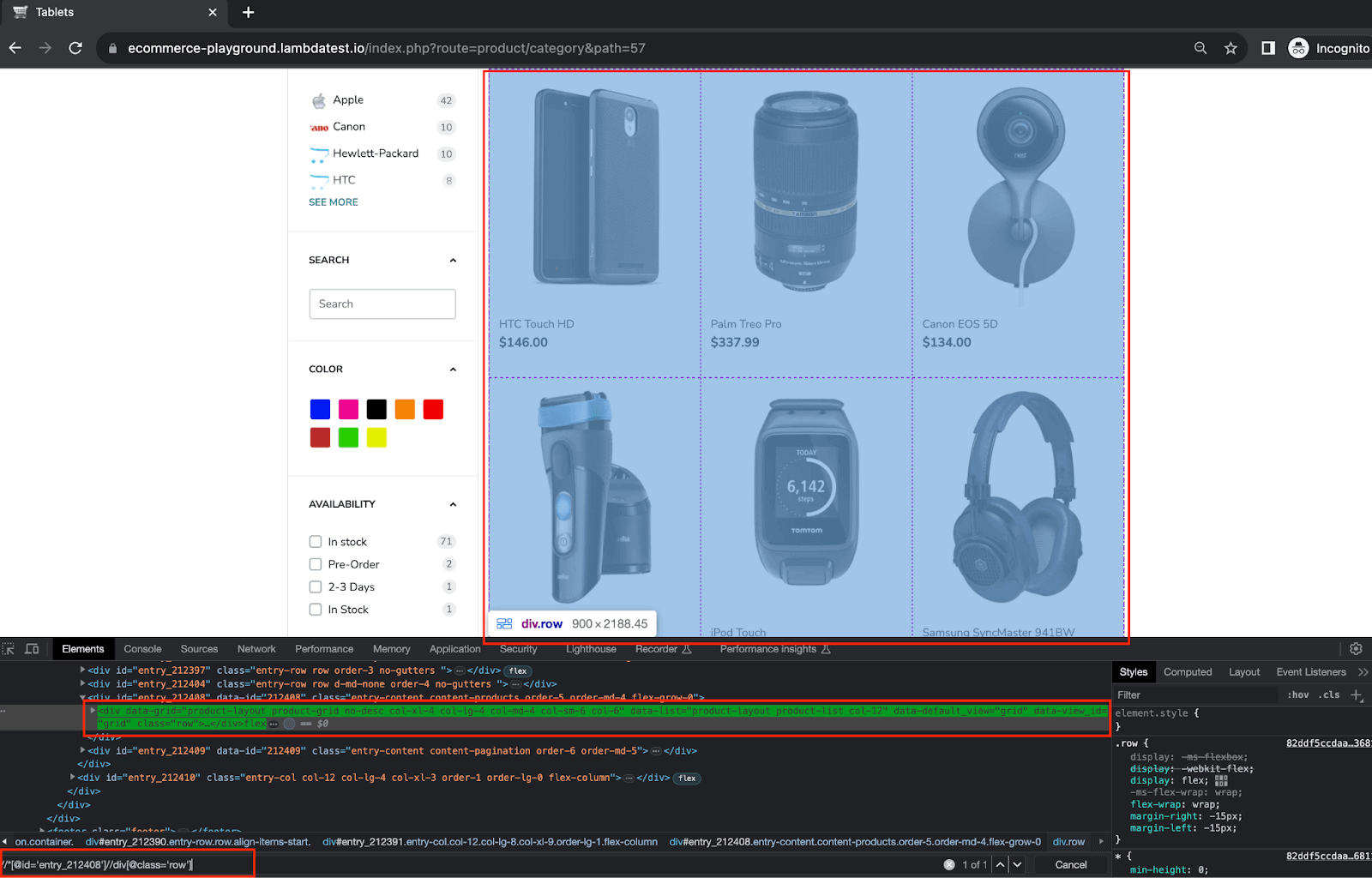
For this, add another ExpectedCondition using the same wait object.

Step 7. Using the same XPath locator for all products from the previous step, store this locator reference in a WebElement type variable. This will be used to fetch each product’s data one by one.
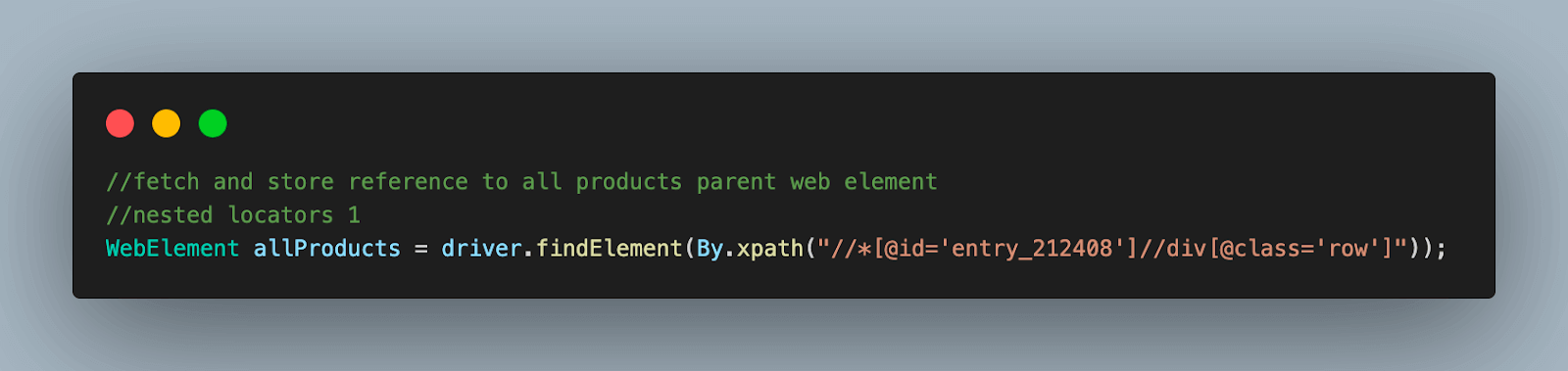
Step 8. Using the parent element locator, we fetch and store all the individual product locator elements and store them in a List. This list will be traversed to scrap data for each product in the next steps.

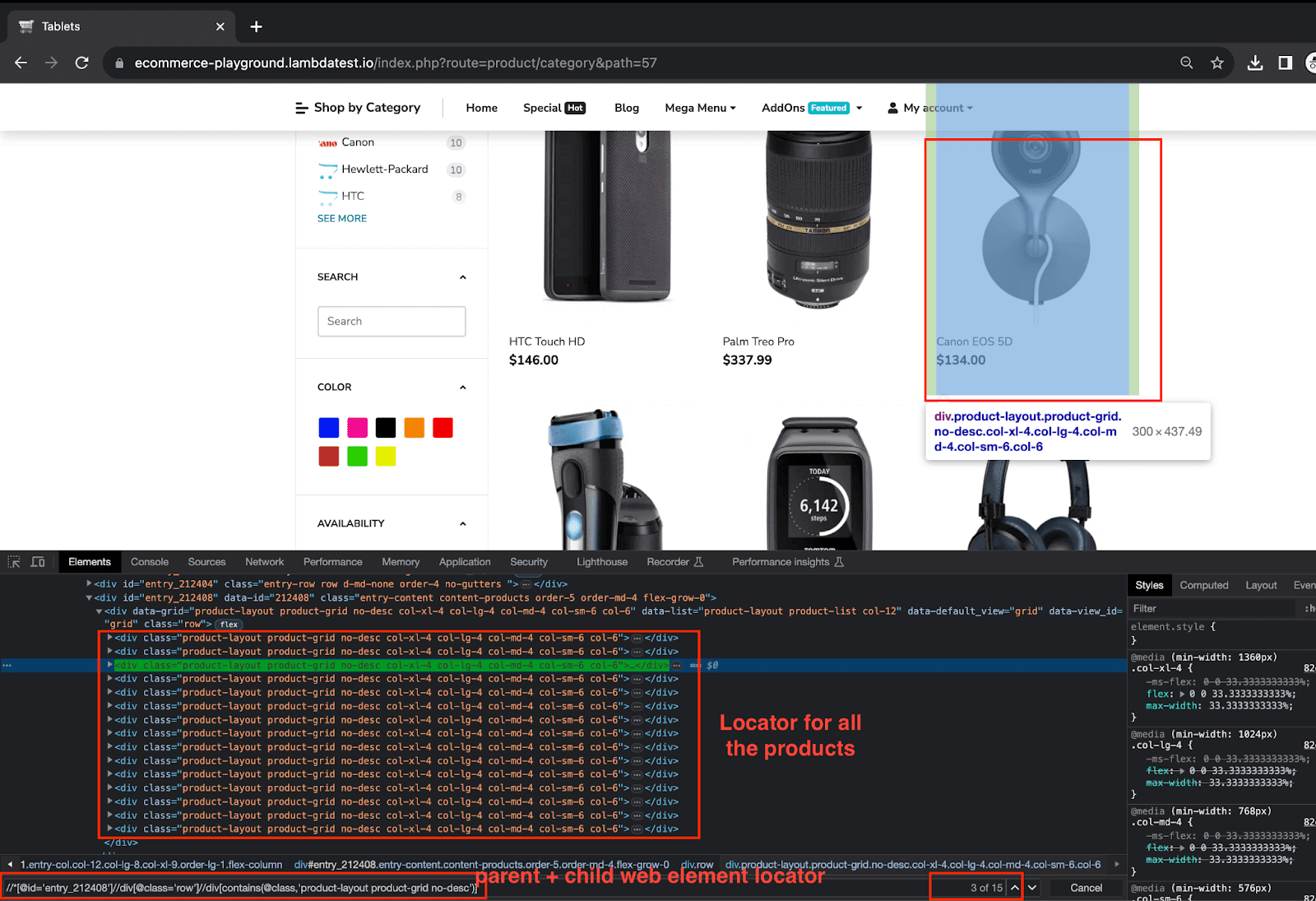
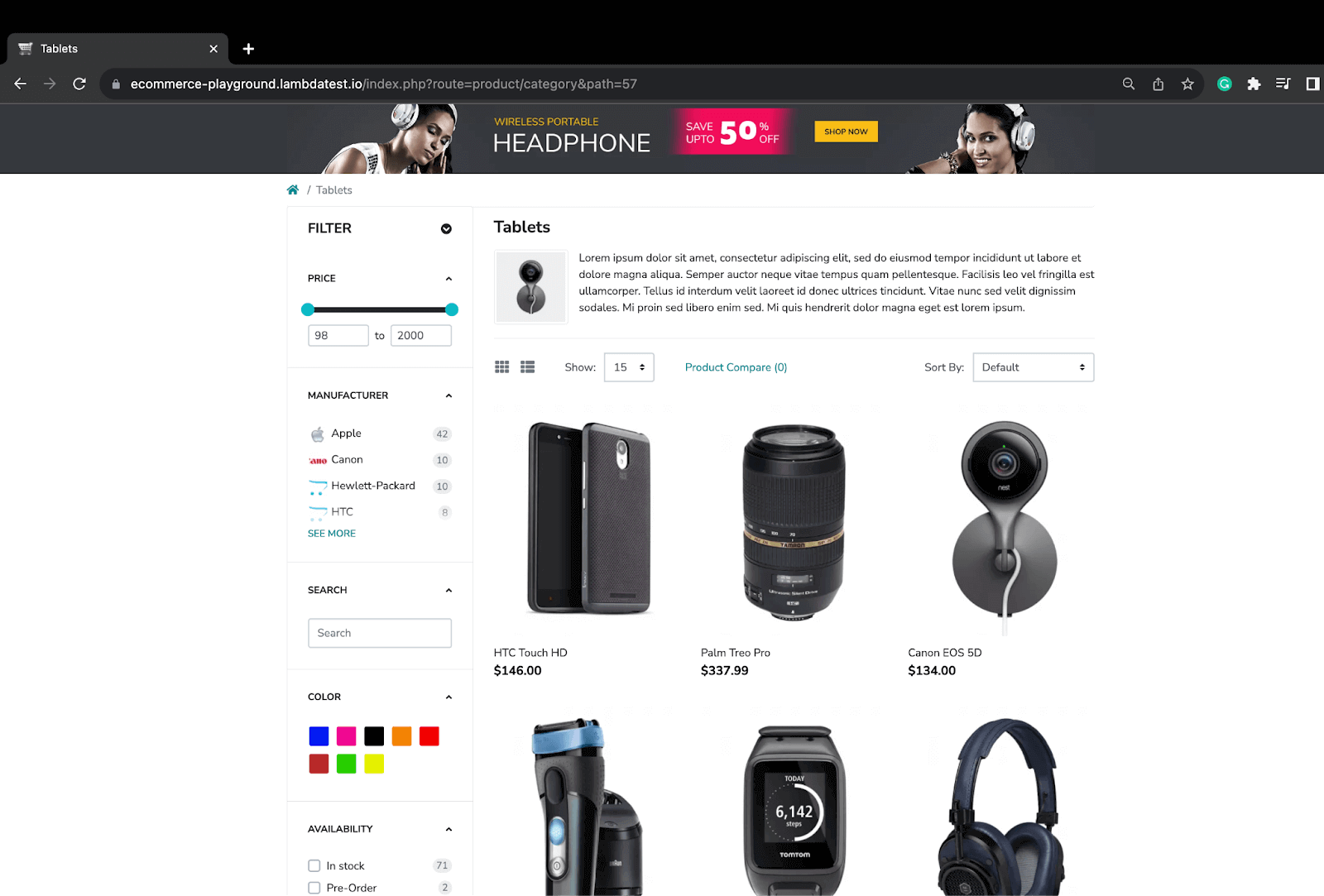
From the web element locator above, you can notice it refers to all the products that are present on the page
Step 9. Start a for loop to visit each product from the list individually.
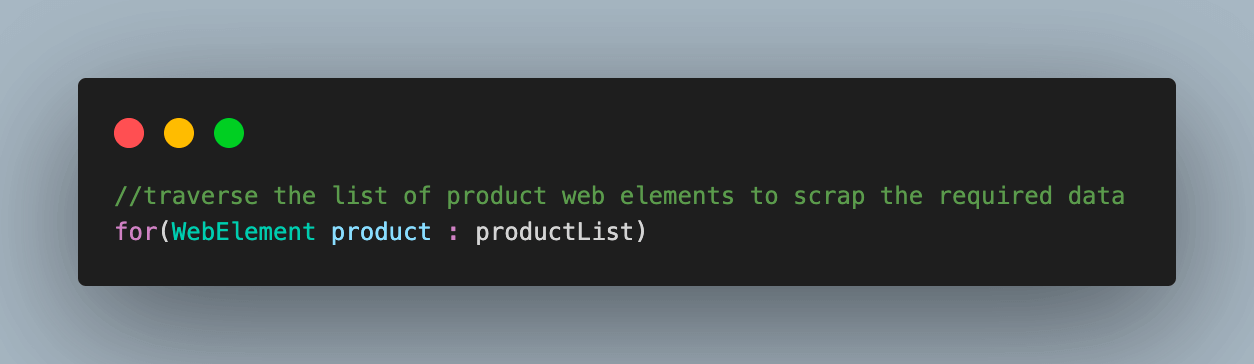
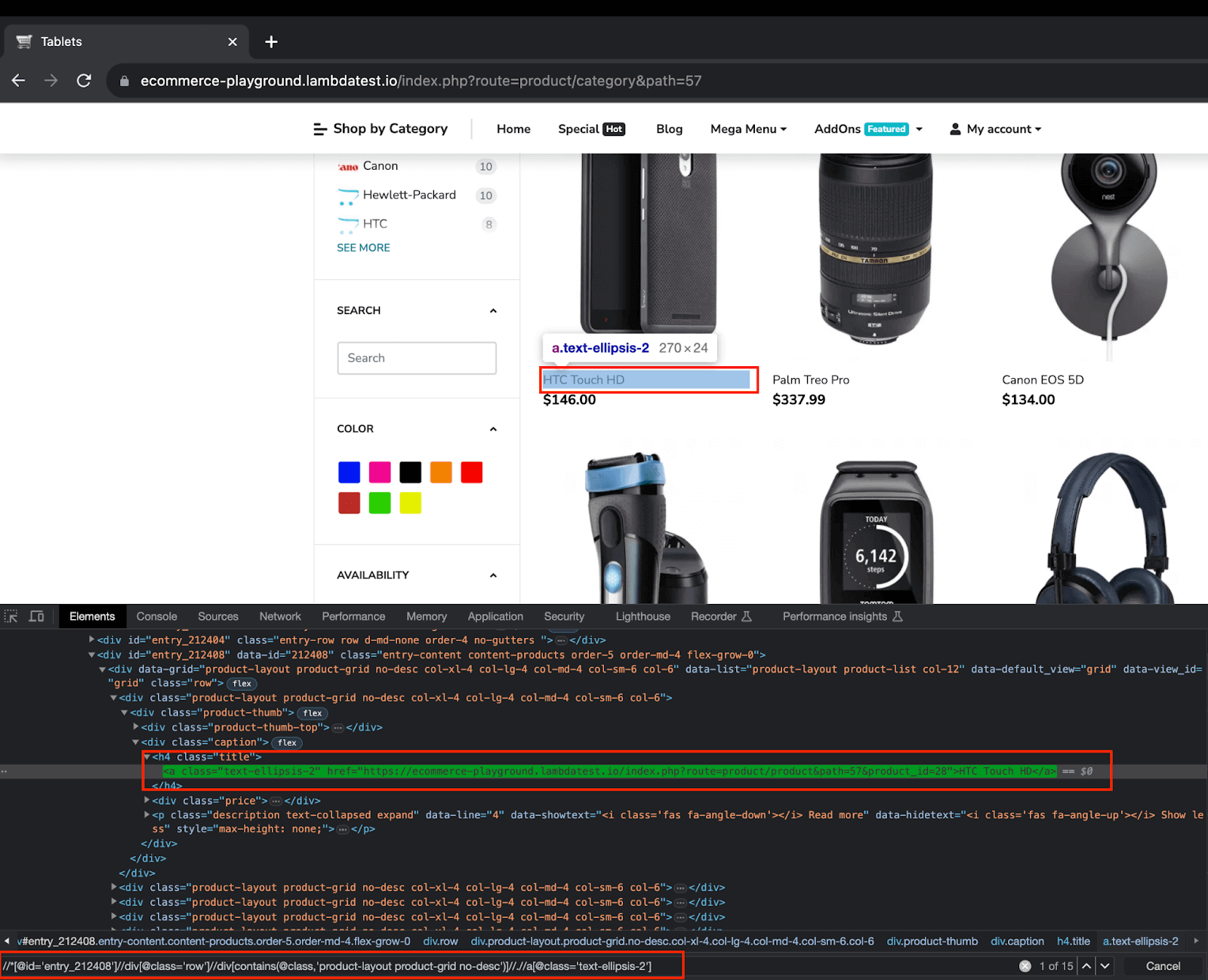
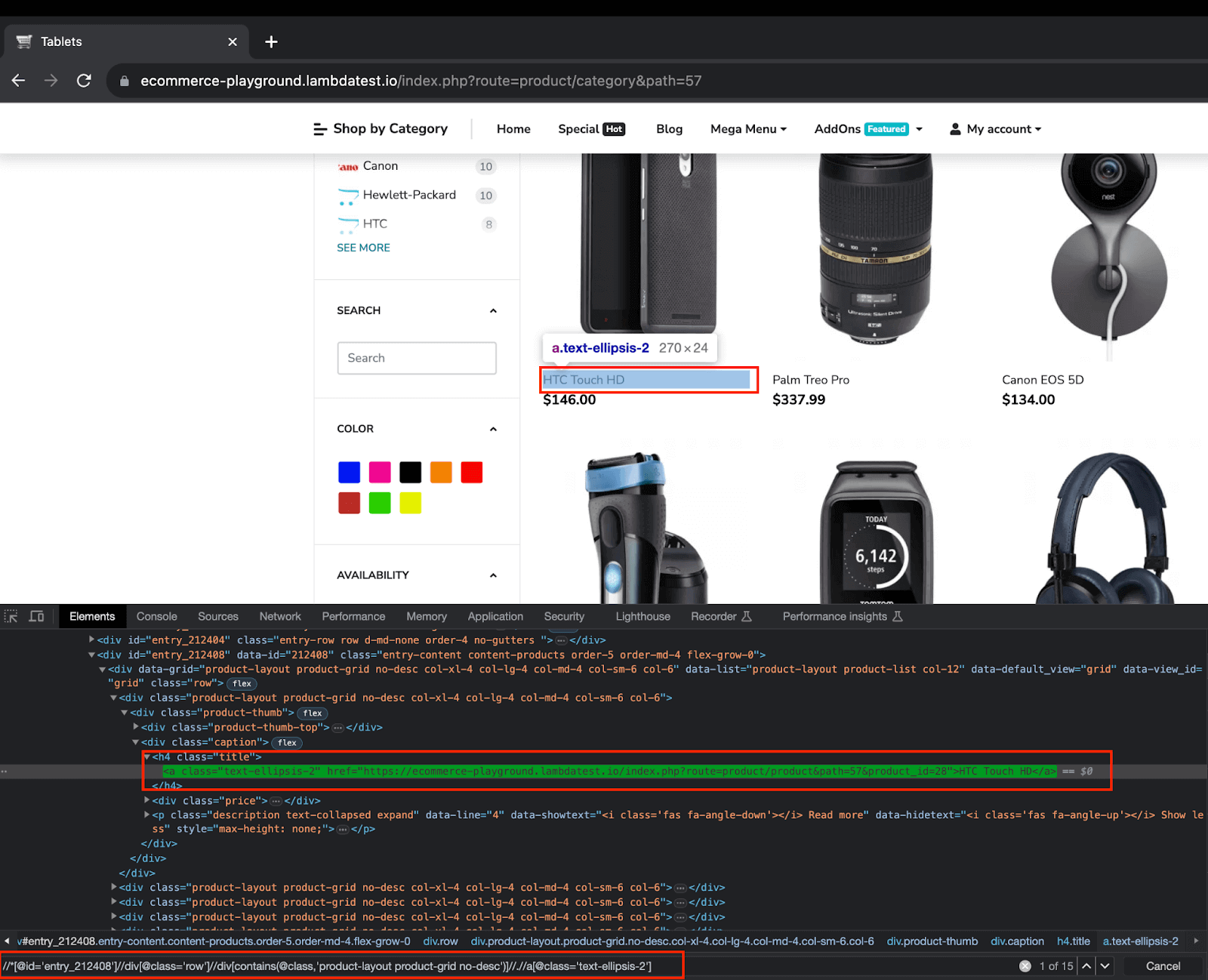
9.1) Using the product WebElement, fetch the locator elements for product details and price. Store these in WebElement type variables.
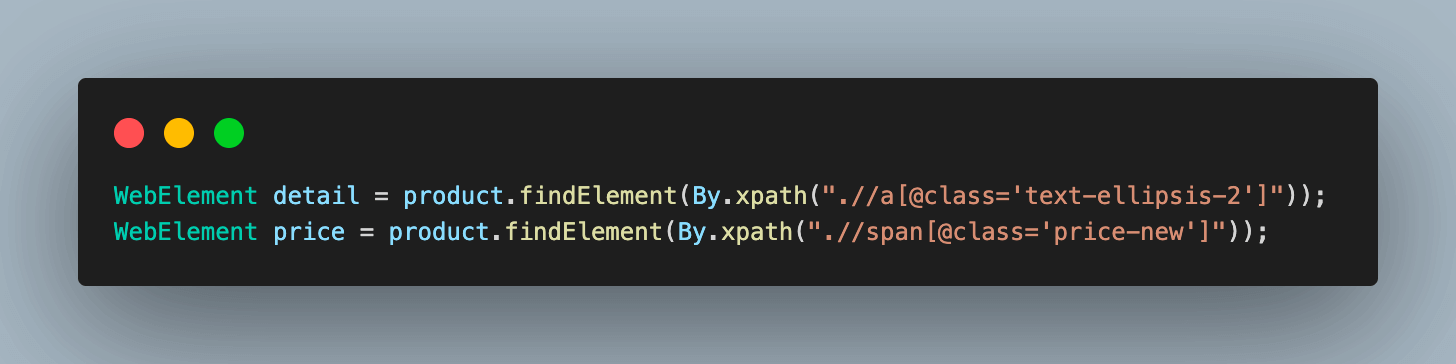
The following XPaths are used to fetch details and prices for each product.
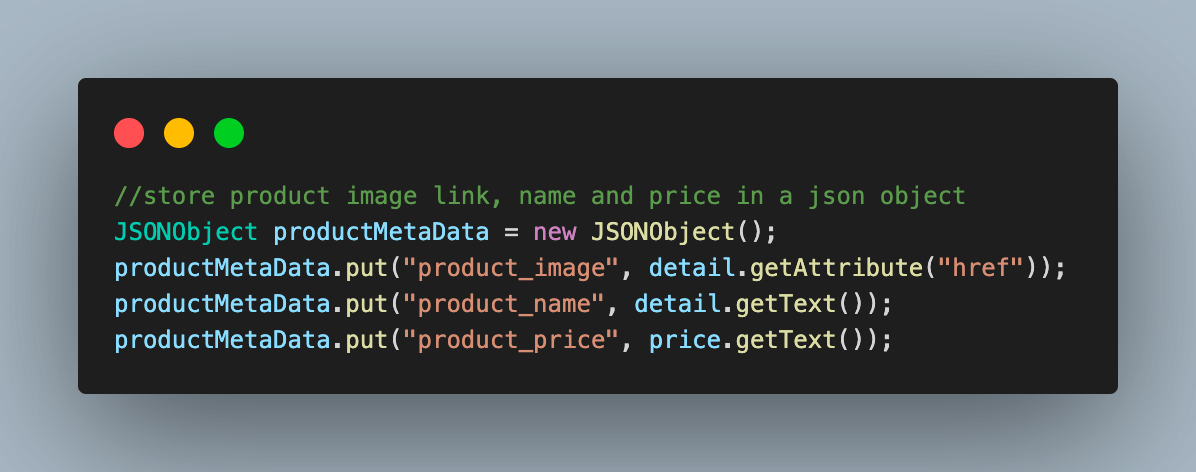
 9.2) Store the scraped data for the product inside a JSONObject variable in the form of a key-value.
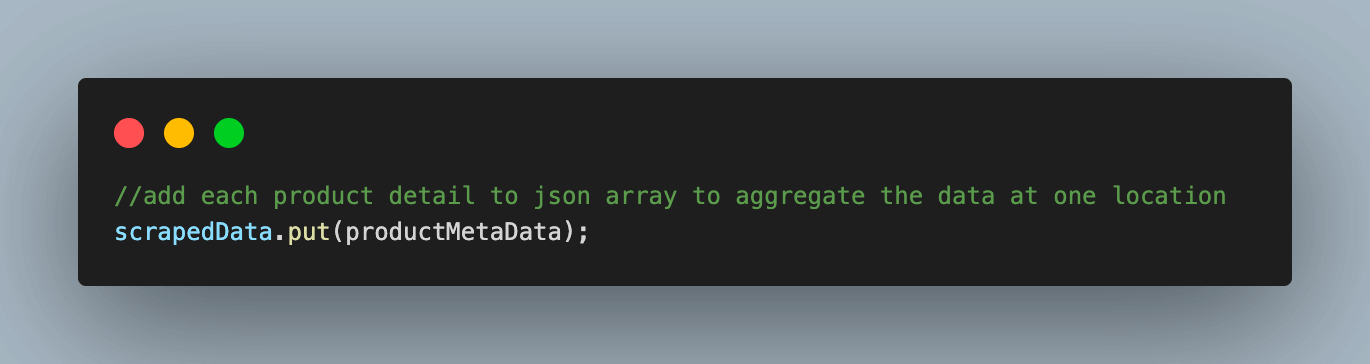
9.3) Add this JSONObject to the scrapedData JsonArray variable, which we created in the BaseTest.java file to aggregate all the scraped product data in one place.
Step 10. Print all the scraped data for all the products on the page.
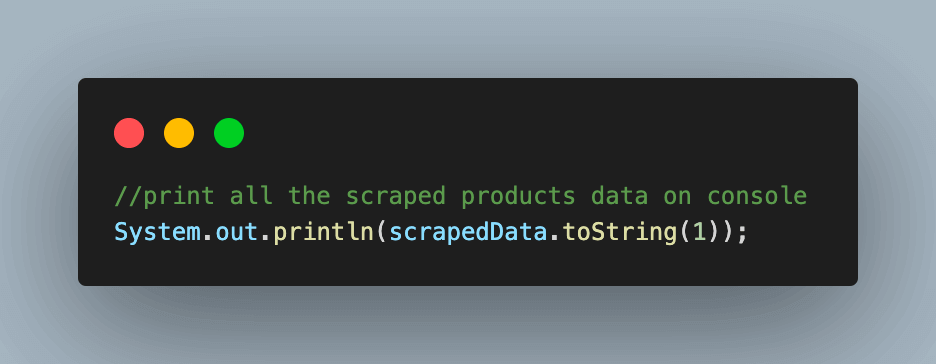
Executing this test case would give you an output like the below:
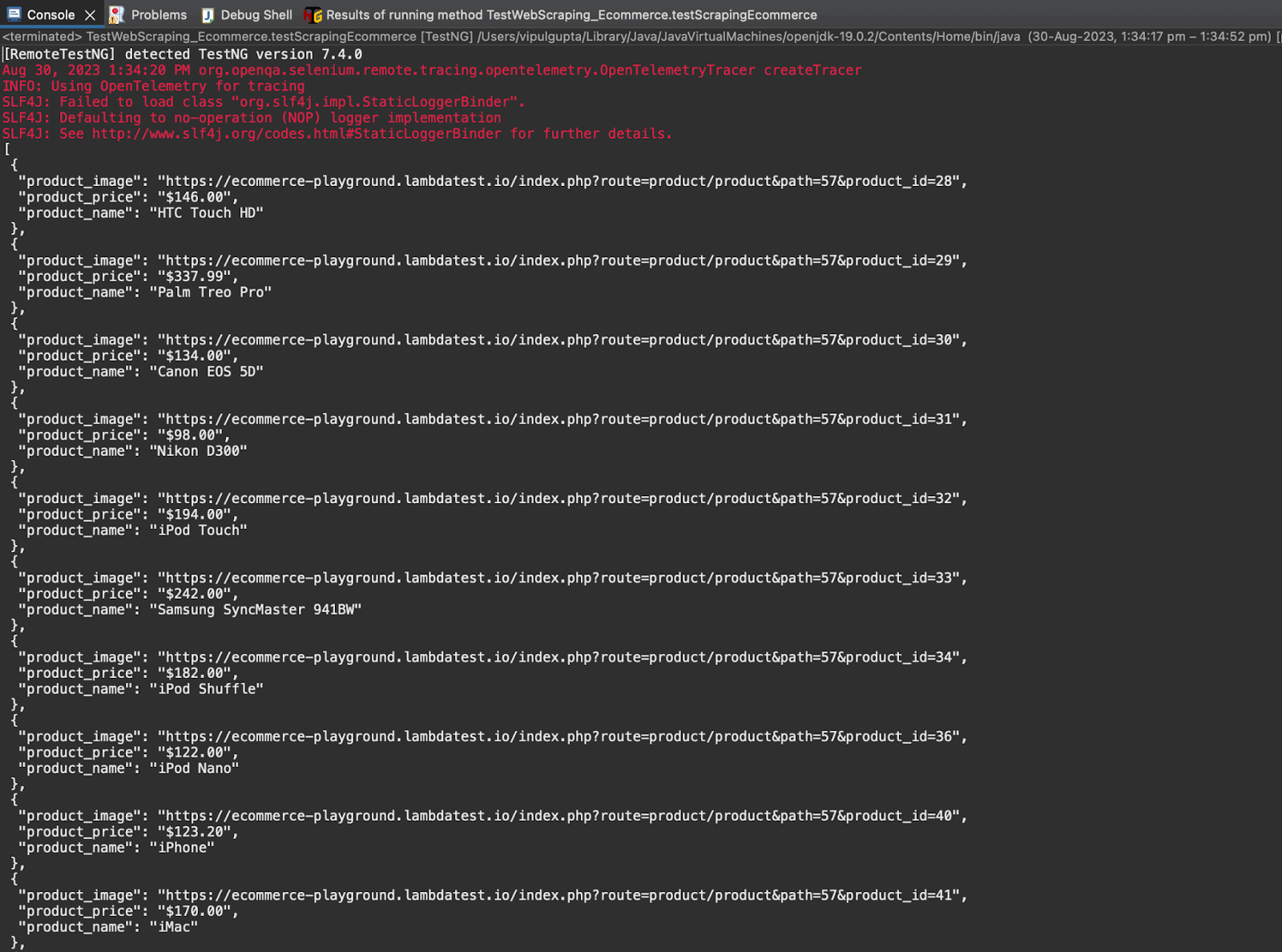
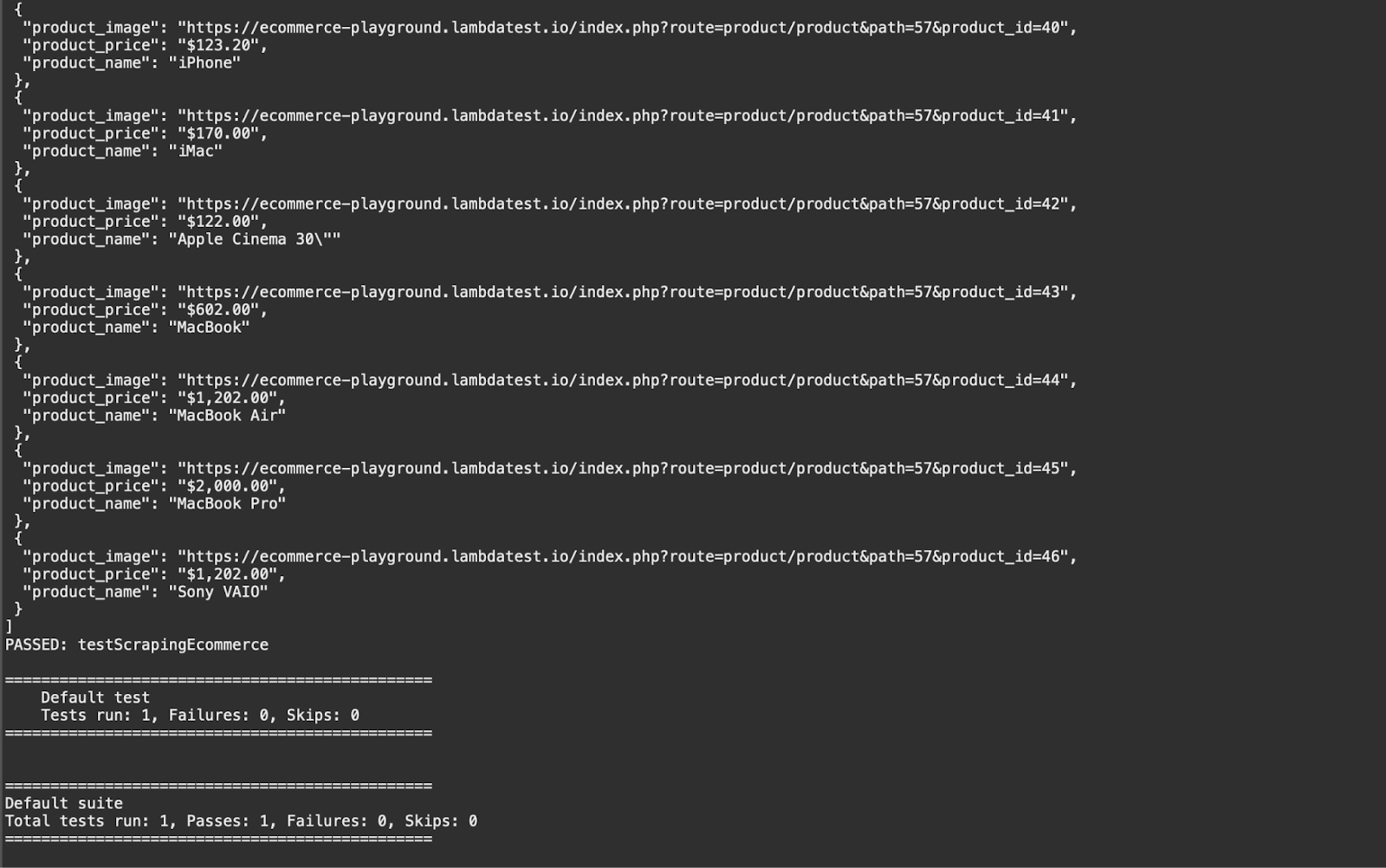
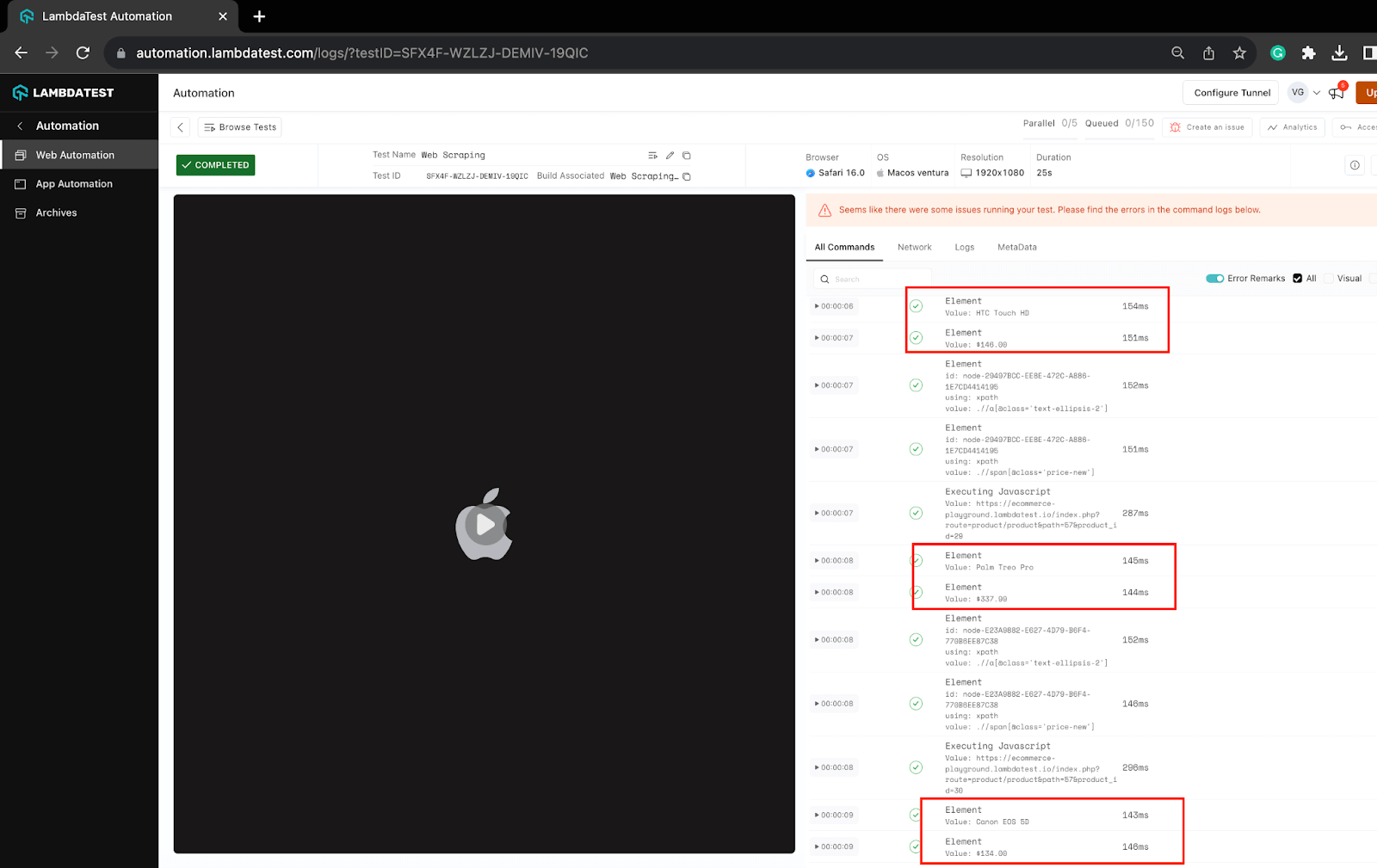
Execution logs on the TestMu AI Dashboard can be viewed under the Automation > Web Automation section. You can notice the logs for the data being scraped for a few products in the screenshot.
Demo: Dynamic Web Scraping TestMu AI YouTube Channel with Infinite Scrolling
In this test scenario, we try to scrap a few of the details of the videos from the TestMu AI YouTube channel. This scenario differs from the previous one because there is no pagination, and we need to first scroll down to the end of the page for all videos to load before we can start scraping the data.
package test;


import java.util.List;
import java.util.concurrent.TimeUnit;


import org.json.JSONObject;
import org.openqa.selenium.By;
import org.openqa.selenium.WebElement;
import org.openqa.selenium.JavascriptExecutor;
import org.testng.annotations.Test;


import base.BaseTest;


public class TestWebScraping_Youtube extends BaseTest {
          @Test
          public void testScrapingYoutube() throws InterruptedException {
                    //Navigate to Lambdatest YouTube channel
                    driver.get("https://www.youtube.com/@LambdaTest/videos");


                    //Click "Accept All" for YouTube cookie consent.
                    //This window might come up in cloud execution as cookies get cleaned.
                    //Reference: https://github.com/hjsblogger/web-scraping-with-python#
                                 web-scraping-using-selenium-cloud-grid-and-python
                    try {
                              //wait to check if "Accept All" is present to be clicked.

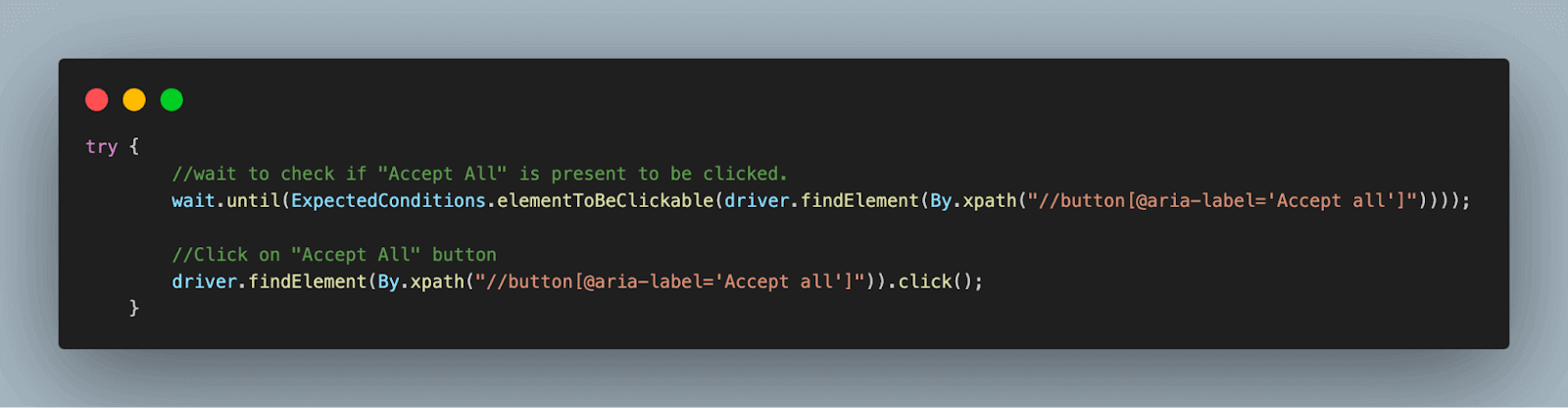
wait.until(ExpectedConditions.elementToBeClickable(driver.findElement(By.xpath("//button[@aria-label='Accept all']"))));
                              //Click on "Accept All" button
                              driver.findElement(By.xpath("//button[@aria-label='Accept all']")).click();
                          }
                    catch(Exception e){
                    //Exception means the button is not available and YouTube channel link has opened successfully
                     //Continue test execution
                    }


                    //maximize the browser window
                    driver.manage().window().maximize();


                    //wait for the Lambdatest youtube page to load
                    driver.manage().timeouts().pageLoadTimeout(10, TimeUnit.SECONDS);


                    //scroll to the end of the page to load all the videos
                    JavascriptExecutor js = (JavascriptExecutor) driver;
                    long scrollHeight = (long) js.executeScript("return document.documentElement.scrollHeight");
                    long startHeight = 0;
                    do {
                              startHeight = scrollHeight;
                              js.executeScript("window.scrollTo(0, "+ startHeight + ")");
                              Thread.sleep(1000);
                              scrollHeight = (long) js.executeScript("return document.documentElement.scrollHeight");
                    }while(startHeight != scrollHeight);


                    //fetch and store reference to all videos parent web element
                    //nested locators 1
                    List<WebElement> allVideos = driver.findElements(By.xpath("//*[@id='contents']//div[@id='content']"));
                    //traverse webElement for each video to scrap the required data
                    for(WebElement video : allVideos)
                    {
                              //use the parent web element of video to fetch the details element of same
                              //nested locators 2
                              WebElement details = video.findElement(By.xpath(".//*[@id='details']"));

                              WebElement videoTitle = details.findElement(By.xpath(".//a[@id='video-title-link']"));
                              List<WebElement> videoMetadata = details.findElements(By.xpath(".//div[@id='metadata-line']//span"));


                              //store each video title, views and days in a json object
                              JSONObject videoData = new JSONObject();
                              videoData.put("video_title", videoTitle.getText());
                              videoData.put("video_views", videoMetadata.get(0).getText());
                              videoData.put("video_days", videoMetadata.get(1).getText());


                              //add each video detail to JSON array to aggregate the data at one location
                              scrapedData.put(videoData);
                    }


                    //print all the scraped video data on console
                    System.out.println(scrapedData.toString(1));
          }
}
Code Walkthrough
Step 1. Add a new Java file under the test package, TestWebScraping_Youtube. This class will extend BaseTest.java to inherit the common methods and variables from it.
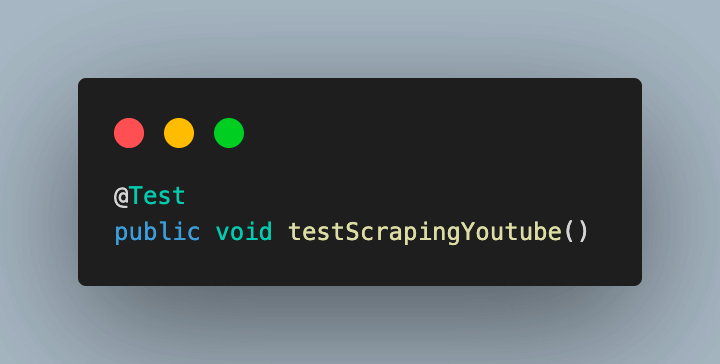
Step 2. Add the test case as testScrapingYoutube() and annotate it with @Test annotation.
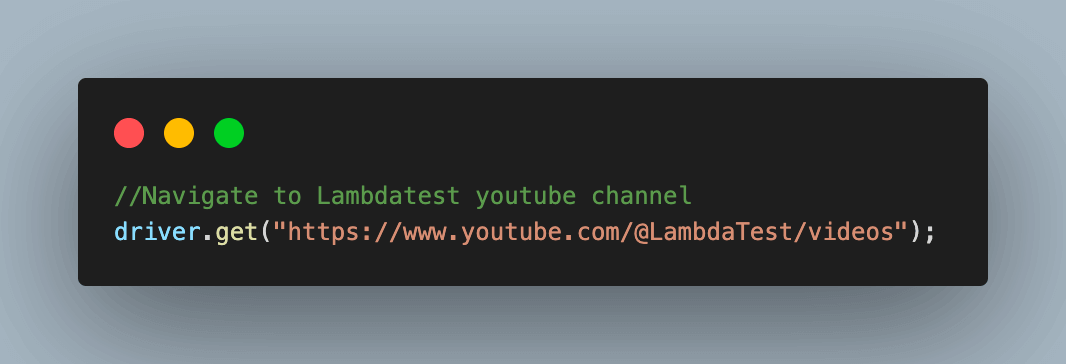
Step 3. Navigate to the TestMu AI YouTube channel, where we will scrap the required video data.
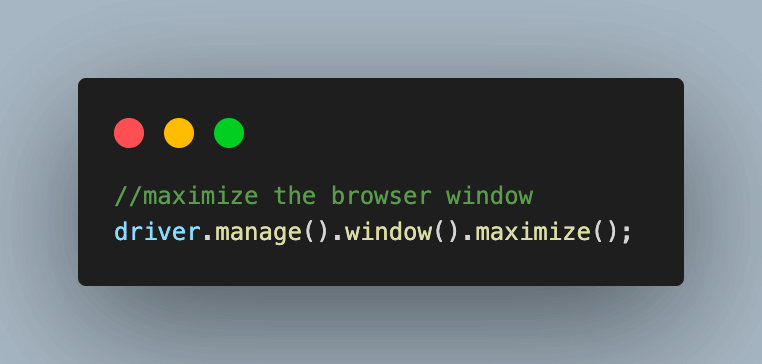
3.1) Maximize the browser window for best results.
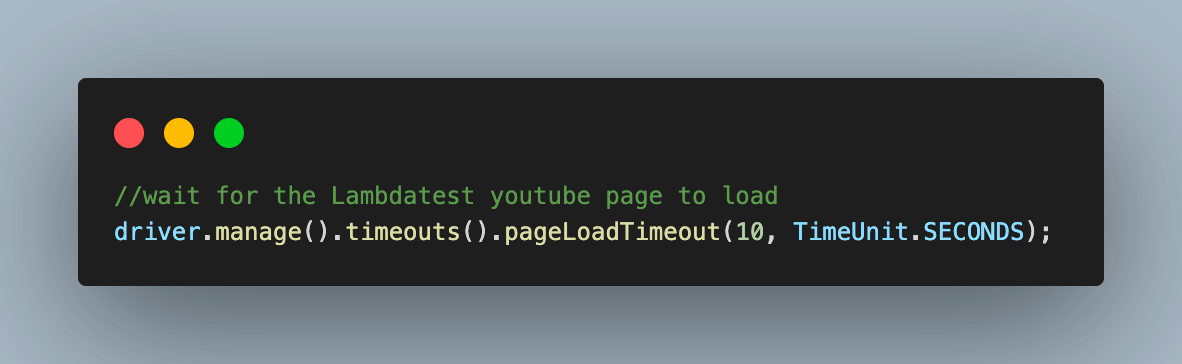
Step 4. Wait for the web page to be loaded completely using the inbuilt web driver pageloadTimeout() function.
Step 5. YouTube page scraping may fail on the cloud grid in some cases, especially when there are many repeated attempts to scrape the data.
This is because cookies and other settings are deleted after each test session during cloud execution. YouTube might consider this to be a bot attack! However, this would work fine in local execution in all attempts since cookies are not deleted.
In such cases, you might have the following page loading first before videos, where cookie consent has to be given by clicking on the “ACCEPT ALL” button.
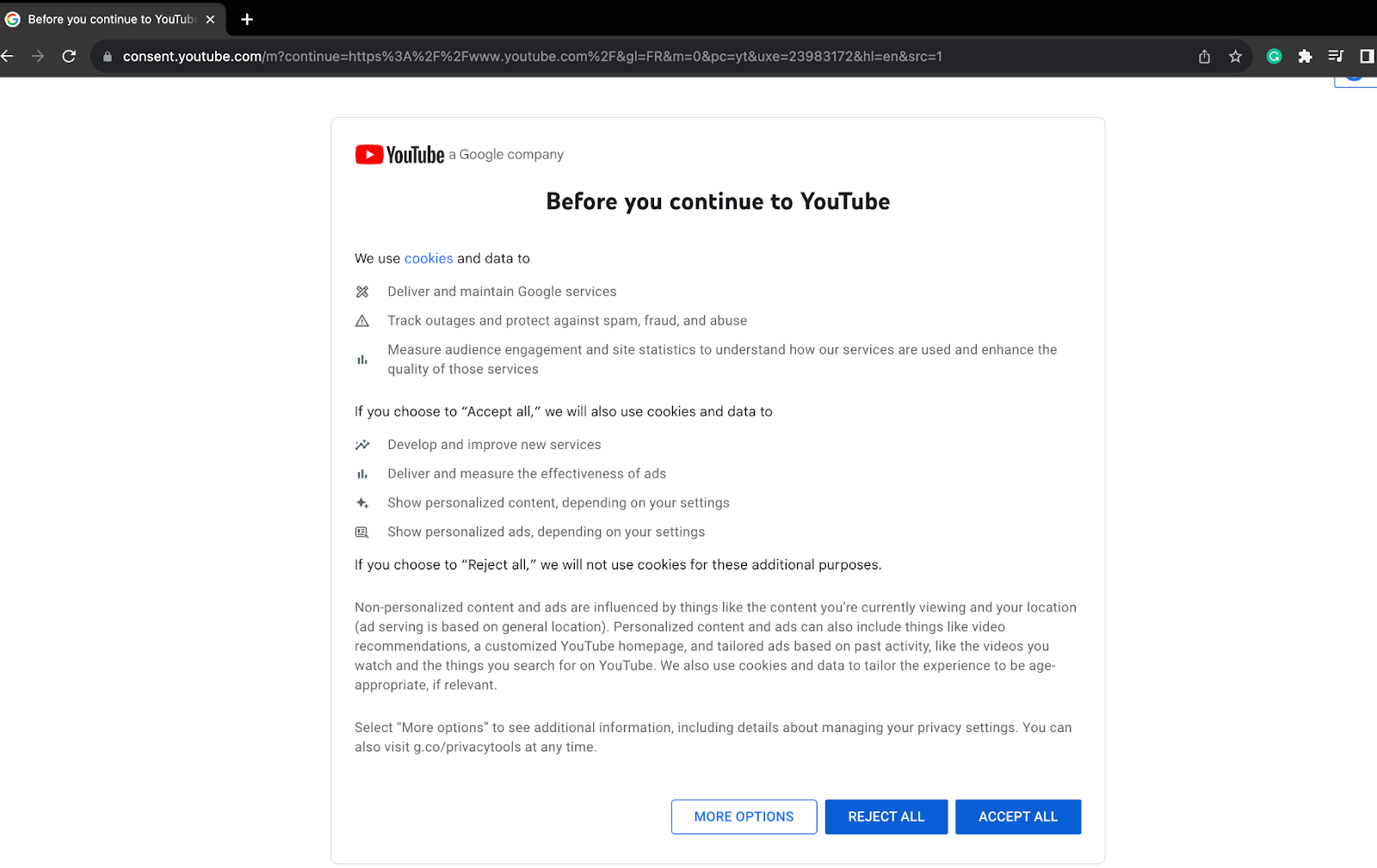
5.1) For this, add a try block and use ExpectedConditions to wait for some time to check if the consent window has loaded or not using the “ACCEPT ALL” button XPath.
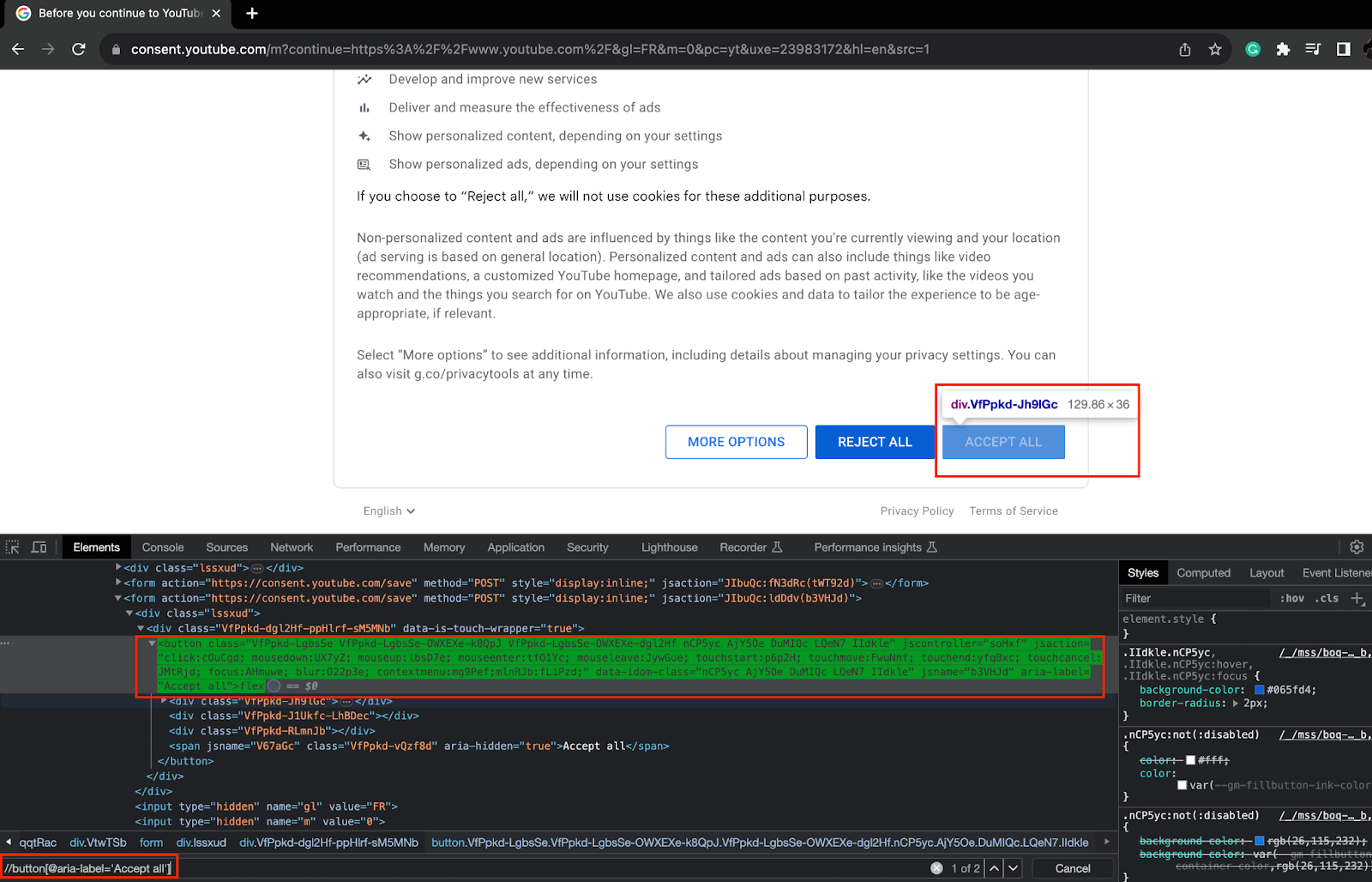
If loaded, click the button.
5.2) If the window is not present, an Exception is raised, which we handle using the catch block and continue with the execution.
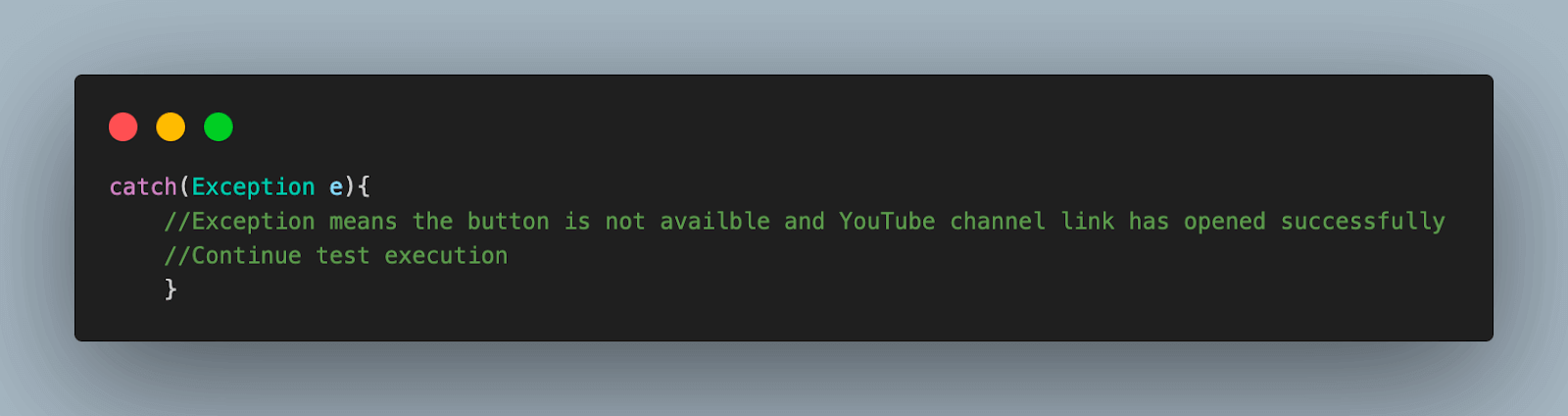
5.3) The resulting page after this try-catch block is the same YouTube videos page for both cases. The test execution continues as expected after this step.
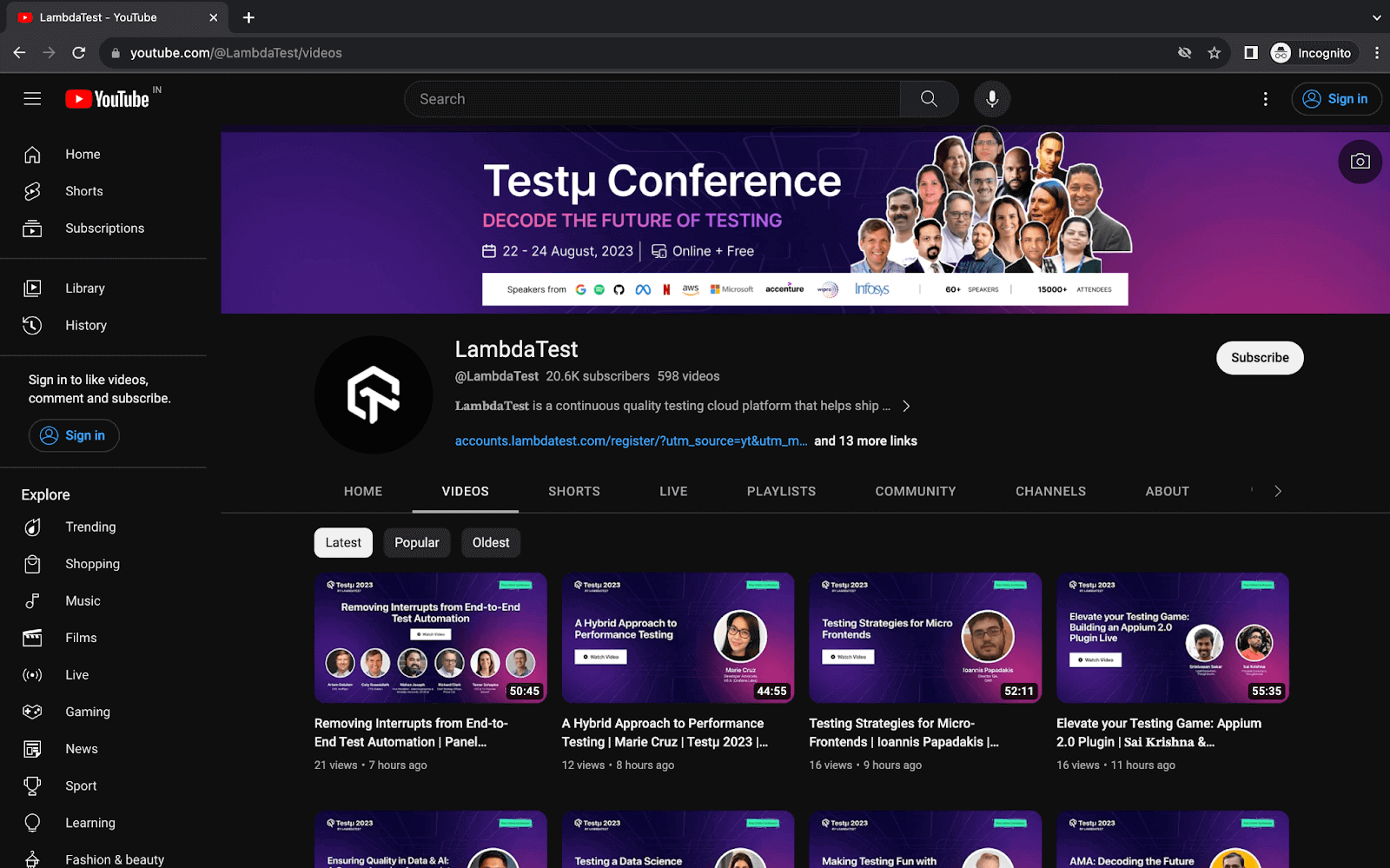
Step 6. When we load the TestMu AI YouTube page, only the first 30 videos are loaded. To get the details of all the videos on the page, we scroll down until we reach the end.
For this, Implement JavaScriptExecutor to scroll down to the end of the page to load all the videos, which we will then scrape for data.
6.1) Start by creating an object of the JavaScriptExecutor interface by casting WebDriver to it.
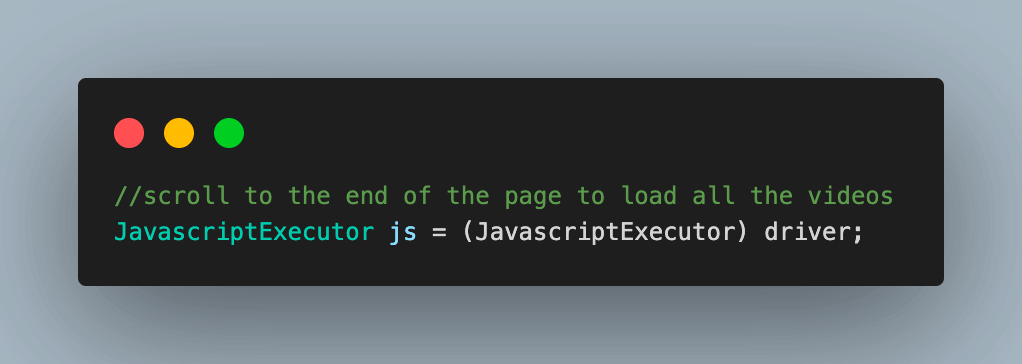
6.2) Create two variables to store the initial startHeight and scrollHeight of the page. To get the scrollHeight, which corresponds to the current height of the page, the document.documentElement.scrollHeight method of JavaScript is used.
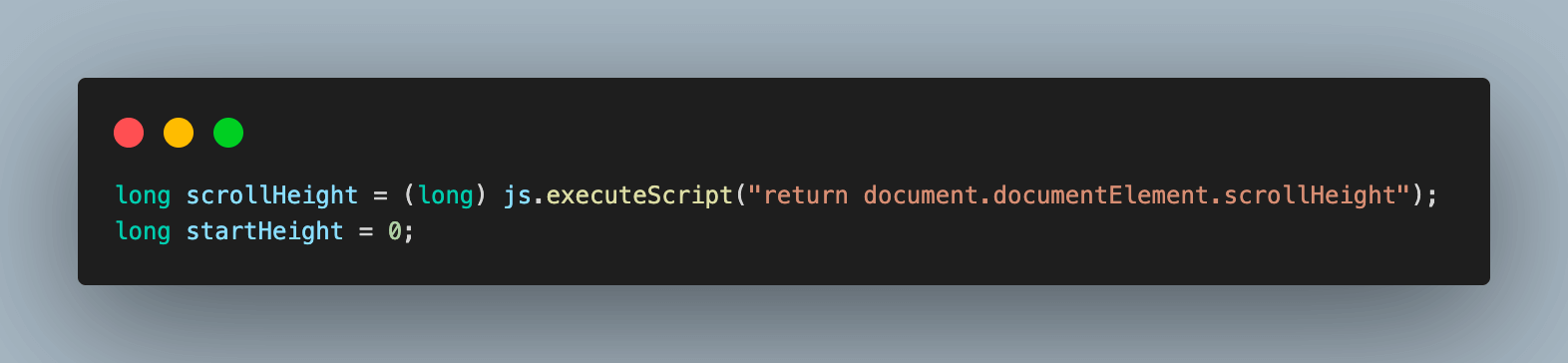
6.3) A do-while loop scrolls to the end of a page to load all videos. The window.scrollTo() method in JavaScript is used to scroll to a specified height on the page.
The window.scrollTo() method takes two arguments: the x-coordinate and the y-coordinate of the element to scroll to. In this case, we are scrolling to the bottom of the page, so we pass in the height of the page for the y-coordinate.
After each scroll, we wait one second for the videos to load. This is because videos can take some time to load, and we want to make sure that they are loaded before we try to scroll to the next video.
Finally, we fetch the updated page height to be used for the next scroll. This is because the page height may change as videos load, so we need to make sure that we are scrolling to the correct position.
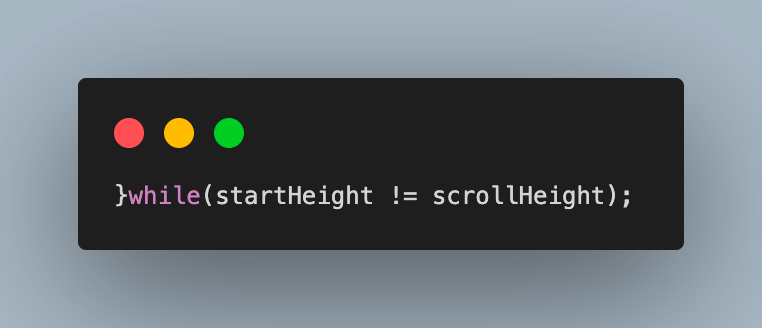
6.4) Repeat the process until the startHeight and scrollHeight are equal, which means that the page has been scrolled to the bottom and all videos have loaded. Then, break out of the loop.
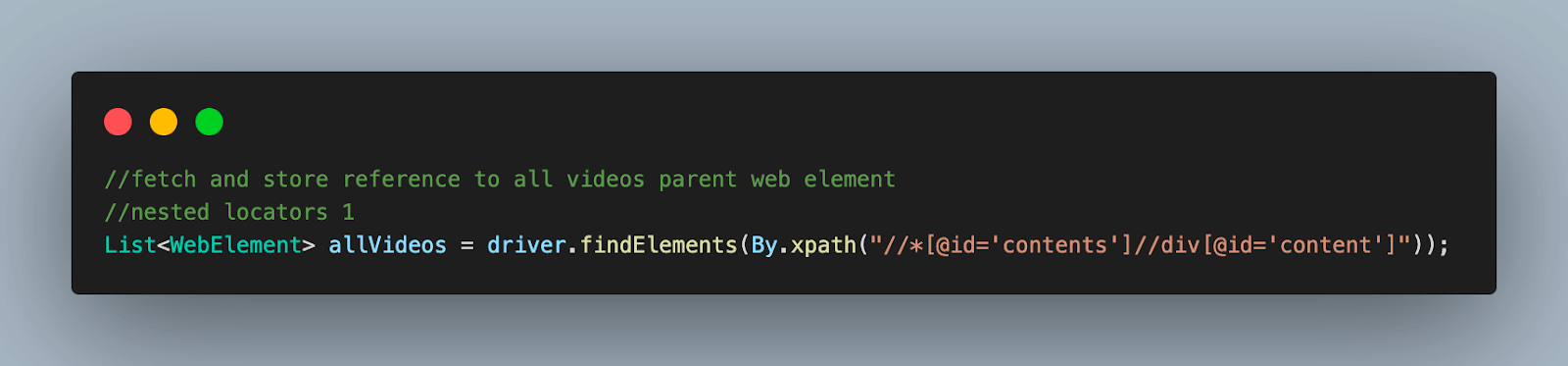
Step 7. Using the XPath locator, fetch the list of parent web elements that refers to each video detail on the page and store it in a WebElement type List.
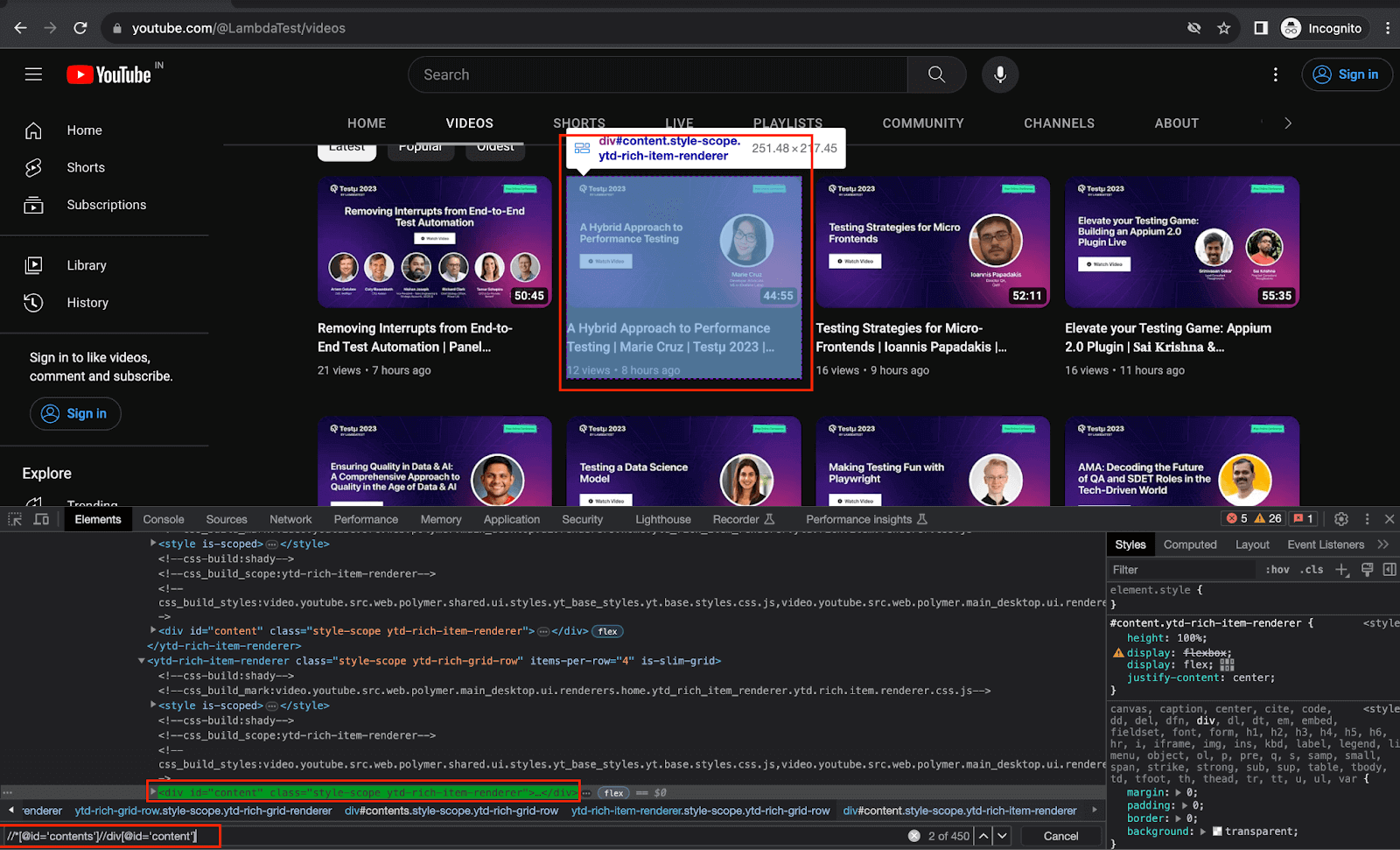
This is the list that will be traversed in the next steps to scrap the required data.
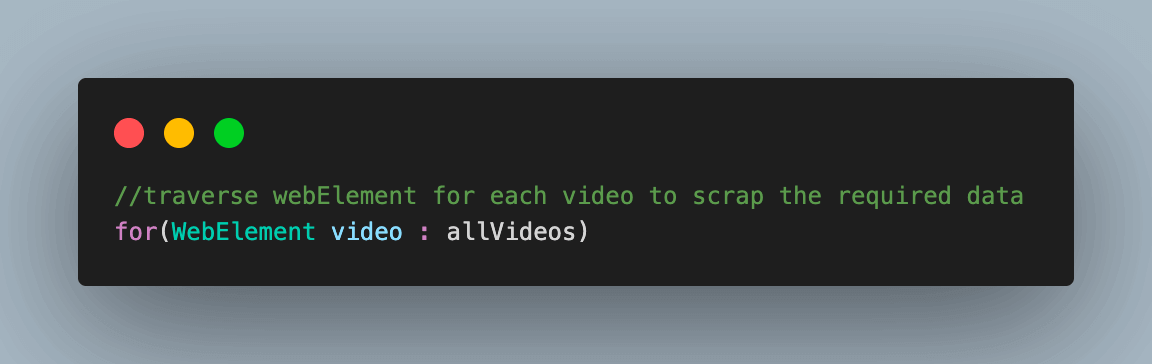
Step 8. Start traversing the WebElement list of videos to scrape the data.
8.1) Use the parent video web element to fetch the web element with details of the video.
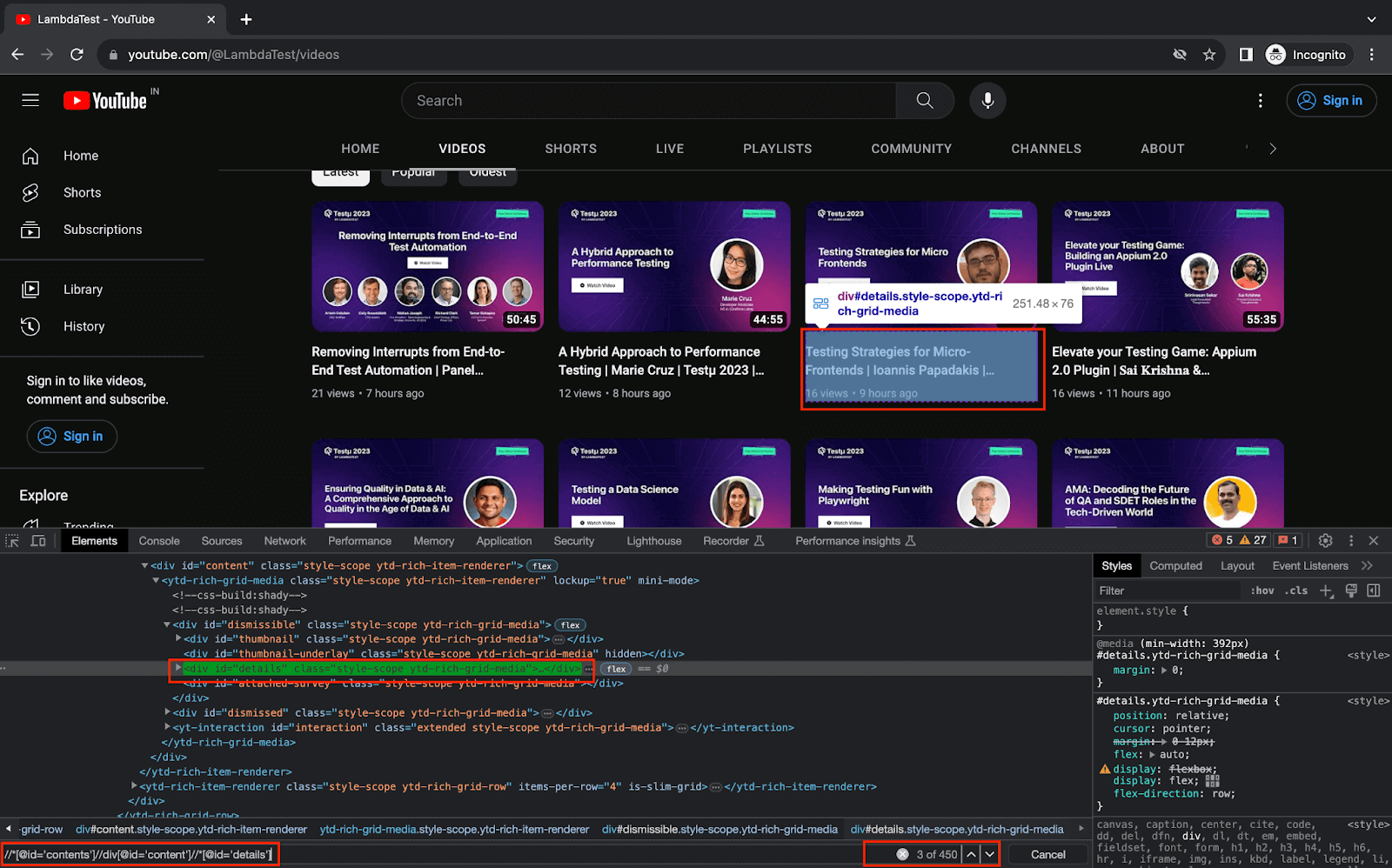
This element contains the required details inside it.
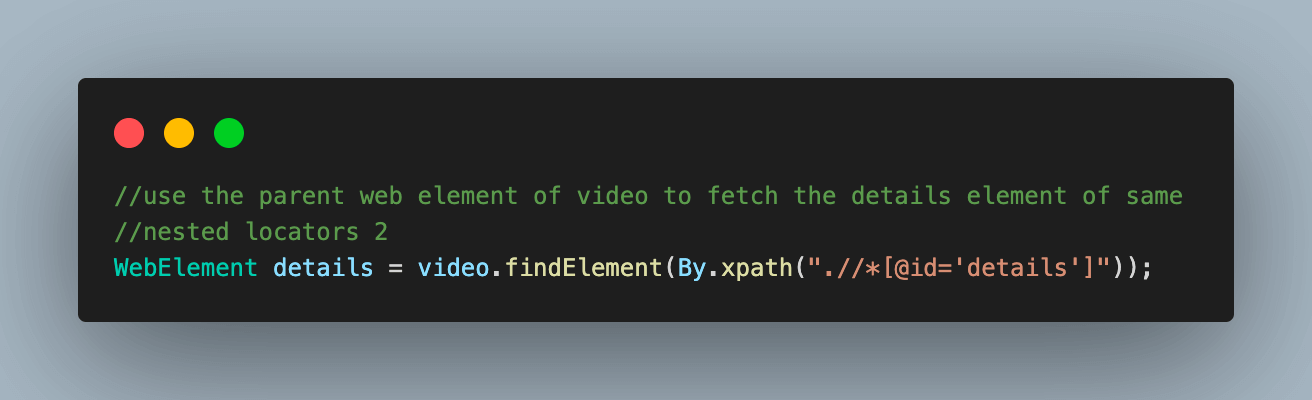
8.2) Using the details web element locator from the previous step, fetch the web element locator for videoTitle and videoMetadata.
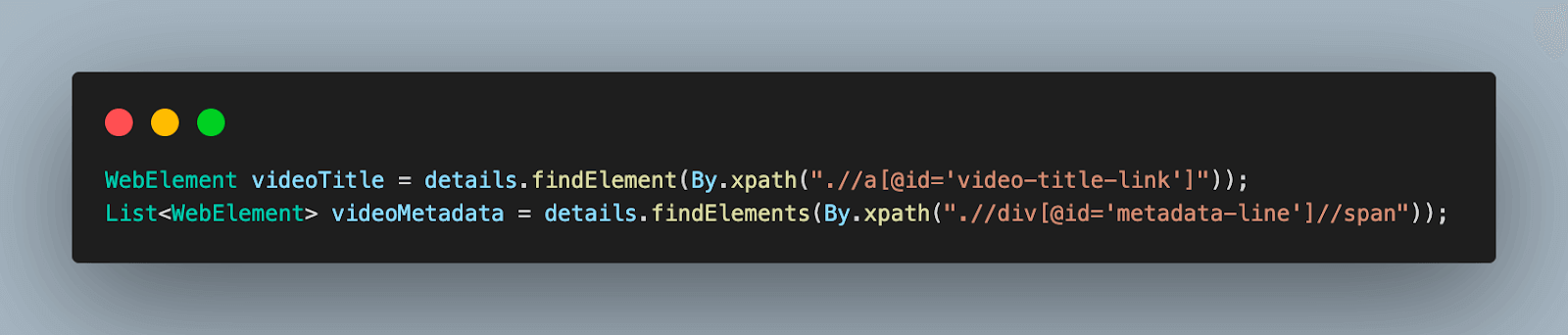
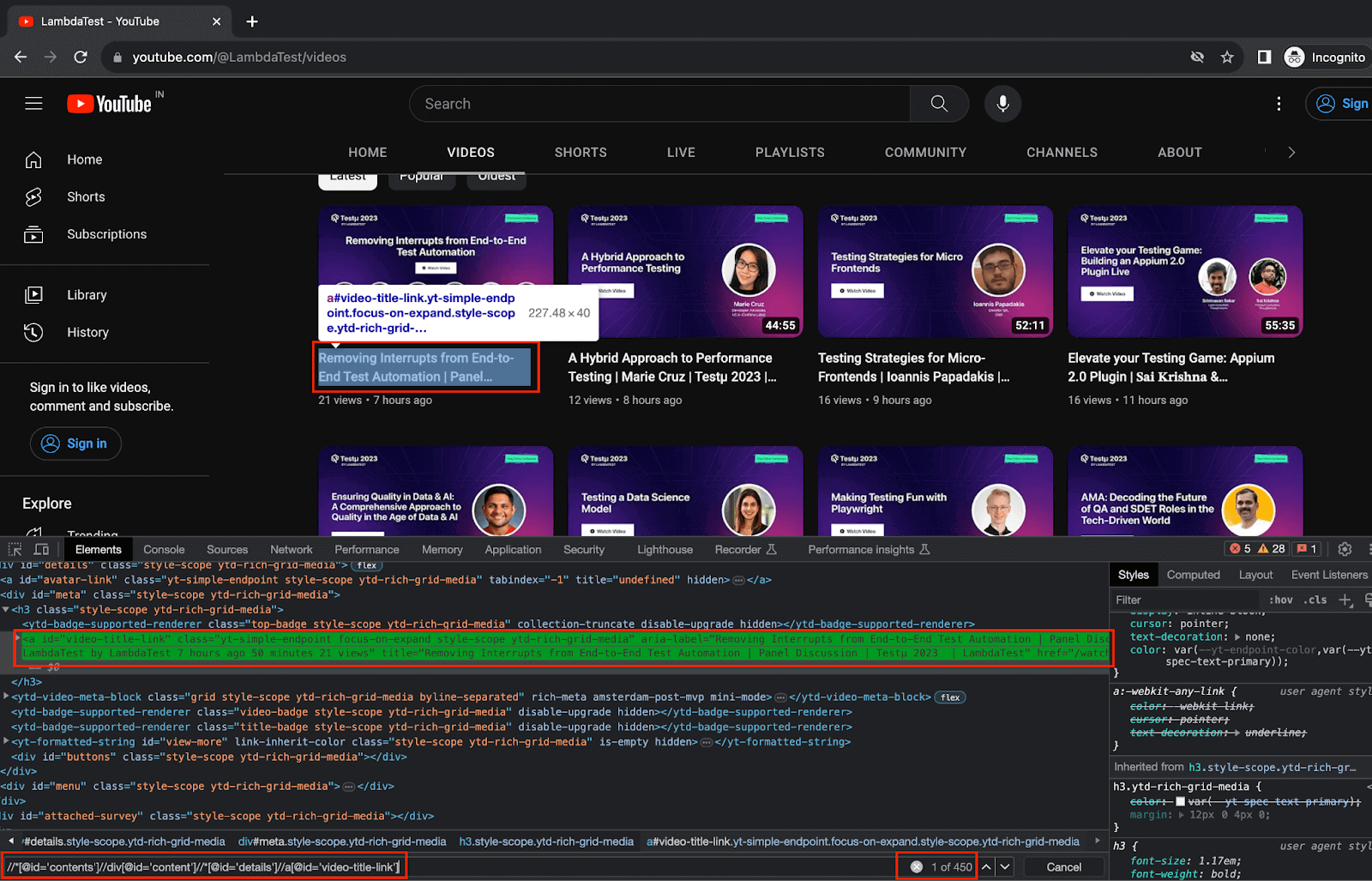
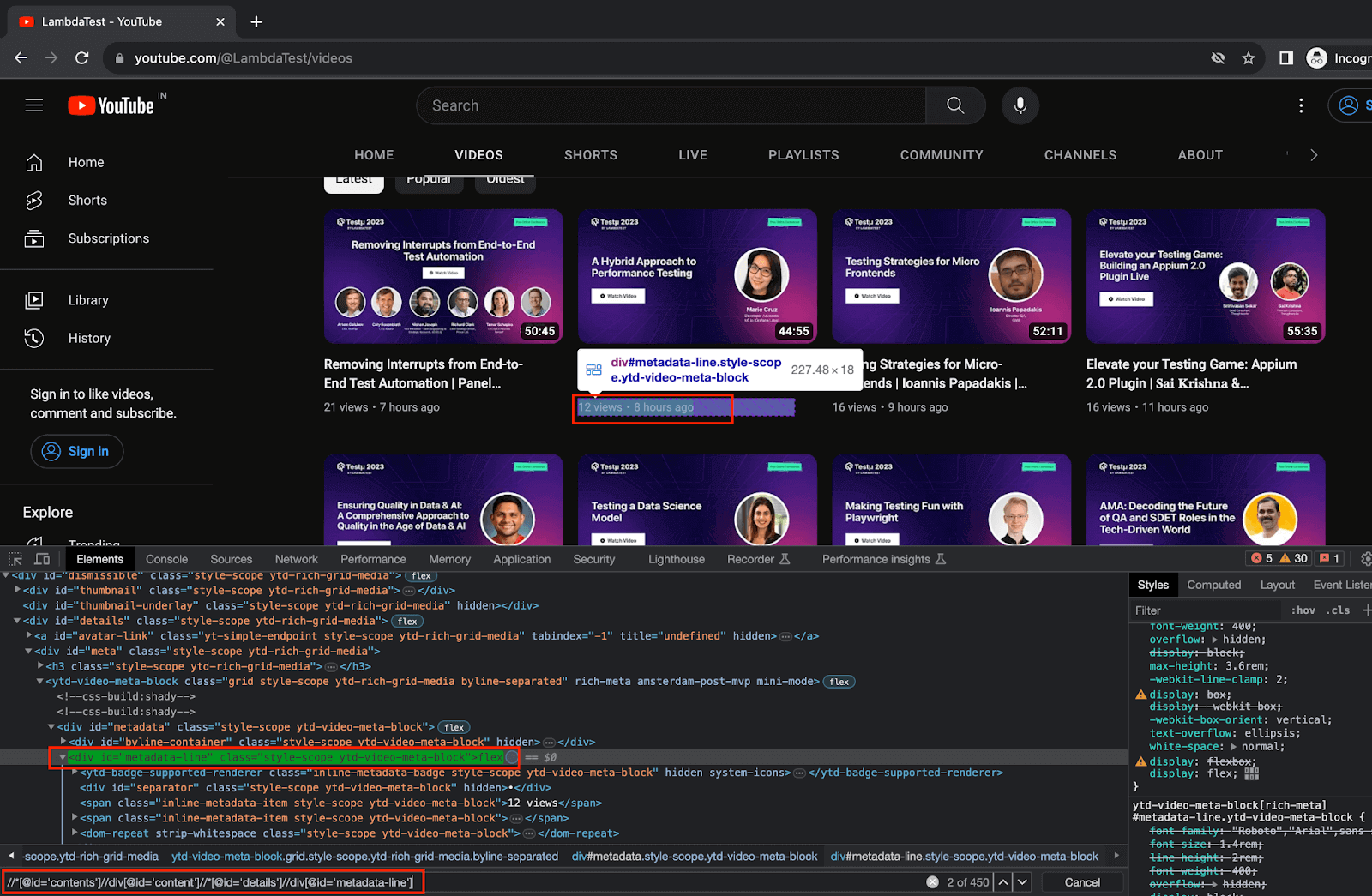
8.3) Store the scraped data for the video inside a JSONObject variable in the form of a key-value.
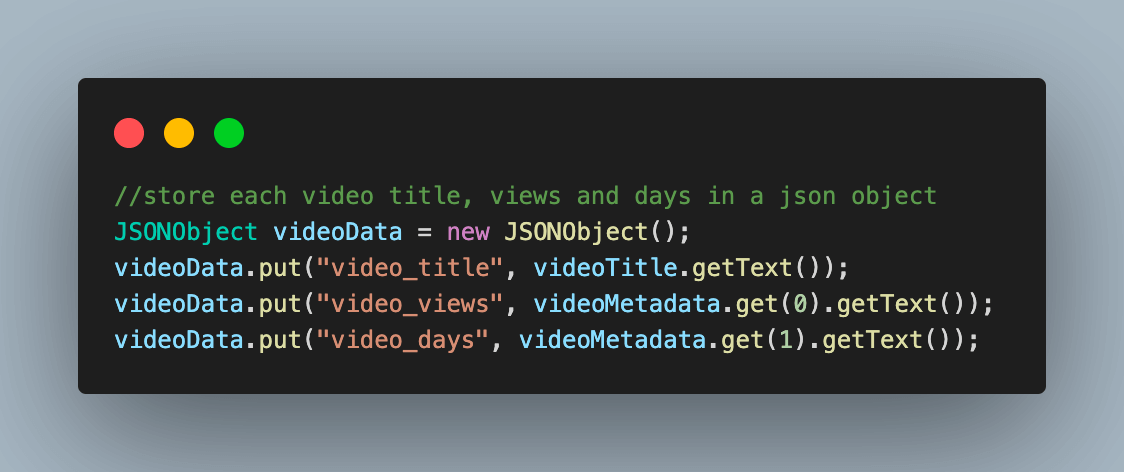
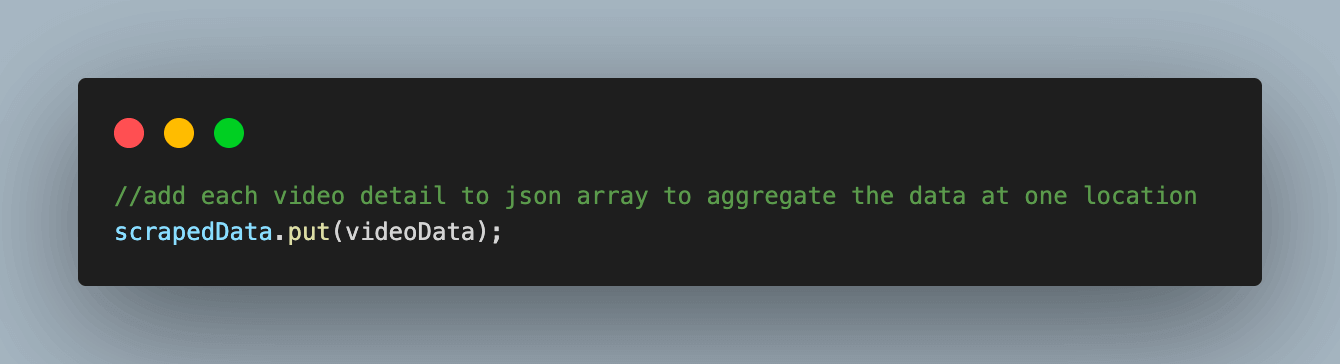
8.4) Add this JSONObject to the scrapedData JsonArray variable which we created in the BaseTest.` file to aggregate all the scraped video data in one place.
Step 9. Print all the scraped data for all the videos on the page.
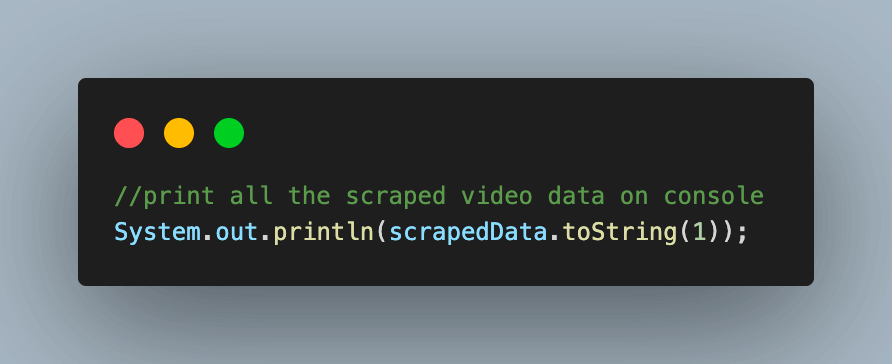
Executing this test case would give you an output like the one below with all the scraped data:
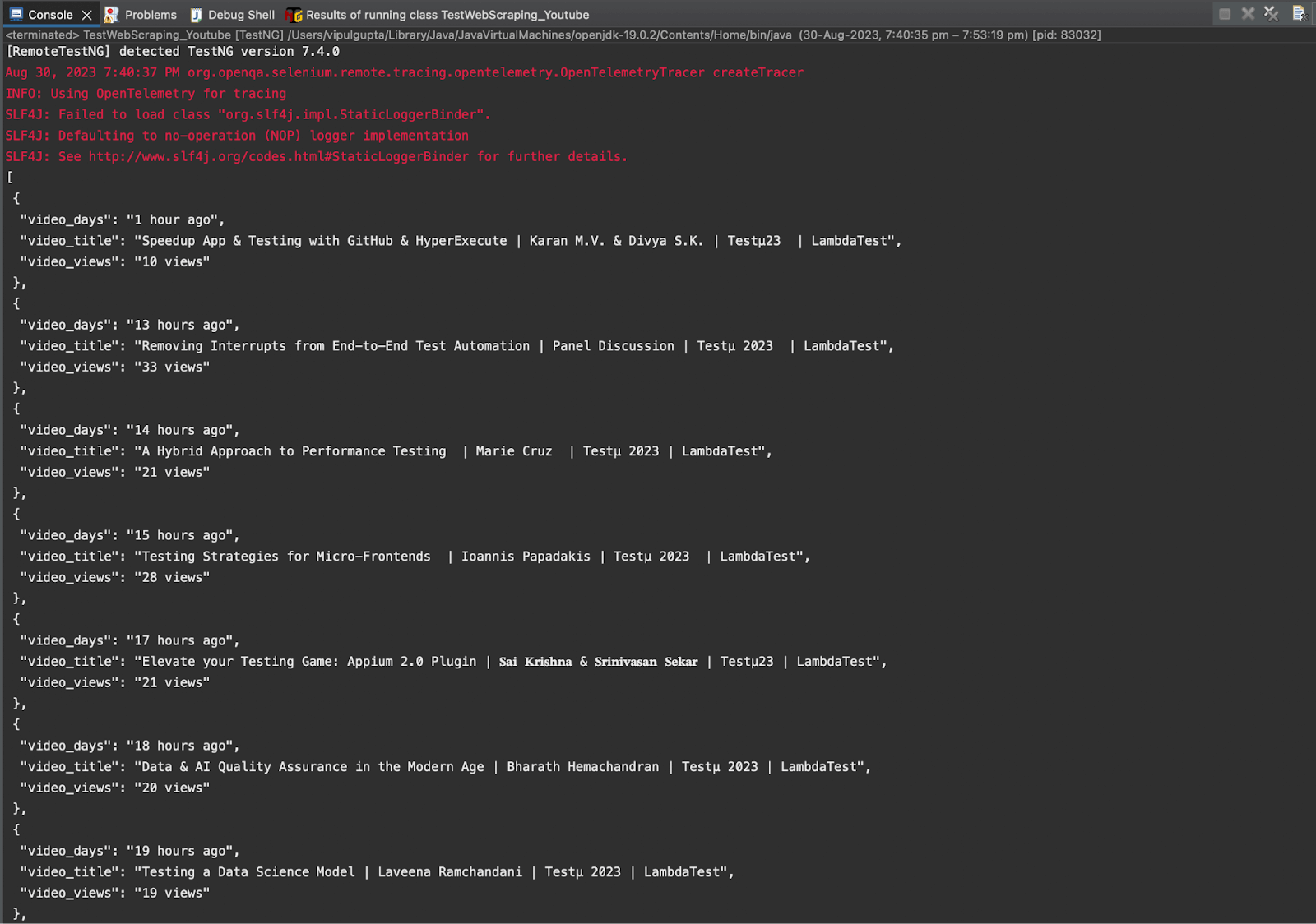
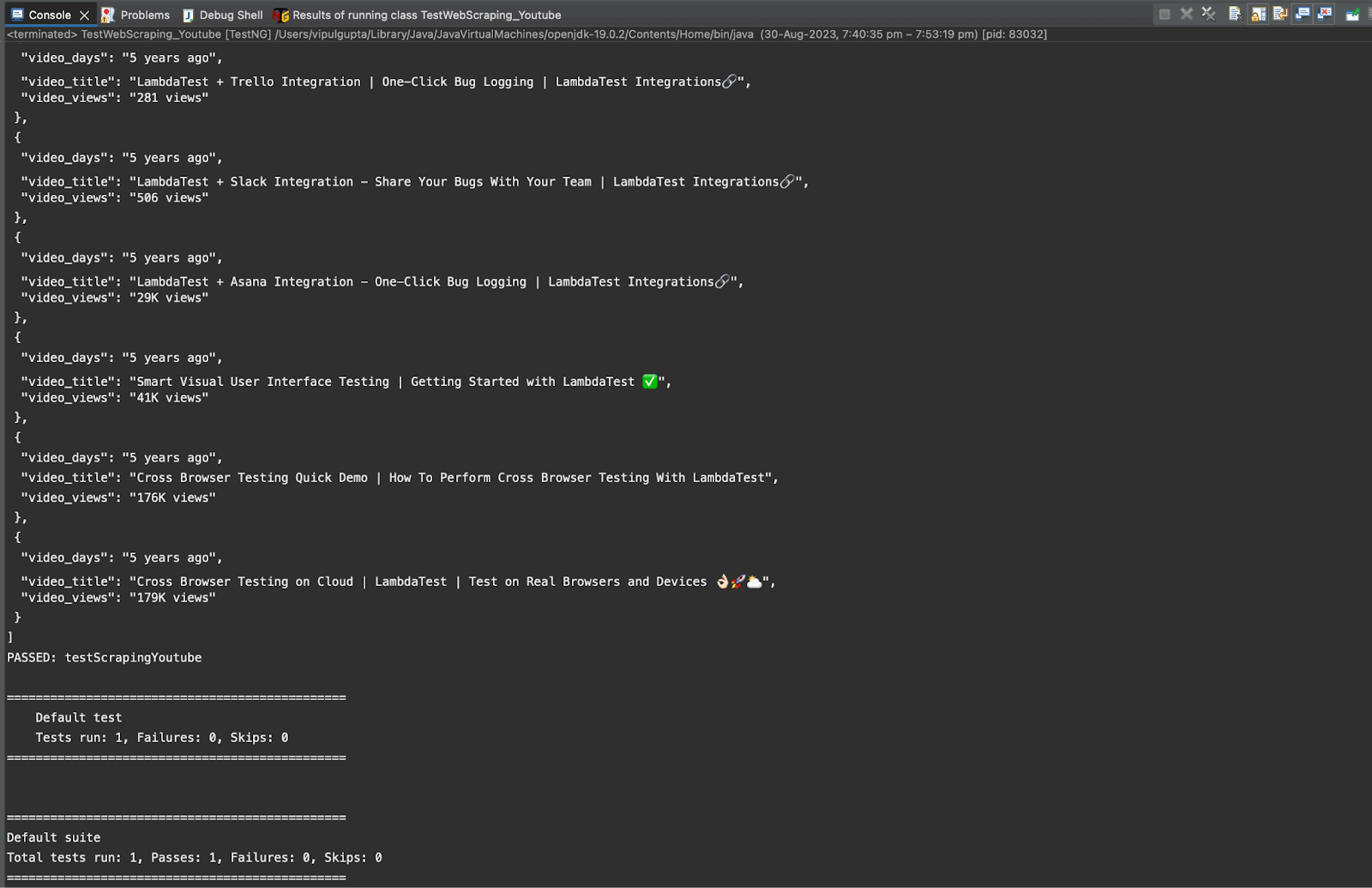
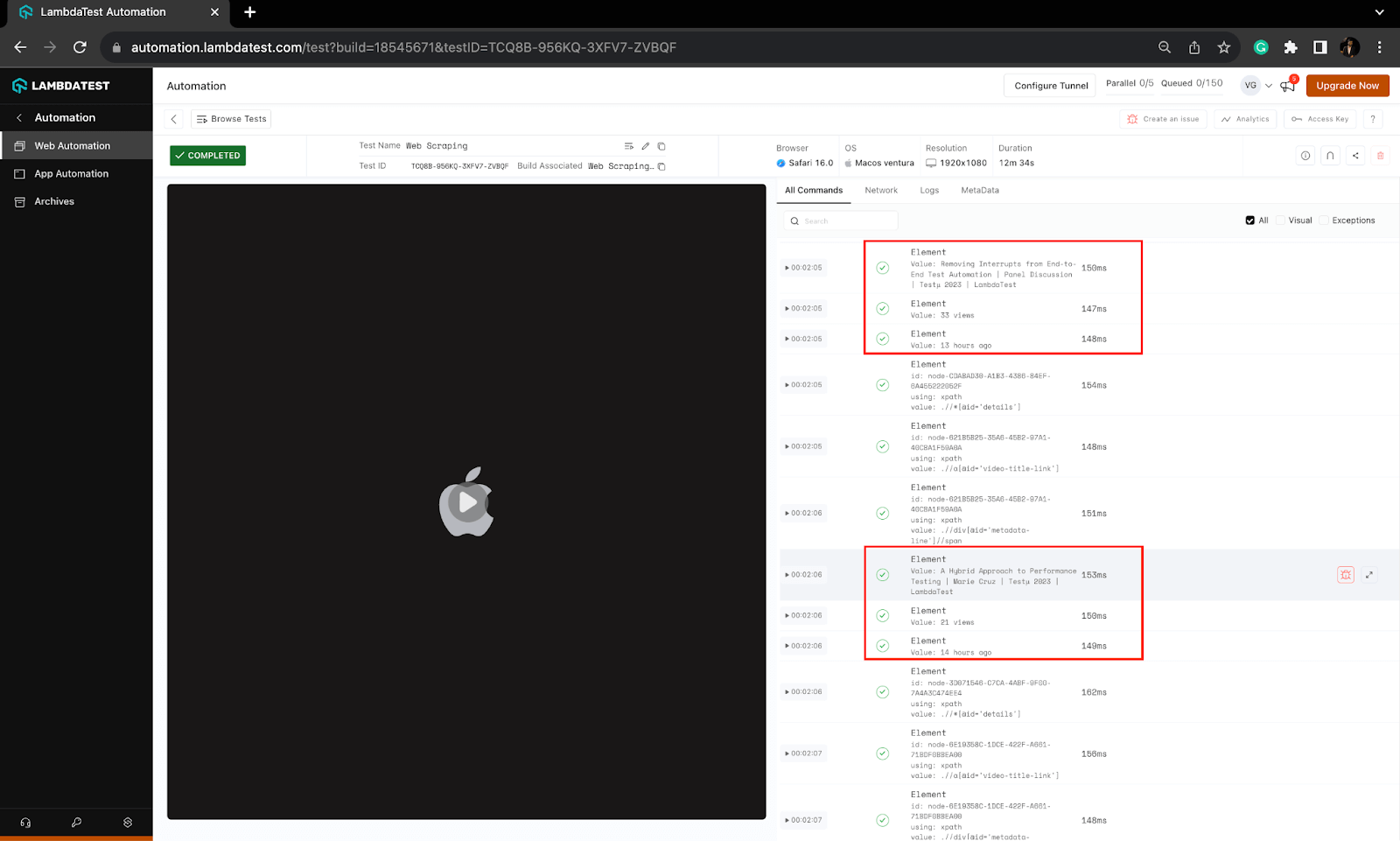
Execution logs on the TestMu AI Dashboard can be viewed under the Automation > Web Automation section. You can notice the logs for the data being scraped for videos in the screenshot.
Conclusion
With this, we come to the end of this blog on web scraping with Selenium Java. In this blog, we learned the basics about web scraping and its use cases in various industries, making it a popular choice for data aggregation. We also looked at when paired with Selenium Java to perform scraping on any website, it becomes a powerful tool for collecting data from various sources. So, it is time for you to start and implement web scraping with Selenium Java to gather useful insights, but always remember to use it cautiously.
Happy Scraping!!


Frequently asked questions
Did you find this page helpful?
More Related Hubs
TestMu AI forEnterprise
Get access to solutions built on Enterprise
grade security, privacy, & compliance
- Advanced access controls
- Advanced data retention rules
- Advanced Local Testing
- Premium Support options
- Early access to beta features
- Private Slack Channel
- Unlimited Manual Accessibility DevTools Tests