

Next-Gen App & Browser Testing Cloud
Trusted by 2 Mn+ QAs & Devs to accelerate their release cycles


Debugging Selenium pytest Failures
Discover how to address Selenium pytest failures efficiently. Explore debugging techniques, best practices, and ensure a reliable test framework.

Paulo Oliveira
December 22, 2025
Resolving test failures is essential for a reliable test system with testing frameworks like Selenium and pytest. The challenge often lies in recognizing and rectifying the root causes of these failures, which can involve dynamic web elements, timing issues, browser differences, and how we identify elements.
Effective debugging allows developers and testers to quickly pinpoint the root causes of test failures. Instead of spending extensive time searching for issues, they can efficiently identify and address problems, reducing debugging time and effort.
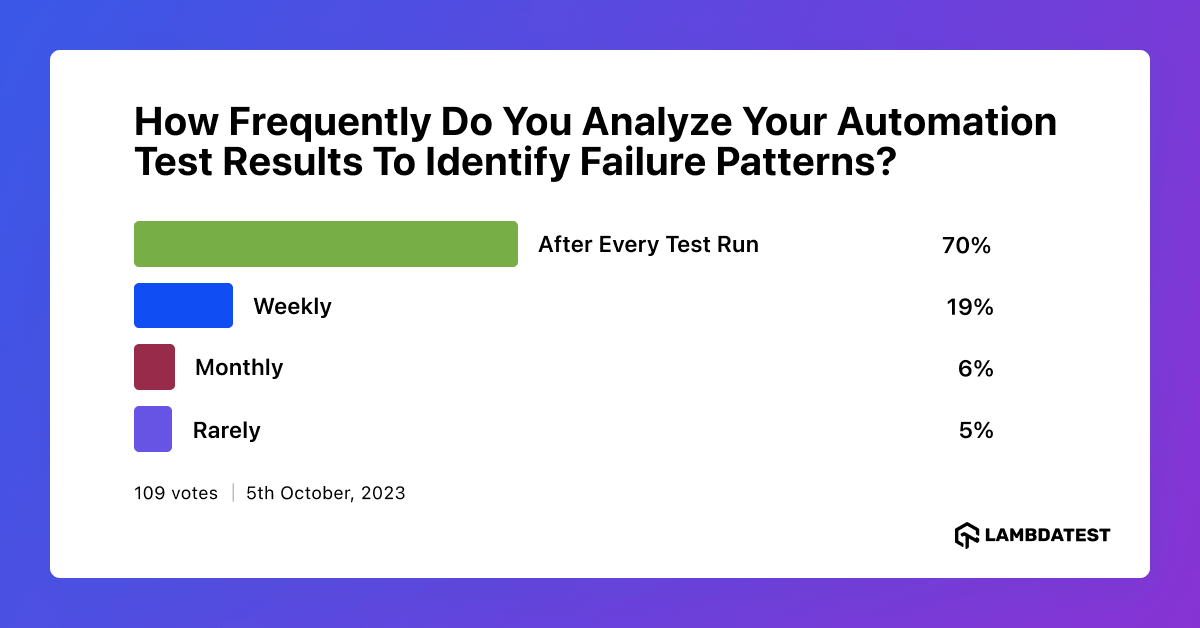
In a recent poll on TestMu AI social media platform, respondents were asked about the frequency of analyzing automation test results to identify failure patterns. The results revealed a noteworthy trend, with a majority expressing a commitment to analyzing results After Every Test Run. This proactive approach underscores the community’s dedication to ensuring the reliability and efficiency of automated testing processes.
This Selenium pytest tutorial will explore common challenges in dealing with Selenium pytest failures. We’ll also share practical debugging tips and best practices to fix and prevent these issues.
If you’re looking to improve your Selenium interview skills, check out our curated list of Selenium interview questions and answers.
Overview
Debugging Selenium pytest failures is essential for maintaining stable and reliable test automation. By identifying common issues and applying systematic debugging techniques, teams can improve test accuracy and overall CI/CD efficiency.
Common Challenges in Selenium pytest Failures
Failures often stem from a range of common challenges in Selenium pytest testing:
- Flaky Tests: Tests that pass or fail unpredictably due to timing or environment inconsistencies.
- Dynamic Web Elements: Frequently changing elements that cause locator mismatches.
- Synchronization: Delays between UI rendering and script execution leading to failures.
- Cross-Browser Compatibility: Inconsistent behavior across different browsers or devices.
- Environment Dependencies: Configuration or version conflicts impacting test reliability.
Types of Selenium pytest Failures
Understanding the types of failures helps in faster diagnosis and resolution:
- Element Identification Failures: When Selenium cannot locate elements due to dynamic locators or incorrect selectors.
- Synchronization Issues: Tests fail because elements are not yet visible or interactive when accessed.
- Handling Frames and Windows: Challenges arise when switching between iframes or browser tabs.
- Strategies for Working with Frames: Use driver.switch_to.frame() or wait conditions to ensure frame availability before interactions.
- Strategies for Managing Multiple Windows in Tests: Apply window handles and context switching techniques for seamless navigation across browser tabs.
Debugging Techniques for Selenium pytest Failures
Use a combination of debugging tools and runtime insights to trace failures effectively. The following techniques help isolate issues and analyze browser behavior during test execution:
- Debugging with Interactive Mode: Run tests interactively to inspect variables and execution flow.
- Pausing Test Execution for Inspection: Insert breakpoints to halt tests and examine application state.
- Utilizing Developer Tools for Insights: Use browser DevTools to analyze network requests, console logs, and DOM structure.
- Logging and Reporting: Leverage pytest logs and Selenium console outputs to identify failure points.
- Capturing Screenshots: Automatically capture screenshots on test failure for visual debugging.
Effective Troubleshooting Strategies
Recreate failures locally, isolate unstable tests, and validate configurations. Leverage pytest fixtures, retries, and cloud testing insights to minimize recurring issues.
Best Practices for Preventing Selenium pytest Failures
Implementing strong test design principles and stable automation strategies helps reduce flaky behavior and long-term maintenance issues. Key practices include:
- Writing Robust and Maintainable Test Code: Use clean, modular test scripts to improve readability and reduce errors.
- Using Page Object Model (POM) Design Pattern: Centralize element locators and actions for better scalability and reduced duplication.
- Implementing Test Data Management: Organize test data with fixtures, external files, or factories to avoid dependency failures.
- Implementing Test Retry Mechanisms: Use pytest-rerunfailures or retry plugins to automatically rerun flaky tests.
- Handling Intermittent Failures: Utilize explicit waits, stable locators, and proper synchronization to minimize flaky results.
Common Challenges in Selenium pytest Failures
Test failures are a natural part of any test automation journey, including projects involving Selenium and pytest. Debugging can become increasingly challenging as the tested systems become more distributed and complex.
Now, let’s delve deeper into the typical difficulties testers and developers encounter when dealing with Selenium pytest failures. Some of them are:
- Flaky Tests
- Dynamic Web Elements
- Synchronization
- Cross-Browser Compatibility
- Environment Dependencies
- TimeoutException
- ConnectionError
- HTTPError
- ElementNotInteractableException
- StaleElementReferenceException
Let us look into each of the Selenium pytest failures in more detail.
Flaky Tests
Flaky tests, often encountered in Selenium pytest failures, can be incredibly frustrating in test automation. It’s essential to figure out why they happen and how to fix them to keep your tests reliable. Resolving flaky tests involves meticulous investigation and implementing strategies like retry mechanisms, stable test environments, and careful test data management to ensure reliability and effectiveness.
Dynamic Web Elements
Web applications often have dynamic content and elements that load asynchronously. Identifying and interacting with such elements during Selenium pytest failures test execution can lead to unexpected failures. When you encounter dynamic content and elements that load at different times, a common exception you might face is NoSuchElementException.
We will consider executing a code to understand how NoSuchElementException may occur. In this case, we have used Selenium version 4.11.
from selenium import webdriver
from selenium.webdriver.common.by import By
from selenium.common.exceptions import NoSuchElementException


def test_no_such_element_exception():
    # Set up the webdriver
    driver = webdriver.Chrome()


    # Navigate to a web page with the dynamic content
    driver.get("https://www.lambdatest.com/selenium-playground/simple-form-demo")


    try:
        # Attempt to locate a dynamic element that might not be present
        dynamic_element = driver.find_element(By.ID, "important-message")
    except NoSuchElementException as e:
        print("NoSuchElementException occurred:", e)
    finally:
        # Close the webdriver
        driver.quit()
Before we proceed to the code’s outcome, let’s first understand the objectives of this set of instructions by breaking them down step by step:
Step 1: The script tries to locate a web page element using its ID, which is important-message.
Step 2: If this element doesn’t exist on the web page (as is the case here), it leads to an expectation called NoSuchElementException.
Step 3: To manage this situation, the code uses a try block to capture this error.
Step 4: If a NoSuchElementException occurs, the except block takes over and prints an error message.
Step 5: This approach handles situations where the expected element is not found in a considerate manner. It helps in dealing with such problems delicately.
Result:
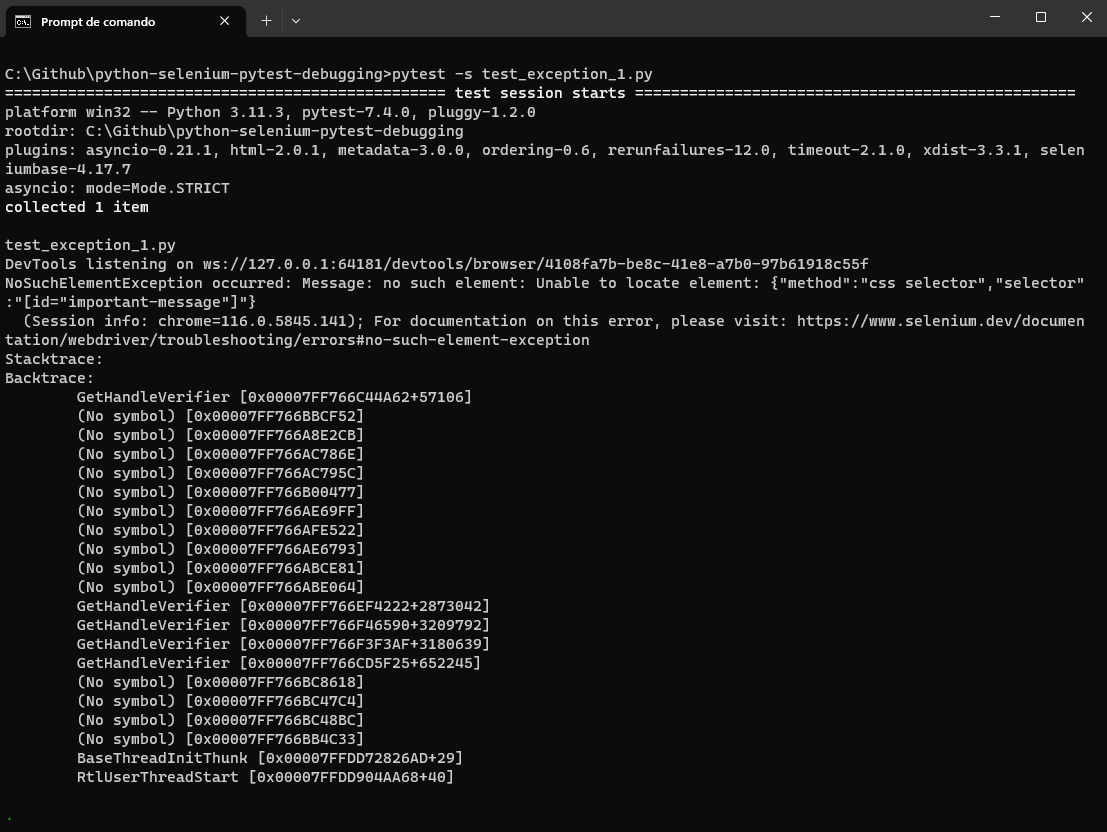
To summarize, this code illustrates how the NoSuchElementException can occur when attempting to locate an element that is either dynamic, hasn’t loaded, or is not present on the page.
Synchronization
The synchronization problems in Selenium pytest failures arise when there’s a mismatch between the test script and the web application’s timing. For example, engaging with an element before it has completely loaded can cause failure.
In this case, involving synchronization issues where the test script tries to interact with an element before it’s fully loaded, a common exception known as TimeoutException may be raised.
Let us understand TimeoutException, by executing some instructions.
from selenium import webdriver
from selenium.common.exceptions import TimeoutException
from selenium.webdriver.common.by import By
from selenium.webdriver.support.ui import WebDriverWait
from selenium.webdriver.support import expected_conditions as EC


def test_timeout_exception():
    # Set up the webdriver
    driver = webdriver.Chrome()


    # Navigate to a web page with a dynamically loading element
    driver.get("https://www.lambdatest.com/selenium-playground/simple-form-demo")


    try:
        # Wait for a dynamically loading element to become visible
        wait = WebDriverWait(driver, 10)
        element = wait.until(EC.visibility_of_element_located((By.ID, "important-message")))


        # Interact with the loaded element
        element.click()
    except TimeoutException as e:
        print("TimeoutException occurred:", e)
    finally:
        # Close the webdriver
        driver.quit()
Let’s first understand the objectives of this set of instructions by breaking them down step by step before we look into the code’s outcome.
Step 1: The script navigates to a web page.
Step 2: It patiently waits for a specific element on the page, identified by its ID, important-message.
Step 3: To ensure the element becomes visible, it utilizes a particular WebDriverWait class and checks for a condition called visibility_of_element_located.
Step 4: If this element doesn’t become visible within a specified time limit (in this case, 10 seconds), it triggers a TimeoutException. It occurs because the script expected the element to appear but didn’t within the allotted time.
Step 5: To manage this situation, the code employs a try block to catch the TimeoutException.
Step 6: If the TimeoutException occurs, the except block comes into play and prints an error message.
Step 7: This approach helps you understand that the expected element didn’t appear as anticipated.
The script waits for something to appear on a web page; if it doesn’t show up within 10 seconds, it reports an error.
Result:
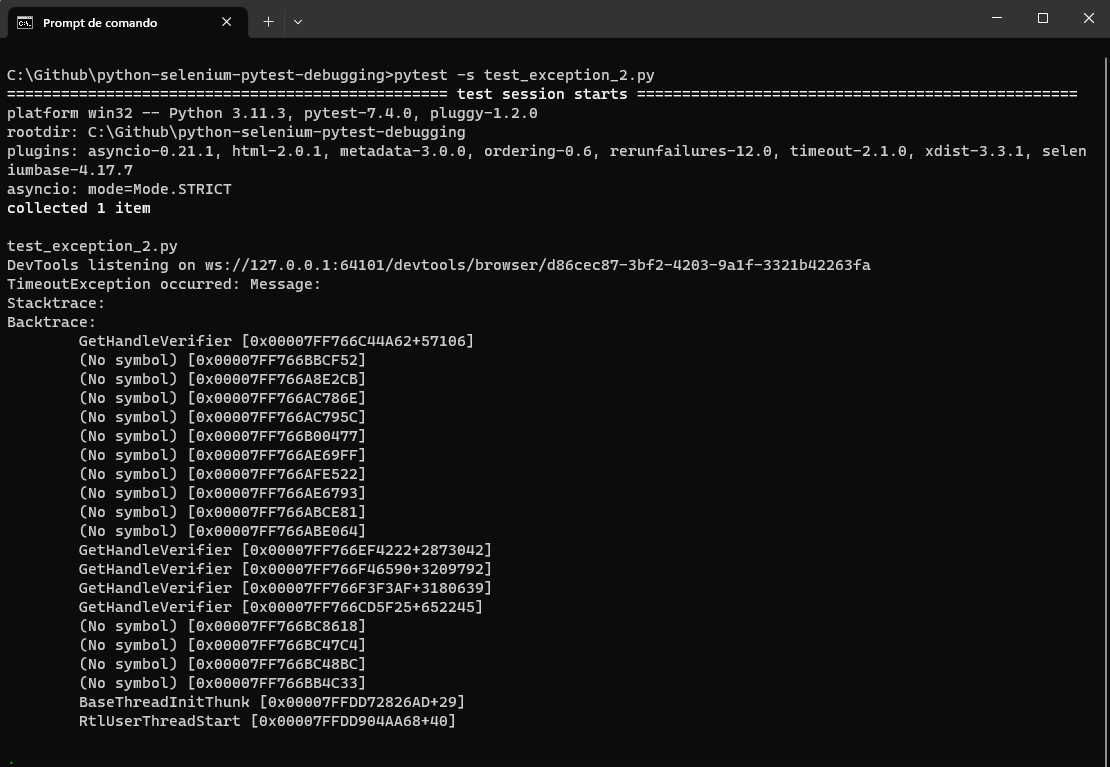
It demonstrates how the TimeoutException can occur when attempting to interact with an element that hasn’t fully loaded. It highlights the importance of proper waiting strategies to ensure synchronization between the test script and the web application.
In the further sections, we will look into more details on overcoming this synchronization issue and avoiding facing TimeoutException.
Cross-Browser Compatibility
Tests that work flawlessly on one browser may fail on another due to differences in Selenium pytest failures browser behavior. Ensuring cross-browser compatibility is essential for broader test coverage.

Note: Run tests on multiple browsers without cross-browser compatibility concerns. Try TestMu AI Today!
Environment Dependencies
Test failures in Selenium pytest failures can often be caused by external factors, such as the stability of network connectivity, the response times of servers, or the specific conditions within the test environment.
Here are a few examples of exceptions that might be encountered due to environment dependencies:
- TimeoutException: If the test script is waiting for an element to load, but the element does not load within the specified timeout, a TimeoutException can occur. It can be caused by slow server response times or network issues.
- ConnectionError: If the test script tries to establish a connection to a server or API and encounters network connectivity problems, a ConnectionError or a related exception might be raised.
- HTTPError: If the test script interacts with APIs or web services and receives unexpected HTTP responses (e.g., 404 or 500), an HTTPError might occur.
- ElementNotInteractableException: When interacting with elements on the page, if the element is not in a state where it can be interacted with (e.g., disabled, hidden), an ElementNotInteractableException can be raised. It can be related to the state of the test environment or the application itself.
- StaleElementReferenceException: If the DOM changes after an element reference has been obtained (e.g., due to dynamic content updates), attempting to interact with that element can lead to a StaleElementReferenceException.
Let us understand what TimeoutException looks like by executing some instructions.
from selenium import webdriver
from selenium.webdriver.common.by import By
from selenium.common.exceptions import ElementNotInteractableException


def test_element_not_interactable_exception():
    # Set up the webdriver
    driver = webdriver.Chrome()


    # Navigate to a web page with a disabled element
    driver.get("https://www.lambdatest.com/selenium-playground/simple-form-demo")


    try:
        # Attempt to interact with a hidden element
        hidden_element = driver.find_element(By.ID, "message")
        hidden_element.click()
    except ElementNotInteractableException as e:
        print("ElementNotInteractableException occurred:", e)
    finally:
        # Close the webdriver
        driver.quit()
Before looking into its outcome, let us understand what the above code tries to perform in the following steps.
Step 1: The script navigates to a web page.
Step 2: It patiently seeks a specific element on the page, identified by its ID message.
Step 3: If this message element is in a state where interaction is impossible, perhaps because it’s hidden or disabled, it triggers an issue called ElementNotInteractableException. It occurs because the script intends to interact with the element, but it’s not in a usable state.
Step 4: To address this situation, the code includes a try block designed to catch this ElementNotInteractableException.
Step 5: If the exception occurs, the except block takes action and prints an error message.
Step 6: This approach helps you understand that the script couldn’t interact with the message element because it wasn’t in a usable state.
Result:
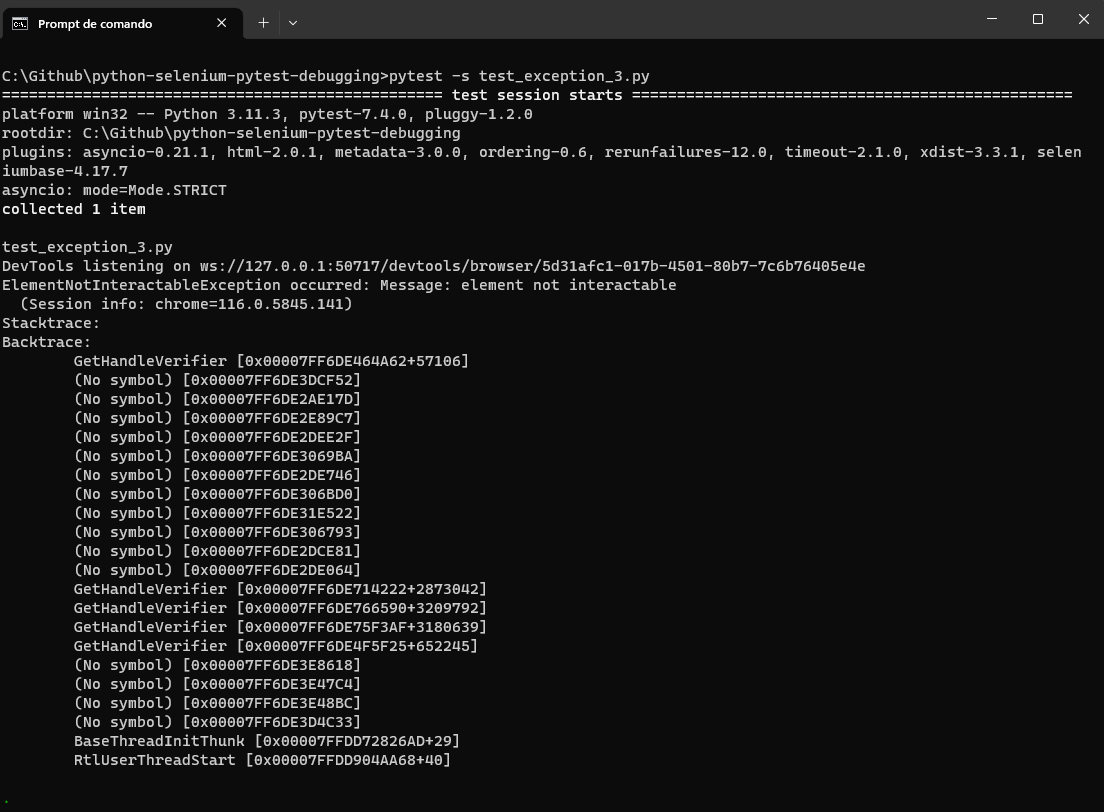
This code demonstrates how the ElementNotInteractableException can occur when attempting to interact with elements that are not in an interactable state due to the state of the test environment or the application itself.
To understand various exceptions in Selenium and how to handle them effectively, check out this blog on Selenium exceptions. It offers valuable insights and practical examples for managing various exceptions in Selenium test automation.
Having explored the everyday challenges of Selenium pytest failures, let’s dive into the debugging techniques for dealing with these issues in the following section.
Debugging Techniques for Selenium pytest Failures
Before we delve into the debugging techniques for Selenium pytest failures, we must understand that these techniques aren’t unique solutions. Each technique provides a valuable toolset, but adapting them to the unique nature of your tests and the specific issues you’re dealing with is essential.
One critical consideration is that debugging techniques for Selenium pytest failures may impact the test execution time and behavior, especially in time-bound scenarios.
With this critical context in mind, let’s explore these debugging techniques for Selenium pytest failures. They are designed to empower you to effectively address a wide range of Selenium pytest failures that may arise during your test automation journey.
Let’s look into some debugging techniques that help us overcome the challenges of Selenium pytest failures.
Debugging with Interactive Mode
Debugging interactively is a robust method developers and testers use to pinpoint and resolve code issues within Selenium pytest failures.. It provides real-time, hands-on inspection of a program’s status, variables, and how it runs, ensuring accurate issue identification and resolution.
Several interactive modes simplify debugging in Selenium pytest failures, including pausing test execution for inspection, utilizing DevTools, leveraging screenshots, and more. Let’s explore some of the most commonly used methods in Selenium pytest failures for debugging with Interactive mode.
Pausing Test Execution for Inspection
Triggering Debug Mode in Selenium pytest failures is straightforward, offering multiple entry points for inspection. Let us see common commands used in pytest.
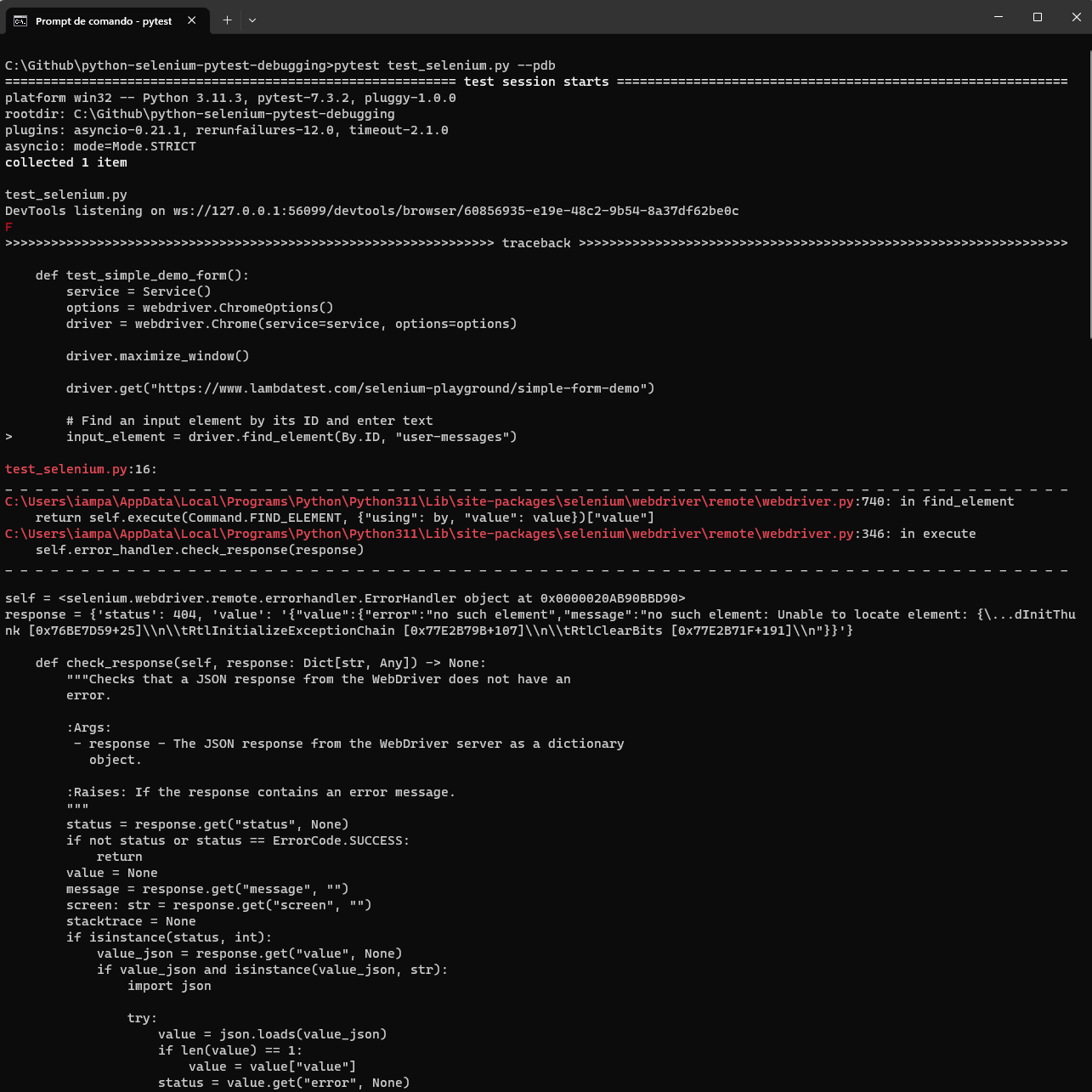
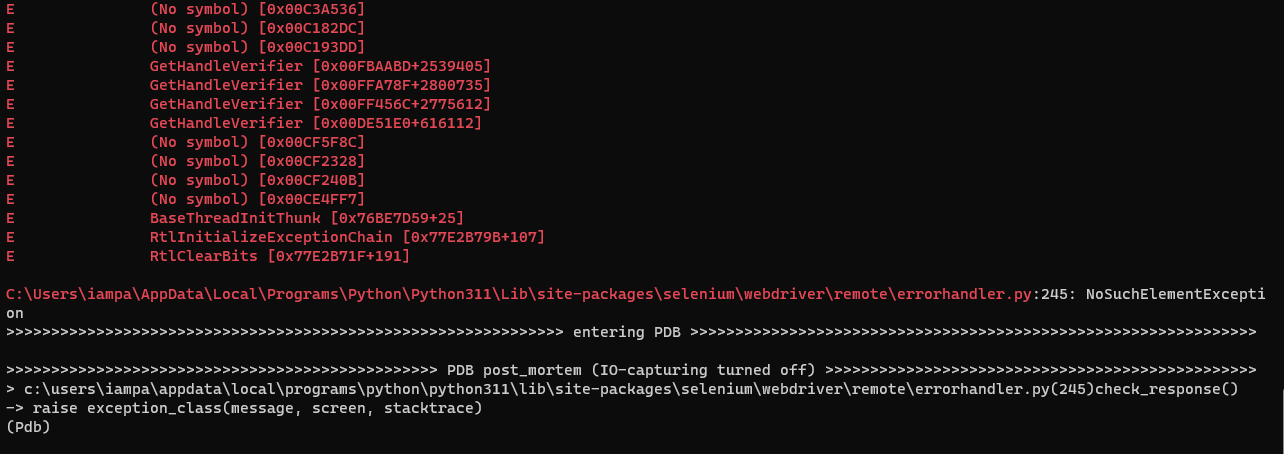
- –pdb The Python Debugger (pdb) is a built-in interactive tool that offers developers a comprehensive way to diagnose, analyze, and resolve issues within Selenium pytest failures. Acting as a virtual magnifying glass, It enables programmers to pause code execution and navigate step by step through their scripts, inspect variable values, and gain a complex understanding of their code’s behavior. You can enter Debug Mode when a test raises in Selenium pytest failures an exception and the –pdb option is passed to pytest, providing an automatic gateway to the interactive debugger. Let us consider the following code snippet, which opens a webpage and attempts to locate a non-existent element with the ID user-messages. Run the following command: pytest test_selenium_pdb.py –pdb Python Debugger will return all the error details.
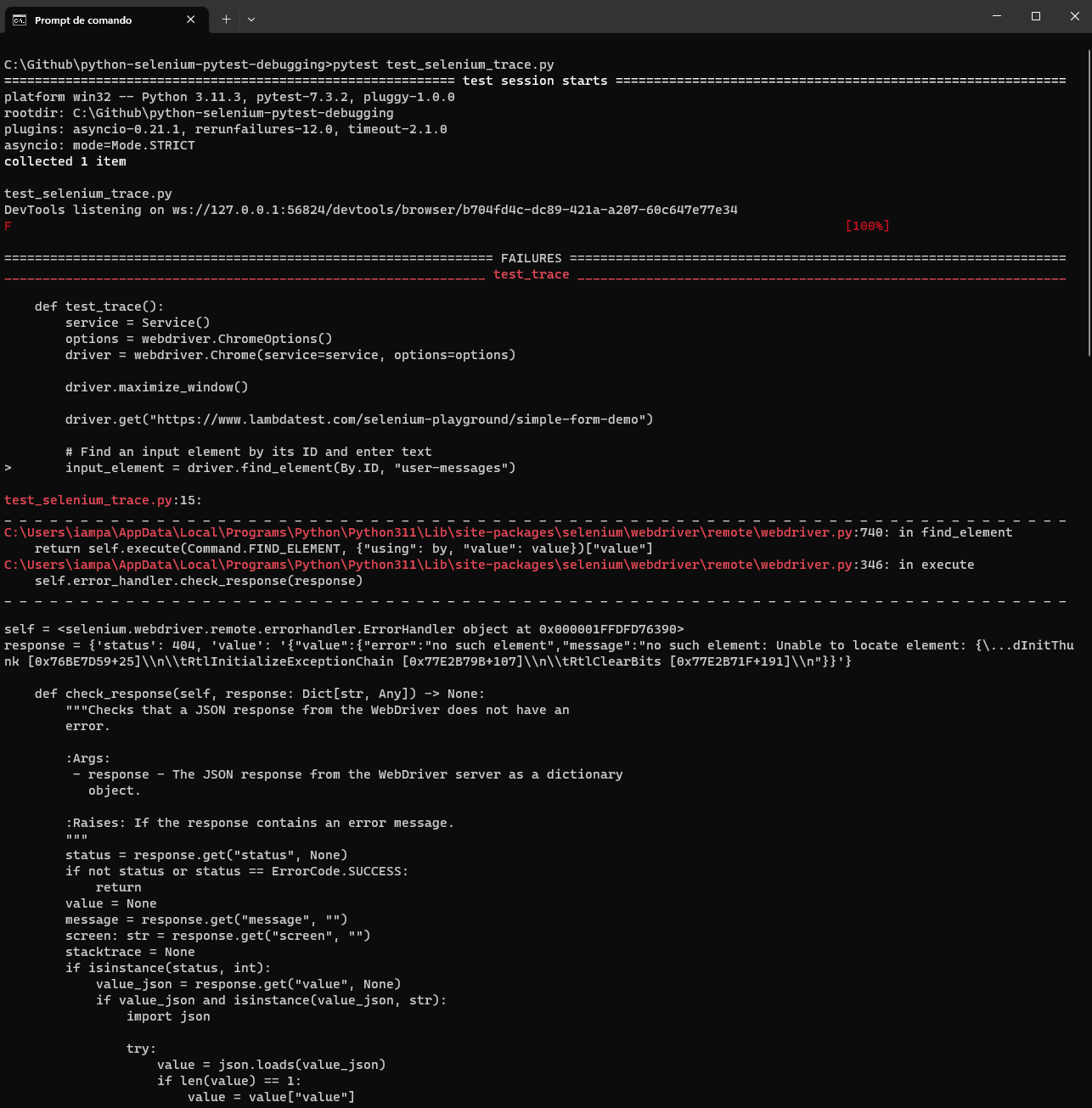
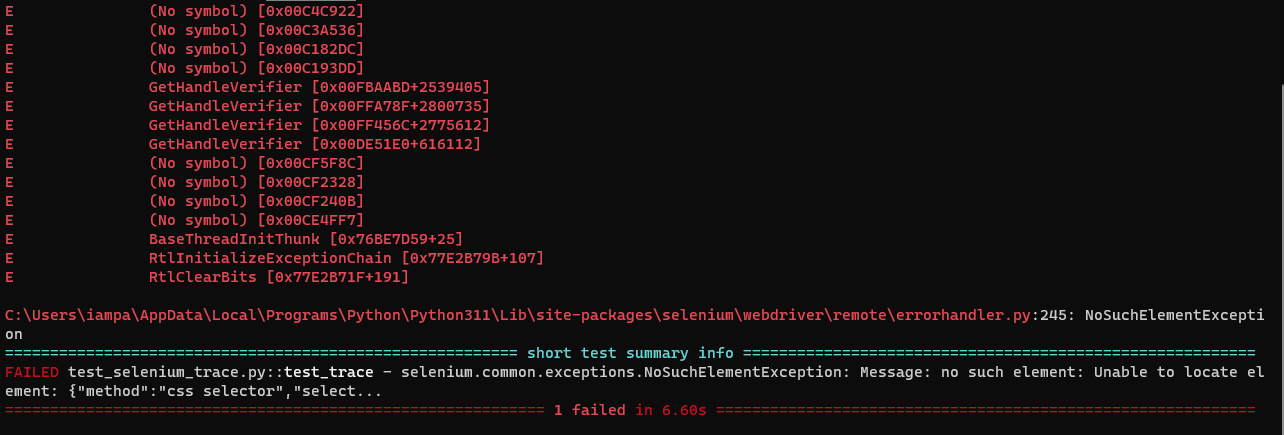
- –trace –trace option is a valuable tool for developers and testers when they need in-depth insights into the execution of code or tests. It aids debugging and diagnosing issues but should be used judiciously due to its potential impact on performance. Look at the following code, identical to the content in the file named test_selenium_pdb.py. Run the following command: pytest test_selenium_trace.py --trace Python Debugger will return all the error details.
from selenium import webdriver
from selenium.webdriver.common.by import By


def test_pdb():
    driver = webdriver.Chrome()
    driver.maximize_window()
    driver.get("https://www.lambdatest.com/selenium-playground/simple-form-demo")
    input_element = driver.find_element(By.ID, "user-messages")
    driver.quit()


# Call the test function
test_pdb()
from selenium import webdriver
from selenium.webdriver.common.by import By


def test_trace():
    driver = webdriver.Chrome()


    driver.maximize_window()


    driver.get("https://www.lambdatest.com/selenium-playground/simple-form-demo")

    # Find an input element by its ID and enter the text
    input_element = driver.find_element(By.ID, "user-messages")


    driver.quit
| Command | Description |
|---|---|
| n (next) | This command executes the following line in the current method block, guiding you through the test's logic step by step |
| s (step) | This command allows you to traverse down the stack when the current method calls another method |
| c (continue) | This command lets you leave Debug Mode, continuing the test where the current method left off |
| j (jump) | This command enables a direct leap to the specified line number |
| w (where) | This command displays the current stack trace, guiding you through the web of method calls |
| u (up) d (down) | These commands facilitate seamless movement up and down the stack, respectively |
| ll (longlist) | This command gives a bird's-eye view of the current method's code, granting you a comprehensive view |
| dir() | This command reveals all the namespace objects at your disposal, allowing you to inspect the available variables |
| h (help) | This command showcases all available commands at your fingertips |
So, deciding whether to use pdb (Python Debugger) should be done carefully. You need to consider the advantages of detailed debugging compared to the time it might take.
Utilizing Developer Tools for Insights
Modern browsers have powerful developer tools that enable inspecting and manipulating web page elements. Use these tools, such as Chrome Developer Tools or Firefox Developer Tools, to interactively analyze the page’s structure, network requests, and JavaScript console logs.
- breakpoint() Taking control into your own hands, you can manually summon Debug Mode in Selenium pytest failures by calling breakpoint() within your test code. Python versions 3.7+ and newer provide this method as an additional avenue to enter Debug Mode.
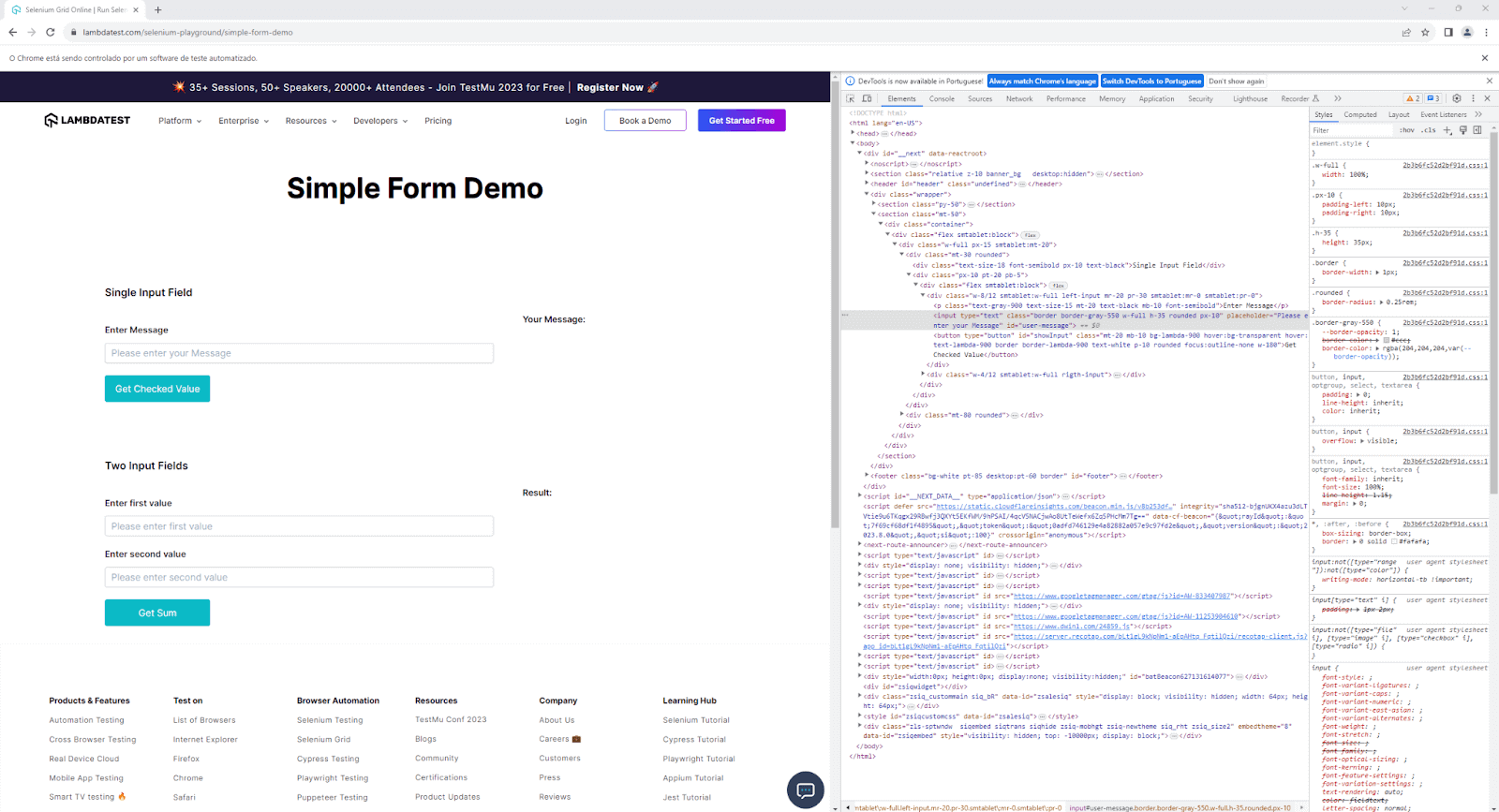
pytest test_selenium_breakpoint.py --pdb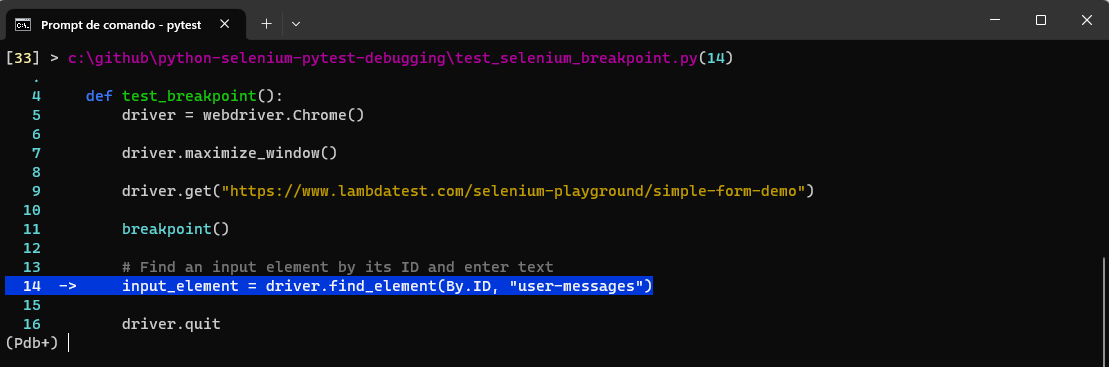
from selenium import webdriver
from selenium.webdriver.common.by import By
from selenium.webdriver.chrome.service import Service


def test_breakpoint():
    driver = webdriver.Chrome()


    driver.maximize_window()
    driver.get("https://www.lambdatest.com/selenium-playground/simple-form-demo")

    breakpoint()


    # Find an input element by its ID and enter text
    input_element = driver.find_element(By.ID, "user-messages")


    driver.quit
Logging and Reporting
Logging and reporting in pytest are crucial aspects of test automation by implementing effective logging and reporting practices. Let us see some approaches to logging and reporting in Selenium pytest failures.
Implementing Custom Logging in pytest
Logging is essential for gaining insights into the test execution process. With custom logging in pytest, You can record relevant information, such as test steps, browser actions, and any errors encountered in Selenium pytest failures.
Let’s create a custom logging utility in a utils.py file using Python’s built-in logging module:
import logging


def setup_custom_logger(name):
    # Define a log message format with date, log level, and the message itself
    formatter = logging.Formatter(fmt='%(asctime)s - %(levelname)s - %(message)s',
                                  datefmt='%Y-%m-%d %H:%M:%S')


    # Create a file handler that will write log messages to the "test.log" file
    handler = logging.FileHandler("test.log")
    handler.setFormatter(formatter)
    # Create a logger with the given name
    logger = logging.getLogger(name)
    logger.setLevel(logging.DEBUG)  # Set the logger's level to the lowest level (DEBUG) to capture all messages
    logger.addHandler(handler)  # Attach the file handler to the logger


    return logger.
In this example, let us understand what the logging module tries to perform step-by-step.
Step 1: The setup_custom_logger function is defined to create and configure a custom logger with a specific name.
Step 2: Inside the function, a log message format is defined using the logging. Formatter class. Its format includes the date, log level, and message.
Step 3: A FileHandler is created within the function. This handler is responsible for directing log messages to a specific output, in this case, a file.
Step 4: The logging.getLogger(name) call creates a logger object with the given word. It allows the creation of multiple loggers with different names. The logger’s level is set to logging.DEBUG, the lowest level, captures all log messages regardless of severity.
Step 5: The logger is configured to write log messages to the test.log file by adding the FileHandler using the syntax logger.addHandler(handler).
Step 6: Finally, the function provides the configured logger object to log messages with the specified settings.
Now, let’s create a new file that uses the logger capability.
from utils import setup_custom_logger
from selenium import webdriver
from selenium.webdriver.common.by import By


def test_function_that_uses_logger():


    logger1 = setup_custom_logger("log1")


    driver = webdriver.Chrome()


    logger1.info("This is an informational message for logger1! Chrome driver was set!")  # This will be printed


    driver.maximize_window()


    driver.get("https://www.lambdatest.com/selenium-playground/simple-form-demo")


    logger1.info("This is an informational message for logger1! Chrome windows was maximized and url was opened!")  # This will be printed


    try:
        logger1.warning("This is a warning message for logger1! Next line will try to locate an element and can generate an error!")  # This will be printed
        input_element = driver.find_element(By.ID, "user-messages")
    except:
        logger1.error("This is an error message for logger1! Element was not found!")  # This will be printed


    driver.quit()


# Call the test function
test_function_that_uses_logger()
This code snippet demonstrates the use of the Python Selenium library for web automation and logging functionality through a custom logger in Selenium pytest failures.
Code Walkthrough:
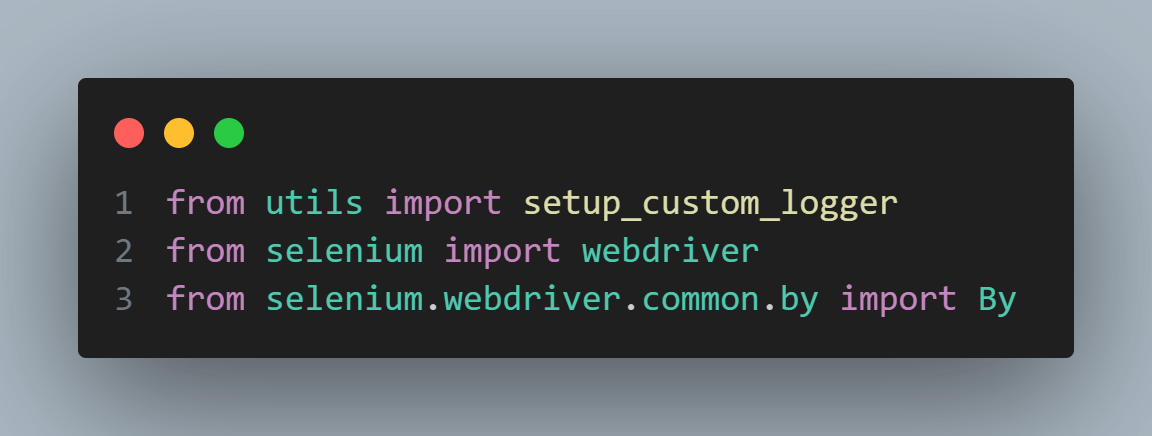
Step 1: The code starts by importing the necessary modules: setup_custom_logger from the utils module and modules from Selenium needed for web automation.
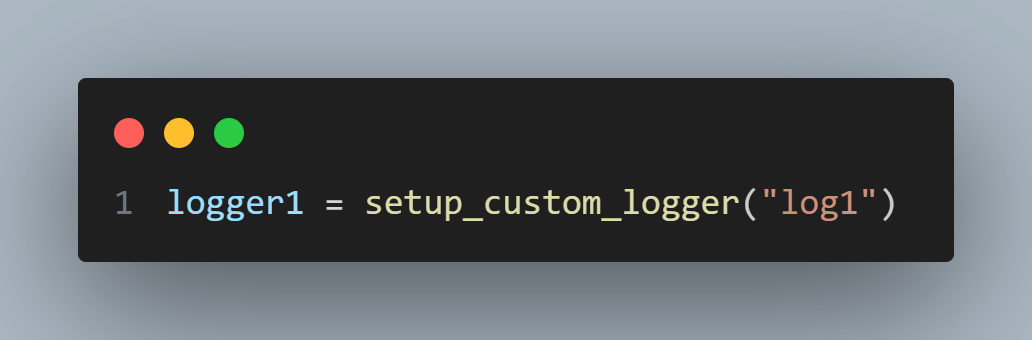
Step 2: In the test_function_that_uses_logger function, a particular logger named logger1 is set up using a procedure called setup_custom_logger imported from the utils module.
Step 3: A new instance of the ChromeWebDriver is created using webdriver.Chrome(). This WebDriver instance will be used to interact with a web browser.
Step 4: The logger1 is used to record informational messages regarding the progress of the test. Messages such as “Chrome driver was set!” and “Chrome windows were maximized, and URL was opened!” are recorded using the logger1.info() method.
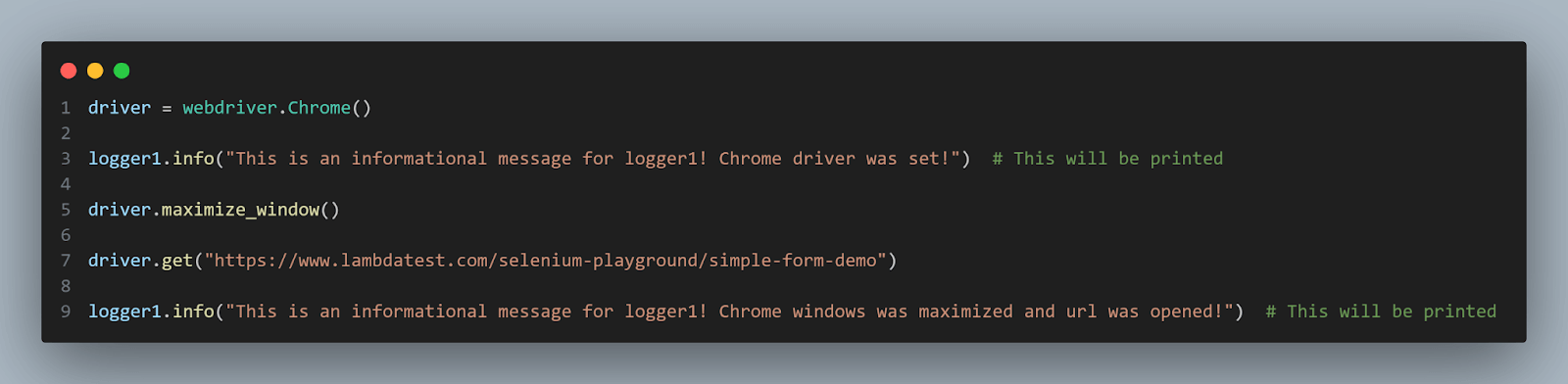
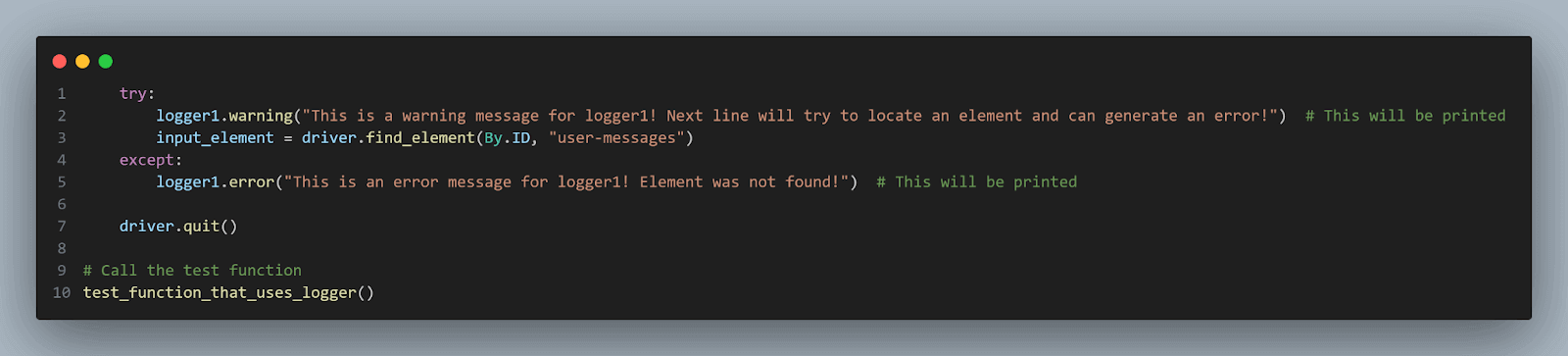
Step 5: A warning message is logged inside a try block using logger1.warning(). The code then attempts to locate an element with the ID user-messages using the find_element() method from the WebDriver. If the element is not found, an exception is raised.
Step 6: If the find_element() call raises an exception, the code within the except block executes.
Step 7: An error message is logged using logger1.error(), indicating that the element was not found. It will be thrown, given that the opened page does not have an element with the user-messages ID.
Step 8: Regardless of the outcome, the WebDriver instance is closed using the quit() method.
To run this test, just execute the below command:
| pytest test_using_logger.py |
|---|
The output will be written to the test.log file with the timestamp, log level, and log message for each log entry. Depending on the logger’s level and log messages’ severity, different messages will be included in the log file.

Capturing Screenshots
By incorporating screenshot capture during test execution, testers can unveil valuable insights into Selenium pytest failures and the application’s state at the precise moment of test failure. With its embedded capabilities, Selenium empowers us to seamlessly capture screenshots, turning visual cues into a powerful debugging tool.
Selenium offers a dynamic range of options for capturing screenshots, catering to diverse debugging needs.
- Capture Full-Page Element Screenshots Selenium’s save_screenshot() method allows us to capture the complete visible area of the web page, rendering a comprehensive snapshot of the application’s appearance and layout at the moment of test failure. It proves invaluable for identifying layout discrepancies or unexpected content placements. The code snippet below demonstrates how to capture an entire page screenshot:
from selenium import webdriver
from selenium.webdriver.common.by import By


def test_screenshot_1():
    driver = webdriver.Chrome()


    driver.maximize_window()


    driver.get("https://www.lambdatest.com/selenium-playground/simple-form-demo")


    input_element = driver.find_element(By.ID, "user-message")
    input_element.send_keys("This is a test text!")


    driver.save_screenshot('screenshots/fullpage.png')


    driver.quit()
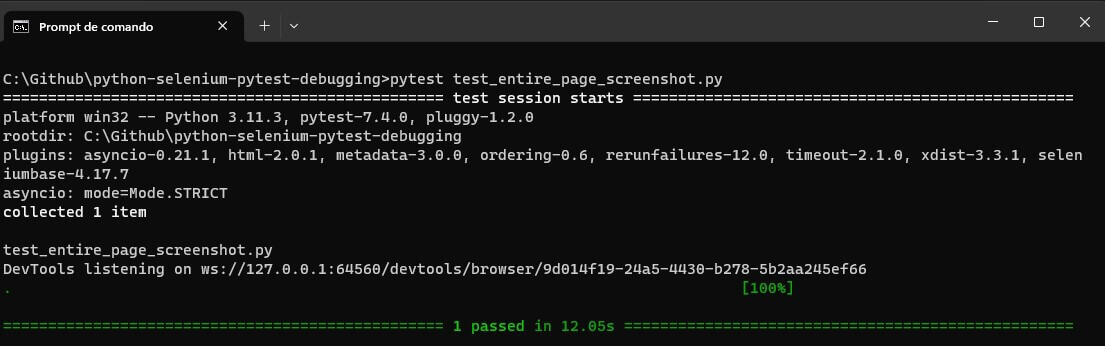
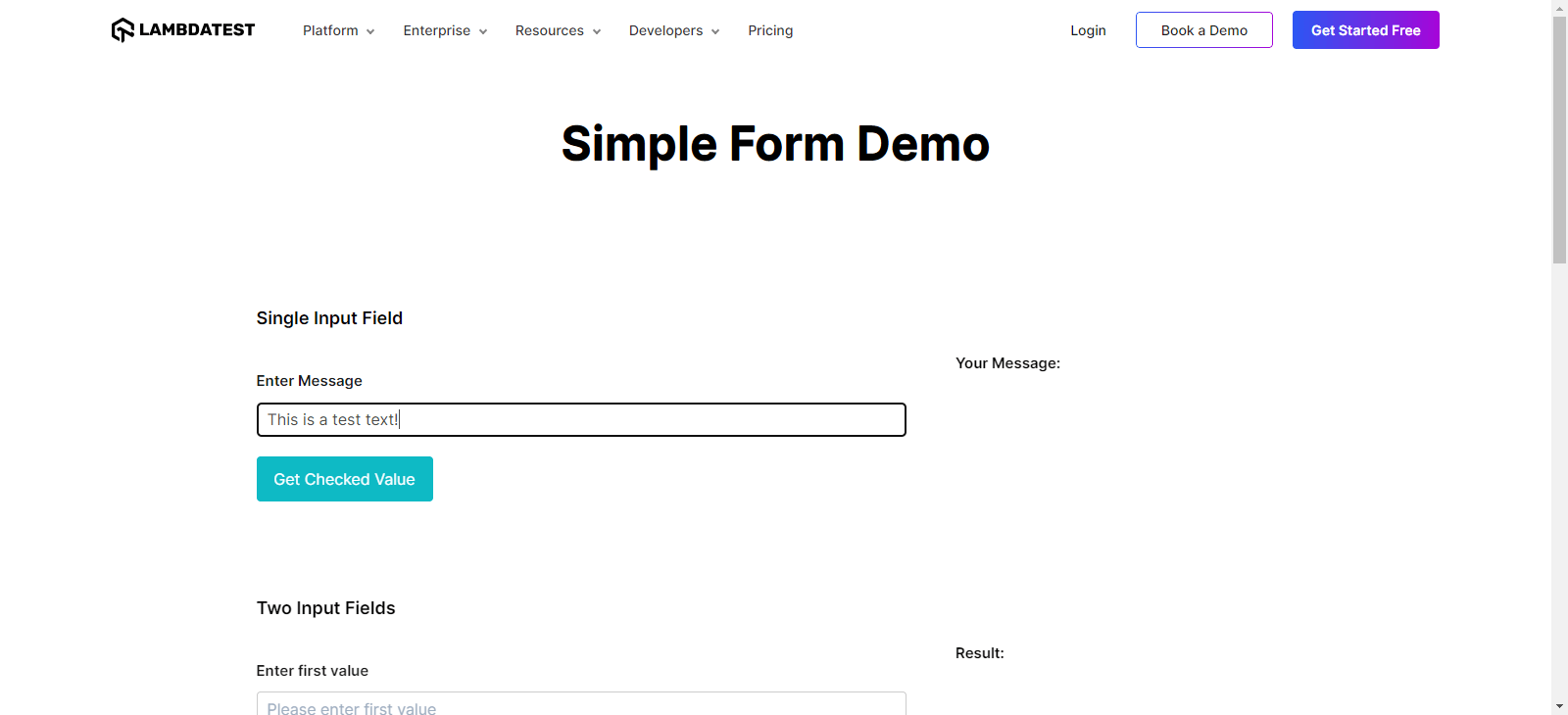
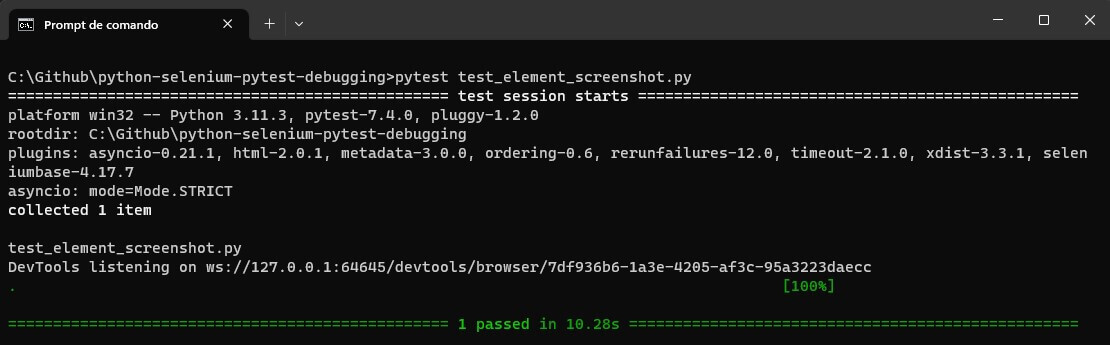
- Capture Specific Element Screenshots Often, the key to unraveling Selenium pytest failure lies in the details. Selenium enables us to capture screenshots of specific elements using the screenshot() method, focusing on minute areas of interest within the page. This is particularly useful for highlighting elements not properly interacted with or unexpected behavior within isolated regions of the application. The code snippet below showcases how to capture a screenshot of a specific element:
from selenium import webdriver
from selenium.webdriver.common.by import By


def test_screenshot_2():
    driver = webdriver.Chrome()


    driver.maximize_window()


    driver.get("https://www.lambdatest.com/selenium-playground/simple-form-demo")


    input_element = driver.find_element(By.ID, "user-message")
    input_element.send_keys("This is a test text!")


    input_element.screenshot('screenshots/element.png')


    driver.quit()

Types of Selenium pytest failures
Element Identification Failures
| Aspect | Definition |
|---|---|
| Locating element By ID | Using the find_element(By. ID, “element-locator”) method to locate elements based on their unique id attribute. |
| Locating element By ClassName | Using the find_element(By.CLASS_NAME, “element-locator”) method to locate elements based on their class name attribute. |
| Locating element By Xpath | Using the find_element(By.XPATH, “element-locator”) method to locate elements using XPath expressions. |
| Locating element By CSS Selector | Using the find_element(By.CSS_SELECTOR, “element-locator”) method to locate elements based on CSS selectors. |
| Locating element By Link Text or Partial Link Text | Using find_element(By.LINK_TEXT, “element-locator”) or find_element(By.PARTIAL_LINK_TEXT, “element-locator”) to locate anchor elements. |
Synchronization Issues
- Implicit Waits Set a global wait timeout using driver.implicitly_wait() to wait for a specified time before throwing an exception if an element is not immediately available.
from selenium import webdriver
from selenium.webdriver.common.by import By


def test_implicit_wait():
    # Set up the webdriver with an implicit wait
    driver = webdriver.Chrome()
    driver.implicitly_wait(10)  # Wait for 10 seconds


    # Navigate to the web page
    driver.get("https://ecommerce-playground.lambdatest.io/")


    # Find an element using implicit wait
    add_to_cart_button = driver.find_element(By.ID, "addToCart")
    add_to_cart_button.click()


    # Close the webdriver
    driver.quit()
- Explicit Waits Use WebDriverWait with expected_conditions to wait for specific conditions to be met before proceeding with test execution.
from selenium import webdriver
from selenium.webdriver.common.by import By
from selenium.webdriver.support.ui import WebDriverWait
from selenium.webdriver.support import expected_conditions as EC


def test_explicit_wait():
    # Set up the webdriver
    driver = webdriver.Chrome()


    # Navigate to the web page
    driver.get("https://ecommerce-playground.lambdatest.io/")


    # Explicitly wait for the "Add to Cart" button to be clickable
    wait = WebDriverWait(driver, 10)
    add_to_cart_button = wait.until(EC.element_to_be_clickable((By.ID, "addToCart")))
    add_to_cart_button.click()


    # Close the webdriver
    driver.quit()
Handling Frames and Windows
Strategies for Working with Frames
- Locate the IFrame Element Identify the iframe element on the main page using standard Selenium locator techniques like find_element(). This will give you a reference to the iframe.
- Switch to the IFrame Use the WebDriver’s switch_to.frame() method and pass the iframe element as an argument. This action shifts the focus of the WebDriver commands to the content of the iframe.
- Interact with Elements Once inside the iframe, you can interact with its elements just like you would with elements on the main page. Use standard locating strategies such as By.ID, By.CLASS_NAME, By.XPATH, etc.
- Switch Back to the Main Context After you’ve completed interactions within the iframe, you should switch the WebDriver’s focus back to the main context using switch_to.default_content(). This ensures that subsequent commands are executed on the main page.
Strategies for Managing Multiple Windows in Tests
- Capture Window Handles When a new window is opened, Selenium assigns a unique identifier, known as a window handle, to each window. You can capture these handles using the driver.window_handles property.
- Switch to a New Window Use the driver.switch_to.window() method and provide the window handle of the desired window as an argument. This action directs the WebDriver’s commands to the content of the specified window.
- Interact with Elements Perform interactions within the new window using standard Selenium locator techniques.
- Switch Back to the Main Window After completing tasks in the new window, you can switch the WebDriver’s focus back to the main window using the main window’s handle. This ensures continuity in your test flow.
Effective Troubleshooting Strategies
Using pytest Features for Debugging
Temporarily Disabling Tests
import pytest
# Simulated test functions
@pytest.mark.skip(reason="Temporarily disabled for debugging")
def test_temporarily_disabled():
    print("test will be skipped")


def test_simple_test():
    print("test will not be skipped")
Markers and Custom Pytest Configurations
import pytest
# Simulated test functions
@pytest.mark.failed
def test_failing_test():
    assert 2 + 2 == 5


@pytest.mark.slow
def test_slow_execution():
    import time
    time.sleep(3)  # Simulate a slow test
    assert True
Interpreting Stack Traces and Error Messages
Reproducing and Isolating Failures
Creating Reproducible Test Cases
- Minimize Test Dependencies: Avoid relying on external factors, such as APIs or services, that may introduce variability.
- Use Explicit Data: Use explicit test data instead of randomly generated data, ensuring consistent input values for each test run.
- Setup and Teardown: Ensure proper setup and teardown of test data and environment before and after each test.
Isolating Failures with Minimal Test Data
Identifying Data-Dependent Failures
Isolating Environment-Related Failures
Advanced Debugging Techniques
Remote Debugging
Setting Up Remote Debugging for Selenium Tests
Execution on Different Browsers and Platforms
Note: Automate your web testing with Selenium and pytest. Try TestMu AI Today!
Analyzing Network Traffic
Intercepting Network Requests in Selenium
Identifying Network-Related Failures
Best Practices for Preventing Selenium pytest Failures
Writing Robust and Maintainable Test Code
Using Page Object Model (POM) Design Pattern
Implementing Test Data Management
{
    "valid_user": {
        "username": "user123",
        "password": "pass456"
    }
import json


# Function to load data from a fixture file
def load_data_from_fixture(file_name):
    with open(file_name, "r") as file:
        return json.load(file)


# Sample test using data fixture
def test_using_data_fixture():
    test_data = load_data_from_fixture("test_data.json")
    print(test_data["valid_user"])
Implementing Test Retry Mechanisms
Retrying Failed Tests Automatically
Handling Intermittent Failures
import pytest
import random


# Simulated function with intermittent failures
@pytest.mark.flaky(rerun=3)  # Retry the test up to 3 times
def test_intermittent_failure():
    if random.randint(0, 1) == 0:
        assert False  # Simulate a failure
    else:
        assert True
Conclusion


Frequently asked questions
Did you find this page helpful?
More Related Hubs
TestMu AI forEnterprise
Get access to solutions built on Enterprise
grade security, privacy, & compliance
- Advanced access controls
- Advanced data retention rules
- Advanced Local Testing
- Premium Support options
- Early access to beta features
- Private Slack Channel
- Unlimited Manual Accessibility DevTools Tests