

Next-Gen App & Browser Testing Cloud
Trusted by 2 Mn+ QAs & Devs to accelerate their release cycles


Use Cases of XPath Python In Selenium With Examples
Learn how to use Python XPath with Selenium and it's functions using various examples and use cases.

Jainish Patel
December 25, 2025
Despite having a variety of programming languages to choose from, like JavaScript, Java, Typescript, C#, Ruby, etc., Python is considered the easiest to learn due to its easy-to-learn and understandable syntax. It has various use cases, web apps using Flask and Django, desktop apps using Tkinter, and libraries like Scikit-learn and TensorFlow for implementing AI and ML models.
Testing is also a domain where Python has a stronghold with support from various testing frameworks like Selenium, Appium, etc. During testing, locating specific elements plays pivotal to recognize DOM manipulation. This manipulation allows interaction with the web elements within the user interface. This is where Python XPath comes into play, offering a powerful toolset for traversing the Document Object Model and pinpointing elements efficiently.
In this article, we will cover everything, starting from what XPath Python is, how to install and use XPath Python, extraction of text from HTML, types of XPath, Using Python with various functions and mathematical operators, and some common advanced techniques.
What is XPath and Why is it used with Selenium?
Automation testing is a viable substitute for manual testing due to the expanding variety of browser types like Chrome, Firefox, Safari, Microsoft Edge, etc., and their multiple versions. Selenium WebDriver is an open-source application programming interface (API) used to automate the testing of web applications. In Selenium, XPath uses an XML path to go through a web page’s HTML code.
You can refer to the following video on our YouTube Channel for an in-depth tutorial on Selenium WebDriver.

Note: Automate your tests on a Selenium based cloud Grid of 3000+ real browsers and operating systems. Try TestMu AI Today!
XPath refers to locating components and attributes inside an HTML / XML document. Similar to how file systems utilize paths to explore directories and files, XPath uses path expressions to choose specific nodes or groups of nodes within an HTML document. XPath is recommended when other CSS locators (ID, Class, etc.) are absent from an XML/HTML page.
Choosing the right element locator is a critical aspect of effective test automation. It’s not just about functionality; it’s about efficiency and accuracy. To understand the preferences of the testing community, we conducted a social media poll with the question, “What is your favorite element locator in test automation?” The responses offer valuable insights into the most favored locator strategies.
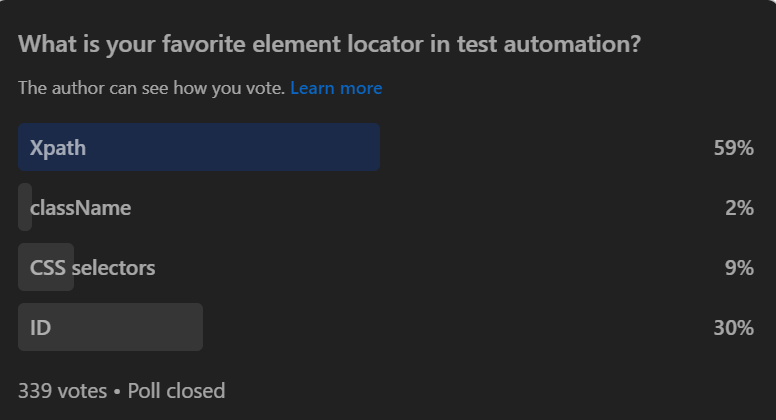
A considerable percentage of participants prefer XPath as their primary element locator due to its versatility and capability, making it a prominent selection for complex web elements.
XPath can be used for various purposes apart from Automation testing. Different use cases of it will be covered in the upcoming sections. First, let’s learn how to use Python XPath with Selenium and then with other libraries like requests.
How to Install and Setup Python XPath
To use Python XPath with Selenium, you are only required to install and run Selenium correctly, and to use Xpath with other libraries, you need the lxml library.
Install Selenium
- Install Python 3 using the installer, which can be downloaded from the official website; follow the instructions and set up Python for your system(A prerequisite).
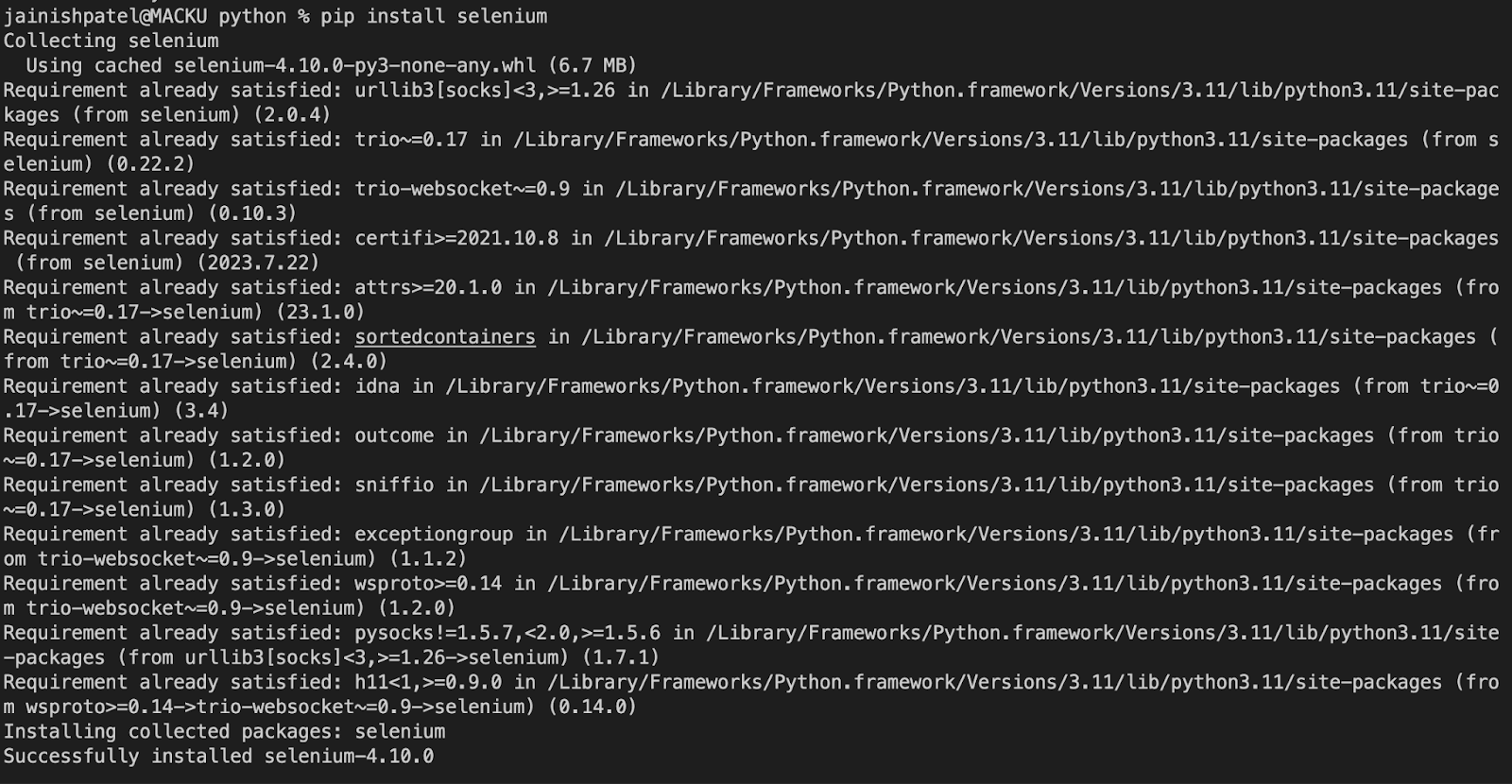
- Now open the command prompt or terminal and run the following command:
python --version

pip install selenium
Install lxml Library
A robust and effective Python library for handling XML and HTML documents is the lxml. It offers a Python interface to the C-written libxml2 and libxslt libraries. With the aid of lxml, you may traverse and modify the structures of XML and HTML documents as well as create new ones.
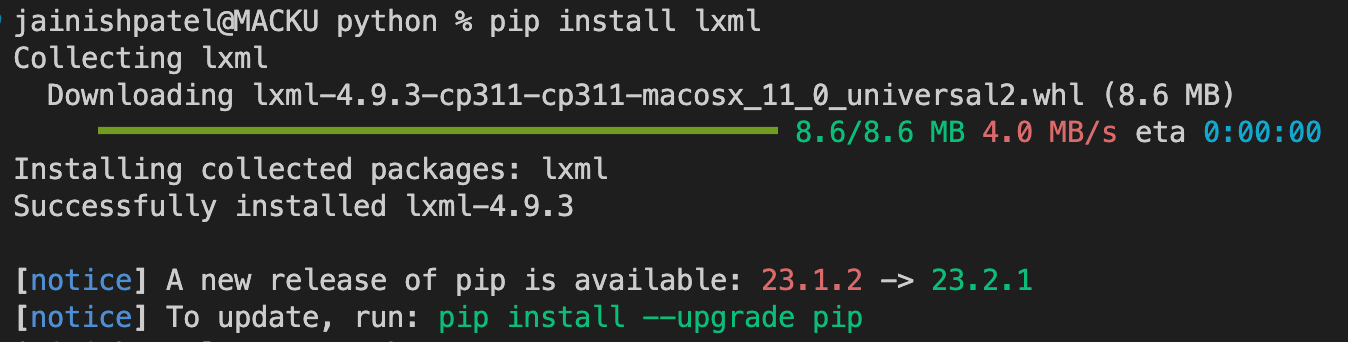
To install the lxml library run the following command:
pip install lxml
Verifying the Selenium Installation
By running the following script you can make sure that everything is working fine. The below code will open the TestMu AI E-commerce playground, a demo website and get its title (Your Store) printed.
from selenium import webdriver

driver = webdriver.Chrome()

driver.get("https://ecommerce-playground.lambdatest.io/")

# Print the title of the website
print(driver.title)
driver.close()
Console Output:

Finding an Element Using Python XPath in Selenium
Now that we are done with the installation part, let’s find an element using XPath Python in Selenium.
To find the location of a specific element in a document, you need to obtain the XPath of that element. For that, follow the steps:
- Inspect the website by right-clicking > Inspect or (ctrl + Shift + C or cmd + Option + C).
- Select the element to see the HTML code. Now right-click on the code and Go to the copy option where you can find the XPath of that element.
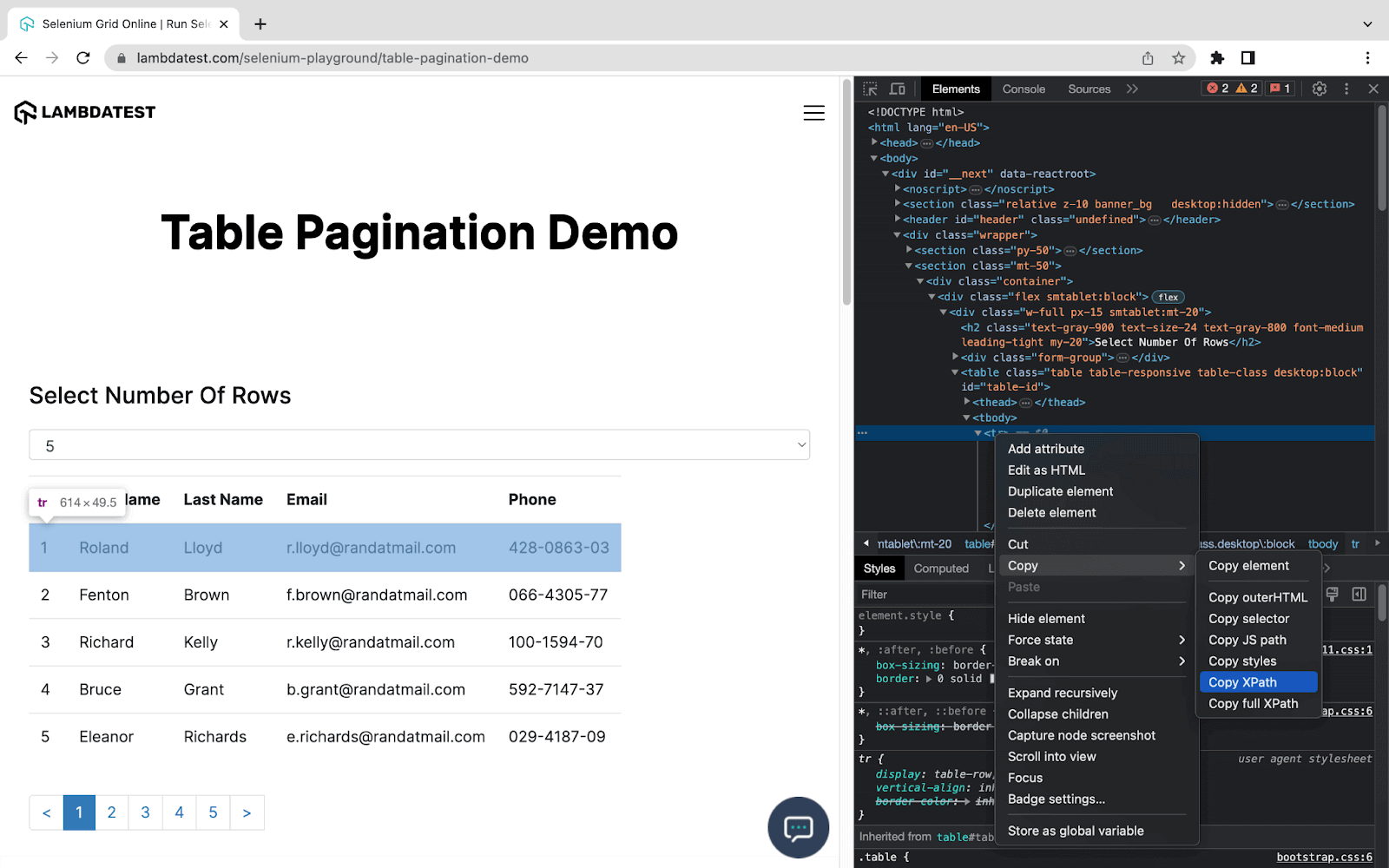
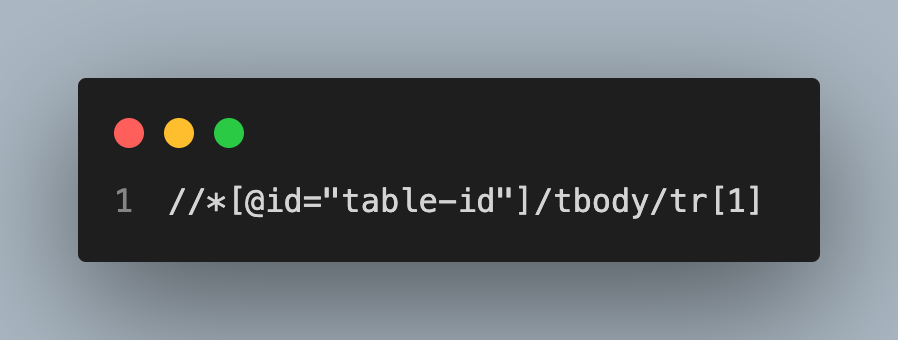
XPath will look something like this:
//*[@id="table-id"]/tbody/tr[1]
Using Python XPath to Locate Elements
To locate an element, the find_element() method is used. It returns the first matching element in the HTML document. To illustrate this, we will find the element by the XPath which we copied.
from selenium import webdriver
from selenium.webdriver.common.by import By

driver = webdriver.Chrome()

driver.get("https://www.lambdatest.com/selenium-playground/table-pagination-demo")

row_data = driver.find_element(By.XPATH,'//*[@id="table-id"]/tbody/tr[1]')
print("Row 1: ", row_data.text)
driver.close()
Console Output:

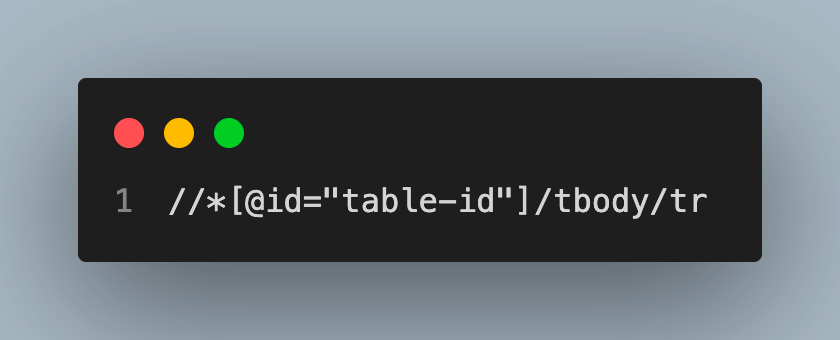
In the XPath //*[@id=”table-id”]/tbody/tr[1], tr[1] represents the first row of the table; However, If you change the XPath to //*[@id=”table-id”]/tbody/tr still the output remains the same because the find_element() method will only get the first appearance of the XPath from the HTML Document.
To get all the elements, you don’t have to mention each; rather, use the find_elements() method to get all the elements with the same XPath.
This is how you can use find_elements() in the code:
from selenium import webdriver
from selenium.webdriver.common.by import By

driver = driver = webdriver.Chrome()

driver.get("https://www.lambdatest.com/selenium-playground/table-pagination-demo")

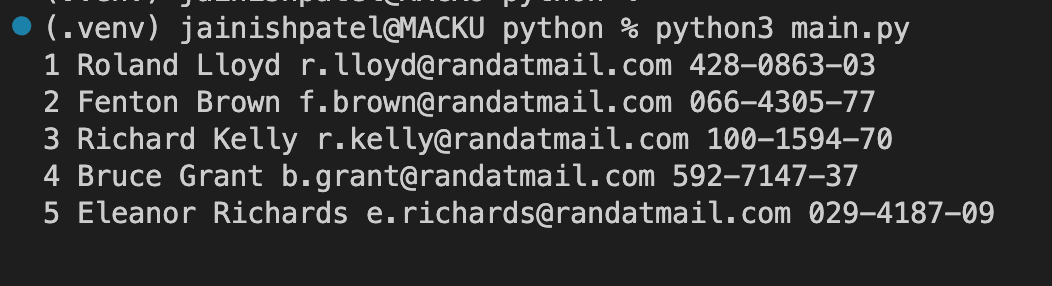
rows = driver.find_elements(By.XPATH,'//*[@id="table-id"]/tbody/tr')
for row in rows:
    print(row.text)
driver.close()
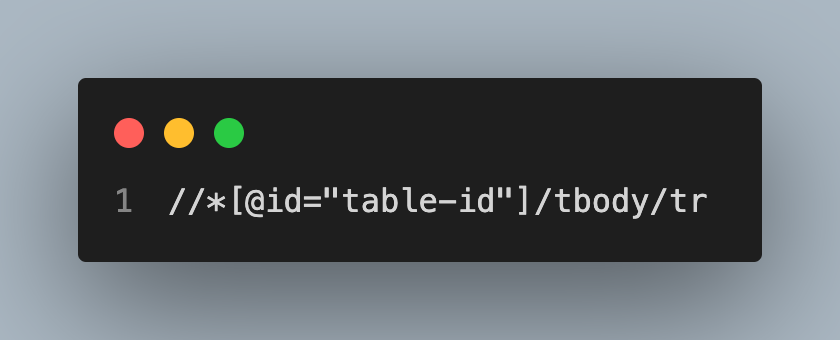
Following XPath is used in the code:
Console Output:
Retrieving attribute values
The get_attribute() method is used to retrieve an element’s attributes, such as the href attribute from an anchor tag. This function will initially attempt to return the value of the specified property. It returns the value of the corresponding attribute if the requested property doesn’t exist. None is returned if there isn’t an attribute with that name. You can check out the list of attributes that can be fetched.
Code on how to use get_attribute():
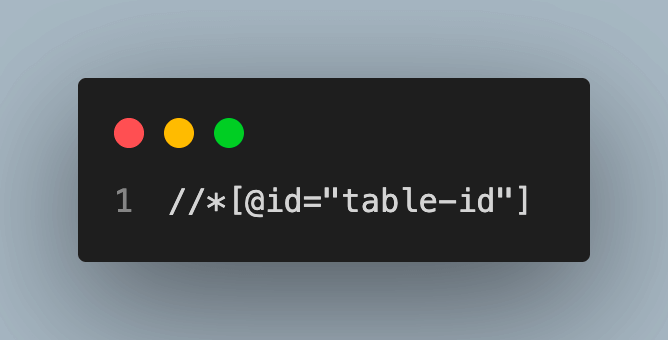
table = driver.find_element(By.XPATH,'//*[@id="table-id"]')
print(table.get_attribute("class"))
Following XPath is used in the code:
Console Output:

Extracting Text Content and Manipulating Using Python
You can extract text from the element using the text property. Apart from this, you can use various methods of Python like split(), sort(), reverse(), replace(), and many more.
The code below uses the split() method to organize the data. This is how you can use it in the code:
rows = driver.find_elements(By.XPATH,'//*[@id="table-id"]/tbody/tr')
data = []
for row in rows:
    row_data = row.text.split(" ")
    if len(row_data) > 1:
        data.append(row_data)

for data_row in data:
    print(data_row)
Following XPath is used in the code:
Console Output:

Handling multiple matches and filtering results
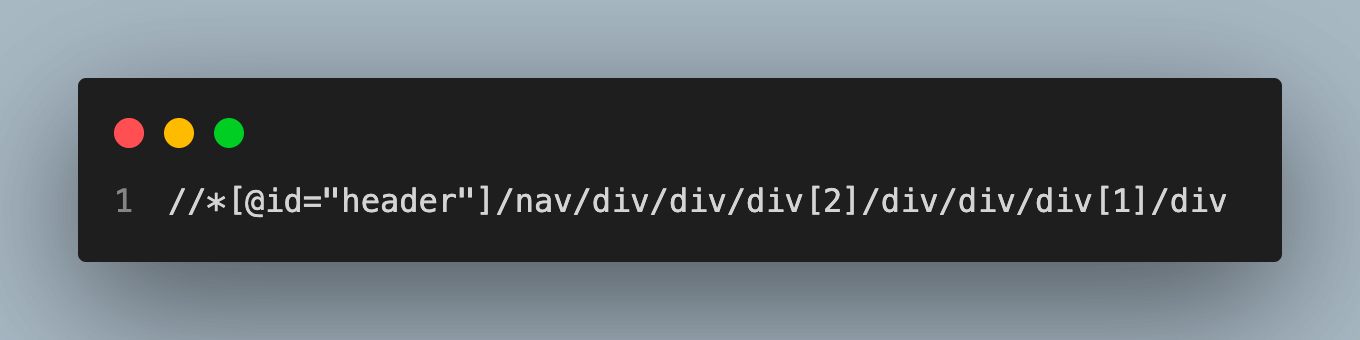
You can filter the results by adding more precise conditions using XPath. For instance, the following XPath phrase may be used to discover all div elements that belong to a particular class:
divs = driver.find_elements(By.XPATH,'//*[@id="header"]/nav/div/div/div[2]/div/div/div[1]/div')

for div in divs:
    print(div.text)
XPath using in the code:
Console Output:
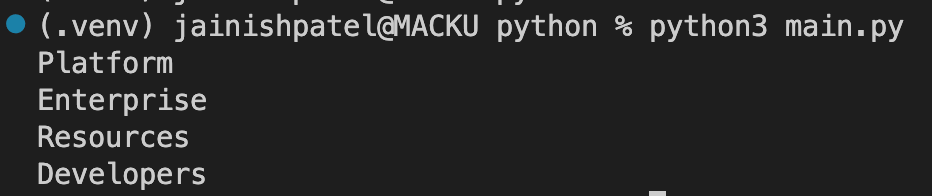
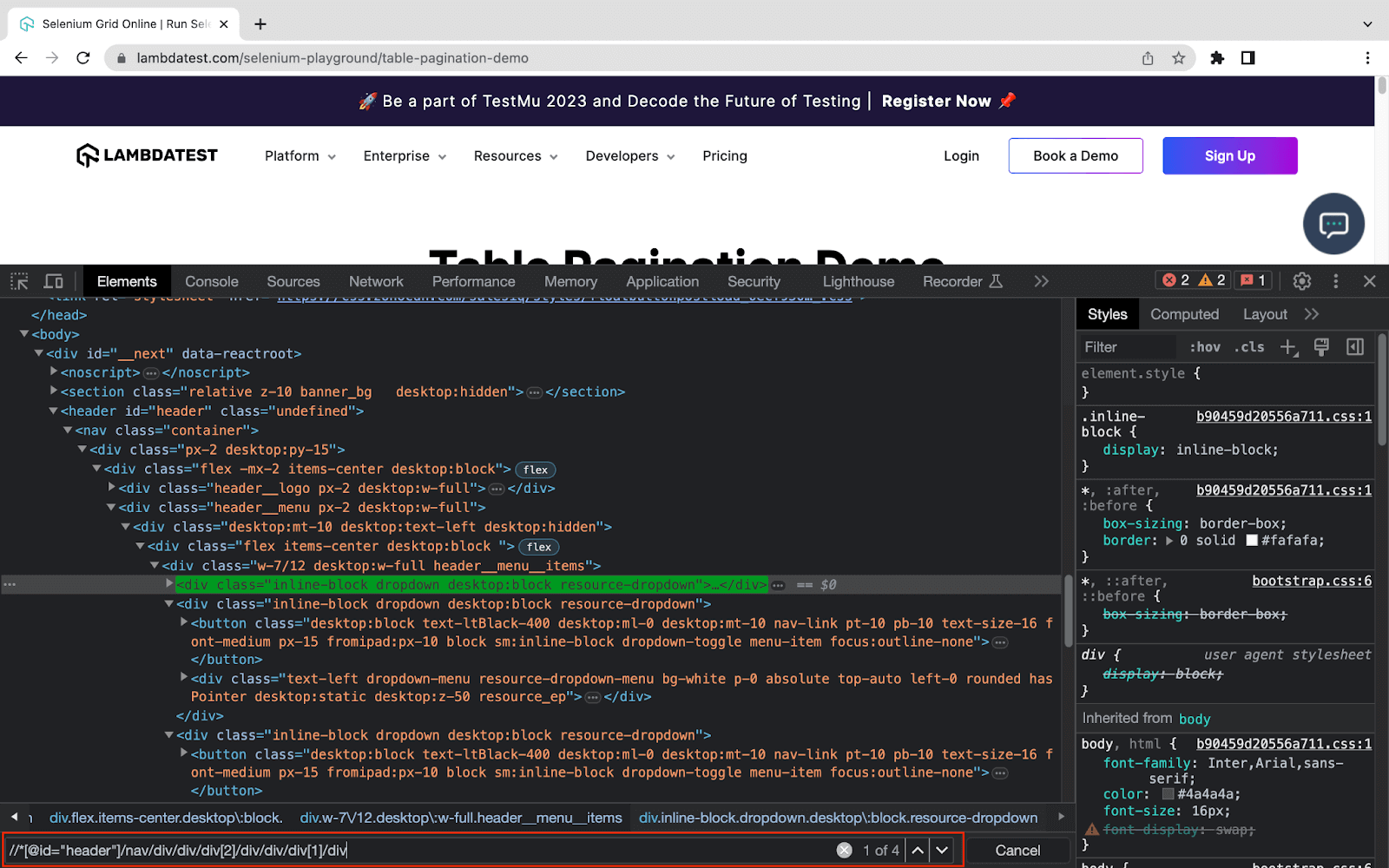
To verify the fetched data is correct, you can check by finding the element. To do so, follow this step:
- Open Developer Tools using the Inspect option.
- In the Elements panel, press Ctrl+F or cmd+F.
- Add the XPath in the Find Box and you will get the number of appearings.
//*[@id="header"]/nav/div/div/div[2]/div/div/div[1]/div
Refer to the below image for more understanding.
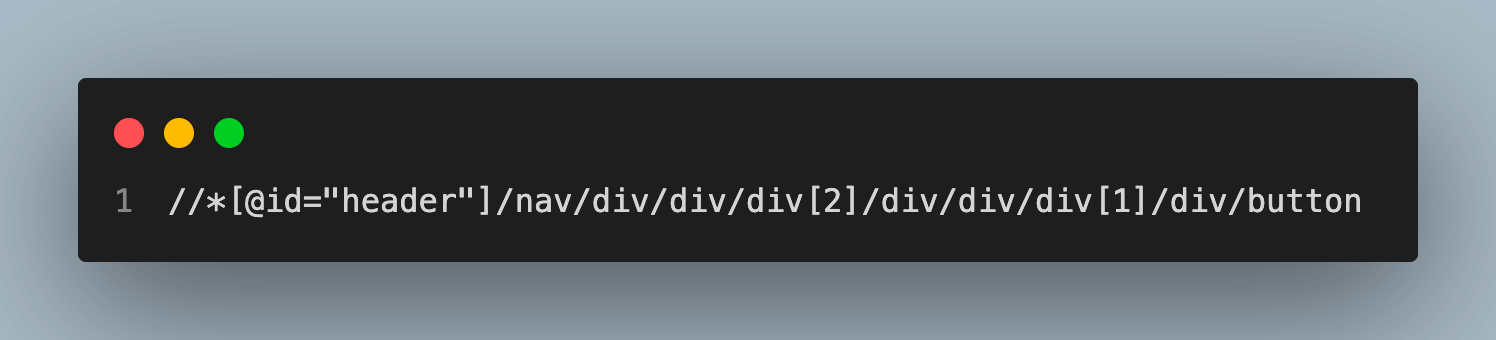
Additionally, you may traverse and filter elements based on how they relate to other items using XPath axes and predicates. For instance, the following XPath phrase can be used to locate every element included within the button’s particular div element:
buttons = driver.find_elements(By.XPATH,'//*[@id="header"]/nav/div/div/div[2]/div/div/div[1]/div/button')
for button in buttons:
    print(button.text)
XPath using in the code:
Console Output:

These examples show how to use XPath in Selenium with Python at its most basic level. You can modify the XPath expressions based on the structure and properties of the HTML or XML document you are working with.
Also Read: Selenium PHP Tutorial: A Comprehensive Guide, with Examples & Best Practices
Types of XPath in Selenium
In XPath, there are two methods for locating an element: absolute and relative. The XPath node, which can either be the starting point of the path to the node where the element is situated or a point relative to some other point along the DOM, defines the paths.
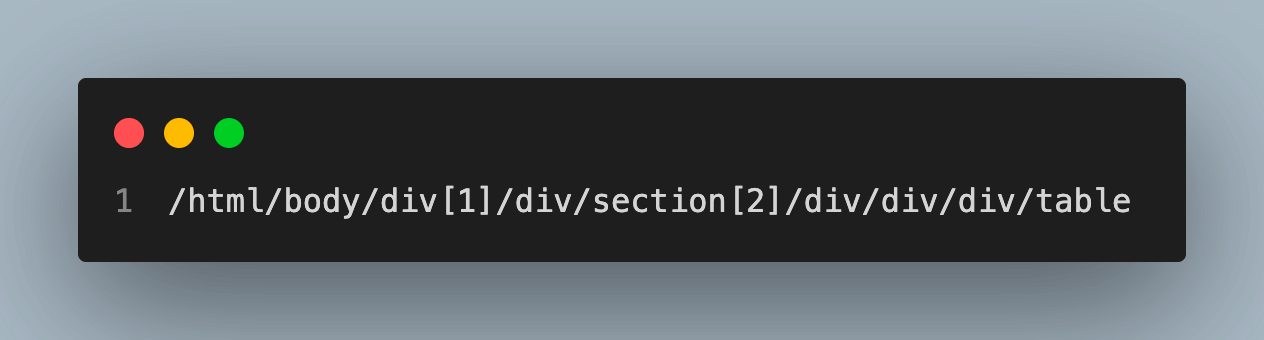
Absolute XPath
- Absolute XPath begins at the document’s root node and descends through the element hierarchy until it reaches the target element.
- It is less dependable if the page’s structure changes because it uses the entire path starting with the root node.
- A single forward slash (/) marks the beginning of an absolute XPath expression.
- To get the Absolute XPath copy full Xpath from the copy option.
Example:
/html/body/div[1]/div/section[2]/div/div/div/table
Relative XPath
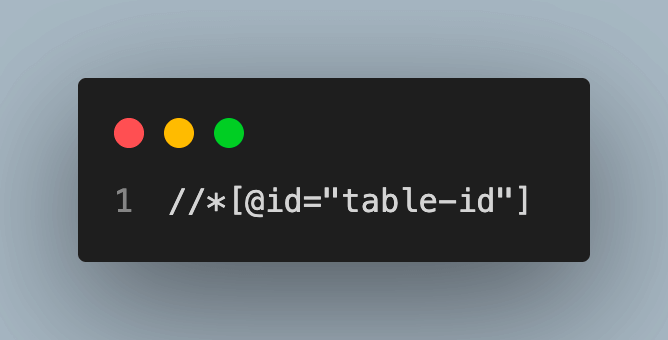
- Relative XPath employs a reference point to find the target element after starting from any node in the document.
- It is more flexible and advised because it considers the element’s position relative to its parent or sibling components.
- Expressions in XPath that are relative start with a double forward slash (//).
- To get the Absolute XPath to copy Xpath from the copy option.
Example:
//*[@id="table-id"]
Relative XPath expressions are commonly used in Selenium due to their flexibility and robustness. They allow you to locate elements based on their attributes, text content, or their relationship with other elements. Additionally, you can leverage various XPath axes, functions, and predicates to create more specific and powerful expressions for element locating.
Breakdown of XPath Expressions
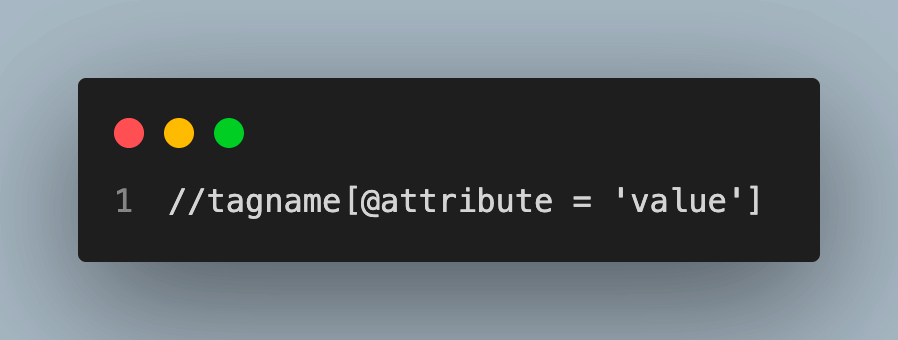
XPath is made of various symbols. Each one has its significance and can be used in different ways. The following table will explain each symbol in detail:
| Symbol | Description |
|---|---|
| // | Nodes in the document that match the selection are chosen from the current node, regardless of their location. |
| / | Use to Select the root node of the document |
| tagname | The tag name of the current node |
| @ | Select the HTML/XML attribute |
| attribute | Attribute the name of the node |
| value | Value of the attribute |
XPath Example Syntax:
Using Python XPath with Functions, Mathematical and logical Operators
Using functions, mathematical operators, and logical operators with Python XPath, you may build strong and adaptable expressions to pick out particular web page items. In this section, let’s look at some examples of how to combine these features:
Functions in Python XPath
Various functions in XPath Python can be used for Strings, Numbers, Nodes, and Boolean. In this section, we will look at various functions for each of them.
String Functions
You can carry out a variety of operations on components using XPath functions, such as extracting attributes and counting items. The following are a few often-used functions: text(), contains(), starts-with(), concat(), etc. Let’s look at each function in detail.
text():
This function helps to extract text from an HTML/XML element. It can be used when you want the test from tags like a, p, h1 to h6, and many more. In the example below, the main h1 tag is fetched, and then the text is extracted from it.
Code Example:
driver.get("https://www.lambdatest.com/selenium-playground/table-pagination-demo")

table_title = driver.find_element(By.XPATH,'//*[@id="__next"]/div/section[1]/div/div/h1')
print('Title: ',table_title.text)
Console Output:

contains():
This function checks whether an element contains a specific substring or not. You can compare the substring in various ways like text, ClassNames, IDs, and many more. In the below example, find the string “Roland” in the td(cell) of an HTML document.
Code Example:
driver.get("https://www.lambdatest.com/selenium-playground/table-pagination-demo")

table_cell = driver.find_element(By.XPATH,'//tr/td[contains(text(), "Roland")]')
print(table_cell.text)
Console Output:

General Format for contains():
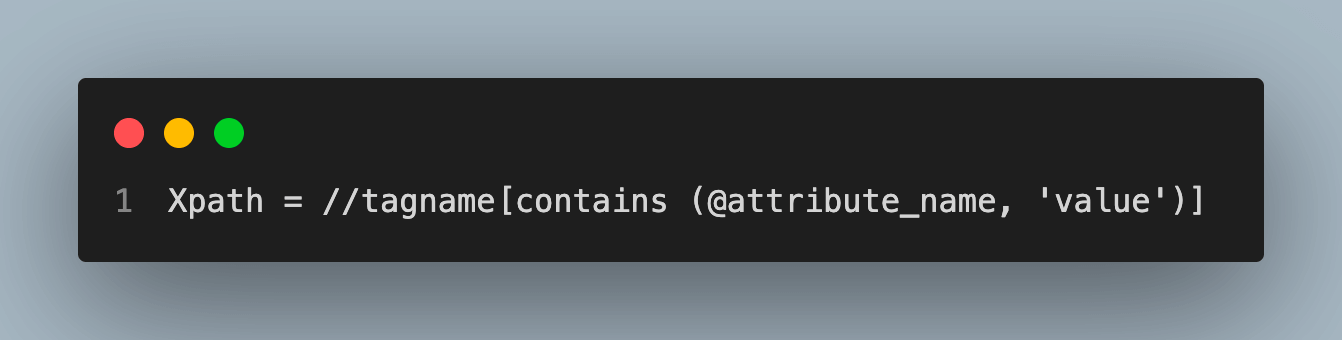
starts-with():
This function checks whether an element’s text starts with a specific substring. There are various ways to compare the substring, like text, ClassNames, IDs, and many more. In the below example, find the string that starts with “R” in the td(cell) of an HTML document.
Code Example:
driver.get("https://www.lambdatest.com/selenium-playground/table-pagination-demo")

table_cells = driver.find_elements(By.XPATH,'//td[starts-with(text(), "r")]')

for cell in table_cells:
    print(cell.text)
Console Output:

General Format for contains():
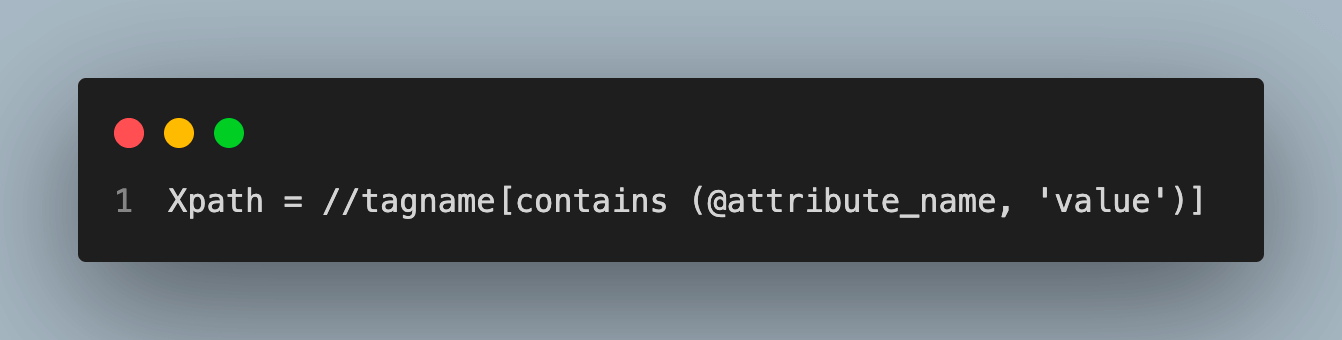
Concatenation:
String concatenation means adding strings together. In the example below, the title and sub_title of the HTML doc are combined.
Code Example:
driver.get("https://www.lambdatest.com/selenium-playground/table-pagination-demo")

main_title = driver.find_element(By.XPATH,'//*[@id="__next"]/div/section[1]/div/div/h1').text
sub_title = driver.find_element(By.XPATH,'//*[@id="__next"]/div/section[2]/div/div/div/h2').text
combined_text = main_title + " " + sub_title
print(combined_text)
Console Output:

Numeric functions
count(node_expression):
This function counts the number of elements in a specified node. There is no direct function in Python; However, it can be achieved using this technique.
Code Example:
driver.get("https://www.lambdatest.com/selenium-playground/table-pagination-demo")

# Select the option with "10" from the drop-down to show maximum 10 rows per page
driver.find_element(By.CSS_SELECTOR, '#maxRows option[value="10"]').click()

rows = driver.find_elements(By.XPATH, '//tr/td')

print(len(rows))
Console Output:

number():
XPath number function converting string to a number.
Code Example:
driver.get("https://www.lambdatest.com/selenium-playground/table-pagination-demo")

# Select the option with "10" from the drop-down to show maximum 10 rows per page
driver.find_element(By.CSS_SELECTOR, '#maxRows option[value="10"]').click()

rows = driver.find_elements(By.XPATH, '//tr/td[1]')
index_list = []
for row in rows:
    if row.text !='':
        index_list.append(int(row.text))

for index in index_list:
    print(index, type(index))
Console Output:
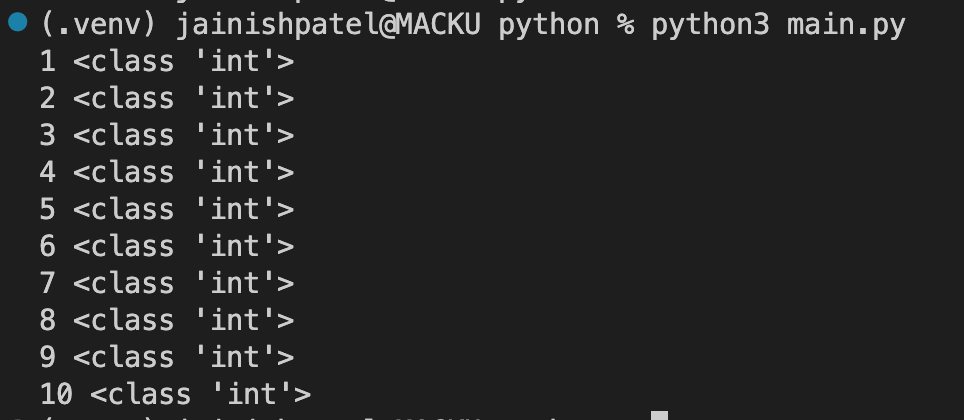
sum(node_expression):
This function returns the sum of element values in a specified node.
Code Example:
driver.get("https://www.lambdatest.com/selenium-playground/table-pagination-demo")

# Select the option with "10" from the drop-down to show maximum 10 rows per page
driver.find_element(By.CSS_SELECTOR, '#maxRows option[value="10"]').click()

rows = driver.find_elements(By.XPATH, '//tr/td[1]')
index_list = []
for row in rows:
    if row.text !='':
        index_list.append(int(row.text))

print(sum(index_list))
Console Output:

floor():
floor function returns the largest integer round value that is equal to or less than a parameter value. Another way we can say the last round value is the value return of the function. To use floor() in Python, you must import the math library. eg. FLOOR(10.45) returns 10.
Code Example:
driver.get("https://ecommerce-playground.lambdatest.io/index.php?route=product/product&product_id=42")

price = driver.find_element(By.XPATH,'//*[@id="entry_216831"]/div/div/h3').text
price = float(price.replace("$",''))
discount = price - (12/price)*100

print("Discounted Price: ", math.floor(discount))
Console Output:

ceiling():
XPath ceiling function returns the smallest integer round value that is greater than or equal to a parameter value. Another way we can say the next round value is that value returns of the function. To use ceil() in Python, you must import the math library. eg. CEILING(10.45) return 11.
Code Example:
driver.get("https://ecommerce-playground.lambdatest.io/index.php?route=product/product&product_id=42")

price = driver.find_element(By.XPATH,'//*[@id="entry_216831"]/div/div/h3').text

price = float(price.replace("$",''))
discount = price - (20/price)*100

print("Discounted Price: ", math.ceil(discount))
Console Output:

round():
The XPath round function returns the round number of the specified nth number of decimal places. eg. ROUND(10.45) return 10.
Code Example:
driver.get("https://ecommerce-playground.lambdatest.io/index.php?route=product/product&product_id=42")

price = driver.find_element(By.XPATH,'//*[@id="entry_216831"]/div/div/h3').text

price = float(price.replace("$",''))
discount = price - (5/price)*100

print("Discounted Price: ", round(discount,3))
Console Output:

Node Functions
node():
In XPath, there are seven kinds of nodes: element, attribute, text, namespace, processing-instruction, comment, and root nodes. The function returns the node value.
Code Example:
driver.get("https://www.lambdatest.com/selenium-playground/table-pagination-demo")

node = driver.find_element(By.XPATH, "//tr/td[node()]").text
print(node)
Console Output:

last():
This function returns the size of the total context in a given context. The name of this function lasts, so it means the function does not return the last node value.
Code Example:
driver.get("https://www.lambdatest.com/selenium-playground/table-pagination-demo")

last = driver.find_element(By.XPATH,'//tr/td[last()]').text
print(last)
Console Output:

position():
function returns the position of an element in the set (list) of elements in a given context.
Code Example:
driver.get("https://www.lambdatest.com/selenium-playground/table-pagination-demo")

position = driver.find_element(By.XPATH, "//tr/td[position()]").text
print(position)
Console Output:

id(dtd_id):
function return nodes based on passed DTD unique ID.
Code Example:
driver.get("https://www.lambdatest.com/selenium-playground/table-pagination-demo")

id = driver.find_element(By.XPATH, '//*[@id="table-id"]').text
print(id)
Console Output:
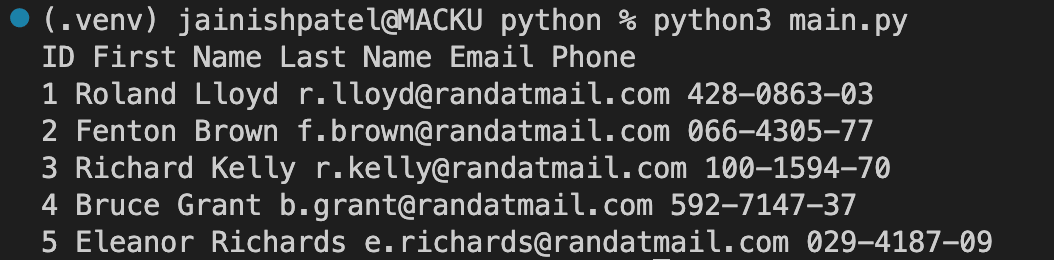
name(node_expression):
function returns the string name of the last expression (node-set).
Code Example:
driver.get("https://www.lambdatest.com/selenium-playground/redirection")

name = driver.find_element(By.XPATH, '//*[@id="__next"]/section[3]/div/div/div/p/a')
print(name.get_attribute("href"))
Console Output:

comment():
This function matches the comment node and returns that specific comment node.
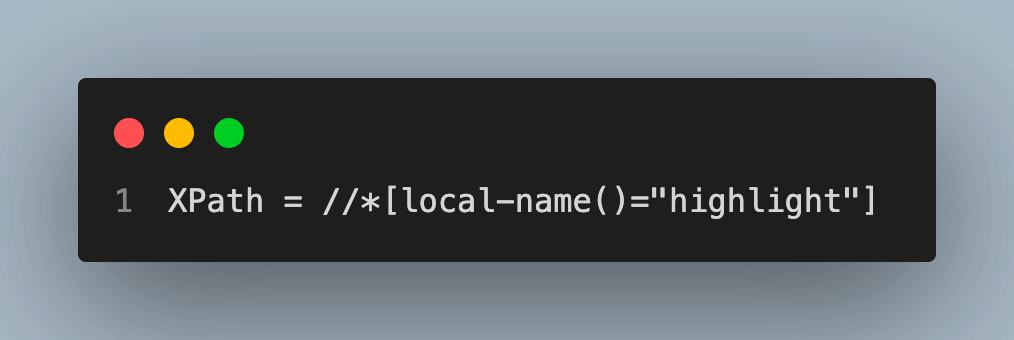
local-name(node_expression):
function returns the last expression’s local string name.
Boolean functions
XPath Boolean functions are used to convert an argument(as a number, string) to a boolean and return either True or False.
boolean(number|string|node-expression|object): returns true if expression is positive.
true(): returns true if the passed string is a normal string.
false(): returns false if the passed string is not a normal string.
lang(): returns true if the context node language is the same as the specified string argument.
Mathematical and logical operators
You may execute arithmetic operations and combine several criteria to generate more complicated expressions using XPath’s mathematical and logical operators. Based on a variety of parameters, these operators can be used to navigate and choose particular items.
Mathematical Operators
There are various types of mathematical operators like ‘=’, ‘!=’, ‘+’, ‘-‘, ‘*’, ‘/’, ‘>=’, and ‘<=', which are provided by Python and can be used with XPath.
There are various use cases for using these operators, such as:
- Calculating Engagement on a Social Media Post: You are creating a feature to show the engagement on a particular post; in this case, you have to get the data and then apply some calculations to get the engagement.
- Dynamic Web scraping: Consider a situation where you want to scrap article data from a blogging site, but the blogs are uploaded daily. In this case, you can scrape the number of web pages available and then run the loop according to it.
Let’s look at some basic operators and how to use them with Python XPath. For the below examples, we are using a demo web application maintained by TestMu AI.
Addition (+) and Subtraction (-)
We are getting the total viewers and reward points to get the product’s engagement.
Code Example:
driver.get("https://ecommerce-playground.lambdatest.io/index.php?route=product/product&product_id=42")

viewers = driver.find_element(By.XPATH,'//*[@id="entry_216826"]/ul/li[2]/span[2]').text
reward_points = driver.find_element(By.XPATH,'//*[@id="entry_216826"]/ul/li[3]/span[2]').text

total_points = int(viewers) + int(reward_points)

print("Total rewards: ", total_points)
Console Output:

Multiplication (*) and Division (/)
We are getting a discount(10%) on the product by the formula.
Code Example:
driver.get("https://ecommerce-playground.lambdatest.io/index.php?route=product/product&product_id=42")

price = driver.find_element(By.XPATH,'//*[@id="entry_216831"]/div/div/h3').text
price = float(price.replace("$",''))
discount = price - (10/price)*100


print("Discounted Price: ", round(discount,2))
Console Output:

Logical Operators
There are three main logical operators we will cover in this section.
And operator:
Combines two conditions, both of which must be true for the element to be selected. In the below example, there are two conditional checks: First Name = ‘Chelsea’ and email = ‘[email protected]’
Code Example:
driver.get("https://www.lambdatest.com/selenium-playground/table-pagination-demo")

# Select the option with "10" from the drop-down to show maximum 10 rows per page
driver.find_element(By.CSS_SELECTOR, '#maxRows option[value="10"]').click()


rows = driver.find_elements(By.XPATH, '//tr[td[2][contains(text(), "Chelsea")] and td[4][contains(text(), "[email protected]")]]')

# Print the text of each row
for row in rows:
    print(row.text)
Console Output:

Or operator:
Combines two conditions, either of which can be true for the element to be selected. In the below example, there are two conditional checks: First Name = ‘Chelsea’ or email = ‘[email protected]’
Code Example:
driver.get("https://www.lambdatest.com/selenium-playground/table-pagination-demo")

# Select the option with "10" from the drop-down to show maximum 10 rows per page
driver.find_element(By.CSS_SELECTOR, '#maxRows option[value="10"]').click()

rows = driver.find_elements(By.XPATH, '//tr[td[2][contains(text(), "Chelsea")] or td[4][contains(text(), "[email protected]")]]')

# Print the text of each row
for row in rows:
    print(row.text)
Console Output:

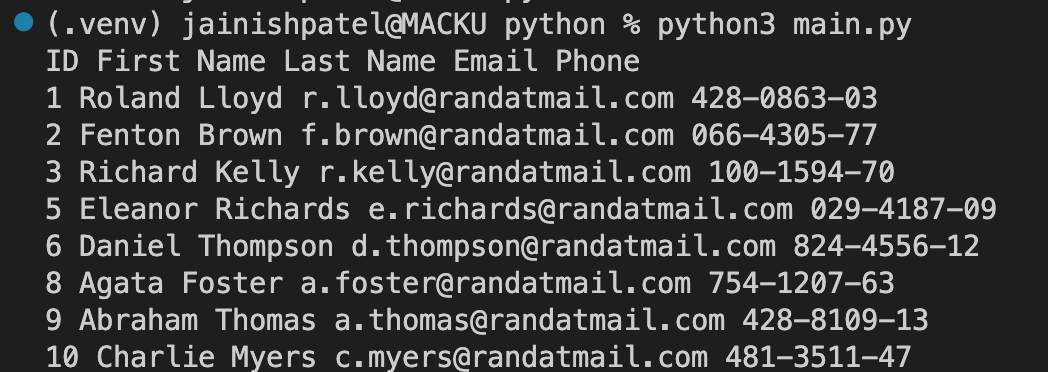
Not operator:
Negates a condition, selecting elements that do not meet the specified condition. In the below example, there are two conditional checks: First Name != ‘Chelsea’ and email != ‘[email protected]’
Code Example:
driver.get("https://www.lambdatest.com/selenium-playground/table-pagination-demo")

# Select the option with "10" from the drop-down to show maximum 10 rows per page
driver.find_element(By.CSS_SELECTOR, '#maxRows option[value="10"]').click()

rows = driver.find_elements(By.XPATH, '//tr[not(td[2][contains(text(), "Chelsea")]) and not(td[4][contains(text(), "[email protected]")])]')

# Print the text of each row
for row in rows:
    print(row.text)
Console Output:
Custom functions and extensions
XPath also allows you to define custom functions and extensions in some environments. However, the support for custom functions and extensions may vary depending on the XPath implementation and the XML/HTML processor you are using, like Selenium.
In Python, you can create a custom function that does a certain task or calculation and outputs a result. Create a function, for instance, to determine whether a given string is included in an element’s text.
Code Example:
from selenium.webdriver.support.ui import WebDriverWait
from selenium.webdriver.support import expected_conditions as EC

def contains_text(driver, element, text):
    try:
        return WebDriverWait(driver, 10).until(
            EC.text_to_be_present_in_element((By.XPATH, element), text)
        )
    except:
        return False
Note: Automate your tests on a Selenium based cloud Grid of 3000+ real browsers and operating systems. Try TestMu AI Today!
Advanced XPath Techniques
There are various techniques to make XPath more reliable and reusable like Handling dynamic content, XPath- Multiple Attribute, and using variables and conditions which we are going to discuss in this section in detail.
Handling dynamic content
The content you’re trying to locate may be dynamic, such as elements with changing IDs or classes. This is a common practice that some websites follow to prevent automating and web scraping. However, the structure stays the same in terms of hierarchy. By using XPath, you can handle this situation. To manage dynamic material, you can employ a variety of techniques:
XPath functions
To locate elements with partial attribute values, XPath offers operations like contains(), starts-with(), and ends-with().
Code Example:
# Find a button with a dynamic ID or className
dynamic_id = "xyz-431353"
button = driver.find_element(By.XPATH, f"//button[contains(@id, '{dynamic_id}')]")
Using Axes
Use XPath axes such as following-sibling, preceding-sibling, etc., to move to the target element in relation to other already known elements.
Code Example:
label_text = "name"
span_element = driver.find_element(By.XPATH, f"//label[text()='{label_text}']/following-sibling::span")
XPath- Multiple Attribute
By placing the | operator between square brackets [], you may use XPath to pick elements based on some attributes. This enables you to filter elements that fit various criteria simultaneously. To do this, you reference an attribute in the XPath expression by using the @ symbol followed by the attribute name.

Using XPath variables and conditions
XPath supports variables and can be utilized to shorten and reuse your expressions. When utilizing your Python XPath expressions in Selenium, you can pass variables to them.
Code Example:
from selenium.webdriver.common.by import By

# Define the XPath expression with variables
element_type = "button"
element_text = "Submit"
xpath_expression = f"//{element_type}[text()='{element_text}']"

# Find the element using the XPath expression
element = driver.find_element(By.XPATH, xpath_expression)
You can also use conditions in your XPath expressions using the if statement.
Code Example:
# Find elements based on a condition (e.g., containing a specific class)
is_enabled = True
condition = "enabled" if is_enabled else "disabled"
xpath_expression = f"//button[contains(@class, '{condition}')]"
elements = driver.find_elements(By.XPATH, xpath_expression)
Keep in mind that using complicated XPath expressions can make it more difficult to read and maintain your code. When feasible, utilize CSS selectors because they are typically quicker and easier to understand. Use XPath only in circumstances where CSS selectors are insufficient. Additionally, to make locating items in your HTML more dependable and effective, choose to use distinct IDs, classes, or data properties.
Conclusion
In a nutshell, when used with Selenium, XPath is a strong and crucial tool for web scraping and automating online applications. Using an element’s attributes, textual content, or connections to other elements enables developers and testers to find that element in an HTML or XML document. Python XPath offers several methods, tools, and axes for effectively navigating and choosing elements.
Before using XPath with Selenium, you must install and configure the necessary Python libraries. When everything is set up, you can find DOM items using XPath expressions. Relative XPath allows you to navigate between elements based on their relationships, while Absolute XPath specifies the whole route from the root. XPath is adaptive to changing web page structures because it can handle dynamic material utilizing functions like contains(), starts-with(), and more.
Using XPath, you may extract attribute values and text content to validate and modify data on web pages. You can manage numerous matches and filter outcomes based on particular criteria using XPath. Advanced XPath techniques, such as using variables and conditions and creating custom functions to make XPath statements more dynamic and reusable.
To sum up, XPath is an excellent option for finding objects on web pages, navigating intricate DOM structures, and effectively handling dynamic material thanks to its variety and potent capabilities. Learning XPath enables developers and testers to create automated scripts that are reliable and maintainable, thereby enhancing the quality and efficiency of web applications.



Frequently asked questions
Did you find this page helpful?
More Related Hubs
TestMu AI forEnterprise
Get access to solutions built on Enterprise
grade security, privacy, & compliance
- Advanced access controls
- Advanced data retention rules
- Advanced Local Testing
- Premium Support options
- Early access to beta features
- Private Slack Channel
- Unlimited Manual Accessibility DevTools Tests