

Next-Gen App & Browser Testing Cloud
Trusted by 2 Mn+ QAs & Devs to accelerate their release cycles


How to Wait in Python: Python Wait Tutorial With Examples
Learn how to pause code execution using Python waits with this step-by-step tutorial. Explore time.sleep, threading, and async waits with real-world examples.

Ini Arthur
December 24, 2025
Using Python wait help you ensure the code wait for necessary elements to load before interacting with them. This mimics real user behavior and avoid common issues like attempting to click a button that hasn’t appeared yet or filling out a form that’s not fully loaded.
Overview
In Python, waits refer to mechanisms that pause the program’s execution until a certain condition is met or a specific amount of time has passed.
Methods for Using Python Waits
- time.sleep(): Pauses program execution for a fixed number of seconds, blocking the current thread.
- threading.Event().wait(): Makes a thread wait until another thread signals an event, useful for synchronization.
- asyncio.sleep(): Suspends an asynchronous coroutine without blocking the event loop, allowing other tasks to run.
- Custom Wait Functions With Polling: Repeatedly check a condition at intervals, enabling flexible waits but potentially consuming CPU.
- time.perf_counter(): Provides a high-resolution timer for measuring elapsed time with precise accuracy.
What Are Python Waits?
Waits in Python comprise the different methods and functions used to halt an ongoing thread for some time. The wait() function is not built-in as implemented in another programming language. However, it is found in the time module and threading library.
Python wait can be achieved for a specified number of seconds by using the sleep() function of the time module. The Event class in the threading library has a wait() method that pauses the execution of a thread until an event object’s flag is set and the paused thread continues code execution.
Besides, Python waits can also be implemented in automation testing with tools like Selenium.
Methods to Implement Waits in Python
Waiting in Python can range from adding simple pauses to coordinating multiple threads or asynchronous tasks. The right approach depends on whether you need a fixed delay, synchronization, or precise control over timing.
time.sleep() for Simple Delays
time.sleep(seconds) is one of the Python sleep() function that pauses execution for a specified number of seconds. It is commonly used for simulating delays, pacing output, or avoiding rate limits in scripts. However, it blocks the entire thread.
Example:
import time

print("Start")
time.sleep(2)  # Wait for 2 seconds
print("End after 2 seconds")
threading.Event().wait() for Thread Synchronization
threading.Event().wait(timeout) allows threads to pause until a specific event is set or a timeout occurs. This enables coordination between threads without busy-waiting.
Example:
import threading

event = threading.Event()

def worker():
    print("Worker waiting...")
    event.wait()  # Wait until event is set
    print("Worker resuming")

threading.Thread(target=worker).start()

time.sleep(2)
event.set()  # Trigger the event
asyncio.sleep() in Asynchronous Programming
asyncio.sleep(seconds) pauses inside an asynchronous function without blocking the event loop. This makes it ideal for code using the Python asyncio library.
Example:
import asyncio

async def main():
    print("Start")
    await asyncio.sleep(2)  # Non-blocking wait
    print("End after 2 seconds")

asyncio.run(main())
Custom Wait Functions with Polling
Polling repeatedly checks a condition until it becomes true or a timeout occurs.
Example:
import time

def wait_for_condition(condition_func, timeout=5, interval=0.5):
    start = time.time()
    while time.time() - start < timeout:
        if condition_func():
            return True
        time.sleep(interval)
    return False

# Example usage
condition_met = wait_for_condition(lambda: 2 + 2 == 4)
print("Condition met:", condition_met)
time.perf_counter() for High-Resolution Timing
time.perf_counter() provides precise timing for performance measurement.
Example:
import time

start = time.perf_counter()
# Code to measure
time.sleep(1.2)
end = time.perf_counter()

print(f"Elapsed time: {end - start:.6f} seconds")

Note: Run your Selenium Python tests across 3000+ real browsers. Try TestMu AI Today!
Methods to Implement Waits in Python With Selenium
Selenium waits help your script handle dynamic content and avoid errors from interacting with elements that are not yet ready. By using implicit, explicit, or fluent waits in Selenium Python, you can control timing more effectively and ensure smoother execution.
Implicit Waits for Setting Global Timeouts
Implicit waits tell Selenium to keep trying to find an element for a set amount of time before throwing an exception. You set them once and they apply globally to all element searches in the WebDriver instance.
Example:
from selenium import webdriver

driver = webdriver.Chrome()
driver.implicitly_wait(10)  # waits up to 10 seconds for elements to appear

driver.get("https://example.com")
element = driver.find_element("id", "username")  # waits until found or timeout
If the element appears earlier than the timeout, Selenium proceeds immediately, so your script doesn’t always pause for the full duration.
While implicit waits are easy to implement, they apply to all elements and can sometimes mask slow-loading elements that should be handled more precisely.
Explicit Waits for Specific Conditions
Explicit waits give you targeted control over how long Selenium waits for a specific event or condition. They work with Selenium WebDriverWait and ExpectedConditions in Selenium to monitor for things like element visibility, clickability, or the presence of text.
Example:
from selenium import webdriver
from selenium.webdriver.common.by import By
from selenium.webdriver.support.ui import WebDriverWait
from selenium.webdriver.support import expected_conditions as EC

driver = webdriver.Chrome()
driver.get("https://example.com")

wait = WebDriverWait(driver, 10)
element = wait.until(
    EC.element_to_be_clickable((By.ID, "submit"))
)
element.click()
With explicit waits, you avoid unnecessary delays because Selenium checks the condition periodically and moves on as soon as it is met.
This is more efficient and reliable for dynamic pages compared to implicit waits.
Fluent Waits for Customizing Polling Intervals
Fluent waits are essentially explicit waits with extra flexibility. They let you define not only the maximum timeout but also the frequency of checks and the types of exceptions to ignore during polling.
Example:
from selenium import webdriver
from selenium.webdriver.common.by import By
from selenium.webdriver.support.ui import WebDriverWait
from selenium.webdriver.support import expected_conditions as EC

driver = webdriver.Chrome()
driver.get("https://example.com")

wait = WebDriverWait(driver, timeout=15, poll_frequency=2, ignored_exceptions=[])
element = wait.until(
    EC.presence_of_element_located((By.CLASS_NAME, "dynamic-item"))
)
In this case, Selenium checks for the element every 2 seconds for up to 15 seconds.
Fluent waits are helpful when you know an element might take time to appear and want to avoid constant high-frequency polling that could impact performance.
How to Implement Waits in Python?
Let’s look at how to use Python waits with tools like Selenium. To run tests, we will use the online Selenium Grid offered by TestMu AI. This will help achieve much-needed scalability and reliability.
To get started, check out this documentation on Selenium Python testing with TestMu AI.
Test Scenario:
- Navigate to the homepage of the TestMu AI eCommerce Playground website.
- Wait for the homepage to load completely.
- Check for the presence of page elements.
- Raise an assertion that page elements are complete.
Prerequisites
- Get the TestMu AI Username and Access Key. Go to Account Settings, then click on Password & Security.
- Create a conftest.py file for your pytest fixture.
@pytest.fixture(scope="function")
def driver(request):
   test_name = request.node.name
   build = environ.get("BUILD", "Python Wait Selenium")
   username = environ.get("LT_USERNAME", None)
   access_key = environ.get("LT_ACCESS_KEY", None)
   selenium_endpoint = "http://{}:{}@hub.lambdatest.com/wd/hub".format(
       username, access_key
   )


   chrome_options = webdriver.ChromeOptions()
   option = {
       "platform": "macOS Sonoma",
       "version": "latest",
       "name": test_name,
       "Build": build,
       "video": True,
       "visual": False,
       "network": True,
       "console": True,
   }


   chrome_options.set_capability("LT:Options", option)
   browser = webdriver.Remote(
       command_executor=selenium_endpoint, options=chrome_options
   )
   yield browser


   def fin():
       if request.node.rep_call.failed:
           browser.execute_script("lambda-status=failed")
       else:
           browser.execute_script("lambda-status=passed")
           browser.quit()


   request.addfinalizer(fin)

@pytest.hookimpl(tryfirst=True, hookwrapper=True)
def pytest_runtest_makereport(item, call):
   # this sets the result as a test attribute for LambdaTest reporting.
   # execute all other hooks to obtain the report object
   outcome = yield
   rep = outcome.get_result()


   # set a report attribute for each phase of a call, which can
   # be "setup", "call", "teardown"
   setattr(item, "rep_" + rep.when, rep)
Implementation
- Create a pages_sleep_wait.py file. This is your Page Object for implementing wait using time.sleep() function.
import pytest
from selenium.webdriver.common.by import By
from pages.sleep_wait import *
import time


@pytest.mark.usefixtures("driver")
def test_sleep_wait(driver):
   class_title_elements_count = 34
   elements_count = SleepWait(driver)


   # Python sleep method used to wait
   time.sleep(5)


   count = elements_count.get_elements_count()
   assert count == class_title_elements_count   , f"Expected {count} to be {class_title_elements_count}"
Test Execution
Run the test using the following command:
pytest tests/test_sleep_wait.py
The TestMu AI Web Automation dashboard shows the status of our test execution.
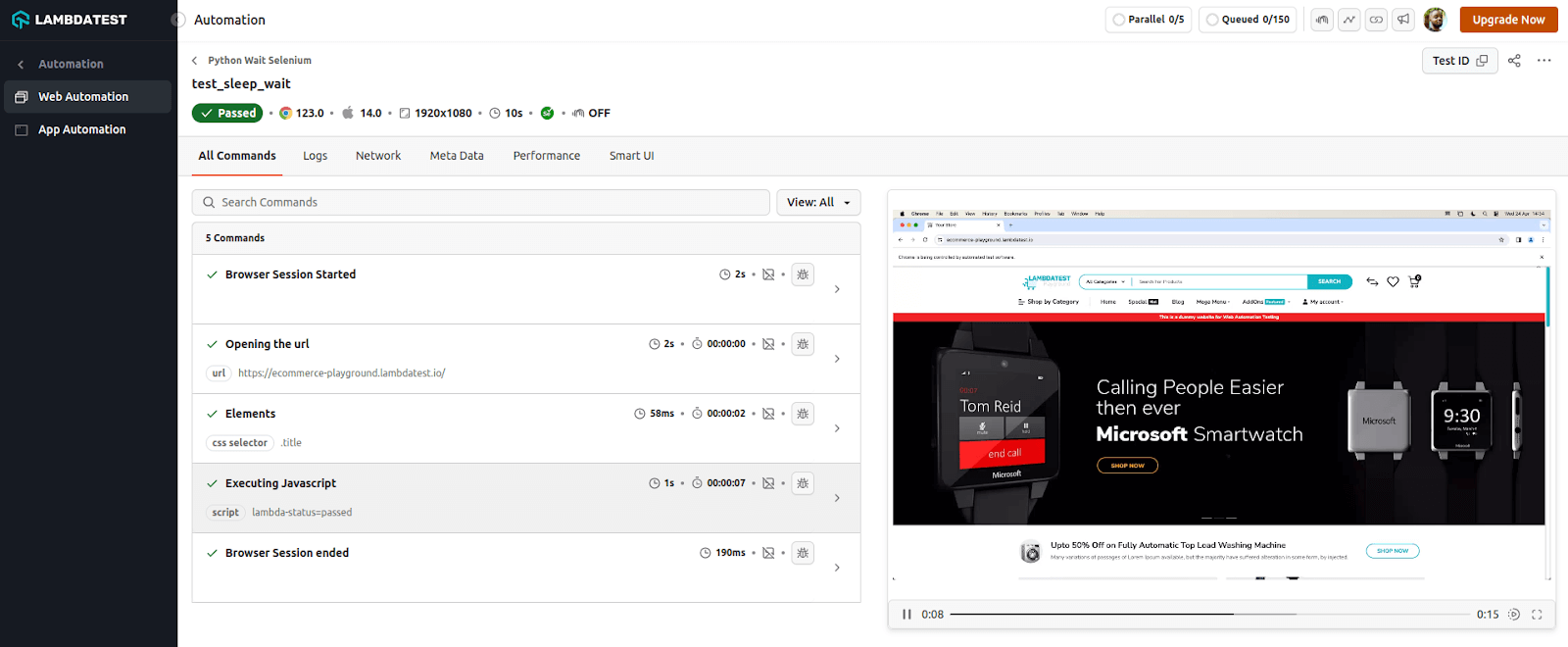
The 5 seconds of sleep time used in our script means that even when elements on the page are available, the driver will still wait for the time to be exhausted. This can only prolong the wait time than it’s necessary.
Watch the tutorial below by Anton Angelov to learn how to use waits in Selenium 4.
Anton is a widely recognized leader in the global QA community, serving as Managing Director, Co-Founder, and Chief Test Automation Architect at Automate The Planet, a leading consulting firm specializing in test automation strategy, implementation, and enablement.
How TestMu AI SmartWait Simplifies Python Test Automation?
TestMu AI SmartWait is the simplest way to manage waits in your Selenium Python scripts when running on the TestMu AI cloud grid. Instead of manually writing explicit waits for every element, SmartWait uses an intelligent algorithm to pause execution until all conditions are met or the specified time expires.
By default, it improves test reliability while reducing flaky failures caused by dynamic load times.
Test Scenario:
- Navigate to the homepage of the TestMu AI eCommerce Playground website.
- Click on Blog on the navigation menu.
- Click on the first blog post.
- Raise an assertion that the page title is correct.
Implementation
- Create a test_smartwait.py file. It is a page object that uses SmartWait implicitly from the grid. No explicit waits needed.
import pytest
from pages.smartwait import *


@pytest.mark.usefixtures("driver")
def test_blog_navigation(driver):
   smartwait = SmartWait(driver)
   smartwait.click_blog_link()
   smartwait.click_first_post()
   assert "amet volutpat" in driver.title, "Expected 'amet volutpat' in title"
option_smartwait = {
   "platform": "macOS Sonoma",
   "version": "latest",
   "name": "Selenium Pytest",
   "Build": "Python Wait Selenium Build",
   "smartWait": 10,  # It accepts integer values as second
   "video": True,
   "visual": False,
   "network": True,
   "console": True,
}
Test Execution
Run the test using the following command:
pytest tests/test_smartwait.py
The TestMu AI Web Automation Dashboard shows the status of our test execution.
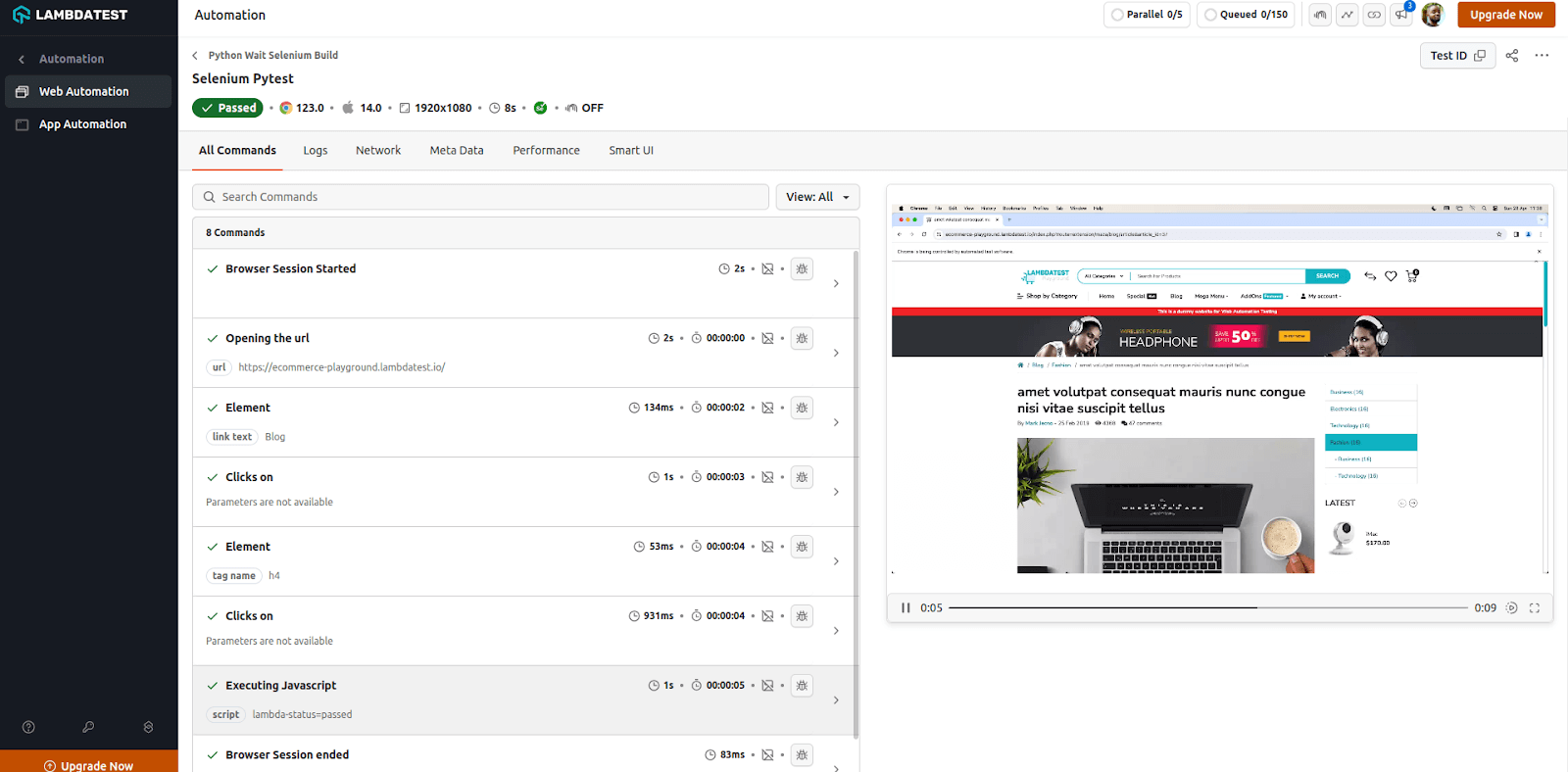
You can check out this another video by Anton Angelov where he showcases how to use TestMu AI SmartWait for Selenium test automation.
Best Practices for Implementing Waits in Python
Using waits correctly ensures your Python code runs efficiently and reliably. Following best practices prevents unnecessary delays and errors during execution.
- Avoid Overusing time.sleep(): The time.sleep() function blocks execution, slowing your code unnecessarily. Use it sparingly for fixed pauses and debugging, not for dynamic waits.
- Choose the Right Wait Strategy: Pick waits based on task needs: time.sleep() for fixed delays, threading.Event().wait() for threads, asyncio.sleep() for async, and explicit waits for conditions.
- Handle Timeouts and Exceptions: Always set timeouts to prevent indefinite waits. Wrap waits in try-except blocks and add retries or fallback actions for robust code.
- Avoid Busy-Wait Loops: Constantly checking conditions wastes CPU resources. Prefer event-driven or condition-based waits to conserve processing power.
- Log Waiting Events: Track wait times and triggers through logging. This helps identify bottlenecks and optimize performance.

Troubleshooting Common Issues with Waits
Implementing waits can still lead to errors if conditions or timing aren’t handled correctly. Knowing common issues helps prevent failures and improve script reliability.
- Timeout Errors: Timeouts occur when waits are too short or conditions are incorrect. Verify logic, adjust durations, and implement incremental retries to reduce failures.
- StaleElementReferenceException in Selenium: Elements may detach from the DOM before interaction. Re-locate elements, use explicit waits, and retry actions to maintain reliability.
- Network Latency Considerations: Slow connections can cause unexpected delays. Increase wait durations or use adaptive waits to handle variability.
- Resource Contention: Multiple threads or processes may delay expected conditions. Ensure proper synchronization and avoid unnecessary blocking.
- Condition Misconfiguration: Incorrectly defined wait conditions cause failures. Review and test conditions to ensure they accurately reflect the target state.

Conclusion
There are several reasons why Python wait mechanisms have been used. Some of these reasons include collecting user input, waiting for server responses, fetching web page resources, etc.
Like other programming languages, Python waits can be used with tools like Selenium for web automation. It offers several ways to apply Python waits in test automation scripts.
Citations
- Waiting Strategies: https://www.selenium.dev/documentation/webdriver/waits/
- pytest: https://docs.pytest.org/en/stable/


Frequently asked questions
Did you find this page helpful?
More Related Hubs
TestMu AI forEnterprise
Get access to solutions built on Enterprise
grade security, privacy, & compliance
- Advanced access controls
- Advanced data retention rules
- Advanced Local Testing
- Premium Support options
- Early access to beta features
- Private Slack Channel
- Unlimited Manual Accessibility DevTools Tests