

Next-Gen App & Browser Testing Cloud
Trusted by 2 Mn+ QAs & Devs to accelerate their release cycles


How To Use Playwright For Web Scraping with Python
In this blog on using Playwright for web scraping, you will learn how to set up Playwright with Python and use it to scrape data from web pages.

Jaydeep Karale
December 22, 2025
In today’s data-driven world, the ability to access and analyze large amounts of data can give researchers, businesses & organizations a competitive edge. One of the most important & free sources of this data is the Internet, which can be accessed and mined through web scraping.
Web scraping, also known as web data extraction or web harvesting, involves using code to make HTTP requests to a website’s server, download the content of a webpage, and parse that content to extract the desired data from websites and store it in a structured format for further analysis.
When it comes to data extraction & processing, Python has become the de-facto language in today’s world. In this Playwright Python tutorial on using Playwright for web scraping, we will combine Playwright, one of the newest entrants into the world of web testing & browser automation with Python to learn techniques for Playwright Python scraping.
The reasons for choosing Playwright over some popular alternatives are its developer-friendly APIs, automatic waiting feature, which avoids timeouts in case of slow-loading websites, superb documentation with examples covering various use cases, and a very active community. If you’re looking to improve your playwright interview skills, check out our curated list of questions and solutions at Playwright interview questions
So, let’s get started.
Overview
Playwright for Web Scraping is a modern approach to automate data extraction from dynamic websites using Python. It enables faster, reliable, and cross-browser scraping with minimal setup.
Why Does Playwright Matter for Web Scraping?
Traditional scraping tools often fail when dealing with JavaScript-heavy or dynamic pages. Playwright ensures consistency, efficiency, and adaptability across web environments.
- Automation Accuracy: Playwright automatically waits for elements to load, reducing script failures and improving data reliability during scraping.
- Cross-Browser Support: Enables scraping across Chromium, Firefox, and WebKit browsers, ensuring compatibility with diverse web environments.
- Scalability: Seamlessly integrates with Python libraries and cloud grids like TestMu AI, supporting large-scale and parallel scraping operations.
- Stealth Mode: Supports headless and authenticated sessions, allowing access to complex or login-based websites without detection.
- Speed & Efficiency: Executes scraping tasks quickly using parallel browser control and optimized performance settings.
What Are the Core Pillars of Playwright Web Scraping?
These pillars define the foundation of efficient and reliable data extraction using Playwright and Python.
- LOCATE: Identify target elements precisely using locators, CSS selectors, or XPath to ensure accurate data collection.
- AUTOMATE: Simulate human-like interactions such as clicks, scrolls, and inputs to reveal and access dynamic content.
- EXTRACT: Retrieve structured information—text, links, tables, or media—from fully rendered pages with high precision.
- OPTIMIZE: Utilize headless mode, browser context management, and caching to enhance speed and efficiency.
- SCALE: Combine Playwright with Python’s automation tools and cloud platforms for high-volume, multi-browser scraping workflows.
Key Use Cases of Web Scraping
Now, let’s explore some of the most popular web scraping use cases.
- Price & Product Comparison for E-CommerceExtracting prices, products, and images from e-commerce websites to gain insights about pricing & comparison with competitors.
- Data for Machine Learning ModelsData scientists can use web scraping to get access to or create data sets for various use cases, such as feeding it to machine learning models.
- Aggregate Job ListingsWeb scraping is also useful for downloading job listings from various websites and making them available over a single channel.
- Aggregate Discounts From Travel WebsitesAggregator websites that display the best hotel or flight ticket prices also use web scraping to get pricing data from various websites.
A Word of Caution: Responsible Web Scraping
Whilst web scraping is a powerful tool, there are a few ethical & potentially legal considerations to consider when doing web scraping.
- Respect terms of useMany websites have terms of use that prohibit or limit web scraping. It is important to read and understand these terms before beginning any web scraping projects and to obtain permission if necessary.
- Sensitive or protected dataWeb scraping should not be used to extract sensitive or protected data, such as personal information or financial data. This can be a violation of privacy and may also be illegal.
- Don’t burden serversWeb scraping typically involves sending a large number of automated requests to a website, which can put a strain on the website’s servers and resources. It is important to be mindful of this and to limit the number of requests made to avoid causing harm to the website.
By following these guidelines and using web scraping responsibly, you can ensure that your web scraping projects are legal and ethical and that you are not causing harm to the websites you are scraping.
Having seen so many use cases, it’s evident that the market for web scraping is huge. And as the market grows for anything, so do the available tools. In this Playwright for web scraping tutorial, we will explore in-depth web scraping with Playwright in Python and how it can extract data from the web.

Austin Siewert
CEO, Vercel
Discovered @TestMu AI yesterday. Best browser testing tool I've found for my use case. Great pricing model for the limited testing I do 👏
2M+ Devs and QAs rely on TestMu AI
Deliver immersive digital experiences with Next-Generation Mobile Apps and Cross Browser Testing Cloud

What is Playwright?
Playwright is the latest entrant into the array of frameworks (e.g., Selenium, Cypress, etc.) available for web automation testing. It enables fast and reliable end-to-end testing for modern web apps.
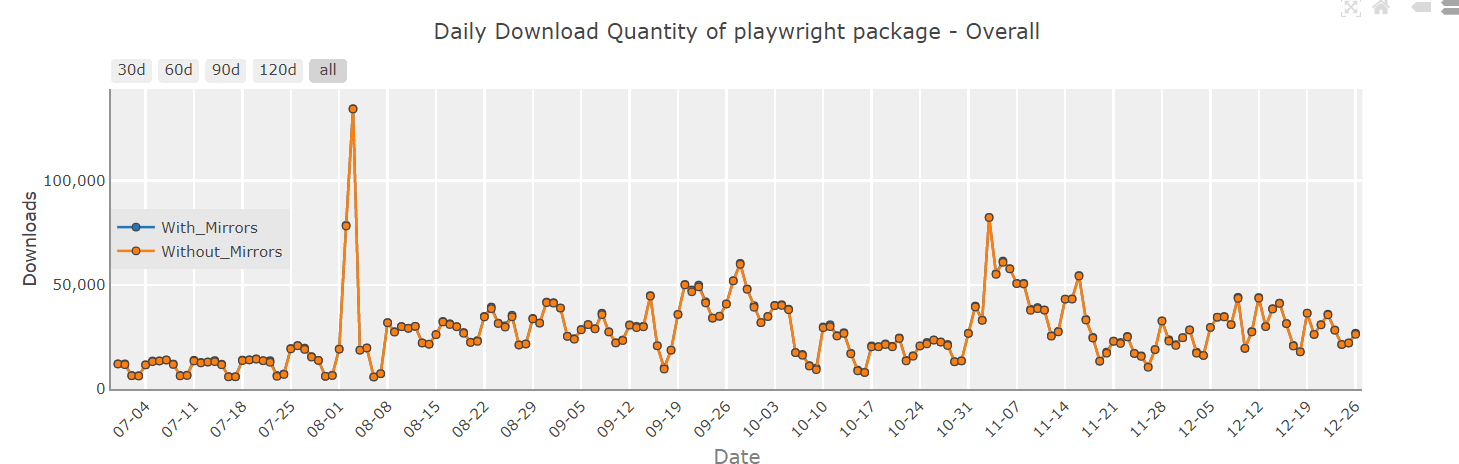
At the time of writing this Playwright for web scraping tutorial, the latest stable version of Playwright is 1.28.0, and Playwright is now consistently hitting the >20K download per day mark, as seen from PyPi Stats.
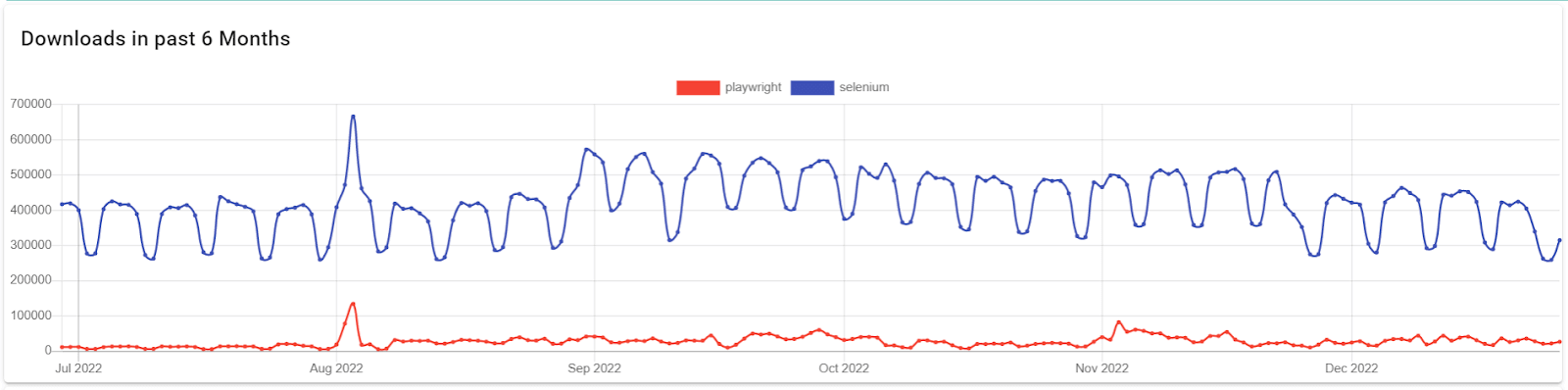
Below are the download trends of Playwright in comparison to a popular alternative, Selenium, taken from Pip Trends.
A key consideration to make when using any language, tool or framework is the ease of its use. Playwright is a perfect choice for web scraping because of its rich & easy-to-use APIs, which allow simpler-than-ever access to elements on websites built using modern web frameworks. You can learn more about it through this blog on testing modern web applications with Playwright.
Features of Playwright
Some unique and key features of Playwright are
- Cross-BrowserPlaywright supports all modern rendering engines such as Chromium, Firefox, and WebKit, which makes it a good choice when it comes to working & testing across several different browsers.
- Cross-LanguagePlaywright APIs are available in different languages such as Python, Java, JavaScript, TypeScript & .NET, making it easier for developers from various language backgrounds to implement web scraping & browser-related tasks.
- Cross-PlatformWebsites built using modern web frameworks must be tested across all operating systems to ensure they render correctly on each of them. Playwright works seamlessly on Windows, macOS, and Linux in both headless & headed modes.
- Auto-WaitPlaywright supports auto-wait, eliminating the need for artificial timeout, making the tests more resilient & less flaky
- Web-first AssertionsPlaywright assertions are explicitly created for the dynamic web. Checks are automatically retried until the necessary conditions are met, making it an ideal candidate for testing websites built using modern web frameworks.
- LocatorsPlaywright’s locators provide unique & simple ways to find elements on websites built using modern web frameworks. Later in this Playwright for web scraping tutorial, we will deep dive into Playwright’s locators and why they make life so much easier.
- CodegenPlaywright offers a unique codegen tool that can essentially write the code for you. You can start the codegen using the playwright codegen websitename and perform the browser actions. The codegen will record and provide boilerplate code that can be used or adjusted per our requirements.
Now that we know what Playwright is, let’s go ahead and explore how we can leverage its Python API for web scraping, starting firstly with installation & setup.
Enhance your testing strategy with our detailed guide on Playwright Headless Testing. Explore further insights into Playwright’s capabilities in this guide.
Why Playwright for Web Scraping with Python?
As mentioned above, it’s possible to use Playwright for web scraping with different languages such as JavaScript, TypeScript, Java, .Net, and Python. So, it is necessary to understand why Python.
I have been programming for ten years using languages such as C++, Java, JavaScript & Python, but in my experience, Python is the most developer-friendly and productivity-oriented language.
It abstracts unnecessary complications of certain other programming languages and lets developers focus on writing quality code and shorten the delivery time whilst also enjoying writing the code.
A quick case for why I love Python automation testing & why we choose Playwright for web scraping, specifically using its Python API.
- Easy to learn & useThe Zen Of Python, which defines the guiding principle of Python’s design, mentions ‘Simple Is Better Than Complex’. So, Python is a language developed explicitly with productivity, ease of use, and faster delivery in mind. It’s one of the easiest, most fun, and fastest programming languages to learn and use.
- De-facto choice for processing dataPython has become the de-facto language for working with data in the modern world. Various packages such as Pandas, Numpy, and PySpark are available and have extensive documentation and a great community to help write code for various use cases around data processing. Since web scraping results in a lot of data being downloaded & processed, Python is a very good choice. You can learn more about it through this blog on web scraping with Python.
- Widely used in IndustryPython is now widely used in almost all areas of the software development lifecycle, including development, testing, DevOps, and support. Its adoption, especially since the release of the 3.X versions, has been phenomenal.
- Great community & ecosystemThe Python ecosystem is mature and has a vast community and a wide range of packages available in the Python ecosystem for processing data.
With an understanding of why we chose to work with Playwright for web scraping in Python, let’s now look at Playwright’s Locators. Playwright supports a variety of locator strategies, including CSS Selectors, XPath expressions, and text content matching.
Locators are a critical component of Playwright, making web browser-related tasks possible, easy, reliable, and fun.

Note: Run Automated Playwright Tests Online. Try TestMu AI Now!
Understanding Playwright Locators
Locators are the centerpiece of the Playwright’s ability to automate actions & locate elements on the browser.
Simply put, locators are a way of identifying a specific element on a webpage so that we can interact with it in our scripts.
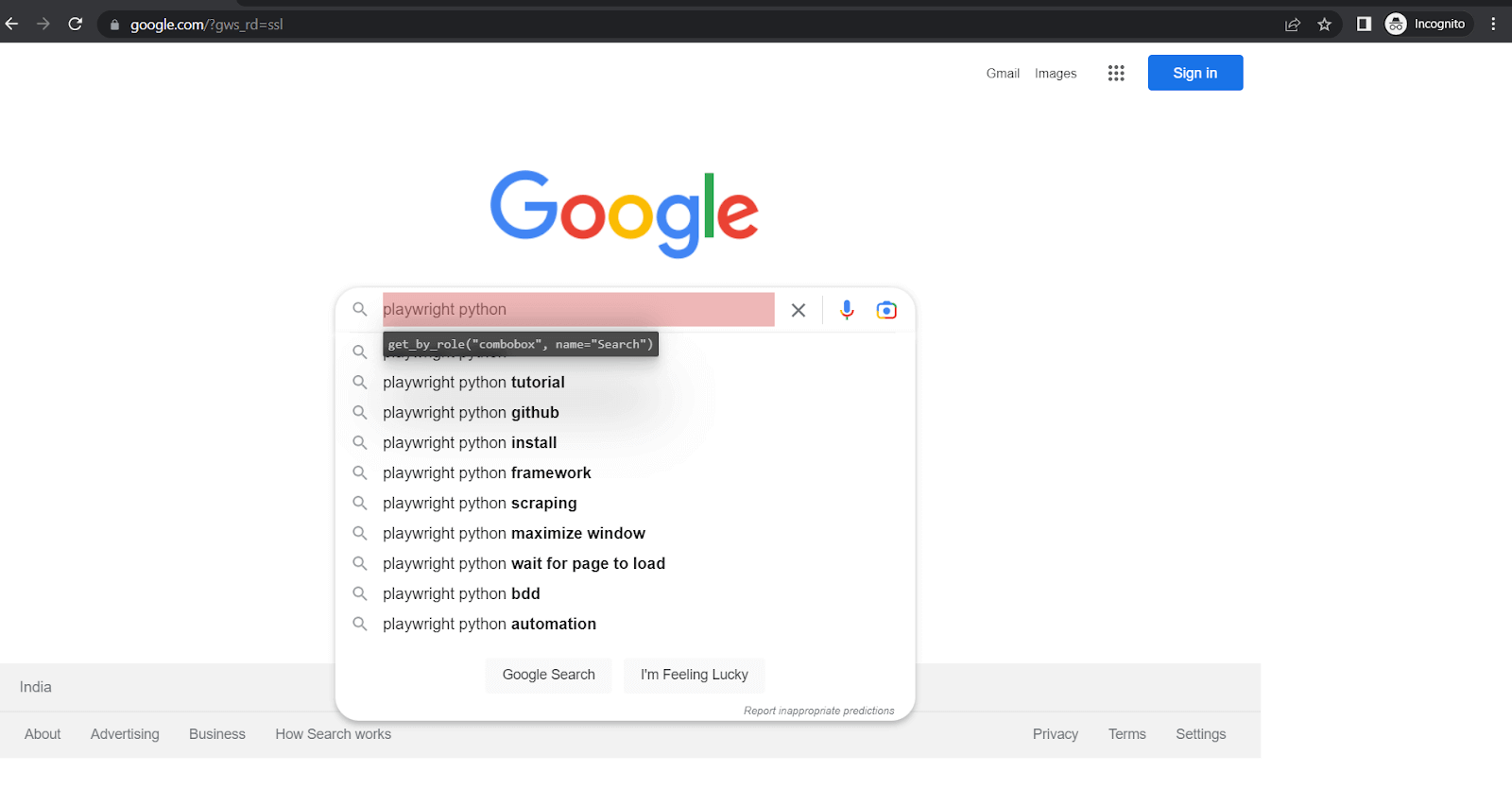
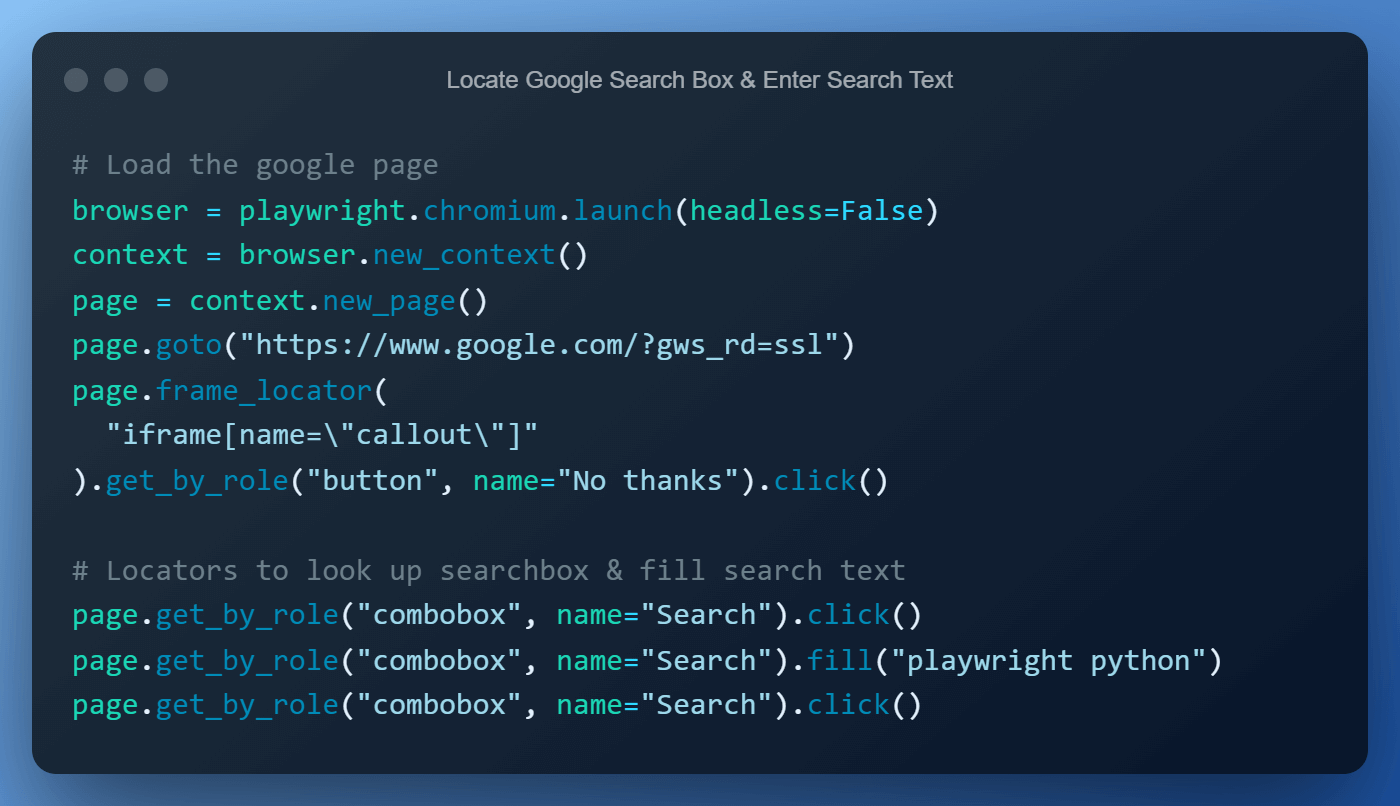
Key Features of Playwright Locators
- PrecisionLocators allow you to specify exactly which element you want to interact with on a web page. This can be useful when there are multiple elements on the page with similar attributes or characteristics. You can use a locator to select a specific element rather than just the first one that matches the criteria.
- FlexibilityPlaywright provides several different types of locators, including CSS Selectors, XPath, and text content, so you can choose the one that best suits your needs. This allows you to tailor your locators to the specific structure and content of the web page you are working with.
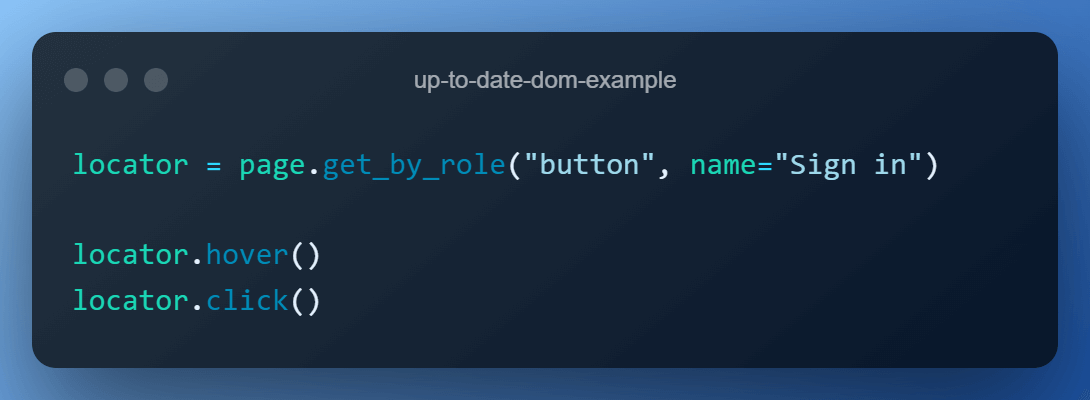
- Up-to-date DOM ElementsEvery time a locator is used for an action, an up-to-date DOM element is located on the page. If the DOM changes between the calls due to re-render, the new element corresponding to the locator will be used.
In the below example snippet, the button element will be located twice: once for the hover() action and once for the click() action to ensure we always have the latest data. This feature is available out of the box without needing additional code.
Note: In Playwright, waits are unnecessary because it automatically waits for elements to be available before interacting with them. This means you do not have to manually add delays or sleep in your test code to wait for elements to load.
Additionally, Playwright includes many built-in retry mechanisms that make it more resilient to flaky tests. For example, if an element is not found on the page, Playwright will automatically retry for a certain amount before giving up and throwing an error. This can help to reduce the need for explicit waits in your tests.
You can learn more about it through this blog on types of waits.
- Support for multiple browsersPlaywright supports all modern rendering engines, including WebKit, Chromium, and Firefox, so you can use the same locators and code across different browsers.
- Test Mobile WebNative mobile emulation of Google Chrome for Android and Mobile Safari. The same rendering engine works locally or if you wish to choose so, in the Cloud.
The below table summarizes some built-in locators available as part of the Playwright
| Locator Name | Use Case |
|---|---|
| page.get_by_role() | locate by explicit and implicit accessibility attributes |
| page.get_by_text() | locate by text content |
| page.get_by_label() | locate a form control by associated label’s text |
| page.get_by_placeholder() | locate an input by placeholder |
| page.get_by_alt_text() | locate an element, usually image, by its text alternative |
| page.get_by_title() | locate an element by its title attribute |
| page.get_by_test_id() | to locate an element based on its data-testid attribute (other attributes can be configured) |
Playwright Setup & Installation
When programming in Python it’s a de-facto approach to have a separate virtual environment for each project. This helps us manage dependencies better without disturbing our base Python installation.
Virtual Environment & Playwright Installation
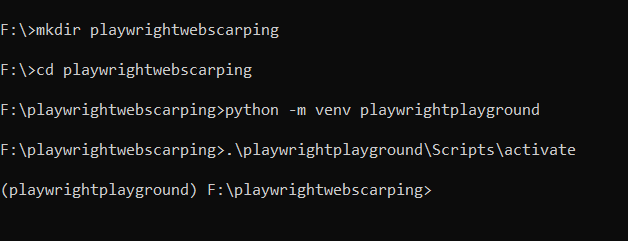
- Create a dedicated folder for the project called playwrightwebscraping. (This step is not mandatory but is good practice).
- Next, using Python’s built-in venv module, let’s create a virtual environment named playwrightplayground and activate it by calling the activate script.
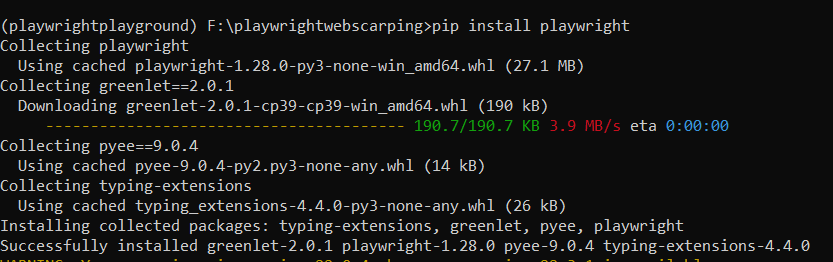
- Lastly, install the Playwright module from the Python package index PyPi using the command pip install playwright.
Downloading Browsers for Playwright
After completing the installation of the Playwright Python package, we need to download & install browser binaries for Playwright to work with.
By default, Playwright will download binaries for Chromium, WebKit & Firefox from Microsoft CDN, but this behavior is configurable. The available configurations are as below.
- Skip Downloads of Browser BinariesSkip the download of binaries altogether in case testing needs to be performed on a cloud-based grid rather than locally. In such cases, we may not need the browsers downloaded on local systems. This can be done by setting the environment variable PLAYWRIGHT_SKIP_BROWSER_DOWNLOAD.
PLAYWRIGHT_SKIP_BROWSER_DOWNLOAD=1 python -m playwright install
- Downloads of Browser Binaries from Different RepositoriesAs a good practice and for security reasons, organizations may not allow connections to Microsoft CDN repositories, which Playwright downloads the browsers from. In such cases, the environment variable PLAYWRIGHT_DOWNLOAD_HOST can be set to supply a link to a different repository.
PLAYWRIGHT_DOWNLOAD_HOST=
- Downloads of Browser Binaries Via ProxyMost organizations route requests to the internet via a Proxy for better security. In such cases, Playwright browser download can be done by setting the HTTPS_PROXY environment variable before installation.
HTTPS_PROXY=
- Downloads of Single Browser BinaryDownload only a single browser binary depending on your needs is also possible, in which case the install commands needed should be supplied with the browser name, for example, playwright install firefox
To keep things simple we install all browsers by using the command playwright install. This step can be skipped entirely if you run your code on cloud Playwright Grid, but we will look at both scenarios, i.e., using Playwright for web scraping locally and on a provided by TestMu AI.
Setup Playwright Project in Visual Studio Code
If you have Visual Studio Code(VS Code) already installed the easiest way to start it up is to navigate to the newly created project folder and type code.

This is how the VS Code will look when it opens. We now need to select the interpreter, i.e., the Python installation, from our newly created virtual environment.
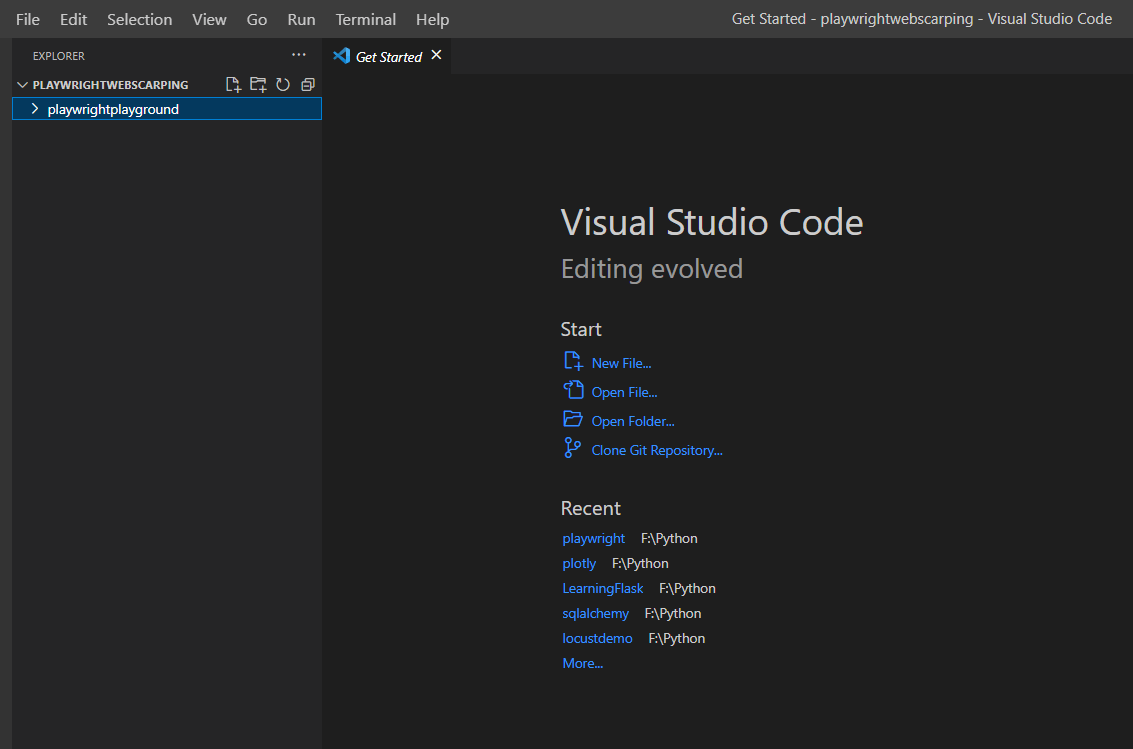
Press Ctrl + Shift + P to open up the command palette in VS Code and type Python: Select Interpreter and click it.
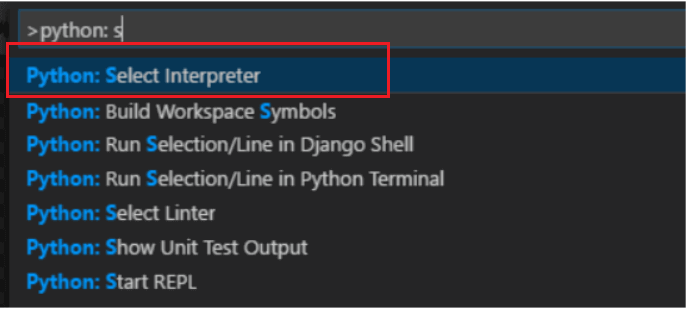
VS Code will automatically detect the virtual environment we created earlier and recommend it at the top, select it. If VS Code does not auto-detect, click on the ‘Enter interpreter path..’ and navigate to playwrightplayground > Scripts > Python and select it.

You can verify the virtual environment by pressing the ctrl + (tilt), which will open up the VS Code terminal & activate the virtual environment. An active environment is indicated by its name before the path within round brackets.
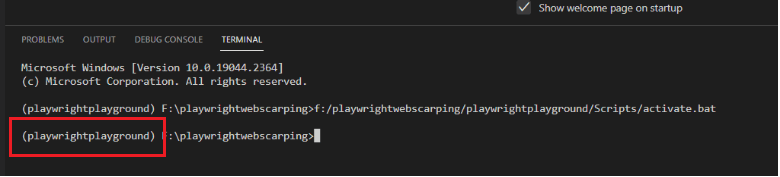
With the setup and installation out of the way, we are now ready to use Playwright for web scraping with Python.
Demonstration: Using Playwright for Web Scraping with Python
For demonstration, I will be scraping information from two different websites. I will be using the XPath locator in the second scenario. This will help you in choosing the best-suited locator for automating the tests.
So, let’s get started…
Test Scenario 1: Web Scraping E-Commerce Website
In the first demo, we are going to scrape a demo E-Commerce website provided by TestMu AI for the following data:
- Product Name
- Product Price
- Product Image URL
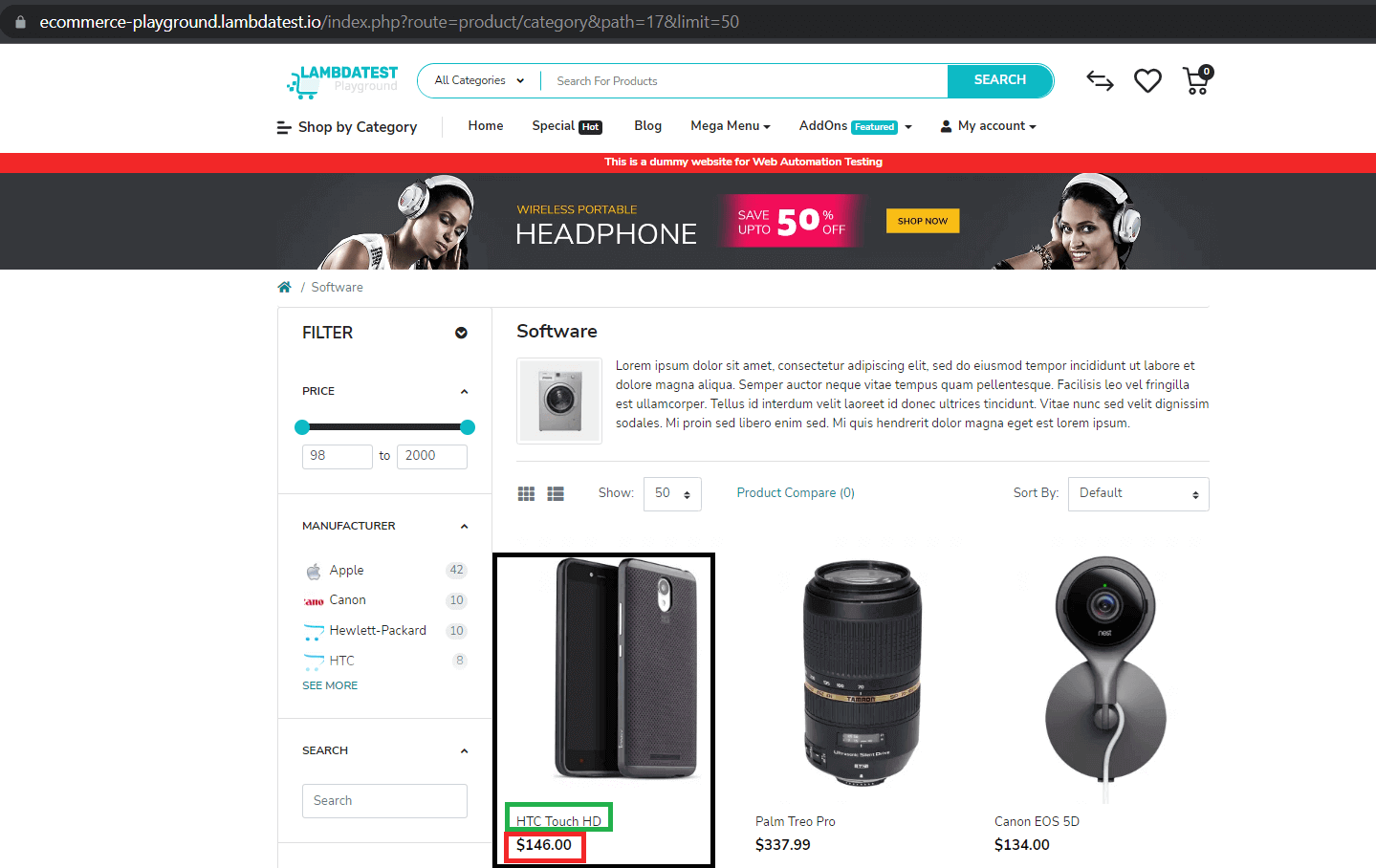
Here is the Playwright for web scraping scenario that will be executed on Chrome on Windows 10 using Playwright Version 1.28.0. We will run the Playwright test on cloud testing platforms like TestMu AI.
By utilizing TestMu AI, you can significantly reduce the time required to run your Playwright Python tests by leveraging an online browser farm that includes more than 50 different browser versions, including Chrome, Chromium, Microsoft Edge, Mozilla Firefox, and Webkit.
You can also subscribe to the TestMu AI YouTube Channel and stay updated with the latest tutorial around Playwright browser testing, Cypress E2E testing, Mobile App Testing, and more.
However, the core logic remains unchanged even if the web scraping has to be done using a local machine/grid.
Test Scenario:
- Go to https://ecommerce-playground.lambdatest.io/.
- Click on ‘Shop by Category’ & select ‘Software’.
- Adjust the ‘Show’ filter to display 75 results.
- Scrape the product name, price & image URL.
Version Check:
When writing this blog on using Playwright for web scraping, the version of Playwright is 1.28.0, and the version of Python is 3.9.12. The code is fully tested and working on these versions.
Implementation:
You can clone the repo by clicking on the button below.

import json
import logging
import os
import subprocess
import sys
import time
import urllib
from logging import getLogger

from dotenv import load_dotenv
from playwright.sync_api import sync_playwright

# setup basic logging for our project which will display the time, log level & log message
logger = getLogger("webscapper.py")
logging.basicConfig(
    stream=sys.stdout,  # uncomment this line to redirect output to console
    format="%(message)s",
    level=logging.DEBUG,
)

# LambdaTest username & access key are stored in an env file & we fetch it from there using python dotenv module
load_dotenv("sample.env")

capabilities = {
    "browserName": "Chrome",  # Browsers allowed: `Chrome`, `MicrosoftEdge`, `pw-chromium`, `pw-firefox` and `pw-webkit`
    "browserVersion": "latest",
    "LT:Options": {
        "platform": "Windows 10",
        "build": "E Commerce Scrape Build",
        "name": "Scrape Lambda Software Product",
        "user": os.getenv("LT_USERNAME"),
        "accessKey": os.getenv("LT_ACCESS_KEY"),
        "network": False,
        "video": True,
        "console": True,
        "tunnel": False,  # Add tunnel configuration if testing locally hosted webpage
        "tunnelName": "",  # Optional
        "geoLocation": "",  # country code can be fetched from https://www.lambdatest.com/capabilities-generator/
    },
}


def main():
    with sync_playwright() as playwright:
        playwright_version = (
            str(subprocess.getoutput("playwright --version")).strip().split(" ")[1]
        )
        capabilities["LT:Options"]["playwrightClientVersion"] = playwright_version
        lt_cdp_url = (
            "wss://cdp.lambdatest.com/playwright?capabilities="
            + urllib.parse.quote(json.dumps(capabilities))
        )
        logger.info(f"Initiating connection to cloud playwright grid")
        browser = playwright.chromium.connect(lt_cdp_url)
        # comment above line & uncomment below line to test on local grid
        # browser = playwright.chromium.launch(headless=False)
        page = browser.new_page()
        try:
            # section to navigate to software category
            page.goto("https://ecommerce-playground.lambdatest.io/")
            page.get_by_role("button", name="Shop by Category").click()
            page.get_by_role("link", name="Software").click()
            page_to_be_scrapped = page.get_by_role(
                "combobox", name="Show:"
            ).select_option(
                "https://ecommerce-playground.lambdatest.io/index.php?route=product/category&path=17&limit=75"
            )
            page.goto(page_to_be_scrapped[0])

            # Since image are lazy-loaded scroll to bottom of page
            # the range is dynamically decided based on the number of items i.e. we take the range from limit
            # https://ecommerce-playground.lambdatest.io/index.php?route=product/category&path=17&limit=75
            for i in range(int(page_to_be_scrapped[0].split("=")[-1])):
                page.mouse.wheel(0, 300)
                i += 1
                time.sleep(0.1)
            # Construct locators to identify name, price & image
            base_product_row_locator = page.locator("#entry_212408").locator(".row").locator(".product-grid")
            product_name = base_product_row_locator.get_by_role("heading")
            product_price = base_product_row_locator.locator(".price-new")
            product_image = (
                base_product_row_locator.locator(".carousel-inner")
                .locator(".active")
                .get_by_role("img")
            )
            total_products = base_product_row_locator.count()
            for product in range(total_products):
                logger.info(
                    f"
**** PRODUCT {product+1} ****
"
                    f"Product Name = {product_name.nth(product).all_inner_texts()[0]}
"
                    f"Price = {product_price.nth(product).all_inner_texts()[0]}
"
                    f"Image = {product_image.nth(product).get_attribute('src')}
"
                )
            status = 'status'
            remark = 'Scraping Completed'
            page.evaluate("_ => {}","lambdatest_action: {"action": "setTestStatus", "arguments": {"status":"" + status + "", "remark": "" + remark + ""}}")
        except Exception as ex:
            logger.error(str(ex))


if __name__ == "__main__":
    main()
Code Walkthrough:
Let’s now do a step-by-step walkthrough to understand the code.
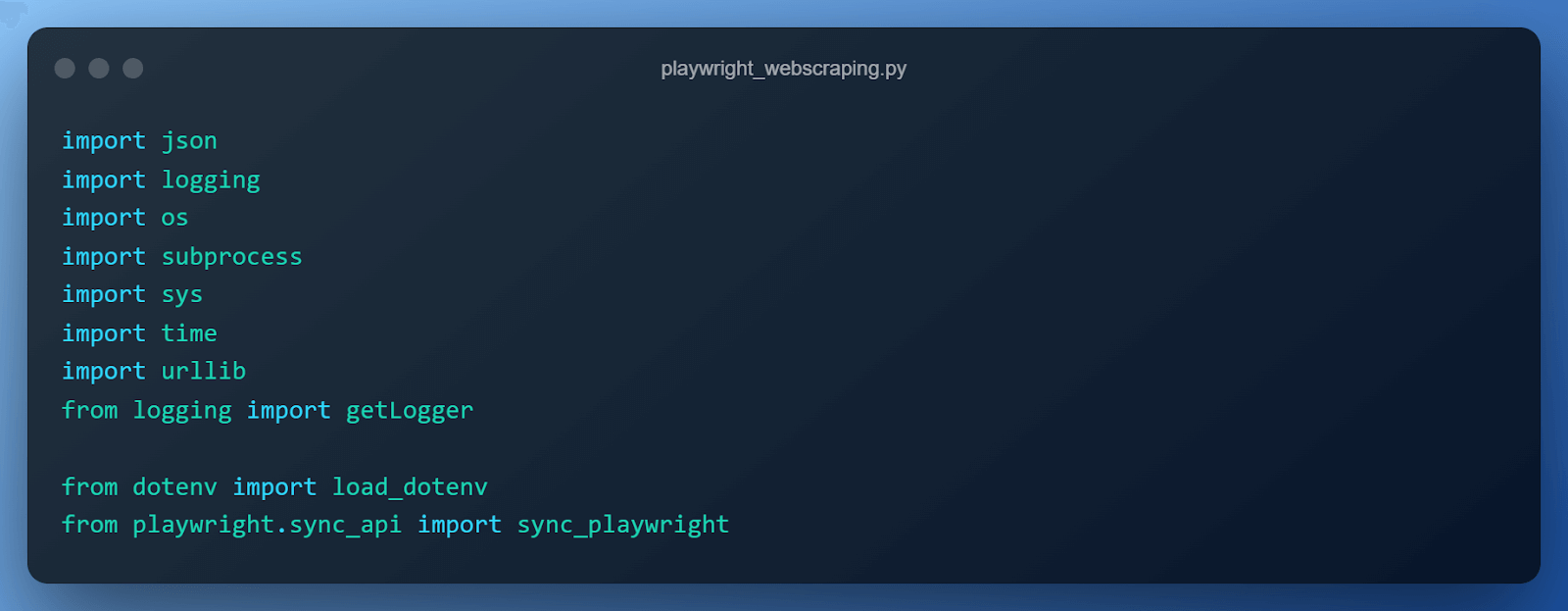
Step 1 – Setting up imports
The most noteworthy imports are
from dotenv import load_dotenv
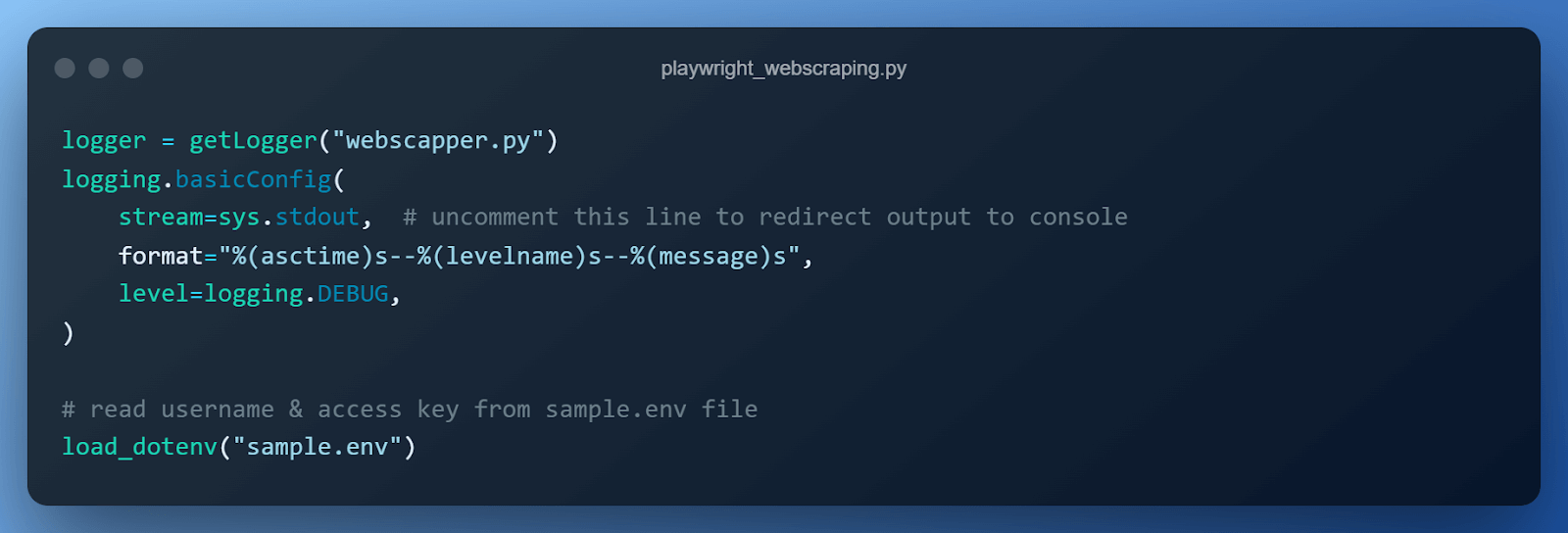
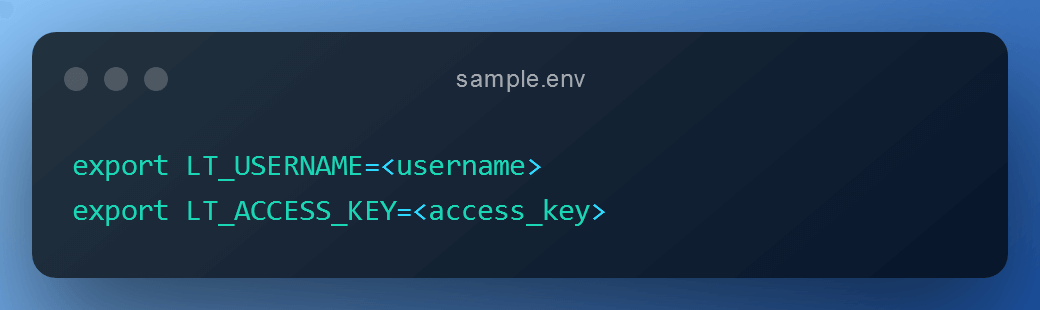
The reason for using the load_dotenv library is that it reads key-value pairs from a .env file(in our case sample.env) and can set them as environment variables automatically. In our case, we use it to read the access key & username from a sample.env required to access the cloud-based Playwright Grid.
It saves the trouble of setting environment variables manually & hence the same code can seamlessly be tested on different environments without any manual intervention.
from playwright.sync_api import sync_playwright
Playwright provides both sync & async API to interact with web apps, but for this blog on using Playwright for web scraping, we are going to use the sync_api, which is simply a wrapper around the asyncio_api that abstracts away the need to implement async functionality.
For more complicated scenarios where there is a need for fine-grained control when dealing with specific scenarios on websites built using modern web frameworks, we can choose to use the async_api.
For most use cases, the sync_api should suffice, but it’s a bonus that the async_api does exist and can be leveraged when needed.
Step 2 – Setting up logging & reading username & access key
In the next step, we set up logging to see the execution of our code & also print out the product name, price & link to image. Logging is the recommended practice and should be preferred to print() statements almost always. The load_dotenv(“sample.env”) reads the username & access key required to access our cloud-based Playwright grid. The username and access key are available on the TestMu AI Profile Page.
Step 3 – Setting up desired browser capabilities
We set up the browser capabilities required by the cloud-based Playwright automated testing grid in a Python dictionary. Let us understand what each line of this configuration means.
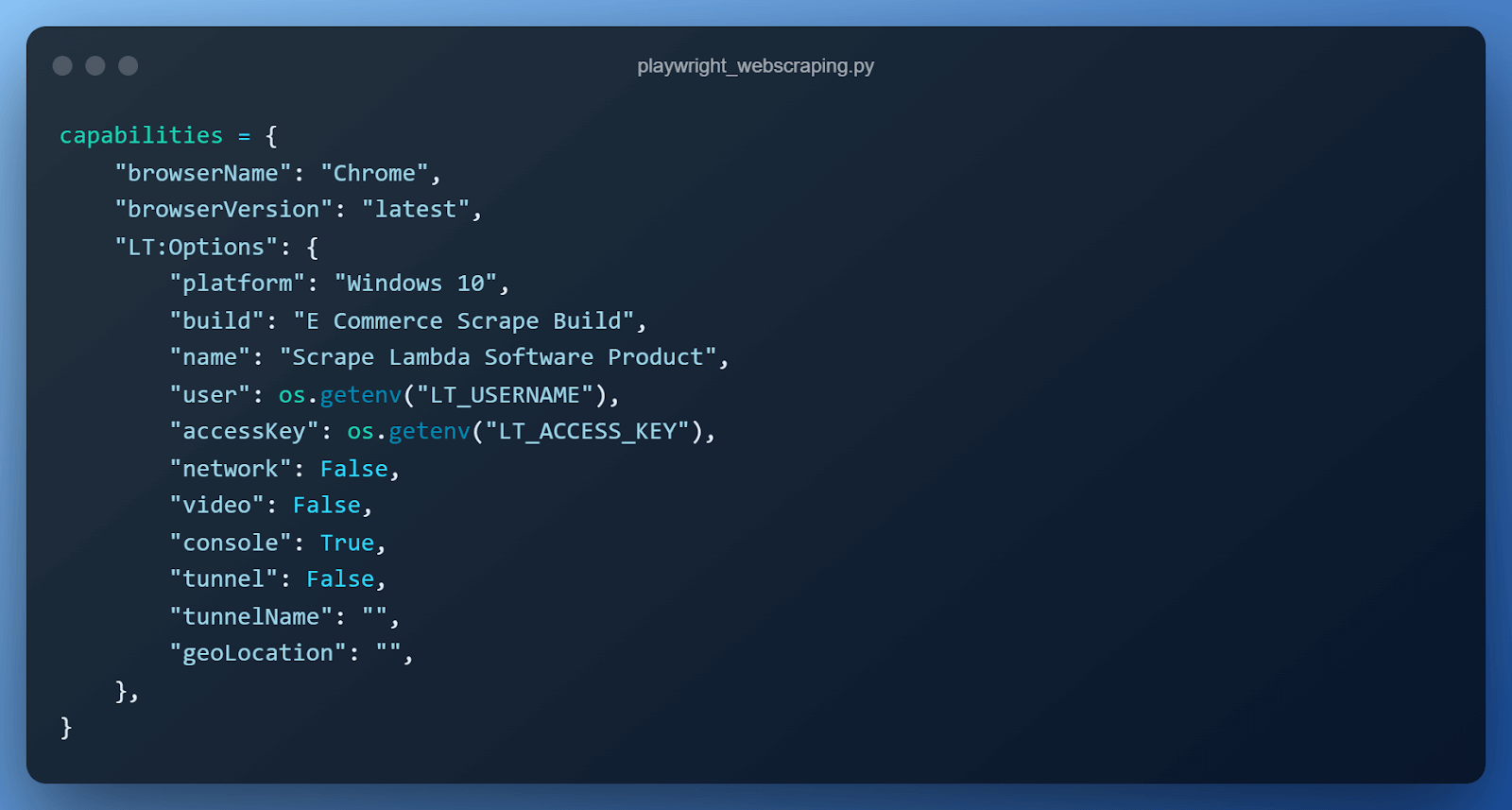
- browserName is used to specify the browser the test/code should run on. All modern browsers, such as Chrome, Firefox, Microsoft Edge & WebKit.
- browserVersion is used to specify the version of the browser.
- platform is used to specify the operating system the test should run on such as Windows, macOS, or Linux.
- build is used to specify the name under which the tests will be grouped.
- name is used to specify the name of the test.
- user & access key are our credentials to connect to the cloud Playwright grid.
- network is used to specify whether the cloud Playwright grid should capture network logs.
- video is used to specify if the cloud Playwright grid should capture video of the entire test execution.
- tunnel & tunnelName are used to specify tunnel details in case the website we use isn’t publicly hosted over the internet.
Step 4 – Initializing browser context & connecting to cloud Playwright Grid
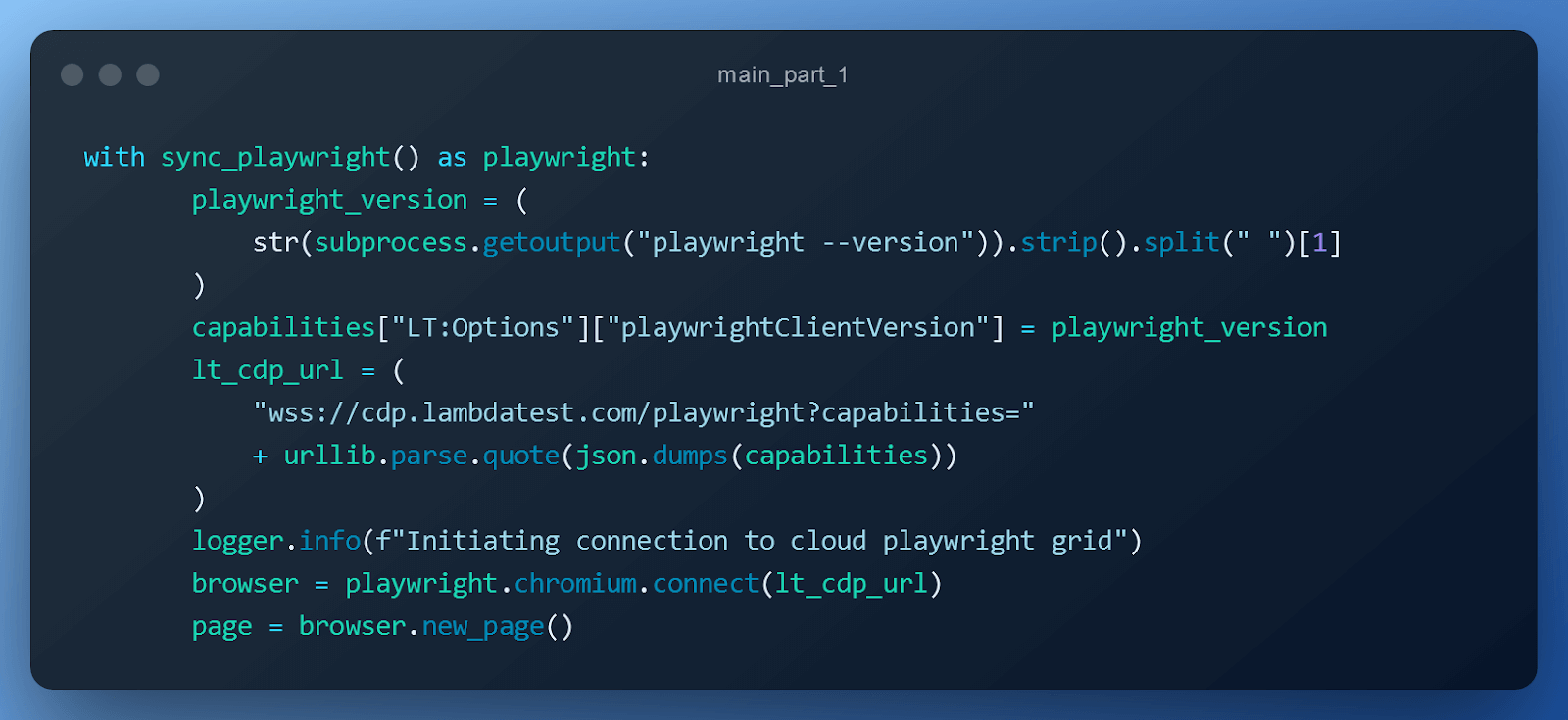
- Create a ContextManager for the sync_playwright() function provided by Playwright.
- Use Python’s built-in subprocess module to run the playwright –version command to extract the Playwright version.
- Add playwright_version to the config dictionary of our cloud Playwright grid.
- Prepare the WebSocket URL for our cloud Playwright grid so that we can leverage their infrastructure to run the script.
- Use the standard connect method, which uses the Playwright’s built-in browser server to handle the connection. This is a faster and more fully-featured method since it supports most Playwright parameters (such as using a proxy if working behind a firewall).
- Create a page in the browser context.
Step 5 – Open the website to scrape.
Open the website to scrape using the page context.
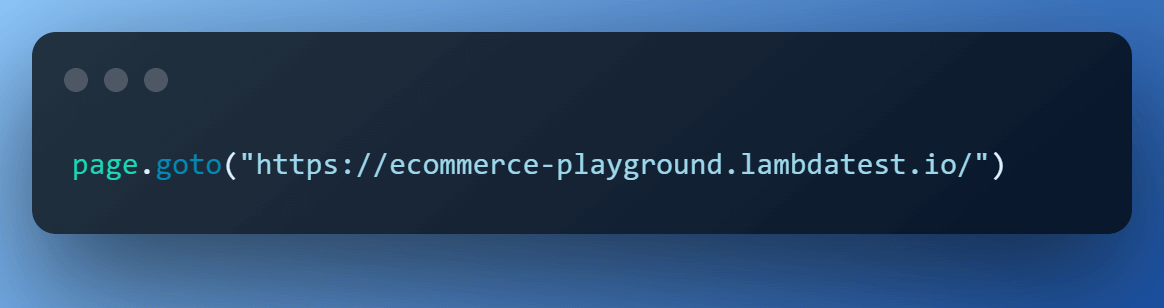
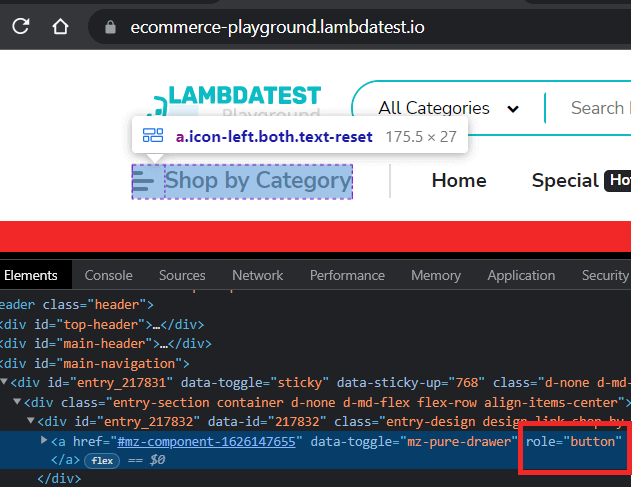
Step 6 – Click on ‘Shop by Category’.
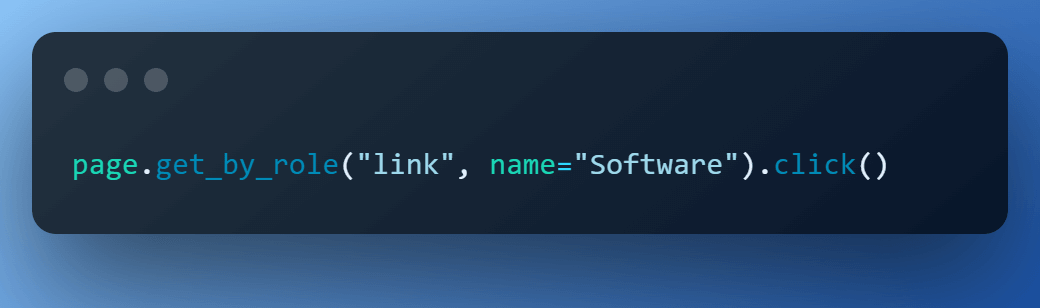
‘Shop By Category’ is a link with the ‘button’ role assigned to it. Hence, we use Playwright‘s get_by_role() locator to navigate to it & perform the click() action.
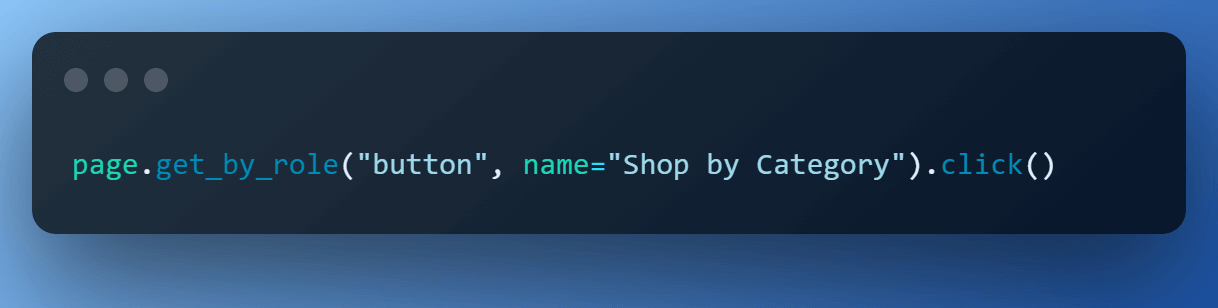
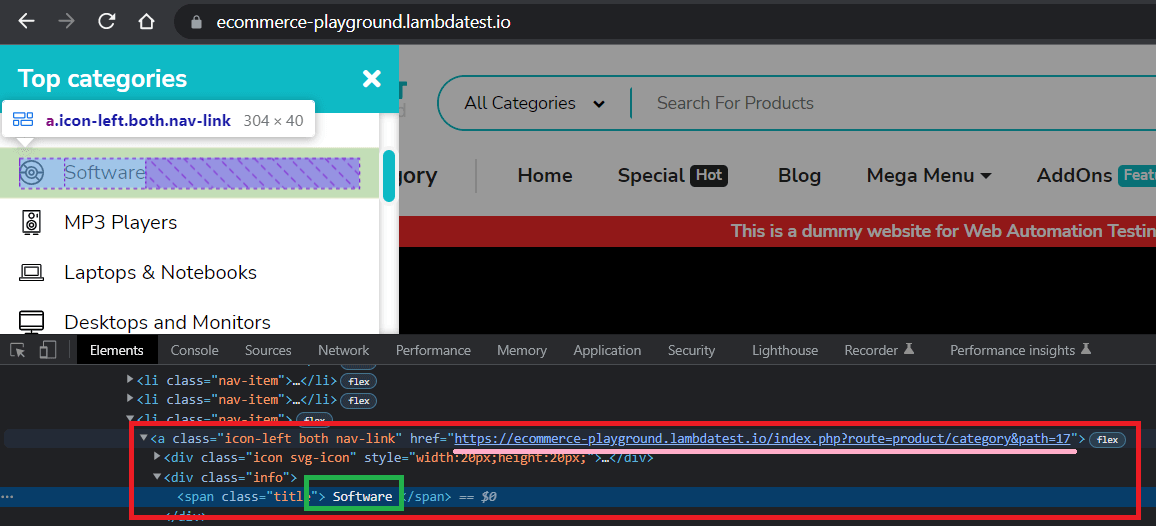
Step 7 – Click on the ‘Software’.
Inspection of the ‘Software’ element shows that it’s a ‘link’ with name in a span. So, we use the built-in locator get_by_role() again and perform click() action.
Step 8 – Adjust the product drop down to get more products.
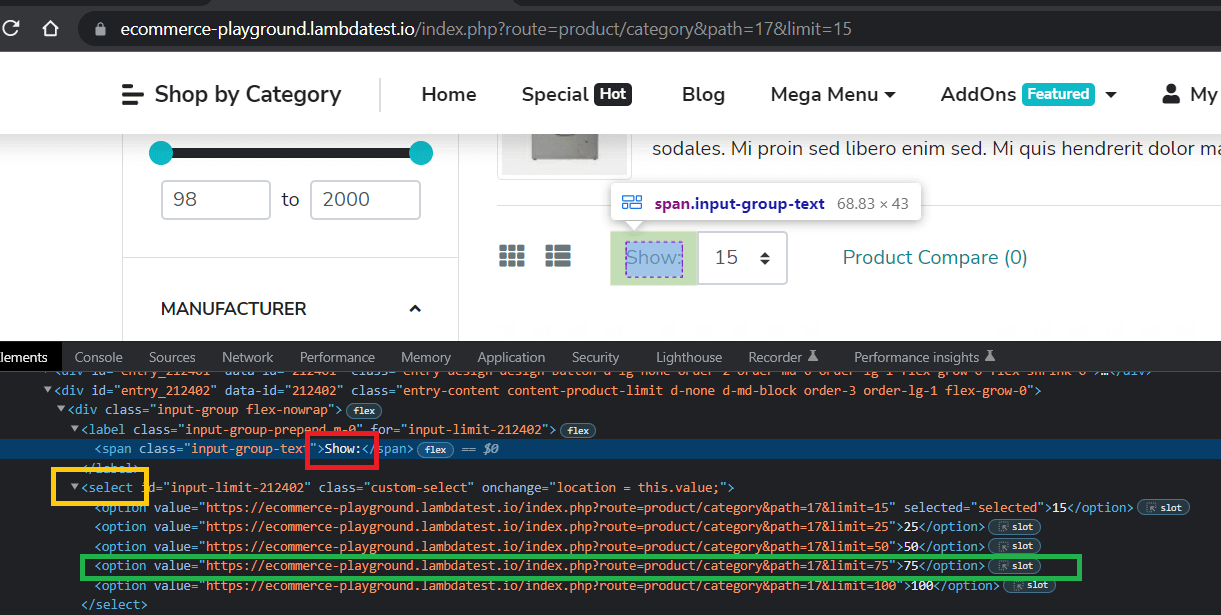
By default, the ‘Software’ page displays 15 items, we can easily change it to 75, which is nothing but a link to the same page with a different limit. Get that link and call the page.goto() method.

Step 9 – Loading Images.
The images on the website are lazy-loaded, i.e., only loaded as we bring them into focus or simply scroll down to them. To learn more about it, you can go through this blog on a complete guide to lazy load images. We use Playwright’s mouse wheel function to simulate a mouse scroll.
Step 10 – Preparing base locator.
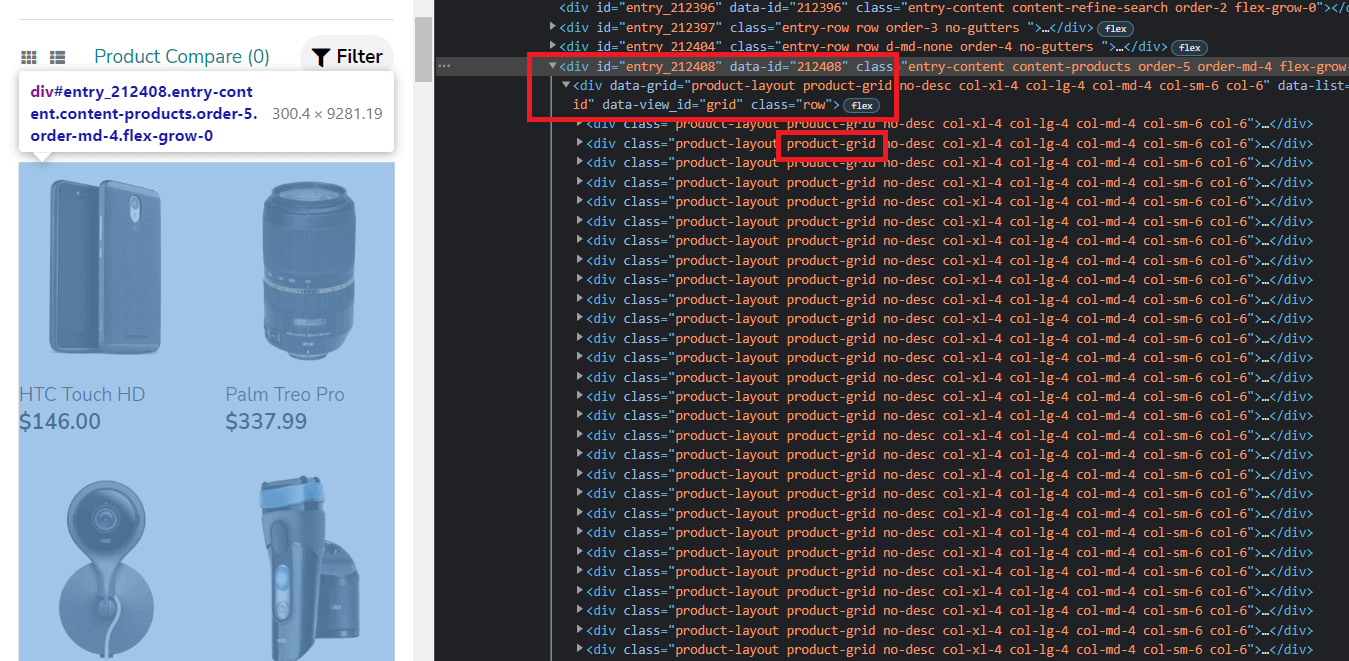
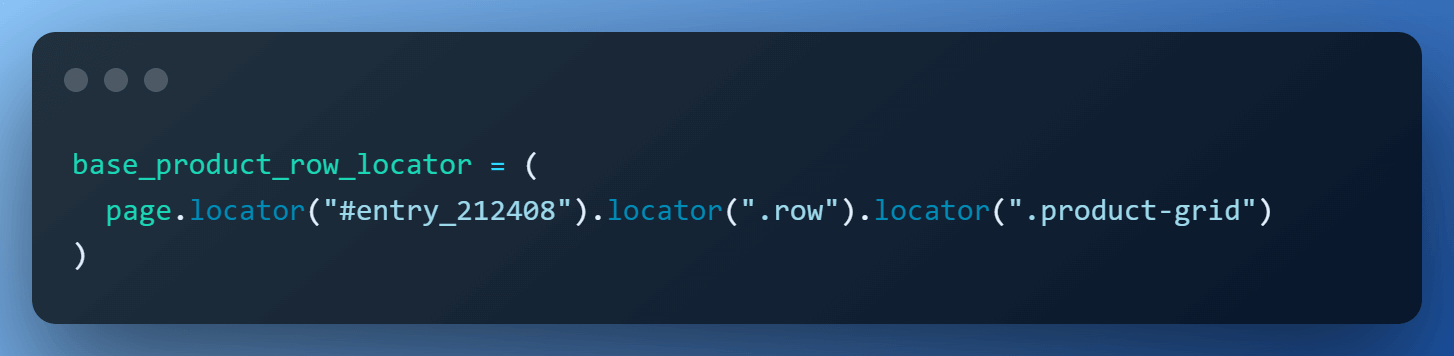
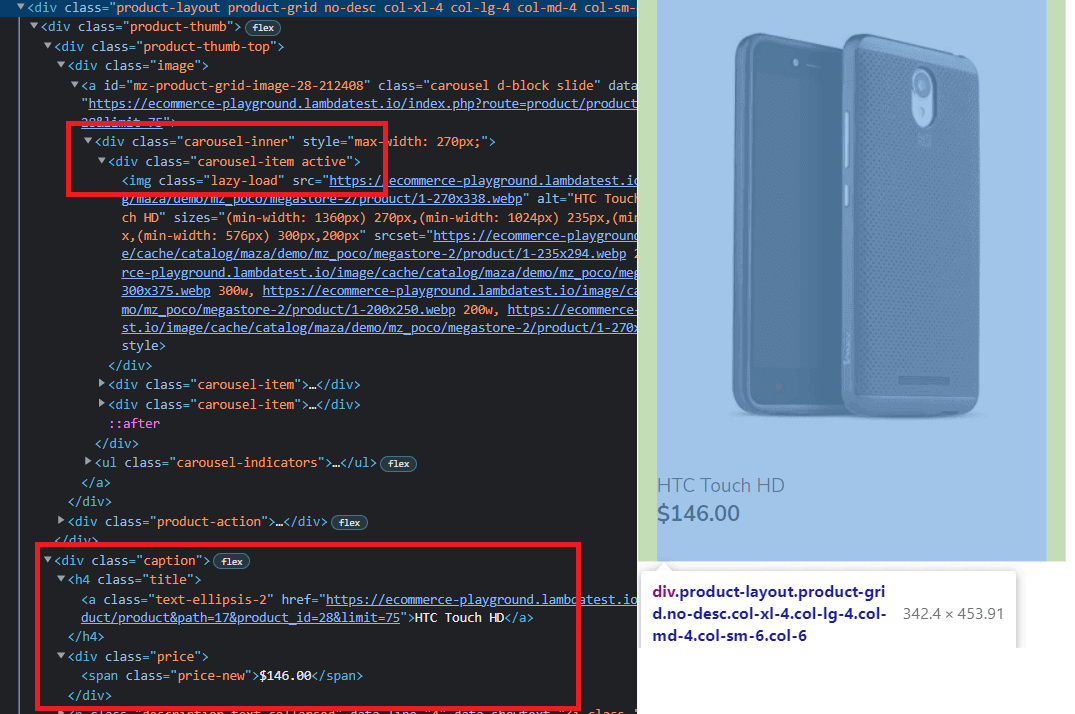
Notice that all the products are contained within two divs with id=entry_212408 and class=row. Each product then has a class=product-grid. We use this knowledge to form our base locator.
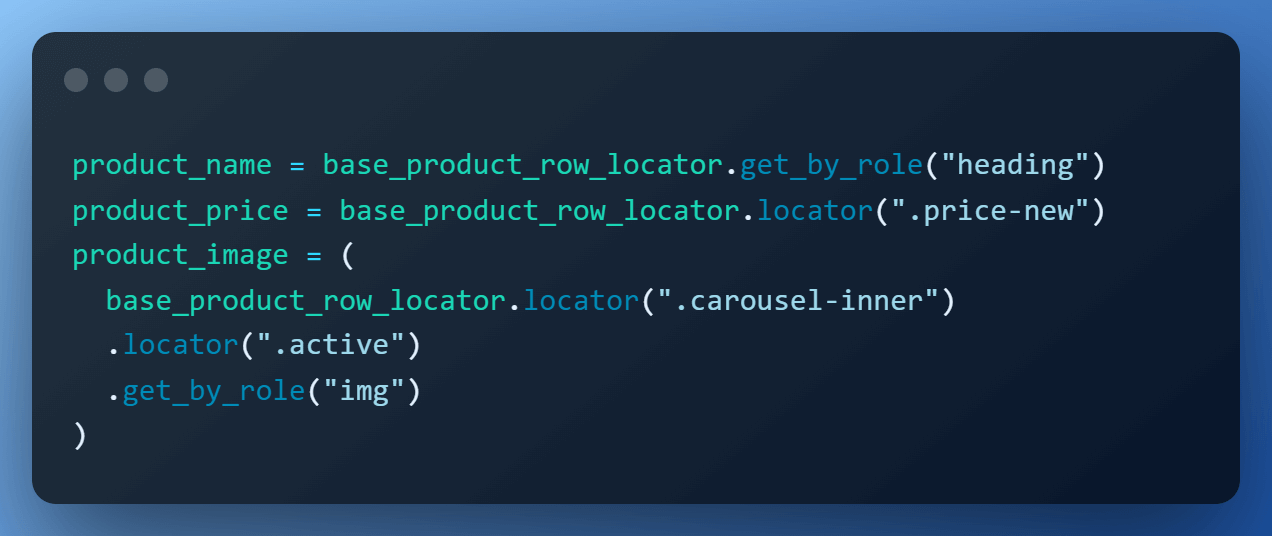
The base locator will then be used to find elements, such as name, price & image.
Step 11 – Locating product name, price & image.
With respect to the base locator, the location of other elements becomes easy to capture.
- Product Name is contained within an h4 tag.
- Product Price is contained in a div with class=price-new.
- Image is present in class=carousel-inner active.
Step 12 – Scraping the data.
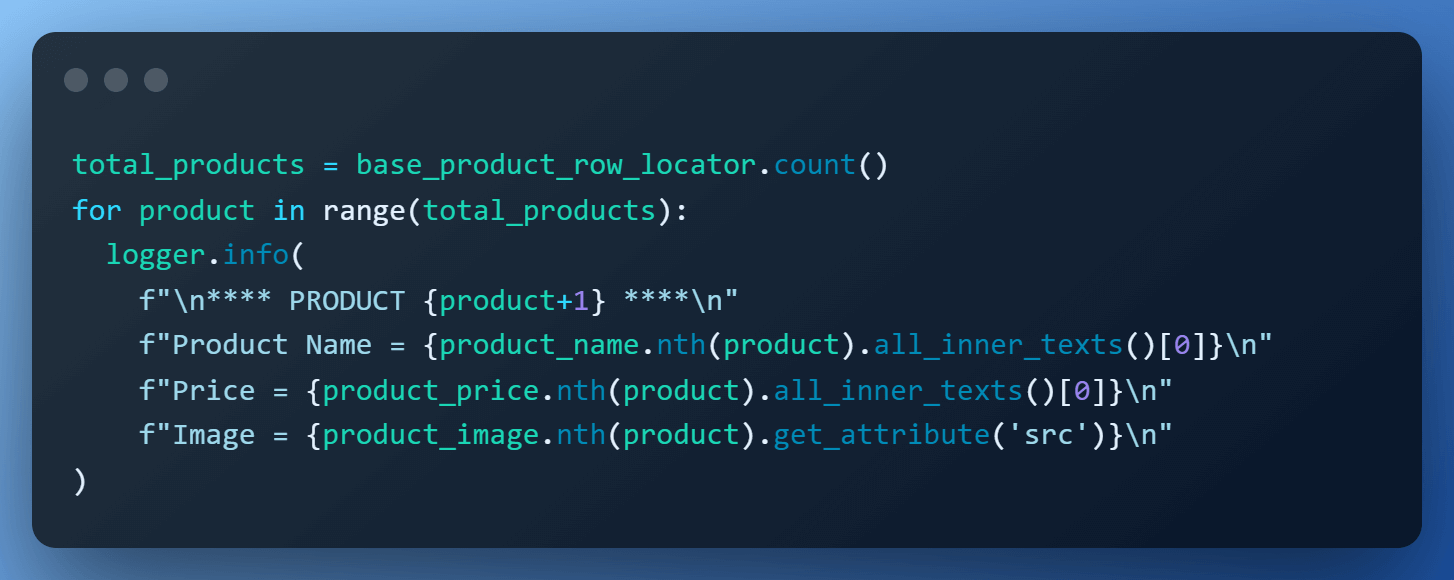
Now that we have all the elements located, we simply iterate over the total products & scrape them one by one using the nth() method.
The total number of products is obtained by calling the count() method on base_product_row_locator. For product name & price, we fetch text using the all_inner_texts(), and image URL is retrieved using the get_attribute(‘src’) element handle.
Execution:
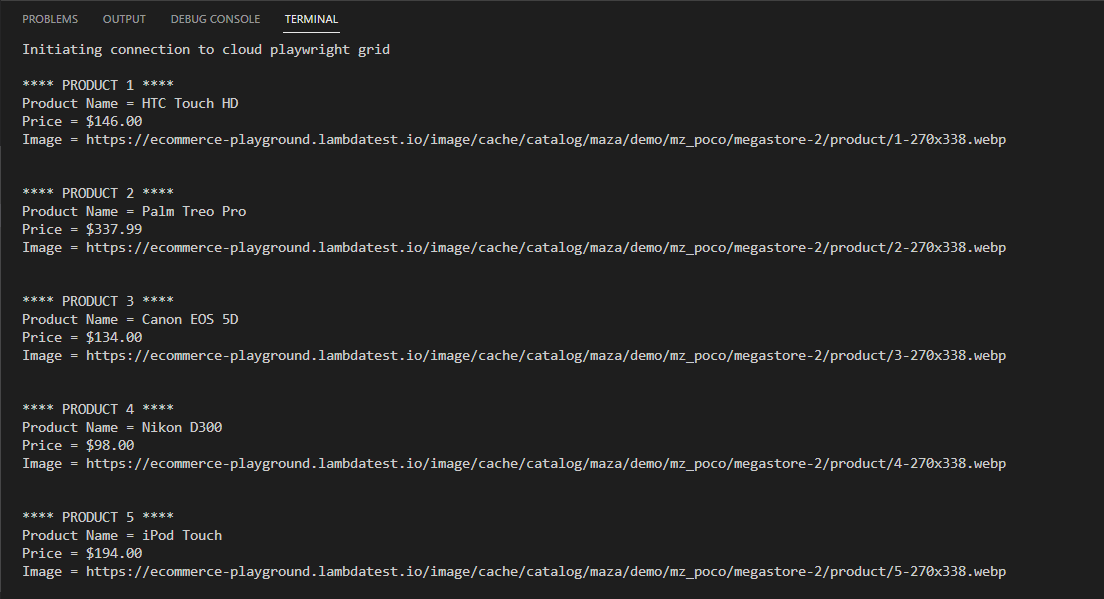
Et voilà! Here is the truncated execution snapshot from the VS Code, which shows data of the first 5 products.
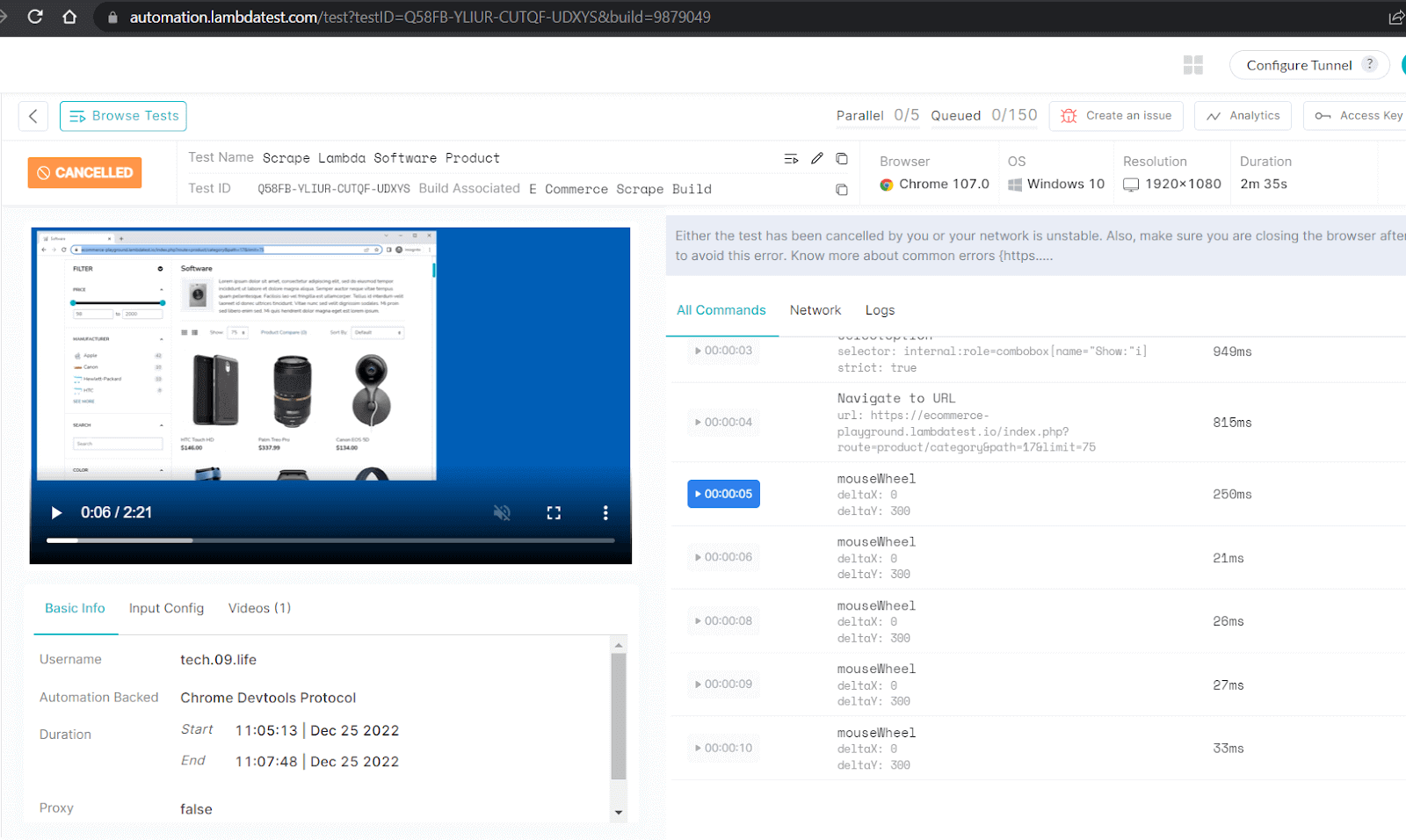
Here is a snapshot from the TestMu AI dashboard, which shows all the detailed execution, video capture & logs of the entire process.

Test Scenario 2: Web Scraping Selenium Playground
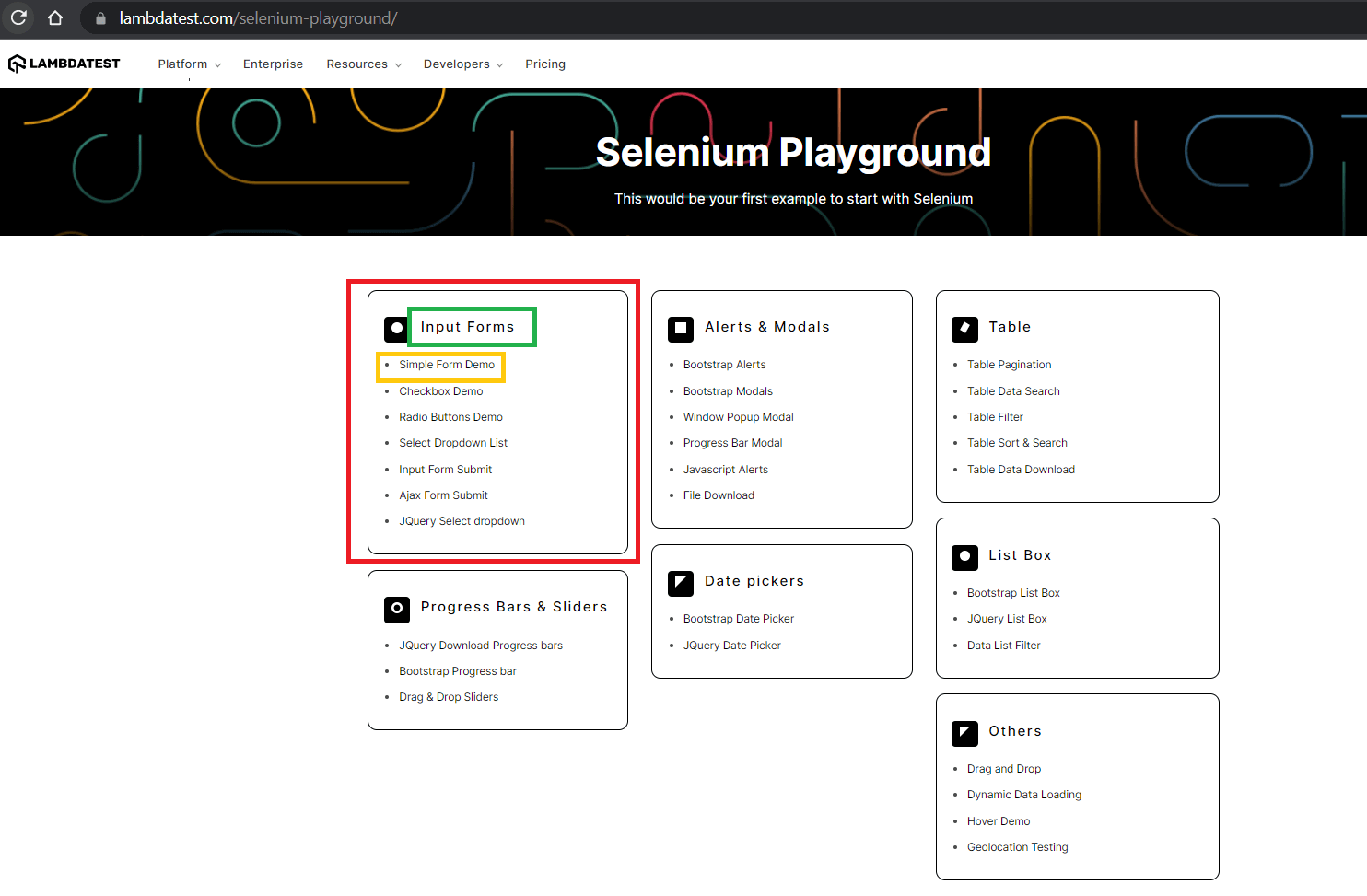
Let’s take another example where I will be scraping information from the TestMu AI Selenium Playground. In this demonstration, we scrape the following data from the TestMu AI Selenium Playground:
- Heading of section
- Name of individual demo
- Link to individual demo
One important change we are going to make in this demo to show the versatility of Playwright for web scraping using Python is
- Use of ‘XPath’ in combination with locators to find elements.
Here is the scenario for using Playwright for web scraping, which will be executed on Chrome on Windows 10 using Playwright Version 1.28.0.
Test Scenario:
- Go to ‘https://www.lambdatest.com/selenium-playground/’
- Scrape the product heading, demo name & link of demo.
- Print the scraped data.
Version Check:
At the time of writing this blog on using Playwright for web scraping, the version of Playwright is 1.28.0, and the version of Python is 3.9.12.
The code is fully tested and working on these versions.
Implementation:
Clone the Playwright Python WebScraping Demo GitHub repository to follow the steps mentioned further in the blog on using Playwright for web scraping.
import json
import logging
import os
import subprocess
import sys
import time
import urllib
from logging import getLogger

from dotenv import load_dotenv
from playwright.sync_api import sync_playwright

logger = getLogger("seleniumplaygroundscrapper.py")
logging.basicConfig(
    stream=sys.stdout,
    format="%(message)s",
    level=logging.DEBUG,
)

# Read LambdaTest username & access key from env file
load_dotenv("sample.env")

capabilities = {
    "browserName": "Chrome",
    "browserVersion": "latest",
    "LT:Options": {
        "platform": "Windows 10",
        "build": "Selenium Playground Scraping",
        "name": "Scrape LambdaTest Selenium Playground",
        "user": os.getenv("LT_USERNAME"),
        "accessKey": os.getenv("LT_ACCESS_KEY"),
        "network": False,
        "video": True,
        "console": True,
        "tunnel": False,
        "tunnelName": "",
        "geoLocation": "",
    },
}


def main():
    with sync_playwright() as playwright:
        playwright_version = (
            str(subprocess.getoutput("playwright --version")).strip().split(" ")[1]
        )
        capabilities["LT:Options"]["playwrightClientVersion"] = playwright_version
        lt_cdp_url = (
            "wss://cdp.lambdatest.com/playwright?capabilities="
            + urllib.parse.quote(json.dumps(capabilities))
        )
        logger.info(f"Initiating connection to cloud playwright grid")
        browser = playwright.chromium.connect(lt_cdp_url)
        # comment above line & uncomment below line to test on local grid
        # browser = playwright.chromium.launch()
        page = browser.new_page()
        try:
            page.goto("https://www.lambdatest.com/selenium-playground/")
            # Construct base locator section
            base_container_locator = page.locator("//*[@id='__next']/div/section[2]/div/div/div")
            for item in range(1, base_container_locator.count()+1):
                # Find section, demo name & demo link with respect to base locator & print them
                locator_row = base_container_locator.locator(f"//div[{item}]")
                for inner_item in range(0, locator_row.count()):
                    logger.info(f"*-*-"*28)
                    logger.info(f'Section: {locator_row.nth(inner_item).locator("//h2").all_inner_texts()[0]}
')
                    for list_item in range(0,locator_row.nth(inner_item).locator("//ul/li").count()):
                        logger.info(f'Demo Name: {locator_row.nth(inner_item).locator("//ul/li").nth(list_item).all_inner_texts()[0]}')
                        logger.info(f'Demo Link: {locator_row.nth(inner_item).locator("//ul/li/a").nth(list_item).get_attribute("href")}
')
            status = 'status'
            remark = 'Scraping Completed'
            page.evaluate("_ => {}","lambdatest_action: {"action": "setTestStatus", "arguments": {"status":"" + status + "", "remark": "" + remark + ""}}")

        except Exception as ex:
            logger.error(str(ex))


if __name__ == "__main__":
    main()
Code Walkthrough:
Let’s now do a step-by-step walkthrough to understand the code.
Step 1 – Step 4
Include the imports, logging, cloud Playwright testing grid & browser context setup that remain the same as the previous demonstration; hence, refer to them above.
Step 5 – Open the TestMu AI Selenium Playground Website
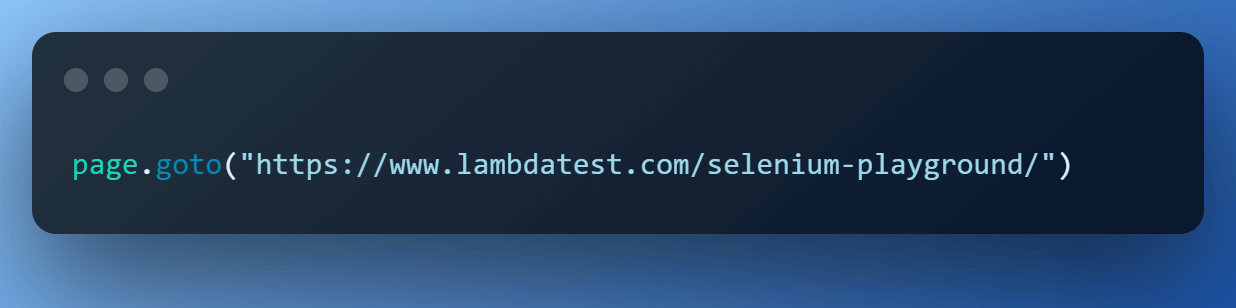
Use the page created in the browser context to open the TestMu AI Selenium Playground website, which we will scrape.
Step 6 – Construct the base locator
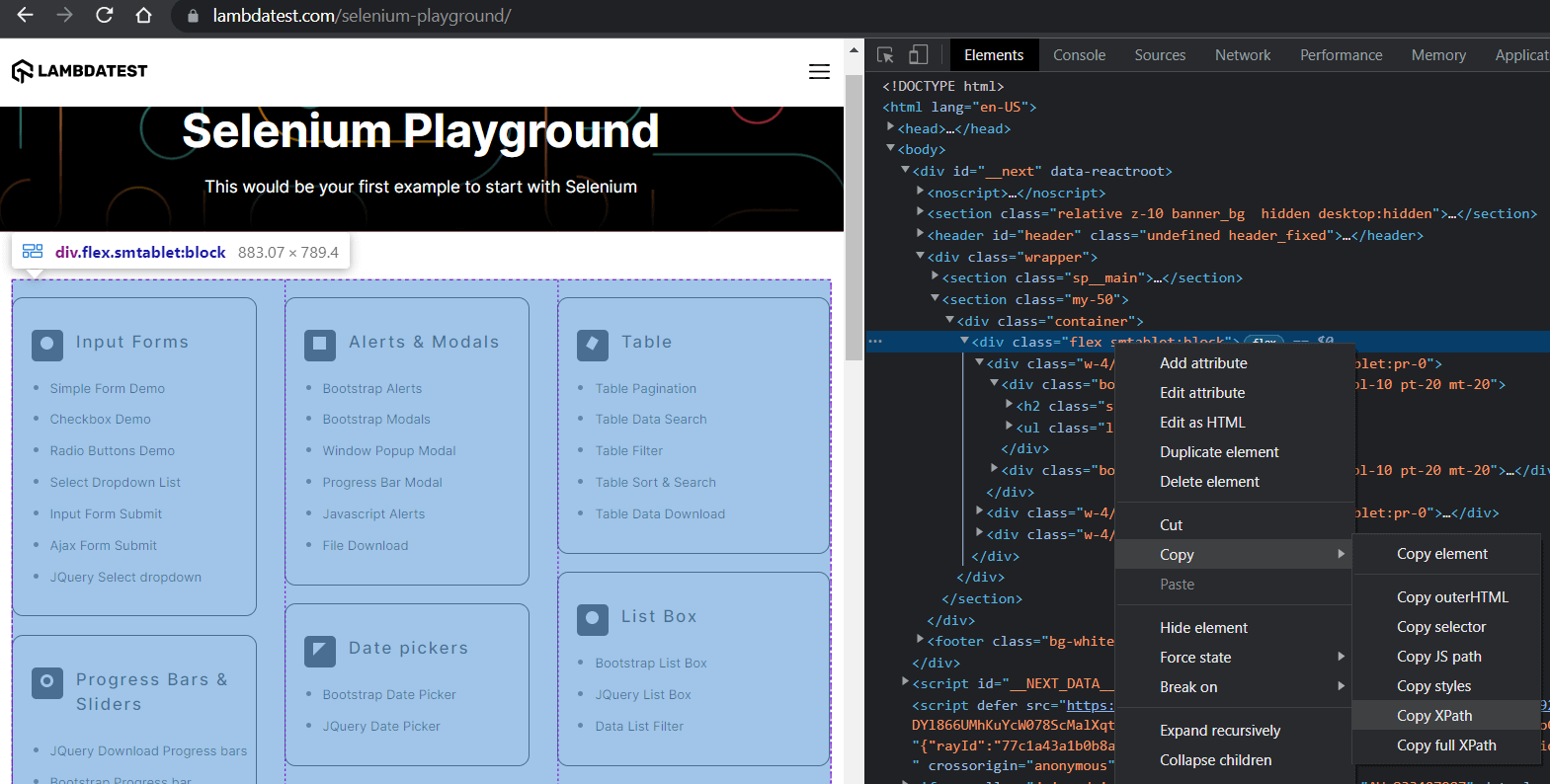
Inspecting the website in Chrome Developer Tools, we see that there is a master container that holds all the sub-blocks. We will use this to construct our base locator by copying the XPath.

Step 7 – Locate the section, demo name, and demo link
We repeat the inspection using Chrome Developer Tools, and it’s easy to spot that data is presented in 3 divs. Within each div, there are then separate sections for each item.
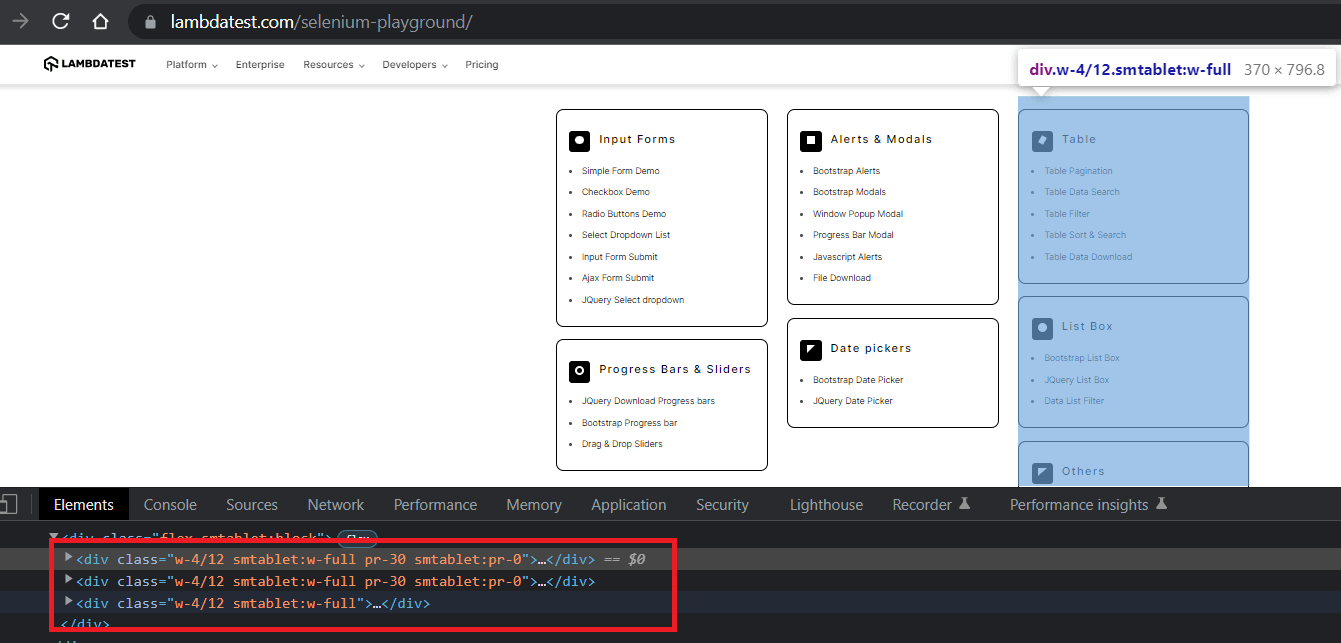
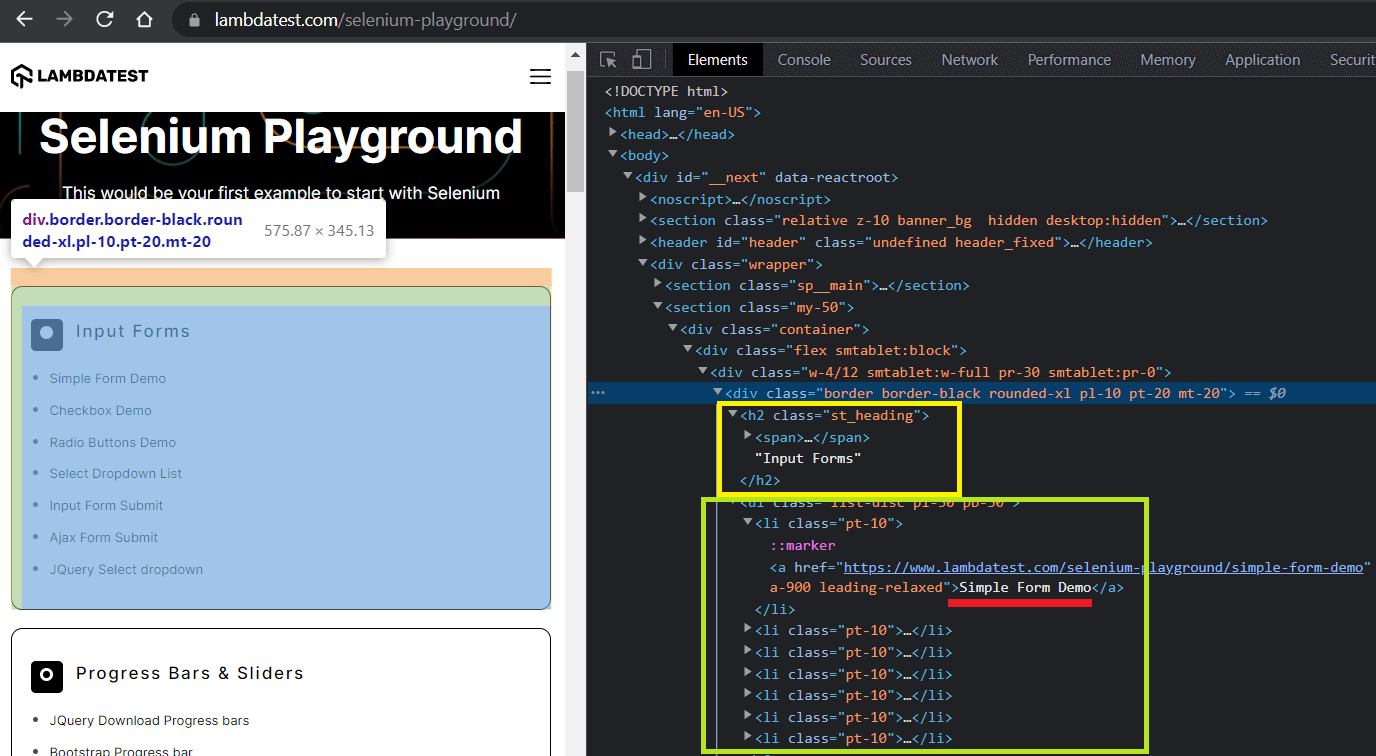
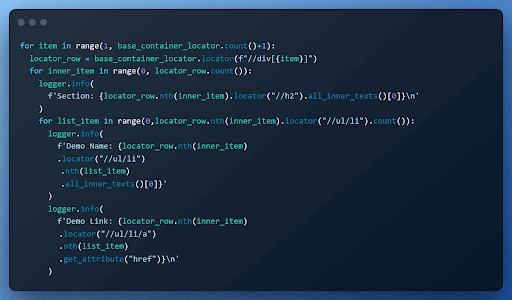
Based on the inspection, we iterate over the base locator and for each div
- get the heading using its relative XPath //h2.
- get the text from the link using Xpath //ul/li and all_inner_texts() method.
- get the link url using Xpath //ul/li/a and get_attribute(‘href’) element handle.
The outermost for loop iterates over the outer container, the inner for loop gets the section title & the innermost for loop is for iterating over the list.
Execution:
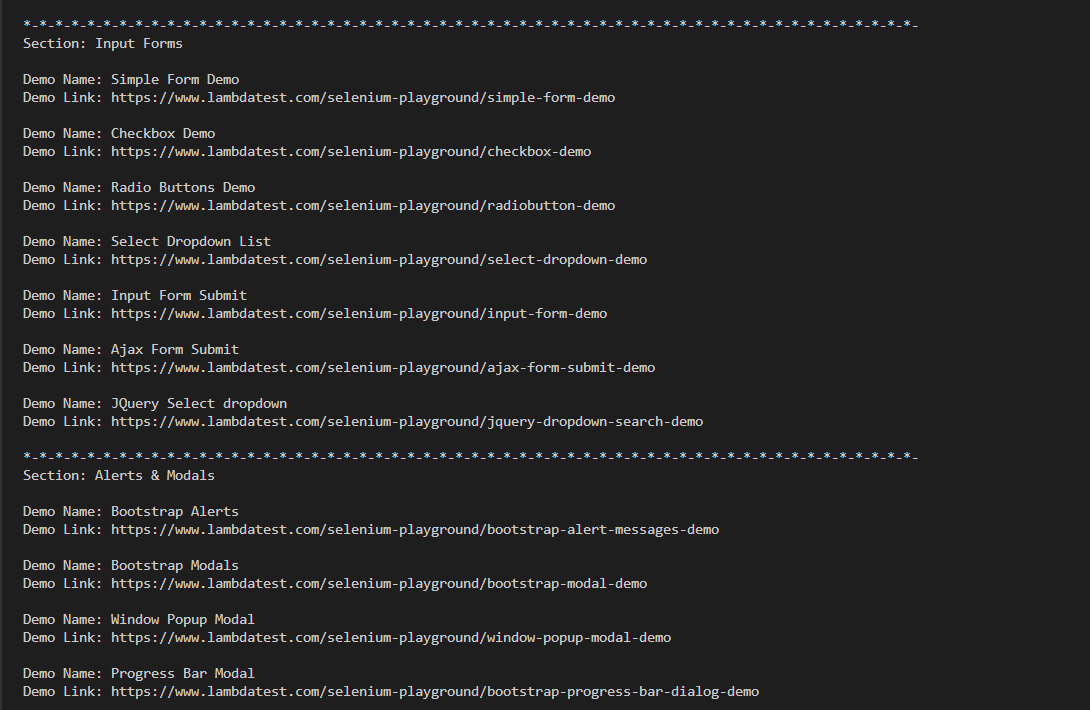
Hey presto !!! Here is the truncated execution snapshot from the VS Code. We now have a collection of tutorials to visit whenever we wish to.
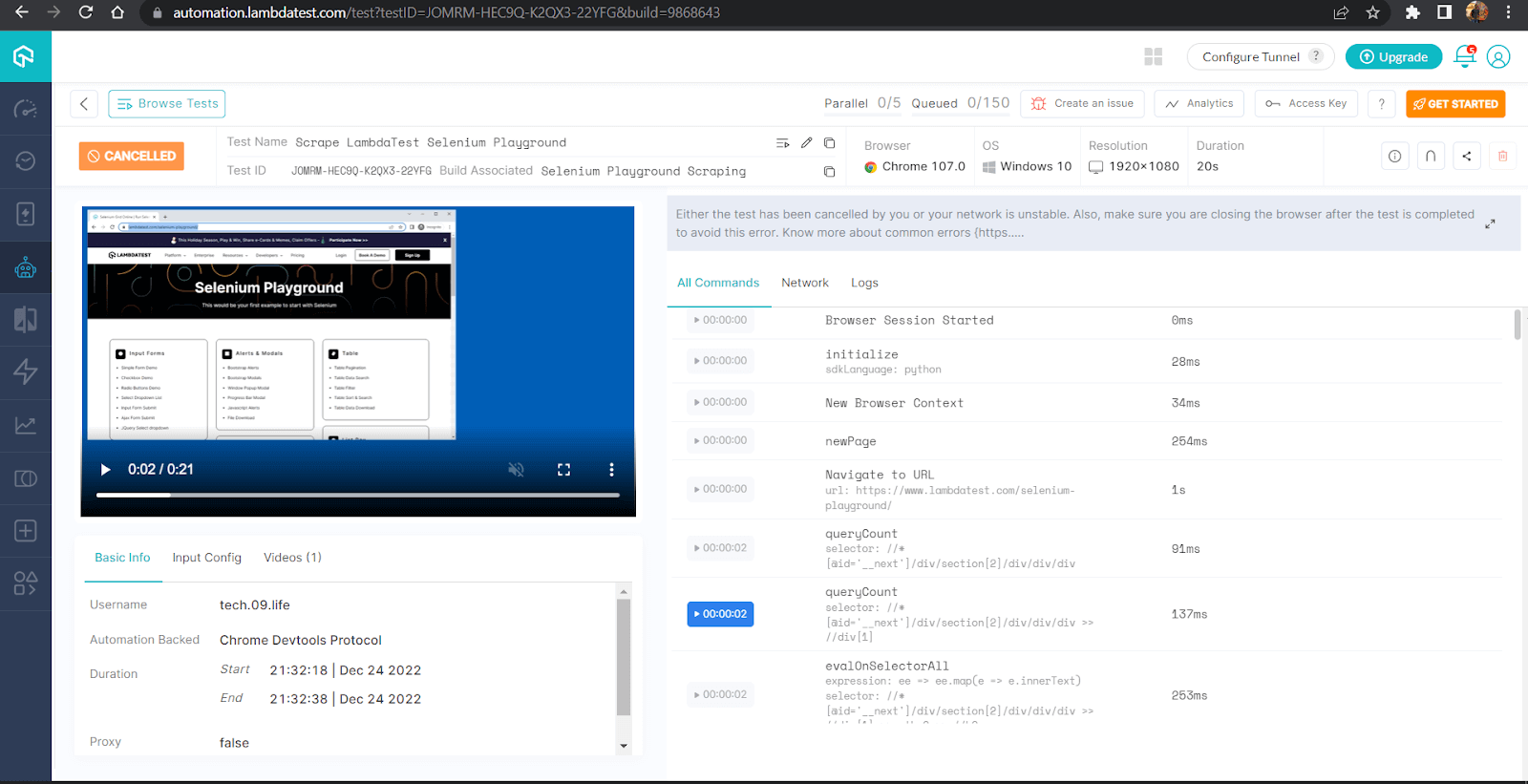
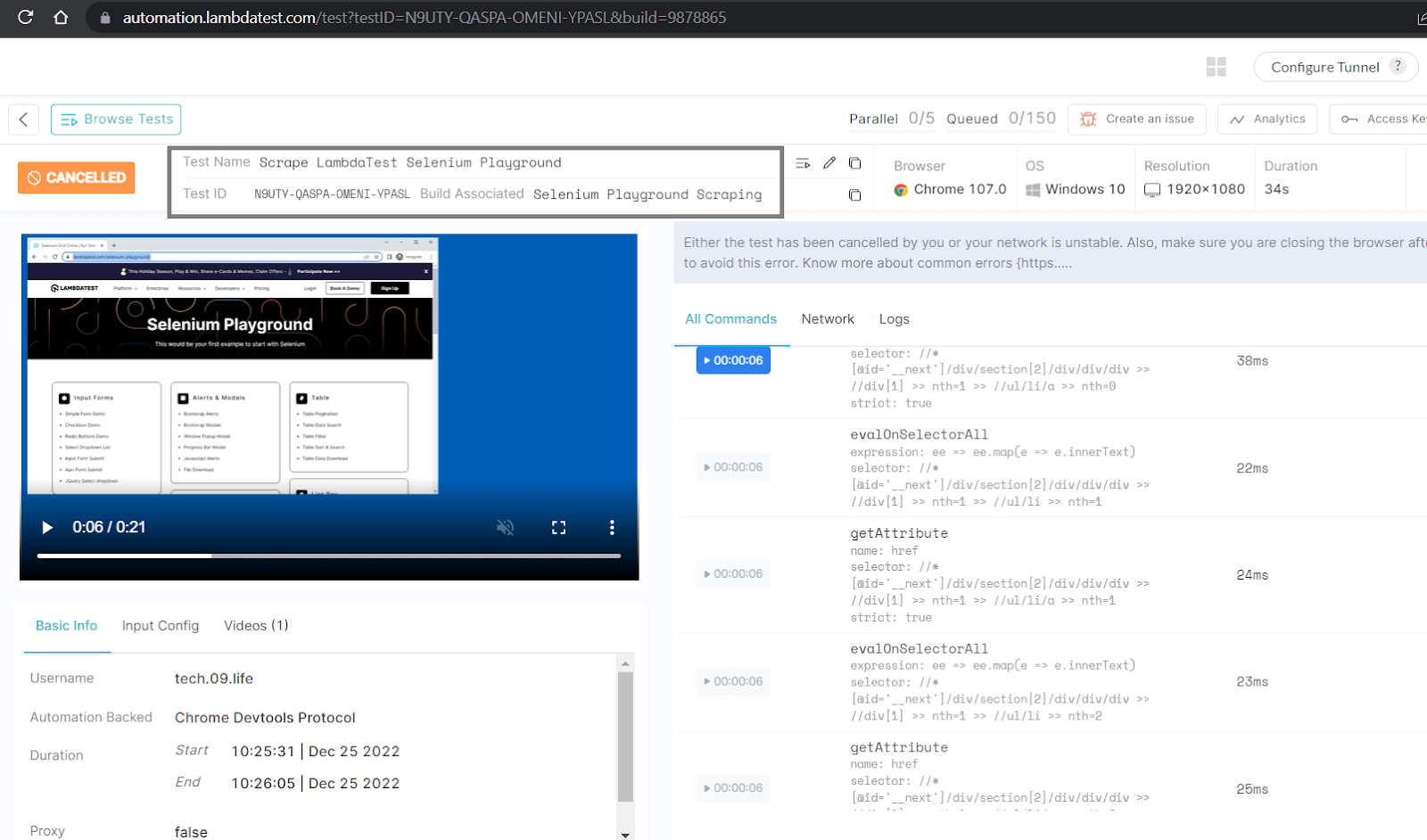
Here is a snapshot from the TestMu AI dashboard, which shows all the detailed execution along with video capture & logs of the entire process.

The Playwright 101 certification by TestMu AI is designed for developers who want to demonstrate their expertise in using Playwright for end-to-end testing of modern web applications. It is the ideal way to showcase your skills as a Playwright automation tester.
Conclusion
Python Playwright is a new but powerful tool for web scraping that allows developers to easily automate and control the behavior of web browsers. Its wide range of capabilities & ability to support different browsers, operating systems, and languages makes it a compelling choice for any browser related task.
In this blog on using Playwright for web scraping, we learned in detail how to set up Python and use it with Playwright for web scraping using its powerful built-in locators using both XPath & CSS Selectors.
It is well worth considering Python with Playwright for web scraping in your next scraping project, as it is a valuable addition to the web scraping toolkit.


Frequently asked questions
Did you find this page helpful?
More Related Hubs
TestMu AI forEnterprise
Get access to solutions built on Enterprise
grade security, privacy, & compliance
- Advanced access controls
- Advanced data retention rules
- Advanced Local Testing
- Premium Support options
- Early access to beta features
- Private Slack Channel
- Unlimited Manual Accessibility DevTools Tests