

Next-Gen App & Browser Testing Cloud
Trusted by 2 Mn+ QAs & Devs to accelerate their release cycles


On This Page
- What Is Cross Browser Testing?
- Why Choose Gauge For Cross Browser Testing Out Of Other Test Automation Frameworks?
- Is Gauge Framework Meant For BDD(Behaviour-Driven Development)?
- Installing & Setting Up Gauge For Your Operating System
- Using CLI To Get Started With Project Creation For Gauge
- Creating Your First Project Using Gauge For Test Automation
- Running First Automation Script Using Gauge Framework With Selenium Grid
- Cross Browser Testing with Parallel Execution using Gauge Framework
- Configuring Our Current Gauge Framework For Test Automation With TestMu AI

Gauge Framework – How to Perform Test Automation
Gauge is an open source test automation framework, ideal for cross browser testing. Learn how to use it with a Selenium grid. Find out more.

Bharadwaj Pendyala
March 2, 2026
Gauge is a free open source test automation framework released by creators of Selenium, ThoughtWorks. Test automation with Gauge framework is used to create readable and maintainable tests with languages of your choice. Users who are looking for integrating continuous testing pipeline into their CI-CD(Continuous Integration and Continuous Delivery) process for supporting faster release cycles. Gauge framework is gaining the popularity as a great test automation framework for performing cross browser testing.
This article would help you understand the benefits of using the Gauge framework for Selenium test automation, installing and running your first automation script for test automation with Gauge test automation framework. I will also show you how to use TestMu AI Selenium grid for executing your automation script for test automation with Gauge test automation framework to perform extensive, automated browser compatibility testing with Gauge on cloud. Here we go!
If you’re new to Selenium and wondering what it is then we recommend checking out our guide – What is Selenium?
What Is Cross Browser Testing?
Cross Browser Testing is the process to validate the quality of the web application across different browsers, browser versions running on numerous operating systems to verify compatibility and behaviour of an application under test.
The browser differences are induced due to rendering engines. Each browser version has a unique engine responsible for representing the web elements in a different manner.
We have a plethora of platforms, browser, browser versions to test. It would be strenuous and probable infeasible to have all the browsers installed in your local system as you perform test on them one by one. Also, you can’t go ahead having a device lab of your own. So how would you perform cross browser testing in detail?
TestMu AI – A Free Cross Browser Testing Cloud
TestMu AI is a scalable, cloud-based testing platform designed to help you perform browser compatibility testing across 3000+ browsers and browser versions executing on various OS.
TestMu AI can help you with live, interactive, manual cross browser testing as well as with the help of the Selenium grid supporting all the major programming languages, automation frameworks compatible with Selenium WebDriver and offers a plethora of browsers to test from.
In order to overcome the manual overhead and time consumed in testing automating the repetitive task would be delightful. And combining your automated tests with Parallel Execution would save a considerable amount of execution time.
Executing a huge number of tests in parallel locally could be a challenge due to resource constraints in terms of scalability. However, you can easily scale with cloud based, cross browser testing tools such as TestMu AI would help you to effortlessly perform parallel execution of your automation test scripts.
Why Choose Gauge For Cross Browser Testing Out Of Other Test Automation Frameworks?
Now, that we are aware of the basics regarding the Gauge framework and cross browser testing. Let me tell you why I prefer to perform test automation with Gauge test automation framework over other test automation frameworks.
- Wide range of templates are available in a language of your choice to have an easy kick start to the project.
- Command Line support which makes the integration easier with CI-CD tools.
- Test automation with Gauge framework supports all major programming languages along with Selenium GoLang.
- It supports wide variety of plugins, here is a list of all plugin categories available.
- Language Runners: Java runner, C# runner, C# runner(.Net Core), Ruby runner, Javascript runner, Golang runner and Python runner.
- IDE Plugins: Visual Studio Code, IntelliJ and Visual Studio.
- Reports: HTML Report, XML Report, JSON Report, Spectacle and Flash.
- Build Management: Maven and Gradle
- You can even create your own plugin using their open source Gauge API.
- Quickly detect issues through screenshots of event failures and multiple reporting formats available instead of navigating through stack traces.
- Allows you to create scalable tests through parallel execution and being an open-source it offers integrations with cloud-based solutions like TestMu AI for addressing the cross browser testing goals.
- Better management of data sets through data driven testing with multiple data sets is possible while keeping specifications highly readable.
- Easy to write effective test cases by members across the team.
- Automated cross browser testing made easy.
- Scalability of product requirements across the QA, Dev and Business teams.

Is Gauge Framework Meant For BDD(Behaviour-Driven Development)?
Users often tend to compare creation of spec files for test automation with Gauge framework is the same way as we develop feature files in BDD using Gherkin, believe me there is a lot of difference in between them.
- Behaviour Driven Development focuses more on conversations, collaborations and automation in order to achieve the business needs, test automation with Gauge framework following Acceptance Test Driven Development focuses and emphasize more on functional testing.
- Feature file in BDD is replaced by spec file for test automation with Gauge framework.
- Feature file is created with Gherkin Language, Spec file is created using markdown language.
- Test automation with Gauge test automation framework provides templates for automation where BDD doesn’t depending upon the language.
Gauge has all the BDD features intact making BDD a subset of test automation with Gauge framework.
Installing & Setting Up Gauge For Your Operating System
Download the latest build of gauge from GitHub-Gauge. Depending upon the operating system, download the required binaries.
Installing Gauge Framework in Mac:
Installing Gauge framework in macOS using Homebrew with below commands:
brew updatebrew install gauge.
Installing Gauge Framework in Linux using apt-get:
- Add GPG key with below command:
sudo apt-key adv --keyserver hkp://pool.sks-keyservers.net --recv-keys 023EDB0B - Add Gauge framework repository to the list.
echo deb https://dl.bintray.com/gauge/gauge-deb nightly main | sudo tee -a /etc/apt/sources.list - Install Gauge framework with below commands:
sudo apt-get updatesudo apt-get install gauge
Installing Gauge Framework in Windows:
Complete the installation of required packages of programming languages. It works with all languages like JavaScript, C#, Java, Python and Ruby.
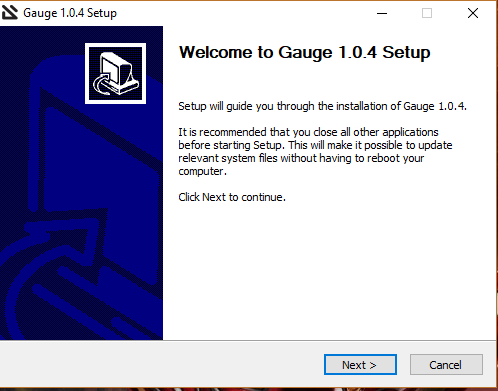
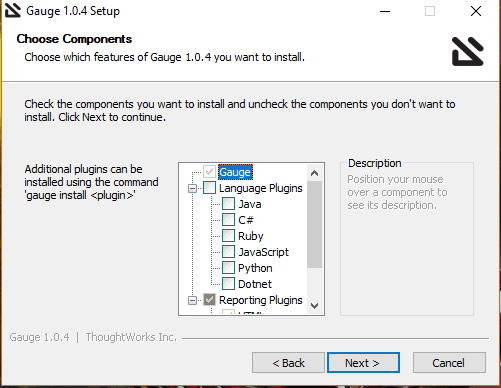
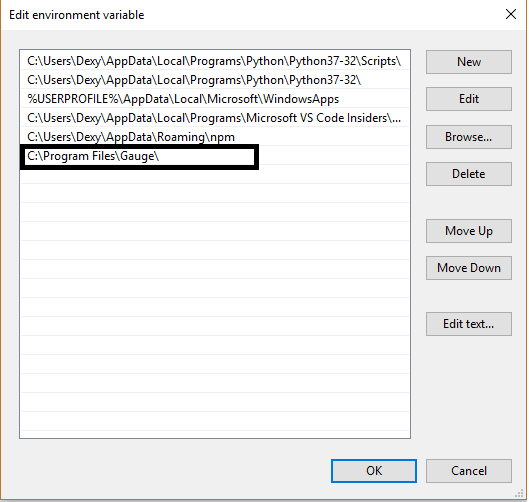
Extract it to a desired location and add it to system path.
Using CLI To Get Started With Project Creation For Gauge
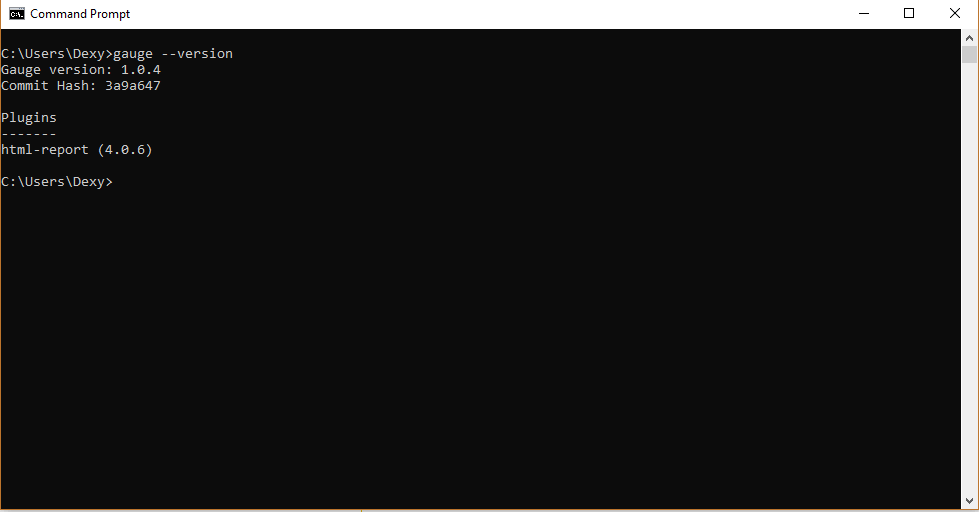
To verify the version of the Gauge test automation framework, open cmd and type command “gauge --version” as shown in the image below.
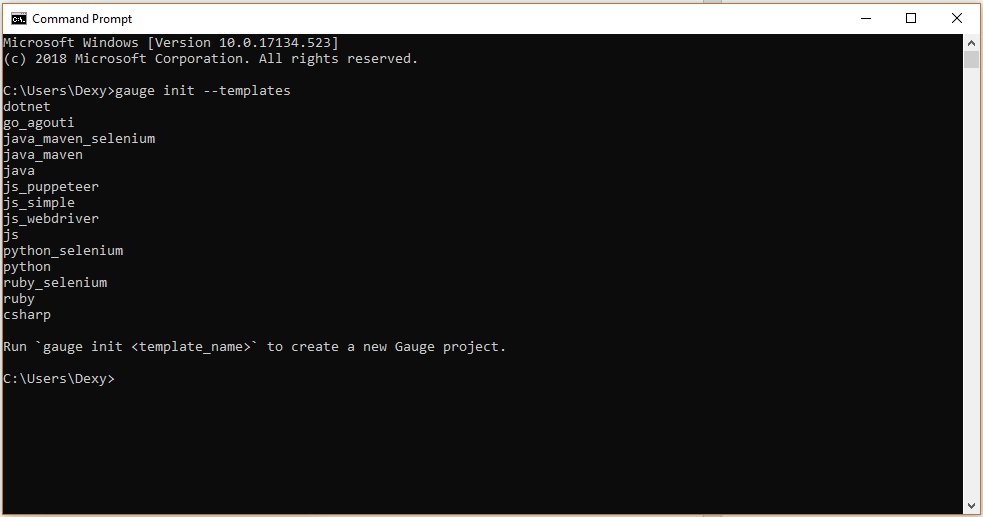
Step 1: Gauge framework has a list of project templates defined already for the language of your need. You can take a look at it by typing in command “gauge init --templates”.
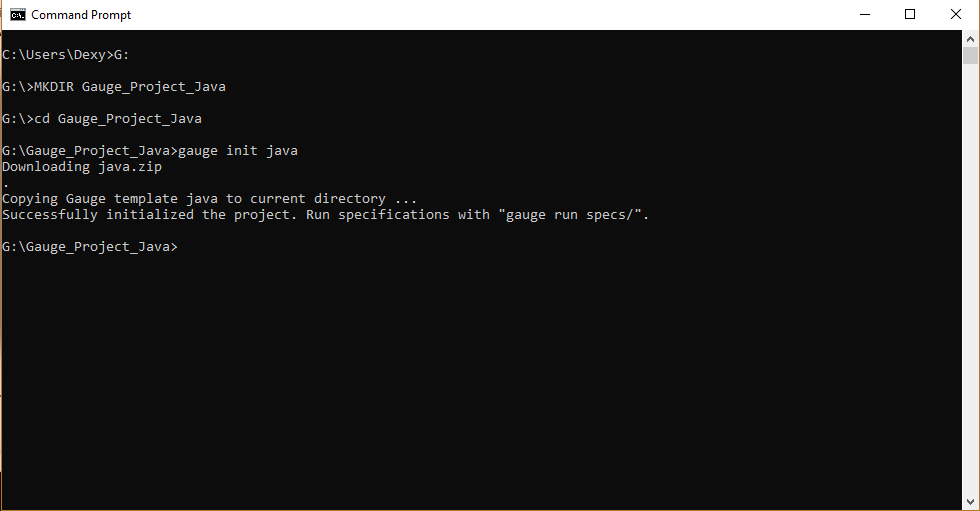
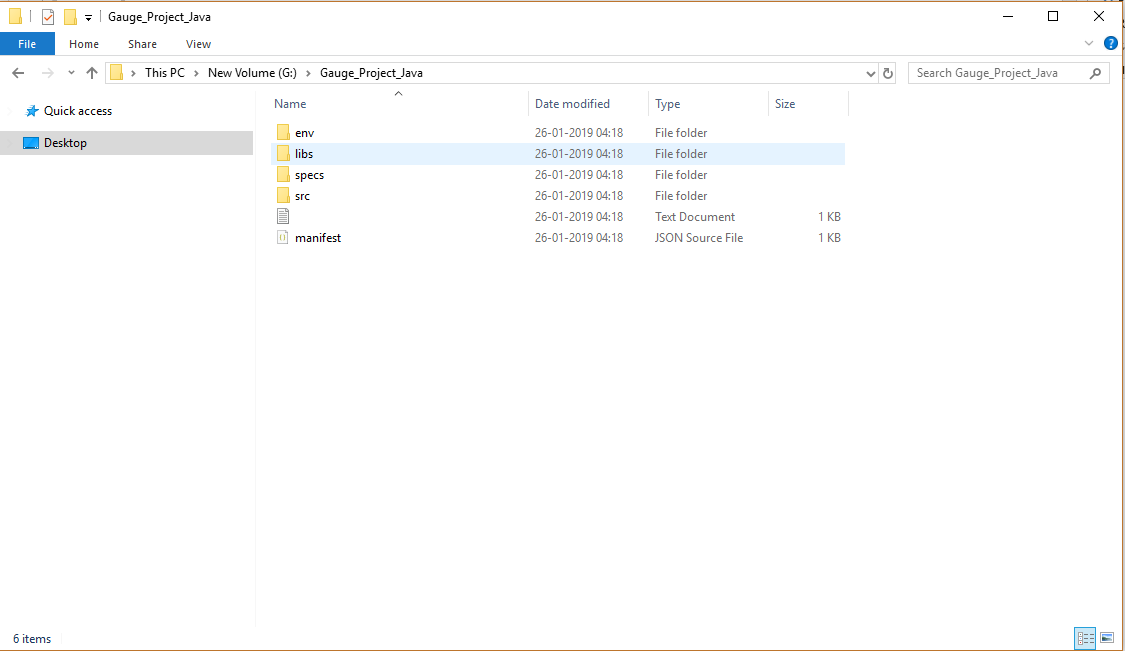
Step 2: Navigate to a folder of your choice and create a java project using command “gauge init java”.
Step 3: To run the sample project and view report you can use the command “gauge run specs”.
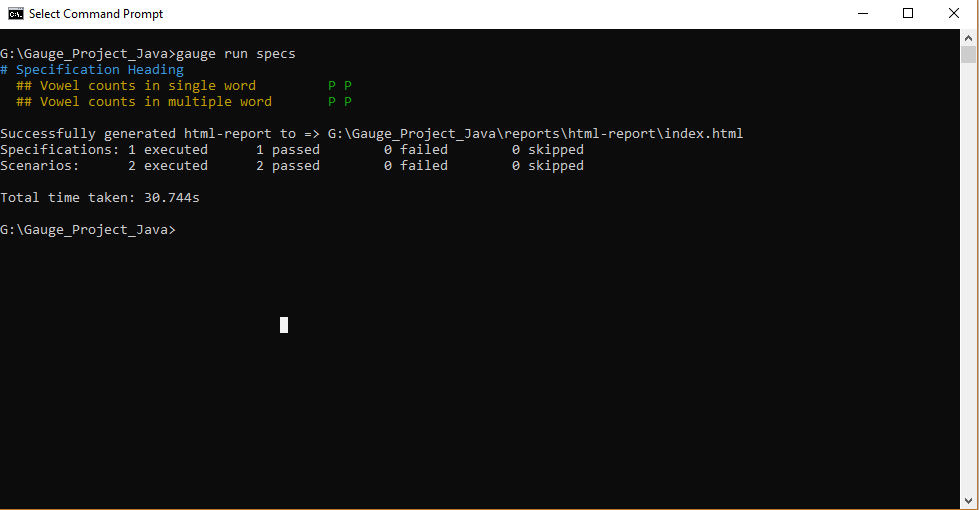 As you can see the path to report generated in CLI(Command Line Interface), sample report generated for the test stub executed is as below.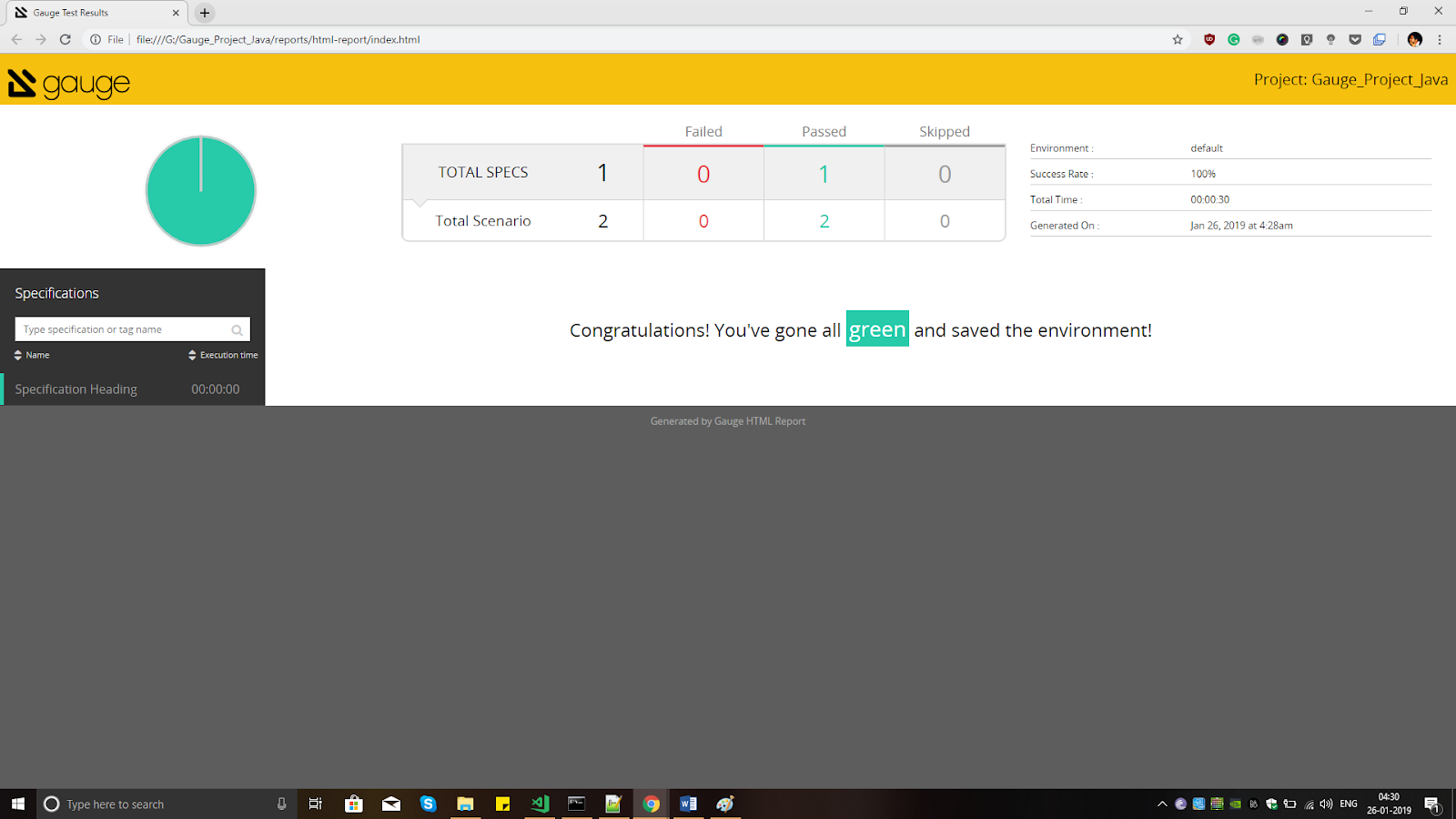
Creating Your First Project Using Gauge For Test Automation
As we have made use of command line till now, for a better coding experience we can make use of IntelliJ IDE to create our first script. Start with creating a maven project with below information.
- Navigate to File and select New Project.
- Project Type as maven should be selected.
- You need to select the below mentioned name:
- If you don’t see the archetype mentioned above, add Archetype by entering below info.
- After selecting the archetype, you need to click on next. By doing so, you will be providing the Artifact ID & GroupID for your respective maven project.
- Before you click on next for finishing the process, make sure that you verify the Maven settings thoroughly.
“com.thoughtworks.gauge.maven:gauge-maven-plugin”
This would help you to generate an archetype.
GroupId: “com.thoughtworks.gauge.maven:
ArtifactId: “gauge-archetype-java”
GroupId: com.thoughtworks.gauge.maven
ArtifactId: GoogleSearchProject
Version: 1.0-SNAPSHOT
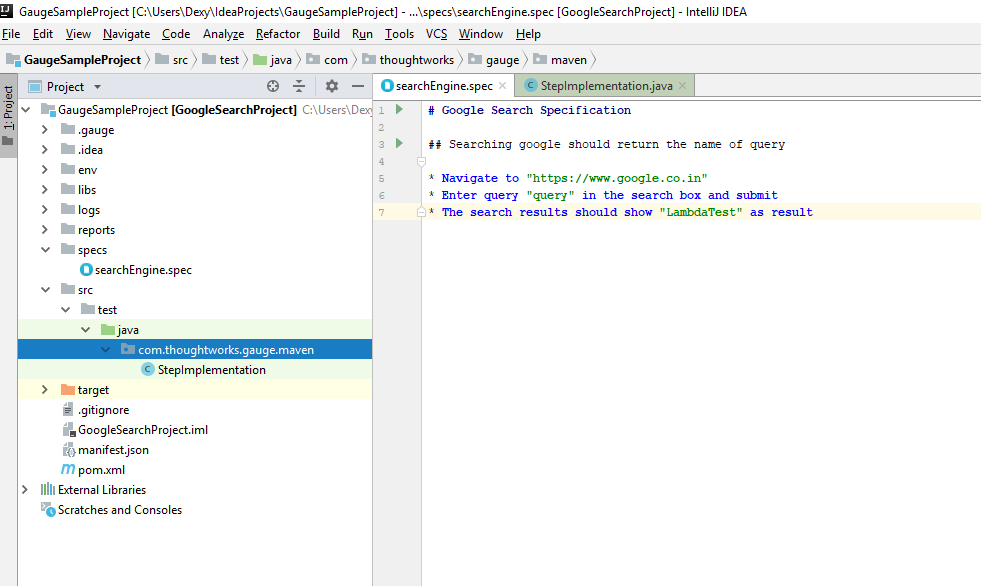
Once you have successfully created a project it would look something as below.
Running First Automation Script Using Gauge Framework With Selenium Grid
Step 1: Create a specification file for searching a keyword in google and if results are displayed as expected.
Specification heading in the specs file would be denoted with ‘#’ notation as defined in our project.
Example: #Google Search Specification
Scenario would be defined using ‘##’ notation, quoting an example below for reference.
Example: ## Searching google should return the name of the query.
Steps would be defined using ‘*’ notation.
Example: * Navigate to “https://www.google.co.in“. Spec file create for Google search is as below:
# Google Search Specification
## Searching google should return the name of query
- Navigate to “https://www.google.co.in”
- Enter query “query” in the search box and submit
- The search results should show “TestMu AI” as a result
Step 2: Create a step implementation file, with below-mentioned code to define acceptance tests as defined in specification files.
package com.thoughtworks.gauge.maven;

import com.thoughtworks.gauge.Step;
import org.openqa.selenium.By;
import org.openqa.selenium.WebDriver;
import org.openqa.selenium.WebElement;
import org.openqa.selenium.chrome.ChromeDriver;
import static org.junit.Assert.assertEquals;

public class StepImplementation {

    public static WebDriver driver;

    @Step("Navigate to <https://www.google.co.in>")
    public void navigateTo(String url) throws InterruptedException {
        System.setProperty("webdriver.chrome.driver", "C:\Users\Dexy\IdeaProjects\GaugeSampleProject\libs\chromedriver.exe");
        driver = new ChromeDriver();
        driver.get(url);
        Thread.sleep(2000);
    }

    @Step("Enter query <query> in the search box and submit")
    public void enterQuery(String queryL) throws InterruptedException {
        WebElement searchBox = driver.findElement(By.name("q"));
        searchBox.sendKeys("LambdaTest");
        searchBox.submit();
        Thread.sleep(2000);
    }

    @Step("The search results should show <Jupiter> as result")
    public void verifySearchResult(String resultString) {
        WebElement result = driver.findElement(By.className("LC20lb"));
        assertEquals(resultString, result.getText());
    }
}
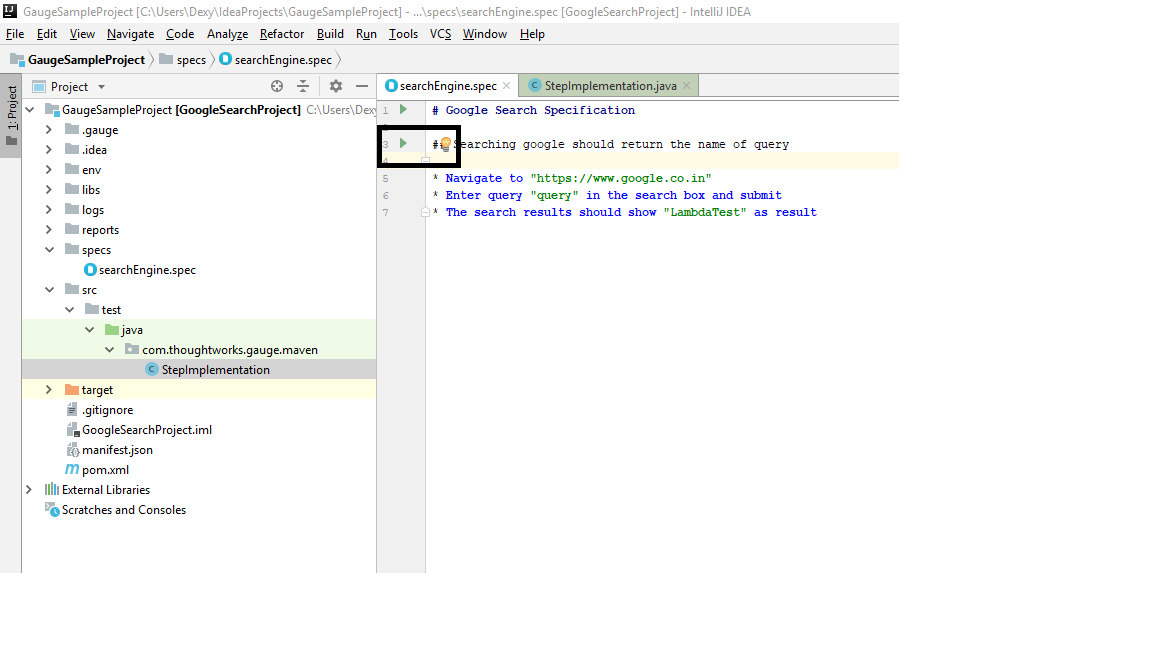
Step 3: Execute the test case from the specification file created. Right click on the file and select option as shown in the image below. Browser specification could be provided in env folder’s default.properties file as
#Browser Usage BROWSER = CHROME
We can provide maven command to execute with conditions as below.
- To execute
mvn gauge:execute - To execute all specs:
mvn gauge:execute -DspecsDir=specs - For parallel execution:
mvn gauge:execute -DspecsDir=specs -DinParallel=true - Node specification during parallel execution:
mvn gauge:execute -DspecsDir=specs -DinParallel=true -Dnodes=2
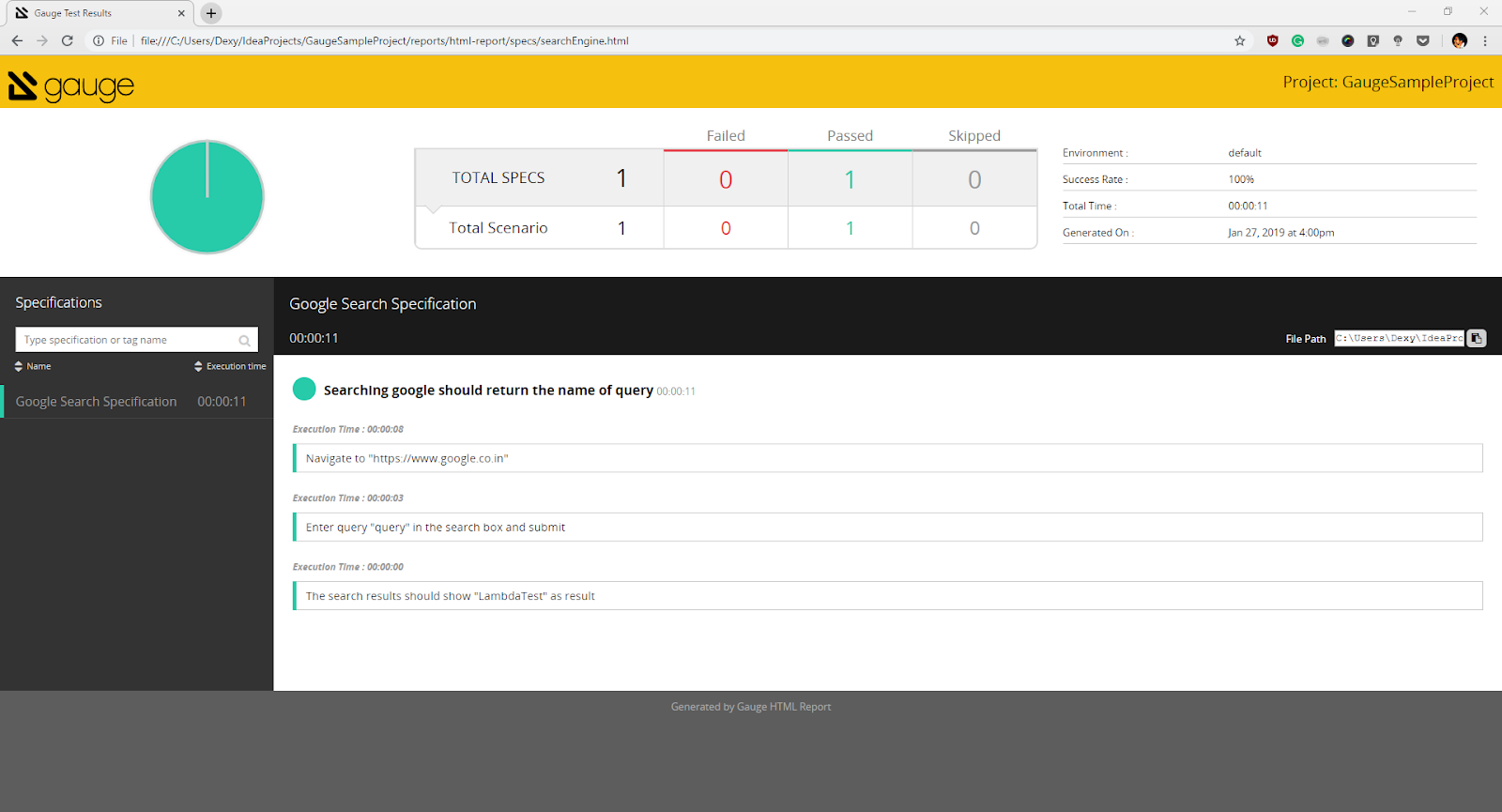
Step 4: Once execution has been successfully completed you can verify the status of the test in the terminal.
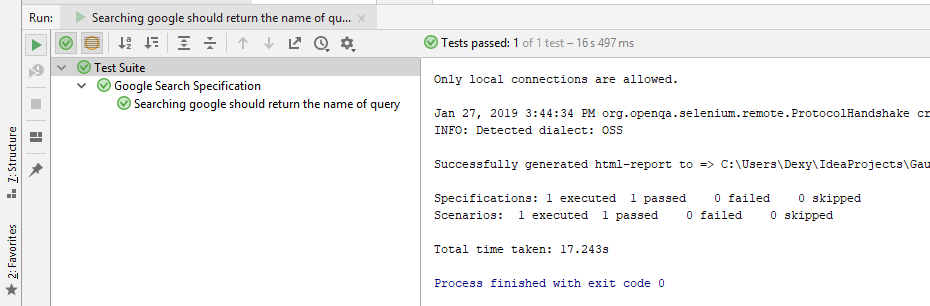
Reports generated can be viewed in reports folder – ‘GaugeSampleProject\reports\html-report’
I would be providing the link to GitHub repository for code references below.
https://github.com/bharadwaj-pendyala/TestMu AI_Gauge
With the above step being done, we have successfully completed installation of Gauge for test automation, creating our first script and running it. Now let’s jump into some of the advanced concepts and values adds which could decrease our execution time drastically for faster releases.
Cross Browser Testing with Parallel Execution using Gauge Framework
Problem Statement:When it comes to cross browser testing there are more than 6 active browsers usage and each browser having more than 4 to 5 version of it in use aggressively.
Case Study Depiction:Let’s consider a case study where we have a regression test repository consisting of 1000 test cases to validate per release. When we consider cross browser testing effort, a calculated effort would be around 1000 test cases* 6 browsers * 5 versions each = 30,000 Test Cases.
Solution:
- Local Execution using Selenium-Grid:You would end up executing 30,000 test cases in total. Manually handling the effort would be impossible. Parallelly executing the test cases using Selenium Grid might decrease the effort, however, scalability would be an issue, you can’t execute more than 10-20 instances on your local machine depending on the physical memory and the number of cores CPU has. Also, installing thousands of browsers in a system would be very infeasible.
- Cloud Execution using TestMu AI:Utilizing cloud resources of TestMu AI would drastically cut down the effort as scalability wouldn’t be an issue. TestMu AI Selenium Automation Grid for Gauge empowers you to perform end-to-end automation tests on a secure, reliable, and scalable Selenium grid on their cloud platform. You can perform automated cross browser testing with Selenium scripts on 3000+ browsers and operating systems environments providing a higher test coverage and at significantly fewer build times. TestMu AI will help you evaluate how well your web application renders when accessed through a variety of different browser. You can perform automated cross browser testing of your locally hosted web pages using Lambda Tunnel. You could also perform automated parallel test to run a single test across multiple browser/OS configurations, simultaneously.
Configuring Our Current Gauge Framework For Test Automation With TestMu AI
Step 1: Create an account for free on TestMu AI to start cross browser testing with parallel execution. For a free account, only 1 concurrent user is available, as more than 1 VM’s need account upgrade. Feel free to look at their pricing plans over here:https://accounts.lambdatest.com/billing/plans
Step 2: Navigate to “Selenium Desiredcapabilities Generator” tool by TestMu AI at https://www.lambdatest.com/capabilities-generator/ as shown in image below.
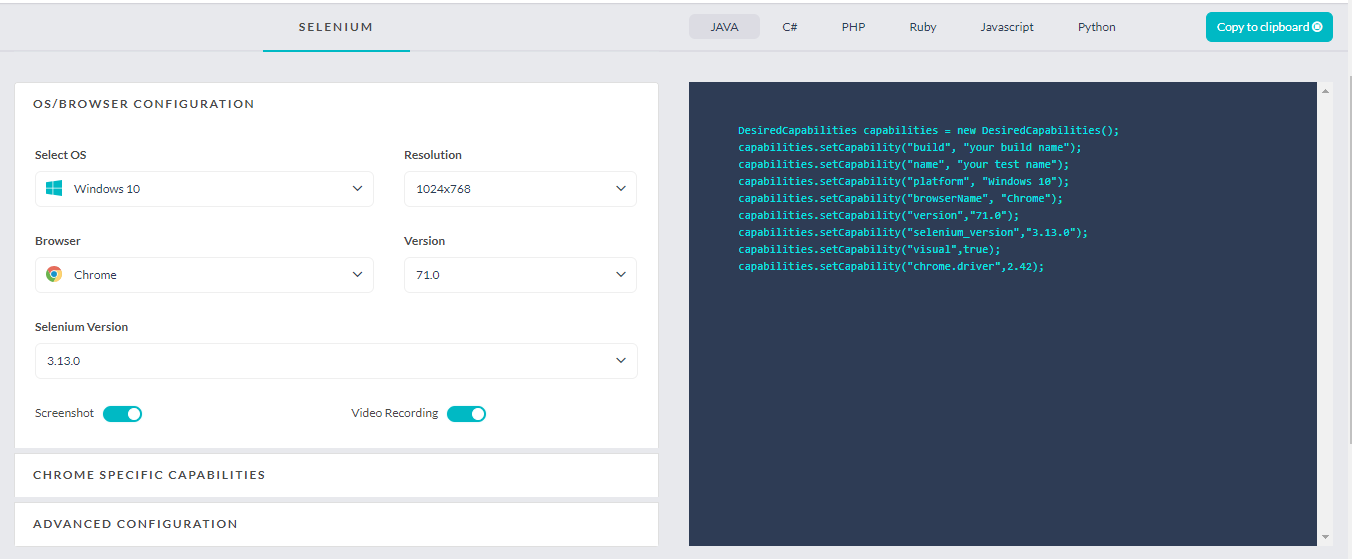
Step 3: Select the required programming language and operating system and browser configuration as per the requirement, you can enable screenshots and video recording as well. You have a feature of enabling advance configuration as well, which lets you define tunnel, console and network logs and time zone selections.
Step 4: Copy the code and define the capabilities for remote webdriver in your Step Implementation file. Code for the same as specified below.
package com.thoughtworks.gauge.maven;

import com.thoughtworks.gauge.Step;
import org.openqa.selenium.By;
import org.openqa.selenium.JavascriptExecutor;
import org.openqa.selenium.WebElement;
import org.openqa.selenium.remote.DesiredCapabilities;
import org.openqa.selenium.remote.RemoteWebDriver;
import java.net.MalformedURLException;
import java.net.URL;
import static org.junit.Assert.assertEquals;

public class StepImplementation {

    String username = " YOUR_USERNAME";
    String accesskey = " YOUR_ACCESS_KEY";
    static RemoteWebDriver driver = null;
    String gridURL = "@hub.lambdatest.com/wd/hub";
    boolean status = false;

    @Step("Navigate to <https://www.google.co.in>")
    public void navigateTo(String url) throws InterruptedException {
        DesiredCapabilities capabilities = new DesiredCapabilities();
        capabilities.setCapability("build", "your build name");
        capabilities.setCapability("name", "your test name");
        capabilities.setCapability("platform", "Windows 10");
        capabilities.setCapability("browserName", "Chrome");
        capabilities.setCapability("version", "71.0");
        capabilities.setCapability("visual", true);
        try {
            driver = new RemoteWebDriver(new URL("https://" + username + ":" + accesskey + gridURL), capabilities);
        } catch (MalformedURLException e) {
            System.out.println("Invalid grid URL");
        } catch (Exception e) {
            System.out.println(e.getMessage());
        }
        driver.get(url);
        Thread.sleep(2000);
    }

    @Step("Enter query <query> in the search box and submit")
    public void enterQuery(String query) throws InterruptedException {
        WebElement searchBox = driver.findElement(By.name("q"));
        searchBox.sendKeys("LambdaTest");
        searchBox.submit();
        Thread.sleep(2000);
    }

    @Step("The search results should show <Jupiter> as result")
    public void verifySearchResult(String resultString) {
        WebElement result = driver.findElement(By.className("LC20lb"));
        assertEquals(resultString, result.getText());
    }

}
Specified parameters required while setting desired capabilities required for executing test remotely.
| Parameter | Description | Example |
|---|---|---|
| YOUR_USERNAME | Lamda Test username should be provided as an input | tester1 |
| YOUR_ACCESS_KEY | Access token can be generated through lambdatest webapp | qYlLn1IzVrC2U41zM4kyjv35EvpHxR2tyMB4aEBlkNMmvpnQ5A |
| gridURL | To hit lamdatest grid URL of your account | “@hub.lambdatest.com/wd/hub” |
| build | Your build name | “Build_12.2.012” |
| name | Your test name | “TC_01_Sample Test Case” |
| platform | Specify desired platform | Windows 10 |
| browserName | Specify desired browser for test to execute | Chrome |
| version | Specify desired browser version | “71.0” |
| visual | Specify if video recording is required for the test | TRUE |
Step 5: Execute the specification and observe the terminal for test status.
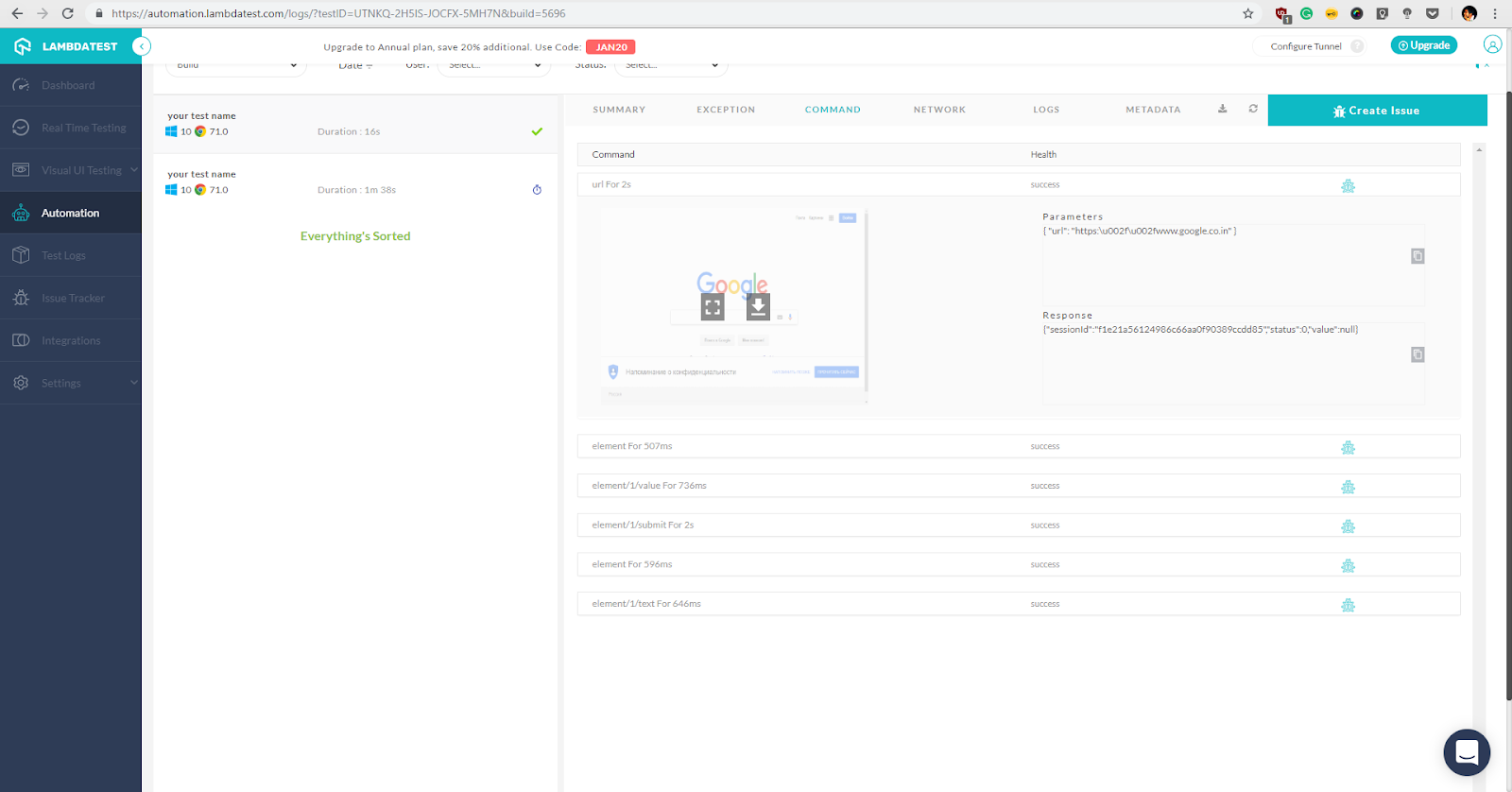
Step 6: Login to TestMu AI Dashboard, select the automation tab to view your logs of completed tests. Dashboard view would let you see the analytical information related to the tests triggered on the TestMu AI.
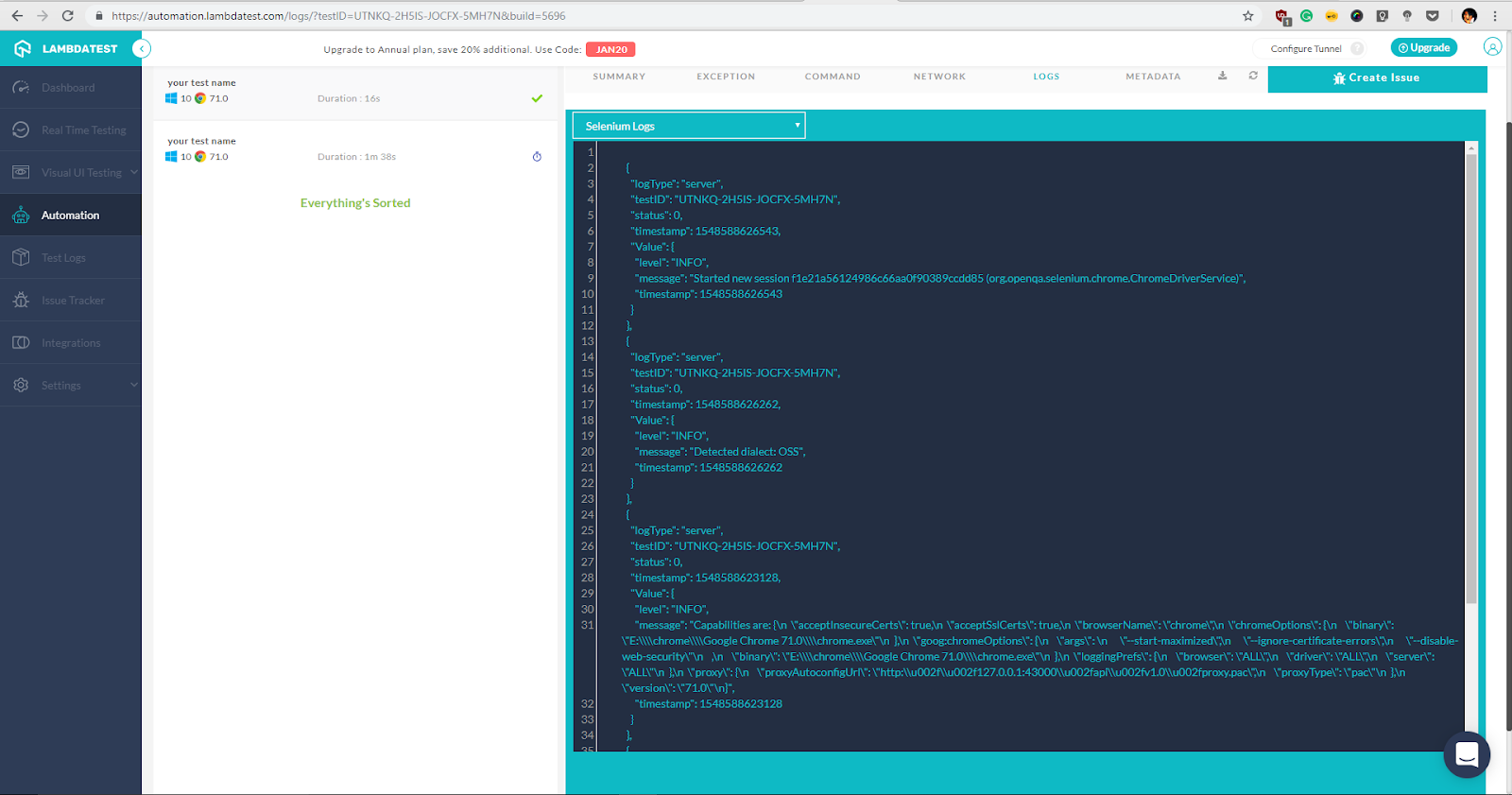
Logs:
Automation logs which are a part of the automation dashboard provides you with information related to server information, test ID, time stamp of execution in JSON format.
Metadata
Metadata under automation dashboard provides information related to input, meta and browser configuration as shown in image below.
You can even download the test logs such as screenshots and video recordings, if opted from this tab.
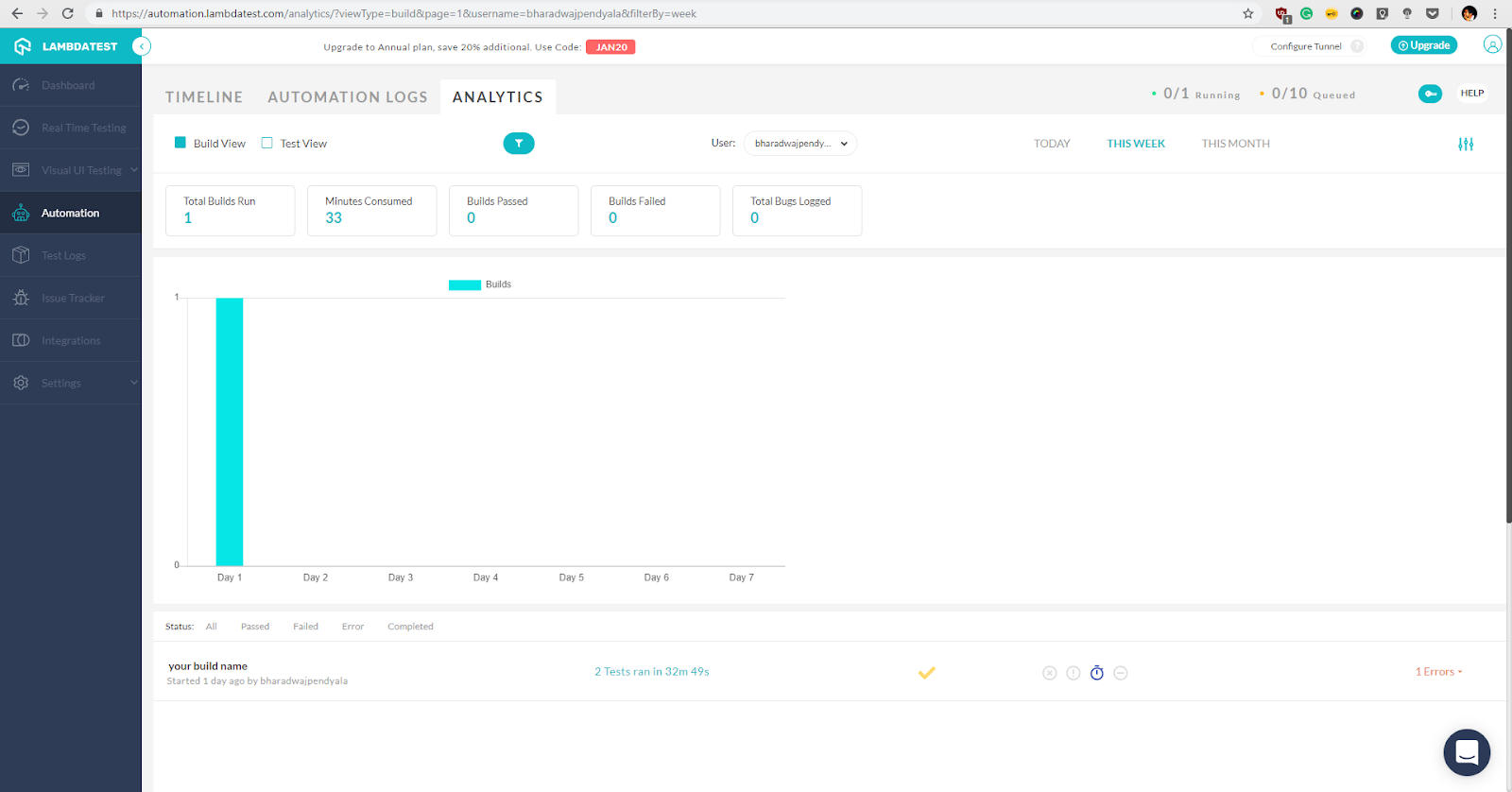
 Analytics Dashboard
Analytic view of builds ran, time consumed, build related information of test status such as pass or fail and bugs logged which can be viewed in both build view and test view.
You can even sort the data using date, user information.
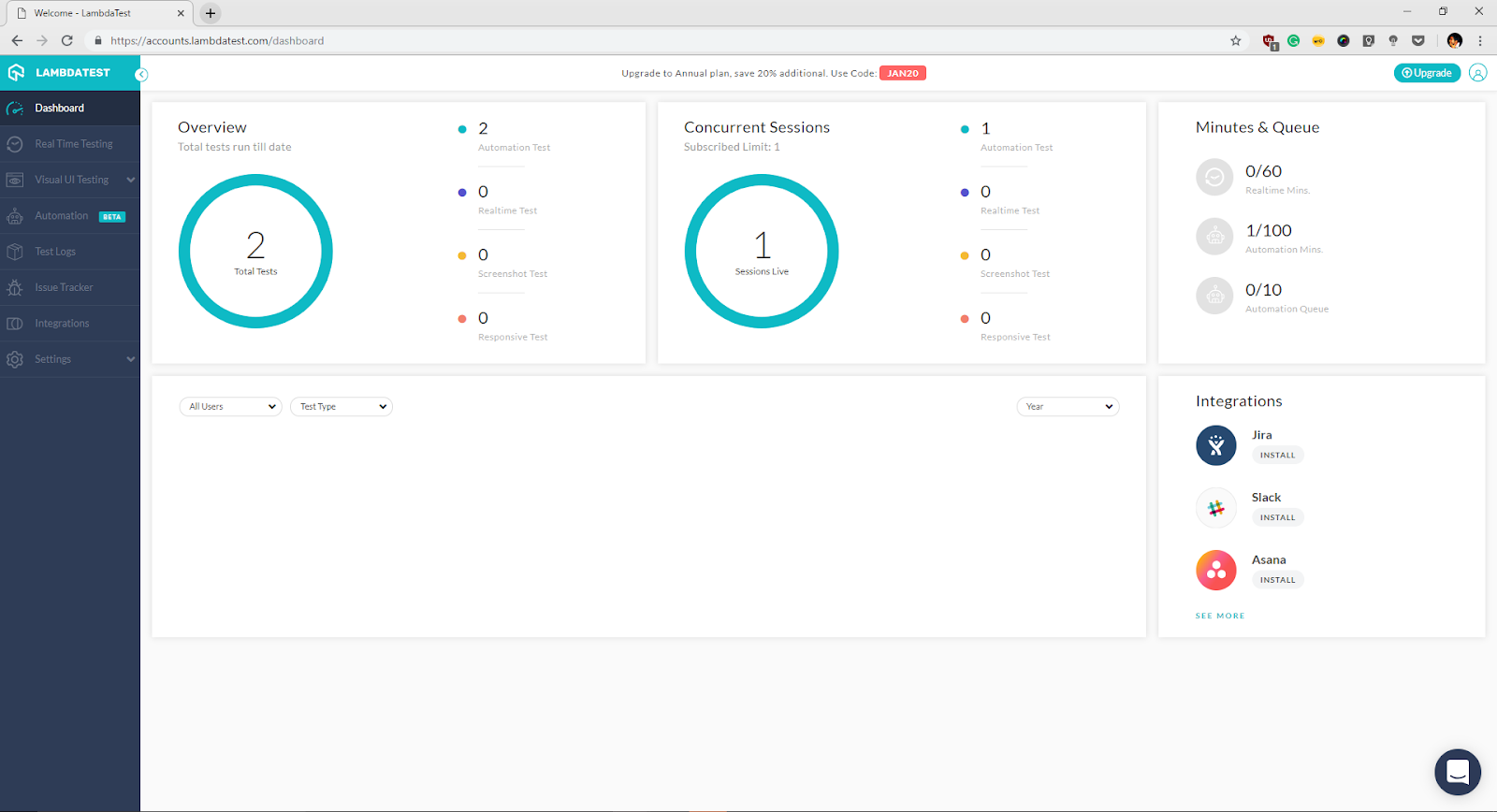
Dashboard
Default dashboard view provides you with the overview of how many active concurrent sessions are running and minutes consumed in execution and the build statuses.
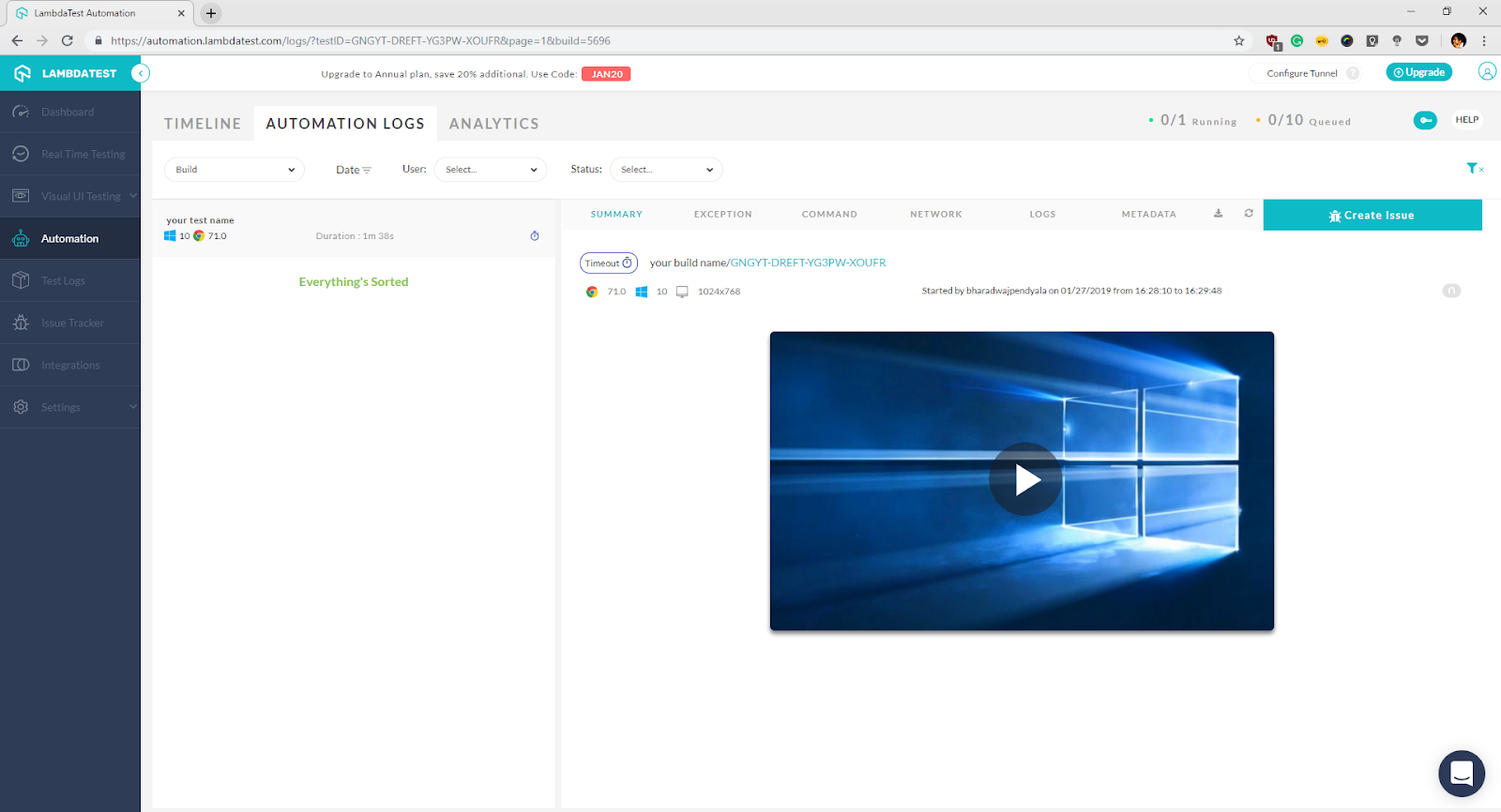
 Automation Dashboard View
Automation dashboard view would help you view the timeline of tests executed and information of logs, metadata and network related information for each test explicitly.
Test Script maintenance becomes a nightmare once the test framework attains maturity or if we have to make use of the framework for upcoming builds without any problems. Test automation with Gauge framework make both, test authoring and test maintenance, an easy task.
Another highlight for performing test automation with Gauge framework is the excellent support system, you can reach out to the creators through creating a GitHub issue if you face any roadblocks and if you are in need of help with the framework.
To conclude what we have discussed so far, we have kick started our framework setup of the Gauge framework from scratch and created our first script and integrated it with TestMu AI to achieve our cross browser testing and parallel execution goals. Discussed the features and benefits of the tool, importance and the need of cross browser and parallel test execution along with execution and analysis of logs in TestMu AI platform.
There is a lot more to TestMu AI than Selenium based automated cross browser testing. You can reach out to their customer support chat from here in case of any questions. You could also schedule a free of cost, complete product demo.
Thank you for reading the article, please let me know your thoughts in the comments section.

Austin Siewert
CEO, Vercel
Discovered @TestMu AI yesterday. Best browser testing tool I've found for my use case. Great pricing model for the limited testing I do 👏
2M+ Devs and QAs rely on TestMu AI
Deliver immersive digital experiences with Next-Generation Mobile Apps and Cross Browser Testing Cloud



Did you find this page helpful?
More Related Hubs
TestMu AI forEnterprise
Get access to solutions built on Enterprise
grade security, privacy, & compliance
- Advanced access controls
- Advanced data retention rules
- Advanced Local Testing
- Premium Support options
- Early access to beta features
- Private Slack Channel
- Unlimited Manual Accessibility DevTools Tests