

Next-Gen App & Browser Testing Cloud
Trusted by 2 Mn+ QAs & Devs to accelerate their release cycles


How To Handle SSL Certificates In Selenium WebDriver?
This blog on how to handle SSL certificates in Selenium will help you understand more about SSL certificates and their importance in production and testing.

Vipul Gupta
December 30, 2025
We often access a website on our browser, which works fine. But when you try to access the same while automating it using Selenium WebDriver, the website is not loaded, and the browser shows a security error like “The connection is not secure” or “This connection is Untrusted.”
The reason for this is the missing SSL certificates used to add a layer of security to the website.
While working on internal staging test environments, it is sometimes fine not to have SSL available as the infrastructure is local and is not accessible to the outside world and thus can be bypassed. But in a production environment, any good website cannot do well without these certificates.
While manually accessing a URL, the browser imports all these required SSL certificates and stores them to load the website. But in the case of automation, every script is executed with a new profile; hence, the certificates are missing, leading to an error. SSL certificates must be handled in Selenium WebDriver to load the website correctly.
This blog on how to handle SSL certificates in Selenium will help you to understand more about SSL certificates and their importance in production and testing, their types, and how to handle SSL certificates in Selenium WebDriver on various browsers. If you are preparing for an interview you can learn more through Selenium interview questions.
So let’s get started.
What is an SSL Certificate?
SSL or Secure Sockets Layer is a standard security protocol that helps to establish a secure connection between the client (browser) and the server. SSL certificates help to ensure that all the data transmission between a client and server is encrypted using a strong encryption standard like Advanced Encryption Standard (AES), RSA, TLS, etc.
This helps validate the client’s identity to the server and thus keeps hackers at bay from spying on any information exchange. SSL encryption thus facilitates the exchange of sensitive information, like card details, usernames, passwords, etc., between the client and server at both ends and during the data transmission phase using encryptions.
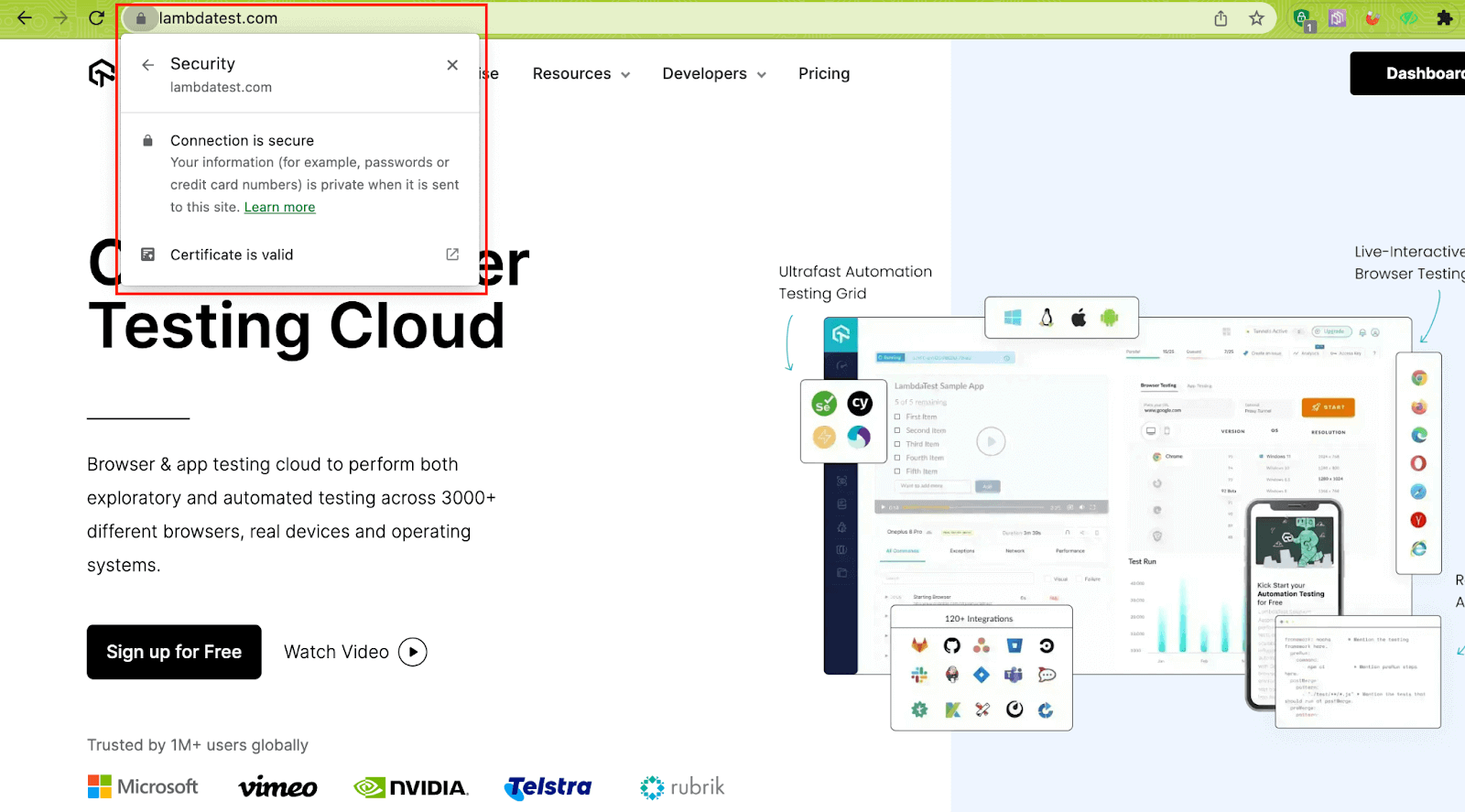
An SSL-secured website URL begins with https://, and you can see a lock symbol or green color address bar if the connection is secure.
Benefits of using SSL Certificates
Encrypting data for transmission: SSL certificates encrypt data sent between a web server and a user’s browser, thus rendering it unreadable for any hacker. This helps safeguard data when dealing with sensitive information like credit card numbers, login credentials, and personal information.
In this blog section on how to handle SSL certificates in Selenium WebDriver, let’s look at the benefits of using SSL certificates.
- Authentication Support SSL certificates authenticate the website’s identity, ensuring that the user connects to the intended website rather than a spoof site designed to steal data.
- Higher SEO rankings Search engines like Google prioritize websites that use valid SSL certificates because they value user privacy and security. SSL-enabled websites are more likely to rank higher in search engine results, increasing visibility and traffic.
- Building user trust SSL certificates help to build customer trust by displaying a visible security indicator, such as a padlock icon or a green address bar. This reassures customers that their information is secure and gives them the confidence to continue interacting on the website.
- Compliance Friendly SSL certificates are required in certain industries, such as finance and healthcare, to meet compliance regulations. SSL certificates can assist websites in meeting these regulations while also protecting sensitive data, which is particularly important in highly regulated industries.
- Protection against phishing attacks SSL certificates aid in preventing phishing attacks from attackers and hackers who attempt to steal sensitive information by impersonating a trusted website. SSL certificates ensure that the website is legitimate.

Note: Handle SSL Certificate in Selenium on the Cloud. Try TestMu AI Now!
How does the SSL Certificate work?
In this blog section on how to handle SSL certificates in Selenium WebDriver, we’ll focus on the workings of SSL certificates.
SSL establishes a secure encrypted communication channel between the client and the server.
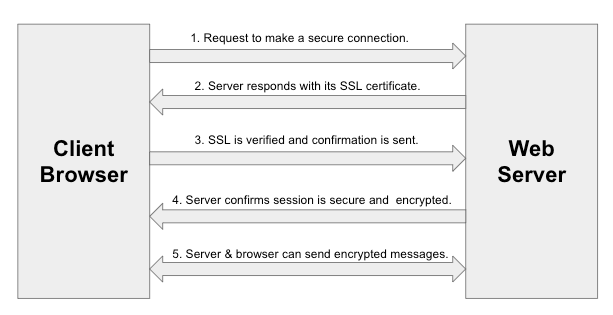
Detailed steps are mentioned below:
- The browser tries to make a connection to the server by sending a request to validate if it is secure.
- The server then sends a copy of its SSL certificate to the browser to identify itself as secure and trustworthy.
- The browser then verifies if the certificate is valid, unexpired, and unrevoked using its Trusted Certificate Authority(CA) list. The browser sends a message to the server if the certificate is valid.
- The server then responds with a digitally signed acknowledgment, and a secure SSL encrypted session is established between the server and browser.
- The server and the browser can now send encrypted messages to each other.
Types of SSL Certificates
In this blog section on how to handle SSL certificates in Selenium WebDriver, let’s look at the types of using SSL certificates.
When a website requests an SSL certificate from the Certificate Authority (CA), it gets a zip file containing different types of certificates as follows:
- Root Certificate The hierarchy’s top-level digital certificate acts as the foundation for all subsequent certificates’ authentication. To build trust in digital certificates, root certificates are installed in web browsers, operating systems, and other software programs. The connection is regarded as secure and reliable if the website’s digital certificate is checked against a reliable root certificate.
- Intermediary Certificate This provides a chain of trust between the root and server certificates. It is also known as a subordinate or intermediate CA certificate. A root certificate issues an intermediary certificate, which is then used to create further certificates, including SSL/TLS certificates for secure website connections.
- Server Certificate Also referred to as an SSL/TLS certificate, it is used to authenticate servers and enable secure connections between servers and clients. This ensures that any data exchanged between the server and clients is secure. These certificates normally include details about the domain name of the server, the company that owns the domain, the length of the certificate’s validity, and the public key used for encryption.
What is an Untrusted SSL Certificate?
Whenever you try to access a website, the authenticity and trust of the website are determined by the SSL certificate. If the certificate fails to validate itself, a secure encrypted connection is not established, and the browser throws an Untrusted Connection exception, resulting in a browser error. This is what you can understand as an Untrusted SSL Certificate.
On loading a website with an untrusted certificate, you can see that on the web URL bar of the browser, it shows it as Not Secure like this.
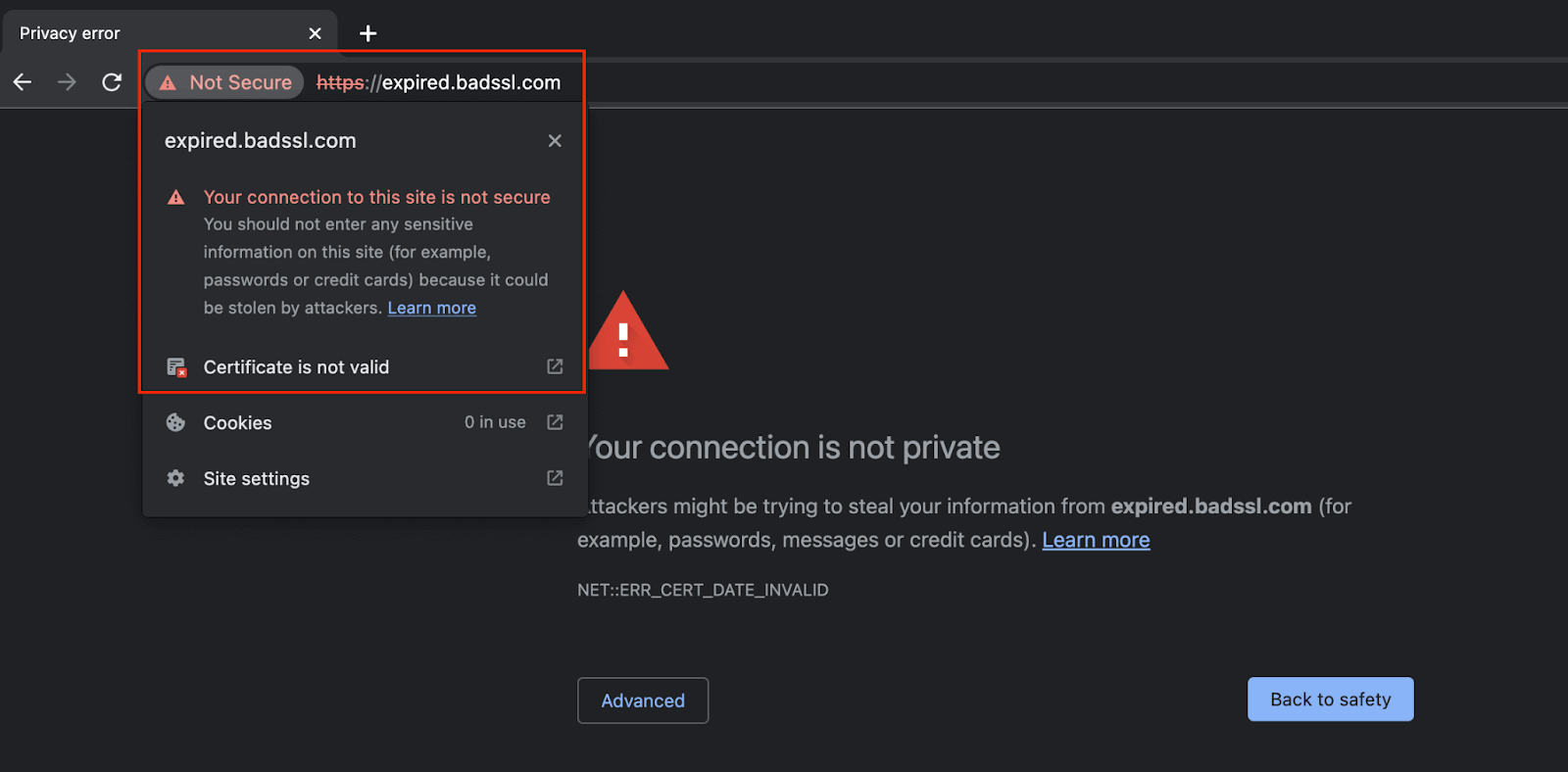
The type of certificate error you experience depends on your browser. In the demonstration section, we will see how to handle SSL certificates in Selenium WebDriver for different browsers. But before moving to that, let us understand the different types of SSL certificate errors.
Types of SSL Certificate Errors
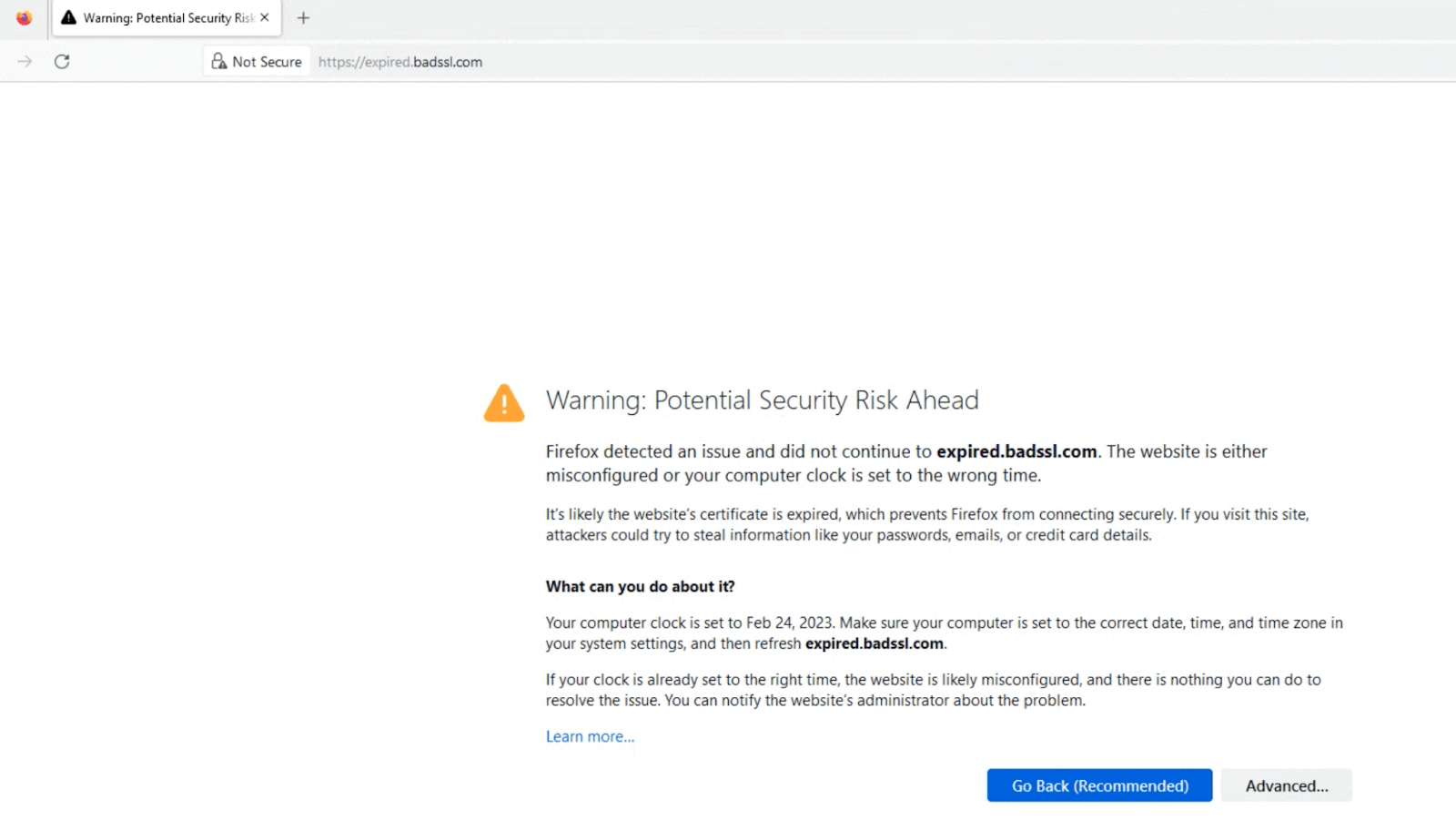
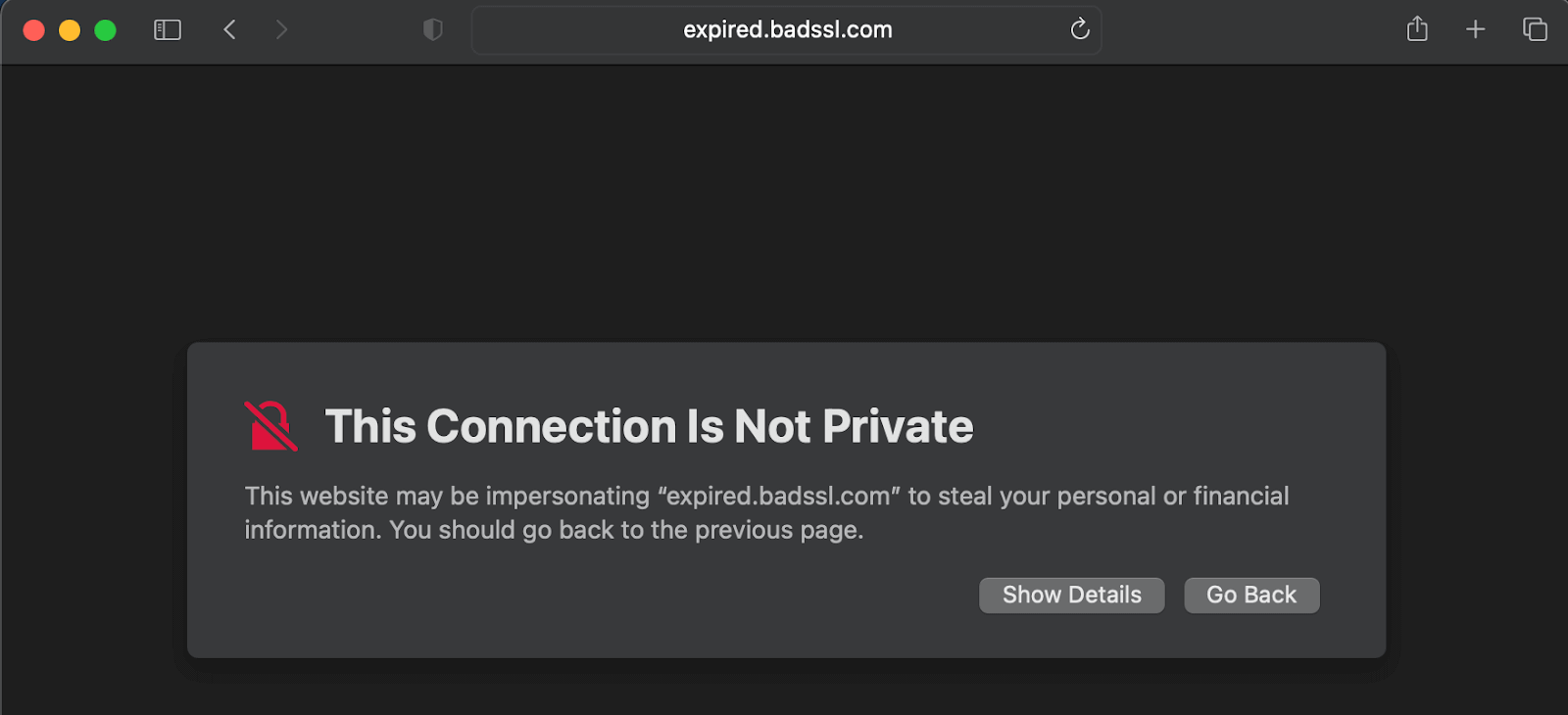
SSL certificate error handling can differ slightly across various browsers due to the varying error messages that appear in the case of an untrusted certificate. Before looking into the code to handle these, let us first look at different browser errors.
Chrome – Your connection is not private
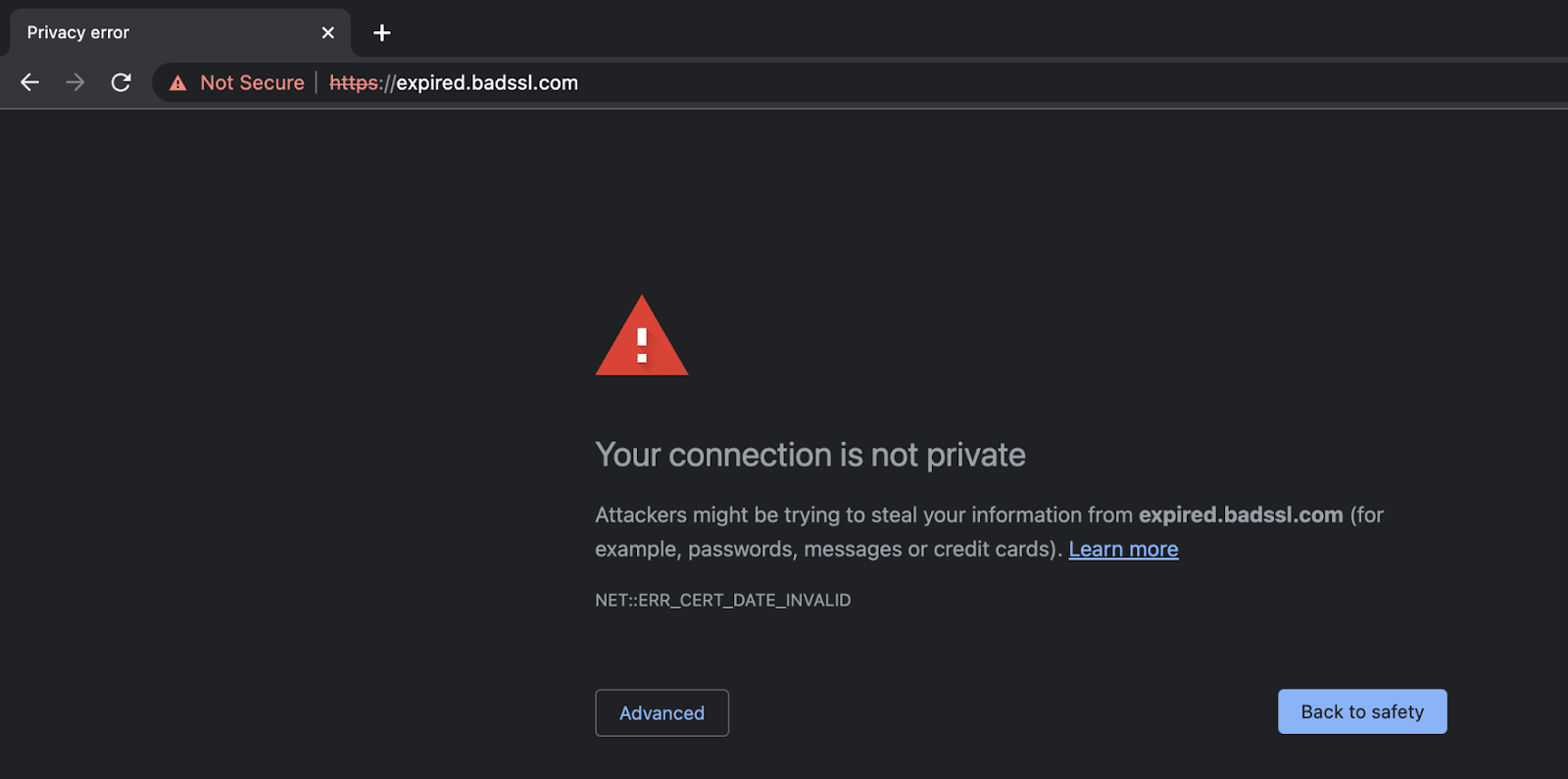
Firefox – Warning: Potential Security Risk Ahead
Safari – This Connection Is Not Private
Edge – Your connection isn’t private
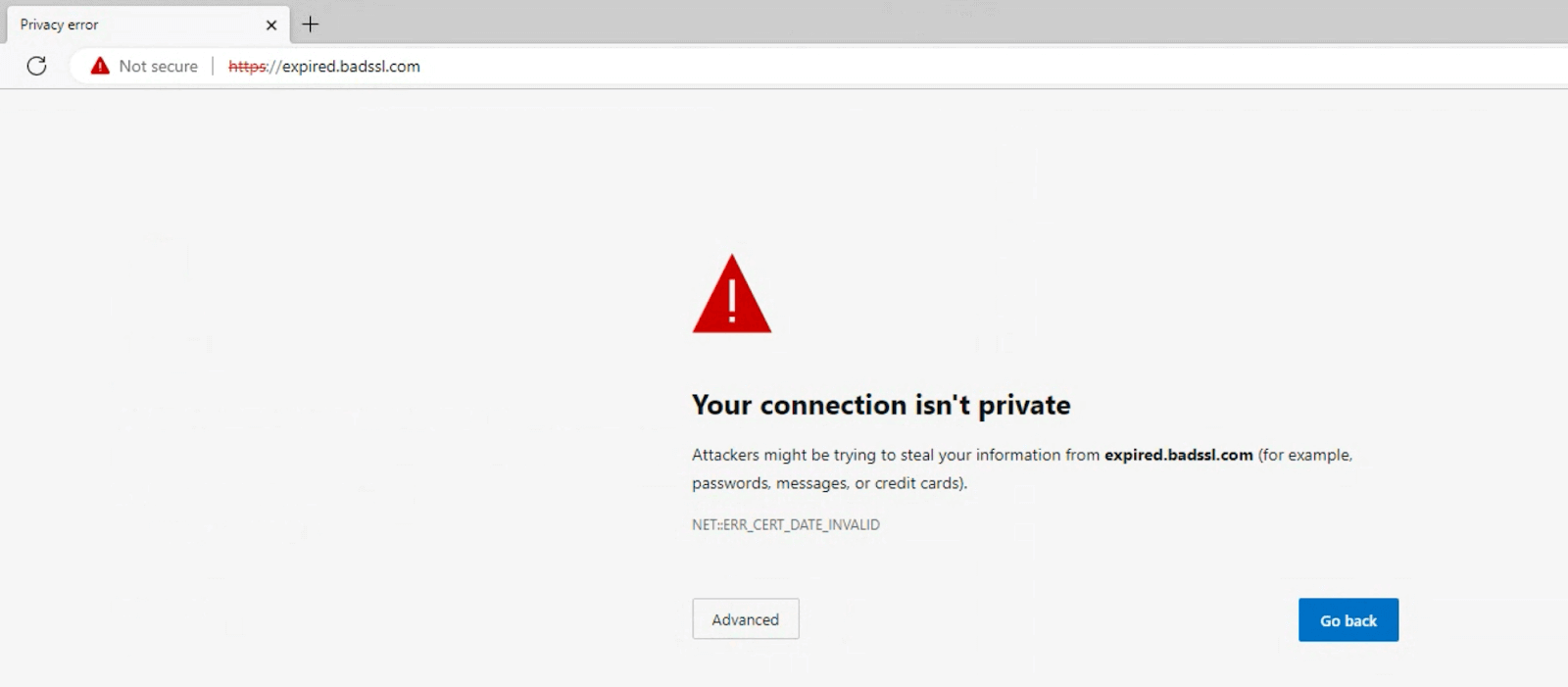
You would notice that each browser has a different way of showing the error to the user. But the reason for the error is internally the same for a website server in all cases. A few of the standard error codes and reasons are
| Error Code | Reason |
|---|---|
| ERR_CERT_DATE_INVALID | Expired Certificate |
| ERR_CERT_REVOKED | Revoked Certificate |
| ERR_CERT_AUTHORITY_INVALID | Certificate signed by an untrusted source |
Demonstration: How to handle SSL Certificates in Selenium WebDriver?
So far, we have discussed and understood SSL certificates and the errors we can encounter on different browsers due to invalid certificates. Let us now move to practical implementation to understand better how to handle SSL certificates in Selenium WebDriver.
For demonstration purposes, we will be writing an automation script for the below scenario for all browsers and seeing the results on cloud execution.
For this blog on how to handle SSL certificates in Selenium WebDriver, we are using the TestMu AI Cloud Grid. TestMu AI is a highly scalable, reliable, and easy-to-use digital experience testing platform that provides support for automation testing on over 3000+ browsers and OS to support execution on online Selenium Grid. This would be very useful for us as we want to execute the code on several browsers to handle SSL certificates in Selenium.
Subscribe to the TestMu AI YouTube Channel for more updates and comprehensive tutorials around Selenium testing, Cypress testing, and more.
Test Scenario
- Consider the following two websites:
- Having valid SSL certificates: TestMu AI
- Having an expired SSL certificate: Expired cert
- Set accepting Insecure SSL certificates to True and navigate to both individually.
- Both websites would load.
- Set accepting Insecure SSL certificates to False and navigate to both one by one.
- The LambdaTest website would get loaded, but the Expired cert one would not and throw an SSL certificate error.

Project Setup
For this blog, we will use a Maven project using Java in Eclipse IDE. If you are not a fan of Eclipse, use any IDE of your choice and perform the same steps. It will use Selenium WebDriver and TestNG dependencies to automate WebDriver flows and test execution. It is highly recommended to use the latest stable versions for better results.
- Launch Eclipse or the IDE of your choice.
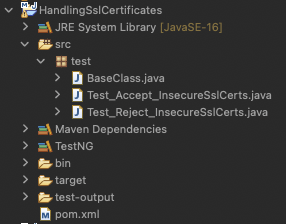
- Create a new Maven project and name it as HandlingSslCertificates.
- Inside the src folder, add a test package, and inside it, add three Java files and name them as
- BaseClass.java: this will hold the base setup code to configure the browser properties, initiate driver instances.
- Test_Accept_InsecureSslCerts.java: this will have test cases for each browser where we accept the insecure SSL certificates.
- Test_Reject_InsecureSslCerts.java: this will have test cases for each browser where we do not accept insecure SSL certificates.
- Update the pom.xml file to have the latest dependencies for TestNG in Selenium. It would be like below:
<project xmlns="http://maven.apache.org/POM/4.0.0" xmlns:xsi="http://www.w3.org/2001/XMLSchema-instance" xsi:schemaLocation="http://maven.apache.org/POM/4.0.0 https://maven.apache.org/xsd/maven-4.0.0.xsd">
 <modelVersion>4.0.0</modelVersion>
 <groupId>HandlingSslCertificates</groupId>
 <artifactId>HandlingSslCertificates</artifactId>
 <version>0.0.1-SNAPSHOT</version>
 <build>
   <sourceDirectory>src</sourceDirectory>
   <plugins>
     <plugin>
       <artifactId>maven-compiler-plugin</artifactId>
       <version>3.8.1</version>
       <configuration>
         <release>16</release>
       </configuration>
     </plugin>
   </plugins>
 </build>
 <dependencies>
   <dependency>
       <groupId>org.seleniumhq.selenium</groupId>
       <artifactId>selenium-java</artifactId>
       <version>4.1.4</version>
   </dependency>
   <dependency>
       <groupId>org.testng</groupId>
       <artifactId>testng</artifactId>
       <version>7.7.1</version>
       <scope>test</scope>
   </dependency>
 </dependencies>
</project>package test;
import java.net.MalformedURLException;
import java.net.URL;
import java.util.HashMap;
import org.openqa.selenium.chrome.ChromeOptions;
import org.openqa.selenium.edge.EdgeOptions;
import org.openqa.selenium.firefox.FirefoxOptions;
import org.openqa.selenium.remote.RemoteWebDriver;
import org.openqa.selenium.safari.SafariOptions;
public class BaseClass {
public RemoteWebDriver driver = null;
String username = System.getenv("LT_USERNAME") == null ? "<lambdatest_username>" : System.getenv("LT_USERNAME");
String accessKey = System.getenv("LT_ACCESS_KEY") == null ? "<lambdatest_accesskey>": System.getenv("LT_ACCESS_KEY");
public void setup(String browserName, boolean acceptInsecureSSL) {
HashMap<String, Object> ltOptions = new HashMap<String, Object>();
try {
switch (browserName) {
case "chrome":
ChromeOptions chromeOptions = new ChromeOptions();
chromeOptions.setPlatformName("Windows 10");
chromeOptions.setBrowserVersion("110.0");
ltOptions.put("build", "SSL certificates Using Selenium WebDriver");
ltOptions.put("name", "Handling on Chrome");
chromeOptions.setAcceptInsecureCerts(acceptInsecureSSL);
chromeOptions.setCapability("LT:Options", ltOptions);
driver = new RemoteWebDriver(
new URL("https://" + username + ":" + accessKey + "@hub.lambdatest.com/wd/hub"), chromeOptions);
break;
case "firefox":
FirefoxOptions firefoxOptions = new FirefoxOptions();
firefoxOptions.setPlatformName("Windows 10");
firefoxOptions.setBrowserVersion("109.0");
ltOptions.put("build", "SSL certificates Using Selenium WebDriver");
ltOptions.put("name", "Handling on Firefox");
firefoxOptions.setAcceptInsecureCerts(acceptInsecureSSL);
firefoxOptions.setCapability("LT:Options", ltOptions);
driver = new RemoteWebDriver(
new URL("https://" + username + ":" + accessKey + "@hub.lambdatest.com/wd/hub"),
firefoxOptions);
break;
case "edge":
EdgeOptions edgeOptions = new EdgeOptions();
edgeOptions.setPlatformName("Windows 10");
edgeOptions.setBrowserVersion("108.0");
ltOptions.put("build", "SSL certificates Using Selenium WebDriver");
ltOptions.put("name", "Handling on Edge");
edgeOptions.setAcceptInsecureCerts(acceptInsecureSSL);
edgeOptions.setCapability("LT:Options", ltOptions);
driver = new RemoteWebDriver(
new URL("https://" + username + ":" + accessKey + "@hub.lambdatest.com/wd/hub"), edgeOptions);
break;
case "safari":
SafariOptions safariOptions = new SafariOptions();
safariOptions.setPlatformName("MacOS Ventura");
safariOptions.setBrowserVersion("16.0");
ltOptions.put("build", "SSL certificates Using Selenium WebDriver");
ltOptions.put("name", "Handling on Safari");
safariOptions.setAcceptInsecureCerts(acceptInsecureSSL);
safariOptions.setCapability("LT:Options", ltOptions);
driver = new RemoteWebDriver(
new URL("https://" + username + ":" + accessKey + "@hub.lambdatest.com/wd/hub"), safariOptions);
break;
}
} catch (MalformedURLException e) {
System.out.println("Invalid grid URL");
}
}
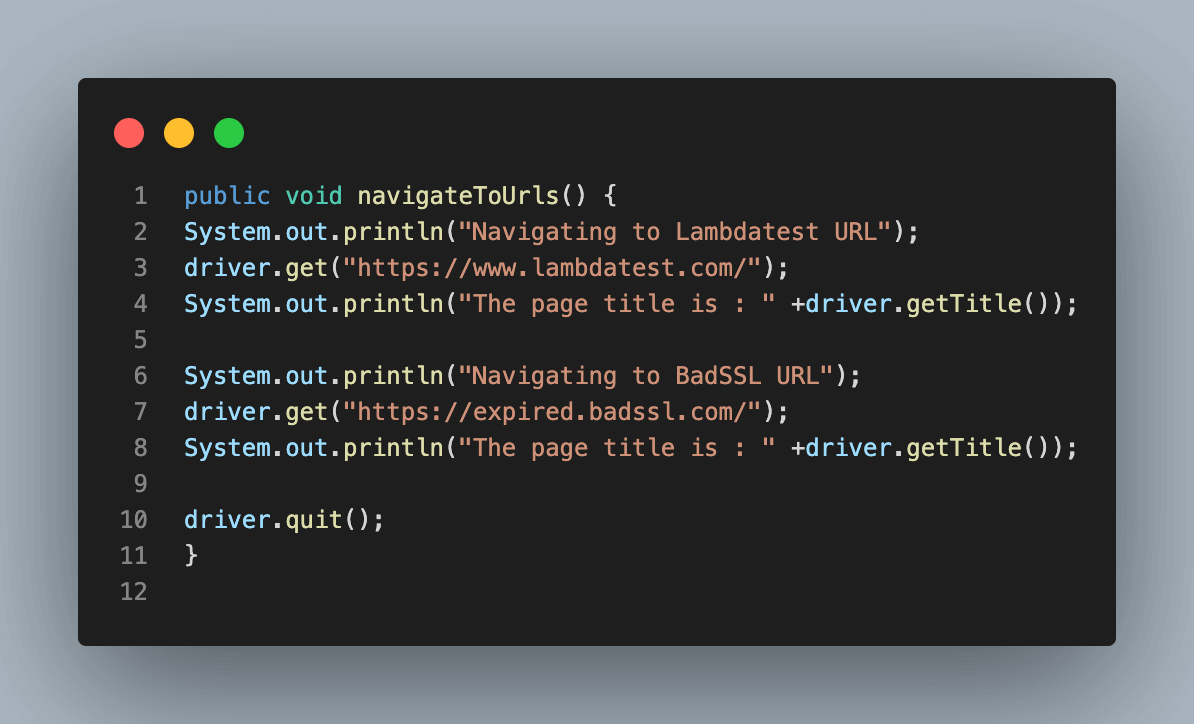
public void navigateToUrls() {
System.out.println("Navigating to Lambdatest URL");
driver.get("https://www.lambdatest.com/");
System.out.println("The page title is : " +driver.getTitle());
System.out.println("Navigating to BadSSL URL");
driver.get("https://expired.badssl.com/");
System.out.println("The page title is : " +driver.getTitle());
driver.quit();
}
}
- Accepting the insecure SSL certificates.
- Not accepting insecure SSL certificates.
package test;

import org.testng.annotations.Test;

public class Test_Accept_InsecureSslCerts extends BaseClass{

   @Test
   public void testSslCertificatesHandlingChrome()
   {
       setup("chrome", true);
       navigateToUrls();
   }

   @Test
   public void testSslCertificatesHandlingFirefox()
   {
       setup("firefox", true);
       navigateToUrls();
   }

   @Test
   public void testSslCertificatesHandlingEdge()
   {
       setup("edge", true);
       navigateToUrls();
   }

   @Test
   public void testSslCertificatesHandlingSafari()
   {
       setup("safari", true);
       navigateToUrls();
   }
}
package test;
import org.testng.annotations.Test;
public class Test_Reject_InsecureSslCerts extends BaseClass{
@Test
public void testSslCertificatesHandlingChrome()
{
setup("chrome", false);
navigateToUrls();
}
@Test
public void testSslCertificatesHandlingFirefox()
{
setup("firefox", false);
navigateToUrls();
}
@Test
public void testSslCertificatesHandlingEdge()
{
setup("edge", false);
navigateToUrls();
}
@Test
public void testSslCertificatesHandlingSafari()
{
setup("safari", false);
navigateToUrls();
}
}
Code Walkthrough: BaseClass.java
This Java file is the base test class for creating the web driver instance as per the mentioned browser and to have a common function to navigate to both the URLs as per the defined test scenario above.
Both the functions in this class will be called in each test case on both classes.
Let’s understand both these functions in detail now.
Step 1. The first step is to create an instance of RemoteWebDriver. We are using a Remote WebDriver as this helps to support execution on the cloud Selenium Grid. This provides increased scalability and the required speed for automated test execution and, at the same time, also allows users to perform across several OS and browser combinations.
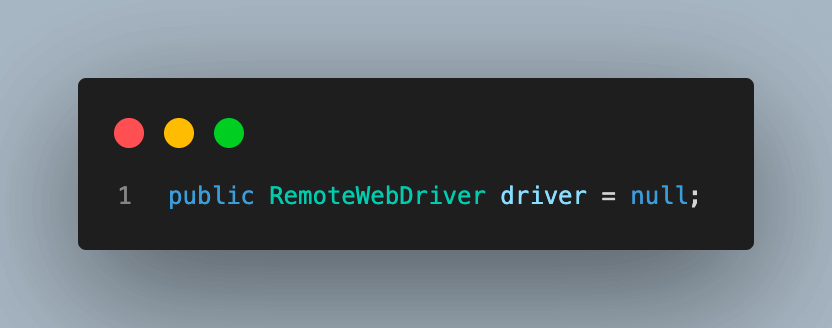
Step 2. As mentioned in the previous step, since we are using the TestMu AI platform, we need to provide the username and access key for our user to connect with the cloud hub. You can find these details under TestMu AI Profile Section after your account is created.
Once you have your username and access key, these can be configured as environment variables on your system and fetched from there to use in the automation script.
You can configure these environment variables using export or set commands based on the operating system.
For macOS and Linux:
export LT_USERNAME=LT_USERNAME export LT_ACCESS_KEY=LT_ACCESS_KEY
For Windows:
set LT_USERNAME=LT_USERNAME set LT_ACCESS_KEY=LT_ACCESS_KEY

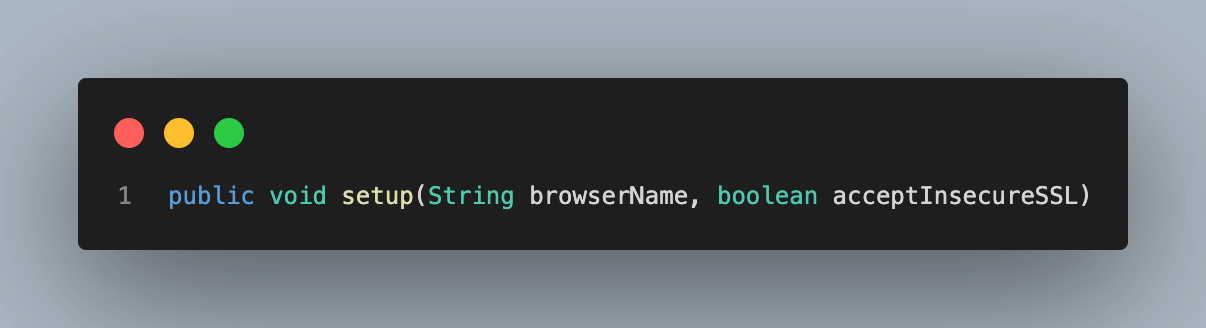
Step 3. Create a method and name it setup(). This method will take two parameters, namely browserName, and acceptInsecureSSL.
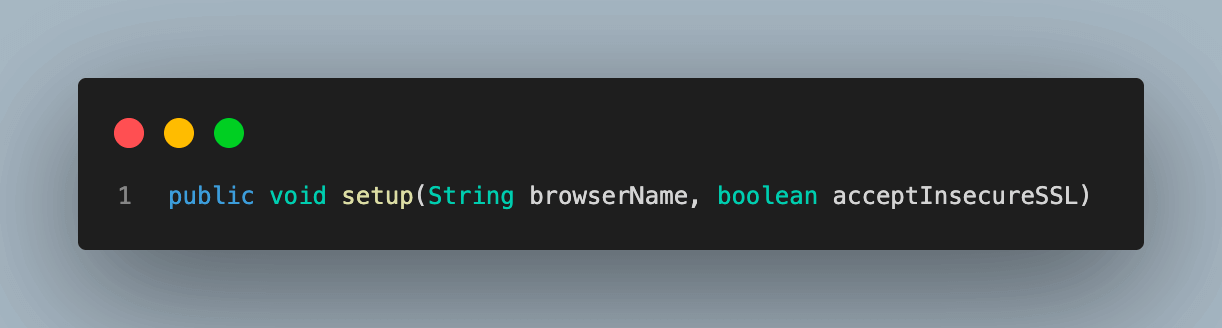
- browserName – helps to identify which browser we want to execute our code and create a driver instance with the capabilities of that particular browser.
- acceptInsecureSSL – a boolean parameter used to set the browser capabilities to identify if we need to accept or reject websites with untrusted SSL certificates. True means allowing all websites irrespective of SSL certificate status, while False means allowing only those websites with a valid SSL certificate.
Step 4. Create a HashMap variable and name it as ltOptions. This will set various properties for the TestMu AI cloud grid execution.
Step 5. This is the most important part of the demonstration, as here we add a switch case to decide which browser capabilities to set, including accepting insecure certificates and creating an instance of Remote WebDriver, depending on that.
This case is specific to the Chrome browser. Similar cases will be created for each browser in the next steps.
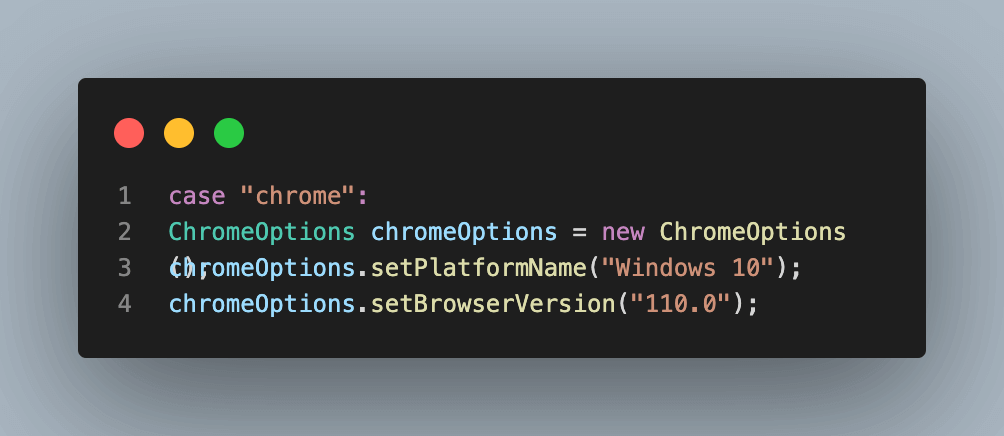
We start by creating an object in the ChromeOptions class. This class is used to manipulate various properties of the Chrome driver, which we will use for execution.
Here you can notice the setAcceptInsecureCerts() property. This is the property with which we are most concerned as part of this demonstration for this blog on how to handle SSL certificates in Selenium WebDriver.
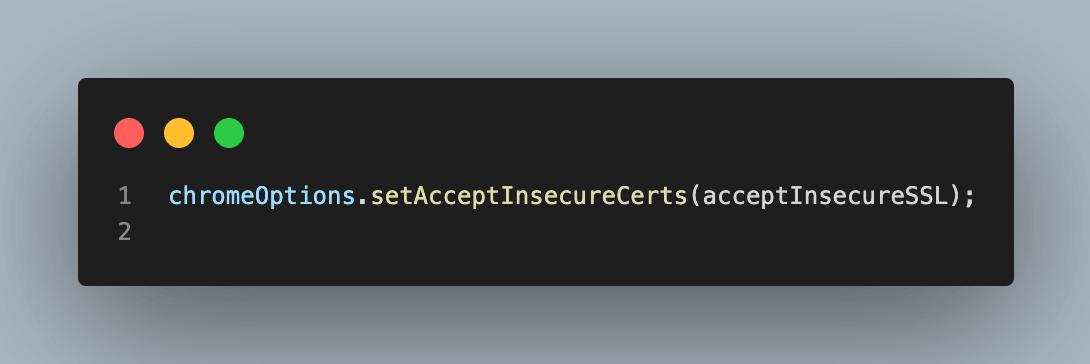
This takes a boolean argument that tells the browser driver whether it should allow websites with untrusted SSL certificates to load. True means allowing all websites irrespective of SSL certificate status, while False means allowing only those websites with a valid SSL certificate. This property is common to all browsers and has similar behavior.
We will also use the same object to set some of the properties to display cloud execution results better on the TestMu AI Dashboard.
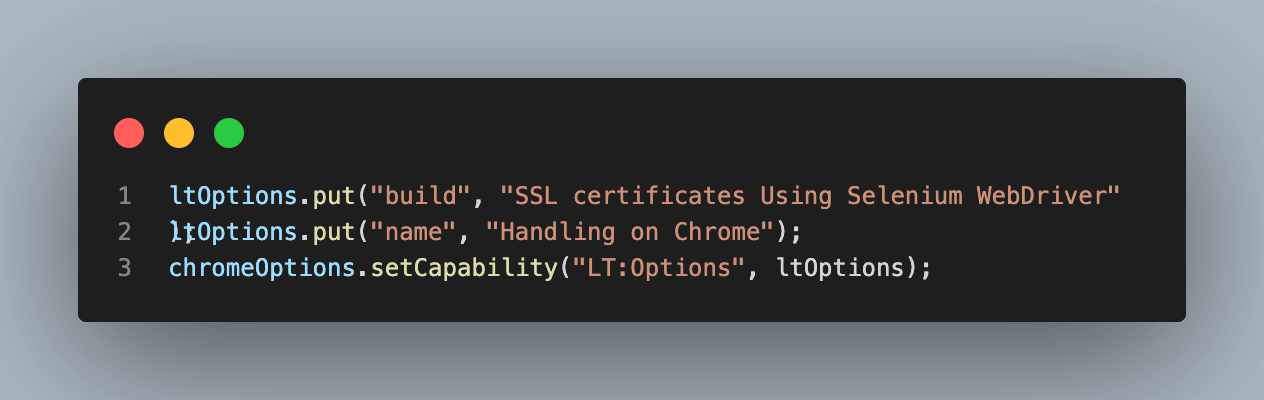
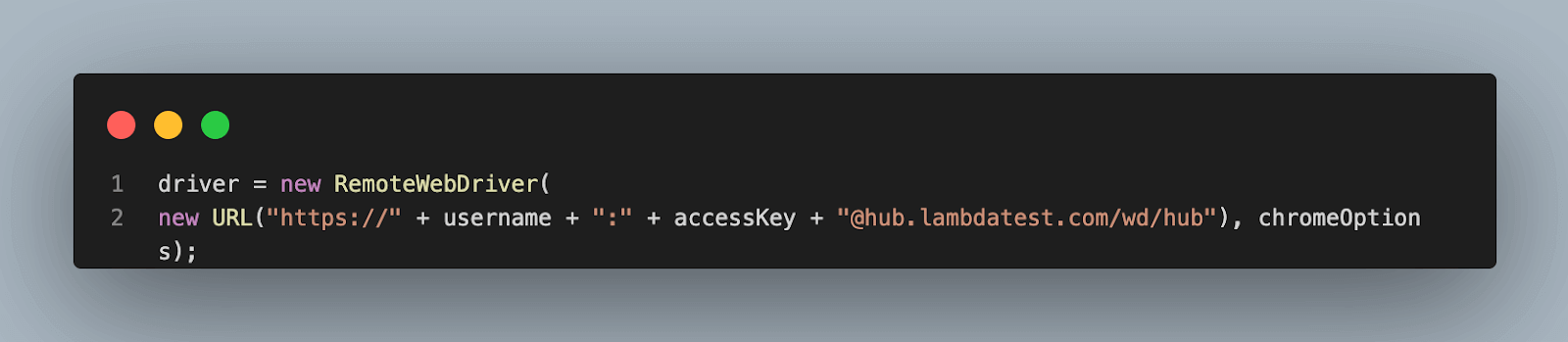
At the end of each browser case, we write the code to connect with RemoteWebDriver on the TestMu AI platform using the properties defined for the browser, like chromeOptions in this case.
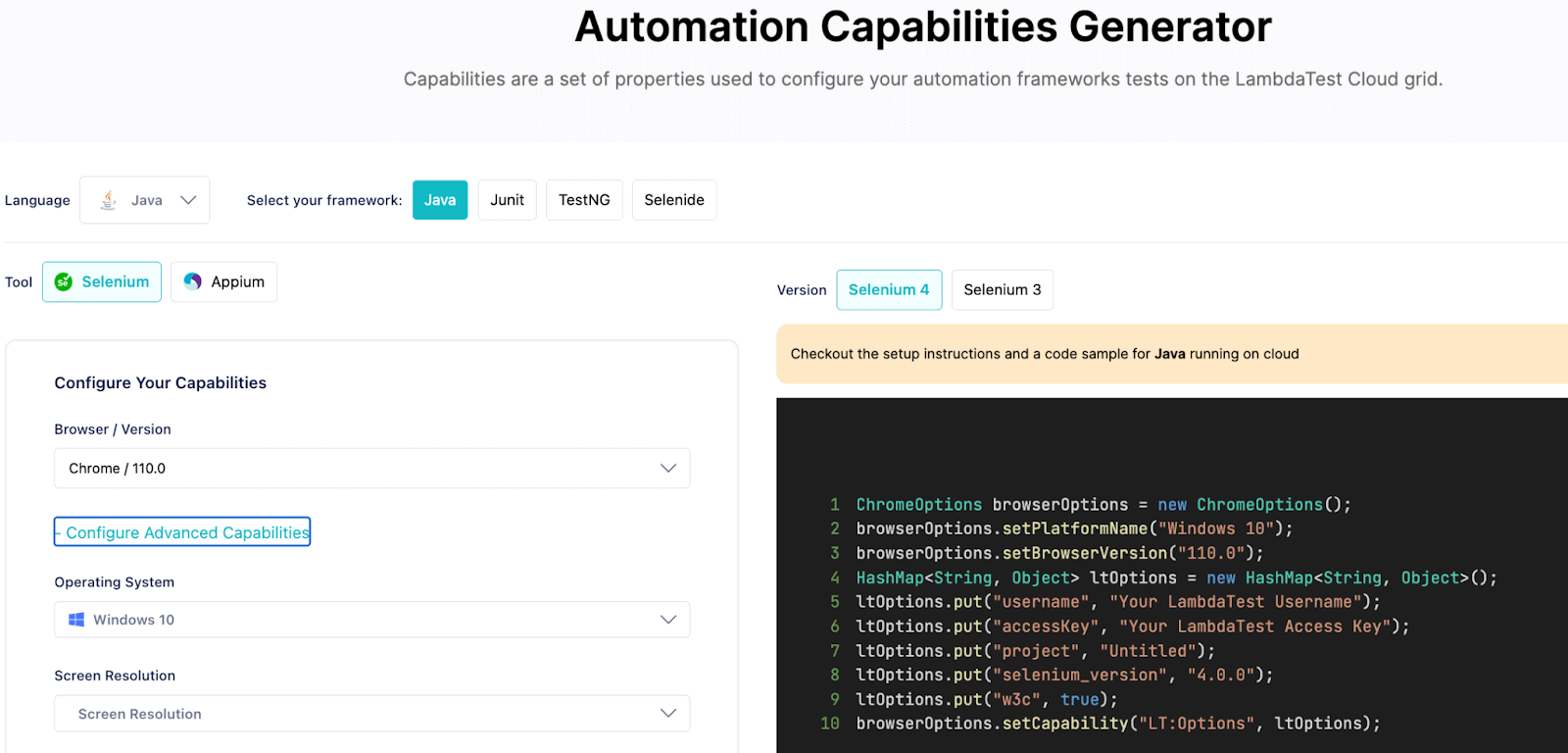
An added advantage of using the TestMu AI platform is that you can directly select the browser and version details, and your capabilities are automatically generated using TestMu AI Capabilities Generator, which is ready to be added to the code directly.
Like the Chrome browser, Firefox, Edge, and Safari cases would look like the below using FirefoxOptions, EdgeOptions, and SafariOptions, respectively.
Step 6. The last step is to add a function navigateToUrls(), a common function used to navigate to URLs for both websites and fetch the page title. This same function is used to close the browser and quit the WebDriver instance at the end of each test case.
Code Walkthrough: Test_Accept_InsecureSslCerts.java
In this Java test file, we have written four different test cases, one for each browser, for easy understanding and differentiation.
In each test function, we have two common steps:
Step 1. Call the setup() function of BaseClass.java and pass the browser name on which we want to execute. Along with this, pass the boolean parameter acceptInsecureSSL as true.
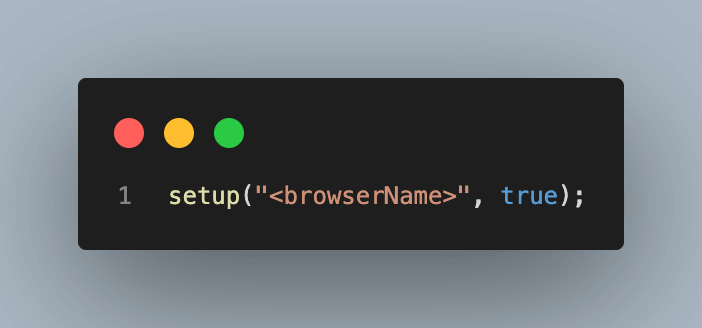
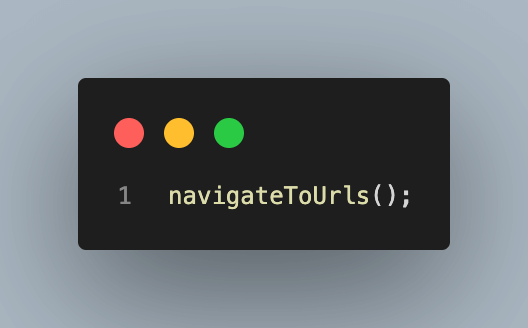
Step 2. Call the navigateToUrls() function to navigate to both URLs one by one. In this case, both websites should load, which is #2 of our established test scenarios.
Code Walkthrough: Test_Reject_InsecureSslCerts.java
Similar to the previous one, this Java test file has four different test cases, one for each browser.
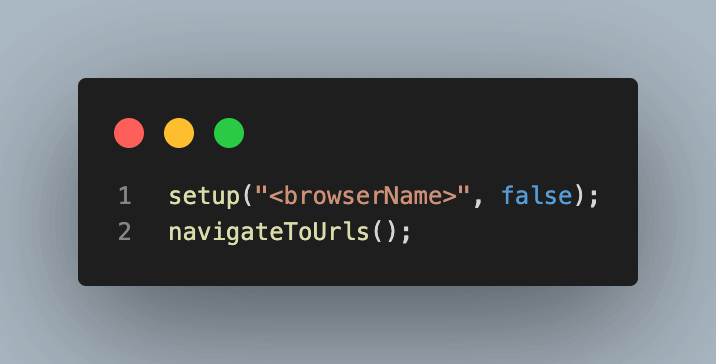
The only difference is the boolean parameter acceptInsecureSSL is false, which means #3 of our test scenarios.
On running the cases, the TestMu AI website would get loaded but the other one would fail to load and throw an error on each browser as we are not accepting websites with insecure SSL certificates in this case.
Test Execution
Having developed a basic understanding and writing the automation script to handle SSL certificates in Selenium WebDriver, it is now time to execute the code and see the results of execution locally and on the TestMu AI Dashboard.
The test case would be executed using the TestNG framework. To execute, follow the below-mentioned steps:
- Right-click the test case name in Eclipse IDE.
- Go to the Run Test and select TestNG Test to begin the execution.
First, we will execute the cases one by one for all browsers from Test_Accept_InsecureSslCerts and observe that all cases pass and both websites are loaded successfully.
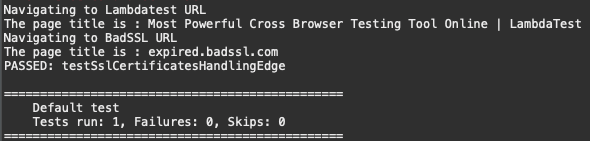
You can observe from the above screenshot of local execution that we have titles of both websites, which means both are loaded successfully. Executing on all four browsers would give similar results in this case.
Before moving forward, let us observe the results of this execution on the TestMu AI Dashboard as well.
For this, log in to your account, move to Automation -> Build section, and select your build.
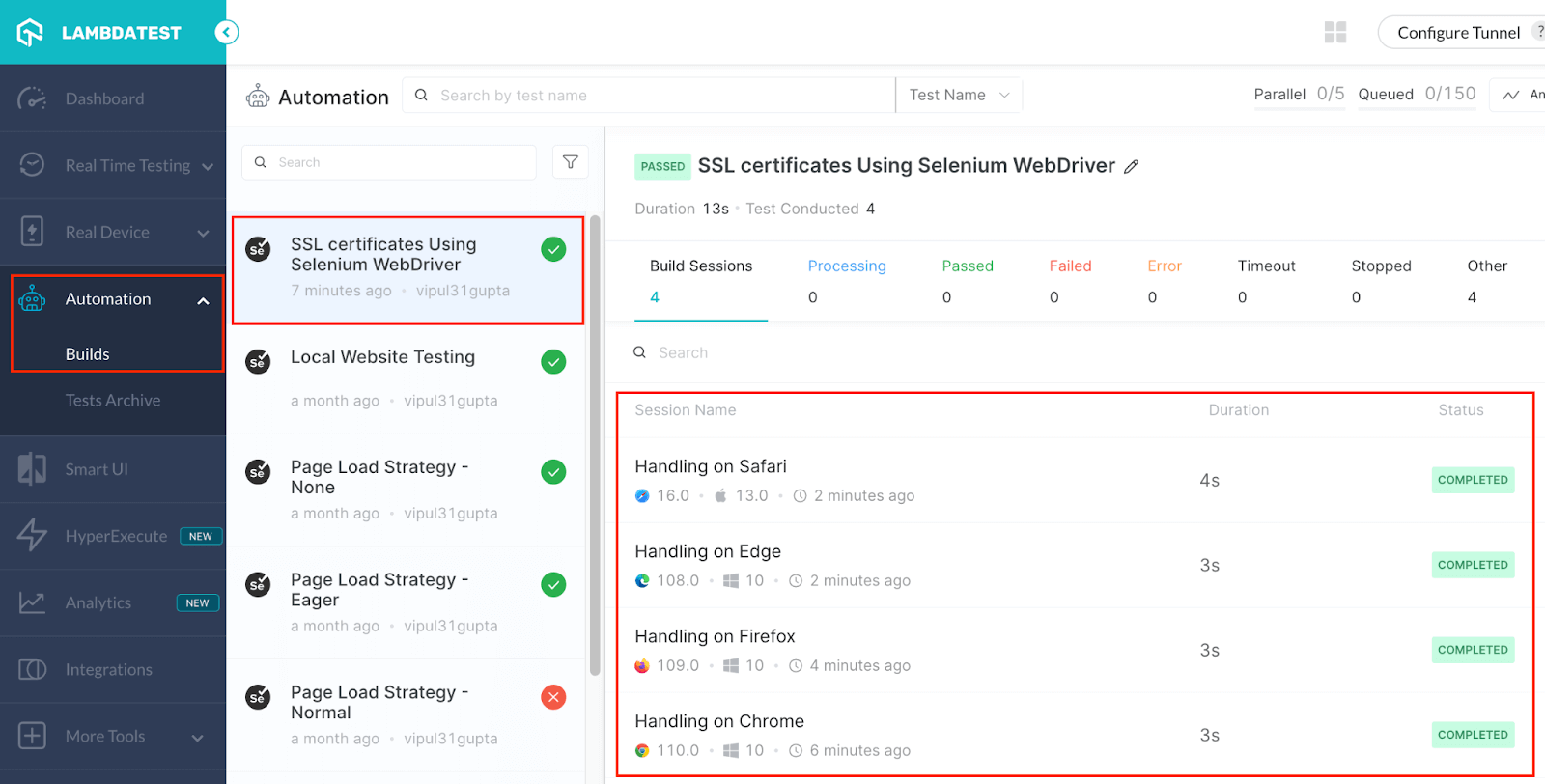
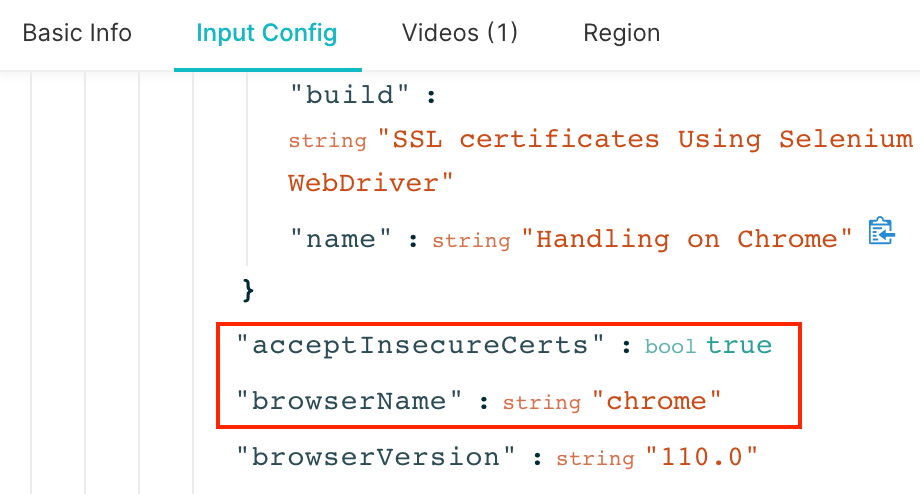
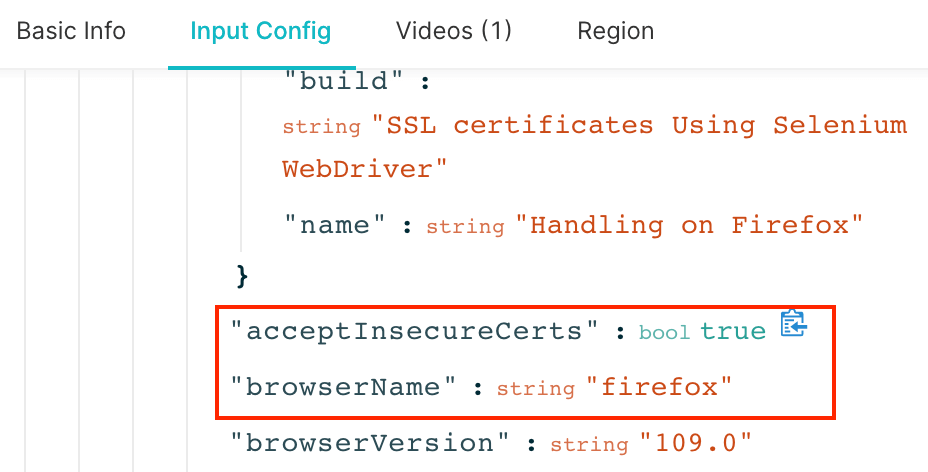
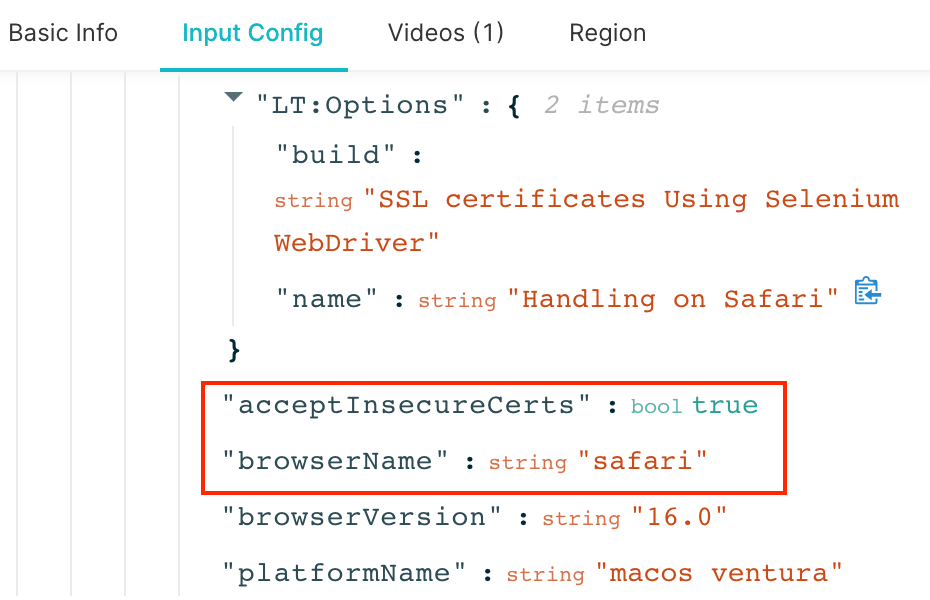
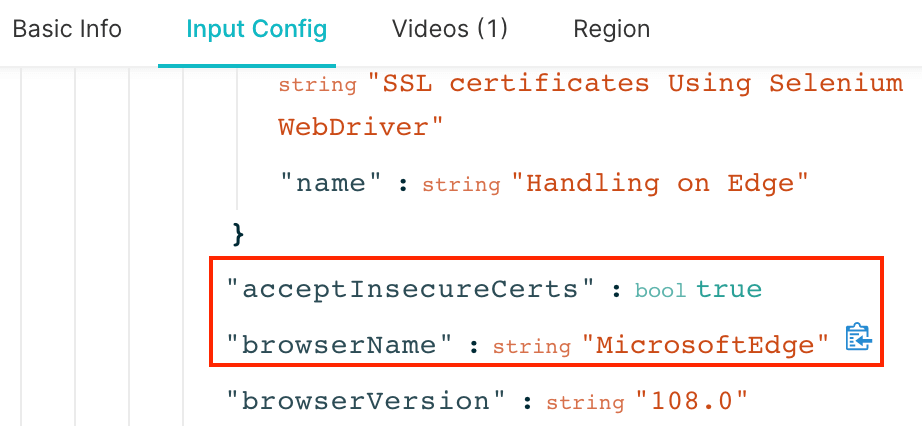
An added advantage of using the TestMu AI grid here is that we can select each test case and verify the configuration passed to the test case is correct, i.e., acceptInsecureCerts = true on all browsers for this execution, from the Input Config section.
Chrome Browser
Firefox Browser
Safari Browser
Edge Browser
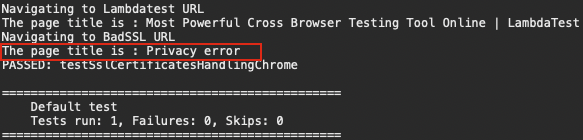
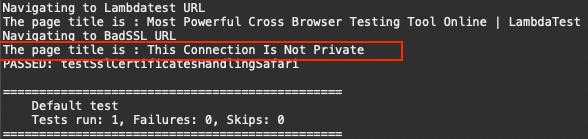
Finally, we try to execute the test cases from Test_Reject_InsecureSslCerts on which TestMu AI should get loaded, and BadSSL should raise a Privacy error due to an insecure SSL certificate since on this, we are not accepting insecure SSL certificates.
On local execution, since the website would not get loaded, the title would not be the same and, instead, signify the same on each browser.
For Safari, it would be This Connection Is Not Private for Safari, for Chrome and Edge Privacy error and WebDriverException for Firefox since we are using Remote WebDriver.
You can learn more about them through this blog on common Selenium exceptions.
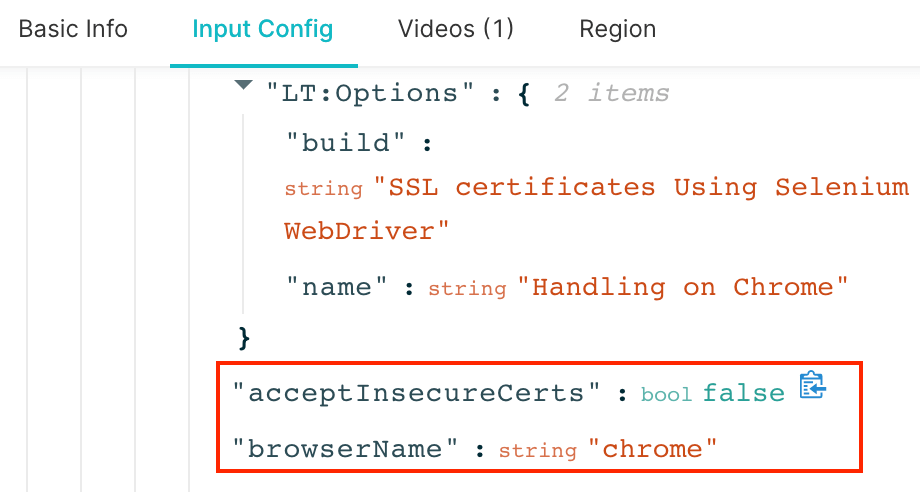
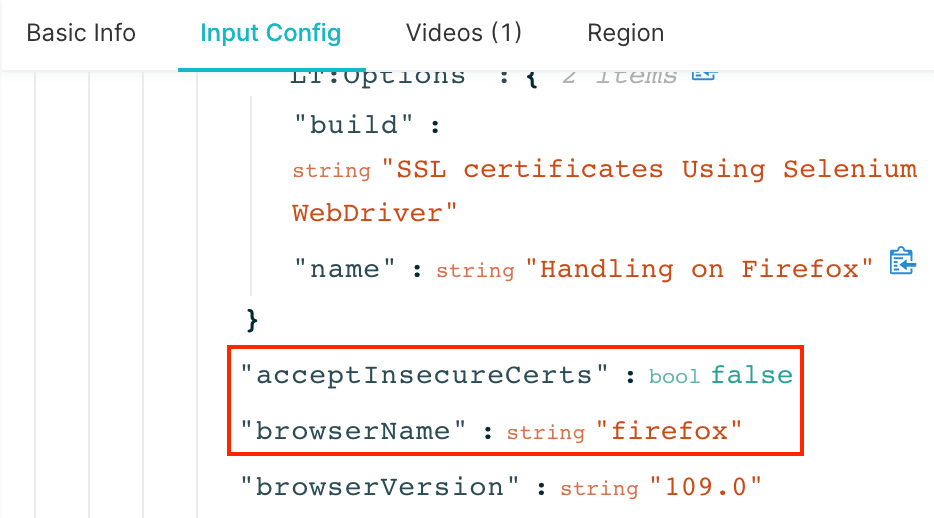
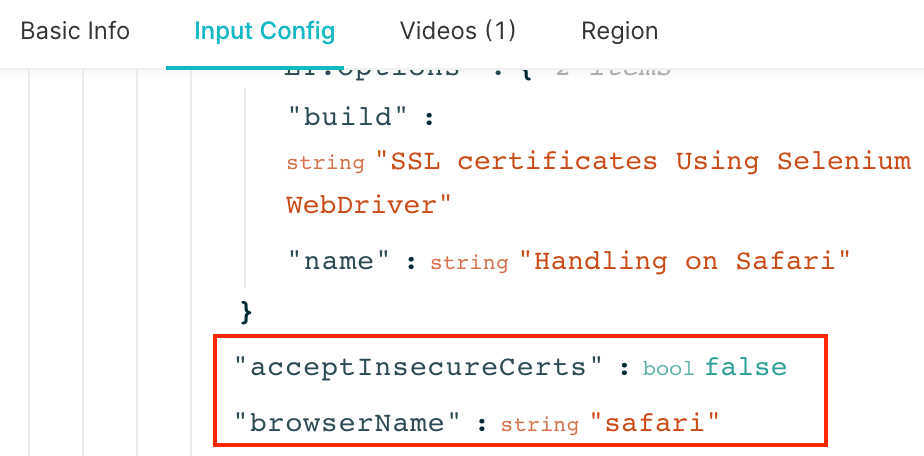
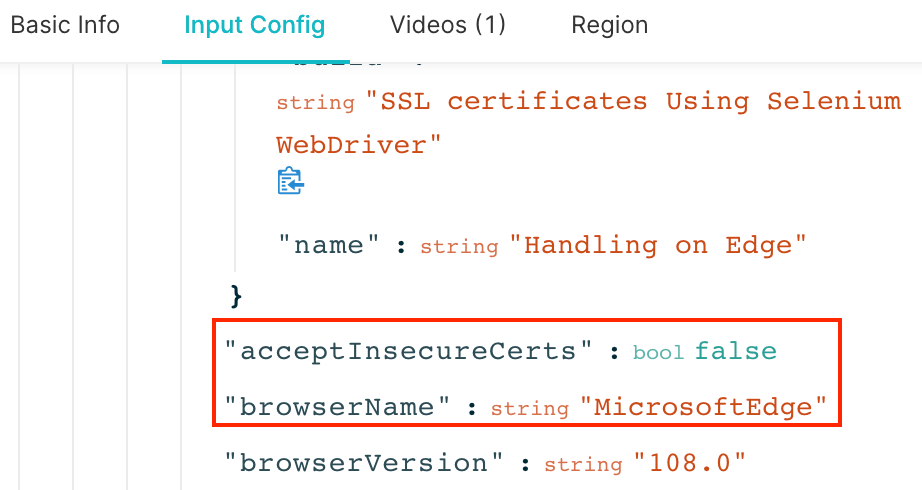
Similarly, we can check the results on the TestMu AI Dashboard. You would observe that for these executions on each browser, unlike previous cases, the Input config for all cases would have acceptInsecureCerts as false, like below.
Chrome Browser
Firefox Browser
Safari Browser
Edge Browser
Conclusion
With this, we have reached the end of this blog on how to handle SSL certificates in Selenium WebDriver. In this blog, we learned about SSL certificates, how it works, and what an insecure certificate means. On demonstration, we also understood that Selenium provides us with functions to both accept and reject such insecure SSL certificates in our automation on each browser. So, now it is time for you to explore SSL more and implement it in your code.
Happy testing.



Frequently asked questions
Did you find this page helpful?
More Related Hubs
TestMu AI forEnterprise
Get access to solutions built on Enterprise
grade security, privacy, & compliance
- Advanced access controls
- Advanced data retention rules
- Advanced Local Testing
- Premium Support options
- Early access to beta features
- Private Slack Channel
- Unlimited Manual Accessibility DevTools Tests