
Power Your Software Testing with AI Agents and Cloud
The Native AI-Agentic Cloud Platform to Supercharge Quality Engineering. Test Intelligently and Ship Faster.


- TestMu AI (Formerly LambdaTest)
- /
- Blog
- /
- How To Use isDisplayed() In Selenium WebDriver
How To Use isDisplayed() In Selenium WebDriver
This article explains how to use isDisplayed() in Selenium WebDriver while performing Selenium automation testing.
Last Updated on:
Selenium WebDriver's isDisplayed() method checks whether a located element's display attribute is set to true and returns a plain true or false rather than throwing an exception, which is what separates it from isEnabled(), which simply checks whether the element exists, and isSelected(), which reports a checkbox or radio button's checked state.
What is Selenium?
Selenium has always been the primary choice of automation framework when it comes to automating the interactions on the web page. It is an open-source framework and has various features like multi-browser and platform compatibility, multi-language support, simple setup, and integration with popular unit testing frameworks like JUnit and TestNG.
When it comes to automation, a tester always looks for a perfect insightful way to capture all the requirements for framing the test cases. But whenever the tests are executed, there would be some cases reported with false failures. We all might have faced such a situation in our work. Sometimes the issue would arise because of the environment, and it would sometimes be the code issue. Overcoming or handling false failures is considered one of the best practices in designing the automation framework.
Also read – Best Practices to Follow in Test Automation
Handling the web elements on the web page in the automation suite might not be as easy as it looks. Locating the web elements has been simplified as we have multiple tools for inspecting them. In some situations, we need to check the presence of the web elements on the web page before proceeding further, as it might throw exceptions in Selenium when the elements aren’t found on the page. It’s not that the element we are looking for is not present on the web page.

You can also Subscribe to the TestMu AI YouTube Channel and stay updated with the latest tutorials around automated browser testing, Selenium testing, CI/CD, and more.
There might be times when it takes some time for the element to be displayed on the page. Even though adding some amount of wait time would save us from such exceptions, it is always good to verify the presence of elements. But handling those elements in automation might throw some unexpected exceptions. So how do we overcome such situations? I have come up with a few suggestions for overcoming such situations. Let us dive in through this blog to understand a few methods to overcome some false failures in our automation suite.
To locate an element present on a webpage, we can use eight different types of locators in Selenium:
- Id
- Name
- ClassName
- Xpath
- CSS
- LinkText
- PartialLinkText
- TagName
With the help of any of these locators, we can locate the elements on the web page and interact with them.
But sometimes, even though we have used the correct web element in our automation scripts, our tests may fail to say that the element is not found on the page. Ever wondered why is it so? There are multiple reasons for getting this exception, but among those, we wouldn’t have checked if the element is actually present on the page or not. There may be times the web page might be loaded completely before which our tests might be looking for the element. In such cases, we might face this exception.
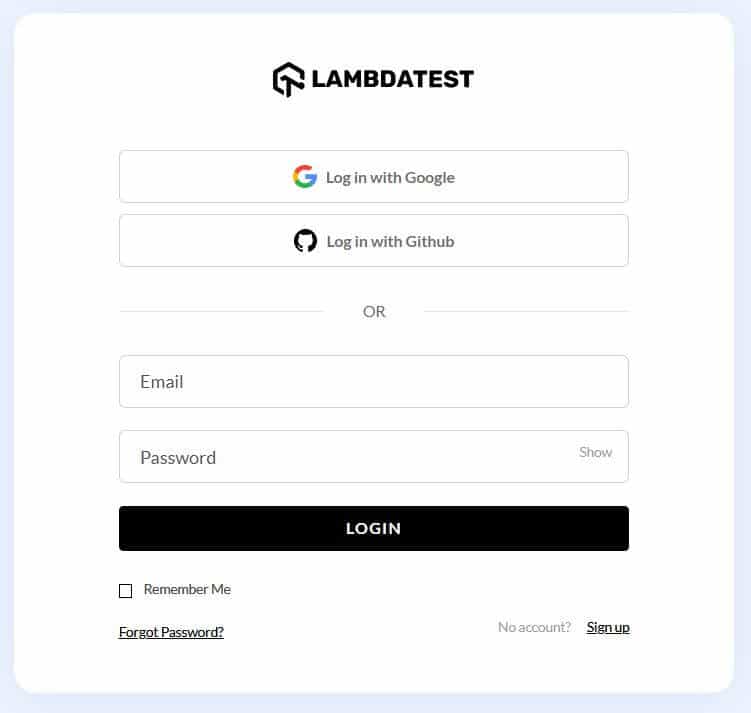
For example, let us use TestMu AI Login Page to verify the login functionality. Sometimes when the email and password elements aren’t loaded within a specific wait time, the tests will throw exceptions stating that the element is not found on the page. So while automating, it is always a good practice to look for the presence of email and password textboxes before actually interacting with them.
In the next section of this article on how to use isDisplayed() in Selenium WebDriver, we will see how we ensure the presence of web elements in Selenium.

How to ensure the presence of Web Elements in Selenium?
There are three different ways to ensure the presence of web elements on a web page:
- isDisplayed()
- isSelected()
- IsEnabled()

In this article on how to use isDisplayed() in Selenium WebDriver, I have used Selenium with Java. So the syntax and code used here is based on Java language. The syntax mentioned below would vary depending upon the programming language you choose.
Syntax for isDisplayed():
driver.findElement(By.<LocatorStrategy>("Locator_Value")).isDisplayed();
The return type of isDisplayed() method is Boolean. Hence by getting the value of this, we can verify if the web element is present or not on the web page.
Syntax for isSelected():
driver.findElement(By.<LocatorStrategy>("Locator_Value")). isSelected();
The return type of isSelected() method is Boolean. Hence by getting the value of this, we can verify if the web element is present or not on the web page.
Syntax for isEnabled():
driver.findElement(By.<LocatorStrategy>("Locator_Value")). isEnabled();
The return type of isEnabled() method is Boolean. Hence by getting the value of this, we can verify if the web element is present or not on the web page.
As the name suggests, each method is different and is designed in a way to serve its own purpose. Let’s see how to use them in our scripts in detail.
What is the isDisplayed() method in Selenium?
This method is used to verify the presence of any web elements on the web page. We can use it for verifying the presence of text boxes, buttons, dropdowns, checkboxes, radio buttons, etc.
Since Selenium Java is used here you can also watch this video to learn how to select multiple checkboxes in Selenium WebDriver Java.

How to use the isDisplayed() method for verifying the text box?
Scenario: Verify if the text boxes are present on the login page to enter the credentials
Step 1: Navigate to https://www.testmuai.com/login/.
Step 2: Verify the presence of the Email and Password textbox.
Step 3: Enter the email and password.
Step 4: Click LOGIN.
- Let us inspect the Email element.
- Now let us identify the Password element
- The final step is to locate the LOGIN button.
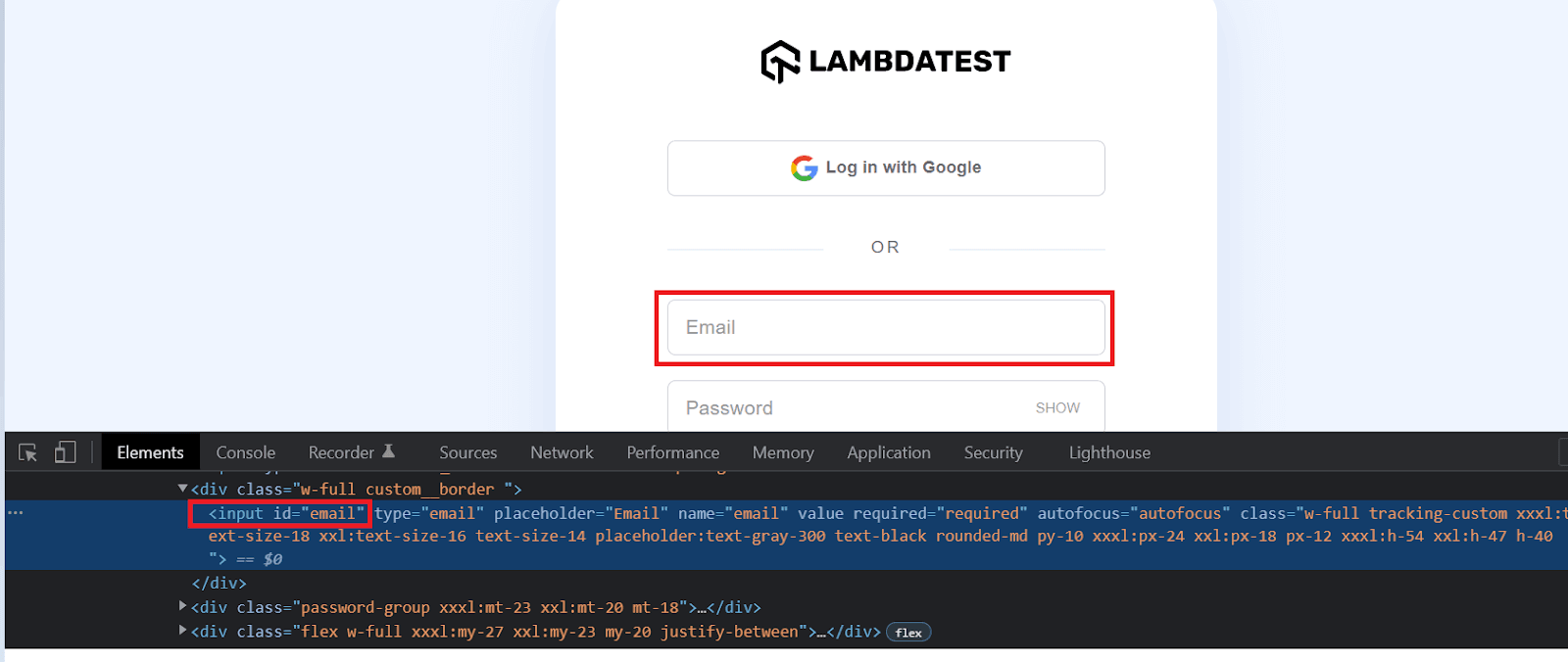
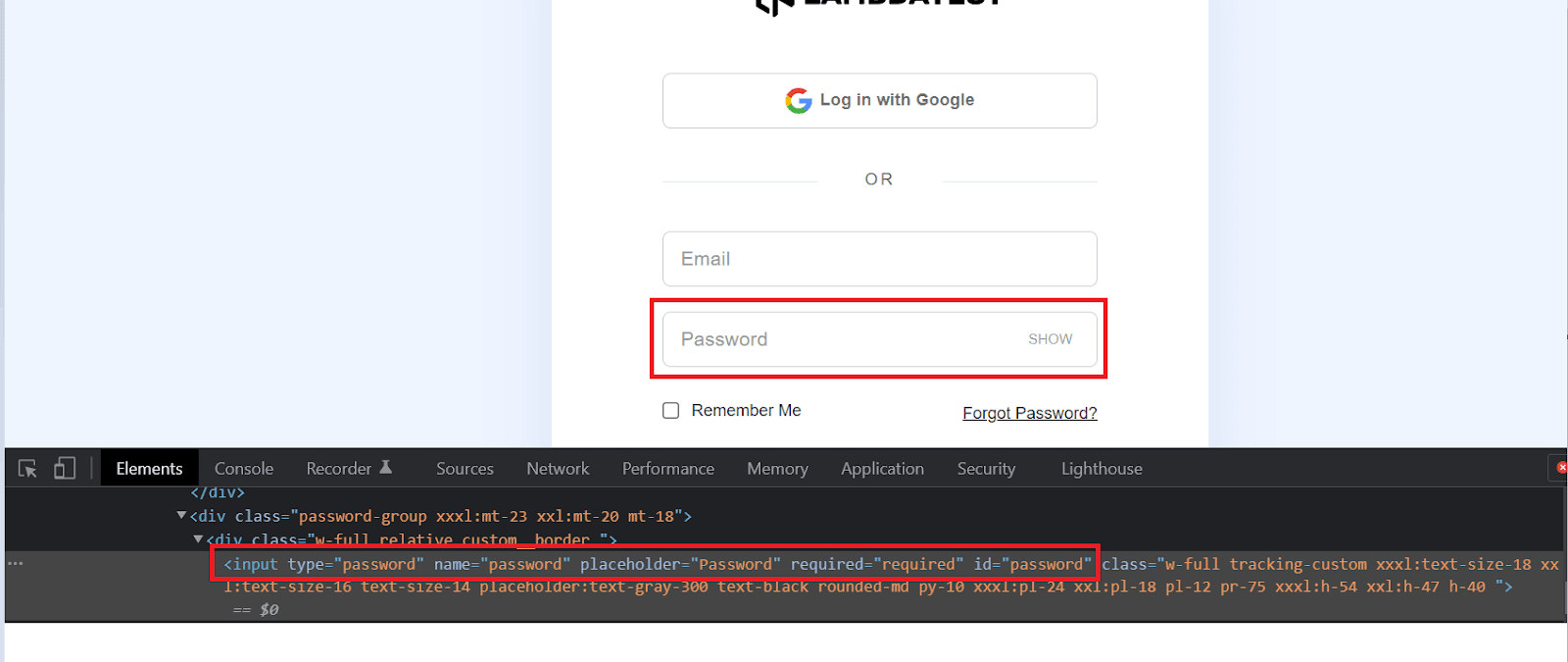
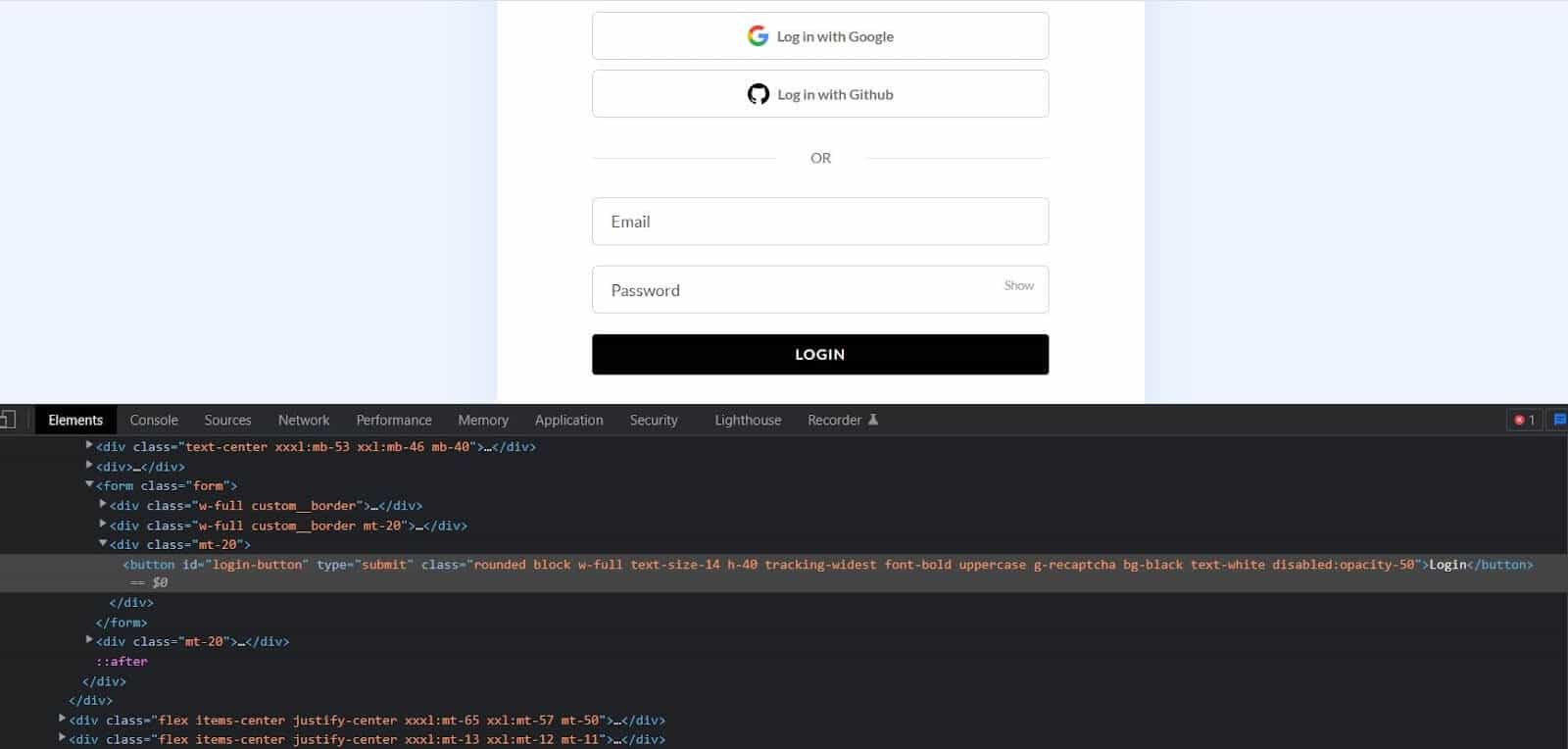
Implementation
package myTest;

import org.openqa.selenium.By;
import org.openqa.selenium.WebElement;
import org.openqa.selenium.remote.DesiredCapabilities;
import org.openqa.selenium.remote.RemoteWebDriver;
import org.testng.Assert;
import org.testng.annotations.AfterTest;
import org.testng.annotations.BeforeTest;
import org.testng.annotations.Parameters;
import org.testng.annotations.Test;
import java.net.MalformedURLException;
import java.net.URL;

class test1 {

    public String username = "YOUR_USERNAME";
    public String accesskey = "YOUR_ACCESSKEY";
    public static RemoteWebDriver driver = null;
    public String gridURL = "@hub.lambdatest.com/wd/hub";

    @Parameters(("browser"))
    @BeforeTest
    public void setUp(String browser) throws Exception {
        DesiredCapabilities capabilities = new DesiredCapabilities();
        if(browser.equalsIgnoreCase("chrome")) {
            capabilities.setCapability("browserName", "chrome");
            capabilities.setCapability("version", "96.0");
            capabilities.setCapability("platform", "win10"); // If this cap isn't specified, it will just get the any available one
            capabilities.setCapability("build", "automationTest");
            capabilities.setCapability("name", "automationTest_Demo");
        }
        else if( browser.equalsIgnoreCase("firefox")){
            capabilities.setCapability("platform", "Windows 11");
            capabilities.setCapability("browserName", "Firefox");
            capabilities.setCapability("version","97.0");
            capabilities.setCapability("build", "automationTest");
            capabilities.setCapability("name", "automationTest_Demo");
        }

        try {
            driver = new RemoteWebDriver(new URL("https://" + username + ":" + accesskey + gridURL), capabilities);
        } catch (MalformedURLException e) {
            System.out.println("Invalid grid URL");
        } catch (Exception e) {
            System.out.println(e.getMessage());
        }
    }

    @Test
    public void elementIsDisplayed() {
        try {
            System.out.println("Launching Lambda Test Login Page");
            driver.get("https://accounts.lambdatest.com/login");

            WebElement email= driver.findElement(By.id("email"));
            boolean isEmailBoxPresent = email.isDisplayed();
            if(isEmailBoxPresent) {
                email.sendKeys("abc@gmail.com");
                System.out.println("email text box is present");
            }
            else
                Assert.fail("No email text box is present in the webpage");

            WebElement password=driver.findElement(By.id("password"));
            boolean isPasswordBoxPresent = password.isDisplayed();
            if(isEmailBoxPresent) {
                password.sendKeys("abc@13w32");
                System.out.println("password box is present");
            }
            else
                Assert.fail("Password text box is not present in the webpage");

            WebElement loginBtn = driver.findElement(By.id("login-button"));
            loginBtn.click();
        } catch (Exception e) {
            System.out.println(e);
        }

    }

    @AfterTest
    public void closeBrowser() {
        driver.quit();
        System.out.println("The driver has been closed.");

    }

}
TestNG.xml
<?xml version="1.0" encoding="UTF-8"?>
<!DOCTYPE suite SYSTEM "http://testng.org/testng-1.0.dtd">
<suite name="TestSuite" parallel="tests" thread-count="4">
    <test name="ChromeBrowserTest">
        <parameter name="browser" value="Chrome"/>
        <classes>
            <class name="myTest.test1">
            </class>
        </classes>
    </test>
    </suite>
Pom.xml
<?xml version="1.0" encoding="UTF-8"?>
<project xmlns="http://maven.apache.org/POM/4.0.0"
         xmlns:xsi="http://www.w3.org/2001/XMLSchema-instance"
         xsi:schemaLocation="http://maven.apache.org/POM/4.0.0 http://maven.apache.org/xsd/maven-4.0.0.xsd">
    <modelVersion>4.0.0</modelVersion>

    <groupId>org.example</groupId>
    <artifactId>LambdaTest</artifactId>
    <version>1.0-SNAPSHOT</version>

    <dependencies>
        <dependency>
            <groupId>org.seleniumhq.selenium</groupId>
            <artifactId>selenium-java</artifactId>
            <version>4.0.0</version>
        </dependency>

        <!-- https://mvnrepository.com/artifact/org.testng/testng -->
        <dependency>
            <groupId>org.testng</groupId>
            <artifactId>testng</artifactId>
            <version>7.4.0</version>
            <scope>test</scope>
        </dependency>
        <dependency>
            <groupId>org.testng</groupId>
            <artifactId>testng</artifactId>
            <version>RELEASE</version>
            <scope>test</scope>
        </dependency>
    </dependencies>

</project>
Code Walkthrough
Now let me take you through the code implementation for verifying the presence of an element using the method isDisplayed() in Selenium.
- Add the required dependencies like Selenium, TestNG, etc. in pom.xml
- In the test class, we have added TestNG annotations like @BeforeTest, @Test, and @AfterTest
- To run our tests in the cloud Selenium Grid like TestMu AI, we need to create an account on TestMu AI. Once we have our account created, we will be provided with a username and access key to run our tests. We can define the username, access key, and grid URL as the global variables.
- We have added some basic setup like defining the desired capabilities for running our tests in different browsers and platforms in cloud Selenium cloud under a method annotated with @BeforeTest. We have also parameterized the test with the parameter browser. Based on the value provided in TestNG.xml for the parameter, the tests will be executed in the respective browsers.
@Parameters(("browser"))
@BeforeTest
public void setUp(String browser) throws Exception {
    DesiredCapabilities capabilities = new DesiredCapabilities();
    if(browser.equalsIgnoreCase("chrome")) {
        capabilities.setCapability("browserName", "chrome");
        capabilities.setCapability("version", "96.0");
        capabilities.setCapability("platform", "win10"); // If this cap isn't specified, it will just get the any available one
        capabilities.setCapability("build", "automationTest");
        capabilities.setCapability("name", "automationTest_Demo");
    }
    else if( browser.equalsIgnoreCase("firefox")){
        capabilities.setCapability("platform", "Windows 11");
        capabilities.setCapability("browserName", "Firefox");
        capabilities.setCapability("version","97.0");
        capabilities.setCapability("build", "automationTest");
        capabilities.setCapability("name", "automationTest_Demo");
    }

    try {
        driver = new RemoteWebDriver(new URL("https://" + username + ":" + accesskey + gridURL), capabilities);
    } catch (MalformedURLException e) {
        System.out.println("Invalid grid URL");
    } catch (Exception e) {
        System.out.println(e.getMessage());
    }
}
WebElement email= driver.findElement(By.id("email"));
WebElement password=driver.findElement(By.id("password"));
Then we have to check if the elements are displayed on the webpage or not to ensure that our tests don’t throw exceptions and cause false failures.
We have used the isDisplayed() in Selenium to check the presence of a web element on the web page that returns a Boolean value. This method returns true if the element is displayed on the webpage or returns false if the element is not displayed on the webpage. Based on this Boolean value we can ensure the presence of any web element on the web page and then proceed with our tests.
boolean isEmailBoxPresent = email.isDisplayed();
if(isEmailBoxPresent) {
    email.sendKeys("abc@gmail.com");
    System.out.println("email text box is present");
}
else
    Assert.fail("No email text box is present in the webpage");
boolean isPasswordBoxPresent = password.isDisplayed();
if(isEmailBoxPresent) {
    password.sendKeys("abc@13w32");
    System.out.println("paswword box is present");
}
else
    Assert.fail("Password text box is not present in the webpage");
In our case, we have used isDisplayed() in Selenium to verify the presence of email and password text boxes on the page. If the element is present, then we shall proceed with entering the values.
After entering the values of email and password, we have added a step to click the login button.
WebElement loginBtn = driver.findElement(By.id("login-button"));
loginBtn.click();
@AfterTest
public void closeBrowser() {
    driver.quit();
    System.out.println("The driver has been closed.");
}
<test name="ChromeBrowserTest">
    <parameter name="browser" value="Chrome"/>
    <classes>
        <class name="myTest.test1">
        </class>
    </classes>
</test>
To execute our tests, right-click the TestNG.xml file and click run.
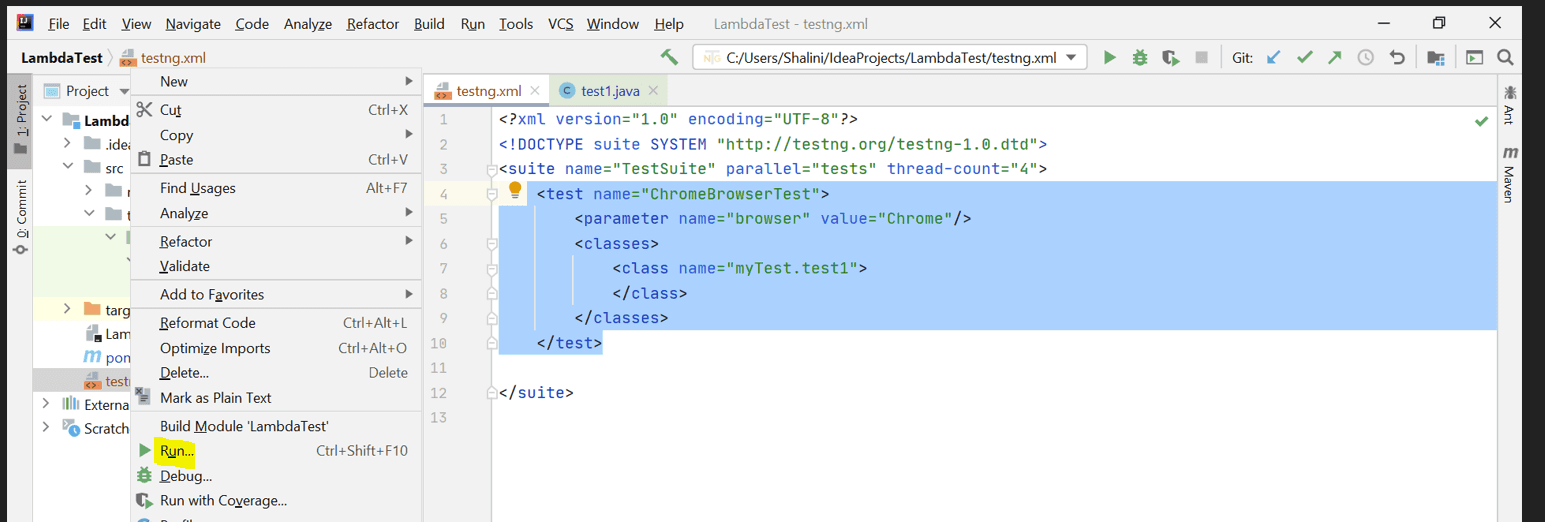
Console Output
On running the tests, we can see the output displayed below
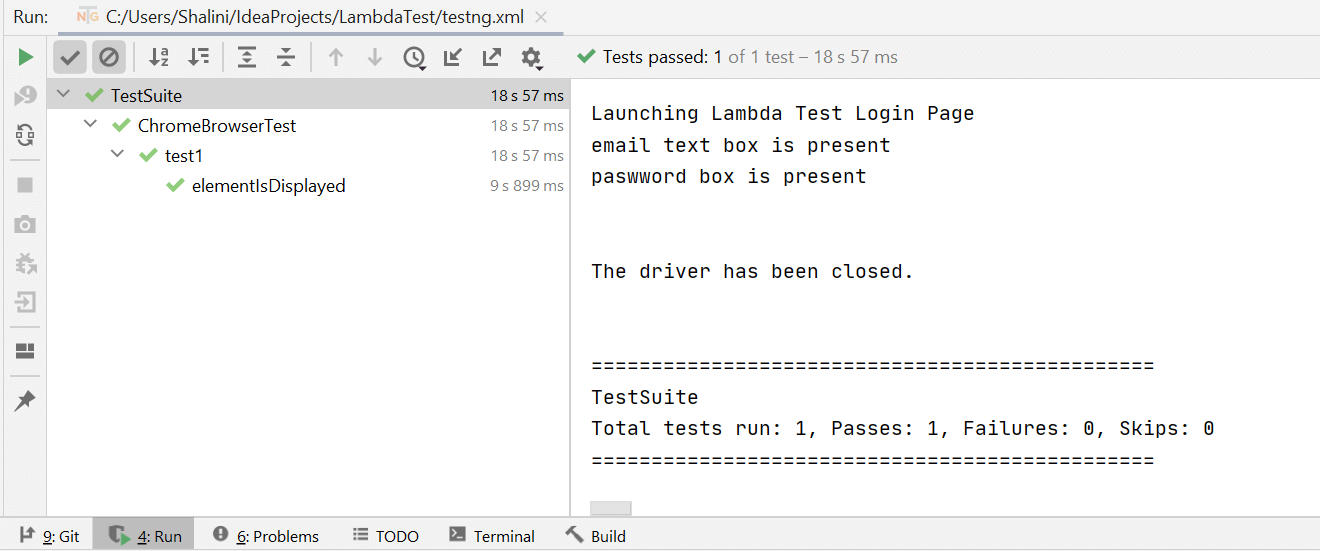
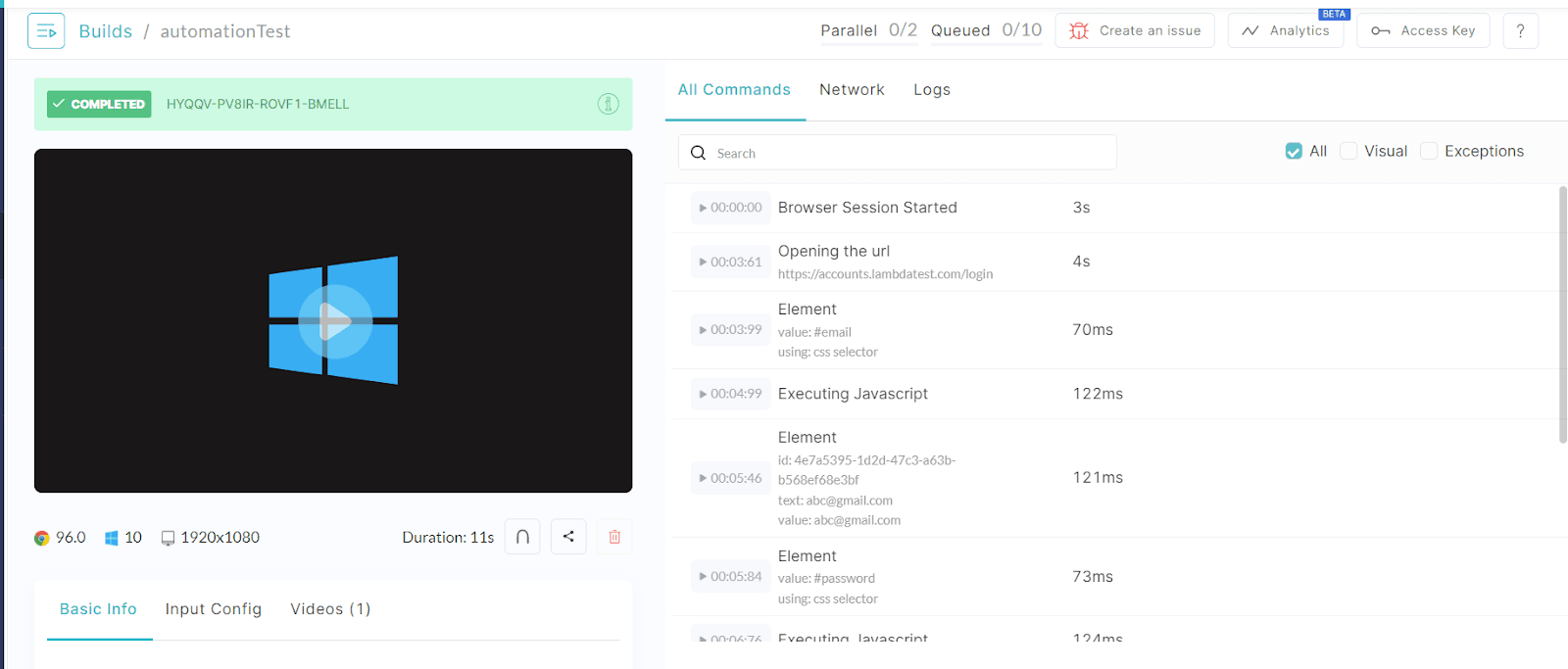
In the TestMu AI Dashboard, we can identify our test by the name provided in the desired capabilities in the code.
TestMu AI is a cross browser testing platform to carry out live and automated browser testing of websites and web applications on an online browser farm of 3000+ browsers and OS combinations.
TestMu AI’s test automation features help you –
- Ship quality builds at a breakneck pace.
- Reduce lead time by multiple folds with parallel testing.
- Hasten your automation testing cycle by integrating test suites with the best CI/CD tools.
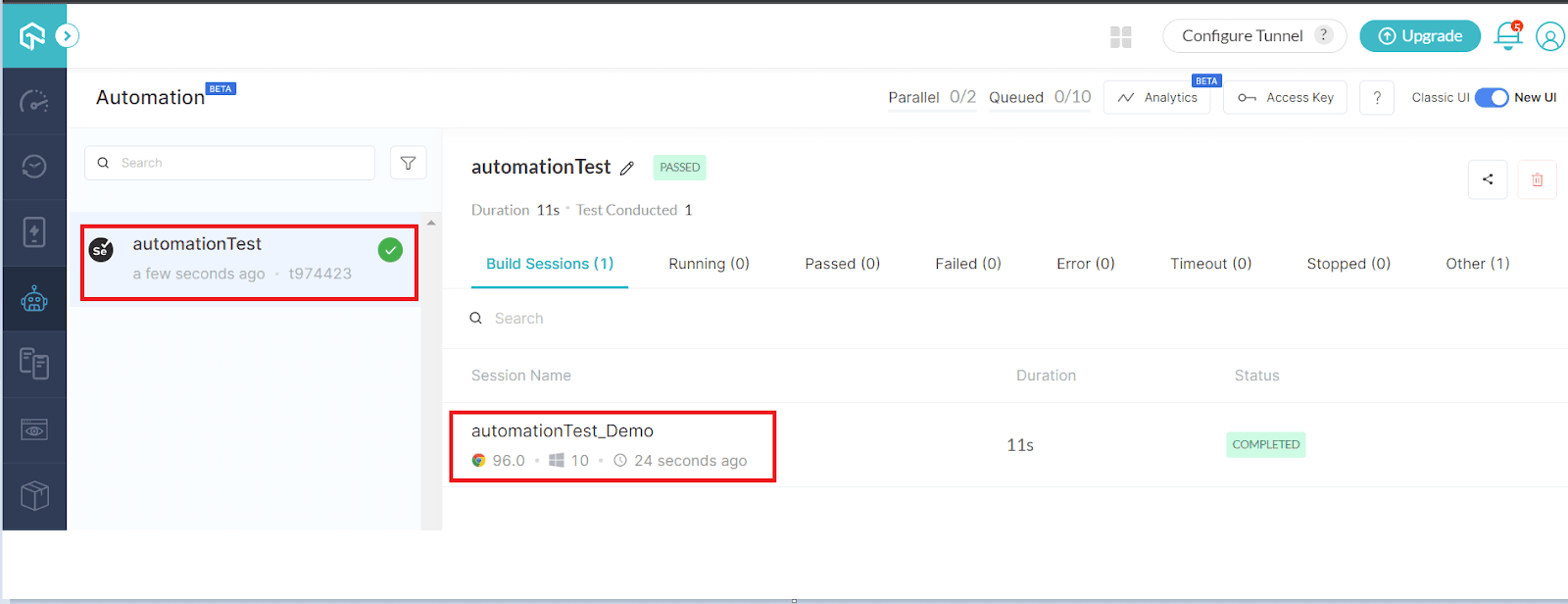
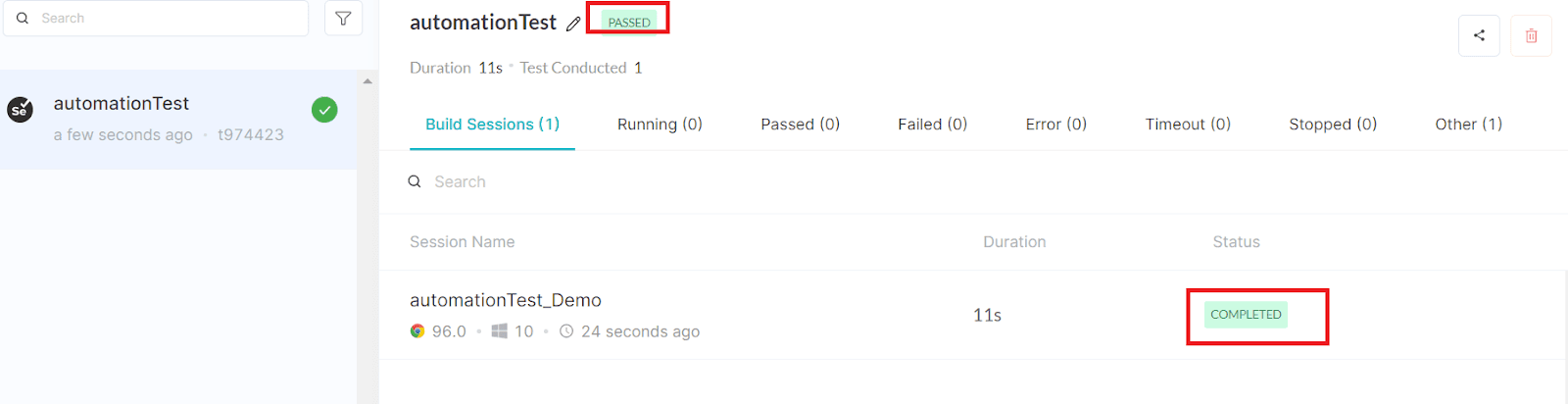
We can see the browser and platform in which the tests were run and also find the status of the test.
On further clicking the tests, we can see some details like the video recording and the logs of our test.
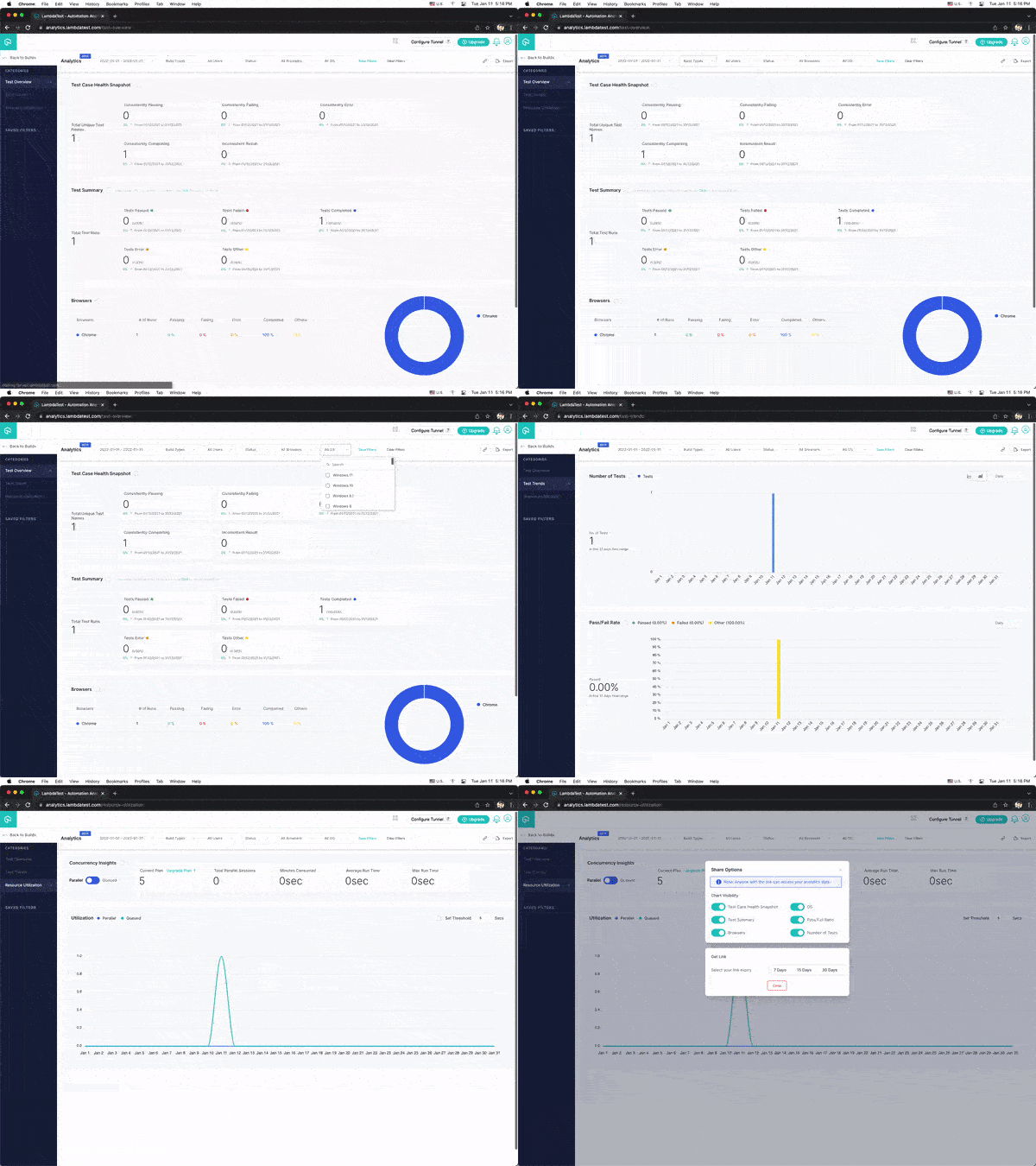
You can also navigate to the TestMu AI Analytics Dashboard to view test performance metrics. The Test Summary will show the total number of tests passed or failed, including completed and pending tests. Whereas the Test Overview will provide a snapshot of consistent tests.

Similar to isDisplayed() in Selenium, we have two more methods – isSelected() and isEnabled() to check if an element is selected or if an element is enabled on the web page, respectively.
What is the isEnabled() method in Selenium?
This method is used to check if an element is enabled on a web page or not. This method returns a Boolean value, and if the value is true the element is enabled in the webpage and it will return false if the element is not enabled in the webpage.
Syntax for isEnabled() method :
On the web page, we might encounter situations where some buttons will be enabled unless some condition has been met.
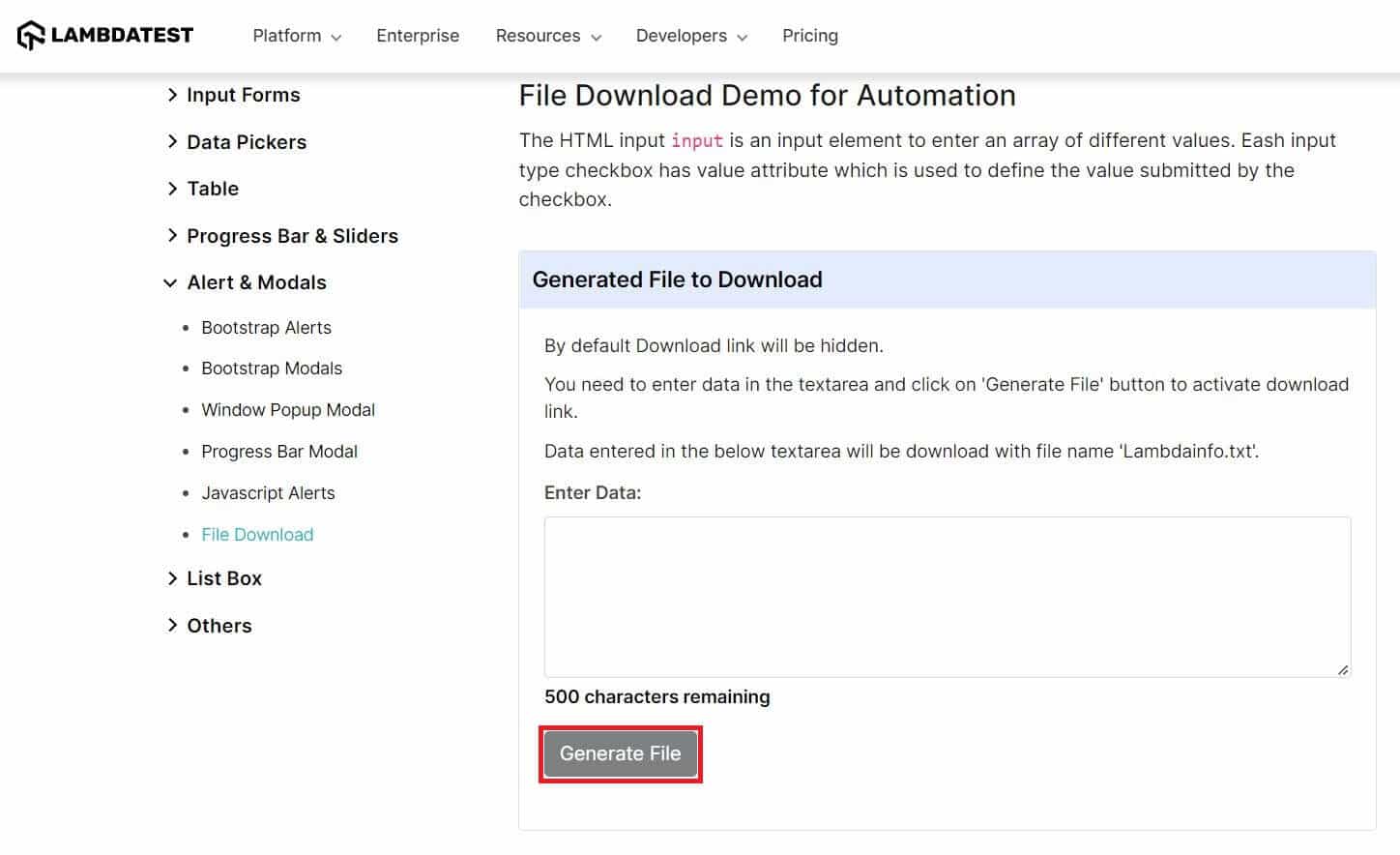
For example, let us navigate to the TestMu AI’s Selenium Playground site, which can be used to download a file. Here, we can see the “Generate File” button disabled unless any value is entered in the Enter Data section. We can implement this in our test and verify if this button is enabled or not on the web page.Scenario:
- Launch the TestMu AI’s Selenium Playground.
- Verify if the “Generate File” button is enabled or not.
Implementation
The test setup is similar to the one we have implemented in the previous section.
package myTest;

import org.openqa.selenium.By;
import org.openqa.selenium.WebElement;
import org.openqa.selenium.remote.DesiredCapabilities;
import org.openqa.selenium.remote.RemoteWebDriver;
import org.testng.Assert;
import org.testng.annotations.AfterTest;
import org.testng.annotations.BeforeTest;
import org.testng.annotations.Parameters;
import org.testng.annotations.Test;
import java.net.MalformedURLException;
import java.net.URL;

class test2 {

    public String username = "YOUR_USERNAME";
    public String accesskey = "YOUR_ACCESSKEY";
    public static RemoteWebDriver driver = null;
    public String gridURL = "@hub.lambdatest.com/wd/hub";

    @Parameters(("browser"))
    @BeforeTest
    public void setUp(String browser) throws Exception {
        DesiredCapabilities capabilities = new DesiredCapabilities();
        if(browser.equalsIgnoreCase("chrome")) {
            capabilities.setCapability("browserName", "chrome");
            capabilities.setCapability("version", "96.0");
            capabilities.setCapability("platform", "win10"); // If this cap isn't specified, it will just get the any available one
            capabilities.setCapability("build", "isEnabledTest");
            capabilities.setCapability("name", "isEnabledTest_Demo");
        }
        else if( browser.equalsIgnoreCase("firefox")){
            capabilities.setCapability("platform", "Windows 11");
            capabilities.setCapability("browserName", "Firefox");
            capabilities.setCapability("version","97.0");
            capabilities.setCapability("build", "isEnabledTest");
            capabilities.setCapability("name", "isEnabledTest_Demo");
        }

        try {
            driver = new RemoteWebDriver(new URL("https://" + username + ":" + accesskey + gridURL), capabilities);
        } catch (MalformedURLException e) {
            System.out.println("Invalid grid URL");
        } catch (Exception e) {
            System.out.println(e.getMessage());
        }
    }

    @Test
    public void elementIsEnabled() {
        try {
            System.out.println("Launching Lambda Test Login Page");
            driver.get("https://www.testmuai.com/selenium-playground/generate-file-to-download-demo/");

            WebElement element= driver.findElement(By.id("create"));
            boolean status = element.isEnabled();

            System.out.println(status);
            if(status){
                System.out.println("The element is enabled in the web page");
            }
            else
                Assert.fail("The element is not enabled in the web page");

        } catch (Exception e) {
            System.out.println(e);
        }

    }

    @AfterTest
    public void closeBrowser() {
        driver.quit();
        System.out.println("The driver has been closed.");

    }

}
TestNG.xml
<?xml version="1.0" encoding="UTF-8"?>
<!DOCTYPE suite SYSTEM "http://testng.org/testng-1.0.dtd">
<suite name="TestSuite" parallel="tests" thread-count="4">
    <test name="ChromeBrowserTest">
        <parameter name="browser" value="Firefox"/>
        <classes>
            <class name="myTest.test2">
            </class>
        </classes>
    </test>

</suite>
Code Walkthrough
- The setup is similar to one we have done in the previous section for the method isDisplayed() in Selenium.
- In our test, we have located the web element for the “Generate File” button.
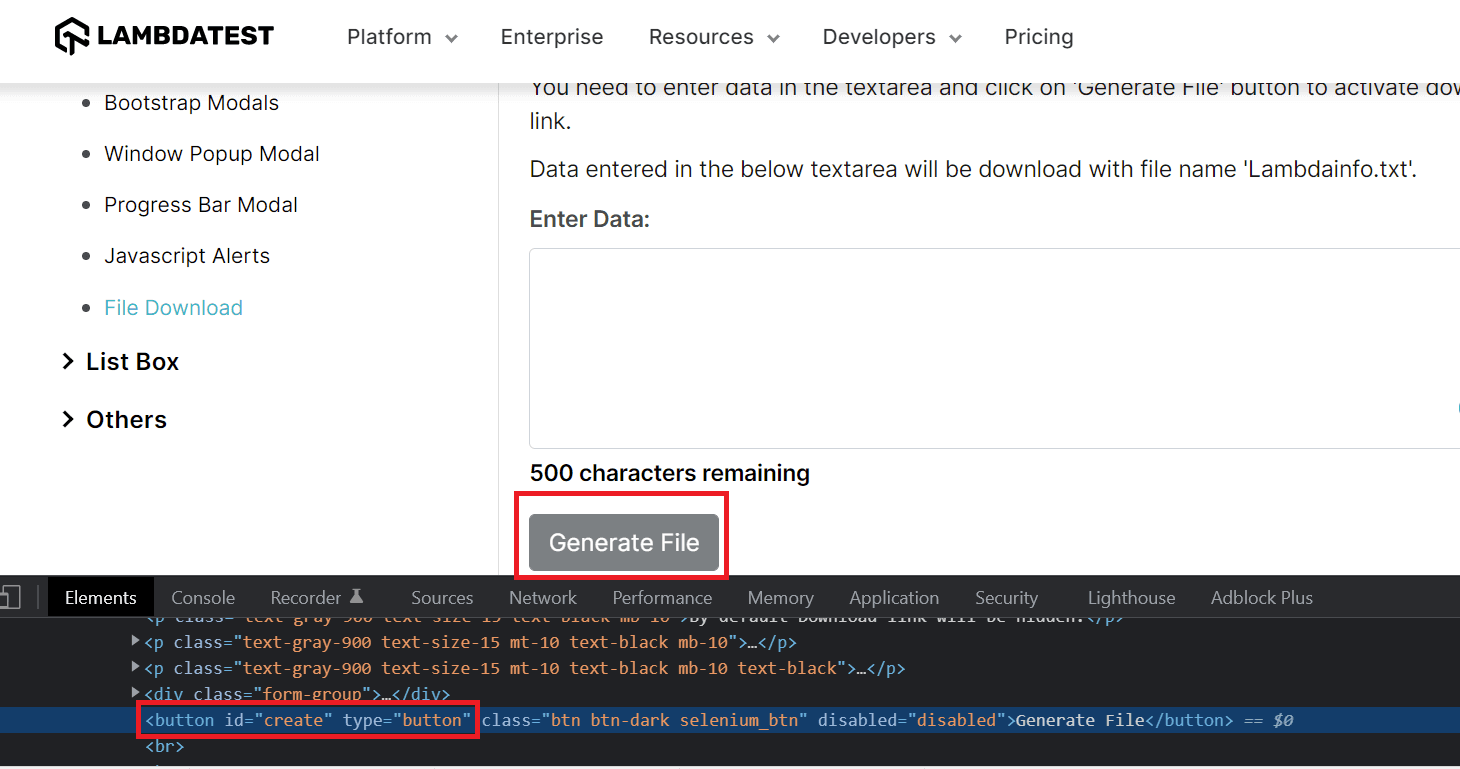
WebElement element= driver.findElement(By.id("create"));
boolean status = element.isEnabled();

System.out.println(status);
if(status){
    System.out.println("The element is enabled in the web page");
}
else
    Assert.fail("The element is not enabled in the web page");
Console Output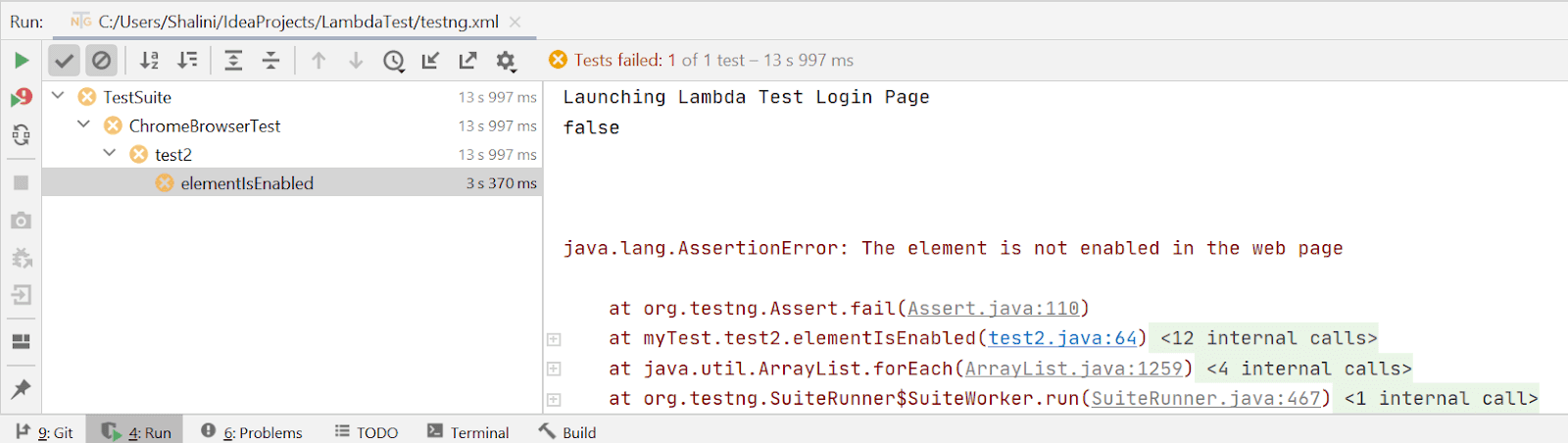 In the dashboard, we can see the test being executed in the Firefox browser as mentioned in our TestNG.xml file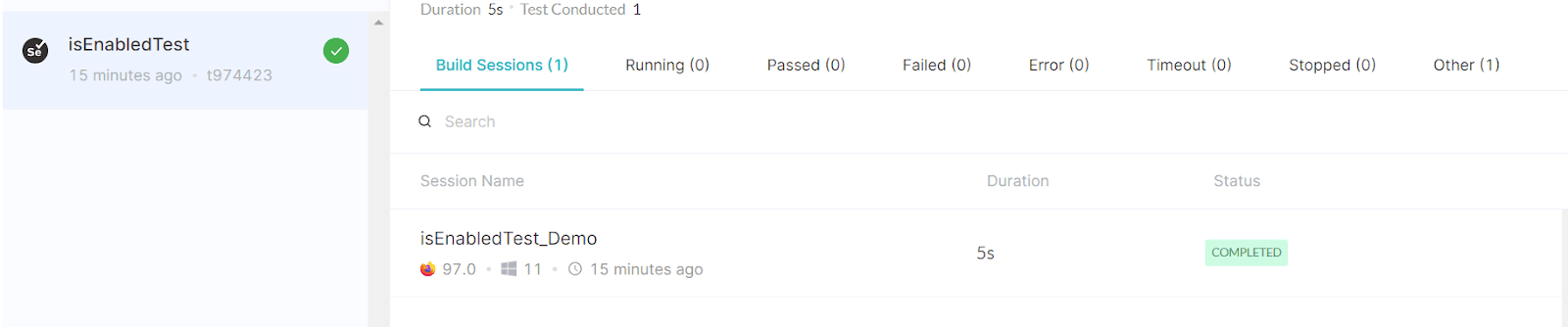
This Selenium 4 complete tutorial covers everything you need to know about Selenium 4.

What is the isSelected() method in Selenium?
The isSelected() method is used to verify if the element is selected or not in the webpage. This method returns a Boolean value. If the element is selected then it will return true and if it’s not selected it will return false. This method is used for checking whether the radio buttons and checkboxes are selected or not.Syntax for isSelected() method :
Scenario:
Step 1. Launch the website TestMu AI’s Selenium Playground.
Step 2. Click the “Click on this check box”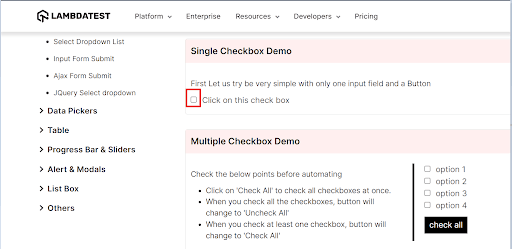 Step 3. Now verify if the checkbox has been selected or not.
Implementation
package myTest;

import org.openqa.selenium.By;
import org.openqa.selenium.WebElement;
import org.openqa.selenium.remote.DesiredCapabilities;
import org.openqa.selenium.remote.RemoteWebDriver;
import org.testng.Assert;
import org.testng.annotations.AfterTest;
import org.testng.annotations.BeforeTest;
import org.testng.annotations.Parameters;
import org.testng.annotations.Test;
import java.net.MalformedURLException;
import java.net.URL;

class test3 {

    public String username = "YOUR_USERNAME";
    public String accesskey = "YOUR_ACCESSKEY";
    public static RemoteWebDriver driver = null;
    public String gridURL = "@hub.lambdatest.com/wd/hub";

    @Parameters(("browser"))
    @BeforeTest
    public void setUp(String browser) throws Exception {
        DesiredCapabilities capabilities = new DesiredCapabilities();
        if(browser.equalsIgnoreCase("chrome")) {
            capabilities.setCapability("browserName", "chrome");
            capabilities.setCapability("version", "96.0");
            capabilities.setCapability("platform", "win10"); // If this cap isn't specified, it will just get the any available one
            capabilities.setCapability("build", "isSelectedTest");
            capabilities.setCapability("name", "isSelectedTest_Demo");
        }
        else if( browser.equalsIgnoreCase("firefox")){
            capabilities.setCapability("platform", "Windows 11");
            capabilities.setCapability("browserName", "Firefox");
            capabilities.setCapability("version","97.0");
            capabilities.setCapability("build", "isSelectedTest");
            capabilities.setCapability("name", "isSelectedTest_Demo");
        }

        try {
            driver = new RemoteWebDriver(new URL("https://" + username + ":" + accesskey + gridURL), capabilities);
        } catch (MalformedURLException e) {
            System.out.println("Invalid grid URL");
        } catch (Exception e) {
            System.out.println(e.getMessage());
        }
    }

    @Test
    public void elementIsSelected() {
        try {
            System.out.println("Launching Lambda Test demo Page");
            driver.get("https://www.testmuai.com/selenium-playground/checkbox-demo/");

            WebElement checkbox= driver.findElement(By.id("isAgeSelected"));
            checkbox.click();
            boolean status = checkbox.isSelected();

            System.out.println(status);
            if(status){
                System.out.println("The element is selected in the web page");
            }
            else
                Assert.fail("The element is not selected in the web page");

        } catch (Exception e) {
            System.out.println(e);
        }

    }

    @AfterTest
    public void closeBrowser() {
        driver.quit();
        System.out.println("The driver has been closed.");

    }

}
Code walkthrough
- The test setup is similar to the one that has been done in the previous section.
- Inspect the element which has to be selected.
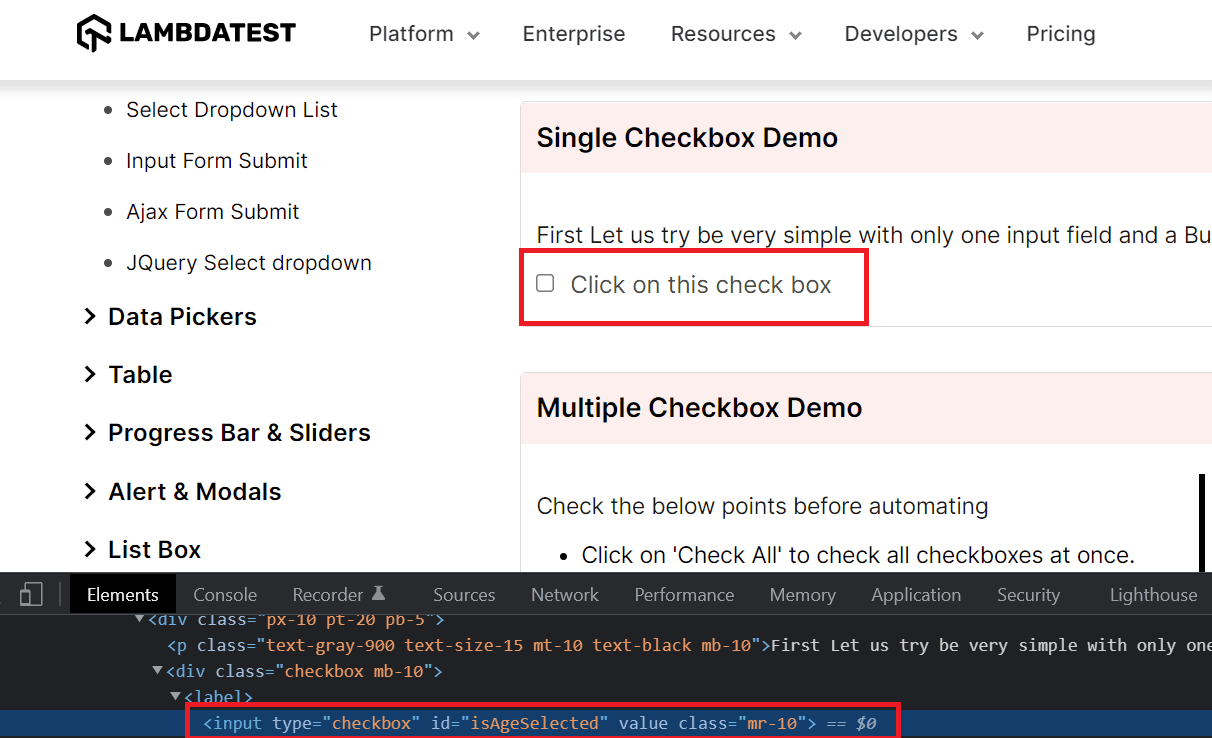
WebElement checkbox= driver.findElement(By.id("isAgeSelected"));
checkbox.click();
boolean status = checkbox.isSelected();

    System.out.println(status);
    if(status){
        System.out.println("The element is selected in the web page");
    }
    else
        Assert.fail("The element is not selected in the web page");

}
The isSelected() method has returned true as the element has been selected on the web page.
Console Output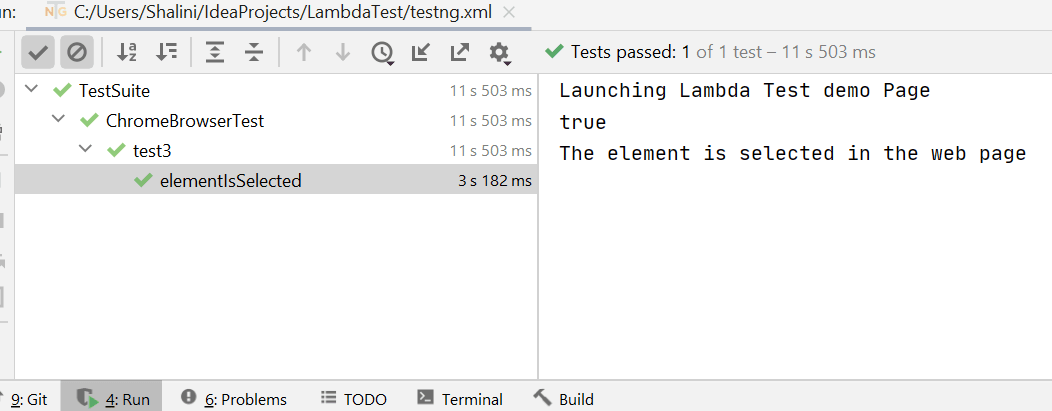 In the TestMu AI dashboard, we can find our tests
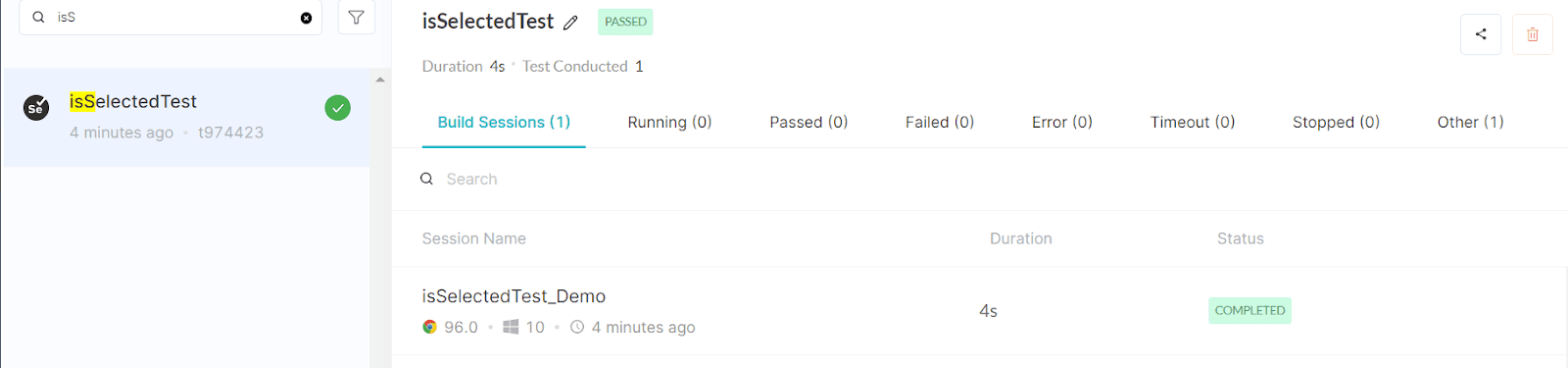 Now, let’s modify our test and see what happens if we don’t select the checkbox.!!
@Test
public void elementIsSelected() {
    try {
        System.out.println("Launching Lambda Test demo Page");
        driver.get("https://www.testmuai.com/selenium-playground/checkbox-demo/");

        WebElement checkbox= driver.findElement(By.id("isAgeSelected"));
        boolean status = checkbox.isSelected();
        System.out.println(status);
        if(status){
            System.out.println("The element is selected in the web page");
        }
        else
            Assert.fail("The element is not selected in the web page");

    } catch (Exception e) {
        System.out.println(e);
    }

}
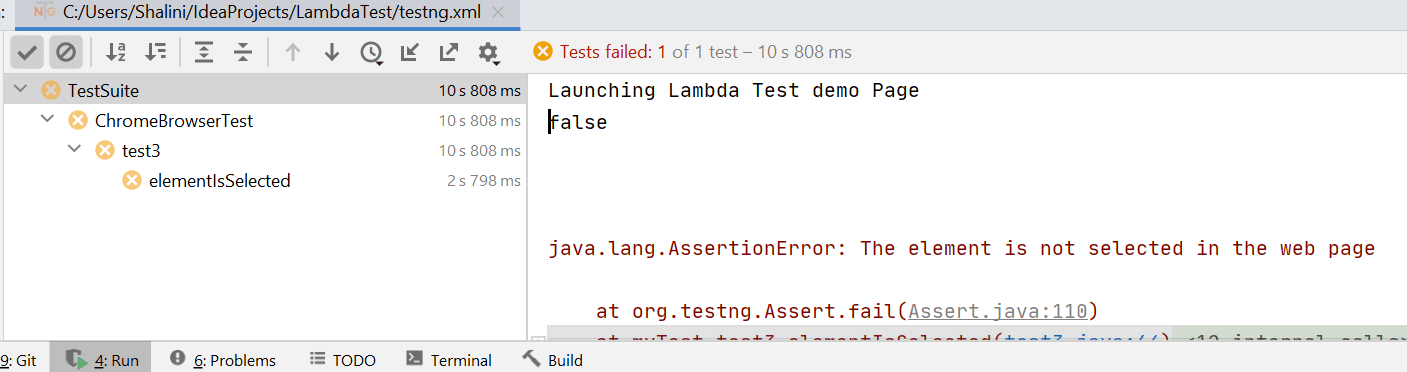
In the above code, we have identified the locator but we aren’t clicking the checkbox. We shall be verifying if the checkbox has been selected or not now.
Now our isSelected() method would return false as the checkbox is not selected. The console output would look like the below.

Austin Siewert
Co-Founder, Steadfast Systems
Discovered @TestMu AI yesterday. Best browser testing tool I've found for my use case. Great pricing model for the limited testing I do 👏
2M+ Devs and QAs rely on TestMu AI
Deliver immersive digital experiences with Next-Generation Mobile Apps and Cross Browser Testing Cloud

This certification is ideal for testing professionals who want to acquire advanced, hands-on knowledge in Selenium automation testing.
Here’s a short glimpse of the Selenium Advanced certification from TestMu AI:

Wrap up…!
Now it’s time to wrap up our understanding. So far, we have the implementation of three different methods – isDisplayed(), isEnabled() and isSelected() – serving its own purpose. The isDisplayed() in Selenium is used to ensure the visibility of the web element present on the web page. The isEnabled() method is used to ensure if the element with which we are trying to interact with is enabled or not on the web page.
In case the element is not enabled, then we can’t proceed further on our tests which might return incorrect exceptions. The isSelected() method is to verify if the web element is already selected or not on the web page. This can be applied to the radio buttons and checkbox elements. The return type of all three methods is Boolean, based on which we can conclude the status of the web element.
I hope this article on how to use isDisplayed() in Selenium WebDriver is really informative and helps you efficiently implement your tests. I would like to hear your feedback on this article. Try your hands on this and build up your automation tests logically. Keep exploring…!
Happy Testing…!
Author

Shalini Baskaran
Blogs: 10


Shalini Baskaran is a Senior Software Engineer with over 7 years of experience in test automation, quality engineering, and SDET practices. She is skilled in Selenium, Cucumber, JBehave, TestNG, Cypress, REST-Assured, Postman, SOAP UI, Jenkins, GitHub Actions, Docker, JMeter, AWS, Kibana, and Datadog. She has designed automation frameworks that reduced test script development time and integrated testing into CI/CD pipelines across banking, telecom, and cloud domains.


Frequently asked questions
Did you find this page helpful?
More Related Blogs

TestMu AI forEnterprise
Get access to solutions built on Enterprise
grade security, privacy, & compliance
- Advanced access controls
- Advanced data retention rules
- Advanced Local Testing
- Premium Support options
- Early access to beta features
- Private Slack Channel
- Unlimited Manual Accessibility DevTools Tests