

Next-Gen App & Browser Testing Cloud
Trusted by 2 Mn+ QAs & Devs to accelerate their release cycles


How to Run WebdriverIO Tests: Getting Started Tutorial
WebdriverIO is a JavaScript automation framework written in NodeJS. In this tutorial, learn how to run WebdriverIO tests.

Faisal Khatri
December 19, 2025
WebdriverIO is a widely used JavaScript testing framework for automating tests on web and mobile applications. It’s known for its simplicity and the ability to control browsers with just a few lines of code. This ease of use has made WebdriverIO a go-to choice for many testers.
Overview
Running a WebdriverIO test is simple. WebdriverIO uses a configuration file to define how your tests run and a single command to execute them.
Step 1: Set Up Your Project
Open your terminal and create a new folder.
This creates a wdio.conf.js file and a sample test in the test/specs folder.
Step 2: Run the Test
Run all tests:
Run one specific test:
You can also add this line in your package.json to make it easier:
Then use:
Step 3: Run Tests on Cloud (Optional)
To test on real browsers and devices, connect WebdriverIO with TestMu AI, an AI-nativecloud platform for running tests on 3,000+ real browsers and 10,000+ real devices without local setup.
npm init wdio .
npx wdio run ./wdio.conf.js
npx wdio run ./wdio.conf.js --spec ./test/specs/testfile.js
"scripts": { "test": "wdio run ./wdio.conf.js" }
npm run test
In this WebdriverIO tutorial, we look at how to run WebdriverIO tests and a step-by-step approach to installing and writing your first test.
What is WebdriverIO?
WebdriverIO is a test automation framework designed to automate the testing of web and mobile applications. It is an open-source test automation framework written using JavaScript. The latest stable version of WebdriverIO is 8.32, released in February 2024. When writing this blog, version 9 was in alpha release mode.
Adding helper functions in WebdriverIO is simple and can run on both WebDriver protocol and Chrome Devtools protocol, making it efficient for Selenium testing and Chromium-based automation.
Why WebdriverIO for Automation Testing?
The following are the key features of WebdriverIO that make it an out-of-the-box choice for web automation testing:
- WebdriverIO supports cross browser testing by allowing it to run tests on multiple browsers such as Chrome, Firefox, Edge, etc.
- WebdriverIO supports multiple programming languages for writing automated tests. It supports JavaScript and TypeScript out of the box.
- WebdriverIO allows seamless integration with multiple test automation frameworks.
- Installing WebdriverIO is as simple as opening the terminal and typing npm init wdio. The setup wizard will guide you through the installation process and support installing WebdriverIO on the machine.
- WebdriverIO supports testing web applications written in React, Vue, Angular, and Svelte front-end frameworks. It can also test native and hybrid Android and iOS mobile applications. It supports parallel execution on virtual and real mobile devices.
- WebdriverIO also supports the testing of native desktop applications that are written in Electron.js and allows unit and component testing to be performed in the browser.
- WebdriverIO supports multiple CI/CD tools, allowing you to integrate and run the tests through the automated CI/CD pipelines.

Architecture of WebdriverIO Framework
WebdriverIO has a modular architecture. Due to its modular architecture, WebdriverIO allows easy integration with different automation testing tools. WebdriverIO uses the WebDriver protocol to communicate between the browser or the application under test with the client.
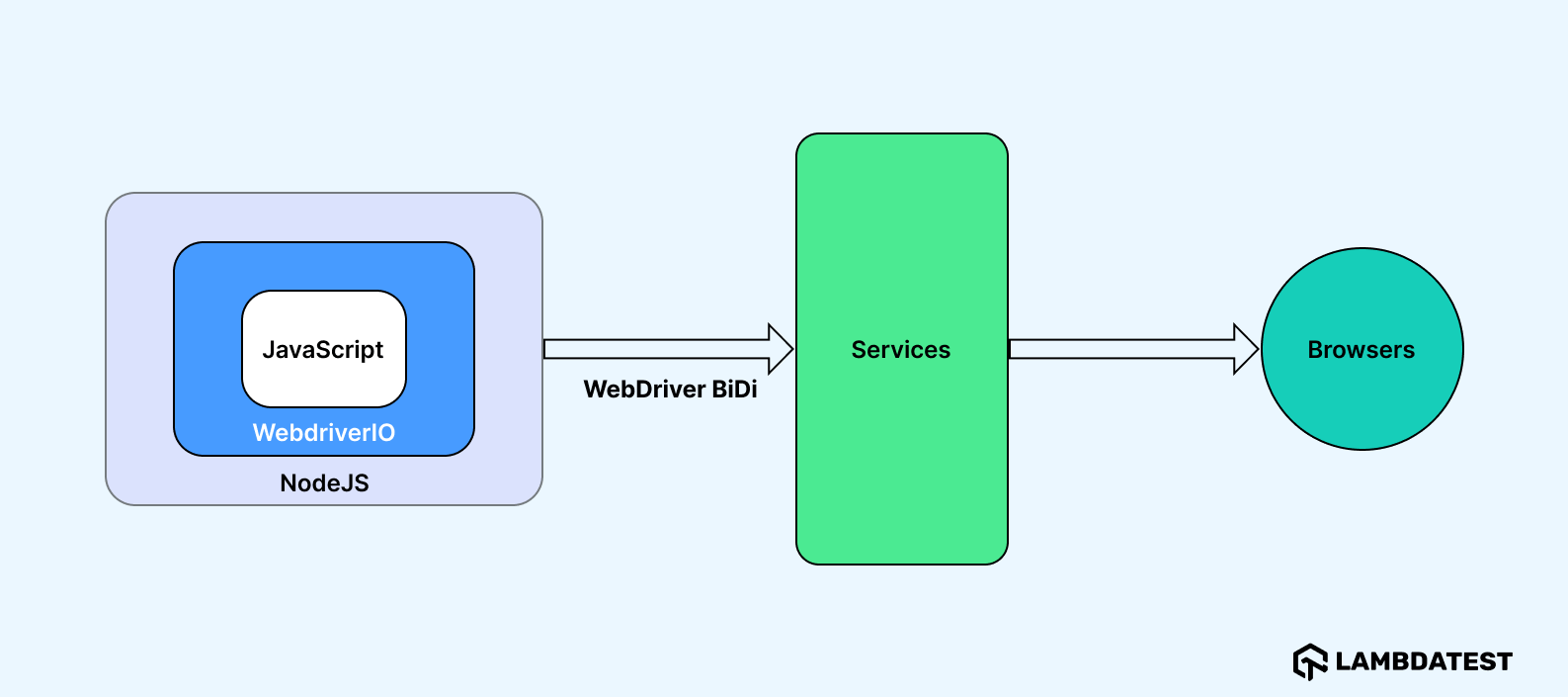
The architecture of WebdriverIO contains the following:
- WebDriver Client: It allows interaction with the browser or the mobile application under test using the WebDriver protocol.
- Selenium Server: It forms a bridge between the client and the browser or the mobile application.
- Test Runner: It carries the tasks of test execution and reporting.
Setting Up WebdriverIO Project
Now that you know WebdriverIO, let’s explore setting up the WebdriverIO project. Before that, ensure to install NodeJS and download VS Code.
- Open a terminal and create a new folder with the name wdiotutorial, and step into that folder using the below command on the terminal:
mkdir wdiotutorial && cd wdiotutorial
- Create an NPM project (package.json) by running the below command on the terminal:
npm init -y
The flag -y refers to Yes, meaning it will create a new package.json file with all the default values. It will update the name as the folder name that is wdiotutorial and update the version as 1.0.0. Some optional fields in the package.json, such as keywords, author, and description, will remain blank.
The package.json file can be viewed on the path mentioned in the terminal:
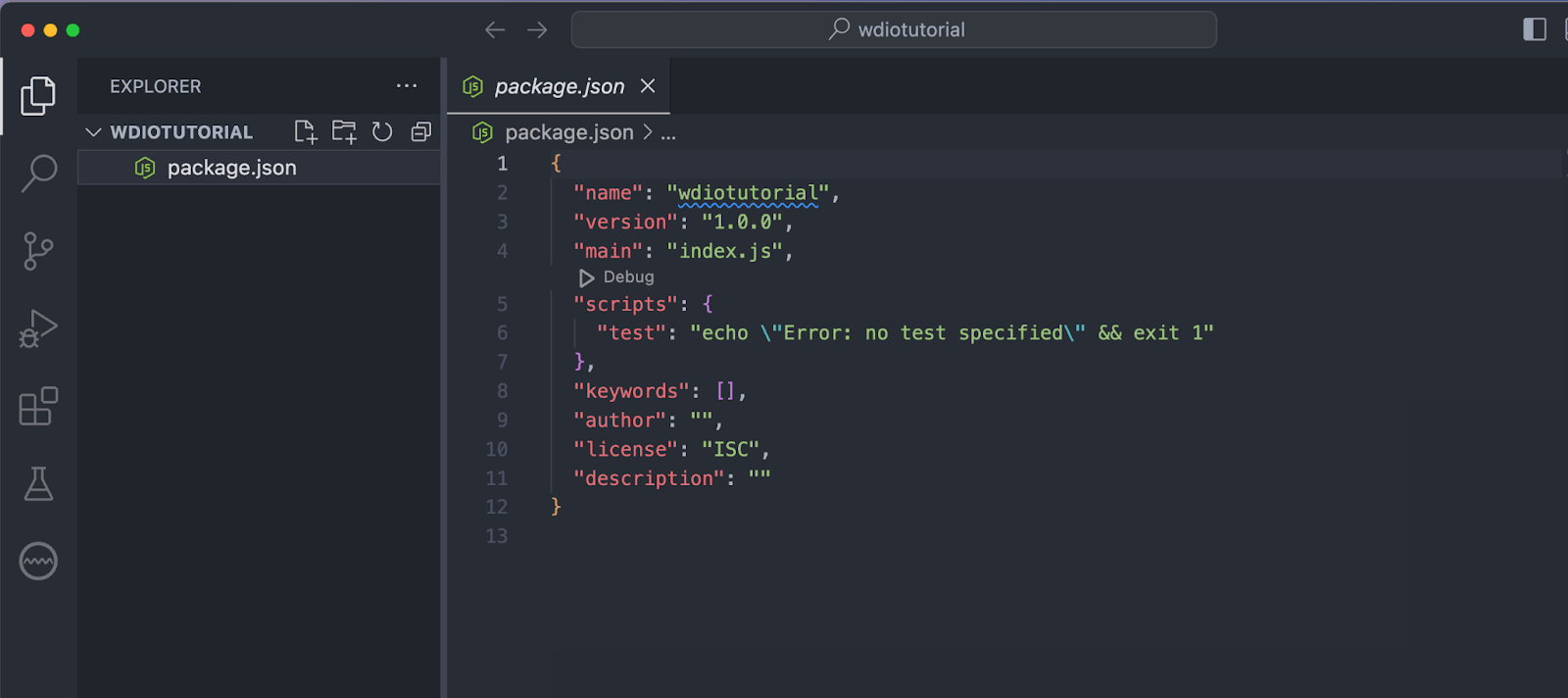
Let’s now check out the other option to generate the package.json file using the same command without using the -y flag.
- Open the terminal and run the following command:
npm init
- The project setup wizard will ask multiple questions when creating a package.json file. The values can be set as desired. However, if the question needs not answered, press the Enter key to proceed. It will set the default value applicable; otherwise, it will leave it blank.
- Press Y to complete the setup and allow the NPM setup wizard to generate the package.json file. The package.json file generated on the path can be viewed in the following screenshot, which contains all the answers provided manually by the user:
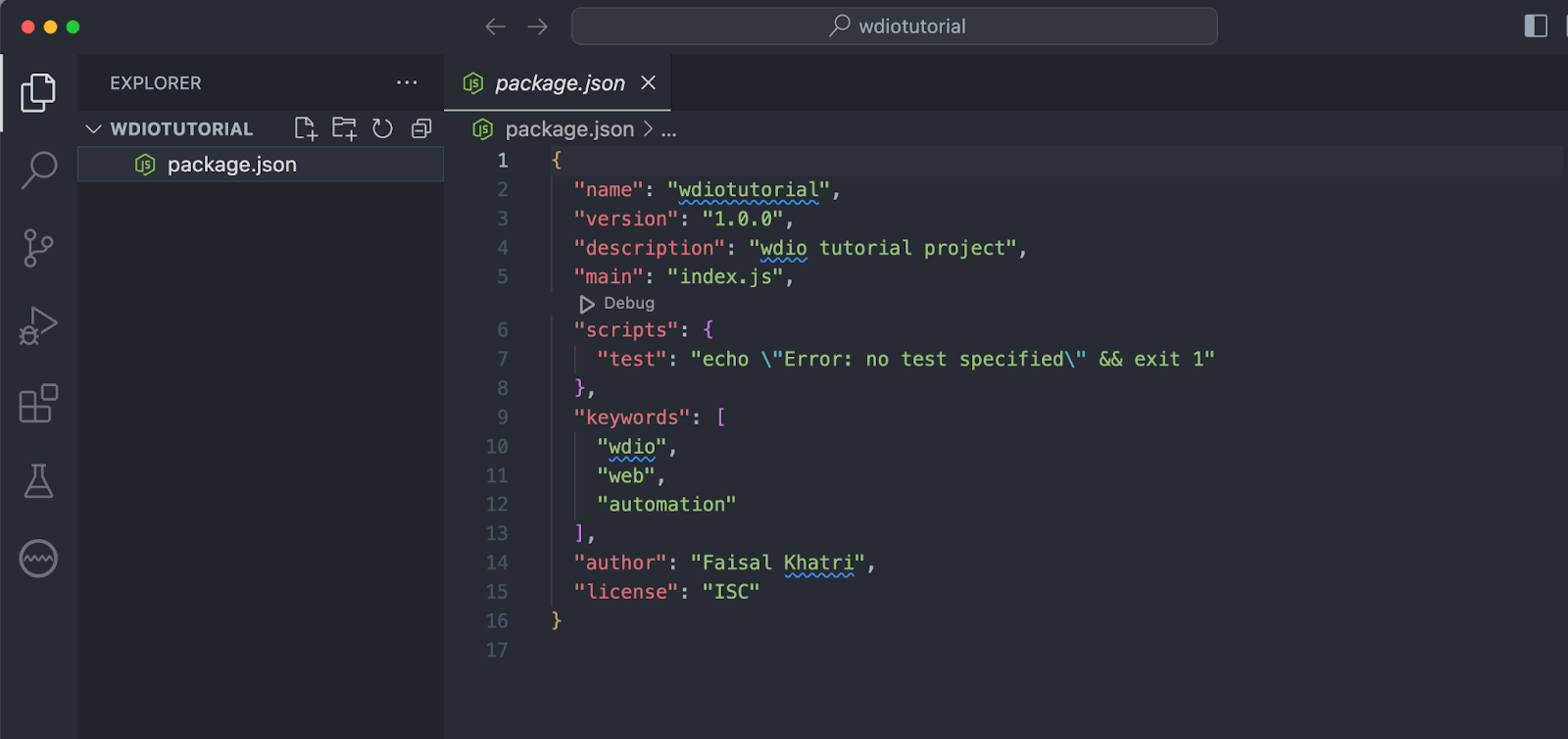
With the package.json file generated successfully, let’s look at how to install WebdriverIO.
Subscribe to the TestMu AI YouTube Channel and stay updated with the latest video tutorials on Selenium JavaScript, JavaScript automation testing, and more!
Installing WebdriverIO
The installation process of WebdriverIO is pretty simple. The WebdriverIO setup wizard does all the job for you by asking simple configuration-related questions and installing all the required packages to configure the framework and run the tests smoothly.
Run the following command using the terminal to start the WebdriverIO installation process:
npm init wdio --save-dev
The –save-dev flag will save all the installed libraries in the devDependencies section in the package.json file.
When executing the init wdio command using the @wdio/cli service, WebdriverIO’s test runner command line interface, it initiates a sequence of questions. Let’s go through them one by one.
- The first question will be regarding the creation of the project; it will automatically detect the npm project folder and ask if we want to continue with it. Select Yes to proceed.
- What type of testing would you like to do?Select E2E Testing – of Web or Mobile Applications There are other options that can be selected as per the requirement.
- Where is your automation backend located?Select On my local machine We are selecting this option as we will run the tests on the local machine. Accordingly, appropriate options could be selected if you need to run the tests on the cloud.
- Which environment you would like to automate?Select Web – web application in the browser This question is pretty simple as it is asking if we need to automate the web application or mobile application.
- With which browser should we start?Select Chrome There are multiple browsers supported by WebdriverIO for automation. Accordingly, the desired browser can be selected during this step.
- Which framework do you want to use? Select Mocha (https://mochajs.org/) As mentioned earlier, WebdriverIO supports multiple third-party frameworks. The required test framework can be chosen from the list.
- Do you want to use a compiler?Select – Babel (https://babeljs.io/) WebdriverIO supports JavaScript and TypeScript as major programming languages. In this step, select the required compiler for the programming language to write the tests.
- Do you want WebdriverIO to autogenerate some test files?Select Y WebdriverIO auto-generates sample test code. In this step, you can get the sample code or press N if you don’t need it.
- What should be the location of your spec files?Press enter to keep the default project location path. If the answer to the previous question is Yes, then this question will be asked, prompting the user to provide the location where the sample test files can be saved.
- Do you want to use page objects (https://martinfowler.com/bliki/PageObject.html)? Select Y This step will help you create the correct project structure with the page objects folder.
- Where are your page objects located?Press the Enter key to select the default location. If the previous step for using the Page Object Model is confirmed. In this step, we need to provide the path for the page object folder. If you want to select the default path, press Enter to proceed.
- Which reporter do you want to use?Select spec WebdriverIO supports multiple test reports that can be chosen from the list.
- Do you want to add a plugin to your test setup?Select wait-for: utilities that provide functionalities to wait for certain conditions till a defined task is complete. > https://www.npmjs.com/package/wdio-wait-for WebdriverIO supports multiple plugins that can be used with this framework. We will select the wait-for utility that automatically performs the required wait while locating elements. This will allow us to focus more on testing and leave worrying about flakiness due to waits.
- Would you like to include Visual Testing to your setup?Press N WebdriverIO also allows performing visual testing that can be enabled using this option.
- Do you want to add a service to your test setup?Select lambdatest. This is just an optional selection and does not impact if you run the tests on your local machine.
- Do you want to run
npm install? Select Y This is the final step, and it will install all the required dependencies as per the answers provided for the configuration questions.
You can also boost your test automation game with AI-driven test agents such as KaneAI.
KaneAI by TestMu AI is a GenAI native end-to-end testing agent that simplifies test creation, debugging, and evolution using natural language. Seamlessly integrate it into your workflow and experience faster, smarter test execution. Elevate your quality engineering efforts effortlessly with KaneAI!

How to Run WebdriverIO Tests on Local Grid?
Once the WebdriverIO is installed, the wdio.conf.js will be the main configuration file of the WebdriverIO framework. We will cover the following test scenario on the TestMu AI Selenium Playground website.
Test Scenario:
- Navigate to the Simple Form Demo page on the TestMu AI Selenium Playground website.
- Locate the Enter Message field and enter some text in it.
- Locate and click on the Get Checked Value button.
- Assert that the text displayed under the Your Message label is the same message that was entered in the Enter Message field.
Test Implementation:
We will follow the Page Object Model (POM) to write the tests as it helps maintain and code reusability.
Let’s first create a new class Page. This class will have the common WebElements of the website. We will configure the browser navigation command in this Page class.
const { browser } = require("@wdio/globals");

module.exports = class Page {

  open(path) {
    return browser.url(`https://www.lambdatest.com/selenium-playground/${path}`);
  }
};
A new open() method has been created that accepts the page path to which navigation is required. We will see the detailed implementation of this open() method in the SimpleFormPage class that has all the WebElements related to the simple form demo page. The SimpleFormPage class will be extended by the Page class.
const { $ } = require("@wdio/globals");
const Page = require('./page');

class SimpleFormPage extends Page {
  get messageField() {
    return $("#user-message");
  }

  get checkValueBtn() {
    return $("#showInput");
  }

  get yourMessageText() {
    return $("#message");
  }

  async enterMessage(message) {
    await this.messageField.setValue(message);
    await this.checkValueBtn.click();
  }

  open(){
    return super.open('simple-form-demo');
  }
}

module.exports = new SimpleFormPage();

The messageField() method returns the WebElement for the Enter Message field using the ID locator user-message. The $ sign is a shorthand for finding a single element on the web page.
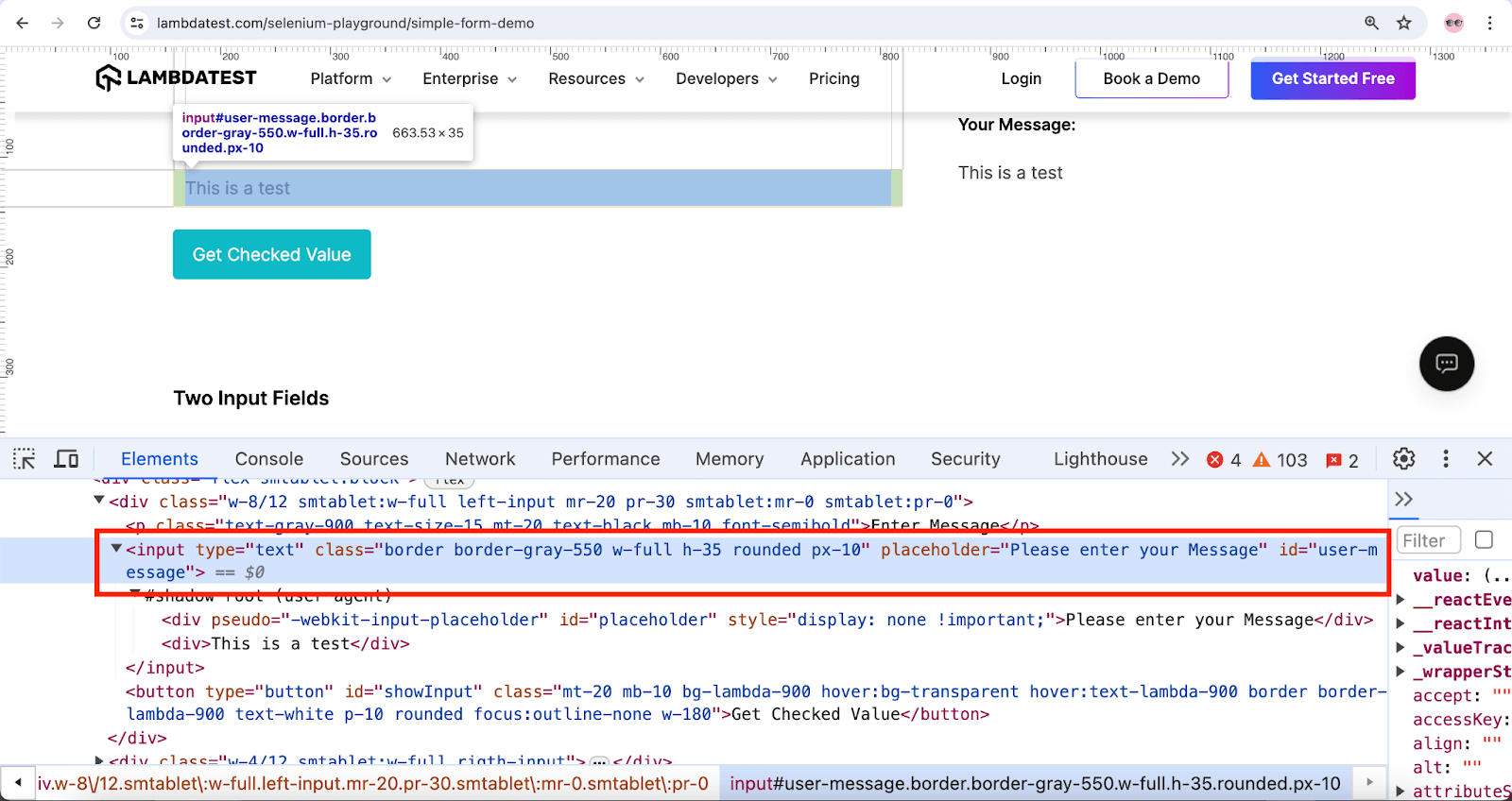
Similarly, the checkValueBtn() method returns the WebElement for the Get Checked Value button using the ID locator showInput.
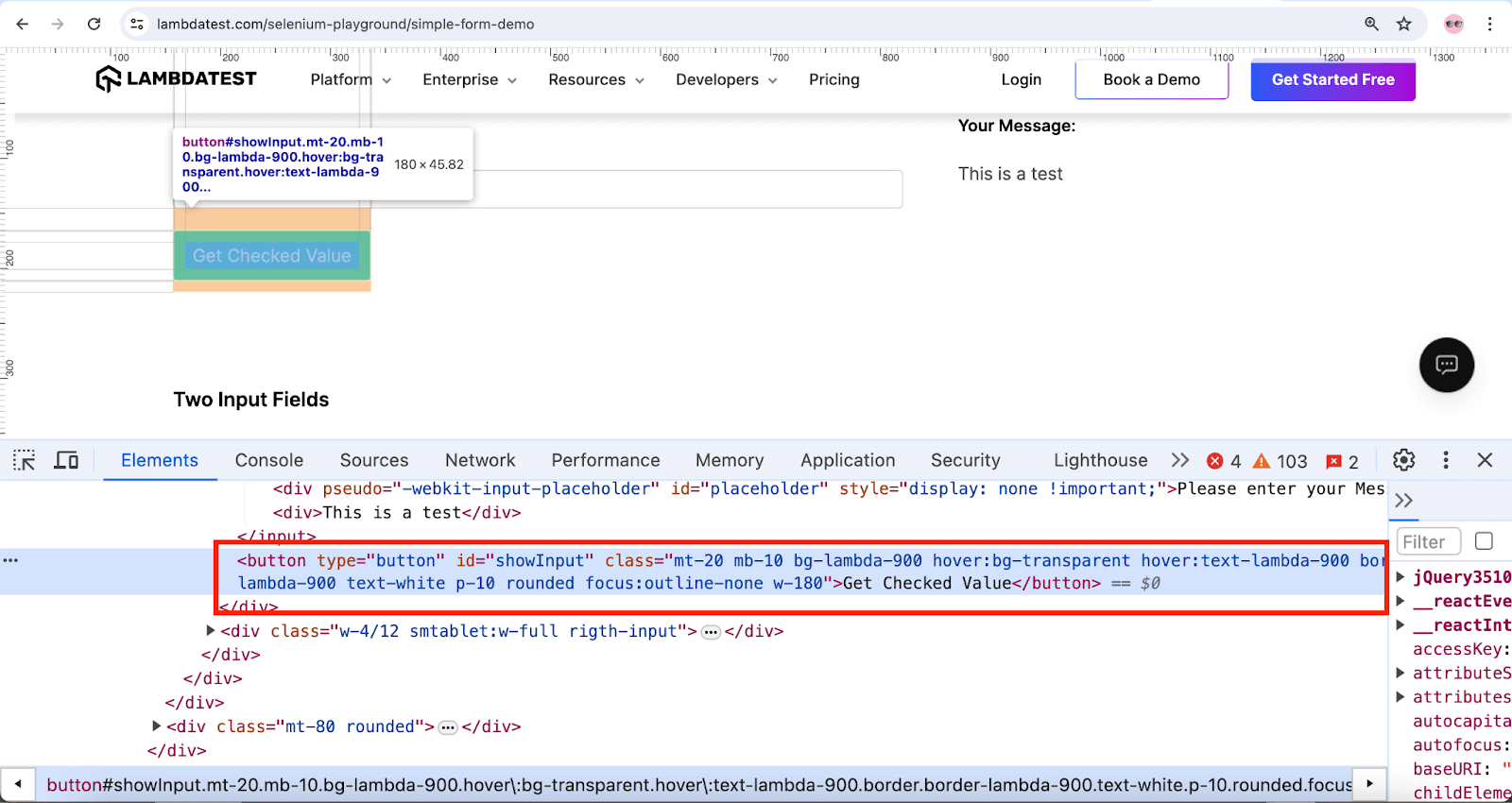
Likewise, the WebElement for the Your Message field is returned using the ID locator message in the yourMessagText() method.
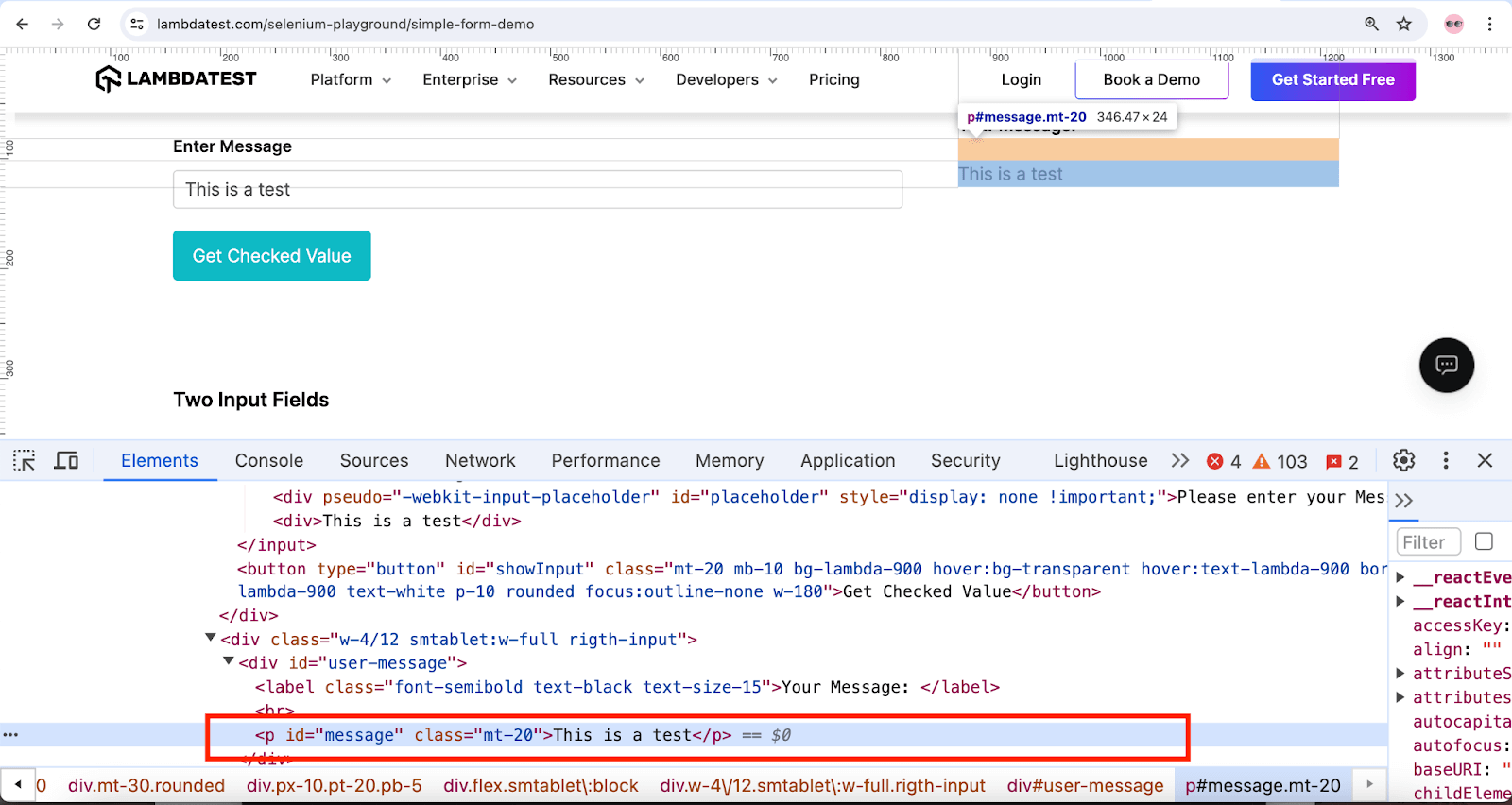
The enterMessage() method will take the desired text message as a parameter. It will enter that message in the Enter Message field and click the Get Checked Value button.
The open() method created in the Page class is called, and the path for the Simple Form Demo page is updated. With this, we are done with the page object classes.
Now, create a new test class inside the specs folder and name it test.simpleformdemo.js. As we use the Mocha JS to write the tests, let’s create a describe() block first and name it TestMu AI Selenium Playground website.
const {expect}  = require('@wdio/globals');
const SimpleFormPage = require("../pageobjects/simpleform.page");

describe ('LambdaTest Selenium Playground website', () => {
it('should check the simple input field', async() => {

    let message = 'This is an automated test using Wdio';

    await SimpleFormPage.open();
    await SimpleFormPage.enterMessage(message);

    await expect(SimpleFormPage.yourMessageText).toHaveText(message);

});
});
Inside the describe() block, let’s create it() block, which will ideally have all the test steps. A describe block can have multiple it() blocks.
Ideally, it() blocks have the description of the test scenario, so let’s name it as should check the simple input field. We will enter the text. This is an automated test using Wdio in the Enter Message text field.
The test will first navigate to the Simple Form demo page, and the enter message() method will be called to enter the text mentioned in the field. The expect statement will verify that the entered text matches the text fetched below the Your Message label.
Test Execution:
Now, let’s see how to run WebdriverIO tests on the local grid using the Chrome browser.
The browser details and the spec file location can be verified in the wdio.conf.js file as shown below in the image. This ensures you have the tests created and updated at the correct location, which will be picked up during test execution.
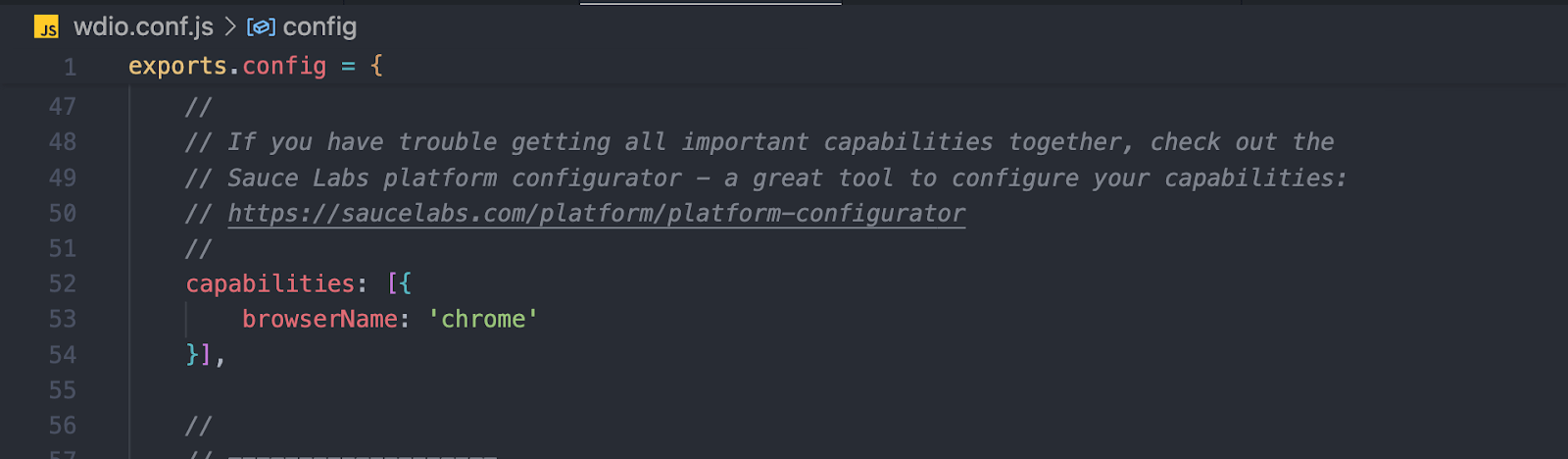
By default, ‘./test/specs/**/*.js’ is mentioned in the config file. In this case, all .js files get executed in this path.
The following command, which is updated in the package.json file, can be executed in the terminal, allowing you to execute the tests
npm run test_local
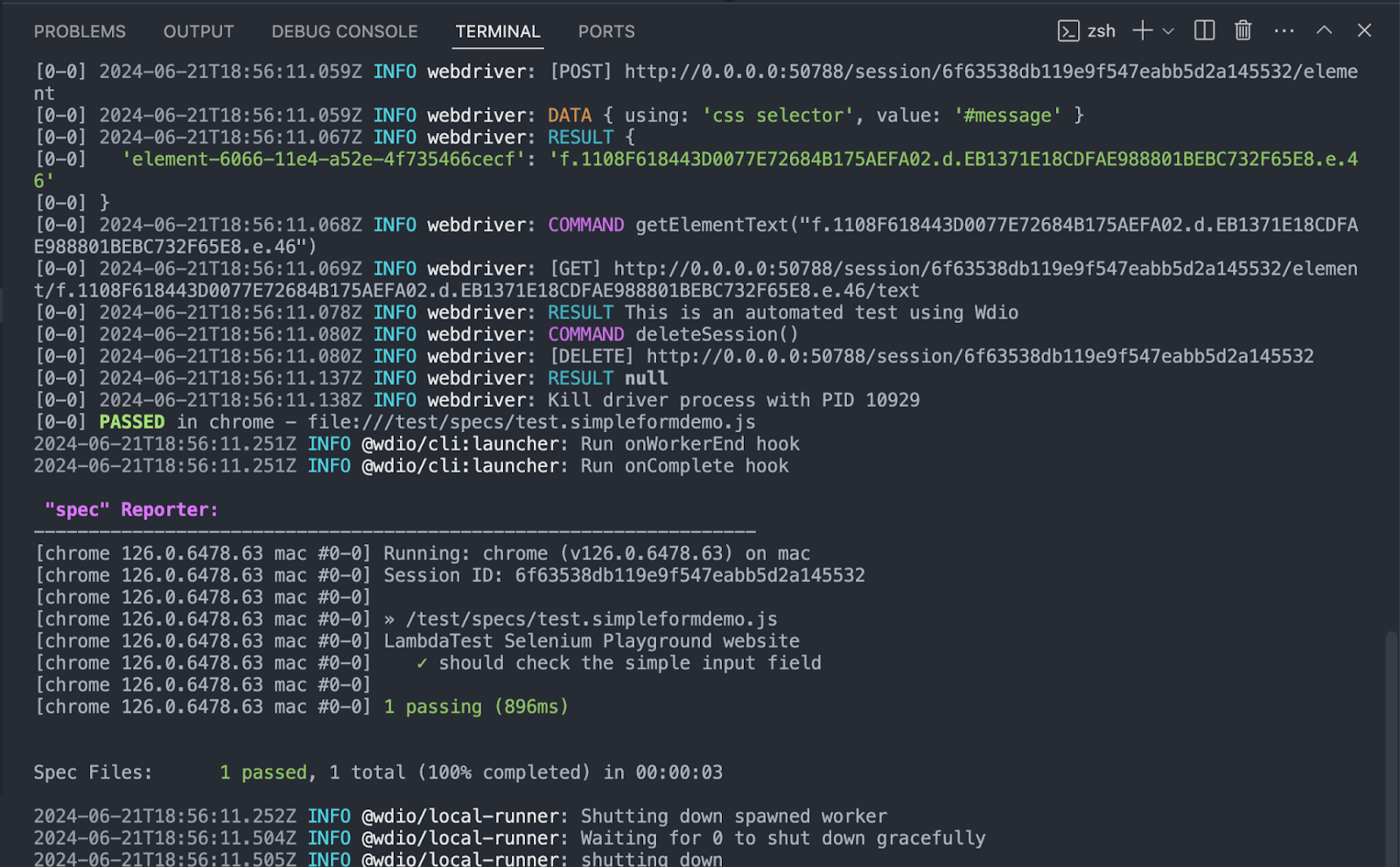
The following screenshot of the terminal shows that the test execution was successful:
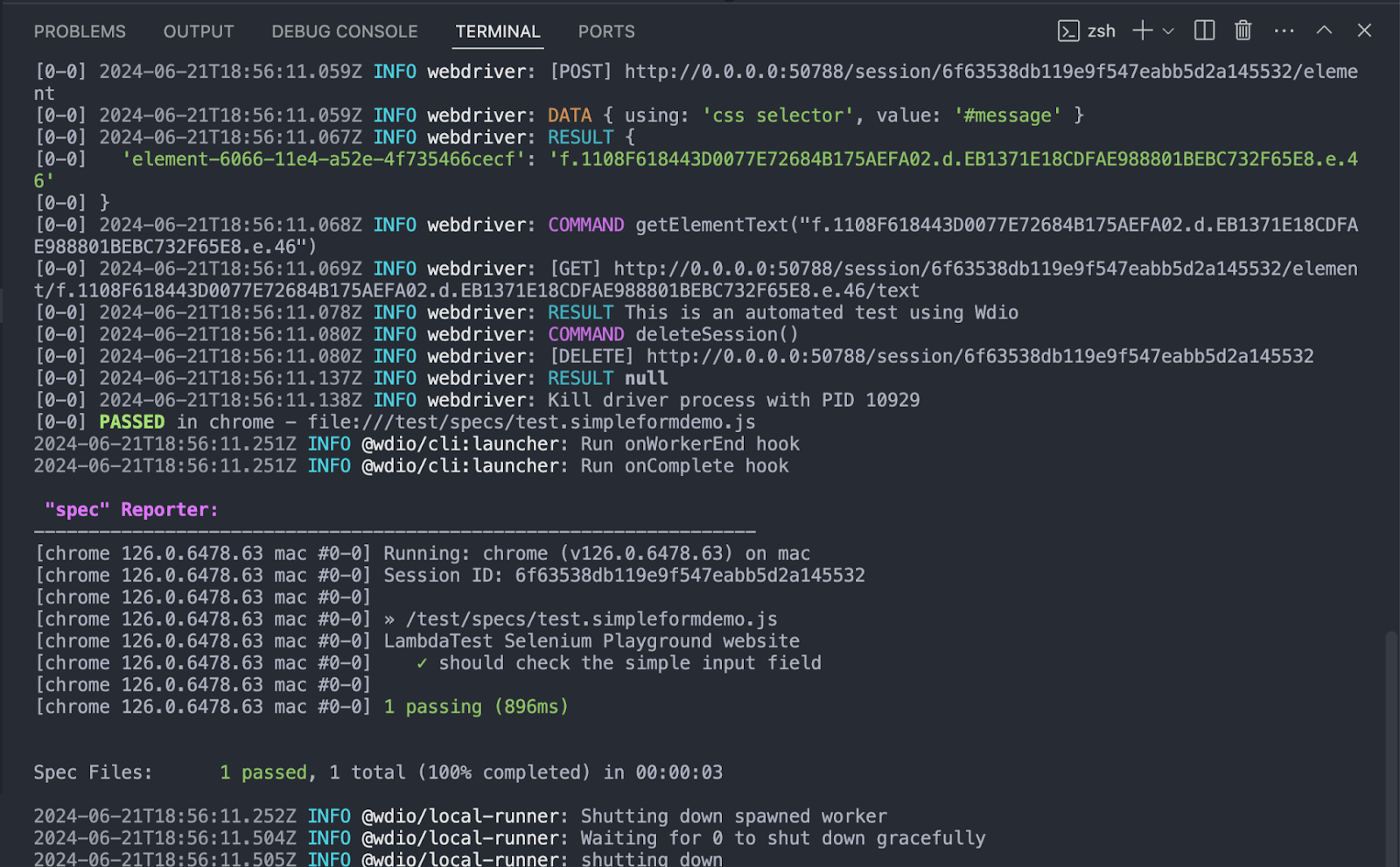
While setting up WebdriverIO, we installed the “spec” Reporter. It can be seen in the terminal that the test execution details are formatted in the spec report format.
The spec reporter provides detailed information on pass/failure outcomes, including the browser used to run the tests, descriptions from the describe() and it() blocks, execution time, and the total number of tests executed. Integrating asynchronous capabilities with WebDriverIO is crucial for enhancing test execution efficiency, allowing multiple operations to run concurrently. This approach results in faster test cycles, improved resource management, and a more responsive user experience, ultimately leading to more effective and streamlined automated testing processes.
To learn more abut async in WebDriverIO watch the following video given below.
We just learned how to run WebdriverIO tests on the Chrome browser on the local grid. However, while working on a real-time project, it is recommended to use a cloud-based platform to run the tests. These platforms provide the necessary infrastructure on demand, saving the physical setup time and cost.
How to Run WebdriverIO Tests on Cloud Grid?
We already installed and set up WebdriverIO and made the necessary configurations for running the tests on the Chrome browser on a local grid.
The same setup can be enhanced further by adding a new plugin, a configuration file, and a command in the package.json file to run the tests on the cloud grid. We will use cloud-based testing platforms like TestMu AI for automation testing using WebdriverIO.
It is an AI-powered test execution platform that allows you to perform WebdriverIO testing at scale on over 3000+ real desktop and mobile browsers.

Let’s look at the steps on how to run WebdriverIO tests on the cloud grid:
Installing the WebdriverIO TestMu AI Service
Install the wdio-lambdatest-service using the following command in the terminal.
npm i wdio-lambdatest-service --save-dev
After successfully installing the service, check out the package.json file; it should have the wdio-lambdatest-service dependency updated in the devDependencies block.
This confirms that the wdio-lambdatest-service was installed successfully.
Adding the Configuration File to Run Tests
Add the configuration file to the project that will contain all the respective capabilities, such as TestMu AI Username, Access Key, browser name, browser version, platform name, build and test name, etc.
You can generate these capabilities using the TestMu AI Automation Capabilities Generator to run tests on the cloud grid.
Provide the name of your configuration file and place it in the root folder of your project.
exports.config = {
  services: [
    [
      "lambdatest",
      {
        tunnel: false,
        lambdatestOpts: {
          logFile: "tunnel.log"
        }
      }
    ]
  ],
  specs: [ './test/specs/**/*.js'],
  exclude: [],
  reporters: ['spec'],

  capabilities: [{
    "browserName": "Chrome",
    "browserVersion": "125",
    "LT:Options": {
      "username": process.env.LT_USERNAME,
      "accessKey": process.env.LT_ACCESS_KEY,
      "platformName": "Windows 10",
      "project": "WebdriverIO demo",
      "build": "Simple Form demo",
      "name": "First WebdriverIO test on LambdaTest",
      "selenium_version": "4.0.0",
      "w3c": true
    }
  }],
  logLevel: "info",
  coloredLogs: true,
  screenshotPath: "./errorShots/",
  waitforTimeout: 100000,
  connectionRetryTimeout: 90000,
  connectionRetryCount: 1,
  path: "/wd/hub",
  hostname: "hub.lambdatest.com",
  port: 80,
  framework: "mocha",
  mochaOpts: {
    ui: "bdd",
    timeout: 50000,
  }
};
Adding the Command in package.json
Invoke the wdio command and call the lambdatest.conf.js to run the test. It is recommended to add the command in the scripts section of package.json file so it becomes easy to execute the test using a single command.
The following command can run the test on the TestMu AI cloud grid, which will be updated in the package.json file in the scripts section.
wdio run ./lambdatest.conf.js
Running the Tests
Use the below command to run the tests on the TestMu AI cloud grid:
npm run test_cloud
The following screenshot from the terminal displays the successful execution of the test:
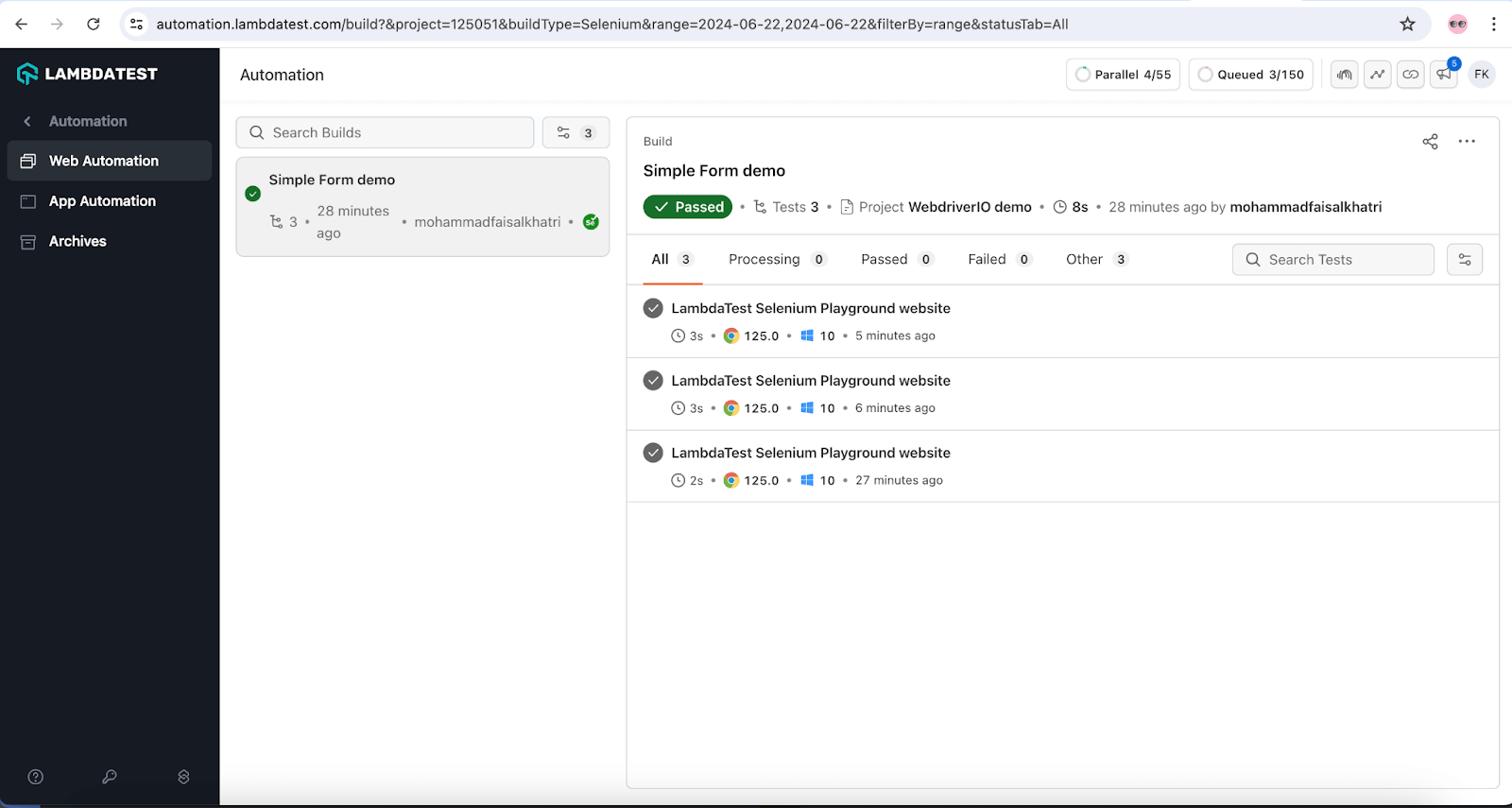
The test execution details can be checked on the TestMu AI Web Automation Dashboard, which provides detailed insights with screenshots, video, logs, browser, and platform details.
Best Practices for WebdriverIO Testing
The following best practices should be followed while testing with the WebdriverIO framework:
- Avoid using hard waits in the test scripts: Hard waits add up to the test execution time. Instead, explicit or fluent waits should be used to help speed up the test execution and provide appropriate exceptions on failure.
- Maximize the browser window: It is generally observed that the WebElements are located correctly when the window is maximized, and hence, as a best practice, browsers should be maximized while running the tests.
- Organized Logging: Appropriate console and visual logging should be used, such as capturing screenshots and video recording. Logging can help understand the web application behavior on runtime and help troubleshoot and fix failures quickly. Console logs and logs written to the file can help analyze the failures after test execution.
- Use cloud grid for test execution: Cloud grid provides all the required infrastructure at our fingertips. It offers a remote test lab of real browsers and operating systems to execute the tests and provides scalability and reliability.

Note: Run Your WebdriverIO Tests Across 3000+ Real Browsers and OS. Try TestMu AI Today!
Wrapping Up


Frequently asked questions
Did you find this page helpful?
More Related Hubs
TestMu AI forEnterprise
Get access to solutions built on Enterprise
grade security, privacy, & compliance
- Advanced access controls
- Advanced data retention rules
- Advanced Local Testing
- Premium Support options
- Early access to beta features
- Private Slack Channel
- Unlimited Manual Accessibility DevTools Tests