
Power Your Software Testing with AI Agents and Cloud
The Native AI-Agentic Cloud Platform to Supercharge Quality Engineering. Test Intelligently and Ship Faster.


- TestMu AI (Formerly LambdaTest)
- /
- Blog
- /
- Selenium MCP: AI-Powered Test Automation
Selenium MCP: AI-Powered Test Automation
Learn how Selenium MCP brings AI-powered test automation to Selenium. Set up the Selenium MCP server, run tests with Claude and Warp, and scale on TestMu AI.
Last Updated on:
The Model Context Protocol (MCP) is an open standard introduced by Anthropic that defines a unified interface for AI assistants to invoke external tools, APIs, and services via structured tool calls instead of free-form text.
MCP functions by separating the reasoning process of the assistant from the specific technicalities of any individual integration. Selenium MCP (or MCP Selenium server) is a concrete implementation of this standard for browser automation.
The Selenium MCP server transforms standard Selenium WebDriver commands into agent-callable tools. This allows AI assistants like Claude, Cursor, and Cline to execute web automation workflows via structured protocol calls, effectively removing the need for hand-written WebDriver code.
What is MCP (Model Context Protocol)?
Model Context Protocol (MCP) was introduced by Anthropic in late 2024. It is an open standard for connecting AI applications to external tools and systems. Often called "USB-C for AI applications", MCP gives AI models a standardized interface to connect with external tools and systems.
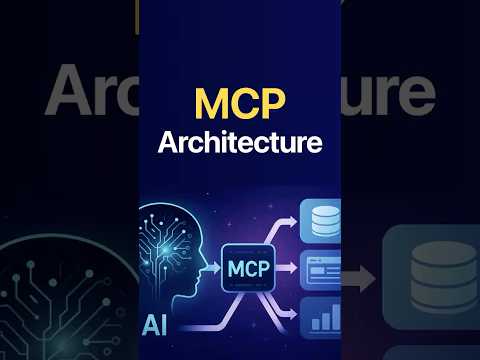
MCP has gained widespread adoption, as it can be used seamlessly with both AI assistants (e.g., Claude, ChatGPT, Codex, etc.) and developer tools (e.g., Kiro, Cursor, VS Code, etc.) alike.
MCP has also opened up new possibilities in automation, both mobile and web, whereby AI assistants can interact with browsers and automation tools through a standardized interface. Rather than manually writing test scripts, developers and QA teams can now use natural language prompts to initiate, control, and reason about browser automation workflows.
What is Selenium MCP?
Akin to Appium MCP for mobile testing, Selenium MCP brings AI-powered automation capabilities to web testing. It lets AI agents interact directly with web browsers using natural language.
It also supports locating elements using natural-language or accessibility-based detection, interacting with web elements, navigating pages, capturing screenshots, handling frames and iFrames, inspecting the DOM to name a few.
The open-source code of Selenium MCP code is hosted on GitHub and maintained by Angie Jones via the popular @angiejones/mcp-selenium package. Srinivasan Sekar, an Appium maintainer and Selenium contributor, had an insightful discussion with Angie Jones at Selenium & Appium Conf 2025 about MCP, AI ethics, and more.
At the time of writing this blog, the latest version of Selenium MCP is 0.2.3. Currently, Selenium MCP supports Chrome, Firefox, Edge, and Safari browsers. With the ongoing development of the project, future releases are anticipated to bring enhanced capabilities and further refinements.
Selenium MCP Architecture
The Selenium MCP server connects AI assistants (e.g., Claude, Cline, Cursor, Kiro, etc.) with Selenium-based browser automation. Capabilities of the Selenium framework are exposed as callable tools through the usage of the Model Context Protocol (MCP).
As MCP is a standard protocol, the Selenium MCP server also follows a layered architecture with the following fundamental layers: AI Client → MCP Protocol (JSON-RPC 2.0) → MCP Server → Selenium WebDriver.
The diagram below illustrates the high-level architecture of Selenium MCP:
1. AI Client Layer
The AI client layer comprises AI assistants (e.g., Claude, ChatGPT, Gemini, etc.) and AI-native IDEs (e.g., Cursor, Kiro, Antigravity, etc.). It lets users interact with the Selenium MCP server using natural language prompts. The respective tool calls are made to the Selenium MCP server.
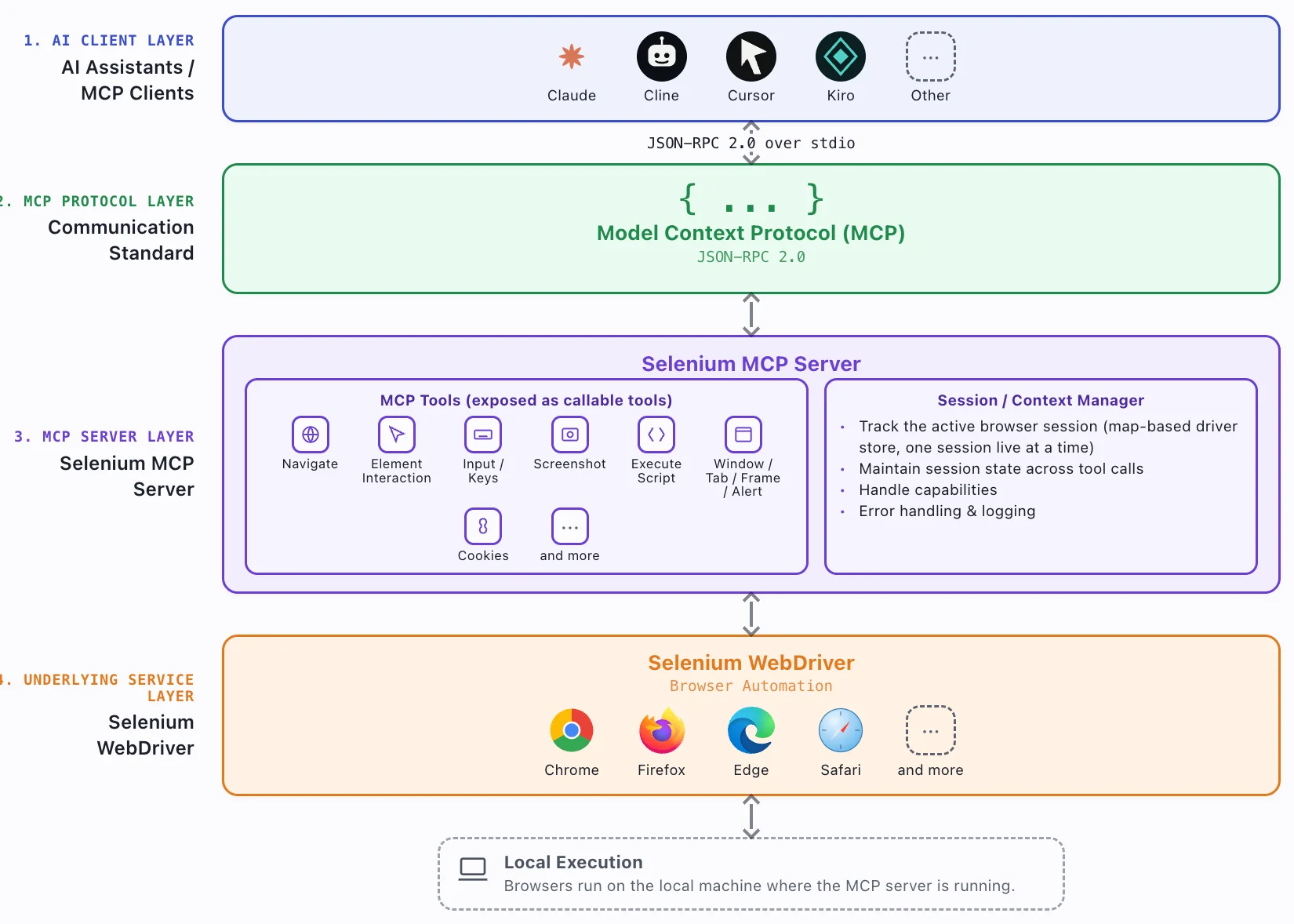
Figure 1: Selenium MCP Architecture [image generated using AI]
2. MCP Protocol Layer
As seen in the Selenium MCP architecture diagram, the MCP server talks over stdio, not HTTP. All requests and responses are JSON-RPC 2.0 messages sent over standard input/output (stdio) via the StdioServerTransport from the official MCP SDK [Source].
Because the server operates as a local subprocess initiated by the MCP client, communicating over stdio eliminates the necessity for network ports or authentication. This ensures a streamlined and efficient connection for a single client residing on the host machine.
3. Selenium MCP Server
Serving as the primary connective bridge, the Selenium MCP server facilitates communication between the MCP client and the Selenium automation framework. It exposes browser automation capabilities as a collection of callable MCP tools, such as navigate, find_element, click, type, take_screenshot, etc., allowing AI assistants to execute specific browser-based actions.
Once the corresponding tool invocation request is received, the Selenium MCP server converts it into the respective WebDriver operation. This operation (or action) is subsequently executed in the target browser. Upon completion, the execution results are routed back to the MCP client through the MCP protocol layer.
4. Selenium WebDriver
The Selenium MCP server makes use of the Selenium WebDriver to automate browsers running locally on the same machine as the server. When an AI assistant (e.g., Claude, Kiro, etc.) invokes callable MCP tools, the Selenium MCP server maps the request to the corresponding WebDriver operation.
For example, start_browser tool call opens a new session, navigate loads a URL, interact handles Selenium mouse actions (e.g., clicks, hovers, etc.) and take_screenshot captures a screenshot of the web page.
Shown below is the complete list of tool calls offered by the Selenium MCP Server:
| Tool call | Purpose |
|---|---|
| start_browser | Launches a browser session in Chrome, Firefox, Edge, or Safari |
| navigate | Navigates the active browser session to a specified URL |
| interact | Performs mouse-based actions on an element, including click, double-click, right-click, and hover |
| send_keys | Clears an element and enters the specified text |
| get_element_text | Retrieves the text content of a web element |
| get_element_attribute | Retrieves the value of a specified element attribute, such as href, value, or class |
| press_key | Simulates a keyboard key press, such as Enter or Tab |
| upload_file | Uploads a file through a file input element |
| take_screenshot | Captures a screenshot of the current page |
| close_session | Closes the active browser session |
| execute_script | Executes JavaScript in the browser for advanced interactions |
| window | Manages browser windows and tabs, including listing, switching, and closing them |
| frame | Switches the browser context to an iframe or back to the main page |
| alert | Handles browser alerts, confirmation dialogs, and prompts |
| add_cookie | Adds a cookie to the current browser session |
| get_cookies | Retrieves all cookies or a specific cookie by name |
| delete_cookie | Deletes all cookies or a specific cookie by name |
| diagnostics | Retrieves console logs, JavaScript errors, or network activity captured through WebDriver BiDi |
You can find a detailed explanation of each of these tools in the Selenium MCP repository.
At the lowest level of the Selenium MCP architecture are the browsers where the requested automation actions are ultimately executed. Based on the selected browser through the start_browser tool call, Selenium WebDriver launches and controls the corresponding browser session.
How to setup Selenium MCP
Before getting started, ensure that Node.js, npm or npx, a supported web browser, and an MCP-compatible client are available on your machine.
Unlike Appium MCP, Selenium MCP does not require a separate Selenium server or framework installation for local execution. All you need to do is point an MCP-compatible client at it with npx and it's ready to go.
Selenium MCP's full potential is unlocked when integrated with an AI assistant that turns complex web automation tasks into simple conversational commands.
For this, your preferred assistant needs to be pointed to the Selenium MCP server via its MCP configuration file. Although the configuration steps vary depending on the AI assistant, the underlying Selenium MCP server configuration remains the same.
How to configure Selenium MCP with Claude Code
Run the below command on the terminal to configure Selenium MCP with Claude CLI:
claude mcp add selenium -- npx -y @angiejones/mcp-selenium@latest

Alternatively, you can also add the following Selenium MCP settings to .mcp.json in your project root:
{
  "mcpServers": {
    "selenium": {
      "command": "npx",
      "args": ["-y", "@angiejones/mcp-selenium@latest"]
    }
  }
}
In case you want to apply the settings at a global level, add the Selenium MCP server in <home-directory>/.claude.json.
How to configure Selenium MCP with Warp
Warp is a modern terminal application available for macOS, Linux, and Windows. It replaces traditional terminals like Terminal.app or iTerm2. Primarily written in Rust, Warp enables high performance with low memory overhead.
Beyond its Rust-based architecture, Warp also supports popular AI agents (e.g., Claude Code, OpenAI Codex, Gemini CLI, etc.), enabling developers to automate workflows and interact with their development environment using natural language.
I have been a user of Warp since its inception and it is the de-facto terminal in my macOS machine because of its rich feature set, intuitive user interface, and built-in AI capabilities!
Once you have installed Warp on your machine, navigate to Warp → Settings → Settings. Search for MCP servers in the search box and click on the Add button to add the Selenium MCP server.
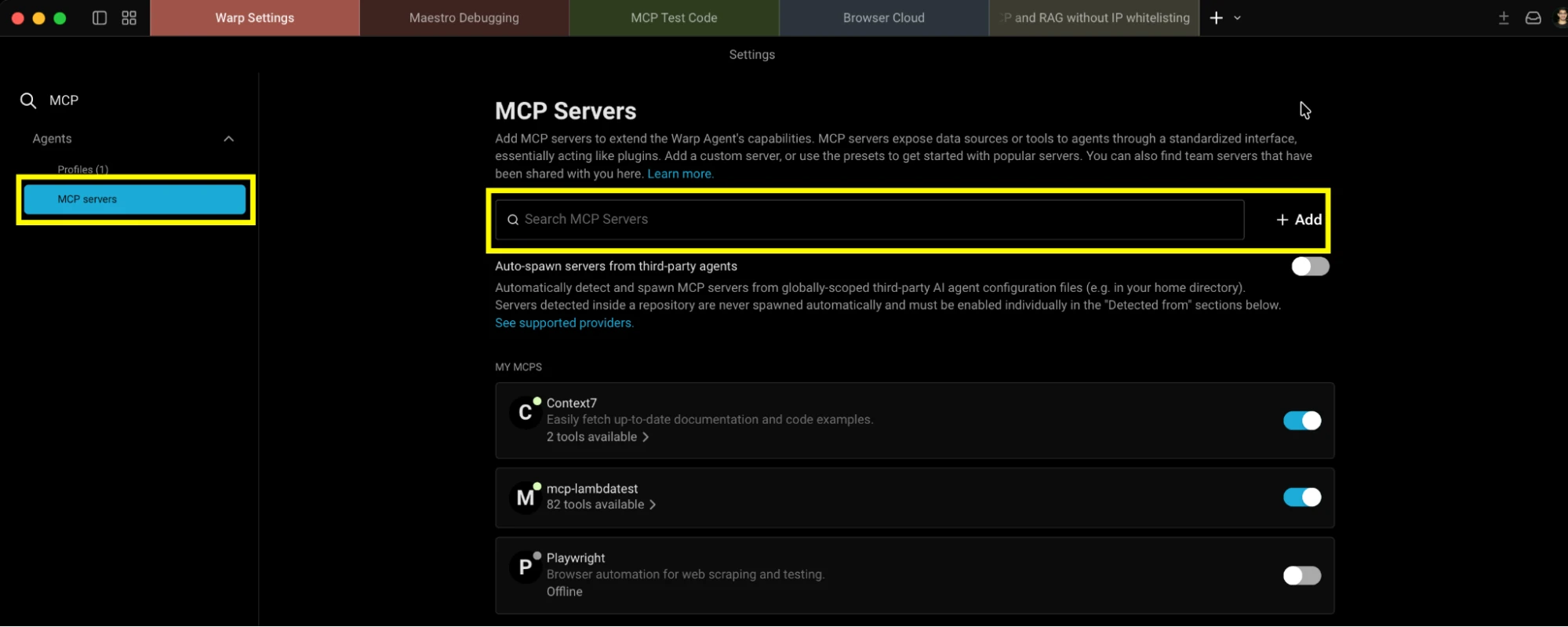
Now, add the MCP settings that we mentioned earlier and click Save.
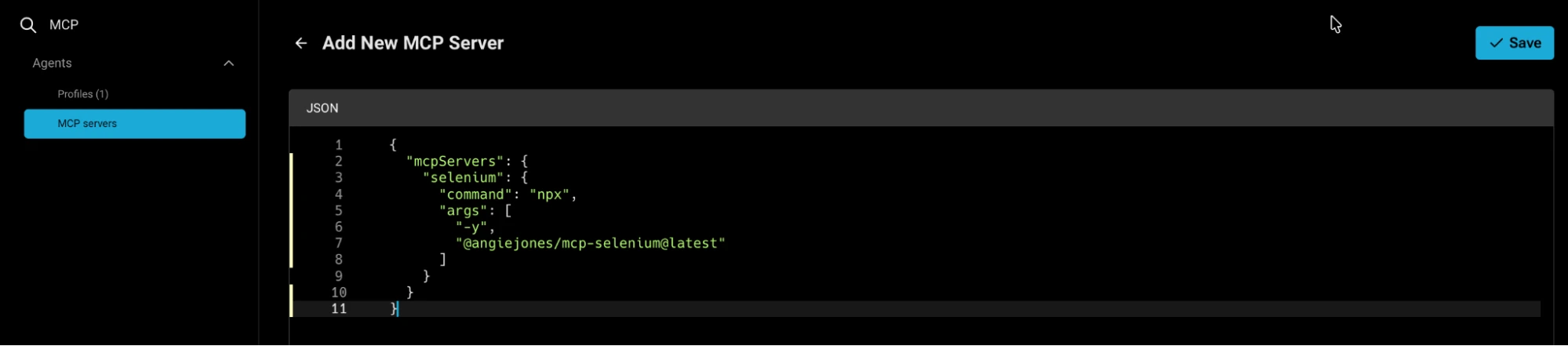
Once the MCP is added, you would see all the tools (e.g., start_browser, navigate, send_keys, etc.) exposed by the Selenium MCP server.
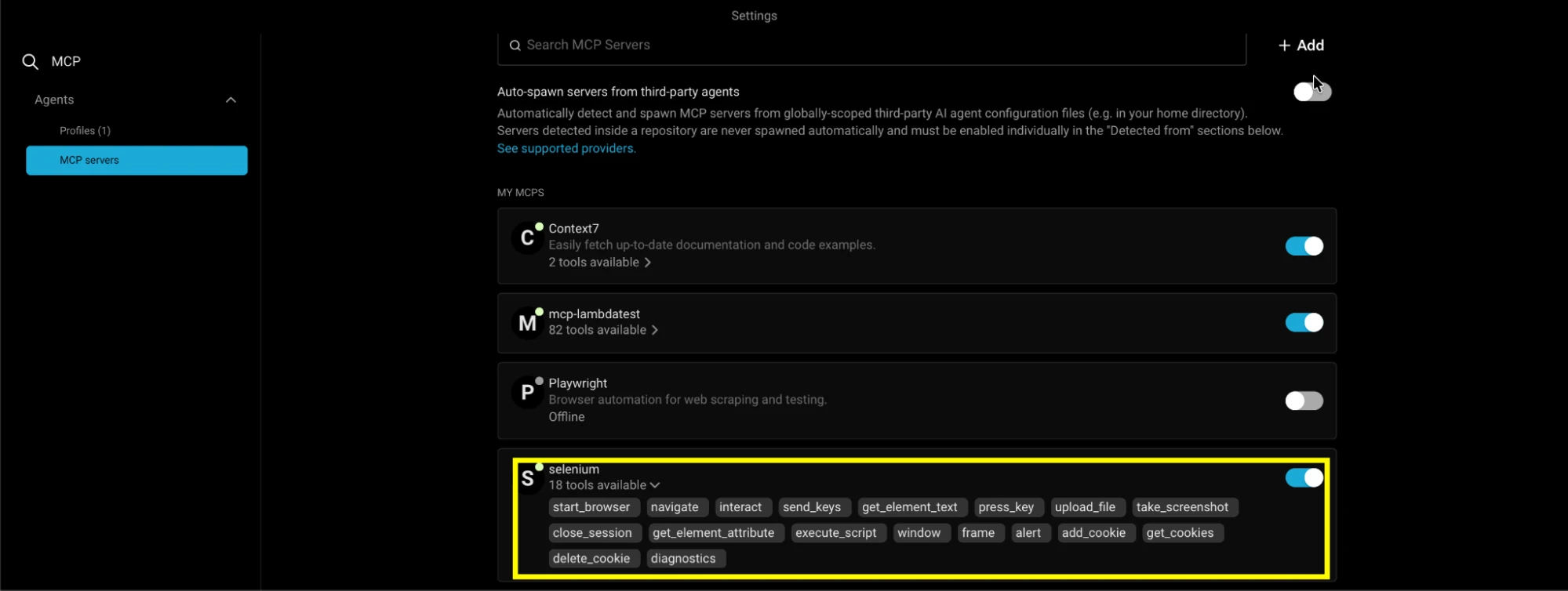
With this the Selenium MCP server can be used with Warp and its AI agents to perform browser automation using natural language prompts.
How to configure Selenium MCP with Kiro
Kiro is a popular AI-powered IDE developed by AWS that supports agentic coding workflows. Cursor, Windsurf, and Antigravity are some of the other popular AI-IDEs that can be used with the Selenium MCP server.
Though all these popular AI-IDEs have native MCP support, Cline extension offers another way to configure and use the Selenium MCP server. Since Cline can be used across all the VS Code-based AI-IDEs, the overall configuration steps remain largely the same.
As Kiro has native support for MCP servers, we would be covering the same in the blog. The Selenium MCP configuration in Kiro can be done at the workspace or user level.
- For workspace-level configuration, create (or open) the following file: <project-root>/.kiro/settings/mcp.json
- For user-level configuration, use ~/.kiro/settings/mcp.json
In both the cases, the content remains the same, simply append details of the Selenium MCP server in the respective configuration files:
{
  "mcpServers": {
    "selenium": {
      "command": "npx",
      "args": [
        "-y",
        "@angiejones/mcp-selenium@latest"
      ]
    }
  }
}
In case the Selenium MCP package is installed globally using npm install -g @angiejones/mcp-selenium, the MCP server can be configured as shown below:
{
  "mcpServers": {
    "selenium": {
      "command": "mcp-selenium"
    }
  }
}
Although we have demonstrated the Selenium MCP setup using Kiro, the overall process remains similar for other MCP-compatible AI IDEs like Cursor, Windsurf, VS Code, Continue, Zed, etc.
The only difference lies in the location of the MCP server configuration file and/or the format used for specifying the Selenium MCP server configuration.
Using Selenium MCP for Local Browser Automation
For demonstration, we have set up the Selenium MCP server with Claude Code. The server entry in the Claude settings file is named selenium-mcp-local. Run the command claude mcp list to verify if the MCP server is connected.
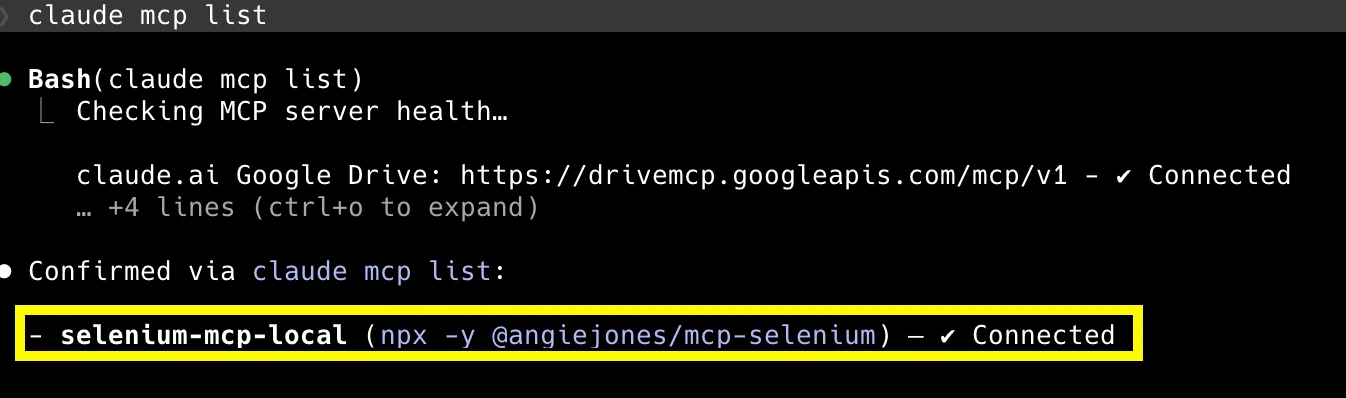
Now that the Selenium MCP server is connected, let's run a simple test using the following prompt:
Start a local Chrome browser session and maximize the window.
Navigate to https://ecommerce-playground.lambdatest.io/.
In the search box, type iPhone and click the Search button.
Wait for the results page to load, then verify the page title contains the iPhone. Fail the test if it doesn't.
Close the browser session at the end, whether the assertion passes or fails.
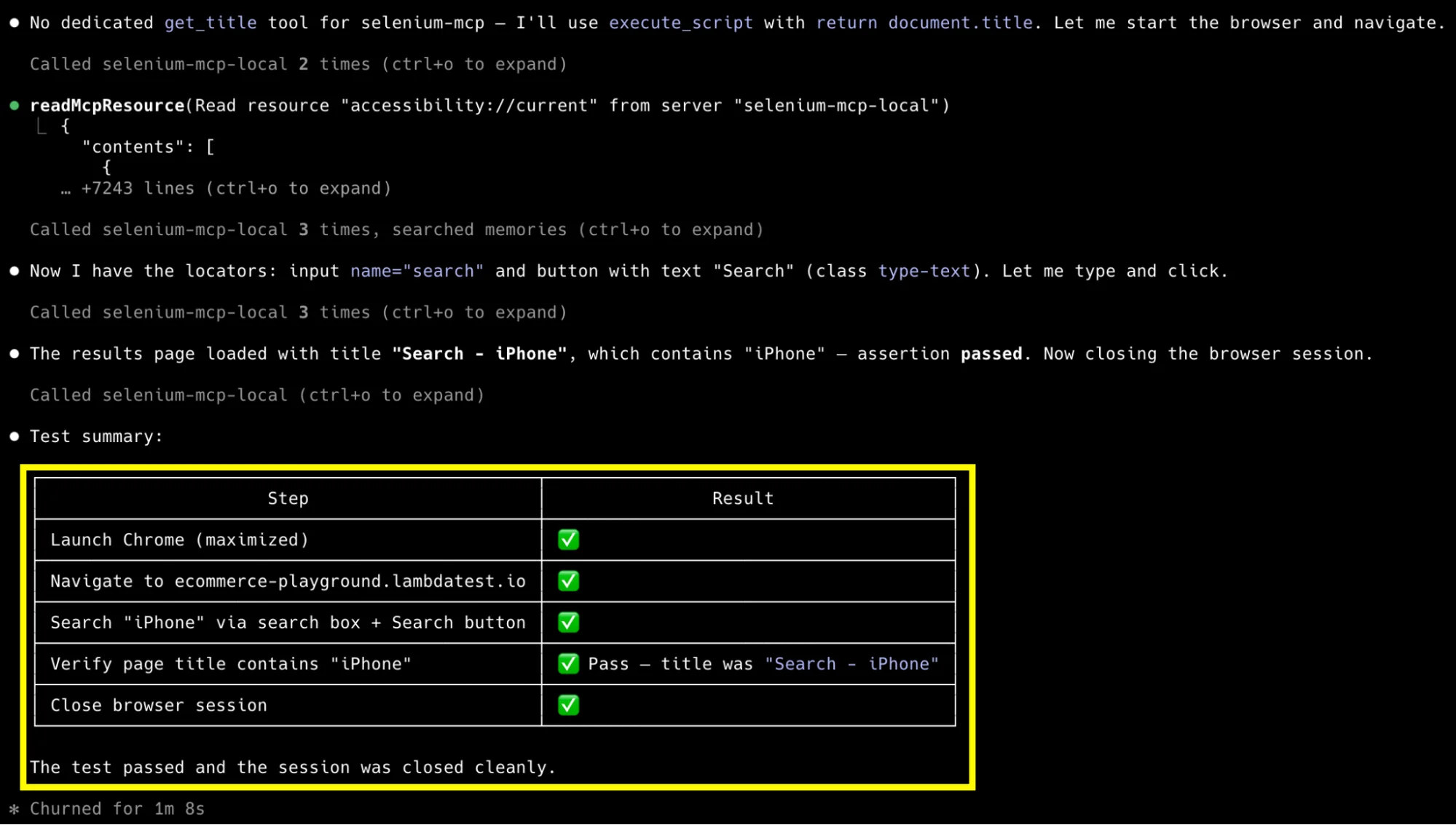
As shown below, the Chrome browser was instantiated on the local machine, and the required test steps were executed using Selenium MCP tool calls.
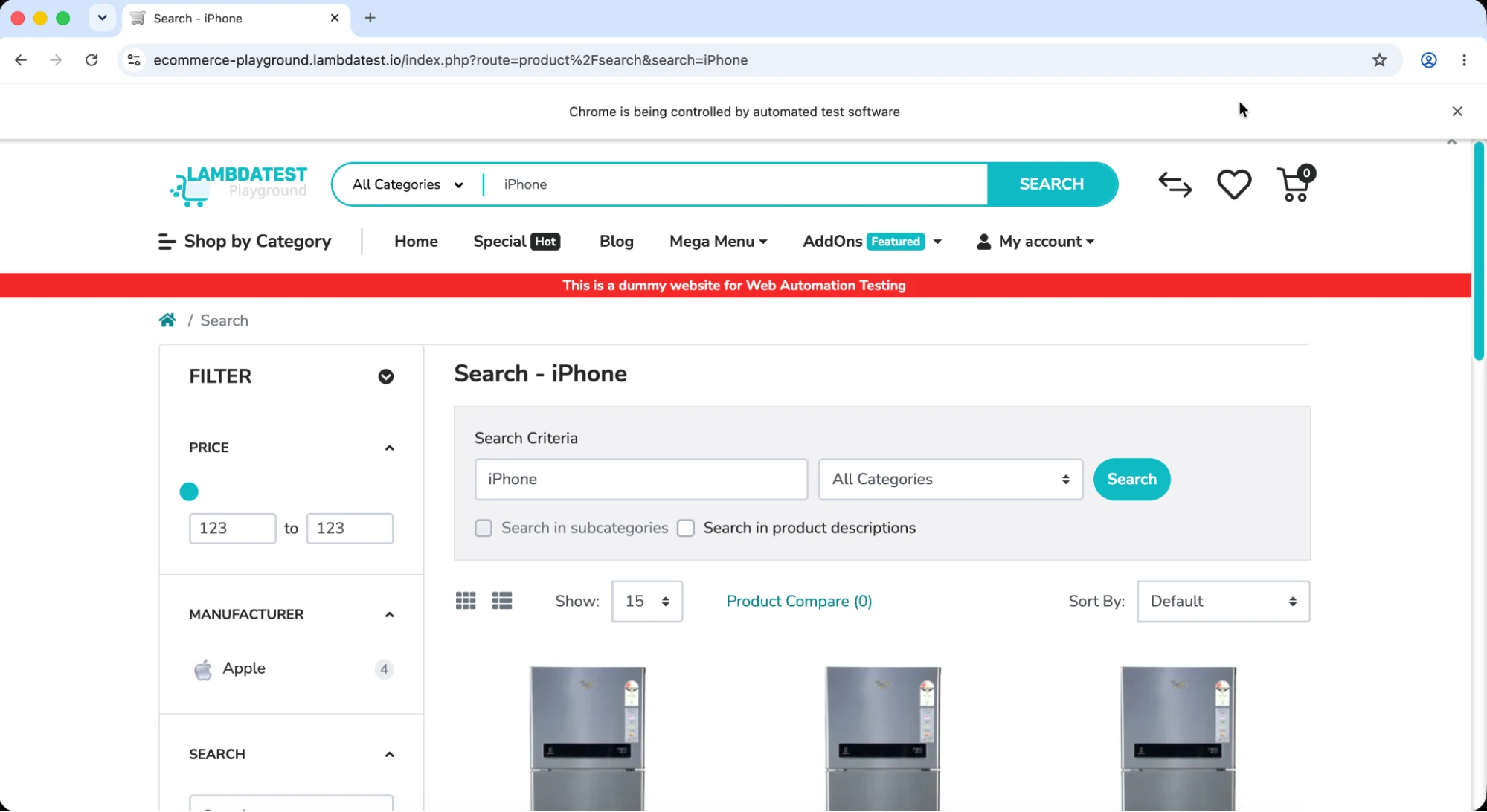
Shown below is the execution screenshot of the Claude CLI, which indicates that the execution was successful.
To make things easier, we added the above system prompt in the local-selenium-agent.md file. It can be reused or customized as per the requirements of your automation workflow.
# Local Selenium Agent — Chrome (Local)

Single local Chrome session, run directly against this repo's `selenium-mcp-local`
MCP server — no remote grid, no LambdaTest hooks, no subagents needed (one
browser, one connection, one session).

## Prerequisites

- `selenium-mcp-local` MCP server running with no `SELENIUM_REMOTE_URL` /
  `LT_USERNAME` / `LT_ACCESS_KEY` set, so it launches a local Chrome session.
- Chrome + chromedriver on PATH.

## Steps

> There is no wait/sleep tool on this MCP server, so "delay" here means the
> agent pausing a few seconds between tool calls (e.g. `sleep 3` via Bash)
> rather than a Selenium action — useful for watching each step play out
> during a demo/recording.

1. `start_browser` with `browser: chrome` and `options: { arguments: ["--start-maximized"] }` to launch a local Chrome session with the window maximized. Wait a few seconds.

2. `navigate` to `https://ecommerce-playground.lambdatest.io/`. Wait a few seconds.

3. `send_keys` into the search box (`by: css`, `value: 'input[name="search"]'`) with `text: "iPhone"`. Wait a few seconds.

4. `interact` with `action: click`, `by: css`, `value: 'button.type-text'` to submit the search. Wait a few seconds.

5. `execute_script` with `script: "return document.title;"` and assert the returned title **contains** `"iPhone"` — confirms the search actually ran (e.g. real result: `"Search - iPhone"`). Wait a few seconds.

6. `close_session` to end the session and release the browser.

## Teardown

No remote/LambdaTest status hook is needed for local runs — `close_session` in step 6 is sufficient to release the browser process.
To further simplify, we have also defined a custom Claude Code slash command /local-selenium-agent that runs the local Chrome iPhone-search smoke test using Selenium MCP server in a single command.
The example that we have showcased is just the tip of the iceberg. While the current official implementation of Selenium MCP works seamlessly with local browsers, its potential can be further harnessed by combining the MCP with a cloud platform like TestMu AI. It enables AI-powered browser automation across a scalable and reliable cloud grid.
Using Selenium MCP for Cloud Browser Automation
So far we have seen how Selenium MCP can be used to automate browsers running locally. While execution with local browsers can be useful to a certain extent, real-world testing often requires running the same automation suite (or tests) across different browsers, browser versions, and platform combinations.
Though the official Selenium MCP server officially does not provide built-in support for cloud Selenium grid, it can be extended to run tests on remote Selenium grids like TestMu AI. The Selenium MCP implementation needs modification in order to support remote WebDriver endpoints. This can be done by initializing a RemoteWebDriver session instead of a local WebDriver instance.
To enable cloud browser automation with the Selenium MCP server, I forked the Selenium MCP repository and modified the implementation to support remote WebDriver sessions.

The changes are available in commit 6929d5d. Since Claude Code is so prevalent in AI testing, I used it to implement TestMu AI cloud grid support in the Selenium MCP server. Here is a short gist of the changes (in src/lib/server.js):
- Only if SELENIUM_REMOTE_URL is set, the WebDriver builder points at that hub (.usingServer()) instead of instantiating a local browser instance
- In case standard LT_USERNAME and LT_ACCESS_KEY environment variables are set, an LT:Options vendor capability block (credentials, platform, browser version, build/session name, etc.) is injected into the capabilities payload
- Headless capability is disabled for tests executed for sessions on remote grid
- After the session starts, the sessionID is fetched and a link is appended to the TestMu AI automation dashboard
Before running the example, export the LT_USERNAME and LT_ACCESS_KEY environment variables with your TestMu AI username and access key, respectively.
To test the changes, we provided Claude code the following prompt:
Create a smoke test that verifies Selenium MCP implementation for TestMu AI. Here is the detailed scenario:
- Start a cloud Chrome browser session on TestMu AI and maximize the window.
- Navigate to https://ecommerce-playground.lambdatest.io/
- In the search box, type iPhone and click the Search button
- Wait for the results page to load, then verify the page title contains the iPhone. Fail the test if it doesn't
- Hover on the first item and click on the first button or Cart icon
- Press the Checkout button. Assert if the URL does not contain "checkout".
- Close the browser session at the end, whether the assertion passes or fails.
Once the above prompt is provided to Claude, it triggers a web session on TestMu AI cloud and executes the entire scenario autonomously through the Selenium MCP tools. Navigate to the TestMu AI automation dashboard to check the live status of the test execution.
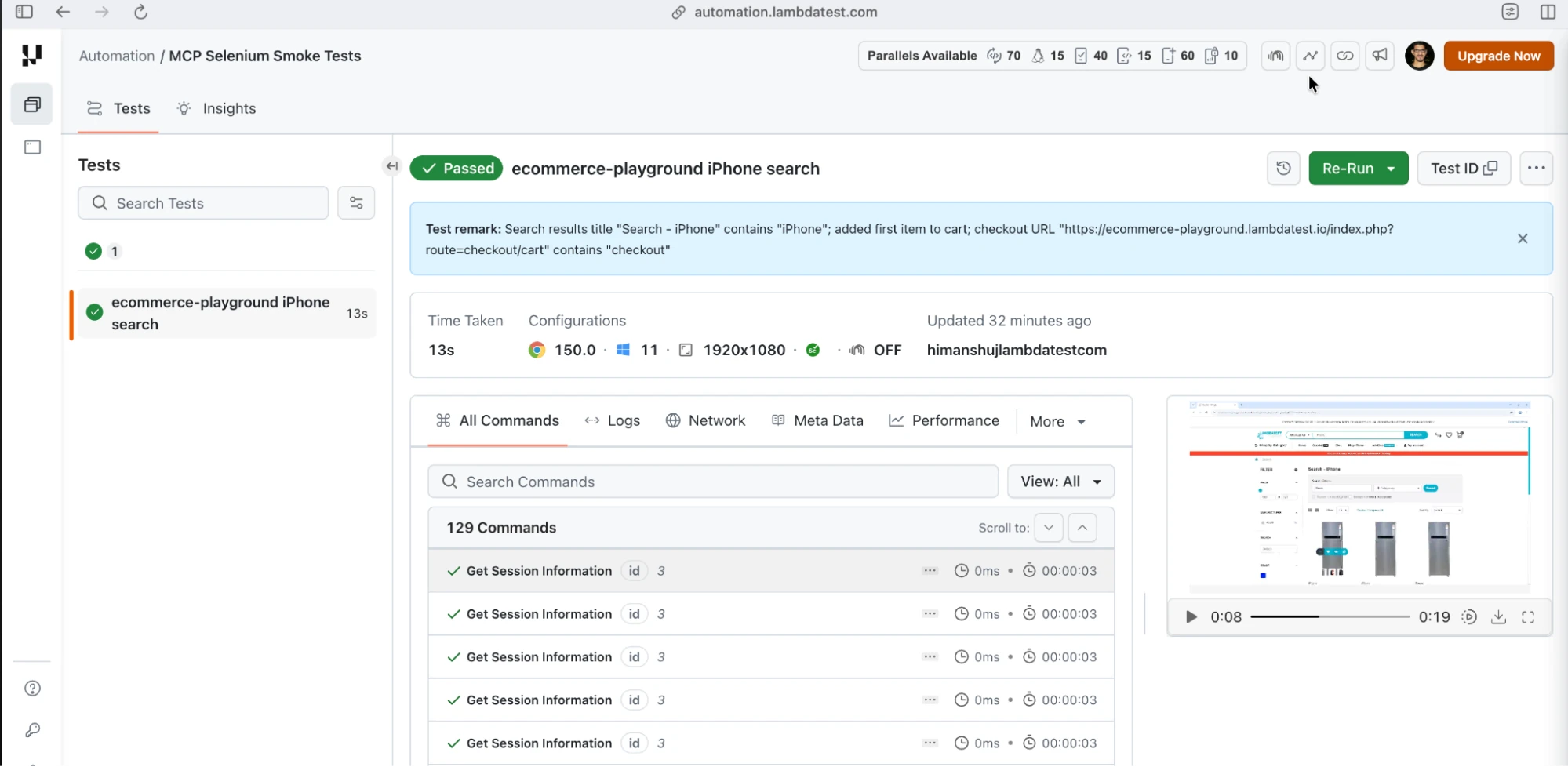
The following screenshot shows Claude Code invoking the Selenium MCP tools that was extended with TestMu AI cloud grid support.

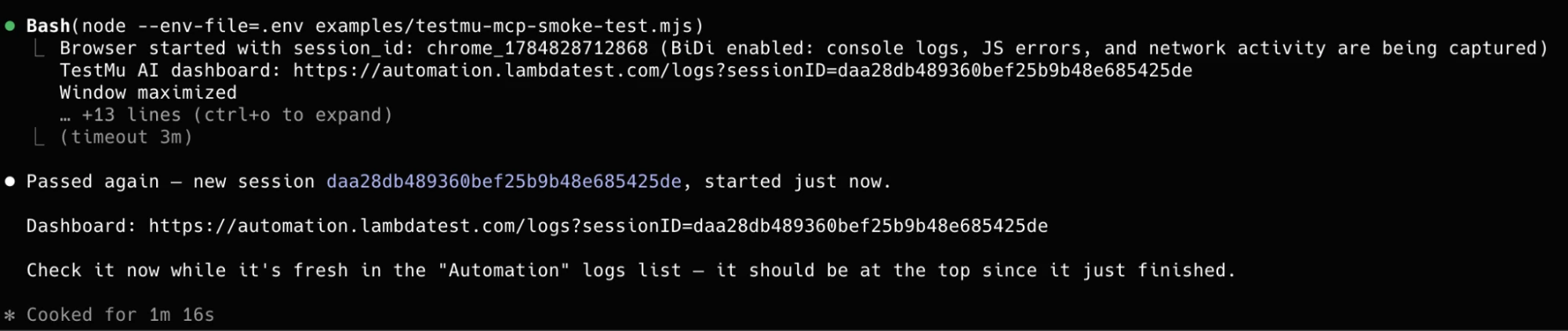
The smoke test script named testmu-mcp-smoke-test.mjs which was created by Claude Code drives the MCP Selenium server through a custom test harness that communicates over the actual MCP protocol.
The test spins up src/lib/server.js as a child process, speaks JSON-RPC over stdio, and walks through a real shopping flow on a Chrome browser instantiated on TestMu AI cloud grid.
Now that all the changes have been verified, I have published a new version of the package, which is now available at - @hjsblogger/mcp-selenium-testmuai v0.1.3 on npm. With the package ready, add the following entry to the MCP configuration file to use Selenium MCP server with TestMu AI Selenium grid.
"selenium-mcp-cloud": {
  "type": "stdio",
  "command": "npx",
  "args": [
    "-y",
    "@hjsblogger/mcp-selenium-testmuai@latest"
  ],
  "env": {
    "SELENIUM_REMOTE_URL": "https://hub.lambdatest.com/wd/hub",
    "LT_USERNAME": "${LT_USERNAME}",
    "LT_ACCESS_KEY": "${LT_ACCESS_KEY}"
  }
}
For the remainder of this tutorial, we will use the above package to configure the Selenium MCP server and execute our tests on TestMu AI Cloud. Let's run two agents in parallel using the modified Selenium MCP package that performs the following steps:
Each agent drives its own browser session (i.e., Chrome and Firefox) both tagged under the same build name (i.e., TestMu AI - Selenium MCP Parallel Execution Demo) so the two runs show up grouped together on the TestMu AI dashboard.
Both agents follow the exact same flow independently and at the same time:
- Launch a maximized cloud browser session on the TestMu AI grid.
- Navigate to the TestMu AI e-commerce playground.
- Search for "iPhone" and verify the results page title contains "iPhone".
- Add the first search result to the cart.
- Click through to checkout.
- Wait five seconds, then verify the URL reflects the checkout flow.
- Close the browser session and mark the test Passed or Failed on the TestMu AI dashboard, based on whether the assertions above held.
The above workflow is defined in cloud-testmuai-selenium-agent.md and made available through the /cloud-testmuai-selenium-agent slash command. We executed the /cloud-testmuai-selenium-agent slash command, which follows the steps defined in cloud-testmuai-selenium-agent.md for dispatching both browser agents in parallel on the TestMu AI Cloud grid.
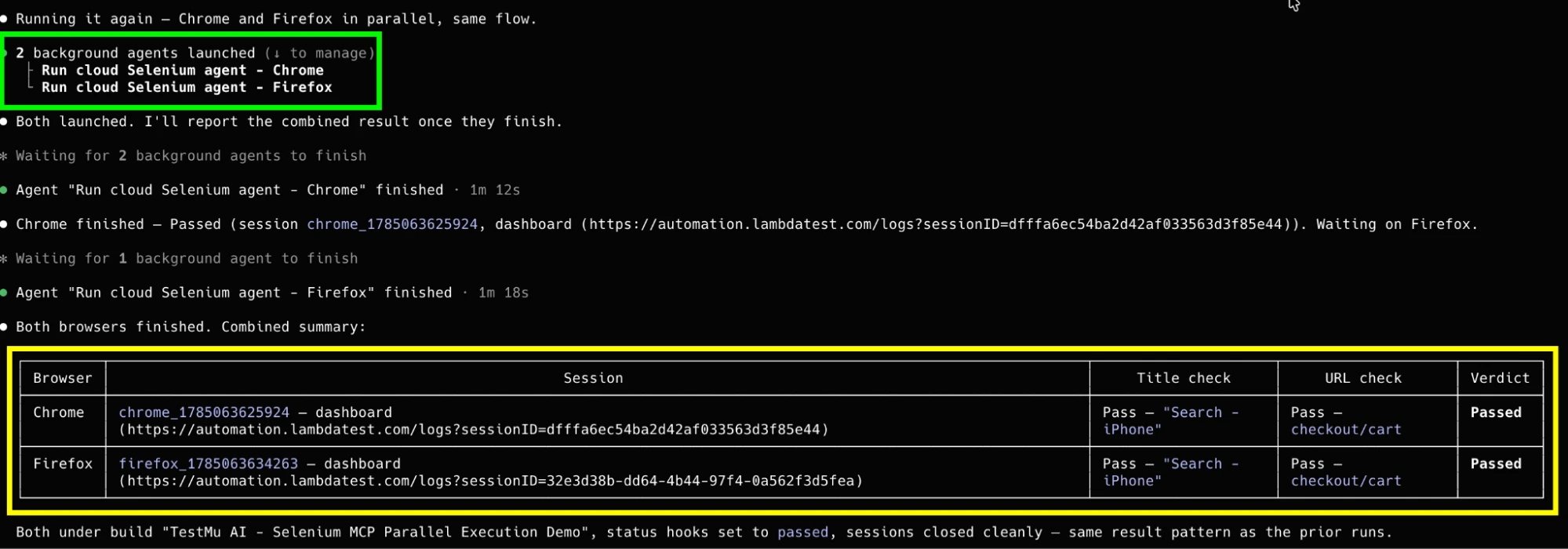
As seen below, the agent launches Chrome and Firefox sessions in parallel and runs through the steps in the respective instructions file.
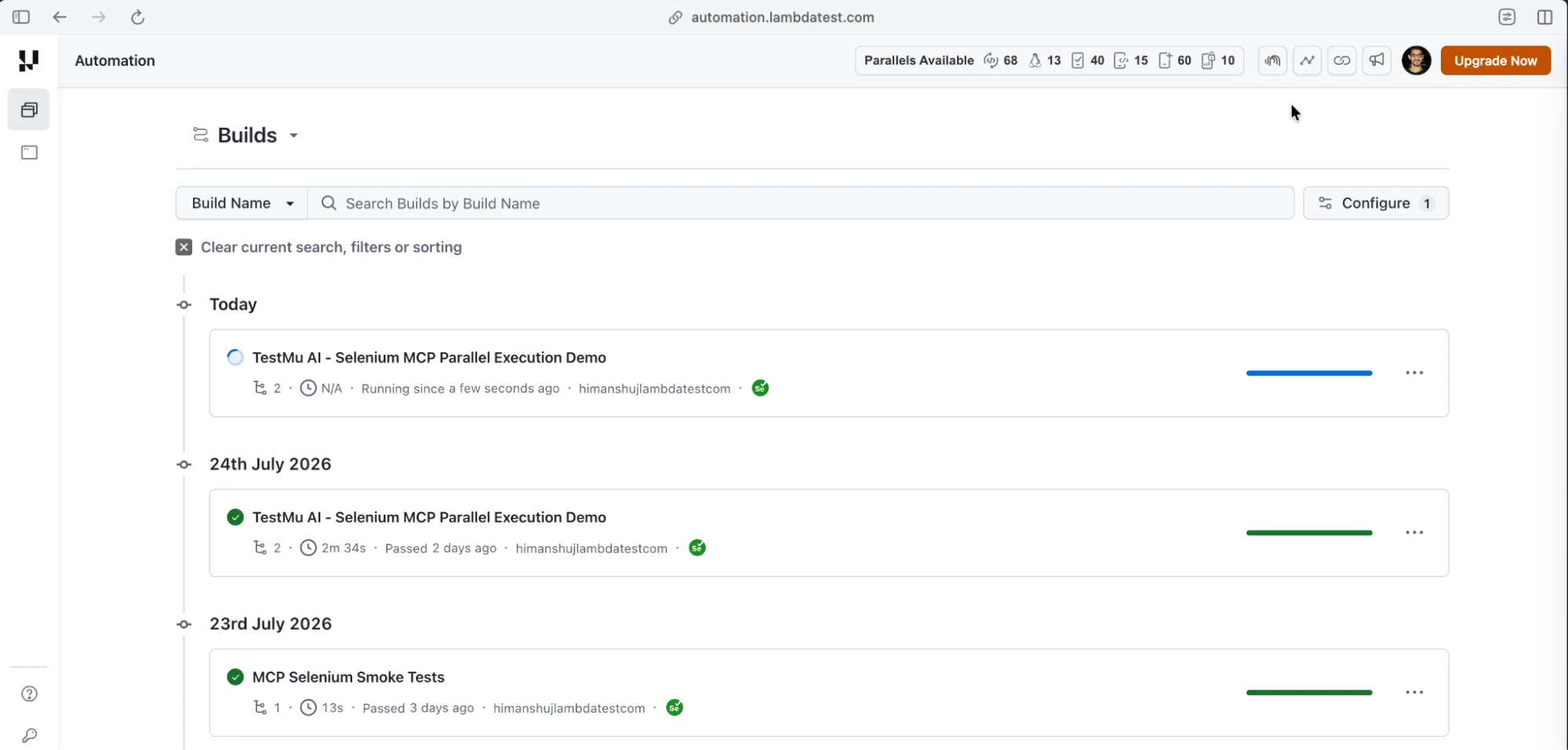
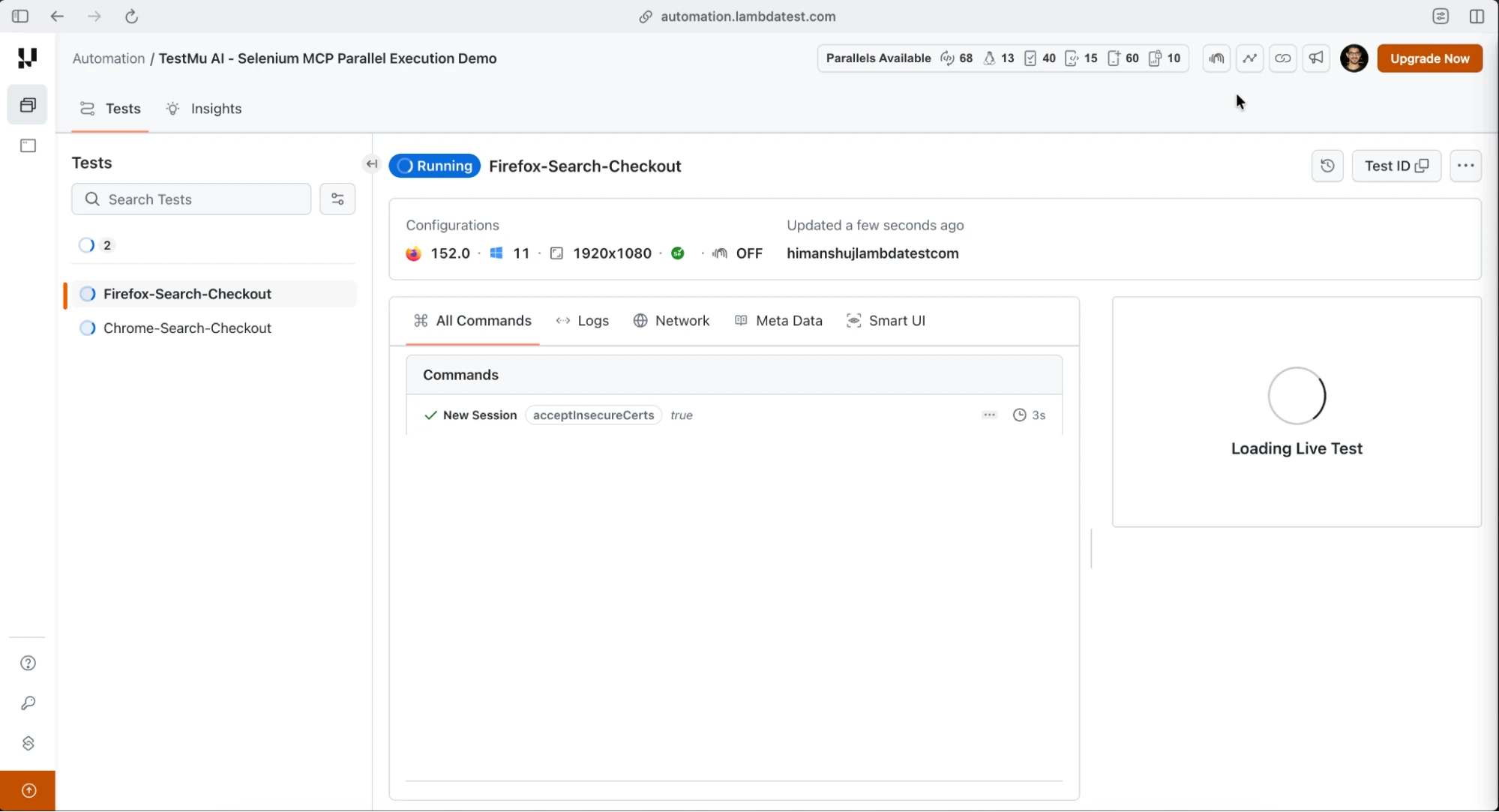
The steps executed successfully on both the browsers and the respective sessions were marked as Passed on the TestMu AI dashboard. The dashboard links and status are also displayed on the terminal.
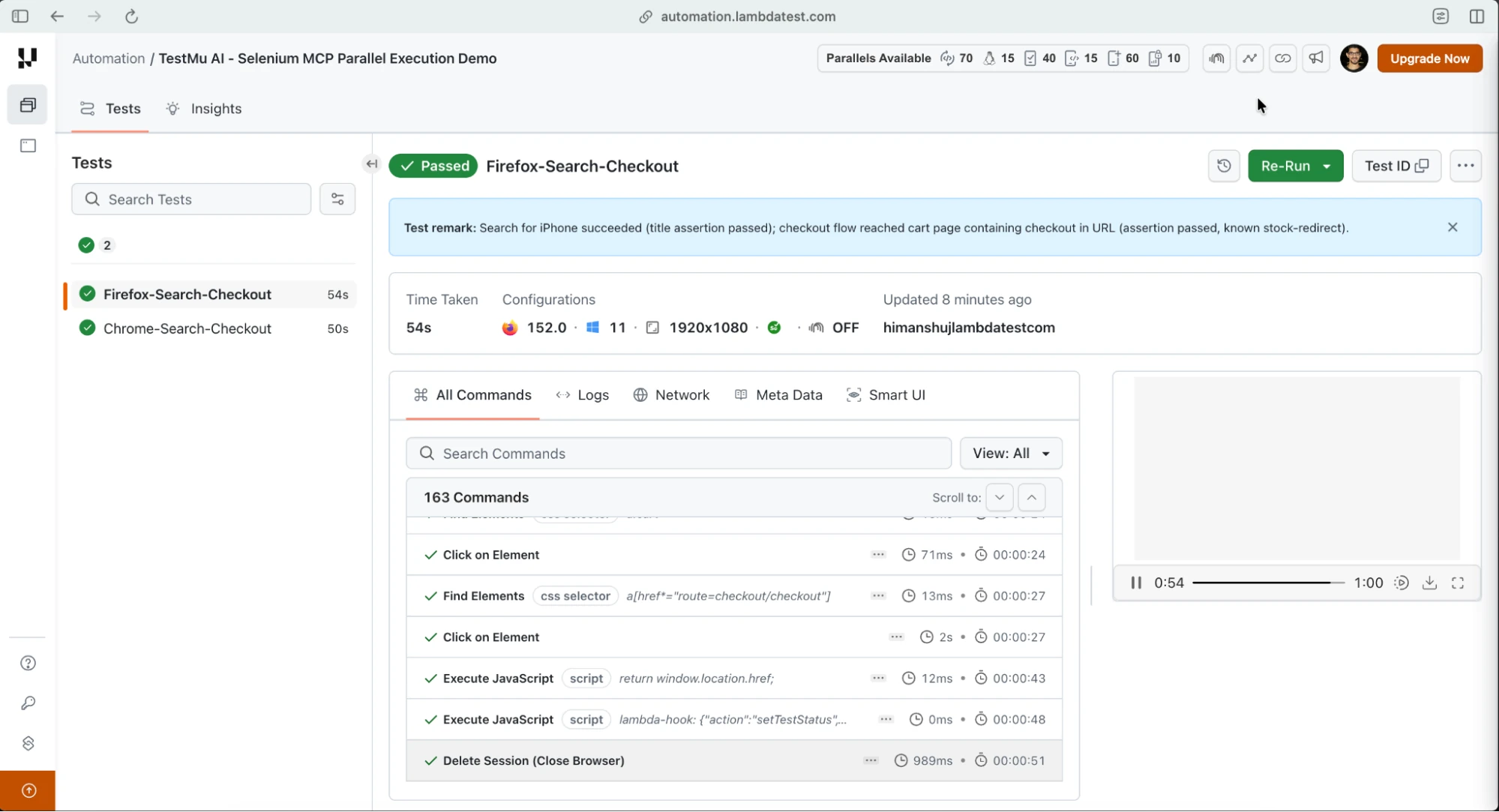
With this, we have validated automation workflows on a local machine and cloud-based TestMu AI Selenium grid. This is where the Selenium MCP server helps in streamlining browser automation through a unified and consistent AI-powered experience.
Conclusion
The Selenium MCP server delivers a substantial paradigm shift in web automation, whereby it helps accelerate the velocity of test script creation while minimizing manual intervention.
By combining the capabilities of the popular Selenium framework with agentic AI workflows, development and QA teams can bridge the gap between initial test concepts and develop fully executable automation scripts with unprecedented efficiency.
The Selenium MCP server created and maintained by Angie Jones works seamlessly against local browsers. However, its capabilities can be further extended by integrating it with TestMu AI's cloud selenium grid. The fork of the Selenium MCP server covered earlier in the blog lets the same MCP tool calls drive parallel browser sessions on the cloud grid, with results and session recordings visible on the dashboard.
Lastly, Selenium MCP works seamlessly with custom AI agents and tools like GitHub Copilot, Kiro, Cursor, etc. making test creation smarter and more consistent across your project.
Author

Himanshu Sheth
Blogs: 143


Himanshu Sheth is the Director of Marketing (Technical Content) at TestMu AI, with over 8 years of hands-on experience in Selenium, Cypress, and other test automation frameworks. He has authored more than 130 technical blogs for TestMu AI, covering software testing, automation strategy, and CI/CD. At TestMu AI, he leads the technical content efforts across blogs, YouTube, and social media, while closely collaborating with contributors to enhance content quality and product feedback loops. He has done his graduation with a B.E. in Computer Engineering from Mumbai University. Before TestMu AI, Himanshu led engineering teams in embedded software domains at companies like Samsung Research, Motorola, and NXP Semiconductors. He is a core member of DZone and has been a speaker at several unconferences focused on technical writing and software quality.


Did you find this page helpful?
More Related Blogs

TestMu AI forEnterprise
Get access to solutions built on Enterprise
grade security, privacy, & compliance
- Advanced access controls
- Advanced data retention rules
- Advanced Local Testing
- Premium Support options
- Early access to beta features
- Private Slack Channel
- Unlimited Manual Accessibility DevTools Tests