

Next-Gen App & Browser Testing Cloud
Trusted by 2 Mn+ QAs & Devs to accelerate their release cycles


Selenium Grid Tutorial: Parallel Testing Guide with Examples
Discover how to configure a Selenium Grid setup for improved test automation. Get the complete setup guide here.

Faisal Khatri
March 2, 2026
This article is a part of our Learning Hub. For more in-depth resources, check out our hub on Selenium Tutorial.
Selenium Grid, an essential component of the Selenium suite, enables you to run test cases simultaneously in different browsers and browser versions. Running tests sequentially on a single machine is always time-consuming, as you can only load a few browsers on your local machine, limiting testing capabilities (e.g., Windows couldn’t test Safari).
This is where the Selenium Grid setup allows testing on all major browsers, operating systems, and mobile devices, ensuring broad browser coverage and a uniform user experience.
Overview
Selenium Grid is a Selenium component that enables parallel testing across multiple browsers, browser versions, and operating systems using a Hub - Node architecture, helping teams execute cross browser tests faster and at scale.
How to Configure a Selenium Grid Setup?
- Install prerequisites: Install Java (JDK/JRE 11 or above) and download the Selenium Server JAR file required to run Selenium Grid 4.
- Start Selenium Grid in Standalone mode: Run
java -jar selenium-server-<version>.jar standalonefrom the directory containing the JAR file, then verify the Grid UI athttp://localhost:4444. - Start the Hub (for Hub–Node setup): Run
java -jar selenium-server-<version>.jar hubto launch the Hub on port 4444, which receives test requests and distributes them to registered nodes. - Register browser Nodes: Start Nodes using the
nodecommand with browser-specific configurations (Chrome, Firefox, Edge) and assign ports and max sessions to enable parallel execution. - Verify Grid configuration: Open
http://localhost:4444to confirm that all nodes and browser sessions are registered and ready for parallel test execution. - Run tests using RemoteWebDriver: Configure your test scripts with the Grid URL (
http://localhost:4444) and execute them in parallel (for example, using TestNG withparallel="tests") to perform cross browser testing.
This setup allows you to run tests in parallel across different browsers and operating systems, improving execution speed and expanding browser coverage with Selenium Grid 4.
What is a Selenium Grid?
Selenium Grid helps in running the Selenium tests on remote machines. It makes use of a proxy server that is run using a Selenium server and allows for the maintenance of different browser configurations at the central level. It enables the tests to run in parallel on other browser versions, thus helping perform cross browser testing.
Moreover, Selenium Grid allows parallel testing against various browsers and OS combinations through a client-server model. Here, the server is known as the Hub, which has multiple clients with which to interact.
Why Use Selenium Grid?
Selenium Grid eases the various tasks while performing automated testing. Here is why you should use Selenium Grid setup to run your test suites:
- Open Source and Free: Selenium Grid is an open-source project. Teams can use it for free. The documentation is updated regularly with every release, making things like installation, configuration, and usage easier for the users.
- Enables Cross Browser Testing: Multiple browsers are gaining popularity, and every person prefers to use the browser of his choice for browning websites. It becomes necessary for businesses to test their websites on multiple browsers. Selenium Grid 4 enables the software teams to perform cross browser testing quickly, allowing them to configure multiple browsers easily.
- Supports Multiple Browser Versions: Another important feature is that Selenium Grid allows users to configure multiple browser versions easily. This helps test websites in different browsers and their versions, enabling teams to detect the issues and fix them at the earliest.
- Supports Parallel Testing: This is one of the most important features behind using Selenium Grid for testing. It helps run the tests in parallel, allowing the teams to save time on test execution and get faster results and feedback on the builds.

Features of Selenium Grid
The following are the salient features of Selenium Grid 4:
- Architecture Support: In the earlier version of Selenium Grid, only two processes were available, i.e., Hub and Nodes. The Selenium Grid 4 architecture supports the following six processes, which allows for deployment in different ways:
- Router
- Distributor
- Session Map
- New Session Queue
- Node
- Event Bus
- Different Grid Roles: Selenium Grid can be configured in the following three ways:
- Standalone Mode
- Classical Grid (Hub and Node)
- Fully Distributed (Event Bus, New Session Queue, Session Map, Distributor, Router and Node)
- Docker Support: Selenium Grid offers out-of-the-box support for Docker. The Docker daemon runs on port 2375.
- Observability: Observability in Selenium Grid allows understanding and debugging of internal working as it is designed to be fully distributed. The following three are the main pillars that help in providing detailed insights into observability.
- Traces
- Metrics
- Logs
- GraphQL Query Support: GraphQL, a query language for APIs, can be used to query and fetch the data that the user requires. With Selenium Grid, GraphQL queries are supported. A simple query can fetch the details of the session, node and grid, current session count, max session count, all session details, etc.
- Support for Customizing a Node: With Selenium Grid, the Nodes can be customized and updated according to the prerequisite for test execution. For example, doing some additional setup before the session begins execution, similarly running clean-up jobs post-session is complete.
- Support for External Data Store: Selenium Grid allows us to save the information related to the currently running sessions into an external data store that could be backed by our favorite database, or the Redis Cache system can also be used.
Note: With Selenium 4 in place, Selenium Grid 3 has been deprecated, and the official Selenium documentation recommends using the Selenium Grid 4. To learn about the changes between Selenium Grid 3 and Selenium 4, refer to Selenium 3 vs Selenium 4.
You can also subscribe to the TestMu AI YouTube Channel and stay updated with the latest video tutorials on Selenium testing.
Components of Selenium Grid
The following are the six main components of Selenium Grid:
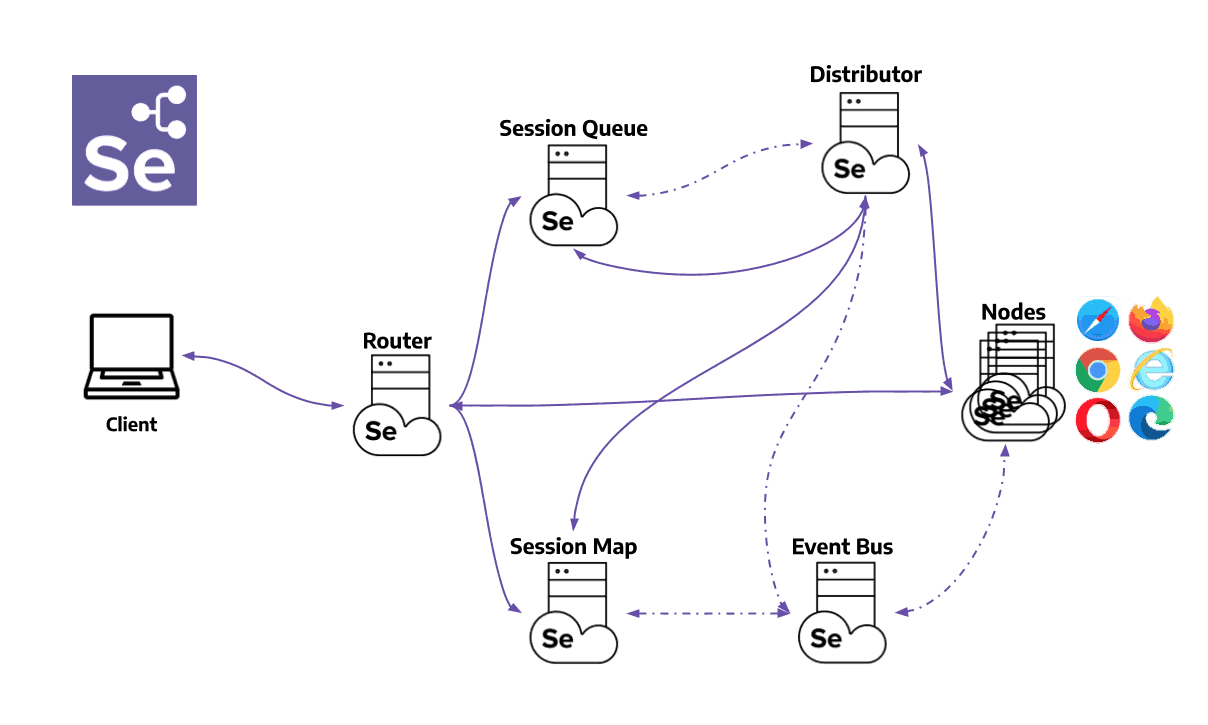
- Router: Acts as the gateway for the grid, receiving external requests and directing them to the right component for handling.
- Distributor: Manages the registration and capabilities of Nodes in the grid. It also assigns new session requests to the appropriate Nodes from the Session Queue and updates the Grid’s model with Node status.
- Session Map: Stores the links between Session IDs and Nodes, facilitating efficient request routing by the Router.
- Session Queue: Holds incoming session requests in a First In, First Out (FIFO) order. It includes settings for request timeouts and retry intervals, ensuring organized and efficient processing of requests.
- Node: Executes tests within a distributed network. To receive appropriate test requests, Nodes with specific configurations must register with the Distributor.
- Event Bus: Facilitates internal communication between grid components using messages to avoid direct HTTP calls. It is activated when the grid starts in fully distributed mode.
In order to further enhance your Selenium automation testing, you can consider exploring AI testing agents like KaneAI.
KaneAI is a smart GenAI native test assistant for high-speed quality engineering teams. With its unique AI-driven features for test authoring, management, and debugging, KaneAI allows teams to create and evolve complex test cases using natural language.

How to Configure a Selenium Grid Setup?
For Selenium Grid setup, here are some prerequisites that you need to follow:
- Ensure system installation of Java Runtime Environment (JRE) or Java Development Kit (JDK). Prefer the latest JDK version; however, any version above Java 11 suffices (Java 11 is the minimum version supported by Selenium).
- Download Selenium Standalone server JAR files.
- Download the Java JAR files.
Now, let’s see the steps for Selenium Grid setup implementation:
Step 1: Configure a Standalone Grid
Standalone Grid provides a fully functional grid with a single command within a single process. It perfectly combines all the grid components and can run on a single machine.
The following command can be run from the terminal to start the Selenium Grid in Standalone Mode:
java -jar selenium-server-<version>.jar standalone
Ensure you navigate to the folder where you downloaded and extracted the Selenium JAR files. These files are located on My Computer in the H:\selenium_grid\ folder.
After executing the command, navigate to http://localhost:4444 to check the fully functional Selenium Grid.
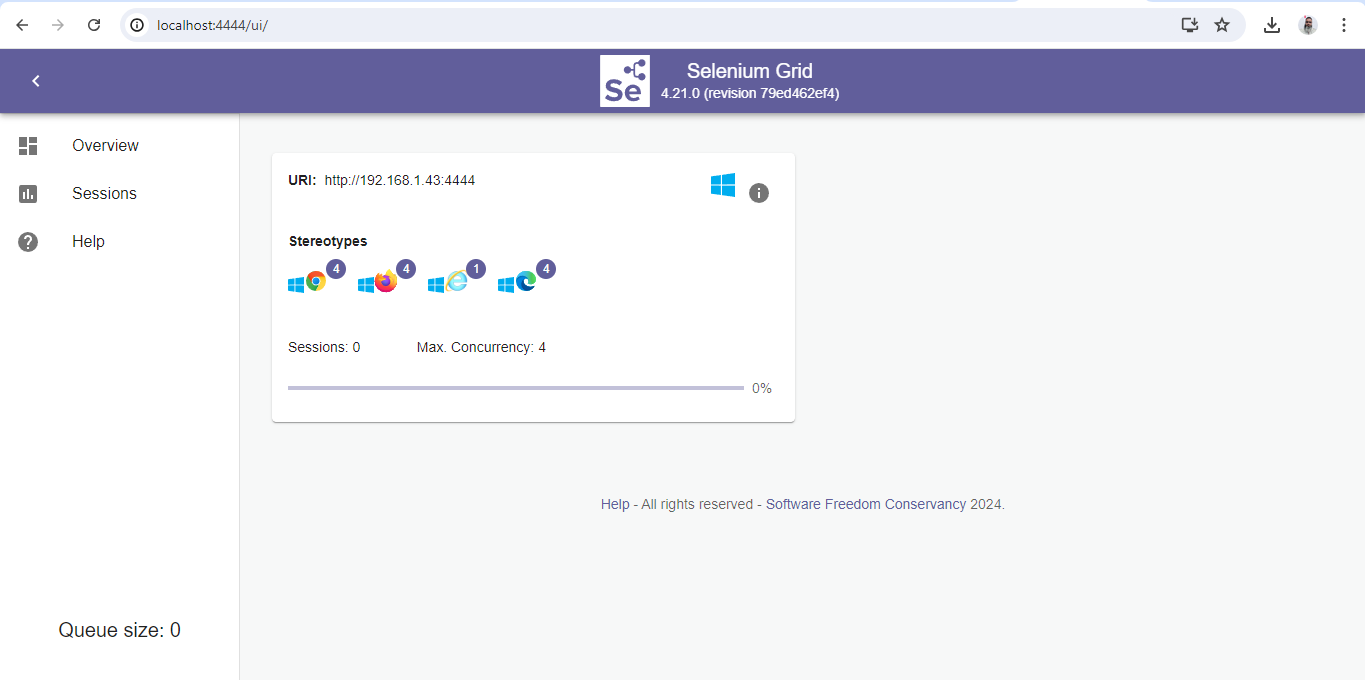
It can be seen that Selenium Grid is fully functional with four instances of Chrome, Firefox, Edge, and IE browsers.
Step 2: Configure Hub and Nodes
To start the Hub, open a command prompt or terminal, navigate to the directory where the Selenium Standalone Server JAR file is saved, and run the below command:
java -jar selenium-server-<version>.jar hub
This command would launch a Selenium Grid hub on port 4444 by default. It can be verified by navigating to http://localhost:4444
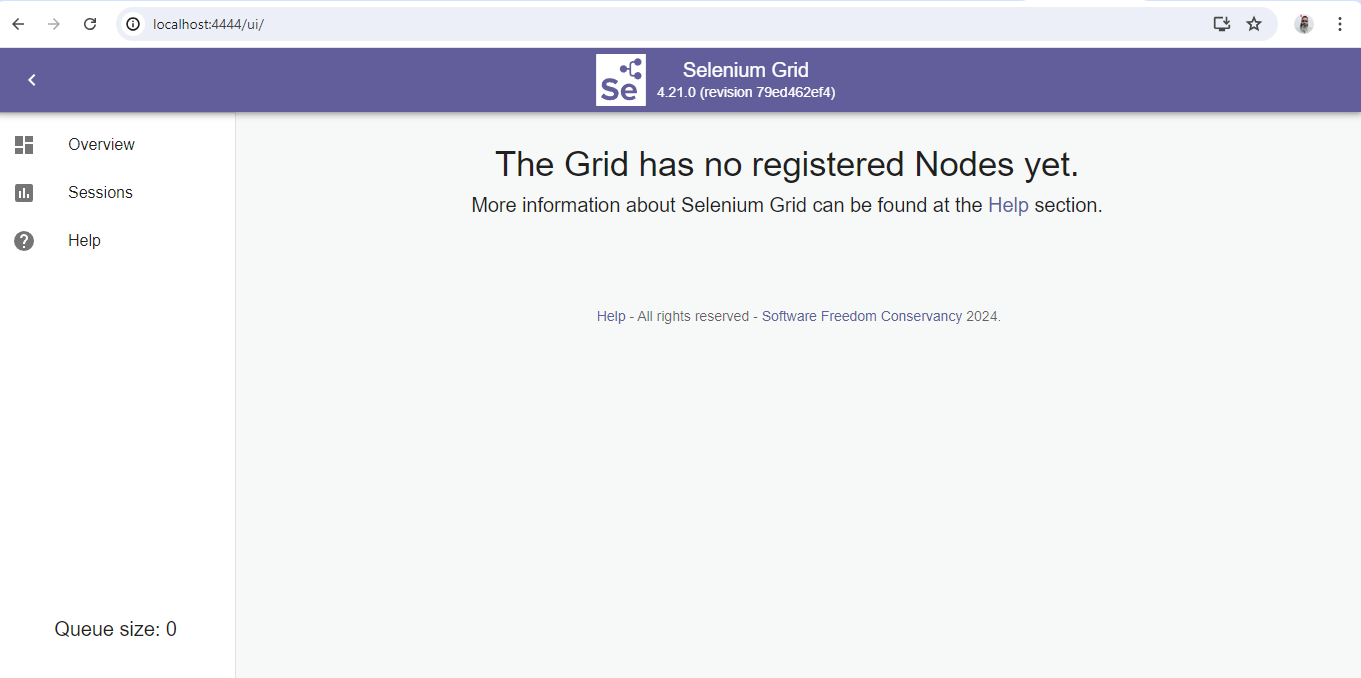
Next, we need to configure the Nodes to make it fully functional.
After the Hub is started, the Nodes need to be set up to run the browser session for test execution. The Nodes can be set up in different machines. However, it should be noted that these machines should have a JDK/JRE already installed. The Nodes can also be set up on the same machine Hub runs.
To configure a Node, open a command prompt or terminal and navigate to the directory where you saved the browser driver files.
Step 3: Configure Chrome Browser in the Selenium Grid Setup
The following command should be executed in the new instance of the command prompt to start a Node with the Chrome browser:
java -jar selenium-server-4.21.0.jar node --detect-drivers false --driver-configuration display-name="Chrome" max-sessions=1 stereotype="{"browserName":"chrome","platformName": "Windows 11"}" --port 6161
The above command will start a Node with Chrome browser with one session on port 6161. If we need to increase the session, we can update the value for the max-sessions parameter in the above command.
The Node can be verified on the Selenium Grid UI by navigating to http://localhost:4444.
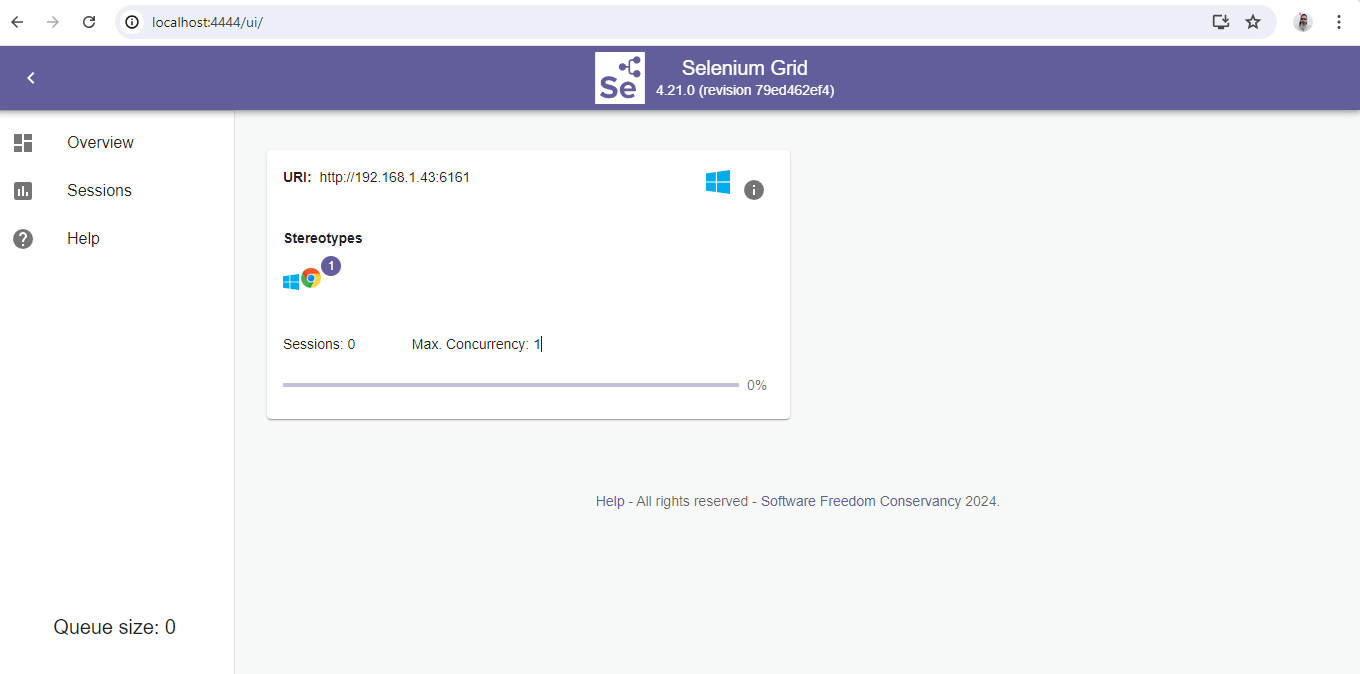
Let’s now add another node with the Firefox browser to the grid.
Step 4: Configure Firefox Browser in the Selenium Grid Setup
Open a new instance of the command prompt or terminal and run the following command:
java -jar selenium-server-4.21.0.jar node --detect-drivers false --driver-configuration display-name="Firefox" max-sessions=2 stereotype="{"browserName":"firefox","platformName": "Windows 11"}" --port 6162
The above command will spin a new Node with the two Firefox browser sessions running. Note that we have started this Node on a different port,i.e., 6162.
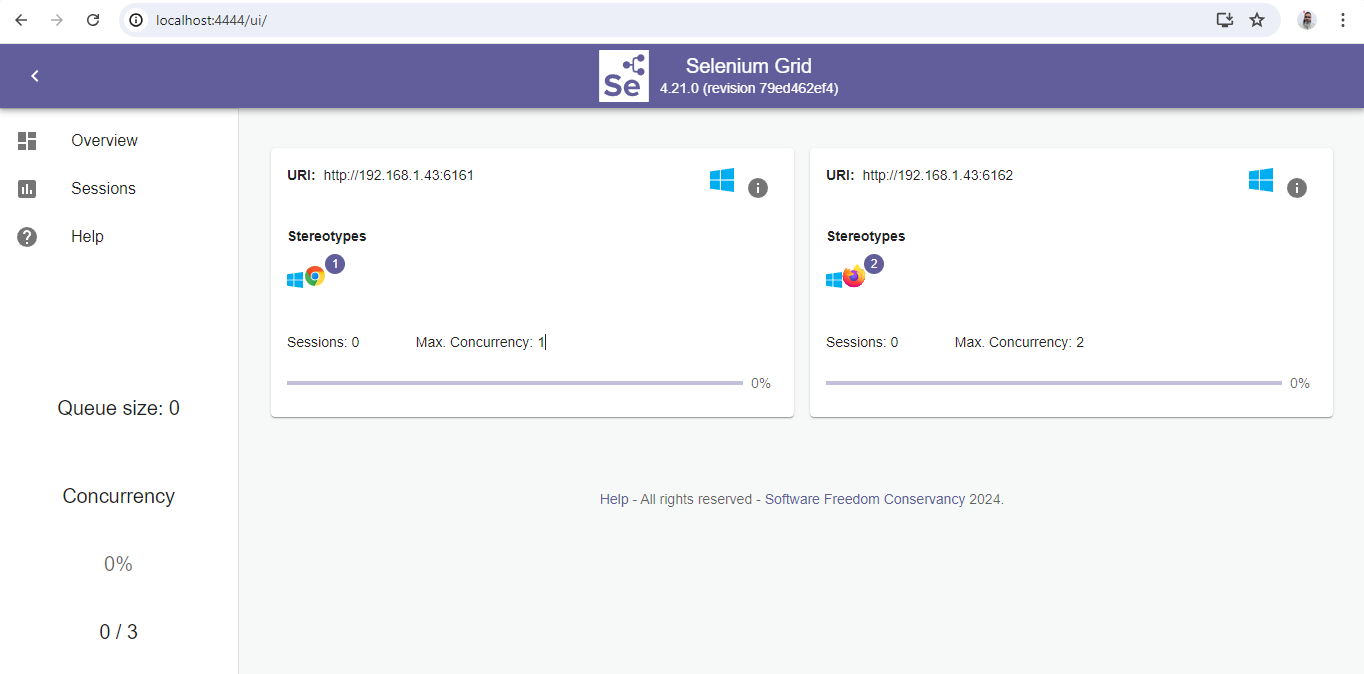
Let’s now add a third Node with the Microsoft Edge browser.
Step 5: Configure Edge Browser in the Selenium Grid Setup
Open a new instance of the command prompt or terminal and run the following command:
java -jar selenium-server-4.21.0.jar node --detect-drivers false --driver-configuration display-name="Edge" max-sessions=3 stereotype="{"browserName":"MicrosoftEdge","platformName": "Windows 11"}" --port 6163
The above command will configure three Edge browser sessions in a new Node on port 6163.
Let’s verify the addition of a new Node by navigating and checking http://localhost:4444.
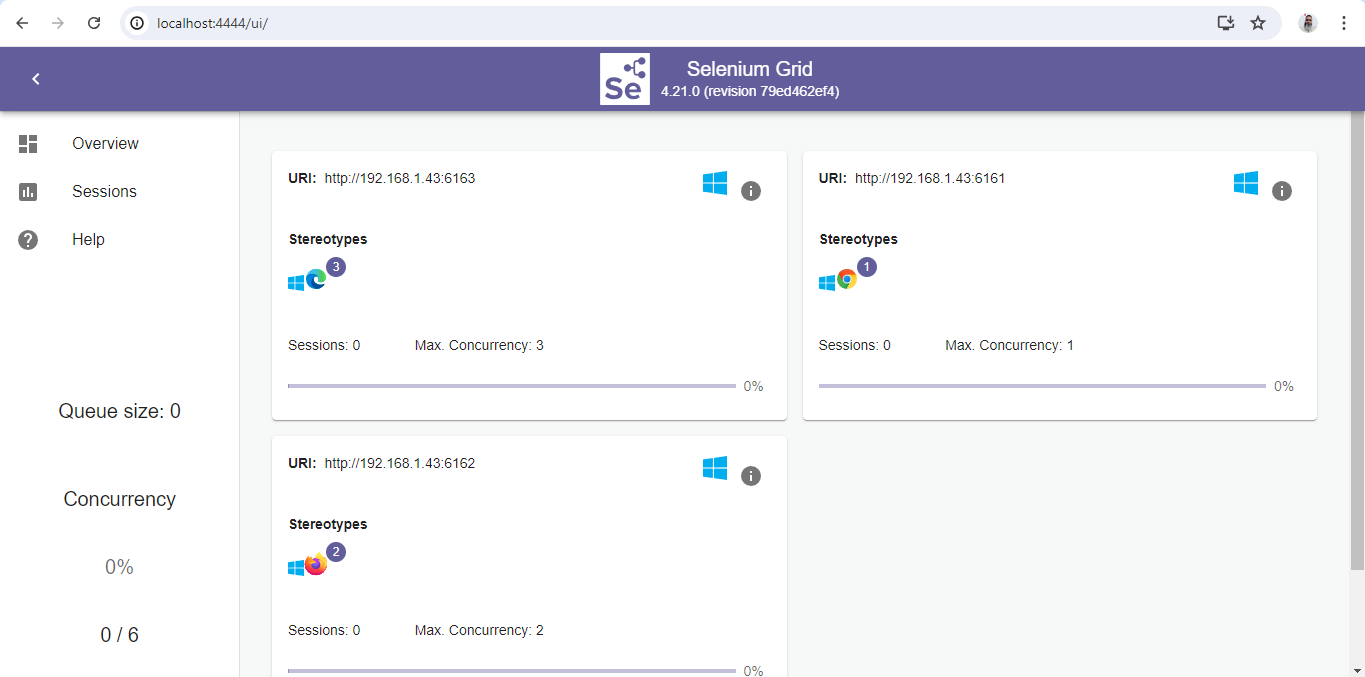
Step 6: Configure a Distributed Grid
Each component is launched independently in a Distributed Grid setup, preferably on separate machines. Follow the following steps to configure the Distributed Grid:
- Start the Event BusOpen a new terminal or command prompt and run the following command to start the Event Bus. Event Bus helps in internal communication between different grid components.
java -jar selenium-server-4.21.0.jar event-bus --publish-events tcp://localhost:4442 --subscribe-events tcp://localhost:4443 --port 5557
java -jar selenium-server-4.21.0.jar sessionqueue --port 5559
Open a new command prompt and run the following command:
java -jar selenium-server-4.21.0.jar sessions --publish-events tcp://localhost:4442 --subscribe-events tcp://localhost:4443 --port 5556
Open the command prompt and run the following command:
java -jar selenium-server-4.21.0.jar distributor --publish-events tcp://localhost:4442 --subscribe-events tcp://localhost:4443 --sessions http://localhost:5556 --sessionqueue http://localhost:5559 --port 5553 --bind-bus false
Open the command prompt and run the following command:
java -jar selenium-server-4.21.0.jar router --sessions http://localhost:5556 --distributor http://localhost:5553 --sessionqueue http://localhost:5559 --port 4444
The following command will add one Node with four Chrome, Firefox, and Edge browser sessions. It will also spin one session of IE browser by default.
java -jar selenium-server-4.21.0.jar node --publish-events tcp://localhost:4442 --subscribe-events tcp://localhost:4443
Navigate to http://localhost:4444 and check the grid in fully functional mode.
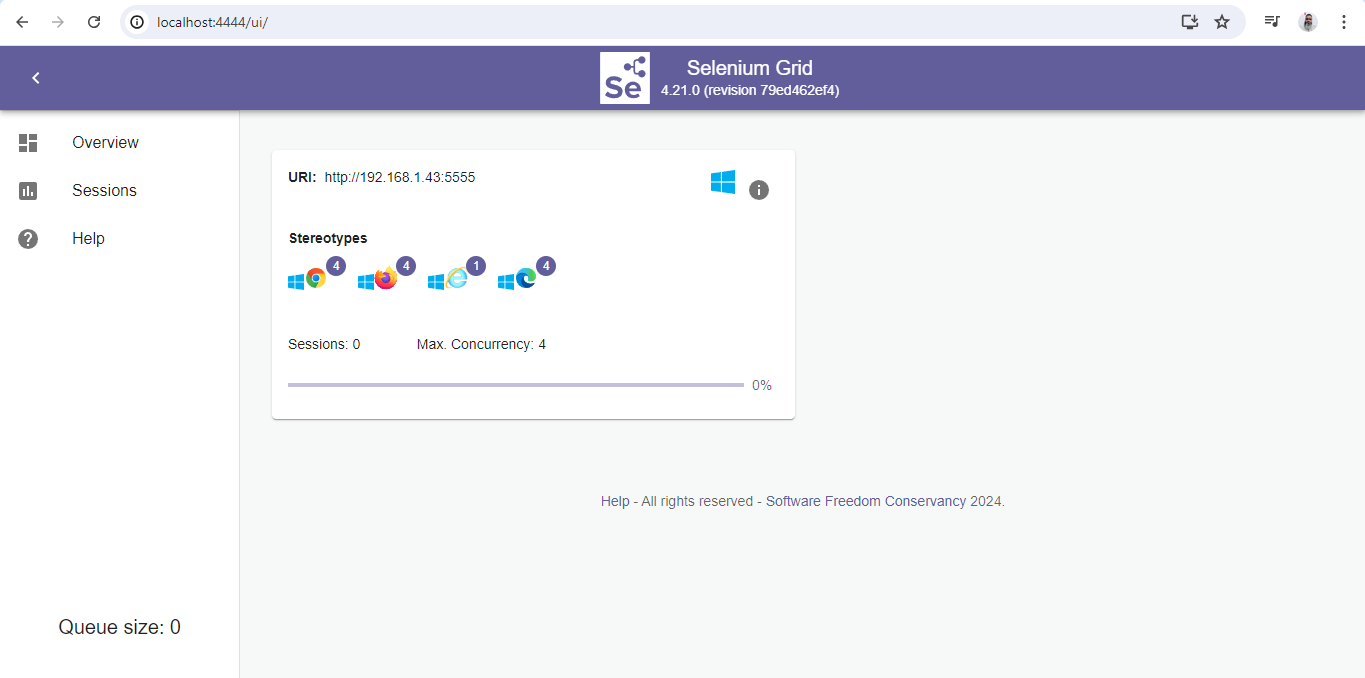
How to Perform Parallel Testing With Selenium Grid?
It is time for parallel testing using the Selenium Grid setup. The tests will be run in parallel on Chrome, Firefox, and Edge browsers.
Test Scenario:
- Navigate to the TestMu AI eCommerce Playground website.
- Search for a product using the search bar on the homepage.
- Check the page title of the search result page.
Test Implementation:
The BaseTest class is created to manage WebDriver instances for running tests on a Selenium Grid. This class is available in the seleniumgriddemo package in the src/test folder.
public class BaseTest {

   private static final ThreadLocal<RemoteWebDriver> DRIVER = new ThreadLocal<>();

   public RemoteWebDriver getDriver() {
       return DRIVER.get();
   }

   private void setDriver(RemoteWebDriver remoteWebDriver) {
       DRIVER.set(remoteWebDriver);
   }

   @Parameters("browser")
   @BeforeClass(alwaysRun = true)
   public void setup(String browser) {
       try {
           if (browser.equalsIgnoreCase("chrome")) {
               ChromeOptions chromeOptions = new ChromeOptions();
               chromeOptions.setCapability("se:name", "Test on Grid - Chrome");
               setDriver(new RemoteWebDriver(new URL("http://localhost:4444"), chromeOptions));

           } else if (browser.equalsIgnoreCase("firefox")) {
               FirefoxOptions firefoxOptions = new FirefoxOptions();
               firefoxOptions.setCapability("se:name", "Test on Grid - Firefox");
               setDriver(new RemoteWebDriver(new URL("http://localhost:4444"), firefoxOptions));

           } else if (browser.equalsIgnoreCase("edge")) {
               EdgeOptions edgeOptions = new EdgeOptions();
               edgeOptions.setCapability("se:name", "Test on Grid - Edge");
               setDriver(new RemoteWebDriver(new URL("http://localhost:4444"), edgeOptions));
           } else {
               throw new Error("Browser configuration is not defined!!");
           }

       } catch (MalformedURLException e) {
           throw new Error("Error setting up browsers in Grid");
       }
       getDriver().manage()
           .timeouts()
           .implicitlyWait(Duration.ofSeconds(20));
   }

   @AfterTest(alwaysRun = true)
   public void tearDown() {
       getDriver().quit();
   }
}

The ThreadLocal variable holds the RemoteWebDriver instance. Using ThreadLocal ensures that each thread gets its own instance of RemoteWebDriver that will help in parallel execution of tests seamlessly.
The setup() method will take the name of the browser as a parameter and accordingly configure the browser for executing the tests. The name of the browser will be set on runtime using testng.xml file, as we are using the @Parameters annotation of TestNG for setting the browser name.
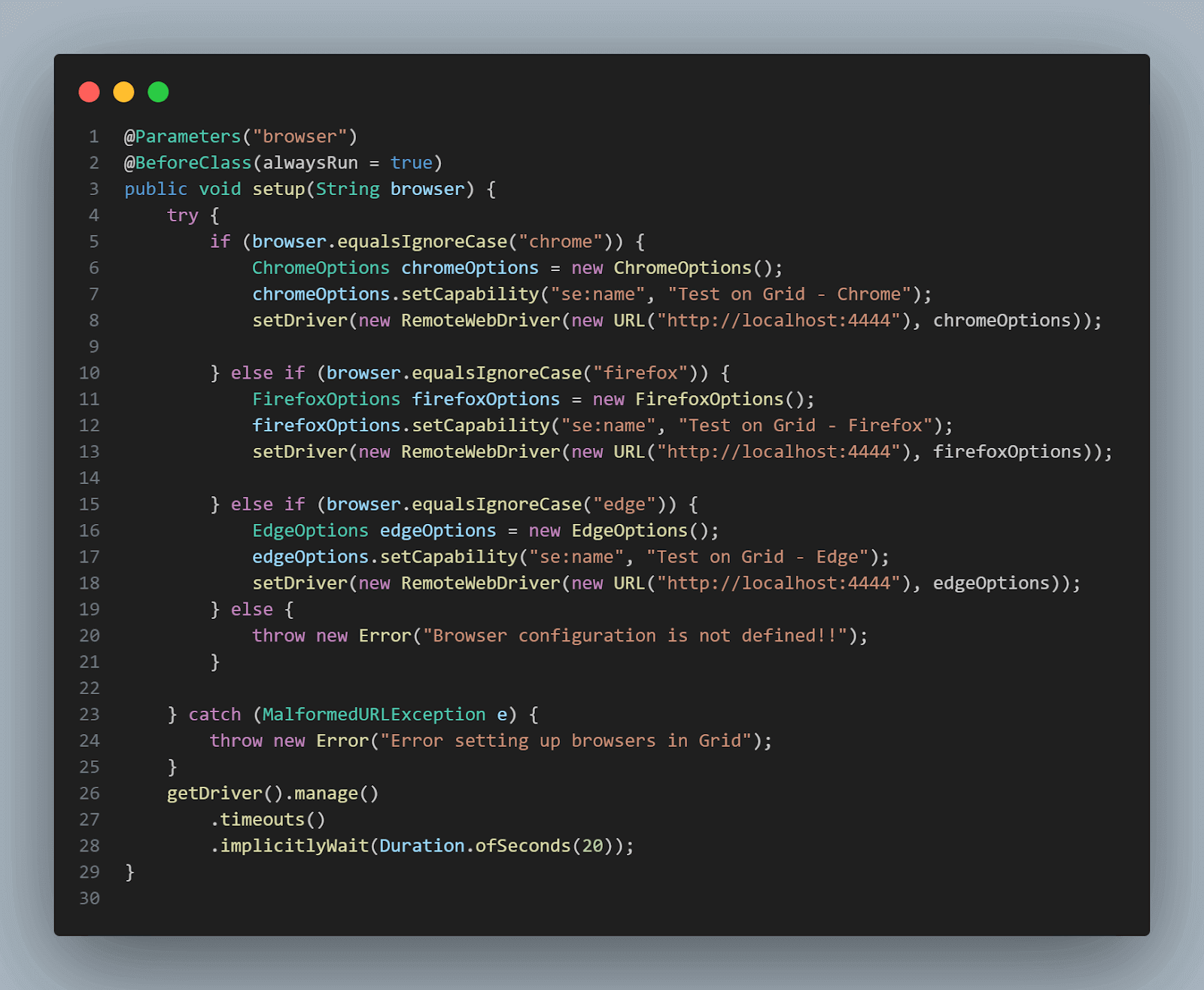
The RemoteWebDriver instance will be instantiated using the Selenium Grid URL that runs on http://localhost:4444 and setting the capabilities of the respective browser option class.
The capability se:name will show the test name instead of the session ID in the grid UI.
The getDriver() method returns the RemoteWebDriver instance associated with the current thread.
Similarly, the setDriver() method will assign the RemoteWebDriver instance to the current thread.
The tearDown() method will call the quit() method on the RemoteWebDriver instance to close the session.
A new test class named LocalGridDemoTests was created to implement the test scenario discussed earlier. This class extends the BaseTest class to use the configurations to run the test easily.
public class LocalGridDemoTests extends BaseTest {

   @Test
   public void testSearchProduct() {
       getDriver().get("https://ecommerce-playground.lambdatest.io/");
       WebElement searchBox = getDriver().findElement(By.name("search"));

       String searchText = "iPhone";
       searchBox.sendKeys(searchText);
       WebElement searchBtn = getDriver().findElement(By.cssSelector("button.type-text"));
       searchBtn.click();

       String pageHeader = getDriver().findElement(By.tagName("h1"))
           .getText();

       assertEquals(pageHeader, "Search - " + searchText);
   }
}
The testSearchProduct() method will navigate to the TestMu AI eCommerce playground website, and the search box will be located on the home page using the Name locator in Selenium.
Next, the test iPhone will be typed in the search box field, and the Search button will be clicked. The page header of the search result page will be asserted by getting its text using the tagName locator h1.
Finally, the assertion will be performed to check that the text of the page header matches with the text that was used for searching the product. The word Search is added as a prefix before the expected search text, as this text appears as a static text on the page after anything is searched.
Test Execution:
The following testng.xml file is created for test execution purposes. This testng.xml will help us execute the tests in parallel.
<?xml version="1.0" encoding="UTF-8"?>
<!DOCTYPE suite SYSTEM "http://testng.org/testng-1.0.dtd">
<suite name="Selenium Grid demo" parallel="tests">
   <test name="Selenium Grid demo test on Chrome">
       <parameter name="browser" value="chrome"/>
       <classes>
           <class name="io.github.mfaisalkhatri.seleniumgriddemo.LocalGridDemoTests">
               <methods>
                   <include name="testSearchProduct"/>
               </methods>
           </class>
       </classes>
   </test>
   <test name="Selenium Grid demo test on Firefox">
       <parameter name="browser" value="firefox"/>
       <classes>
           <class name="io.github.mfaisalkhatri.seleniumgriddemo.LocalGridDemoTests">
               <methods>
                   <include name="testSearchProduct"/>
               </methods>
           </class>
       </classes>
   </test>
   <test name="Selenium Grid demo test on Edge">
       <parameter name="browser" value="edge"/>
       <classes>
           <class name="io.github.mfaisalkhatri.seleniumgriddemo.LocalGridDemoTests">
               <methods>
                   <include name="testSearchProduct"/>
               </methods>
           </class>
       </classes>
   </test>
</suite>
As mentioned, the browser names are passed using the parameter tag in the testng.xml file. Note that we will use the tag parallel to run the tests in parallel and provide the value as tests.
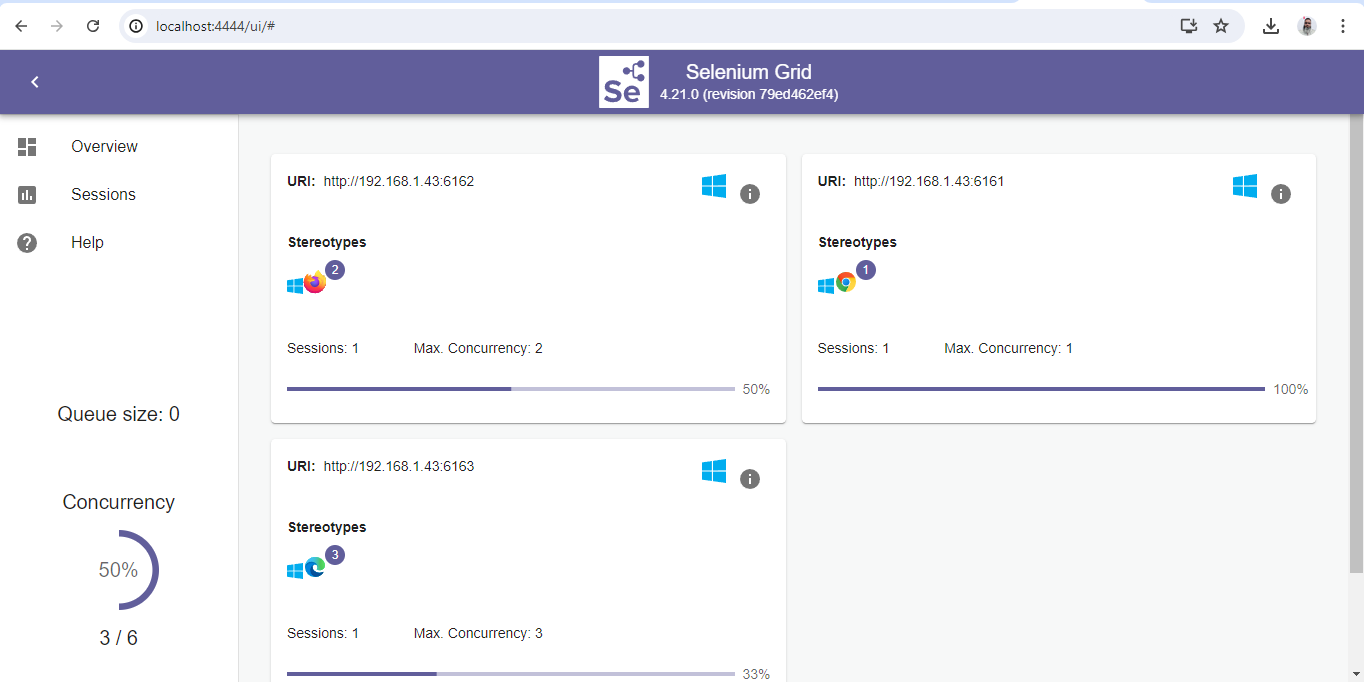
This will run every test block available in the testng.xml file in parallel. The following is the screenshot of Selenium Grid UI showing the sessions running in parallel.
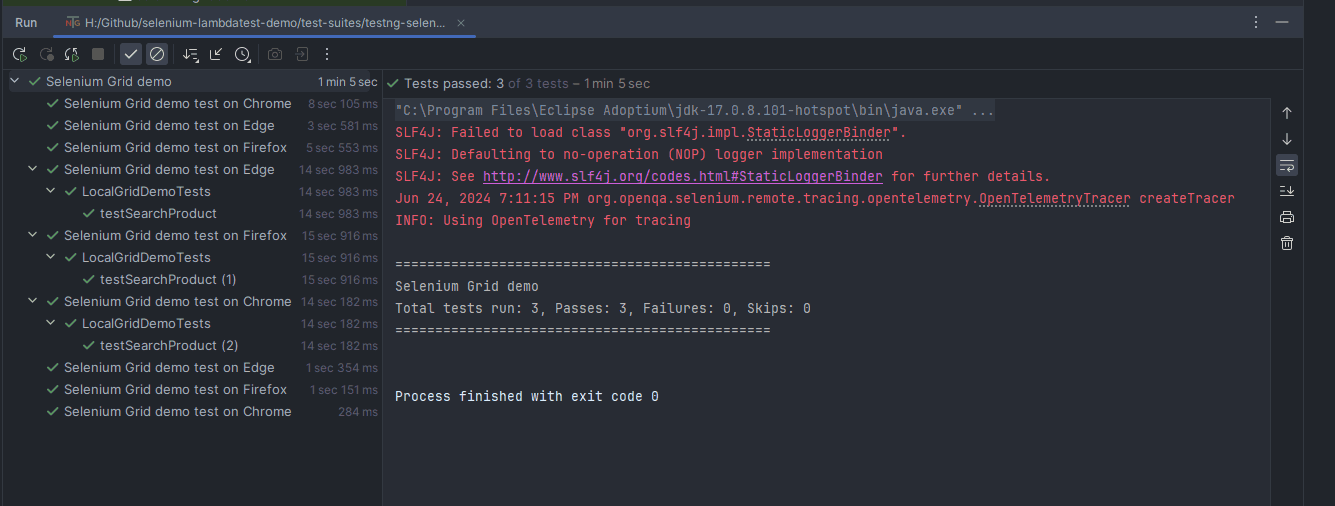
The following screenshot shows that the tests were executed successfully in parallel:
Selenium Grid is one of the robust components of Selenium for configuring a local infrastructure for cross browser testing. However, there are certain limitations, and we would have to be specific while selecting the browser/browser versions and platforms for testing.
Apart from what is set up in the grid, we need to configure an additional node to cater to our requirements. This could prove costly as we would be required to purchase new machines with a specific operating system, such as macOS or a particular version of Windows.
This is where cloud platforms such as TestMu AI can be helpful as it saves us from the hassle of maintaining your Selenium Grid setup, so we could focus on writing better automation code. TestMu AI also empowers us with the ability of Selenium Grid for parallel execution, all on the cloud.
Parallel Testing At Scale Using TestMu AI
TestMu AI is an AI-powered test execution platform on the cloud that allows you to test your websites and web applications across 3000+ combinations of browsers, browser versions, and operating systems. It offers an online Selenium Grid to help you perform automation testing in parallel.
Let’s try running our same test case on the TestMu AI cloud grid. The TestMu AI Automation Capabilities Generator can be used to configure the desired capabilities, which would save a lot of our time spent in Selenium Grid setup when done manually.
Test Implementation:
With TestMu AI, we only need to create a RemoteWebDriver session using the Remote Server URL, add the TestMu AI Username, Access Key, and the grid URL in the script along with the automation capabilities, and then we are good to go.
A new package named lambdatestgriddemoTests is created in the src/test folder. A new test class, TestMu AIGridDemoTests, uses the same testSearchProduct() method.
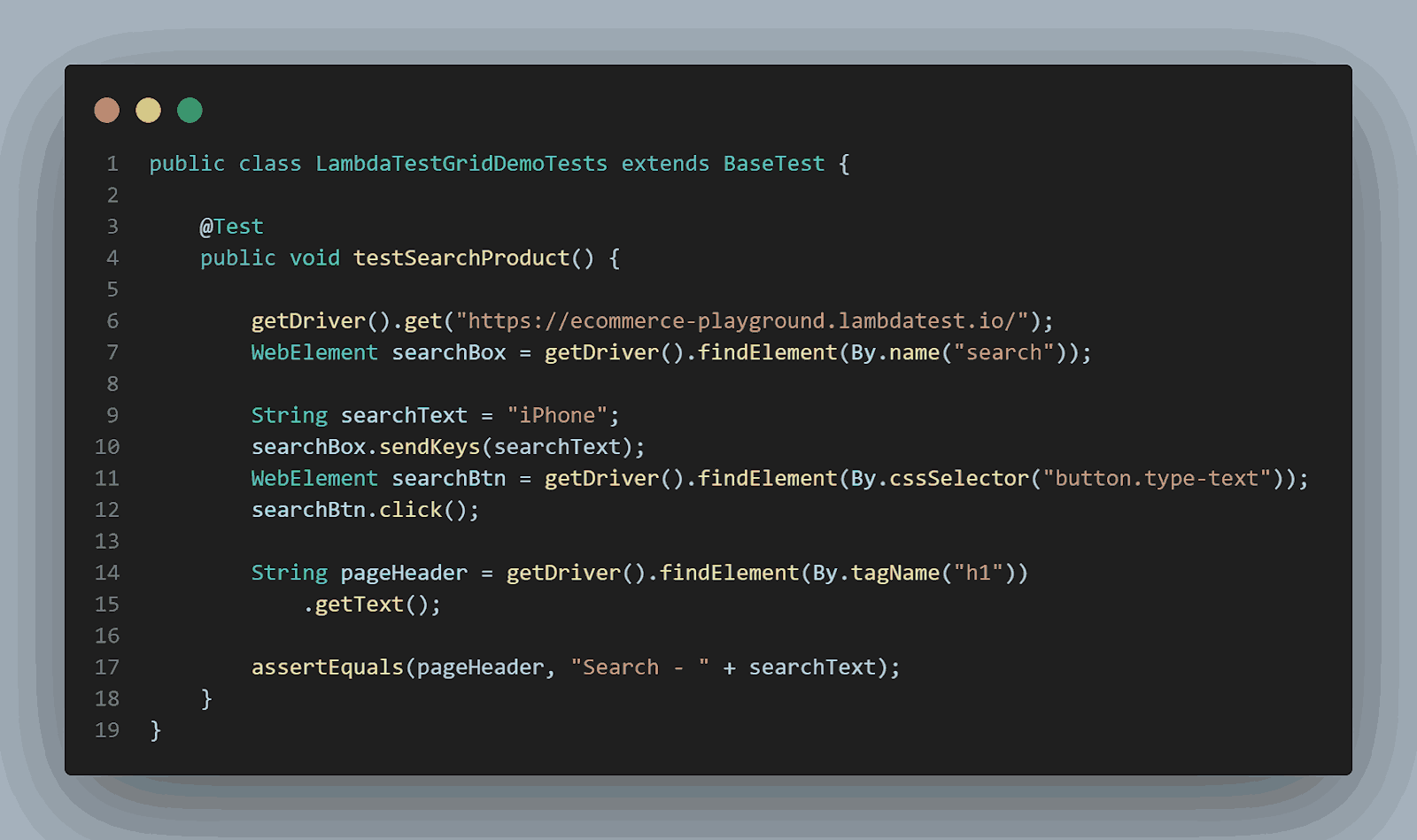
This test class is extended by the BaseTest class, which holds all the configuration methods for running tests on the TestMu AI cloud grid.
A new BaseTest class is created to handle the configurations:
public class BaseTest {

   private static final ThreadLocal<RemoteWebDriver> DRIVER = new ThreadLocal<>();

   public RemoteWebDriver getDriver() {
       return DRIVER.get();
   }

   private void setDriver(RemoteWebDriver remoteWebDriver) {
       DRIVER.set(remoteWebDriver);
   }

   @BeforeTest
   @Parameters({ "browser", "browserVersion", "platform" })
   public void setup(String browser, String browserVersion, String platform) {
       final String userName = System.getenv("LT_USERNAME") == null ? "LT_USERNAME" : System.getenv("LT_USERNAME");
       final String accessKey = System.getenv("LT_ACCESS_KEY") == null ? "LT_ACCESS_KEY" : System.getenv("LT_ACCESS_KEY");
       final String gridUrl = "@hub.lambdatest.com/wd/hub";

       if (browser.equalsIgnoreCase("chrome")) {
           try {
               setDriver(new RemoteWebDriver(new URL("http://" + userName + ":" + accessKey + gridUrl), getChromeOptions(browserVersion, platform)));

           } catch (final MalformedURLException e) {
               throw new Error("Could not start the chrome browser on LambdaTest cloud grid");
           }
       } else if (browser.equalsIgnoreCase("firefox")) {
           try {
               setDriver(new RemoteWebDriver(new URL("http://" + userName + ":" + accessKey + gridUrl), getFirefoxOptions(browserVersion, platform)));

           } catch (final MalformedURLException e) {
               throw new Error("Could not start the firefox browser on LambdaTest cloud grid");
           }
       } else if (browser.equalsIgnoreCase("edge")) {
           try {
               setDriver(new RemoteWebDriver(new URL("http://" + userName + ":" + accessKey + gridUrl), getEdgeOptions(browserVersion, platform)));

           } catch (final MalformedURLException e) {
               throw new Error("Could not start the firefox browser on LambdaTest cloud grid");
           }
       } else {
           throw new Error("Browser configuration is not defined!");
       }

       getDriver().manage()
           .timeouts()
           .implicitlyWait(Duration.ofSeconds(20));
   }

   private ChromeOptions getChromeOptions(String browserVersion, String platform) {
       var browserOptions = new ChromeOptions();
       browserOptions.setPlatformName(platform);
       browserOptions.setBrowserVersion(browserVersion);
       browserOptions.setCapability("LT:Options", getLtOptions());

       return browserOptions;
   }

   private FirefoxOptions getFirefoxOptions(String browserVersion, String platform) {
       var browserOptions = new FirefoxOptions();
       browserOptions.setPlatformName(platform);
       browserOptions.setBrowserVersion(browserVersion);
       browserOptions.setCapability("LT:Options", getLtOptions());

       return browserOptions;
   }

   private EdgeOptions getEdgeOptions(String browserVersion, String platform) {
       var browserOptions = new EdgeOptions();
       browserOptions.setPlatformName(platform);
       browserOptions.setBrowserVersion(browserVersion);
       browserOptions.setCapability("LT:Options", getLtOptions());

       return browserOptions;
   }

   private HashMap<String, Object> getLtOptions() {
       final var ltOptions = new HashMap<String, Object>();
       ltOptions.put("project", "ECommerce playground website");
       ltOptions.put("build", "LambdaTest Ecommerce Website tests");
       ltOptions.put("name", "Search for a product test");
       ltOptions.put("w3c", true);
       ltOptions.put("visual", true);
       ltOptions.put("plugin", "java-testNG");
       return ltOptions;
   }

   @AfterTest
   public void tearDown() {
       getDriver().quit();
   }
}
The RemoteWebDriver instance is held by the ThreadLocal variable. It ensures that each thread gets its instance of RemoteWebDriver, allowing thread safety to perform parallel execution of the tests.
The browser name, version, and platform name will be provided on run time through the testng.xml file, as @Parameter annotation from TestNG is used to set it. The TestMu AI Username and Access Key will be fetched from the environment variable.
There are multiple if statements in the setup() method that carries conditions for starting the browser using a RemoteWebDriver instance with the specific version on the platform. The methods getChromeOptions(), getFirefoxOptions(), and getEdgeOptions() will set the capabilities for starting the browser on the cloud.
Similarly, the ltOptions() method will set all the common capabilities required for running the tests on the TestMu AI cloud grid.
Test Execution:
The following testng.xml file will allow us to run the automated tests in parallel on different browser/platform combinations.
<?xml version="1.0" encoding="UTF-8"?>
<!DOCTYPE suite SYSTEM "http://testng.org/testng-1.0.dtd">
<suite name="Selenium Grid demo" parallel="tests">
   <test name="LambdaTest Grid demo test on Chrome">
       <parameter name="platform" value="Windows 11"/>
       <parameter name="browser" value="chrome"/>
       <parameter name="browserVersion" value="125"/>
       <classes>
           <class name="io.github.mfaisalkhatri.lambdatestgriddemo.LambdaTestGridDemoTests">
               <methods>
                   <include name="testSearchProduct"/>
               </methods>
           </class>
       </classes>
   </test>
   <test name="Selenium Grid demo test on Firefox">
       <parameter name="platform" value="Windows 10"/>
       <parameter name="browser" value="firefox"/>
       <parameter name="browserVersion" value="126"/>
       <classes>
           <class name="io.github.mfaisalkhatri.lambdatestgriddemo.LambdaTestGridDemoTests">
               <methods>
                   <include name="testSearchProduct"/>
               </methods>
           </class>
       </classes>
   </test>
   <test name="Selenium Grid demo test on Edge browser">
       <parameter name="platform" value="Windows 11"/>
       <parameter name="browser" value="edge"/>
       <parameter name="browserVersion" value="125"/>
       <classes>
           <class name="io.github.mfaisalkhatri.lambdatestgriddemo.LambdaTestGridDemoTests">
               <methods>
                   <include name="testSearchProduct"/>
               </methods>
           </class>
       </classes>
   </test>
</suite>
The browser, browser version, and platform values are provided using the testng.xml file. This makes things easier if we just want to add more browser/platform combinations to run the cross-browser tests.
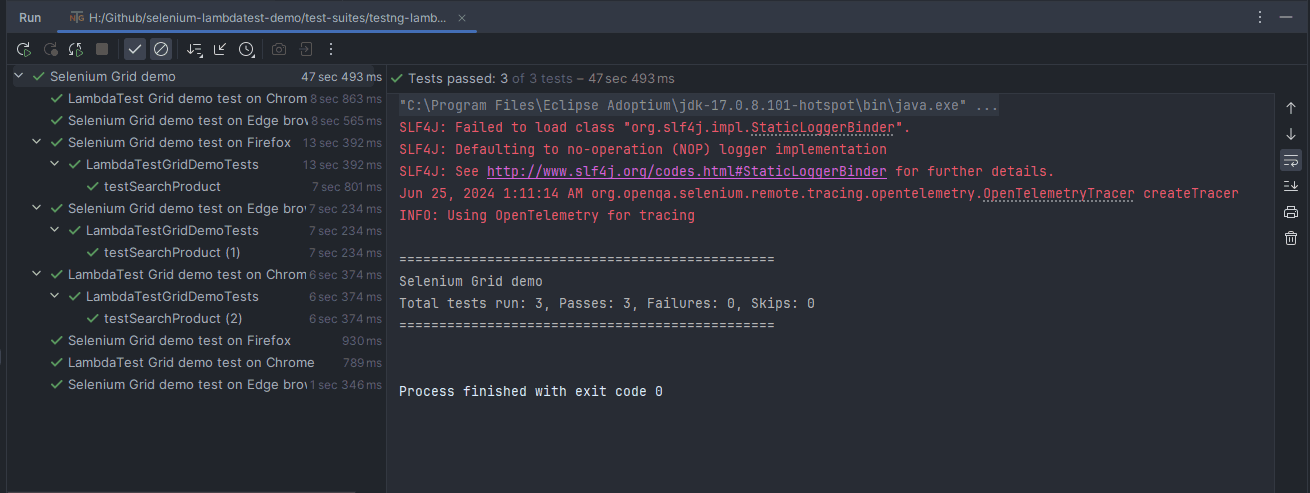
The following screenshot from IntelliJ IDE shows the successful execution of the tests:
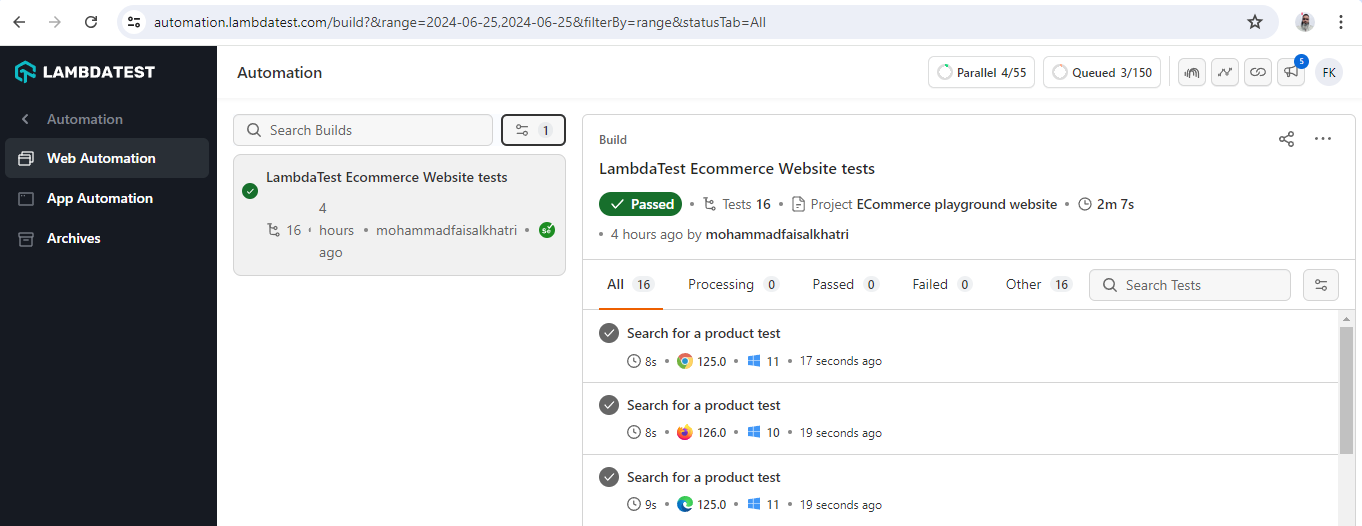
The test execution details can be viewed on the TestMu AI Web Automation dashboard:
Conclusion
Selenium Grid setup, if done manually, could be challenging. Selenium testing on a cloud-based grid helps us run tests in parallel and test on a different configuration; the same can be performed on TestMu AI without investing time and resources to configure Selenium Grid.
Try it once by running your automated tests on this online grid, and let us know your feedback in the comment box.


Frequently asked questions
Did you find this page helpful?
More Related Hubs
TestMu AI forEnterprise
Get access to solutions built on Enterprise
grade security, privacy, & compliance
- Advanced access controls
- Advanced data retention rules
- Advanced Local Testing
- Premium Support options
- Early access to beta features
- Private Slack Channel
- Unlimited Manual Accessibility DevTools Tests