

Next-Gen App & Browser Testing Cloud
Trusted by 2 Mn+ QAs & Devs to accelerate their release cycles


- Home
- /
- Blog
- /
- JUnit Parameterized Test Using Selenium : With Examples | TestMu AIJUnit Parameterized Test Using Selenium : With Examples
JUnit Parameterized Test Using Selenium : With Examples
Tired of writing the same test scripts for different input values. Save time by learning how to perform a parametrized test in JUnit to retrieve data from a data source.

Harshit Paul
December 28, 2025
In automated testing, there are scenarios where the same tests need to be executed multiple times with different inputs or environments. Writing separate tests for each input can be redundant and time-consuming. A JUnit parameterized test allows you to run the same test with various input values, improving test efficiency and reducing redundancy.
In this blog, we’ll walk through how to implement JUnit parameterized tests in Selenium, demonstrating the practical steps and benefits. You’ll learn how to streamline your Selenium test scripts by running them with different data sets without duplicating the code. This approach not only saves time but also ensures comprehensive test coverage with minimal effort.
If you’re new to Selenium and wondering what it is then we recommend checking out our guide – What is Selenium?
Overview
What is JUnit Parameterized?
JUnit Parameterized allows you to run the same test multiple times with different sets of input data. Instead of duplicating test methods, you can define parameters that are automatically fed into your tests, making them more flexible, efficient, and reusable.
Why Do You Need JUnit Parameterized Tests?
You need JUnit Parameterized Tests to reduce redundancy and improve efficiency when testing the same functionality with multiple data sets or configurations
- Eliminates Repetitive Code: Avoid writing multiple test methods for similar logic; reuse the same test with different inputs.
- Supports Data-Driven Testing: Enables running tests with varied input data for broader coverage.
- Eases Test Maintenance: Update test data without modifying the core script.
- Simplifies Cross-Browser/OS Validation: Ideal for executing the same test across different environments.
- Improves Test Scalability: Expand test coverage easily without creating additional scripts.
What Are the Types of JUnit Parameterization?
JUnit supports different ways to feed multiple data sets into your test cases for flexible and maintainable automation.
- @Parameters Annotation: Passes test data collections directly within the code using arrays or lists, allowing multiple executions seamlessly.
- Excel Parameterization: Fetches input values from Excel sheets to enable dynamic, data-driven Selenium tests without modifying core scripts.
- JUnit Params (JUnit 5): Leverages annotations like @ValueSource, @CsvSource, and @MethodSource to supply parameterized data efficiently across different test runs.
- External File Source: Allows importing varied datasets from external CSV or text files, ideal for large-scale automated browser testing scenarios.
- EnumSource: Facilitates parameterized testing with enumeration constants, ensuring consistent validation across predefined data categories or configurations.
How Does Parameterization Help in Data-Driven Testing With Selenium?
It may trigger layout recalculations, especially on complex pages or with many elements. However, it ensures reliable interaction with elements, preventing test failures caused by hidden or offscreen elements, which ultimately improves test stability.
Why Do You Need JUnit Parameterized Tests?
Let’s start with a test scenario for this Selenium JUnit tutorial, you want to perform Selenium Automation testing with JUnit for an E-commerce website, with a wide variety of products. You’ve written the test script for a product, but soon you realize that you’d need to replicate the test not only for different products but also for different OS and browser versions.
First of all, for Selenium test automation, you’d need multiple data sets to perform your tests on. Along with this, a cross browser matrix, to cover the large and varied customer base your application would be exposed to. Second, you’d need to learn how to write test methods to collect the data from the data sets you’ve stored.
You need to keep in mind that, in the many iterations required for of your web application, it becomes difficult to maintain a single data set for the subsequent test iterations. You are going to have a hard time creating multiple Selenium test automation scripts of the same test case for different configurations unless you leverage JUnit Parameterized Tests. Simply speaking, hardcoding would only bring you a lot of rework and so you need JUnit Parameterized tests to help you save the time and bandwidth over Selenium test automation cycles.
For using multiple data sets in our Selenium test automation scripts, the first thing that comes to mind is to use an excel sheet to fetch that data. However, In cases where you intend to create a more concrete Selenium test automation scripts, the need to use an all-in-one framework like JUnit increases. JUnit enables us to write test cases in a more robust way and expose us to a variety of features, one of them being Parameterization.
Types of JUnit Parameterization
In this Selenium JUnit tutorial, I’ll explain the two efficient ways to use JUnit Parameterized Tests.
- Parameterization using @Parameters annotation
- Parameterization using Excel
Firstly, Parameterization using @Parameters annotation, which allows you to pass test data to your Selenium script as a Java collection. Any data change, all you need to do is edit the collection with desired data.
Secondly, Parameterization using Excel, which gives you the liberty to fetch data from an external file and load into Selenium test automation scripts no matter what the number is.
You can also use JUnit params dependency to parameterize our tests by using annotation @ParameterizedTest in place of the @Test annotation. You can pass arguments to the JUnit Parameterized Tests using a variety of annotations as listed below:
- @ValueSource
- @EnumSource
- @CsvSource
- @CsvFileSource
- @MethodSource
Tutorial On JUnit Annotations In Selenium With Examples
Parameterization using @Parameters annotation
Consider an example of searching for some keywords(let’s take 4 keywords in our case) on google. Now, let us see what our code would look like if we write a raw code with no Parameterization concepts.
package normalRun;
import org.junit.After;
import org.junit.Before;
import org.junit.Test;
import org.openqa.selenium.By;
import org.openqa.selenium.WebDriver;
import org.openqa.selenium.WebElement;
import org.openqa.selenium.chrome.ChromeDriver;
public class TestNormExec {
  	WebDriver driver;
   	@Before
  	public void startUp(){
         	System.out.println("----This is the beginning of our test----");
  	System.setProperty("webdriver.chrome.driver","D:\Softwares\chromedriver_win32(1)\chromedriver.exe");
         	driver = new ChromeDriver();
  	driver.get("https://www.google.com/");
         	driver.manage().window().maximize();
  	}

  	@Test
  	public void searchKeys(){
         	String keyWrd = "Selenium";
         	System.out.println("----Let us start searching the keywords----");
         	//Entering keyword in search box and searching it
         	WebElement srchBox = driver.findElement(By.name("q"));
         	srchBox.sendKeys(keyWrd + "
");
                	//Printing the title of the new page
         	String title = driver.getTitle();
         	System.out.println("The title is : " +title);
  	}

   	@After
  	public void tearDown(){
         	System.out.println("----We're now closing our test----");
         	driver.quit();
   	}
 }
In order to run our Selenium test automation with different data sets we would have to manually change the value for the string ‘keyWrd’ every time we run our test case. To simplify this process of changing input values we can Parameterize our test cases by using JUnit Parameterized Tests. This would help us eliminate redundancy in our Selenium test cases as well.
Let’s now further explore JUnit Test Parameterization for Selenium test automation. I’ll first create a class that contains the test method. Note that here I am passing the keywords as method parameters unlike the previous approach wherein I stored the search keyword in a variable.
package parameterizedRun;
import org.junit.Test;
import org.openqa.selenium.By;
import org.openqa.selenium.WebDriver;
import org.openqa.selenium.WebElement;
import org.openqa.selenium.chrome.ChromeDriver;

public class SearchGoogle {

  	WebDriver driver;
  	@Test
  	public void searchKeys(String kyWrd, String kyWrd1){
         	System.out.println("----This is the beginning of our test----");
   	System.setProperty("webdriver.chrome.driver", "D:\Softwares\chromedriver_win32(1)\chromedriver.exe");
         	driver = new ChromeDriver();
   	driver.get("https://www.google.com/");
         	driver.manage().window().maximize();
         	System.out.println("----Let us start searching the keywords----");
         	//Entering keyword in search box and searching it
         	WebElement srchBox = driver.findElement(By.name("q"));
         	srchBox.sendKeys(kyWrd + " " + kyWrd1 + "
");
         	//Printing the title of the new page
         	String title = driver.getTitle();
         	System.out.println("The title is : " +title);
         	driver.quit();
   	}
  }
In the next step, I’ll create a class with @RunWith annotation. This class will run tests on a new instance. In addition to it, I will create a constructor for this class which will store the data to test.
In this example, two variables will pass to this constructor. Next, to generate and return the test data, I’ll create a static method with return type as Collection. Each entry of this collection would give data for one run, for example, {“Selenium”,”Delhi”}, would be the data for one of the executions.
The Parameters annotation for this method gives the input data set for our tests to run. Here is the final code for this class.
package parameterizedRun;
import java.util.Arrays;
import java.util.Collection;
import org.junit.Before;
import org.junit.Test;
import org.junit.runner.RunWith;
import org.junit.runners.Parameterized;
@RunWith(Parameterized.class)
public class SearchGoogleTest {
  	private String kyWrd1;
  	private String kyWrd2;
  	private SearchGoogle searchGoogle;
   	public SearchGoogleTest(String kyWrd1, String kyWrd2){
         	super();
         	this.kyWrd1 = kyWrd1;
         	this.kyWrd2 = kyWrd2;
   	}

  	@Before
  	public void init(){
         	searchGoogle = new SearchGoogle();
         	}
  	@Parameterized.Parameters
  	public static Collection data(){
         	return Arrays.asList(new Object[][]{{"Selenium","Delhi"},{"QTP","Bangalore"},{"LoadRunner","Chennai"}});
  	}
  	@Test
  	public void testSearch(){
  	  	searchGoogle.searchKeys(kyWrd1,kyWrd2);
  	}

}
The final step to create a JUnit parameterized test would be to create a test runner class that would be driving our test execution. This class would run the test with the help of JUnitCore.runClasses and our test class would be passed as a parameter to it.
package parameterizedRun;
import org.junit.runner.JUnitCore;
import org.junit.runner.Result;
import org.junit.runner.notification.Failure;
public class Runner {
   	public static void main(String[] args){
         	Result res = JUnitCore.runClasses(SearchGoogleTest.class);
         	for(Failure fail:res.getFailures()){
         	  	System.out.println(fail.toString());
         	}
          	  	System.out.println(res.wasSuccessful());
  	}
}
You may get a similar output on running the Test Runner class.
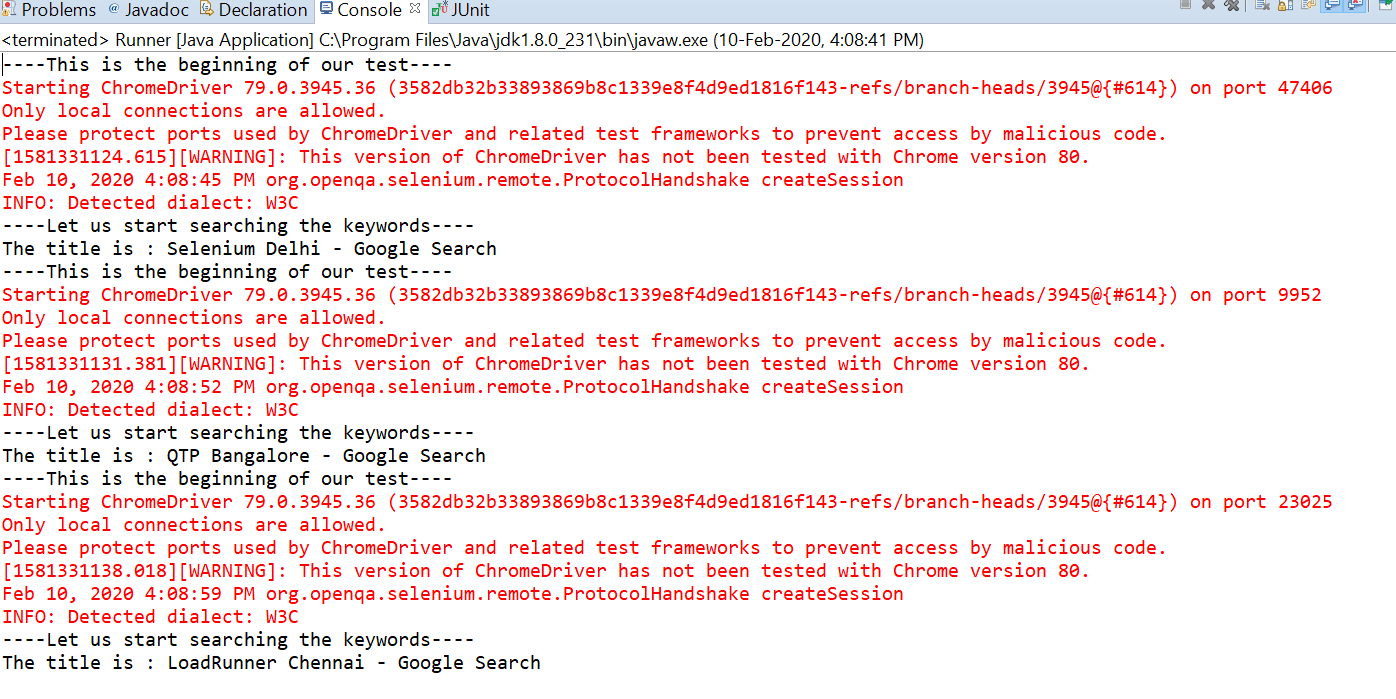
So, this was one way to execute JUnit parameterized tests with different test data without changing variable values and only modifying our collection in order to update test data.

Austin Siewert
CEO, Vercel
Discovered @TestMu AI yesterday. Best browser testing tool I've found for my use case. Great pricing model for the limited testing I do 👏
2M+ Devs and QAs rely on TestMu AI
Deliver immersive digital experiences with Next-Generation Mobile Apps and Cross Browser Testing Cloud

This JUnit certification establishes testing standards for those who wish to advance their careers in Selenium automation testing with JUnit.
Here’s a short glimpse of the JUnit certification from TestMu AI:
Parameterization using Excel
Parameterization using excel or Data-Driven Testing as it is popularly called is an effective way to handle test scripts that need varied test data. Data from external files are read and loaded into the test script at runtime rather than hard-coding the same.
Some general scenarios for this Selenium JUnit tutorial can be testing logging into an application with multiple users or searching for different keywords on google. The main benefit of this approach is the code reusability wherein, you don’t need to touch the Selenium test automation scripts and just update the test data in our file. Let’s see how we can go about using a data-driven framework to parameterize our test cases in JUnit.
The primary element that we would need for Excel Parameterization in this Selenium JUnit tutorial is an excel sheet. I have created an excel sheet consisting of keywords to be searched and placed it in my project location under the Data folder.
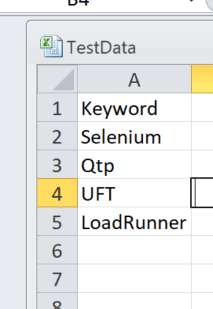
Once we are ready with our data, the next step is to create class files that would load our excel workbook, and subsequently read the data from the sheet and the corresponding cells.
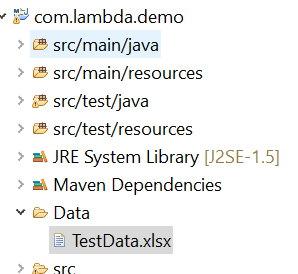
For the above steps in this Selenium JUnit tutorial, I’ll use Apache built-in packages to make the work easier.
package excelParameterization;
import java.io.File;
import java.io.FileInputStream;
import org.apache.poi.xssf.usermodel.XSSFWorkbook;
public class ReadExcel {
  	XSSFWorkbook wb;
  	//Creating a constructor of the same class that would load excel file using the File I/O stream
  	public ReadExcel(){
  	File src = new File("./Data/TestData.xlsx");     	//You need to specify the location where excel file is saved in your system.
  	try {
         	FileInputStream fis = new FileInputStream(src);
       wb = new XSSFWorkbook(fis); 	//After creating an object of File Input Stream, this line of code          would load my file into the XSSFWorkbook
  	}
  	catch (Exception e) {
         	System.out.println("The exception is: " +e.getMessage());
         	        	}
  	}
   //This method would fetch the data from the corresponding cell of the excel sheet and return as a String.
         	public String getData(int sheetIndex, int row, int column){
         	String data = wb.getSheetAt(sheetIndex).getRow(row).getCell(column).getStringCellValue();
         	return data;
  	}
}
Now that we are ready with a class that contains a method to read data from our excel, let’s go ahead and write our test method for in another class passing the parameters corresponding to the keyword that we need to search while calling the method that fetches data from the excel.
package excelParameterization;
import org.junit.After;
import org.junit.Before;
import org.junit.Test;
import org.openqa.selenium.By;
import org.openqa.selenium.WebDriver;
import org.openqa.selenium.WebElement;
import org.openqa.selenium.chrome.ChromeDriver;
public class TestSearch {
WebDriver driver;
ReadExcel excel = new ReadExcel();	  	//Creating an object of the class that holds code to read data from excel.

  	@Before
  	public void startUp(){
         	        	System.out.println("----This is the beginning of our test----");
  	  	System.setProperty("webdriver.chrome.driver", "D:\Softwares\chromedriver_win32(1)\chromedriver.exe");
         		driver = new ChromeDriver();
  	  	driver.get("https://www.google.com/");
         		driver.manage().window().maximize();
  	}
   	@Test
  	public void searchKeys(){
         	System.out.println("----Let us start searching the keywords----");
         	//Entering keyword in search box and searching it
         	WebElement srchBox = driver.findElement(By.name("q"));
         	srchBox.sendKeys(excel.getData(0, 1, 0) + "
");  //Will read the second row-first column from the excel sheet#0
                	//Printing the title of the new page
         	String title = driver.getTitle();
         	System.out.println("The title is : " +title);
  	}
  	@After
  	public void tearDown(){
         	System.out.println("----We're now closing our test----");
         	driver.quit();
  	}
}
On running the above code, Selenium test automation script would fetch the excel data from the second row of the excel sheet and yield results as shown below:
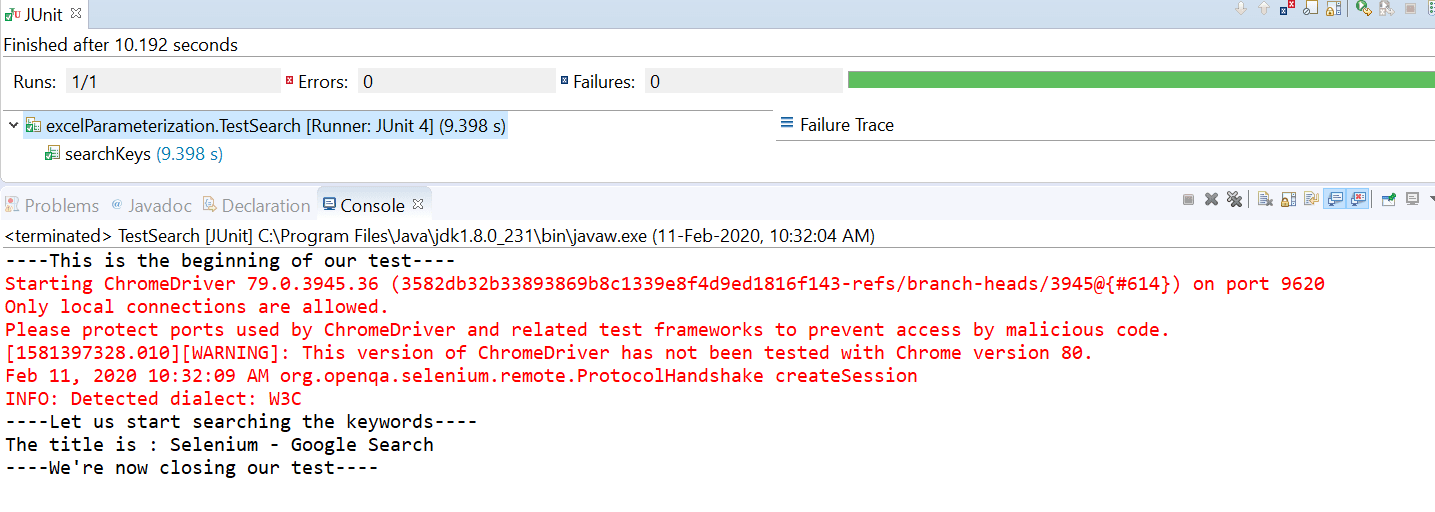
Now that you know how to perform JUnit parameterized tests using both @Parameters annotation as well as Excel, I’ll now show you how to scale JUnit parameterized tests with TestMu AI Selenium Grid.

Integrating JUnit Scripts with TestMu AI Selenium Grid
Now that you know how to parameterize Selenium test automation scripts in this Selenium JUnit tutorial, the next question that might pop up is the execution of these scripts across multiple Operating Systems and browsers.
While you may set up a Selenium grid locally on your system, another efficient way of doing so is using TestMu AI Selenium Grid and execute your automated browser testing scripts on the cloud.
To do so, you just need to modify the Selenium test automation scripts that we used in the examples above. We’ll have to add the desired capability to our Selenium test automation scripts which can be generated by Selenium Desired Capability Generator by simply providing the Operating System, Resolution, Browser details, Selenium Version, etc. In the snapshot below, you can see how those details are generated:
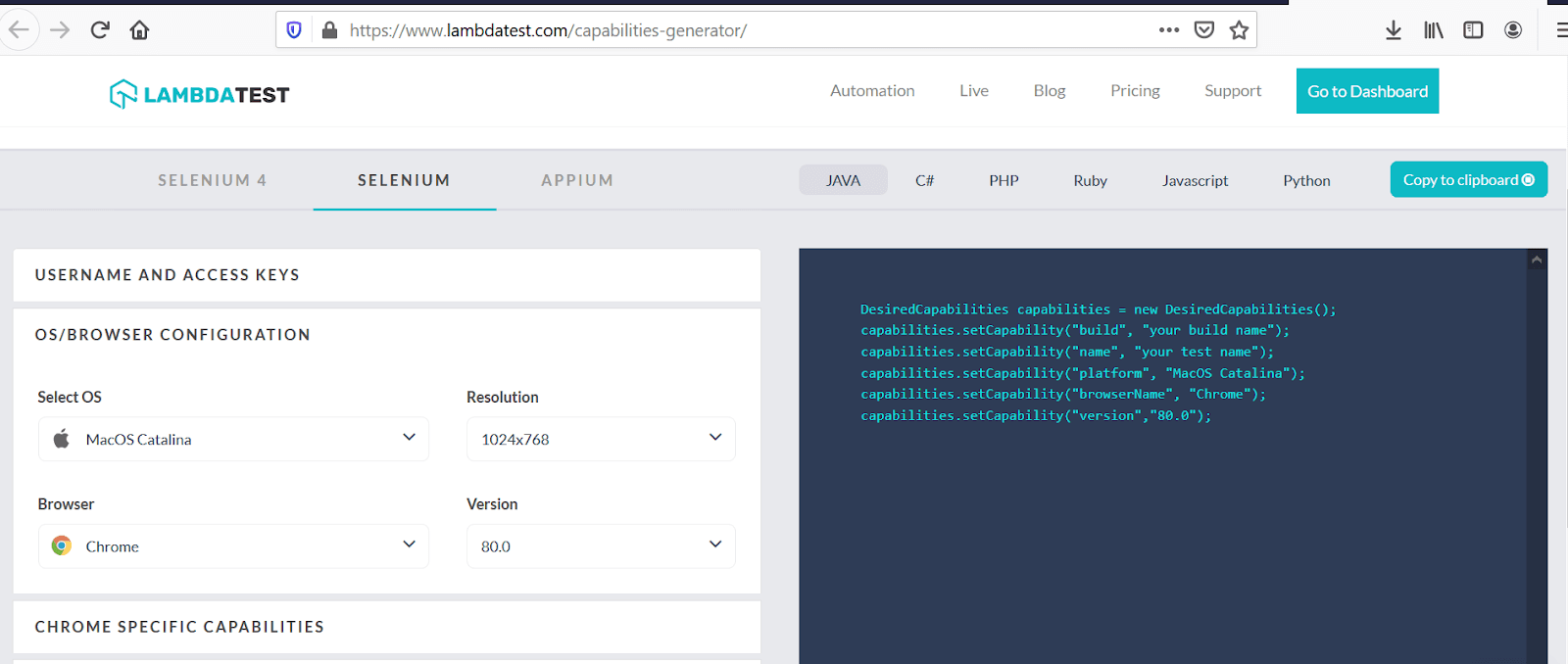
Next, we need to declare the authentication credentials in the test script so that the WebDriver points to the correct hub URL for execution. Below is the final execution script(I am using the @Parameters annotation scripts used in the example above) to run tests on TestMu AI Selenium Grid.
package parameterizedRun;
import java.net.MalformedURLException;
import java.net.URL;
import org.junit.Test;
import org.openqa.selenium.By;
import org.openqa.selenium.WebElement;
import org.openqa.selenium.remote.DesiredCapabilities;
import org.openqa.selenium.remote.RemoteWebDriver;

public class SearchGoogle {


   	static String username = "Your UserName;
	static String accesskey = "Your Access Key";
	static RemoteWebDriver driver = null;
	static String gridURL = "@hub.lambdatest.com/wd/hub";
	boolean status = false;


   	@Test
   	public void searchKeys(String kyWrd, String kyWrd1){
         	System.out.println("----This is the beginning of our test----");
         	DesiredCapabilities capabilities = new DesiredCapabilities();
         	capabilities.setCapability("build", "your build name");
         	capabilities.setCapability("name", "your test name");
         	capabilities.setCapability("platform", "MacOS Catalina");
         	capabilities.setCapability("browserName", "Chrome");
         	capabilities.setCapability("version","80.0");
         	try {
        	driver = new RemoteWebDriver(new URL("https://" + username + ":" + accesskey + gridURL), capabilities);
         	}
         	catch (MalformedURLException e) {
          	System.out.println("Invalid grid URL");
         	} catch (Exception e) {
          	System.out.println(e.getMessage());
         	}

         	driver.get("https://www.google.com/");
         	driver.manage().window().maximize();
         	System.out.println("----Let us start searching the keywords----");
         	//Entering keyword in search box and searching it
         	WebElement srchBox = driver.findElement(By.name("q"));
         	srchBox.sendKeys(kyWrd + " " + kyWrd1 + "
");
         	//Printing the title of the new page
         	String title = driver.getTitle();
         	System.out.println("The title is : " +title);
         	driver.quit();
    	}
}
Note that out of the three classes, used in @Parameters annotation example in this Selenium JUnit tutorial, only one class that contains the test method, to open the chrome browser, will have the changes and the remaining two classes remain unchanged. On executing our test either through eclipse or through cmd, you’ll get to see test results in automation logs of TestMu AI like below:
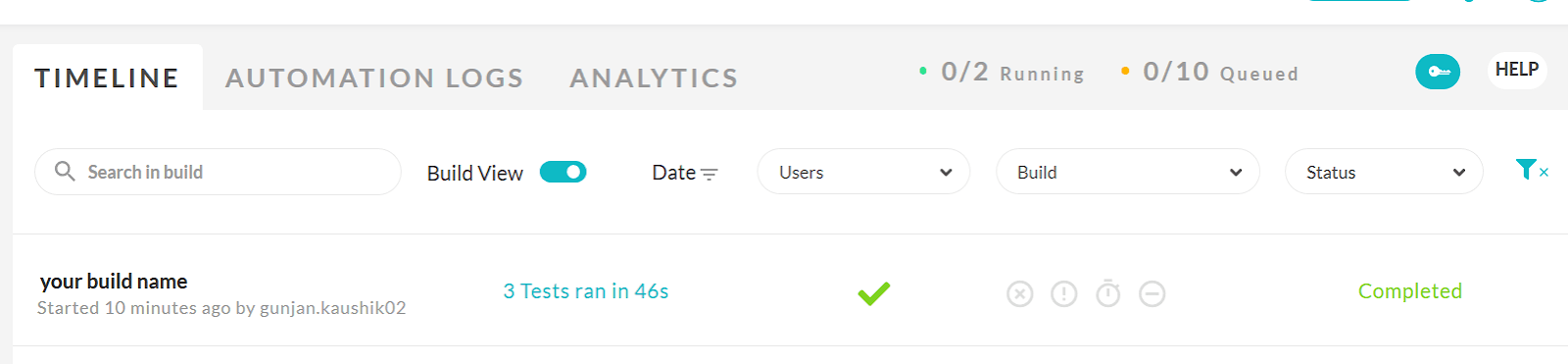
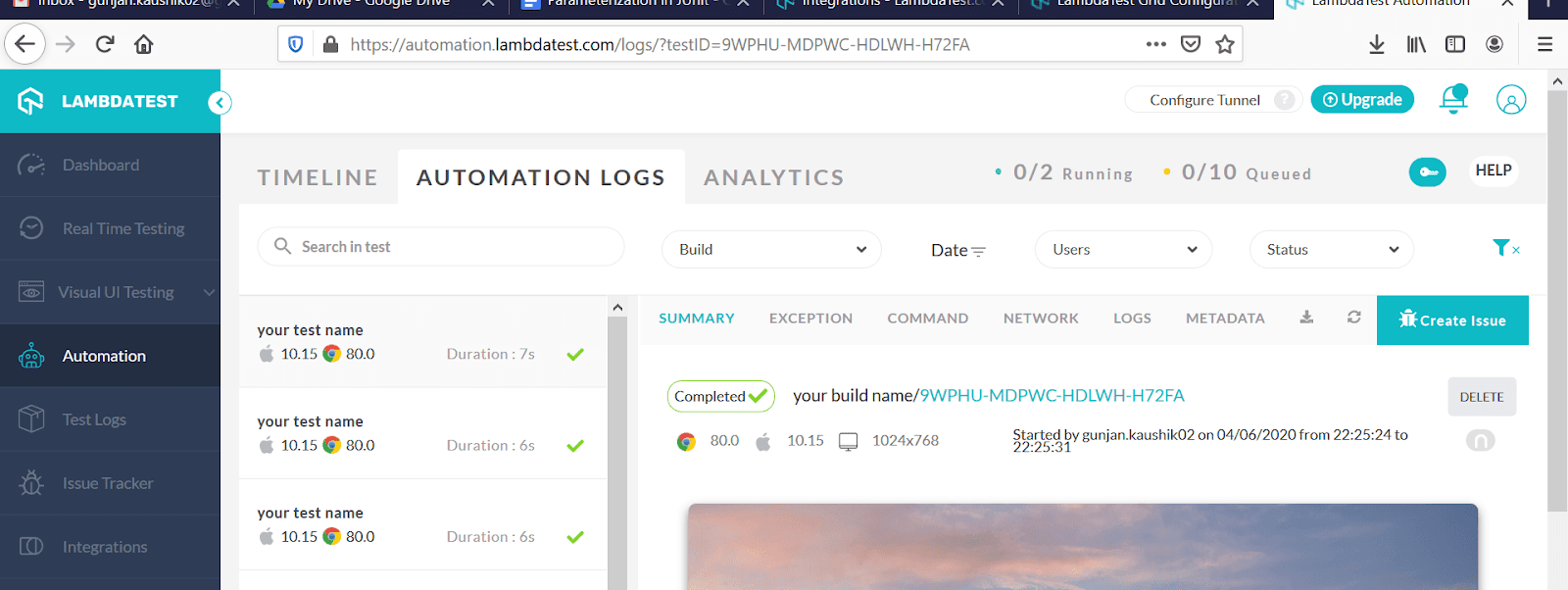
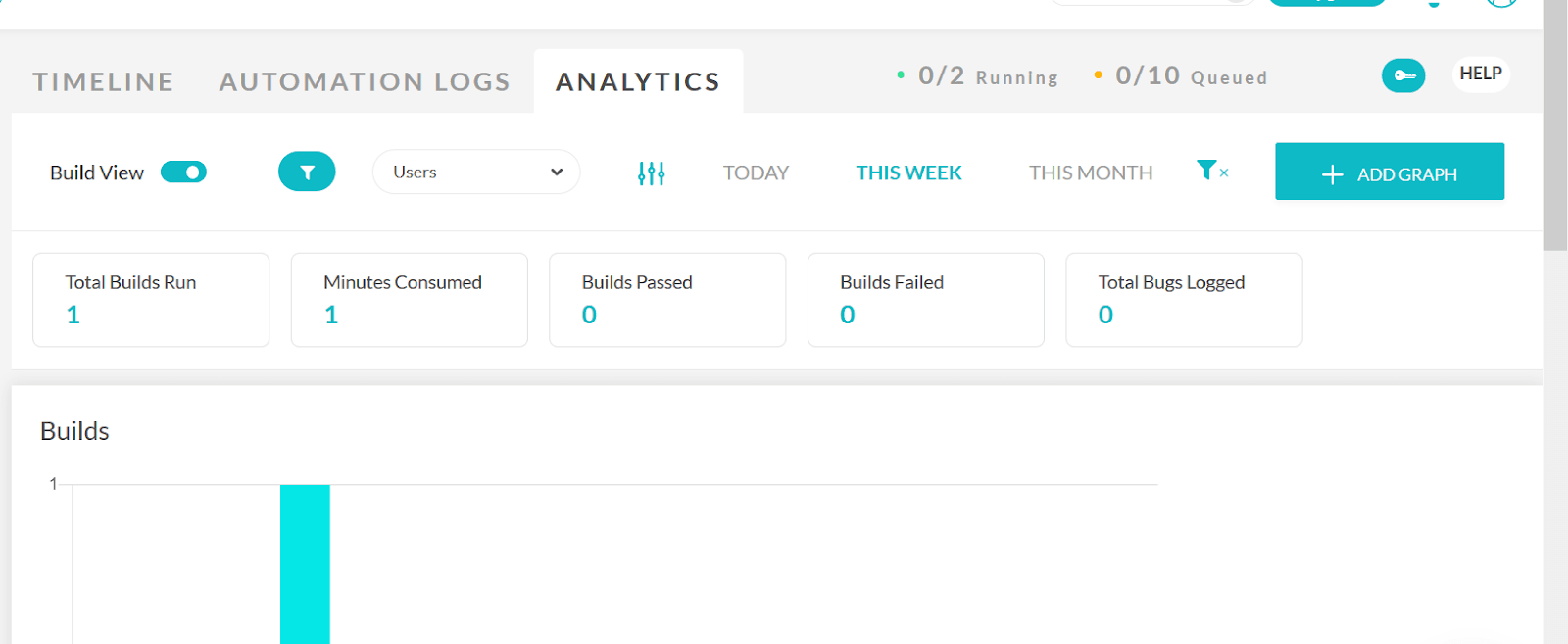
In the above script for this Selenium JUnit tutorial, we executed our tests on a different operating system and browser versions without a need to set up local machines. This is why a cloud-based Selenium Grid is more effective and useful is its capability to run your tests across multiple browsers in one go than a local Selenium Grid.
Wrapping it Up
Now you don’t have to put up with the frustration of writing the same Selenium test again with different inputs. In this Selenium JUnit tutorial you’ve learned that, in the practical execution of Selenium test automation scripts, you need to know how to run the same tests with multiple data sets. The easiest way is to parameterize the test scripts rather than changing them every time a new data is being used. This can be done either by parameterization using @Parameters annotation or by using an excel sheet.
This brings an end to this Selenium JUnit tutorial on parameterized tests. Let us know in the comments section below, what you think about this article. Help us to reach out with your peers, looking to know more about JUnit parameterized tests, by retweeting us on twitter. Happy Testing!! 🙂


Frequently asked questions
Did you find this page helpful?
More Related Hubs
TestMu AI forEnterprise
Get access to solutions built on Enterprise
grade security, privacy, & compliance
- Advanced access controls
- Advanced data retention rules
- Advanced Local Testing
- Premium Support options
- Early access to beta features
- Private Slack Channel
- Unlimited Manual Accessibility DevTools Tests