

Next-Gen App & Browser Testing Cloud
Trusted by 2 Mn+ QAs & Devs to accelerate their release cycles


How To Run Selenium Test Scripts?
Learn how to run Selenium test scripts with our comprehensive guide. Covers installation, configuration, and running your first test script in Java

Hari Sapna Nair
March 10, 2026
Selenium comes first to mind when considering automation testing. Automation testers commonly use Selenium, one of the best test automation frameworks, to create test scripts.
In this blog, We will take you through the basics of setting up Selenium in the system and then explain how to write Selenium test scripts in Java. But, before that, let us briefly introduce Selenium, its components, and features.
Overview
What are Selenium Test Scripts?
Selenium test scripts are automated instructions written to simulate user interactions on a web browser — such as clicking buttons, filling forms, and verifying page content. Built on Selenium WebDriver, these scripts can be written in Java, Python, C#, JavaScript, and more, making it a versatile choice for cross-browser web automation.
What are the Benefits of Writing Test Scripts in Selenium?
- Cross-Browser Compatibility: Run the same script across Chrome, Firefox, Edge, and Safari without rewriting test logic.
- Language Flexibility: Write scripts in your preferred language — Java, Python, C#, or JavaScript — with full framework support.
- Seamless CI/CD Integration: Plug Selenium scripts directly into your build pipeline for continuous, automated test execution.
- AI-Assisted Authoring: Tools like KaneAI convert plain-language instructions into ready-to-run Selenium scripts, reducing manual coding effort.
Setting Up Selenium for Script Execution
Writing Selenium test scripts requires installing a language runtime, a WebDriver matching your target browser, and a testing framework like TestNG or JUnit. Once set up, scripts can be executed locally or on a cloud grid like TestMu AI across 3,000+ browser and OS combinations.
Scaling Beyond Local Execution
Local Selenium runs work for getting started, but scaling across browsers and devices demands a cloud-based grid. Platforms like TestMu AI handle the infrastructure, enabling parallel execution and broader coverage — without the overhead of maintaining your own setup.
What is Selenium?
Selenium is an open-source automation testing framework widely used to automate web browser interactions. It helps test multiple browsers, languages, and operating systems. In addition, it is compatible with various programming languages like Java, Python, Ruby, and C#.
Furthermore, it supports various browsers like Chrome, Firefox, Safari, Edge, and Opera. It can also be integrated with automation testing frameworks like JUnit and TestNG.
Check out our post on A Guide To Download Selenium and Set It Up On Multiple IDEs to set it up on your system with your favorite IDE!

Note: Automate your tests on a Selenium based cloud Grid of 3000+ real browsers and devices. Try TestMu AI Today!
What is a Test Script?
A test script is a set of instructions in a programming language defining the steps to perform a specific test. A test script automates the testing process by simulating user interactions with the software under test, such as clicking buttons, entering text, and verifying outcomes.
Test scripts ensure that software behaves as expected and meets the specified requirements. They help automate repetitive testing tasks, improve efficiency, and provide consistent and reliable results across different test executions.
To learn about test scripts, check out our Test Scenario: Detailed Guide With Templates And Samples post.
Prerequisites for Installing Selenium
We must have a few components installed and configured on our system before configuring Selenium; the following is the list of components that must be installed and configured.
JDK is required for Selenium testing in Java because it provides the necessary runtime environment, compilation tools, and compatibility with Selenium WebDriver and Java-based IDEs. The steps to setup JDK in Windows are as follows:-
- Set an environment variable JAVA_HOME with the value of the JDK installation location in the system.
- In the Path variable, update the path to the bin folder of the JDK installation folder.
- Ensure successful installation of Java by using the
java --versioncommand in the command prompt.

Eclipse IDE (Integrated Development Environment)
IDEs provide developers with the tools and features necessary for writing and executing Selenium test scripts in Java, making the development process more efficient and productive.
We will use the Eclipse IDE; however, you may use any IDE of your choice. Some popular IDEs used for Java development are Eclipse, Visual Studio Code, IntelliJ IDEA, etc.
Selenium Client and WebDriver Language Bindings[Choose Java]
You have two options: use the link to get it directly from the official website and add the language bindings as external jar files to your project, or use a build automation tool like Maven to handle it for you. We will use Maven to automatically download and configure the dependencies into the project to keep things simple.
Configuring Selenium Client and Webdriver with Eclipse
You can manually configure Selenium Client and WebDriver with Eclipse as external jar files. You may skip this if you want to learn how to do it using Maven, which is being discussed in the blog.
You can also generate Selenium scripts using AI test assistants like KaneAI.
KaneAI by TestMu AI is a GenAI native test assistant for high speed quality engineering teams. It features AI-powered capabilities for creating, managing, and debugging test cases using natural language commands. KaneAI simplifies complex test authoring by allowing users to describe their testing needs in plain language, which it then converts into executable test scripts.
Simply describe the actions you want to perform in plain language, and KaneAI translates your commands into fully functional Selenium scripts. Whether you need to automate a sequence of interactions, handle specific elements, or set up test scenarios, KaneAI converts your natural language instructions into precise code, saving you time and effort.

Configuring Selenium Client and WebDriver with Maven
Let us see the steps to configure the project with Maven.
Creating Maven Project
- Follow the guide on Selenium Maven Dependency Tutorial to download and configure Maven.
- Add MAVEN_HOME system variable and update it with the Maven installed folder path.
- Verify the successful installation of Maven by using the
mvn --versionin the command prompt. - In the pom.xml file, we must add all the dependencies required to create and run our first Selenium test.
- We need to add the Selenium dependency below to create our tests.

<dependency>
    <groupId>org.seleniumhq.selenium</groupId>
    <artifactId>selenium-java</artifactId>
    <version>4.20.0</version>
</dependency>
Here, update the version according to the library version being used.
Learn How To Create Selenium Maven Project In Eclipse with the help of our YouTube video.
How to Run Your First Selenium Test Script in Java?
Consider a scenario where we need to write a Selenium test script to automate navigating to the iPhone’s Product page on TestMu AI Playground. TestMu AI Playgroud is a demo website hosted by TestMu AI for learners like you to run your test scripts and learn the fundamental concepts in software testing.
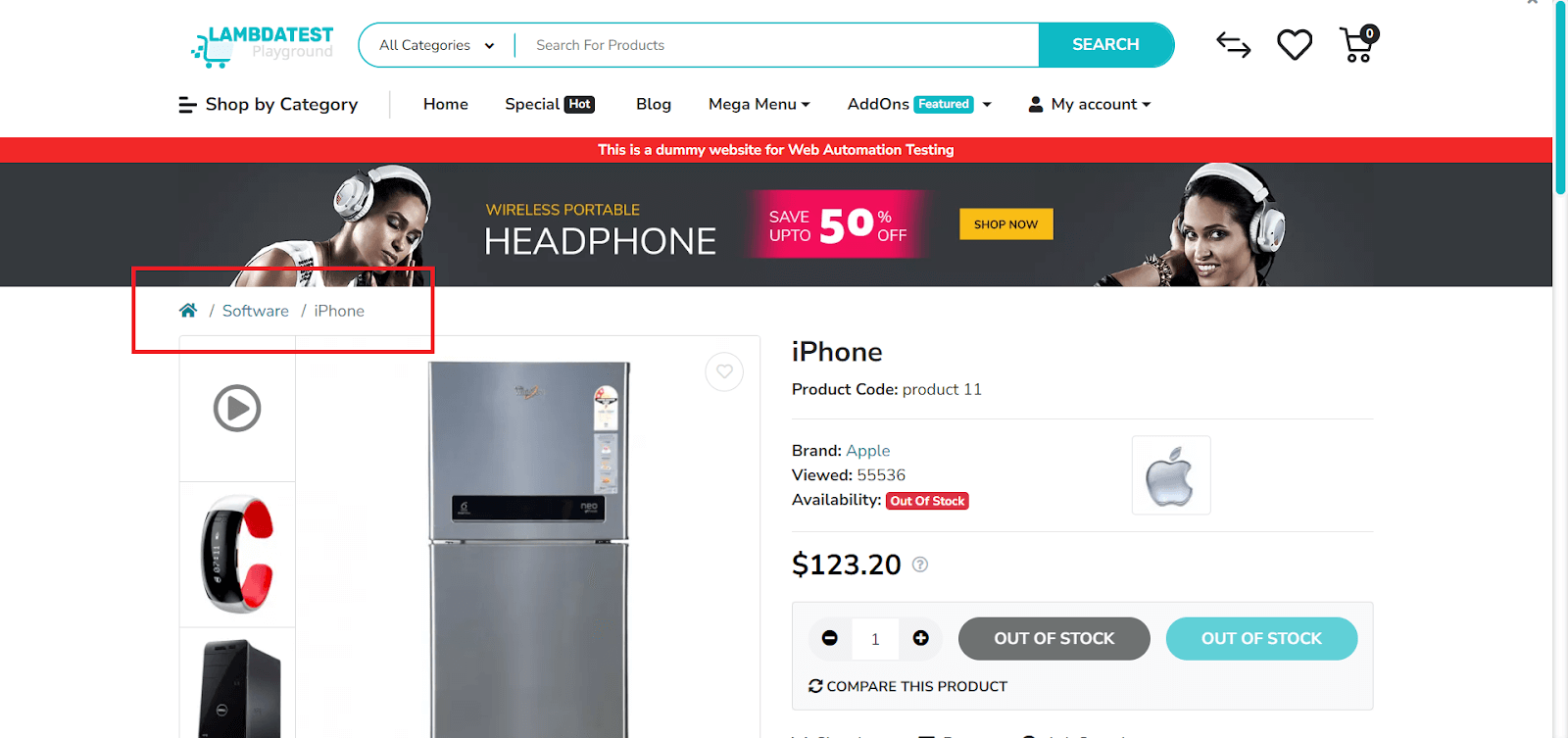
The steps to writing Selenium test scripts in Java are as follows:-
- Initialize WebDriver: To automate the interactions with the browser we must initialize the WebDriver of our choice. In this example, we will use the ChromeDriver() constructor to initialize a new instance of the ChromeDriver, which is then used to automate interactions with the Chrome browser.
- Chrome
- Firefox
- Edge
- Internet Explorer
- Navigate to URL: Navigates to the specified URL, which in this example is the TestMu AI Playground: “https://ecommerce-playground.lambdatest.io/“.
- Find Element: Find the element using the findElement(By.xpath()) method which locates a WebElement on the web page using XPath. In this case, it’s searching for an < a > element (anchor tag) containing the text “iPhone”.
- Perform Action: The click() method is called on the WebElement to simulate a click action on the “iPhone” link.
- Close WebDriver: Once the tests are executed, we need to close the browser instance, which is considered the best practice in finishing the test execution.
- close(): Closes the current browser window.
- quit(): Quit all the instantiated browser instances.
Various browser initialization are as follows:-
To learn more about the Selenium locators checkout our blog, Different Types of Locators in Selenium WebDriver.
We can close the browser using two different WebDriver commands:
WebDriver driver = new ChromeDriver();
WebDriver driver = new FirefoxDriver();
WebDriver driver = new EdgeDriver();
WebDriver driver=new InternetExplorerDriver();
Let us now look at the Java code to perform the above-mentioned operation.
Code
// Import the required packages
import org.openqa.selenium.By;
import org.openqa.selenium.WebDriver;
import org.openqa.selenium.WebElement;
import org.openqa.selenium.chrome.ChromeDriver;


public class Main {


	public static void main(String[] args) {
		// Initialize Chrome WebDriver
		WebDriver driver = new ChromeDriver();


		// Navigate to the webpage
		driver.get("https://ecommerce-playground.lambdatest.io/");


		// Find the element with the name iPhone
		WebElement iphoneLink = driver.findElement(By.xpath("//a[contains(text(), 'iPhone')]"));

		// Click on the product to visit the product page
		iphoneLink.click();

		// Close the browser
		driver.close();
	}
}
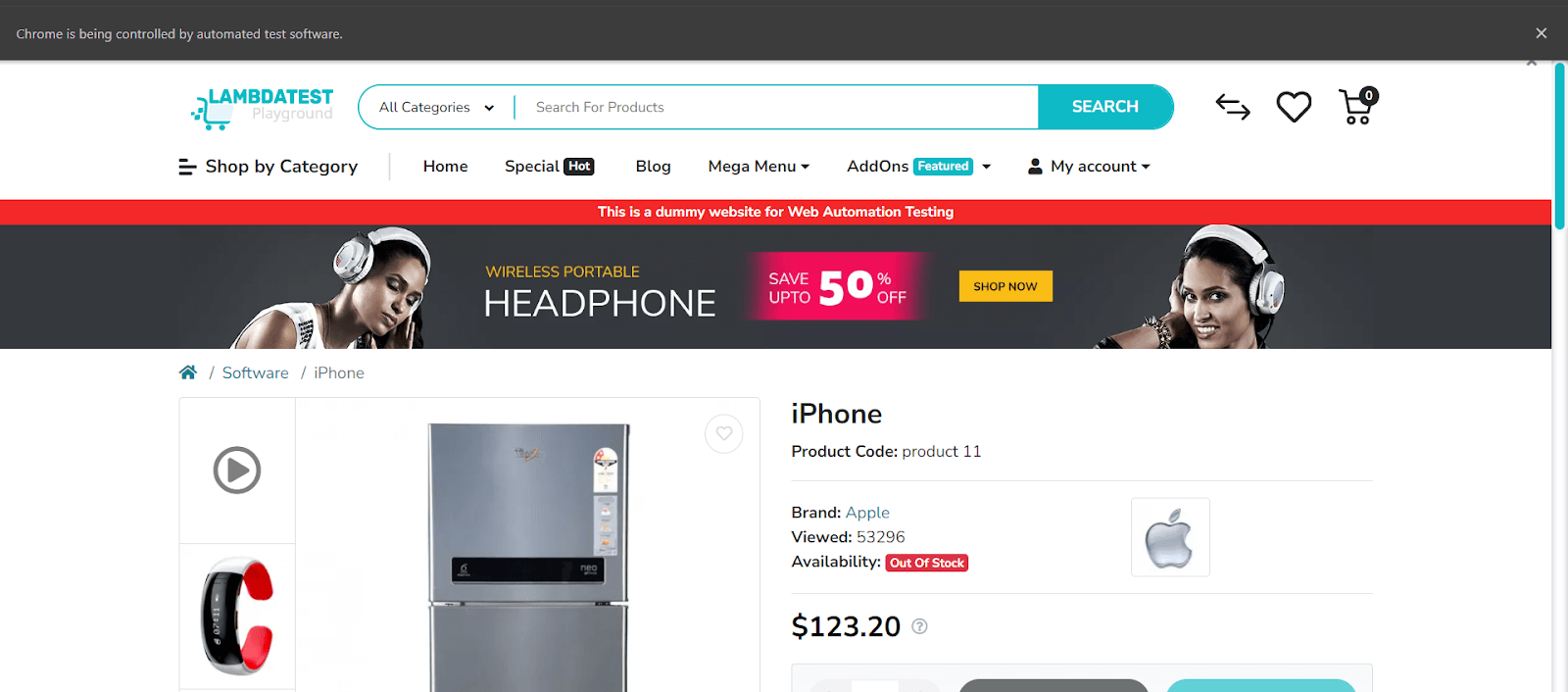
After executing this test, the iPhone product page opens up.
Running Selenium Test Script on TestMu AI
We will run the Selenium test script we wrote in Java on TestMu AI. But before that, why do we even want to do that?!
The numerous types of user environments available today make it necessary to test web applications on various browser-device combinations. However, maintaining such an extensive testing infrastructure involves substantial investment in hardware, continuous updates, and technical maintenance, which can be resource-intensive and inefficient. This is where TestMu AI comes into play. It is an AI-powered test orchestration and execution platform that lets us run manual and automated tests at scale with over 3000+ real devices, browsers, and OS combinations, allowing teams to perform comprehensive cross-browser testing without the need for expensive, cumbersome infrastructure, thereby streamlining the testing process and enhancing productivity.
Now let us start implementing our Selenium scripts in TestMu AI
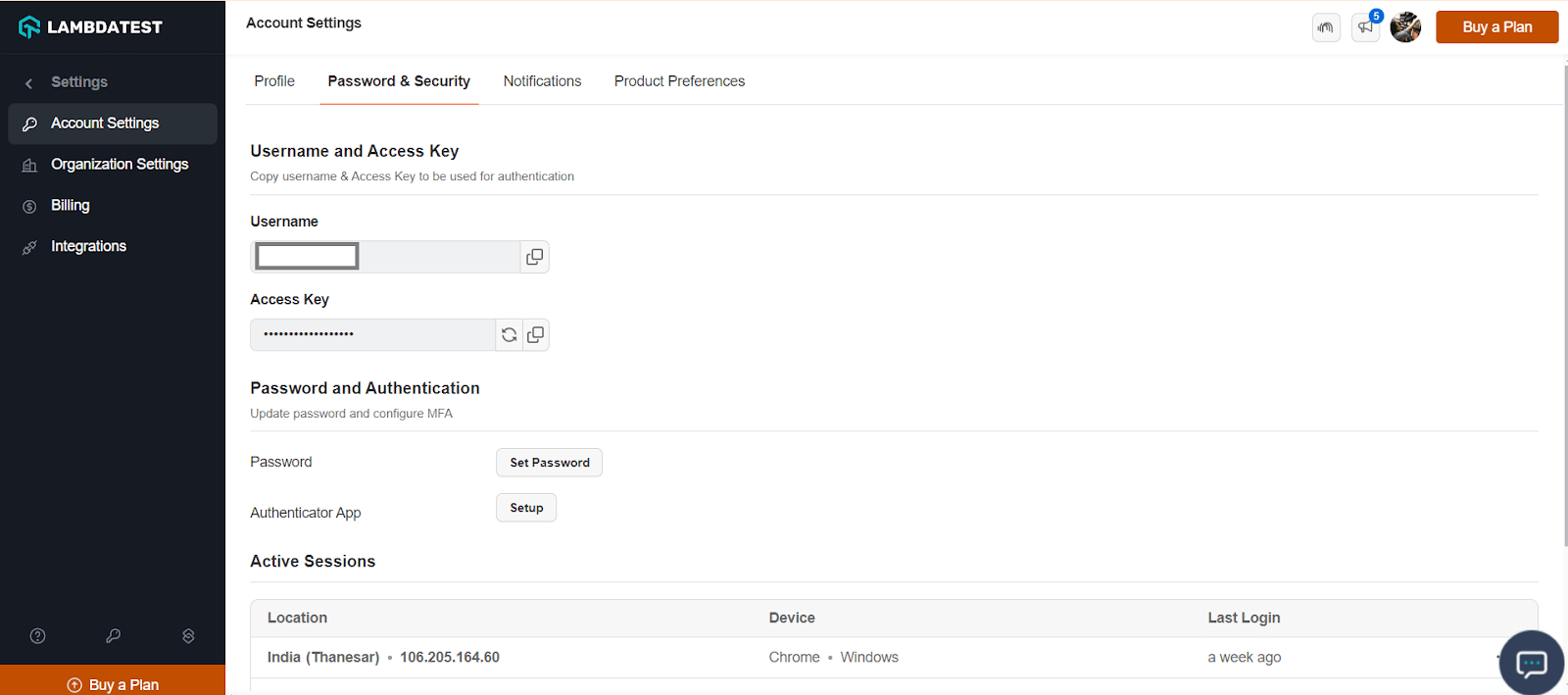
Step 1: To begin, you can get the value for the access token, username, and gridUrl upon registering with TestMu AI. The first step is to register on TestMu AI for free. After registration, you can find these credentials from the TestMu AI dashboard, as shown in the image below.
Step 2: Once you have the credentials, you can declare your testing environment’s preferred capabilities. TestMu AI has a Desired Capabilities Generator that will provide you with the capabilities based on your selection of OS, browser version, and resolution.
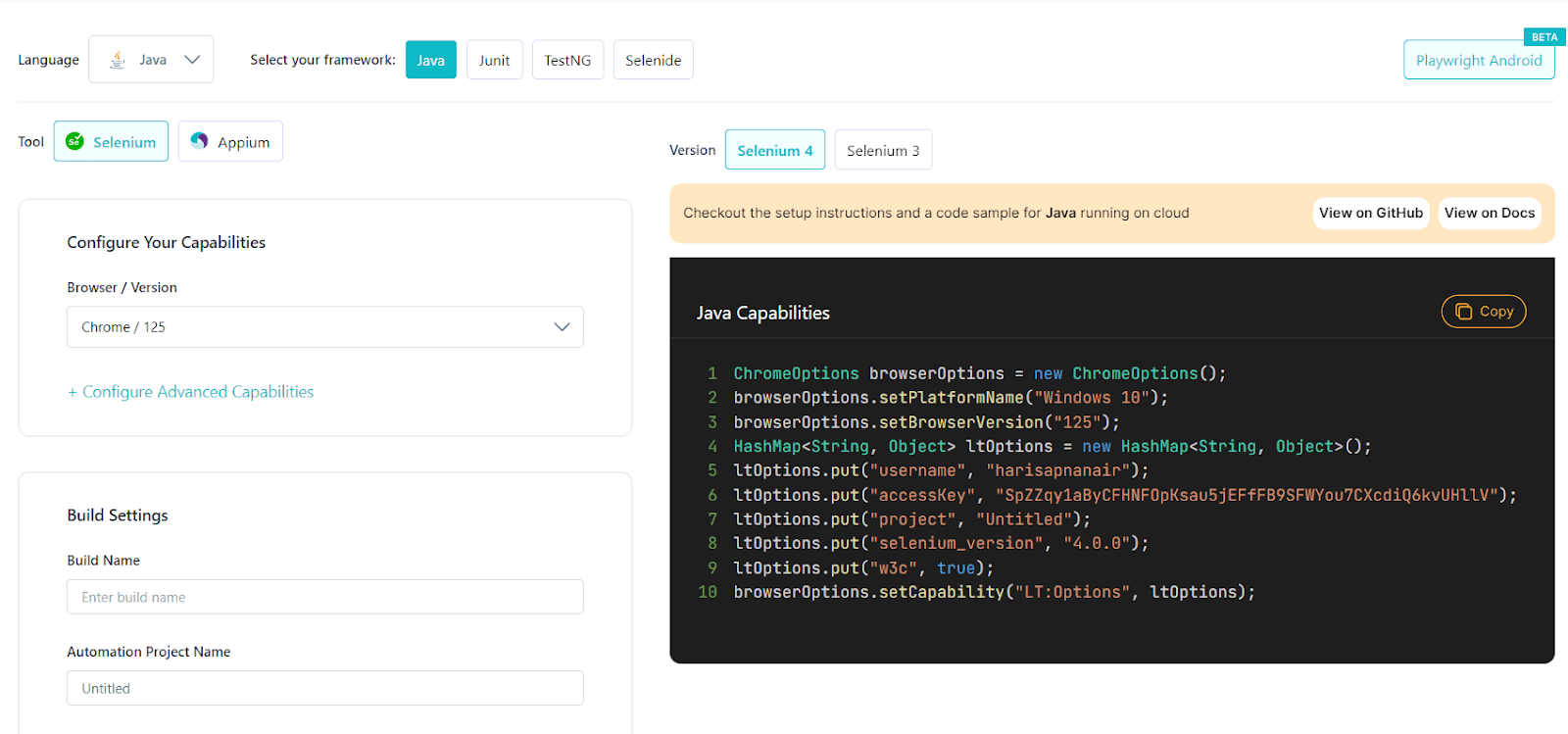
Although in this article we will be using the Google Chrome browser, you can choose any other browser and just need to call the respective WebDriver (like: webdriver.Edge(), edgedriver.Firefox()); the rest of the code will remain the same.
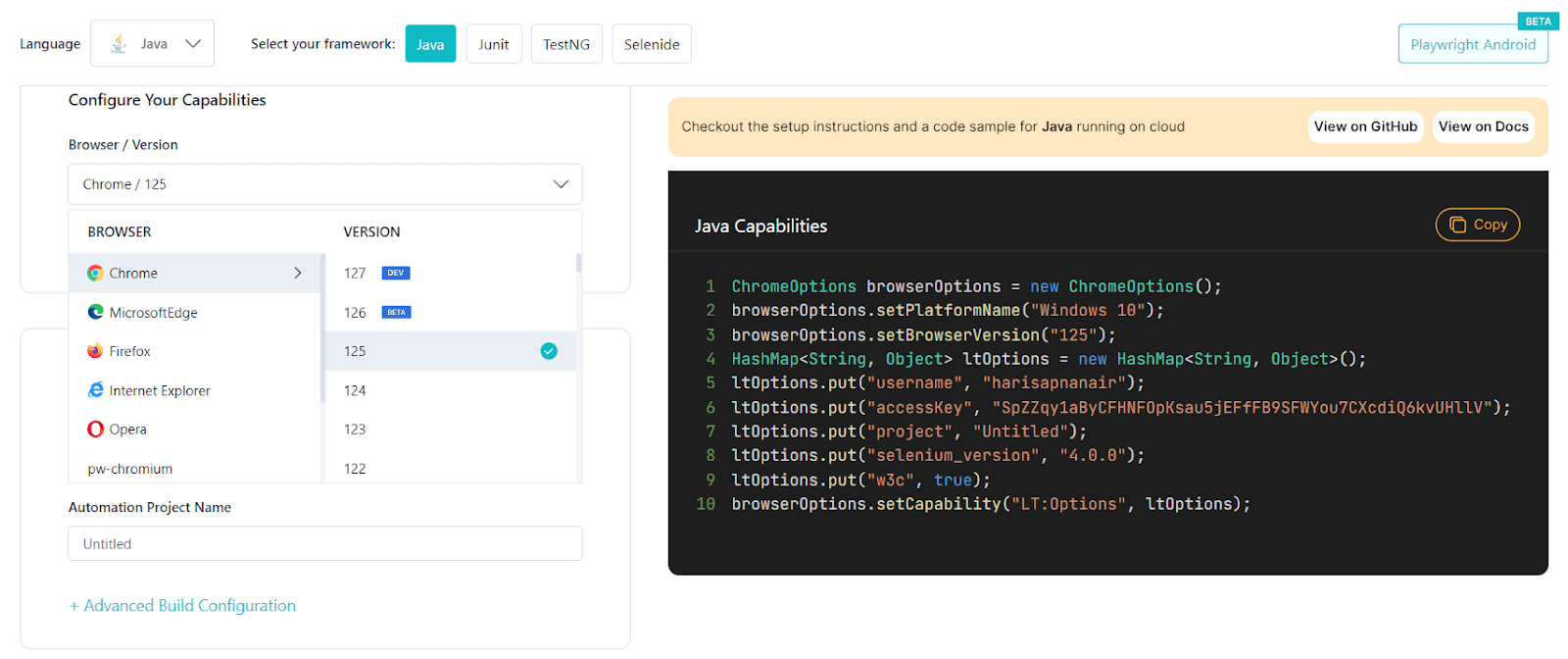
Step 3: Now let us start implementing our tests in the TestMu AI grid. We shall use the same test scenario used earlier.
Let us run our login test in Chrome Browser. Use the Desired Capabilities Generator for setting the desired capabilities in our tests.
Code
import org.openqa.selenium.By;
import org.openqa.selenium.WebElement;
import org.openqa.selenium.chrome.ChromeOptions;
import org.openqa.selenium.remote.RemoteWebDriver;
import java.net.MalformedURLException;
import java.net.URL;
import java.util.HashMap;
import java.util.Map;


public class Main {
    public static void main(String[] args) {
        String username = "XXXX";
        String accessKey = "XXXX";
        RemoteWebDriver driver = null;
        String gridURL = "@hub.lambdatest.com/wd/hub";
        ChromeOptions browserOptions = new ChromeOptions();
        browserOptions.setCapability("platformName", "Windows 10");
        browserOptions.setCapability("browserVersion", "latest");
        Map<String, Object> ltOptions = new HashMap<>();
        ltOptions.put("build", "Java_Selenium_Script");
        ltOptions.put("name", "Java_Selenium_Script");
        ltOptions.put("selenium_version", "4.15.2");
        ltOptions.put("w3c", true);
        ltOptions.put("plugin", "junit-junit");
        browserOptions.setCapability("LT:Options", ltOptions);


        try {
            driver = new RemoteWebDriver(new URL("https://" + username + ":" + accessKey + gridURL), browserOptions);


            // Navigate to the webpage
            driver.get("https://ecommerce-playground.lambdatest.io/");


            // Find the element with the name iPhone
            WebElement iphoneLink = driver.findElement(By.xpath("//a[contains(text(), 'iPhone')]"));


            // Click on the product to visit the product page
            iphoneLink.click();

            // Close the browser
            driver.close();
        } catch (MalformedURLException e) {
            System.out.println("Invalid grid URL");
        } catch (Exception e) {
            System.out.println(e.getMessage());
        }
    }
}
Note: For using the Microsoft Edge browser replace “ChromeOptions” with “EdgeOptions”. The complete code for the Microsoft Edge browser can be found here.
Step 4: Once this test is executed successfully. We can track our test case on the LambaTest dashboard as shown in the image below. We can see the tests run in the grid and the video recording captured during the test execution. This will help us identify the exact issue in case of any test failure.
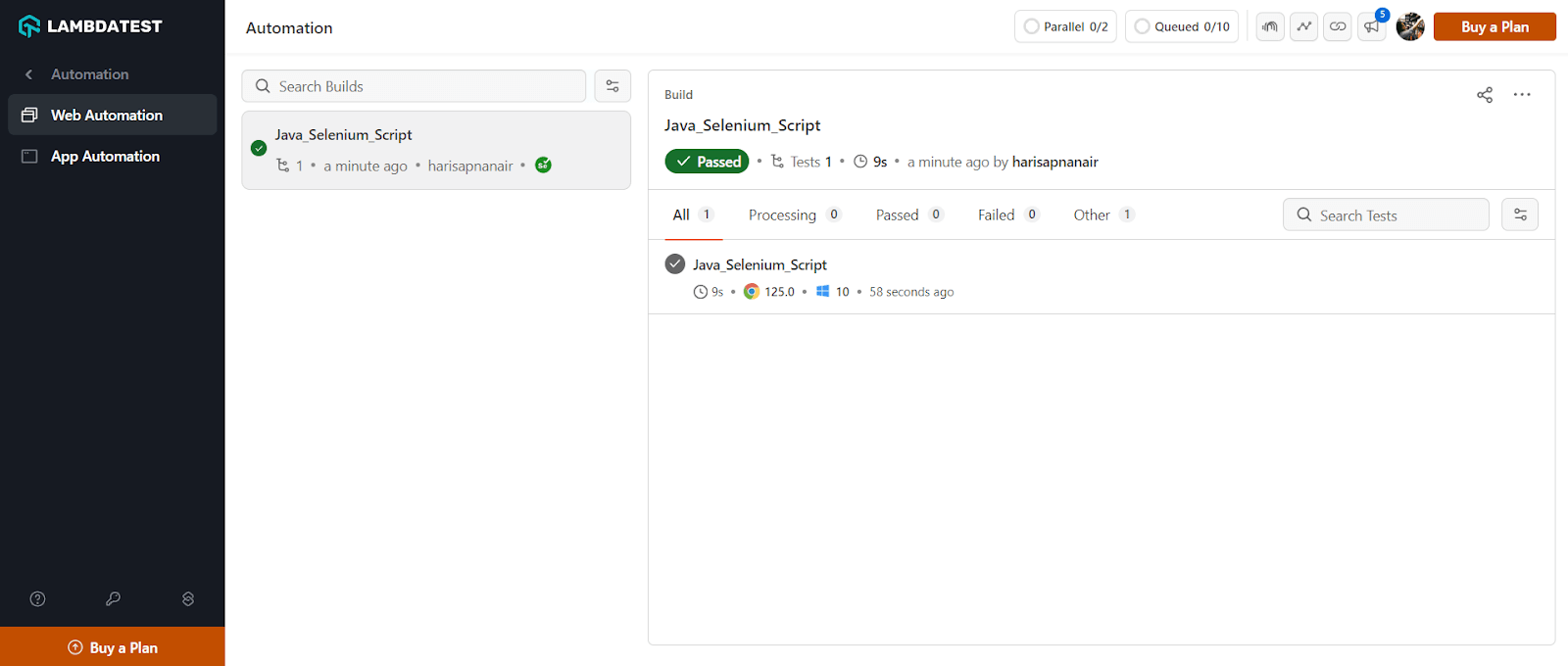
The build results can be found on the automation page.
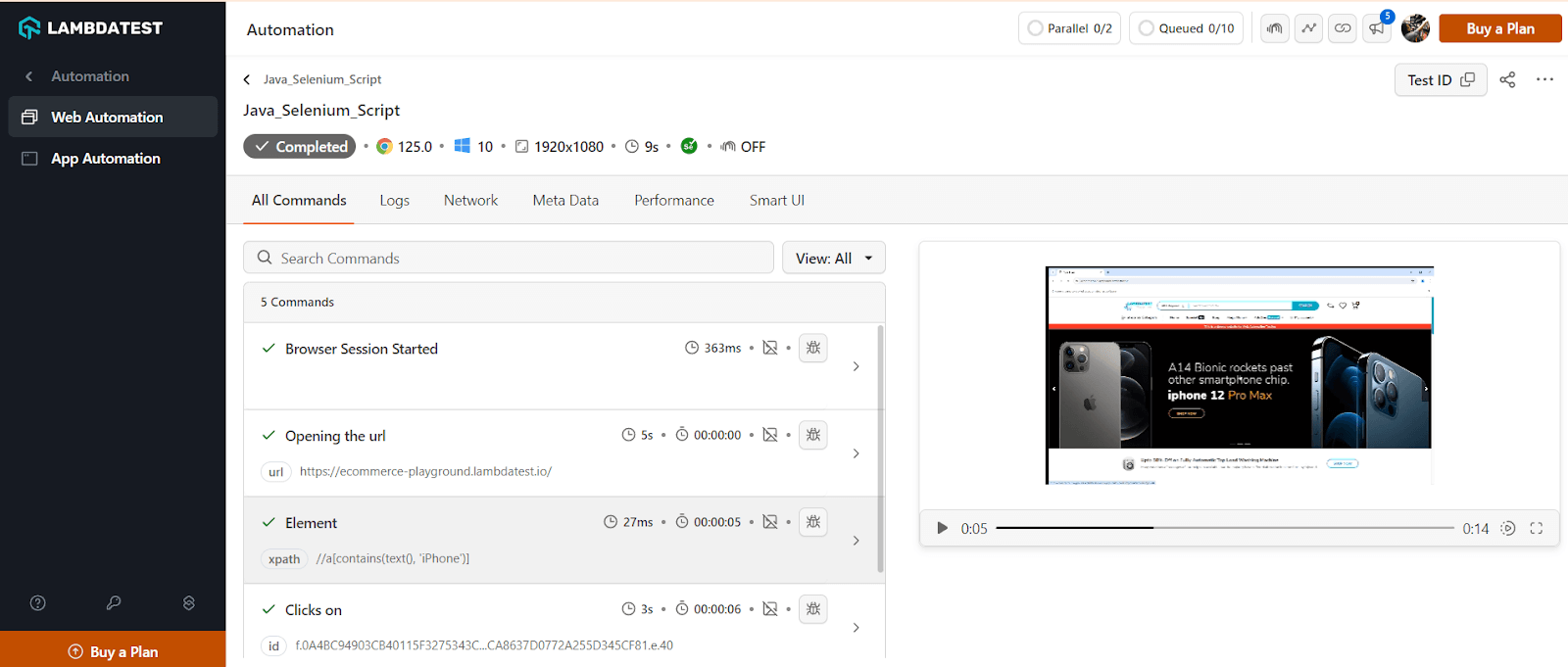
In the detailed view of the build, we can see the video recording captured during the test execution.
All the provided code snippets can be found at this GitHub repository: Selenium-Test-Scripts. For the Python code, check out the Python folder.

Conclusion
For any software tester who wants to guarantee the functioning and dependability of online applications, the ability to run Selenium test scripts is essential. We started by learning the basics of Selenium and the function of test scripts. Next, in order to ensure a quick setup, we looked at the requirements for installing Selenium and how to set it up with Maven. After that, we went over how to execute your first Java Selenium test script, which gave you a strong basis for automating browser-related tasks. Lastly, we covered how to use TestMu AI to run Selenium scripts on a cloud-based platform, allowing for cross-browser and scalable testing. You can effectively use Selenium’s power to improve your testing procedures and produce reliable web applications by following these steps.


Frequently asked questions
Did you find this page helpful?
More Related Hubs
TestMu AI forEnterprise
Get access to solutions built on Enterprise
grade security, privacy, & compliance
- Advanced access controls
- Advanced data retention rules
- Advanced Local Testing
- Premium Support options
- Early access to beta features
- Private Slack Channel
- Unlimited Manual Accessibility DevTools Tests