

Next-Gen App & Browser Testing Cloud
Trusted by 2 Mn+ QAs & Devs to accelerate their release cycles


How To Handle Authentication PopUps in Selenium WebDriver
Learn to handle authentication popups in Selenium WebDriver, explore its different types of alerts, and effectively manage login prompts during web automation.

Vipul Gupta
March 2, 2026
Handling authentication popups in Selenium is a crucial aspect of automated testing. Authentication popups often appear when accessing secure areas of a web application, requiring valid credentials to proceed. These popups can disrupt the flow of automated tests if not properly managed, leading to incomplete or failed test executions.
Effective handling of these popups ensures that the test scripts can seamlessly interact with the application, allowing for comprehensive testing of protected resources and functionalities. Selenium WebDriver provides robust capabilities to interact with web browsers, helping you handle authentication popups by allowing you to input credentials programmatically.
Overview
What Is HTTP Basic Authentication?
HTTP Basic Authentication is a security method where a server requests credentials through a browser popup before granting access to protected content.
How Can You Handle Authentication Popups in Selenium WebDriver?
Selenium WebDriver handles authentication popups by:
- Passing credentials in the URL
- Using AutoIT for OS-level dialogs
- Sending encoded headers with Selenium 4 & Chrome DevTools
How Can You Handle Authentication Popups on a Cloud Selenium Grid?
Authentication popups can be managed on a cloud grid using RemoteWebDriver:
- Configure browser capabilities
- Connect securely to the cloud hub
- Pass credentials (via URL or headers)
- Execute tests in parallel across browsers and environments
What Is an Alert/Popup?
Alerts are small modal windows displayed within a web browser. They grab user attention for important messages, often requiring confirmation (e.g., “Are you sure you want to delete?”).
Popups are separate windows or tabs that open on top of the main browser window. They can be triggered by user actions or scripts and are used for various purposes, including displaying information, advertisements, or login forms.
Alerts/popups typically require user confirmation. While popups offer more flexibility for displaying information or collecting user input, alerts are used for critical messages requiring immediate user attention.
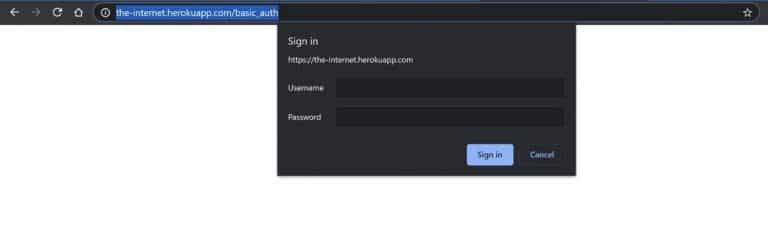
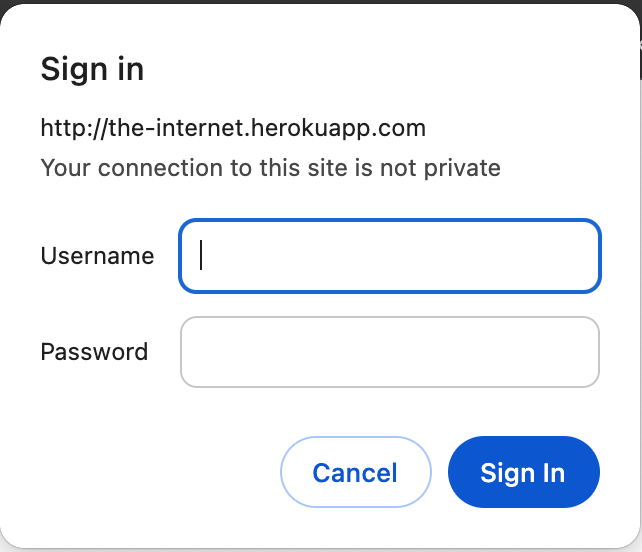
Below is the screenshot of the authentication popup prompted on the website.

Note: Run tests across 3000+ browsers and OS combinations. Try TestMu AI Today!
Types of Alerts/Popups
There are several different types of alerts/popups, like simple, confirmation, prompt, and authentication alerts, one might encounter on a website or web application. These are used for different purposes, and their handling might vary slightly on the implementation basis.
Before we move forward and learn how to handle authentication popups in Selenium WebDriver, let us quickly look at the different types.
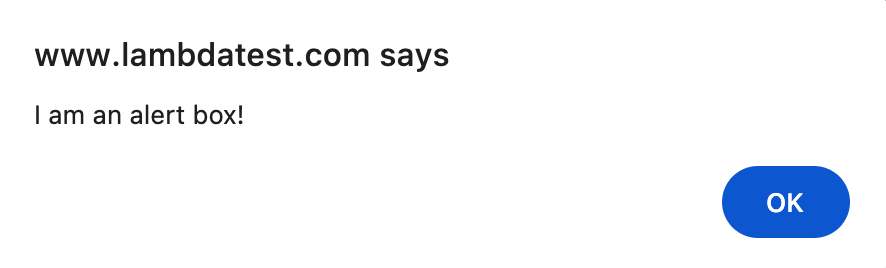
Simple Alerts/Popups
These are used to display simple messages to the user, which can be any information, error, or warning. This type has only the message and a Cancel or an OK button.
Some real-time examples are reminder messages, invalid credentials error messages, device memory/battery low warning notifications, etc.
Confirmation Alerts/Popups
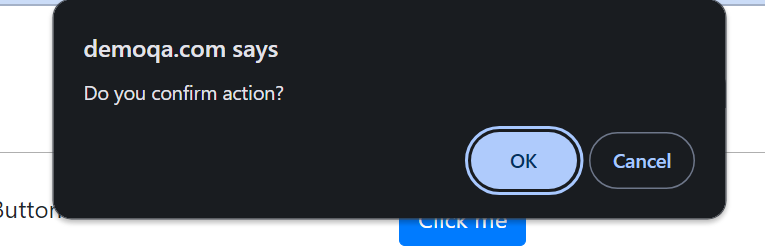
As the name suggests, these are used to take user confirmation on any action. These popups have two buttons, one to accept/provide confirmation and the other to cancel/deny.
Examples of this type include asking for cookie permission on a website, an alert for location/microphone access, a confirmation alert when you try to close it with active audio/video in play, etc.
Prompt Alerts/Popups
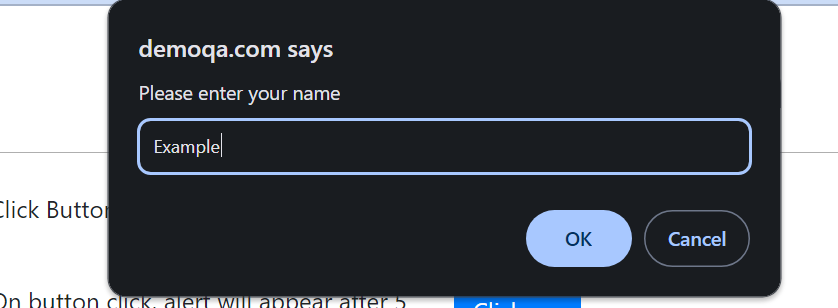
These types of alert popups notify users of the input or ask them to enter some data. These tend to have a message, some input fields, and OK/Cancel buttons, depending on the use case.
Some examples include a prompt to enter a password or name, an alert to enter valid/mandatory data, a prompt to enter details of the wireless network, etc.
Authentication Alerts/Popups
This popup asks for user credentials to perform authentication or login to web applications to interact on the same.
Some real-world authentication popup examples would be an alert/popup asking for a username and password to access some protected API, to login to a VPN or your net banking, etc.
Understanding the basic authentication mechanism for handling authentication popups in Selenium WebDriver is crucial for ensuring the security of your web application.
HTTP Basic Authentication
HTTP authentication is a simple security mechanism that restricts access of ineligible users to selected and protected web resources. It involves communication between the server and client using HTTP headers to provide user credentials to establish authenticity and provide access to the user.
One of the most used HTTP authentication methods is the HTTP Basic Authentication. In this, when a user attempts to access a protected web resource, the server prompts with an authentication popup asking for user credentials. These credentials are then used to establish a connection, once the user identity is authenticated at the server, the user can access the resources.
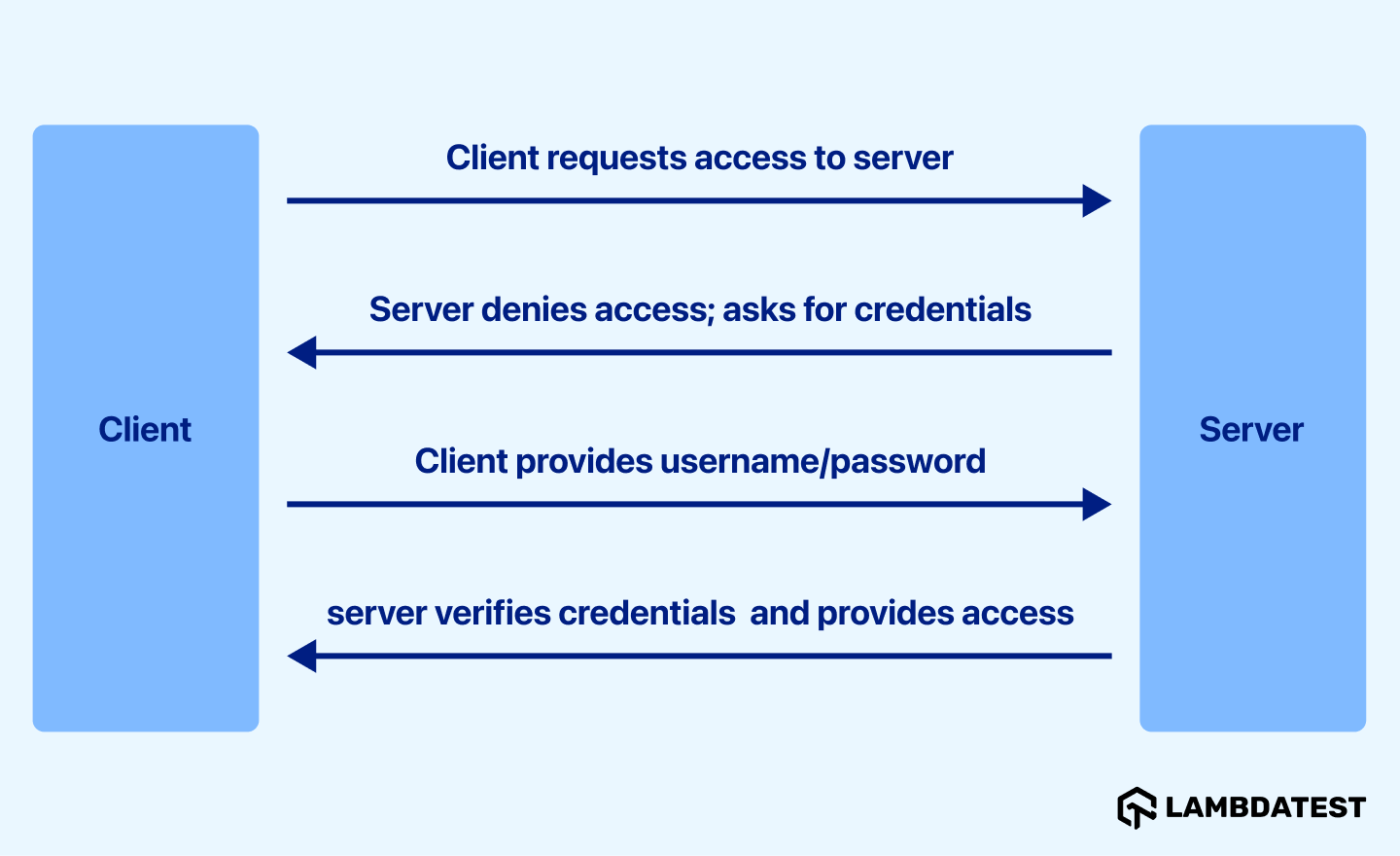
- The client requests to access the server anonymously without providing any credentials.
- The server responds with 401 Unauthorized, asking for user credentials.
- The client responds with its username and password to authenticate itself.
- The server tries to verify the username and password. If valid, access is granted. If invalid, the server responds with 403 Forbidden.
Tired of dealing with those tricky authentication pop-ups in Selenium WebDriver? KaneAI by TestMu AI makes handling these challenges a breeze.
KaneAI is a GenAI native test assistant designed for dynamic quality engineering teams, equipped with advanced AI-infused features for test authoring, management, and debugging. It enables users to create and update complex test cases using natural language, making it quicker and simpler to dive into test automation without requiring extensive expertise.

Handling Authentication Popups in Selenium WebDriver
Having understood the basics of HTTP authentication, let us move forward to learn how to handle authentication popups in Selenium WebDriver.
Selenium WebDriver is one of the key components of the Selenium suite, which is used to automate web browsers for web applications’ automated testing. It supports cross-browser testing by providing a programming interface to interact with various real browsers like Chrome, Firefox, etc., using browser drivers like ChromeDriver, GeckoDriver, and more.
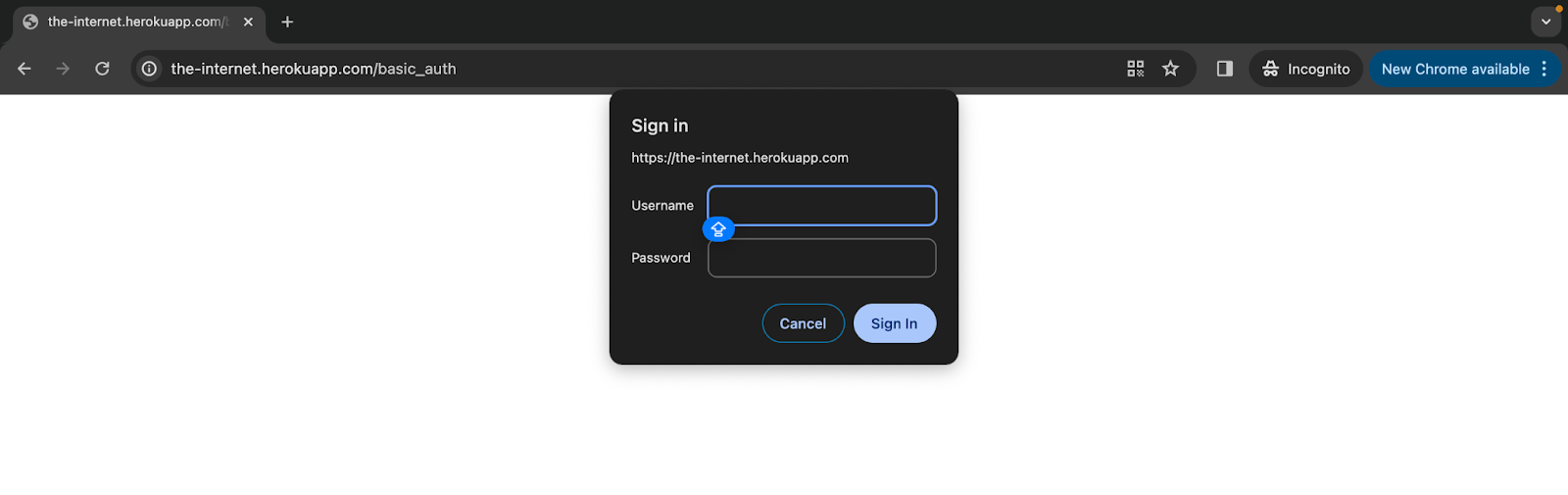
To handle authentication popups in Selenium WebDriver, we will use this demo test website: Herokuapp Basic Auth. Navigating this gives us an alert/popup like the one below.
We will learn how to handle authentication popups in Selenium WebDriver using the following approaches:
- Passing the Username and Password in the URL
- Using AutoIT
- Using Selenium 4 and Chrome DevTools
To learn more about handling authentication popups in Selenium WebDriver, watch the following video tutorial and get practical insights.
Subscribe to the TestMu AI YouTube Channel and stay updated on other automation frameworks like Playwright, Cypress, Appium, and more.
Handling Authentication Popups by Passing the Username and Password in the URL
The basic authentication popup is similar to the alert that pops up when the browser is navigated to a specific web page. To handle the basic authentication popup, you can pass the username and password along with the web page’s URL.
The syntax for handling this authentication popup is:
https://username:password@URL
You enter the username as “admin” and the password as “admin”, followed by the URL, and then log in. Thus, the user would be successfully logged into the website without providing any login credentials for authentication.
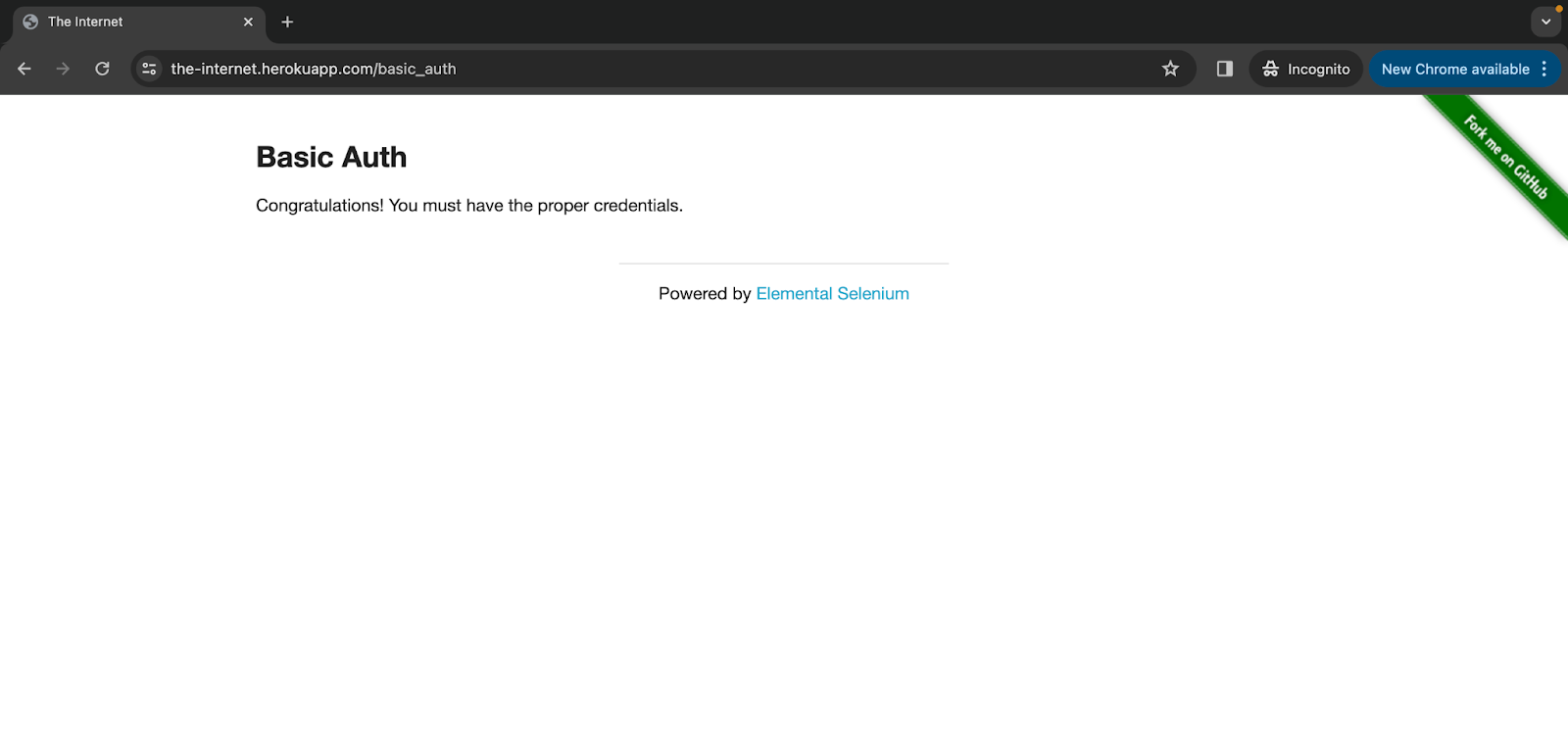
Once the credentials are passed correctly, the user will be authenticated successfully, and a proper message will be displayed on the website.
Let us set up the project before moving to the code for this method of handling authentication popups in Selenium WebDriver.
Before setting up the project, we will first define the prerequisites. For demonstration purposes, we will use Eclipse IDE, Selenium with Java, and TestNG as the testing framework for running the tests.
Project Setup:
First, create a Maven project named HandlingLoginPopup using Eclipse IDE and then update the pom.xml file with the latest version of Selenium and TestNG.
Once you update the pom.xml file, it will look as shown below.
<project xmlns="http://maven.apache.org/POM/4.0.0" xmlns:xsi="http://www.w3.org/2001/XMLSchema-instance" xsi:schemaLocation="http://maven.apache.org/POM/4.0.0 https://maven.apache.org/xsd/maven-4.0.0.xsd">
 <modelVersion>4.0.0</modelVersion>
 <groupId>HandlingLoginPopup</groupId>
 <artifactId>HandlingLoginPopup</artifactId>
 <version>0.0.1-SNAPSHOT</version>
 <name>HandlingLoginPopup</name>
 <dependencies>
       <dependency>
           <groupId>org.seleniumhq.selenium</groupId>
           <artifactId>selenium-java</artifactId>
           <version>4.18.1</version>
       </dependency>
       <dependency>
           <groupId>org.testng</groupId>
           <artifactId>testng</artifactId>
           <version>7.8.0</version>
           <scope>test</scope>
       </dependency>
   </dependencies>
</project>
Next, create a Java class file and name it BaseTest.java. This file will have the common code to launch and close the WebDriver instance before/after the test execution. All the following test case files will extend this base file and its entities.
The Java class file will look as shown below.
package LocalGrid;


import org.openqa.selenium.WebDriver;
import org.openqa.selenium.chrome.ChromeDriver;
import org.testng.annotations.*;


public class BaseTest {


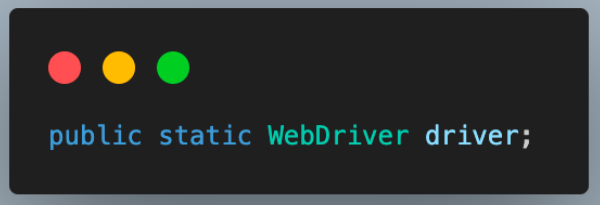
   public static WebDriver driver;

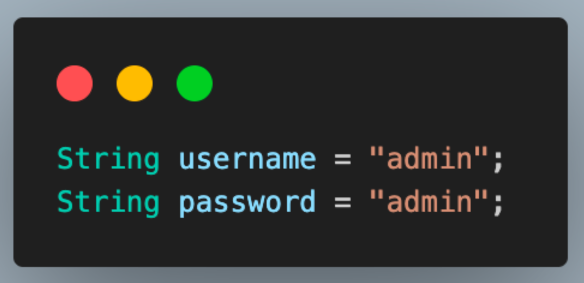
   String username = "admin";
   String password = "admin";


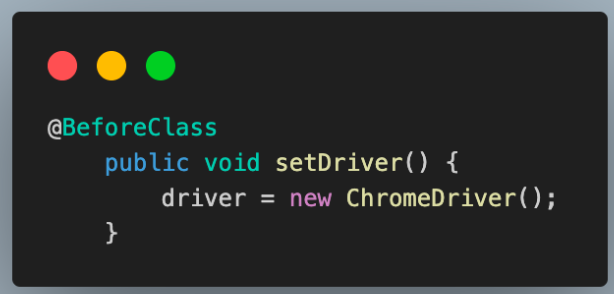
   @BeforeClass
   public void setDriver() {
       driver = new ChromeDriver();
   }


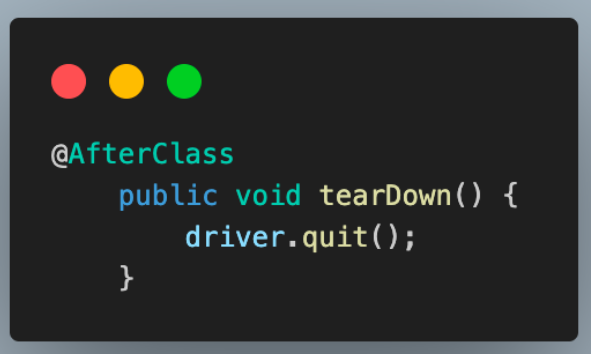
   @AfterClass
   public void tearDown() {
       driver.quit();
   }
}
Before writing test scripts, we will understand the code in the BaseTest.java file below.
Code Walkthrough:
- Create an instance of WebDriver, which will be used to perform browser interactions.
- Define the username and password of the user to authenticate the user on the test website.
- Add the first method as setDriver(). This will be used to instantiate the driver session. Annotate this with @BeforeClass annotation to execute it before each test case.
- Add tearDown() as another method and annotate it with @AfterClass to close the browser and end the WebDriver session after each execution.
To learn about other annotations offered by TestNG, follow this guide on TestNG annotations. It will help you understand how to prioritize and run your tests from most to least important.
Now that we have set up the project with all the required prerequisites, we will begin to write code for the first method of passing the username and password in the web page URL.
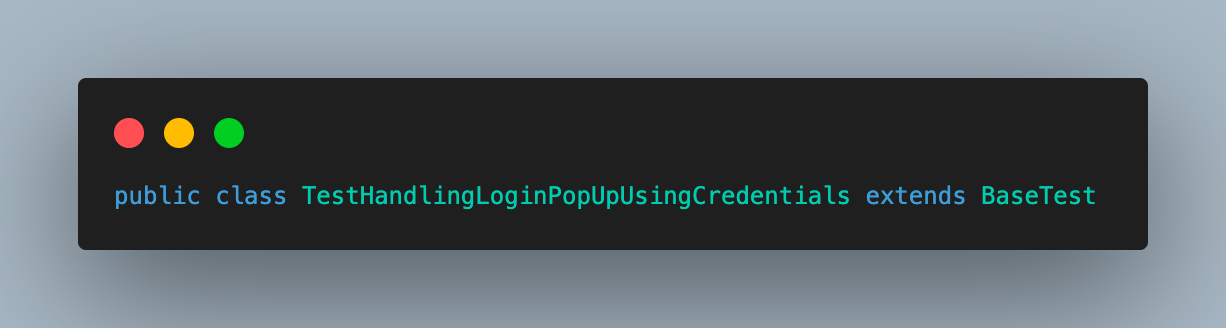
To begin, create a Java class file named TestHandlingLoginPopUpUsingCredentials. This file will contain the code that enters the username and password into the web page URL and retrieves the text once successfully logged in.
package LocalGrid;


import org.openqa.selenium.By;
import org.testng.annotations.Test;


public class TestHandlingLoginPopUpUsingCredentials extends BaseTest {


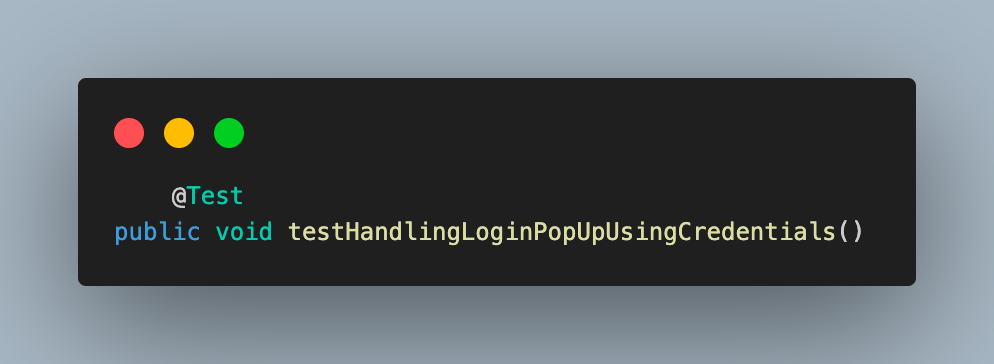
   @Test
   public void testHandlingLoginPopUpUsingCredentials() {
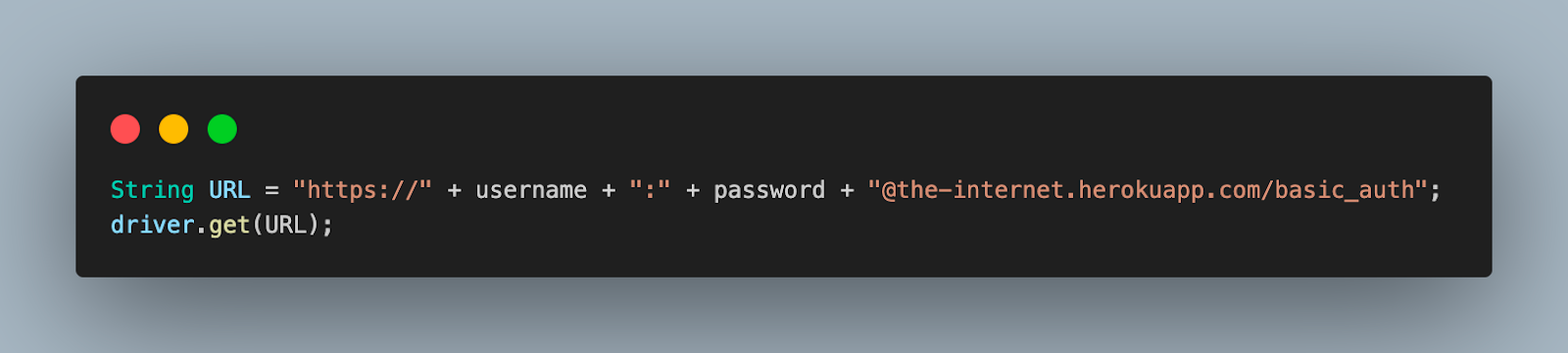
       String URL = "https://" + username + ":" + password + "@the-internet.herokuapp.com/basic_auth";
       driver.get(URL);


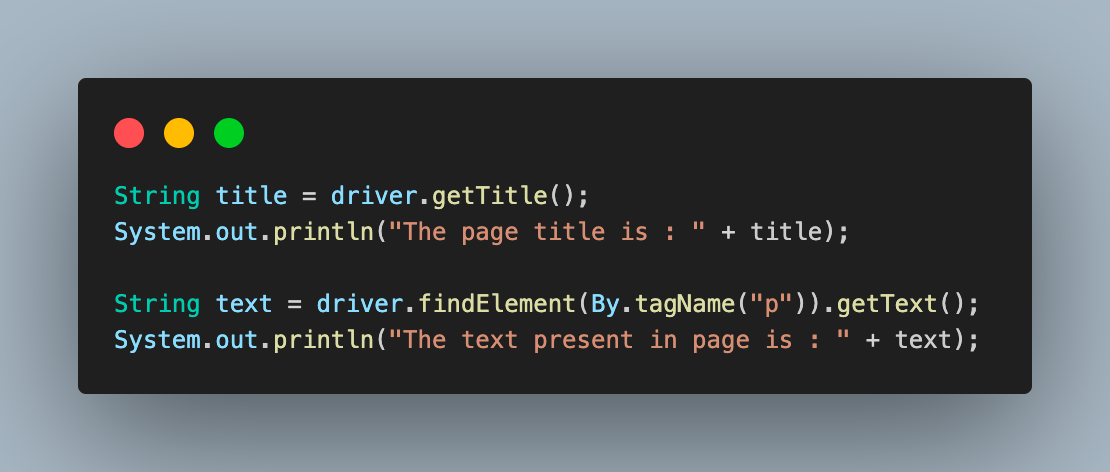
       String title = driver.getTitle();
       System.out.println("The page title is : " + title);


       String text = driver.findElement(By.tagName("p")).getText();
       System.out.println("The text present in page is : " + text);
   }
}
Let us understand the code given in the TestHandlingLoginPopUpUsingCredentials file in detail below.
Code Walkthrough:
- Start by extending BaseTest in this test case file. This will help to inherit the driver and user credentials, which will be used further.
- Add the test case as testHandlingLoginPopUpUsingCredentials() and annotate it with @Test, as we are using the TestNG for test execution.
- Create the web page URL using username and password in the given format and navigate to the same using the get() function of Selenium WebDriver.
- Fetch and print the page title and successful authentication message on the console.
Output:
When executing the test case with TestNG, the test will handle the authentication popup and prevent it from displaying, resulting in an output similar to the one below.
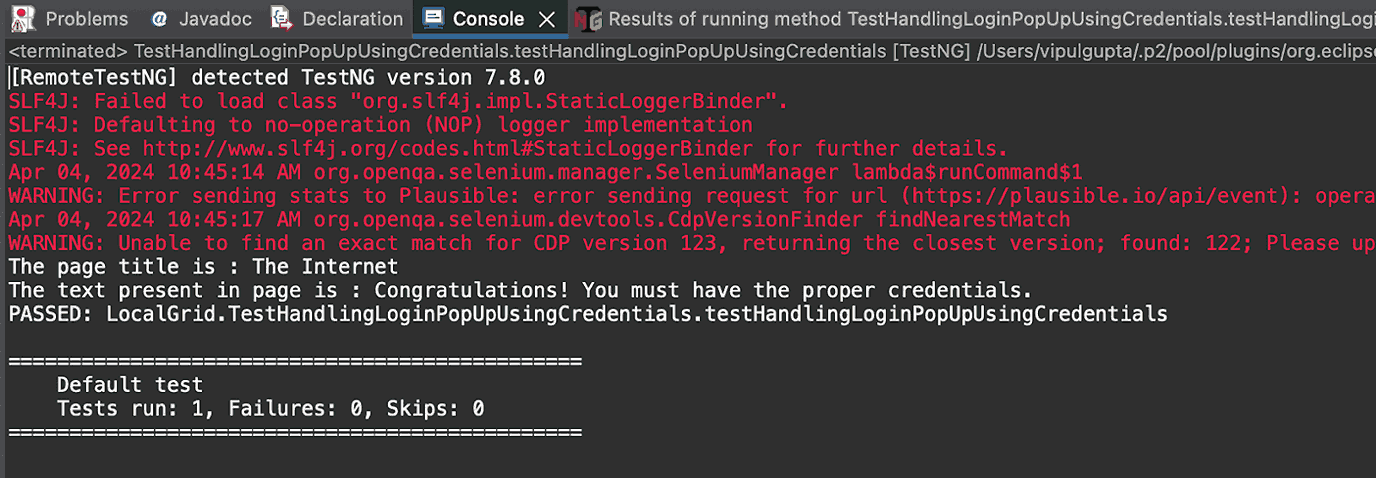
Result:
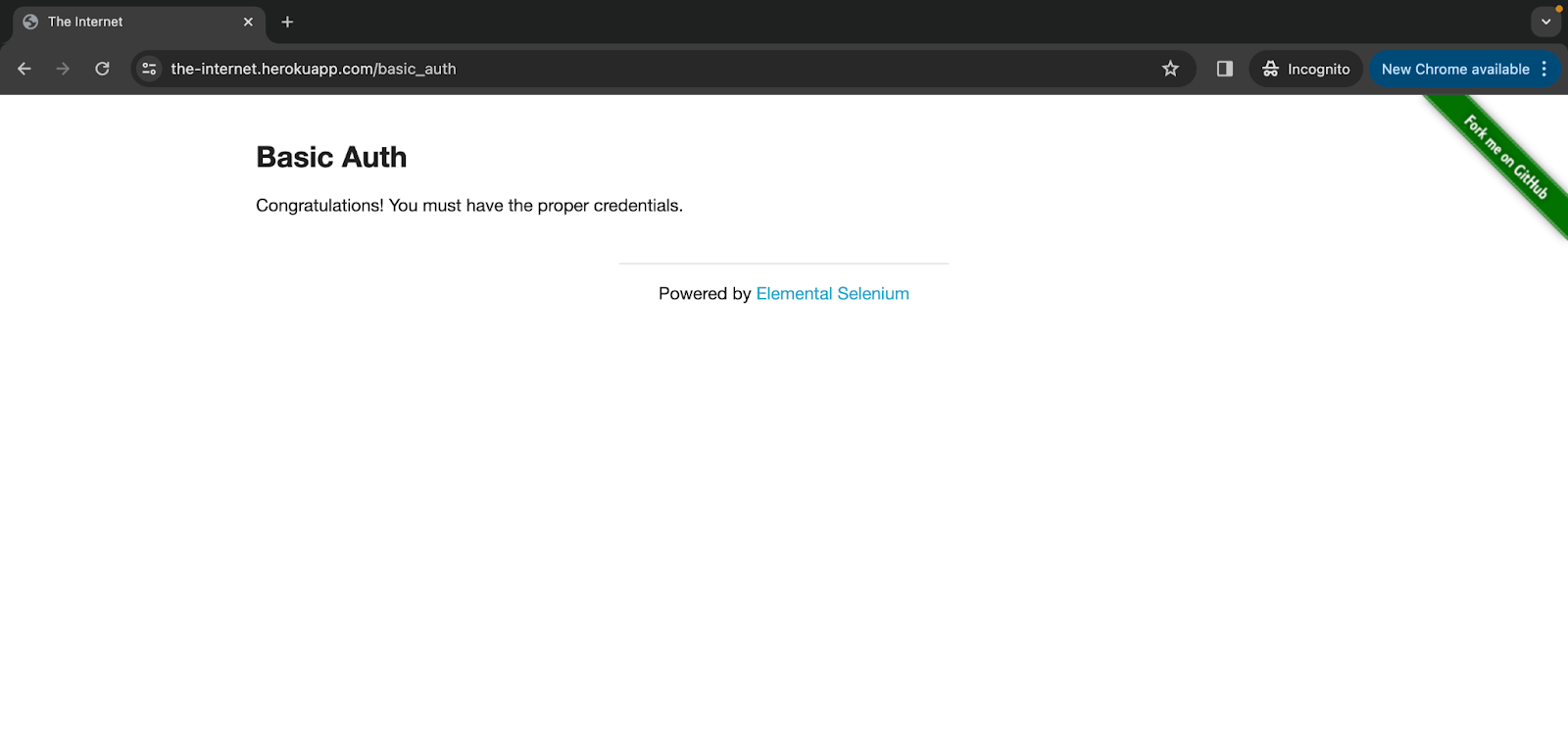
Having learned the first method of handling authentication popups in Selenium WebDriver by passing the username and password in the URL, we will now learn the second approach using AutoIT with a code demonstration.
Handling Authentication Popups by Using AutoIT
AutoIT is a common scripting language for automating GUI programs and tasks involving keyboard and mouse interactions. It is frequently used to automate processes such as handling authentication popups and downloading and uploading files.
Let’s start by setting up AutoIT and see how it can handle the authentication popup on the web page.
- Download AutoIT from the official website or use the AutoIT download link.
- Navigate to the installed folder and open the AutoIT editor.
- Enter the below code in the editor to send the username and password to handle the authentication popup in Selenium WebDriver on the web page.
Send("admin")
Send("(TAB)")
Send("admin")
Send("(ENTER)")package LocalGrid;
import java.io.IOException;
import java.util.concurrent.TimeUnit;
import org.openqa.selenium.By;
import org.testng.annotations.Test;
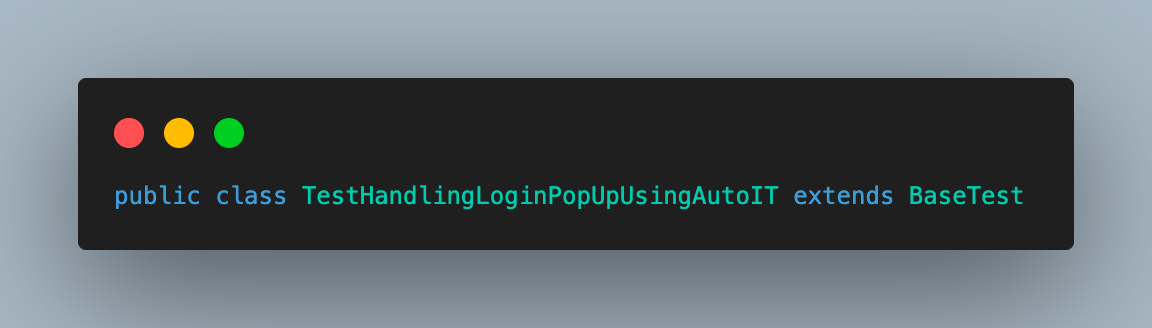
public class TestHandlingLoginPopUpUsingAutoIT extends BaseTest {
@Test
public void testHandlingLoginPopUpUsingAutoIT() throws InterruptedException, IOException {
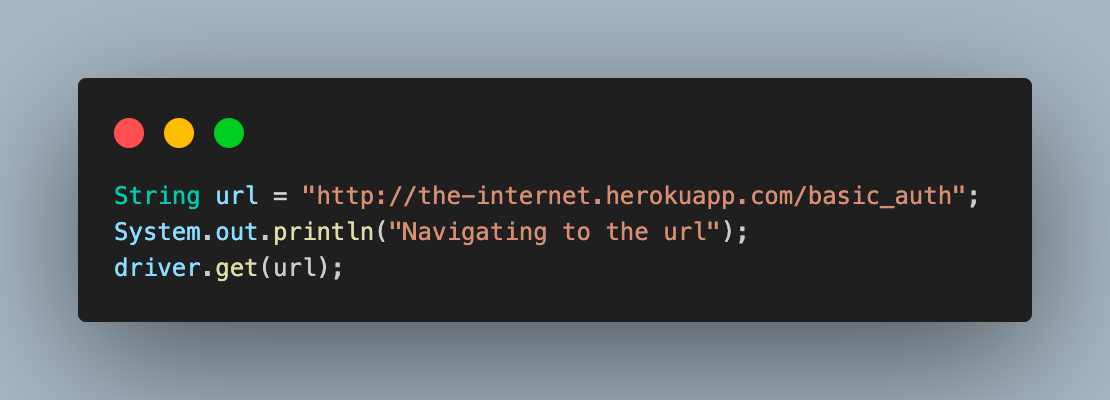
String url = "http://the-internet.herokuapp.com/basic_auth";
System.out.println("Navigating to the url");
driver.get(url);
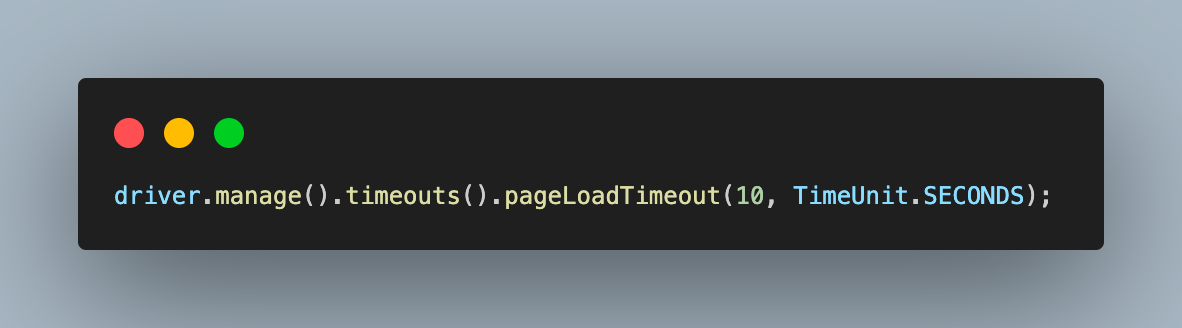
driver.manage().timeouts().pageLoadTimeout(10, TimeUnit.SECONDS);
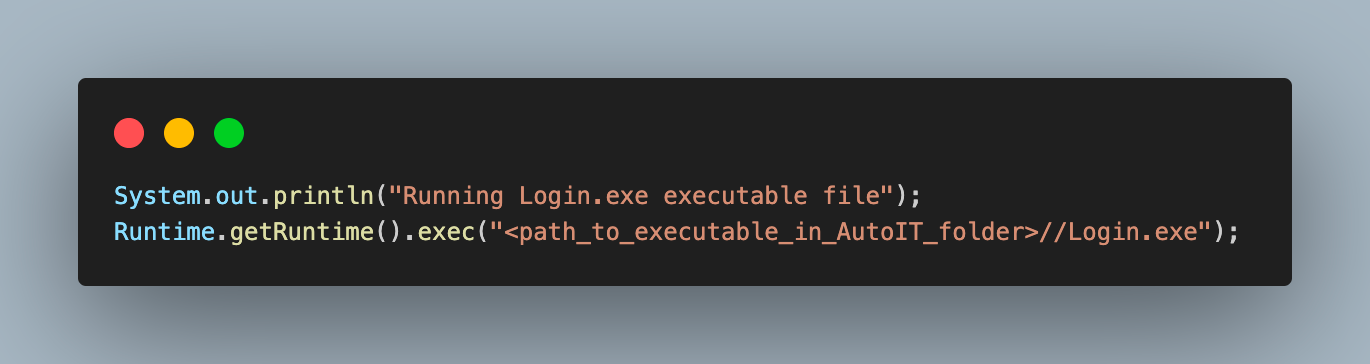
System.out.println("Running Login.exe executable file");
Runtime.getRuntime().exec("<path_to_executable_in_AutoIT_folder>//Login.exe");
Thread.sleep(2000);
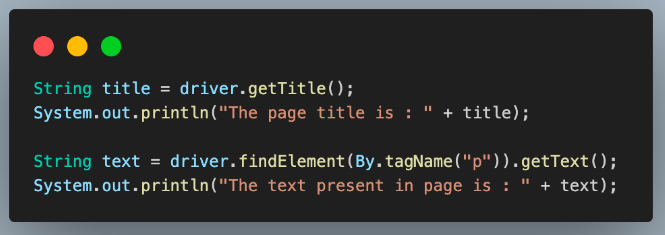
String title = driver.getTitle();
System.out.println("The page title is : " + title);
String text = driver.findElement(By.tagName("p")).getText();
System.out.println("The text present in page is : " + text);
}
}To understand how the code works in the TestHandlingLoginPopUpUsingAutoIT file, we will go through a code walkthrough below.
Code Walkthrough:
- Add a test class as TestHandlingLoginPopUpUsingAutoIT and extend BaseTest in it.
- Inside the test case, we start by defining the test URL and navigating to it.
- Define a timeout of 10 seconds to allow the page to load and the authentication popup to be visible.
- Use the exec() function of the Runtime class to execute the Login.exe you created using AutoIt in previous steps. Remember to define the path of the .exe file properly for execution.
- Add a Thread.sleep() for the script execution to complete and the authentication popup in Selenium WebDriver to disappear.
- Fetch and print the page title and successful authentication message on the console to confirm that the authentication popup in Selenium WebDriver was handled successfully.
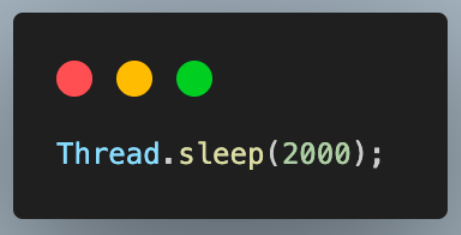
It is advisable to use Selenium Waits, such as implicit, explicit, and fluent methods offered by Selenium rather than Thread.sleep(), as it has drawbacks.
Output:
Executing the above script will give an output like the one below.
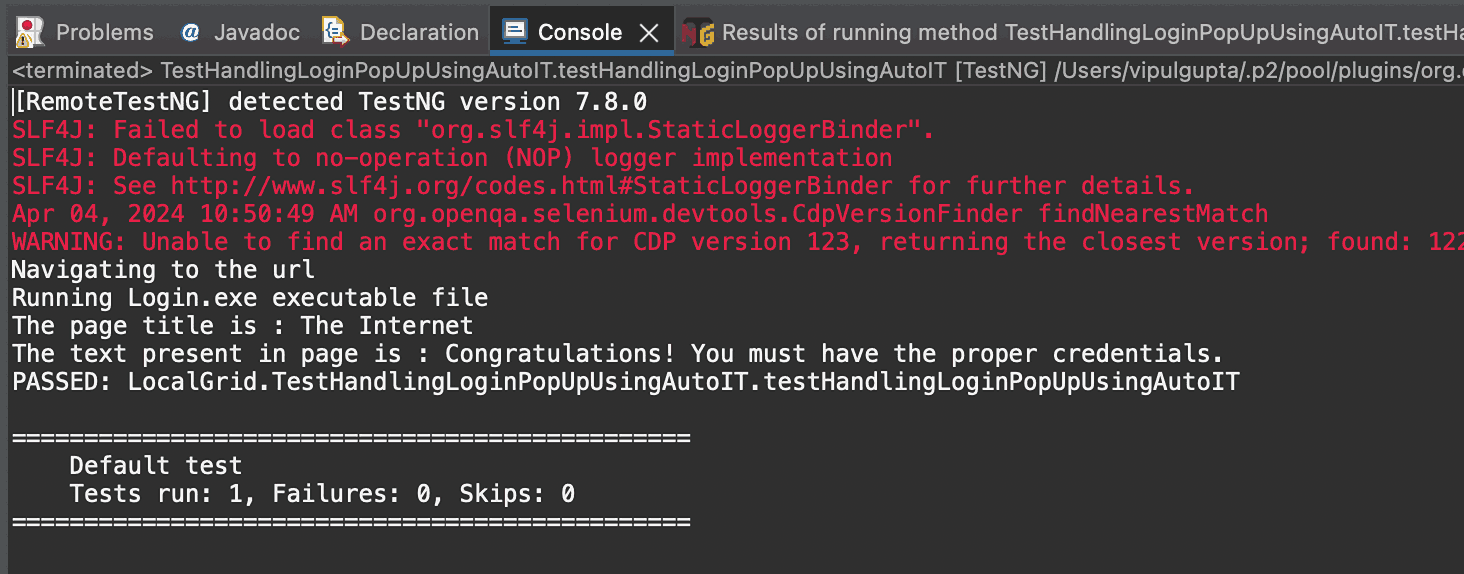
Both the approaches to handling authentication popups in Selenium WebDriver you have learned so far are older and do not have much Selenium usage. To get to an advanced level, let us learn how to handle authentication popups in Selenium 4 and Chrome DevTools.
Handling Authentication Popups in Selenium 4 and Chrome Dev Tools
Selenium 4 introduced the ChromiumDriver class, which has two methods, namely getDevTools() and executeCdpCommand(), to access the Chrome DevTools.
The getDevTools() method returns the new DevTools object, which allows the user to send the built-in Selenium commands.
In previous versions of Selenium, we used the technique of passing the credentials in the URL of the web page to handle the basic authentication popup on the web page. Now, in Selenium 4, we can easily set the basic authentication by sending extra HTTP headers; thus, handling the login authentication popups in Selenium becomes easy.
Below is the final test case file with Selenium 4 and DevTools usage to handle authentication popups in Selenium WebDriver.
package LocalGrid;


import org.openqa.selenium.devtools.DevTools;
import org.openqa.selenium.devtools.v85.network.Network;
import org.openqa.selenium.devtools.v85.network.model.Headers;
import org.testng.annotations.Test;
import org.openqa.selenium.By;
import org.openqa.selenium.chrome.ChromeDriver;


import java.util.*;


public class TestHandlingLoginPopUpUsingDevTools{


   @Test
   public void testHandlingLoginPopUpUsingDevTools()
   {
       ChromeDriver driver = new ChromeDriver();

       // Get the devtools from the running driver and create a session
       System.out.println("Creating Chrome DevTools session");
       DevTools devTools = driver.getDevTools();
       devTools.createSession();


       // Enable the Network domain of devtools
       devTools.send(Network.enable(Optional.<Integer>empty(), Optional.<Integer>empty(), Optional.<Integer>empty()));


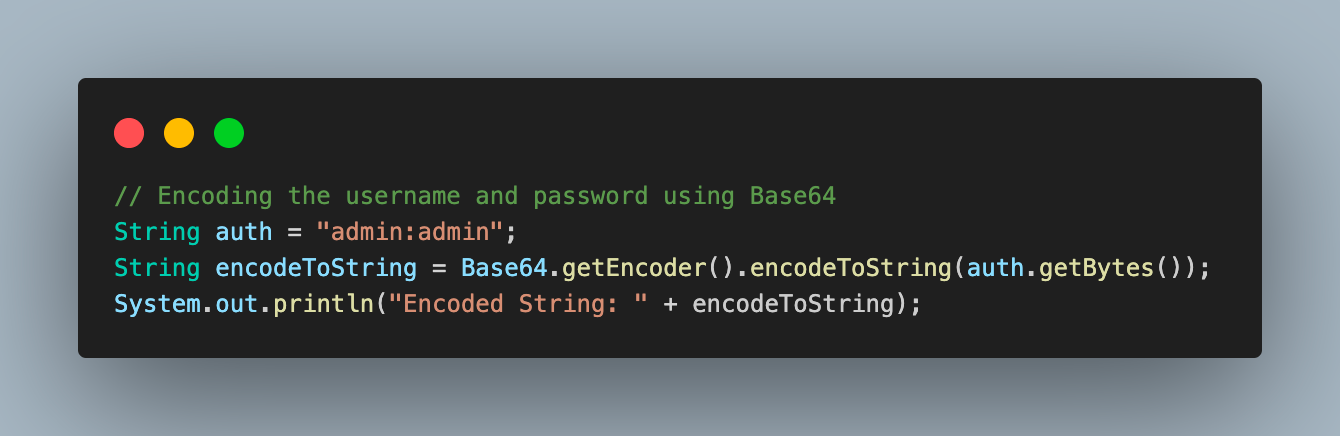
       // Encoding the username and password using Base64
       String auth = "admin:admin";
       String encodeToString = Base64.getEncoder().encodeToString(auth.getBytes());
       System.out.println("Encoded String: " + encodeToString);


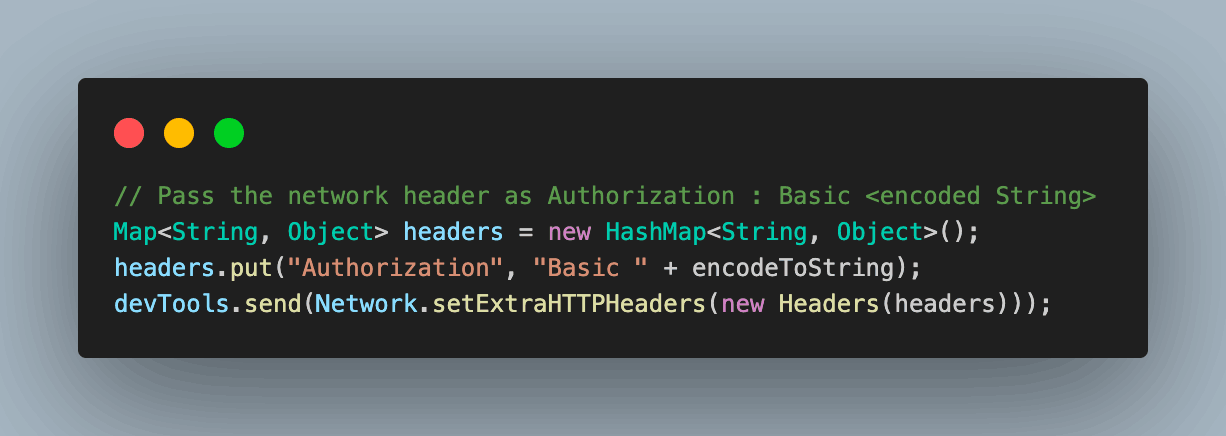
       // Pass the network header as Authorization : Basic <encoded String>
       Map<String, Object> headers = new HashMap<String, Object>();
       headers.put("Authorization", "Basic " + encodeToString);
       devTools.send(Network.setExtraHTTPHeaders(new Headers(headers)));

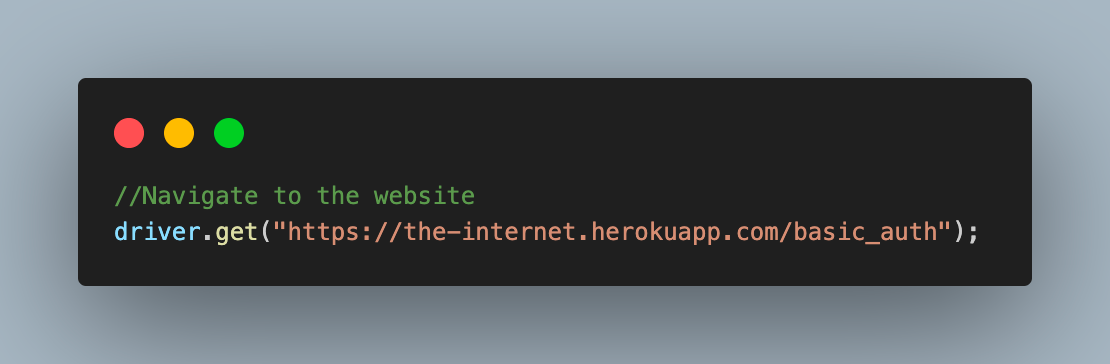
       //Navigate to the website
       driver.get("https://the-internet.herokuapp.com/basic_auth");

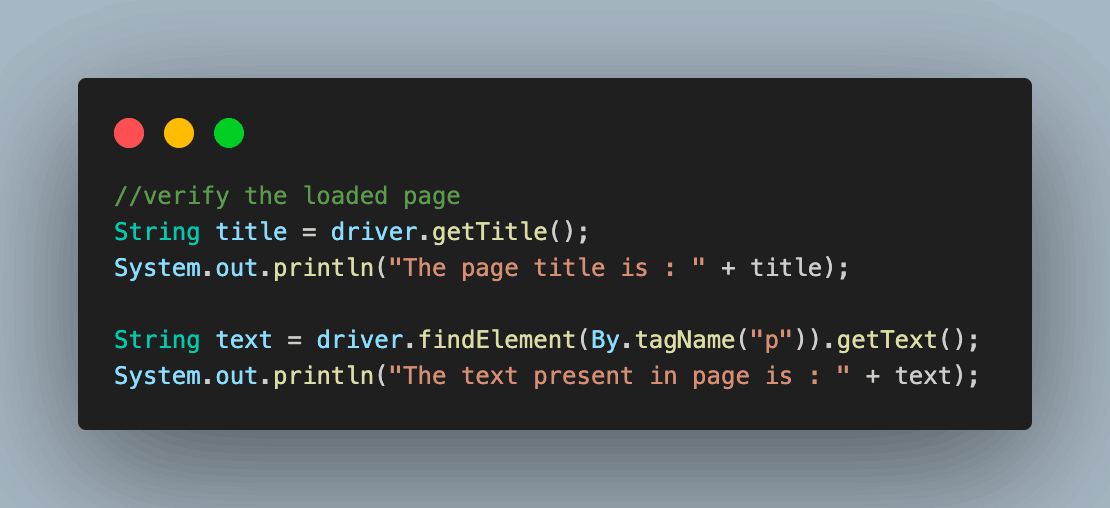
       //verify the loaded page
       String title = driver.getTitle();
       System.out.println("The page title is : " + title);


       String text = driver.findElement(By.tagName("p")).getText();
       System.out.println("The text present in page is : " + text);

       driver.quit();
   }
}

To understand the code given in the TestHandlingLoginPopUpUsingDevTools.java file, let’s look into the code walkthrough below.
Code Walkthrough:
- Add a new test case as testHandlingLoginPopUpUsingDevTools() and annotate it with @Test annotation.
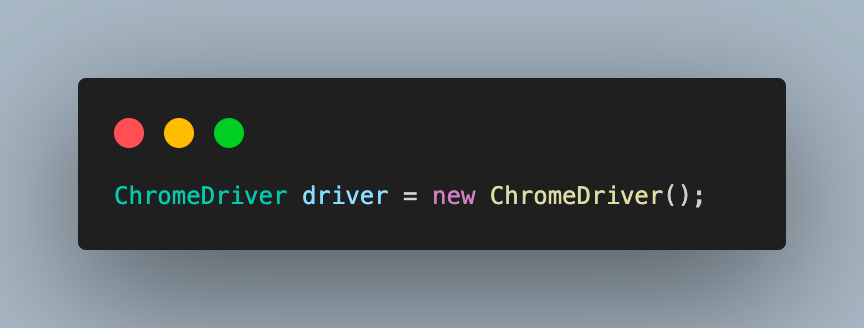
- Create a driver instance of the ChromeDriver class. This is because ChromeDevTools works only for Chromium-based browsers like Google Chrome. Another browser driver is EdgeDriver, also available if you want to use the Edge browser.
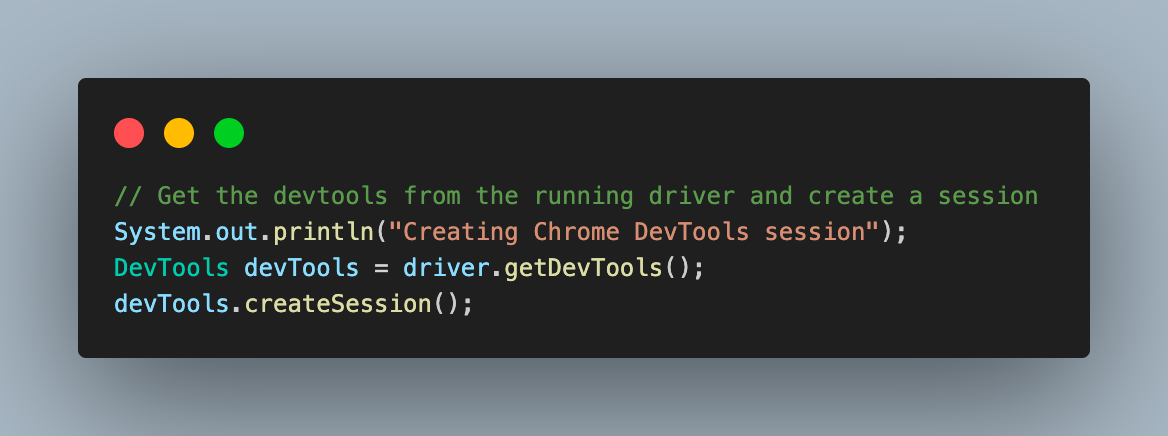
- Get the DevTools and create a new session to be used.
- Enable the network domain of DevTools. We don’t want to specify any network, so we have used the empty() method.
- Assign the username and password concatenated by a colon (:) to a String variable. Encode this value to get an encoded Base64 credentials string.
- Finally, pass the encoded credentials as basic authorization network header to the DevTools by creating headers in a HashMap.
- Now that the entire code for handling the authentication popup in Selenium WebDriver and navigating to the website.
- You can see there is no authentication popup now, as credentials have already been passed in the headers. Verify the same by fetching and printing the page title and successful authentication message from the webpage body.
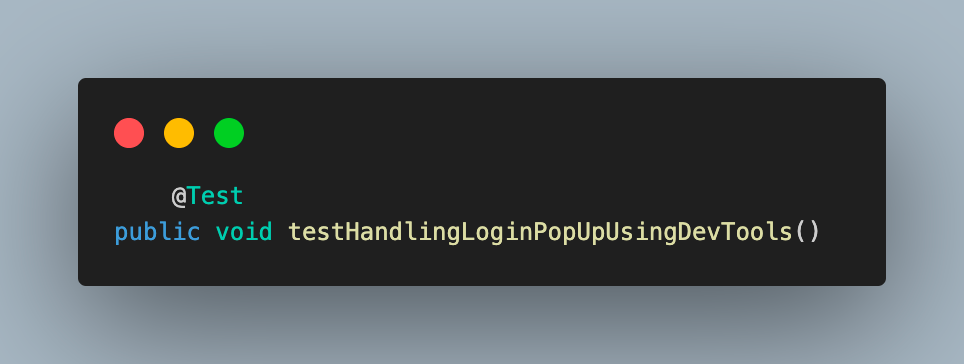

Output:
When executing the above code to handle authentication popups in Selenium 4 and Chrome DevTools, you will get an output like the one below.
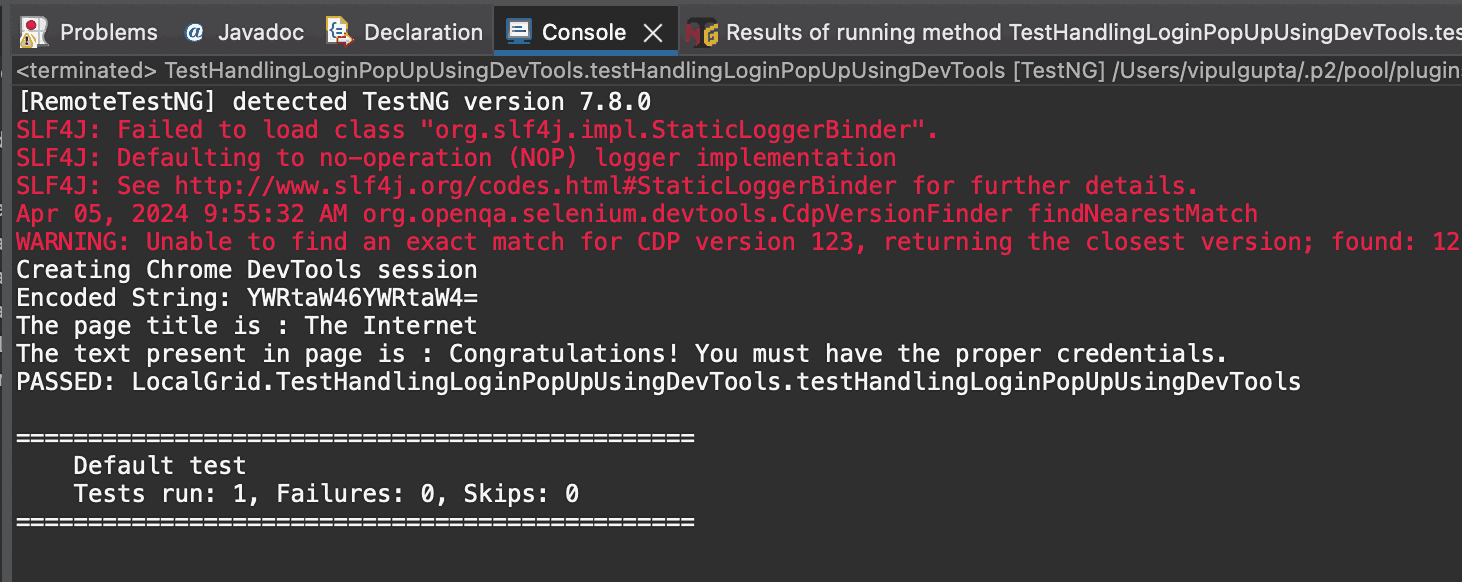
With this, we have seen different ways to handle authentication popups in Selenium WebDriver with Java. All the methods we learned use local execution.
Local execution comes with challenges, such as scaling, using varied browser and OS combinations, speed of execution, and debugging. However, using cloud testing platforms like TestMu AI can overcome these challenges.
TestMu AI is an AI-powered test orchestration and execution platform that allows you to perform manual and automation testing at scale over 3000+ real devices, browsers, and OS combinations. This provides the speed and resources needed to execute more test cases in parallel and in a more organized manner.

Handling Authentication Popups on Cloud Selenium Grid
As we have learned some approaches for handling authentication popups in Selenium WebDriver, implementing them on the cloud will require modifying the existing code.
Let’s see how easy it is to implement the code over the TestMu AI platform to run tests using RemoteWebDriver.
For this first create a base class file, BaseTest.java. This will have the code to initiate the browser session for connecting to the TestMu AI platform, handle the code for browser setup, and close it after test completion.
The test class will inherit this code, thus preventing redundancy and providing an abstraction of driver code from every other test class user.
package CloudGrid;


import java.net.*;
import java.util.HashMap;


import org.openqa.selenium.remote.RemoteWebDriver;
import org.openqa.selenium.chrome.ChromeOptions;
import org.testng.annotations.*;


public class BaseTest {


   public RemoteWebDriver driver = null;


   String username = System.getenv("LT_USERNAME") == null ? "<lambdatest_username>" : System.getenv("LT_USERNAME");
   String accessKey = System.getenv("LT_ACCESS_KEY") == null ? "<lambdatest_accesskey>" : System.getenv("LT_ACCESS");


   String status = "failed";


   @BeforeTest
   public void setup() {
       try {
           ChromeOptions chromeOptions = new ChromeOptions();
           chromeOptions.setPlatformName("Windows 10");
           chromeOptions.setBrowserVersion("124.0");


           HashMap<String, Object> ltOptions = new HashMap<String, Object>();
           ltOptions.put("build", "Handling Login pop-up using Selenium Java");
           ltOptions.put("name", "Handling Login pop-up using Selenium Java");
           ltOptions.put("w3c", true);
           chromeOptions.setCapability("LT:Options", ltOptions);


           driver = new RemoteWebDriver(
                   new URL("https://" + username + ":" + accessKey + "@hub.lambdatest.com/wd/hub"), chromeOptions);


       } catch (MalformedURLException e) {
           e.printStackTrace();
       }
   }


   @AfterTest
   public void closeDriver() {
       driver.executeScript("lambda-status=" + status);
       driver.quit();
   }
}
Below is the code walkthrough for the code in the BaseTest.java file
Code Walkthrough:
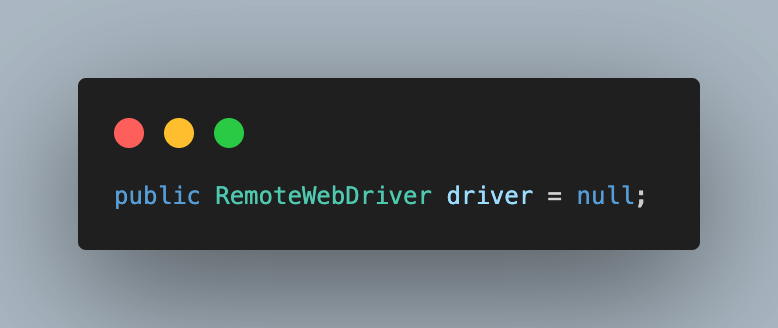
- Create an instance of Selenium RemoteWebDriver and initialize it to null.
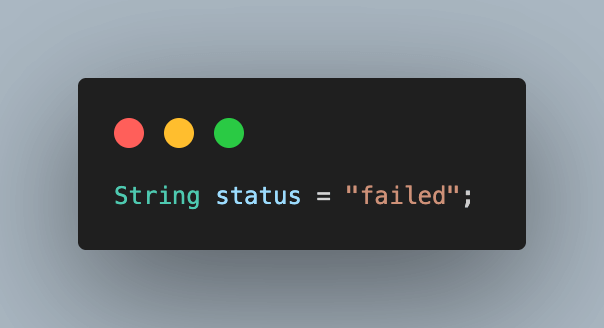
- Add a variable status and initialize with the value failed. This will be used to update the test status on the TestMu AI dashboard to pass/fail.
- Add the TestMu AI Username and Access Key for your account to be used to run the script. You can find these details in the TestMu AI Profile section by navigating to Account Settings > Password & Security.
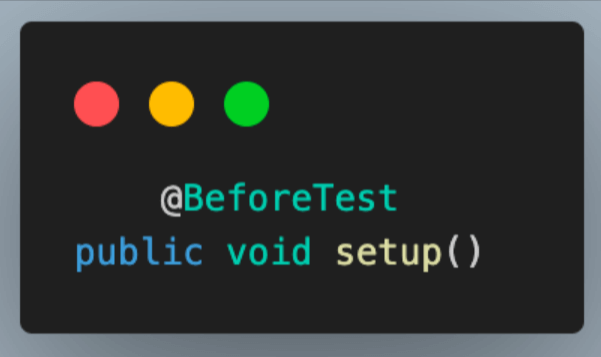
- Add the first method as setup() and annotate it with @BeforeTest annotation to execute it before each test for driver setup and connecting to the TestMu AI cloud grid.
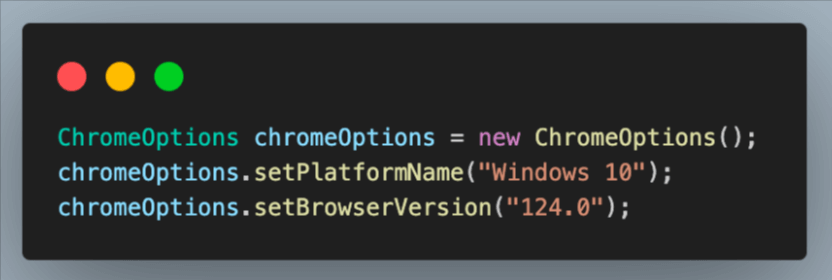
- Within this function, create an object of the ChromeOptions class, which defines browser properties like browser version, OS version, etc.
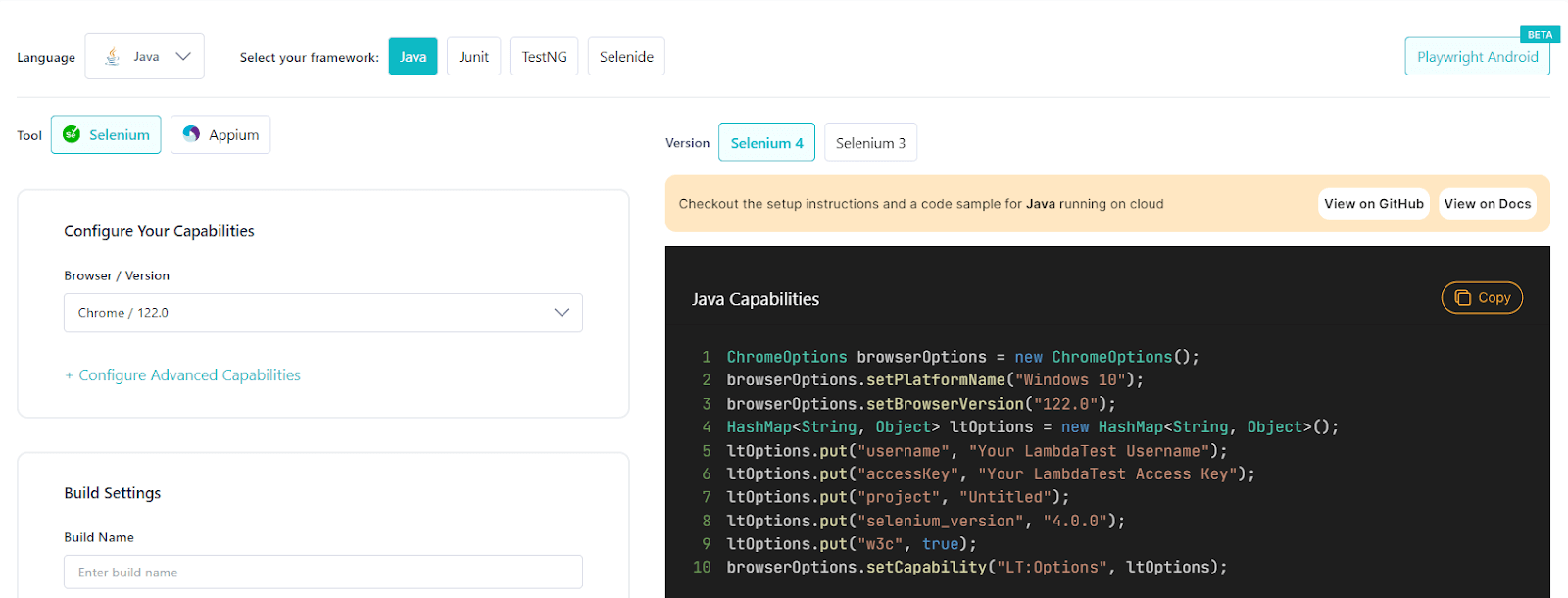
- Next, define some additional variables for test execution on TestMu AI. These variables are used to set values like build, name, or other browser property/behavior. This is done with the help of a HashMap variable, which is then passed to chromeOptions.
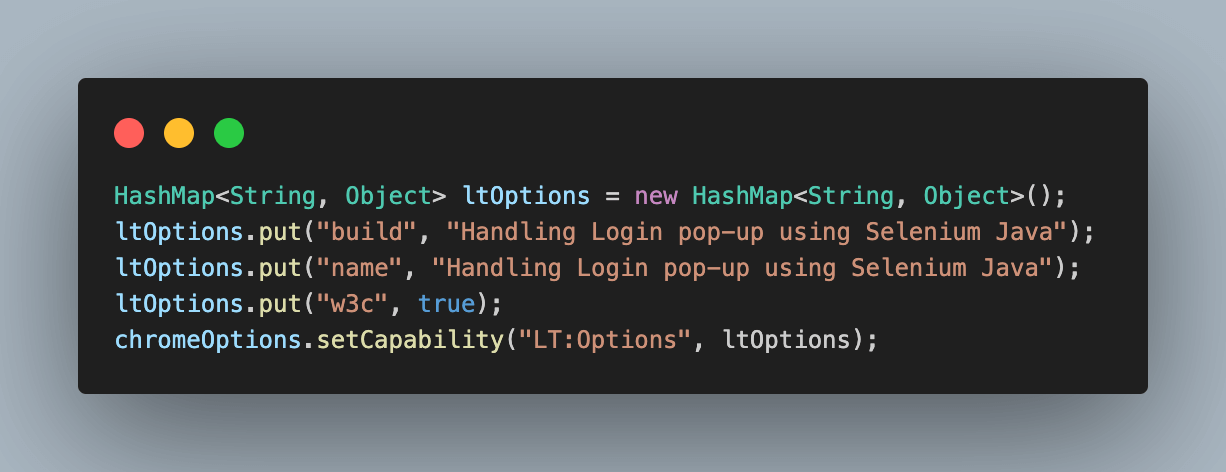
TestMu AI provides a way to easily retrieve these properties and values using the TestMu AI Capabilities Generator. You only must select the required operating system, browser combination, and versions. The rest is done for you, and you have the code ready.
- Finally, create an instance of RemoteWebDriver to connect to the TestMu AI cloud grid using all these properties.
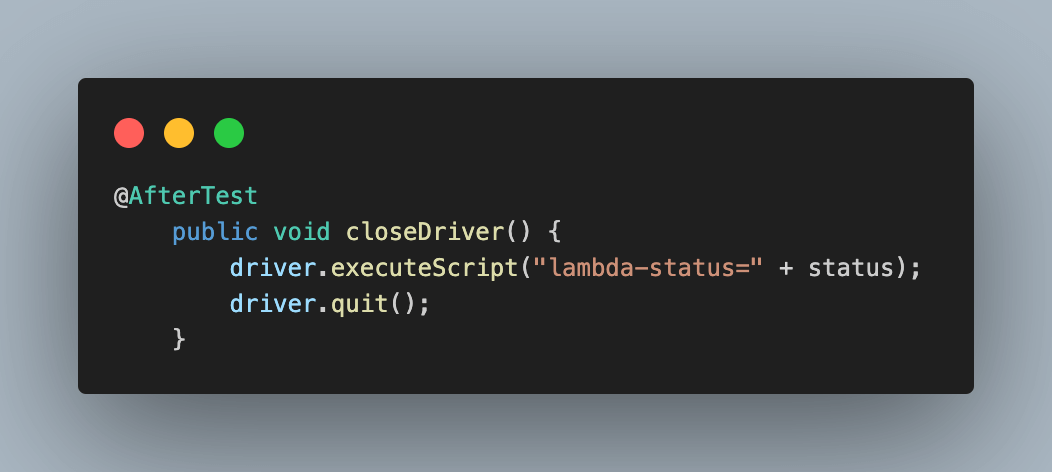
- Add another method as closeDriver() and annotate it with @AfterTest to execute after each test execution. This method updates the test status on the TestMu AI dashboard and terminates the browser and driver session.


We are ready with the required configuration to set up and connect with the TestMu AI cloud grid in the BaseTest.file.
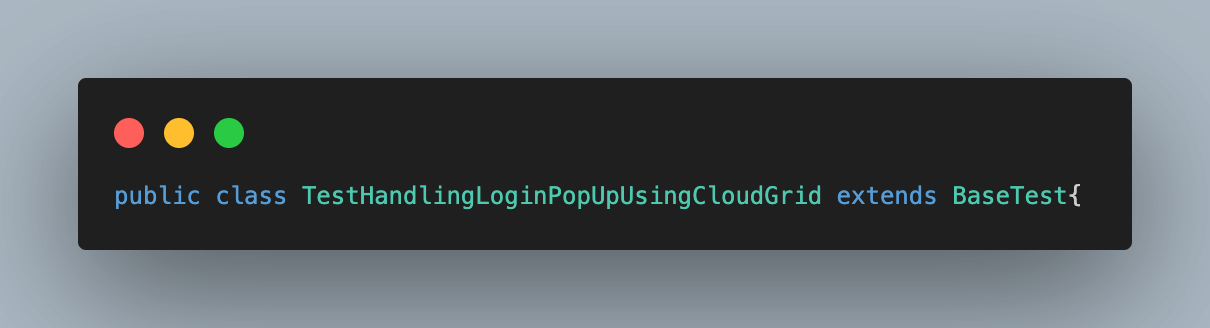
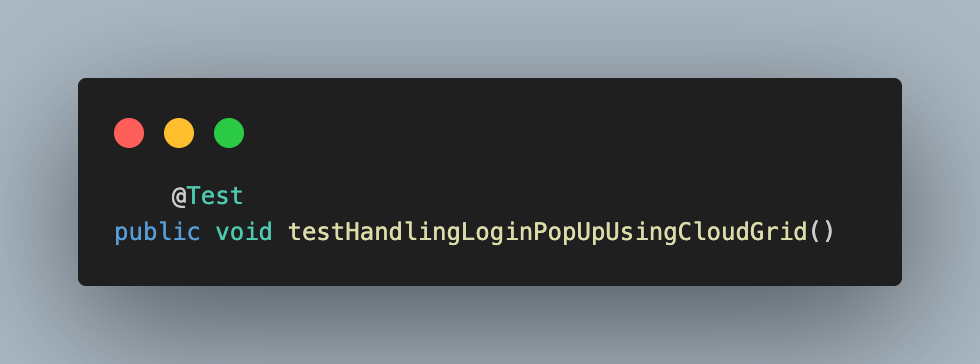
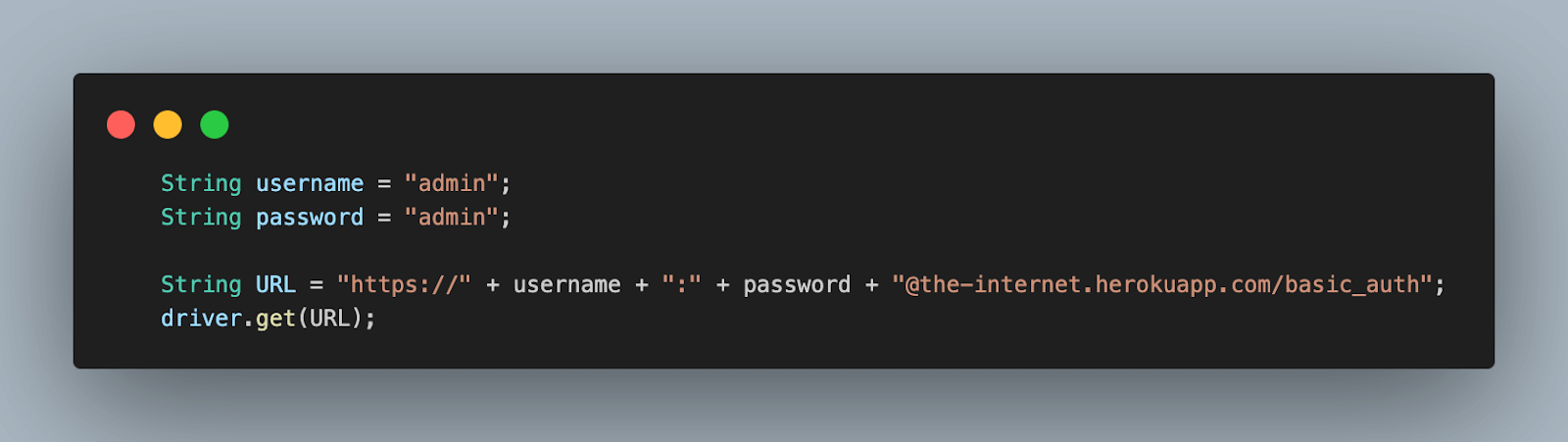
We will now have to create a test file named TestHandlingLoginPopUpUsingCloudGrid.java. This file consists of the same code used for the first method, which is handling authentication popups by passing the username and password in the web page URL.
package CloudGrid;


import org.openqa.selenium.By;
import org.testng.annotations.Test;


public class TestHandlingLoginPopUpUsingCloudGrid extends BaseTest{


   @Test
   public void testHandlingLoginPopUpUsingCloudGrid()
   {
       String username = "admin";
       String password = "admin";

       String URL = "https://" + username + ":" + password + "@the-internet.herokuapp.com/basic_auth";
       driver.get(URL);


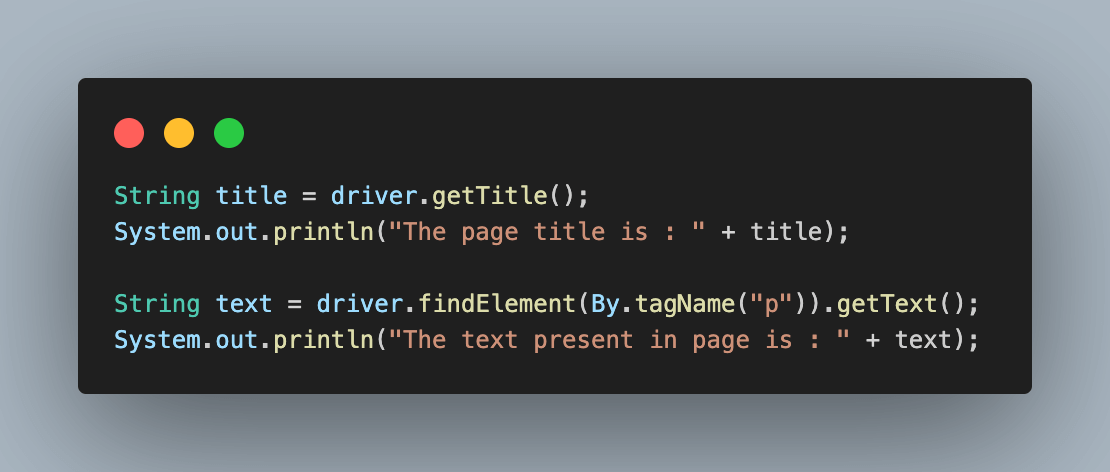
       String title = driver.getTitle();
       System.out.println("The page title is : " + title);


       String text = driver.findElement(By.tagName("p")).getText();
       System.out.println("The text present in page is : " + text);


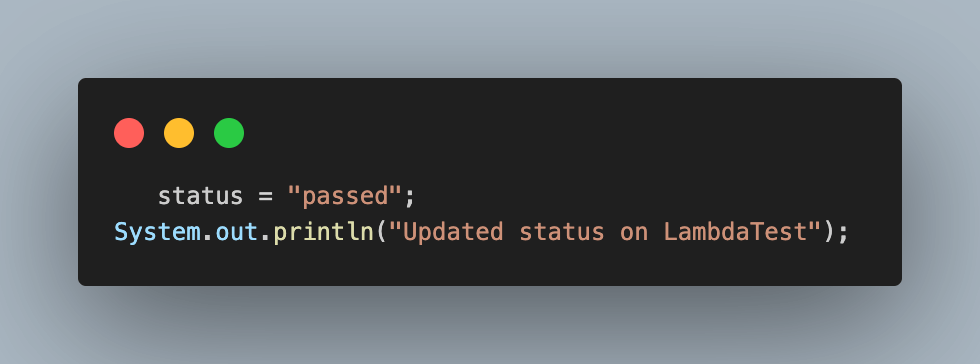
       status = "passed";
       System.out.println("Updated status on LambdaTest");
   }
}
Below is the detailed code walkthrough to help you understand how each code instruction works.
Code Walkthrough:
- Create a test class file TestHandlingLoginPopUpUsingCloudGrid, and inherit the BaseTest.
- Add the test case and annotate it with @Test annotation to execute it as the TestNG test case.
- Set the credentials to authenticate the user and navigate to the test web page URL as you did earlier.
- Fetch the page title and successful authentication message and print on the console.
- Set the status as passed to update the TestMu AI dashboard results.
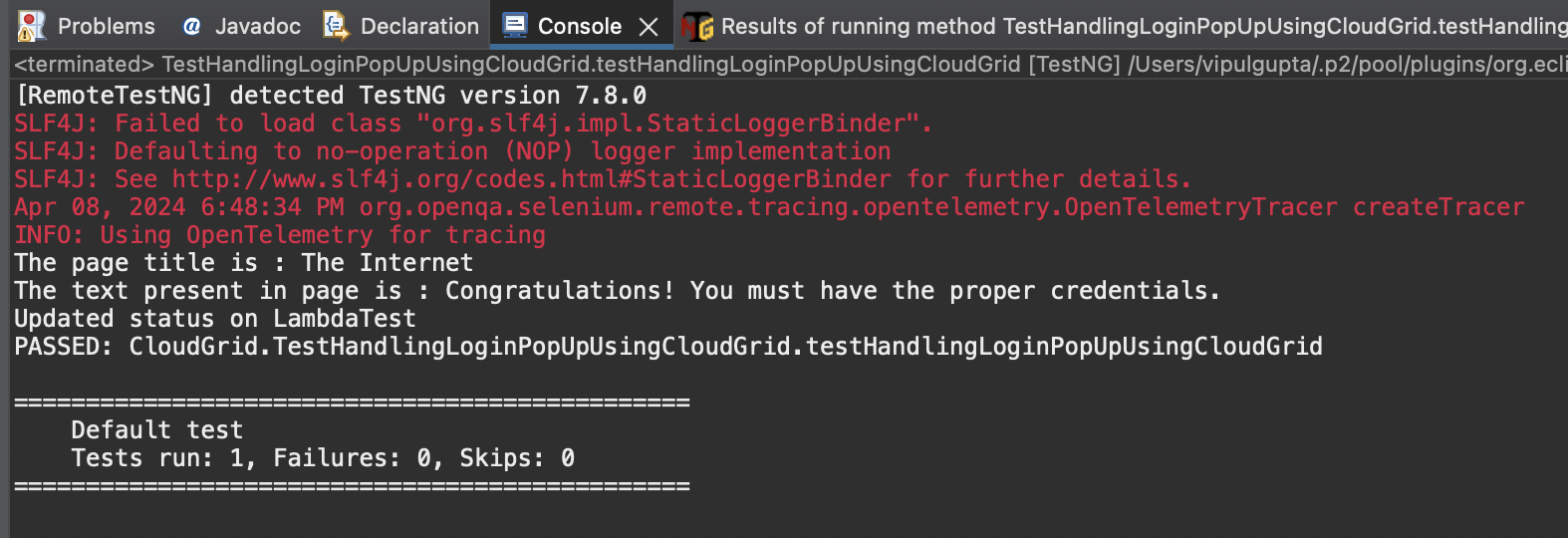
Output:
Executing the above test case will give output like the one below on the console.
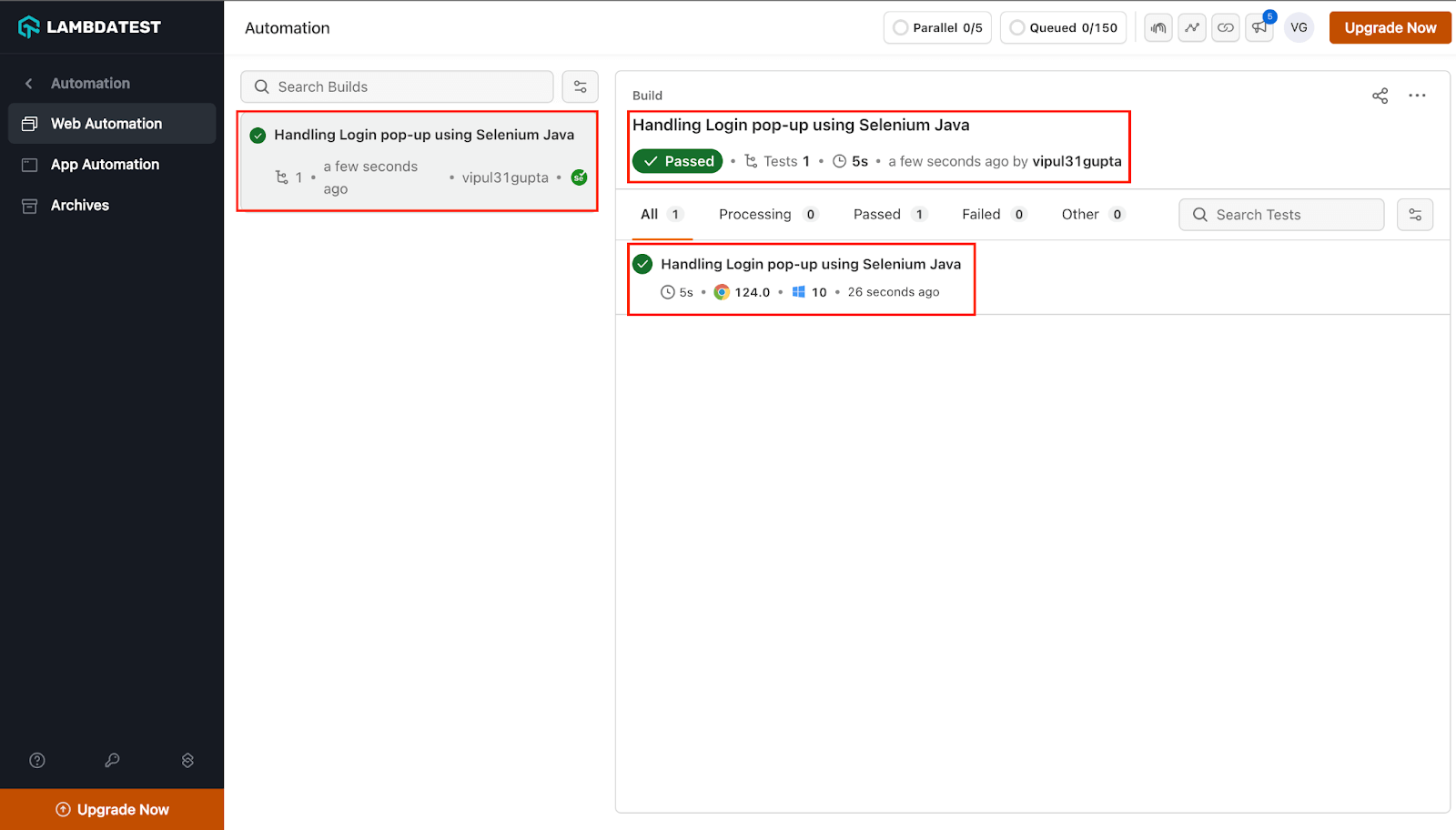
Result:
Since you run your tests on the TestMu AI platform, you can easily access detailed test logs on the TestMu AI Web Automation Dashboard. These logs include:
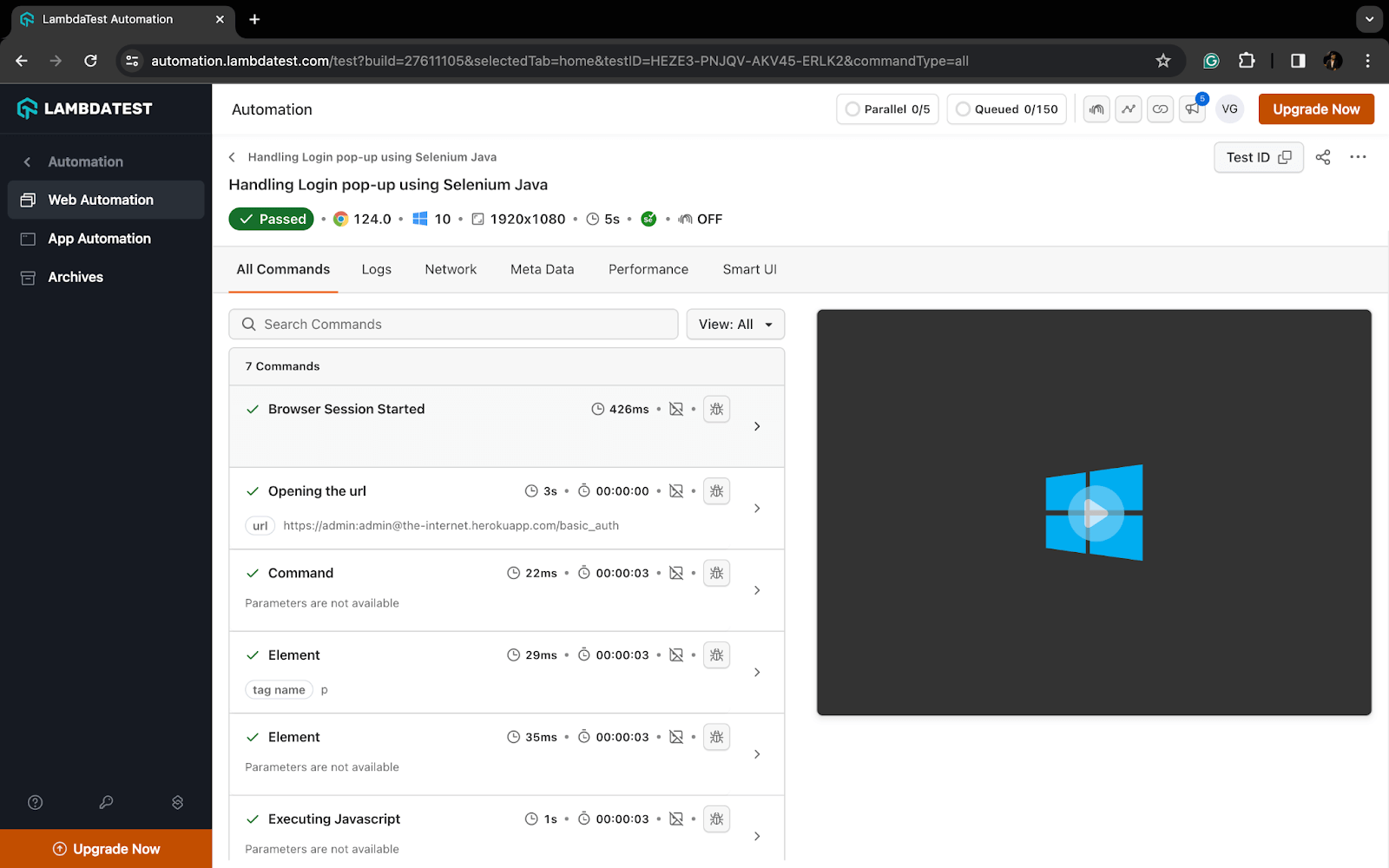
- Video Recordings: Watch replays of your test execution to visualize each step.
- Automation Script Steps: Review the automation script steps taken during the test.
- Network and Console Logs: Analyze network traffic and console messages for deeper troubleshooting
Your executed test cases are under Automation > Web Automation on the Web Automation Dashboard, as shown below.
To see the detailed execution for your case, click on the test case, and you can see the details like the following:
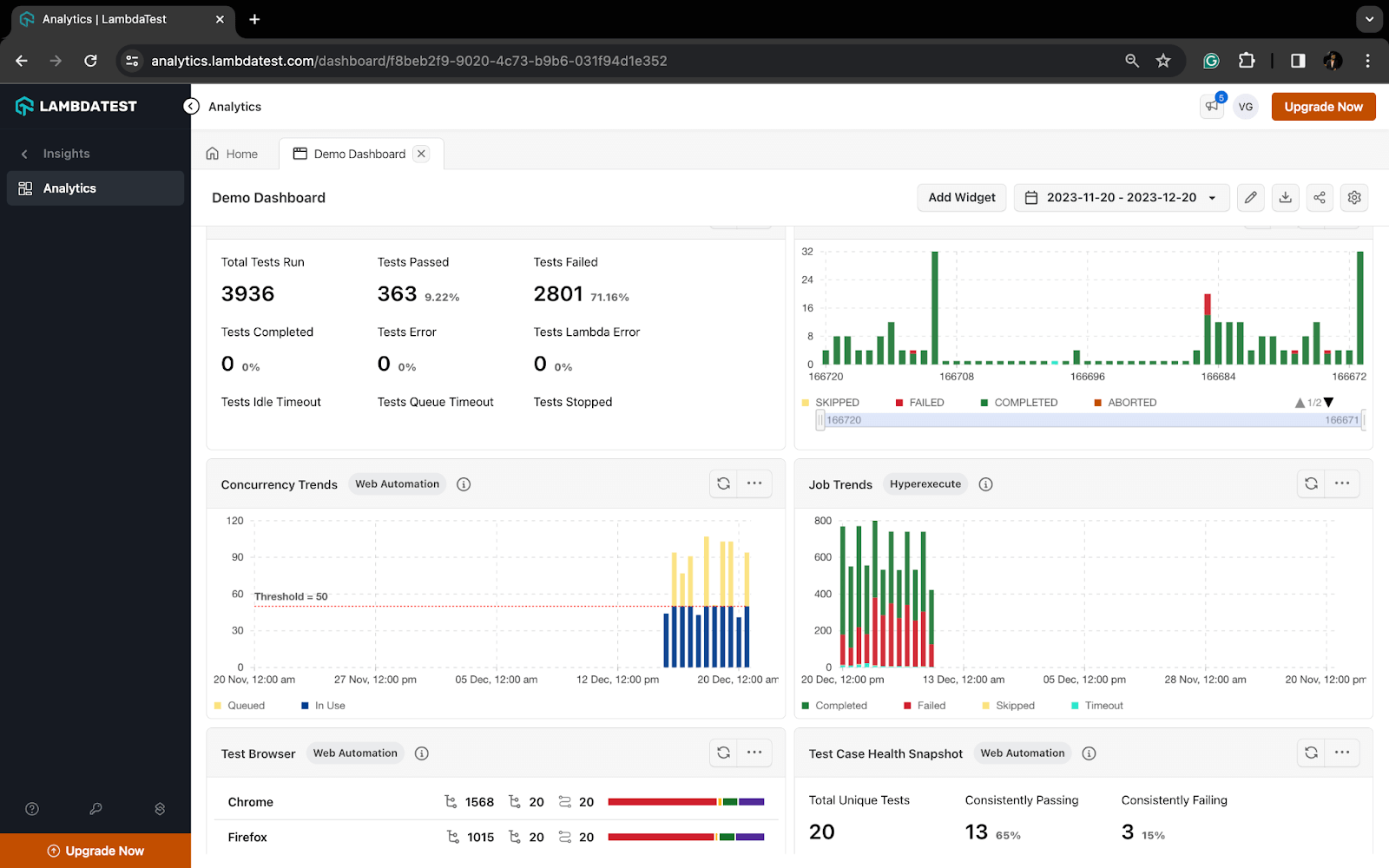
In addition to detailed logs, you can gain valuable insights into your test performance using the TestMu AI Analytics Dashboard.
Here’s how to access it:
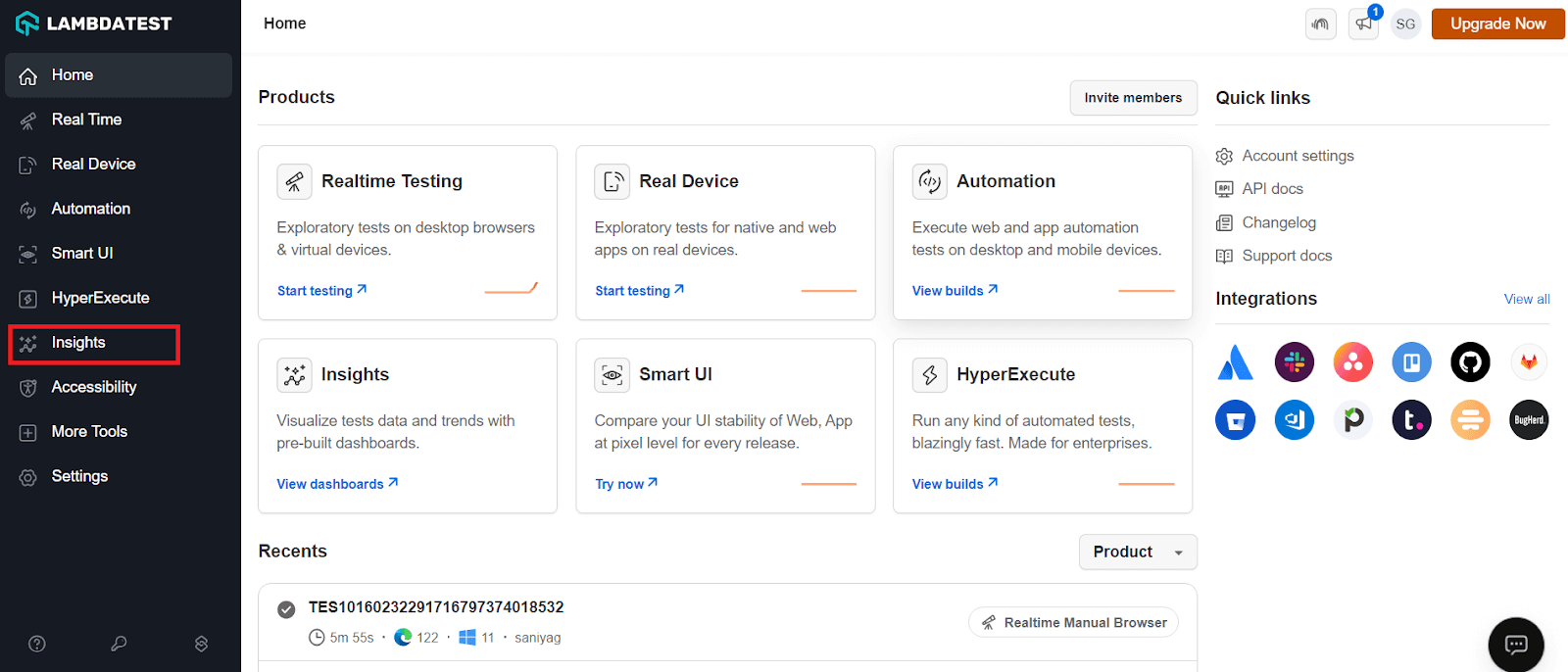
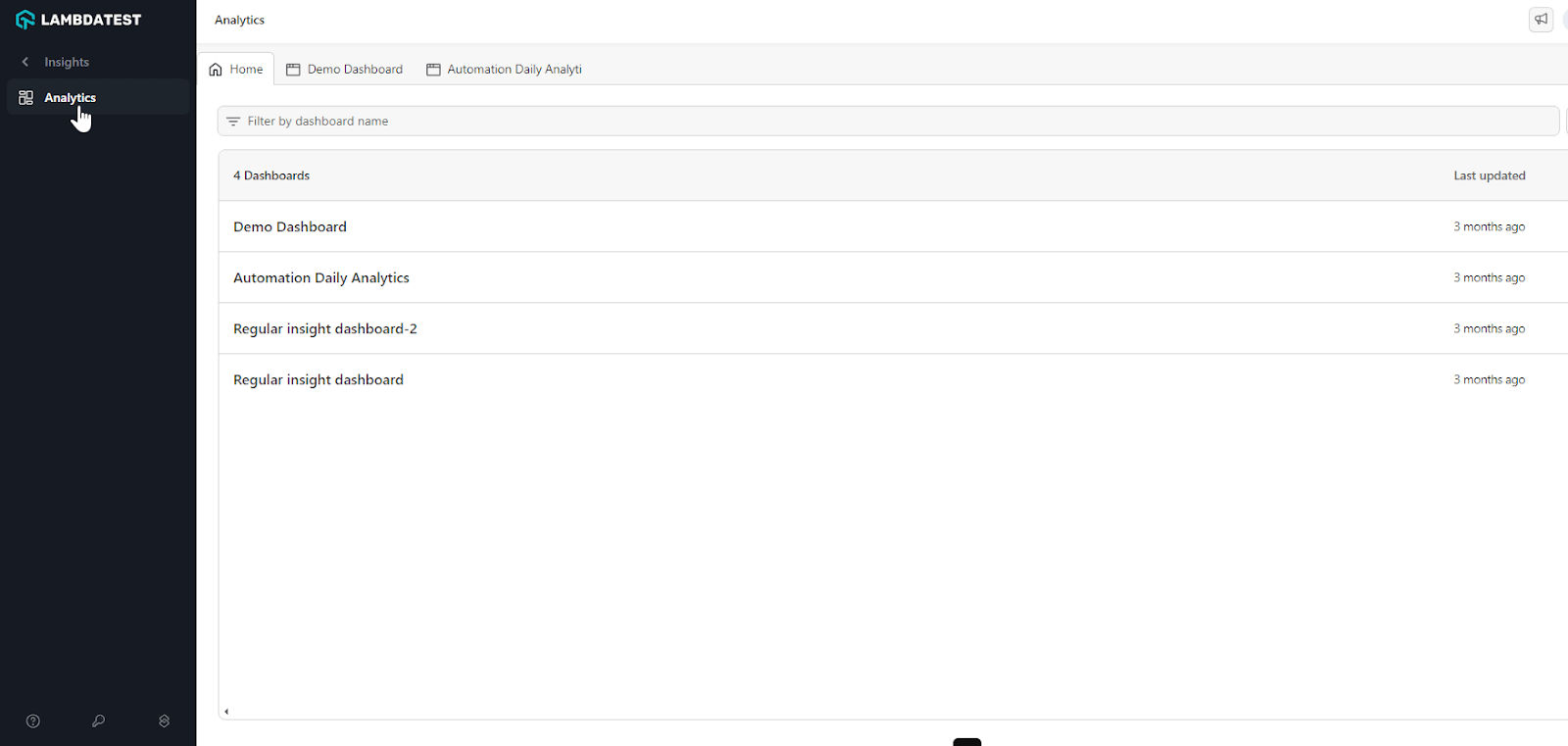
- Navigate to Analytics: In the TestMu AI platform, locate the Insights section and select Analytics.
- View Test Results: The dashboard will display key metrics like the number of passed and failed tests. Additionally, you’ll see data trends to help you analyze test runs and compare results over time.

Wrap Up
To summarize, we have seen different ways of handling authentication popups in Selenium WebDriver using Java on both the local and cloud grid. We gained an understanding of how to do the same in your automation scripts, depending on the use case. It’s time for you now to go ahead and handle these authentication popups. Happy Testing…! 😊


Frequently asked questions
Did you find this page helpful?
More Related Hubs
TestMu AI forEnterprise
Get access to solutions built on Enterprise
grade security, privacy, & compliance
- Advanced access controls
- Advanced data retention rules
- Advanced Local Testing
- Premium Support options
- Early access to beta features
- Private Slack Channel
- Unlimited Manual Accessibility DevTools Tests