

Next-Gen App & Browser Testing Cloud
Trusted by 2 Mn+ QAs & Devs to accelerate their release cycles


How To Create Data Driven Framework In Selenium
In this blog, we deep dive into the nuances of data driven tests in Selenium and how the popular Data Driven Framework in Selenium can be used for realizing data driven testing as well as cross browser testing.

Himanshu Sheth
January 21, 2026
The efficiency of test automation largely depends on how well the ‘functionality under test’ is behaving against different input combinations. For instance, an email provider would have to verify different screens like login, sign-up, etc., by supplying different input values to the scenarios. However, the effort involved in maintaining the test code rises significantly with new functionalities in the web product.
The question that needs to be asked is, “Should changes in the business rules lead to new test scenarios, or can existing test scenarios be extended to suit the needs of the new rules?” This is where Data Driven Framework in Selenium can come in super handy, as it enables the QA engineer to test different scenarios using different data sets. The beauty of the Data Driven Testing Framework in Selenium lies in the fact that there is a clear bifurcation of the test code and test data. The test data is kept in an external data feed like MS Excel Sheets, CSV Files, and more.
In this Selenium Java tutorial, we deep dive into the nuances of data driven tests in Selenium and how the popular Data Driven Framework in Selenium can be used for realizing data driven testing as well as . The demonstration of the Data Driven Framework in Selenium WebDriver is performed using the TestNG framework and Apache POI (Poor Obfuscation Implementation) API in Selenium.
If you’re looking to improve your Selenium interview skills, check out our curated list of Selenium interview questions and answers.
Introduction to Data Driven Testing in Selenium WebDriver
As new functionalities (or features) are added to a web product, test cases (or test suites) must be implemented to test the new set of features. Before adding a new test case, you should have relevant answers to the following questions:
- Do we really need to develop a new test case for verifying the corresponding functionality?
- functionality? Is it feasible to modify an existing test case to suit the testing needs of the feature under test?
- Is it possible to change the existing test implementation so that the said ‘product features’ can be tested against different input combinations (or data sets)?
- Is it required to add new test implementation when there are minimal changes in the business rules?
- Is there a more optimal way to separate the test data from the test implementation?
The answers to the questions mentioned above lie with Data Driven Testing in Selenium WebDriver.
What is Data Driven Testing?
Data Driven Testing is a strategic approach that involves executing a set of test script actions in a repetitive manner, each time utilizing distinct input values sourced from an associated data repository. This technique enhances efficiency by decoupling the ‘test_case‘ code from the underlying ‘data_set,’ streamlining testing processes. It is one of the widely-used automation testing best practices for verifying the behavior and efficiency of tests when handling various types of input values. You can learn more about the different testing methods by reading the article on TDD vs BDD: Choosing The Suitable Framework.
Here are the popular external data feed or data sources in data driven testing:
- MS Excel Sheets (.xls, .xlsx)
- CSV Files (.csv)
- XML Files (.xml)
- MS Access Tables (.mdb)
The data feed or data source not only contains the input values used for Selenium automation testing but can also be used for storing the expected test result and the output test result. This can be useful in comparing the test execution result and storing the same for referring to later stages.
Advantages of Data Driven Testing
Some of the significant benefits of Data Driven Testing are:
- Data Driven Testing accelerates the process of efficiently performing regression testing on the features of a web product. Regression tests can be used to verify end-to-end workflow logic across using different values stored in external data sources.
- Data Driven Tests are easier to maintain since the test logic is logically separated from the data used for testing the logic. Hence, minor business rules changes might only create new scenarios and additional data sets against which the tests have been verified.
- Data Driven Tests are useful for record-keeping since you can store the test execution status along with the input values against which the test automation was run.
- Data Driven Testing is a preferred choice for iteratively testing the application (or web product) against a large data set. The data set can contain input values covering positive and negative test scenarios, thereby helping achieve improved test efficiency and coverage.
Now that we have covered the basics of data driven testing let’s have a look at the Data Driven Framework in Selenium WebDriver and how data driven testing in Selenium WebDriver can be realized using Apache POI.
Data Driven Framework in Selenium WebDriver
Data Driven Framework is a highly effective and widely utilized automation testing framework that enables iterative development and testing. It follows the principles of data-driven testing, allowing you to drive test cases and test suites using external data feeds such as Excel Sheets (xls, xlsx), CSV files (csv), and more. By establishing a connection with the external data source, the test script seamlessly performs the required operations on the test data, ensuring efficient and accurate testing.
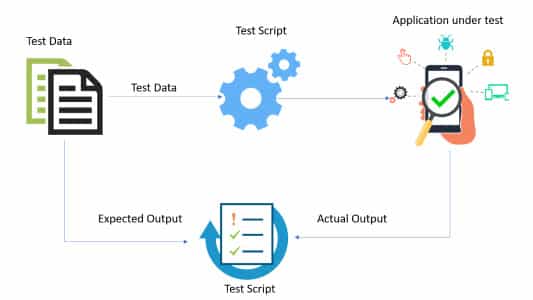
Using the Data Driven Framework in Selenium WebDriver, the test data set is separated from the test implementation, reducing the overall effort involved in maintaining and updating the test code. Minimal changes in the business rules will require changes in the test data set, with/without minimal (or no) changes in the test code.
Selenium WebDriver lets you perform automated cross browser testing on web applications; however, it does not have the support to perform create, read, update, and delete (CRUD) operations on external data feeds like Excel sheets, CSV files, and more. This is where third-party APIs like Apache POI has to be used since it lets you access and performs relevant operations on external data sources.

What is Apache POI
Apache POI (Poor Obfuscation Implementation) is an open-source library developed and distributed by the Apache Software Foundation. It is the most commonly used API for realizing data driven tests in Selenium.
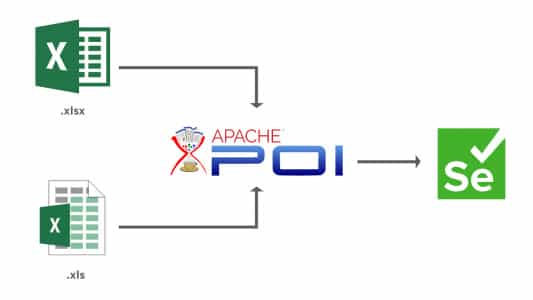
The API provided by the library files in Apache POI lets the user manipulate Microsoft Documents – Excel files (*.xls, *.xlsx), Doc files (*.doc), and more. In a nutshell, Apache POI is the Java Excel solution that lets you read/write/modify data from/to external data feeds.
Also Read – Everything You Need To Know about API testing
Handling Excel Files using Apache POI
The Apache POI consists of classes and methods that simplify processing MS Excel sheets in Java. Therefore, it is important to be well-versed with the common terminologies used when working with MS Excel.
- Workbook – A Workbook in Microsoft Excel is primarily used to create and maintain the Spreadsheet (or Sheet). It can contain one or more spreadsheets.
- Sheet – A Sheet in a workbook is a page made up of Rows and Columns.
- Row – A Row in a Sheet runs horizontally and is represented as a collection of Cells.
- Cell – A Cell in a Sheet is represented by a Row and Column combination. Data entered by the user is stored in a cell. For example – Cell (0, 1) indicates the data is stored in Row: 0 and Column: 1.
The Apache POI library provides an HSSF implementation for performing operations on MS Excel files in the .xls format. On the other hand, XSSF implementation in Apache POI lets you perform operations on MS Excel Files in the .xlsx format.
Handling .xls Files using Apache POI
For reading .xls files, HSSF implementation is provided by the Apache POI library. The methods used for performing operations on the .xls files are available in the classes that belong to the org.apache.poi.hssf.usermodel package.
Here are the important classes & methods in the org.apache.poi.hssf.usermodel package that helps in performing CRUD operations on .xls files:
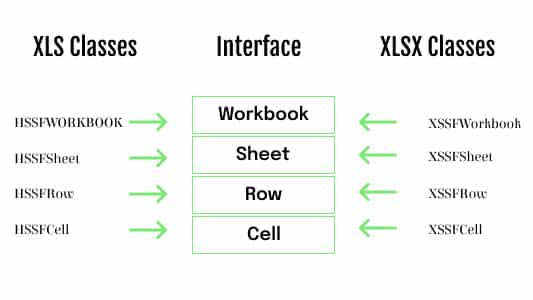
- HSSFWorkbook – Represents a Workbook in the .xls format
- HSSFSheet – Represents a Sheet in the .xls workbook
- HSSFRow – Represents a Row in the .xls file
- HSSFCell – Represents a Cell in the Row of the .xls file
Using Apache POI with Java and TestNG makes it easy to manage the Apache POI Selenium Maven dependency in the pom.xml file. You could refer to our detailed blog on Maven for Selenium Testing for a quick recap on Maven with Selenium.
Here is the Maven dependency for using the Apache POI library to access .xls files in Java:
<dependencies>
[....]
	<dependency>
		<groupId>org.apache.poi</groupId>
		<artifactId>poi</artifactId>
		<version>4.1.2</version>
	</dependency>
[....]
</dependencies>
Handling .xlsx Files using Apache POI
For reading .xlsx files, XSSF implementation is provided by the Apache POI library and the org.apache.poi.xssf.usermodel package contains classes and methods that let you achieve the same.
Here are the important classes & methods in the org.apache.poi.xssf.usermodel package that helps in performing CRUD operations on .xlsx files:
- XSSFWorkbook – Represents a Workbook in the .xlsx format
- XSSFSheet – Represents a Sheet in the .xlsx workbook
- XSSFRow – Represents a Row in the .xlsx file
- XSSFCell – Represents a Cell in the Row of the .xlsx file
Here is the Maven dependency for using the Apache POI library to access .xlsx files in Java:
<dependencies>
[....]
	<dependency>
		<groupId>org.apache.poi</groupId>
		<artifactId>poi-ooxml</artifactId>
		<version>4.1.2</version>
		<scope>test</scope>
	</dependency>
[....]
</dependencies>
Shown below is the Apache POI Selenium Maven dependency that would download the libraries for accessing the .xls and .xlsx Excel formats:
<dependencies>
[....]
	<!-- Apache POI - Accessing xls format -->
	<dependency>
		<groupId>org.apache.poi</groupId>
		<artifactId>poi</artifactId>
		<version>4.1.2</version>
	</dependency>
	<!-- Apache POI - Accessing xlsx format -->
	<dependency>
		<groupId>org.apache.poi</groupId>
		<artifactId>poi-ooxml</artifactId>
		<version>4.1.2</version>
		<scope>test</scope>
	</dependency>
[....]
</dependencies>
The Enum CellType contains the different field types that can be accessed to get the Cell Type (i.e., String, Boolean, etc.).
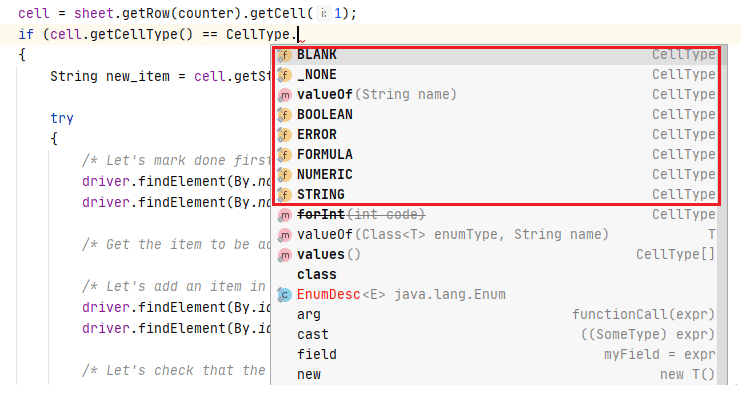
Here are the following fields in a Cell (that is accessible via the getCellType() method):
- CellType. _NONE – Represents a state before the initialization or the lack of a concrete type
- CellType.NUMERIC – Represents numeric data in a Cell
- CellType.STRING – Represents String in a Cell
- CellType.FORMULA – Represents Formula result that is applied on the Cell
- CellType.BLANK – Represents an Empty Cell
- CellType.BOOLEAN – Represents a Boolean value in a Cell
- CellType.ERROR – Represents an Error value in a Cell
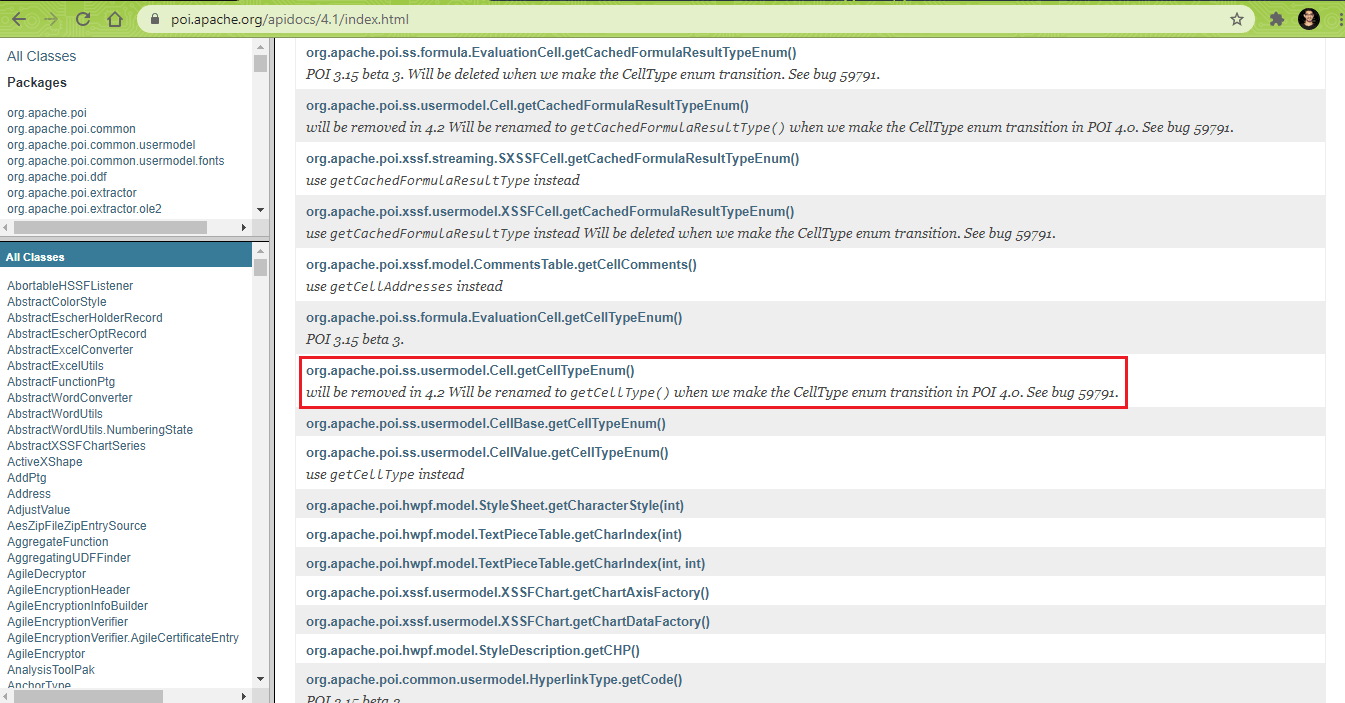
At the time of writing this blog, the latest version of Apache POI was 4.1.2. It is recommended to look at the methods, interfaces, classes, enums, and deprecations in the Apache POI 4.1 documentation. For example, the getCellTypeEnum() will be removed in Apache POI 4.2 and the same has been renamed to getCellType(). It is essential to use the latest (or up to date) classes and APIs so that the implementation works flawlessly even when we migrate to future versions of Apache POI (e.g., 4.2, 5.0)
Here is the pictorial view of the classes and interfaces that are widely used when accessing .xls and .xlsx files using Java and Apache POI:
Now that we have covered the essential fundamentals of the Data Driven Framework in Selenium WebDriver, we take a look at how Apache POI can be used with Maven and TestNG to realize data driven testing in Selenium.

Austin Siewert
CEO, Vercel
Discovered @TestMu AI yesterday. Best browser testing tool I've found for my use case. Great pricing model for the limited testing I do 👏
2M+ Devs and QAs rely on TestMu AI
Deliver immersive digital experiences with Next-Generation Mobile Apps and Cross Browser Testing Cloud

Excelling with automated testing is a vital and competent skill today and can present you with a viable future. TestNG will equip you with the right skill set needed to begin your journey as an automation expert. TestNG certification from TestMu AI can help you take your test engineering skills to the next level.
Here’s a short glimpse of the TestNG certification offered by TestMu AI:
How to create Data Driven Framework in Selenium WebDriver using Apache POI
In this section of this Selenium Java tutorial, we look at how to perform read, write, and update operations on Excel files that are available in the .xls and .xlsx formats. Here are the prerequisites for implementing the Data Driven Framework in Selenium:
- IDE – IntelliJ IDEA (or Eclipse IDE)
- Framework – TestNG
- MS Excel – .xls and .xlsx files that would contain the data for realizing data driven testing
For demonstration, we create a Data Driven Project with Maven with the following structure:
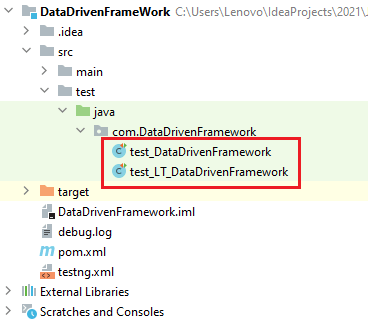
The following class files are created under the package named ‘DataDrivenFramework’:
- test_DataDrivenFramework.java
- test_LT_DataDrivenFramework.java
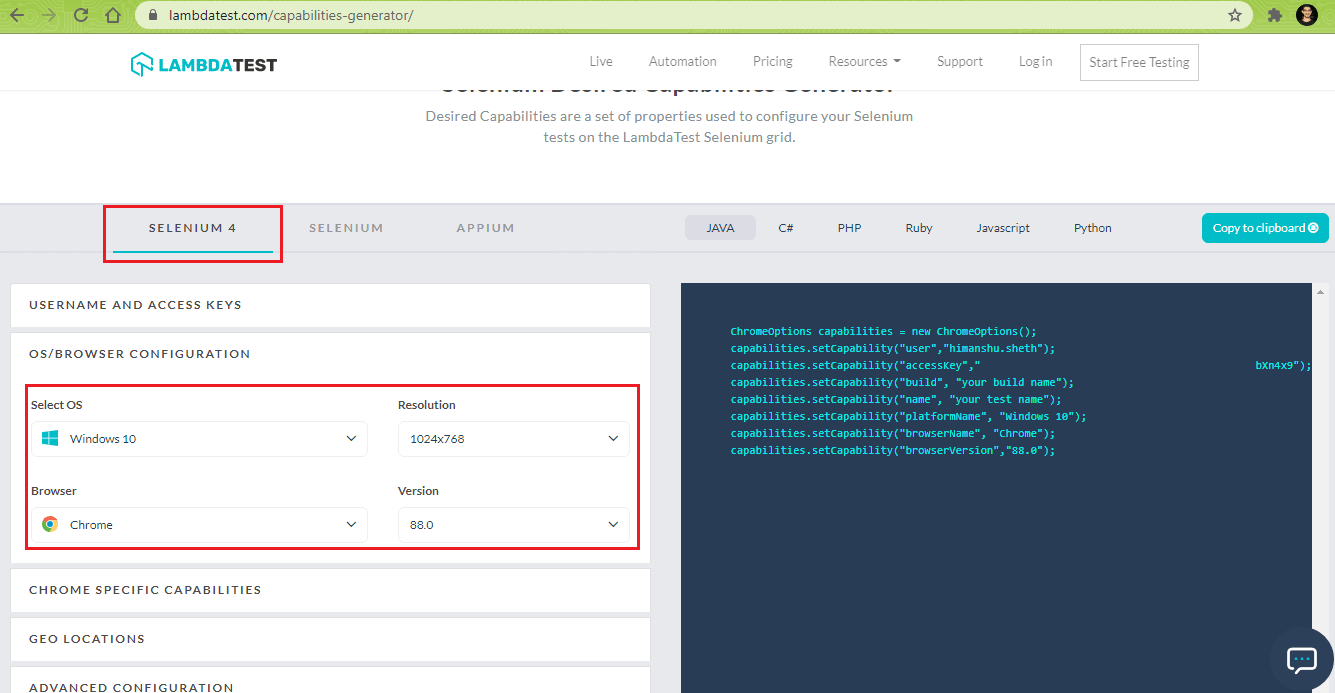
The tests demonstrating Data Driven Framework in Selenium WebDriver are run on cloud-based online Selenium Grid by TestMu AI. To get started with TestMu AI, we create a profile on TestMu AI and note the user name & access key available on the TestMu AI profile page. Then, the Desired Capabilities for the browser & OS combination under test is generated using the TestMu AI Capabilities Generator, and the respective tests are run on TestMu AI’s Selenium 4 Grid.
Shown below is pom.xml (that contains the required dependencies) and testng.xml (that contains the test classes to be run):
<?xml version="1.0" encoding="UTF-8"?>
<project xmlns="http://maven.apache.org/POM/4.0.0"
         xmlns:xsi="http://www.w3.org/2001/XMLSchema-instance"
         xsi:schemaLocation="http://maven.apache.org/POM/4.0.0 http://maven.apache.org/xsd/maven-4.0.0.xsd">
    <modelVersion>4.0.0</modelVersion>

    <groupId>org.ddf</groupId>
    <artifactId>DataDrivenFramework</artifactId>
    <version>1.0-SNAPSHOT</version>

    <dependencies>
        <dependency>
            <groupId>org.testng</groupId>
            <artifactId>testng</artifactId>
            <version>6.9.10</version>
            <scope>test</scope>
        </dependency>
        <dependency>
            <groupId>org.slf4j</groupId>
            <artifactId>slf4j-nop</artifactId>
            <version>1.7.28</version>
            <scope>test</scope>
        </dependency>
        <dependency>
            <groupId>org.seleniumhq.selenium</groupId>
            <artifactId>selenium-java</artifactId>
            <version>4.0.0-alpha-7</version>
        </dependency>
        <dependency>
            <groupId>org.seleniumhq.selenium</groupId>
            <artifactId>selenium-remote-driver</artifactId>
            <version>4.0.0-alpha-7</version>
        </dependency>
        <dependency>
            <groupId>org.seleniumhq.selenium</groupId>
            <artifactId>selenium-chrome-driver</artifactId>
            <version>4.0.0-alpha-7</version>
        </dependency>
        <dependency>
            <groupId>junit</groupId>
            <artifactId>junit</artifactId>
            <version>4.12</version>
            <scope>test</scope>
        </dependency>
        <!-- https://mvnrepository.com/artifact/org.apache.poi/poi -->
        <dependency>
            <groupId>org.apache.poi</groupId>
            <artifactId>poi</artifactId>
            <version>4.1.2</version>
        </dependency>
        <dependency>
            <groupId>org.apache.poi</groupId>
            <artifactId>poi-ooxml</artifactId>
            <version>4.1.2</version>
            <scope>test</scope>
        </dependency>
    </dependencies>

    <build>
        <defaultGoal>install</defaultGoal>
        <plugins>
            <plugin>
                <artifactId>maven-compiler-plugin</artifactId>
                <version>3.0</version>
                <configuration>
                    <source>1.8</source>
                    <target>1.8</target>
                </configuration>
            </plugin>
            <plugin>
                <groupId>org.apache.maven.plugins</groupId>
                <artifactId>maven-compiler-plugin</artifactId>
                <configuration>
                    <source>11</source>
                    <target>11</target>
                </configuration>
            </plugin>
        </plugins>
    </build>
</project>
FileName – pom.xml
<?xml version="1.0" encoding="UTF-8"?>
<!DOCTYPE suite SYSTEM "http://testng.org/testng-1.0.dtd">
<suite name="All Test Suite">
    <test verbose="2" preserve-order="true" name="DataDrivenFrameWork">
        <classes>
            <class name="com.DataDrivenFramework.test_DataDrivenFramework">
            </class>
            <class name="com.DataDrivenFramework.test_LT_DataDrivenFramework">
            </class>
        </classes>
    </test>
</suite>
Now, let’s look at the different ways in which Data Driven Framework in Selenium is used along with Apache POI for running automated browser testing scenarios.
Read and Write data from & to Excel sheets (.xls) in Selenium using Apache POI
For performing CRUD operations on MS Excel sheets in the .xlsx format, we use the XSSF implementation provided by the Apache POI library.
Test Scenario
- (a) 🡪 Search for ‘TestMu AI’ on Bing.com
- (b) 🡪 Search for ‘TestMu AI Blog’ on Bing.com
- Click on the First test result
- Assert if the current page title does not match with the expected page title
- Append the corresponding test result in the cell next to the test case
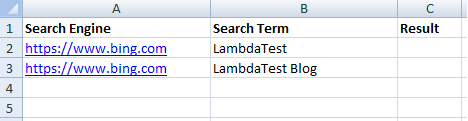
Here is the content of the MS Excel File (i.e., Test_1.xls) that contains details of the test scenario:
Implementation
package com.DataDrivenFramework;

import java.io.*;
import java.net.MalformedURLException;
import java.net.URL;

import org.apache.poi.hssf.usermodel.HSSFWorkbook;
import org.apache.poi.ss.usermodel.*;
import org.apache.poi.xssf.usermodel.XSSFWorkbook;
import org.openqa.selenium.*;
import org.openqa.selenium.chrome.ChromeDriver;
import org.openqa.selenium.remote.DesiredCapabilities;
import org.openqa.selenium.remote.RemoteWebDriver;
import org.testng.Assert;
import org.testng.annotations.AfterClass;
import org.testng.annotations.BeforeTest;
import org.testng.annotations.DataProvider;
import org.testng.annotations.Test;

public class test_DataDrivenFramework
{
    WebDriver driver;
    XSSFWorkbook workbook;
    Sheet sheet;
    Cell cell;

    String username = "user-name";
    String access_key = "access-key";

    @BeforeTest
    public void init() throws InterruptedException, MalformedURLException
    {
        DesiredCapabilities capabilities = new DesiredCapabilities();
        capabilities.setCapability("build", "[Java] Data Driven Framework in Selenium WebDriver");
        capabilities.setCapability("name", "[Java] Data Driven Framework in Selenium WebDriver");
        capabilities.setCapability("platformName", "OS X Yosemite");
        capabilities.setCapability("browserName", "MicrosoftEdge");
        capabilities.setCapability("browserVersion","81.0");
        capabilities.setCapability("tunnel",false);
        capabilities.setCapability("network",true);
        capabilities.setCapability("console",true);
        capabilities.setCapability("visual",true);

        driver = new RemoteWebDriver(new URL("http://" + username + ":" + access_key + "@hub.lambdatest.com/wd/hub"),
                capabilities);
        System.out.println("Started session");
    }

    @Test (description = "Testing data input from XLS (i.e. HSSF)", priority = 1, enabled = true)
    public void Test_ddf_hssf_input() throws IOException, InterruptedException
    {
        HSSFWorkbook workbook;
        String test_url = null;
        WebElement lt_link = null;
        String exp_title = null;

        /* Import Excel Sheet */
        File src=new File("C:\Folder\Test_1.xls");
        /* Load the file */
        FileInputStream fis = new FileInputStream(src);
        /* Load the workbook */
        workbook = new HSSFWorkbook(fis);

        /* Load the sheet in the workbook */
        /* Index = 0 --> Tab - 1 */
        sheet = workbook.getSheetAt(0);

        for(int counter = 1; counter <= sheet.getLastRowNum(); counter++)
        {
            /* Row - 0 --> Contains the site details and search term */
            /* Hence, we skip that row */
            cell = sheet.getRow(counter).getCell(0);
            /* Cell [1,0] contains the test URL */
            if (cell.getCellType() == CellType.STRING)
            {
                test_url = cell.getStringCellValue();
                driver.get(test_url);
            }

            /* Cell [1,1] --> Search Term */
            cell = sheet.getRow(counter).getCell(1);
            if (cell.getCellType() == CellType.STRING)
            {
                String search_string = cell.getStringCellValue();

                /* Let's perform the search operation */
                try
                {
                    /* Enter the search term in the Google Search Box */
                    WebElement search_box = driver.findElement(By.xpath("//input[@id='sb_form_q']"));
                    search_box.sendKeys(search_string + Keys.ENTER);
                    Thread.sleep(3000);

                    if (search_string.equalsIgnoreCase("LambdaTest")) {
                        lt_link = driver.findElement(By.xpath("//a[.='Most Powerful Cross Browser Testing Tool Online | LambdaTest']"));
                        exp_title = "Most Powerful Cross Browser Testing Tool Online | LambdaTest";
                    } else if (search_string.equalsIgnoreCase("LambdaTest Blog")) {
                        lt_link = driver.findElement(By.xpath("//a[.='LambdaTest | A Cross Browser Testing Blog']"));
                        exp_title = "LambdaTest | A Cross Browser Testing Blog";
                    }
                    if (lt_link!= null)
                        lt_link.click();
                    Thread.sleep(3000);

                    String curr_window_title = driver.getTitle();
                    Assert.assertEquals(curr_window_title, exp_title);

                    /* Write the result in the excel sheet */
                    /* Write Data in the Result Column */
                    FileOutputStream fos = new FileOutputStream(src);
                    String message = "Passed";
                    sheet.getRow(counter).createCell(2).setCellValue(message);
                    workbook.write(fos);
                    fos.close();
                } catch (Exception e) {
                    System.out.println(e.getMessage());
                }
            }
        }
    }
    @AfterClass
    public void tearDown()
    {
        if (driver != null)
        {
            driver.quit();
        }
    }
}
Code Walkthrough
1. Import the packages that contain the methods and interfaces for performing operations on .xls file
import org.apache.poi.ss.usermodel.*;
import org.apache.poi.xssf.usermodel.XSSFWorkbook;
2. The method implemented under the @BeforeTest annotation sets the desired browser capabilities. A RemoteWebDriver instance is created with the desired browser capabilities, with the Selenium Grid URL set to the cloud-based Selenium Grid on TestMu AI [ @hub.lambdatest.com/wd/hub ].
@BeforeTest
public void init() throws InterruptedException, MalformedURLException
{
      DesiredCapabilities capabilities = new DesiredCapabilities();
      capabilities.setCapability("build", "[Java] Data Driven Framework in Selenium WebDriver");
      capabilities.setCapability("name", "[Java] Data Driven Framework in Selenium WebDriver");
      capabilities.setCapability("platformName", "OS X Yosemite");
      capabilities.setCapability("browserName", "MicrosoftEdge");
      capabilities.setCapability("browserVersion","81.0");
      capabilities.setCapability("tunnel",false);
	driver = new RemoteWebDriver(new URL("http://" + username + ":" + access_key + "@hub.lambdatest.com/wd/hub"), capabilities);
}
3. Create a new workbook of type HSSFWorkbook. It will be further used when accessing the Sheet and reading/writing at appropriate cells in the Sheet.
public void Test_ddf_hssf_input() throws IOException, InterruptedException
{
	HSSFWorkbook workbook;
4. Create a Workbook object by referring to the FileInputStream object that points to the location where the Excel File (.xls) is located on the host machine.
File src=new File("C:\Folder\Test_1.xls");
FileInputStream fis = new FileInputStream(src);
5. Load the Excel Workbook using the FileInputStream object obtained from Step (4).
workbook = new HSSFWorkbook(fis);
6. Using the Workbook object, we access the Sheet at index ‘0’ using the getSheetAt method.
sheet = workbook.getSheetAt(0);
7. Row zero contains the Header (or title) in the sheet. Hence, that row is ignored. Cell (0,0) 🡪 Test URL, Cell (0, 1) 🡪 Search Term, and Cell (0,2) 🡪 Test Result. A for loop starting from 1 to the total number of rows (i.e., 2 in this case) obtained using getLastRowNum method of the Sheet class is run for executing the test scenarios 1(a) and 1(b).

for(int counter = 1; counter <= sheet.getLastRowNum(); counter++)
{
8. The getRow method returns the logical row number [i.e. 1 for test scenario -1(a) and 2 for test scenario – 1(b)]. Once we have the row number, the getCell(cell-number) method of the HSSFRow object is used for accessing the specific cell.
Shown below are the contents of the cells on Row – 1:
- Cell (1,0 ) 🡪https://www.bing.com
- Cell (1,1) 🡪 TestMu AI
- Cell (1,2) 🡪 Result (Test Status updated post test execution)
cell = sheet.getRow(counter).getCell(0);
9. Cell (1,0) contains the URL under test. Using the Cell obtained from step (8), the getStringCellValue method gets the value of the cell as a String. Next, we navigate to the test URL.
if (cell.getCellType() == CellType.STRING)
{
	test_url = cell.getStringCellValue();
	driver.get(test_url);
}
10. The required search terms are located in the following Cells:
- Cell (1,1) 🡪 TestMu AI
- Cell (2,1) 🡪 TestMu AI Blog
The getRow method returns the logical row number. For example, row number 1 represents Test Scenario – 1(a) and row number 2 represents Test Scenario – 1(b). Cell number remains unchanged. Hence it is hard coded to ‘1’. Finally, the search string is retrieved from the Cell using the getStringCellValue() method.

cell = sheet.getRow(counter).getCell(1);
String search_string = cell.getStringCellValue();
11. Now that we have the search string from the previous step, it is entered in the search box, and an Enter key is pressed to initiate the search operation. For test scenario 1(a), the search term is ‘TestMu AI,’ and for scenario 1(b), the search term is ‘TestMu AI Blog.’
Though the search terms for both tests are different, the overall execution path remains unchanged.
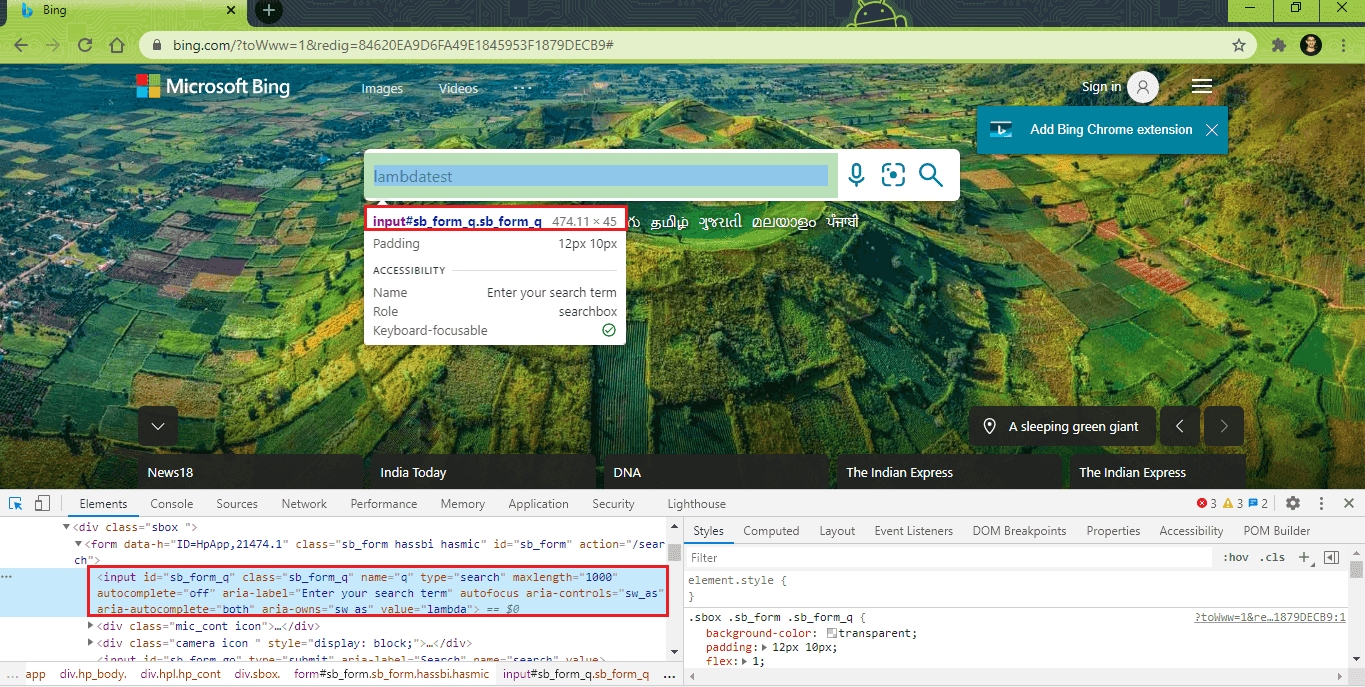
WebElement search_box = driver.findElement(By.xpath("//input[@id='sb_form_q']"));
search_box.sendKeys(search_string + Keys.ENTER);
12. Depending on the search term, the link that appears as the first result also changes. A case insensitive string comparison is done with the search term and based on the comparison result, and the top result link is located using the XPath property of the WebElement.
Also Read – XPath In Selenium With Examples
Test Scenario 1(a)
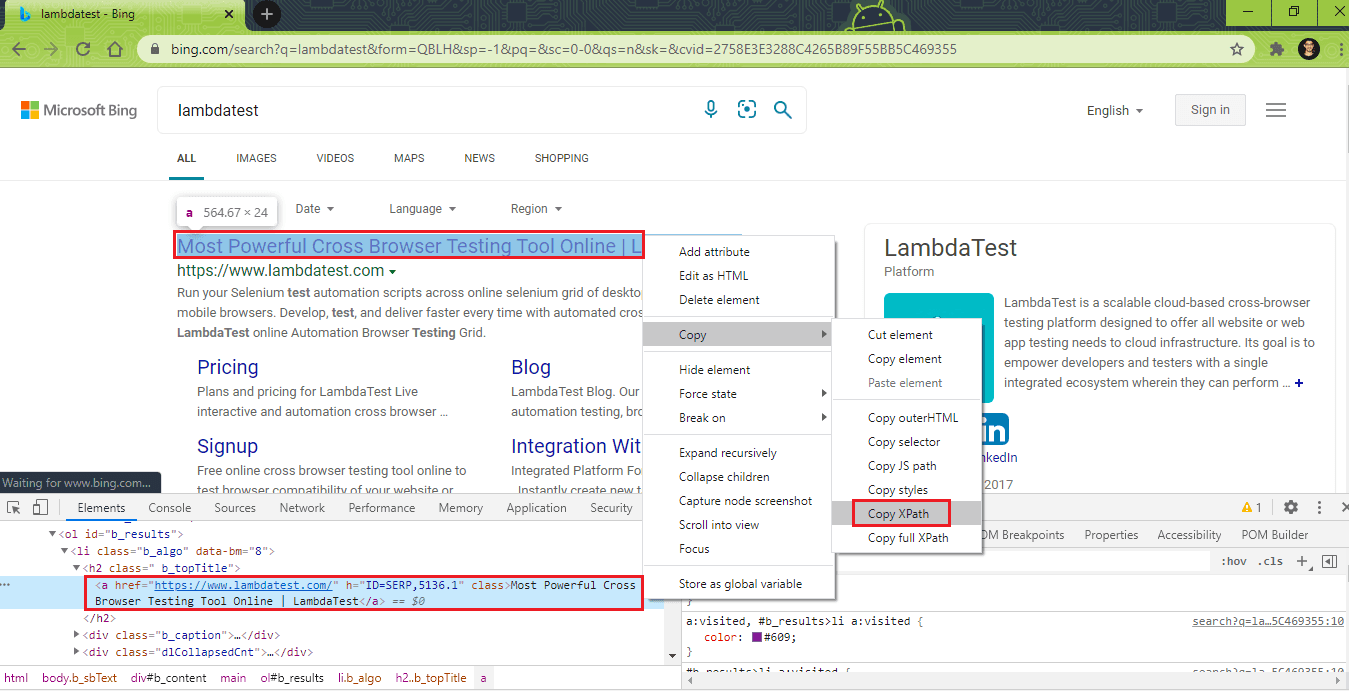
lt_link = driver.findElement(By.xpath("//a[.='Most Powerful Cross Browser Testing Tool Online | LambdaTest']"));
exp_title = "Most Powerful Cross Browser Testing Tool Online | LambdaTest";
Test Scenario 1(b)
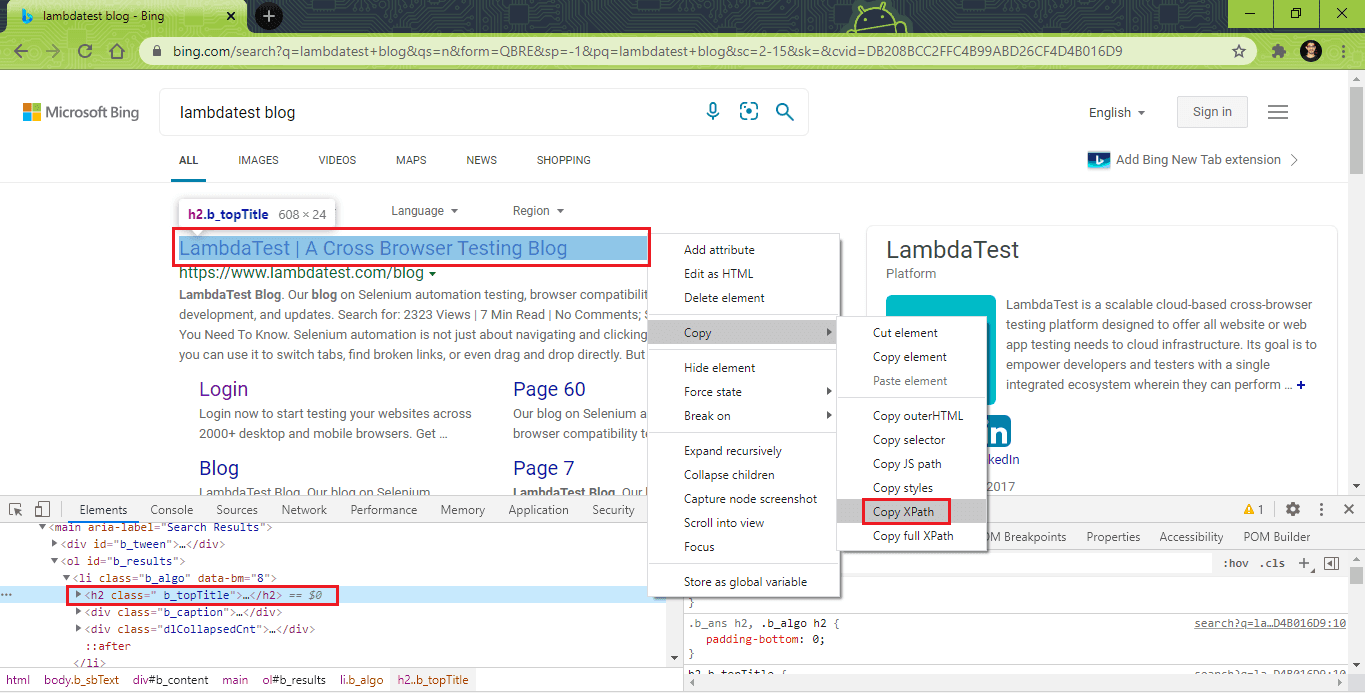
lt_link = driver.findElement(By.xpath("//a[.='LambdaTest | A Cross Browser Testing Blog']"));
exp_title = "LambdaTest | A Cross Browser Testing Blog";
13. A click operation is performed on the WebElement that points to the first test result on the Bing Search page.
if (lt_link!= null)
    lt_link.click();
14. Assert is thrown if the Page Title does not match with the expected page title.
String curr_window_title = driver.getTitle();
Assert.assertEquals(curr_window_title, exp_title);
15. We use the Java FileOutputStream class, an output stream used for writing data in the file. The Excel Workbook, which has the test data (i.e., Path_To_File\File.xls), is opened to write the test result.
- Test Scenario 1(a) – Test result to be written to Cell (1,2)
- Test Scenario 1(b) – Test result to be written to Cell (2,2)
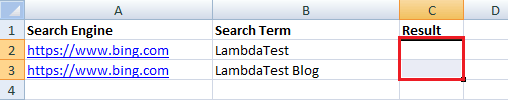
Using the required row number, we create a new Cell using the createCell method. In our case, the Cell number where the test result is to be written is 2. Then, in the Cell (inline with the corresponding test scenario), we write the test result (in String format) in the current cell using the setCellValue method offered by the HSSFCell class.
FileOutputStream fos = new FileOutputStream(src);
String message = "Passed";
sheet.getRow(counter).createCell(2).setCellValue(message);
16. We now write to the OutputStream (i.e., fos) and then close the output stream using the close method offered by the Output Stream.
workbook.write(fos);
fos.close();
Execution
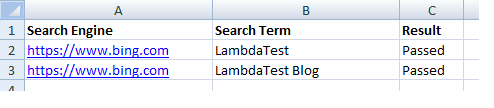
As seen in the snapshot of the Excel Workbook that contained the test inputs, the test scenarios were executed successfully, and the test result was written in the respective cells in the Sheet.
Read and Write data from & to Excel sheets (.xlsx) in Selenium using Apache POI
For performing CRUD operations on MS Excel sheets in the .xlsx format, we use the XSSF implementation provided by the Apache POI library.
Test Scenario
- (a) & 1(b) 🡪 Test URL – https://lambdatest.github.io/sample-todo-app/
- Add a new item in the TestMu AI ToDo app
- Test Scenario 1(a) – Testing on TestMu AI
- Test Scenario 1(b) – Hello World on TestMu AI
- Assert if the new item is not added successfully to the list
- Write the test result in the input Excel file
- Test Scenario 1(a) – Testing on TestMu AI
- Test Scenario 1(b) – Hello World on TestMu AI
Here is the content of the MS Excel File (i.e., Test_2.xlsx) that contains details of the test scenario:

Important
When using Apache POI (for .xls files) and POI OOXML (for .xlsx files) in the same class, it is important to have poi and poi-ooxml point to the same version in pom.xml. This is because Apache Maven POI dependencies for poi & poi-ooxml pointing to different versions lead to the error java.lang.IncompatibleClassChangeError.
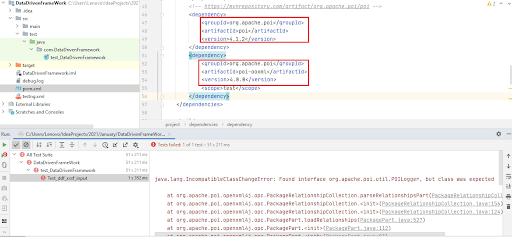
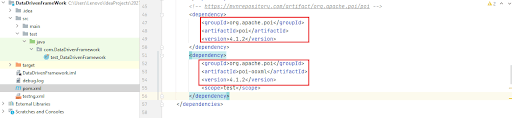
In pom.xml, the dependencies for POI and POI-OOXML point to the same versions (i.e., 4.1.2).
Implementation
package com.DataDrivenFramework;

import java.io.*;
import java.net.MalformedURLException;
import java.net.URL;

import org.apache.poi.hssf.usermodel.HSSFWorkbook;
import org.apache.poi.ss.usermodel.*;
import org.apache.poi.xssf.usermodel.XSSFWorkbook;
import org.openqa.selenium.*;
import org.openqa.selenium.chrome.ChromeDriver;
import org.openqa.selenium.remote.DesiredCapabilities;
import org.openqa.selenium.remote.RemoteWebDriver;
import org.testng.Assert;
import org.testng.annotations.AfterClass;
import org.testng.annotations.BeforeTest;
import org.testng.annotations.DataProvider;
import org.testng.annotations.Test;

public class test_DataDrivenFramework
{
    WebDriver driver;
    XSSFWorkbook workbook;
    Sheet sheet;
    Cell cell;

    String username = "user-name";
    String access_key = "access-key";

    @BeforeTest
    public void init() throws InterruptedException, MalformedURLException
    {
        DesiredCapabilities capabilities = new DesiredCapabilities();
        capabilities.setCapability("build", "[Java] Data Driven Framework in Selenium WebDriver");
        capabilities.setCapability("name", "[Java] Data Driven Framework in Selenium WebDriver");
        capabilities.setCapability("platformName", "OS X Yosemite");
        capabilities.setCapability("browserName", "MicrosoftEdge");
        capabilities.setCapability("browserVersion","81.0");
        capabilities.setCapability("tunnel",false);
        capabilities.setCapability("network",true);
        capabilities.setCapability("console",true);
        capabilities.setCapability("visual",true);

        driver = new RemoteWebDriver(new URL("http://" + username + ":" + access_key + "@hub.lambdatest.com/wd/hub"),
                capabilities);
        System.out.println("Started session");
    }

@Test (description = "Testing data input from XLSX (i.e. XSSF)", priority = 2, enabled = true)
    public void Test_ddf_xssf_input() throws IOException, InterruptedException
    {
        XSSFWorkbook workbook;

        /* Import the Excel Sheet */
        File src=new File("C:\Folder\Test_2.xlsx");
        /* Load the file */
        FileInputStream fis = new FileInputStream(src);
        /* Load the workbook */
        workbook = new XSSFWorkbook(fis);

        /* The sheet is in Tab-0 */
        sheet = workbook.getSheetAt(0);

        for(int counter = 1; counter <= sheet.getLastRowNum(); counter++)
        {
            /* Skip Row - 0 */
            cell = sheet.getRow(counter).getCell(0);
            /* Cell [1,0] contains the test URL */
            if (cell.getCellType() == CellType.STRING)
            {
                String test_url = cell.getStringCellValue();
                driver.get(test_url);
            }

            /* Cell [1,1] --> Search Term */
            cell = sheet.getRow(counter).getCell(1);
            if (cell.getCellType() == CellType.STRING)
            {
                String new_item = cell.getStringCellValue();

                try
                {
                    /* Let's mark done first two items in the list. */
                    driver.findElement(By.name("li1")).click();
                    driver.findElement(By.name("li2")).click();

                    /* Get the item to be added from the sheet */

                    /* Let's add an item in the list. */
                    driver.findElement(By.id("sampletodotext")).sendKeys(new_item);
                    driver.findElement(By.id("addbutton")).click();

                    /* Let's check that the item we added is added in the list. */
                    String enteredText = driver.findElement(By.xpath("/html/body/div/div/div/ul/li[6]/span")).getText();
                    if (enteredText.equals(new_item))
                    {
                        System.out.println("Demonstration is complete");
                        String status = "passed";
                        /* Write the result in the excel sheet */
                        /* Write Data in the Result Column */
                        FileOutputStream fos = new FileOutputStream(src);
                        String message = "Passed";
                        sheet.getRow(counter).createCell(2).setCellValue(message);
                        workbook.write(fos);
                        fos.close();
                    }
                }
                catch (Exception e)
                {
                    System.out.println(e.getMessage());
                }
            }
        }
    }

    @AfterClass
    public void tearDown()
    {
        if (driver != null)
        {
            driver.quit();
        }
    }
}
Code Walkthrough
1. Create an object of XSSFWorkbook. This object will be further used when accessing the Sheet and reading/writing at appropriate cells in the Sheet.
XSSFWorkbook workbook;
2. Create a Workbook object by referring to the FileInputStream object that points to the location where the Excel File (.xlsx) is located on the host machine.
File src=new File("C:\Folder\Test_2.xlsx");
FileInputStream fis = new FileInputStream(src);
3. Load the Excel Workbook using the FileInputStream object obtained from Step (2).
workbook = new XSSFWorkbook(fis);
4. Using the Workbook object, we access the Sheet at index ‘0’ using the getSheetAt method.
5. Like the earlier test, which demonstrated the usage of the HSSF Workbook, row (0) also contains the title of the fields (i.e., Test URL, Item to Add, and Result). Hence, we exclude Row (0) from the test execution.

A for loop is run from rows 1 to sheet.getLastRowNum() [which equates to ‘2’ in our case] so that the two test scenarios in the sheet can be executed one after the other.
6. The getRow method returns the logical row number [i.e. 1 for test scenario -1(a) and 2 for test scenario – 1(b)]. Now that we have the row number, the getCell(cell-number) method of the XSSFRow is used for accessing the specific cell.
Shown below are the contents of the cells on Row – 1:
- Cell (1,0 ) 🡪 https://lambdatest.github.io/sample-todo-app/
- Cell (1,1) 🡪 Testing on TestMu AI
- Cell (1,2) 🡪 Result (Test Status updated post-test execution)
Cell (1,0) contains the URL under test. The getStringCellValue method gets the value of the cell as a String. Next, we navigate to the test URL.
cell = sheet.getRow(counter).getCell(0);
/* Cell [1,0] contains the test URL */
if (cell.getCellType() == CellType.STRING)
{
	String test_url = cell.getStringCellValue();
	driver.get(test_url);
}
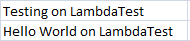
7. New items to be added are located in the following Cells:
- Cell (1, 1) 🡪 Testing on TestMu AI
- Cell (2,1) 🡪 Hello World on TestMu AI
Row number 1 represents Test Scenario – 1(a) and row number 2 represents Test Scenario – 1(b). Cell number remains unchanged; hence it is hard coded to ‘1’. The new items to be added to the ToDo list are retrieved from the Cell using the getStringCellValue() method.
cell = sheet.getRow(counter).getCell(1);
if (cell.getCellType() == CellType.STRING)
{
	String new_item = cell.getStringCellValue();
8. First two items in the ToDo list are marked as ‘Done’ by locating the respective WebElement using the Name property and then performing the click() operation on that WebElement.
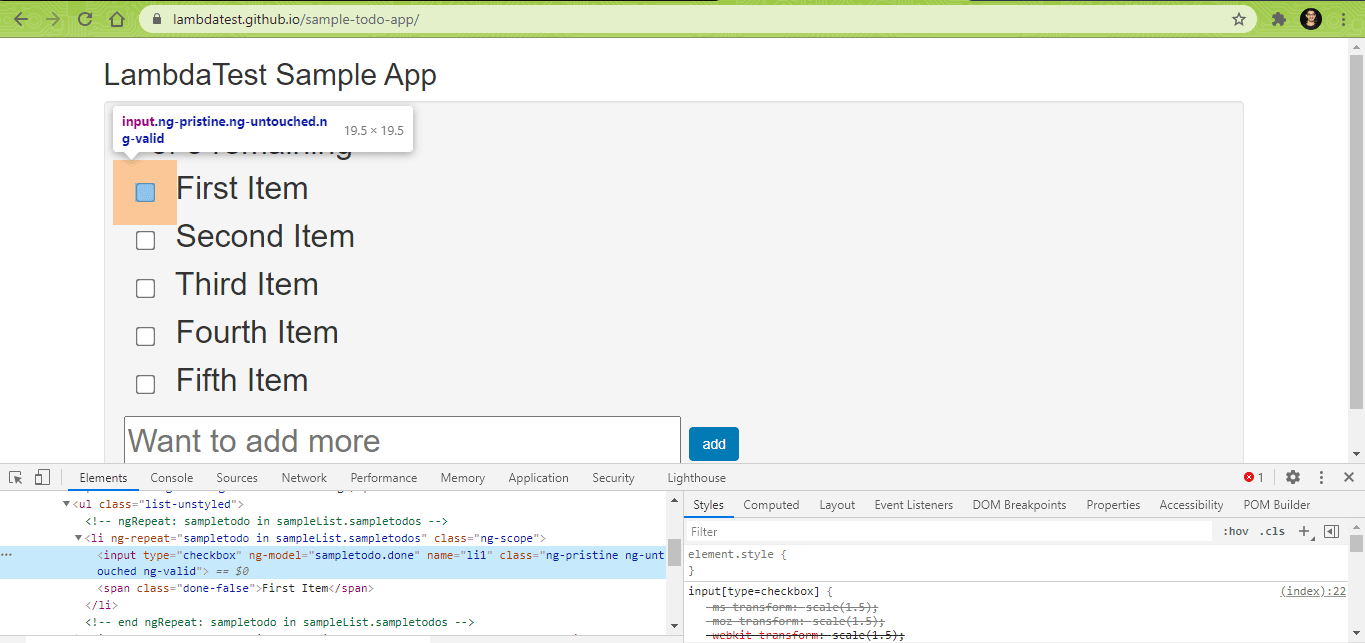
driver.findElement(By.name("li1")).click();
driver.findElement(By.name("li2")).click();
Also Read – How To Use Name Locator In Selenium Automation Scripts?
9. New entry to the ToDo list is added by locating the WebElement using the ID property and using the sendKeys method for entering the new entry in the text box.
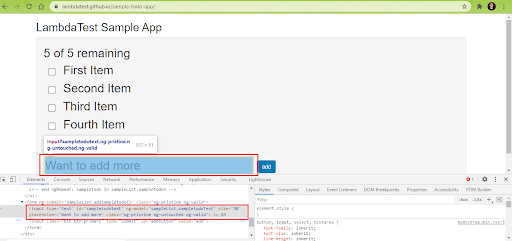
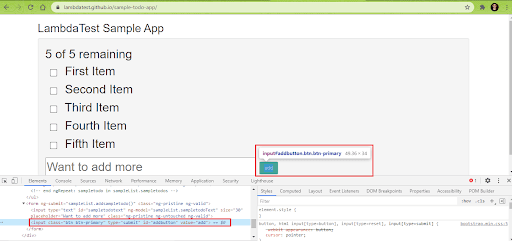
The Add Button on the page is located using the ID property, and click operation is performed on the button for adding the new entry to the ToDo list.
driver.findElement(By.id("sampletodotext")).sendKeys(new_item);
driver.findElement(By.id("addbutton")).click();
Also Read – Making The Move With ID Locator In Selenium WebDriver
10. The content of the newly added item is fetched using the getText() method in Selenium. If the newly added item equals the expected item, the test is considered as ‘Passed.’
String enteredText = driver.findElement(By.xpath("/html/body/div/div/div/ul/li[6]/span")).getText();
if (enteredText.equals(new_item))
{
	System.out.println("Demonstration is complete");
	String status = "passed";
11. The Java FileOutputStream class is used for writing the data in the file. Then, the Excel Workbook with the test data (i.e., Path_To_File\File.xlsx) is opened to write the test result.
- Test Scenario 1(a) – Test result to be written to Cell (1,2)
- Test Scenario 1(b) – Test result to be written to Cell (2,2)

The test result for the respective tests is written in the corresponding Cells as a String Value. The setCellValue method writes the test result in the Cell.
12. We now write to the OutputStream (i.e. fos). Post the write operation, the close method is invoked for closing the OutputStream.
Execution
As seen in the Excel Workbook snapshot containing the test inputs, test scenarios are executed successfully, and test results are written in the correct Cells in the Sheet.

Data Driven Framework in Selenium using TestNG DataProvider with Excel
DataProvider in TestNG is popularly used with MS Excel, where the data to be supplied in the DataProvider is read from an Excel sheet. This approach is primarily useful when the test has to be performed against a massive amount of test data. You can refer to DataProviders in TestNG for a quick recap on the topic.
Test Scenario
- (a) 🡪 Search for ‘TestMu AI’ on Google
- (b) 🡪 Search for ‘TestMu AI Blog’ on Google
- Click on the First test result
- Assert if the current page title does not match with the expected page title
- Append the corresponding test result in the cell next to the test case
To get started, we create a test data set in an Excel Sheet. The first column contains the Search Term and the second column contains the Expected Page Title after the search is executed.

Implementation
package com.DataDrivenFramework;

import java.io.*;
import java.net.MalformedURLException;
import java.net.URL;

import org.apache.poi.hssf.usermodel.HSSFWorkbook;
import org.apache.poi.ss.usermodel.*;
import org.apache.poi.xssf.usermodel.XSSFRow;
import org.apache.poi.xssf.usermodel.XSSFSheet;
import org.apache.poi.xssf.usermodel.XSSFWorkbook;
import org.openqa.selenium.*;
import org.openqa.selenium.chrome.ChromeDriver;
import org.openqa.selenium.remote.DesiredCapabilities;
import org.openqa.selenium.remote.RemoteWebDriver;
import org.testng.Assert;
import org.testng.annotations.AfterClass;
import org.testng.annotations.BeforeTest;
import org.testng.annotations.DataProvider;
import org.testng.annotations.Test;

public class test_DataDrivenFramework
{
    WebDriver driver;
    XSSFWorkbook workbook;
    Sheet sheet;
    Cell cell;

    String username = "user-name";
    String access_key = "access-key";

    @BeforeTest
    public void init() throws InterruptedException, MalformedURLException
    {
        DesiredCapabilities capabilities = new DesiredCapabilities();
        capabilities.setCapability("build", "[Java] Data Driven Framework in Selenium WebDriver");
        capabilities.setCapability("name", "[Java] Data Driven Framework in Selenium WebDriver");
        capabilities.setCapability("platformName", "OS X Yosemite");
        capabilities.setCapability("browserName", "MicrosoftEdge");
        capabilities.setCapability("browserVersion","81.0");
        capabilities.setCapability("tunnel",false);
        capabilities.setCapability("network",true);
        capabilities.setCapability("console",true);
        capabilities.setCapability("visual",true);

        driver = new RemoteWebDriver(new URL("http://" + username + ":" + access_key + "@hub.lambdatest.com/wd/hub"),
                capabilities);
        System.out.println("Started session");
    }

@DataProvider(name="dataset")
    public Object[][] getExcelData()
    {
        Object[][] arrObj = getExData("C:\Folder\Test_4.xlsx","TestData");
        return arrObj;
    }

    public String[][] getExData(String fileName, String sheetName)
    {

        String[][] data = null;
        try
        {
            FileInputStream fis = new FileInputStream(fileName);
            XSSFWorkbook workbook = new XSSFWorkbook(fis);
            XSSFSheet sheet = workbook.getSheet(sheetName);
            XSSFRow row = sheet.getRow(0);
            int noOfRows = sheet.getPhysicalNumberOfRows();
            int noOfCols = row.getLastCellNum();
            Cell cell;

            data = new String[noOfRows - 1][noOfCols];

            for(int outer_cnt = 1; outer_cnt < noOfRows; outer_cnt++)
            {
                for(int inner_cnt = 0; inner_cnt < noOfCols; inner_cnt++)
                {
                    row = sheet.getRow(outer_cnt);
                    cell= row.getCell(inner_cnt);
                    data[outer_cnt - 1][inner_cnt] = cell.getStringCellValue();
                    System.out.println(data[outer_cnt - 1][inner_cnt]);
                }
            }
        }
        catch (Exception e)
        {
            System.out.println("The exception is: " +e.getMessage());
        }
        return data;
    }

    @Test(dataProvider ="dataset", description = "Data Driven framework using Data Provider", priority = 3, enabled = true)
    public void Test_ddf_dataprovider_excel(String search_string, String expected_title) throws IOException, InterruptedException
    {
        String test_url = "https://www.google.com";
        WebElement lt_link = null;

        driver.manage().window().maximize();
        driver.get(test_url);
        Thread.sleep(3000);

        try
        {
            /* Enter the search term in the Google Search Box */
            WebElement search_box = driver.findElement(By.xpath("//input[@name='q']"));
            search_box.sendKeys(search_string);

            search_box.submit();
            Thread.sleep(3000);

            /* Click on the first result which will open up the LambdaTest homepage */
            if (search_string.equalsIgnoreCase("LambdaTest"))
            {
                lt_link = driver.findElement(By.xpath("//span[.='LambdaTest: Most Powerful Cross Browser Testing Tool Online']"));
            }
            else if (search_string.equalsIgnoreCase("LambdaTest Blog"))
            {
                lt_link = driver.findElement(By.xpath("//span[.='A Cross Browser Testing Blog - LambdaTest']"));
            }
            lt_link.click();
            Thread.sleep(3000);

            String curr_window_title = driver.getTitle();
            Assert.assertEquals(curr_window_title, expected_title);
        }
        catch (Exception e)
        {
            System.out.println(e.getMessage());
        }
    }

    @AfterClass
    public void tearDown()
    {
        if (driver != null)
        {
            driver.quit();
        }
    }
}
Code WalkThrough
- getExData Method
1. An object of Workbook is created by referring to the FileInputStream object that points to the location where the Excel File (.xlsx) is located on the host machine.
The object of type XSSFWorkbook will be further used for accessing the Sheet and the various Cells in the Sheet.
FileInputStream fis = new FileInputStream(fileName);
XSSFWorkbook workbook = new XSSFWorkbook(fis);
2. We get the Sheet using the getSheet method that takes the Sheetname as the input argument. In our case, the test data is available in the sheet with the name ‘TestData’; hence, the same is passed to the getSheet method.
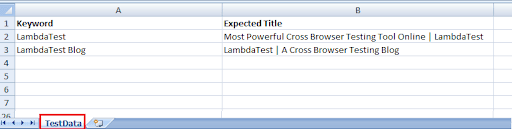
Once inside the Sheet, we read the first using the getRow method, which returns an object of type XSSFRow.
XSSFSheet sheet = workbook.getSheet(sheetName);
XSSFRow row = sheet.getRow(0);
3. We get the total number of rows and columns (or Cells) using the getPhysicalNumberOfRows method in XSSFSheet class and getLastCellNum method in XFFSRow class.
int noOfRows = sheet.getPhysicalNumberOfRows();
int noOfCols = row.getLastCellNum();
In our case, the number of Rows & Columns are 3 & 2, respectively.
4. We create a new 2D String array of [2] [2] dimensions
data = new String[noOfRows - 1][noOfCols];
5. In a nested for loop (outer-count 🡪 1.. no of rows, inner-count 🡪 0.. no of columns), we fetch the current row using the getRow method. The getCell method returns the current column.
Now that we have the row and column, the data in that particular cell is read using the getStringCellValue() method provided by the Cell class. Since the Row ‘0’ contains the title (i.e., Keyword, Expected Title), we start reading from the first row.
- First for loop runrow = 1, cell = 0, data [0] [0] = TestMu AI (i.e. Cell [1] [0]) row = 1, cell = 1, data [0] [1] = Most Powerful Cross Browser Testing Tool Online | TestMu AI (i.e. Cell [1] [1])
- Second for loop runrow = 2, cell = 0, data [1] [0] = TestMu AI Blog (i.e. Cell [2] [0]) row = 2, cell = 1, data [1] [1] = TestMu AI | A Cross Browser Testing Blog (i.e. Cell [2] [1])
for(int outer_cnt = 1; outer_cnt < noOfRows; outer_cnt++)
{
	for(int inner_cnt = 0; inner_cnt < noOfCols; inner_cnt++)
      {
	      row = sheet.getRow(outer_cnt);
            cell= row.getCell(inner_cnt);
            data[outer_cnt - 1][inner_cnt] = cell.getStringCellValue();
            System.out.println(data[outer_cnt - 1][inner_cnt]);
	}
}
6. Return the 2D array (i.e., data[][]) that we populated with the values from the Sheet [in Step (5)]
return data;
- getExcelData
In this method, we create a DataProvider method that uses the getExData method that returns a 2D object created by reading the required Cell values from the Excel Sheet.
@DataProvider(name="dataset")
public Object[][] getExcelData()
{
        Object[][] arrObj = getExData("C:\Folder\Test_4.xlsx","TestData");
        return arrObj;
}
- Test_ddf_dataprovider_excel
1. This test method uses the ‘dataset’ DataProvider that returns a 2D object containing the search string and expected page title.
@Test(dataProvider ="dataset", description = "Data Driven framework using Data Provider", priority = 3, enabled = true)

public void Test_ddf_dataprovider_excel(String search_string, String expected_title) throws IOException, InterruptedException
{
2. Once we navigate to the test URL (i.e., Google Homepage), enter the search term in the search box using the sendKeys method in Selenium. The search box is located using the findElement method in Selenium which uses the XPath property for locating the search box Web Element.
WebElement search_box = driver.findElement(By.xpath("//input[@name='q']"));
search_box.sendKeys(search_string);
3. Trigger the search using the submit() method.
search_box.submit();
4. Perform a case-insensitive comparison of the Search String (i.e. TestMu AI/TestMu AI Blog) and accordingly locate the first link using the findElement method with the WebElement’s XPath property.
if (search_string.equalsIgnoreCase("LambdaTest"))
{
    lt_link = driver.findElement(By.xpath("//span[.='LambdaTest: Most Powerful Cross Browser Testing Tool Online']"));
}
else if (search_string.equalsIgnoreCase("LambdaTest Blog"))
{
    lt_link = driver.findElement(By.xpath("//span[.='A Cross Browser Testing Blog - LambdaTest']"));
}
5. Now that the link is located click on the link to navigate to the resultant page.
lt_link.click();
6. Get the current page title using the getTitle() method of Selenium WebDriver. Assert if the current page title does not match the expected title.
String curr_window_title = driver.getTitle();
Assert.assertEquals(curr_window_title, expected_title);
Execution
Below is the execution snapshot from the IntelliJ IDE, which indicates that the data from the external data set (i.e., Excel Sheet) was read successfully. As a result, the DataProvider in TestNG was able to use that data for performing the search operation on Google.

Perform Cross Browser Testing in Selenium using Apache POI
In all the examples we showcased so far, the test data was fetched from an external data feed (i.e., xls/xlsx), and the test data was used in running the same test against different data sets. What if you intend to run a cross browser test where the online browser & OS combinations are read from an external file (xls/xlsx).

In this section, we look at how the APIs provided by the Apache POI library can be leveraged for running a cross browser test. First, here is the snapshot of the Excel file (Test_3.xls), which contains the required setting of the Desired Capabilities for the Remote WebDriver.

As shown above, the same test is run against two different virtual browser combinations:
- Chrome 87.0 (on Windows 10)
- Chrome 83.0 (on macOS Catalina)
Test Scenario
- Go to https://lambdatest.com/automation-demos
- Run the steps (3) thru (7) for the browser & OS combinations specified in the external Excel file.
- Click on the ‘I Accept’ button
- Scroll to the End of the Page
- Find the element with link ‘List of Browsers’ and click on the element
- Check if the current page URL is https://www.lambdatest.com/list-of-browsers and set the Test Result accordingly
- Write the test result at appropriate Cells in the excel sheet
Implementation
package com.DataDrivenFramework;

import java.io.*;
import java.net.URL;

import org.apache.poi.hssf.usermodel.HSSFWorkbook;
import org.apache.poi.ss.usermodel.*;
import org.apache.poi.xssf.usermodel.XSSFWorkbook;
import org.openqa.selenium.By;
import org.openqa.selenium.JavascriptExecutor;
import org.openqa.selenium.WebDriver;
import org.openqa.selenium.WebElement;
import org.openqa.selenium.remote.DesiredCapabilities;
import org.openqa.selenium.remote.RemoteWebDriver;
import org.testng.Assert;
import org.testng.annotations.Test;

public class test_LT_DataDrivenFramework
{
    WebDriver driver;
    XSSFWorkbook workbook;
    Sheet sheet;
    Cell cell;

    public static String username = "user-name";
    public static String access_key = "access-key";

    @Test(description = "[CBT]: Testing data input from XLS (i.e. HSSF)", priority = 1, enabled = true)
    public void Test_ddf_cbt_input() throws IOException, InterruptedException {
        String[] test_combs = new String[5];
        Integer cnt = 0;
        String test_url = "https://lambdatest.com/automation-demos/";

        HSSFWorkbook workbook;

        /* Import the Excel Sheet */
        File src = new File("C:\Folder\Test_3.xls");

        /* Load the File */
        FileInputStream fis = new FileInputStream(src);

        /* Load the Workbook */
        workbook = new HSSFWorkbook(fis);

        /*  The Excel file contains two sheets:
            Sheet 1 - Browser and OS Combination
        */

        /* Load the data in Sheet 0 for creating an instance of Remote WebDriver */
        sheet = workbook.getSheetAt(0);

        /* Get the relevant capabilities headings from row - 0 */
        while (cnt < 5)
        {
            cell = sheet.getRow(0).getCell(cnt);
            test_combs[cnt] = cell.getStringCellValue();
            cnt++;
        }

        /* Assign the capabilities from row - 1 onwards */
        for(int row_cnt = 1; row_cnt <= sheet.getLastRowNum(); row_cnt++)
        {
            DesiredCapabilities capabilities = new DesiredCapabilities();

            for (cnt = 0; cnt < 5; cnt++)
            {
                String props = sheet.getRow(row_cnt).getCell(cnt).getStringCellValue();
                capabilities.setCapability(test_combs[cnt], props);
            }
            capabilities.setCapability("tunnel", false);
            capabilities.setCapability("network", true);
            capabilities.setCapability("console", true);
            capabilities.setCapability("visual", true);

            driver = new RemoteWebDriver(new URL("http://" + username + ":" + access_key + "@hub.lambdatest.com/wd/hub"),
                    capabilities);

            /* Now comes the test scenario */
            driver.get(test_url);

            WebElement elem_accept = driver.findElement(By.xpath("//a[.='I ACCEPT']"));
            elem_accept.click();
            Thread.sleep(3000);

            /* Scroll till the end of the page */
            ((JavascriptExecutor)driver).executeScript("window.scrollBy(0,document.body.scrollHeight)");

            WebElement elem_brow_list = driver.findElement(By.xpath("//a[.='List of Browsers']"));
            elem_brow_list.click();
            Thread.sleep(3000);
            Assert.assertEquals(driver.getCurrentUrl(), "https://www.lambdatest.com/list-of-browsers");

            /* Update result in the excel sheet */
            /* Write Data in the Result Column */
            FileOutputStream fos = new FileOutputStream(src);
            String message = "Passed";
            sheet.getRow(row_cnt).createCell(6).setCellValue(message);
            workbook.write(fos);
            fos.close();
            System.out.println("CBT test to demo Data Driven Framework successful
");

            driver.quit();
        }
    }
}
FileName – test_LT_DataDrivenFramework.java
Code Walkthrough
1. Create an instance of Selenium WebDriver, HSSFWorkBook, Sheet, and Cell, respectively.
WebDriver driver;
HSSFWorkbook workbook;
Sheet sheet;
Cell cell;
2. Import the Excel Sheet and load the file using FileInputStream
File src = new File("C:\Folder\Test_3.xls");
workbook = new HSSFWorkbook(fis);
3. Create an object of HSSFWorkbook and load the data in the Sheet ‘0’ where the fields for creating the Desired Capabilities are present.
sheet = workbook.getSheetAt(0);
4. The first row (i.e., row – 0) contains strings indicating the respective fields used to create the Capabilities (i.e., build, name, platformName, browserName, etc.). It is inline with what has to be passed in terms of DesiredCapabilities to the Remote WebDriver.
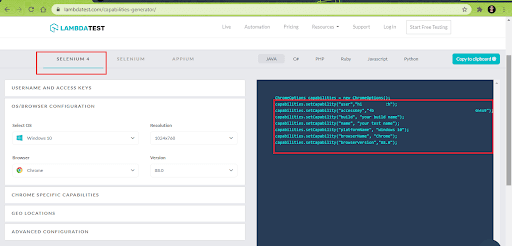
In a while loop (with end count as 4), the String Value in Cell (0,0)..Cell (0,4) is read and populated in a String array ( test_combs[] ). This array only contains the Capabilities that have to be set (i.e., build, name, etc.).
while (cnt < 5)
{
	cell = sheet.getRow(0).getCell(cnt);
	test_combs[cnt] = cell.getStringCellValue();
	cnt++;
}
5. From row – 1 onwards, we start assigning values to set the DesiredCapabilities. Then, in a for loop (0..4), we read the String value from each cell and assign the same to the corresponding String element from the array test_combs[].
For Combination – 1
- test_combs[0] 🡪 build (capability) is set to ‘Data Driven Framework..’ [String value from Cell (1,0)].
- test_combs[1] 🡪 name (capability) is set to ‘Data Driven Framework..’ [String value from Cell (1,1)].
- test_combs[2] 🡪 platformName (capability) is set to Windows 10 [String value from Cell (1,2)].
- test_combs[3] 🡪 browserName (capability) is set to Chrome [String value from Cell (1,3)].
- test_combs[4] 🡪 browserVersion (capability) is set to 87.0 [String value from Cell (1,4)].
The same set of actions are repeated for Test Combination – 2, the capabilities of which are present in Cell (2,0) thru Cell (2,4).
DesiredCapabilities capabilities = new DesiredCapabilities();

for (cnt = 0; cnt < 5; cnt++)
{
         String props = sheet.getRow(row_cnt).getCell(cnt).getStringCellValue();
         capabilities.setCapability(test_combs[cnt], props);
}
6. Now that the DesiredCapabilities are set, an instance of Remote WebDriver is created with Selenium Grid set to cloud-based Selenium Grid on TestMu AI [@hub.lambdatest.com/wd/hub].
driver = new RemoteWebDriver(new URL("http://" + username + ":" + access_key + "@hub.lambdatest.com/wd/hub"), capabilities);
7. We navigate to the desired test URL (i.e. https://lambdatest.com/automation-demos)
String test_url = "https://lambdatest.com/automation-demos/";
driver.get(test_url);
8. One the test URL, locate the ‘I Accept’ button using the XPath property and click on the located WebElement.
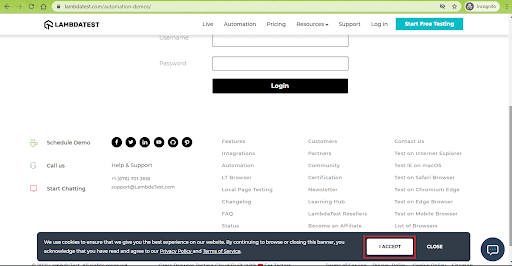
WebElement elem_accept = driver.findElement(By.xpath("//a[.='I ACCEPT']"));
elem_accept.click();
9. Scroll to the end of the web page by invoking the “window.scrollBy” method in JavaScript. The executeScript command executes the scrollBy method in the context of the currently selected window.
((JavascriptExecutor)driver).executeScript("window.scrollBy(0,document.body.scrollHeight)");
10. Locate the WebElement ‘List of Browsers’ using the XPath property and click on the element.
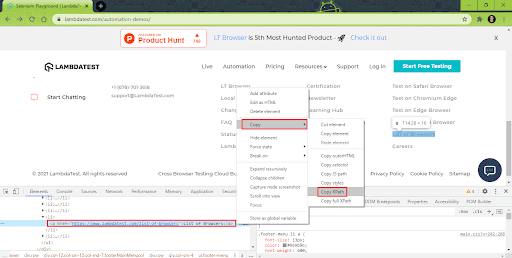
WebElement elem_brow_list = driver.findElement(By.xpath("//a[.='List of Browsers']"));
elem_brow_list.click();
11. Assert is thrown if the current URL does not match the expected URL.
Assert.assertEquals(driver.getCurrentUrl(), "https://www.lambdatest.com/list-of-browsers");
12. We use the Java FileOutputStream class, an output stream used for writing data in the file. The Excel Workbook, which has the test data (i.e., Path_To_File\File.xls), is opened to write the test result.
- Test Combination – 1: Test result to be written to Cell (1,6)
- Test Combination – 2: Test result to be written to Cell (2,6)

The setCellValue method offered by the HSSFCell class is used for writing the test result (i.e., Passed) to the cells shown above.
FileOutputStream fos = new FileOutputStream(src);
String message = "Passed";
sheet.getRow(row_cnt).createCell(6).setCellValue(message);
13. We write to the OutputStream (i.e. fos), post which we close the Output Stream using the close() method.
Execution
The test was successfully run against the browser & OS combinations mentioned in the Excel Sheet. Therefore, the test status is also updated in the cells with the title ‘Result.’

We also executed all the approaches demonstrated earlier in a single go, and the test execution was successful:
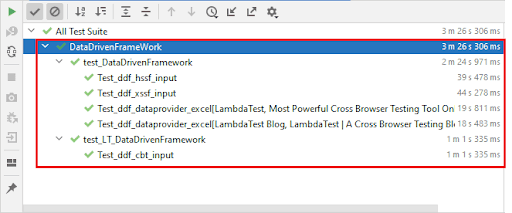
The Automation Dashboard in TestMu AI indicates the status of the test execution.
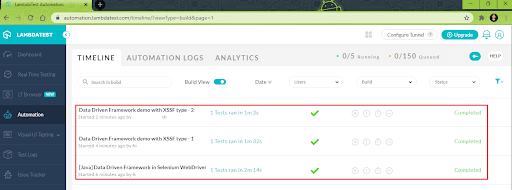
As seen above, the tests were successfully executed on TestMu AI’s cloud-based Selenium Grid.
Conclusion
Data Driven Testing is one of the ideal ways for performing testing at scale. Separation of test data from Functional tests is one of the major advantages of the Data Driven Framework in Selenium. The separation of test data from the tests ensures that minimal changes in the business rules do not result in changes in the test implementation. This also avoids rewriting of test code when testing against multiple sets of data.
Apache POI is a popular library that provides APIs for performing CRUD (Create, Read, Update, and Delete) operations on external data sources like MS Excel Sheets, MS Access databases, and more. Data Driven Framework in Selenium is used along with Apache POI for performing data-driven testing using different test combinations. External data sources like Excel Sheets can also supply different browser & OS combinations for realizing cross browser testing for web projects.



Frequently asked questions
Did you find this page helpful?
More Related Hubs
TestMu AI forEnterprise
Get access to solutions built on Enterprise
grade security, privacy, & compliance
- Advanced access controls
- Advanced data retention rules
- Advanced Local Testing
- Premium Support options
- Early access to beta features
- Private Slack Channel
- Unlimited Manual Accessibility DevTools Tests