

Next-Gen App & Browser Testing Cloud
Trusted by 2 Mn+ QAs & Devs to accelerate their release cycles


- Home
- /
- Learning Hub
- /
- Playwright tutorial: How To Use Functions And Selectors In Playwright
Playwright tutorial: How To Use Functions And Selectors In Playwright
Read this tutorial to learn more about Playwright functions and selectors that state in detail about how to launch a browser, enter a login script, execute a test along with context and page.

Mythili Raju
February 3, 2026
Playwright is one of the most promising automation testing frameworks in the market today, with its unique features. The Playwright has an array of features that help to write tests more conveniently. The Functions and Selectors in the Playwright automation framework are the building blocks to creating a highly-customized automated test script.
This Playwright testing tutorial will help you learn how to use Functions and Selectors extensively to perform automated browser testing with Playwright. You will also learn about the importance of Playwright concepts like browserContext and a newPage and their usage.
Overview
Playwright is a versatile automation testing framework designed to make browser automation easier and more efficient. It provides a robust set of tools for creating customized automated test scripts, enabling testers to interact with web elements and perform efficient browser testing.
How Do Test Blocks Work in Playwright?
Test blocks are essential in Playwright, especially when dealing with asynchronous code. They help organize your tests and manage browser interactions efficiently.
- Test blocks allow for better test organization by keeping related actions together.
- Playwright’s async/await functionality eliminates the need for .then() and .catch() handling, making the code cleaner and more readable.
How Do You Launch a Chromium Browser in Playwright?
To begin testing in Playwright, the first step is launching a browser, such as Chromium. This step involves creating a new browser context and a page for interactions.
Steps to Launch a Browser with Playwright:
- Import the necessary Playwright libraries:
import {chromium, test } from "@playwright/test";const browser = await chromium.launch();const context = await browser.newContext();const page = await context.newPage();test("Login test demo", async () => {
import { chromium, test } from "@playwright/test";
const browser = await chromium.launch();
const context = await browser.newContext();
const page = await context.newPage();
});How Do You Write a Login Script Using Playwright?
Automating a login script is one of the common tasks in web testing. Playwright’s ability to interact with web page elements using selectors makes this process smooth.
Steps to Write a Login Script:
- Navigate to the login page using page.goto():
await page.goto("https://ecommerce-playground.lambdatest.io/");await page.hover("//a[@data-toggle='dropdown']//span[contains(.,'My account')]");await page.click("'Login'");await page.goto("https://ecommerce-playground.lambdatest.io/");
await page.hover("//a[@data-toggle='dropdown']//span[contains(.,'My account')]");
await page.click("'Login'");How Do You Use Selectors in Playwright?
Selectors are crucial for locating elements on a web page. Playwright offers various types of selectors to identify elements uniquely, ensuring your tests run reliably.
Steps to Use Selectors:
- Choose the appropriate selector type (CSS, XPath, text, etc.) based on the element you're targeting.
- Use direct selectors when only one element matches the criteria.
- Use complex selectors like XPath when multiple elements match but you need to specify one.
- Apply the selector to interact with the element (e.g., click(), fill(), etc.).
- Code Example:
await page.goto("https://ecommerce-playground.lambdatest.io/");
await page.click("text='Login'");
Subscribe to TestMu AI YouTube Channel to tune into more tutorials around automation testing with Playwright or other automation testing frameworks such as Selenium, Cypress, Puppeteer, etc.
Test Block in Playwright
To launch a browser, you need to know a few concepts. One such concept is Test Block. You might know about JavaScript testing frameworks like WebdriverIO and Protractor, and test runners such as Jasmine and Mocha. If you consider Jasmine or Mocha, you will get a description block that consists of eight blocks.
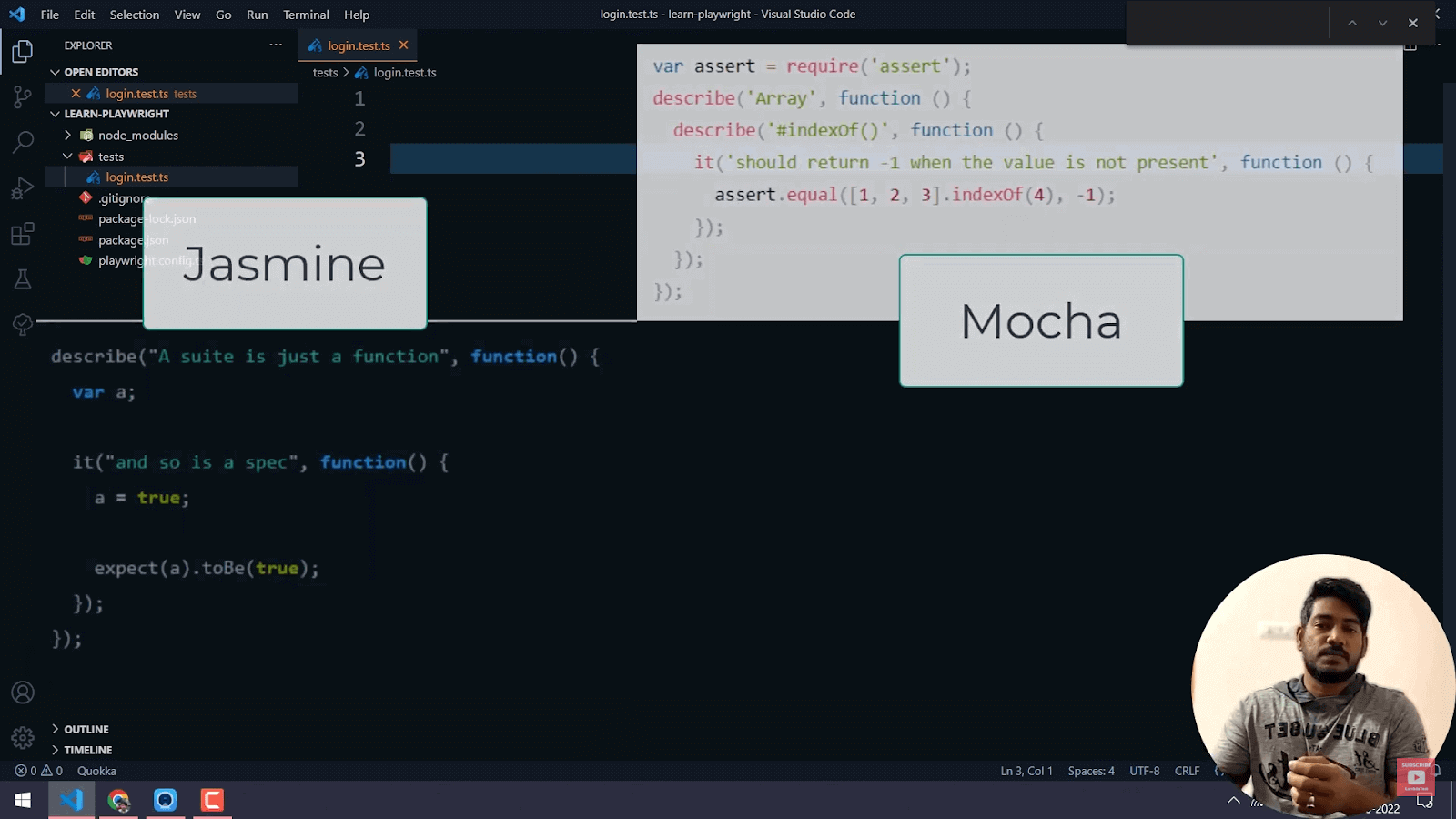
Similarly, in Playwright, you have an inbuilt test runner called “playwright test runner.”
Let's take a basic test scenario of a demo page on TestMu AI Selenium Playground to validate and try these Playwright inputs.
- The first step is to use the Test Block. The Playwright supports ‘async and await’ to handle the promises. Hence, you don’t have to write “.then()” and “.catch()” as it’s done in JavaScript.
- Next, you need to import the test.
- After importing the test, the next step is to launch the browser.
As a whole, the code for the test block, import, and launching of the browser will look like this -
test(“Login test demo”, async () =>
import {chromium, test} from “@playwright/test”
           const browser = await chromium.launch();
           const context = await browser.newContext();
           const page = await context.newPage();
Kudos, you managed to launch the Chromium browser. Playwright supports multiple contexts and pages. It ensures that one context does not share its cookies or cache with another.
How to launch a Chromium browser with Playwright?
In the previous chapter of the Playwright testing tutorial, we learned how to install Playwright and set it up on VS Code.
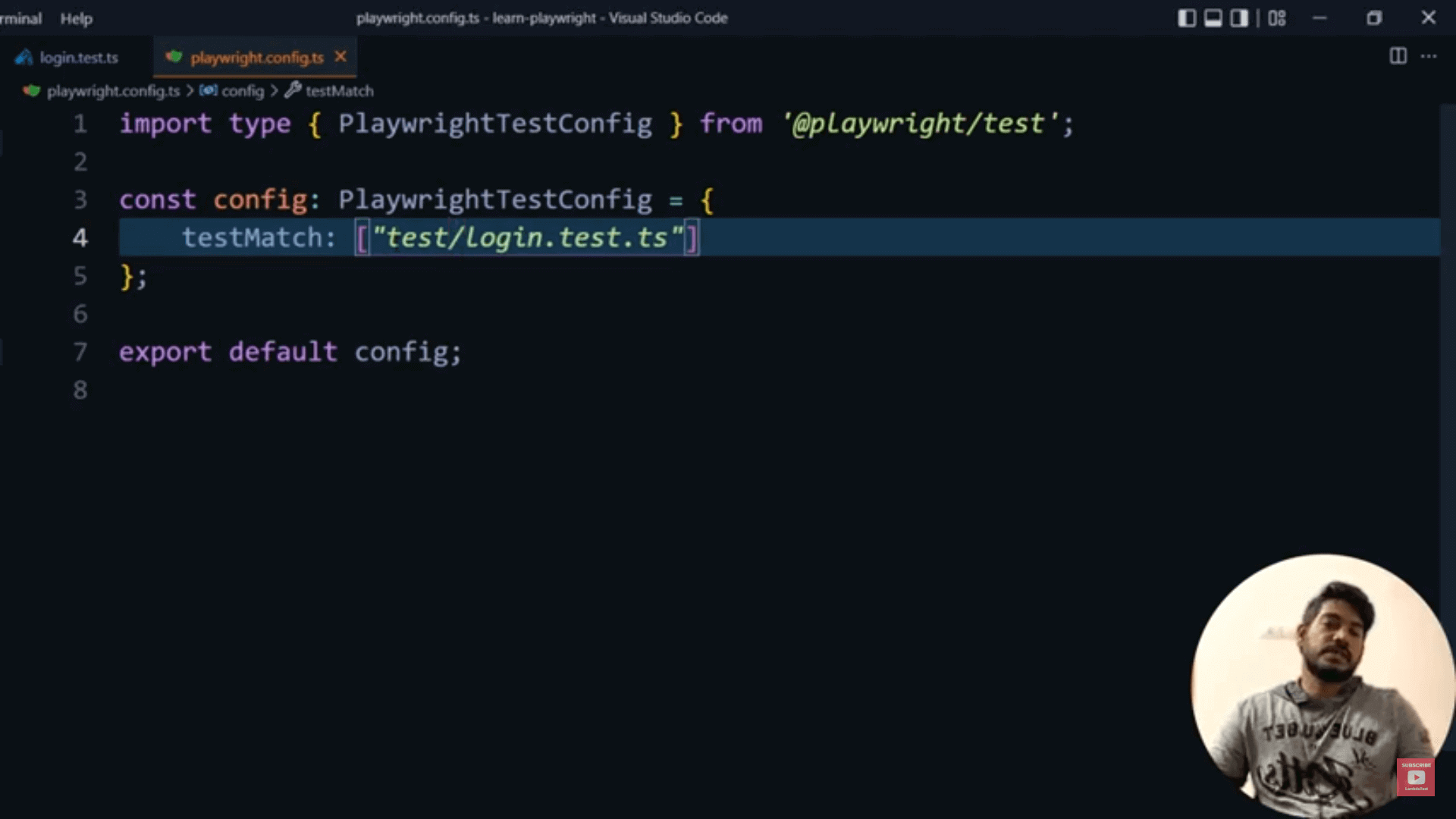
Post installation, you get a test folder. Under “playwright.config.ts” you need to delete the entire code except for the default code. The code consists of import statements with “PlaywrightTestConfig.” Next, you will need to export the import statement as a config.
Default code:
Import type { PlaywrightTestConfig } from ‘@playwright/test’;
const config: PlaywrightTestConfig = { };
export default config;
This is the default code. Hence, it’s called global configuration. Once you use the default code, it takes care of all the test codes in the future. Next, you need to create a new file called “login.test.ts.”

How to write a login script using Playwright?
We will use the TestMu AI eCommerce Playground (demo account).
Test Scenario:
- Go to My account and enter your credentials to log in.
- Under My account, right-click and choose Inspect.
- Next, we will right-click the Login text and open the Inspector. Under elements, we need to locate the word “login.” Here, we see only one term. Hence we do not consider the XPath locator but instead, use the direct locator.
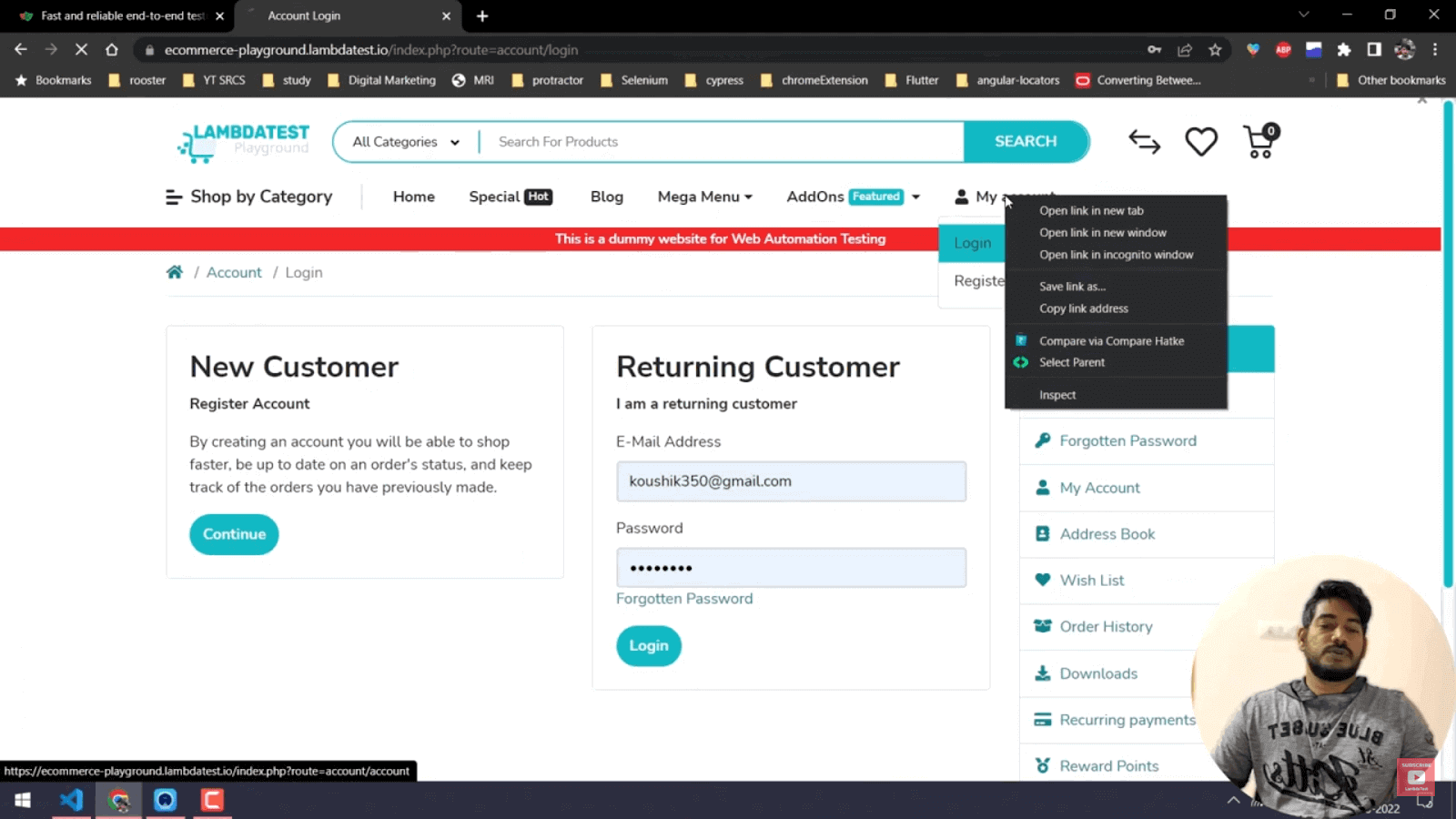
When we open the inspector, we need to locate “My account” under elements. For example, if the term “My account” exists in three different places, we cannot use the direct locator test.
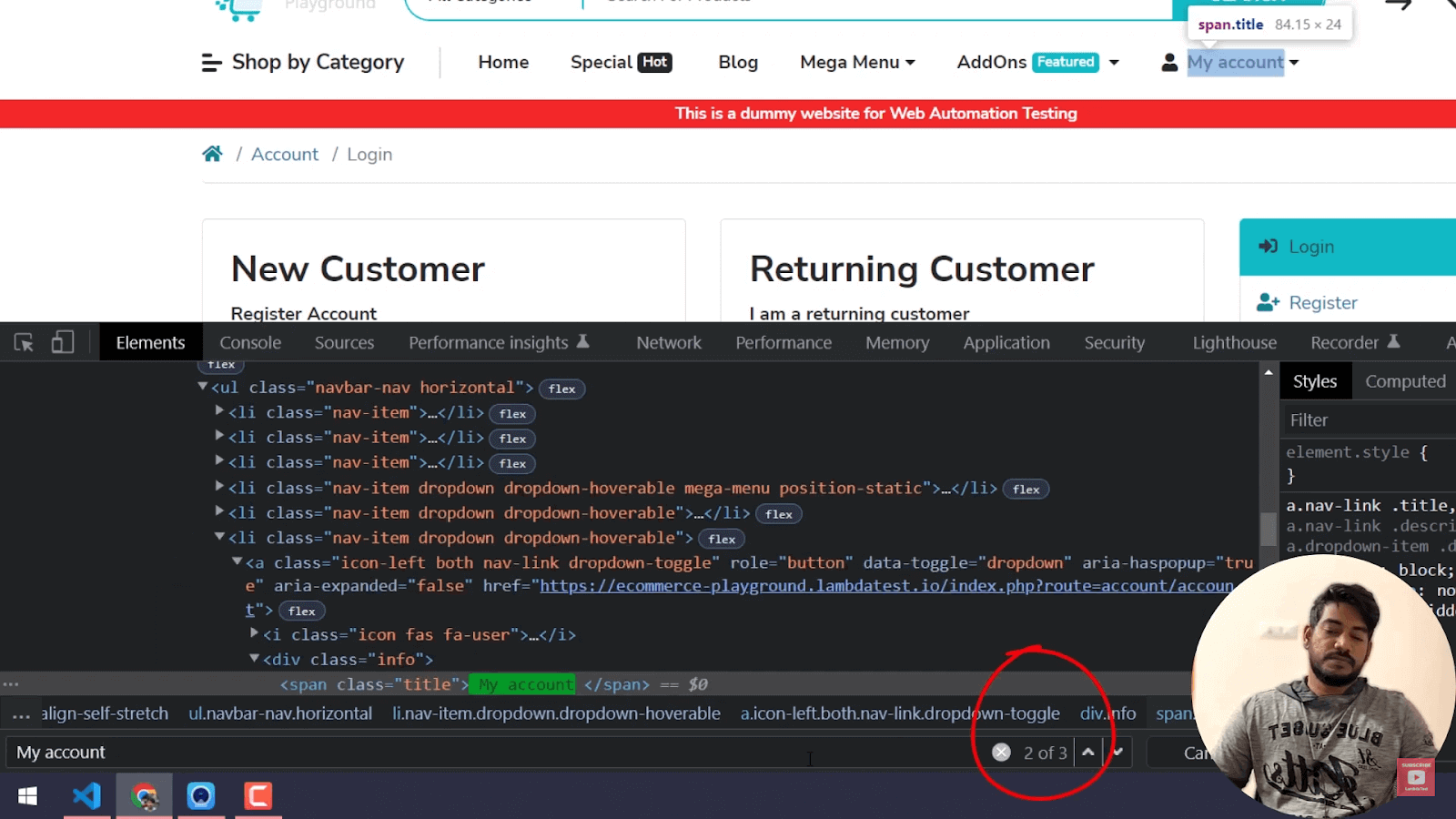
Instead, we need to go to the official Playwright website “playwright.dev”. Go to the Docs section. You can locate “Guides” under which there will be “Selectors.” Playwright has a wide variety of selectors to locate elements on the web page.
import { chromium, test } from "@playwright/test"

 test("Login test demo", async () => {

     const browser = await chromium.launch({
         headless: false
     });
     const context = await browser.newContext();
     const page = await context.newPage();

     await page.goto("https://ecommerce-playground.lambdatest.io/")
     await page.hover("//a[@data-toggle='dropdown']//span[contains(.,'My account')]")
     // await page.click("text=Login")
     await page.click("'Login'")
 })
How to execute the script using Playwright?
Let’s automate the login process to an e-commerce web application.
Test Scenario:
- Go to the TestMu AI eCommerce Playground.
- Click on the Login button.
- Enter your E-Mail Address and Password and hit the Login button.
Execute the script in VS Code -
- When we use VS Code, it is in either powershell or command prompt mode by default. However, it would be preferable to choose git bash as it is beneficial. In the VS Code, go to the config file that says “playwright.config file.”.
- We will run the file that says “login.test.test”
- Get back to the login test, and bring up the terminal using Ctrl+J.
- Now type -
- The test runs in the terminal.
- To view the browser, we need to go back to the login script and add the term “headless: false.”
- Go back to the TestMu AI eCommerce Playground, and enter your E-Mail Address and Password.
- Next, we will inspect the email address and password. We can view the XPath as well as CSS. Under CSS, we have a unique CSS selector that shows the name and password.
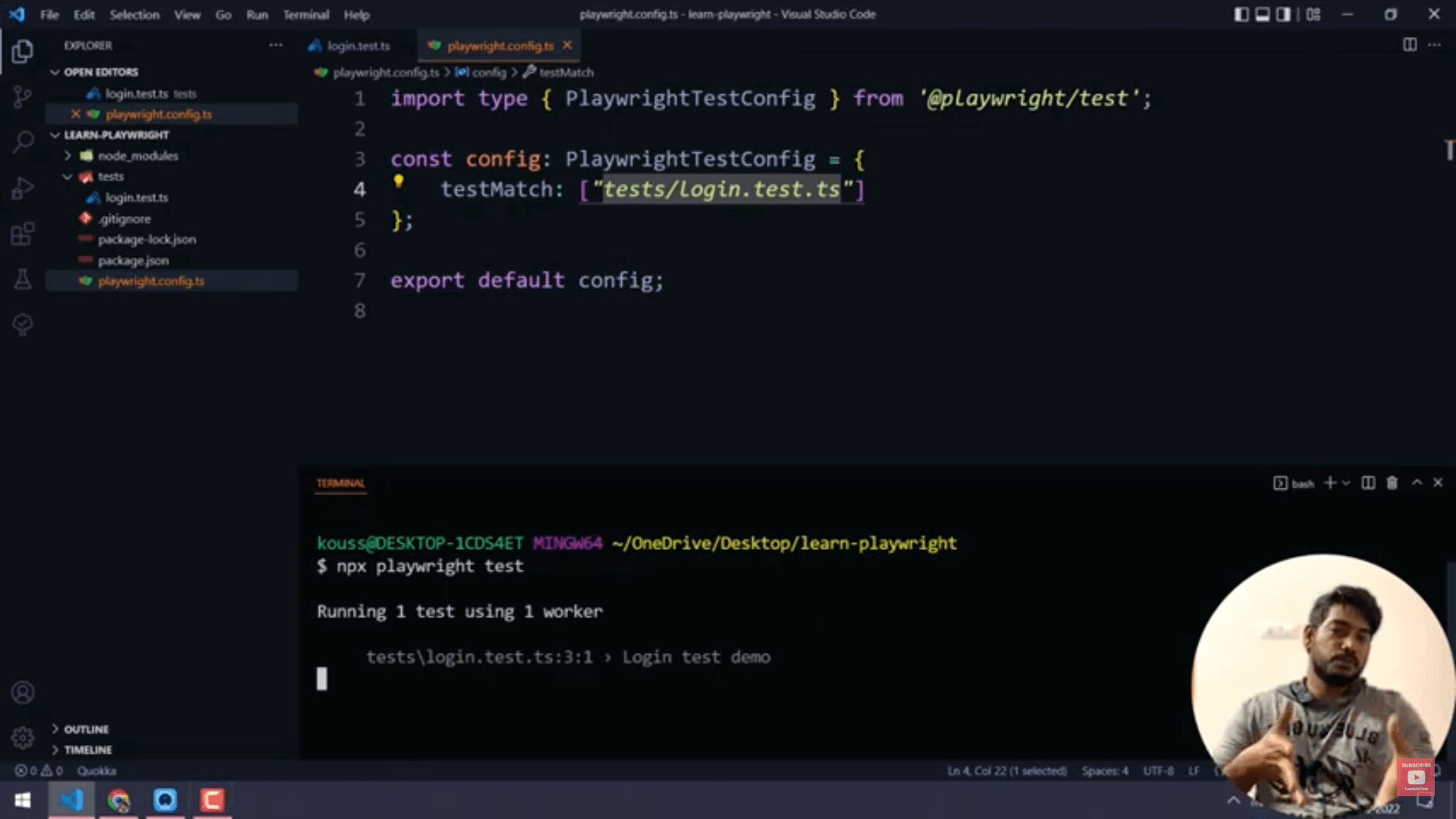
Playwright, by default, works in the headless mode. Hence we cannot see the browser in the taskbar.
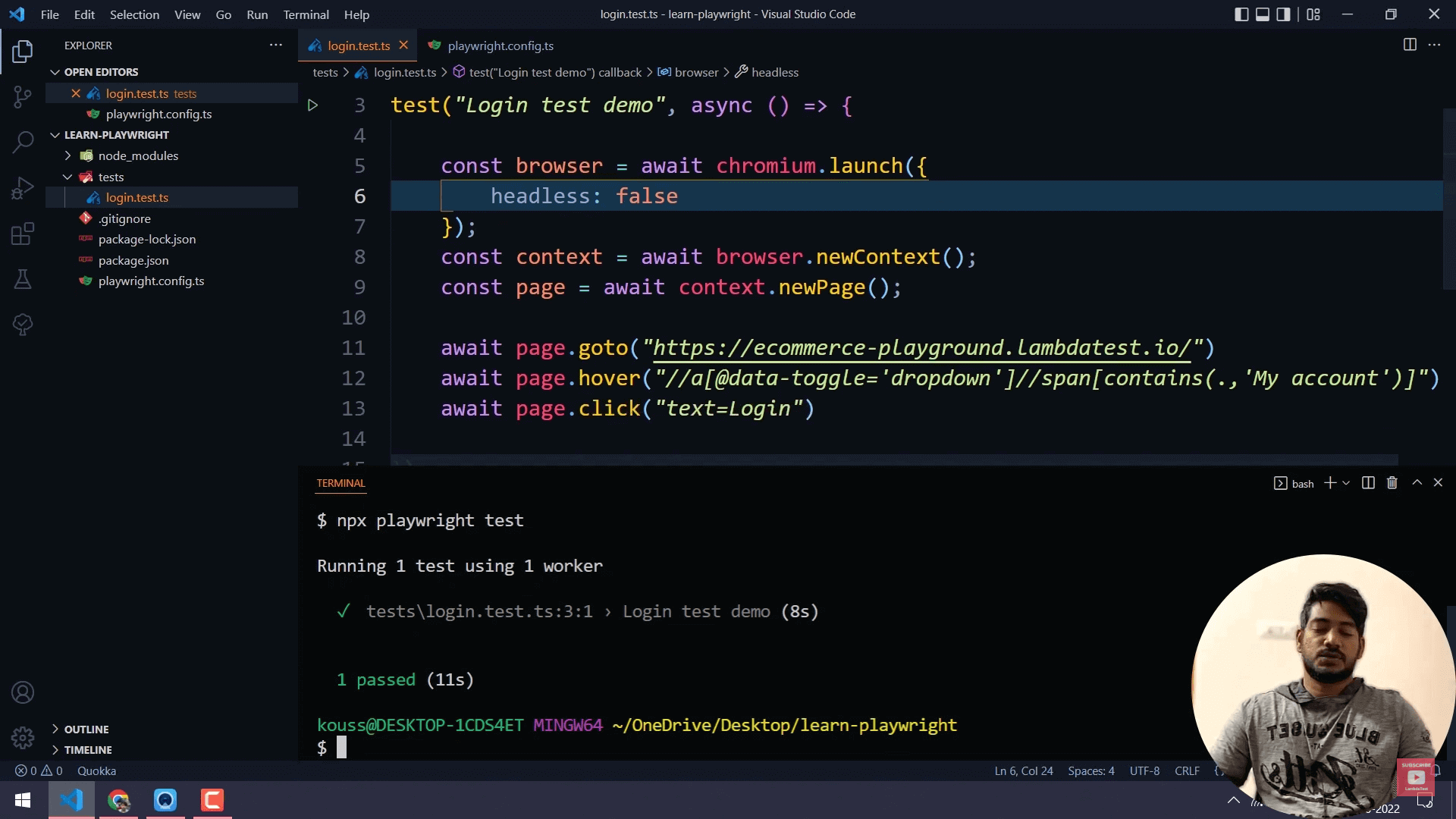
Eventually, we can see the browser and the launch of the website.
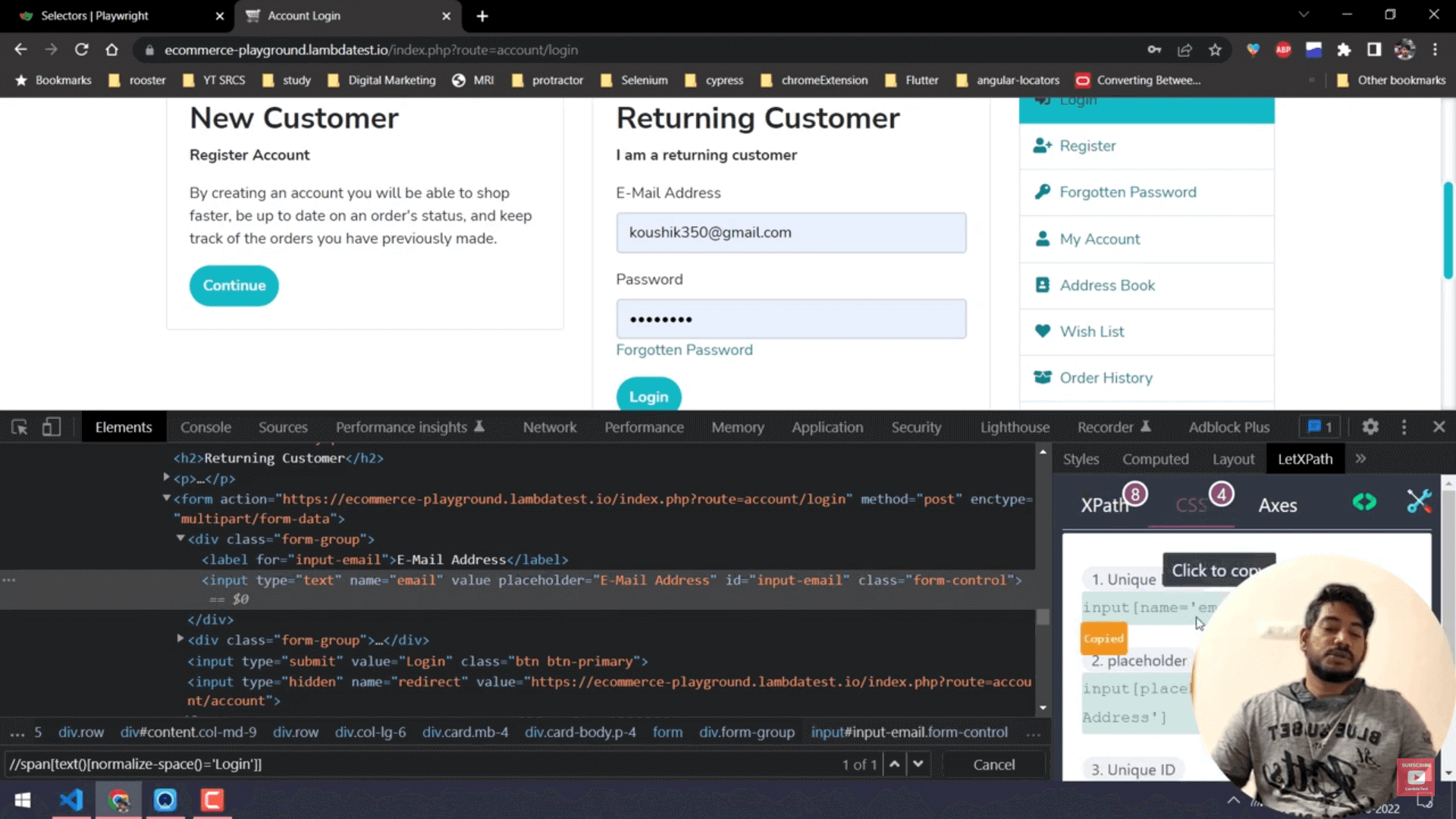
Copy this unique name and password from CSS into the VS Code. The function that we use is the “fill.”.
await page.fill(“input[name = ‘email’]”, “koushik350@gmail.com”)
await page.fill(“input[name = ‘password’]”, “Pass123$”)
await page.click(“input[value=’login’]”)await page.waitForTimeout(5000)When we execute the test in the terminal, it shows as a pass. We can conclude that we have successfully executed the test. Finally, on the TestMu AI eCommerce Playground, we will see the website's opening, followed by login and entering email and password. Bravo, the execution of the test is successful.
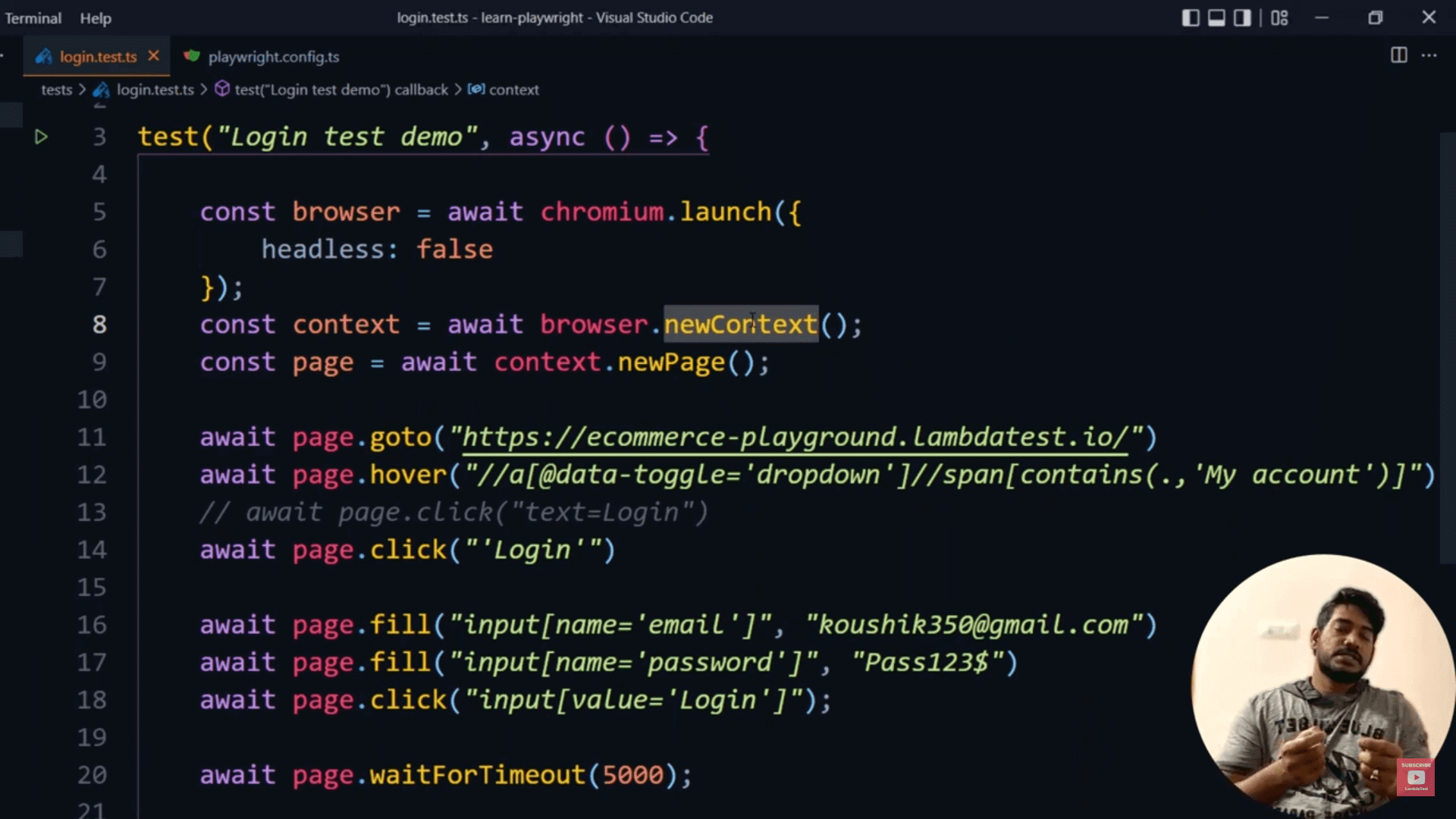
To sum up,
- Use the “goto” function to navigate to a site.
- Use the “hover” function to perform the mouse hover action.
- Use the “click” function to click on any element.
- Use the “fill” function to type and send test data.
- Use the “waitForTimeout” function so that the page loads completely, resulting in the proper execution of a test. It is similar to “thread.sleep”.
Understanding newPage and browserContext in Playwright Testing
newPage in Playwright
A page in the context of a browser is a single tab or popup window. It can navigate URLs and interact with page content.
Here’s an example of how newPage works:
- Open the TestMu AI eCommerce Playground.
- Enter your login credentials, and you will be redirected to a page that says “My account.”
- Open the same link in another tab. If your application supports assertion and cache, you will view the same page in the new tab. Likewise, if you log out in the first tab, the same repeats in the second tab (due to assertion and cache).
- Demonstrate these steps in the VS Code by navigating to the login URL. Execute the test under the terminal. We can view the same page in the first and second tabs.
browserContext in Playwright
browserContext allows you to run multiple independent browser sessions. For instance, when a page calls for the opening of another page, such as using an open window call, a popup will appear in the browser context of the parent page. It may consist of multiple pages. In an application, we don't carry forward Cache and Assertion.
Here’s an example of creating a context:
- Use the VS Code and enter the context code.
- Execute the test in the terminal.
- A new page opens, followed by the login.
- Next, it brings a new browser rather than a tab, as we use “context” in the code. There’s no usage of assertion or cache as it is a newContext.
const newContext = await browser.newContext()

const newPage = await newContext.newPage();
await newPage.goto("https://ecommerce-playground.lambdatest.io/index.php?route=aaccount/login")

await newPage.waitForTimeout(5000);
Scale Playwright Testing with the TestMu AI Cloud
To scale your Playwright test execution, use TestMu AI, a cloud-based test execution and test orchestration platform consisting of an automation testing grid spanning over 3000 browsers and OS systems. TestMu AI enables you to
- Execute the Playwright parallel testing over 50+ browsers and OS configurations and boost your release speed.
- Debug Playwright tests using various logs, including network logs, command logs, and complete video recordings.
- Execute Playwright tests 70% faster than any other testing cloud using TestMu AI's HyperExecute, the quickest end-to-end test orchestration cloud.
- Create a unique dashboard and widgets to organize your test analytics easily and integrate with your CI/CD tools.
TestMu AI’s automation testing cloud also supports Selenium, Cypress, Puppeteer, and even app automation frameworks such as Appium, Espresso, XCUITest, etc.

Conclusion
You have learned about using Playwright functions and selectors. The primary focus was on concepts such as launching a browser, executing a test and context, and creating new pages. I hope this tutorial provides a clear understanding of Playwright functions and selectors.
Here’s a glimpse of how you can perform Playwright browser testing on the TestMu AI cloud grid.
Subscribe to the TestMu AI YouTube Channel and stay updated with the latest Playwright topics.


Frequently asked questions
Did you find this page helpful?
More Related Hubs
TestMu AI forEnterprise
Get access to solutions built on Enterprise
grade security, privacy, & compliance
- Advanced access controls
- Advanced data retention rules
- Advanced Local Testing
- Premium Support options
- Early access to beta features
- Private Slack Channel
- Unlimited Manual Accessibility DevTools Tests